



Many people run into Wi-Fi issues and encounter terms that can be confusing at first. I’ve noticed that a network security key often sounds technical, but it is actually simple to understand once explained clearly.
It is the password that protects your Wi-Fi and controls who can connect to your network at any time.
In this guide, you will learn what this key means and why it matters for your daily internet use. You will learn how it works in simple terms, where to find it on your router or device, and how to change it if needed.
Simple steps will also help fix common connection problems without stress. By the end, you will feel more confident handling your Wi-Fi settings.
You will know how to keep your network safe, avoid slow speeds, and make sure only the right devices stay connected.
What Is a Network Security Key?
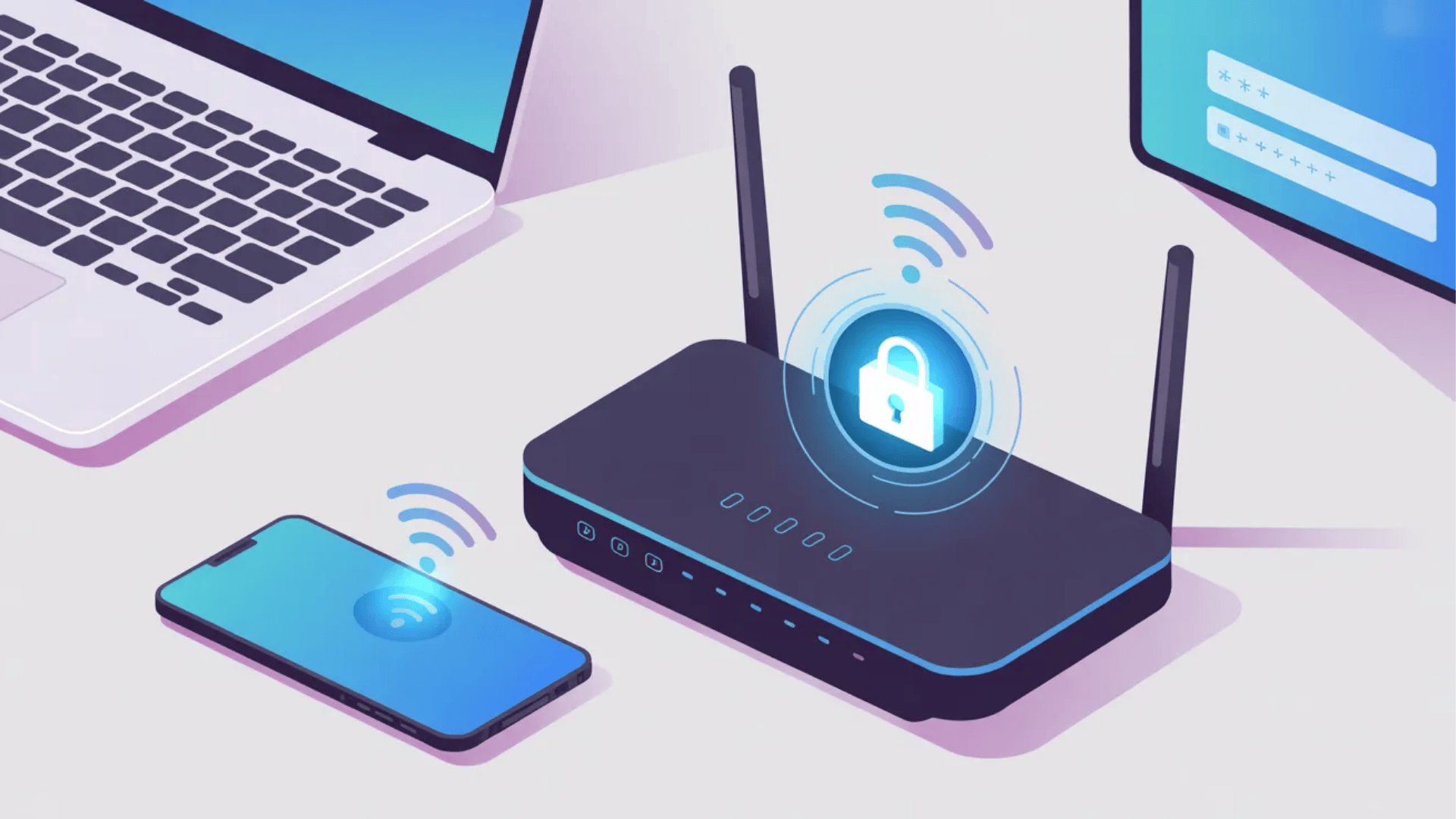
A network security key is the password that protects a Wi-Fi network. When you connect your phone, laptop, tablet, or smart TV, good IoT device security becomes important for keeping the network safe.
In simple terms, it works like a lock that keeps unknown users out of your network.
Without the correct key, devices cannot connect to the internet. Most routers come with a default network security key printed on a label, but many people change it later for better safety.
This key also helps protect your personal information by keeping your connection private while browsing, streaming, or checking emails.
Modern routers usually use WPA2 or WPA3 security because they offer stronger protection than older systems.
A strong network security key helps prevent slow internet speeds, unwanted access, and possible security risks from people trying to use your Wi-Fi without permission.
How to Find Network Security Key on Android?
Android phones let you view saved Wi-Fi details in just a few steps. The exact options may look different depending on the phone brand and Android version.
- Open Settings: Tap the Settings app on your Android phone and go to the Wi-Fi or Network section.
- Select Your Connected Network: Press the Wi-Fi name that your phone is currently connected to.
- Tap Share Option: Many Android phones show a “Share” button that displays network details after identity verification.
- Verify Your Identity: Use your fingerprint, PIN, or face unlock to continue and access the saved Wi-Fi information.
- View the Password: Some Android devices display the network security key directly below the QR code.
- Use QR Code if Needed: Another Android phone can scan the QR code to connect without typing the password manually.
- Check the router if the password is hidden: Older Android versions may not show the key, so checking the router label or settings page may help.
What Is a Network Security Key Used For?
A network security key protects your Wi-Fi network from unauthorized access. When I connect a device to Wi-Fi, I must enter the correct password.
You do the same. That key decides who can join the network and who cannot. Without it, anyone nearby could connect to and use your internet.
It serves as a basic security layer that prevents unauthorized users, including potential hackers, from accessing your private network. It also helps protect your data through encryption.
When you send information between your device and the router, the key scrambles the data so others cannot easily read it.
I think of it as locking your messages before they travel across the network.
For example, when you check your email or browse online, your network security key helps keep that activity private. It supports safer and more secure internet use.
How to Find Network Security Key on iPhone?
Apple devices store Wi-Fi details inside the phone settings for easier access. Some steps may vary slightly depending on the iPhone model and iOS version.
- Open Settings: Tap the Settings app on your iPhone and select the Wi-Fi option.
- Choose Connected Network: Press the small information icon next to the Wi-Fi network you are using.
- Tap Password Field: On newer iPhones, the saved Wi-Fi password appears as a hidden field you can open.
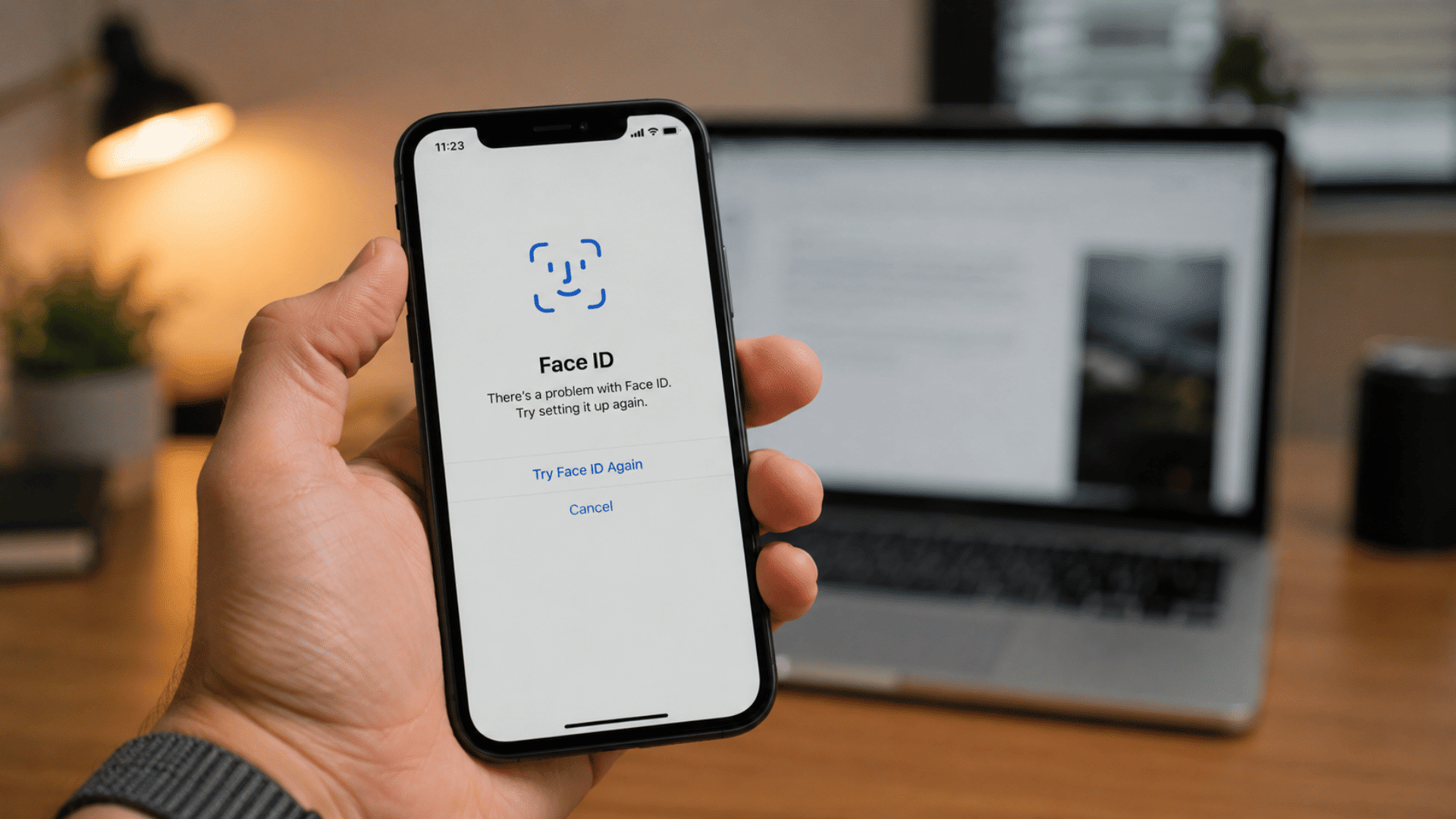
- Verify Identity: Use Face ID, Touch ID, or your iPhone passcode to unlock the saved password.
- View the Network Security Key: After verification, the password becomes visible and can also be copied.
- Use iCloud Keychain: If the password does not appear, Apple’s Keychain feature can help sync saved Wi-Fi passwords across Apple devices.
- Share Password Quickly: iPhones can also share Wi-Fi access with nearby Apple devices without manually typing the password.
Types of Network Security Keys
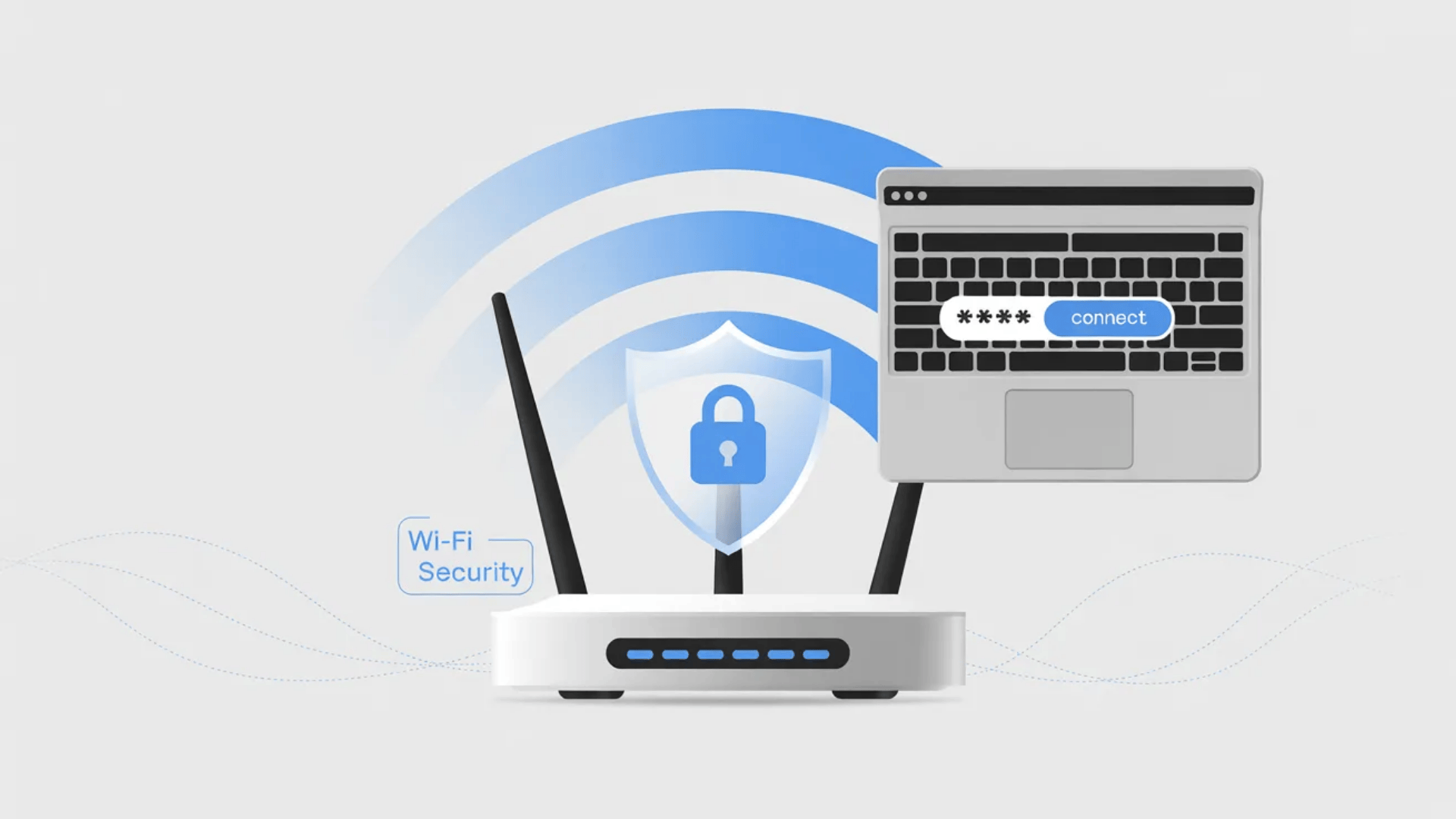
Different Wi-Fi security types offer different levels of protection. Below is a simple guide of each option so you can choose the safest setting for your network.
1. Wired Equivalent Privacy (WEP)
Wired Equivalent Privacy (WEP) is one of the oldest network security protocols. It was designed to provide basic protection for wireless networks, but over time, it became easy to break.
Hackers can quickly access networks that still use WEP due to weak encryption. Because of this, most modern routers no longer support it, or keep it as an option only for older devices.
It is not recommended for daily use. Switching to a stronger security type is a better way to keep data safe.
2. Wi-Fi Protected Access (WPA)
Wi-Fi Protected Access, known as WPA, was created to fix the problems found in WEP.
It offers better encryption and improved security features. WPA uses a system that regularly changes the key, making it harder for attackers to break in.
While it is more secure than WEP, it is now considered outdated compared to newer options.
Some older devices still rely on WPA, but most modern networks have moved on. It can still provide a basic level of safety, but upgrading to a newer type is always a smarter step.
3. Wi-Fi Protected Access 2 (WPA2)
Wi-Fi Protected Access 2 (WPA2) is one of the most widely used network security protocols today.
It provides strong encryption using advanced methods that keep data safe from unwanted access. Most home and office routers use WPA2 as the default setting.
It works well with a wide range of devices and offers a good balance of security and ease of use.
While it is still reliable, newer standards are now available. Even so, WPA2 remains a solid choice for protecting wireless networks.
4. Wi-Fi Protected Access 3 (WPA3)
Wi-Fi Protected Access 3 (WPA3) is the latest and most secure Wi-Fi security protocol. It improves on WPA2 by offering stronger encryption and better protection against password-guessing attacks.
WPA3 also makes it safer to connect to public Wi-Fi networks.
Newer devices and routers support this standard, but some older devices may not be compatible.
It is designed to provide higher security without making the setup process difficult. Choosing WPA3 is the best option for those who want the highest level of network protection.
The table below compares the main types of network security keys, their protection levels, and where each one stands in modern Wi-Fi security.
| Security Type | Security Level | Main Features | Current Status | Recommended Use |
|---|---|---|---|---|
| WEP | Very Weak | Basic encryption with older security methods | Outdated and easy to hack | Not recommended |
| WPA | Weak to Moderate | Better encryption than WEP with changing security keys | Older standard with limited protection | Only for older devices if needed |
| WPA2 | Strong | Advanced encryption and wide device support | Still commonly used today | Good choice for home and office Wi-Fi |
| WPA3 | Very Strong | Improved encryption and stronger password protection | Latest Wi-Fi security standard | Best option for maximum network safety |
Where to Find Your Network Security Key?
If you cannot remember your network security key, I suggest checking a few common places. You do not need advanced technical skills. Just follow these simple steps.
- Router Label: Look at the back or bottom of the router. The network security key is often printed as “Wi-Fi Password” or “Security Key.”
- Router Settings Page: Open your browser and log in to your router using its IP address. The key is listed under wireless or security settings.
- Connected Device (Windows): Go to Network Settings, open Wi-Fi properties, and view the saved password under security options.
- Connected Device (Mac): Use Keychain Access, search for the network name, and check the saved password.
- Internet Service Provider (ISP): Contact your provider if the key was changed and you cannot find it.
How to Create a Strong Network Security Key?
A strong network security key helps protect your Wi-Fi from unauthorized access and keeps personal data safer. The best passwords are long, hard to guess, and different from common words or personal details.
Use a mix of uppercase letters, lowercase letters, numbers, and symbols to create better protection.
Avoid simple passwords like “12345678” or your name because they are easier to crack. A good security key should be at least 12 to 16 characters long.
It is also smart to avoid using the same password for multiple accounts or devices.
Changing the network security key from time to time can improve safety, especially after sharing Wi-Fi access with guests.
Using WPA2 or WPA3 security with a strong password gives better protection for modern Wi-Fi networks.
Network Security Key vs Router Admin Password
Both settings help manage and protect your Wi-Fi network in different ways. Knowing the difference makes it easier to fix connection and router access problems.
| Feature | Network Security Key | Router Admin Password |
|---|---|---|
| Main Purpose | Connects devices to Wi-Fi | Opens router settings page |
| Common Name | Wi-Fi password | Router login password |
| Used By | Phones, laptops, tablets, smart TVs | Network owner or administrator |
| Where It Is Entered | During Wi-Fi connection | On the router login page |
| Protects | Wireless network access | Router settings and controls |
| Default Location | Printed on router label | Printed on router label |
| Can Be Changed | Yes | Yes |
| Example Use | Joining a home Wi-Fi network | Changing Wi-Fi name or password |
How to Change Your Network Security Key?
Changing the key helps keep the network safe from unwanted access. It is a simple process that can be done from the router settings page.
1. Log In to Your Router
Start by opening a web browser on a device connected to the network. Type the router’s IP address, such as 192.168.1.1, into the address bar.
Enter the admin username and password to access the settings page. These login details are often printed on the router label or provided by the internet provider.
Once logged in, the main dashboard will appear. This is where all network settings can be managed.
Make sure the connection stays stable throughout the security key update to avoid interruptions.
2. Find Wireless Settings
After logging in, look for a section labeled “wireless settings,” “Wi-Fi settings,” or “security settings.” The name may change based on the router brand, but it is usually easy to spot.
Click on that section to open the options related to your network. Details such as the network name and password are shown. Take a moment to review the current setup.
This step is important because it helps locate the exact place where the network security key can be changed without affecting other settings.
3. Change the Security Key
In the wireless settings section, find the field labeled password, passphrase, or network security key.
Delete the old key and enter a new one that is strong but easy to remember. Use a mix of letters and numbers for better safety. Avoid using simple or common passwords.
After typing the new key, double-check it to prevent errors. This step updates the password that devices must enter to connect.
A clear, correct entry ensures the network remains protected and easy for approved users to access.
4. Save and Reconnect Devices
Once the new key is entered, click the save or apply button to apply the changes. The router may restart, which can briefly disconnect all devices.
After that, reconnect each device using the new network security key. Enter the updated password when prompted. Make sure every device connects properly without issues.
This final step confirms that the new key is working as expected. It also ensures that only users with the updated password can access the network moving forward.
Benefits of Using a Strong Network Security Key
Your Wi-Fi password protects both your internet access and your personal data. Using a stronger key helps reduce common security risks and keeps your network safer.
- Protection Against Unauthorized Access: A strong password makes it harder for unauthorized users to connect, helping prevent slow speeds and unwanted usage.
- Reduced Privacy Risks: When the network is secure, it lowers the chance of someone tracking online activity or misusing the connection, especially when using public networks and learning what is safe to do over public Wi-Fi.
- Prevents Data Interception: Strong encryption scrambles data sent between devices and the router, preventing interception.
- Lowers Identity Theft Risk: A secure key helps protect personal details and login credentials from exposure or theft.
- Stronger Overall Security: Using a long password with letters, numbers, and symbols, along with WPA2 or WPA3, adds better protection to the network and helps prevent viruses and malicious code from spreading through.
What Does Network Security Key Mismatch Mean?
A network security key mismatch means the password entered for a Wi-Fi network does not match the one saved on the router.
This error usually appears when connecting a phone, laptop, tablet, or smart TV to Wi-Fi. Even a small typing mistake, such as a wrong letter, number, or symbol, can cause the connection to fail.
The issue may also happen after changing the Wi-Fi password or resetting the router.
In some cases, a device may still remember an old password and try using it automatically.
Removing the saved network and reconnecting often fixes the problem quickly. Restarting the router can also help refresh the connection.
Checking the security type, such as WPA2 or WPA3, is also important because some older devices may not support newer Wi-Fi security settings properly.
Network Security Key vs Wi-Fi Password: Are they the same?
Yes, in most home setups, a network security key is basically the same as your Wi-Fi password.
These two terms are often used in different places, but they point to the same thing. When a phone, laptop, or tablet connects to a Wi-Fi network, the password entered at that moment is the network security key.
It acts as a gatekeeper, allowing only approved users to access the internet connection.
The main difference lies in how the terms are used. “Wi-Fi password” is the everyday phrase most people understand and use.
In contrast, “network security key” is a more technical term that appears in system settings, network prompts, or device configurations.
Despite this difference in wording, both terms serve one clear purpose: protecting the network.
Common Issues Related to Network Security Keys and Their Fixes
Small Wi-Fi problems can stop devices from connecting even when the network is working properly. Most issues can be solved with a few simple checks and updated settings.
| Common Issue | What Causes It | Simple Fix |
|---|---|---|
| Incorrect Password | Wrong letters, numbers, or symbols entered | Re-enter the password carefully and check capital letters |
| Changed Security Key | Router password was updated | Enter the new password on all connected devices |
| Saved Old Network Settings | The device still remembers the old password | Forget the network and reconnect using the updated key |
| Unsupported Security Type | Older devices may not support WPA3 | Change router security to WPA2 or mixed WPA2/WPA3 mode |
| Router Reset | Router returned to factory settings | Use the default password printed on the router label |
| Weak Wi-Fi Signal | Poor signal causes connection errors | Move closer to the router or restart the router |
| Too Many Connected Devices | The network becomes slow or unstable | Disconnect unused devices from the network |
| Router Software Issues | Outdated firmware can affect connections | Update the router firmware from the settings page |
Conclusion
Your network security key may seem like a small detail, but it plays a big role in keeping your Wi-Fi safe. It controls who can access your network and helps protect your online activity from unwanted users.
I have seen how easy it is to ignore router settings until a problem happens. Most people only check their Wi-Fi security after a slow connection or a login issue.
Once you understand how this key protects your connection, it becomes clear why it deserves regular attention.
Checking your security type, updating your password, and using strong encryption can make a real difference. These are simple steps, but they help protect your devices, personal data, and internet usage every day.
What about you? Have you ever changed your network security key or faced connection issues? Share your experience in the comments below.
Frequently Asked Questions
What Is Another Word for Network Security Key?
Another word for a network security key is Wi-Fi password. It is the code used to connect devices to a wireless network.
What Happens if You Forget Your Network Security Key?
You can find it on the router label or in the router settings page. Resetting the router will also restore the default key.
Is a Network Security Key the Same as a Password?
Yes, both terms mean the same thing in most cases. They are used to control access and protect the network.
What Number on the Router Is the Network Security Key?
It is labeled as Wi-Fi Password, Security Key, or Passphrase. You can find it printed on the back or bottom of the router.