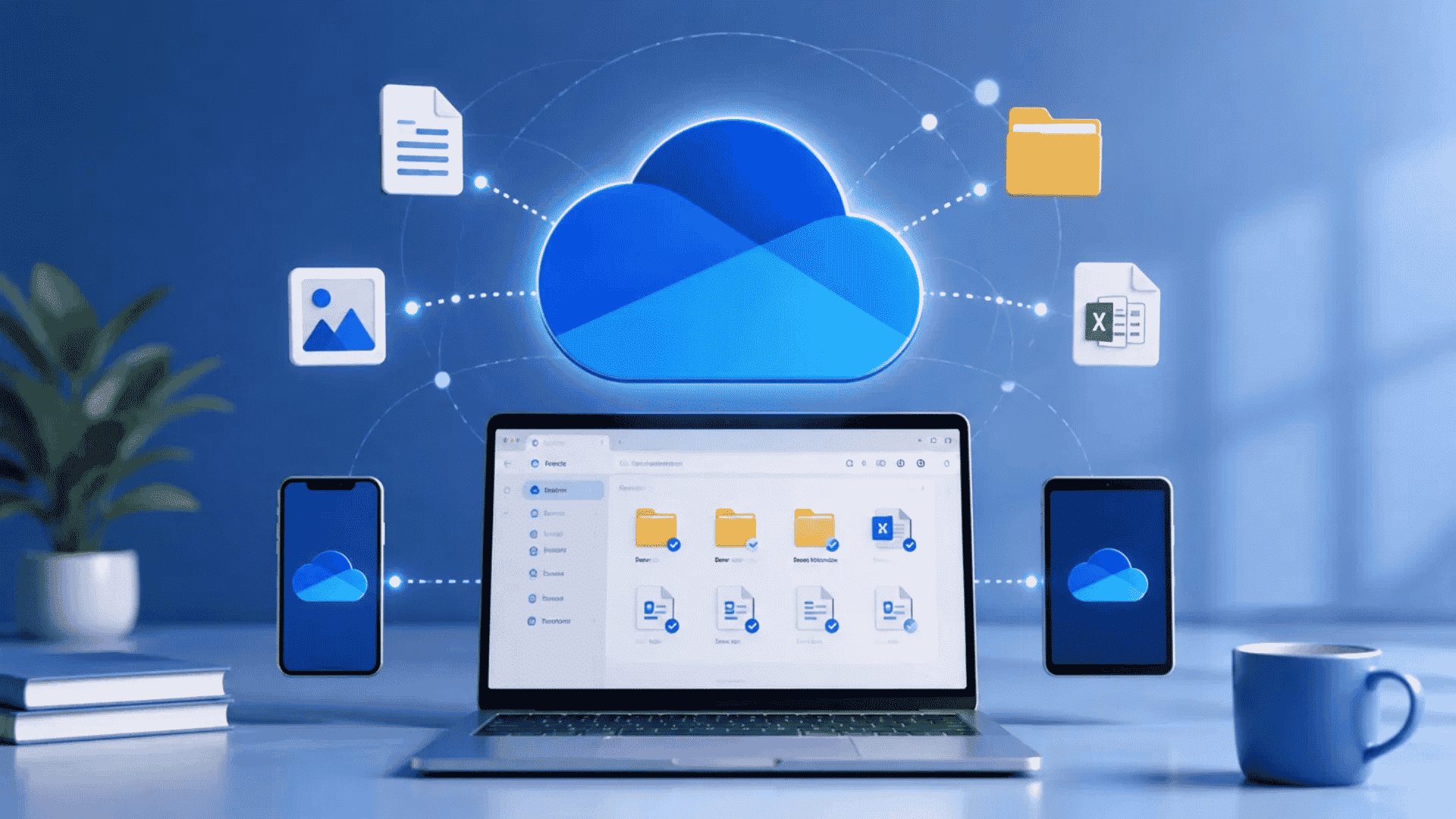




You save a document on your laptop, open it later on your phone, and find the latest version already waiting for you. That simple experience shows how OneDrive works.
OneDrive is Microsoft’s cloud storage and file synchronization service, designed to keep your files accessible across connected devices.
A file can stay in Microsoft’s cloud, remain on your device, or exist in both places, depending on your settings. When you edit, rename, move, or save a file, OneDrive synchronizes those changes automatically.
You can access your content through Windows, Mac, mobile apps, or a web browser. Your files stay private unless you choose to share them.
Internet access is required for new uploads and updates, although selected files can work offline. Next, let’s look at what OneDrive does and how each part of the process works.
What is OneDrive and What does it Do?
OneDrive is Microsoft’s cloud storage service that lets you store, synchronize, and access your files from almost anywhere.
It works with personal Microsoft accounts as well as work and school accounts, making it useful for both everyday and professional use.
You can save documents, photos, videos, and other files, then open them on Windows, Mac, Android, iPhone, or through any web browser.
OneDrive also works closely with Microsoft 365 applications, making it easy to save and update files automatically.
Microsoft has also begun integrating Copilot directly into OneDrive, allowing users to summarize documents, review PDFs, and compare files without switching apps.
Although you’ll see a OneDrive folder in File Explorer, it is more than a regular computer folder. That folder is connected to Microsoft’s cloud, allowing your files to stay synchronized and available across your connected devices.
How to Use Microsoft OneDrive: Step by Step
Getting started with OneDrive is straightforward once you understand how your account, application, and cloud folder work together. Follow these steps to set it up correctly and begin managing your files across devices.
1. Sign in With a Microsoft Account
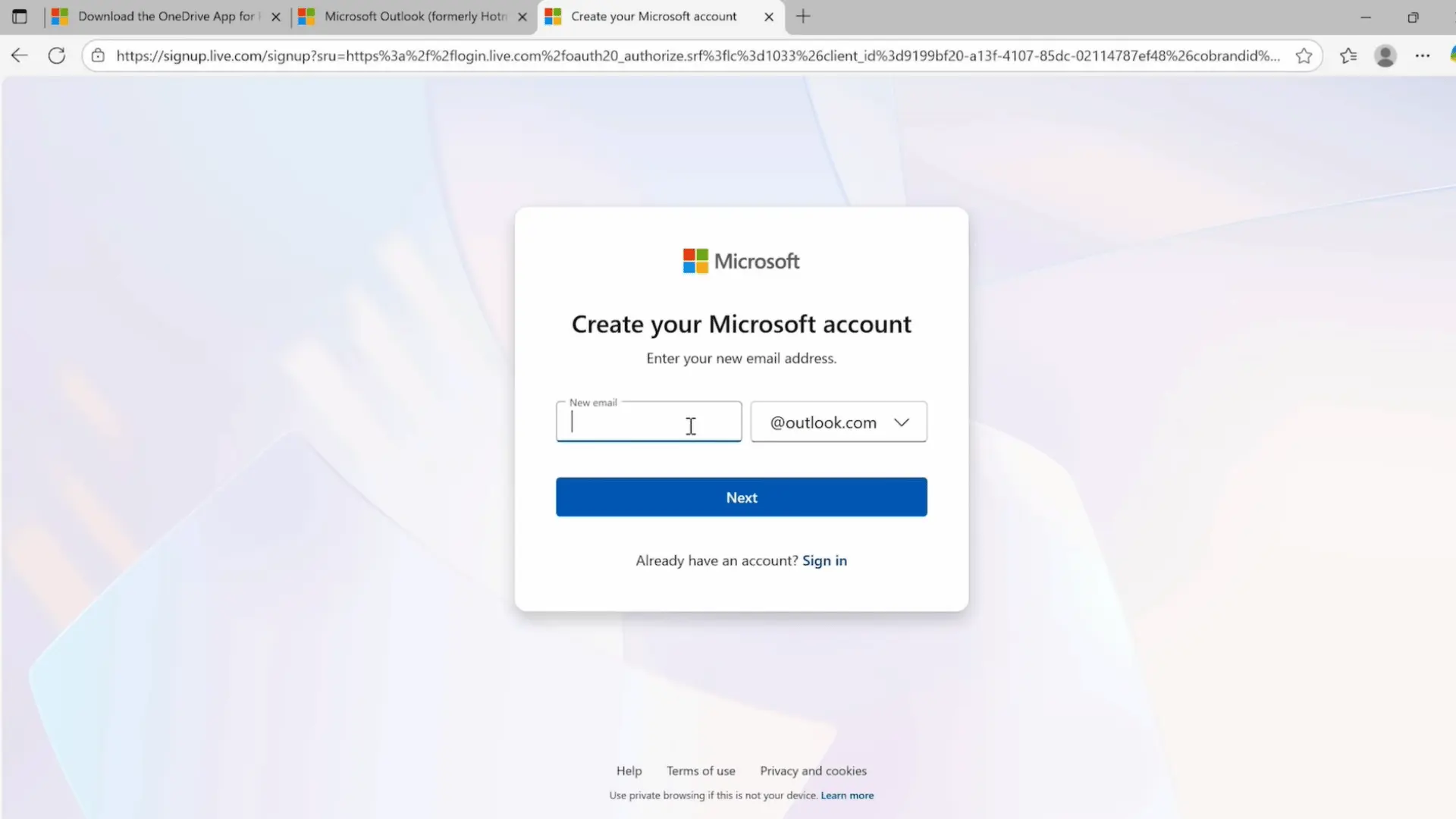
Open OneDrive and sign in with your personal, work, or school Microsoft account. You may already have one if you use Outlook, Hotmail, Microsoft 365, Xbox, or a Microsoft account to sign in to Windows.
Use the same account on every device where you want to access your files.
If you do not have an account, create one through Microsoft’s sign-up page before continuing with the OneDrive setup.
2. Open or Install the OneDrive
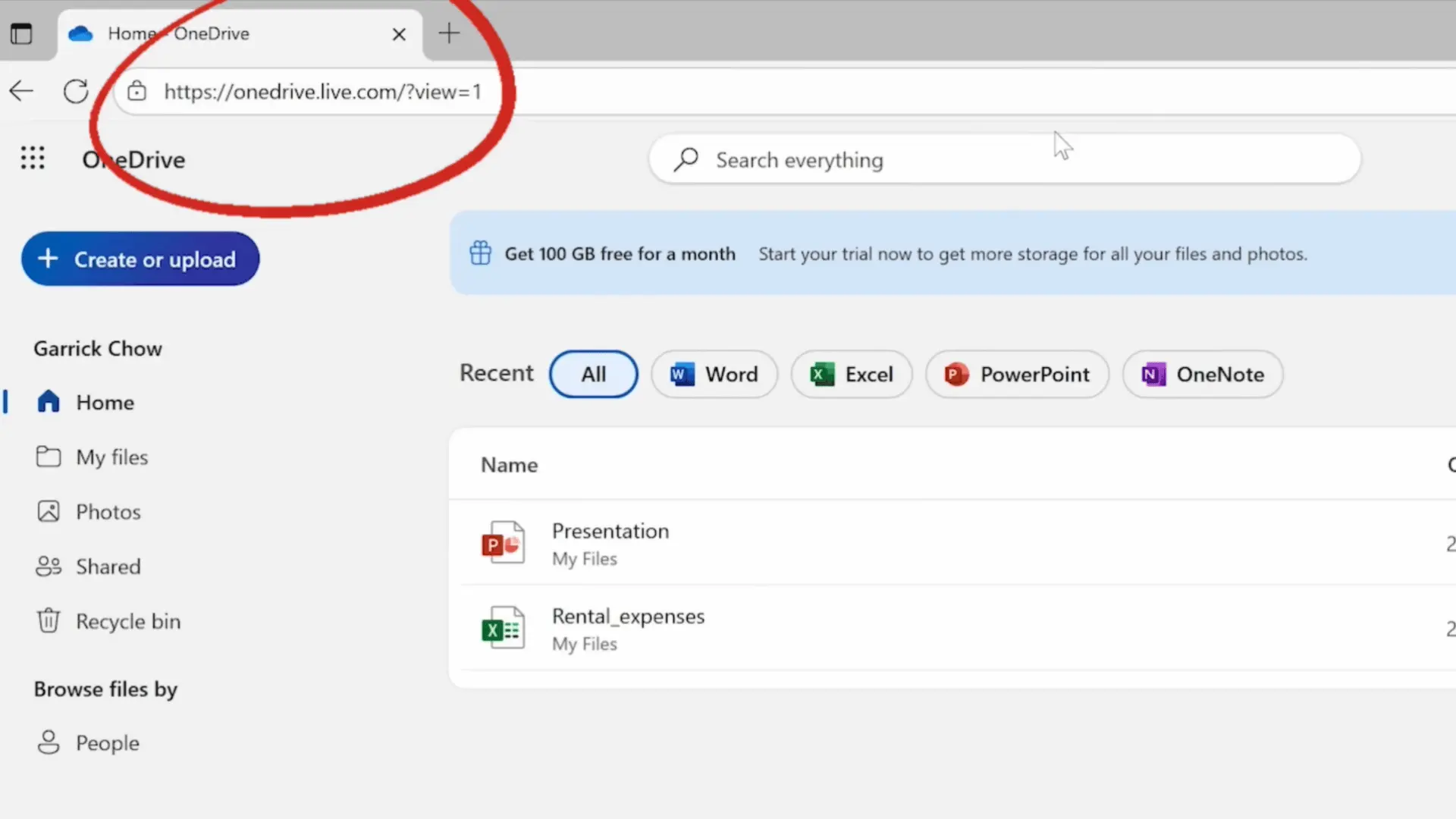
Windows 10 and Windows 11 usually include OneDrive, so search for it from the Start menu or select the cloud icon in the taskbar.
Mac users can install it from the Mac App Store, while Android and iPhone users can download the mobile application.
You can also access your files through the OneDrive website without installing anything, which is useful when working on a temporary or shared computer.
3. Complete the Initial Setup
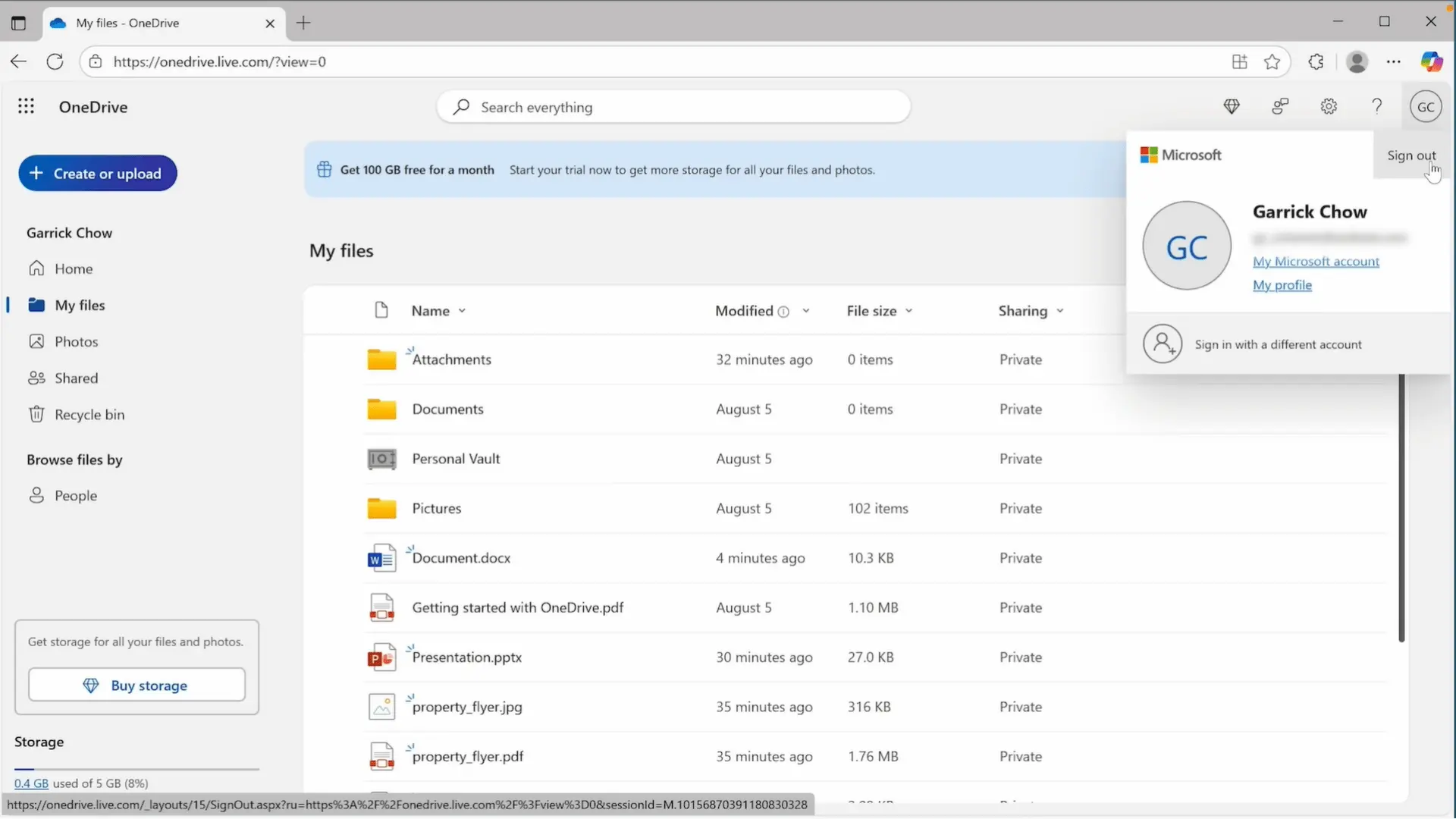
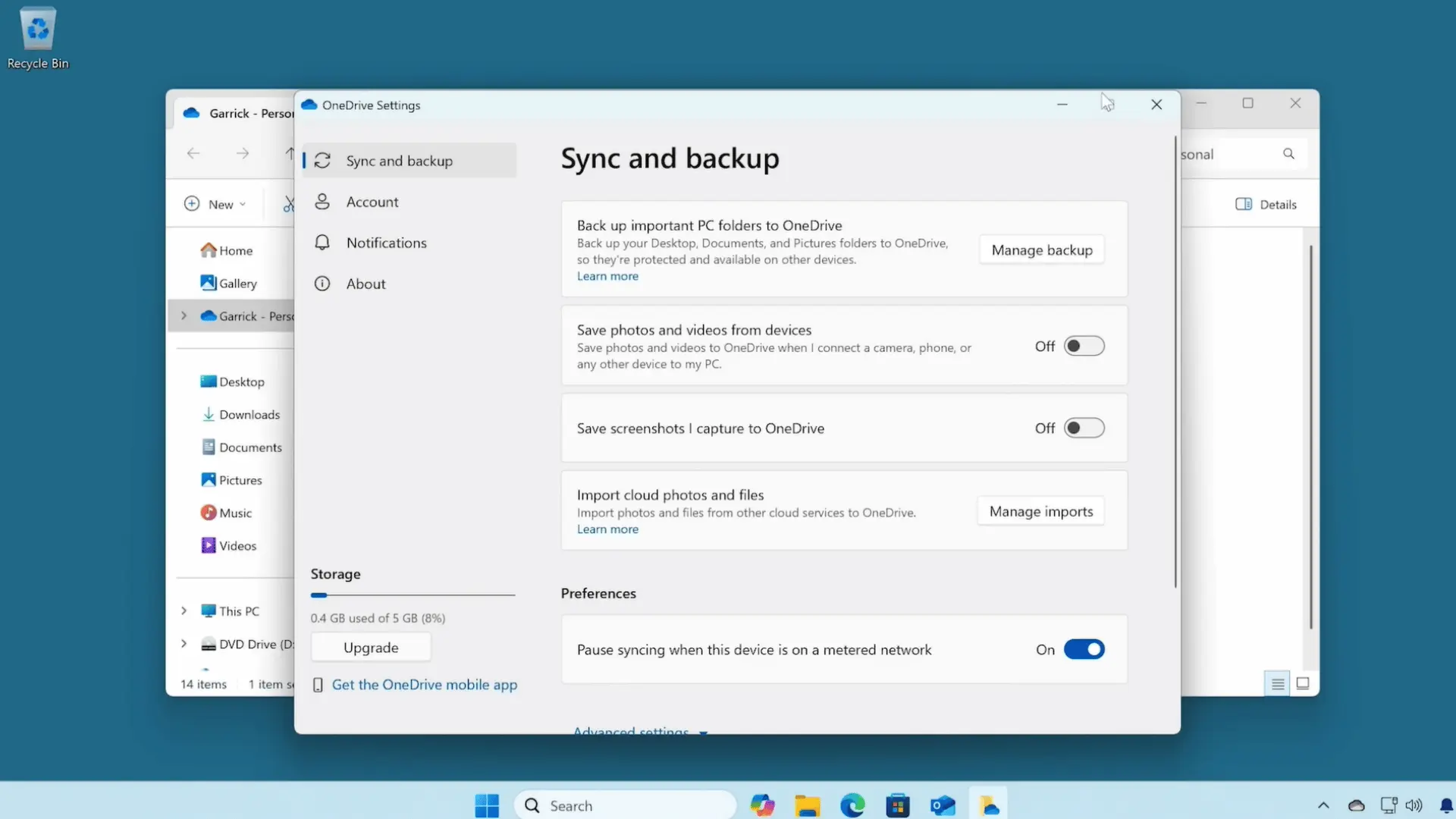
After signing in, OneDrive creates a connected folder on your computer. Choose where this folder should appear and review which cloud folders you want available on that device.
Files placed inside it can synchronize with Microsoft’s cloud and your other signed-in devices. Before continuing, confirm that you selected the correct account, especially if you use separate personal and work accounts.
Avoid connecting confidential work storage to a public or shared computer.
4. Upload and Organize Your Files
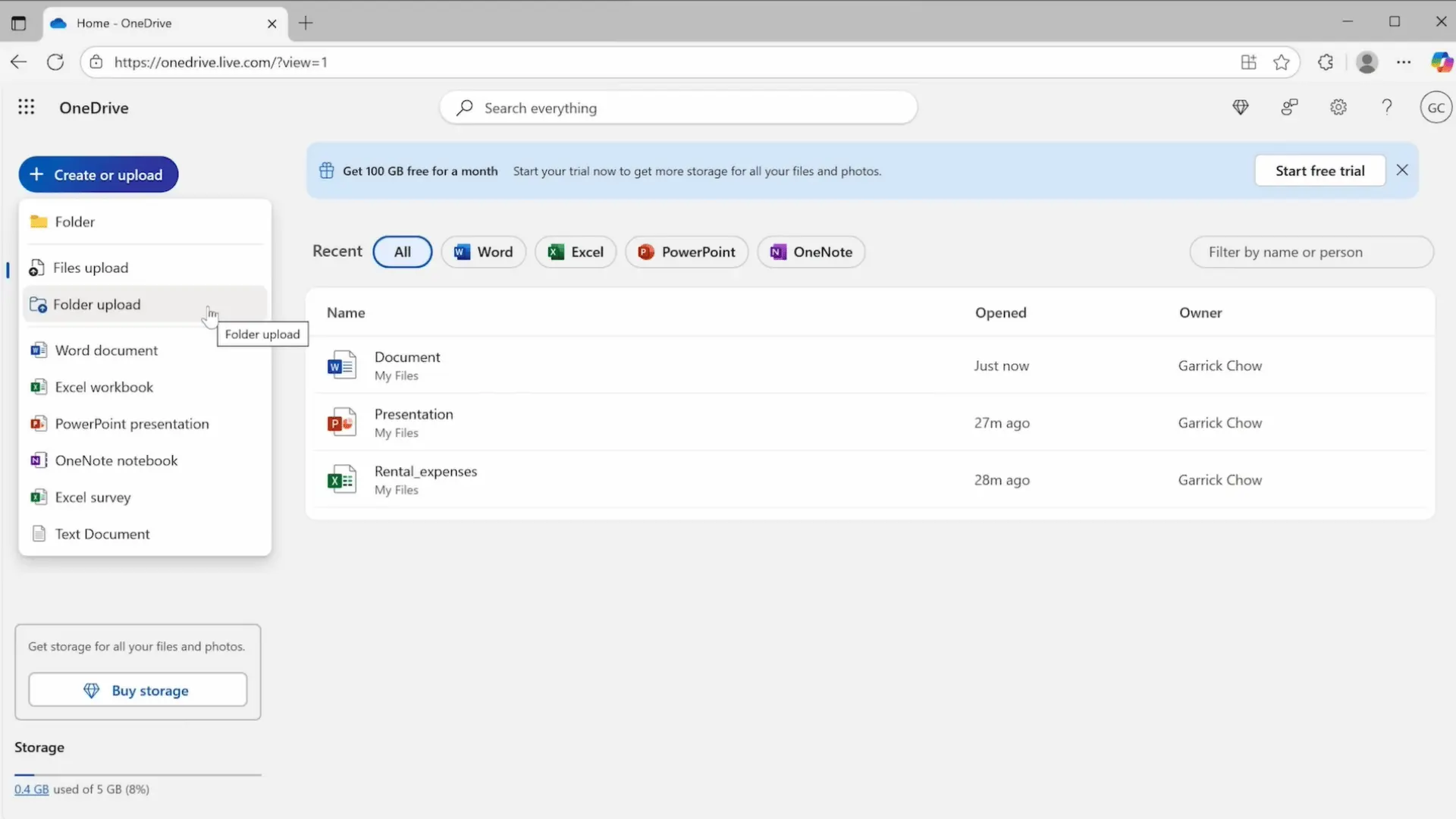
Start adding content by dragging files into the OneDrive folder or selecting Create or Upload in the web version. You can upload individual files, complete folders, photos, videos, and documents.
OneDrive also lets you create Word, Excel, PowerPoint, and OneNote files directly in your browser. Organize everything into clearly named folders from the beginning.
For example, create one project folder with separate subfolders for contracts, images, invoices, and working documents.
5. Check the Synchronization Status
After adding files to OneDrive, check the small status icons beside them to confirm that synchronization has finished.
Wait until your changes have finished uploading before closing the application or disconnecting from the internet. You only need to confirm the status at this stage.
The different OneDrive icons, including online-only, offline, shared, and error symbols, are explained in detail later in this guide.
6. Share Files and Collaborate With Others
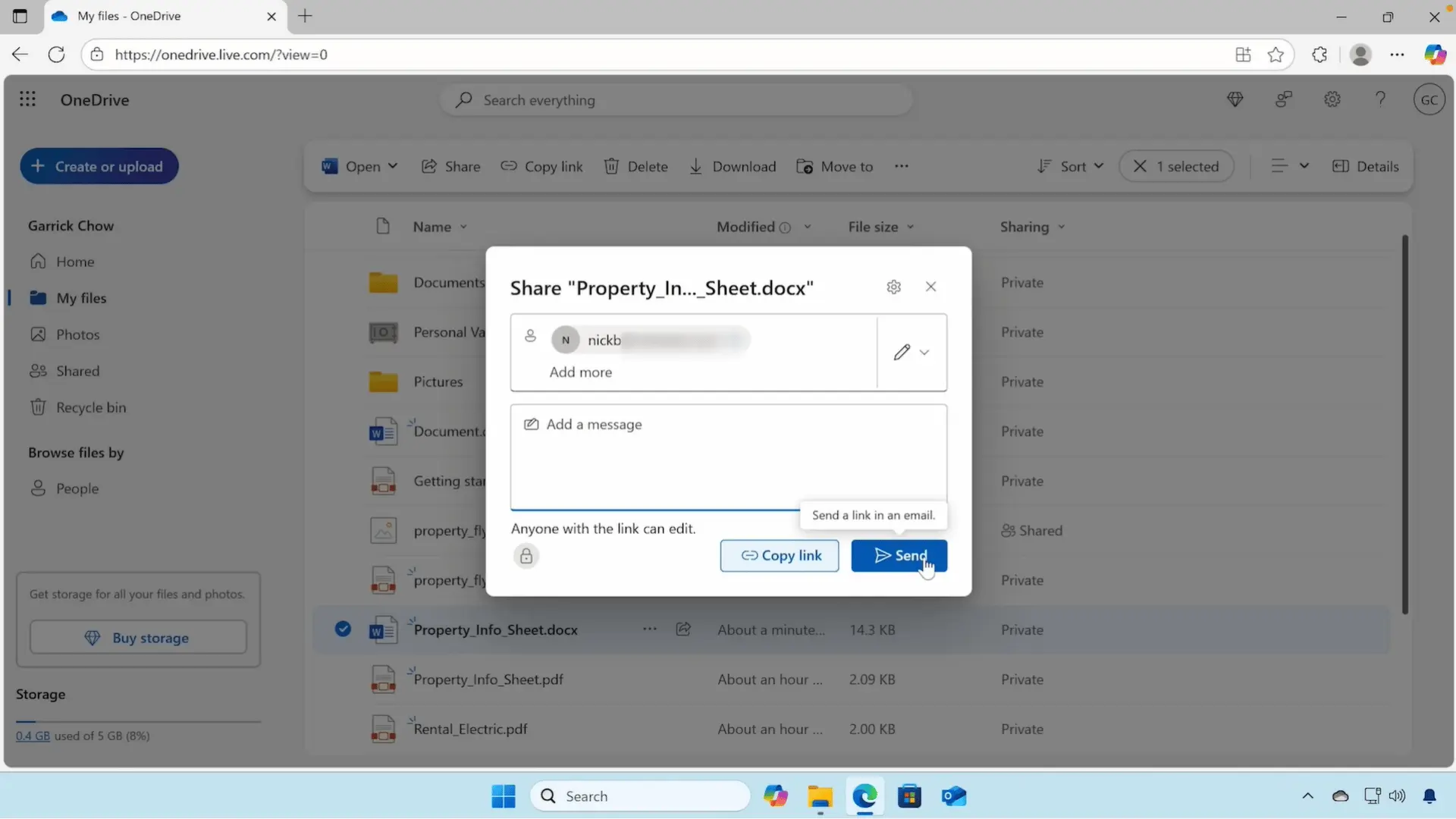
Instead of emailing large attachments, share a OneDrive link. You can invite specific people by email or generate a shareable link, then choose view-only or editing access.
Microsoft is also rolling out Hero Links, a single access-controlled sharing link designed to make it clearer who has permission to view, edit, or reshare a file, replacing some of the confusion around older sharing toggles.
If several people work on the same Microsoft 365 document, changes are synchronized automatically, helping everyone stay on the latest version.
Before sending a link, check these permissions:
- Can Edit: Others can make changes to the file.
- Can View: Others can open the file but cannot modify it.
7. Make Files Available Offline or Free Up Storage
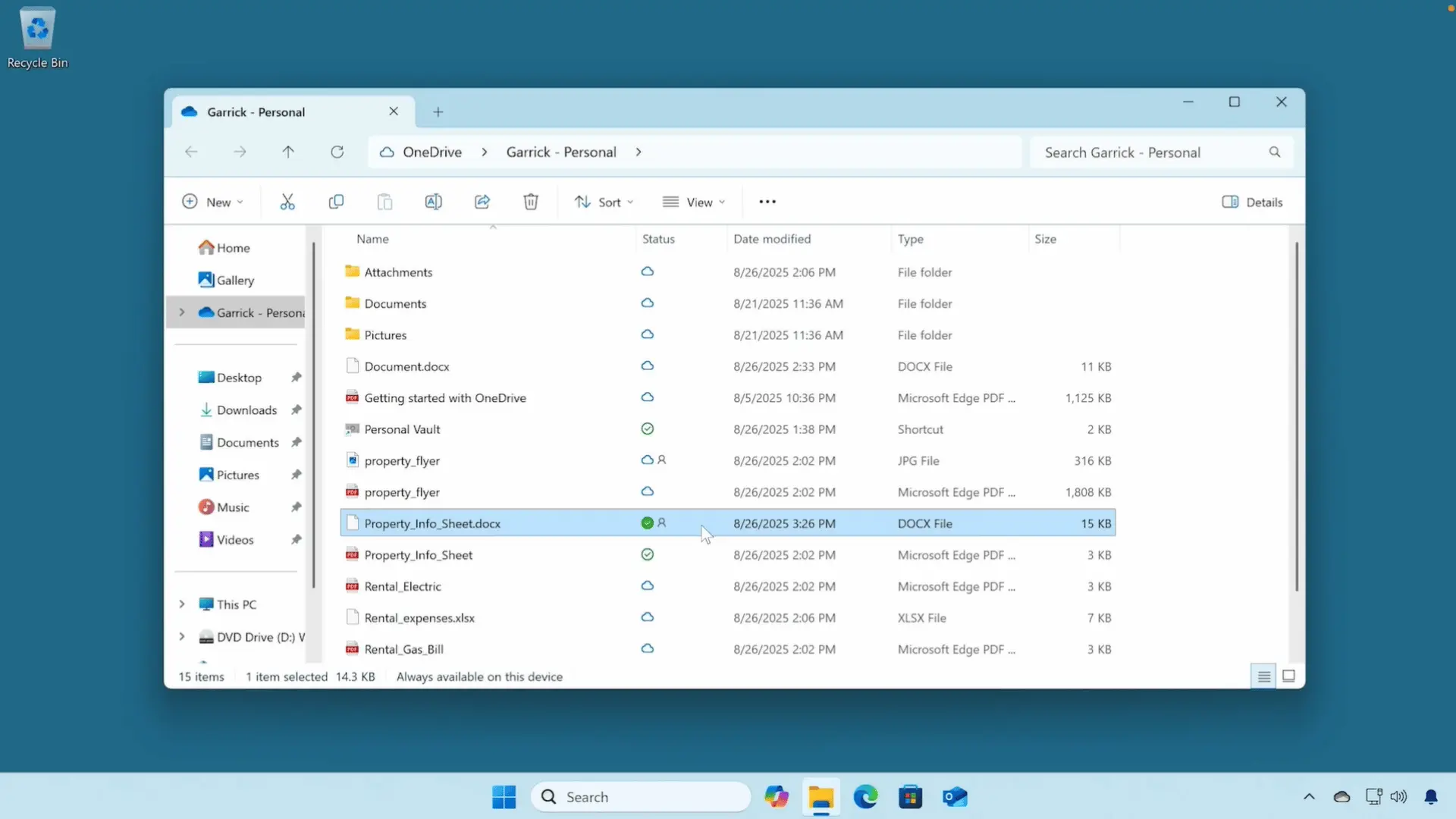
OneDrive lets you choose which files stay on your computer and which remain online only. This gives you flexibility if you’re traveling, working without reliable internet, or running low on storage space.
Files marked to stay on your device remain accessible offline, and any changes synchronize automatically the next time you connect to the internet.
| Option | Best Used When |
|---|---|
| Always keep on this device | You need the file without an internet connection. |
| Free up space | You want to save storage while keeping the file safely in OneDrive. |
8. Secure Important Files with Personal Vault
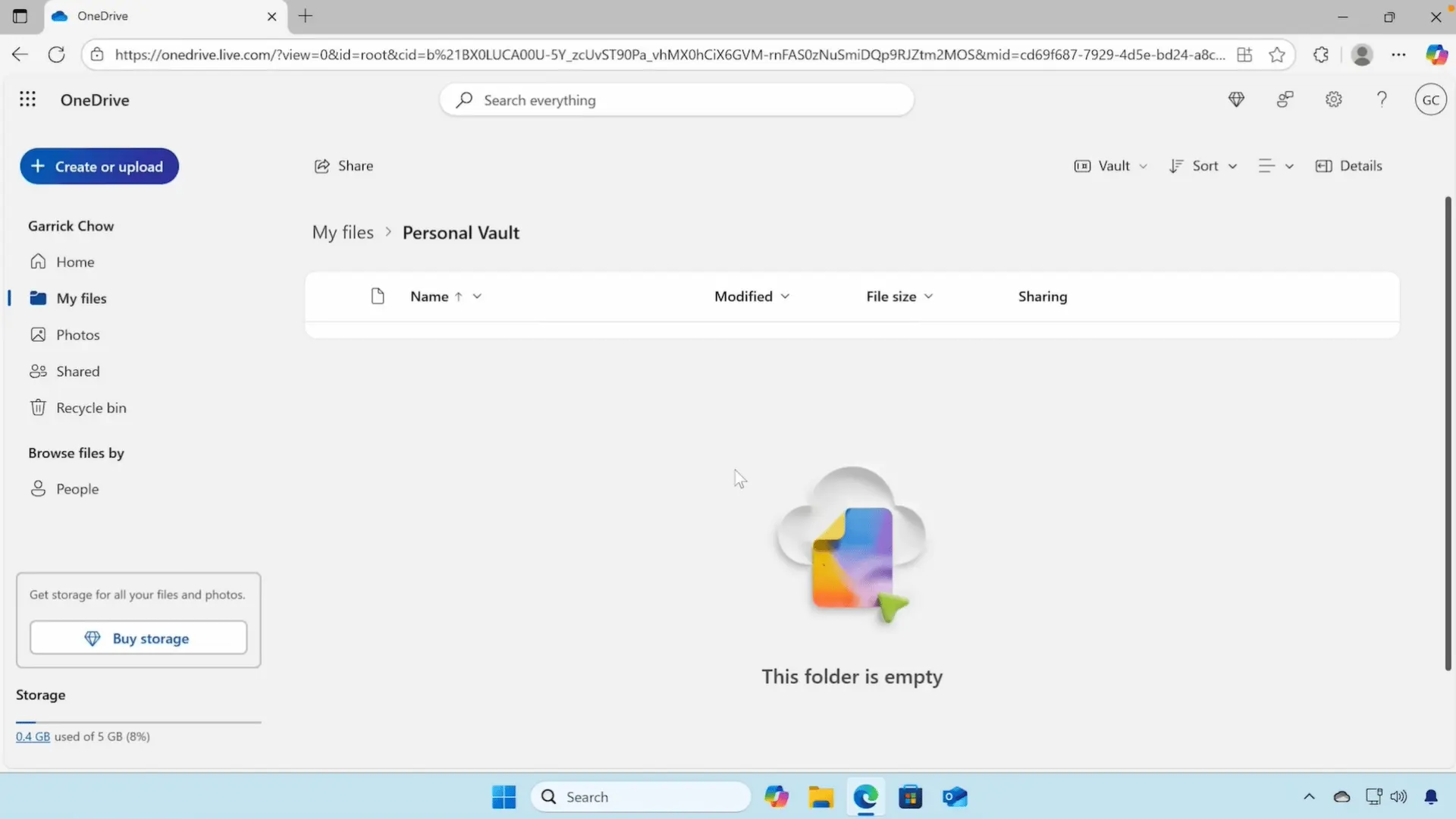
If you store sensitive documents, Personal Vault provides an extra layer of protection beyond your normal OneDrive folder.
Opening it requires identity verification, such as your Microsoft password or another verification method.
After a period of inactivity, the vault locks automatically, reducing the risk of someone accessing confidential information from an unattended device.
Personal Vault is a good place to store:
- Passport or driver’s license scans
- Tax documents and financial records
- Insurance papers and other confidential files
Need a visual guide? Watch this step-by-step OneDrive tutorial from Kevin Stratvert to see each action demonstrated on screen.
Fun Fact: Since OneDrive Files On-Demand became the default, many users can see all their cloud files without using local storage.
What do OneDrive Status Icons Mean?
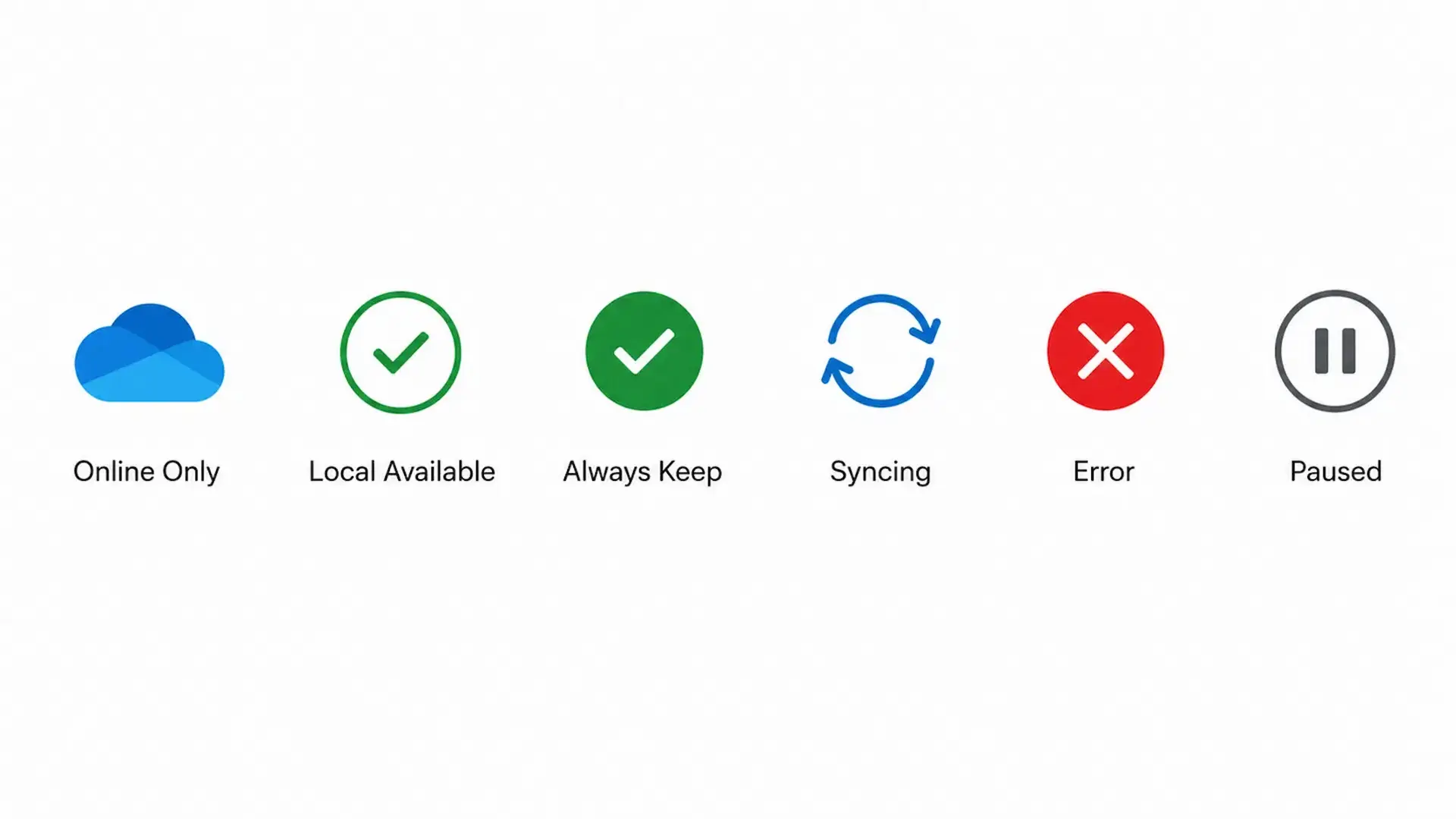
OneDrive status icons show where a file is stored and confirm that synchronization is working correctly. Here is what the main icons mean:
- Cloud Icon: The file is stored online and has not been fully downloaded to your device.
- Green Outlined Check: The file is downloaded and available offline, but OneDrive may remove the local copy later to save space.
- Solid Green Circle: The file is set to stay on your device and remain available offline.
- Circular Arrows: OneDrive is currently uploading, downloading, or updating the file.
- Red Symbol: A synchronization problem is preventing the file from updating correctly.
- Paused Symbol: OneDrive synchronization has stopped temporarily.
The icons may look slightly different on Windows, macOS, and mobile devices.
How do Files On-Demand and Offline Access Work?
Files On-Demand lets you see all your OneDrive files without downloading every file to your device. When you open an online-only file, OneDrive downloads it so you can use it.
For files you may need without internet access, select Always keep on this device to save a permanent local copy.
You can also select Free up space to remove the downloaded copy while keeping the original file safely stored in OneDrive. This is not the same as deleting the file.
For example, a traveler can make tickets, hotel bookings, and identification documents available offline before leaving.
Any edits made without internet access stay on the device. Once the connection returns, OneDrive resumes synchronization and uploads the latest changes.
Is OneDrive a Backup or a Sync Service?
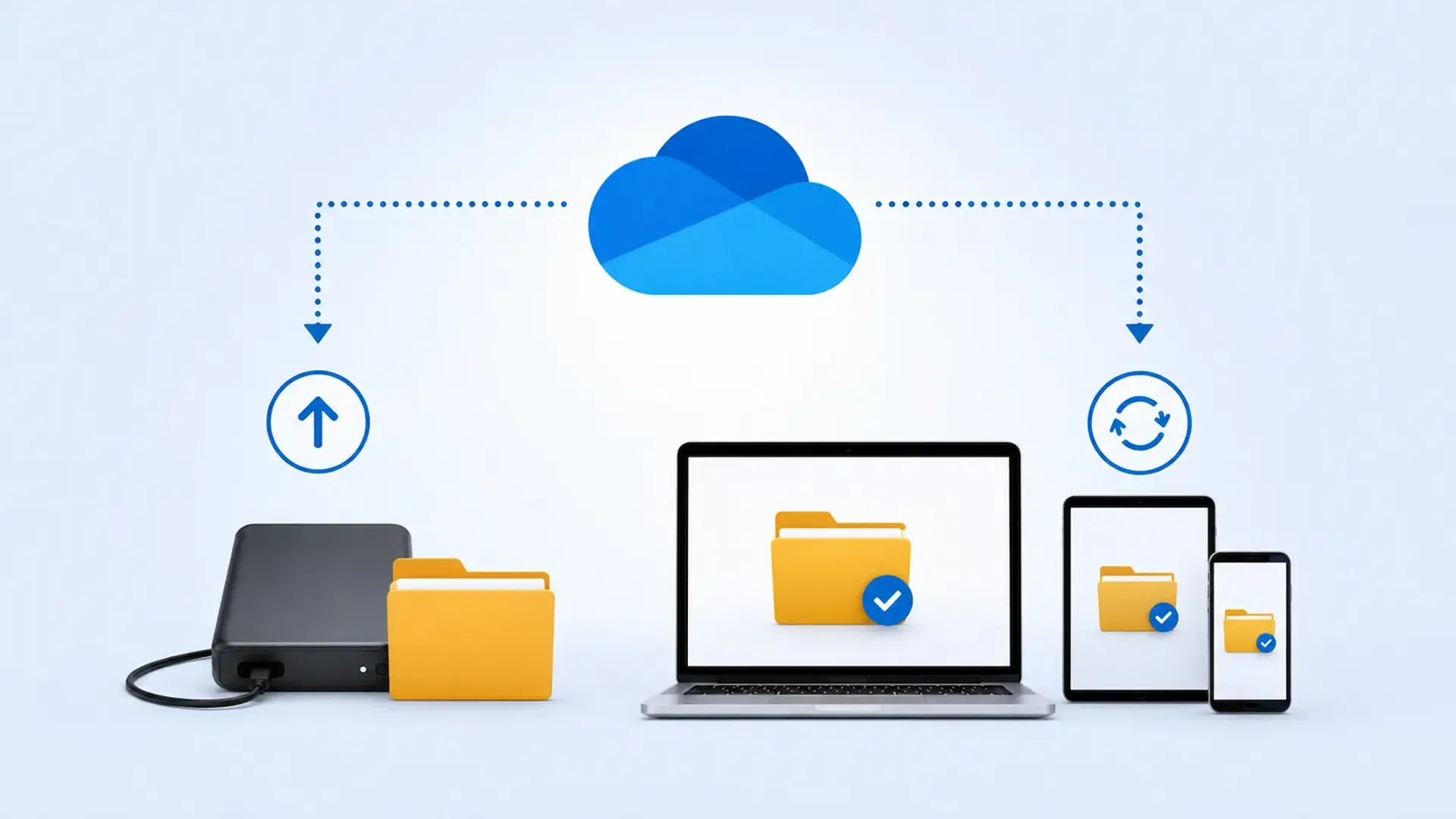
OneDrive combines cloud storage, file synchronization, selected folder backup, version history, and deleted file recovery, but it is not a complete backup solution on its own.
You can protect important folders such as Desktop, Documents, and Pictures by enabling OneDrive’s folder backup feature.
However, it does not automatically back up every folder on your computer, external drives, installed applications, or Windows system files.
The key difference is that synchronization keeps files updated across all connected devices, while a true backup keeps a separate recovery copy.
If you accidentally delete or overwrite a synced file, that change can also synchronize to OneDrive. For valuable documents, keeping an additional independent backup alongside OneDrive is the safest approach.
What Happens When You Edit, Move, or Delete a File?
OneDrive tracks common file changes and updates them across connected devices. The exact result depends on the action you take and if the file is synchronized, online-only, or stored locally.
The table below shows what usually happens after each action.
| Action | What OneDrive Usually Does | Important Detail |
|---|---|---|
| Edit | Uploads the latest saved version to the cloud. | The updated version appears on other connected devices after synchronization finishes. |
| Rename | Changes the file name across synchronized locations. | Shared links may continue working, but access can depend on account settings. |
| Move | Synchronizes the file’s new folder location. | Anyone with access may need to look in the new folder. |
| Delete | Removes the file from synchronized locations and sends it to the Recycle Bin. | The deletion may also appear on other connected devices. |
| Free up space | Removes only the downloaded local copy. | The cloud file remains available and is not deleted. |
| Restore a version | Returns the file to an earlier saved state. | Available versions depend on the file type and account. |
| Restore from Recycle Bin | Returns a deleted file when recovery is still available. | Retention periods depend on account type and organization settings. |
Latest Update: OneDrive’s new Mac sync engine promises up to twice-faster initial synchronization.
How does OneDrive File Sharing and Collaboration Work?
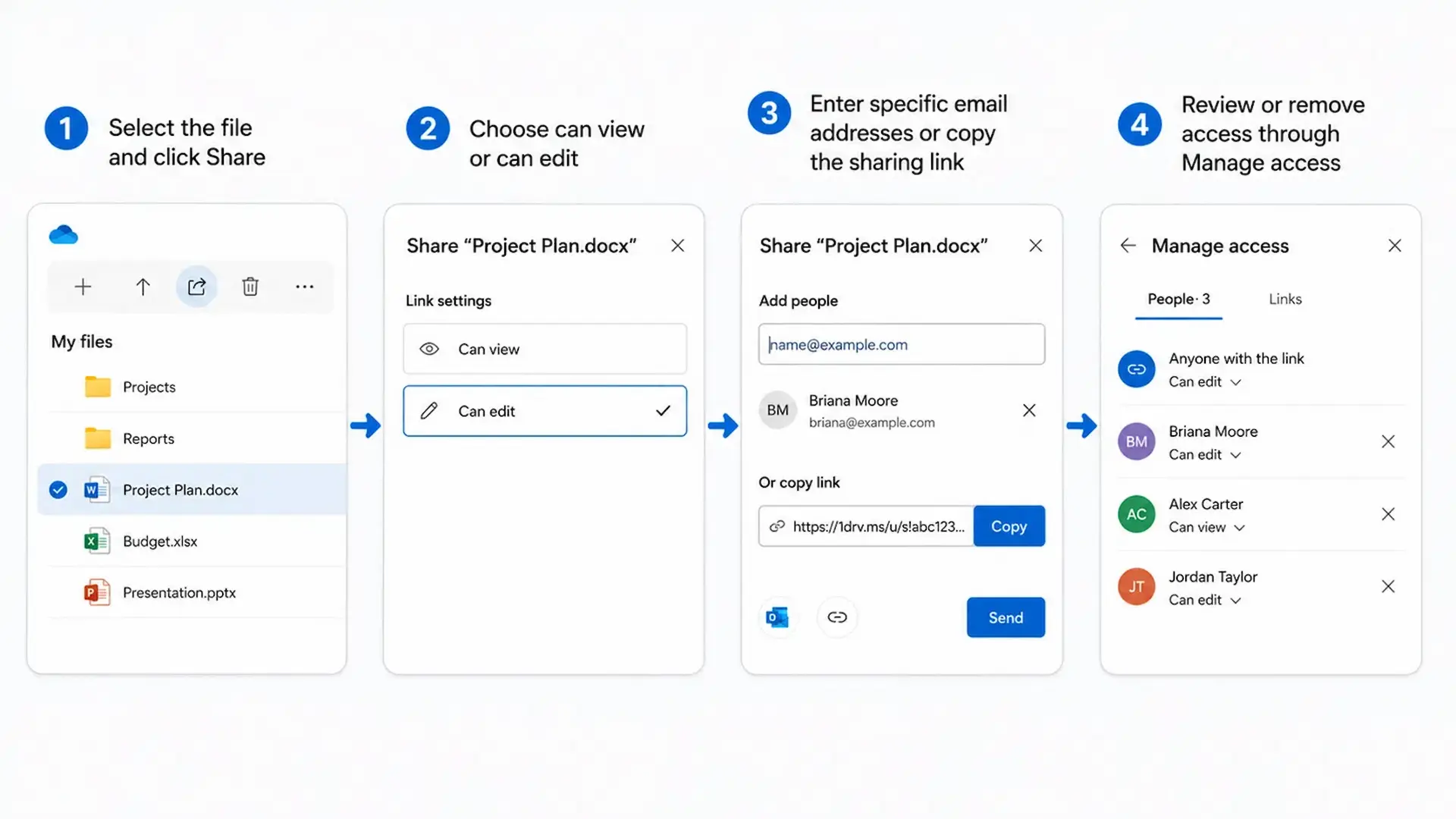
OneDrive shares a link to the cloud file instead of sending a separate attachment. Your files remain private until you share them, although workplace administrators may restrict available sharing options.
You can give named users view-only or editing access, copy a shareable link, and remove access later.
Here is a quick demonstration:
- Select the file and click Share.
- Choose Can view or Can edit.
- Enter specific email addresses or copy the sharing link.
- Review or remove access through Manage access.
In supported Word, Excel, and PowerPoint files, several people can work together in real time. Autosave records their changes, comments support discussions, and version history keeps earlier copies.
A team can therefore edit one presentation instead of exchanging several conflicting attachments.
Is OneDrive Secure and What are its Limitations?
OneDrive includes several protections that make everyday file storage safer, but users still need to manage passwords, sharing, and backups carefully.
| Security Feature | What It Does |
|---|---|
| Encryption | Protects files during transfer and while stored |
| Account authentication | Requires access through your Microsoft account |
| Multifactor authentication | Adds another verification step |
| Sharing permissions | Controls who can view or edit files |
| Personal Vault | Adds extra protection for supported personal accounts |
| Recovery tools | Helps restore deleted files or earlier versions |
For general, vendor-neutral guidance on evaluating cloud storage security, NIST publishes guidelines on security and privacy in public cloud computing.
OneDrive also has limits. Weak passwords and careless sharing can expose files.
Online-only content needs internet access, storage limits may block uploads, and sync conflicts can occur. Critical files should also have an independent backup.
Common OneDrive Problems and What to Check First

Most OneDrive problems come from synchronization, storage, or account settings rather than damaged files. Before making major changes, check the basics below to identify the most likely cause.
| Problem | What to Check First |
|---|---|
| File is not syncing | Internet connection, Microsoft account sign-in, and available storage |
| File cannot open offline | Confirm it was downloaded and marked for offline use |
| OneDrive uses too much space | Review Files On-Demand settings and local file availability |
| File appears missing | Search OneDrive, check the Recycle Bin, and confirm you’re using the correct Microsoft account |
| Shared user cannot edit | Verify the file was shared with editing permission |
| Duplicate file appears | Check for conflicting or simultaneous edits from multiple devices or users |
| Red status icon appears | Review the file name, permissions, internet connection, and available storage |
If the issue occurs on a work or school account, company policies may limit certain features, so you may need help from your organization’s administrator.
Notably, as of July 2026, Microsoft began enforcing OneDrive for Business storage quotas that had previously been applied inconsistently, so business users who have suddenly lost upload ability should check with their admin first.
When is OneDrive Most Useful?
I find OneDrive works best when the same files need to stay available across multiple devices or people. Here are a few everyday examples:
- A student starts an assignment on a laptop and reviews it later on a phone before class.
- A remote employee edits the same report from home and the office without emailing updated copies.
- A family automatically uploads mobile photos so everyone can access them from one place.
- A traveler downloads important documents before a trip so they remain available without internet access.
- A small team works together on one shared document instead of creating multiple versions.
- A user restores an earlier file version after accidentally overwriting important changes.
These simple situations show how OneDrive helps keep files accessible, synchronized, and easier to manage.
What are Some Alternatives to OneDrive?

OneDrive is not the only cloud storage option. The best choice often depends on the devices, applications, and accounts you already use.
| Service | Best For |
|---|---|
| Google Drive | People using Google Docs, Gmail, and Google Workspace |
| Dropbox | Straightforward file syncing and sharing across different devices |
| iCloud Drive | Apple users working across iPhones, iPads, and Macs |
| Box | Teams needing cloud storage, document sharing, and business collaboration |
Your existing devices and software should guide your choice. Compare free storage, offline access, sharing controls, and subscription costs before moving important files.
Final Thoughts
Once I understood that OneDrive keeps files synchronized instead of simply storing them online, it became much easier to use confidently.
You can access documents across devices, share files with others, and keep important folders available wherever you go, making everyday file management simpler.
At the same time, knowing its limits helps you avoid common mistakes and protect important data with an additional backup.
Now that you know how OneDrive works, the next step is to try it yourself with a few sample files and see how synchronization behaves across your own devices.
Have you found a useful OneDrive feature or solved a syncing problem? Share your experience or tips in the comments to help other readers.
Frequently Asked Questions
Can I Use OneDrive without Installing the Desktop App?
Yes. You can sign in through any supported web browser to upload, download, organize, and share files without installing the OneDrive application.
Does OneDrive Keep Previous Versions Forever?
No. Version history depends on your account type, file type, and Microsoft settings. Older versions may eventually be removed according to Microsoft’s retention policies.
Can I Move Existing Files into OneDrive Later?
Yes. You can move or copy existing files into your OneDrive folder at any time. They begin synchronizing automatically after you add them.
What Happens if I Stop Using OneDrive?
Files already downloaded to your device remain there unless you remove them. Cloud files and account access depend on your Microsoft account and storage status.