

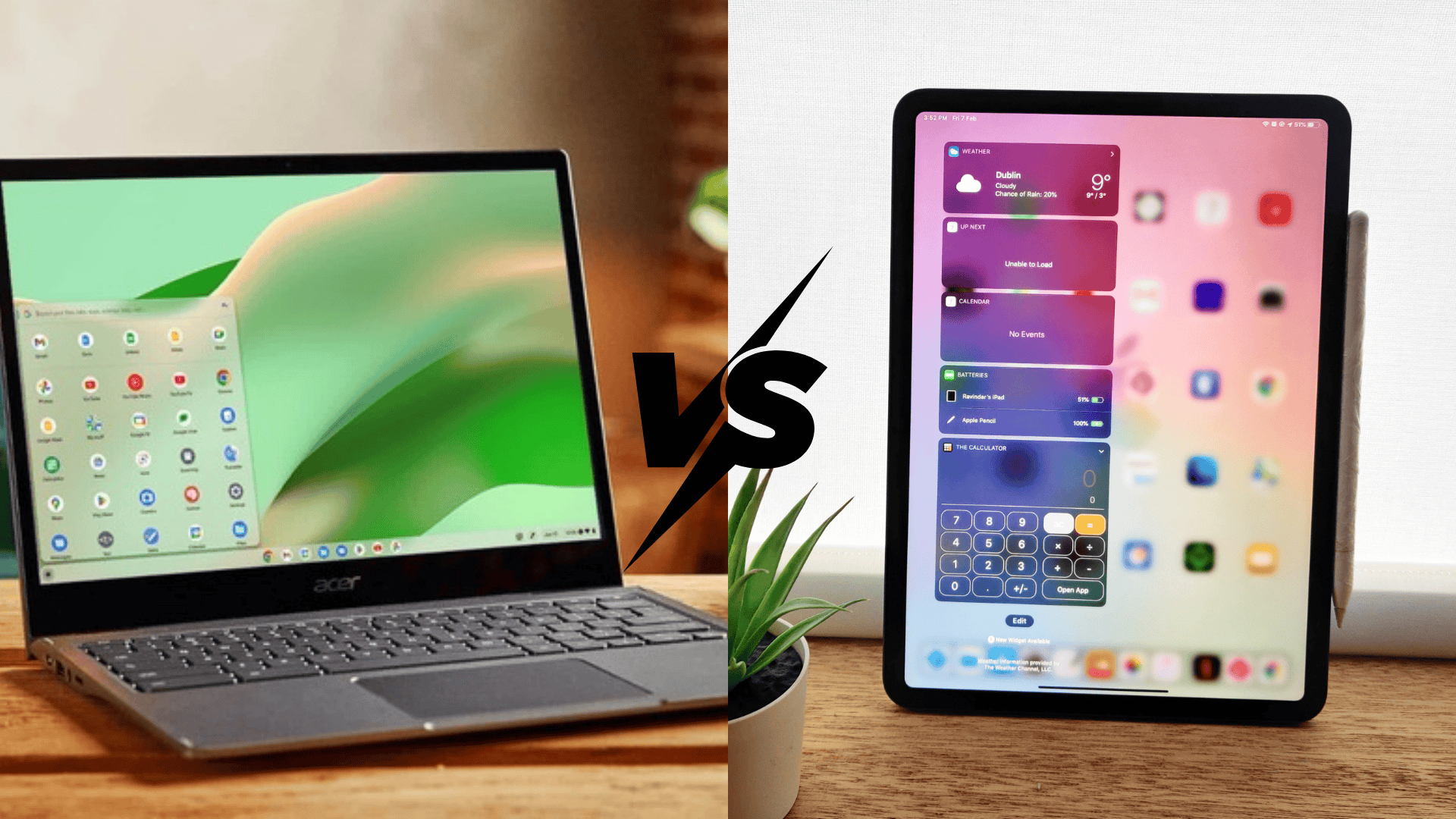

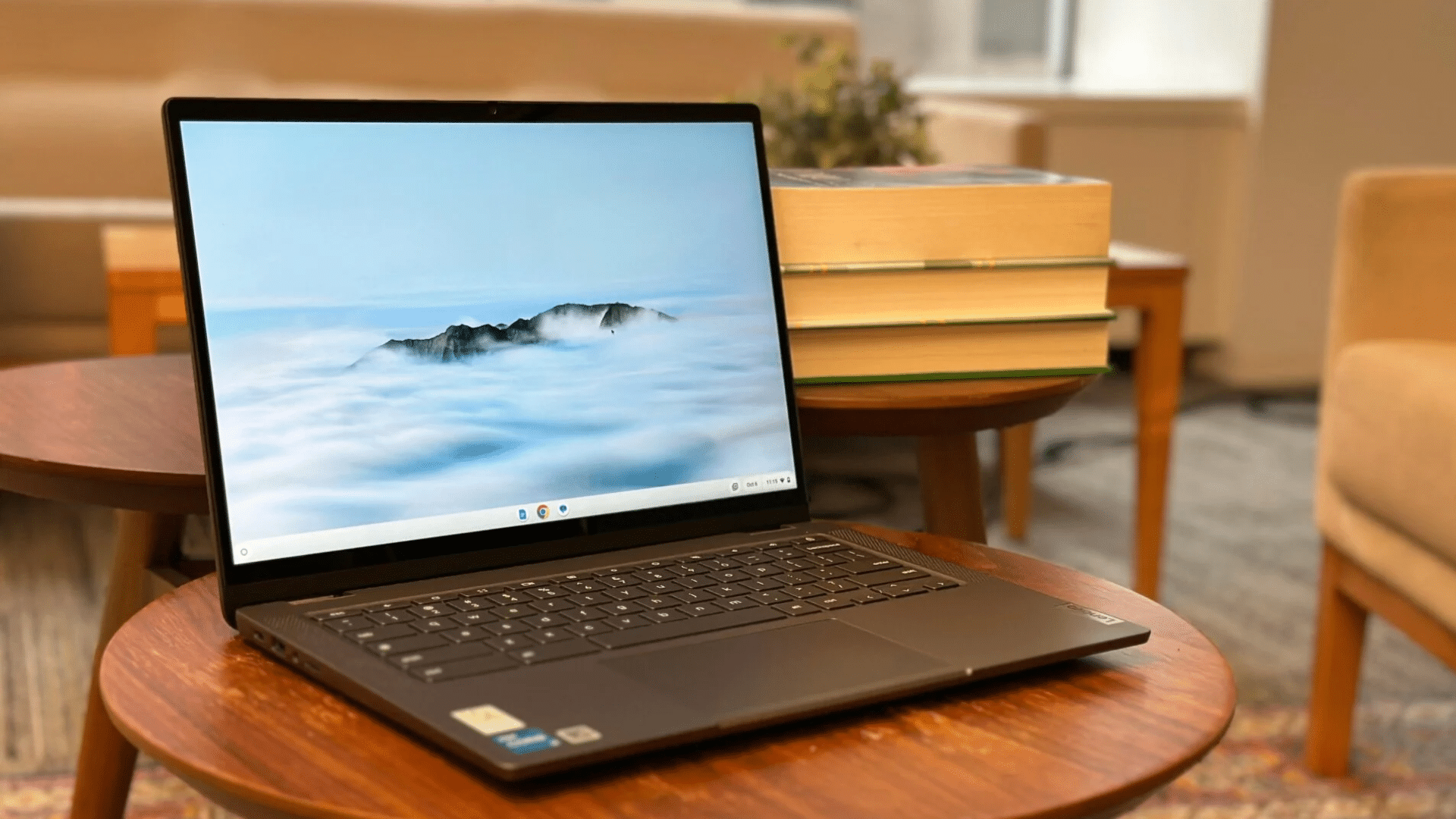


Trying to decide between a Chromebook and a tablet? You’re not alone. These two devices look similar at first glance, but they work very differently.
One is great for homework and typing up reports. The other is perfect for watching videos and reading in bed. The truth is, neither one is “better”, it all depends on what you actually need it for.
In this guide, you’ll find the real differences between Chromebooks and tablets based on how people actually use them.
I’ll compare everything from typing and multitasking to battery life and price. I will also give simple answers to help you pick the right device for school, work, travel, or just everyday use.
Let’s figure out which one best fits your life.
Chromebook vs Tablet: Quick Verdict
Not sure which one to pick? Here’s the short answer:
Choose a Chromebook If:
- You’re writing essays, emails, or anything that needs a lot of typing
- You like having multiple tabs or windows open at the same time
- You want a device that gets software updates for years (up to 10 years!)
- You need something that works more like a traditional laptop
Choose a Tablet If:
- You mostly watch Netflix, YouTube, or read books and articles
- You want something super light that’s easy to hold with one hand
- You love using a touchscreen and don’t mind typing on a virtual keyboard
- You’re into drawing, sketching, or taking handwritten notes with a stylus
Still torn? Don’t worry, the rest of this guide breaks down exactly how each device handles real everyday tasks, so you can make the right call for your needs.
How People Actually Use: Chromebooks vs Tablets
Specs and features are one thing, but how do these devices actually feel in daily life? Let’s look at what real users say about living with each one.
Chromebook Experience
Chromebooks shine when there’s serious work to do. Students love them for typing up essays and research papers without fighting an on-screen keyboard.
Remote workers appreciate being able to juggle Google Docs, email, and 10+ browser tabs without the device slowing down.
The physical keyboard and trackpad make a huge difference. You can rest a Chromebook on your lap or desk and work for hours without your arms getting tired. It feels like using a real computer, not a phone with a bigger screen.
People also mention that Chromebooks handle the boring stuff really well, such as video calls, filling out forms, online shopping, and basically anything that requires a lot of clicking and typing.
Tablet Experience
Tablets are all about relaxation and creativity. Most people grab their tablet when they want to kick back on the couch and watch Netflix, scroll through YouTube, or read an ebook in bed.
The lightweight design makes it perfect for holding in one hand while snacking with the other.
Artists and note-takers rave about using a stylus on tablets. The touch accuracy is spot-on, and apps like Procreate or Notability feel natural and smooth.
Students who prefer handwritten notes often choose tablets over Chromebooks for this reason.
The big complaint? Typing anything longer than a text message is annoying. Virtual keyboards take up half the screen, and you can’t type nearly as fast as on a real keyboard.
Some people buy separate Bluetooth keyboards, but at that point, it starts feeling like a less powerful laptop.
Chromebooks feel like work tools. Tablets feel like entertainment and creativity devices. Pick based on what you’ll be doing most.
You can also find more reviews and opinions of people here on Reddit.
Productivity Comparison
When it comes to getting things done, these two devices handle tasks very differently. Here’s how they stack up for actual work and school use.
Typing & Multitasking
The keyboard situation is a game-changer. Chromebooks come with a real, physical keyboard that lets you type at full speed without thinking about it.
Your fingers know where the keys are, and you’re not losing half your screen to a virtual keyboard that pops up every time you need to type something.
Tablets? The on-screen keyboard works fine for short messages or quick searches, but writing a 5-page essay or responding to 20 emails becomes frustrating fast.
Sure, you can buy a separate keyboard case, but now you’re carrying around extra accessories and spending more money.
Here’s how They Compare for Multitasking:
Chromebooks:
- Trackpad and desktop browser make it easy to have multiple windows open side-by-side
- Can write a report while referencing three different websites without slowdown
- Switching between tabs and windows feels natural and fast
Tablets:
- Split-screen mode exists, but it’s limited
- Most apps don’t resize well when sharing screen space
- Switching between apps feels clunky compared to using a mouse or trackpad
Software & Apps
Chrome OS gives you a full desktop browser experience. That means websites work exactly like they do on a regular computer, no “mobile version” limitations.
Online tools, school portals, and work platforms all function properly without weird formatting issues.
Chromebooks also run Android apps, which sounds great in theory. In reality, some apps work perfectly, while others are clearly designed for phones and look awkward on a bigger screen.
It’s hit or miss, but the web browser usually picks up the slack.
What Chromebooks handle well:
- Google Docs, Sheets, and Slides
- Online learning platforms (Canvas, Google Classroom, Zoom)
- Email and calendar management
- Web-based tools and extensions
Tablets have the advantage of touch. The App Store (for iPads) and Google Play Store (for Android tablets) are packed with touchscreen-optimized apps. Games, drawing apps, and media apps feel smooth and natural.
Where tablets shine:
- Drawing and design apps (Procreate, Adobe Fresco)
- Note-taking with a stylus (GoodNotes, Notability)
- Reading and annotating PDFs
- Touch-optimized creative work
But here’s the catch: many of those apps are optimized for tapping and swiping, not typing and clicking.
If the work involves typing documents, managing spreadsheets, or juggling multiple tasks at once, Chromebooks win hands down.
If the work is more creative (drawing, video editing with touch controls, annotating PDFs with a stylus), tablets have the edge, but only if typing isn’t a big part of the job.
Portability & Design: Which One Is Easier to Carry?
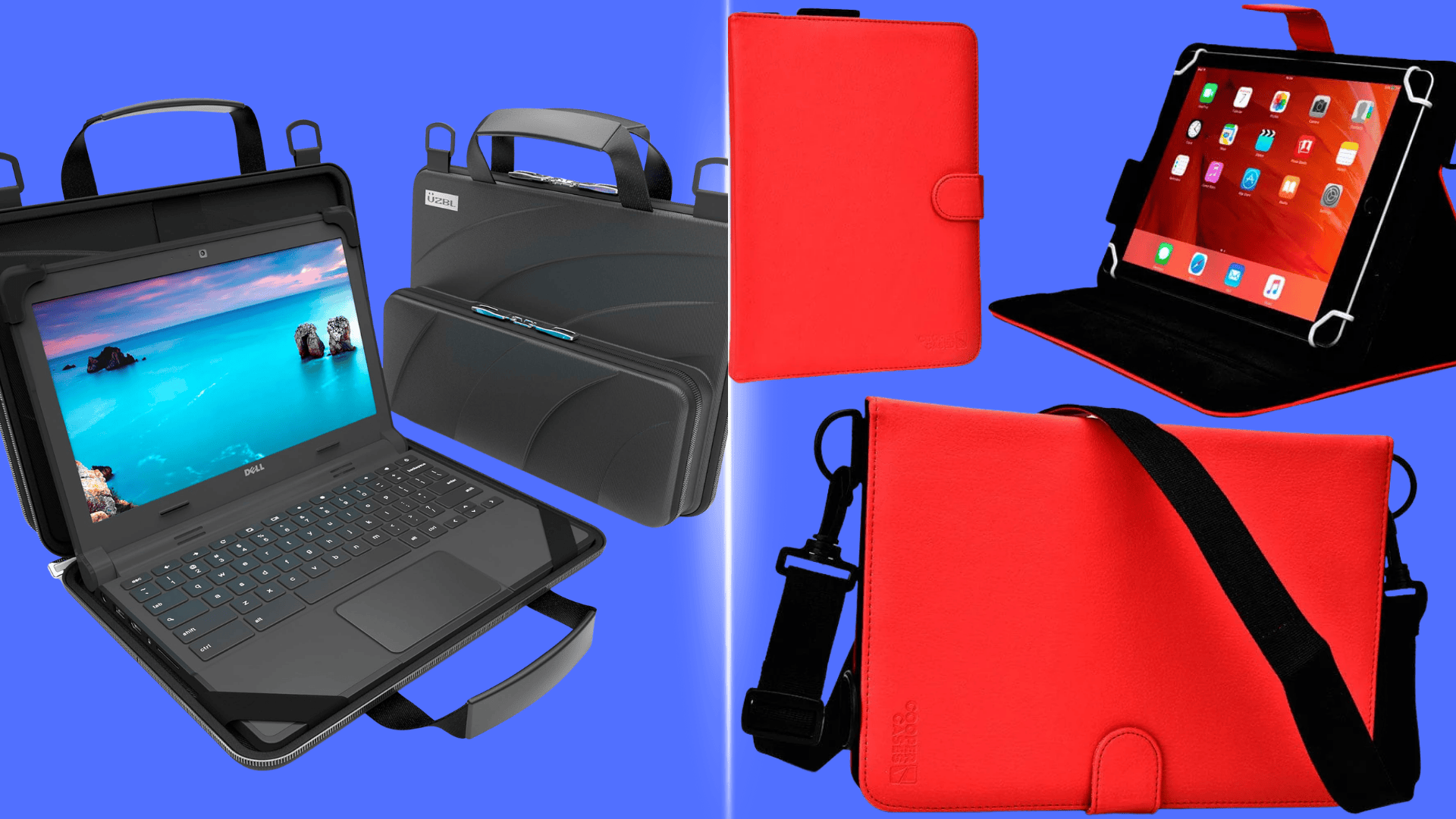
Both devices are way more portable than traditional laptops, but they’re portable in different ways. Here’s what actually matters when you’re carrying one around.
Size and Weight: The Numbers
| Device | Screen Size | Typical Weight |
|---|---|---|
| Chromebook | 11–17 inches | 2–3.5 lbs |
| Tablet | 7–13 inches | 0.6–1.5 lbs |
Tablets are clearly lighter. Most weigh about as much as a paperback book, making them super easy to toss into a bag or even a large purse.
Chromebooks are bulkier because of the keyboard and hinge mechanism, but they’re still lighter than most traditional laptops.
Holding vs. Placing: How You Actually Use Them
Here’s where the design difference really shows up in daily use.
Tablets are made for holding. You can grip one in your hand while standing on the subway, lying in bed, or waiting in line.
They’re thin enough that holding them for 20–30 minutes doesn’t make your arms tired. Perfect for reading, scrolling, or watching videos on the go.
Chromebooks need a surface. Sure, you can balance one on your lap, but the clamshell design means you need somewhere to rest it.
They work best on desks, tables, or your legs when sitting down. Trying to hold a Chromebook like a book? Not happening.
Weight Breakdown by Use:
- Backpack Carry: Both are fine, but Chromebooks take up more space
- One-Handed Use: Tablets win easily
- Lap Typing: Chromebooks are more stable
- Travel Packing: Tablets slip into smaller spaces
Media, Gaming & Creative Use
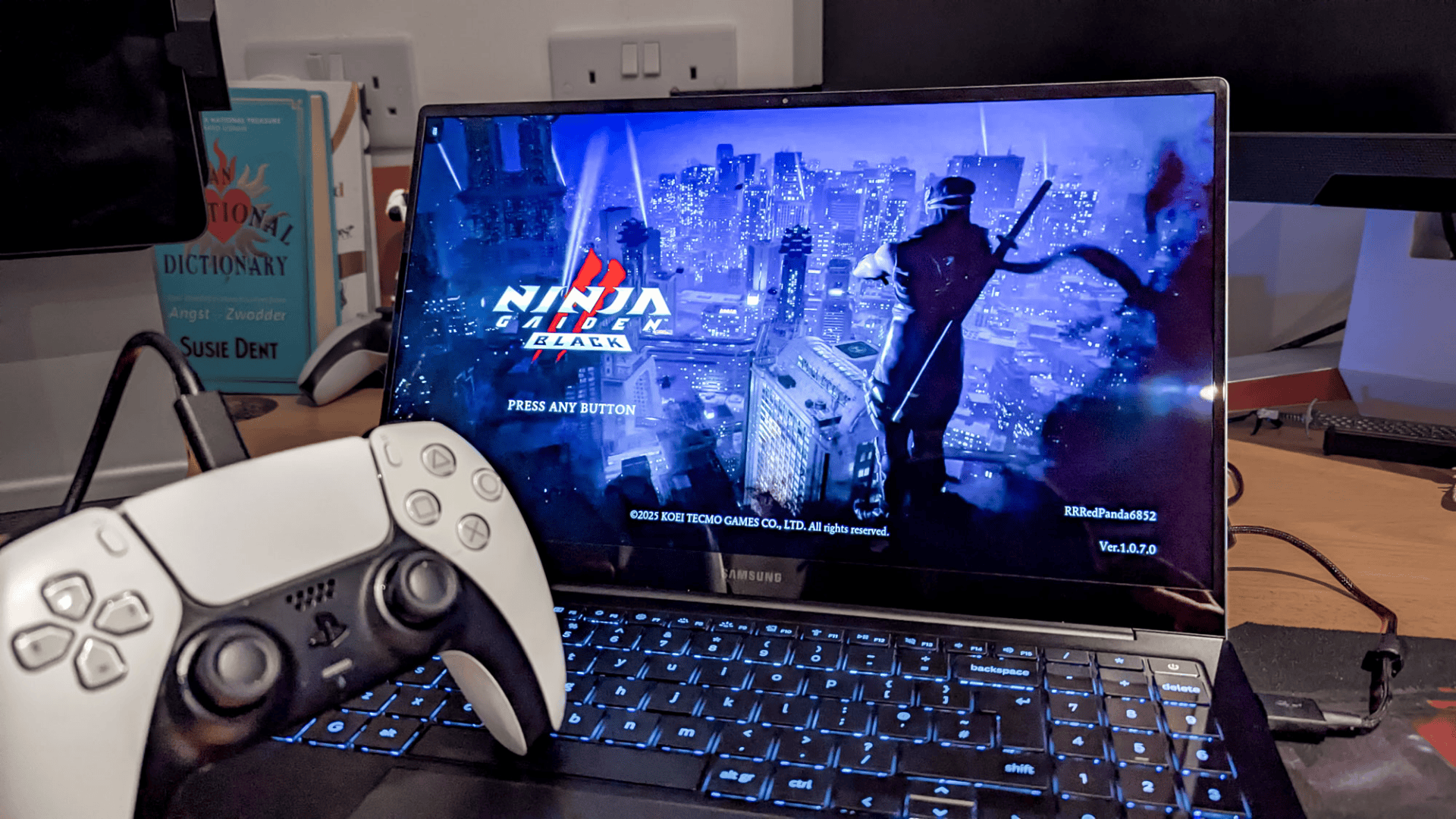
Chromebooks can handle entertainment and creative tasks, but tablets really shine here. If media consumption or artistic work is a priority, here’s what makes tablets stand out.
Streaming & Reading
Tablets feel more natural for entertainment. There’s something about holding a tablet at eye level that just works better for binge-watching shows or reading ebooks.
The screen is right where you want it, whether lying down, sitting back on the couch, or propped up on a pillow.
Display Quality Comparison:
| Feature | Chromebook | Tablet |
|---|---|---|
| Screen type | Standard LCD (most models) | High-quality OLED or Retina displays (premium models) |
| Brightness | Good for indoor use | Often brighter, better for outdoors |
| Color accuracy | Decent | Excellent (especially iPads and Samsung tablets) |
| Viewing angles | Can wash out when tilted | Stay vibrant from any angle |
Why Tablets Win for Media:
- Screens are designed for close-up viewing
- Better speakers on premium models (iPad Pro, Galaxy Tab S series)
- Perfect size for reading comics, magazines, and PDFs
- Apps like Netflix and Kindle are optimized for tablet screens
Chromebooks can stream just fine, but the experience feels more like watching on a laptop. The keyboard section takes up space, and propping it up at the right angle takes some adjustment.
Drawing & Note-Taking
This is where tablets absolutely dominate. Artists, designers, and students who prefer handwritten notes almost always choose tablets over Chromebooks.
Stylus support breakdown:
Tablets:
- Apple Pencil (iPad) and S Pen (Samsung) offer incredible precision.
- Pressure sensitivity lets you create thin or thick lines naturally.
- Palm rejection works smoothly; rest your hand on the screen while drawing.
- Apps like Procreate, GoodNotes, and Notability are industry standards.
Chromebooks:
- Some models support USI styluses, but selection is limited.
- Touch accuracy isn’t as refined as tablets.
- Fewer professional-grade drawing apps are available.
- Better for basic note-taking than serious artwork.
Who prefers tablets for creative work:
- Digital artists and illustrators
- Graphic designers who sketch ideas
- Students taking handwritten lecture notes
- Anyone annotating PDFs or marking up documents
The touch accuracy on tablets is next-level. When you tap exactly where you want to draw or write, the device responds instantly without lag or offset.
Chromebooks with stylus support can handle basic sketching and notes, but they don’t match the smoothness and app selection tablets offer.
For watching shows, reading, gaming, and creative work with a stylus, tablets are the clear winner. Chromebooks can do these things, but it’s not what they’re built for.
Performance Differences Explained Simply
Performance specs can get confusing fast, but here’s what actually matters in real-world use.
Chrome OS: Built to Run Smoothly on Less Power
Chrome OS is incredibly lightweight. It’s designed to work well even on basic hardware, which is why a $250 Chromebook can feel just as fast as a $500 one for everyday tasks.
The operating system doesn’t hog resources, so web browsing, document editing, and video streaming all run smoothly without lag.
What This Means in Practice:
- Chromebooks rarely slow down or freeze, even with 10+ tabs open
- You don’t need a fancy processor to get good performance
- Updates happen in the background without interrupting work
- Even budget models handle Google Docs, Zoom calls, and YouTube without stuttering
High-End Tablets: Powerful Hardware, Software Limitations
Premium tablets pack serious power. The latest iPads and Samsung Galaxy Tabs have processors that rival many laptops. They can edit 4K video, run complex design apps, and handle intensive games without breaking a sweat.
But here’s the catch: all that power doesn’t always translate to better productivity. Tablets still run mobile operating systems (iOS or Android), so they don’t handle traditional desktop tasks the same way.
You can’t run full desktop software, and multitasking is limited compared to a laptop-style device.
Where Tablet Power Shines:
- Video editing apps (LumaFusion, iMovie)
- Graphic design and illustration
- High-end mobile gaming
- Photo editing with large files
Where It Doesn’t Matter as Much:
- Writing documents (a budget Chromebook does this just as well)
- Web browsing and email
- Online research and note-taking.
Battery Life & Long-Term Support
How long a device lasts, both on a single charge and over the years, can make or break its value. Here’s what to expect from each.
Battery Life Comparison
| Device Type | Typical Battery Life | Real-World Use |
|---|---|---|
| Chromebook | 8–12 hours | Full school or work day on one charge |
| iPad | 10 hours | Lasts through travel days and binge-watching sessions |
| Android Tablet | 8–10 hours | Varies widely by brand and screen brightness |
Both devices handle daily use without needing a charger. Battery life depends more on what you’re doing (streaming video drains faster than reading) than on which device you choose.
Software Updates & Long-Term Support
This is where the differences get huge, and where Chromebooks really stand out.
| Device | Update Support | What This Means |
|---|---|---|
| Chromebook | Up to 10 years of automatic updates | Stays secure and gets new features for a decade |
| iPad | Around 5–7 years of iOS updates | Solid support, but eventually stops getting new features |
| Android Tablet (Samsung, Lenovo) | 2–4 years (varies by brand) | Budget models often lose support quickly |
| Amazon Fire Tablet | 2–3 years | Minimal updates after that |
Why Long-Term Support Matters
Long-term support keeps your device safe, smooth, and useful for years, so students, families, and budget buyers can rely on one purchase instead of constant upgrades.
For Students: A Chromebook bought in 9th grade can last through college. That’s one device covering 8+ years of schoolwork without needing replacement.
For Families: Kids grow up fast, but a well-supported device doesn’t become outdated as quickly. Parents aren’t forced to buy new devices every few years just to keep up with security patches.
For Budget-Conscious Buyers: Longer update support means better value over time. Spending $300 on a Chromebook that lasts 10 years beats spending $200 on a tablet that becomes slow and insecure after 3 years.
What Happens When Updates Stop?
| Issue | Impact |
|---|---|
| Security risks | The device becomes vulnerable to malware and hacking |
| App compatibility | Newer apps won’t install or won’t work properly |
| Browser issues | Websites may not load correctly or safely |
| Performance decline | The device feels slower and more buggy over time |
Bottom line: Chromebooks crush tablets when it comes to long-term support. If you want a device that stays useful for years without forced upgrades, Chromebooks are the smarter investment.
iPads offer decent longevity, but Android tablets (especially budget ones) tend to age out much faster.
Chromebook vs Tablet: Which Should You Buy?
After breaking down all the features, specs, and real-world experiences, here’s the bottom line: there’s no universally “better” choice. The right device depends entirely on how it’ll actually be used.
Key Differences Recap
Chromebooks are productivity machines. They’re built for typing, multitasking, and handling schoolwork or remote work efficiently. The physical keyboard, desktop browser, and long-term software support make them reliable workhorses that stay useful for years.
Tablets are entertainment and creativity devices. They excel at streaming, reading, drawing, and touch-based tasks. The lightweight design and excellent displays make them perfect for casual use, but they struggle with heavy typing and traditional productivity work.
The Decision Checklist
Still not sure? Answer these quick questions honestly:
1. What will the device be used for most?
- Typing essays, emails, or reports → Chromebook
- Watching videos, reading, or drawing → Tablet
2. How important is a physical keyboard?
- Essential for daily use → Chromebook
- Can live with an on-screen keyboard → Tablet
3. Will multitasking happen a lot?
- Yes, need multiple windows open constantly → Chromebook
- No, mostly using one app at a time → Tablet
4. What’s the budget and expected lifespan?
- Want 8–10 years of reliable use → Chromebook
- Need something affordable for 3–5 years → Budget tablet or Chromebook
- Willing to invest in premium experience → High-end tablet (iPad Pro, Galaxy Tab S)
My Final Recommendation
To choose the right device, match how you actually use it each day, typing, apps, portability, and updates, then pick what fits your routine and budget.
Choose a Chromebook if: The device needs to replace a laptop for school or work. Typing happens regularly. Long-term value and software updates matter. Multiple tabs and windows are part of the daily workflow.
Choose a Tablet If: Mainly used for entertainment, reading, or creative work with a stylus. Portability and lightweight design are key, while typing isn’t crucial. Touch-first apps are more important than desktop sites.
Consider a 2-In-1 Chromebook. If both styles sound appealing and the budget allows for it. The flexibility to switch between laptop and tablet mode is worth the extra weight and cost.
Don’t overthink the specs. Picture a typical day with the device. Which form factor fits that lifestyle better? That’s the answer.
Wrapping It Up
So, which device wins? Honestly, they both do, just in different ways. Chromebooks are the go-to for anyone who needs to get work done, type frequently, or wants a device that lasts nearly a decade.
Tablets are unbeatable for entertainment, creativity with a stylus, and carrying around without the bulk.
The smartest move is to stop comparing specs and start thinking about daily habits. Will most of the time be spent typing or tapping? Working at a desk or relaxing on the couch?
Once those questions are answered, the choice becomes pretty obvious.
Ready to make a decision? Drop a comment below with any questions or share which device fits your lifestyle best!