




Is your Chromebook running slower than usual? You’re not alone. Many people wonder, “Why is my Chromebook so slow?” when tabs take forever to load, or apps lag.
The good news? You don’t need to be a tech expert to fix it. Most slowdowns are caused by simple things like too many open tabs, forgotten extensions, or a full storage drive.
And the best part is that most fixes take just a few minutes.
This guide will walk you through quick speed boosts you can do right now, show you how to remove things slowing your device down, and share some handy system tweaks.
Even if your Chromebook is old or just needs a tune-up, these steps will help get it running smoothly again.
Why Is My Chromebook So Slow?
Understanding what’s slowing down your Chromebook is the first step to fixing it. Here are the most common reasons and how to spot them:
| Cause | What You’ll Notice | Why It Happens |
|---|---|---|
| Too Many Tabs Open | Chromebook freezes or becomes unresponsive | Each tab uses memory (RAM). With 10+ tabs open, your Chromebook runs out of space to work |
| Background Extensions | Pages load slowly, even simple websites | Extensions run constantly in the background, using up processing power even when you’re not using them |
| Low Storage Space | “Storage Almost Full” warnings appear | ChromeOS needs free space to save temporary files. When storage fills up, everything slows down |
| Outdated ChromeOS | Apps crash or don’t work properly | Old software versions have bugs and performance issues that updates fix |
| Weak Internet Connection | Videos buffer, pages won’t load | Slow WiFi makes it seem like your Chromebook is the problem, when it’s actually your connection |
| Aging Hardware | Everything runs slowly, no matter what you try | Older processors and limited RAM (2-4GB) can’t keep up with newer websites and apps |
Most of these issues are easy to fix with the steps in this guide below. Only aging hardware might mean it’s time to consider an upgrade.
Quick Fixes that Instantly Make Your Chromebook Faster
Want to speed up your Chromebook right now? These three simple tricks take less than five minutes and make a noticeable difference. Start here before trying anything more complicated.
1. Restart Your Chromebook (Fastest Speed Boost)
This might sound too simple, but restarting is the quickest way to make your Chromebook faster. When you restart, it clears out all the background processes that have been piling up and frees up your RAM (memory) instantly.
Here’s the thing: just closing the lid doesn’t count as restarting. Your Chromebook goes to sleep, but everything keeps running in the background.
To properly restart, click the time in the bottom-right corner, then click the power icon and select “Restart.” Do this once a week, and you’ll notice your Chromebook stays snappier.
2. Close Extra Tabs and Apps
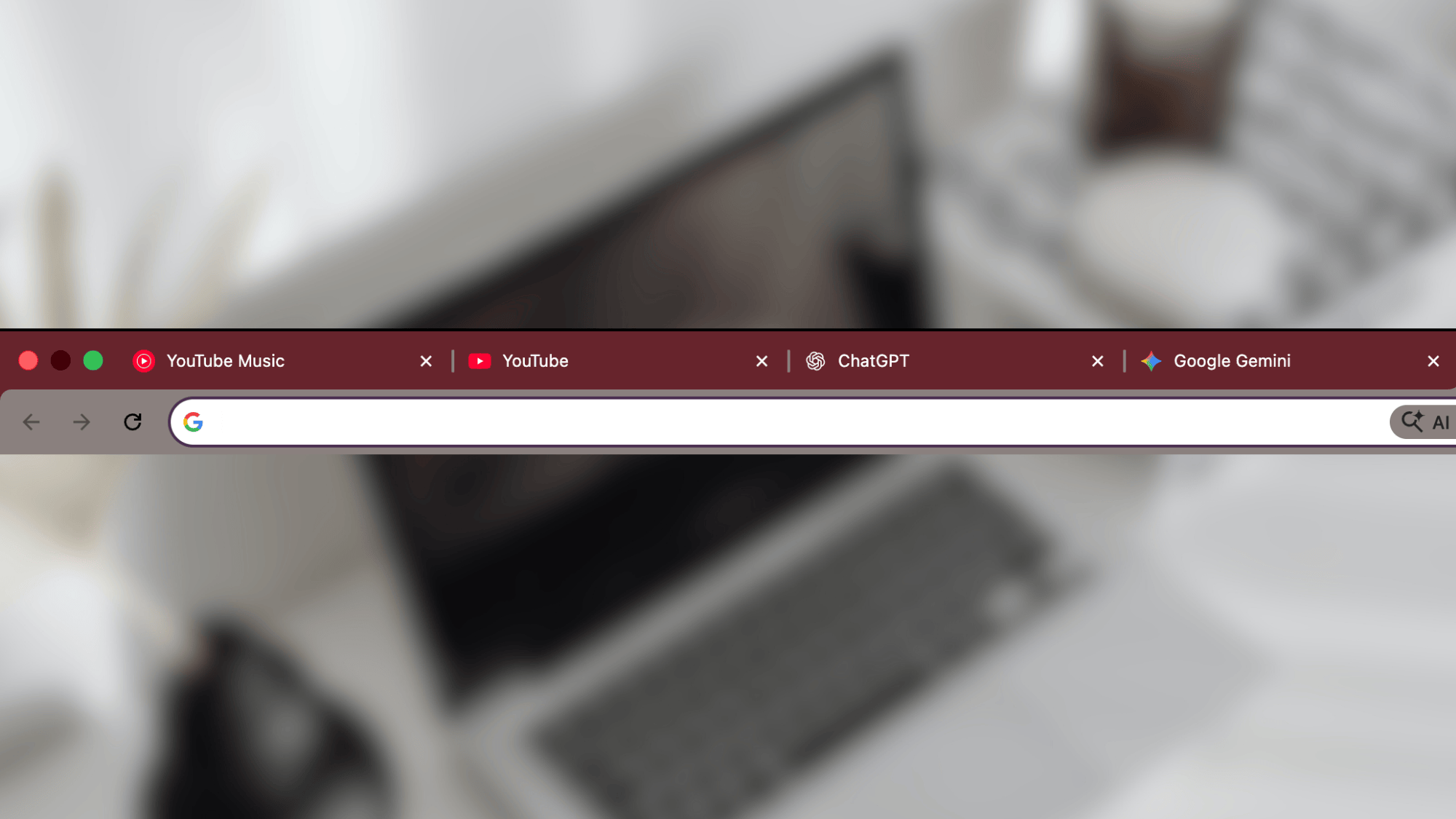
Every single tab you have open uses memory, even the ones you forgot about from three days ago. Chrome is designed to give each tab its own space, which is great for security but tough on low-memory Chromebooks.
Try keeping only 3–5 tabs open at a time. If there’s a page you want to come back to later, bookmark it instead of leaving the tab open. You’ll be surprised how much faster everything runs when you’re not juggling 15+ tabs.
To close tabs quickly, hover over them and click the X, or use the keyboard shortcut Ctrl + W.
3. Check Task Manager for Resource Hogs
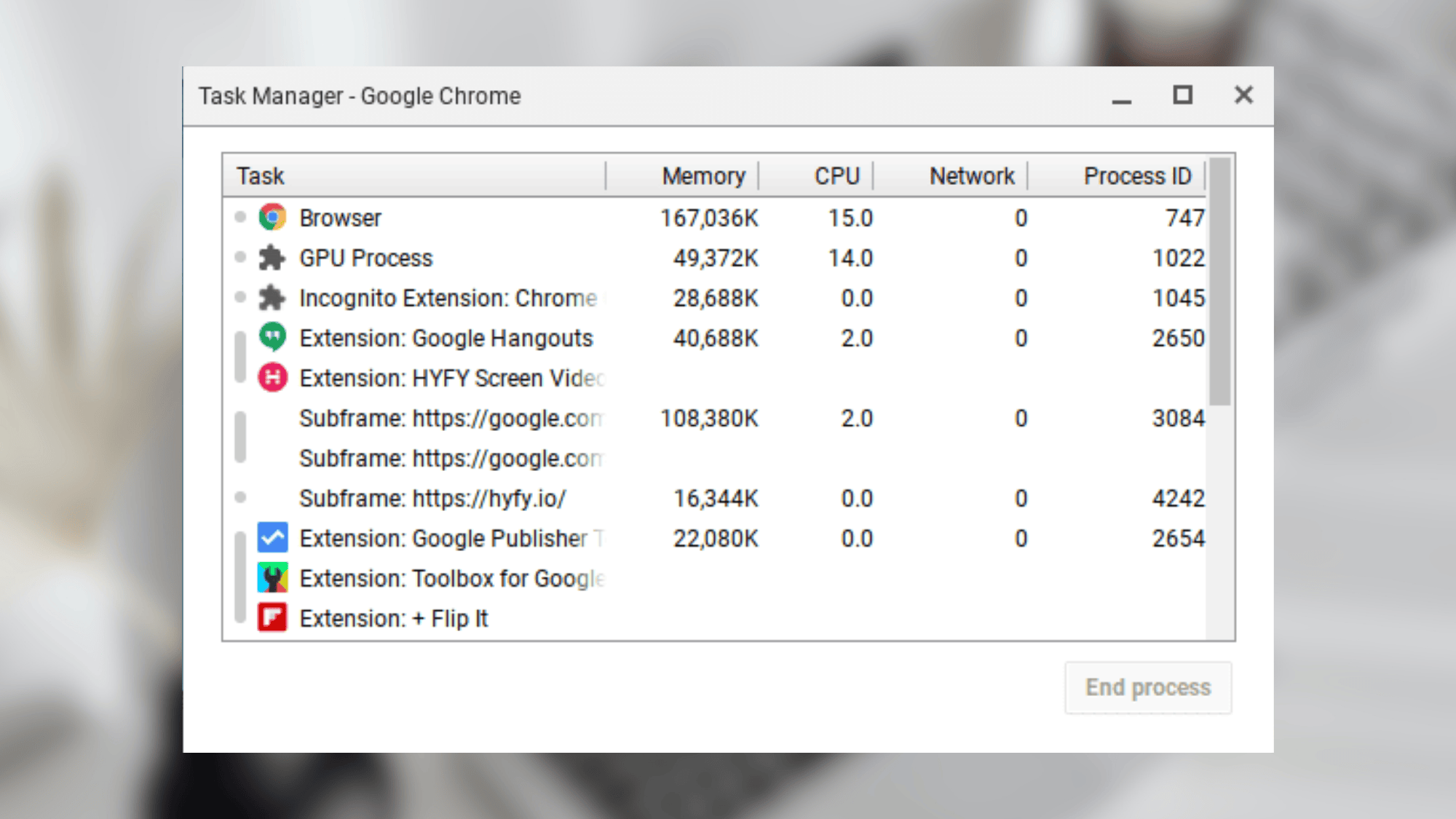
Your Chromebook has a built-in tool that shows exactly what’s slowing things down. It’s called Task Manager, and it’s super helpful.
To open it, press Search + Esc on your keyboard. You’ll see a list of everything currently running, tabs, apps, and extensions.
Click on “Memory“ or “CPU” at the top to sort by what’s using the most resources. See something using a ton of memory that you don’t need right now? Click on it and hit “End Process” at the bottom right.
This works great for finding heavy tabs, Android apps running in the background, or extensions you didn’t realize were still active. Think of it as spring cleaning for your Chromebook’s brain.
Remove Things that Slow Your Chromebook Down
Now that you’ve handled the quick wins, it’s time to get rid of the digital clutter that’s been weighing your Chromebook down. These are the hidden things running in the background that you might not even remember installing.
4. Uninstall Unused Chrome Extensions
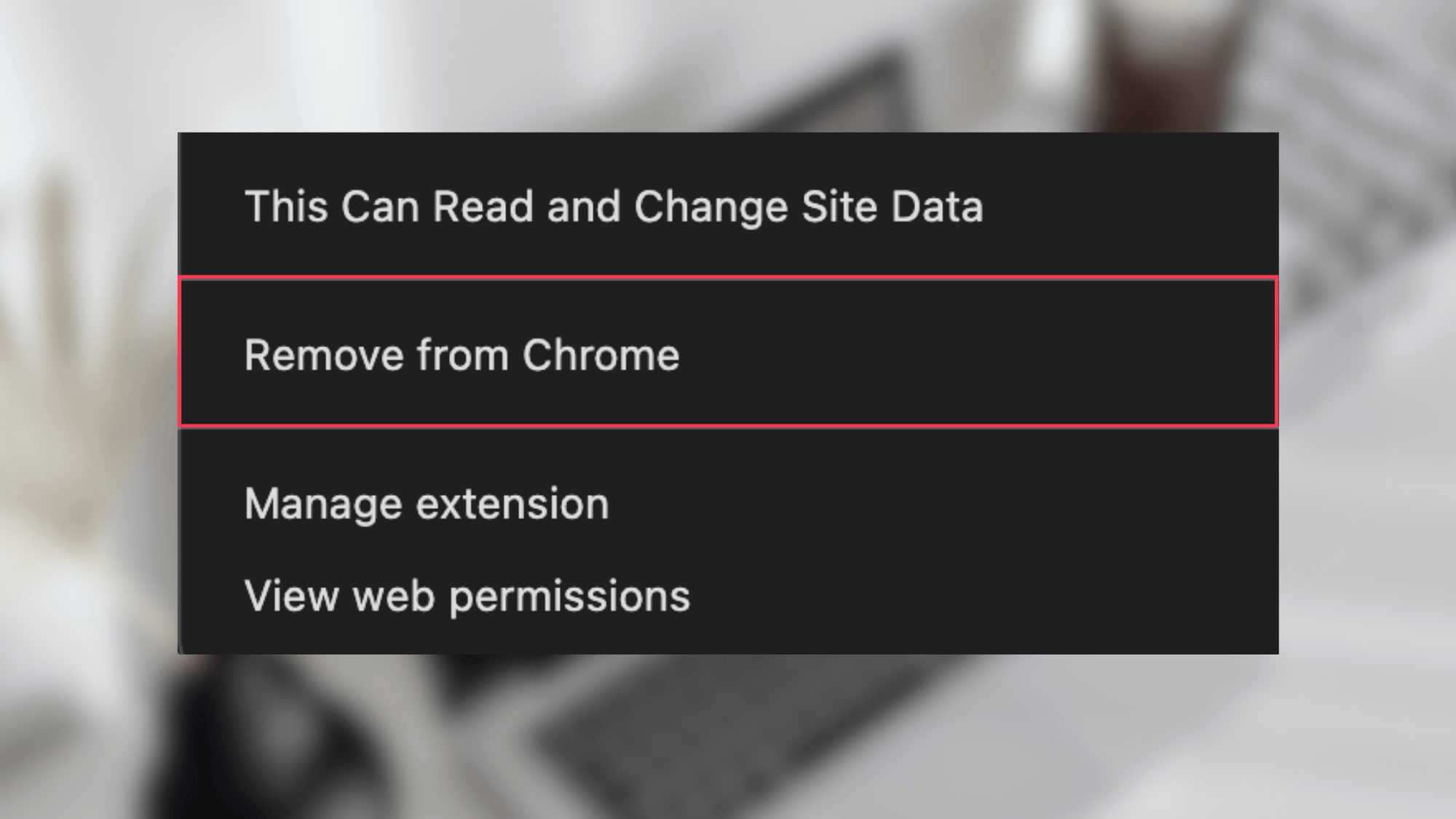
Extensions are handy tools that add extra features to Chrome, but here’s the catch: many of them run constantly in the background, even when you’re not using them.
That ad blocker or grammar checker? It’s checking every single page you visit, using up memory and processing power.
How to check your extensions:
- Type
chrome://extensionsin your address bar and hit Enter - Look through the list, do you actually use all of these?
- Toggle off any extensions you’re not sure about (this disables them without deleting)
- Use your Chromebook for a day or two
- If you don’t miss an extension, click “Remove” to delete it permanently
Pro tip: Disabling an extension first is smart, because you can always turn it back on if you realize you need it. But once you remove it, you’ll have to reinstall from the Chrome Web Store.
5. Delete Unused Apps (Android & Linux)

Android and Linux apps are great when you need them, but they can really drag down older or low-spec Chromebooks.
Unlike regular websites, these apps often run background services that consume CPU power even when they’re closed.
| App Type | Why It Slows Things Down | When to Delete |
|---|---|---|
| Android Apps | Drain CPU and memory on Chromebooks with 4GB RAM or less | If you haven’t opened it in a month |
| Linux Apps | Run background services and processes | If there’s a web version that works just as well |
How to uninstall apps:
- Open your app launcher (circle icon in the bottom-left corner)
- Find the app you want to remove
- Right-click on it (or press Alt + Click on a touchpad)
- Select “Uninstall” from the menu
Think about it this way: if you installed an Android game six months ago and haven’t played it since, it’s just sitting there using resources. Delete it, and you can always reinstall later if you want to play again.
6. Clear Cache and Browsing Data
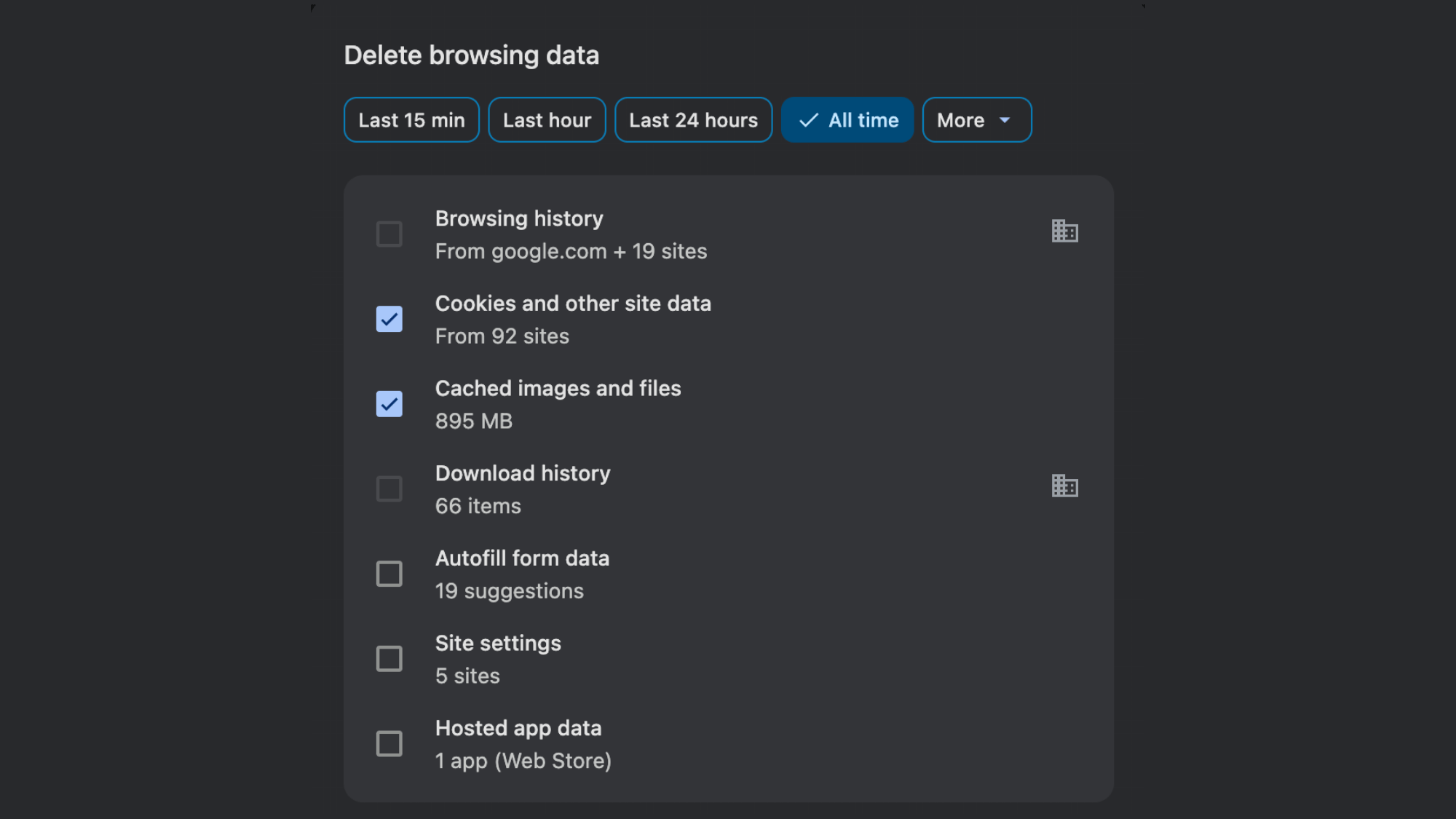
Your Chromebook saves bits of websites (called “cache”) to help pages load faster next time. Sounds good, right? The problem is that over time, this cache builds up and actually starts slowing things down instead of speeding them up.
Old cached files can get corrupted or outdated, making Chrome work harder to figure out what to use.
Here’s How To Clear It Out:
- Click the time in the bottom-right corner
- Click the gear icon to open Settings
- Go to Privacy and Security on the left sidebar
- Click Clear browsing data
- Choose a time range (pick “All time” for the best results)
What Should You Clear?
| Check This Box | Why | Safe to Clear? |
|---|---|---|
| Browsing history | List of sites you’ve visited | Yes (unless you need the history) |
| Cookies and site data | Login info and site preferences | You’ll be logged out of websites |
| Cached images and files | Speeds up loading, but gets outdated | Yes, definitely clear this |
| Download history | List of downloaded files | Yes (doesn’t delete actual files) |
Don’t Worry About Passwords: Chrome stores them separately, so clearing browsing data won’t delete them.
After clearing the cache, the first time you visit websites might be slightly slower, but after that, everything will run much more smoothly. Think of it like taking out the trash; your Chromebook has fresh space to work with.
System Optimization Settings that Improve Performance
Ready to take things up a notch? These system settings fine-tune how your Chromebook runs. They take a few extra minutes but make a real difference, especially on older devices.
7. Update ChromeOS Regularly
ChromeOS updates aren’t just about new features; they include performance improvements and bug fixes that make your Chromebook run more smoothly.
Google is constantly tweaking things behind the scenes to help Chrome OS work better, especially on older hardware.
How to Check for Updates:
- Click the time in the bottom-right corner
- Click the gear icon to open Settings
- Scroll down and click About ChromeOS at the bottom of the left sidebar
- Click Check for updates
If an update is available, your Chromebook will download and install it automatically. You’ll need to restart for the update to take effect. The whole process usually takes 5-10 minutes.
Pro tip: Set aside time once a month to check for updates. Your Chromebook will thank you with faster performance and better security.
8. Free Up Storage Space
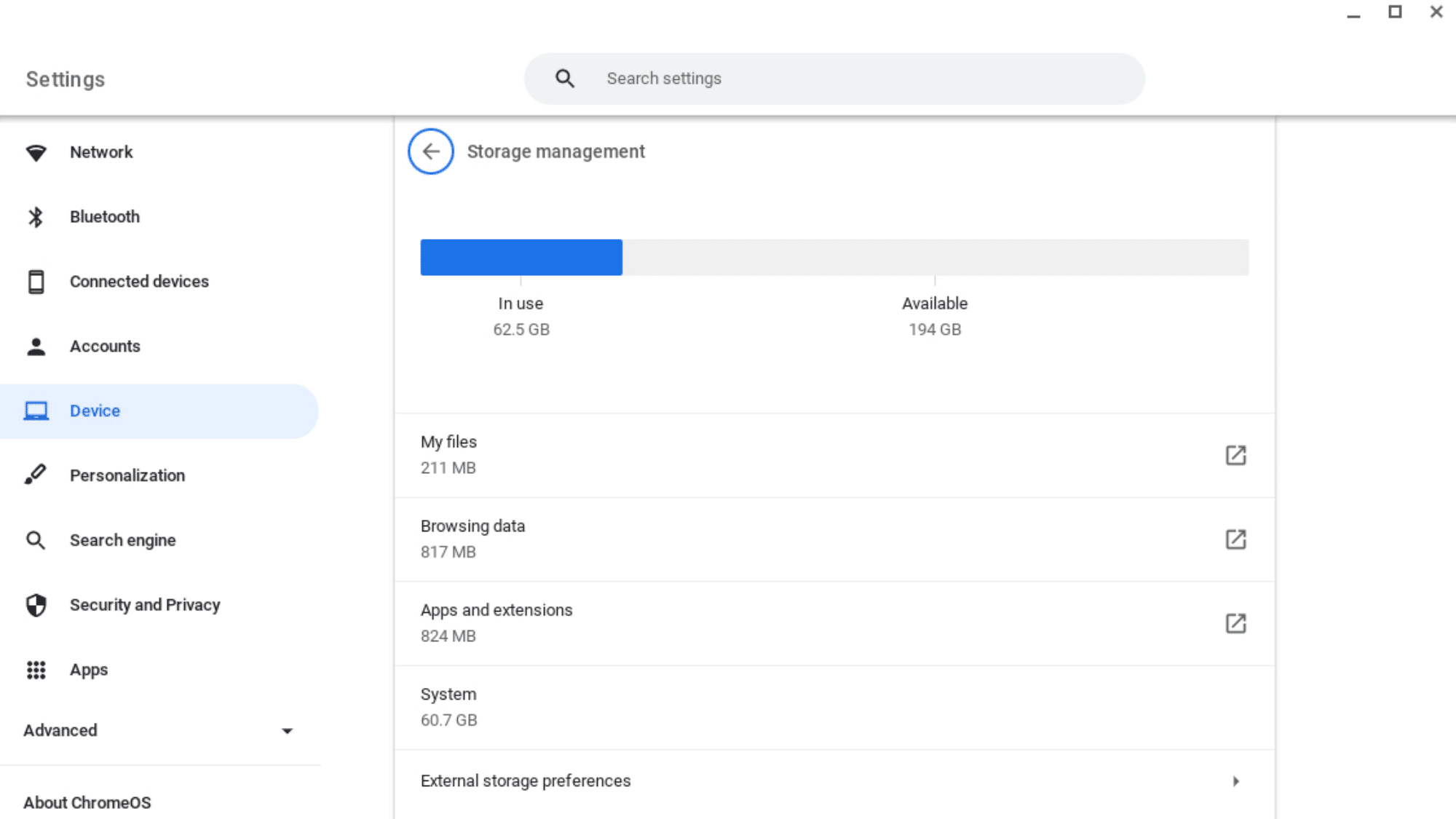
Here’s something many people don’t realize: ChromeOS needs free storage space to function properly.
When your storage gets too full (above 80-90%), your Chromebook starts using something called “storage swap,” which is way slower than regular memory.
Everything begins to lag: apps, websites, and even typing can feel sluggish.
Where storage goes:
| What’s Taking Up Space | How to Free It Up |
|---|---|
| Downloads folder | Delete old files you don’t need anymore |
| Screenshots and screen recordings | Move to Google Drive or delete |
| Offline files | Google Docs/Sheets saved for offline use |
Quick Cleanup Steps:
- Open the Files app from your app launcher
- Click on Downloads in the left sidebar
- Sort by date or size to find big, old files
- Delete anything you don’t need (or move it to Google Drive)
- Empty the Trash folder when you’re done
Moving Files to Google Drive:
Instead of deleting important files, move them to Google Drive. You get 15GB free, and files stored there don’t take up space on your Chromebook. Just drag and drop files from Downloads to Google Drive in the Files app.
Aim to keep at least 20-30% of your storage free. This gives ChromeOS breathing room to work efficiently.
9. Enable Memory Saver (If Available)
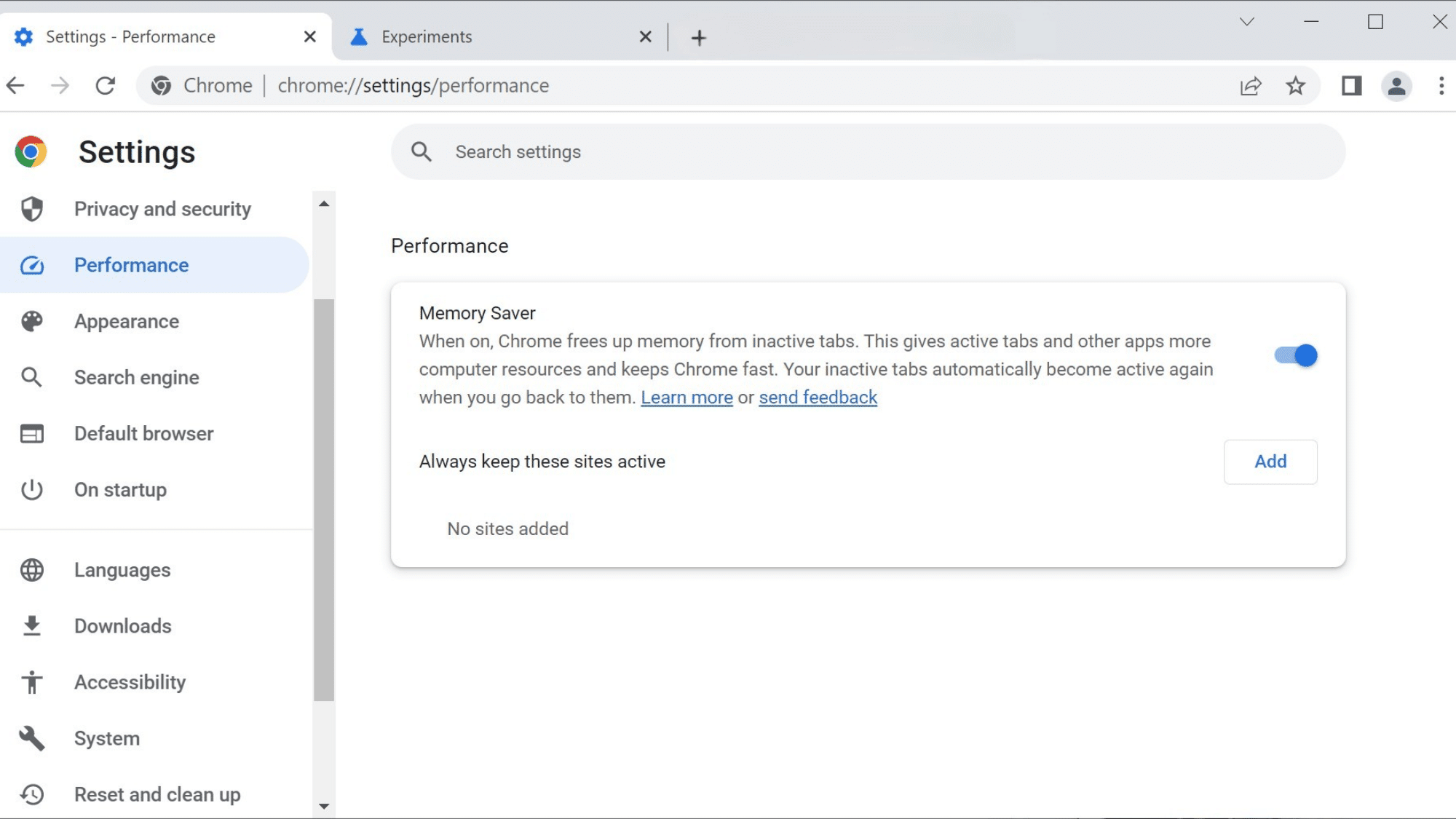
Memory Saver helps Chromebooks with 4GB or less RAM by putting background tabs to “sleep,” freeing memory for active tabs.
How to Enable Memory Saver:
- Open Chrome
- Click the three dots in the top-right corner
- Go to Settings
- Click Performance in the left sidebar
- Toggle on Memory Saver
What It Does:
- Inactive tabs use less memory
- Your active tab gets more resources
- Tabs “wake up” instantly when you click on them
- You won’t notice any difference except that things run faster
Note: Not all Chromebooks have this feature yet. If you don’t see “Performance” in your Chrome settings, your device might not support it or need a ChromeOS update first.
This feature is especially helpful if you keep many tabs open but use only a few at a time. Let Memory Saver handle the background tabs while you focus on what matters.
Last-Resort Fixes If Your Chromebook is Still Slow
If you’ve tried everything else and your Chromebook is still crawling, don’t give up yet. These are the big moves—they take more time and commitment, but they can breathe new life into even the slowest devices.
10. Powerwash (Factory Reset)
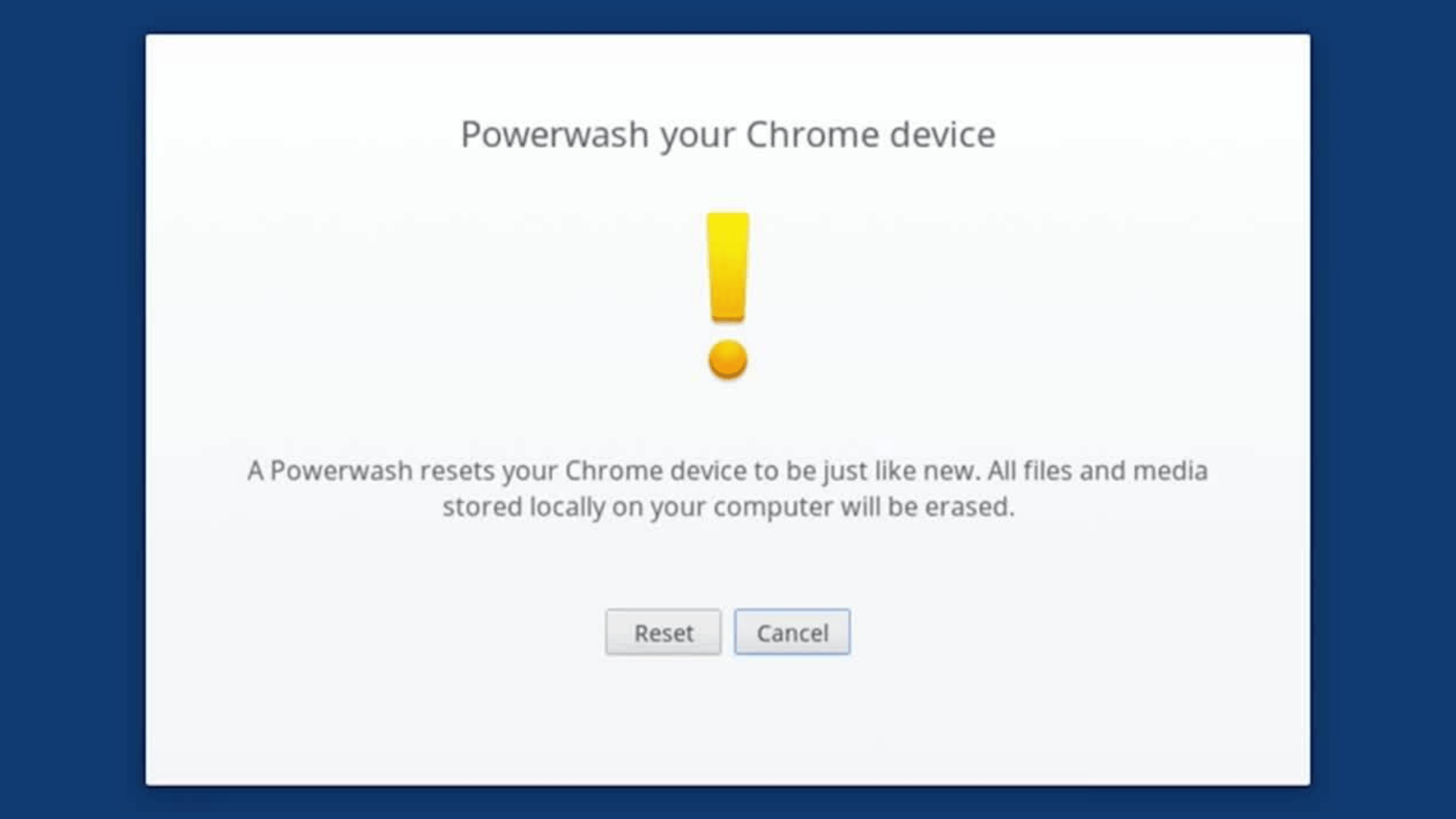
A Powerwash is ChromeOS’s version of a factory reset. It wipes your Chromebook clean and returns it to the way it was on day one. This might sound extreme, but it’s incredibly effective at fixing stubborn slowness issues.
When to Use a Powerwash:
- Your Chromebook is still slow after trying all the fixes above
- You’ve accumulated years of extensions, apps, and settings
- Something feels “broken,” but you can’t figure out what
- You’re getting ready to sell or give away your Chromebook
What it removes:
| Gets Deleted | Stays Safe |
|---|---|
| All downloaded files in your Downloads folder | Anything saved to Google Drive |
| All apps and extensions | Your Google account and passwords |
| All settings and preferences | Bookmarks synced to your Google account |
| Android and Linux apps | Files stored in the cloud |
Why It Works:
Think of a Powerwash like moving into a freshly cleaned apartment. All the accumulated junk, old settings, corrupted files, and forgotten background processes disappear.
Your Chromebook gets a fresh start, which often resolves performance problems that nothing else could fix.
How to Powerwash:
- Back up important files first! Move anything in Downloads to Google Drive
- Click the time in the bottom-right corner
- Click the gear icon to open Settings
- Scroll down and click Advanced to expand more options
- Click Reset settings
- Click Powerwash and follow the prompts
- Sign back in with your Google account after it restarts
The whole process takes about 10-15 minutes. When you sign back in, your bookmarks, passwords, and Drive files will all be there, but your Chromebook will run like new.
You’ll need to reinstall any extensions or Android apps you want to use again. But this time, only install what you actually need. Keeping it light is the secret to staying fast.
11. Check Hardware Limits
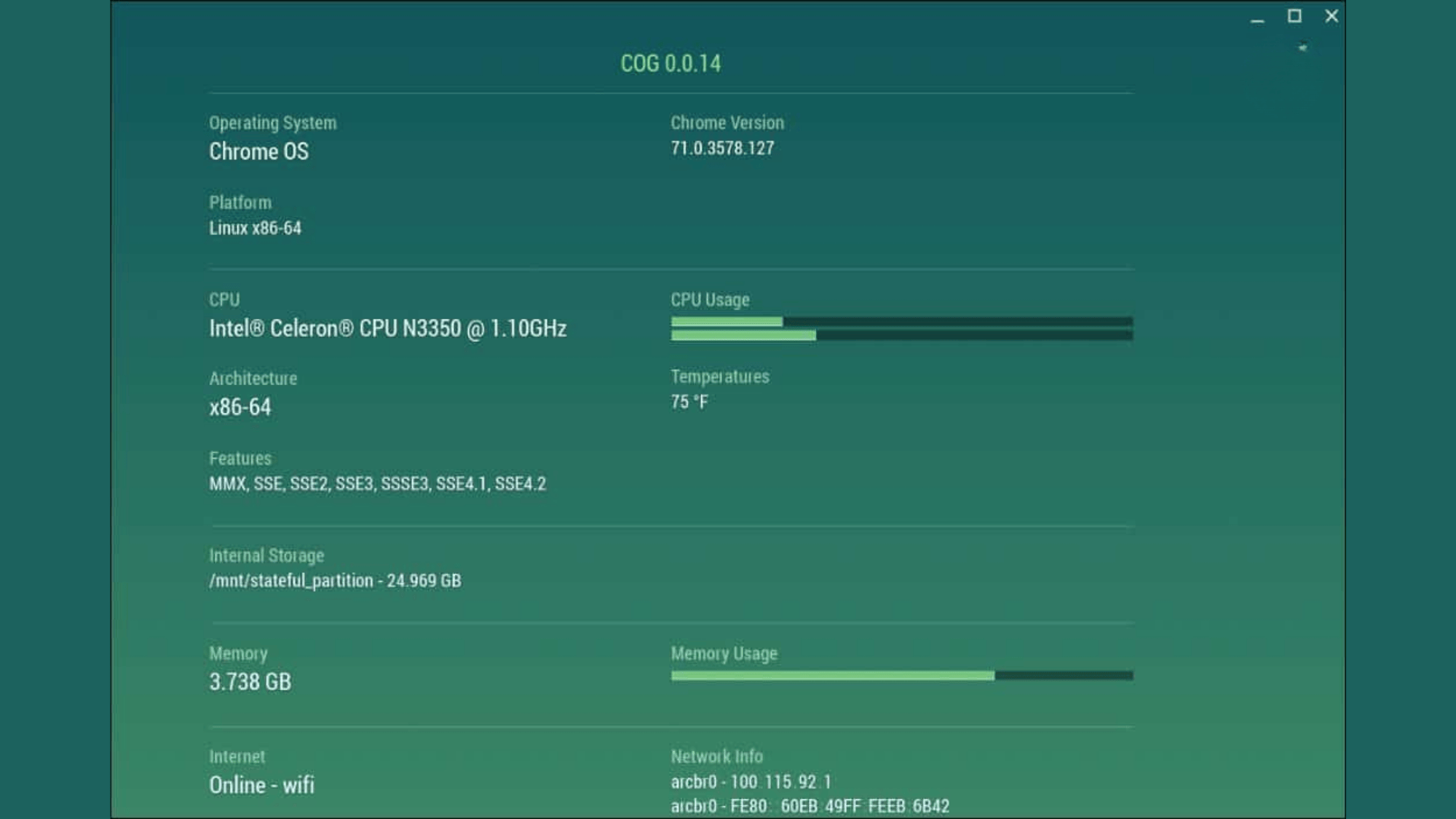
Sometimes the hard truth is that your Chromebook is doing the best it can with what it’s got. If you’ve tried everything and it’s still slow, the hardware itself might be the bottleneck.
Common Hardware Limitations:
| Hardware Issue | How It Affects Speed | What You’ll Notice |
|---|---|---|
| Older CPU (processor) | Can’t handle modern websites and apps | Everything feels sluggish, even with few tabs open |
| 4GB RAM or less | Not enough memory for multitasking | Chromebook freezes when opening multiple tabs |
| Aging battery | System slows down to preserve power | Performance drops when unplugged |
| Old storage (eMMC) | Slower read/write speeds | Apps and files take forever to open |
How to check your specs:
- Go to Settings → About ChromeOS → Diagnostics
- Or type
chrome://systemin your address bar - Look for “Memory” (RAM) and processor info
When Replacement Makes More Sense:
Here’s the real talk: if your Chromebook has 2GB of RAM and a 2015 processor, no amount of tweaking will make it fast enough for modern web browsing. Websites today are simply more demanding than they were 5-10 years ago.
Consider Upgrading If:
- Your Chromebook has 2GB RAM or less (4GB is the minimum for comfortable use today)
- It’s more than 6-7 years old
- It’s no longer receiving ChromeOS updates (check in About ChromeOS)
- You’ve done a Powerwash, and it’s still painfully slow
Final Thoughts
Speeding up a slow Chromebook doesn’t have to be complicated. Start with the quick fixes, restart, close extra tabs, and check what’s hogging your resources. These simple steps solve most speed issues in minutes.
If those don’t work, dig a little deeper. Remove unused extensions and apps, clear out old cache, and free up storage space. Regular maintenance goes a long way. Update ChromeOS when prompted, and keep those tabs under control.
And remember, even older Chromebooks can run great with the right care. A Powerwash can work wonders if nothing else helps. But if your device is truly ancient, there’s no shame in upgrading, technology moves fast.
Got your Chromebook running faster? Bookmark this guide and come back whenever things start slowing down again. A little regular tune-up keeps everything running smoothly for years to come.