


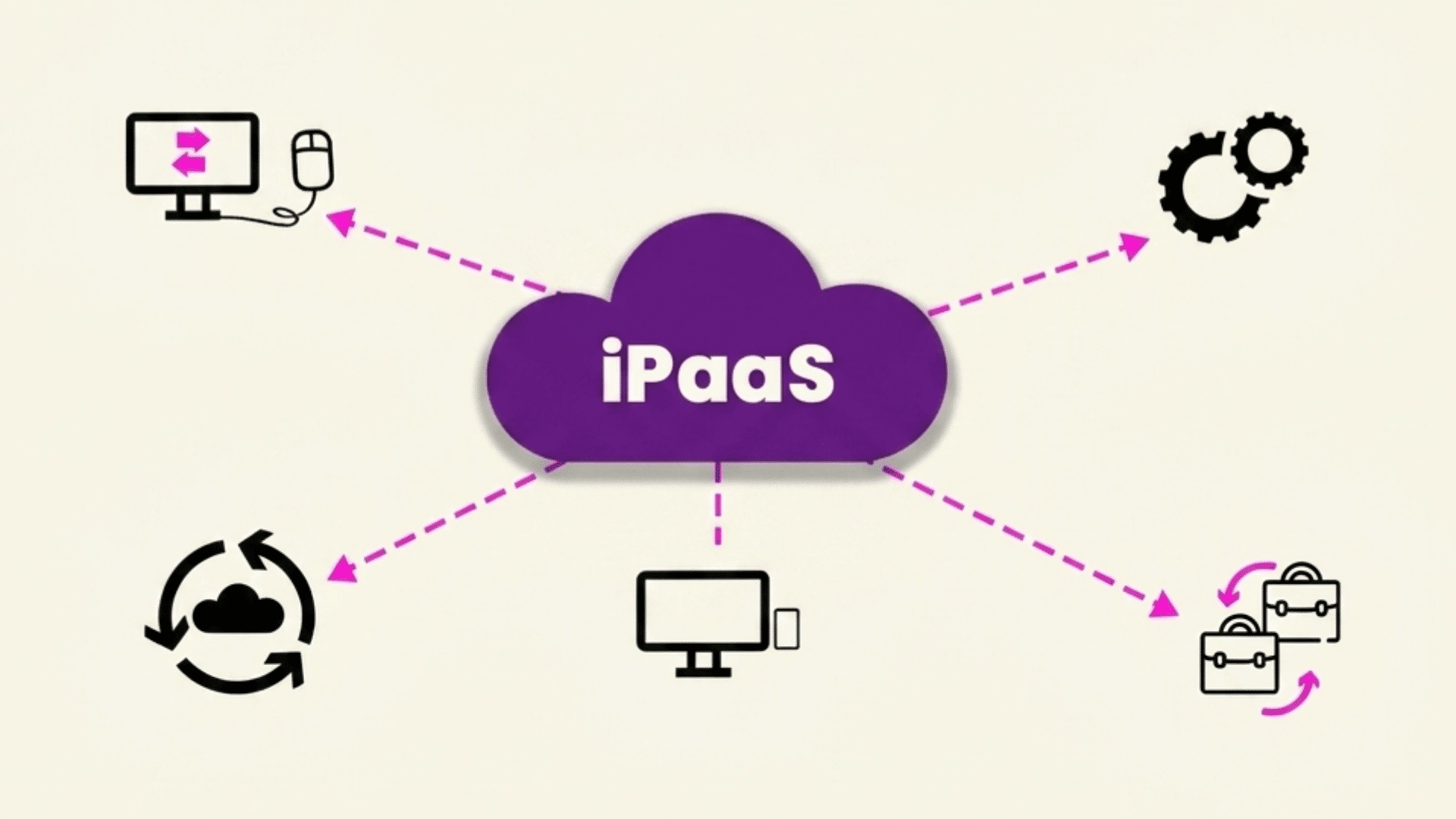


Most of the software you use today lives online. I’ve seen teams stop installing big programs and start using browser-based tools that update automatically and are easy to access from anywhere.
In this blog, I’m sharing some saas examples that people and businesses use every day.
I cover popular tools across project management, customer support, design, meetings, file storage, marketing, and online selling.
For each one, you’ll get an overview, key features, the business model, and who it’s best for.
That way, you can compare options without getting stuck in tech talk.
If you’re picking tools for your job, starting a business, or learning more about saas development, this list will help you understand what SaaS looks like in the real world and what to try first.
What Is SaaS?
SaaS (Software as a Service) is a way to use software through the internet instead of installing it on your device.
You open it in a browser or app, log in, and start using it right away. The company that provides the software takes care of updates, security, and storage, so you don’t need to manage anything.
Most SaaS tools work on a subscription plan, so you pay monthly or yearly instead of buying it once.
Common examples include Google Docs, Zoom, and Dropbox. The main benefit is easy access from anywhere with an internet connection. It also helps teams work together in real time.
You don’t need strong hardware or setup skills, which makes SaaS a simple choice for both individuals and businesses.
The global SaaS market was valued at approximately $273 billion in 2023 and is projected to exceed $374 billion by this year, according to Statista.
Over 70% of enterprise software used by companies today is delivered as SaaS.
SaaS Pricing Models: What You Need to Know Before Choosing
Before jumping into specific tools, it helps to understand how SaaS companies charge for their products. The pricing model affects your total cost far more than the listed monthly rate.
| Pricing Model | How It Works | Best For | Watch Out For |
|---|---|---|---|
| Per-seat (per-user) | Fixed monthly fee per user account | Teams with predictable headcount | Costs scale fast as teams grow |
| Freemium | Free core tier; paid tiers unlock features | Startups testing a tool’s fit | Free limits often push upgrades quickly |
| Usage-based | Pay for what you consume (emails sent, API calls, storage) | Companies with variable workloads | Hard to budget; spikes hurt |
| Flat-rate | One price for all features, all users | Larger teams want cost predictability | Expensive if you only need a subset of features |
Top Extraordinary Examples of SaaS Applications
The SaaS world is full of tools that help businesses work better and faster. I’ve put together the top saas examples to show you what’s out there and help you find the right solutions for your needs.
1. Smartsheet
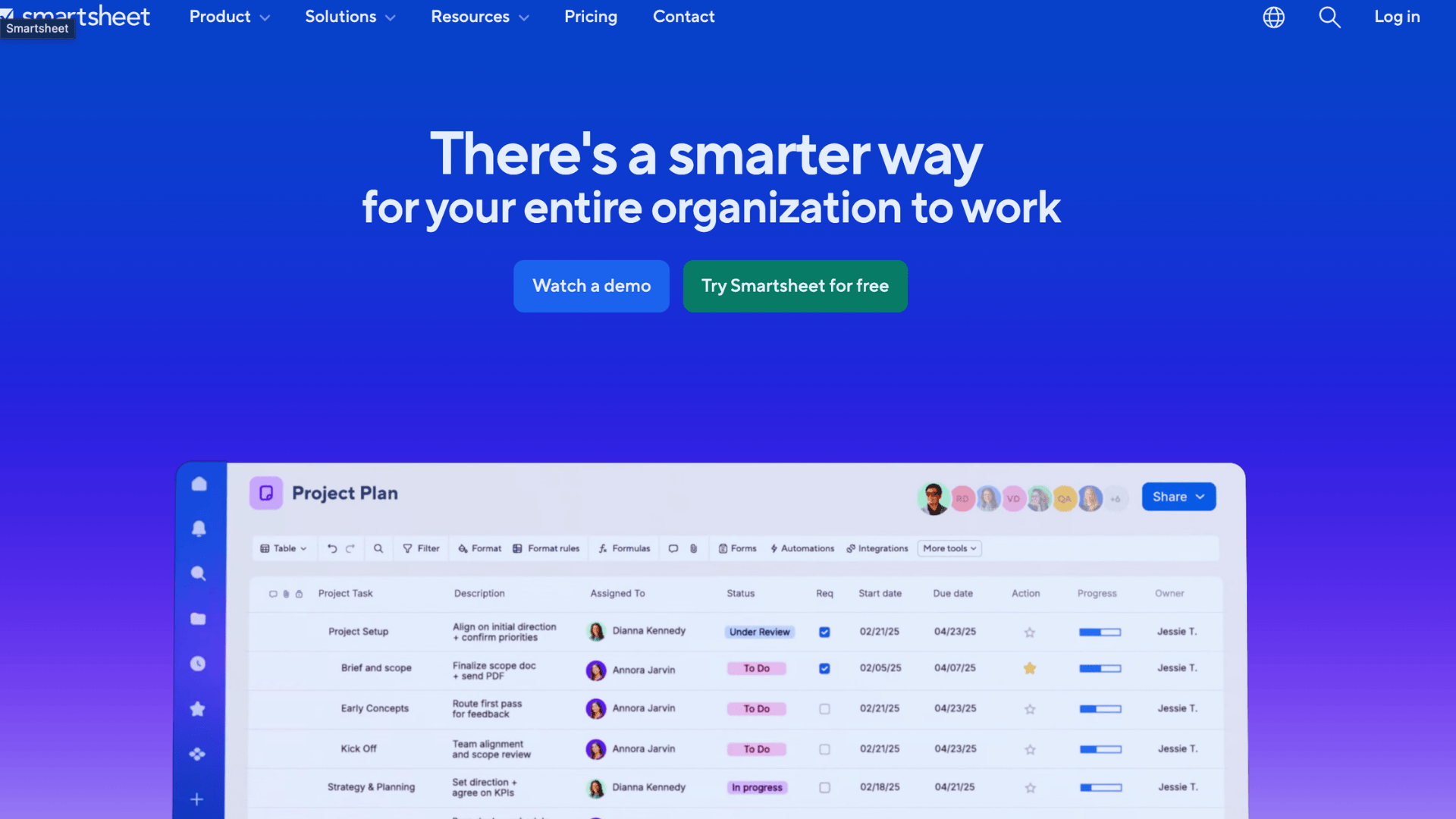
Smartsheet brings project management into a familiar spreadsheet-style interface that feels simple and practical. Instead of learning a completely new system, you work in a layout that resembles tools many people already use.
That makes it easier to organize tasks, set deadlines, and track progress without feeling overwhelmed.
If you’ve struggled with complicated project platforms that require hours of training, you’ll likely find this one much easier to understand and start using right away.
Features:
- Grid, Gantt, calendar, and card views for different project perspectives
- Real-time collaboration with comments and file attachments
- Integration with tools like Microsoft 365, Google Workspace, and Slack
How It’s Priced: Smartsheet operates on a subscription model with tiered pricing based on features and the number of users. Plans range from individual users to enterprise solutions with advanced security and support.
Who It’s For: Teams that love spreadsheets but need more power for project tracking.
It’s perfect for marketing departments managing campaigns, construction companies tracking builds, or IT teams coordinating releases.
Who should skip it: Pure software development teams who live in Jira or Linear. Smartsheet’s spreadsheet model adds friction for agile sprint workflows that those tools handle natively.
2. Onshape
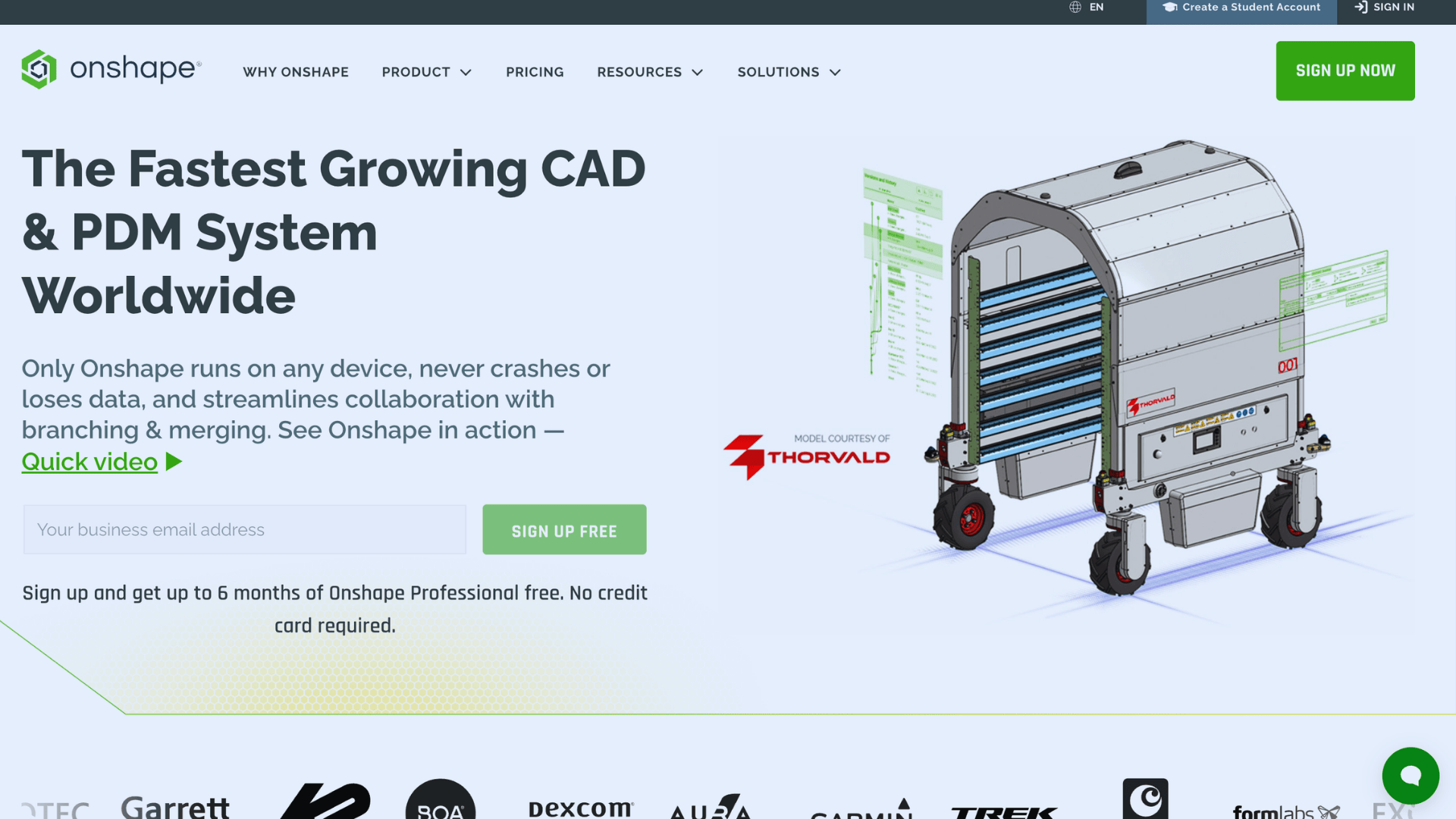
Onshape is a cloud-based CAD tool that lets teams design 3D models directly in a web browser. You don’t need to install heavy software or use high-end computers to get started.
That makes it easier for teams to work from anywhere and still stay in sync on designs.
If you’ve faced issues with file versions or slow systems, this tool helps you avoid those problems with built-in cloud access.
Features:
- Full parametric 3D CAD modeling accessible through web browsers
- Built-in version control that tracks every design change automatically
- Real-time collaboration where multiple designers work simultaneously
How It’s Priced: Onshape charges per user with professional and enterprise tiers. The pricing includes all updates, cloud storage, and collaboration features, with no additional costs for modules or add-ons.
Who It’s For: Engineering teams working on mechanical designs, product development, or manufacturing projects.
It works well for remote teams and lets clients review designs without installing software. Startups benefit since no costly systems are needed.
3. Zuora
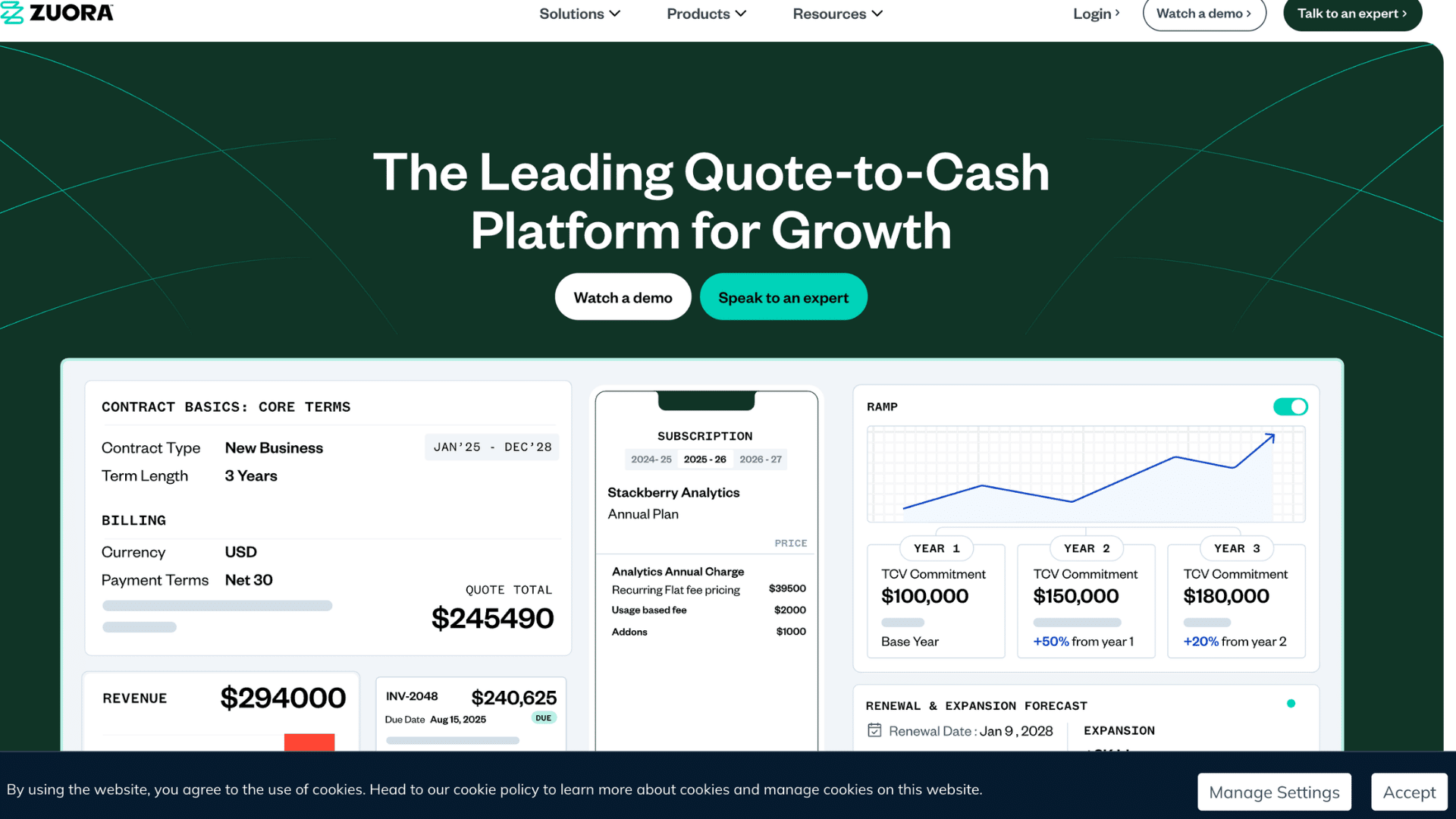
Zuora is a billing and revenue tool made for businesses that run on subscriptions. It helps manage payments, invoices, and financial tracking in one place.
That makes it easier to handle recurring payments without relying on manual work.
If your team spends too much time managing billing in spreadsheets, this tool can simplify the process.
Features:
- Automated ASC 606 and IFRS 15 compliance
- Deferred revenue management and multi-currency support
- Tax calculation and compliance tools
How It’s Priced: Zuora uses volume-based pricing tied to your subscription revenue and transaction volume. They offer different packages for growing companies versus large enterprises with complex needs.
Who It’s For: SaaS companies, membership services, and any business selling subscriptions at scale. It works particularly well for companies transitioning from one-time sales to recurring revenue models.
It handles the billing complexity so your finance team can focus on growth instead of spreadsheet gymnastics.
4. Atlassian
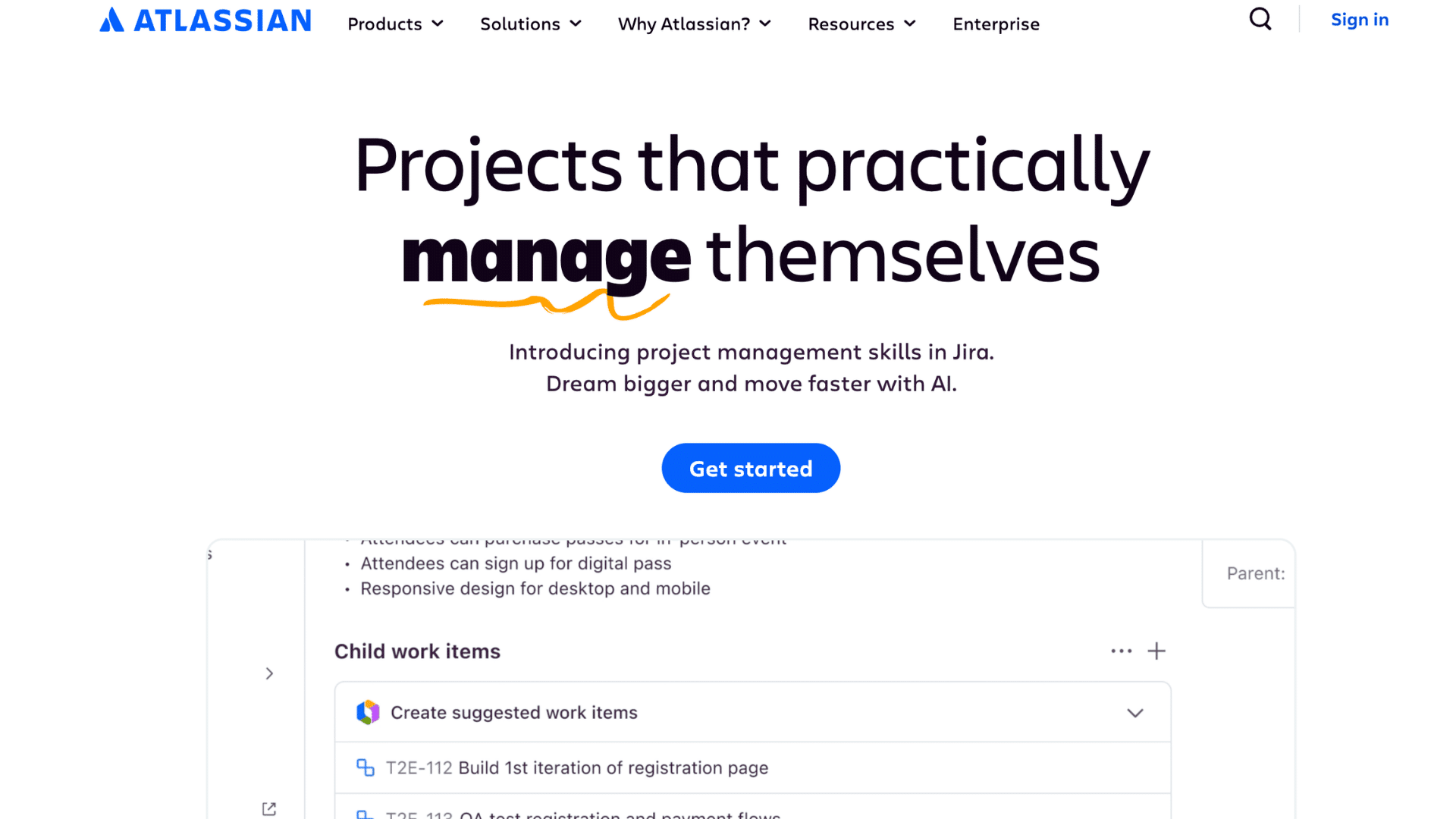
Atlassian builds collaboration tools that help teams plan, track, and ship work more efficiently. Tools like Jira and Confluence bring development, project tracking, and docs into one system.
Jira tracks issues and manages agile workflows, while Confluence serves as a knowledge base where teams document processes and decisions.
These tools integrate easily with each other and thousands of third-party apps.
Features:
- Advanced permission controls to manage user access at project, page, and field levels.
- Customizable automation rules that trigger actions based on status changes or deadlines.
- Enterprise-grade security and compliance certifications such as SOC 2 and ISO standards.
How It’s Priced: Atlassian offers both cloud and data center deployment options with per-user pricing. Cloud plans include free tiers for small teams, with paid plans adding advanced features and support.
Who It’s For: Software development teams managing sprints and releases. Product teams track features and bugs.
IT departments handling service requests. While it started in tech, I’ve watched companies across industries adopt these tools for their flexibility and power.
5. HubSpot
HubSpot brings marketing, sales, and customer service into one system. You can see a full customer timeline instead of jumping between tools.
You track contacts, manage deals, and automate outreach from a single dashboard. It works well for small and mid-size businesses that want structure without a heavy setup.
As your company grows, you can expand features instead of switching platforms entirely.
Features:
- Lead scoring models to prioritize prospects
- Custom reporting builders for deeper insights
- Website tracking code for visitor behavior data
How It’s Priced: HubSpot uses a freemium model with robust free tools and paid hubs for Marketing, Sales, Service, CMS, and Operations. You can start free and add paid features as you grow.
Who It’s For: Small to mid-size businesses building their first real CRM system. Marketing teams that need to prove ROI. Sales teams are tired of juggling multiple tools.
The free tier is perfect for startups, while the paid features scale to support serious growth.
6. Salesforce
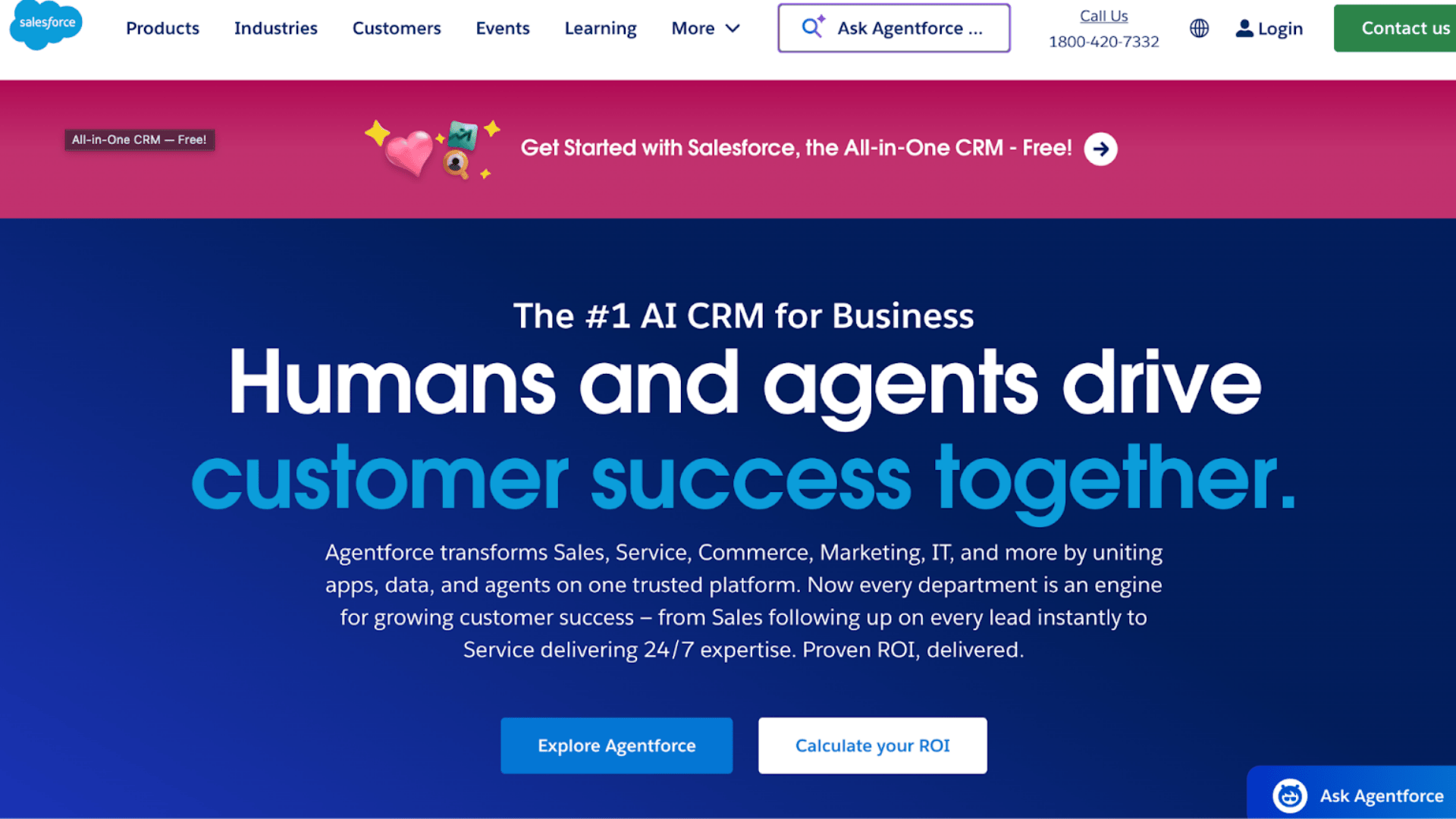
Salesforce is a powerful CRM platform built for companies with complex sales processes. I usually recommend it when a business has outgrown simpler tools.
You can manage leads, track deals, forecast revenue, and deeply customize workflows.
It provides robust reporting and automation, keeping your sales team organized.
While setup takes effort, the flexibility means you can shape it around your business instead of adjusting your process to fit the software.
Features:
- AppExchange marketplace with thousands of add-ons
- Custom object creation for unique data models
- AI-powered sales insights through Einstein analytics
How It’s Priced: Salesforce operates on per-user, per-month pricing with different editions offering increasing functionality.
Clouds can be purchased separately or bundled, with additional costs for premium features.
Who It’s For: Large enterprises with complex sales processes and big budgets. Companies need extensive customization and third-party integrations.
7. Adobe Creative Cloud
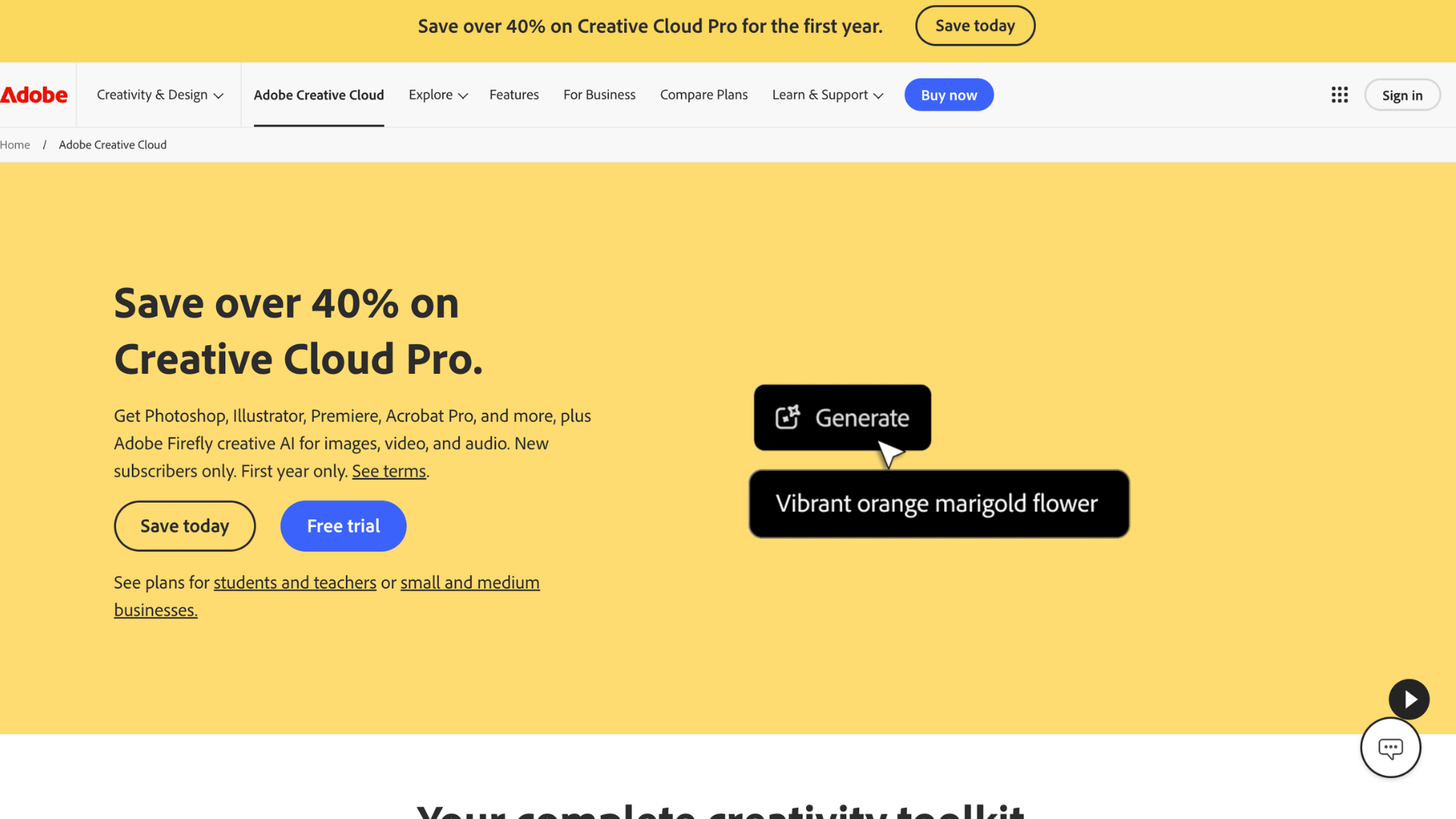
Adobe Creative Cloud gives you access to professional design, video, and photography tools through a subscription. And you don’t buy separate licenses anymore.
You sign in and use apps like Photoshop, Illustrator, and Premiere Pro as needed.
It works well for freelancers and creative teams who often move between projects.
Because updates roll out automatically, you always have the latest version without having to reinstall software manually.
Features:
- Creative Cloud Libraries for shared brand assets
- Adobe Fonts access included in subscription
- Cloud document syncing across multiple devices
How It’s Priced: Adobe offers individual app subscriptions or All Apps bundles with monthly or annual payments. Students get significant discounts, and enterprise plans add team management and licensing tools.
Who It’s For: Professional designers, photographers, video editors, and creative teams.
While the subscription model initially frustrated some users, it actually made professional tools affordable for freelancers and small studios who couldn’t justify the old $2,500+ upfront costs.
8. Zoom
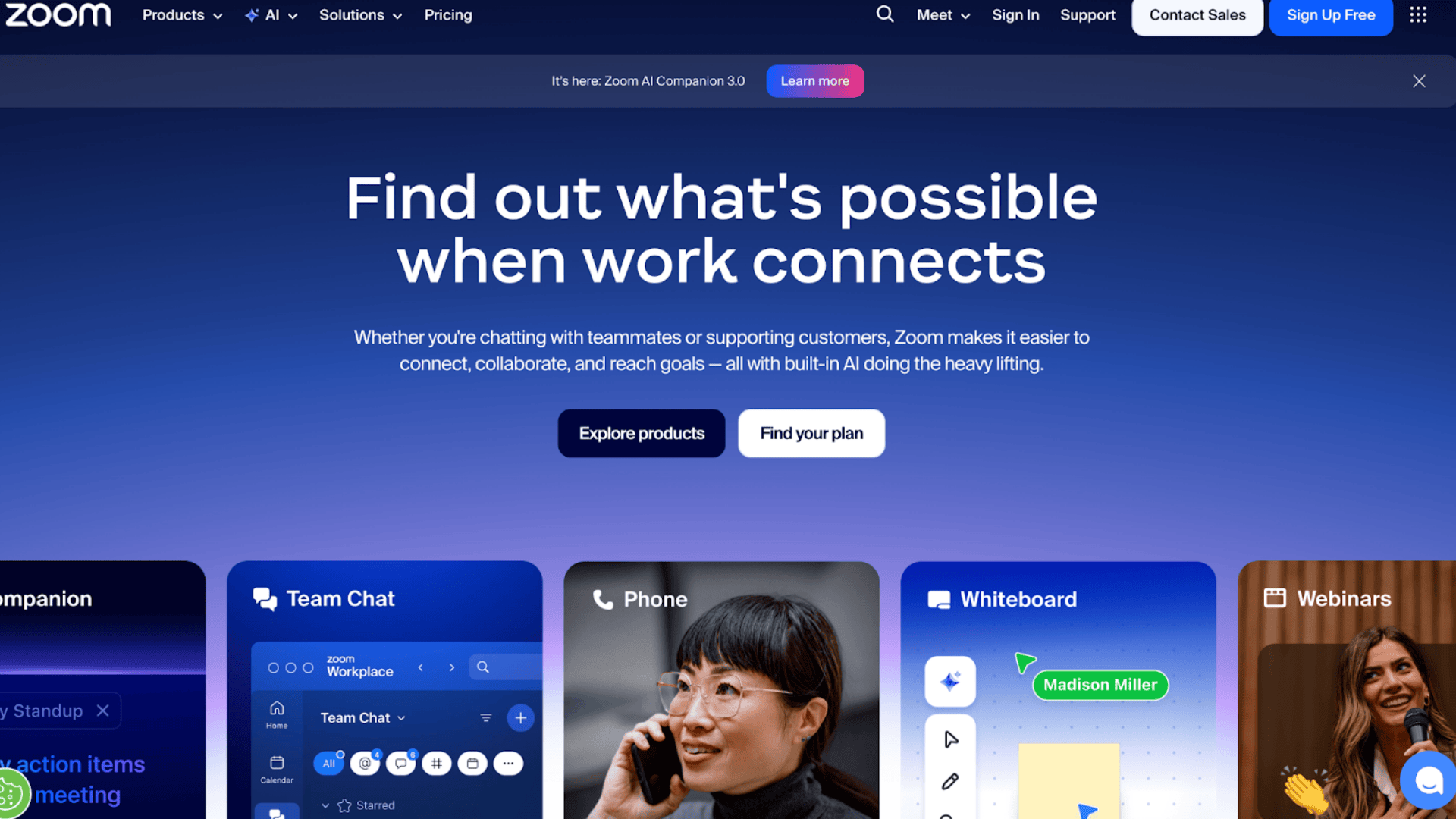
Zoom makes online meetings simple and reliable. I’ve used it for team calls, client demos, and training sessions. You send a link, and people join without technical confusion.
It works on laptops, tablets, and phones, which makes remote work easier.
The interface stays clean, so you’re not searching through menus during a meeting. For many teams, it replaced traditional conference calls, making remote communication feel smoother.
Features:
- Webinar hosting tools for large audiences
- Waiting room controls for added security
- Meeting analytics reports for tracking attendance
How It’s Priced: Zoom uses a freemium approach, offering free 40-minute group meetings, unlimited one-on-one calls, and paid plans that remove time limits and add features such as cloud recording and larger participant capacity.
Who It’s For: Remote teams, educators teaching online classes, sales teams doing product demos, and basically anyone who needs reliable video communication.
9. Dropbox
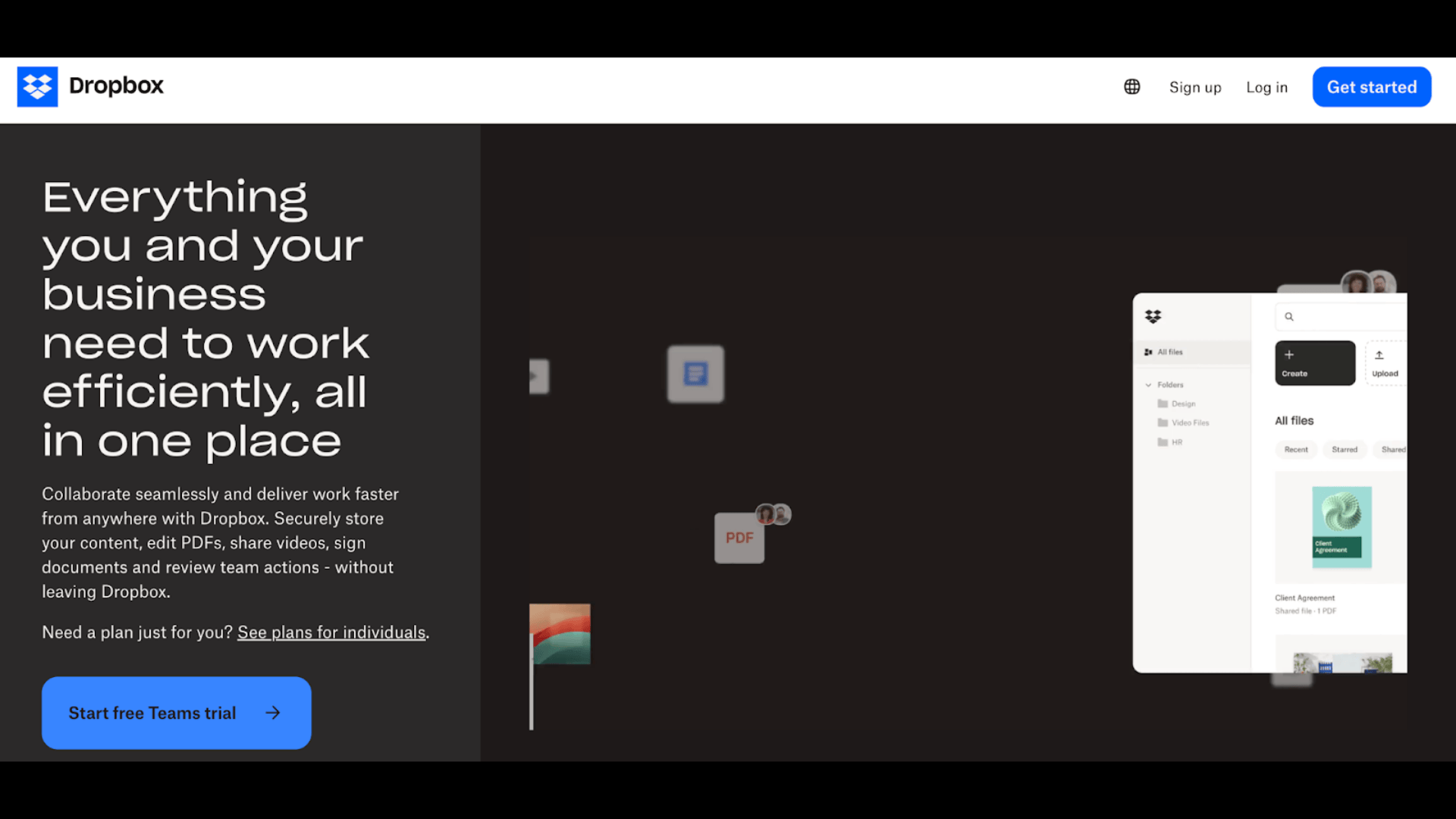
Dropbox stores your files in the cloud and keeps them synced across devices. You can save a file once and access it anywhere. It reduces the need for USB drives or email attachments.
Teams can share folders and control who can edit or view documents.
If someone deletes something by mistake, recovery options help restore earlier versions. It’s simple, which is why many businesses still rely on it.
Features:
- File recovery and rewind options
- Smart Sync to save local storage space
- Password-protected shared links
How It’s Priced: Dropbox offers limited free storage with paid personal and business plans providing more space, advanced features, and team management tools. Pricing scales with storage needs and team size.
Who It’s For: Individuals and teams needing reliable file access from anywhere. Creative professionals sharing large files with clients.
Small businesses get easy collaboration without setup issues, even when teams use different systems.
10. Zendesk
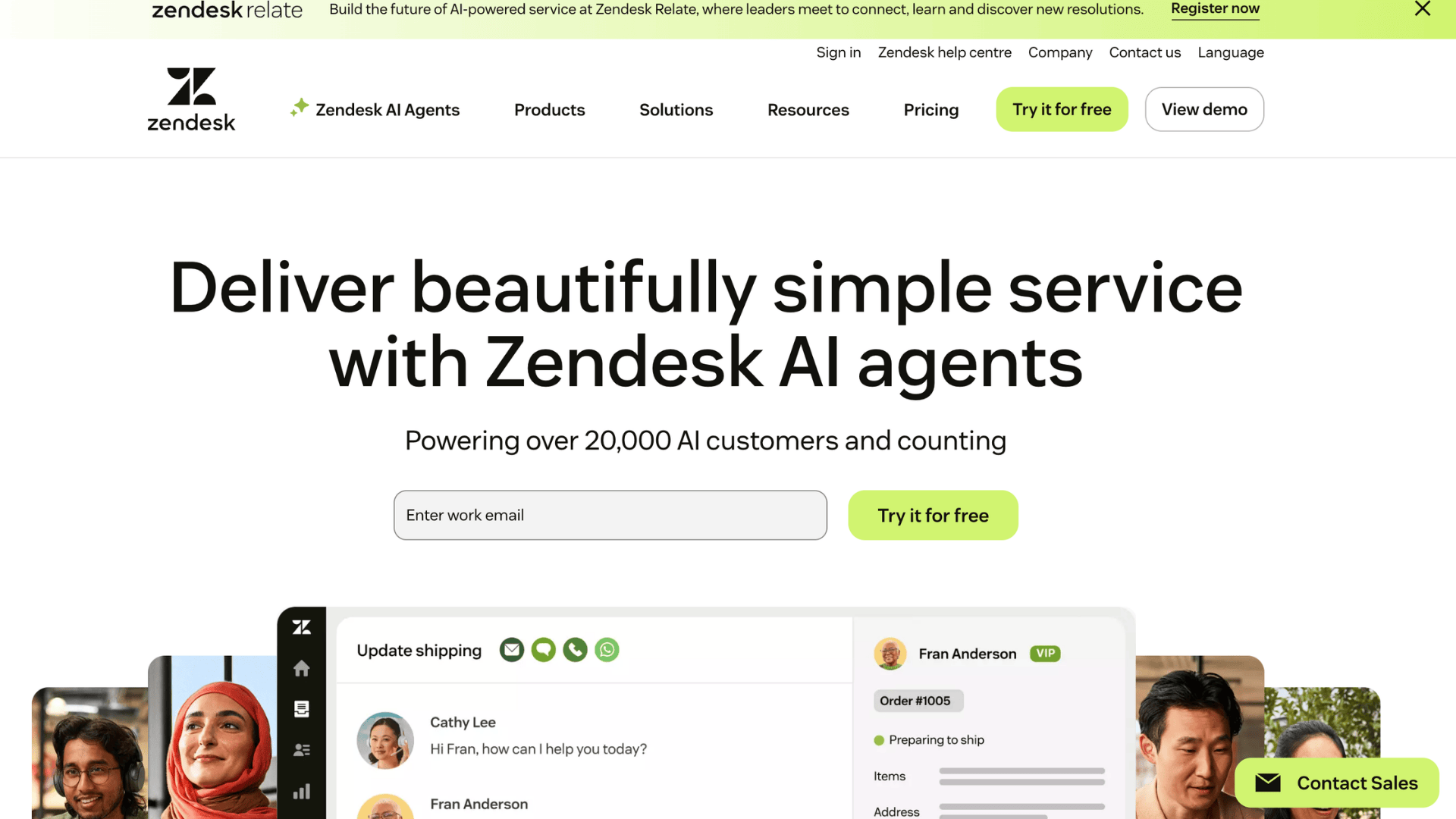
Zendesk helps businesses manage customer support requests in an organized way.
Instead of scattered emails, you get a structured ticket system. It helps growing teams avoid missed messages and slow responses.
You assign tickets, set priorities, and track resolution times.
It keeps customer conversations in one place so agents don’t lose context. For companies scaling support operations, this structure becomes essential.
Features:
- SLA management tools for response targets
- Multi-language help centers
- Advanced workflow triggers for ticket routing
How It’s Priced: Zendesk charges per agent each month, with pricing tiers and separate plans for the full suite or individual tools.
Who It’s For: Growing companies scaling their customer support operations. E-commerce businesses handling order inquiries. SaaS companies manage technical support.
Once you’re past the point where support@ goes to a single inbox, Zendesk helps you stay organized and responsive.
11. Docusign
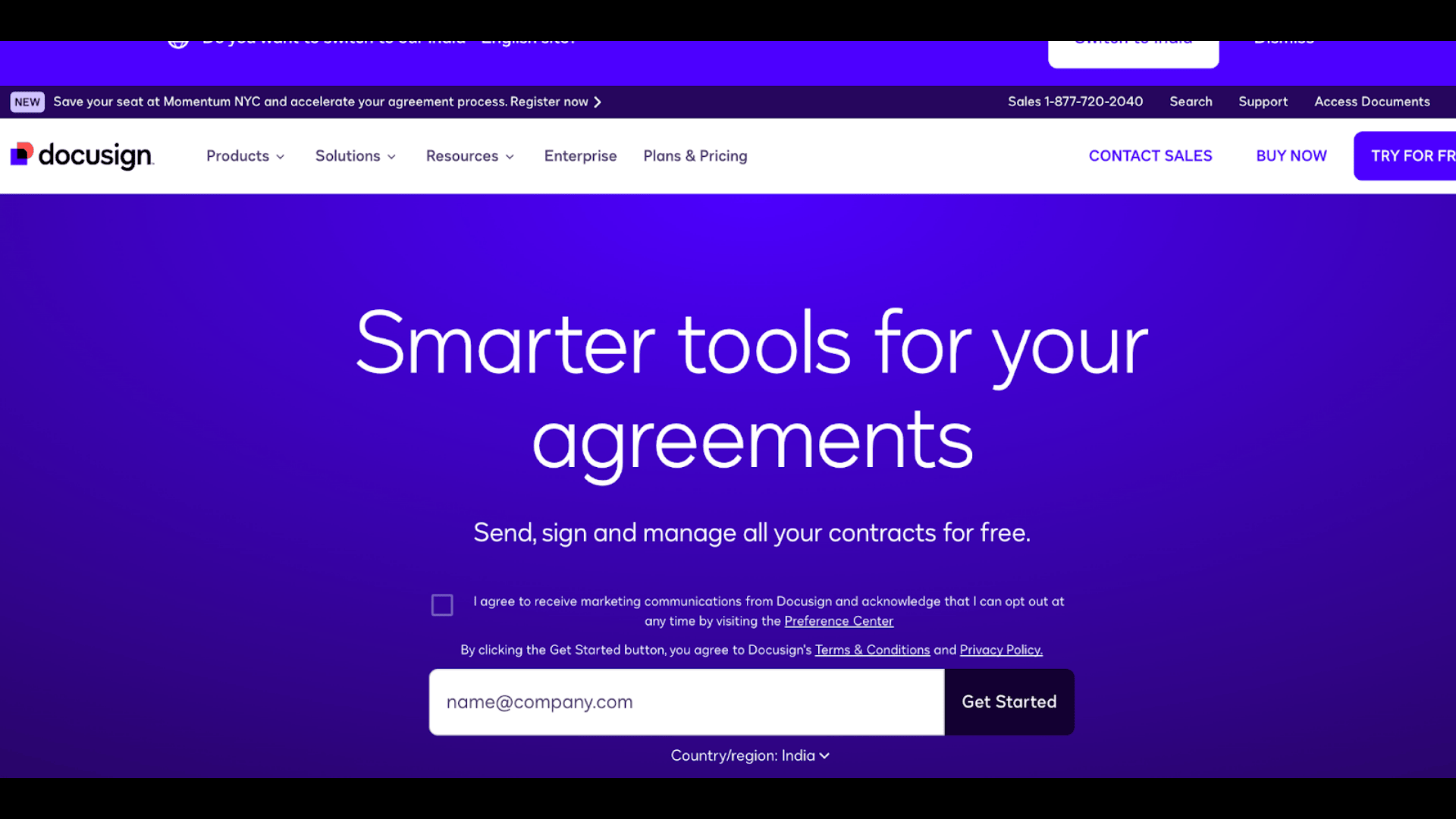
DocuSign lets you send and sign documents online without printing anything, and it removes back-and-forth emails and scanning.
You upload a document, add signature fields, and send it for approval.
The other person signs from their phone or computer. You can track when it’s opened and completed.
It saves time for contracts, agreements, and onboarding paperwork. For teams handling frequent approvals, it speeds up the entire process.
Features:
- Bulk sending options for multiple recipients
- Custom branding on signature requests
- Compliance support for global regulations
How It’s Priced: DocuSign uses per-user plans based on documents sent, with higher tiers adding features like bulk sending and custom branding.
Who It’s For: Real estate, HR, sales, and legal teams use it to speed up contracts, cutting turnaround from weeks to hours.
12. Netflix
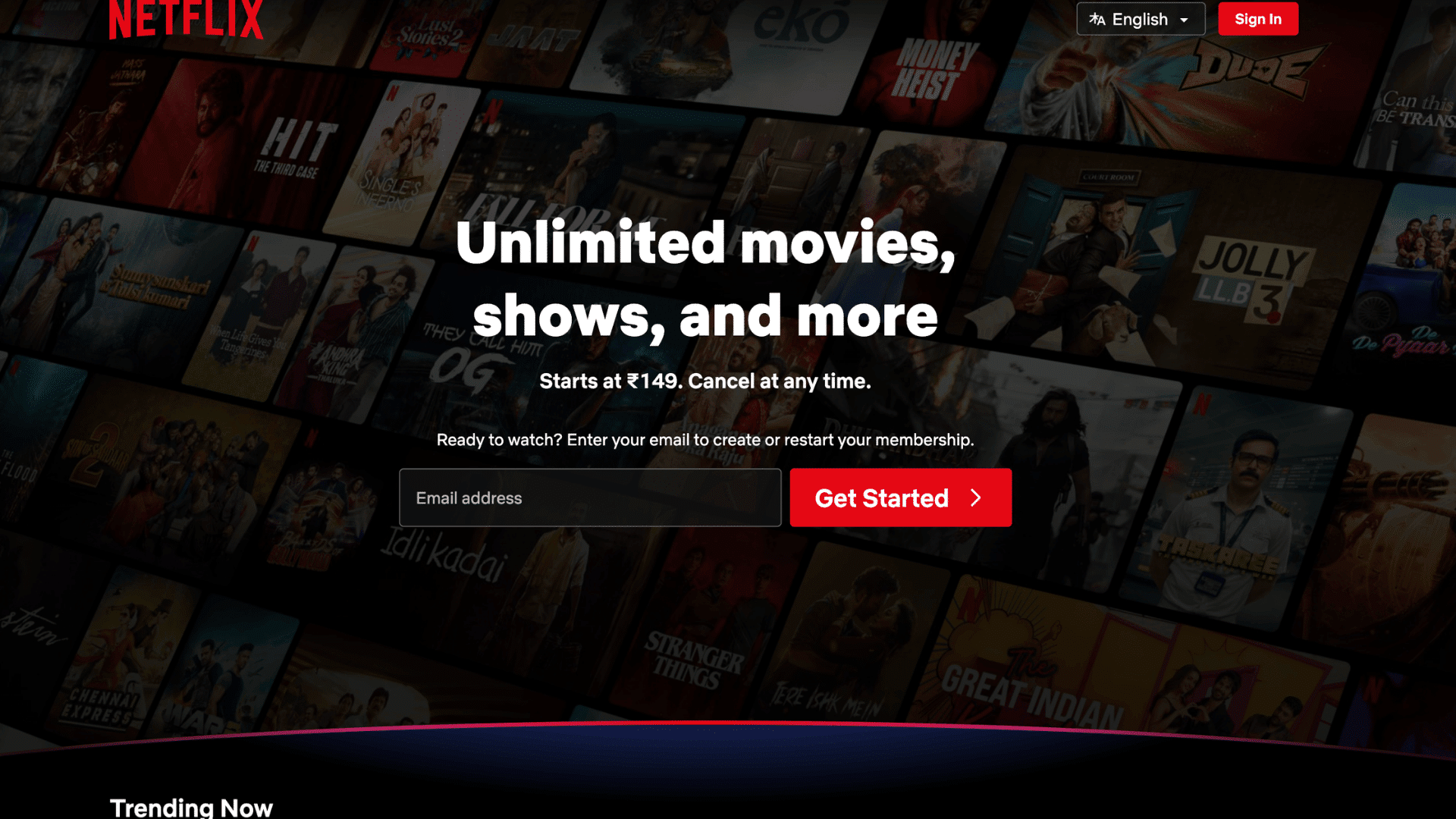
Netflix is a subscription streaming platform that delivers movies and shows online. I’ve included it because it clearly shows how SaaS works outside business tools.
You pay monthly and stream content without permanently downloading files. Everything runs through apps or browsers. The platform regularly updates its content library.
You can start watching on one device and continue on another. It’s a simple example of subscription software in daily life.
Features:
- Parental control settings by profile
- Multiple streaming quality tiers
- Download limits for offline viewing
How It’s Priced: Netflix uses monthly subscription tiers based on video quality and number of simultaneous streams. No contracts, no ads on standard plans, and the flexibility to cancel anytime.
Who It’s For: Anyone who wants streaming entertainment without cable. Families sharing accounts across devices benefit most.
13. Spotify

Spotify gives you access to music and podcasts through a streaming subscription. Also, you don’t need to buy songs one by one anymore.
You search, press play, and build playlists instantly. It works across devices, so your music follows you wherever you go.
The recommendation system helps you discover new artists without having to search manually. For many people, it completely replaced traditional music downloads.
Features:
- Collaborative playlists with friends
- Cross-device playback control
- Podcast hosting platform for creators
How It’s Priced: Spotify offers a free ad-supported plan and paid premium subscriptions. Family and student plans provide discounted multi-user access.
Who It’s For: It’s ideal for music and podcast listeners who want everything in one app. It also suits users who enjoy discovering new artists through recommendations.
14. Microsoft 365
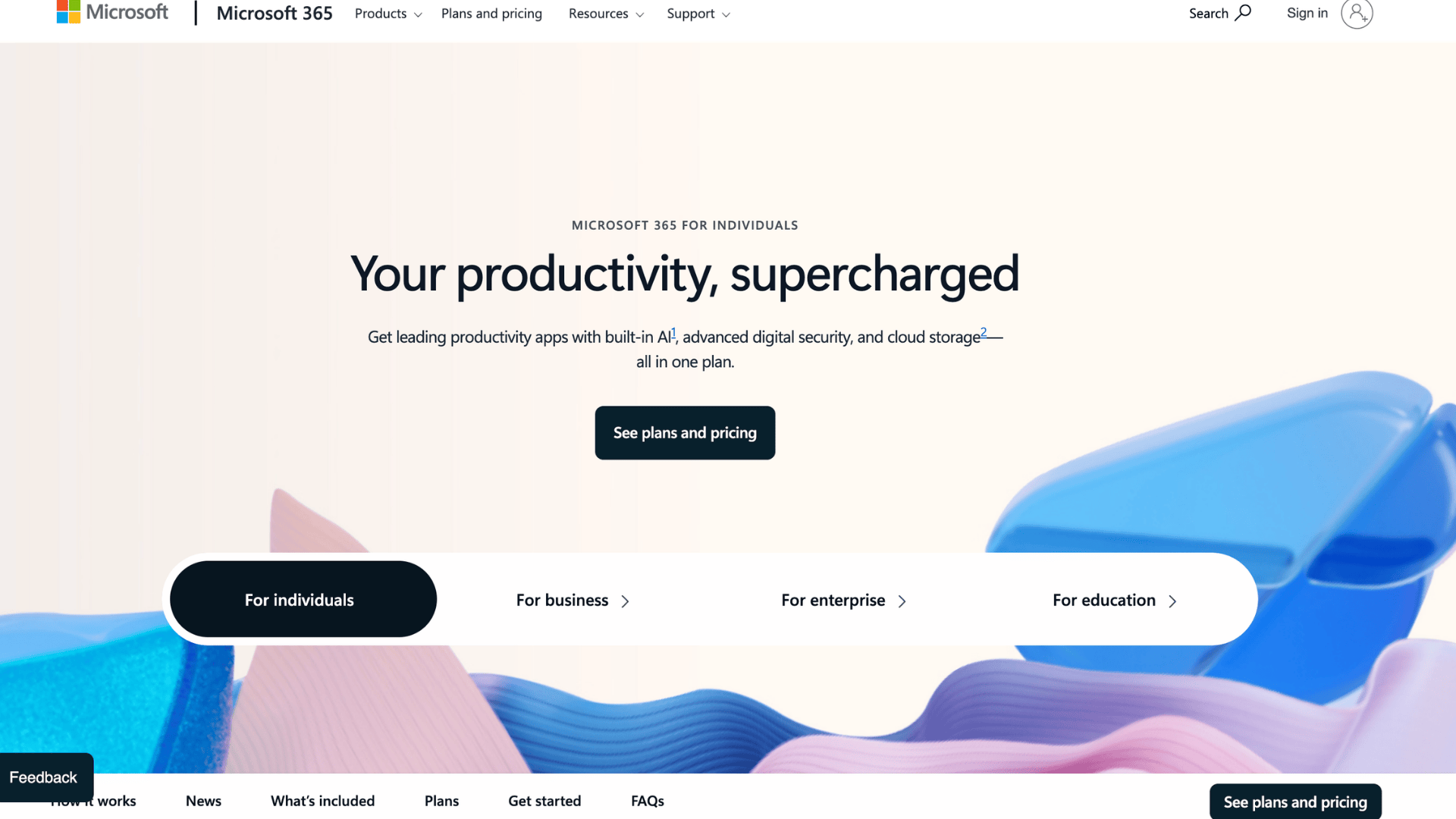
Microsoft 365 brings familiar Office apps into the cloud. The Businesses move from installed software to browser-based access without losing functionality.
You still use Word, Excel, and PowerPoint, but now files sync through OneDrive. Teams can edit documents together in real time.
Email, storage, and meetings are connected in one ecosystem. It’s useful for companies that want modern collaboration while keeping tools that employees already understand.
Features:
- Advanced security compliance tools
- Device management controls for admins
- Enterprise eDiscovery features
How It’s Priced: Microsoft 365 offers monthly or annual per-user subscriptions. Plans vary by storage limits, features, and business size.
Who It’s For: It works best for businesses already using Microsoft tools. It’s also well-suited for teams that need enterprise-level security and compliance.
15. Asana
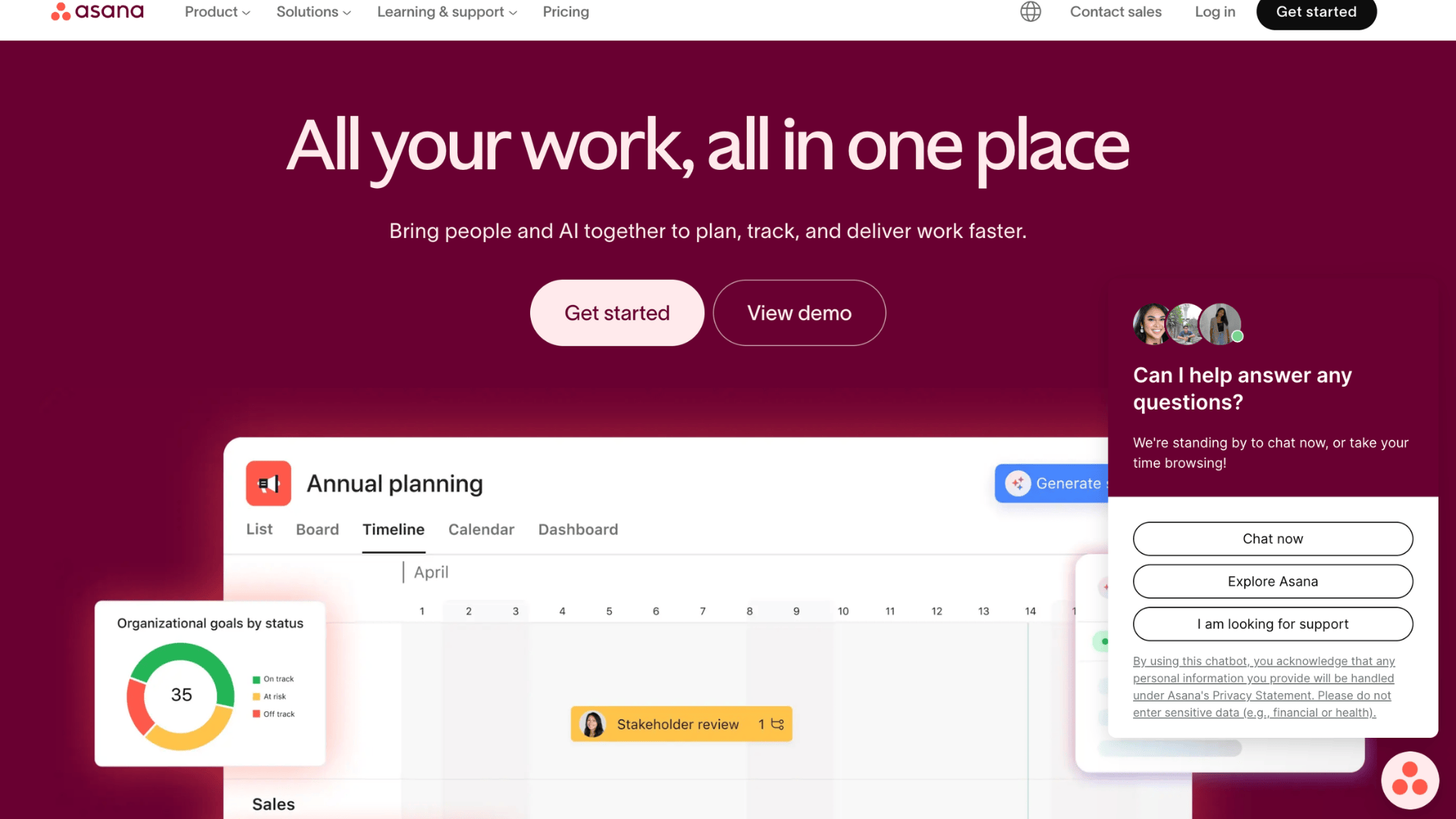
Asana helps teams break projects into clear tasks and timelines. I like how it makes responsibilities visible, so nothing slips through the cracks.
You create projects, assign tasks, and set deadlines, while teams comment inside tasks instead of long emails.
It works well for marketing, product, and operations teams that manage ongoing work. The layout stays clean, even when projects grow.
Features:
- Goal tracking dashboards linked to projects
- Portfolio management for multiple initiatives
- Custom rule builder for workflow automation
How It’s Priced: Asana offers a free tier for small teams, along with paid Premium and Business plans. Enterprise plans add advanced security and admin controls.
Who It’s For: It’s great for marketing, product, and operations teams managing ongoing work. It helps when tasks get buried in email threads.
16. Monday.com
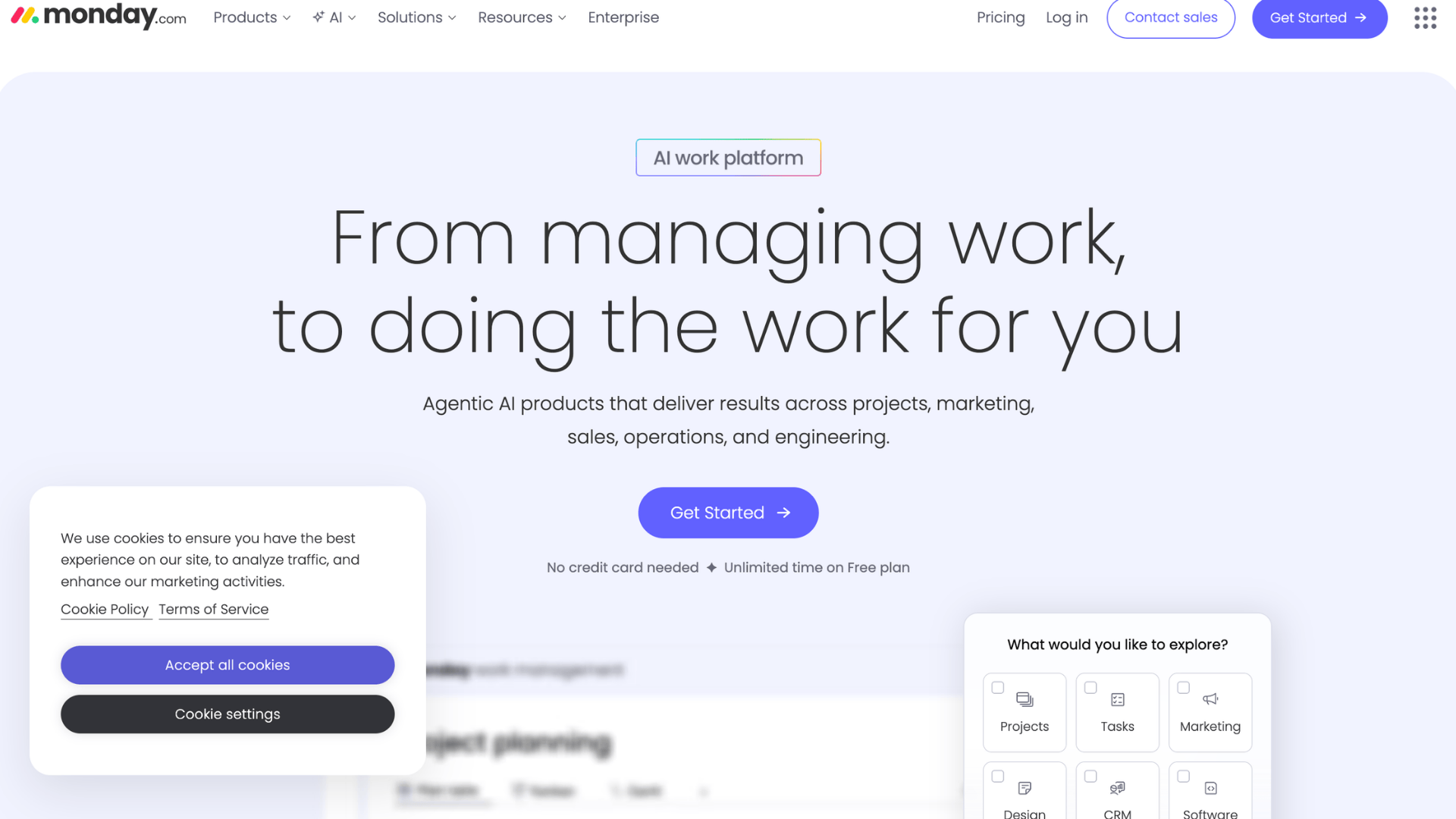
Monday.com gives you flexible boards to organize projects your own way. I like that you’re not locked into one structure.
You create columns that align with your workflow and adjust them as your process evolves. It works well for teams that need visibility across tasks, timelines, and responsibilities.
Because everything updates in real time, you can see progress without asking for status updates.
It’s especially helpful when your team handles multiple projects at once.
Features:
- Custom dashboard widgets for tracking KPIs
- Built-in time tracking columns
- Private boards for restricted projects
How It’s Priced: Monday.com charges per user with tiered plans based on features and automation limits. Annual billing discounts are available.
Who It’s For: It fits teams with custom workflows that don’t match standard project tools.
17. Google Workspace
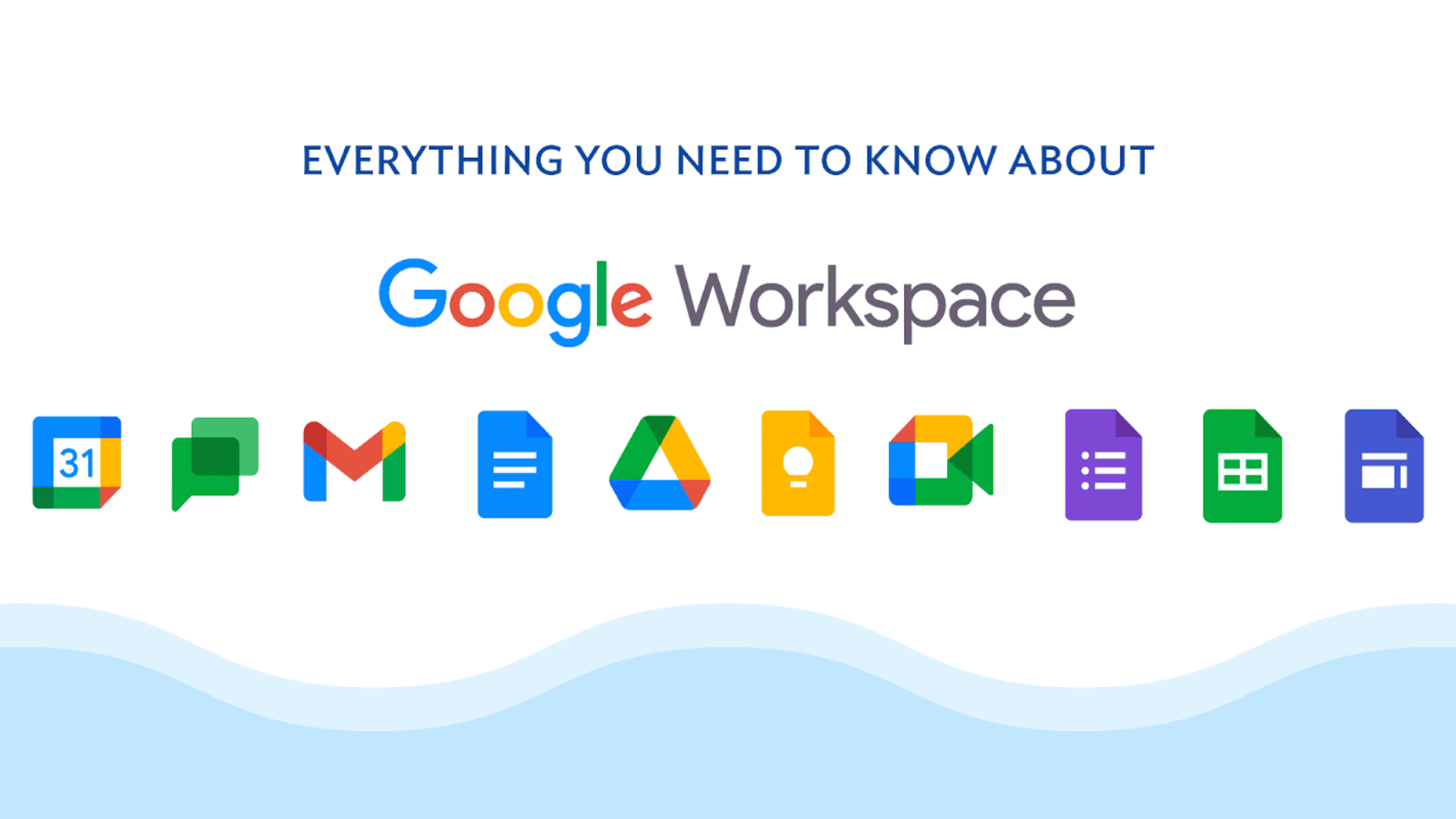
Google Workspace offers browser-based tools for email, documents, and storage. I use it when I want quick collaboration without installing software.
Docs, Sheets, and Slides update automatically, and you can see others typing in real time.
Gmail and Drive connect everything in one place.
It works well for remote teams that need shared access from different devices. Since everything lives online, files stay backed up without extra setup.
Features:
- Admin console controls for managing users
- Shared drives with team ownership
- Data loss prevention policies
How It’s Priced: Google Workspace uses per-user monthly pricing with tiered storage options. Enterprise plans include advanced admin and security tools.
Who It’s For: It works well for startups, remote teams, schools, and nonprofits. It’s ideal when you want browser-based collaboration.
18. TimeJam
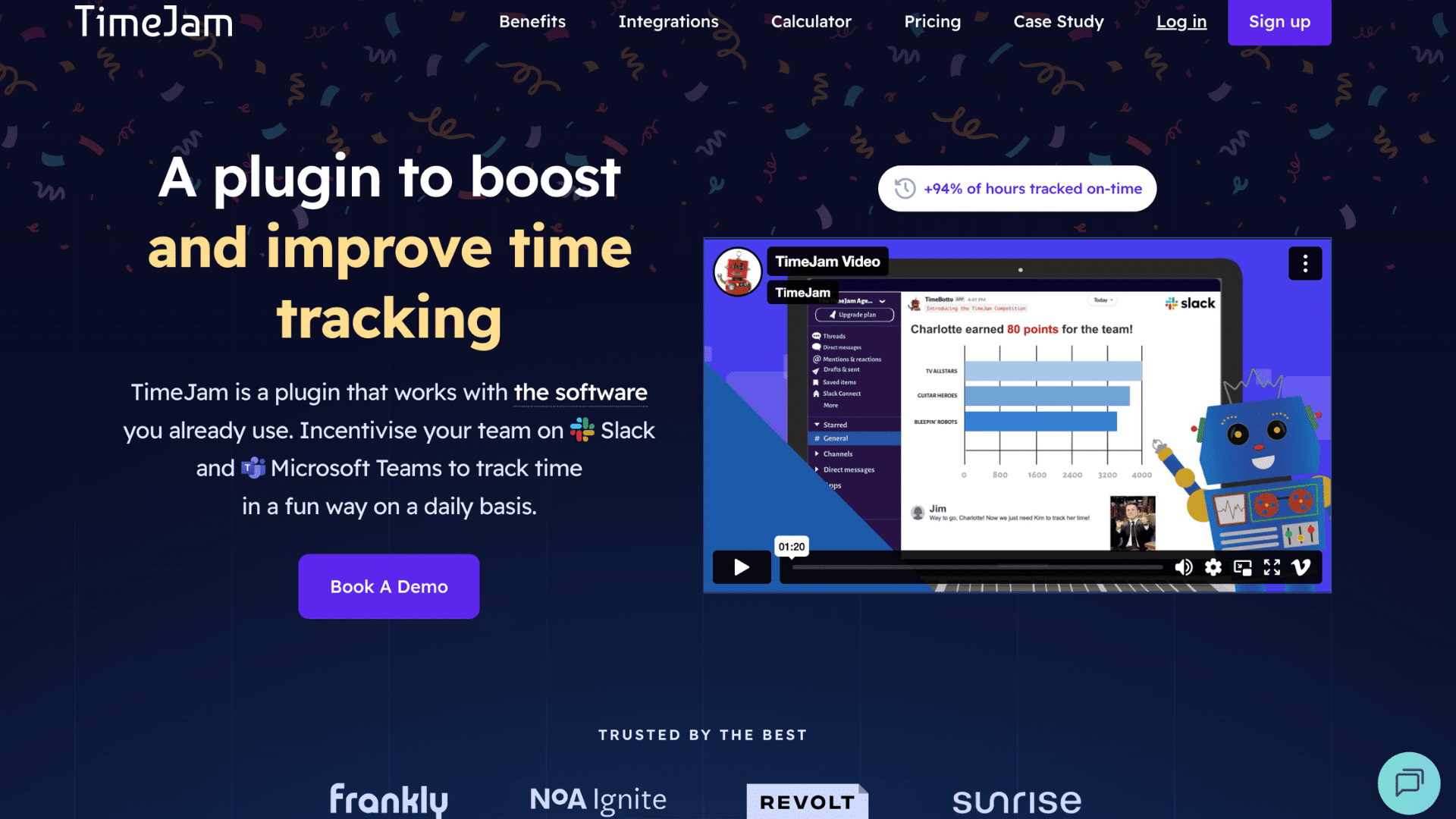
TimeJam makes time tracking more engaging by adding competition and rewards. Also, teams improve compliance just because it feels less repetitive.
Instead of chasing employees for timesheets, managers can track activity through dashboards.
It works well for agencies and service firms billing by the hour.
The visual system helps people see where their time goes without digging through spreadsheets. That clarity supports better planning and budgeting.
Features:
- Gamification mechanics that motivate consistent tracking
- Team leaderboards and competitions
- Integration with project management tools
How It’s Priced: TimeJam operates on per-user subscription tiers. Pricing depends on features and team size.
Who It’s For: It’s built for agencies and service firms billing by the hour. It also suits teams struggling with time tracking compliance.
19. Zapier
Zapier connects different apps so they work together automatically. I like it because you don’t need coding skills to build workflows. You set a trigger in one app and an action in another.
For example, a new form submission can create a task or send an email instantly.
It saves hours of manual copying and pasting. If your team uses many tools, Zapier keeps data moving between them.
Features:
- Multi-step workflow builder
- Conditional logic filters
- Scheduled automation triggers
How It’s Priced: Zapier offers a limited free plan with paid tiers based on task volume and automation complexity. Higher plans unlock premium integrations.
Who It’s For: It’s useful for teams using many SaaS tools that don’t naturally connect. Sales and marketing teams benefit most from automation.
20. Buffer
Buffer helps you plan and schedule social media posts in advance. I use it when I want content to publish automatically without having to log in daily.
You write posts, choose platforms, and set timing from one dashboard. It works well for small teams managing multiple accounts.
Analytics show which posts perform best so you can adjust your strategy. The layout stays simple, which makes content planning less stressful.
Features:
- Post approval workflows for teams
- Hashtag performance tracking
- Content calendar view for planning
How It’s Priced: Buffer provides a free plan with limited scheduling. Paid plans scale based on the number of social accounts and team members.
Who It’s For: It’s ideal for small businesses and marketing teams managing multiple social profiles. Agencies handling client accounts also benefit.
21. Notion
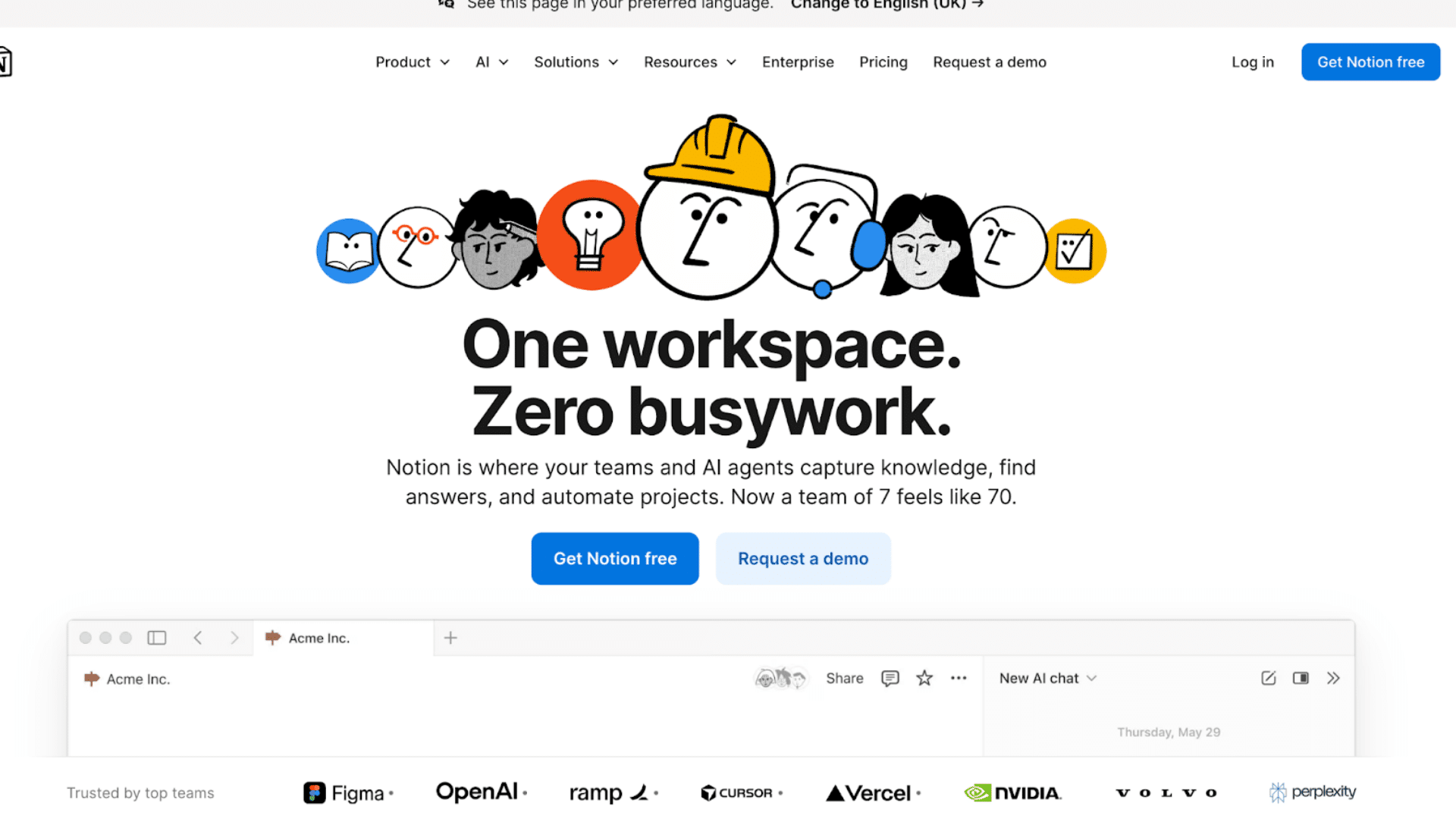
Notion gives you a single workspace where you can manage notes, tasks, databases, and documents.
You build pages using simple blocks instead of fixed layouts. You can create project trackers, content calendars, or internal wikis without switching tools.
It works well if you want flexibility and don’t mind setting up your own structure. Once organized, everything stays searchable and easy to update.
Features:
- Custom database relationships between pages
- Granular page-level permissions
- Public page publishing for sharing externally
How It’s Priced: Notion offers a free personal plan with paid Team and Enterprise tiers. Higher plans add admin controls and collaboration tools.
Who It’s For: It suits individuals building knowledge systems and startups wanting a flexible organization. Product teams also rely on it for documentation.
22. Slack
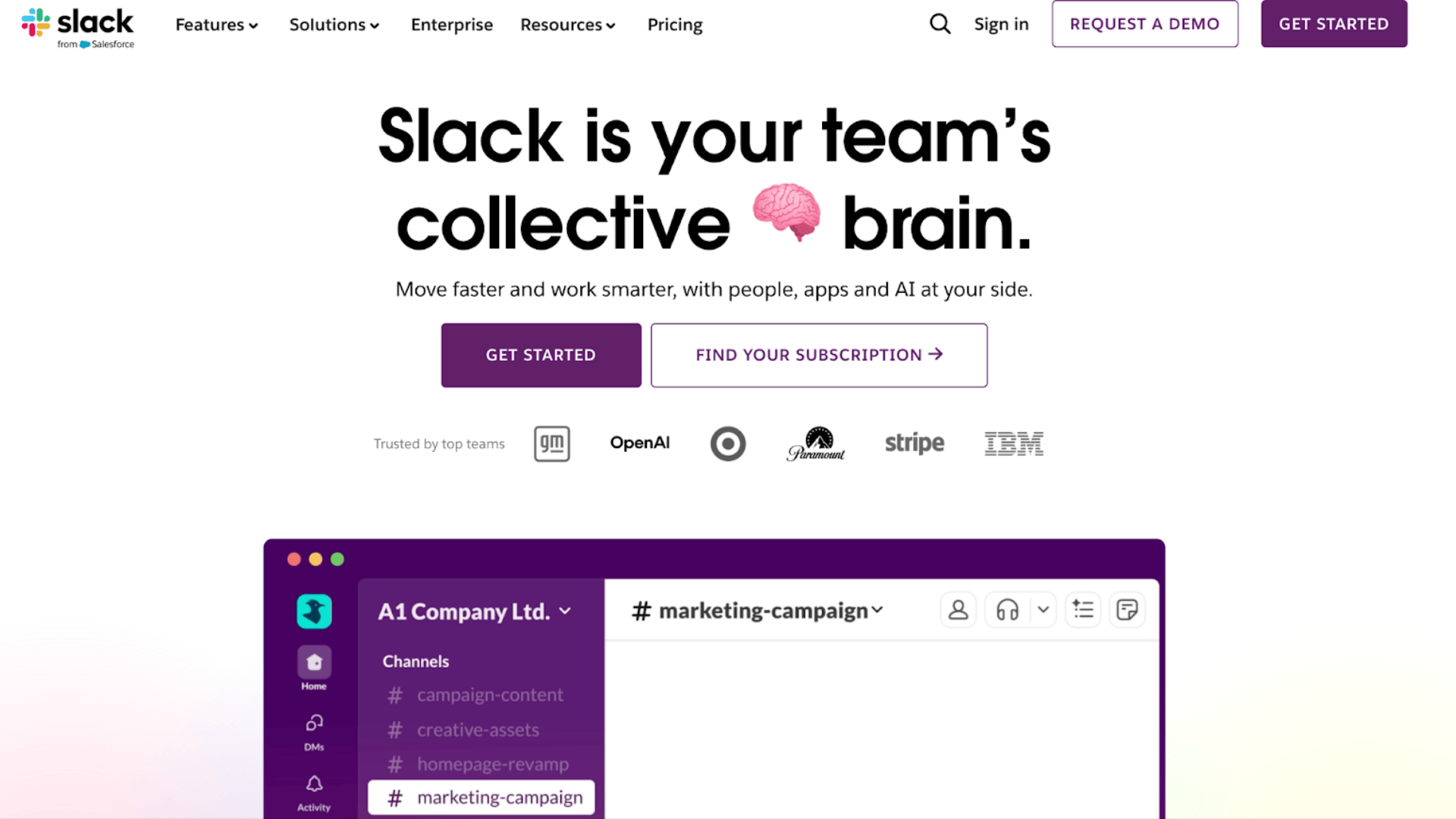
Slack keeps team communication organized through channels instead of long email threads. You can use it when quick updates and real-time discussions matter.
You create channels for projects or departments, so conversations stay focused.
Messages are searchable, which saves time later.
It works especially well for remote teams that need ongoing communication without constant meetings. Integrations bring alerts from other tools into one place.
Features:
- Workflow Builder for internal automations
- Message retention controls
- Enterprise key management for security
How It’s Priced: Slack offers a free tier with limited message history, as well as paid Standard and Plus plans. Enterprise Grid supports large organizations.
Who It’s For: It’s best for remote teams that need organized communication. It also helps companies reduce internal email overload.
23. Shopify
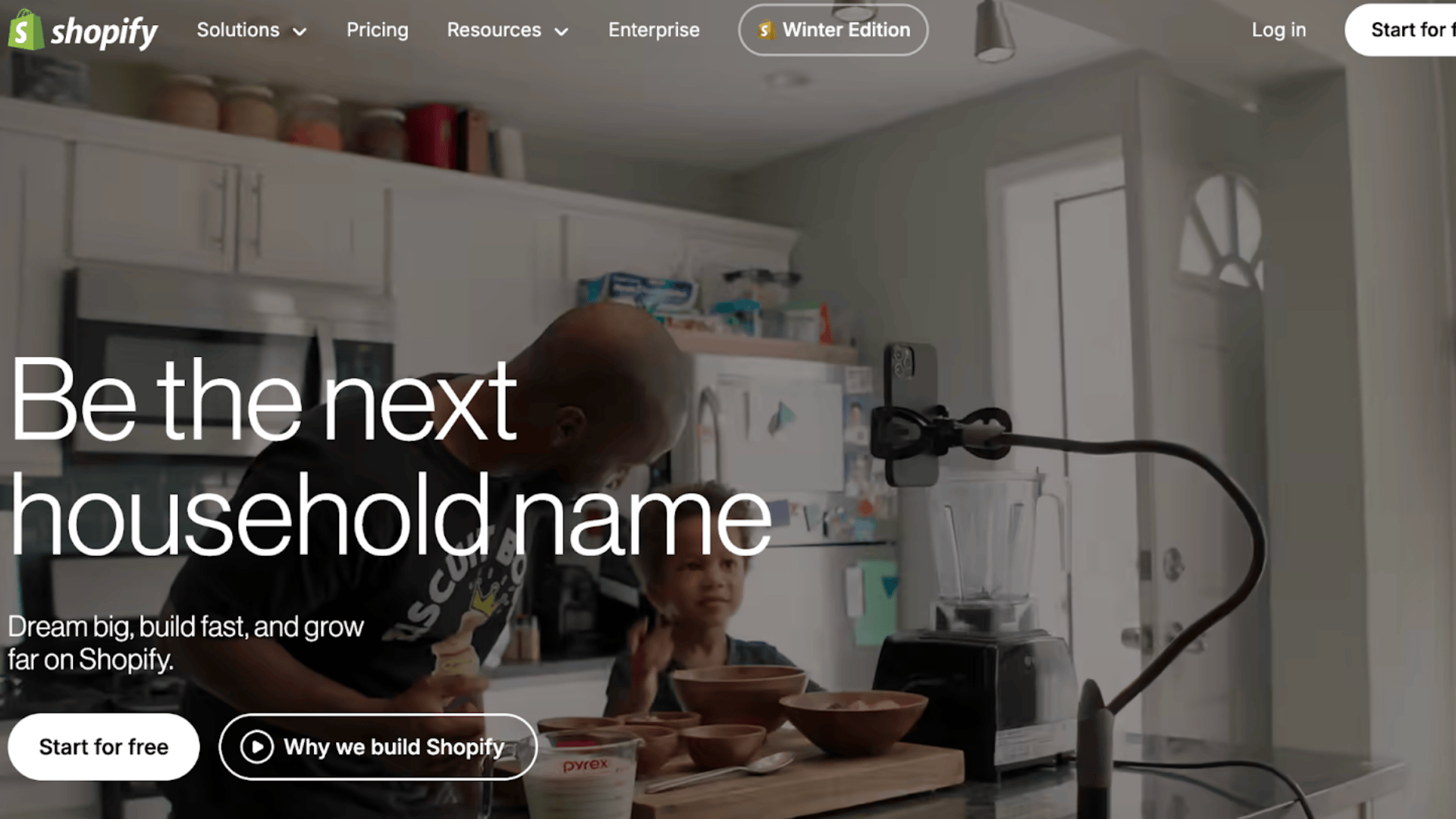
Shopify helps you build and run an online store without coding. I’ve seen people launch stores in days using built-in templates.
You can add products, manage payments, and track orders from a single dashboard.
It handles hosting and security, so you don’t manage servers. As your store grows, you can expand features through apps.
It works well for small businesses and growing brands selling directly to customers.
Features:
- Abandoned cart recovery tools
- Multi-location inventory tracking
- Built-in tax calculation support
How It’s Priced: Shopify charges monthly subscription fees plus transaction fees. Advanced and Plus plans support high-volume stores.
Who It’s For: It’s ideal for entrepreneurs launching online stores. Retail brands expanding into e-commerce also benefit.
24. Mailchimp
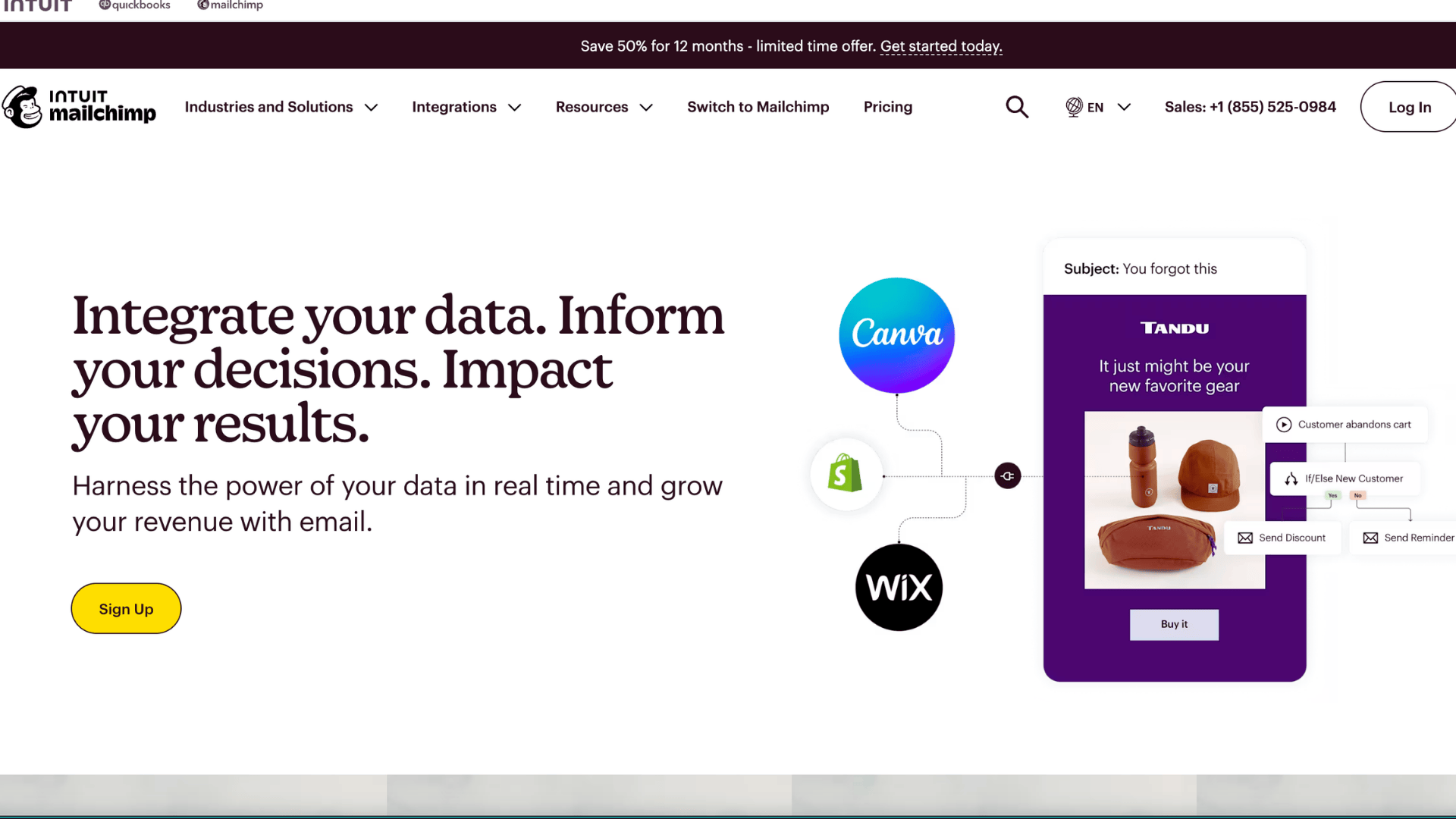
Mailchimp makes email marketing easier for small businesses and creators. Also, you can build campaigns using simple drag-and-drop tools.
You upload contacts, segment your audience, and schedule emails in advance. Reports show open rates and clicks so you can measure results.
It works well when you’re growing a list and want structured communication without hiring a marketing team.
Features:
- Behavior-based customer journeys
- Predictive audience insights
- Advanced A/B and multivariate testing
How It’s Priced: Mailchimp includes a free plan for small lists with paid tiers based on subscriber count. Premium plans unlock advanced analytics.
Who It’s For: It’s built for small businesses and creators building email lists. E-commerce brands running campaigns use it heavily.
25. Canva
Canva makes design simple, even if you don’t have any experience. You can create social posts, presentations, and logos in minutes using its drag-and-drop editor.
You pick a template, adjust text or images, and your design is ready.
It runs fully in the browser, so you don’t need heavy software or design skills. As your needs grow, you can use advanced tools like brand kits and team collaboration.
Features:
- Drag-and-drop design editor
- Thousands of ready-made templates
- Brand kit for logos, fonts, and colors
Who It’s For: It’s perfect for beginners, marketers, and small teams creating social media posts, presentations, and marketing materials.
How It’s Priced: Canva offers a free plan with basic tools and a Pro subscription with premium templates, assets, and team features.
How to Choose the Right SaaS Tool for Your Business?
With hundreds of SaaS options in every category, choosing poorly costs real money. You pay for months of a tool that doesn’t fit, rebuild workflows when you switch, and lose the time your team spent learning something you abandon.
| Criteria | What to Check |
|---|---|
| Integration fit | Does it connect natively to your existing tools? Or will you need Zapier middleware to bridge gaps? |
| Security & compliance | Does the vendor publish SOC 2 Type II or ISO 27001 certifications? What are the data residency options? |
| Pricing model risk | Is pricing per-seat, usage-based, or flat? Calculate the total cost at 2x your current team size. |
| Data portability | Can you export your data completely? In what format? What happens to your data if you cancel? |
| Uptime SLA | Does the vendor offer a published SLA? What is their historical uptime record (check their status page)? |
| Support tier | Is support email-only on entry plans? What is the escalation path for critical issues? |
Conclusion
Choosing the right SaaS tools can make your work easier, faster, and more organized. I’ve seen how the right software helps teams save time, reduce manual work, and stay focused on what really matters.
With so many options out there, the key is to pick tools that match your needs, budget, and workflow.
Start small, test what works, and scale as your work grows. The examples in this guide give you a clear starting point so you don’t feel lost when making a choice. Now I’d like to hear from you.
Which SaaS tools do you use the most, and what has your experience been like? Share your thoughts in the comments below.