


I’ve used Chromebooks for years, and one thing I’ve learned is that keeping the system updated makes a big difference. A slow device, random glitches, or apps not working right can often come down to missing updates.
In this guide, I’ll show you how to check & update a Chromebook’s operating system without getting lost in confusing settings.
You’ll learn how to find updates, install them, and fix a few common problems if the update doesn’t work.
I’ll also share some quick tips that have helped me keep my Chromebook running smoothly over time. By the end, you’ll know exactly what steps to follow to keep your device secure, fast, and ready for daily use.
Quick Answer: How to Update a Chromebook?
Open Settings → About ChromeOS → Check for Updates. ChromeOS will download any available update automatically.
Once the download completes, click Restart to apply it.
The entire process takes 5–10 minutes on a stable connection. If the update fails, check your Wi-Fi, free up storage space, or restart your device and try again.
How Chromebook Updates Help Your Device?
Regular updates help your Chromebook work better over time. They can improve speed, fix small issues, and help your device stay safe during daily use.
- Better Security: Updates fix weak spots that hackers or harmful software may try to use.
- Faster Performance: Your Chromebook may run more smoothly and respond faster after new updates are installed.
- Bug Fixes: Updates repair small system problems that can cause apps or settings to stop working properly.
- New Features: Google often adds tools, settings, and helpful changes through ChromeOS updates.
- Improved Battery Use: Some updates help your Chromebook use power more efficiently during the day.
- Better App Support: Updated systems work better with newer apps, websites, and Chrome extensions.
- Stable Internet Connection: Updates can improve Wi Fi and Bluetooth performance on some devices.
- Smoother Browsing: Web pages, videos, and online tools may load and run more smoothly after updates.
- Longer Device Life: Keeping your Chromebook updated can help it stay useful and reliable for more years.
One important note on managed Chromebooks: If your Chromebook was issued by a school or employer, your organization’s IT administrator controls which ChromeOS version installs and when.
In that case, the steps below will show you the current version, but the “Check for Updates” button may be grayed out or absent.
Contact your IT department to request an update on a managed device.
How to Update a Chromebook in Minutes?
Follow these simple steps to quickly update your Chromebook and ensure it is running the latest version of ChromeOS.
Step 1: Open the Settings App
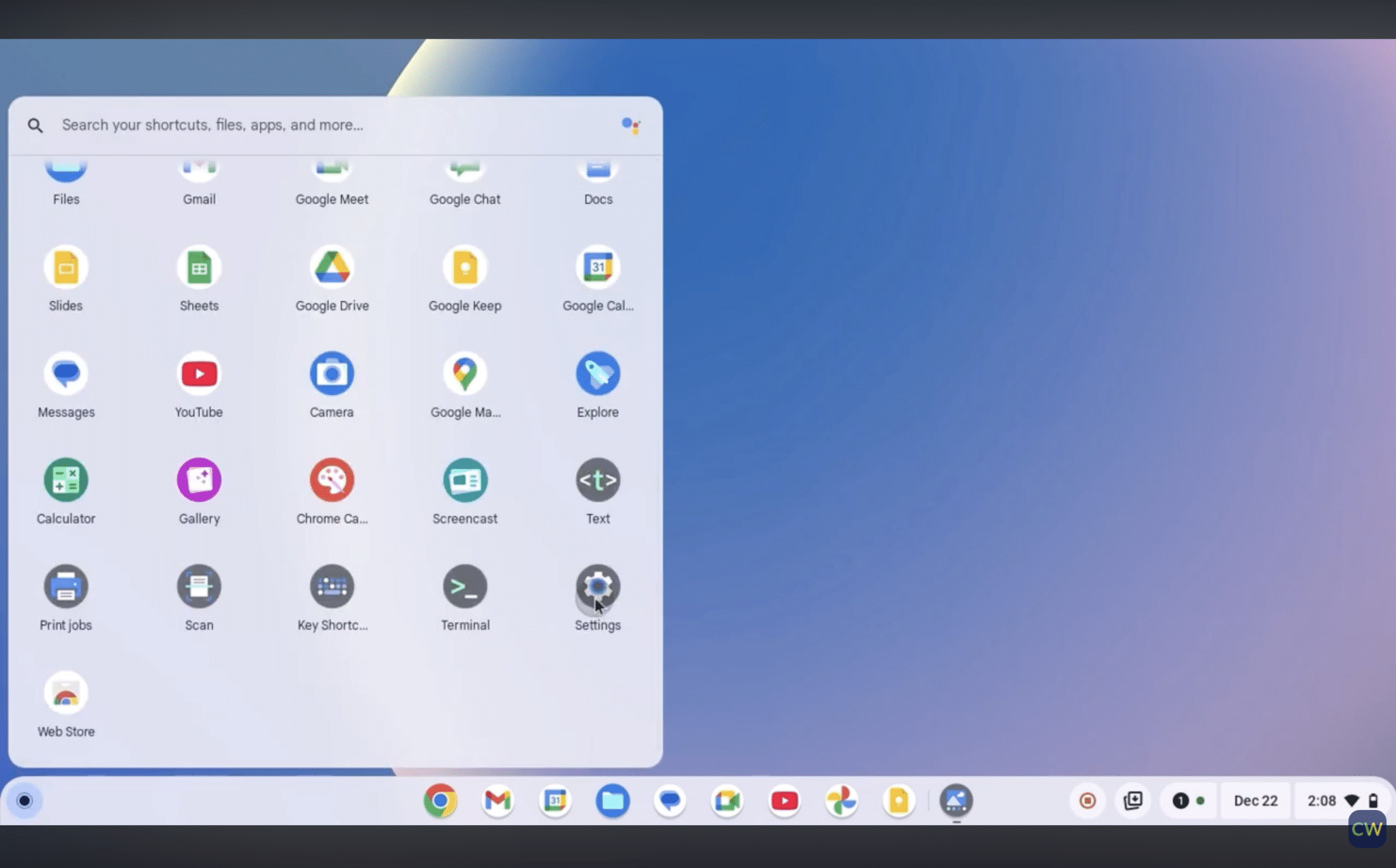
Start by opening your Chromebook home screen, which is the main screen you see right after logging in. Look for the App Launcher icon, which is the small circle button sitting in the bottom-left corner of your screen.
Click on it, and a menu will pop up showing all your apps.
From there, find and click on the Settings app to open it. This is where you’ll manage everything on your Chromebook, including updates.
Step 2: Go to About ChromeOS
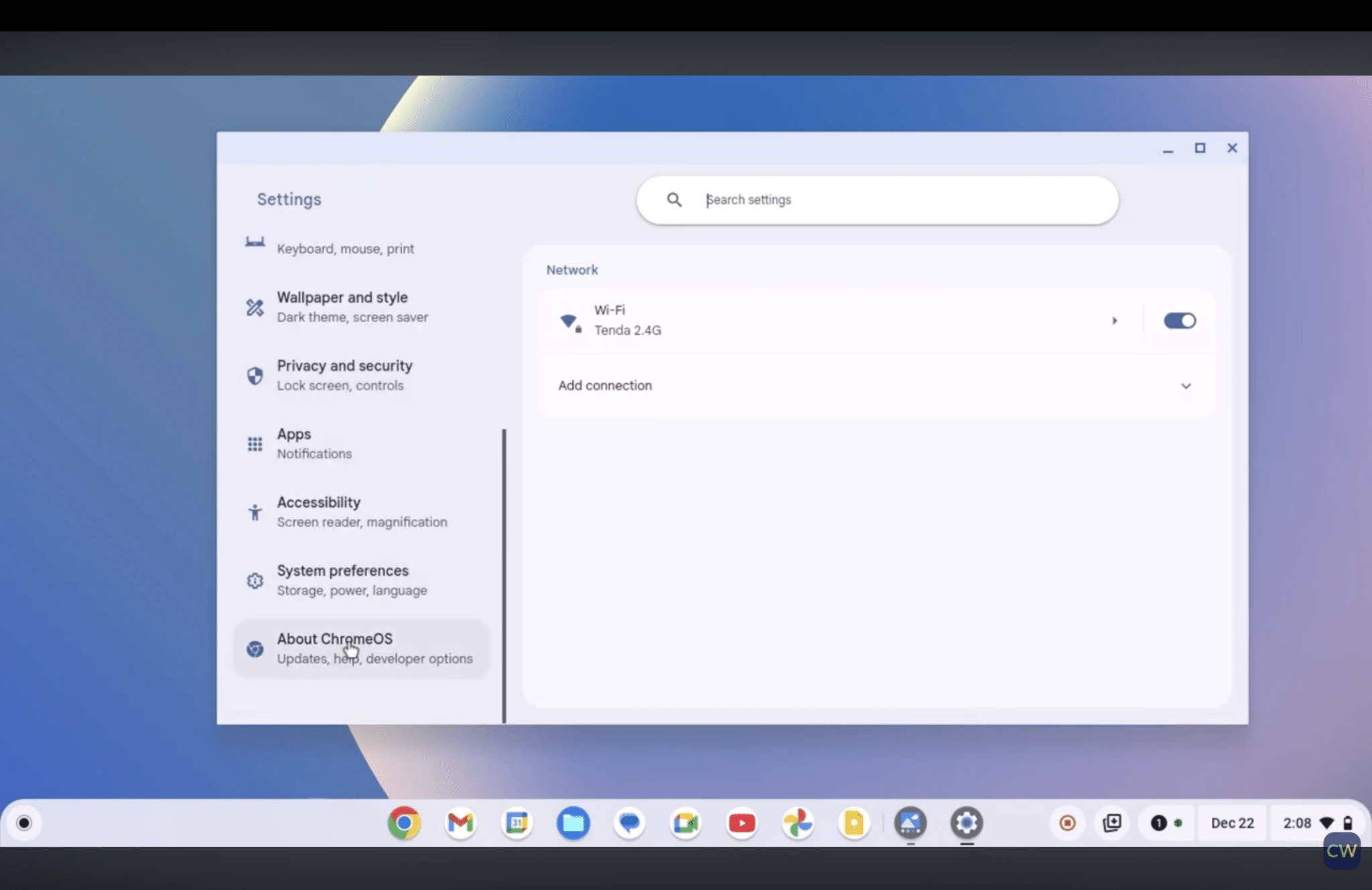
Once you’re inside the Settings menu, don’t stop at the top; you’ll need to scroll down a little to find what you’re looking for.
Keep scrolling until you spot the option that says “About ChromeOS.” It’s usually near the bottom of the menu. Go ahead and click on it.
This section provides all the important details about your Chromebook’s current software version and is where you need to go to check for or start an update.
Step 3: Check for Updates
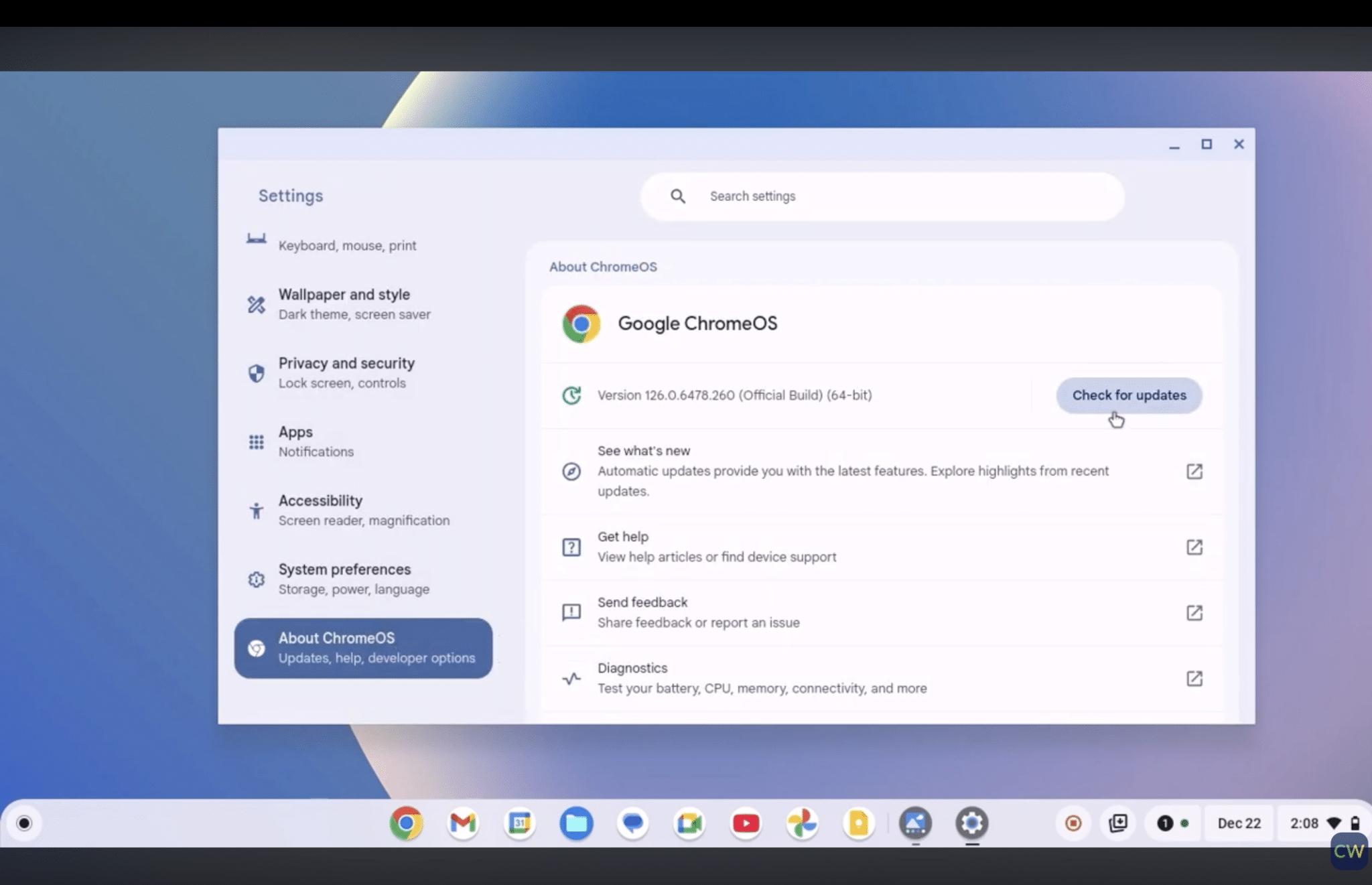
Once you’re on the About ChromeOS page, look for the “Check for Updates” button and click on it. Your Chromebook will immediately start scanning for a new update.
If there’s a pending update waiting, it will begin downloading and installing all on its own, no extra steps needed.
Just sit back and let your Chromebook do the work. The whole process usually wraps up pretty quickly, depending on your internet speed.
Step 4: Wait for the Update to Install
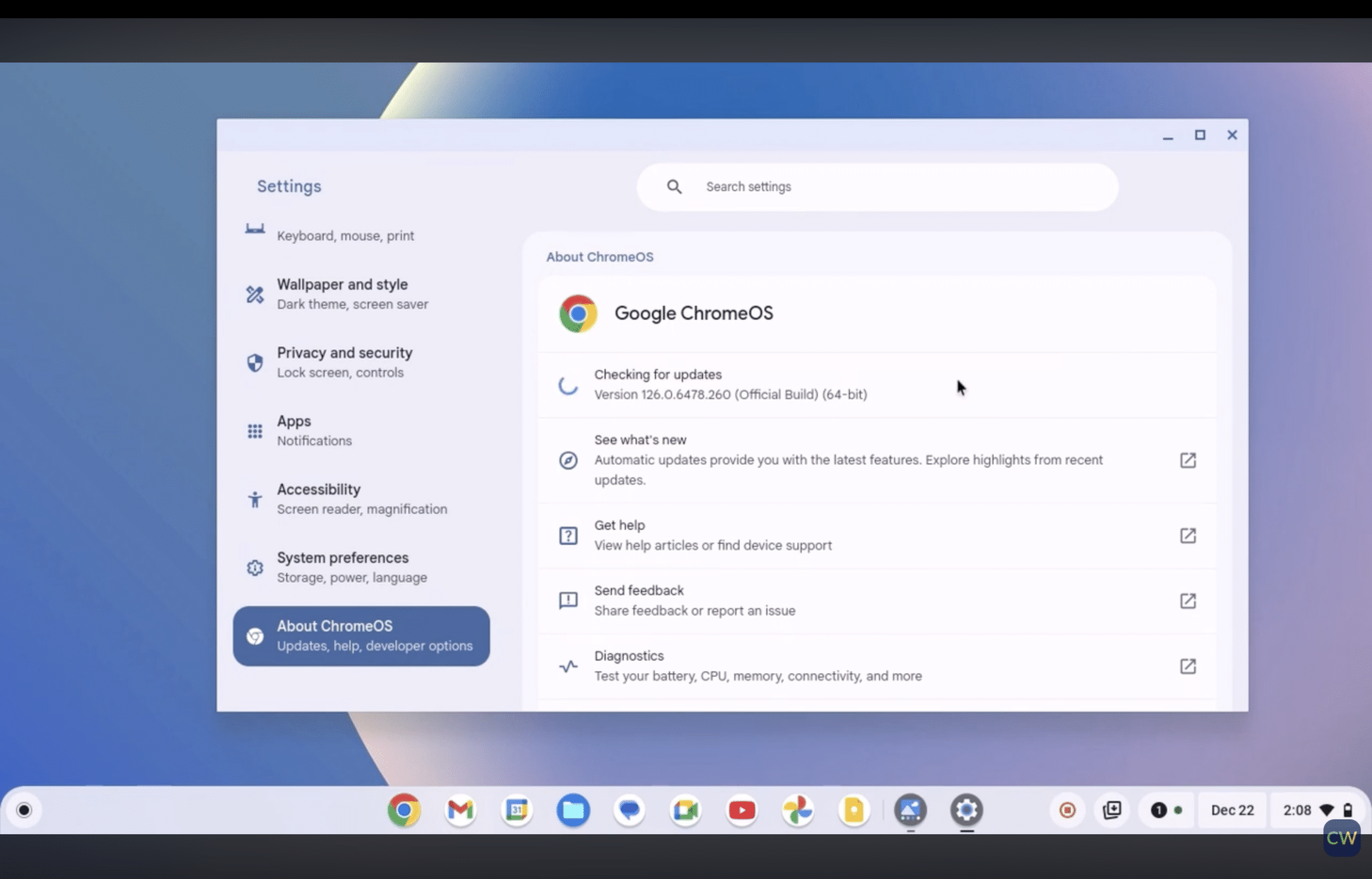
Now all you have to do is wait. Your Chromebook will handle the installation on its own, so there’s nothing extra you need to do.
You’ll see a progress bar on the screen showing how far along the update is.
Try not to turn off your device or close the lid during this time, as it could interrupt the process.
Most updates finish within a few minutes, so it won’t be a long wait at all. After that, your Chromebook will be ready to use again.
Step 5: Restart Your Chromebook
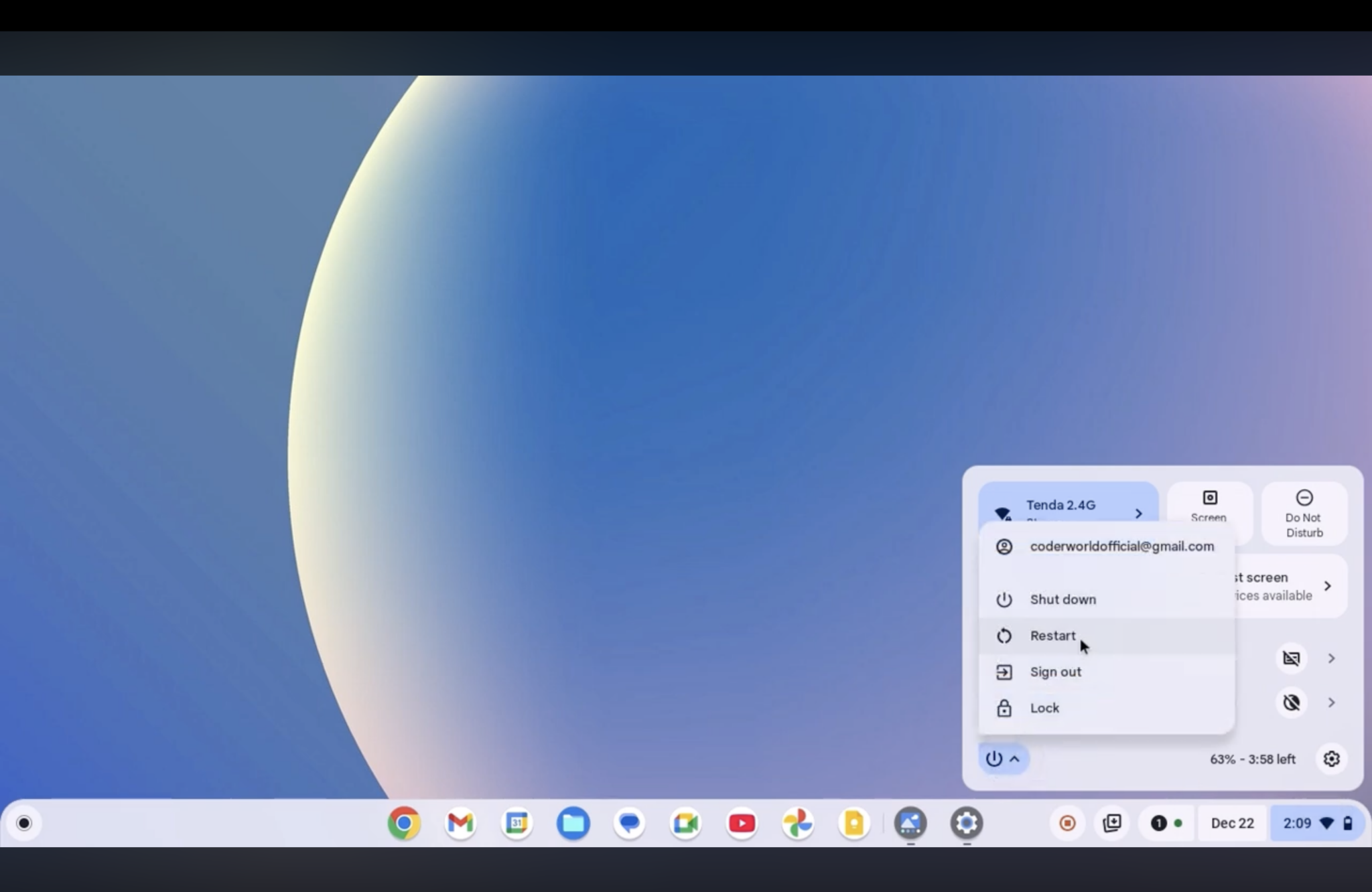
Once the update is downloaded, you’ll need to restart your Chromebook to apply it. The restart only takes a few moments.
Head to the bottom-right corner of your screen, then click the clock or battery icon to open the quick settings panel.
You’ll see a Power icon, click it, and select Restart from the options. Your Chromebook will shut down and reboot in just a minute or two, and that’s all it takes to fully install and run the update.
After your Chromebook restarts, it will automatically run the latest version of ChromeOS; no extra steps are needed.
To make sure everything went through correctly, head back to Settings and click on About ChromeOS again. You’ll see the updated version number listed on the screen.
This tutorial is based on a helpful video by Thecodeworld. You can check out the original video on their YouTube channel here or watch it below.
How to Check Your Chromebook Version?
You can find your Chromebook version in just a few clicks through the settings menu. This helps you know if your device is running the latest ChromeOS release.
- Open Settings: Click the time in the bottom right corner and select the gear icon to open settings.
- Go to About ChromeOS: Scroll down on the left side and click “About ChromeOS” near the bottom of the menu.
- Check Current Version: Your Chromebook version number will appear on the screen under ChromeOS details.
- View Update Status: This section also shows if your device is fully updated or if an update is waiting.
- Find Extra Details: You may also see build numbers and channel information for your ChromeOS system.
- Use the Search Bar: Type “About ChromeOS” in the settings search bar for faster access.
- Check Before Troubleshooting: Knowing your version can help when fixing app or system problems.
- Compare With Latest Release: You can compare your version with the newest ChromeOS version available online.
How Chromebook Updates Work?
Chromebook updates keep your device secure and running smoothly in the background while still allowing you to check and install them manually when needed.
1. Automatic Updates
One of the coolest things about a Chromebook is that it updates itself automatically. This means you usually get the latest features and security fixes automatically.
While you’re watching videos, playing games, or finishing homework, your Chromebook is quietly downloading the latest update in the background. You won’t even notice it’s happening.
Once the download is complete, restart your device, and the update will apply automatically.
It’s basically a self-maintaining laptop that takes care of itself while you focus on other things every single day.
| Benefit | What It Means for You |
|---|---|
| No Storage Management | Chromebook updates are lightweight and do not require you to free up storage space before they download. |
| Stable Version Always | Each automatic update is tested before release, so your device always runs a stable and reliable version. |
| Background Download Pauses | If your connection drops mid-download, the update pauses and resumes automatically once you are back online. |
| No Notifications Needed | You do not receive constant pop-ups or reminders to update, keeping your screen clean and distraction-free. |
| Rollback Protection | If an update causes any issues, Chrome OS has built-in recovery options to restore your device quickly. |
2. Manual Updates
If you don’t want to wait for an automatic update, you can always check for one yourself. Just open your Chromebook settings, scroll down to “About ChromeOS,” and click “Check for updates.”
If there’s a new update ready, it’ll start downloading right away. This is a great option when you know a major update has just dropped and you want to get it fast.
Manual updates put you in control, letting you decide exactly when your Chromebook receives the latest version.
This can be helpful if you are in the middle of important work. You can choose a time that will not interrupt your tasks.
| Benefit | What It Means for You |
|---|---|
| Battery Check | Make sure your Chromebook is plugged in before starting a manual update to avoid interruptions during the download. |
| Stable Connection Needed | A strong and steady internet connection ensures the update downloads completely without errors or corruption. |
| Restart Required | After the update downloads, you will need to restart your device for the changes to fully take effect. |
| Update History | You can view previously installed updates in the “About ChromeOS” section to track what version you are running. |
| No Update Available | If your Chromebook is already up to date, the check will simply confirm that no new version is currently available. |
How Long Does a Chromebook Update Take?
A Chromebook update usually takes between 5 and 15 minutes. The exact time depends on your internet speed, device model, and update size.
Smaller updates often finish quickly, while bigger system updates may take longer to download and install. During the process, your Chromebook may ask you to restart the device to complete the update.
It’s a good idea to keep your Chromebook plugged in and connected to Wi-Fi during the update.
If your storage is almost full or the internet connection is slow, the update can take more time than normal.
Most Chromebooks download updates in the background, so you may not even notice until a restart message appears.
Checking for updates once in a while helps your Chromebook stay secure and run smoothly. In most cases, the process is simple and does not require any technical skills from the user.
What to Do If a Chromebook Update Is Stuck?
A stuck update is one of the most commonly searched Chromebook problems, yet most guides barely address it. Here is exactly what to do if your progress bar stops moving or the update appears frozen.
First, wait at least 10–15 minutes; slow download speeds can make an update look stuck when it is still active.
If nothing changes after that window, do not force-shut down immediately. Instead, check that your Wi-Fi is still connected and your Chromebook is plugged in.
Restart the device normally and navigate back to About ChromeOS.
In most cases, ChromeOS will resume the download from where it stopped rather than starting over. If restarting does not resolve the issue, sign out of your Google account and sign back in, then attempt the update again.
In my experience documenting these systems, a signed-in account conflict is an underappreciated cause of update hangs.
If the problem persists across multiple attempts, a Powerwash, ChromeOS’s factory reset, is the reliable final fix. Back up anything not already in Google Drive before proceeding.
What to Do If Your Chromebook Won’t Update?
If your Chromebook won’t update, small issues are often the cause. Use the table below to fix the problem step by step.
| Step | Issue | What It Means | What You Should Do |
|---|---|---|---|
| Check Internet Connection | Weak Wi-Fi | A weak signal can stop the update from downloading. The system needs a stable connection to complete the process without errors. | Move closer to your router for a stronger signal. Disconnect and reconnect to Wi-Fi, then try the update again. |
| Check Internet Connection | Disconnected network | If your Chromebook is offline, it cannot check for updates. ChromeOS needs internet access to find and install new files. | Open the Wi-Fi settings and connect to a working network. Make sure the connection stays active during the update. |
| Restart Your Chromebook | Temporary system glitch | Small system errors can block the update from starting. These glitches often occur after prolonged use without a restart. | Turn off your Chromebook completely and wait a few seconds. Turn it back on and check for updates again. |
| Free Up Storage Space | Low storage space | Updates need free space to download and install properly. If storage is full, the update may fail or pause. | Delete unused apps, downloads, or large files. Clear trash and free up space before trying again. |
What Is Auto-Update Expiration (AUE) and Why Does It Matter?
Every Chromebook model has an Auto-Update Expiration (AUE) date, the point at which Google stops delivering ChromeOS updates to that hardware.
After this date, your device will continue to work, but it will no longer receive security patches or new features.
This is one of the most important facts about Chromebook updates that most guides never mention. You can check your device’s AUE date on the official Google AUE page.
If your Chromebook is approaching or past its AUE date, no update method will restore patch coverage; at that point, replacing the device or switching to Linux via developer mode are the practical options for security-conscious users.
Common Chromebook Update Mistakes (and How to Fix Them)
Small mistakes during an update can slow down the process or cause errors on your Chromebook. The table below covers common problems and simple ways to avoid them while updating ChromeOS.
| Mistake | Why It’s a Problem | Fix |
| Closing the lid mid-update | Chromebooks suspend when the lid closes, which can interrupt the download or installation. | Keep the lid open and the device plugged in until the progress bar completes and the restart prompt appears. |
| Updating on battery power | If the battery dies mid-installation, ChromeOS can enter an error state that requires recovery. | Plug in before starting any manual update, especially on older devices with reduced battery capacity. |
| Ignoring the restart prompt | Until you restart, the new version is not active. Your Chromebook is still running the old version despite the download finishing. | Restart as soon as convenient after the download completes. You can delay, but do not leave it restarted for days. |
| Using a VPN during the update | Some VPNs route ChromeOS update traffic in ways that cause download failures or checksum errors. | Disable your VPN before checking for or downloading an update. Re-enable it after the restart is complete. |
| Assuming a managed Chromebook will update like a personal one | IT-managed devices do not allow user-initiated updates. Attempting to force one produces no result. | Contact your organization’s IT administrator and request that the update be pushed from the admin console. |
Conclusion
Keeping your Chromebook updated helps it run smoothly, stay secure, and fix small system issues with the latest Chrome OS version.
The update process is quick and mostly automatic, but you can always check for updates manually if needed.
If something goes wrong, simple fixes like checking Wi-Fi, restarting, or freeing up storage usually solve the issue.
Regular updates also bring new features that improve your daily experience. You do not need technical skills to complete the process.
Just follow the steps in order, and your Chromebook will stay fast, secure, and ready for work, school, or everyday use.
If this guide helped you, bookmark it for later and share it with anyone who needs help updating their Chromebook to keep it secure and running smoothly.
Frequently Asked Questions
Can a Chromebook Be Used During an Update?
Yes, you can keep using your Chromebook normally while the update downloads. You only need to pause for a quick restart once it finishes.
Does a Chromebook Update Delete Files or Saved Data?
No, a standard ChromeOS update does not delete your files, apps, or saved data. Everything stays exactly as it was before the update.
What Happens if the Lid Closes During a Chromebook Update?
Closing the lid can interrupt the update process. It is best to keep your Chromebook open and plugged in until the update fully completes.
Why Is the “Check for Updates” Button Missing on a Chromebook?
The Chromebook is likely managed by a school or workplace. Updates are controlled by the IT administrator through the Google Admin console.
How to Know when a Chromebook Stops Getting Updates?
Google lists Auto Update Expiration (AUE) dates for every Chromebook model. After the AUE date, the device no longer receives ChromeOS updates or security fixes.