




I’ve worked with computers and storage systems for years, and I know how confusing RAID can seem at first. Many people hear the term but don’t fully understand what it does or why it matters.
If you use a computer for work, gaming, business, or file storage, knowing how RAID works can help you protect your data and improve system speed.
In this article, I will walk you through the meaning of RAID and how it uses multiple drives to store data.
You will also see why people rely on it for speed and safety. I will keep things clear and easy, so you do not feel stuck while reading.
By the time you finish, you will know the basics, the common RAID types, and when it might be useful for you. This will help you make better choices when dealing with storage systems.
What Is RAID?
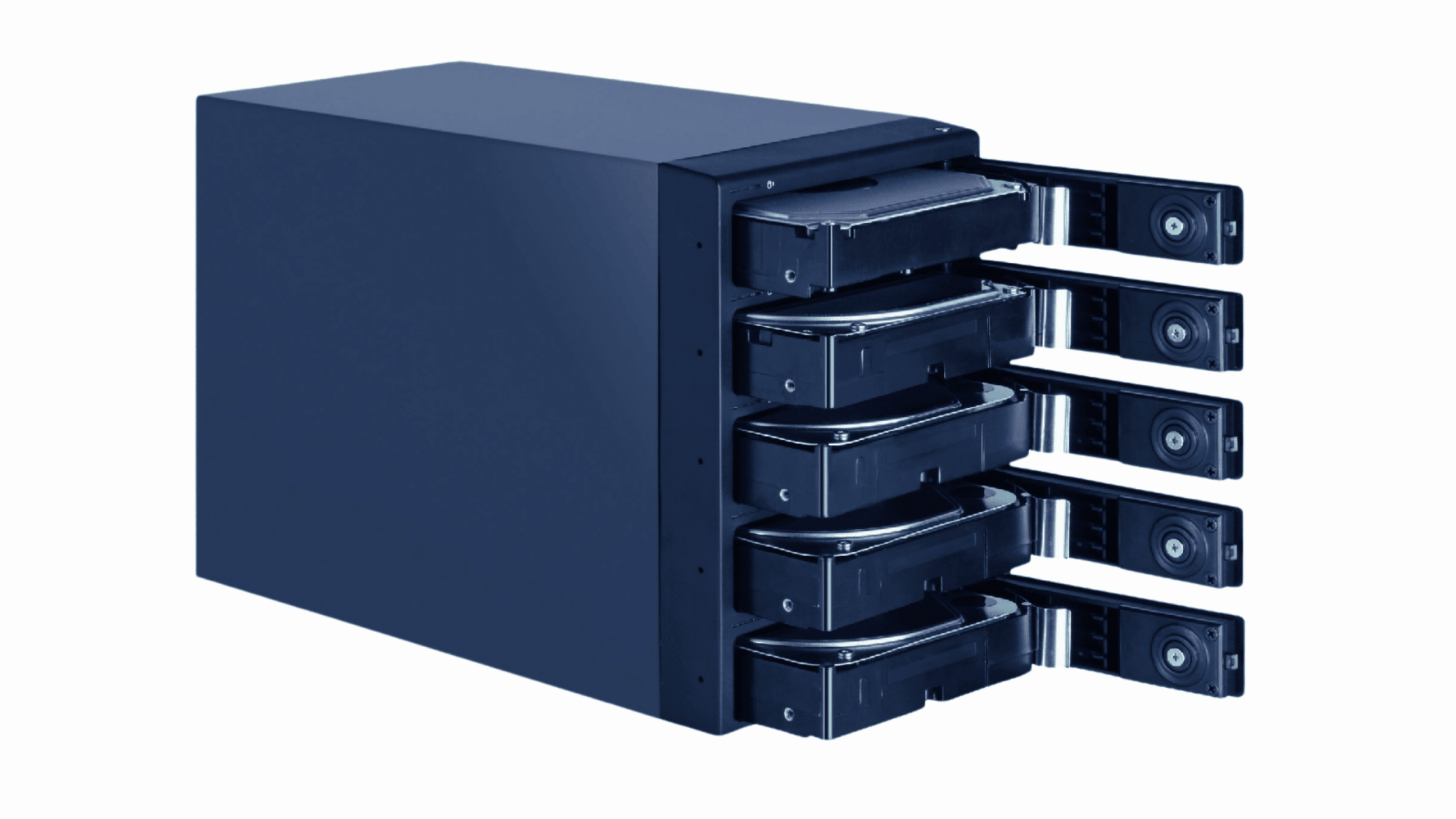
RAID stands for Redundant Array of Independent Disks. It is a way to connect multiple hard drives or SSDs so they work together as one system.
People use RAID to improve speed, store more data, or protect files if a drive fails. Different RAID levels serve different purposes.
For example, RAID 0 focuses on faster performance, while RAID 1 copies the same data to two drives for backup protection. Some setups combine both speed and safety.
RAID is common in servers, business computers, and home storage systems where data matters.
If one drive stops working, certain RAID setups can still keep your files safe and the system running.
RAID is not the same as a full backup, though. It helps reduce data loss risks, but users should still keep separate backups of important files and documents for extra protection.
Why Was Raid Created?
RAID was created to solve two major problems with early hard drives: they were slow and often failed.
In 1987, researchers David Patterson, Gareth Gibson, and Randy Katz at UC Berkeley published “A Case for RAID”, introducing the concept of using multiple low-cost drives together instead of relying on one expensive disk.
They showed that this approach could match or exceed the performance of costly enterprise disks at a fraction of the price.
By spreading data across several drives and adding redundancy, RAID improved reliability. If one drive failed, the system could still keep data safe and running.
The goal was to increase performance, improve storage handling, and lower the risk of data loss.
Over time, this approach became widely used in servers and work systems where stable and fast data access is important.
How Does RAID Actually Work?
RAID uses multiple drives to handle data more efficiently. Each setup follows a method to improve speed, safety, or both.
- Data Distribution: RAID distributes data across multiple drives rather than storing it on a single disk. This helps balance the workload and improve overall performance.
- Striping: Data is split into smaller parts and written across different drives. This allows faster read and write speeds since multiple drives work at the same time.
- Mirroring: RAID can copy the same data onto two drives. If one drive fails, the other still has a full copy of the data.
- Parity: Some RAID levels use parity data to rebuild lost information. This adds protection without needing a full copy on every drive.
- Drive Coordination: All drives work together as one system. The RAID controller manages how data is written, read, and recovered.
Hardware RAID vs. Software RAID
Hardware RAID uses a dedicated controller card to manage drives independently of the operating system. It performs better under heavy workloads and handles rebuilds without CPU involvement.
Software RAID, managed by the OS (such as Windows Storage Spaces or Linux mdadm), costs less but relies on the host CPU.
For most home and small-business setups, software RAID is sufficient. For production servers or high-throughput environments, hardware RAID is the more reliable choice.
Types of Raid Levels
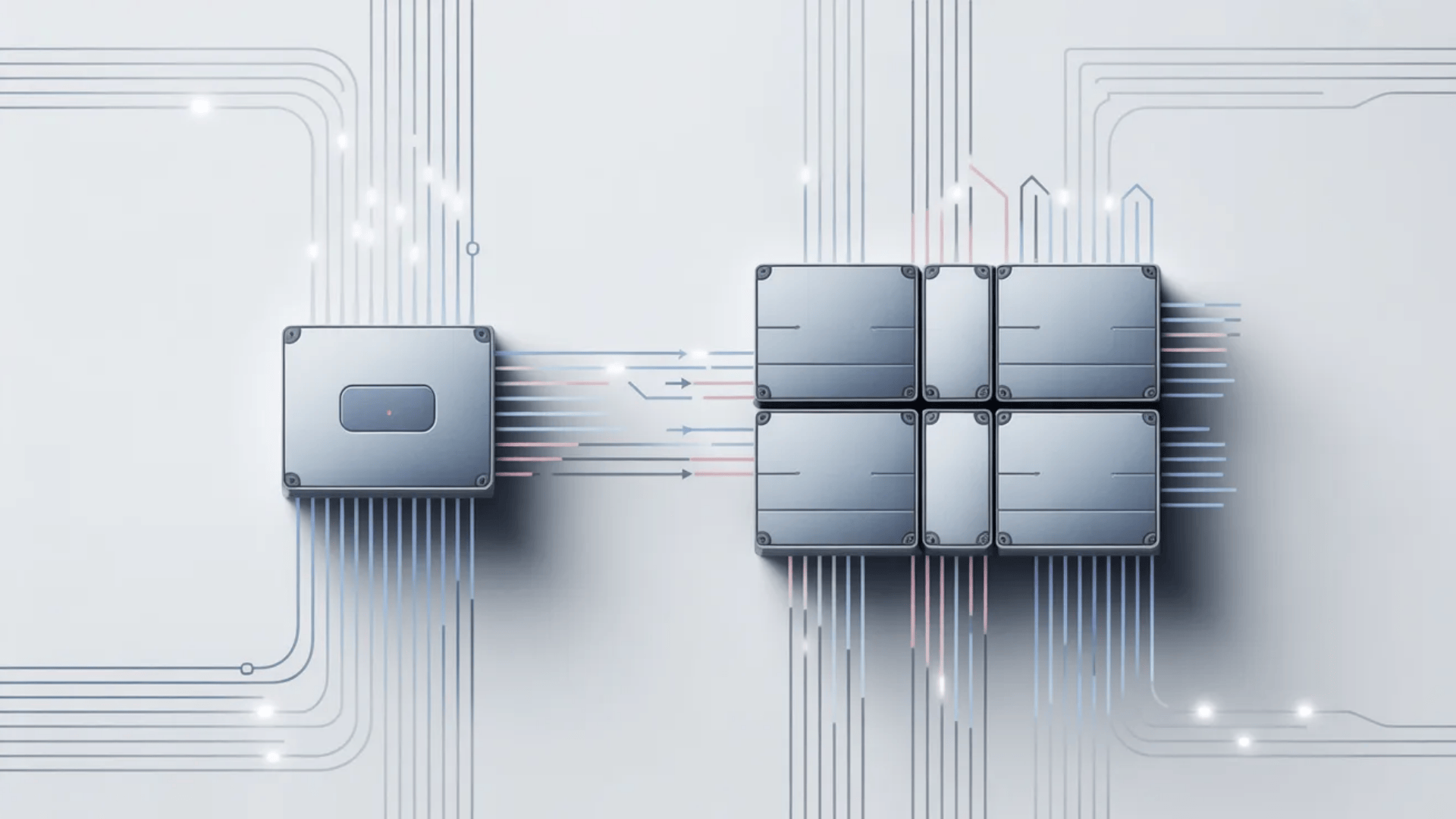
RAID levels show how data is stored and managed across multiple drives. Each level is designed to balance speed, storage, and data safety in its own way.
Raid 0
RAID 0 is built for speed and uses a method called striping. Data is split into small parts and written across two or more drives at the same time.
This improves read and write performance by enabling multiple drives to work together.
However, RAID 0 provides no data protection. If one drive fails, all data is lost.
It is best used for tasks that require fast performance, such as gaming or editing large files, but not for storing important or sensitive data.
Raid 1
RAID 1 focuses on data safety using a method called mirroring. It stores the same data on two drives, so both hold an exact copy.
If one drive fails, the other can still provide full access to the data. This makes RAID 1 reliable for important files. However, it does not increase storage space since both drives store the same data.
Reading speed can be slightly better, but writing speed stays similar. It is often used in systems where data protection matters more than storage size.
Raid 2
RAID 2 uses a complex method that splits data at the bit level and employs error-correcting codes. It requires multiple drives to store both data and error-checking information.
This setup was designed to fix errors during data transfer and improve accuracy.
However, modern drives already include built-in error correction, which makes RAID 2 less useful today.
It is rarely used in real systems because it needs many drives and is hard to manage. RAID 2 is mostly important for understanding the early ideas behind RAID technology.
Raid 3
RAID 3 uses striping at the byte level and includes a dedicated drive for parity. All data is split across multiple drives, while one drive stores parity information for recovery.
This setup allows the system to rebuild data if one drive fails. RAID 3 can offer good performance for large file transfers because all drives work together.
However, the single-parity drive can slow things down during heavy use.
It is not common today, but it was once used for tasks that needed steady data transfer speeds.
Raid 4
RAID 4 works by splitting data into blocks across multiple drives, similar to RAID 0, but it also uses a dedicated parity drive. This parity helps recover data if one drive fails.
It improves read speed because data can be accessed from multiple drives simultaneously.
However, write speed can slow down because all parity updates go to a single drive.
This creates a bottleneck during heavy write tasks. RAID 4 is not widely used today because other RAID levels handle parity more evenly.
Raid 5
RAID 5 is one of the most common setups because it balances speed, storage, and protection.
It uses block-level striping with distributed parity, meaning parity data is spread across all drives rather than a single drive. This removes the single bottleneck seen in RAID 4.
It needs at least three drives to work. RAID 5 can handle one drive failure without losing data.
It offers good read speed and fair write speed, making it a popular choice for business systems and storage servers.
Raid 6
RAID 6 is similar to RAID 5 but offers extra protection. It uses double parity, which allows the system to survive two drive failures at the same time.
Data and parity are distributed across all drives, just as in RAID 5. This setup needs at least four drives.
While it provides strong data safety, write speed is slower due to extra parity calculations. RAID 6 is often used in systems where data loss is not an option, such as large storage setups or backup systems.
Raid 10
RAID 10 combines the features of RAID 0 and RAID 1 to deliver both speed and data safety.
It first uses mirroring, then applies striping across those mirrored pairs. This setup requires at least four drives. It offers fast read and write speeds while still protecting data in the event of a drive failure.
However, it uses more storage since half the space is used for copies.
RAID 10 is widely used in servers and systems where performance and reliability are both important for daily operations.
Common RAID Levels and Their Uses at a glance
These RAID levels offer different benefits based on speed, storage, and data protection. The table below gives a quick look at the minimum drives, setup method, and best use for each option.
| RAID Level | Min. Drives | Technique | Fault Tolerance | Best For |
| RAID 0 | 2 | Striping only | None | Speed-critical, non-critical data |
| RAID 1 | 2 | Mirroring | 1 drive | Small systems, high redundancy |
| RAID 5 | 3 | Striping + distributed parity | 1 drive | Business servers, NAS |
| RAID 6 | 4 | Striping + double parity | 2 drives | Large storage, critical uptime |
| RAID 10 | 4 | Mirroring + striping | 1 per mirror pair | Databases, high-performance servers |
What Is RAID Used For?
RAID is used in systems that need to handle more work while remaining reliable. It is common in both business setups and personal systems that manage important data.
- RAID protects business data: By keeping important files, such as records and databases, safe. Even if one drive fails, the system can still run without losing data.
- Running Web and Media Servers: RAID improves the speed of websites and streaming services. It helps handle heavy traffic without slowing down or stopping.
- Storing Surveillance Footage: Security systems use RAID to store large amounts of video data. It allows continuous recording while keeping files safe from drive failure.
- Supporting High-Performance Systems: RAID is used for research and data-intensive tasks. It provides fast access to large datasets and helps systems run smoothly.
- Editing Large Media Files: Video editors and designers use RAID for faster file access. It helps when working with large files that need quick loading and saving.
Does RAID Replace a Backup?
RAID does not replace a backup. It only helps protect against hardware failure by copying data or using parity across multiple drives. If one drive fails, your data may still be safe.
However, RAID cannot protect against problems such as accidental deletion, file corruption, ransomware, or user errors.
When a file is deleted or changed, the action occurs across all drives simultaneously.
This means you cannot recover it using RAID alone. Backups work differently because they store point-in-time copies of your data at separate intervals.
If a file is deleted or corrupted on Monday, a backup from Sunday can restore it. RAID cannot do this.
A widely recommended approach in IT documentation is the 3-2-1 rule: keep three copies of your data, on two different media types, with one stored offsite or in the cloud.
RAID satisfies one copy in that model; it does not replace the rest.
What Are the Pros and Cons of Raid?
RAID can improve storage performance and help keep data safer in many setups. At the same time, it has some limits that you should understand before using it.
| Pros | Cons |
|---|---|
| Data redundancy helps keep files safe if a drive fails by storing copies or parity data | Higher cost because it needs multiple drives and extra hardware |
| Faster read speeds since data is read from more than one drive at once | Slower write speeds in some levels due to extra processing |
| Better uptime as systems can keep running even if one drive stops working | No failure warnings, and rebuild time can be long |
| Scalable storage makes it easy to add more drives for more space | Complex setup that may be hard for beginners to manage |
| Improved reliability reduces the risk of losing all data at once | Not a backup and cannot protect against deletion or malware |
Is RAID Right For You?
Choosing RAID depends on how important your data is and how you use your system. It works best when you match it with your needs, budget, and setup.
- Running a Business with Important Data: RAID helps keep systems active even if a drive fails. This reduces downtime and protects daily operations.
- Needing Faster Performance: RAID improves performance by using multiple drives simultaneously. This is useful for tasks like video editing or managing large databases.
- Budget for Multiple Drives: RAID requires more than one drive and may require additional hardware. This makes the setup more costly than basic storage.
- Ability to Manage the System: RAID needs proper setup and regular checks. Without basic knowledge, mistakes can lead to data issues.
- Using Backup Alongside RAID: RAID works better when combined with backups. It cannot protect against deleted files or system errors.
- Simple Home Use Needs: If you store non-critical files, RAID may not be necessary. A basic external drive or cloud storage can be enough.
Conclusion
At this point, you should have a clear understanding of what RAID is and how it can support your storage setup.
I know that choosing the right system can feel technical at first, but it really comes down to one simple question: how important is your data to you?
If losing it would cause stress, lost time, or lost money, RAID is worth considering. It gives your storage a safety net that a single drive can’t. Just remember that RAID improves reliability, but it doesn’t replace proper backups.
The smartest approach is to use both together. Set up RAID for drive failure protection, and keep a separate backup for everything else.
Are you using RAID right now, or planning to set it up soon? Share your thoughts or experience in the comments below.
Frequently Asked Questions
What Is the Most Common Raid System?
RAID 5 is one of the most common setups because it balances speed, storage, and data protection. It is widely used in business and server environments.
Who Typically Uses RAID Systems?
RAID is mostly used by businesses, IT teams, and server managers. Some home users also use it for better storage and data safety.
Is Raid Faster than SSD?
RAID can improve performance by combining multiple drives, but a single SSD is still very fast. In many cases, SSDs offer better performance than basic RAID setups.
What’s Better, RAID 5 Or 10?
RAID 10 is better for speed and data safety, while RAID 5 offers more storage efficiency. The best choice depends on your needs and budget.