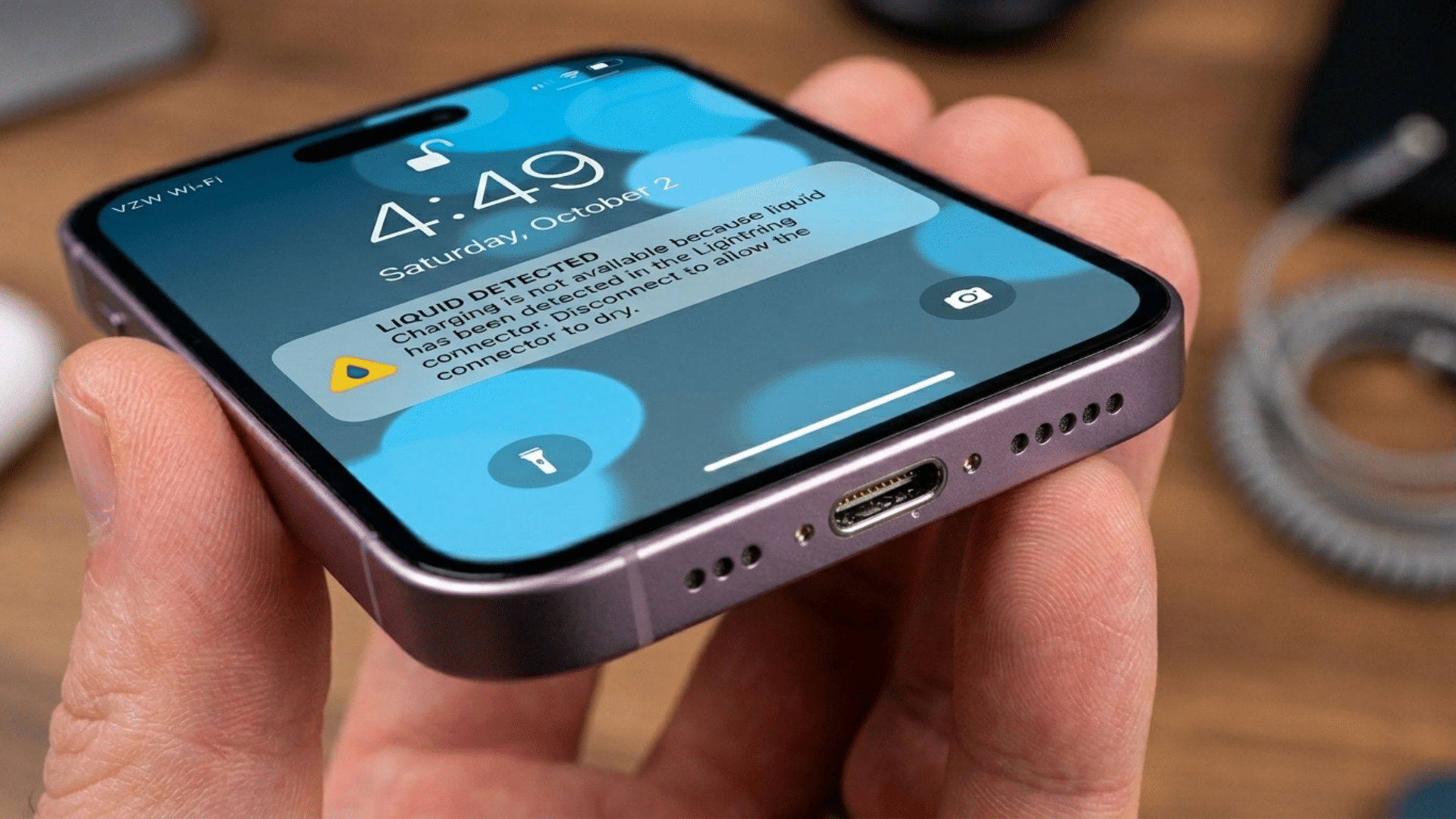



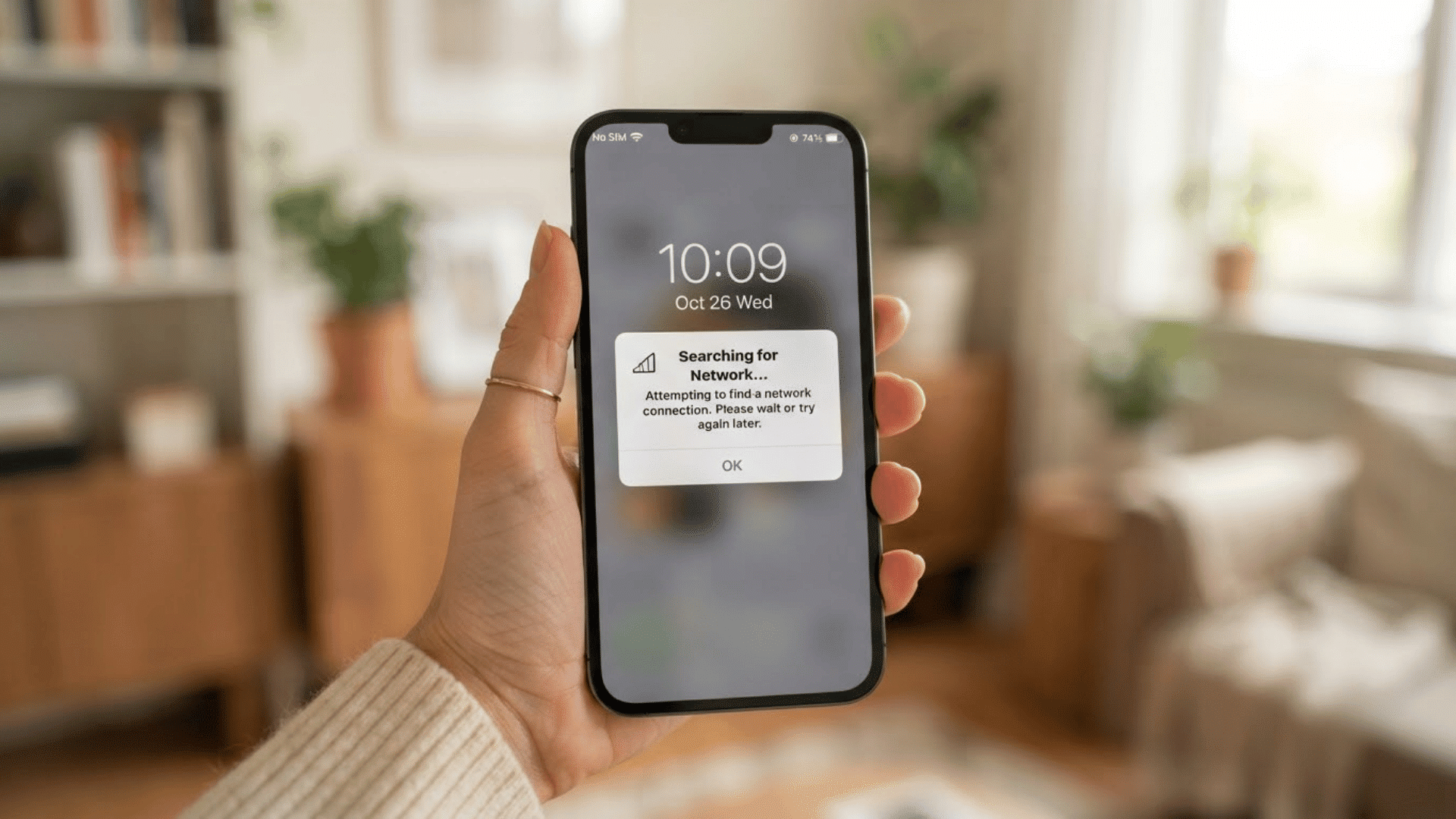
If you’ve ever plugged in your iPhone and seen a “Liquid Detected in Lightning Connector” warning, it can be frustrating, especially when the phone hasn’t been near water.
Many users encounter the liquid detected in the lightning connector alert even when the device appears completely dry.
In some cases, humidity, dust, debris, a faulty charging cable, or a temporary software issue can trigger the warning.
You may also notice an option called Emergency Override and wonder if it’s safe to use.
In this guide, we’ll explain why this alert appears, what causes false liquid detection warnings, how to fix them, and what emergency override means. Keep reading to get your iPhone charging normally again.
What Does “Liquid Detected in the Lightning Connector” Indicate?
The “Liquid Detected in Lightning Connector” alert is a safety feature on iPhones that appears when the device detects moisture or liquid inside the charging port or on the Lightning cable.
Apple designed this feature to help protect your phone from damage that can happen if electricity passes through a wet connector.
When the warning appears, the iPhone temporarily blocks charging and accessory connections through the Lightning port.
This reduces the risk of short circuits, corrosion, and permanent hardware damage. In many cases, the alert appears after exposure to water, rain, or sweat.
However, it can also appear due to humidity, condensation, dirt, or a faulty charging cable, even when the phone does not seem wet.
Why Does the Liquid Detected Warning Appear?
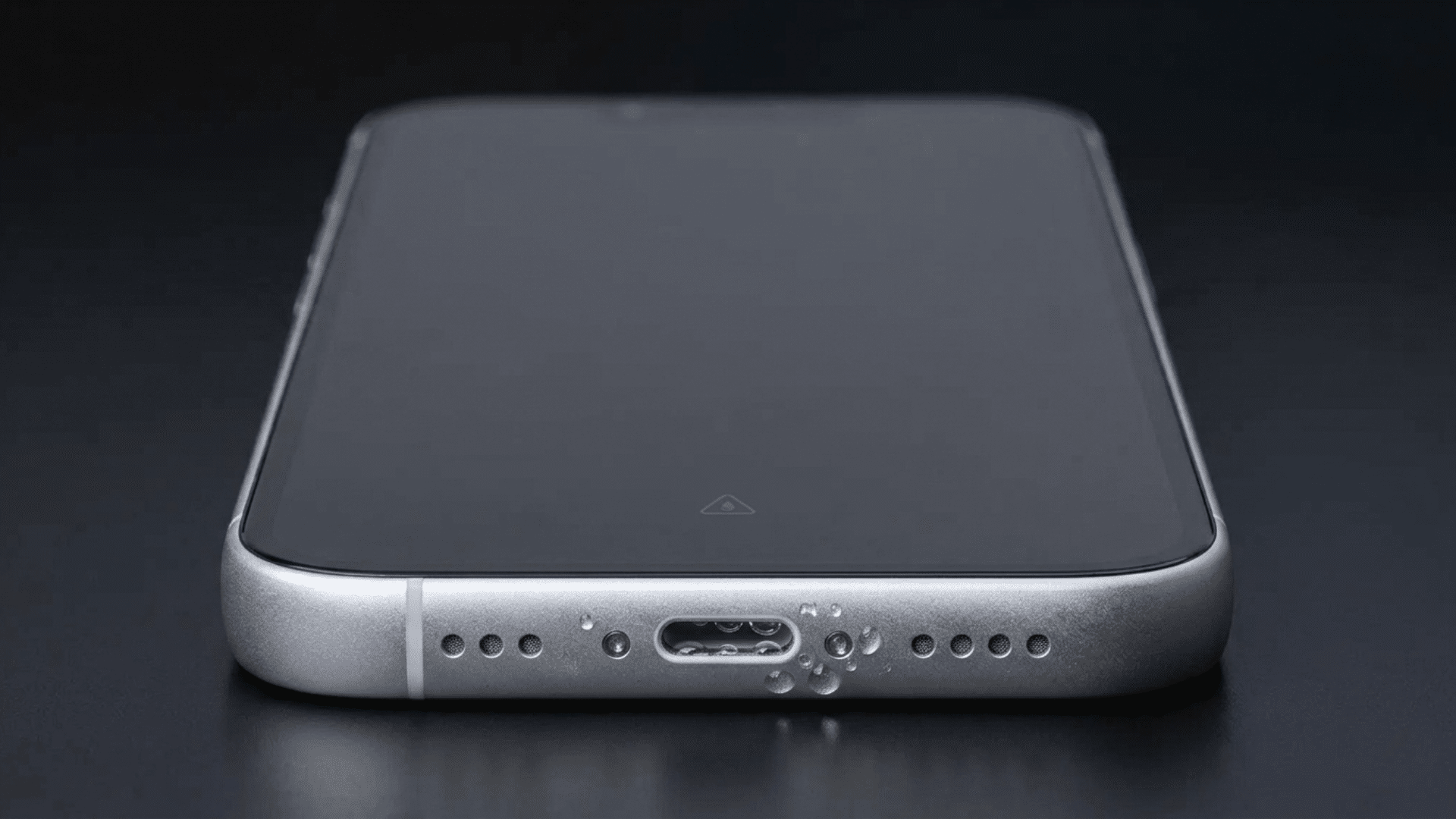
Even without visible moisture, residue, debris, software glitches, temperature changes, or damaged accessories, the liquid detection alert can trigger during charging.
1. Humidity and Condensation Inside the Charging Port
One of the most common causes of a false liquid-detection warning is humidity or condensation.
When an iPhone moves from a cold environment to a warm one, tiny water droplets can form inside the Lightning connector.
This moisture may be too small to see with the naked eye, but the sensor can still detect it.
High humidity levels, especially during rainy weather or in bathrooms, can also create enough moisture to trigger the alert even when the device appears completely dry.
2. Dust, Lint, or Debris Interfering with the Sensor
Over time, the Lightning port can collect pocket lint, dust, dirt, and other small particles. This buildup may block the connector pins or interfere with the liquid detection system.
In some cases, debris can trap tiny amounts of moisture that are difficult to notice.
The sensor may then interpret the obstruction as liquid and display the warning.
Regularly checking and carefully cleaning the charging port can help prevent false alerts caused by accumulated debris.
3. Moisture or Damage in the Charging Cable
The problem is not always with the iPhone itself. A Lightning cable exposed to moisture, sweat, or humidity can trigger the liquid-detected warning.
Even if the charging port is completely dry, the connector on the cable may still contain moisture. Damaged or worn cable contacts can also create unusual readings that confuse the detection system.
Testing with a different Apple-certified cable can help determine if the cable is causing the issue.
4. Software Bugs or Temporary System Errors
Sometimes the warning appears because of a software issue rather than actual moisture. Like any electronic device, an iPhone can occasionally experience temporary glitches that affect sensor readings.
A recent iOS update, background process error, or system bug may cause the liquid detection feature to behave incorrectly.
In these situations, restarting the device or updating to the latest version of iOS can often resolve the problem and clear the warning without any hardware repairs.
5. Residue Left Behind from Previous Water Exposure
Even after water has fully dried, small amounts of residue may remain inside the Lightning connector. Minerals in tap water, salt in seawater, or residues from sports drinks can affect how the sensor works.
These deposits can remain on the connector pins and continue to trigger the warning long after the device appears dry.
This is why some users continue seeing the alert days after the original exposure, despite finding no visible signs of moisture.
6. Faulty Liquid Detection Sensor or Hardware Problem
In some cases, the warning may indicate a hardware issue rather than the presence of moisture.
A damaged or malfunctioning liquid detection sensor can send incorrect signals to the iPhone, causing repeated alerts.
This can happen due to age, physical damage, corrosion, or previous water exposure.
If the warning persists after trying different cables, cleaning the port, and allowing ample drying time, a professional inspection or repair may be necessary to identify the underlying problem.
Common Situations that Trigger a False Liquid Detection Alert
A liquid-detection warning doesn’t always indicate water in the Lightning connector. Every day, conditions can trigger the sensor or cause false moisture alerts.
- Moving Between Hot and Cold Environments: Sudden temperature changes can create condensation inside the port. Even a small amount of moisture formed from temperature shifts can trigger the warning.
- Using the Phone During Exercise: Sweat and moisture from hands can enter the charging port during workouts. The sensor may detect this moisture and display the liquid alert as a safety measure.
- Being in a Humid Environment: High humidity levels can allow moisture to collect inside the connector. This is common in bathrooms, kitchens, or areas with consistently damp air.
- Charging After Cleaning the Device: Small amounts of cleaning solution or water may remain near the port. Even if the phone looks dry, leftover moisture can activate the detection system.
- Using a Damp or Damaged Charging Cable: Moisture trapped inside the cable connector can trigger the warning. Worn or damaged cable contacts may also cause false liquid detection alerts.
- After a Recent iOS Update or Software Glitch: Temporary software issues can sometimes affect sensor readings. The warning may appear incorrectly until the device is restarted or updated again.
What Does Emergency Override Mean on iPhone?
Emergency Override is an option that appears when an iPhone detects moisture in the Lightning connector and blocks charging as a safety precaution.
This feature allows users to bypass Apple’s liquid-detection warning and continue charging the device even if the system detects moisture.
Apple includes this option for situations where charging is urgently needed, such as during emergencies or when the battery is critically low.
While Emergency Override can restore charging immediately, it should be used with caution.
If liquid is actually present in the connector, forcing the device to charge may increase the risk of corrosion, short circuits, or damage to internal components.
For this reason, Apple recommends waiting until the Lightning port and charging cable are completely dry before using this option whenever possible.
How to Fix the Liquid Detected in Lightning Connector Warning?
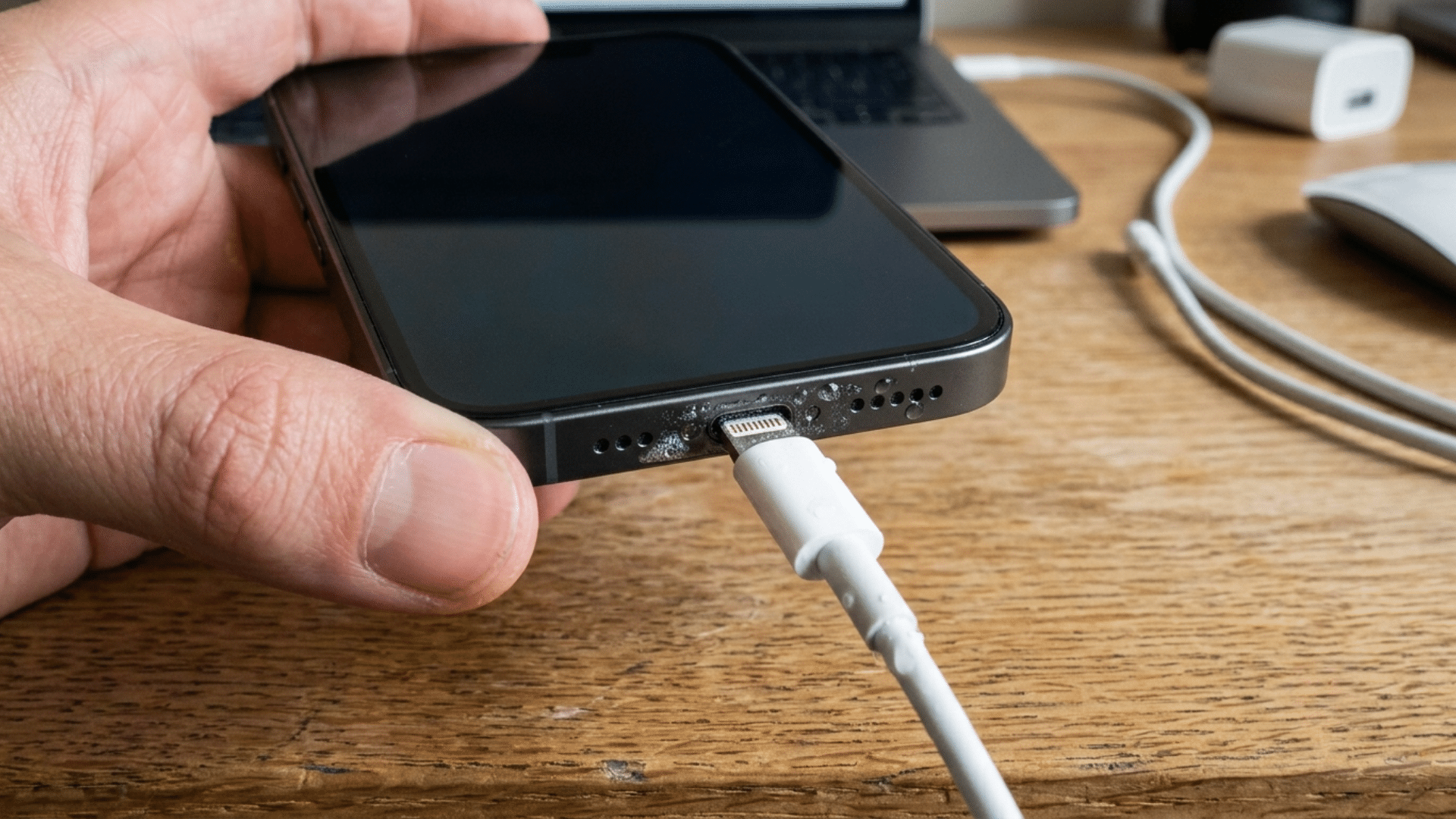
In many cases, the liquid-detected warning disappears on its own after the connector dries. If the alert persists, several troubleshooting steps can help identify the cause and restore normal charging.
1. Disconnect the Charger and Wait
As soon as the warning appears, unplug the Lightning cable and avoid repeatedly trying to charge the device. If moisture is present, forcing a connection may increase the risk of damage to the charging components.
Place the iPhone in a dry, well-ventilated area and allow it to sit undisturbed for a few hours. This gives any trapped moisture time to evaporate naturally.
Many liquid detection alerts clear on their own once the connector has had enough time to dry completely.
2. Allow the Lightning Port to Air Dry Naturally
One of the safest and most effective solutions is to let the Lightning connector dry on its own. Position the iPhone so the charging port faces downward, which may help moisture drain or evaporate more quickly.
Avoid placing the device in direct sunlight or using artificial heat sources.
Depending on humidity levels and the amount of moisture present, drying can take several hours.
Allowing the port to dry naturally reduces the risk of damaging internal components and often resolves the warning without additional troubleshooting.
3. Inspect and Clean the Charging Port Carefully
Dust, lint, dirt, and other debris can sometimes interfere with the liquid detection system. Use a flashlight to examine the Lightning connector and look for any visible buildup inside the port.
If debris is present, carefully remove it using a soft anti-static brush or electronics-safe compressed air.
Avoid inserting metal objects, toothpicks, or sharp tools into the connector.
A clean charging port improves contact between the cable and the device and may eliminate false liquid-detection warnings caused by accumulated particles.
4. Try a Different Lightning Cable
The issue may be related to the charging cable rather than the iPhone itself. Moisture trapped inside the cable connector, worn contacts, or internal cable damage can trigger the liquid detection alert.
Testing with a different Apple-certified Lightning cable can help determine whether the original cable is causing the problem.
If the warning disappears after switching cables, the previous cable may have moisture contamination or physical damage. Replacing a faulty cable is often a quick and effective way to resolve charging-related issues.
5. Restart the iPhone and Update iOS
Software glitches can occasionally cause incorrect liquid detection warnings. Restarting the iPhone refreshes system processes and may clear temporary sensor errors unrelated to actual moisture.
It is also worth checking for available iOS updates, as Apple regularly releases bug and performance fixes.
If the warning is caused by a software issue rather than moisture, updating the device and restarting it may restore normal charging behavior and prevent the alert from appearing again.
6. Use Wireless Charging as a Temporary Solution
If the iPhone supports wireless charging, it can serve as a temporary alternative while investigating the warning.
Wireless charging does not use the Lightning connector, allowing the device to charge without interacting with the potentially affected port.
This approach is particularly useful when the battery is low and the liquid-detection alert remains active.
While wireless charging does not fix the underlying issue, it provides a safe way to keep the device powered until the warning disappears or the root cause is identified.
6. Reset All Settings
If the alert persists after trying a different cable, cleaning the port, and restarting the device, resetting all settings can resolve false alerts caused by a misconfigured system state.
This does not erase your data. Go to Settings > General > Transfer or Reset iPhone > Reset > Reset All Settings.
The device will restart with default system configurations. Many users report that the liquid detection alert clears after this step when no hardware fault is present.
If it returns immediately after the reset, the issue is likely hardware-related rather than a software configuration problem.
Mistakes to Avoid After a Liquid Detection Warning
When the liquid detection warning appears, taking the wrong steps can make the problem worse and damage the charging port. Avoid the following mistakes to help protect the iPhone and ensure the connector dries safely.
| What Not to Do | Why It Should Be Avoided |
| Use Rice to Dry the Phone | Rice is not an effective drying method and can leave small particles inside the charging port. These particles may create additional charging issues or interfere with the connector. |
| Insert Objects Into the Lightning Port | Using cotton swabs, paper clips, toothpicks, or other objects can damage the connector pins. Even minor damage may affect charging performance or require costly repairs. |
| Use a Hair Dryer or Direct Heat | High heat can damage internal components, seals, and the battery. Apple recommends allowing the connector to air-dry naturally rather than using artificial heat sources. |
| Continue Plugging and Unplugging the Charger | Repeatedly reconnecting the cable while moisture may still be present can increase the risk of electrical damage. It is better to wait until the warning disappears. |
| Force Charging Through Emergency Override Unnecessarily | Emergency Override should only be used when charging is urgently needed. Using it repeatedly while moisture is present can lead to corrosion or hardware damage over time. |
| Ignore the Warning Completely | The alert is designed to protect the device from potential damage. Ignoring it and continuing normal charging habits may increase the chance of long-term charging port issues. |
When to Contact Apple Support?
Most liquid detection warnings go away after the connector dries. If the alert continues or other issues appear, it may be time to contact Apple Support.
- The Warning Persists for More Than 24 Hours: The connector may no longer contain moisture. A sensor or hardware issue could be causing the alert.
- The Alert Appears Repeatedly Without Moisture Exposure: The warning keeps returning even in dry conditions. This may indicate a faulty liquid detection sensor.
- The Lightning Port Stops Charging Completely: The device does not charge after the warning disappears. The charging port may have suffered internal damage.
- Visible Signs of Corrosion or Damage: Discoloration or damaged connector pins are visible. These signs often point to hardware-related problems.
- Multiple Charging Cables Trigger the Same Warning: Different cables produce the same liquid detected alert. The issue may be with the iPhone rather than the cable.
- Other Water Damage Symptoms Appear: Audio, display, or performance problems begin. Internal moisture damage may require professional repair.
Understanding Emergency Override Usage
If the iPhone is completely dry and the liquid detected warning appears because of a false alert, using Emergency Override may be safe in some situations.
False warnings can occur due to humidity, dust, debris, a faulty charging cable, or temporary software issues.
However, it is best to rule out these causes before bypassing the warning. Check the Lightning port for debris, try a different charging cable, restart the device, and allow some time for any hidden moisture to evaporate.
If the alert continues despite these steps and there is no sign of actual moisture, Emergency Override can be used when charging is necessary.
Still, it should be considered a last resort rather than a regular solution to the problem
Conclusion
Dealing with the “liquid detected in the lightning connector” warning can be frustrating, especially when the iPhone does not appear wet.
In many cases, the alert is triggered by humidity, condensation, dust, debris, a faulty charging cable, or a temporary software issue rather than actual liquid.
Understanding what causes the warning and what emergency override means can help prevent unnecessary worry and protect the device from damage.
Following the right troubleshooting steps and avoiding common mistakes can often resolve the issue quickly.
If the warning continues despite these efforts, professional support may be needed. Keep this guide handy whenever the alert appears to troubleshoot the problem safely and effectively.
Frequently Asked Questions
Why Does the iPhone Keep Showing Liquid Detected?
An iPhone may keep showing the liquid detected warning due to hidden moisture, humidity, dust in the Lightning port, a faulty charging cable, software glitches, or a malfunctioning liquid-detection sensor.
Is It Bad to Override Liquid Detected in the Lightning Connector?
Yes, it can be. Overriding liquid detection while moisture is present may cause corrosion, short circuits, or damage to the charging port. Use Emergency Override only when absolutely necessary.
How Long Does It Take for a Lightning Connector to Dry Out?
A Lightning connector typically dries within 30 minutes to 24 hours, depending on the amount of moisture, humidity levels, and airflow. Apple recommends allowing it to air dry naturally.