


Adding a website to your desktop lets you open your favorite pages faster with a single click instead of typing the web address each time.
This can save time and make your daily tasks more convenient, especially if you regularly visit websites for work, school, shopping, banking, or entertainment.
Most modern browsers, including Google Chrome, Microsoft Edge, and Firefox, offer simple ways to create website shortcuts.
The process takes only a few minutes and requires no technical skills.
In this guide, you’ll learn how to add a website to your desktop and create a website icon on both Windows and Mac computers.
Quick Answer: How to Add a Website to Your Desktop?
To add a website to your desktop, open it in your web browser and use the browser’s “Create shortcut,” “Install app,” or drag-and-drop option.
This creates a desktop shortcut for one-click access to the website. The steps vary depending on your browser and operating system.
In Google Chrome and Microsoft Edge, you can create a desktop shortcut from the browser menu, while some websites can also be installed as web apps.
On many browsers, you can drag the padlock or site information icon from the address bar directly onto the desktop to create a shortcut.
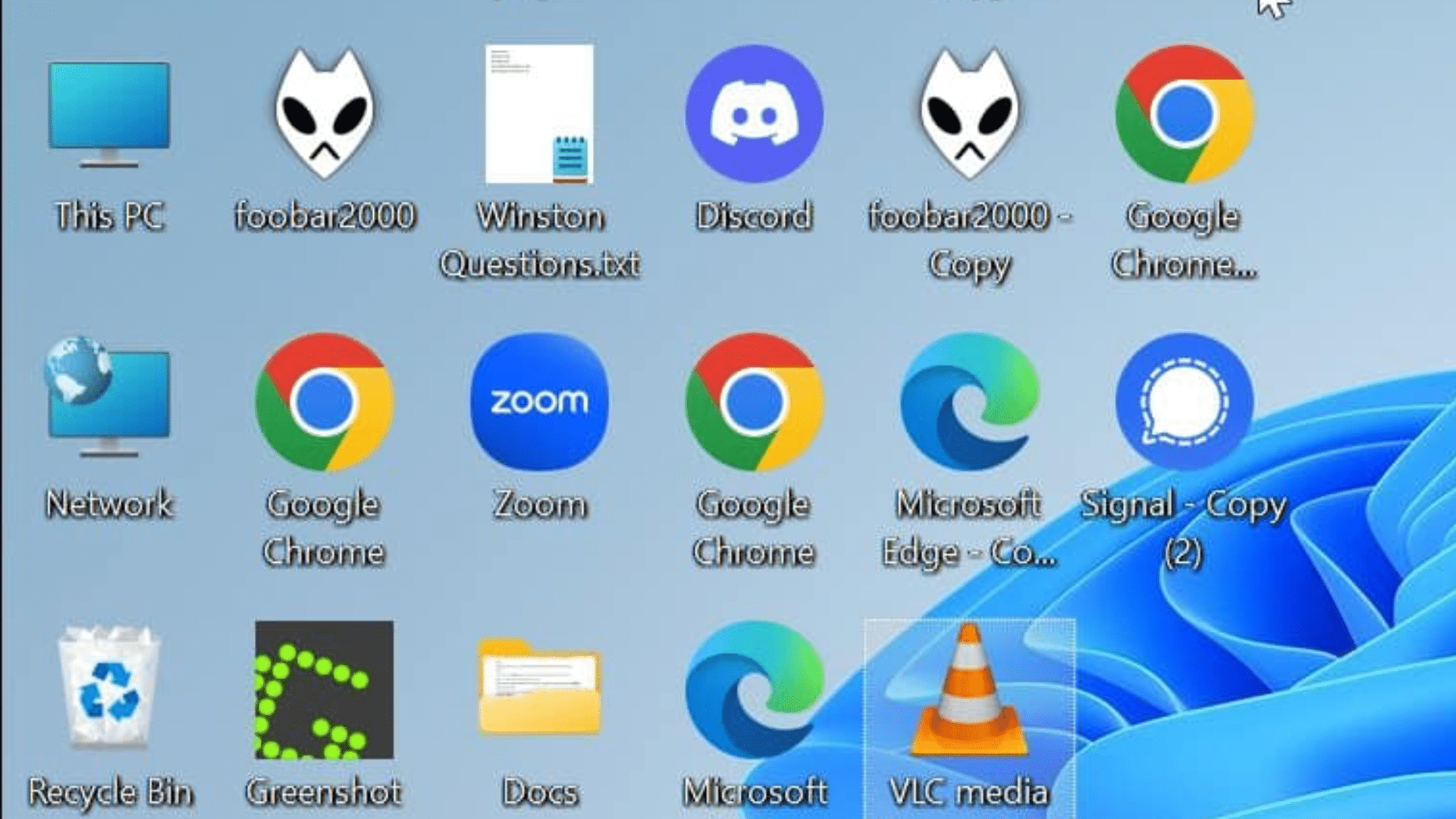
Once created, double-clicking the icon opens the website quickly without typing its web address.
Why Add a Website to Your Desktop?
Adding a website to your desktop provides faster access to frequently used web pages without having to search for or type the URL each time.
It improves convenience, saves time, and makes frequently used websites easier to open with a single click.
Desktop website shortcuts are useful for services you access often, such as email, calendars, online banking, learning platforms, project management tools, or business dashboards.
You can open the website directly from your desktop instead of using bookmarks or search.
Some browsers, including Google Chrome and Microsoft Edge, also allow supported websites to be installed as web apps (Progressive Web Apps or PWAs).
These apps can open in their own window, creating an experience similar to a traditional desktop application while still using web technologies.
This can improve organization and streamline daily workflows for both personal and professional use.
How to Add a Website to Your Desktop?
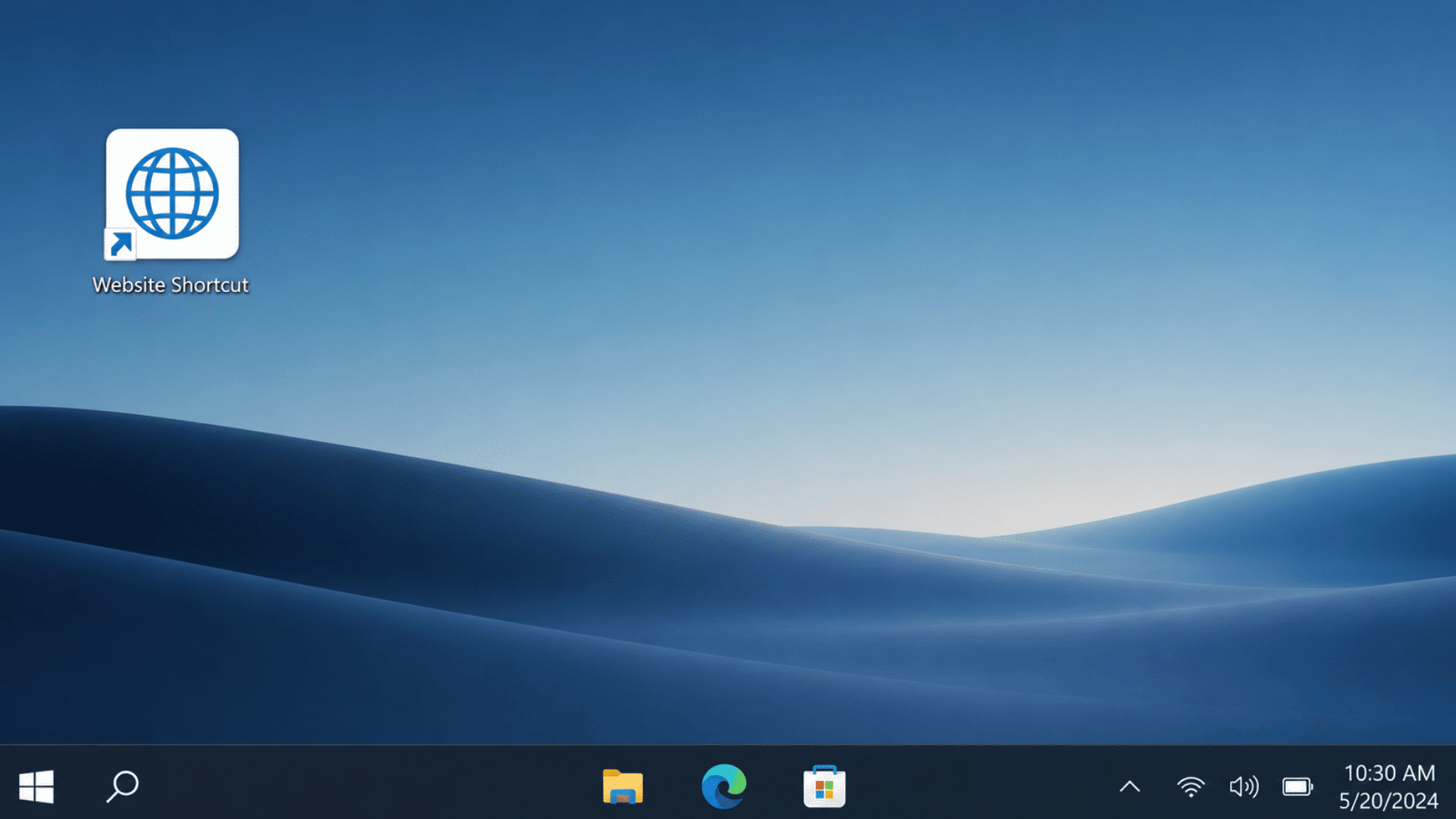
The steps for creating a website shortcut depend on the browser or operating system you are using.
1. In Google Chrome
Google Chrome makes it easy to add a website to your desktop by creating a shortcut or installing it as a Progressive Web App (PWA), when supported.
Both options provide one-click access to frequently visited websites, helping you save time and open them without manually entering the web address.
- Open the website in Google Chrome.
- Click the three-dot menu in the upper-right corner.
- Select Cast, Save and Share > Create Shortcut.
- Enter a name if prompted.
- Click Create.
- For supported sites, choose Install App to create an app-like shortcut.
2. In Microsoft Edge
Microsoft Edge lets you create desktop shortcuts or install compatible websites as Progressive Web Apps (PWAs).
These options provide quick, one-click access to frequently used websites, allowing them to open directly from your desktop or Start menu without having to search for the website each time.
- Open the website in Microsoft Edge.
- Click the three-dot menu.
- Select Apps > Install This Site as an App.
- Follow the installation prompts.
- If unavailable, use More Tools to create a shortcut.
- Launch the website directly from your desktop or Start menu.
3. In Mozilla Firefox
Firefox does not offer a dedicated desktop shortcut feature like Chrome or Microsoft Edge.
However, you can quickly create a website shortcut by dragging the padlock or site information icon from the address bar directly onto your desktop, allowing one-click access to the website.
- Open the website in Mozilla Firefox.
- Resize the browser so the desktop is visible.
- Drag the padlock icon or site information icon from the address bar.
- Drop it onto the desktop.
- A website shortcut will be created.
- Double-click the shortcut to open the website.
4. On Mac
Mac users can create website shortcuts using Safari or other compatible browsers for faster access to frequently visited websites.
By dragging the website address or favicon to the desktop, you can create a clickable shortcut that opens the site quickly in your default web browser.
- Open the website in Safari.
- Resize the browser window to view the desktop.
- Click and hold the website address or favicon.
- Drag it onto the desktop.
- Release the mouse button.
- Double-click the shortcut whenever you want to open the website.
How to Add a Website to Your Desktop Using the Windows Right-Click Method?
Creating a desktop shortcut for a website provides quick access without opening your browser first. It places a clickable icon on your desktop, allowing you to launch your favorite webpage with a double-click.
- Right-click any blank area on your desktop and select New > Shortcut.
- Enter or paste the full website URL into the location field.
- Click Next to continue.
- Type a name for the website shortcut and click Finish.
- Double-click the new desktop shortcut to open the website
Benefits of Adding Websites to Your Desktop
Adding website shortcuts to your desktop can make everyday browsing faster and more convenient.
| Benefit | Description |
| Faster Access | Open your favorite websites with a single click. |
| Saves Time | Eliminates the need to type URLs or search for websites. |
| Improves Productivity | Keep important work and study websites within easy reach. |
| Easy Organization | Allows you to arrange frequently used websites on your desktop. |
| Better Convenience | Access websites directly without navigating through bookmarks. |
| Reduces Repetitive Tasks | Makes daily browsing quicker and more efficient. |
| Quick Access to Online Tools | Useful for email, project management, banking, and other web-based services. |
| User-Friendly | Simple to create and use, even for beginners. |
How to Make a Website a Desktop Icon?
Most browsers offer simple ways to create a desktop icon for quick access to your favorite websites.
- Open the Website: Launch your preferred browser and open the webpage you want to add as a desktop icon for quick access.
- Access Browser Options: Open the browser menu and look for options such as Create Shortcut or Install App, if available.
- Create the Desktop Icon: Follow the browser prompts to create the shortcut, and the website icon will automatically appear on your desktop.
- Use Drag-and-Drop: Drag the website’s padlock or address icon from the address bar directly onto your desktop to create a shortcut.
- Rename the Shortcut: Change the shortcut name if needed to make it easier to recognize and locate among other desktop icons.
- Test the Icon: Double-click the desktop icon to confirm it opens the correct website in your default browser or installed web app.
How to Change a Website Shortcut Icon on Windows?
By default, Windows assigns a generic browser icon to website shortcuts, which can make multiple shortcuts look similar.
If you want a more personalized appearance, you can easily change the icon. Right-click the website shortcut on your desktop and select Properties.
Open the Web Document or Shortcut tab, then click Change Icon. Browse your computer for an ICO file, select the one you want, and click OK to apply the change.
You can download free ICO icons online or create your own using icon conversion tools.
Custom icons make it easier to identify specific websites at a glance, improve desktop organization, and give your workspace a cleaner, more customized look, especially if you regularly use several website shortcuts.
Common Issues when Creating Website Desktop Icons
Creating a website desktop icon is generally straightforward, but browser settings, permissions, or compatibility issues can prevent the shortcut from being created.
| Issue | Possible Solution |
| Shortcut Does Not Open | Check that the website URL was entered correctly. |
| Wrong Website Opens | Edit the shortcut and verify the web address. |
| Website Icon Is Missing | Refresh the desktop or recreate the shortcut. |
| Shortcut Opens in the Wrong Browser | Change your default web browser settings. |
| Unable to Create the Shortcut | Ensure you have permission to make changes on the desktop. |
| Broken Website Link | Confirm that the website is still active and accessible. |
| Desktop Icon Accidentally Deleted | Recreate the shortcut using the original website URL. |
| Website Loads Slowly | Check your internet connection and website status. |
Tips for Organizing Website Shortcuts on Your Desktop
Keeping your website shortcuts organized can make your desktop cleaner and help you find important websites faster. Here are some simple tips to keep everything in order.
- Group Similar Websites: Keep work, school, shopping, and entertainment shortcuts together for easier navigation.
- Use Clear Shortcut Names: Rename shortcuts with simple, descriptive names so you can identify them quickly.
- Create Desktop Folders: Store related website shortcuts in folders to reduce desktop clutter.
- Remove Unused Shortcuts: Delete website icons you no longer use to keep your desktop organized.
- Place Important Shortcuts First: Keep frequently visited websites in a visible location for quick access.
- Arrange Icons Regularly: Reorganize your shortcuts periodically to reflect your current needs and usage.
- Use Consistent Naming: Follow a similar naming style for all website shortcuts to make them easier to locate.
- Keep Your Desktop Clean: Limit the number of shortcuts on your desktop to maintain a neat and organized workspace.
Website Shortcut vs Website App
Many browsers allow you to either create a website shortcut or install a website as an app. While both provide quick access, they work differently.
| Feature | Website Shortcut | Website App |
| How It Opens | Opens in a web browser | Opens in a separate app-like window |
| Desktop Icon | Yes | Yes |
| Browser Toolbar | Visible | Usually hidden |
| Installation Required | No | Yes |
| Best For | Quick access to webpages | Frequently used web tools |
| Storage Usage | Very little | Slightly more storage is required |
Edge AI Tools and Platforms
Many Edge AI platforms simplify the deployment, optimization, and management of AI models on edge devices across industries.
- TensorFlow Lite: Optimizes machine learning models for mobile phones, embedded systems, and IoT devices with efficient on-device AI inference capabilities.
- NVIDIA Jetson: Provides high-performance AI computing for robotics, autonomous machines, computer vision, and industrial edge applications requiring real-time processing.
- OpenVINO: Optimizes AI inference across Intel CPUs, GPUs, and VPUs, improving performance and deployment efficiency on edge hardware.
- ONNX Runtime: Runs AI models efficiently across multiple hardware platforms using the Open Neural Network Exchange (ONNX) standard for compatibility.
- Google Coral: Uses Google’s Edge TPU to accelerate on-device AI inference while maintaining low power consumption for embedded applications.
- AWS IoT Greengrass: Extends AWS cloud services to edge devices, enabling local machine learning inference, messaging, and secure device management capabilities.
- Azure IoT Edge: Deploys AI models, cloud services, and analytics directly to edge devices for faster local processing and centralized management.
Conclusion
Adding a website to your desktop is a simple way to make your favorite webpages easier to access. Whether you use Windows or Mac, creating a desktop icon only takes a few minutes and can save time.
Website shortcuts let you open your favorite sites with a single click, without typing the web address each time.
They are especially useful for frequently visited websites such as email services, work tools, online learning platforms, and social media accounts.
By following the steps in this guide, you can quickly create, organize, and manage website shortcuts on your desktop, making your daily computer experience more convenient and efficient.
Frequently Asked Questions
How Does One Make Their Desktop Icon?
To make your own desktop icon, create or download an image, save it as an ICO file, then right-click the shortcut, select Properties > Change Icon, and choose your custom icon.
Can One Convert Any Website to an App?
Yes, many websites can be converted into apps using browsers like Google Chrome and Microsoft Edge. When installed, they open in their own window and work similarly to desktop applications.
Will Adding a Website to the Home Screen Use Data?
Yes, adding a website to your home screen uses very little storage, but the website will still use internet data whenever you open and browse it.