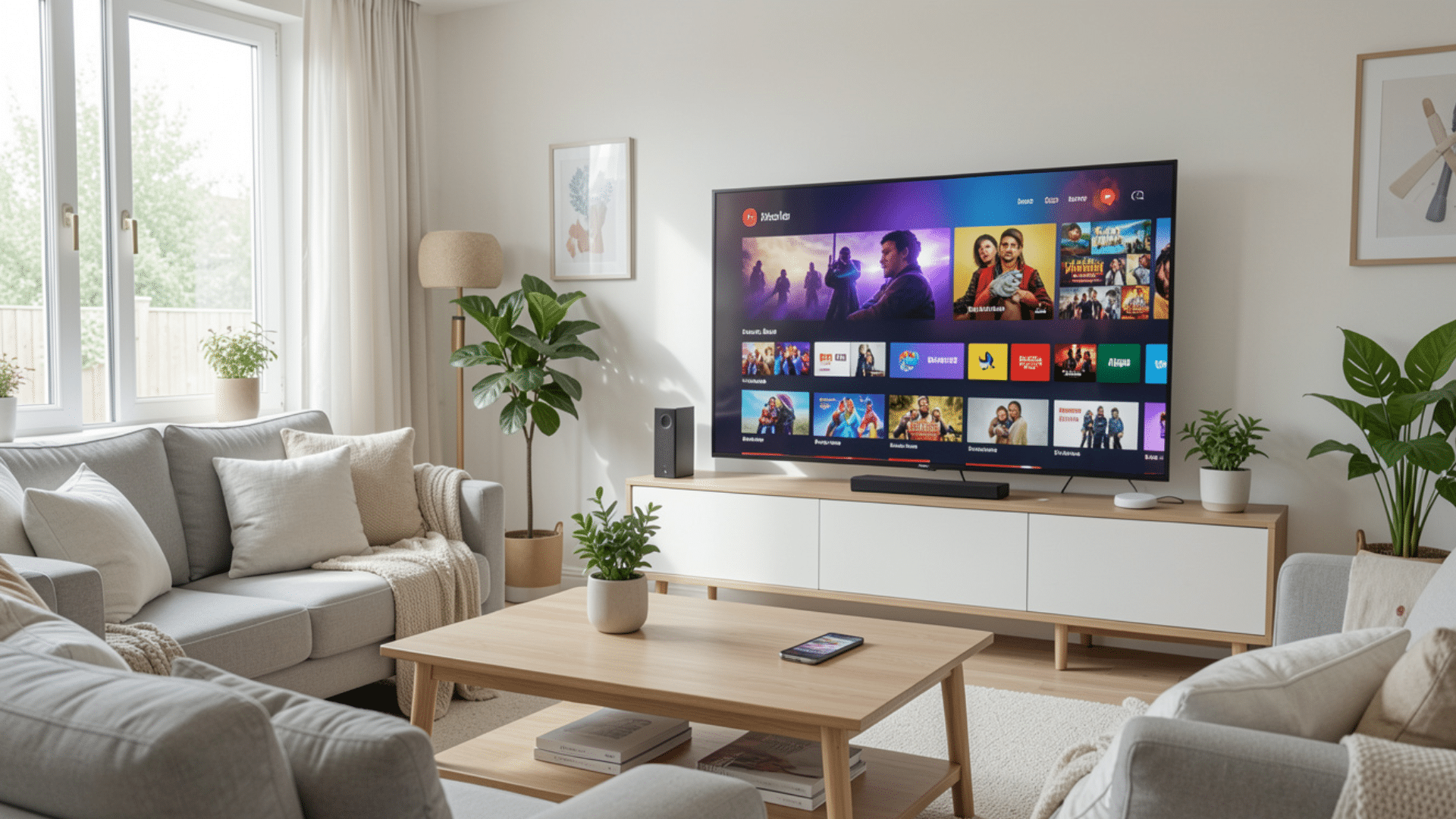


Chromecast makes it easy to watch videos, photos, and other content from your iPhone on a larger screen.
Whether you want to stream Netflix, share family photos, or mirror your screen for a presentation, Chromecast provides a simple way to connect your iPhone to your TV.
The setup process is straightforward, but many users are unsure where to begin or which apps they need.
Once Chromecast is connected and configured, you can cast content from compatible apps or even mirror your iPhone screen using third-party tools.
This guide explains how to Chromecast from an iPhone, including setting up your Chromecast device, streaming content from supported apps, and mirroring your iPhone screen.
What Do You Need Before You Start?
Before you begin setting up Chromecast with your iPhone, gather a few essentials to ensure a smooth installation. Having everything ready beforehand helps reduce setup delays and minimizes potential connection issues.
- Chromecast Device: Connect your Chromecast to your TV’s HDMI port and plug it into a power source before starting the setup.
- Stable Wi-Fi Connection: Ensure your iPhone and Chromecast are connected to the same reliable Wi-Fi network to pair successfully.
- Compatible iPhone: Use an iPhone running a recent version of iOS to avoid compatibility or performance issues during setup.
- Google Account: Sign in with a Google account to configure Chromecast and manage your device through the Google Home app.
- Supported Streaming Apps: Install compatible apps like YouTube, Netflix, or Disney+ to cast videos and other content to your TV.
How to Set up Chromecast from an iPhone?
Setting up Chromecast is a one-time process that allows your iPhone and TV to communicate over the same network. Once the setup is complete, you can start casting content from supported apps and services.
Step 1: Connect Chromecast to Your TV
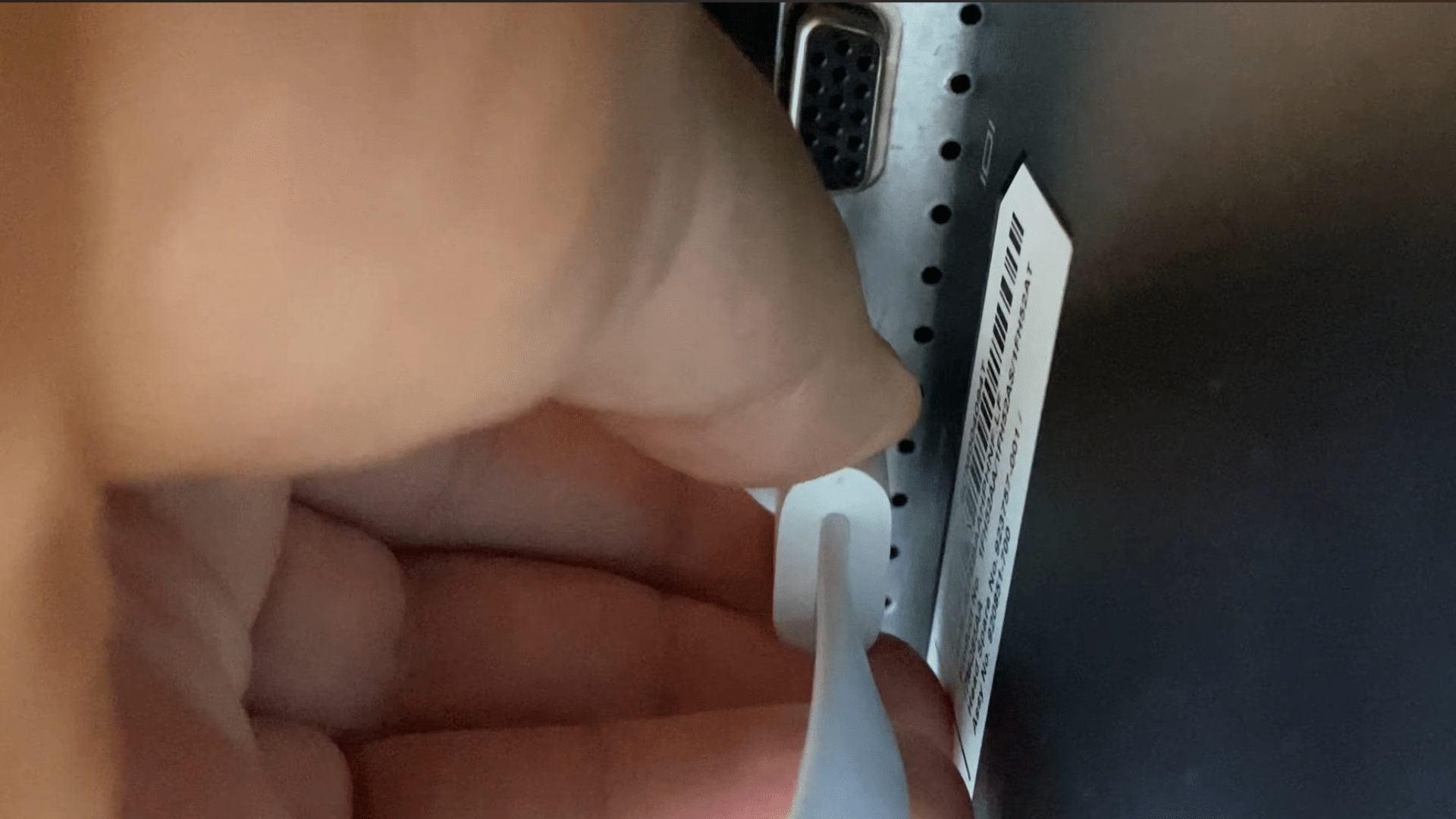
Plug the Chromecast device into an available HDMI port on your TV and connect the power cable. Turn on the TV and switch to the correct HDMI input connected to the Chromecast.
After a few moments, the Chromecast setup screen should appear.
Make sure all cables are securely connected before continuing, as an unstable connection can interrupt the setup process.
If the setup screen does not appear immediately, wait a few minutes or verify that the correct HDMI source is selected on the TV.
Step 2: Turn on the Chromecast Device
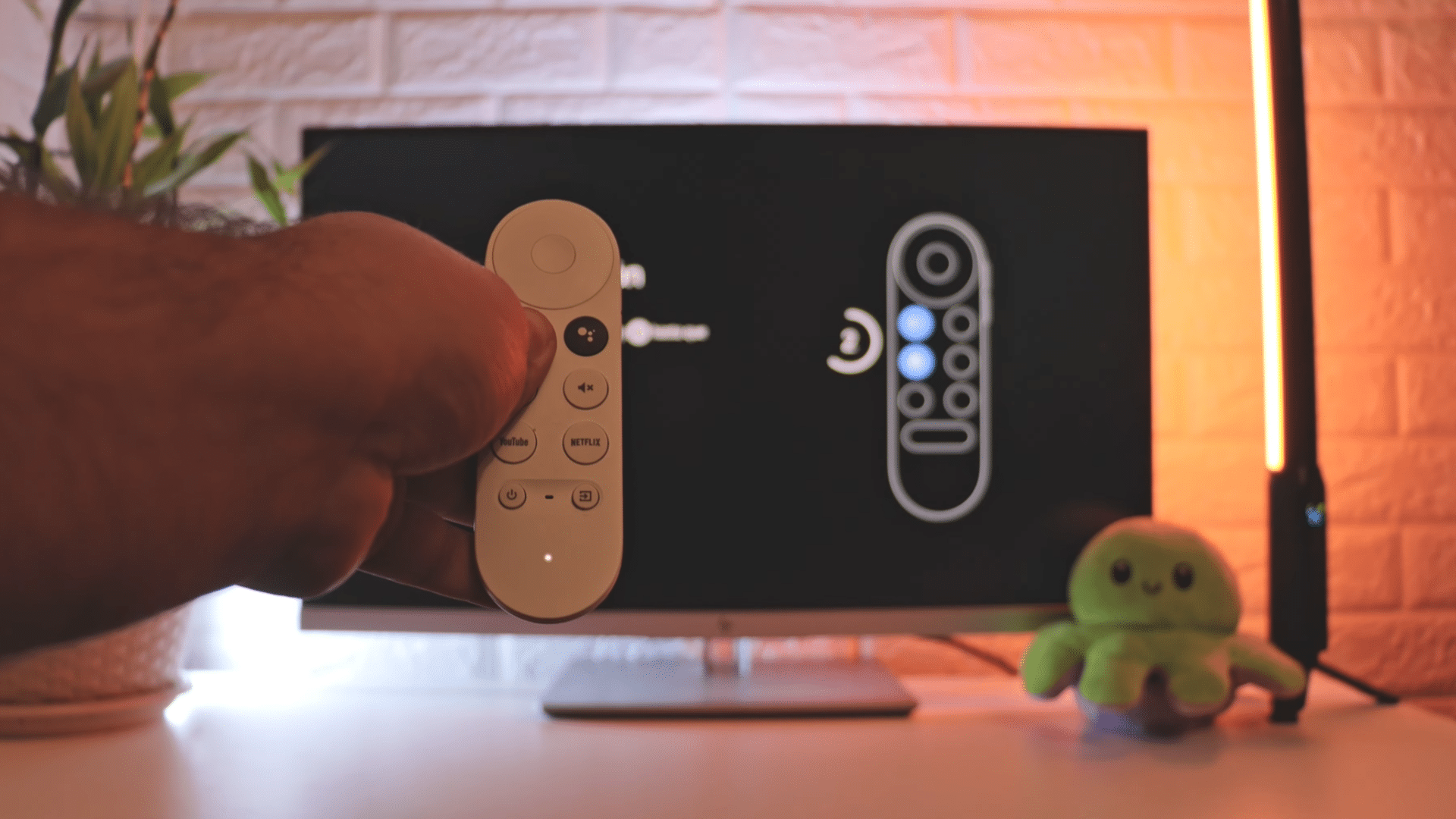
Allow the Chromecast device to complete its startup process.
If using a Chromecast with Google TV, pair the remote by pressing and holding the Back and Home buttons until a connection is established.
The device may take a few minutes to load the initial setup screen. Once connected, follow the on-screen instructions to proceed to the next stage of the setup process.
During startup, Chromecast may also perform a quick system check before displaying the available setup options.
Step 3: Choose Your Language
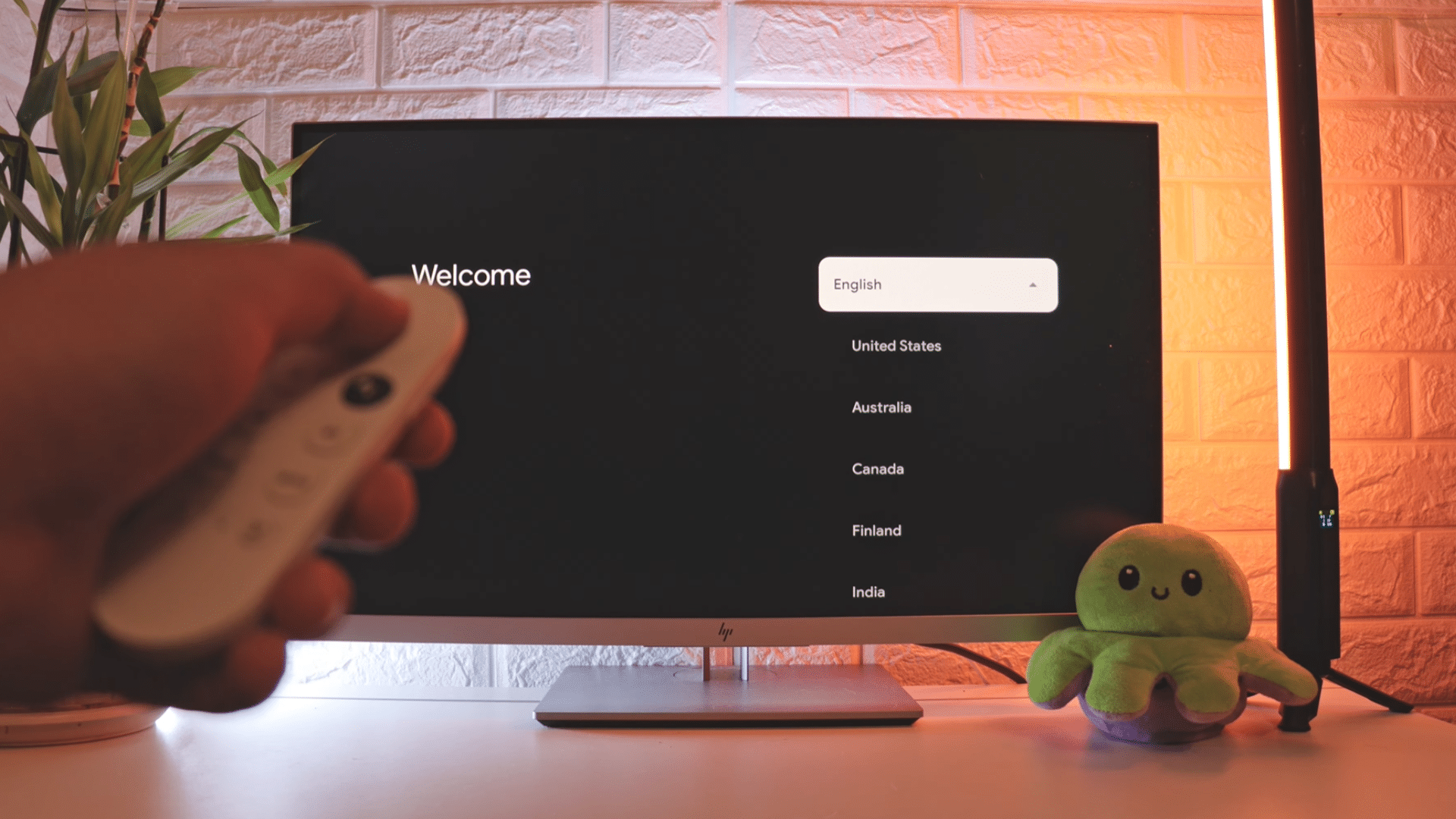
When the setup screen appears, select the language you want Chromecast to use. The selected language will apply to menus, settings, and other device features.
Choosing the correct language at this stage can make the remaining setup process easier to follow.
After confirming the language, Chromecast will automatically move to the next configuration screen.
Take a moment to verify the selection before continuing, especially if multiple language options appear similar on the screen.
Step 4: Connect Chromecast to Wi-Fi
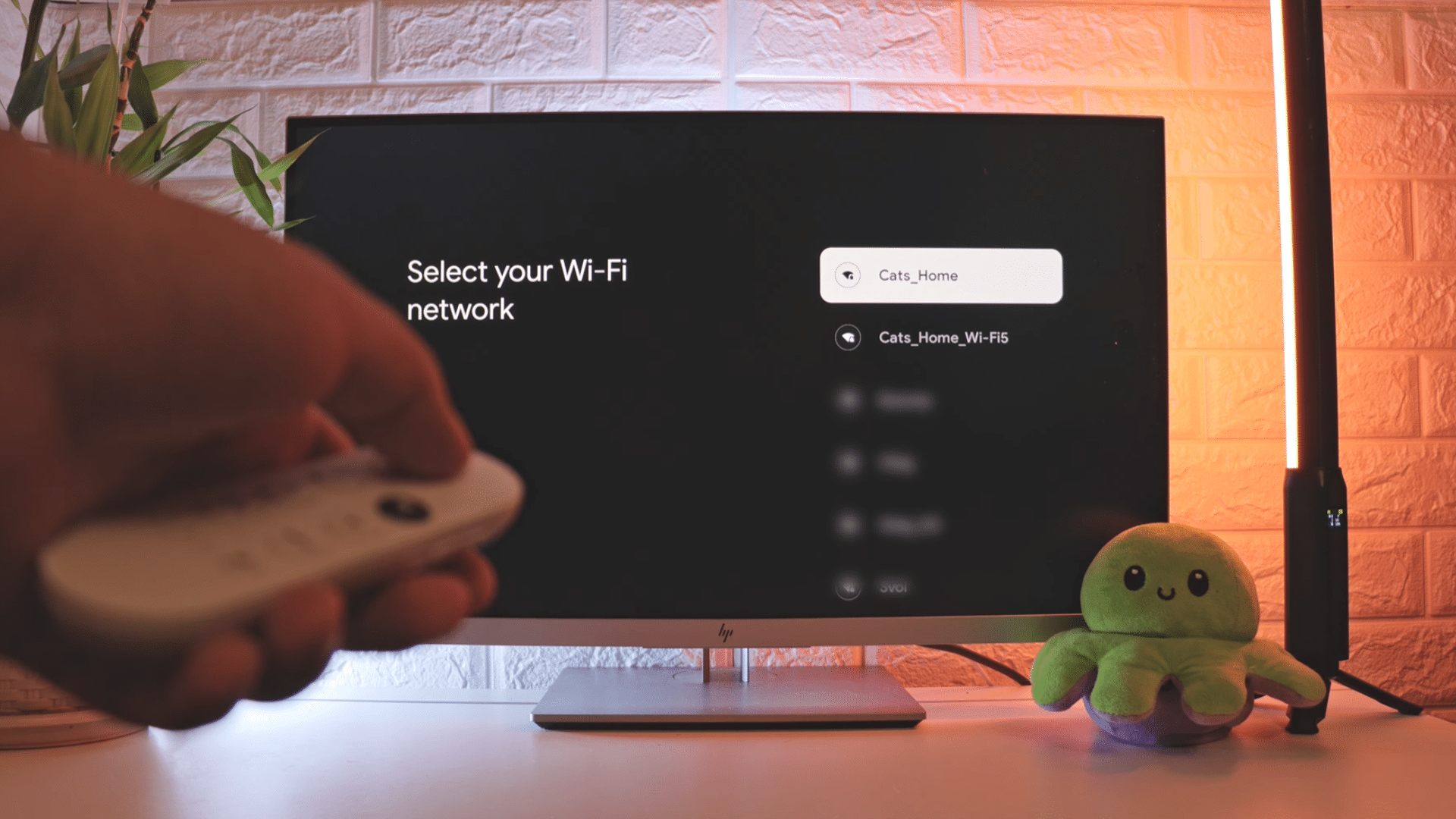
Select your Wi-Fi network from the list of available connections displayed on the screen. Enter the correct password and wait for Chromecast to establish a connection.
A stable internet connection is required to download updates and complete the setup.
Make sure the iPhone is connected to the same Wi-Fi network, as this helps both devices communicate properly during casting.
If the connection fails, double-check the password and ensure the router is operating normally.
Step 5: Sign in to Your Google Account
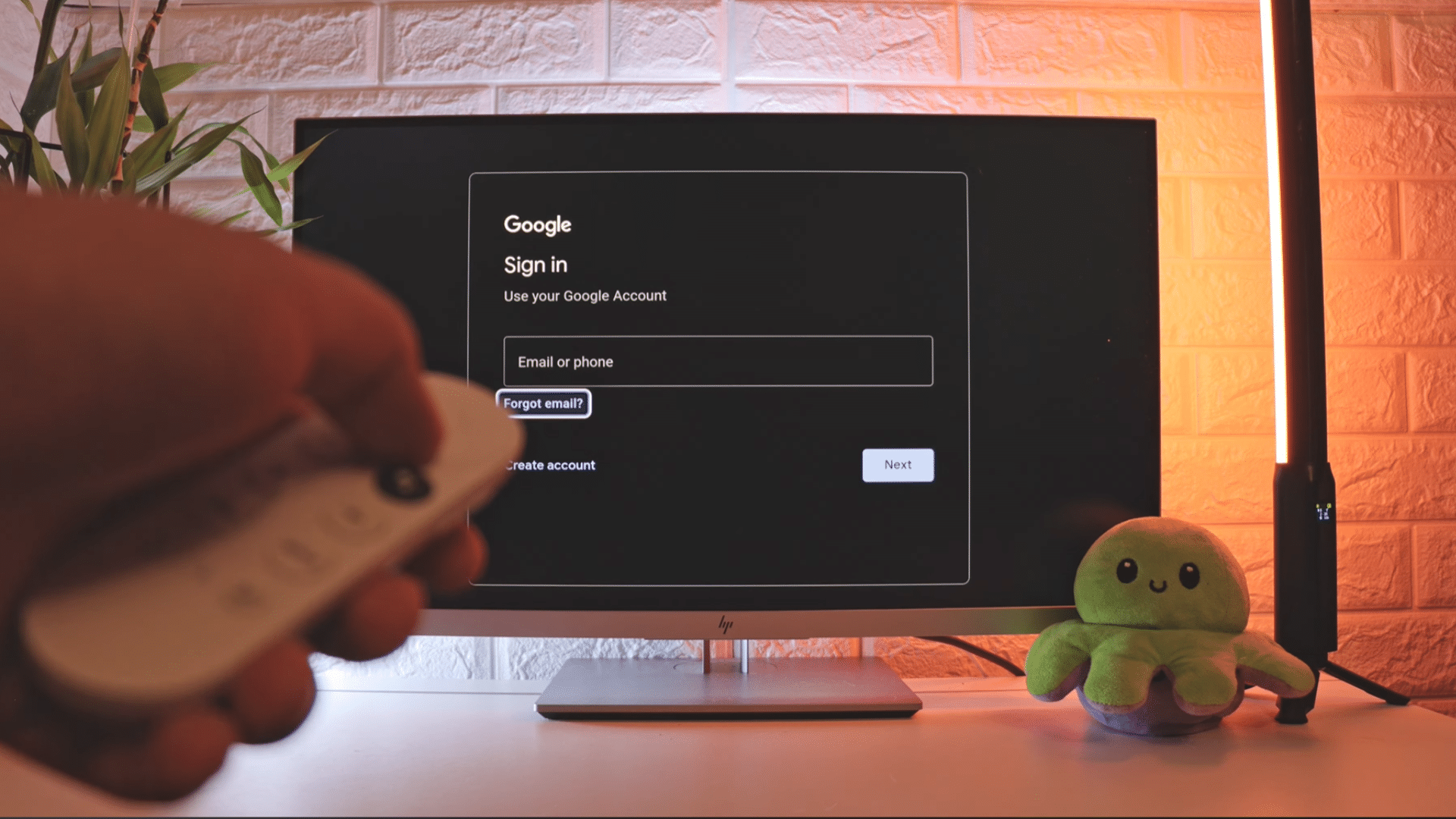
After the Wi-Fi connection is established, sign in using a Google account. Enter the email address and password associated with the account and complete any verification steps if requested.
Signing in allows access to personalized settings, app recommendations, and Google services.
This step also helps synchronize preferences across compatible devices connected to the same account.
Once the account is linked, Chromecast can provide a more personalized streaming and viewing experience.
Step 6: Complete the Setup Process
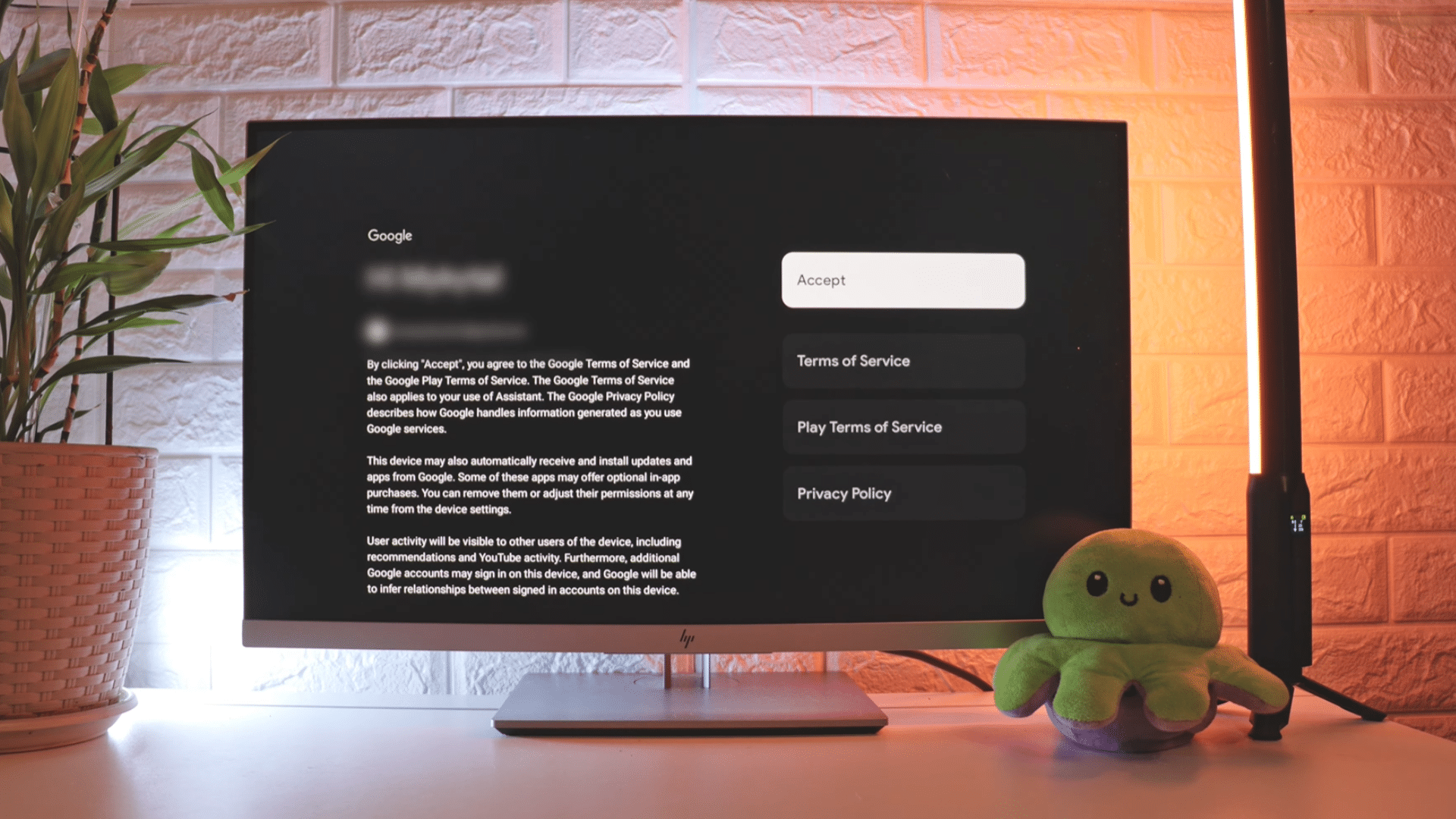
Review the available settings, privacy options, and terms of service before completing the setup.
Chromecast may download updates and install recommended applications during this stage. Depending on the internet connection, the update process may take several minutes.
Once everything is finished, the device will be ready to stream content and receive casts from supported apps on the iPhone.
Before exiting the setup menu, verify that the device appears online and is connected successfully to the network.
This guide is based on the YouTube video “Google Chromecast Setup Guide + iPhone Screen Mirroring [2023]” by iObserver: iPhone & iPad Apps.
Best Apps that Support Chromecast on iPhone
Many popular iPhone apps include built-in Chromecast support, making it easy to stream videos, music, and other content directly to your TV.
| App | Primary Use |
|---|---|
| YouTube | Watch videos, live streams, and Shorts |
| Netflix | Stream movies, TV shows, and originals |
| Disney+ | Watch Disney, Marvel, Pixar, Star Wars, and National Geographic content |
| Hulu | Stream TV shows, movies, and live TV |
| Max | Watch HBO originals, movies, and exclusive series |
| Prime Video | Stream movies, TV shows, and Amazon Originals |
| Spotify | Cast music, podcasts, and playlists |
| Plex | Stream your personal media library |
| Twitch | Watch live gaming and creator streams |
| VLC for Mobile | Play and cast compatible local media files |
How to Chromecast from iPhone (App-Based Casting)?
Many popular streaming apps include a built-in Cast button, allowing you to send videos or music directly to your TV without screen mirroring.
- Open a Compatible App: Launch a Chromecast-supported app like YouTube, Netflix, Hulu, Disney+, or Spotify on your iPhone.
- Connect to the Same Wi-Fi: Make sure your iPhone and Chromecast are connected to the same Wi-Fi network.
- Play Your Content: Start playing the movie, TV show, video, or song you want to cast.
- Tap the Cast Icon: Select the Cast button (a rectangle with Wi-Fi waves), usually found in the player controls or the top-right corner.
- Choose Your Chromecast: Tap your Chromecast device from the list of available devices.
- Start Watching: Wait a few seconds for the content to appear on your TV.
- Control Playback: Use your iPhone to play, pause, skip, rewind, or adjust the volume while the content streams on your TV.
Tip: Once casting starts, Chromecast streams the content directly from the internet. You can lock your iPhone, switch to another app, or even use your phone for other tasks without interrupting playback.
How to Mirror Your Entire iPhone Screen to Chromecast?
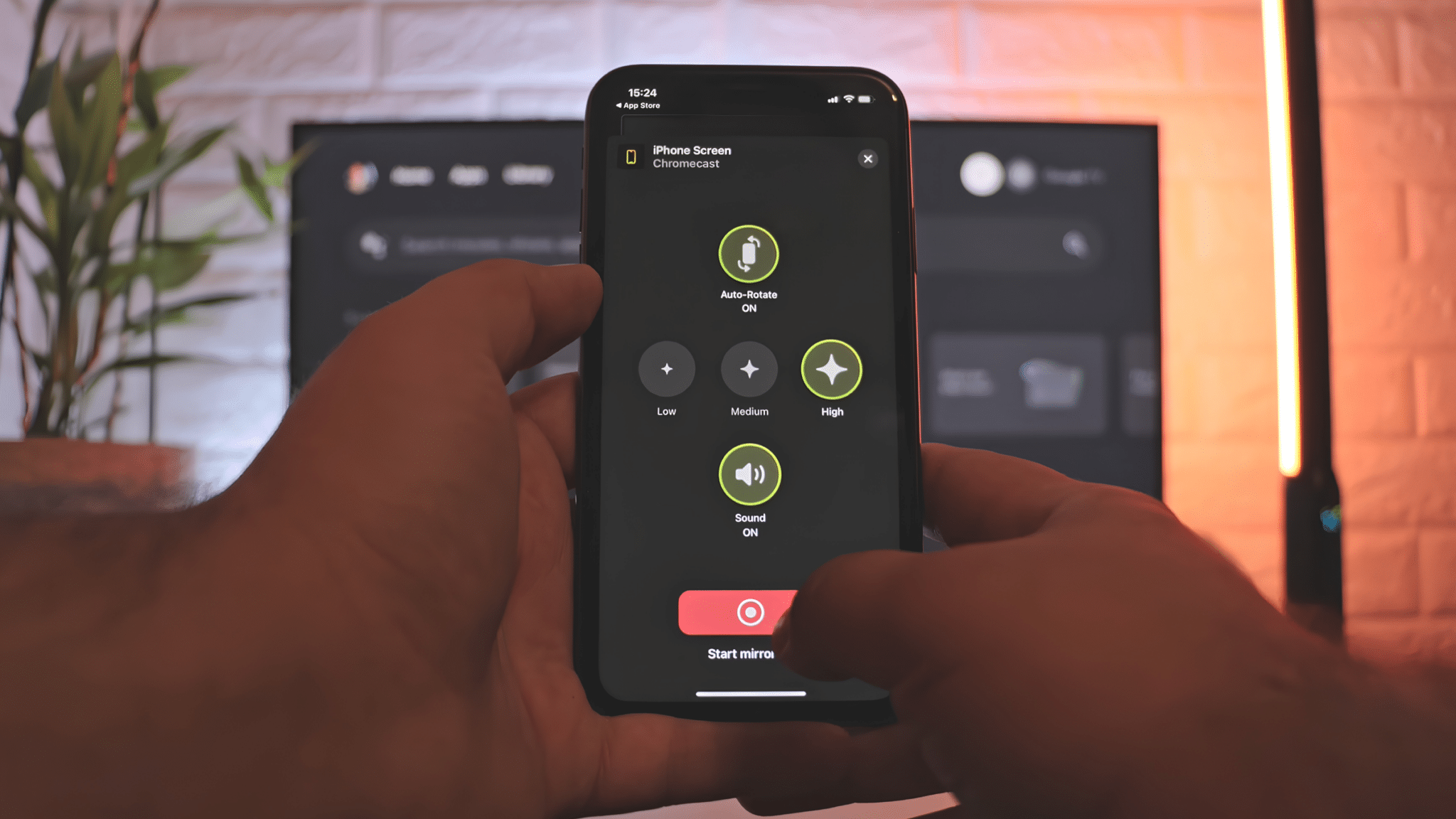
Screen mirroring displays everything on your iPhone on your TV. Since Chromecast doesn’t support native iPhone mirroring, you’ll need a third-party app.
1. DoCast
DoCast is one of the most popular apps for screen mirroring from an iPhone to Chromecast. After downloading it from the App Store, open the app and let it automatically detect your Chromecast.
Tap Screen, choose your preferred video quality and audio settings, and then tapStart Mirroring.
The free version allows up to 15 minutes of screen mirroring per session, while the premium version removes the time limit and provides unlimited access.
2. AirBeamTV
AirBeamTV works with iPhone 6s and newer models and supports Chromecast devices, Google TV Streamer, and TVs with Chromecast built in.
Install the app, select your Chromecast from the device list, and tap Start Broadcast to begin mirroring.
With a strong Wi-Fi connection, screen lag is usually minimal, making it suitable for presentations, web browsing, and casual video playback. Audio support is available through a one-time in-app purchase.
3. Replica
Replica is a beginner-friendly app that makes it easy to mirror your iPhone screen to Chromecast.
Open the app, select your Chromecast device, and follow the on-screen instructions to enable the iPhone’s built-in screen-mirroring feature.
The app supports high-resolution streaming, including 4K on compatible Chromecast devices, and offers a free trial before requiring a subscription. Its simple interface makes it a good option for first-time users.
Common Chromecast Problems and Fixes
If Chromecast is not working as expected with your iPhone, these quick troubleshooting tips can help resolve the most common connection and casting issues.
- Chromecast Not Detected: Make sure your iPhone and Chromecast are connected to the same Wi-Fi network, then restart both devices.
- Unable to Cast Content: Confirm the streaming app supports Chromecast and update the app if a newer version is available.
- Frequent Buffering: Improve your Wi-Fi signal by moving the router closer or reducing network congestion from other connected devices.
- No Audio or Video: Check your TV’s input source, HDMI connection, and volume settings, then reconnect the Chromecast.
- Google Home Setup Fails: Restart the Google Home app, verify that your Google account is logged in, and ensure that Bluetooth and Wi-Fi are enabled on your iPhone.
- Black screen during mirroring: The app you’re mirroring likely has DRM (Digital Rights Management) content protection enabled. Use the app’s built-in casting feature instead of full-screen mirroring for that service.
- Casting Stops Unexpectedly: Restart the Chromecast and iPhone, then reconnect to the same Wi-Fi network before casting again.
Conclusion
Chromecast provides a simple way to stream content from your iPhone to a larger screen.
Once the setup process is complete, you can cast videos from supported apps such as Netflix or mirror your iPhone screen using a compatible third-party app.
The key steps include connecting Chromecast to your TV, joining the same Wi-Fi network, signing in with a Google account, and selecting your Chromecast device when casting content.
Following these steps can help ensure a smooth setup and streaming experience.
With Chromecast properly configured, you can enjoy movies, shows, photos, presentations, and more on your TV.
Frequently Asked Questions
Is Chromecast Available without Wi-Fi?
Chromecast performs best when both devices are connected to the same Wi-Fi network. Without Wi-Fi, casting options are limited and may not work consistently.
Why Is Chromecast Not Showing Up?
This issue often occurs when the iPhone and Chromecast are connected to different networks or when the Chromecast device is not powered on correctly.
Is Google Home Required for Chromecast?
Many newer Chromecast devices can be set up using the included remote. Google Home can also be used to manage settings and connected devices.
Can an Entire iPhone Screen Be Mirrored?
Yes. Several third-party apps support Chromecast screen mirroring, allowing the entire iPhone screen to be displayed on a compatible TV.
Does Chromecast Work with Netflix on iPhone?
Yes. Netflix supports Chromecast, allowing movies and TV shows to be streamed from an iPhone directly to a TV.