


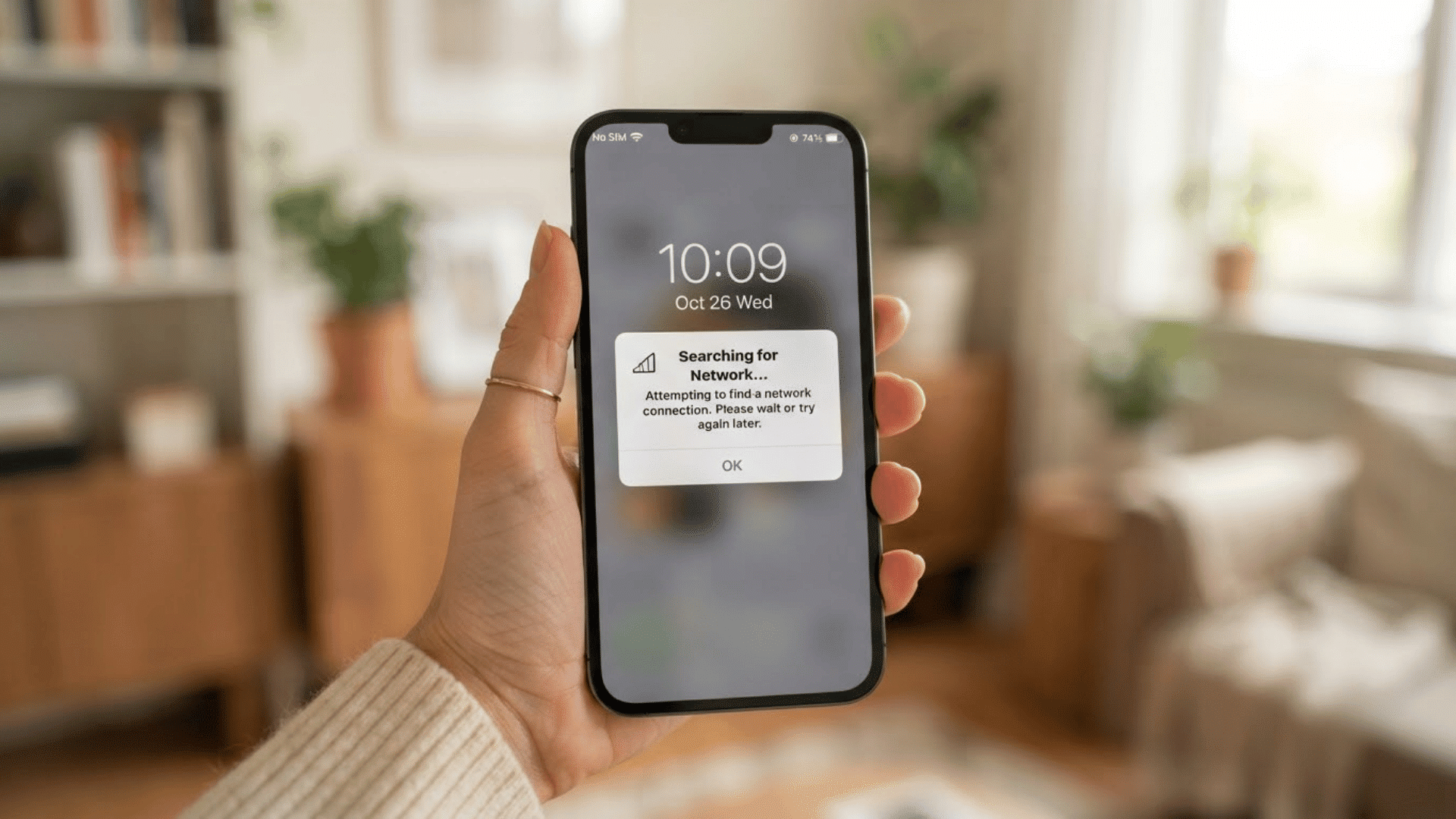
Have you ever looked at your phone and suddenly seen “SOS” or “SOS Only” instead of your usual signal bars?
It can be frustrating when you need to make a call, send a message, or use mobile data.
I have seen people panic when their phone enters SOS mode, but the problem is often caused by network connectivity issues rather than a device malfunction.
SOS mode appears when your phone cannot connect to your carrier’s network but can still reach emergency services using another available network.
This blog covers what SOS mode means, why it appears on your phone, and the most common ways to fix the problem.
Quick Answer: Why Is the Phone on SOS?
A phone shows “SOS” or “SOS Only” when it cannot connect to its carrier network. This usually happens because of weak signals, carrier outages, SIM card issues, or software glitches.
While normal calls, texts, and mobile data stop working, emergency calling remains available through another compatible network.
SOS mode is designed to keep access to emergency services when standard cellular service is unavailable, helping maintain a basic level of communication during network disruptions.
What Does SOS Mean on a Phone?
SOS mode is a feature that appears when your phone cannot connect to your carrier’s network for regular calls, texts, or mobile data.
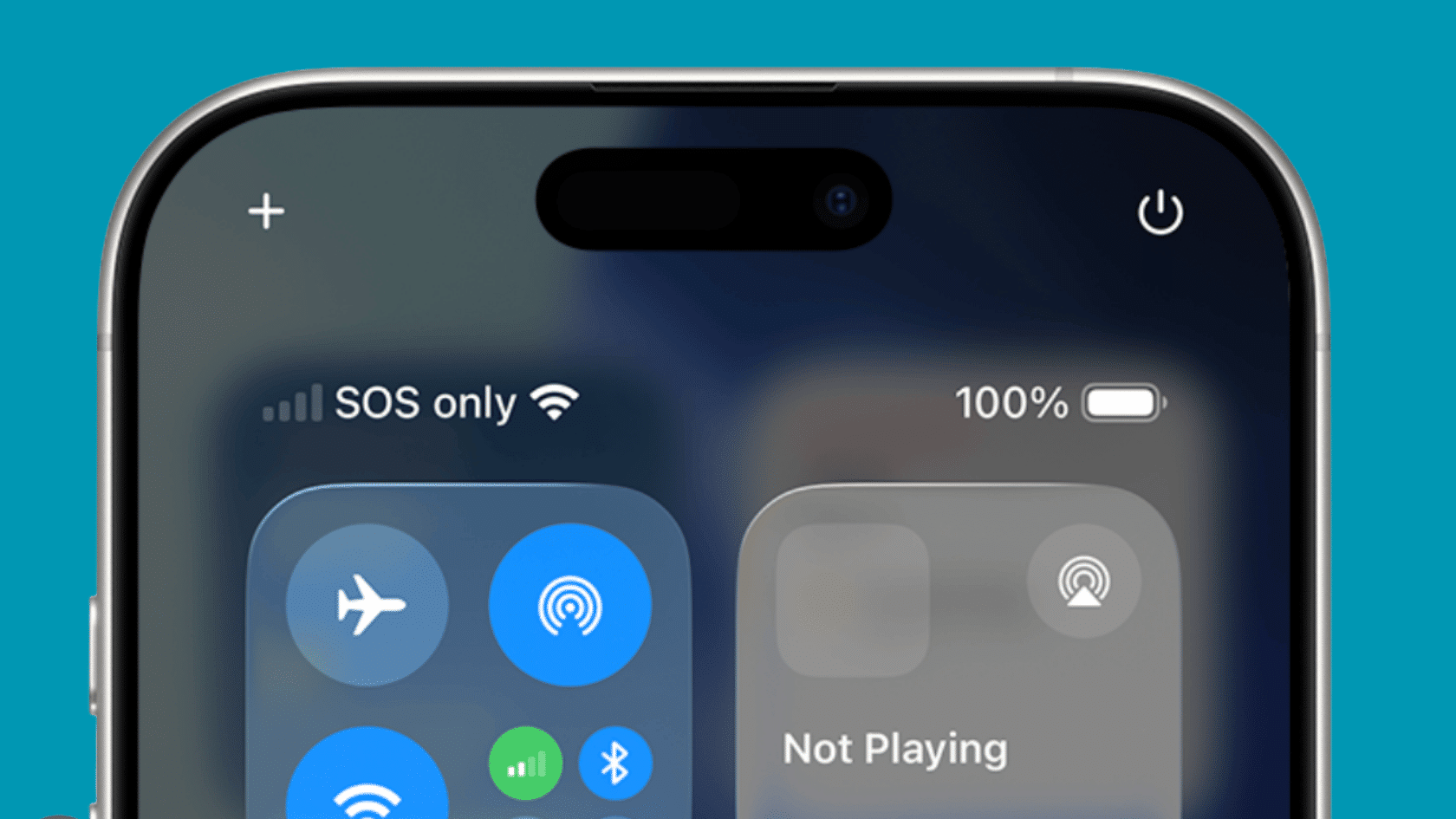
Instead of showing signal bars, the device displays “SOS” or “SOS Only” to indicate that only emergency calls are available.
During normal service, you can access all network features, including calling, texting, and internet access. In SOS mode, those services are limited.
Phones show SOS when network coverage is weak, unavailable, or interrupted.
On iPhones, the message usually appears as “SOS” or “SOS Only,” while Android devices may display similar emergency-calling notifications.
Is SOS Mode Important?
SOS mode is an important safety feature that keeps emergency calling available when your phone loses access to your carrier’s network. Here is what it means when you see SOS on your screen.
- Limited Network Connectivity: SOS mode indicates that your phone cannot connect to your carrier for regular calls, texts, or mobile data. Network issues, weak coverage, or carrier outages are common reasons.
- Emergency Calling Availability: Even without normal service, your phone can still connect to an available network to place emergency calls. This can be critical during emergencies.
- Loss of Regular Cellular Service: While SOS mode is active, standard cellular functions stop working until your phone reconnects to your carrier’s network.
- Automatic Safety Feature: SOS mode activates automatically when your phone detects that it cannot access your carrier’s network. It does not usually require any action from you to enable it.
- Temporary Status: In most cases, SOS mode is temporary. Once your phone reconnects to your carrier’s network or the underlying issue is resolved, normal calling, texting, and mobile data services are restored
Common Causes of iPhone SOS Mode
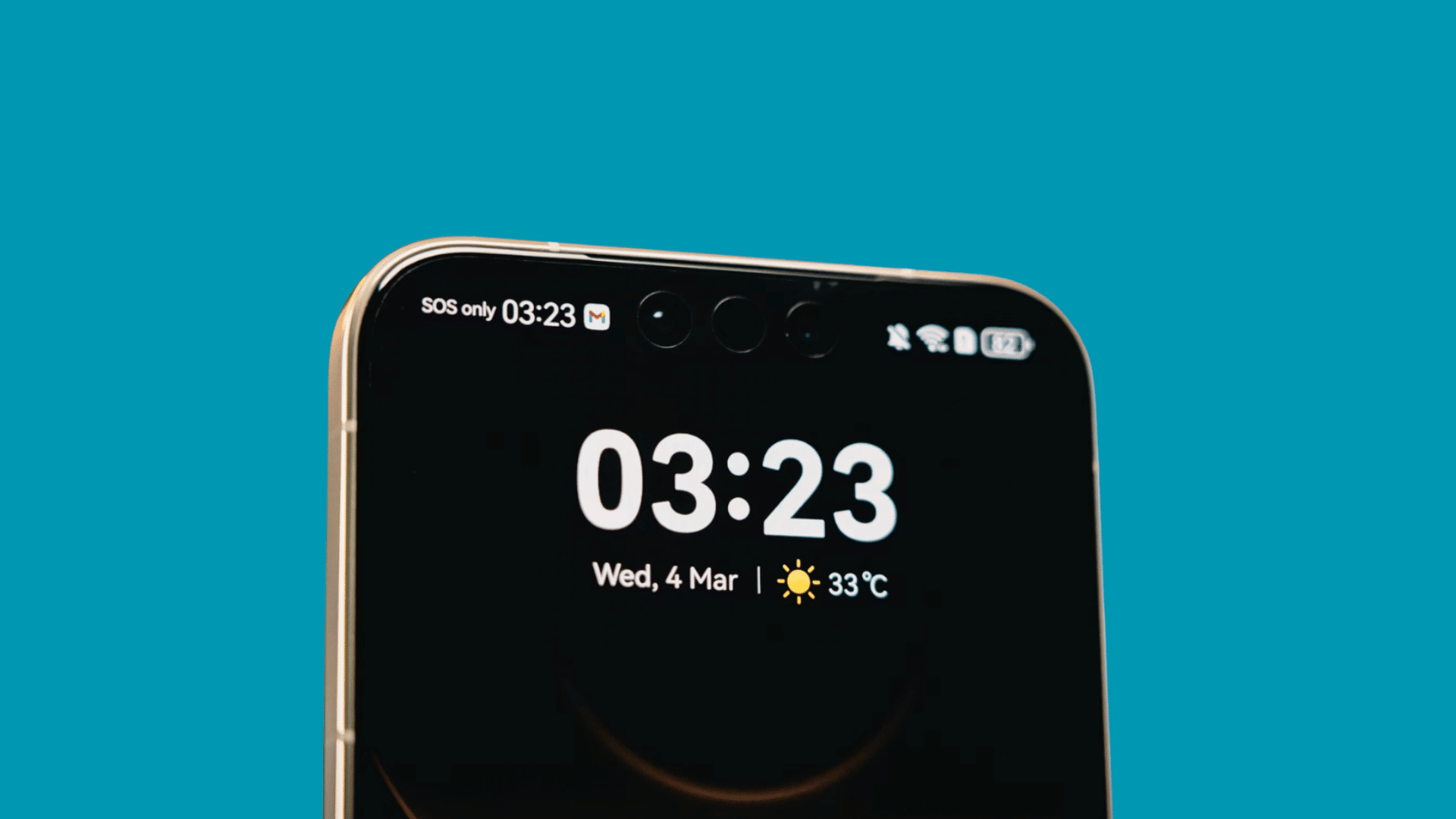
SOS mode usually appears when your iPhone cannot connect to your carrier’s network. Here are the most common reasons it happens.
1. Poor or No Cellular Coverage
Your iPhone may enter SOS mode when it cannot find a strong cellular signal. This often happens in remote areas, underground locations, tunnels, parking garages, or buildings with thick walls.
If your carrier’s network is unavailable in the area, the phone switches to SOS mode and limits normal communication.
Moving to a location with better reception usually restores service and removes the SOS status from the screen.
2. Temporary Carrier Network Outage
A carrier network outage can cause SOS mode on your iPhone. This may happen during maintenance work or technical problems.
Your phone can lose network access even if you are in a covered area. Since it cannot connect to your carrier, it shows SOS instead.
Check your carrier’s service status page for updates. You can also contact customer support to see if an outage is affecting your area.
3. SIM Card Issues
SIM card problems can cause SOS mode on your iPhone. The SIM card may be loose, dirty, damaged, or inserted incorrectly.
This can stop your phone from connecting to your carrier. As a result, the device may show SOS instead of a network signal.
Try removing the SIM card and cleaning it carefully. Then insert it again. If the problem continues, you may need a new SIM card.
4. Airplane Mode Problems
Airplane Mode turns off all wireless connections, including cellular service. If it is turned on by mistake, your iPhone cannot connect to your carrier.
Sometimes the phone does not reconnect properly after Airplane Mode is turned off. This can cause SOS mode to appear.
Try turning Airplane Mode on for a few seconds and then turning it off again. This often refreshes the network connection and restores service.
5. Carrier Settings Need Updating
Carrier settings updates help your iPhone communicate properly with your mobile network. If these settings become outdated, network connectivity issues may occur.
In some cases, the phone may enter SOS mode because it cannot maintain a stable connection with the carrier.
Checking for available carrier updates in your iPhone’s settings and installing them can improve network performance and resolve connection issues.
6. Software Glitches or iOS Bugs
Temporary software problems can interfere with your iPhone’s ability to connect to cellular networks. A system bug, failed update, or corrupted network setting may cause the device to enter SOS mode unexpectedly.
These issues are often fixed by restarting the phone, updating to the latest version of iOS, or resetting network settings.
Software-related causes are less common than signal issues but can still affect connectivity.
7. Physical Damage to the Phone
Physical damage can affect the internal components responsible for cellular communication. A drop, water exposure, or impact may damage the antenna, SIM card reader, or other hardware parts.
When the iPhone cannot connect to a network due to hardware damage, it may remain in SOS mode.
If the issue started after an accident, a professional inspection or repair may be required to restore service.
8. Traveling Outside Your Carrier’s Coverage Area
If you travel outside your carrier’s service area, your iPhone may lose access to the network.
This is especially common when visiting another country or a region where your carrier does not provide coverage.
Without roaming access or a compatible local network, the device may enter SOS mode. Enabling roaming or using a local SIM card can often help restore connectivity while traveling.
9. Account or Service Suspension
Your carrier account status can also affect network access. In some cases, SOS mode appears because the carrier has limited normal service.
If service has been suspended because of billing issues, account restrictions, or verification problems, your iPhone may not connect to the network.
Contacting your provider can help identify account-related issues and confirm if any action is needed to restore service.
How to Fix SOS Mode on Android?
If SOS mode persists after trying these fixes, a step-by-step network troubleshooting process can help pinpoint the exact cause before seeking professional support.
- Check Your Network Signal: Move to an area with better cellular coverage. If you’re in a basement, an elevator, or a remote location, your phone may reconnect once a stronger signal becomes available.
- Toggle Airplane Mode: Turn Airplane Mode on for about 10–15 seconds, then turn it off. This forces your Android phone to reconnect to nearby cellular networks.
- Inspect the SIM Card: Remove the SIM card, check for dust or damage, and reinsert it securely. If possible, test the SIM in another compatible phone to rule out a faulty SIM card.
- Enable Automatic Network Selection: Go to Settings > Network & Internet (or Connections) > Mobile Network > Network Operators and enable automatic network selection so your phone can connect to the available carrier network.
- Reset Network Settings: Reset your network settings to restore the default configuration. Keep in mind that this will erase saved Wi-Fi networks and Bluetooth pairings.
- Contact Your Carrier: If SOS mode remains after trying these steps, contact your mobile carrier to check for network outages, account restrictions, SIM activation issues, or other service-related problems.
SOS Only vs No Service vs Emergency SOS: Key Differences
SOS Only, No Service, and Emergency SOS may seem similar because they all appear when your phone has connectivity issues, but they indicate different situations.
| Feature | SOS Only | No Service | Emergency SOS |
|---|---|---|---|
| Meaning | Only emergency calls are available. | No cellular network connection. | The emergency calling feature is activated. |
| Regular Calls & Data | Not available | Not available | Limited during the emergency process. |
| Emergency Calls | Available | May be available if a compatible network is accessible. | Available and initiated automatically or manually. |
| Common Cause | Weak signal, carrier outage, or SIM issue. | No coverage, SIM issue, or network problem. | Triggered by the user or an emergency shortcut. |
| What to Do | Check signal, SIM, or carrier status. | Move to better coverage or troubleshoot the network. | Complete or cancel the emergency process if activated accidentally. |
How Does SOS Mode Work?
SOS mode works by allowing your phone to connect to emergency services when it cannot reach your carrier’s network.
When normal cellular service is unavailable, the device automatically searches for another available network that supports emergency calling.
This ensures you can still contact emergency responders if help is needed. During SOS mode, your phone may use a nearby carrier’s network for emergency calls only.
Regular calls, text messages, and mobile data usually remain unavailable until your device reconnects to your carrier.
The exact networks used depend on local coverage and carrier agreements. It is commonly seen in remote areas, tunnels, mountains, and locations with weak cellular coverage.
How to Fix SOS Mode on iPhone?
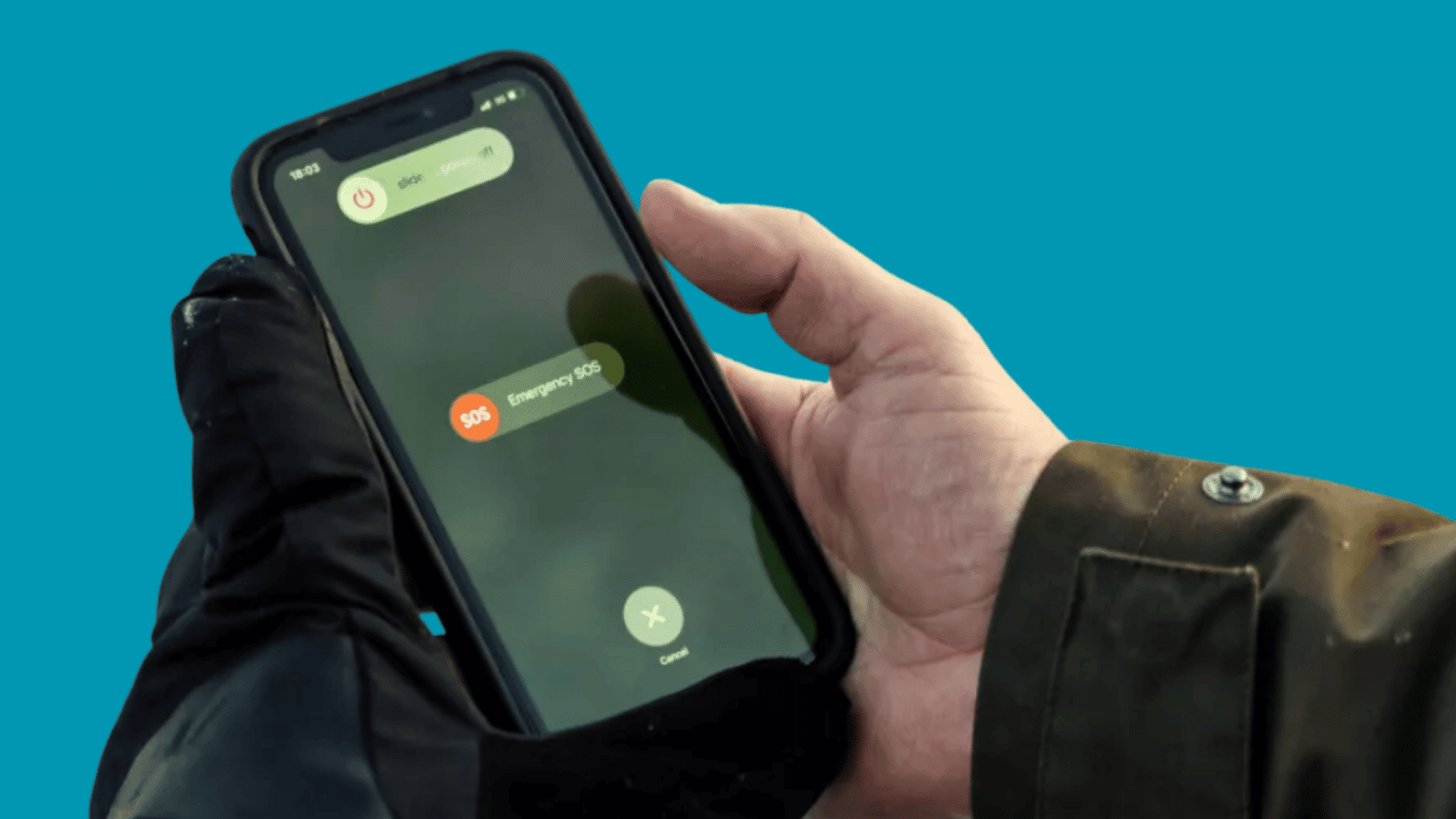
One of my friends who is in tech once pointed out that this issue is often linked to signal problems or temporary network glitches rather than a serious phone problem.
In many cases, a few simple steps can quickly restore the connection.
- Check Your Signal Strength: Move to an area with better cellular coverage. Weak signals are one of the most common reasons an iPhone enters SOS mode.
- Turn Airplane Mode On and Off: Enable Airplane Mode for a few seconds, then disable it. This forces your iPhone to reconnect to available cellular networks.
- Restart Your iPhone: A simple restart can resolve temporary software or network issues that may trigger SOS mode.
- Remove and Reinsert the SIM Card: Take out the SIM card, check for dust or damage, then insert it correctly. A loose or faulty SIM can trigger SOS mode.
- Check for Carrier and iOS Updates: Install any available carrier settings updates and the latest iOS version to fix network-related bugs and improve connectivity.
- Reset Network Settings or Contact Your Carrier: If the issue continues, reset your network settings. You should also contact your carrier to check for account issues, SIM problems, or local network outages.
SOS vs SOS Only: What’s the Difference?
Both SOS and SOS Only indicate limited network service. The wording differs, but their purpose is generally the same.
| Feature | SOS | SOS Only |
|---|---|---|
| Meaning | Emergency calls available. | Emergency calls only. |
| Network Access | Uses another network if available. | Uses emergency network access. |
| Calls & Texts | Regular services unavailable. | Regular services unavailable. |
| Common Causes | Weak signal or carrier issues. | Weak signal or carrier issues. |
| Why It Varies | Depends on the carrier and device. | Depends on the carrier and device. |
| What to Know | Emergency calling still works. | Emergency calling still works. |
Tips to Prevent SOS Mode in the Future
A few simple habits can help reduce the chances of your iPhone entering SOS mode unexpectedly.
- Keep iOS Updated: Install the latest iOS updates to fix bugs and improve network performance.
- Maintain Your SIM Card: Keep your SIM card clean, properly inserted, and replace it if it becomes damaged.
- Monitor Carrier Service Issues: Check your carrier’s status page for outages or maintenance that may affect service.
- Avoid Signal Dead Zones: Stay aware of areas with poor cellular coverage, such as tunnels, basements, and remote locations.
- Enable Wi-Fi Calling: Turn on Wi-Fi Calling to make and receive calls when cellular signals are weak.
- Keep Carrier Settings Updated: Install carrier settings updates to ensure the best network compatibility and performance.
Conclusion
Seeing SOS or SOS Only on your iPhone means it has lost its normal connection to your carrier but can still place emergency calls through an available network.
In most cases, it can be fixed by checking your signal, restarting your device, inspecting your SIM, or updating network settings.
If your iPhone continues to display SOS mode after trying the recommended fixes, contact your mobile carrier to verify there are no account or network issues.
If the issue seems device-related, Apple Support can help diagnose and fix hardware or software problems.
With the right troubleshooting steps, most users can restore normal cellular service and get back to making calls, sending texts, and using mobile data
Frequently Asked Questions
What Happens if You Press the Power Button 5 Times?
On many phones, pressing the power button five times quickly activates Emergency SOS. This may call emergency services or display emergency options.
Is Phone Damaged if It’s in SOS Mode?
No, SOS mode does not usually indicate hardware damage. It is typically caused by network issues, weak signal coverage, or carrier-related problems.
How Long Will Phone Be Stuck in SOS Mode?
The duration depends on the cause. SOS mode may disappear within minutes after network service returns or after troubleshooting steps are completed.