


If your Android phone shows pop-ups, drains battery quickly, or installs unfamiliar apps, do not ignore these sudden changes. Learning how to remove malware from Android begins with checking recent activity, isolating suspicious apps, and securing accounts that may be affected.
Some warnings come from browser notifications instead of device infections, while others point to unsafe apps holding sensitive permissions.
During client and personal security assessments, I’ve treated malware removal as two tasks: cleaning the phone and checking what the unwanted software accessed.
This guide explains each step in a safe order, covering Play Protect scans, app checks, account recovery, and final safety testing. You will also learn when a factory reset is necessary as a fix.
How Android Phones Get Malware?
Android malware usually reaches a phone through unsafe apps, deceptive links, harmful downloads, or permissions granted without careful review.
Common infection routes include:
- Unofficial app stores: Modified or copied apps may contain hidden malicious code.
- Unknown APK files: Files downloaded outside trusted stores can install unsafe software.
- Phishing links: Fake messages, emails, and websites may steal details or trigger harmful downloads.
- Fraudulent updates: Pop-ups may claim that Android, Chrome, or another app needs an urgent update.
- Excessive permissions: A harmful app may request accessibility, administrator, microphone, SMS, or notification access.
- Compromised websites: Redirects may push unwanted downloads or browser notifications.
- Restored backups: Reinstalling every old app may return the original threat.
Checking the source, developer, reviews, and requested permissions before installation reduces these risks.
How to Remove Malware from Android
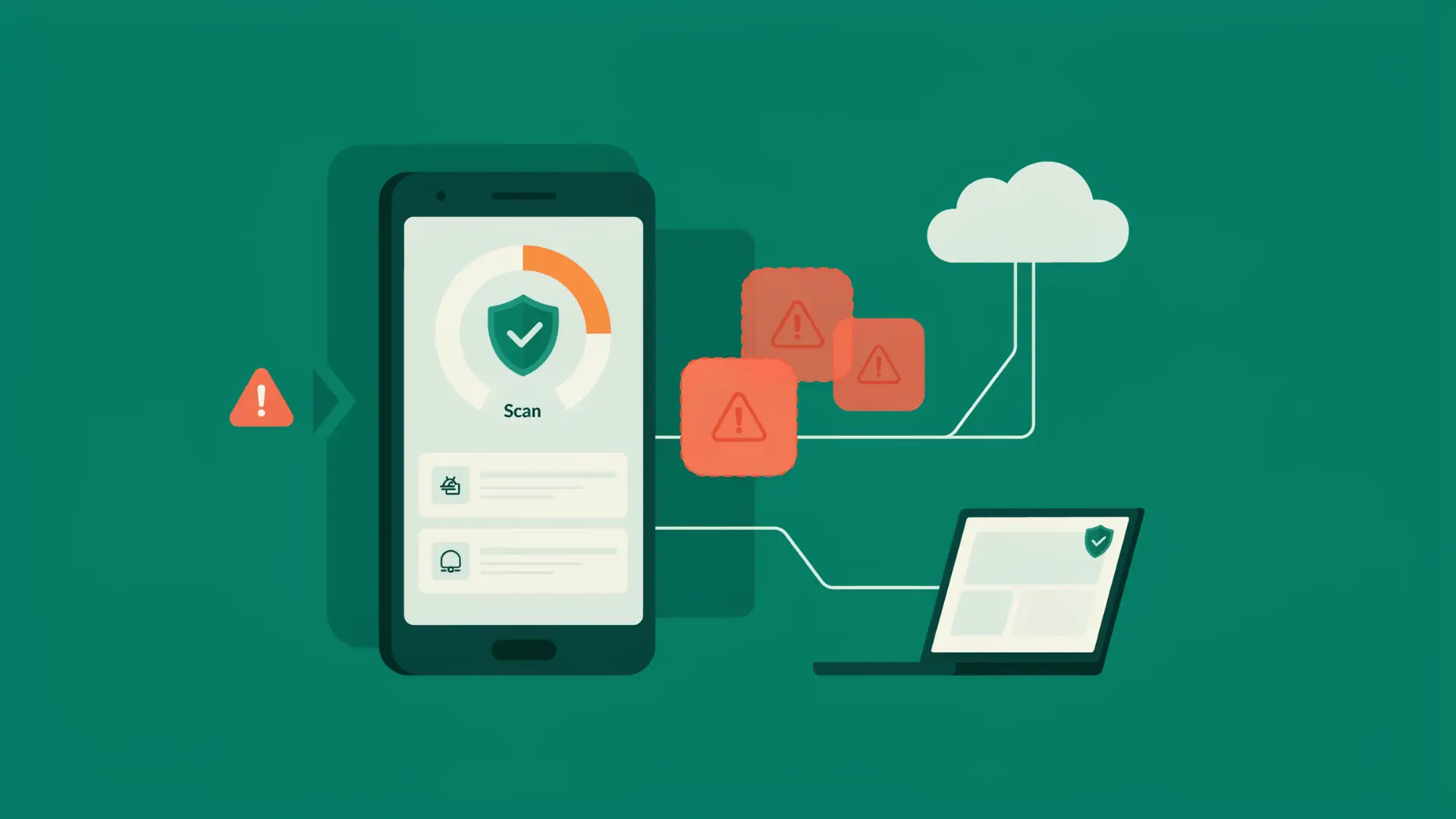
Removing malware safely requires a clear order, since deleting random apps can remove useful software without fixing the actual problem.
Menu names may vary across Samsung, Google Pixel, Motorola, OnePlus, Xiaomi, and other Android phones. Use the search bar inside Settings when you cannot find a listed option.
1. Turn on Google Play Protect
Start with Android’s built-in security scanner before downloading another security app.
Open Google Play Store > Profile icon > Play Protect > Settings, then enable app scanning and harmful app detection. Return to the Play Protect screen and select Scan to check installed apps.
Google Play Protect reviews apps from Google Play and other installation sources. Follow any warning carefully because Google may recommend disabling, uninstalling, or removing a harmful application.
2. Install Security Updates
Updates can close security weaknesses that unsafe software may use to affect the phone.
Check for an Android system update, an Android security update, and a Google Play system update.
- Pixel: Settings > System > Software updates.
- Samsung: Settings > Software update > Download and install.
- Other devices: Look for System or Software update inside Settings, or search “update” in the Settings search bar.
Restart the phone after installing an update, then check again.
3. Review Installed Apps
Next, look for an app that appeared shortly before the suspicious behavior began.
Open Settings > Apps > See all apps, then review the complete application list. Check for unfamiliar apps, duplicate-looking icons, vague names, missing icons, APK installations, and utility apps requesting permissions unrelated to their stated purpose.
Sort the list by installation date or recent use when that option is available. Do not assume every unfamiliar app is harmful, as Android system components sometimes use technical names.
4. Restart in Safe Mode
Safe mode temporarily prevents downloaded third-party apps from running, making it easier to identify an app-related problem.
Restart the phone in safe mode, then watch for pop-ups, redirects, crashes, overheating, or unusual battery drain. If these symptoms stop, a downloaded application is probably causing them.
Safe mode instructions vary across Android manufacturers and models. Check the phone maker’s official support page rather than relying on one button combination that may not work on your device.
To leave safe mode, restart the phone normally.
5. Check Device Admin & Accessibility Access
Some unsafe apps request high-level access so they can monitor activity, change settings, or prevent normal removal.
Review device administrator apps, accessibility services, notification access, VPN connections, display-over-other-apps permission, and permission to install unknown apps. Use the Settings search bar to locate each category.
Disable access only when an app is suspicious or unfamiliar. Removing device administrator or accessibility privileges may restore the uninstall button when an unsafe app previously blocked removal.
6. Uninstall the Suspicious App
Once increased access is removed, open Settings > Apps > App name > Uninstall.
Delete the suspicious app at a time, restart the phone normally, and check if the unwanted behavior continues. This measured process helps identify which application caused the problem.
Do not remove unfamiliar system services without checking the manufacturer’s support information first. A legitimate Android component may have an unclear technical name, blank icon, or limited user-facing information.
If uninstall is blocked, disable the app’s device admin access first, then return to the app page and remove it. Also check accessibility services for hidden control permissions.
7. Stop Browser Pop-Ups
Repeated virus warnings may come from a website notification rather than malware installed directly on the phone.
Close the suspicious Chrome tab and remove notification permission from unfamiliar websites. Clear the site’s browsing data if redirects continue, then check Chrome’s homepage and default search engine for unauthorized changes.
Never install a cleaner, update, or antivirus app promoted by the warning itself. Other Android browsers offer similar controls, although their menu names and settings paths may differ.
8. Secure the Google Account
Removing an unsafe app does not automatically protect passwords or account details it may have accessed.
Open Google’s Security Checkup and review recent security events, signed-in devices, recovery information, connected third-party apps, payment methods, and two-step verification settings. Remove unfamiliar sessions and change exposed or reused passwords.
Use another trusted phone or computer when you suspect the affected device may be recording passwords. Enable two-step verification after confirming that your recovery email and phone number are correct.
9. Confirm the Phone is Clean
Continue monitoring the phone after removal because some symptoms may not appear immediately.
Watch for new pop-ups, returning apps, unexplained data use, unauthorized messages, battery drain, Play Protect warnings, and changes to browser or account settings. Run another Play Protect scan and restart the device after completing these checks.
Also, observe the phone during regular use for several days, including browsing, messaging, charging, and mobile data activity.
10. Factory Reset Only if Needed
Use a factory reset when suspicious behavior continues after scanning, updating, removing permissions, and uninstalling questionable apps.
Before resetting, confirm your Google Account password and screen-lock PIN. Back up essential photos, contacts, documents, and messages, charge the phone, and review the manufacturer’s official reset instructions.
A factory reset erases locally stored information and removes installed applications. Restore trusted personal files first, then reinstall apps gradually.
Worth knowing! Some android droppers can survive a reset by returning through synced backups or hiding in untouched partitions
11. Install Antivirus Software to Prevent Future Threats
Popular free antivirus apps for Android include Bitdefender Antivirus Free, Avast One Mobile, and Malwarebytes Mobile Security.
These apps can scan for malicious software, risky files, suspicious links, and potentially unwanted apps, although some advanced tools require a paid upgrade.
Keep Google Play Protect enabled as an extra security layer. Install only from the Google Play Store and avoid running multiple antivirus apps at once.
Malware or a Fake Virus Warning? How to Tell
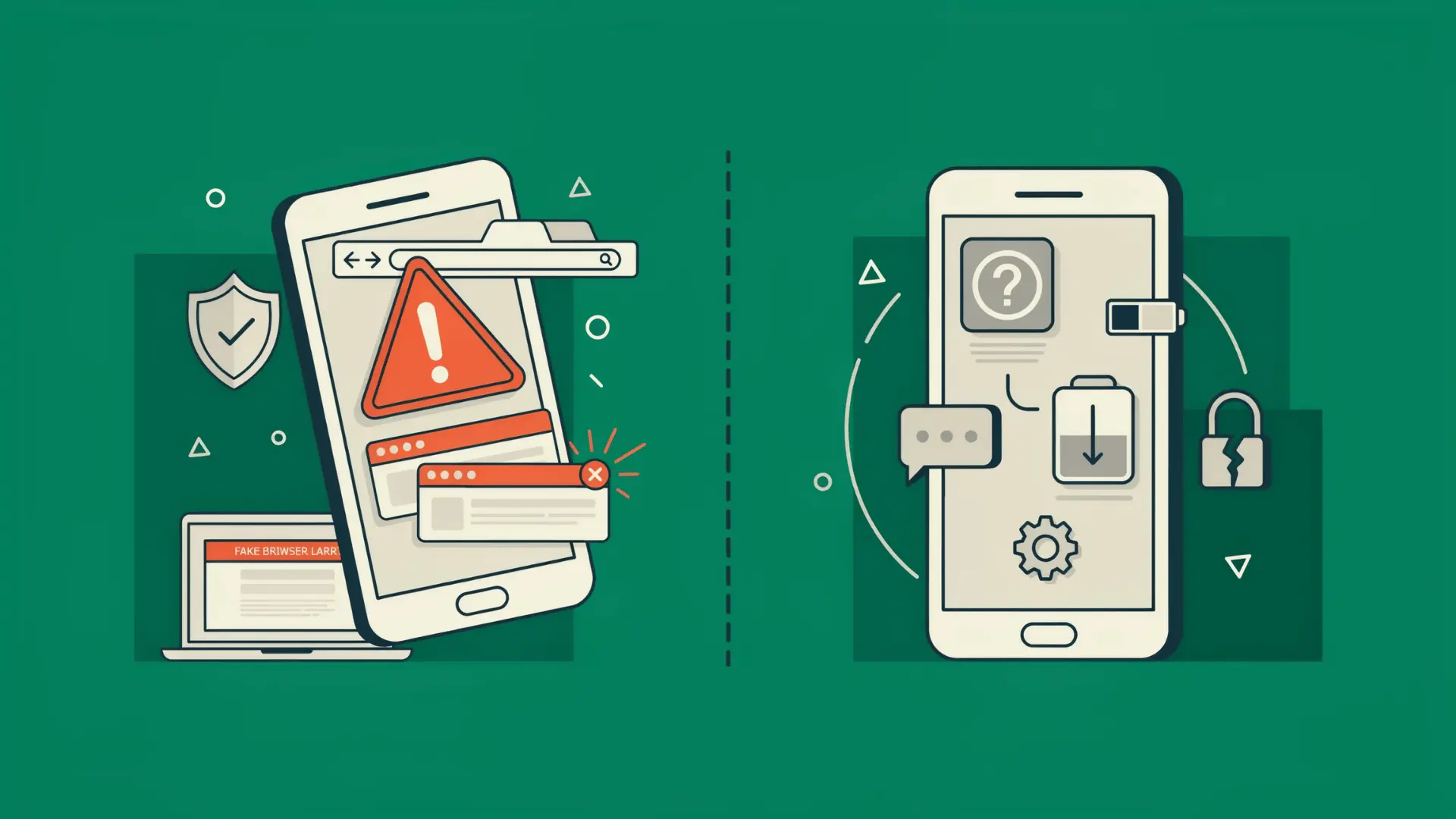
A fake warning ends when you close the tab and remove that site’s notification permission, and nothing else on the phone needs to change.
Real malware usually leaves traces outside the browser, in installed apps, in permissions, or in account activity. Check the browser first, because it is faster to rule out and it is the more common cause.
The following table lists more differences for you to crack the difference
| Check | Fake Browser Warning | Possible Android Malware |
| Where it appears | Inside one browser tab | Across apps, settings, or the home screen |
| Common message | Uses countdowns or urgent payment demands | May not display any clear warning |
| App changes | Pushes a specific cleaner or security app | May install unfamiliar apps or alter permissions |
| Browser behavior | Stops after closing the tab or removing site notifications | Redirects may continue outside the browser |
| Device activity | Usually does not affect calls, texts, or data use | May cause unusual messages, battery drain, or data use |
| Google account | Unaffected | Google may sign you out of the account by itself |
| Best response | Close the page and clear its permissions | Run Play Protect and review installed apps |
Symptoms alone cannot confirm malware. Use scans, app history, permissions, and account activity before deciding what action to take.
Types of Android Malware
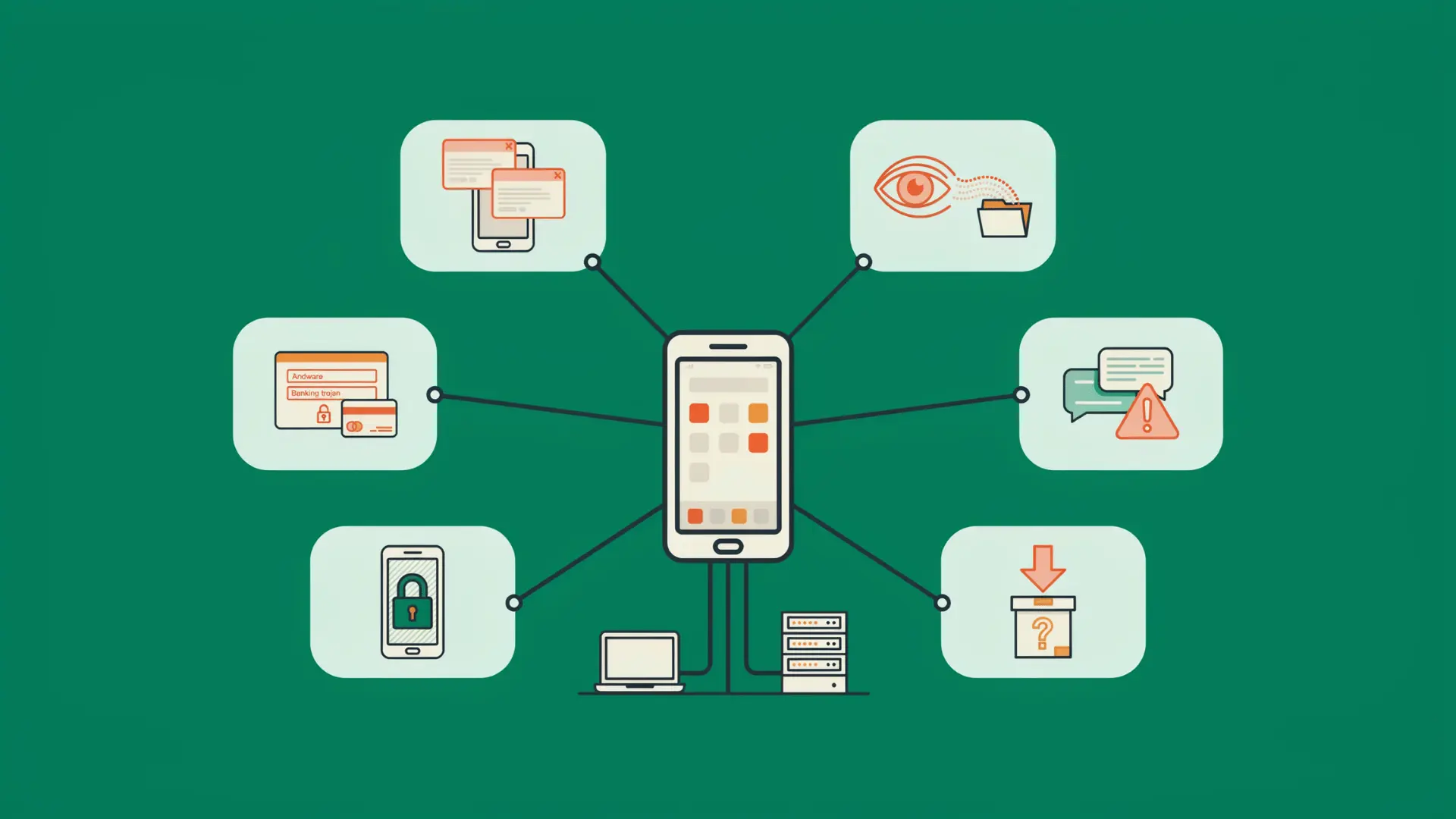
Android malware comes in several forms, and each type can affect the phone differently. Identifying the likely threat helps you choose the right cleanup and account-protection steps.
1. Adware: Displays persistent advertisements, browser redirects, or unwanted notifications. Removing the responsible app or blocking suspicious website notifications usually stops the activity.
2. Spyware: Collects information such as messages, location data, photos, microphone recordings, or login details. Please remove the app and change the affected passwords from another trusted device.
3. Banking Trojans: Display fake login screens or misuse accessibility permissions to capture banking information. Contact your bank the same day.
4. SMS Malware: Reads verification codes, sends paid messages, or signs users up for unwanted services. Check SMS permissions, carrier charges, and recent subscriptions after removal.
5. Ransomware: Locks the screen or blocks access to files until payment is demanded. A factory reset or manufacturer support may be required when normal access is unavailable.
6. Droppers and Fake Updates: Pretend to be cleaners, updates, document viewers, or useful tools before installing additional unsafe software.
Knowing the threat type makes it easier to follow the correct process for removing malware from Android and securing anything the app may have accessed.
Restoring Your Data After a Reset Without Reinstalling Malware
A factory reset can remove installed malware, but restoring everything at once may bring the same unsafe app or file back.
Restore trusted content first, including contacts, photos, videos, documents, messages, and essential account settings.
Avoid immediately restoring unknown APK files, complete third-party backups, or every previously installed app.
Download apps individually from trusted listings, then watch the phone for unusual behavior after each small group of installations. Check permissions before opening restored apps for the first time.
This careful approach helps remove malware from Android without repeating the original infection. Keep Play Protect enabled during restoration and delete any backup file connected to the suspicious app.
Prevent Malware from Infecting Your Android Phone Again

Preventing Android malware depends on safer installation habits, regular updates, and strong account protection.
- Keep Play Protect enabled and run scans when the phone behaves unusually.
- Install Android, security, Google Play system, and app updates promptly.
- Download apps only from trusted stores and verified developers.
- Avoid unknown APK files and unofficial update links.
- Review permissions before use and after updates.
- Remove apps you no longer need.
- Ignore browser virus alerts, countdowns, and payment demands.
- Check the developer details and download history, and treat star ratings as weak evidence.
- Use unique passwords and enable two-step verification.
- Back up essential files regularly.
In 2025, Google prevented over 1.75 million policy-violating apps from being published on Google Play and banned more than 80,000 bad developer accounts that attempted to publish harmful apps.
It is always advisable to be safe when installing applications on your Android device. I recommend checking permissions after an app update, not only when you first install it, because access requests can change over time.
Final Check
Knowing how to remove malware from Android is only part of the cleanup process. Please also check permissions, browser settings, account activity, and installed apps before considering the phone safe.
Start with Play Protect, system updates, safe mode, and removing suspicious apps. Secure your Google Account afterward, especially when passwords, payment details, or verification codes may have been exposed.
A factory reset should remain the final option because it erases local files and installed apps. Restore data carefully so the same unsafe software does not return.
From my experience reviewing security guidance, verification matters most. Keep watching for pop-ups, unusual data use, unfamiliar apps, and account changes after cleanup.
Reach out to me through the comments if you ever come across such vulnerabilities on your Android phone.
Frequently Asked Questions
Can Google Play Protect Remove Malware?
Google Play Protect can warn about, disable, or remove some harmful apps. Manual checks may still be needed for browser notifications, permissions, and account changes.
What is the Difference Between Malware and a Virus?
Malware is a broad term for harmful software, including spyware, ransomware, and viruses. A virus is one type of malware that spreads by attaching itself to files or programs.
How do I Get Rid of Malware on My Phone Without a Factory Reset?
Run Play Protect, install updates, restart in safe mode, remove device admin access, then uninstall the app. Most infections clear before a reset is needed.
How Can I Find the App Causing the Problem?
Check recent installations, use safe mode, review powerful permissions, and remove suspicious apps individually. Restart after each removal to see if the problem stops.
Do I Need an Antivirus App on Android?
Android includes Play Protect for built-in scanning. A reputable security app can provide another check, but avoid unknown cleaners promoted through urgent pop-ups.