

Finding blocked numbers on an iPhone can feel confusing, especially if you blocked a contact months ago and no longer remember where the list is saved.
Apple keeps this option inside Settings, but the location may not be easy to find at first.
A few simple steps can help you view your blocked contacts and manage them whenever needed. I have checked this process to make it easier for you to follow without searching through different menus.
Quick Answer: Where Are My Blocked Numbers on iPhone?
Finding your blocked numbers on iPhone depends on the iOS version you are using. On iOS 26, Apple moved the blocked contacts list to Settings → Privacy & Security → Blocked Contacts.
If you use iOS 18 or an earlier version, you can still find it through Settings → Phone → Blocked Contacts.
Apple made this change to bring blocked contacts from Phone, Messages, FaceTime, and Mail into one place.
If a blocked number does not appear where you expect, check your iOS version first. The location may have changed after an update, but your blocked contacts are still available
How to See Blocked Numbers on iPhone and Unblock?
Use these steps to locate your blocked contacts list on iPhone, check saved blocked numbers, and remove any contact you want to allow again.
1. Open the Settings App on Your iPhone
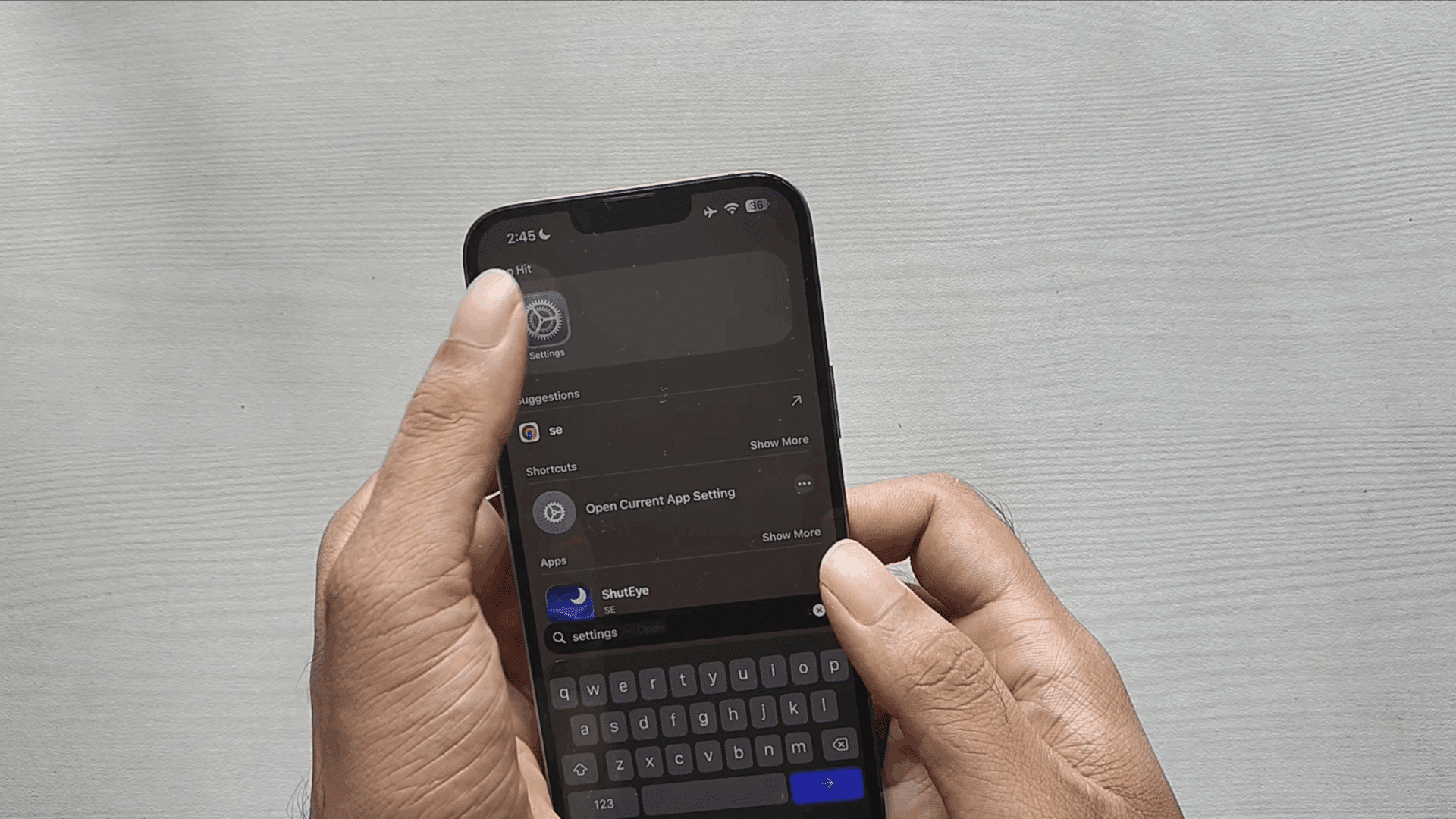
Start by opening the Settings app from your iPhone home screen. This app contains all device controls, including options for managing calls, messages, and blocked contacts.
Once you open Settings, you will see different categories for adjusting your iPhone preferences.
Finding the Settings app is the first step because the blocked numbers list is stored within your phone settings rather than inside the Contacts app or recent call list.
2. Go to Apps and Select the Phone App
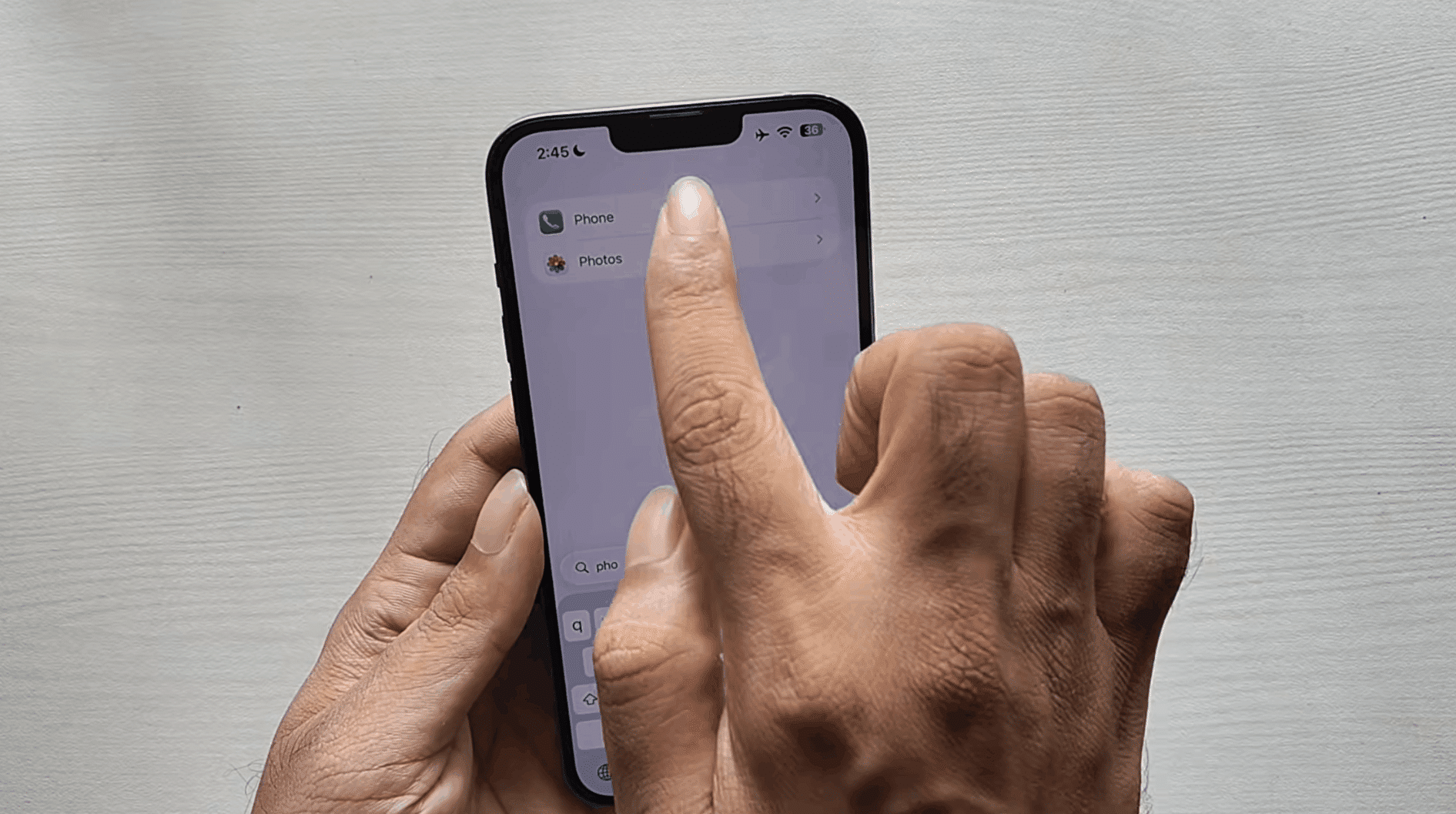
After opening Settings, scroll down and tap Apps to view the installed apps and their settings options.
From the Apps section, find and select the Phone app. This menu contains settings related to incoming calls, voicemail, caller identification, and blocked contacts.
Opening the Phone app settings takes you closer to the blocked numbers list, where you can view and update all contacts and numbers that have been restricted on your iPhone.
3. Open the Blocked Contacts List
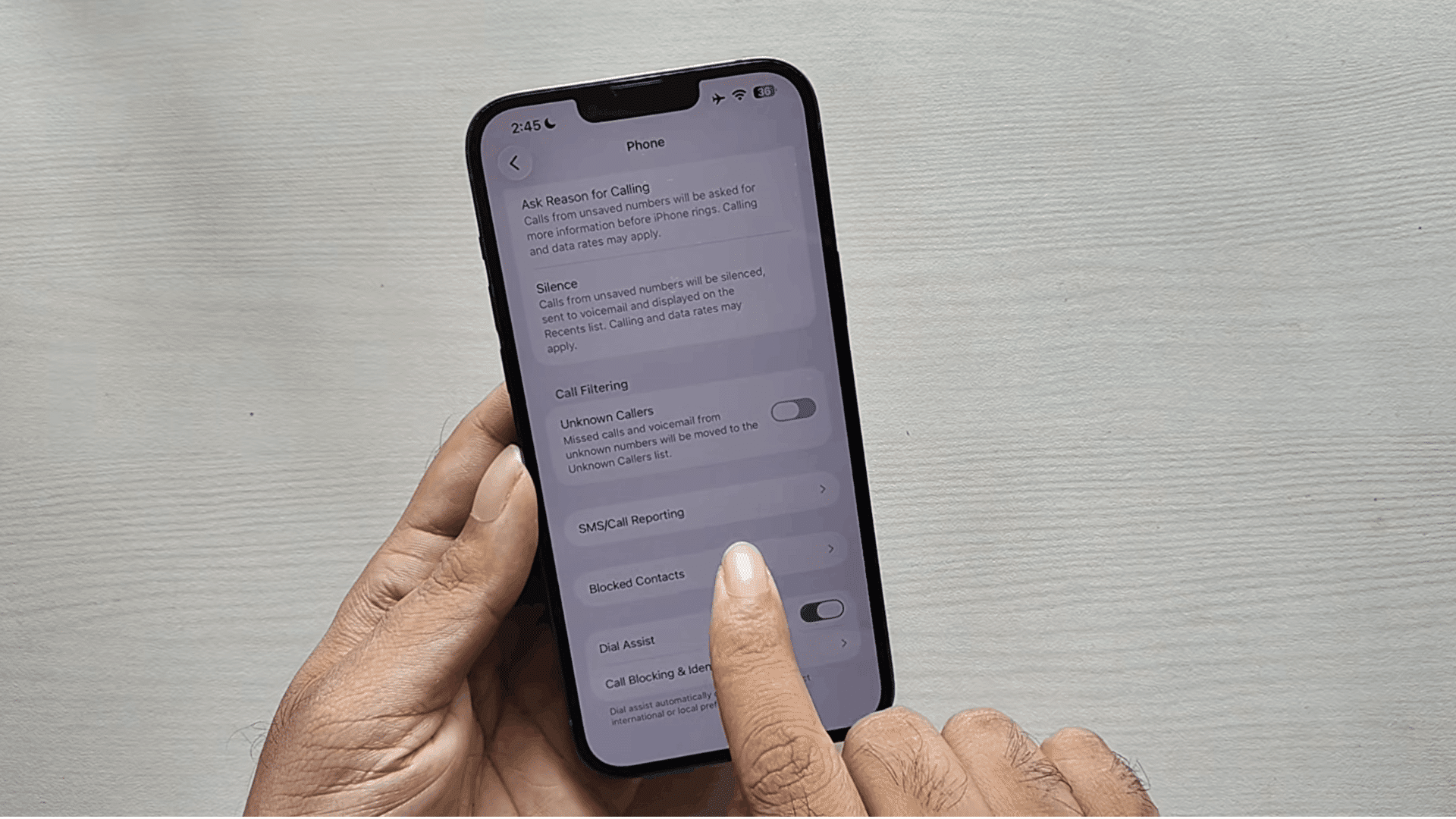
Inside the Phone app settings, scroll down until you find the Blocked Contacts option and tap on it.
Your iPhone will open a list showing every contact and number you have blocked.
You can review the names and phone numbers displayed on this screen to check whether a specific person is currently blocked.
This list keeps all blocked entries together, making it easier to manage unwanted calls or update your preferences.
4. Check Blocked Numbers and Find a Contact
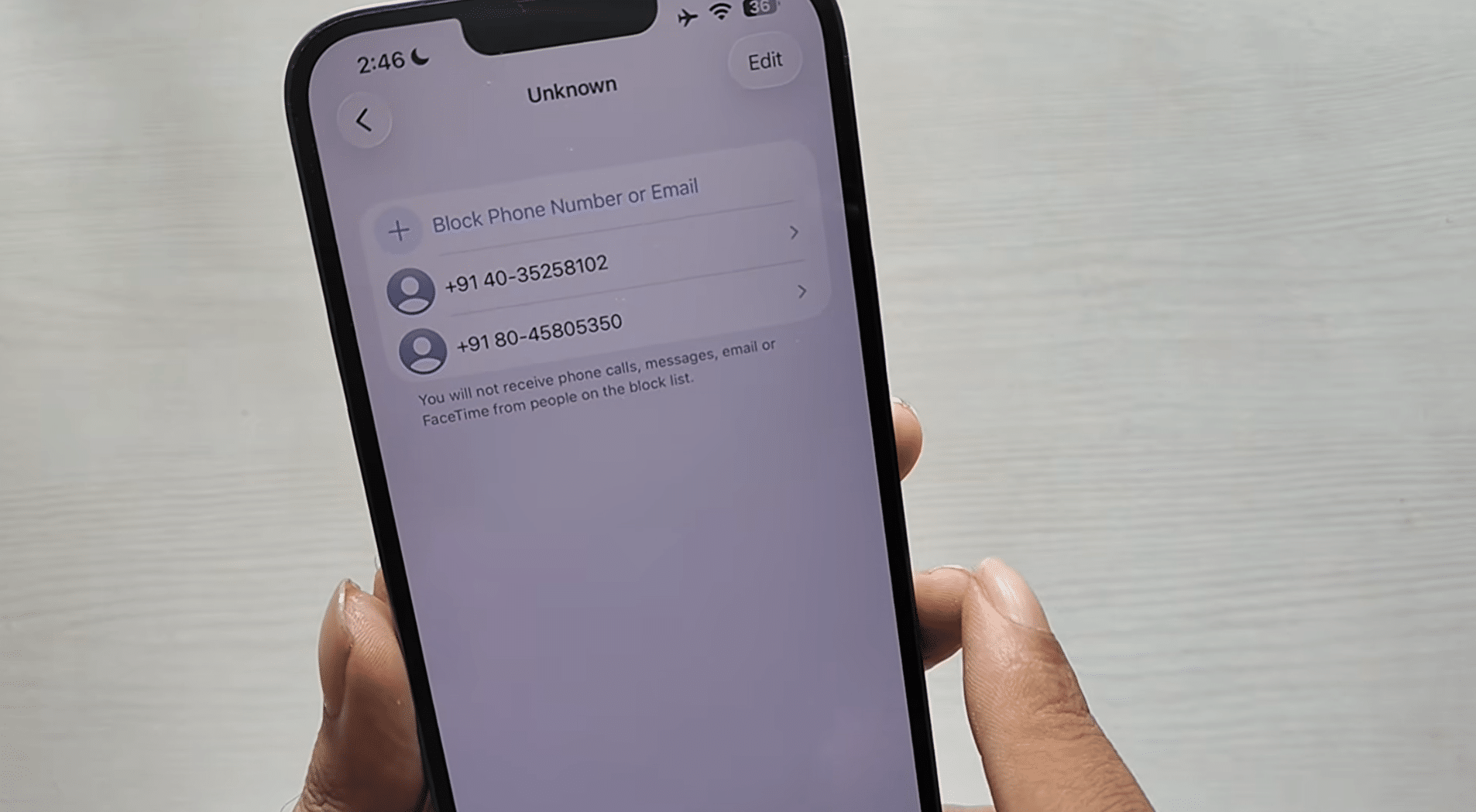
Once you open the Blocked Contacts section, scroll through the available entries to find the number or contact you want to check.
If you have blocked multiple people, each saved entry will appear in this list. You can use this section to confirm whether a person is blocked before making any changes.
Reviewing the list can also help you remove old blocked contacts that you no longer need to keep restricted.
5. Unblock a Number From Your iPhone
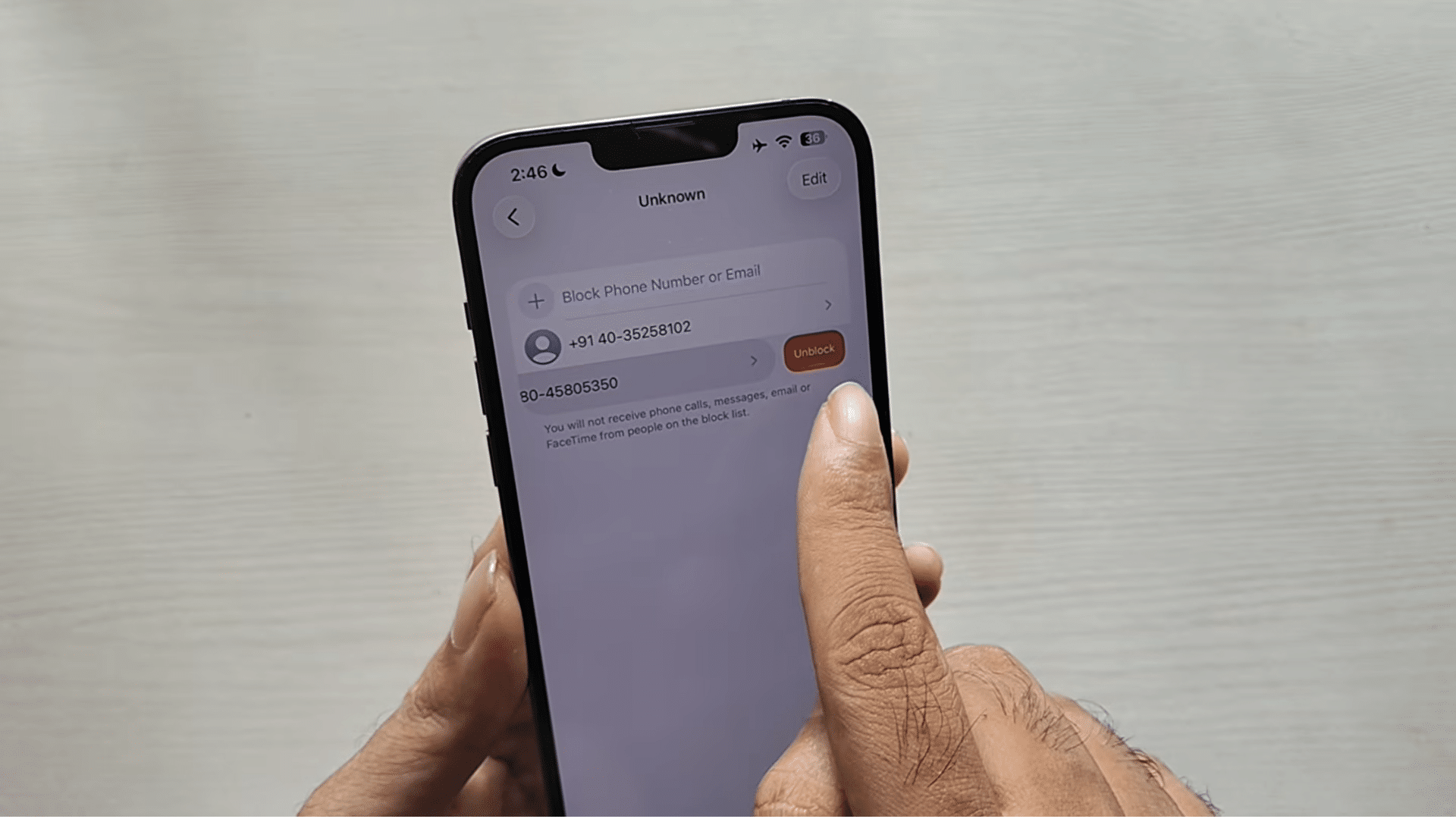
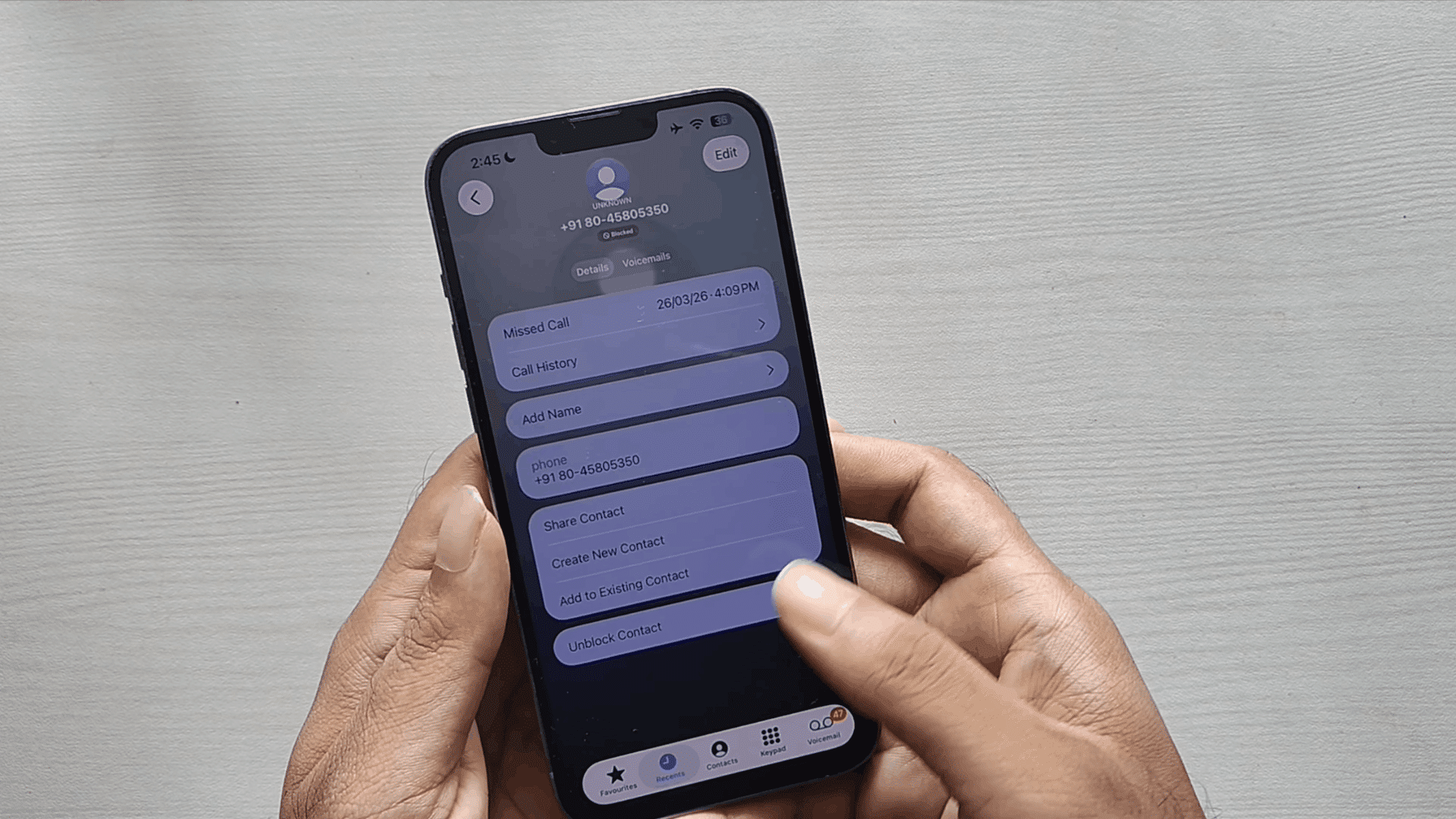
To unblock a contact, tap Edit at the top of the Blocked Contacts screen and select the minus icon next to the number you want to remove.
You can also swipe left on the blocked entry and tap Unblock. After completing this step, the contact will be removed from your blocked contacts and can call, message, or contact you through FaceTime again.
The change happens immediately without requiring a phone restart.
This tutorial is based on a helpful video by TechPP. You can check out the original video on their YouTube channel here or watch it below.
What Happens After Unblocking a Number?
After you unblock a number on your iPhone, the contact can communicate with you again through calls, messages, and FaceTime.
Once a number is removed from your blocked contacts list, future communication from that person is allowed based on your iPhone settings. The contact can call you normally, send new text messages, and make FaceTime calls if those services are available.
Any calls, messages, or FaceTime attempts made while the number was blocked will not appear after you unblock the contact.
If calls or messages still do not work after changing your blocked list, you can try to reset network settings on iPhone to refresh your connection settings.
How to Block Numbers Again on iPhone?
If you need to stop a contact from reaching you again, you can add the number back to your iPhone blocked list through calls, contacts, or messages.
- From Recents: Open the Phone app, tap Recents, tap the info icon next to the number, then tap Block Caller.
- From Contacts: Open the person’s contact card, scroll down, and tap Block Caller.
- From Messages: Open the conversation, tap the contact’s name, tap Info, then Block Caller.
- From Settings directly (iOS 26): Go to Privacy & Security → Blocked Contacts → Add Blocked Contact, then search for the person or number.
- Across Apple services: However you block them, the number gets added to the same list, so Phone, Messages, and FaceTime all reflect it immediately.
How Does iPhone Blocking Work?
iPhone blocking prevents selected contacts from reaching you through calls, messages, FaceTime, and other supported Apple services.
When you block a number, your iPhone adds it to the blocked contacts list stored in your settings.
Calls from blocked numbers are not delivered normally, and messages sent while blocked are not shown in your regular Messages inbox.
You will not receive alerts for blocked calls or texts, and the person will not get a direct notification about being blocked.
The blocked list works across Phone, Messages, and FaceTime, making it easier to control unwanted contacts.
Blocking Contacts in Different iOS Versions
The table below shows where Blocked Contacts lives on each recent iOS version, since Apple moved it in iOS 26 and the steps genuinely differ depending on what you’re running.
| iOS Version | Where to Find Blocked Contacts |
|---|---|
| iOS 26 and later | Settings → Privacy & Security → Blocked Contacts (also reachable via Settings → Apps → Phone → Blocked Contacts) |
| iOS 18 | Settings → Apps → Phone → Blocked Contacts |
| iOS 17 | Settings → Phone → Blocked Contacts |
| iOS 16 | Settings → Phone → Blocked Contacts |
| iOS 15 | Settings → Phone → Blocked Contacts |
| Older versions | Settings → Phone → Call Blocking & Identification |
Can You Find Deleted Blocked Numbers?
You cannot view deleted blocked numbers on iPhone unless they are still saved in your contacts, call history, or a backup.
When you remove a number from the Blocked Contacts list, iPhone no longer keeps a separate record of that deleted blocked entry. If the contact was saved in your Contacts app, you can still find the person’s details there.
You may also check your recent calls or restore an older backup if the number was stored before deletion.
If you remember the number, you can add it back to the blocked list manually through Phone settings. Regularly reviewing your blocked contacts can help you keep track of numbers you want to restrict or allow again.
You can check this list anytime, add new numbers, or remove existing blocks from your iPhone settings.
Conclusion
Checking your blocked numbers on an iPhone is simple once you know where to look. The blocked contacts list is available through Phone settings, where you can review saved entries and remove numbers when needed.
You also learned how to block a number again using Phone, Contacts, or Messages, and how iPhone blocking works across supported Apple services.
If you need to update your list, you can return to the same settings at any time. Take a moment to check your blocked contacts and make sure your iPhone list matches your current preferences.
Review blocked numbers regularly to manage unwanted contacts and keep communication settings organized.
Frequently Asked Questions
Can Blocked Numbers Leave Voicemails on iPhone?
Blocked numbers can leave voicemails on some iPhone models and carrier networks, but you will not receive regular call notifications or alerts.
Do Blocked Contacts Appear in iPhone Search Results?
Blocked contacts may still appear in your iPhone search results if their details are saved in Contacts, but blocking only limits access to communication.
Can I See When a Number Was Blocked on iPhone?
No, iPhone does not show the date or time when a contact was added to the blocked list. It only displays the blocked entries.
Are Blocked Numbers Stored in iCloud?
Blocked numbers can sync via iCloud when related settings are enabled, allowing supported Apple services to keep your blocked list up to date.