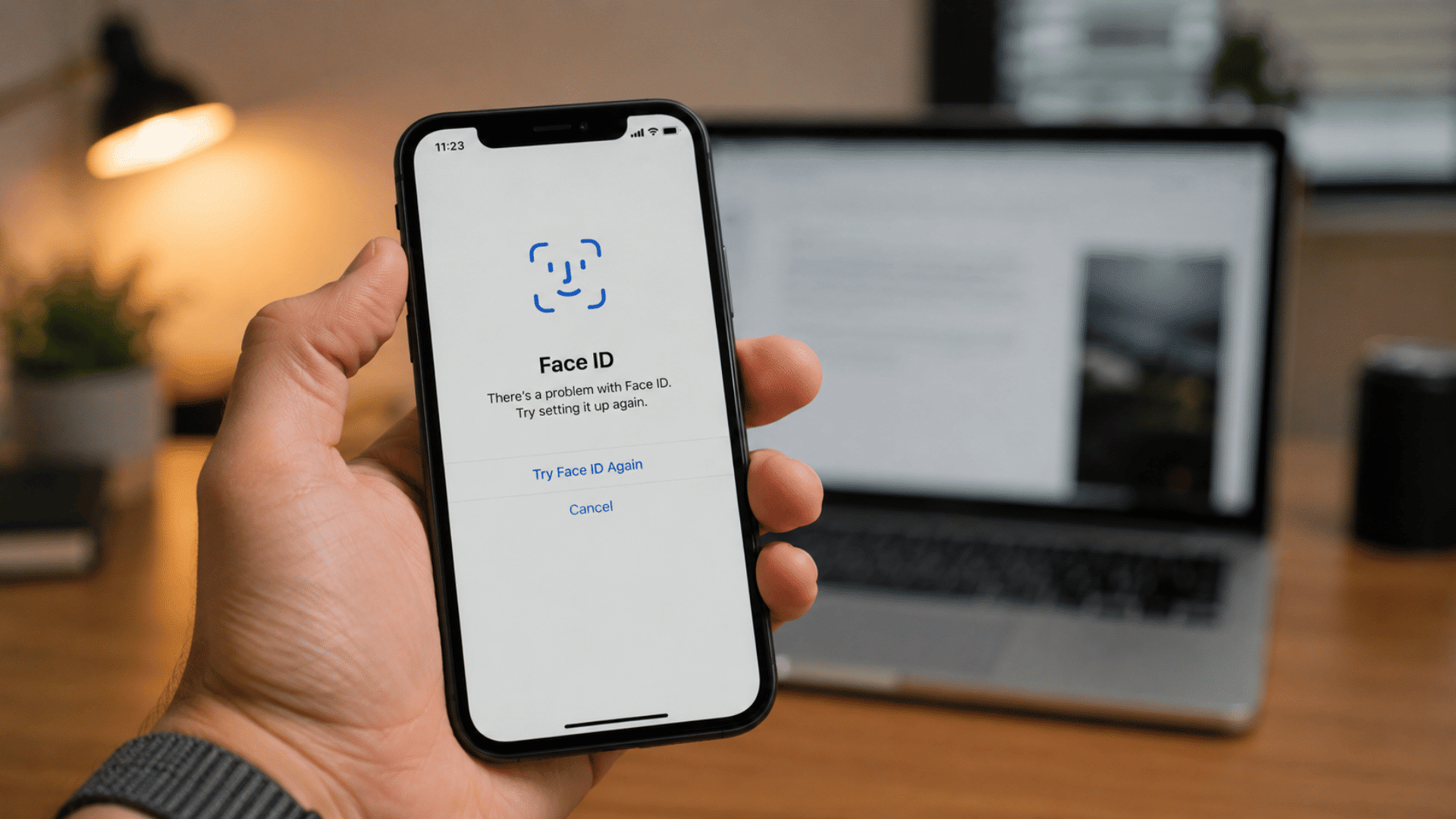


If your iPhone Face ID is not working, start by reading the exact message on the screen. It often tells you whether the phone needs your passcode, cannot see your face clearly, or has detected a TrueDepth camera fault.
Do not reset Face ID or erase the iPhone before trying the basic fixes and backing up your data.
When I troubleshoot this problem, I begin with the top sensor area. Wipe it with a clean microfiber cloth, remove the case or screen protector, restart the iPhone, and enter the passcode once.
Then test Face ID again.
The checks below move from quick fixes to hardware signs so you know what to try and when to arrange service.
What Does Your Face ID Error Message Mean?
The message on the screen is the best place to start because it separates normal security checks from recognition problems and possible hardware faults.
A request to enter the passcode may be completely normal after a restart or several failed scans. A position prompt means the camera cannot capture your face clearly.
“Face ID is not available” can follow a temporary software problem, but a persistent TrueDepth camera warning deserves closer attention.
Use the table below to match the message with the correct first step.
| Error Message or Behavior | Possible Reason | Recommended First Step |
|---|---|---|
| Move iPhone higher, lower, or closer | The camera cannot scan your face clearly | Adjust the distance and angle |
| Face ID is not available | Temporary software, setting, or sensor issue | Restart the iPhone |
| The phone asks for the passcode | Face ID paused for a security check | Enter the passcode once |
| A problem was detected with the TrueDepth camera | Possible front sensor hardware fault | Restart once, then arrange testing |
| Face ID setup will not begin | Blocked, damaged, or uncalibrated sensor | Remove covers and review repair history |
How do You Fix Face ID that is Not Recognizing You?
When Face ID is not recognizing you, begin with the sensor, screen accessories, phone position, and settings. These checks are safer and faster than resetting the whole iPhone.
Follow these steps to rule out simple sensor, setting, and software issues before resetting Face ID or arranging a repair:
1. Clean the TrueDepth Sensor Area
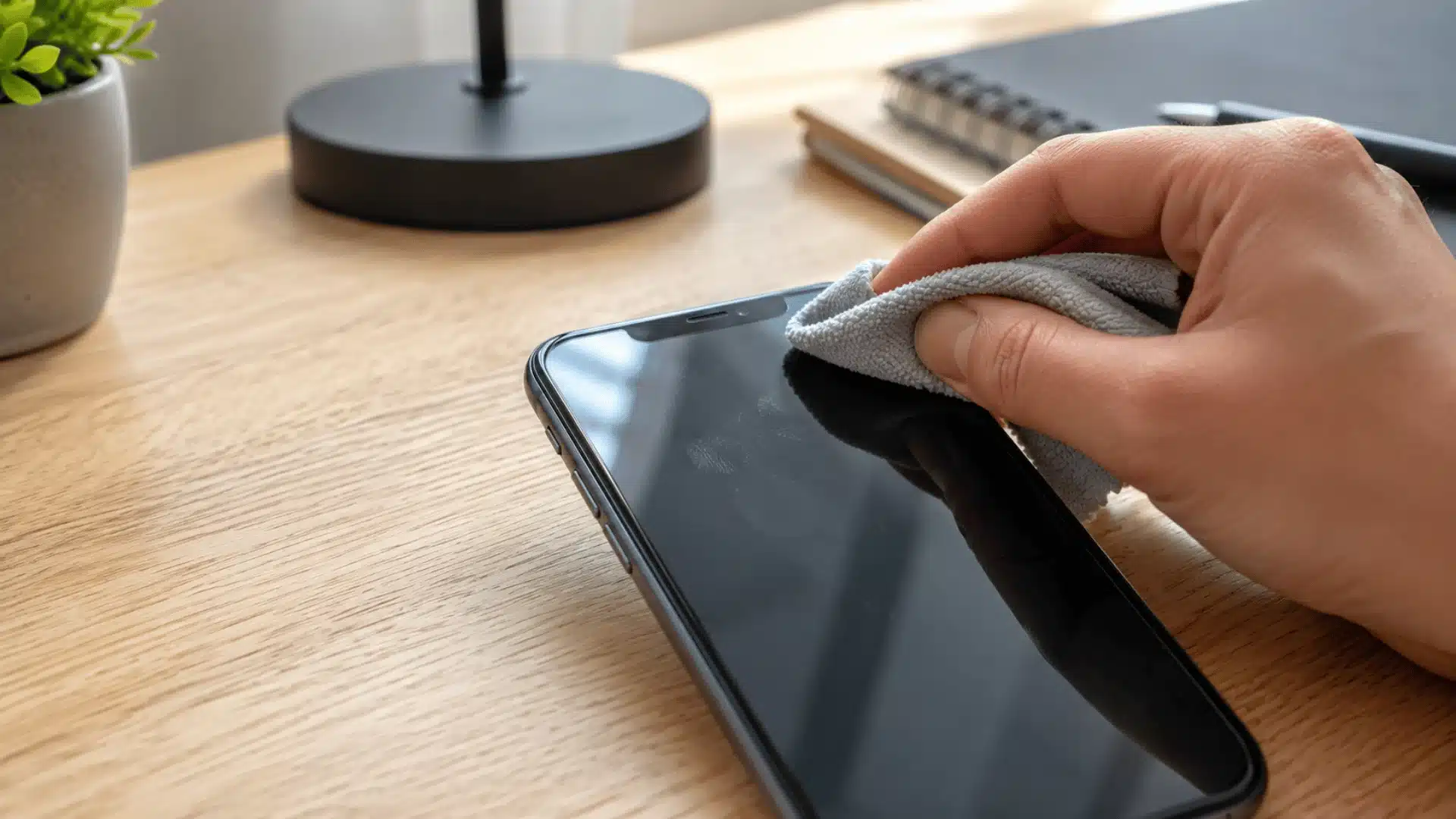
Wipe the top front section of the iPhone with a clean, dry microfiber cloth. Remove fingerprints, skin oil, makeup, dust, and moisture around the camera and sensor area.
Do not spray cleaner directly onto the phone. Apply a small amount to the cloth only when needed. Test Face ID after cleaning because marks or moisture near the sensor can interfere with its view.
2. Remove the Case and Screen Protector
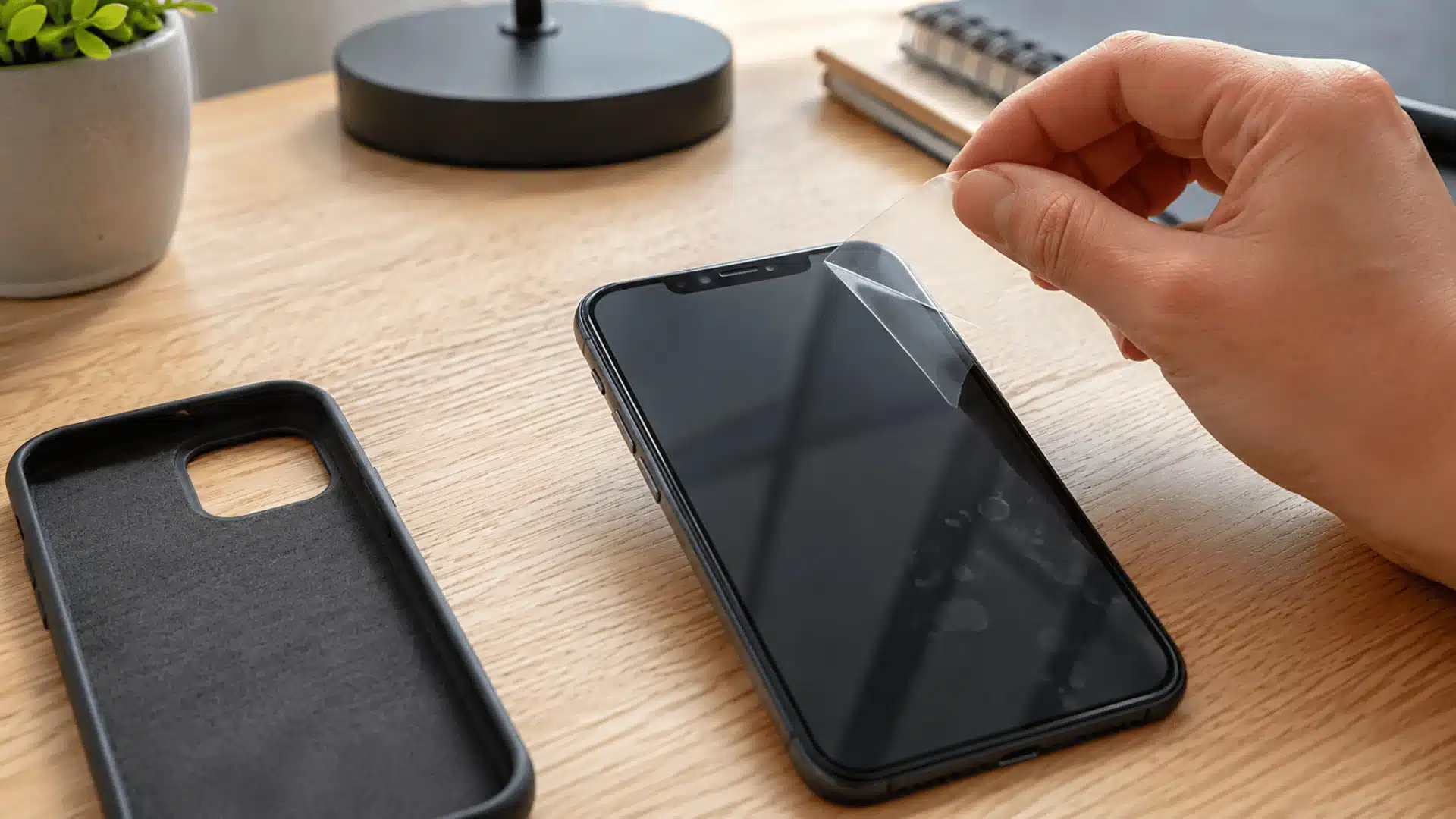
Take off the case and remove any screen protector that reaches across the TrueDepth camera area. Privacy glass, dark borders, cracks, air bubbles, or poor alignment can affect recognition.
This check matters most when Face ID suddenly stopped working after a new protector was fitted. Test the phone with the screen fully uncovered.
Pressing down a lifted edge does not provide a reliable result.
3. Correct the Face and Phone Position

Hold the iPhone about 10 to 20 inches from your face and point the front camera directly toward you. Keep your eyes, nose, and mouth visible.
Face ID may fail when the phone is too close, too low, or held at a sharp angle. Earlier iPhone models also require portrait orientation for normal Face ID use.
Look toward the camera and test the phone in steady indoor lighting.
4. Test Without Dark Glasses

Remove sunglasses and try again. Face ID works with many glasses, but some lenses block the infrared light used by the TrueDepth camera.
Clear glasses may also cause trouble when glare or a heavy frame covers part of the eye area. Test without glasses before changing any security setting.
An alternate appearance can be added later when glasses are part of the user’s normal look.
5. Restart the iPhone
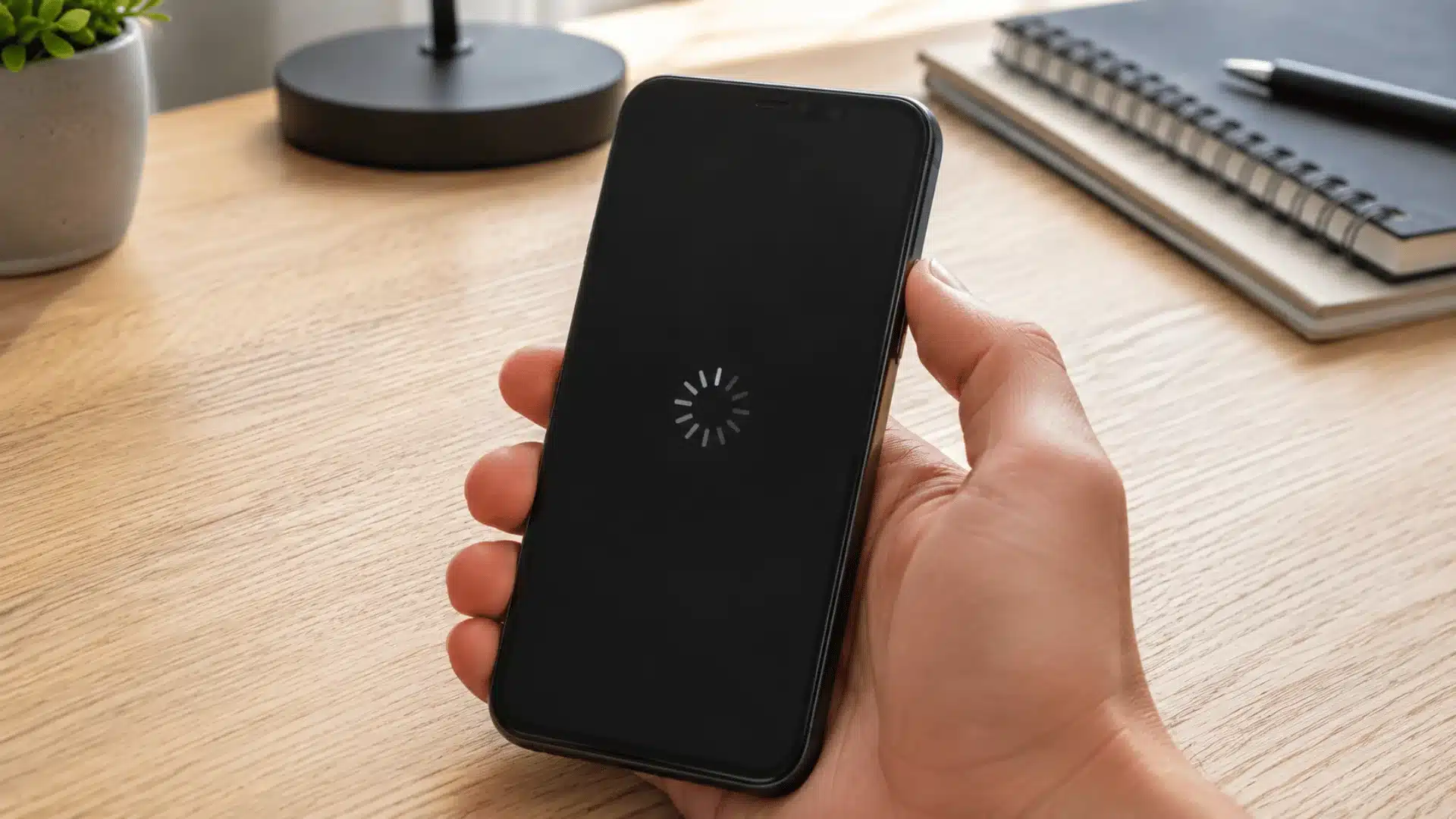
Turn off the iPhone, wait several seconds, and switch it back on. Enter the passcode after startup because Face ID remains disabled until the phone has been unlocked once.
A restart reloads the camera and authentication services without removing saved facial data. After the phone restarts, test the lock screen, purchases, password autofill, and affected apps separately to see whether the failure affects every Face ID feature.
6. Review Face ID Settings
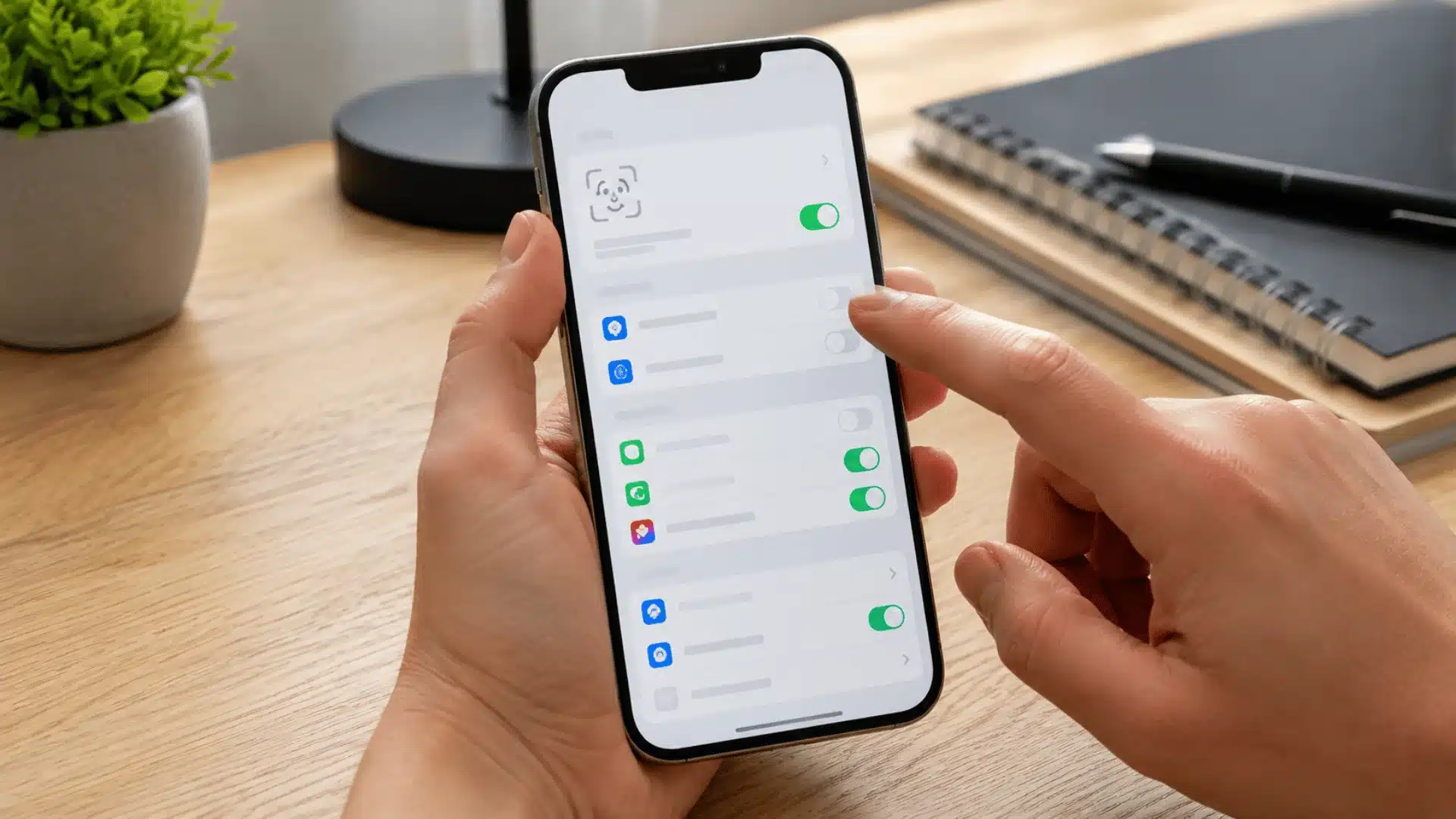
Open Settings, tap Face ID & Passcode, and enter the passcode. Confirm that Face ID is set up and enabled for the features being used.
An iPhone may unlock normally while Face ID remains disabled for purchases, password autofill, or a particular app. Check Other Apps when only one service is affected.
A feature-specific failure usually points to a setting or app permission rather than a damaged sensor.
7. Reset and Register Face ID Again
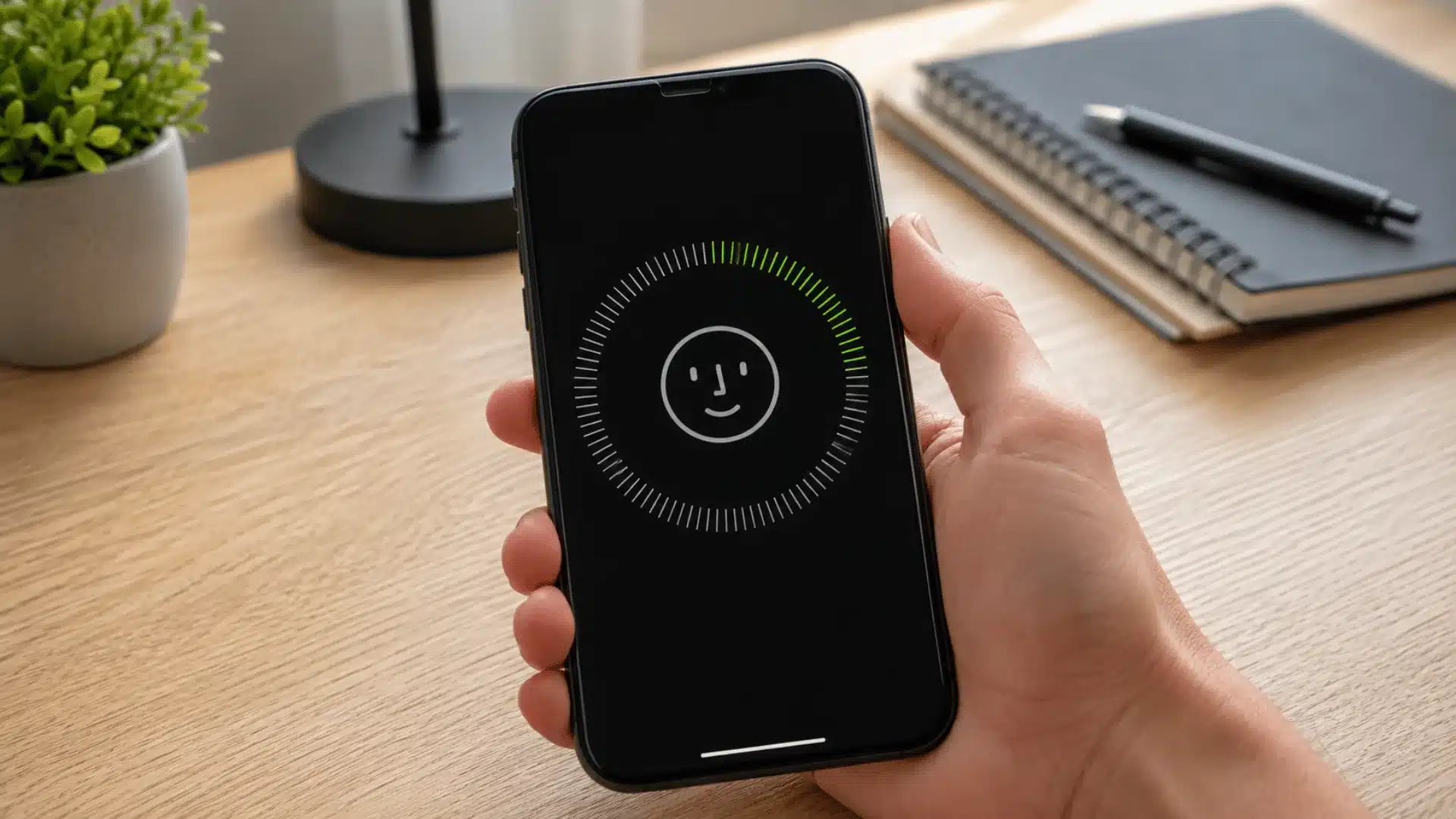
Open Settings, select Face ID & Passcode, and tap Reset Face ID. Choose Set Up Face ID and complete both facial scans with the sensor area uncovered.
Resetting removes the stored face data but does not delete apps, photos, messages, or contacts. If the iPhone cannot begin or complete a new scan, stop repeating the reset.
Failed enrollment makes a sensor or calibration fault more likely.
8. Add an Alternate Appearance
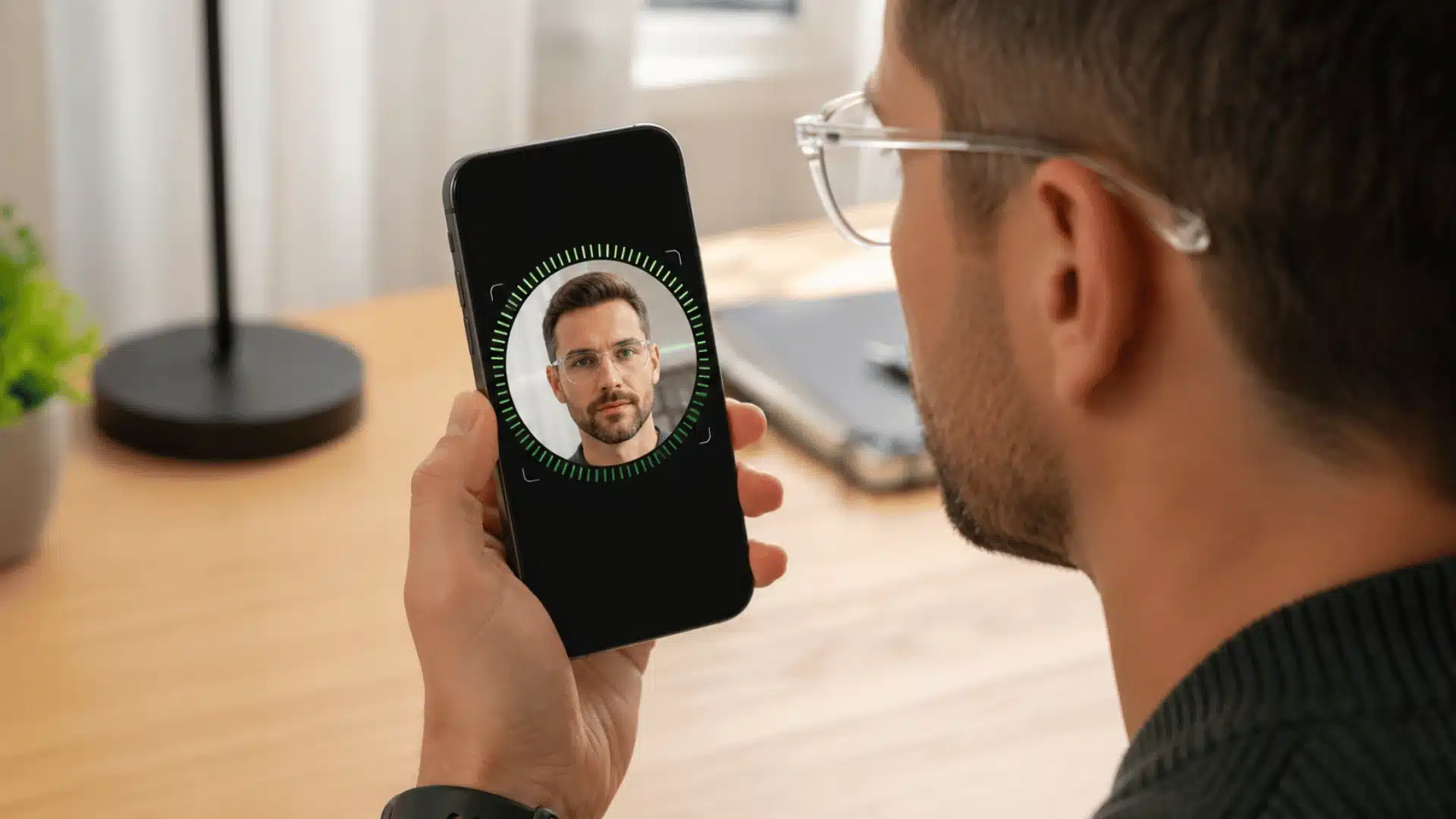
An alternate appearance can help when glasses, facial hair, work clothing, makeup, or other regular changes affect recognition. Open Face ID & Passcode and select Set Up an Alternate Appearance.
Use this only after the main Face ID scan works correctly. An alternate appearance gives the phone another consistent facial scan, but it cannot repair a blocked camera, failed TrueDepth component, or unfinished repair calibration.
What are Reddit Users Saying About Face ID Failures?
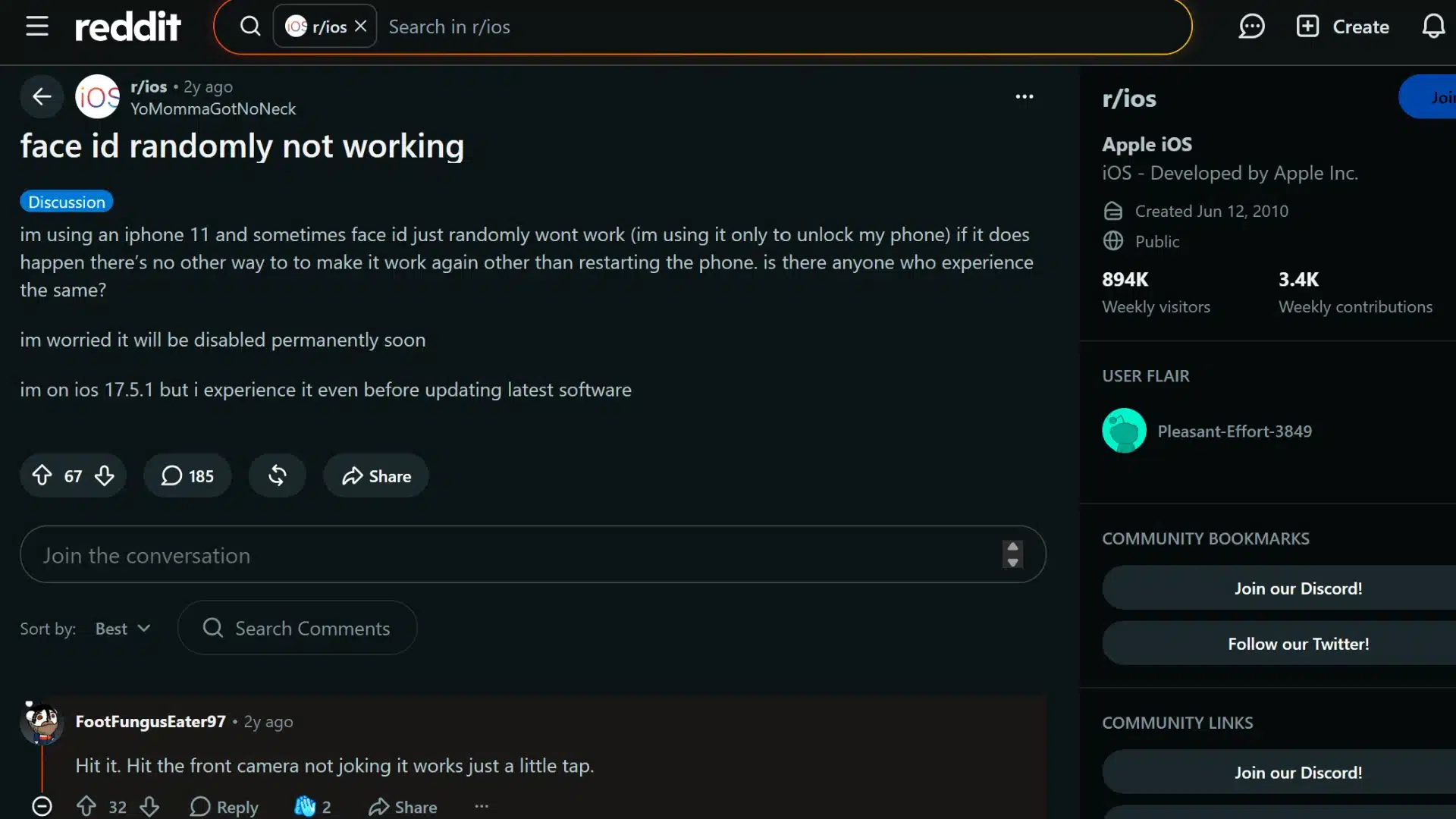
Reddit discussions show that the exact symptom matters more than simply saying “Face ID isn’t working.” Users who can still reset and enroll Face ID again often resolve the issue with basic troubleshooting.
However, when Face ID setup won’t start, or enrollment repeatedly fails, community experiences suggest the problem is more likely related to the TrueDepth camera or its calibration than a temporary software issue.
Across multiple threads, the most useful details include the iPhone model, the exact error message, any repair history, and what happened before Face ID stopped working.
The overall pattern also aligns with Apple’s guidance: Restart the iPhone, remove anything blocking the camera, try resetting Face ID once, and seek professional service if enrollment remains unavailable.
Fix Face ID After an iOS Update with these Steps
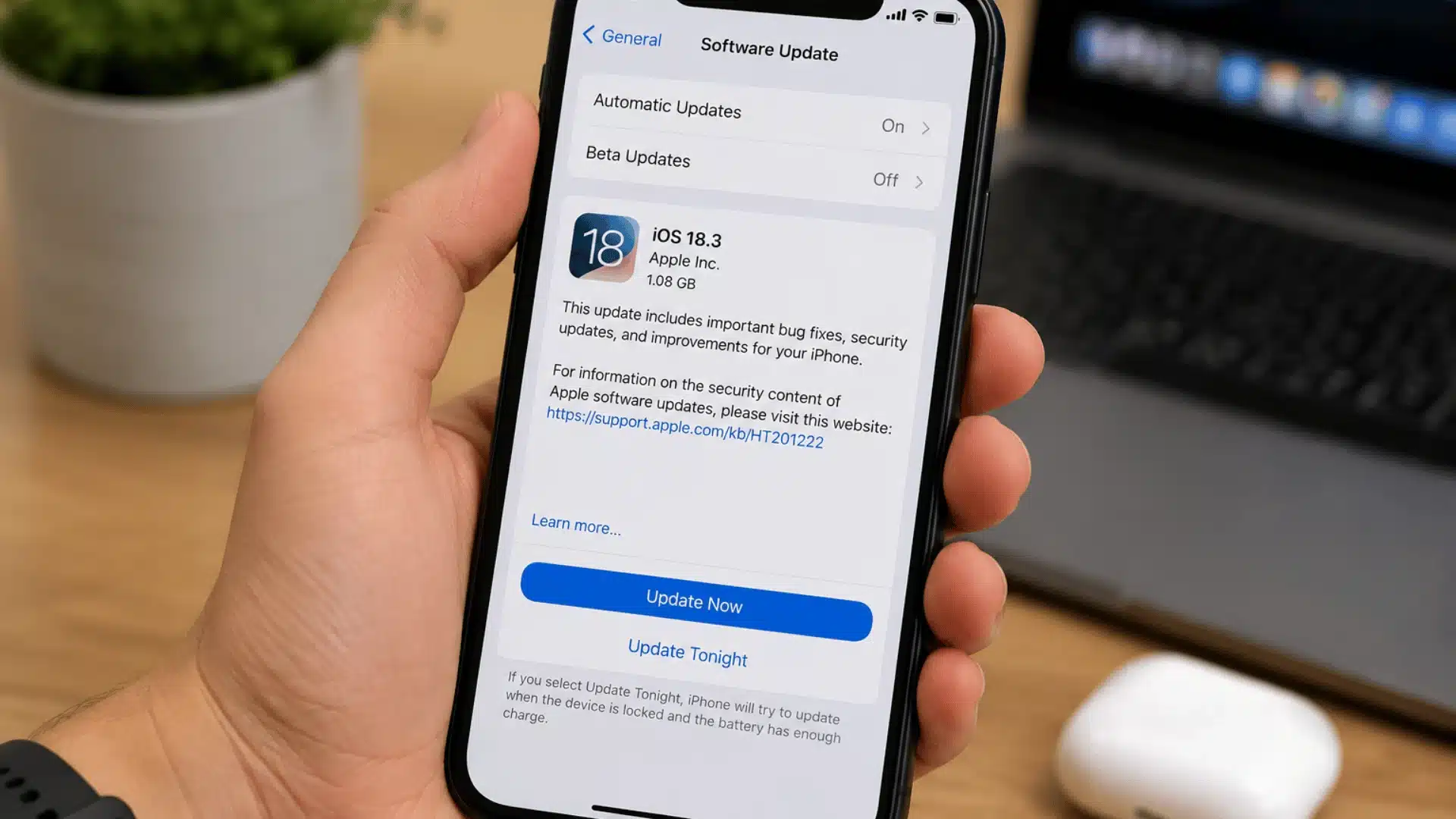
When Face ID stops working just after an iOS update, software is a reasonable suspect, but timing alone does not prove the update caused the fault.
A restart should come first because system and camera services may need to reload after installation.
Next, check for a later stable iOS release and confirm that the Face ID options are still enabled. Also inspect the sensor, protector, and case because an unrelated obstruction can appear at the same time.
1. Install the Latest Stable iOS Version
Open Settings , tap General , and select Software Update . Install a newer stable release when one is offered for the device.
Keep the iPhone connected to power and back up important data before updating. After installation, restart the phone, enter the passcode, and test Face ID before changing anything else.
This makes it easier to tell whether the software update corrected the problem.
2. Recheck Face ID Options
Open Settings, select Face ID & Passcode, and confirm that the required options remain enabled. Test iPhone Unlock separately from purchases, password autofill, and third-party apps.
When Face ID works on the lock screen but not in one app, check Other Apps and that app’s own settings. A limited failure is more likely to involve permission or authentication settings than the TrueDepth camera.
3. Review Attention Requirements
Require Attention for Face ID checks that the user’s eyes are open and directed toward the iPhone. This adds security but can make recognition harder with some glasses or visual conditions.
Remove sunglasses and clean the sensor before changing this option. Turning attention requirements off can improve access in some cases, but it reduces the need for direct eye contact.
Keep the setting on when it is not causing the problem.
4. Check Screen Time Restrictions
If some Face ID or passcode settings cannot be changed, review Screen Time restrictions. Open Settings, tap Screen Time, then select Content & Privacy Restrictions.
Check whether changes to device settings have been blocked. This can happen on family-managed, school, or work devices.
Restoring permission may make the setting available again. A restricted option does not mean that the TrueDepth camera has failed.
When does Face ID Point to a Hardware Problem?
A hardware problem becomes more likely when Face ID cannot register a new face, repeatedly displays a TrueDepth camera warning, or stops directly after a fall, water exposure, or repair.
Complete one restart, remove all covers, and install any available stable update before arranging service. Also test the front camera, Portrait mode, and Memoji.
Important! Blurry images, missing depth effects, or unusual camera behavior may support the possibility of a front-camera issue.
Do not press, heat, or open the sensor area. The laser system should be serviced only by a trained technician.
1. Persistent TrueDepth Camera Warning
“A problem was detected with the TrueDepth camera” means the iPhone has identified a fault in the front camera or sensor system.
Restart the phone and check for a stable iOS update once. If the warning returns and Face ID setup remains unavailable, repeated resets are unlikely to help.
Arrange a service over a call or text when the camera does not work, and Face ID cannot be set up.
2. Damage After a Drop
A fall can damage Face ID even when the screen glass remains uncracked. The impact may affect a sensor, cable, connector, or camera component near the top of the iPhone.
Physical damage is more likely when recognition stopped immediately after the fall, and a new Face ID scan cannot be completed. Do not press the screen, shake the phone, or try to reseat the internal parts yourself.
3. Problems After Water Exposure
Water resistance is not permanent and can decrease through normal wear or previous damage. Moisture may also enter through cracked glass or an earlier repair.
If the phone is wet, disconnect cables and avoid charging it until it is dry. Do not use external heat, compressed air, or rice.
Arrange an inspection if Face ID remains unavailable after the phone has dried.
4. Failure After a Screen or Camera Repair
Face ID can stop after screen or front-camera work when a component is damaged, replaced incorrectly, or left uncalibrated. Supported iPhones may show Genuine, Used, Unknown, or Finish Repair in Parts and Service History.
Ask the repair provider which parts were changed and whether Repair Assistant was completed. Face ID may remain unavailable until the required front-camera calibration has finished.
Where Should You Take an iPhone for Face ID Repair?
Choose a repair provider based on the phone’s coverage, repair history, and the error shown. A persistent TrueDepth warning or failed Face ID enrollment requires a provider that can inspect paired camera parts and complete software calibration.
Apple Stores and Authorized Service Providers handle both warranty and paid repairs using genuine parts.
Independent Repair Providers offer approved out-of-warranty services, while general repair shops provide their own parts, pricing, and warranties.
| Repair Option | Benefits | Things to Check |
|---|---|---|
| Apple Store | Apple-backed diagnosis, parts, calibration, and repair warranty | Check warranty or AppleCare coverage |
| Apple Authorized Service Provider | Apple-certified service without visiting an Apple Store | Ask for the inspection and service fee |
| Independent Repair Provider | Out-of-warranty repairs with access to genuine Apple resources | Confirm that Face ID repair is offered |
| General Independent Shop | May suit an older, out-of-warranty iPhone | Ask about TrueDepth experience, parts, and warranty |
How Much does Face ID Repair Cost?
The total price heavily depends on warranty status, the repair shop you choose, and your specific phone model.
- Apple Official (With AppleCare+): You will pay a standard $99 service fee if the failure is linked to accidental damage. If it is a manufacturing defect and your phone is under its standard 1-year warranty, the repair is free.
- Apple Official (Out-of-Warranty): Apple can service just the TrueDepth camera array on newer models for $169 to $249. However, if the phone has severe water damage or a cracked screen, Apple will charge an “Other Damage” fee ranging from $399 to $799.
- Third-Party Independent Shops: Local or mail-in repair shops typically charge between $80 and $150.
Final Thoughts
When iPhone Face ID is not working, I would not begin with a factory reset or assume the entire phone is damaged.
Start with the message on the screen, enter the passcode when requested, and check the TrueDepth sensor for dirt or anything covering it.
Remove the case and protector, restart the iPhone, review the settings, and attempt one Face ID reset. If the problem followed an update, install any later stable release but continue checking for physical causes.
A persistent TrueDepth warning, failed enrollment, recent fall, water contact, or unfinished repair points toward service. Work through the quick checks now and note the result after each one.
Tell us what fixed Face ID for you in the comments!
Frequently Asked Questions
Does Resetting Face ID Delete Anything?
Resetting Face ID removes the stored facial scan. It does not delete photos, messages, apps, contacts, accounts, passwords, or other personal data saved on the iPhone.
Can You Still Use an iPhone With Broken Face ID?
Yes. The passcode can unlock the iPhone and confirm many actions. Payments, password autofill, and some app logins may require the passcode or another verification step.
Can a Screen Protector Stop Face ID From Working?
Yes. A protector can interfere when it covers the TrueDepth sensors or places a dark edge, crack, bubble, dirt, or thick material across the camera area.
Can Face ID Fail Without a Cracked Screen?
Yes. A drop can affect an internal camera, cable, connector, or sensor while leaving the outer display glass intact and the front camera partly functional.
Is a TrueDepth Camera Repair Covered by Warranty?
Coverage depends on the cause, warranty status, AppleCare plan, and repair history. Accidental or liquid damage and some outside repairs may not qualify for standard coverage.
What Should You do If Face ID Keeps Failing?
Stop repeating fixes. Note the exact warning, recent damage or repairs, test the front camera, check Parts and Service History, back up the iPhone, and request a diagnosis.