




An invoice arrives by email. One employee downloads it, another enters the details into a system, a manager approves it, and finance uploads the final version somewhere else.
When the process relies on manual handoffs like these, delays, duplicate files, and missed approvals become much more likely.
Document workflow automation replaces many of those repetitive steps with predefined triggers, routing rules, approvals, integrations, and document actions.
A file can move from intake to review, approval, storage, or another business system without requiring someone to manually manage every transition.
From my experience working with cloud infrastructure and scalable application environments, the biggest improvement is not simply removing clicks.
It is creating a predictable path for documents, data, approvals, and exceptions.
This article explains where businesses can use document automation and how an automated document management workflow works behind the scenes.
What is Document Workflow Automation?
Document workflow automation is the use of software-defined rules to move documents through a repeatable sequence of steps such as capture, classification, data extraction, validation, routing, approval, storage, and notification.
A workflow can begin when someone uploads a file, submits a form, sends an email attachment, or changes a document’s status.
From there, predefined rules determine:
- What happens next
- Who needs to review the document
- Where the completed file should be stored
Modern workflows may connect document management systems, cloud storage, APIs, approval platforms, OCR, and AI-based document processing.
Google Cloud, for example, documents architectures where Document AI processes files while serverless orchestration coordinates multiple workflow steps.
The easiest way to understand the concept is to see what these workflows look like in actual business processes.
How does Document Workflow Automation Work?
Document workflow automation works as a sequence of events that moves a document from intake to completion. A common model is:
| 1. Trigger → 2. Capture → 3. Understand → 4. Apply Rules → 5. Route or Approve → 6. Update Systems → 7. Store and Track |
Not every workflow needs every stage. A scanned or structured PDF may require data extraction before validation, while an already-tagged document can move directly to approval.
APIs and connectors help transfer data among cloud storage, databases, document repositories, collaboration tools, and business applications.
Google Cloud Workflows, for example, can coordinate services and APIs using conditions, branching, and error-handling logic.
| Upload → Extract → Validate → Decide → Approve → Update → Archive |
Behind these stages are a few components that determine how reliable the workflow becomes.
Triggers, Rules, Actions, and Exceptions
Four elements control most automated document workflows.
- A trigger starts the process, such as an invoice upload.
- A rule decides what happens next, such as checking whether the amount exceeds $10,000.
- An action performs the next task, such as sending an approval request.
- An exception handles cases outside the normal path, such as an unmatched supplier ID.
Exception handling should be built into the workflow from the start, including retries, alternate routes, and failure handling.
Document Workflow Automation Examples in Real Businesses
Document workflow automation works best when documents follow repeatable rules but still need human review at certain points.
Automation can capture data, check required fields, route documents, send approval requests, and store completed files.
People step in mainly for exceptions, sensitive decisions, or approvals.
A practical workflow usually connects four elements: incoming document → automated action → human decision → system of record. |
Microsoft documents approval workflows for invoices and other business documents, while AWS shows architectures where uploaded files trigger automated document processing.
1. Invoice and Purchase Order Processing
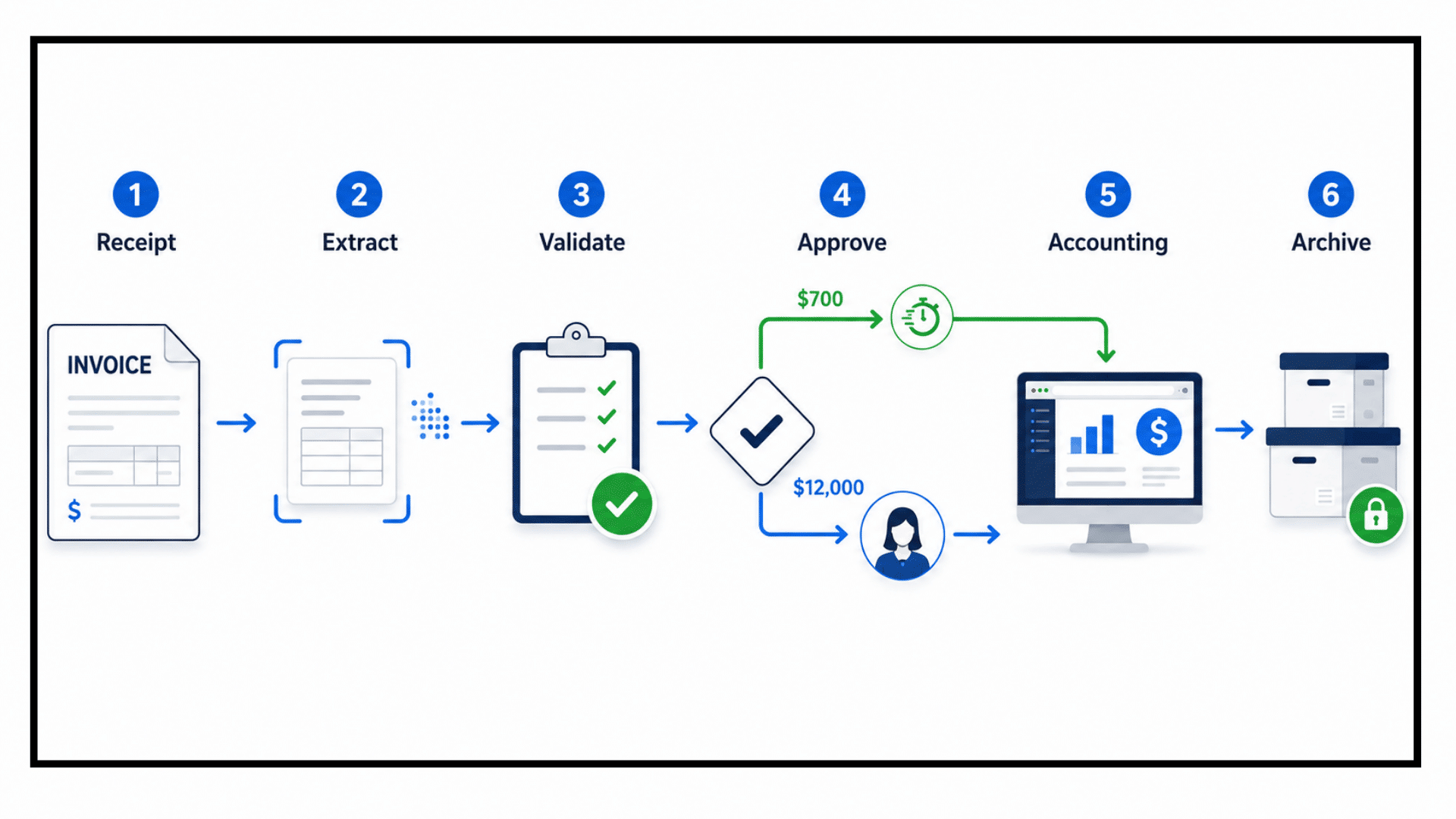
An invoice workflow can move from receipt → data extraction → PO validation → approval → accounting system → archive.
OCR extracts key information, while rules check suppliers, amounts, and purchase orders.
AWS documents workflows using Amazon Textract for document extraction and Step Functions for orchestration.
For example, a matched $700 invoice may continue automatically, while a $12,000 invoice can require finance approval.
2. Contract and Document Approval Workflows

Contract workflows demonstrate conditional routing. Once a contract is uploaded, rules can route it according to document type, department, value, or approval requirements.
A standard agreement may need one reviewer, while a higher-value contract could require both legal and finance approval.
Microsoft Power Automate supports sequential approvals, allowing documents to move through reviewers in a predefined order before signature and final storage.
3. HR, Compliance, and Employee Documents

HR and compliance workflows often focus on completeness, access, and deadlines.
Automation can verify that required onboarding forms are present, request missing documents, track acknowledgments, and flag records for review.
Sensitive or incomplete documents can be routed only to authorized employees.
Once required checks are complete, the workflow can place the final record in the appropriate HR or compliance repository.
Here’s a small summary in the table:
| Process | Automation Focus | Human Review |
|---|---|---|
| Invoices | Data and PO checks | Exceptions |
| Contracts | Conditional routing | Legal/finance |
| Onboarding | Document completeness | HR verification |
| Expenses | Receipt validation | Policy exceptions |
| Compliance | Classification and checks | Failed checks |
What are the Benefits of Automating Document Workflows?

Document workflow automation improves how documents move, get checked, and reach the right people or systems.
Instead of relying on repeated manual actions, predefined workflow rules handle routine processing while keeping important decisions visible.
The most practical benefits come from reducing manual work and making each document follow a more consistent path.
- Less manual data entry: Extraction tools can convert document content into structured fields.
- Faster routing: Documents move immediately when predefined conditions are met.
- Consistent approvals: The same approval rules apply to every relevant document.
- Better traceability: Workflow events can record approvals, failures, changes, and completion.
- Fewer handoff errors: Files are routed automatically instead of relying on employees to forward or store them correctly.
In my experience with cloud environments, this consistency is especially valuable when multiple systems or teams share the same workflow.
Clear routing and tracking also make exceptions easier to identify and resolve.
Best Practices for Reliable Document Workflow Automation
Reliable document workflow automation should be built around a stable, observable, and recoverable process.
- Map the Process First: Document the existing workflow, define the final system of record, assign ownership, and separate routine cases from exceptions before automating.
- Design for Failure: Add logging, monitoring, retry mechanisms, and escalation paths so a failed step does not stop the entire workflow. Google Cloud recommends using error handling and retries to improve workflow resilience.
- Test Before Scaling: Test the workflow with different document types and real-world variations before expanding automation. Track processing speed, failure rates, and accuracy after deployment.
- Keep Humans in High-Risk Decisions: Automate routine tasks, but send low-confidence data, missing documents, unusual contracts, policy violations, or high-value approvals to authorized reviewers. AWS guidance also supports human review for exceptions.
- Build Security Into the Workflow: Use least-privilege access, controlled identities, restricted integrations, and audit logs to protect sensitive information. NIST defines least privilege as providing only the access needed for a function.
How to Automate Your First Document Workflow

Start with one bounded, repetitive process rather than trying to automate the entire document environment at once. Invoice routing or internal document approval is usually easier to test and refine.
- Choose the process
- Map every step
- Identify the trigger and required data
- Define rules, approvals, and exceptions.
- Choose the system of record and integrations
- Build a small workflow
- Test normal and failure cases
- Monitor results before expanding.
From my implementation experience, the first workflow should be treated as a reusable pattern rather than a one-off automation. Its trigger design, permissions, logging, exception handling, and integrations can then guide later workflows.
The aim is to prove that the process works reliably before adding more documents, teams, or systems.
Document Workflow Automation vs. Document Management Workflow
A document management workflow defines how a document should move through its lifecycle, including creation, review, version control, approval, access, retention, and archiving.
Document workflow automation applies technology and rules to carry out selected parts of that process automatically.
For example, a company may require every purchase order to be approved and stored correctly. That requirement belongs to the document management workflow.
Automation can then detect a submitted PO, check its value, select the right approver, update its status after approval, and send the final version to the correct repository.
Microsoft SharePoint supports managed metadata for document libraries, while Power Automate can trigger approval workflows for documents stored in SharePoint
The distinction becomes clearer when you look at the role each one plays.
| Document Management Workflow | Workflow Automation |
|---|---|
| Focuses on lifecycle design | Focuses on execution |
| Defines business requirements | Applies system logic |
| Determines governance needs | Enforces configured actions |
| Sets the process structure | Runs the process consistently |
Final Takeaway
Document workflow automation is more than just software that moves PDFs between folders.
A reliable workflow integrates document capture, data extraction, decision rules, approvals, business applications, exception handling, and storage into a single predictable process.
That structure can support invoice processing, contract approvals, employee documents, purchase orders, and compliance records without forcing every case through the same manual path.
From a technical perspective, the best workflows are simple enough to maintain, observable when something fails, and controlled enough to protect the documents moving through them.
Automation should make the process easier to manage, not harder to understand.
Start with one document process your team handles every week.
Map each handoff, approval, and exception, then choose one repetitive step you can automate without removing an important control.
Comment and let us know if this was helpful!
Frequently Asked Questions
What Documents Can be Automated?
Invoices, purchase orders, contracts, forms, claims, employee records, applications, reports, and compliance documents can be automated when they follow predictable steps for processing, approval, routing, or storage.
Does Document Workflow Automation Require AI?
No. Rule-based workflows can automate routing, approvals, notifications, and storage without AI. OCR or AI is useful when documents require text extraction, classification, or interpretation.
Can Document Workflows Handle Exceptions?
Yes. Well-designed workflows include exception paths for missing data, failed integrations, rejected approvals, low-confidence extraction, or other conditions that require additional checks or human review.
When Should a Document Process Not Be Fully Automated?
Full automation may not suit processes involving unusual cases, sensitive judgments, high financial impact, legal decisions, or unreliable input data. Routine steps can still be automated while keeping human review.