


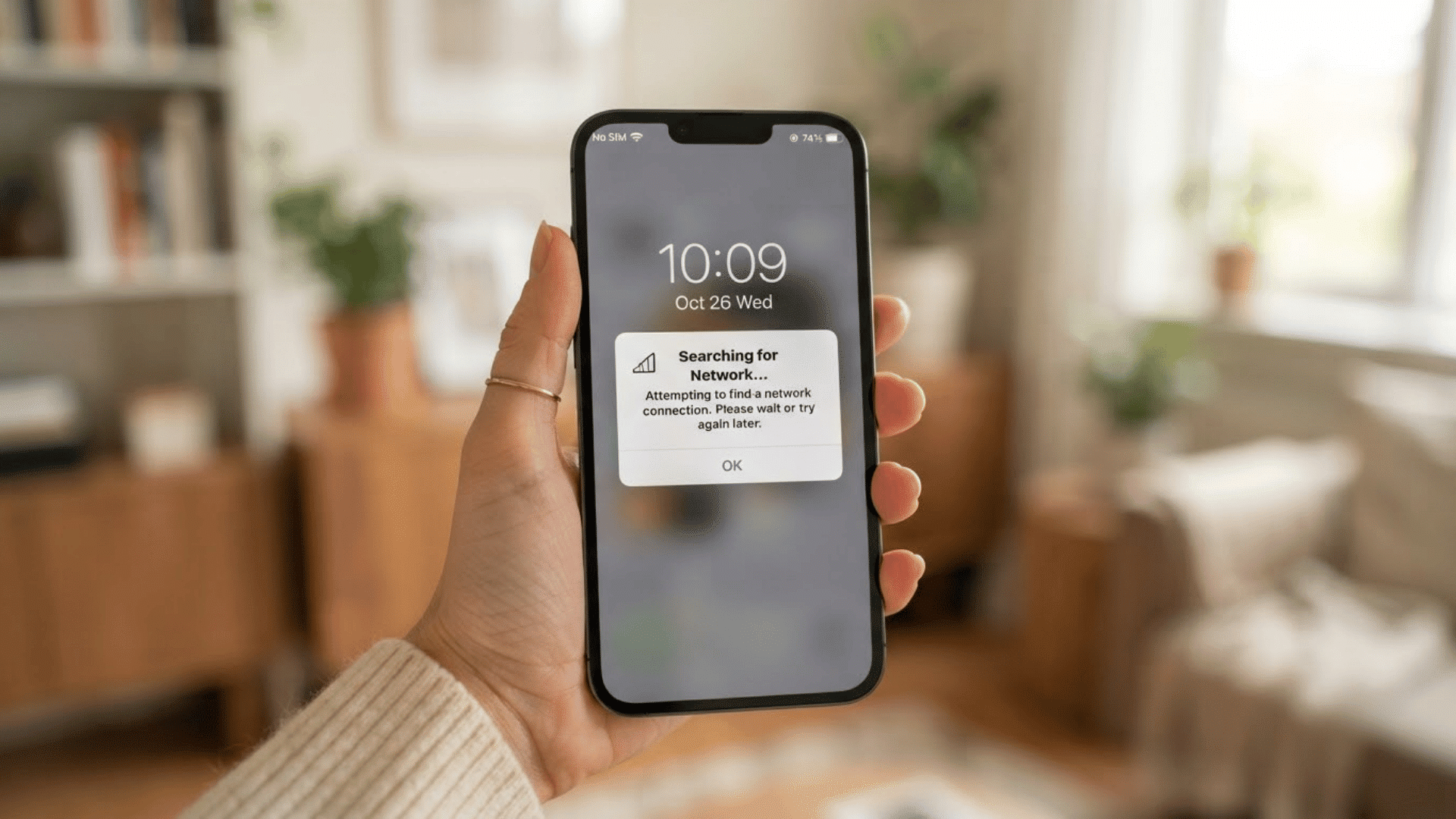
Seeing the “syncing with iCloud paused” message on your iPhone can be frustrating, especially when your messages suddenly stop updating across your devices.
I have dealt with this issue too, and it can be confusing when you are not sure what caused the syncing problem.
In many cases, the issue stems from low iCloud storage, weak internet, incorrect battery settings, or a minor issue with your Apple account.
The good news is that most fixes only take a few minutes. In this guide, I will share the steps I use to fix the problem on an iPhone.
You will learn how to check your iCloud settings, restart syncing, clear storage space, and update important options that may stop syncing in the background.
The steps are simple, beginner-friendly, and easy to follow, even if you are not very familiar with iPhone settings.
Quick Answer: Why Is Your iCloud Syncing Paused, and How to Fix It?
The “Syncing with iCloud Paused” message usually appears when something interrupts the connection between your iPhone and iCloud.
In most cases, the problem comes from weak Wi Fi, low iCloud storage, Low Power Mode, outdated iPhone software, or disabled Messages sync settings.
Sometimes, even the wrong date and time settings can stop syncing from working correctly.
The good news is that this issue is usually easy to fix and does not mean your messages or files are lost. Most users can get syncing working again in just a few minutes.
Quick Fixes:
- Turn Wi Fi off and back on
- Toggle Airplane Mode for 10 seconds
- Check if iCloud storage is full
- Turn off Low Power Mode
- Restart your iPhone
- Enable Messages in iCloud
- Tap “Sync Now” in iCloud settings
- Update your iPhone to the latest iOS version
- Make sure Date & Time is set automatically
- Sign out and back into your Apple ID
Why Is Your iCloud Syncing Paused?
The “syncing paused” message usually appears when something blocks iCloud from updating in the background. In most cases, the problem is linked to internet issues, storage limits, battery settings, or Apple account errors.
- Weak or Unstable Internet Connection: iCloud syncing works best on Wi Fi because it is faster and more stable. You can also turn airplane mode on and off to refresh the connection and restart syncing.
- Not Enough iCloud Storage: If iCloud storage is full, syncing may stop until space becomes available. Old backups, photos, videos, and files often take up most of the storage without users noticing right away.
- Messages Sync Is Turned Off: Messages in iCloud must stay enabled for syncing to continue properly across Apple devices. If this setting is turned off by mistake, messages may stop updating or syncing in the background.
- Low Power Mode Is Active: Low Power Mode limits some background activity to save battery life on the iPhone. Because of this, iCloud syncing may pause until the battery setting is turned off again.
- Apple ID or Software Problems: Small Apple ID sign-in issues can interrupt syncing and stop iCloud from updating normally. An older iOS version can also cause syncing bugs that affect messages, photos, or backups.
- Incorrect Date and Time Settings: Wrong date or time settings can stop syncing. Go to Settings > General > Date & Time and turn on “Set Automatically.”
- Screen Time or Content Restrictions: Screen Time settings can block iCloud access. Check Settings > Screen Time > Content & Privacy Restrictions to make sure iCloud is allowed.
iCloud Sync vs. iCloud Backup: What Is the Difference?
Many users confuse “syncing with iCloud” with “iCloud backup,” but they are two separate processes.
iCloud sync keeps specific data types, such as Messages, Contacts, Notes, and Photos, updated in real time across all your Apple devices signed into the same Apple ID. Changes appear on every device almost immediately.
iCloud backup, on the other hand, creates a full snapshot of the entire device, usually once per day when the phone is plugged in, on Wi-Fi, and locked.
The “syncing with iCloud paused” message refers specifically to the real-time sync process, not the daily backup.
Fixing syncing issues will not affect your backups, and vice versa.
How to Unpause Syncing with iCloud on iPhone?
These are the fastest ways to fix the iPhone syncing issue. Follow the steps in order, because a single setting is often enough to restart iCloud syncing.
1. Turn Airplane Mode On and Off
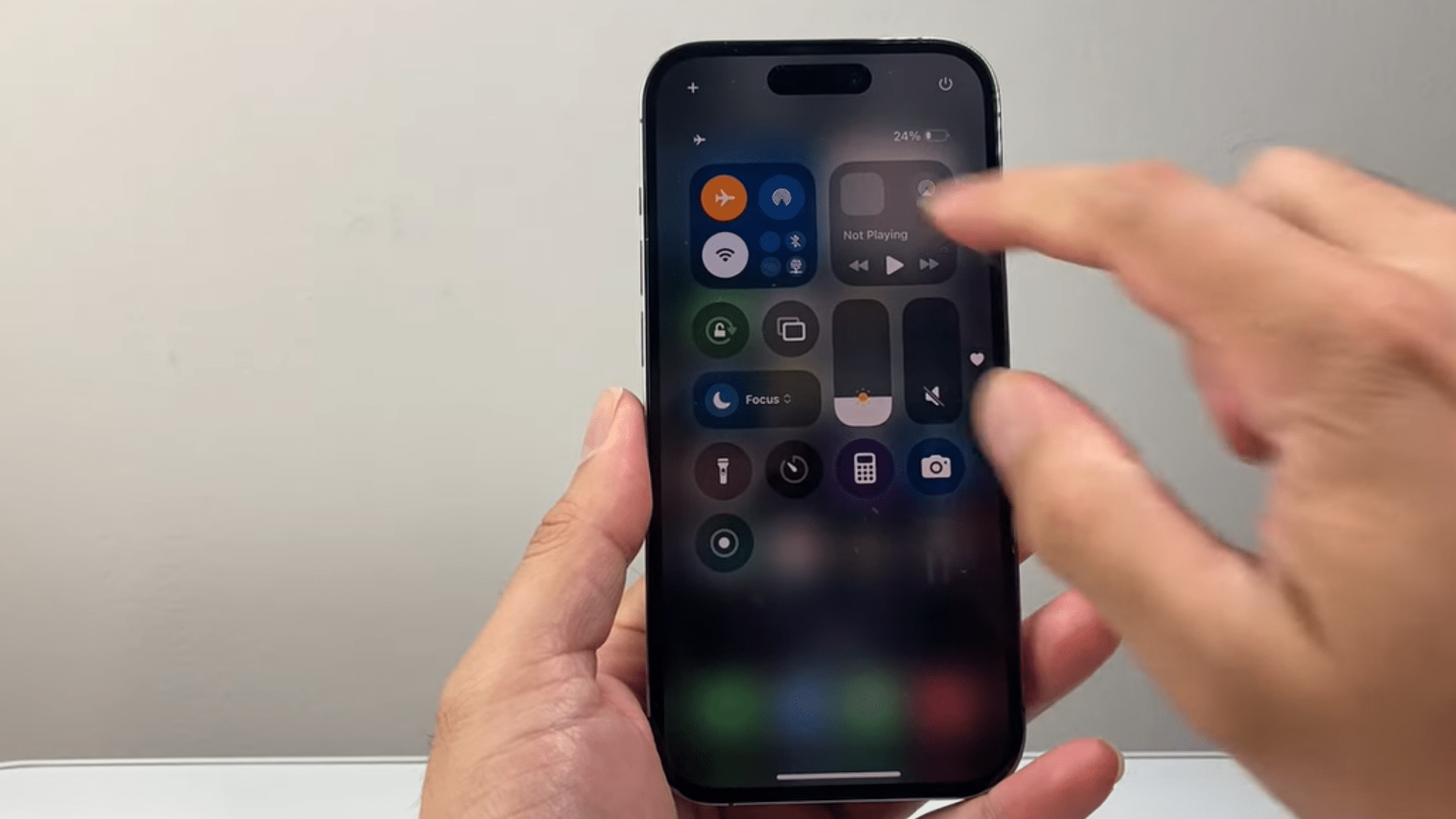
Open the Control Center on the iPhone, then turn on Airplane Mode for about 10 seconds.
After that, turn airplane mode off again so the phone reconnects to the network properly.
This quick reset can refresh mobile data and Wi-Fi connections at the same time. Once the signal returns, close the Messages app completely and reopen it.
Many users notice the syncing process restarts after this small network refresh.
2. Switch to Wi-Fi Instead of Cellular Data
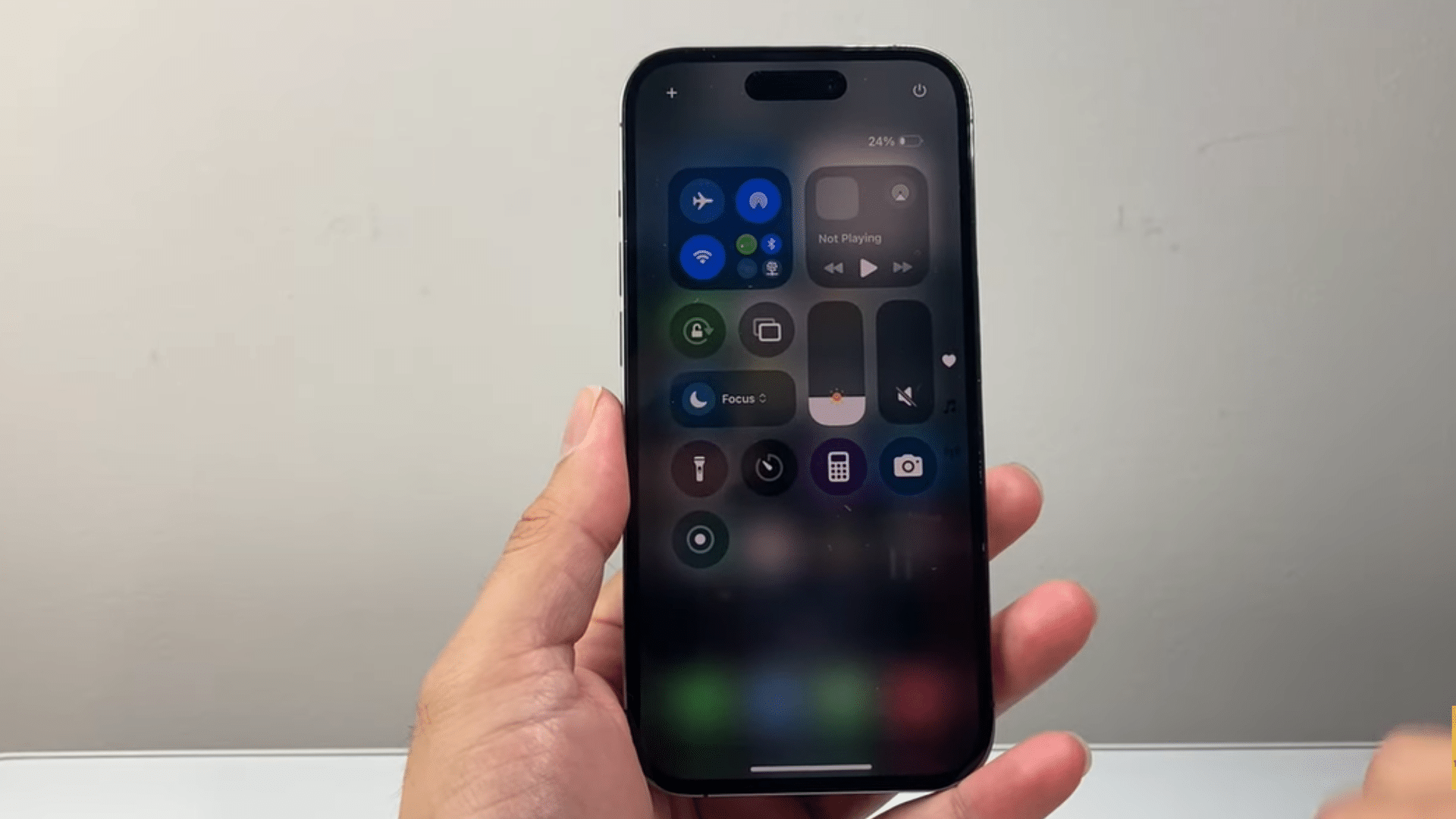
Wi-Fi usually provides a stronger, more stable connection for iCloud syncing than cellular data. Mobile data can slow down syncing, especially if the signal is weak or network traffic is high.
Connect the iPhone to a trusted Wi-Fi network before trying to sync messages or files again.
After joining Wi-Fi, open the Messages app and wait a few minutes. In many cases, syncing resumes automatically once the connection becomes more stable.
3. Check Your iCloud Storage Space
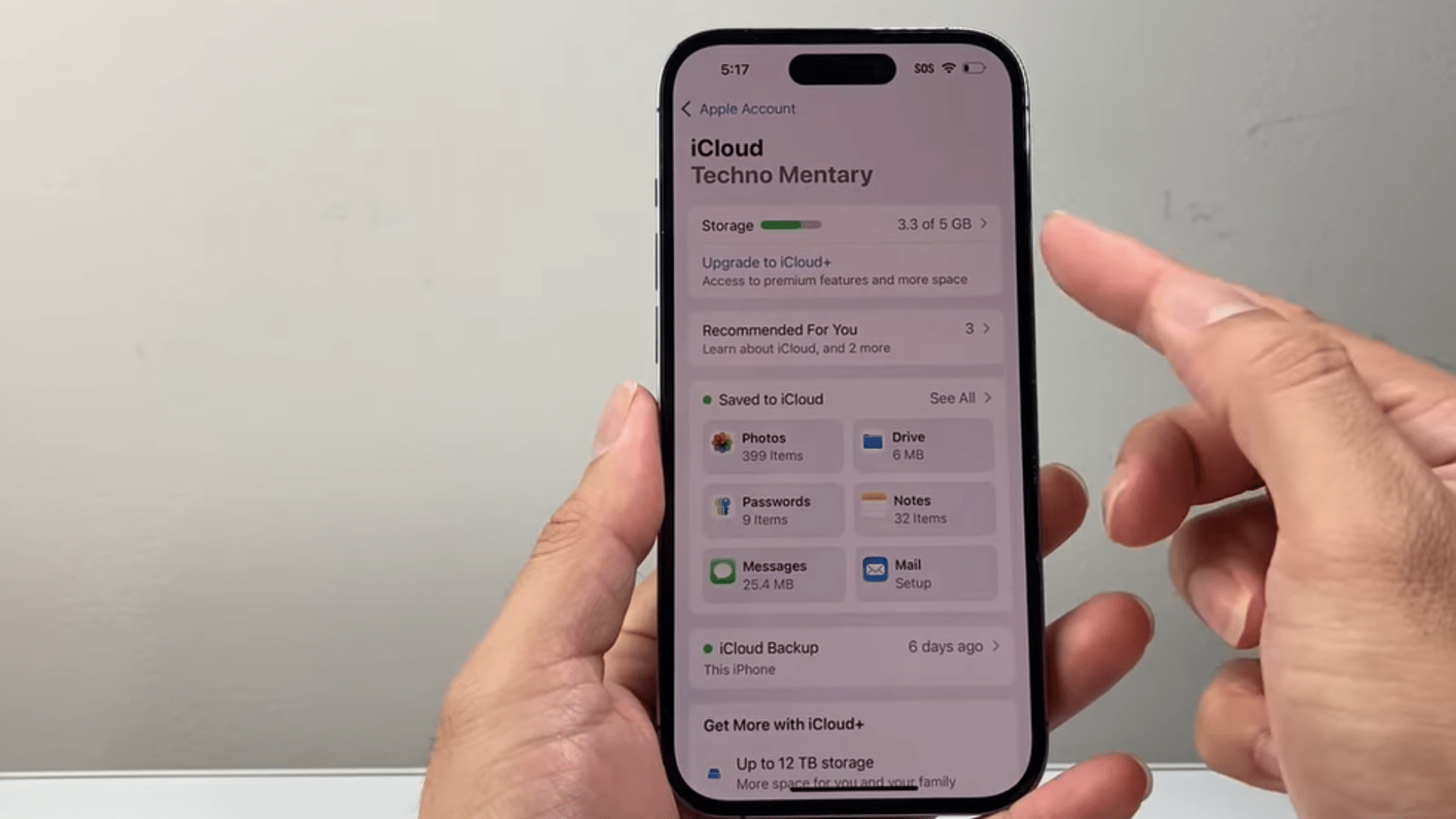
Go to Settings, tap the Apple ID name, and open iCloud to check available storage space.
If storage is full, syncing may pause because iCloud cannot save new message data or backups. Remove old backups, videos, or files you no longer need to free up space.
Users who need more room can also upgrade to a larger iCloud storage plan. After clearing space, wait a few minutes and check if syncing starts again.
4. Tap “Sync Now” in Messages Settings
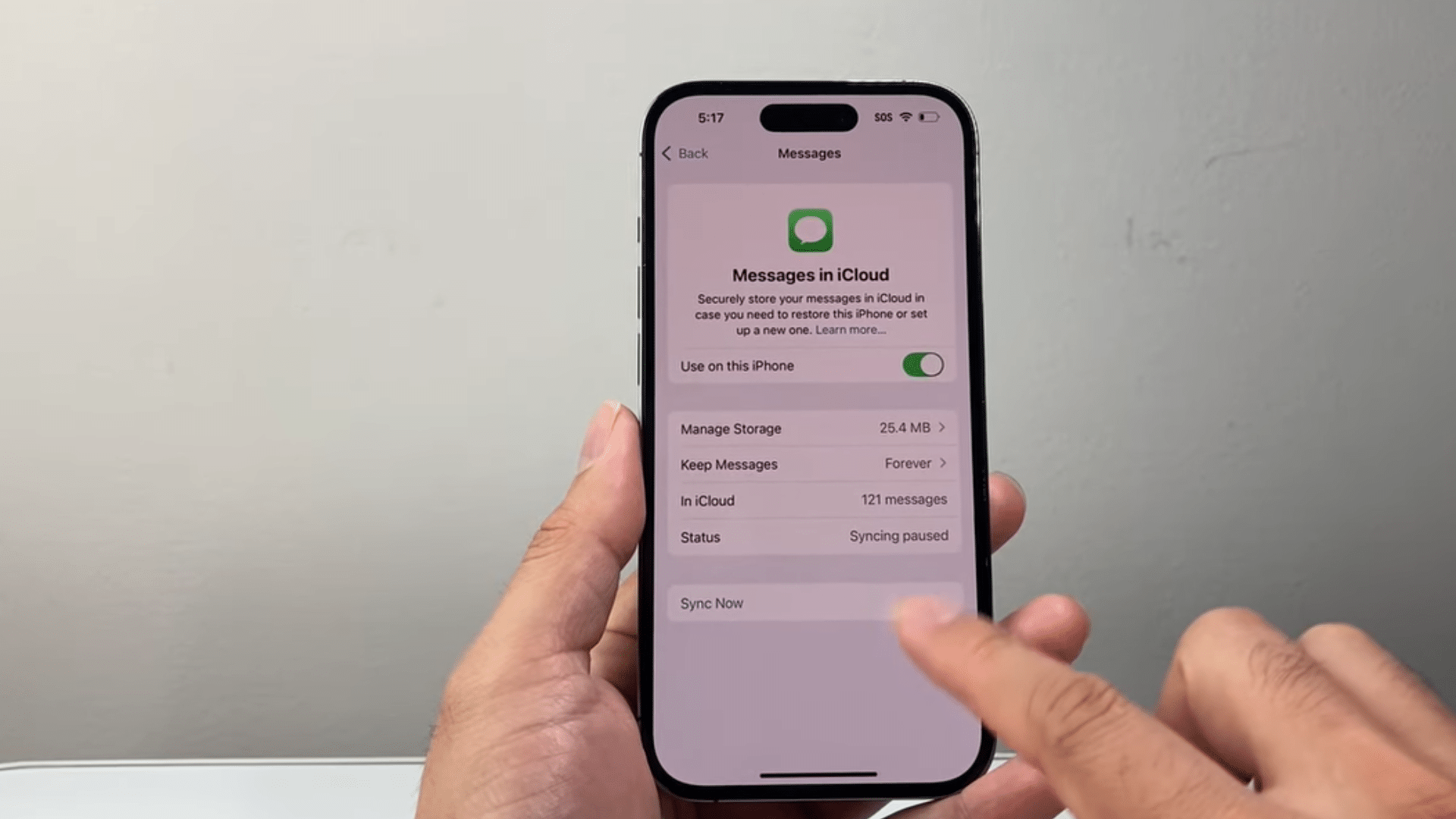
Open Settings, tap the Apple ID section, and go to iCloud settings on the iPhone. Select Messages, then make sure the Messages in iCloud option is turned on.
A “Sync Now” button may appear inside this section if syncing has stopped for some reason.
Press the button once to manually restart the syncing process. Leave the iPhone connected to Wi-Fi for a few minutes so iCloud can resume updating messages.
5. Turn iMessage Off and Back On
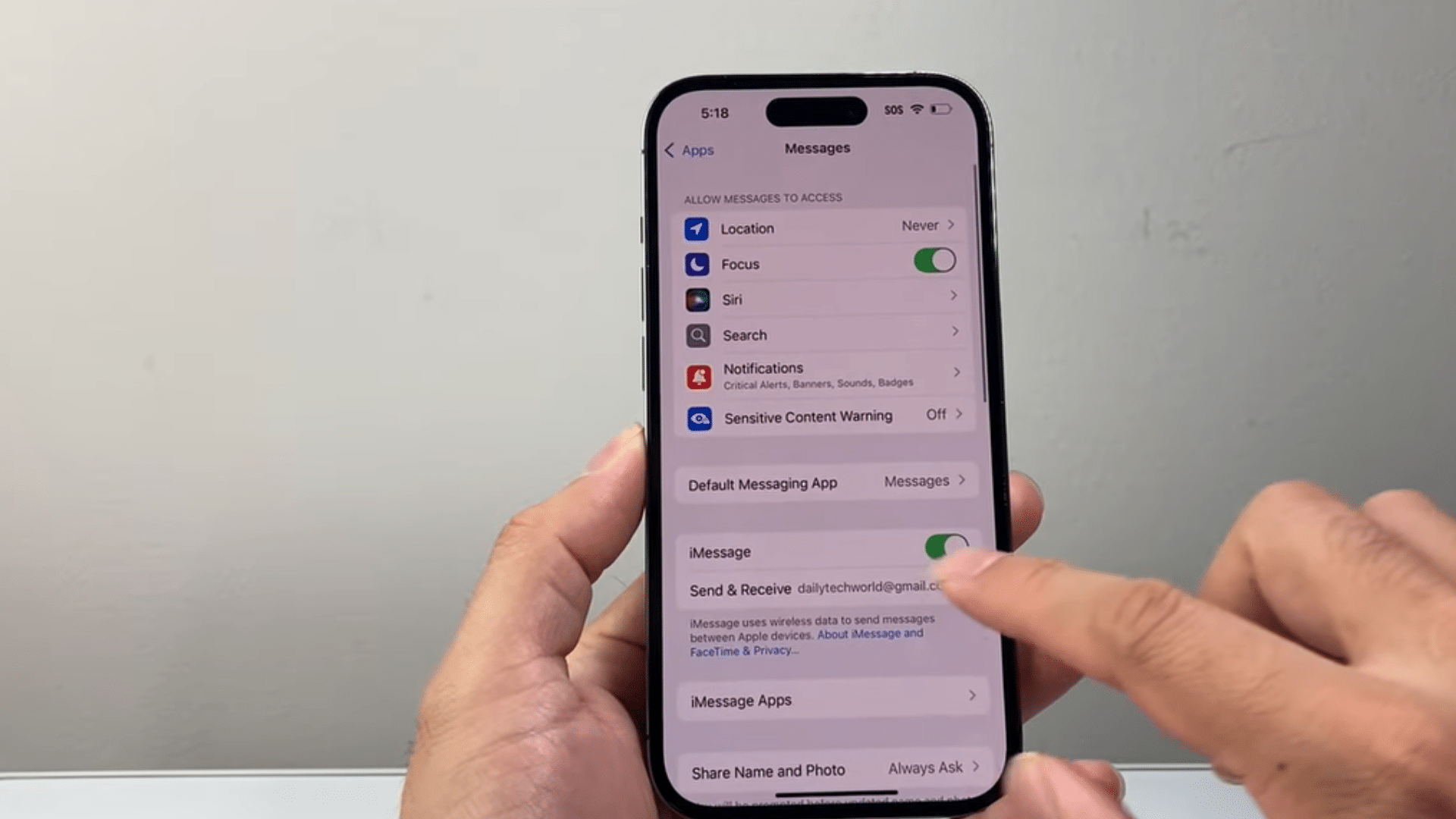
Open Settings, go to Apps, then find and tap the Messages app on the iPhone. Turn iMessage off and wait a few seconds before enabling it again from the same menu.
This refreshes the messaging service and can resolve minor syncing issues with Messages in iCloud.
After turning iMessage back on, open the Messages app and let the phone reconnect to Apple servers. This simple reset often fixes paused syncing issues quickly.
6. Sign Out and Sign Back Into Apple ID
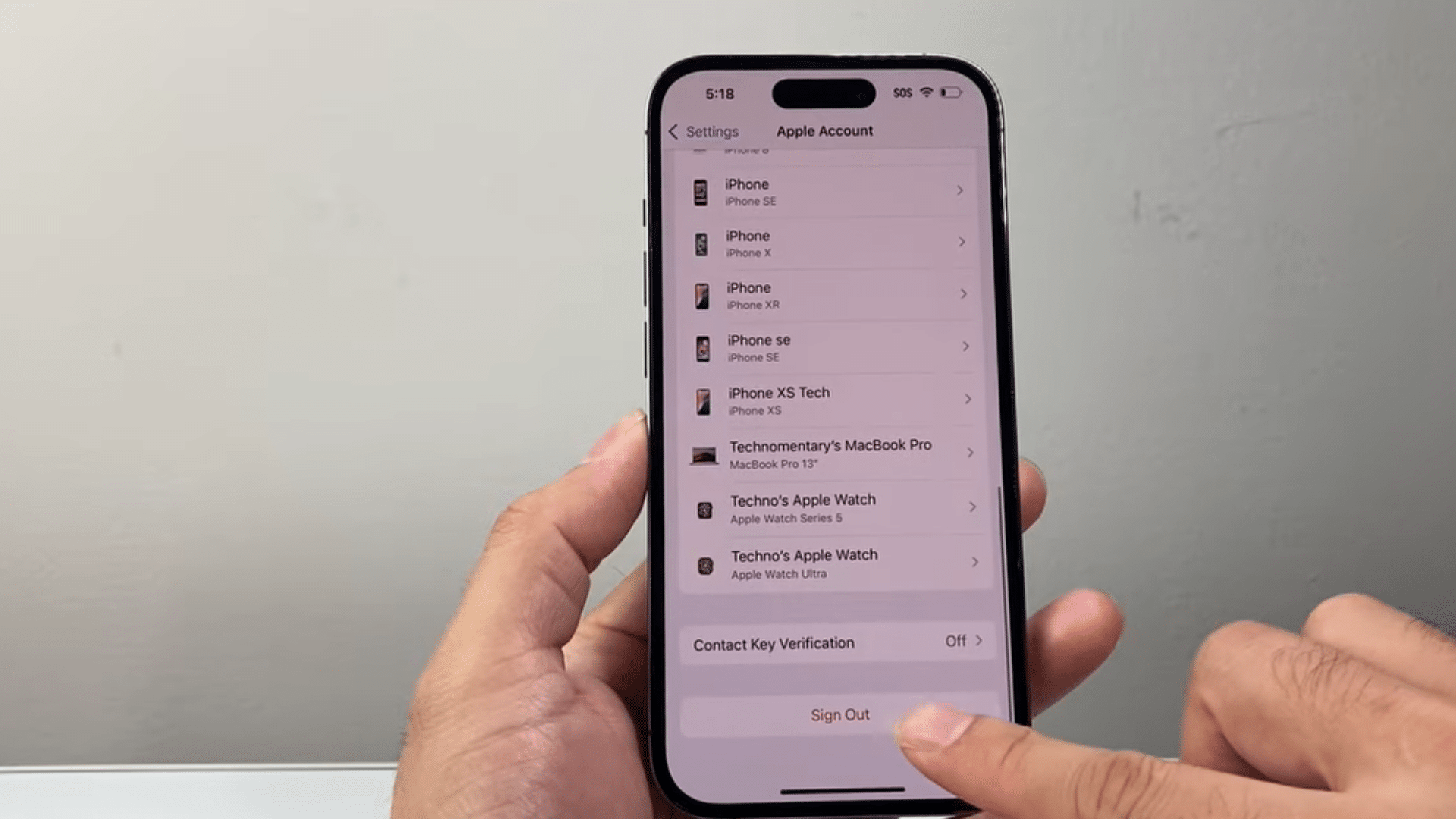
Go to Settings, then tap the Apple ID profile at the top of the screen. Scroll down and select the sign-out option to temporarily remove the account from the device.
Before signing out, make sure the Apple ID password is available because it will be needed again.
Sign back in to the same account after the process finishes. This refreshes iCloud account settings and can fix syncing problems linked to account errors or failed sign-ins.
7. Turn Off Low Power Mode
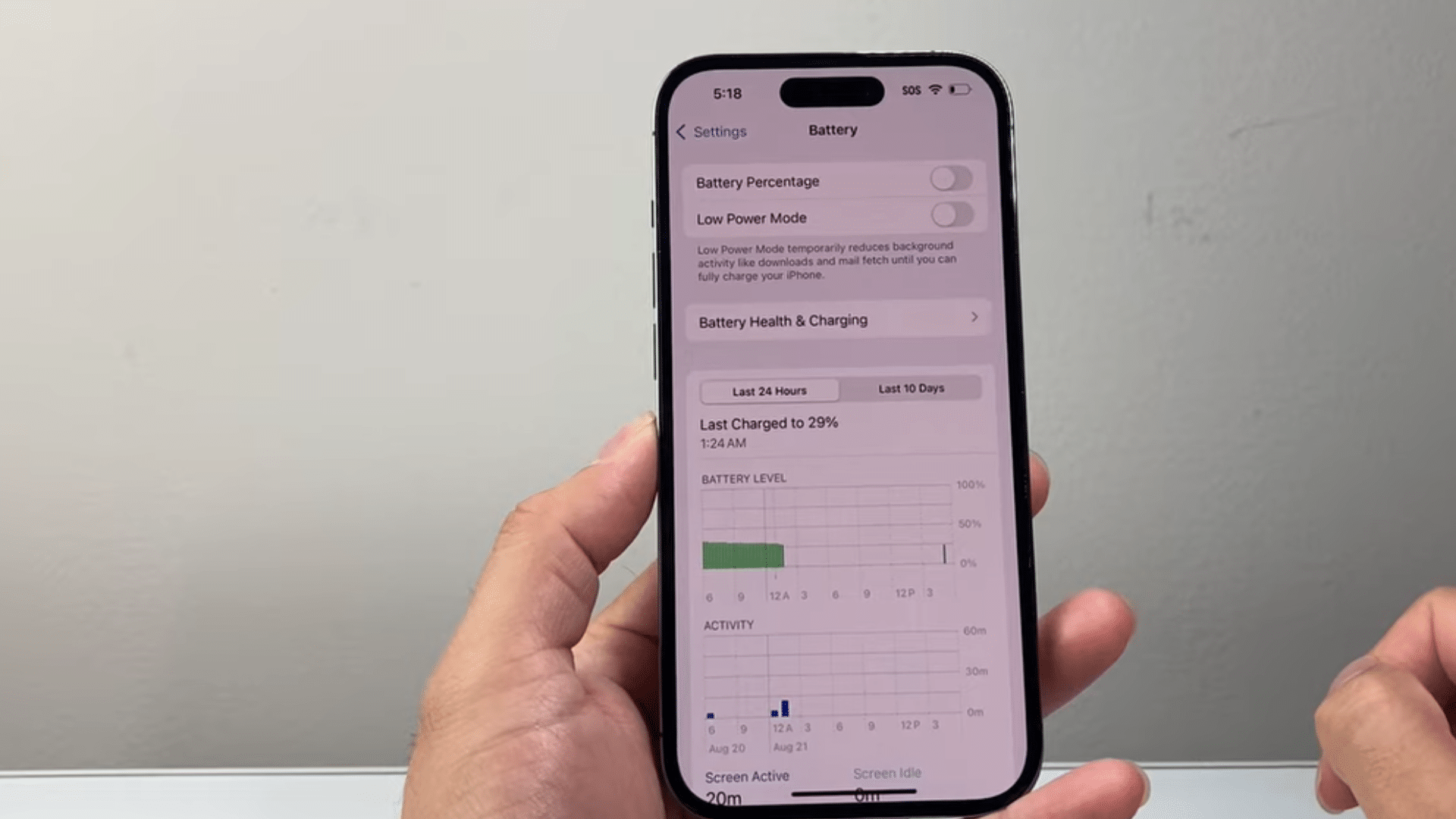
Open Settings on the iPhone, then go to the Battery section to check the current battery options.
If Low Power Mode is turned on, switch it off and leave the phone charging if possible.
This mode limits some background activity to save battery life, including parts of iCloud syncing. After disabling the setting, connect to Wi-Fi and reopen the Messages app.
Many syncing tasks continue normally again once background activity restrictions are removed from the device.
8. Update Your iPhone Software
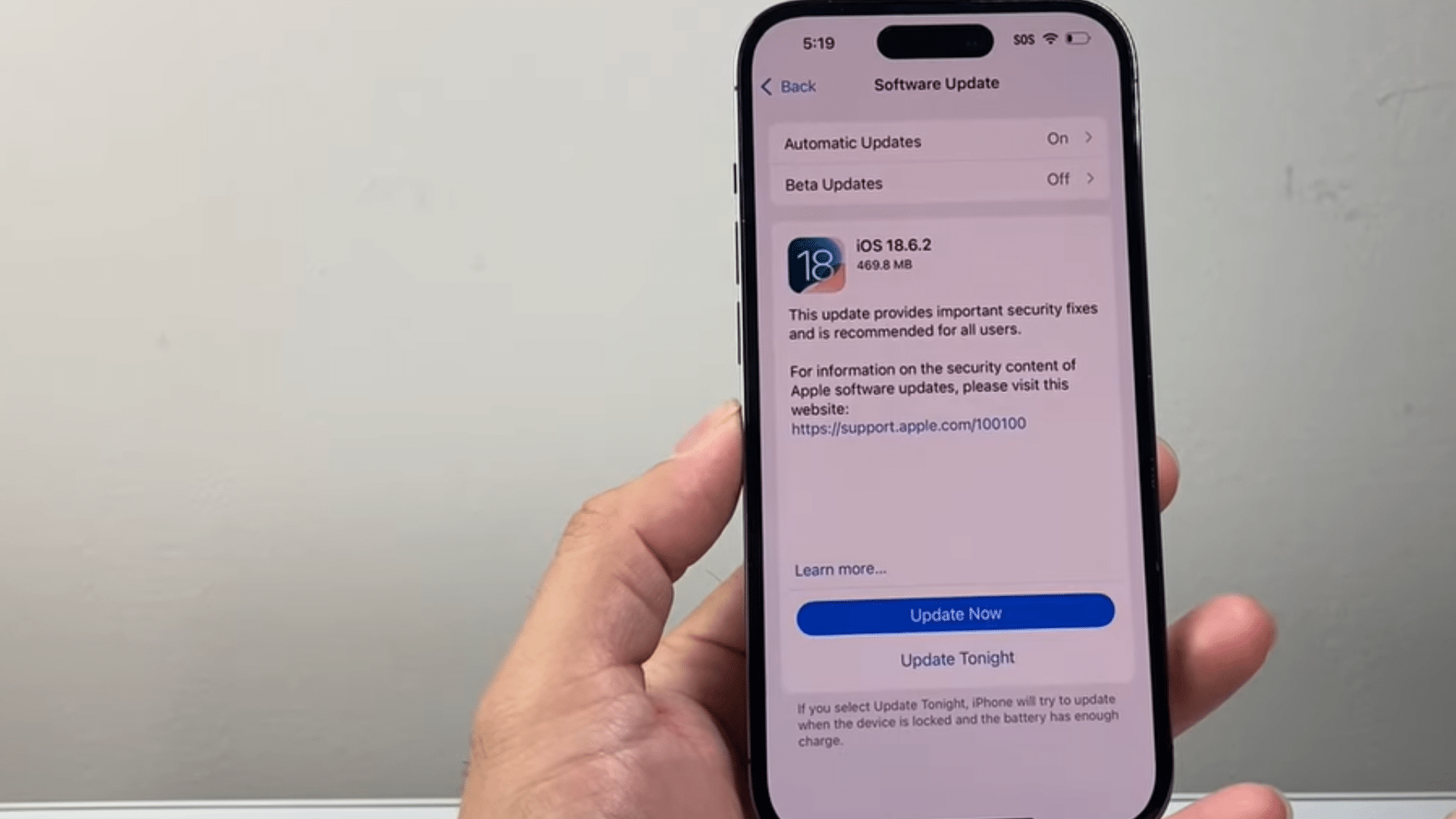
Open Settings, tap General, then select Software Update to check for the latest iOS version. Older iOS versions may contain syncing bugs that affect iCloud messages, backups, or file updates.
Download and install any available updates after ensuring the phone has enough battery power.
Restart the device once the update finishes completely. After the restart, reconnect to Wi-Fi and check if the syncing paused message has disappeared from the Messages app.
This tutorial is based on a helpful video by Technomentary. You can check out the original video below for a more detailed visual guide:
What to Do if iCloud Syncing Is Still Paused?
If the syncing problem still appears after trying the main fixes, a few extra steps may help. These methods can resolve connection issues, refresh device settings, and check whether the issue is on Apple’s end.
1. Restart Your iPhone
A quick restart can refresh background services and help iCloud reconnect properly on the iPhone. Press and hold the power button, turn the device off, and wait about 30 seconds before turning it back on again.
This clears temporary system problems that may stop syncing from running normally in the background.
After the phone restarts, connect to Wi-Fi and open the Messages app again. In many cases, syncing begins working after the device reloads its system processes.
2. Check Apple System Status
Sometimes the syncing issue is not caused by the iPhone settings at all.
Apple servers can go down for maintenance or temporary service problems, which may pause iCloud syncing for messages, backups, or photos.
Open Apple’s System Status page in a browser and look for any warning signs beside iCloud services.
A yellow or red symbol usually means Apple is already working on the problem. If there is an outage, the best option is to wait until Apple restores the service fully.
3. Reset Network Settings
Network configuration issues can prevent the iPhone from connecting properly to iCloud services.
Go to Settings, then General, Transfer or Reset iPhone, and choose Reset Network Settings from the list.
This removes saved Wi-Fi passwords, Bluetooth connections, and mobile network settings from the device. After the reset finishes, reconnect to Wi-Fi and try syncing messages again.
This step often fixes internet-related syncing problems that continue even after restarting the phone or changing connection settings.
4. Check iCloud.com to Confirm Your Data Is There
Before assuming the fix worked, visit iCloud.com on a browser and sign in with your Apple ID. Open the Messages or Notes section and confirm your data appears there.
If the data is visible on iCloud.com, the issue is with the device sync, not the server.
If nothing appears there either, the sync has not completed on Apple’s end yet, and waiting 15 to 30 minutes with Wi-Fi connected is the next step.
5. Force-Quit the Settings App and Reopen It
Sometimes the Settings app itself gets stuck while displaying the sync status. Swipe up from the bottom of the screen (or double-press the Home button on older models) to open the app switcher.
Swipe the Settings app card upward to close it, then reopen Settings.
Navigate back to iCloud and check whether the “Sync Now” button reappears or whether the paused status has cleared. This works more often than it should, and it takes under 30 seconds.
How Long Does iCloud Syncing Take?
iCloud sync time can vary for each iPhone user. Some devices finish within minutes, while larger message or photo libraries can take several hours to complete fully.
| Data Type / Condition | Estimated Sync Time |
|---|---|
| Small message library (<1,000 messages) | 5–15 minutes |
| Large message library (10,000+ messages) | 1–3 hours |
| Photo library under 5 GB | 30–60 minutes |
| Photo library over 20 GB | Several hours to 1–2 days |
| Contacts, Notes, Calendar only | Under 5 minutes |
| During Apple server congestion | Add 30–60 minutes to any estimate |
Tips to Prevent iCloud Sync Problems
Small changes in daily iPhone use can help prevent syncing problems from returning later. Keeping storage free, maintaining a stable internet connection, and updating the device regularly can help iCloud run more smoothly.
1. Keep Enough iCloud Storage Available
iCloud syncing may stop again if storage space becomes full from backups, photos, or videos.
Open iCloud storage settings from time to time and remove files that are no longer needed on the account.
Clearing older backups can also free up space for messages and app data to sync properly. Users who save many photos or videos may need a larger storage plan for smoother syncing.
Keeping some free space available helps iCloud continue working normally in the background without interruptions.
2. Use a Stable Wi-Fi Connection
A strong Wi-Fi connection helps iCloud syncing finish faster and reduces failed sync attempts on the iPhone.
Public or weak networks may disconnect frequently, interrupting syncing in the middle of the process.
Home Wi-Fi or a trusted private network usually works better for syncing messages, backups, and photos.
If syncing pauses often, restarting the router can sometimes improve the connection speed. Keeping the device connected to a stable Wi-Fi during syncing can help avoid many common iCloud problems later.
3. Keep the iPhone Updated
Software updates often include fixes for syncing bugs and connection problems linked to iCloud services.
Open the Software Update section regularly to check if a newer iOS version is available for the iPhone.
Installing updates can improve system stability and help background syncing work more reliably.
It is also helpful to keep apps updated, as some use iCloud to store data and settings. Running the latest software version can reduce the likelihood of future syncing issues on the device.
4. Avoid Using Low Power Mode for Long Periods
Low Power Mode can pause or slow some background tasks, including parts of iCloud syncing on the iPhone.
Using this setting for short periods is fine, but keeping it enabled all day may delay syncing updates.
Messages, photos, and backups may take longer to upload when background activity is limited by battery settings.
If possible, turn off Low Power Mode while the device is connected to Wi-Fi and charging. This allows iCloud services to run more normally and complete syncing tasks faster.
Conclusion
Seeing the ‘Syncing with iCloud paused’ message on an iPhone can be frustrating at first, especially when messages or photos stop updating properly.
Most syncing problems are linked to simple things like the internet, storage, battery settings, or software updates.
Wrong date and time settings or Screen Time restrictions can silently block iCloud syncing.
Going through the fixes in order, starting with Airplane Mode and working toward a network reset, covers the vast majority of cases. If one step does not work, the next one usually does.
Keeping the iPhone updated, checking iCloud storage, and using stable Wi Fi can help prevent these issues.
If the syncing issue was fixed after following these steps, share which method worked best in the comments below. It may help someone else facing the same problem.
Frequently Asked Questions
Can iCloud Syncing Pause Overnight?
Yes, syncing may pause overnight if the iPhone loses Wi-Fi connection, enters Low Power Mode, or runs low on storage space. Background syncing can restart automatically later.
Does Restarting an iPhone Delete iCloud Messages?
No, restarting the iPhone does not remove messages saved in iCloud. It only refreshes system processes and may help syncing start again normally.
Can VPN Apps Affect iCloud Syncing?
Some VPN connections may slow down or interrupt communication with Apple servers. Turning the VPN off briefly can help check if it is causing syncing issues.
Why Are Photos Syncing but Messages Are Not?
Messages and Photos use separate syncing settings inside iCloud. Messages in iCloud may be turned off even when photo syncing continues working correctly.
Is iCloud Syncing Faster While Charging?
Charging the iPhone can help background tasks run more smoothly, especially during large backups or message syncing. Stable Wi-Fi also helps improve syncing speed.