

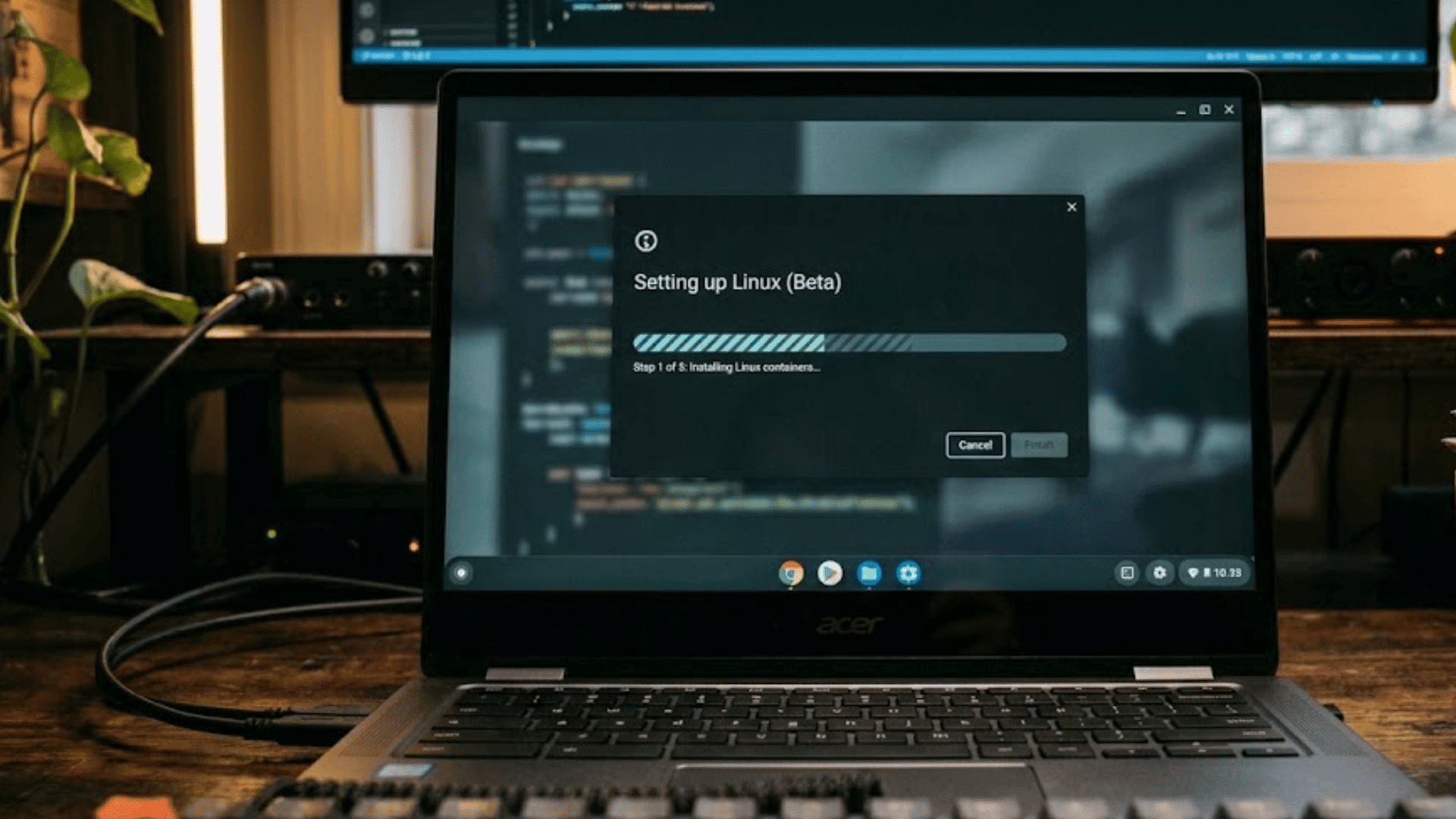


Chrome OS has supported Linux natively since 2018 through a feature called the Linux development environment, also known as Crostini.
It runs a Debian-based Linux container alongside Chrome OS without replacing Chrome OS.
So you keep everything that makes a Chromebook convenient while gaining access to full Linux terminal tools, development environments, and desktop apps.
Running Linux on an older Chromebook can cause slowdowns if the device has limited resources.
It is worth checking your available RAM and free storage first, especially if searching for answers to your slow Chromebook.
This guide covers the official built-in method, the safest way to install Linux on a Chromebook without voiding your warranty or disrupting Chrome OS updates.
You will also find practical advice on managing storage and keeping the environment running efficiently after setup.
Which Chromebooks Support Linux?
Most models released from 2019 onward have full support. Some 2018 devices received it through Chrome OS updates.
The fastest way to check is to go to Settings → About ChromeOS and look for “Linux development environment” in the left sidebar.
If the option is there, your device is compatible. If it is not visible, either your model does not support it, or your Chrome OS version needs to be updated first.
| Model era | Linux support | Notes |
|---|---|---|
| 2019 and newer (most models) | Full support | Available out of the box |
| 2018 (select models) | Supported | May need a Chrome OS update first |
| Pre-2018 models | Limited or none | Check Google’s official compatibility list |
| School/enterprise managed devices | May be restricted | Admin must enable it at the policy level |
How to Install Linux on a Chromebook?
The setup process is built directly into Chrome OS and usually takes only a few minutes to complete. Once enabled, Linux apps and development tools can run alongside regular Chromebook apps without replacing Chrome OS.
What You Need Before You Start:
- Free Storage: At least 4 GB is required; 10 GB or more is better for apps and files.
- Updated Chrome OS: Latest updates help avoid Linux setup bugs and missing features.
- Stable Internet: A reliable connection is required to download Linux setup files.
- Non-Managed Device: School or work Chromebooks may block Linux access through admin settings.
Steps to Install Linux:
- Open Settings by clicking the clock in the bottom-right corner, then the gear icon.
- In the left sidebar, click About ChromeOS, then select Linux development environment.
- Click Turn on, then Next on the setup screen that appears.
- Enter a username, lowercase letters only, no spaces.
- Set the disk size. The default is often 10 GB. Increase this if you plan to install multiple Linux apps or development tools.
- Click Install. Chrome OS will download and configure the environment. This takes 5–10 minutes, depending on your connection speed.
- When the setup finishes, a Terminal window opens automatically. Your Linux environment is ready to use.
To reopen the Terminal later, search for “Terminal” in the app launcher or look in the Linux apps folder.
Storage note: Linux reserves dedicated space on your Chromebook from the moment you click Install. That allocation cannot be easily reclaimed without removing the Linux environment entirely.
Choose your disk size thoughtfully before confirming setup; increasing it later is possible, but it takes a few extra steps through Settings.
Installing Linux Apps After Setup
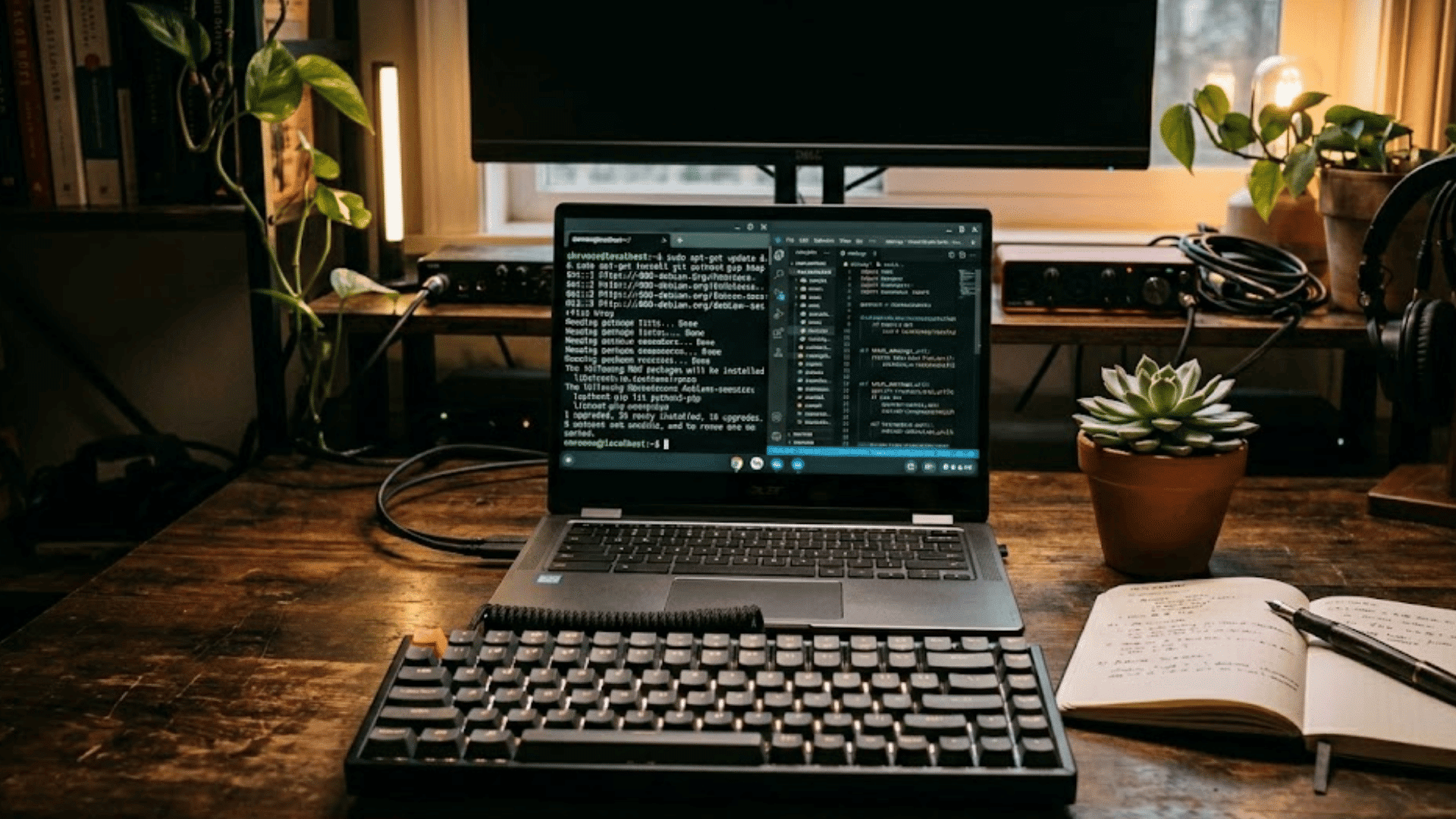
Most Linux software on a Chromebook can be installed in just a few steps through the Terminal. Keeping the Linux environment up to date also helps apps run more smoothly and reduces compatibility issues later.
1. Update the Linux Environment
Before installing any Linux app, updating the package list is important.
Open the Terminal and run sudo apt update && sudo apt upgrade. This command refreshes package information and installs the latest available updates for the Linux environment.
Regular updates improve security, fix software bugs, and help prevent installation errors with newer apps.
Depending on internet speed and pending updates, the process may take several minutes.
Running this command regularly keeps the Chromebook Linux system stable and ensures that development tools and applications work properly.
2. Install .deb Applications
Many popular Linux applications for Chromebooks are distributed as .deb installation files.
After downloading the file from the official website, open Terminal and run sudo apt install ./filename.deb to begin installation.
Once completed, the app appears in the Chromebook launcher under the Linux apps folder. This installation method is commonly used for software like VS Code, IntelliJ IDEA, Discord, and Sublime Text.
Using official download sources is recommended because unofficial packages may contain outdated files or compatibility issues.
Most .deb Applications install quickly and integrate smoothly into the Chrome OS app environment.
3. Popular Linux Apps for Chromebook
Several Linux applications work especially well on Chromebooks and greatly expand what the device can do.
GIMP is commonly used for image editing and graphic work, while LibreOffice provides full document, spreadsheet, and presentation tools similar to Microsoft Office.
Developers often install Python, Node.js, and Git for programming and coding projects.
VLC is widely used for playing different media formats that Chrome OS may not fully support natively. Audacity is another popular option for audio recording and editing.
These applications allow Chromebooks to handle creative work, productivity tasks, and software development more effectively.
Troubleshooting Common Linux Issues on Chromebook
Linux tools on Chromebooks usually work well, but small setup or storage problems can cause errors. A few quick fixes can solve most issues and help the system run more smoothly.
- Linux won’t start: Restart the Chromebook and open the Linux settings again. Make sure the Linux development environment is still enabled.
- Storage space running low: Delete unused Linux apps and large files. Chromebook storage can fill up quickly on entry-level devices.
- Terminal not opening: Update Chrome OS and restart the device. Corrupted temporary files can sometimes stop the terminal from loading.
- Apps running slowly: Close extra browser tabs and Android apps. Linux shares system memory with Chrome OS.
- Linux installation failed: Check your internet connection and free storage space. A weak connection may interrupt setup files.
- No sound in Linux apps: Update the Chromebook software and restart Linux. Some audio issues happen after Chrome OS updates.
- Linux apps not connecting to the internet: Disable VPNs or firewall settings temporarily. Network restrictions can block Linux connections.
- Linux apps crashing often: Reinstall the affected app or reset the Linux environment. Damaged app files can cause repeated crashes.
Running Graphical Linux Apps on Chromebook
Graphical Linux apps open as regular windows on the Chrome OS desktop; they appear in the taskbar alongside your browser and Android apps.
Chrome OS handles the display integration automatically through a component called Sommelier, which acts as a translation layer between Linux and the Chrome OS display system.
Most graphical apps work without any extra configuration.
If an app window appears blurry on a high-resolution screen, right-click its launcher icon and look for a display scaling option. Performance varies by hardware.
On Chromebooks with 4 GB of RAM, running GIMP or LibreOffice alongside several browser tabs can cause noticeable slowdowns. Closing unused apps before switching to heavier Linux tools helps.
Sharing Files Between Chrome OS and Linux
Chrome OS automatically creates a shared connection between Chrome OS storage and the Linux environment, making file transfers simple.
Open the Files app, right-click any folder, and choose Share with Linux. Once shared, that folder becomes available inside Linux at /mnt/chromeos/MyFiles/.
Files edited on Linux are updated instantly in Chrome OS without manual copying or syncing. This makes working with documents, code files, downloads, and media much easier.
Shared folders are especially useful for development projects, image editing, and for sharing files between Linux and regular Chromebook apps.
Linux Storage Usage on Chromebook
The Linux environment stores its files inside a dedicated disk image that grows over time as more apps and packages are installed.
Chromebook users can check or change Linux storage allocation at any time by going to Settings → About ChromeOS → Linux development environment → Storage preferences.
The allocated storage size can be increased without reinstalling Linux, which is useful when adding larger applications or development tools.
To free unused space inside the Linux container, open Terminal and run sudo apt autoremove && sudo apt clean.
These commands remove unnecessary packages and clear cached installation files to help recover storage space.
Removing Linux from Chromebook
Linux can be removed at any time if extra storage is needed or the development environment is no longer useful. The removal process is built directly into Chrome OS and usually takes only a few minutes to complete.
Open Settings, go to About Chrome OS, then select Linux development environment, then click Remove.
Chrome OS will delete the entire Linux container, including installed apps, development tools, downloaded packages, and Linux files stored inside the environment.
Removing Linux immediately frees the storage space previously reserved for the Linux disk image.
This process does not affect Chrome OS itself, Google account data, bookmarks, or files stored in Google Drive.
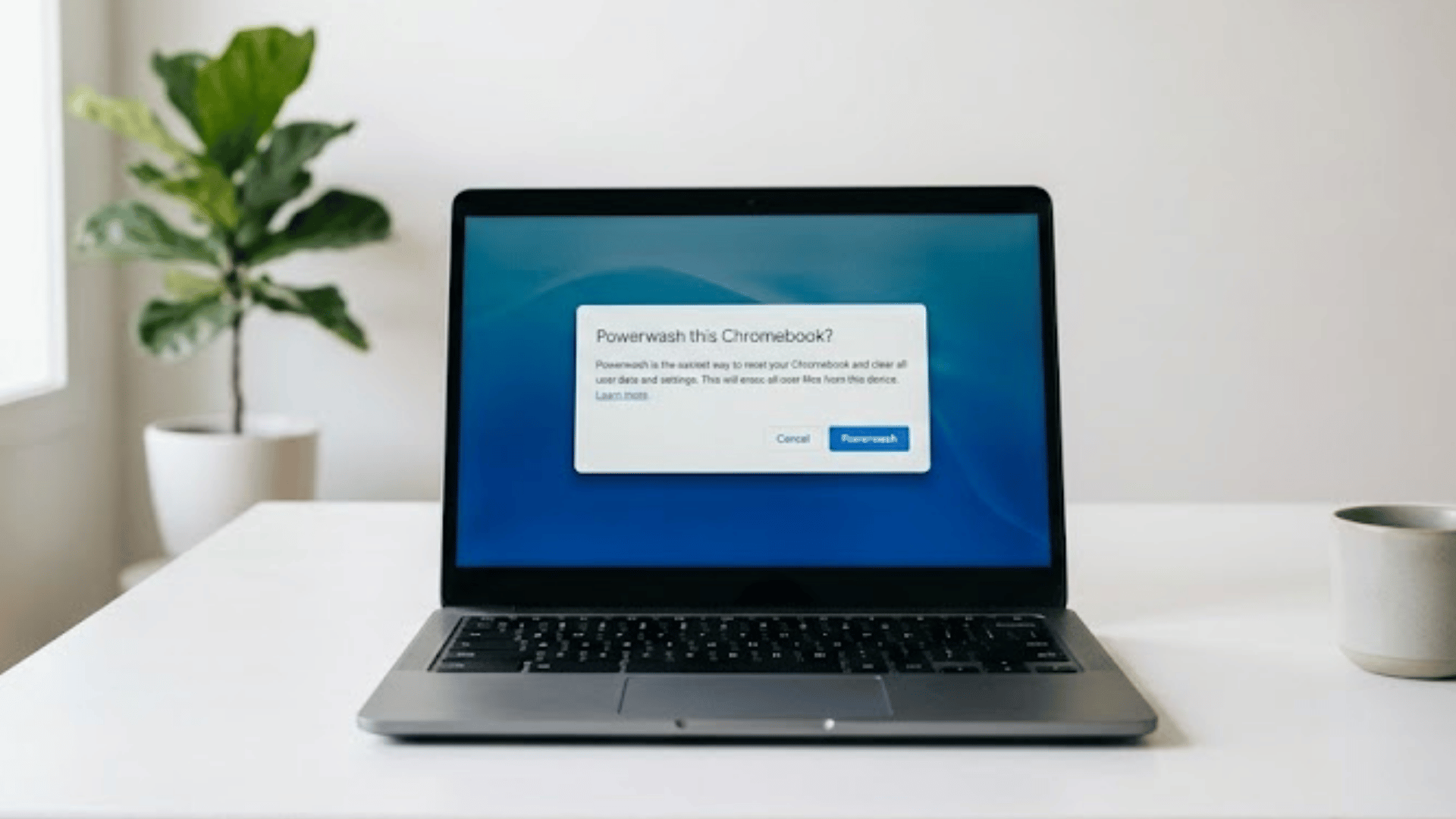
Starting with a clean system can also help on older devices, especially after learning to powerwash a Chromebook before setting Linux up again.
Conclusion
Installing Linux on a Chromebook via Chrome OS’s built-in development environment can completely change what the device can handle.
From coding tools to media editing apps, Linux adds more flexibility without removing Chrome OS simplicity.
Choosing enough storage space during setup is important because apps and packages grow quickly over time, especially on smaller devices.
Regular cleanup commands also help maintain smoother performance on lower-end hardware.
Some apps may behave slightly differently on a native Linux computer because the environment runs inside a container, but that is expected.
With the right setup, Chromebooks become far more capable for work, learning, and creative tasks.
Already using Linux on a Chromebook? Share the apps and tools that have worked best in the comments below.
Frequently Asked Questions
Does Installing Linux Void the Chromebook Warranty?
No. Using the built-in Linux environment (Crostini) does not void your warranty because it is an official Chrome OS feature. Only developer mode or third-party methods may affect warranty terms.
Does Linux Affect Chromebook Performance?
Performance depends on hardware resources, with lower-RAM Chromebooks more likely to experience slowdowns during multitasking.
Can Linux Run Alongside Chrome OS?
Linux apps and Chrome OS run simultaneously in separate windows just like regular Chromebook applications.
Which Linux Distro Does Chromebook Use?
Chrome OS uses a Debian-based Linux container with access to the Debian apt package ecosystem.
Does Linux Work on School Chromebooks?
Most managed school Chromebooks block Linux access unless the device administrator enables it.