





Photos fill up fast, and losing them can happen in seconds. A broken phone, accidental deletion, or system crash can erase years of memories without warning.
That’s why finding the best cloud storage for photos is no longer optional for most users.
This shift is driven by the clear benefits of migrating to the cloud, such as better data safety, easy access across devices, and reduced risk of permanent photo loss.
This guide brings together the best photo backup solutions based on storage, speed, security, and ease of use.
You’ll find options that work well for daily photo access, long-term backups, and even tools built for photographers handling large files.
Each option is chosen to help you keep your photos safe without making things complex.
Use this list to compare features, understand what works for you, and choose a reliable backup today before you risk losing your photos.
What to Look for in a Good Photo Storage Service?
A good photo storage service should offer enough space, automatic backup, strong security, and easy access across devices.
- Storage Space and Pricing: Choose a plan that fits your growing photo library and offers good value for the price.
- Auto Backup and Sync Features: Look for automatic uploads and smooth syncing across all your devices.
- Photo Quality and Compression Options: Ensure it supports original quality and check whether files are compressed.
- RAW File Support and File Handling: Important for large and RAW files, especially for photographers.
- File Organization and Search Tools: Easy folders, albums, and search help manage photos quickly.
- Cross-Device Access and Sync: Access your photos anytime on phone, tablet, or desktop.
- Sharing and Collaboration Options: Simple sharing with control over who can view or edit.
- Security and Privacy Protection: Strong encryption and secure login keep your photos safe.
- Ease of Use and Interface: A clean and simple design makes daily use easier.
Best Cloud Storage for Photos
I’ve tested and reviewed many tools, and the options below work best for photo storage and backup. They offer features such as auto-uploads, easy organization, and support for high-quality images.
1. Google Photos

Google Photos is a popular choice for storing and backing up photos. It works well for everyday use and large photo libraries, with simple access across devices.
Key Features:
- Photo organization with automatic albums
- Cross-device access on phone, tablet, and desktop
- Built-in editing tools for quick adjustments
- Option to upload in original or compressed quality
Pricing: Google Photos offers free storage up to 15 GB. Paid plans start at $1.99 per month and increase based on storage needs.
| Pros | Cons |
|---|---|
| Automatic backup | Free storage fills up quickly |
| Smart AI search | Storage shared with other Google services |
| Easy sharing options | Compression may reduce quality |
| Simple and user-friendly | Limited pro-level editing tools |
2. Amazon Photos
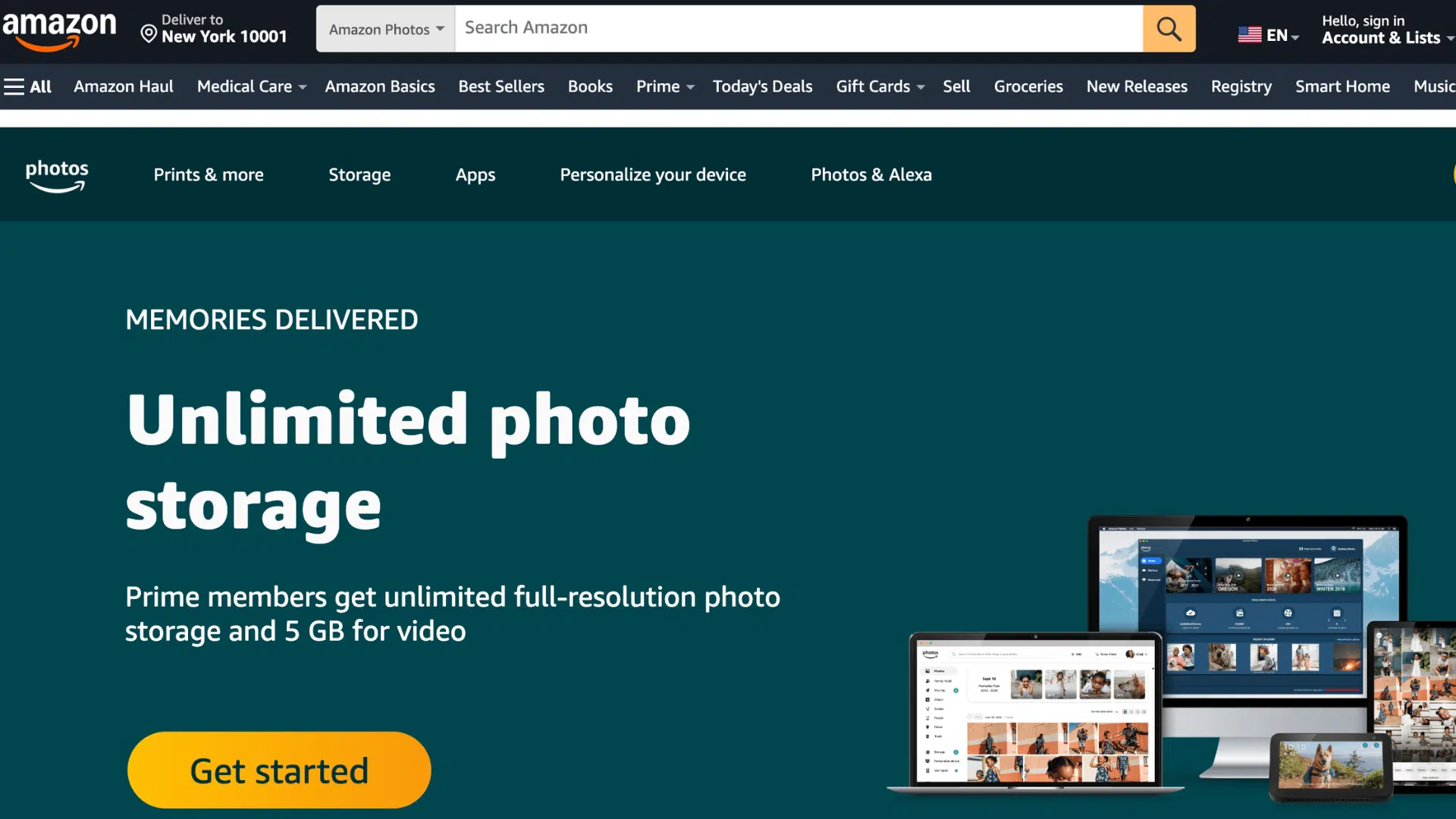
Amazon Photos is a solid choice for storing and backing up photos, especially if you already use Amazon services. It focuses on simple backup, full-quality storage, and easy access across devices.
Key Features:
- Unlimited photo storage with Prime membership
- Automatic backup from phone and desktop
- Family Vault to share storage with others
- Supports full-resolution image uploads
- Access photos across multiple devices
Pricing: Amazon Photos offers 5 GB of free storage, while Prime members get unlimited full-resolution photo storage included. Extra storage starts around $1.99/month for additional space.
| Pros | Cons |
|---|---|
| Simple setup and easy to use | Limited advanced editing tools |
| Good option for families | Video storage requires an extra payment |
| Reliable backup for large photo collections | The interface is basic compared to others |
| Works well within the Amazon ecosystem | Not built for professional workflows |
3. Adobe Lightroom and Cloud
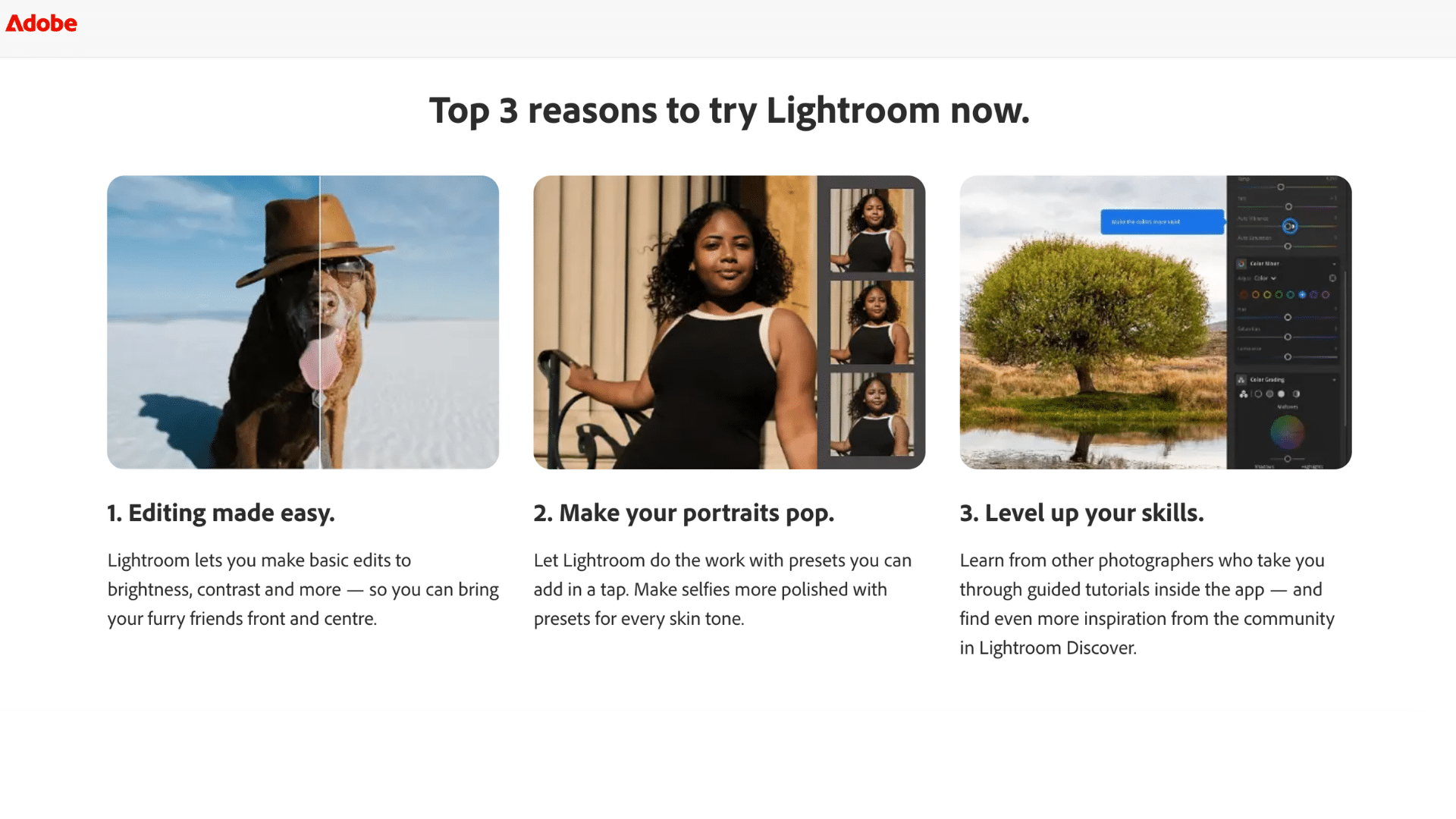
Adobe Lightroom + Cloud is built for people who want both photo storage and advanced editing in one place. It works well for managing large photo libraries while keeping images in full quality.
Key Features:
- Advanced editing tools with presets and adjustments
- Full RAW file support
- Non-destructive editing (original file stays unchanged)
- Organized workflow with albums and collections
- Handles large, high-resolution photo libraries
Pricing: Starts at about $11.99 per month with 1TB cloud storage. Higher plans cost around $19.99 per month and include additional tools like Photoshop.
| Pros | Cons |
|---|---|
| Syncs across devices automatically | Requires a monthly subscription |
| Strong cloud integration | Can be complex for beginners |
| Smooth editing workflow | Storage fills up fast with RAW files |
| Trusted by professional photographers | Not ideal for simple storage needs |
4. pCloud
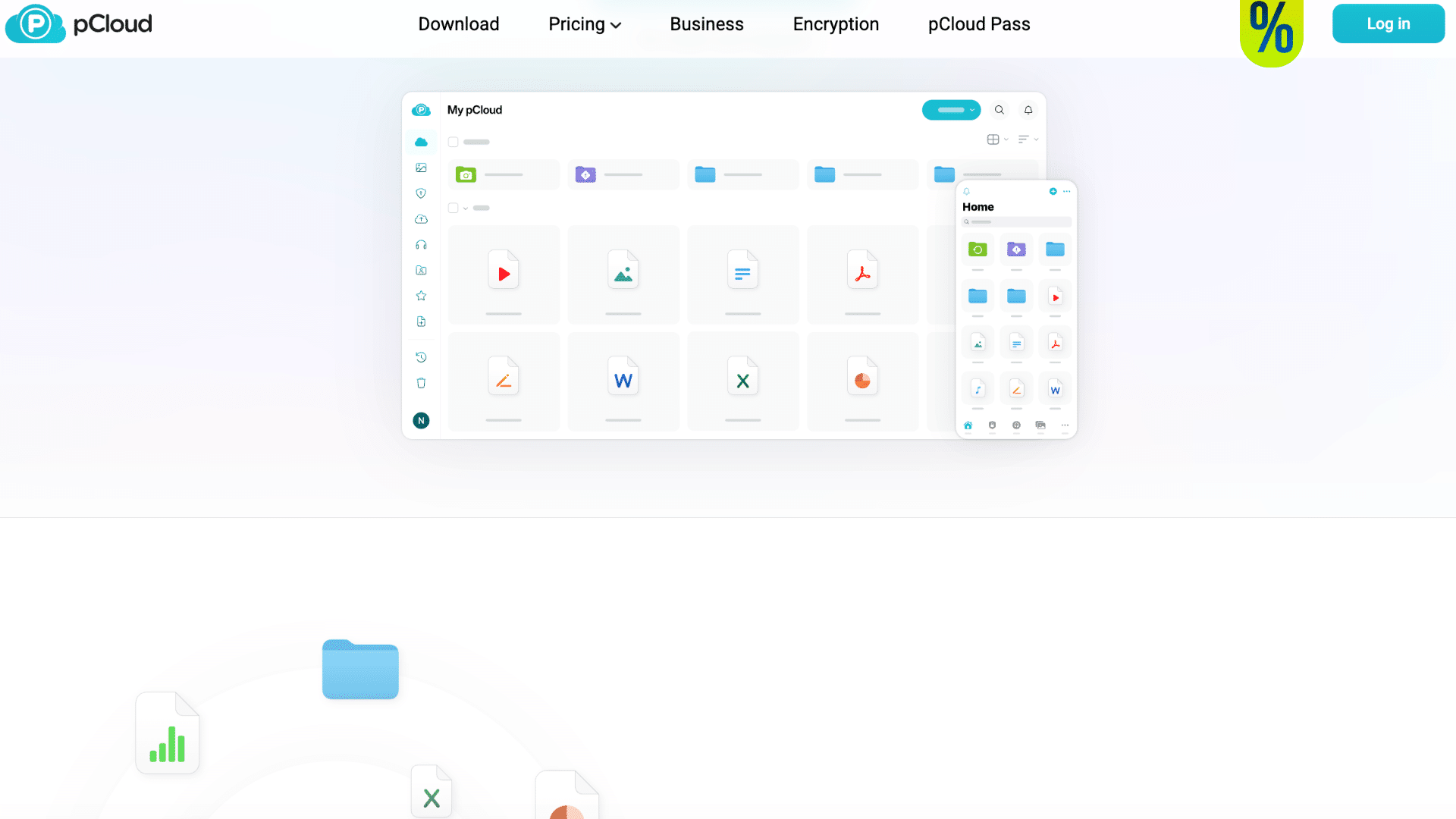
pCloud is a flexible cloud storage service that works well for photos, especially if you want long-term storage without monthly payments.
Key Features:
- No file size limits for uploads
- File versioning to restore older versions
- Optional client-side encryption (paid add-on)
- Virtual drive to access files without using device storage
- Supports high-quality image storage
Pricing: pCloud offers up to 10 GB of free storage. Paid plans start around $4.99/month for 500 GB and $9.99/month for 2 TB, with lifetime plans available.
| Pros | Cons |
|---|---|
| One-time lifetime plan option | Encryption requires an extra payment |
| Easy to access files without downloading | Interface feels a bit old |
| Reliable for long-term storage | Limited built-in editing tools |
| Good privacy control options | Not focused on photo organization |
5. Internxt
Internxt is a privacy-focused cloud storage service that works well for photo backups, especially if you care about security and fast transfers.
It’s built around encryption and simple file storage rather than advanced photo tools.
Key Features:
- Zero-knowledge encryption for full privacy
- Open-source platform for transparency
- Fast uploads for large photo files
- Simple interface with easy file access
Pricing: Internxt offers a small free plan (around 1–10 GB depending on tasks). Paid plans start around $5–$10/month for higher storage, with lifetime plans also available as a one-time payment option.
| Pros | Cons |
|---|---|
| Strong privacy and encryption focus | Limited free storage |
| Fast uploads for large files | Fewer photo organization tools |
| Affordable lifetime plans available | No advanced editing features |
| Works on all devices | Limited collaboration features |
6. IDrive
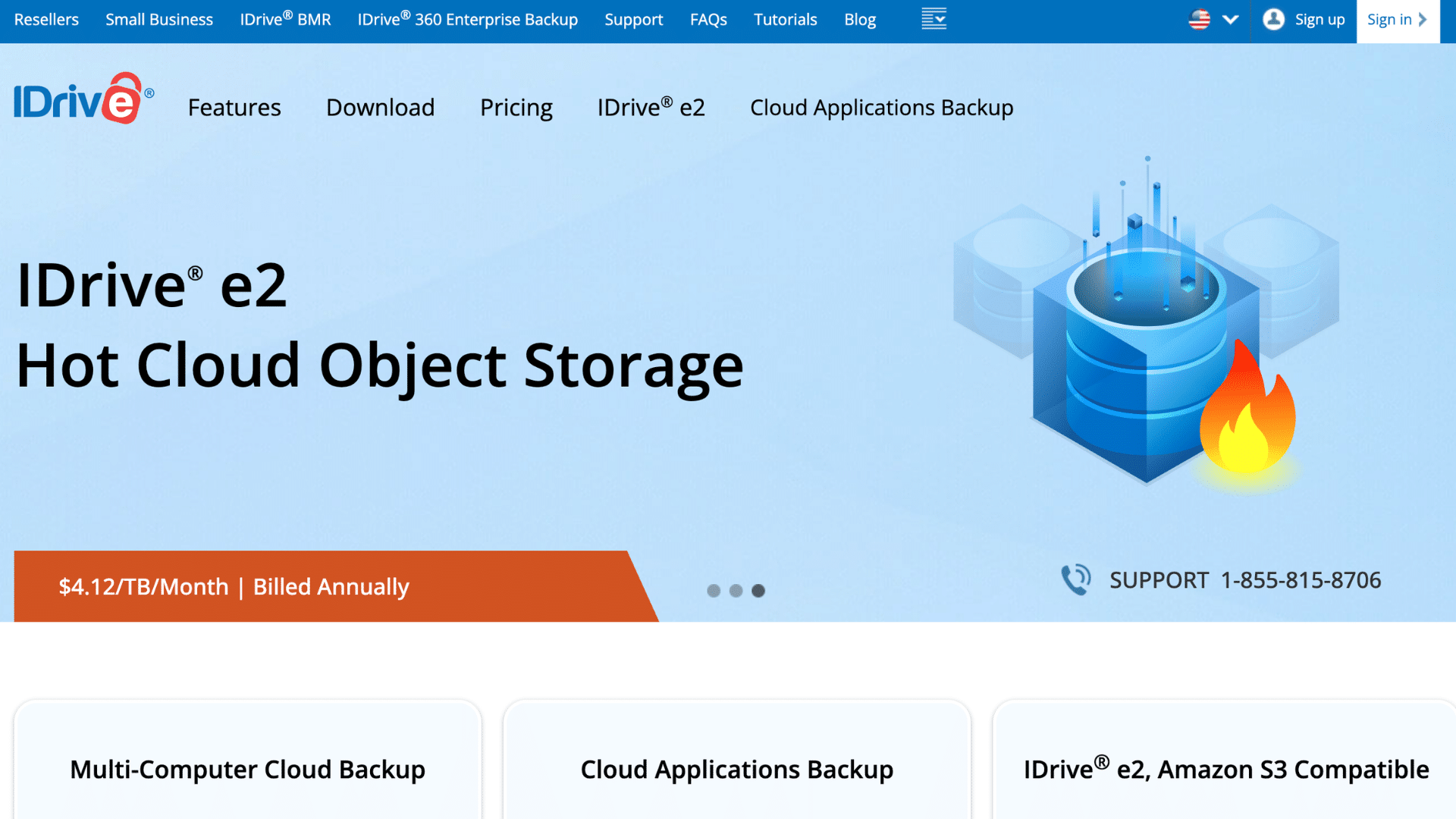
IDrive is built mainly for backup, not just storage, which makes it a strong option if you want to keep your photos safe across multiple devices.
It works in the background and keeps copies of your files so you can recover them anytime.
IDrive also works like a managed backup and disaster recovery solution, making it a reliable choice for keeping photos safe and easy to recover.
Key Features:
- Keeps multiple versions of files for recovery
- Continuous and scheduled backups
- Supports full device and folder backup
- Strong encryption for data protection
Pricing: IDrive offers 10 GB of free storage. Paid plans start around $6.99/month for 5 TB (first-year pricing), with higher plans available for more storage.
| Pros | Cons |
|---|---|
| Backs up unlimited devices in one account | Interface feels outdated |
| Strong backup and recovery options | Slower upload speeds |
| Good value for large storage | Not focused on photo viewing |
| Secure encryption | Setup can take time |
General Cloud Storage that Works for Photos
These options work well for storing and backing up photos, even though they are made for general file storage.
7. Dropbox
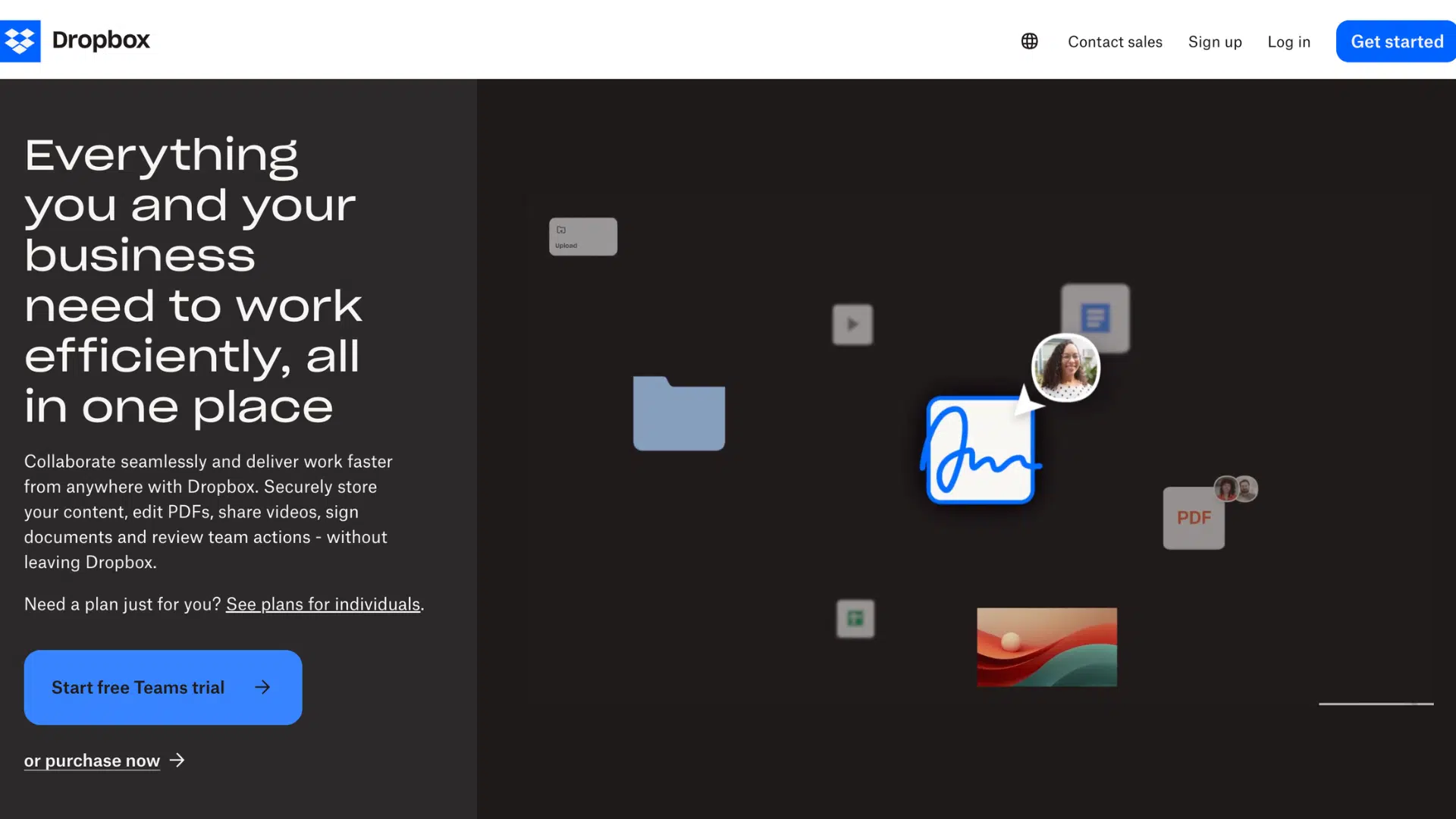
Dropbox is a well-known cloud storage service that works well for photos, especially if you want simple syncing and easy sharing. It’s a good option for storing images along with other files.
Key Features:
- Automatic photo upload from mobile devices
- File syncing across all connected devices
- Simple folder-based file organization
- Easy file sharing with links and permissions
- Version history to restore previous files
Pricing:
Dropbox offers 2 GB of free storage. Paid plans start at around $9.99/month for 2 TB, with higher plans available.
| Pros | Cons |
|---|---|
| Very reliable syncing | Limited free storage |
| Easy file sharing | Expensive compared to others |
| Works on all devices | Not built for photo organization |
| Simple interface | No advanced editing tools |
8. OneDrive
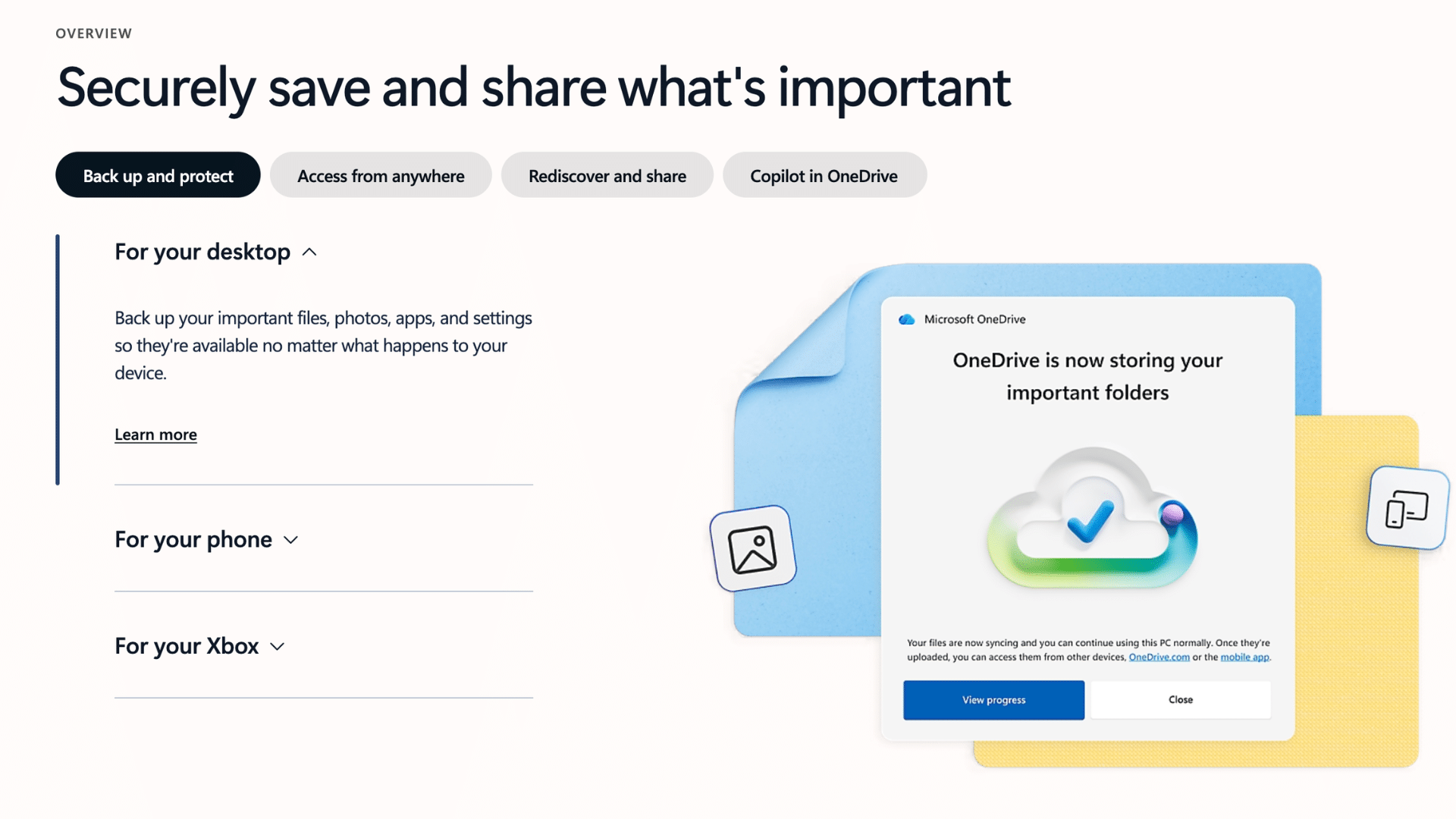
OneDrive is a good option for storing photos. It works smoothly within the Windows system and makes it easy to back up your files and access them across multiple devices.
Key Features:
- Automatic camera upload from mobile devices
- Integration with Windows and Microsoft apps
- File access across devices with real-time sync
- Basic photo organization with albums
- Secure storage with built-in encryption
Pricing:
OneDrive offers 5 GB of free storage. Paid plans start at around $1.99/month for 100 GB, with larger plans available through Microsoft 365 subscriptions.
| Pros | Cons |
|---|---|
| Seamless integration with Windows | Limited free storage |
| Automatic camera upload support | Not focused on photo features |
| Works well with Microsoft apps | Basic photo organization |
| Easy access across multiple devices | Fewer advanced image tools |
9. iCloud
iCloud is a good choice for storing photos if you use Apple devices. It works smoothly with iPhone, iPad, and Mac, and keeps your photos synced automatically across all devices without extra setup.
Key Features:
- Automatic photo backup with iCloud Photos
- Seamless sync across Apple devices
- Storage optimization to save device space
- Shared albums for family and friends
- Strong privacy and secure storage
Pricing:
iCloud offers 5 GB of free storage, with paid plans starting at $0.99/month for 50 GB and going higher based on storage needs.
| Pros | Cons |
|---|---|
| Deep integration with Apple devices | Limited free storage |
| Automatic photo backup with iCloud Photos | Works best only in the Apple ecosystem |
| Optimizes storage on iPhone (saves space) | Less flexible for non-Apple users |
| Seamless sync across all Apple devices | Fewer advanced photo tools |
| Easy sharing with family and Apple users | Storage fills up quickly |
Secure and Backup-Focused Cloud Storage
If security matters most, these tools are a solid choice, even though they are not built specifically for photos. They focus on strong encryption and reliable backups to protect your data.
10. NordLocker
NordLocker is a privacy-focused cloud storage tool designed to keep your files highly secure. It works well for photo backups if your main concern is protecting sensitive images rather than organizing or editing them.
Key Features:
- End-to-end encryption for full data security
- Zero-knowledge privacy protection
- Secure file storage with encrypted folders
- Cross-device access with secure sync
- Simple interface focused on privacy
Pricing:
NordLocker offers a small free plan (around 3 GB). Paid plans start at about $7.99/month for 500 GB and go higher based on storage needs.
| Pros | Cons |
|---|---|
| Strong end-to-end encryption | Limited free storage |
| Zero-knowledge privacy protection | Not built for photo organization |
| Simple and secure file storage | No editing or album features |
| Good for sensitive files | Fewer sharing options |
11. Sync.com

Sync.com is a cloud storage service built for users who want strong privacy and control over their files. It is a good option for photo backups when security matters more than features like browsing, editing, or organizing images.
Key Features:
- Zero-knowledge encryption for full privacy
- File version history for recovery
- Secure file sharing with access control
- Automatic sync across devices
- No third-party tracking or data access
Pricing:
Sync.com offers5 GB free storage, with paid plans starting at around $8/month for 2 TB and going higher for larger storage needs.
| Pros | Cons |
|---|---|
| No third-party tracking | Basic photo viewing experience |
| Zero-knowledge privacy (only you access files) | Slower speeds due to encryption |
| Good for secure backups | Limited photo organization tools |
| File version history for recovery | Fewer integrations |
12. Mega
Mega is a cloud storage service known for its strong focus on privacy and large free storage.
It works well for photo backups if you need space and security, but it is not built specifically for managing or editing photos.
Key Features:
- Large free storage allowance
- End-to-end encryption for all files
- File sharing with encrypted links
- Cross-device sync and access
- Supports large file uploads
Pricing:
Mega offers afree plan (around 20–50 GB depending on usage). Paid plans start at about $5–$10 per month for 2 TB, with higher tiers offering much more storage.
| Pros | Cons |
|---|---|
| Large free storage compared to others | Transfer limits on the free plan |
| Strong encryption for privacy | Basic photo viewing experience |
| Good for storing large photo libraries | Limited photo organization tools |
| Works across devices | Not built for editing or albums |
13. Zoolz
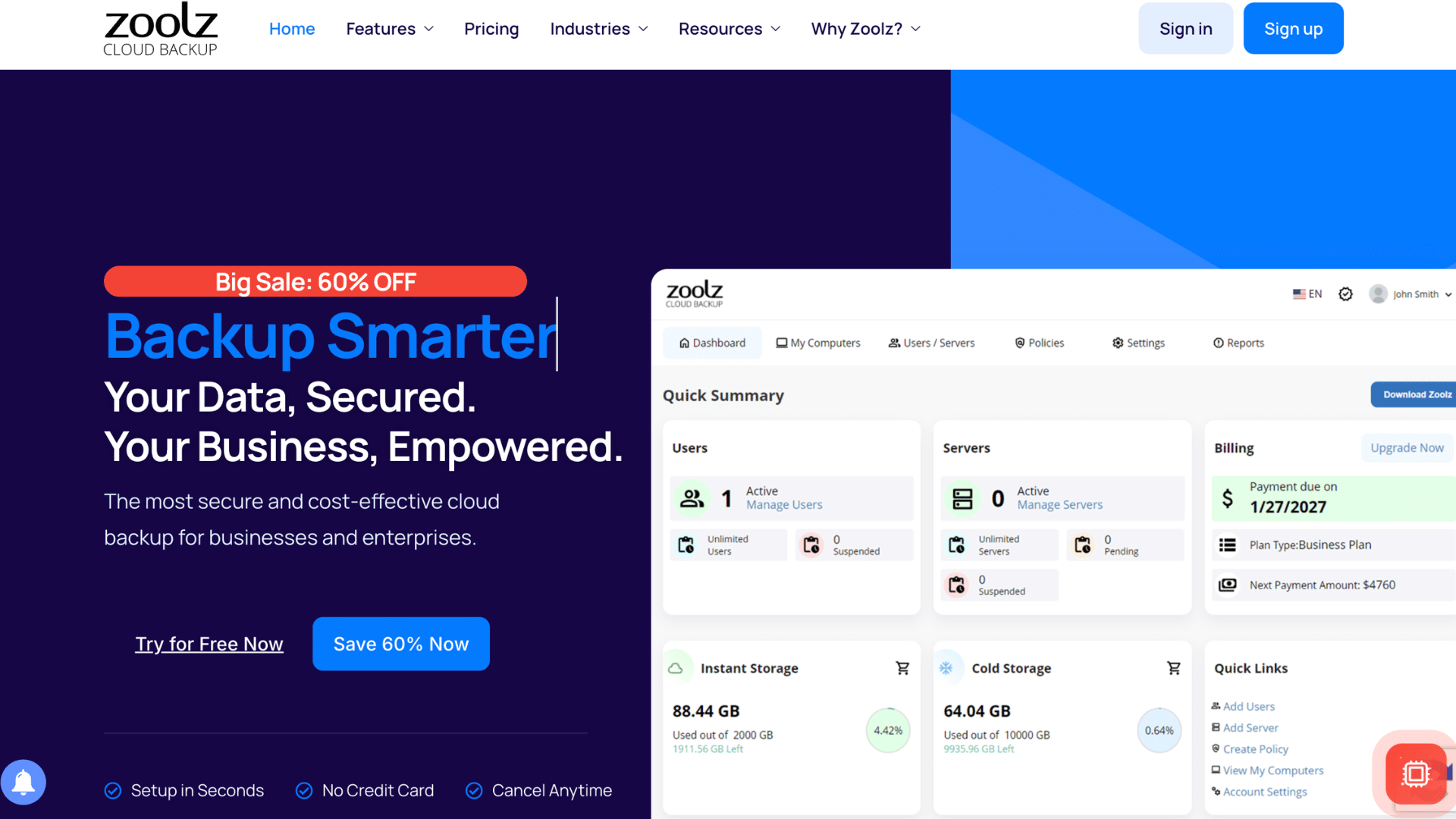
Zoolz is a cloud backup service designed for long-term storage rather than daily use. It uses “cold storage,” which makes it a good option for archiving photos you don’t need to access often.
Key Features:
- Cold storage for long-term photo backup
- Supports large files and data storage
- Strong encryption for data protection
- Scheduled backups for automation
- Hybrid backup with local and cloud options
Pricing:
Zoolz plans typically start around $15–$20 per month for a few TB of storage, with larger plans available for higher storage needs.
| Pros | Cons |
|---|---|
| Very low cost for large storage | Slow file retrieval times |
| Strong encryption and security | Not ideal for daily access |
| Good for long-term photo backup | Limited mobile support |
| Can store large amounts of data | Confusing pricing structure |
Photo Backup vs Cloud Storage: Key Difference
Photo backup and cloud storage are often used together, but they are not the same.
Cloud photo storage is a service that stores images online so you can access and manage them from any device.
Photo backup, on the other hand, means keeping a separate copy of your photos to prevent loss if something goes wrong.
| Feature | Photo Backup | Cloud Storage |
|---|---|---|
| Main Purpose | Keeps a safe copy of photos | Stores and manages photos |
| Usage | Runs in the background automatically | Used for daily access and sharing |
| File Recovery | Helps recover lost or deleted photos | Limited recovery options |
| Organization | Basic or none | Strong organization tools |
| Editing | Not available | Often includes editing features |
| Access | Not meant for frequent use | Easy access across devices |
| Focus | Safety and protection | Convenience and usability |
The 3-2-1 Backup Rule for Photos
A well-established principle in data protection is the 3-2-1 rule: keep three copies of your data, on two different media types, with one copy stored offsite.
For personal photo libraries, a practical version is: one copy on your device, one on a cloud sync service like Google Photos, and one on a dedicated backup service like IDrive. This is not overcautious.
It’s the same redundancy model used in enterprise storage environments, and it applies just as well to a five-year photo archive on your phone.
Simple Photo Backup Strategy You Can Follow
From my experience, using just one tool is not enough to keep photos safe. I’ve found that a mix of storage and backup works best, and it keeps things simple without risking data loss.
- Use Google Photos for daily access
- Use IDrive or pCloud for backup
- Keep one offline copy for safety
This setup works well because one tool handles daily use, while the others keep your photos safe in case something goes wrong.
Free vs Paid Photo Backup Solutions
Free plans are a good starting point if you don’t have a large photo library yet. They offer basic storage and simple backup features, but the space fills up quickly as your photos grow.
That’s when paid plans become more useful. They give you more storage, better upload quality, and fewer limits on file size and features.
Over time, free plans can feel restrictive, while paid options give more flexibility and peace of mind.
If you take photos often, upgrading helps you store everything without worrying about space or quality.
Cloud Storage Based on Your Needs
Not everyone needs the same type of cloud storage, so the right choice depends on how you use your photos.
1. For Mobile Users
For mobile users, the main focus should be on apps that offer automatic backup and smooth syncing across all devices. This makes sure photos stay safe without manual effort. It also helps to choose a service with a simple interface, fast sharing options, and easy search tools so you can quickly find any photo.
Apps to use: Google Photos, Apple iCloud, Microsoft OneDrive
2. For Photographers
For photographers, the focus should be on platforms that can handle RAW files and high-quality images without compression.
Fast upload speeds are important to save time, especially when working with large files.
It also helps to choose services that include built-in editing tools and options to share galleries with clients, making the workflow smoother and more efficient.
Apps to use: Adobe Creative Cloud, IDrive
3. For Large Photo Libraries
For large photo libraries, the key is choosing a service that offers multi-terabyte or unlimited storage so space never becomes an issue.
Automatic backup is important to keep everything safe without manual work.
It also helps to have simple organization tools, like folders and search features, so you can quickly find photos even in a very large collection.
Apps to use: Amazon Photos, Google One
4. For Privacy-Focused Users
For privacy-focused users, the main priority should be strong security features like end-to-end encryption, which keeps files protected from outside access.
It is also important to choose a service that gives full control over data, including secure sharing and access settings. This ensures your photos stay private and only you or selected people can view them.
Apps to use: Sync.com, Internxt, pCloud
5. For Video and Mixed Media
For video and mixed media, the focus should be on services that can handle large file sizes without slowing down. Fast syncing is important to upload and access files quickly.
It also helps to choose a platform that supports different file types and offers recovery options, so you can restore files if something gets deleted or lost.
Apps to use: Dropbox, IDrive, Google Drive
Common Mistakes to Avoid when Backing up Photos
Backing up photos sounds simple, but small mistakes can lead to major loss. Avoid these common issues to keep your photos safe, complete, and easy to recover anytime.
- Relying only on one backup: Using just one backup increases the risk of losing all photos if that service fails or data gets corrupted.
- Not using auto backup: Manual backups are easy to forget, which can lead to missing recent photos.
- Storing photos only on devices: Keeping photos only on your phone or laptop makes them vulnerable to loss, damage, or theft.
- Ignoring file quality settings: Low-quality backup settings can reduce image clarity and detail over time.
- Not checking storage limits regularly: Running out of space can stop backups without you noticing.
- Deleting photos before confirming backup is complete: Removing files too early can result in permanent loss if backup fails.
- Using weak passwords or skipping security settings: Poor security can expose your photos to unauthorized access.
Conclusion
Photos can be lost faster than expected, but setting up a proper backup keeps everything safe and easy to manage. The key is to use a mix of tools that handle both daily access and long-term storage.
Simple steps like enabling auto backup, checking storage regularly, and using more than one backup can make a big difference.
It also helps to review your setup from time to time, especially as your photo library grows.
A tool that works today might need an upgrade later. Taking a little time now to set up the right system can save a lot of trouble later. Start with a tool that fits your needs and build from there.
Once everything is in place, you can feel more relaxed knowing your photos are safe, organized, and easy to access whenever you need them.
Frequently Asked Questions
Will Photos Be Lost if iCloud Storage Is Not Upgraded?
No, photos are not deleted immediately when iCloud storage is full. However, new photos stop syncing until space is cleared or upgraded.
How Many Photos Can a 32 GB Storage Device Hold?
A 32GB device can store around 6,000 to 8,000 photos, depending on image size and quality. Higher resolution images take more space, reducing the total number stored.
What Is an Affordable Image Storage Option with Upload Api Support?
Affordable options like Google Cloud Storage, Amazon S3, and Cloudinary offer upload APIs. They provide flexible pricing, scalability, and easy integration for storing and managing images.
What Is Cloud Storage Hosting?
Cloud storage hosting is a service that stores data online instead of local devices. It allows access from anywhere, offers backup options, and keeps files secure using remote servers.