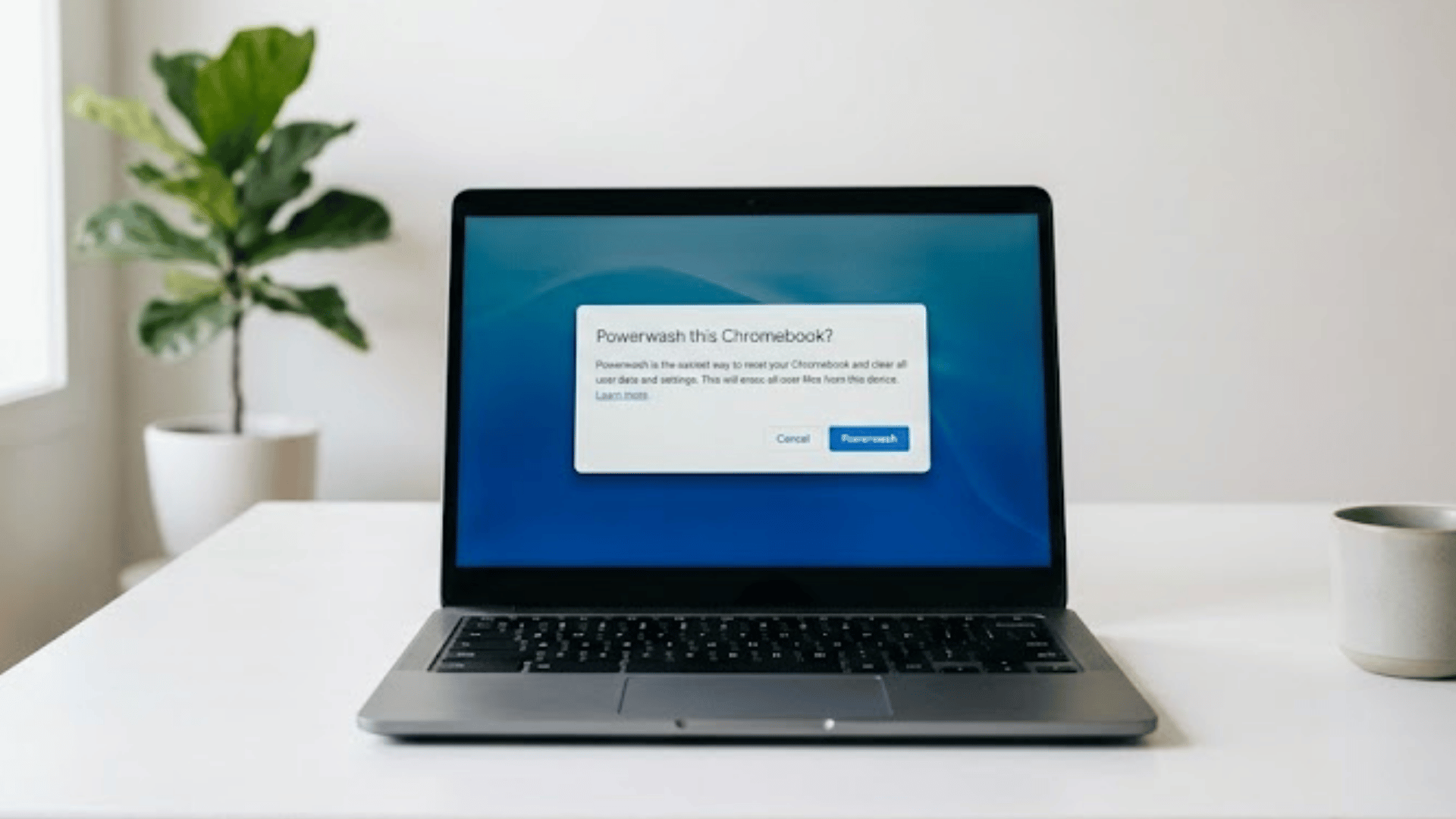



A Powerwash is Chrome OS’s built-in factory reset. It wipes all local data, downloaded files, app settings, cached data, and system configurations, and returns the device to the same clean state it was in when it left the factory.
Your Google account, Drive files, Chrome bookmarks, and anything else stored in the cloud are all safe and restored automatically when you sign back in.
A Powerwash is the last resort when other steps to fix a slow Chromebook have not improved performance.
It handles issues that clearing the cache, removing extensions, or freeing storage cannot fix: corrupted system files, broken settings, and software conflicts that have built up over time.
In this guide, you will know when a Powerwash is the right call, how to prepare, and what to expect once it is done.
What a Powerwash Actually Does?
A Powerwash completely resets the Chromebook back to its factory state by removing everything stored locally on the device.
This includes downloaded files, Android app data, Linux environments, saved Wi-Fi networks, local account settings, browser customizations, and temporary system data that may have built up over time.
It is designed to give Chrome OS a completely fresh start, which is why it is often recommended for serious performance issues or persistent software problems.
However, a Powerwash does not erase cloud-based information connected to a Google account.
Files stored in Google Drive, synced Chrome bookmarks, saved passwords, browsing history, extensions, and other synced settings remain available after signing back in.
Think of it as wiping the slate clean on the local device while leaving your online account data safely stored in the cloud, ready to restore during setup.
When a Powerwash Makes Sense?
A Powerwash should usually follow smaller troubleshooting steps that fail to fix the problem. It works best for deeper system issues, recurring software problems, or preparing the Chromebook for a completely fresh setup.
- Persistent Slowdowns: Performance problems that continue after clearing the cache, removing extensions, and freeing storage often point to deeper system-level issues.
- Corrupted System Settings: Repeated crashes, login problems, or broken Chrome OS behavior can sometimes be caused by damaged local settings or files.
- Selling or Giving Away the Device: A Powerwash fully removes local accounts, personal files, and saved settings before transferring ownership.
- Suspected Malware Issues: Harmful Android apps or browser-based threats may leave behind unstable settings and unwanted files that a reset can remove.
- Post-AUE Stability Problems: Chromebooks past their Auto Update Expiration date can benefit from a clean reset to improve stability and reduce system clutter.
- Fresh Linux Environment Setup: Reinstalling Linux on a freshly Powerwashed Chromebook often results in a cleaner setup with fewer leftover configuration problems.
What to Back up Before a Powerwash?
A few quick checks before resetting can prevent accidental data loss later. Most cloud-synced information is restored automatically after signing back in, but locally stored files and app data may not be.
| Data type | Where it lives | Action needed |
|---|---|---|
| Files in the Downloads folder | Local only | Move to Google Drive or external storage |
| Linux files and projects | Linux disk image (local) | Back up to Drive or export the container |
| Android app data | Local (some apps sync) | Check each app’s sync or export option |
| Chrome bookmarks | Synced via Google account | No action needed |
| Google Drive files | Cloud | No action needed |
| Saved passwords | Synced via Google account | No action needed |
| Offline files (Docs/Sheets) | Local cache | Ensure they are synced to Drive first |
One step that is easy to miss: if you use the Chromebook’s built-in screenshot or screen recording tools, those files save to the Downloads folder by default. Move them to Drive before resetting, or they will be gone.
Powerwashing a Chromebook
The reset process is quick and usually finishes within a few minutes. Using the Settings menu is the easiest method and works on nearly every Chromebook model and Chrome OS version.
Steps to Powerwash:
- Click the clock in the bottom-right corner of the screen to open the Chromebook system tray.
- Select the gear icon to launch the Chrome OS Settings menu.
- Scroll down and click Advanced to reveal additional system options.
- Under Reset settings, select Powerwash to begin the reset process.
- Click Restart in the confirmation window that appears on the screen.
- After rebooting, select Powerwash again and click Continue to confirm the factory reset.
- The Chromebook will erase local data, reset Chrome OS, and restart automatically within 2–3 minutes.
- Follow the setup steps to reconnect to Wi-Fi and sign back into the Google account.
Sign out first if possible. Powerwashing while signed in works fine, but signing out before resetting avoids any edge-case account sync issues during reboot.
It takes about 15 minutes in total, including the initial setup afterward.
How to Powerwash from the Login Screen?
A Chromebook can still be factory reset even when access to the Settings menu is unavailable. This method is especially useful for login problems, corrupted profiles, or situations where the device cannot load properly after startup.
At the Chromebook sign-in screen, press Ctrl + Alt + Shift + R on the keyboard. A reset window will appear with the option to restart the device.
Click Restart, then select Powerwash, followed by Continue to confirm the reset. Chrome OS will begin erasing all locally stored files, settings, Android app data, and Linux environments before returning the device to its factory state.
The process usually takes only a few minutes. Once finished, the Chromebook restarts and opens the normal setup screen, where Wi-Fi and Google account sign-in can be configured again.
This method produces the exact same result as performing a Powerwash through the Settings menu.
How to Powerwash a Chromebook that Is Managed or Enrolled?
If the Chromebook is managed by a school or workplace, the standard Powerwash steps may be blocked or unavailable.
Managed devices are enrolled in a domain, and a Powerwash does not automatically remove that enrollment.
After resetting, the device may still show the organization’s sign-in screen.
In that case, a full unenrollment must be performed by an administrator through the Google Admin console before the device can be used with a personal Google account.
If you are a student or employee, contact your IT department before attempting a reset on a managed device.
Powerwash vs. Factory Reset vs. Hard Reset: What’s the Difference?
These three terms get used interchangeably online, but they describe different actions on a Chromebook. The distinction matters before you commit to any of them.
| Term | What It Does | Data Wiped? |
|---|---|---|
| Powerwash | Wipes local data and restores Chrome OS to factory state | Yes, local only |
| Factory Reset | Same as Powerwash on Chrome OS; the terms are interchangeable | Yes, local only |
| Hard Reset | Reboots the embedded controller to fix hardware glitches | No |
| Browser Reset | Restores Chrome browser settings and turns off problematic extensions | No personal files |
| Linux Removal | Deletes the Linux development environment and its files | Yes, Linux files only |
| Cache Clearing | Removes temporary browser files and cached website data | No important data |
What to Do After Powerwashing a Chromebook?
The reset process may be finished, but a few smart decisions afterward can make a noticeable difference in long-term performance. Taking things slowly during the first setup helps avoid bringing old problems back immediately.
1. Sign Back Into the Google Account
After the Chromebook restarts, follow the setup wizard and sign back in to the Google account associated with the device.
Chrome OS automatically restores synced information such as bookmarks, saved passwords, browsing history, Wi-Fi settings, and installed Chrome extensions.
Depending on internet speed and the amount of synced data, the restoration process may take several minutes to complete fully in the background.
Wait before judging performance, as Chrome OS may still be syncing files and downloading settings.
Checking Google Drive access and confirming important synced data has returned should be one of the first things done after setup finishes.
2. Reinstall Only Essential Apps
A fresh Powerwash lets you rebuild the Chromebook more carefully instead of reinstalling every old app and extension right away.
Adding back unnecessary browser extensions, Android apps, or Linux tools too quickly can recreate the same slowdowns and stability issues that caused the reset in the first place.
Installing apps gradually also makes it easier to identify which extension or program may be causing problems later.
Focus first on the tools used daily and skip anything no longer needed.
Keeping the Chromebook lighter after a reset often improves battery life, browsing, and long-term performance.
3. Build Better Maintenance Habits
One of the best ways to keep a Chromebook performing well after a Powerwash is to maintain it regularly, rather than waiting for major problems to recur.
Clearing browser cache periodically, removing unused downloads, and reviewing installed extensions every few months helps prevent storage clutter and browser slowdowns from building up over time.
A straightforward routine to follow: clear the browser cache once a month, review installed extensions every 60 days, and check available storage quarterly.
Those three habits alone prevent most of the issues I have seen lead users back to a full reset.
Smaller troubleshooting steps should always come before another factory reset because many Chrome OS performance problems are caused by temporary files or overloaded browser settings.
Conclusion
A Powerwash is the most effective reset option for a Chromebook that still performs poorly after smaller fixes have failed.
Before starting, back up the Downloads folder, Linux files, and any local documents, as they will not restore automatically afterward.
Once the reset finishes, reinstall apps and extensions one at a time rather than restoring everything at once.
That makes it easier to identify software causing slowdowns or instability. Powerwash is best used after trying cache clearing, extension removal, and storage cleanup first.
For many aging Chromebooks, it can noticeably improve speed, stability, and responsiveness.
Have you powerwashed your Chromebook before?
Share what triggered the decision, and if it solved the problem in the comments, your experience could save someone else a lot of troubleshooting time.
Frequently Asked Questions
Does Powerwash Remove Everything?
Powerwash removes locally stored files, Linux data, Android app data, and settings, while Google account sync data restores after sign-in.
How Long Does a Powerwash Take?
The reset process usually takes 10–15 minutes, including setup, sign-in, and Chrome sync restoration.
Can a Chromebook Be Powerwashed without a Password?
The reset can start from the login screen, but the Google account password is still required afterward.
Does Powerwash Improve Chromebook Speed?
Powerwash often improves speed by removing corrupted settings, software conflicts, and accumulated system clutter.
Will a Powerwash Remove a Virus or Malware?
Yes. A Powerwash removes harmful apps, malicious extensions, and browser threats by wiping local data. It’s one of the best ways to remove Chromebook malware when other fixes fail.