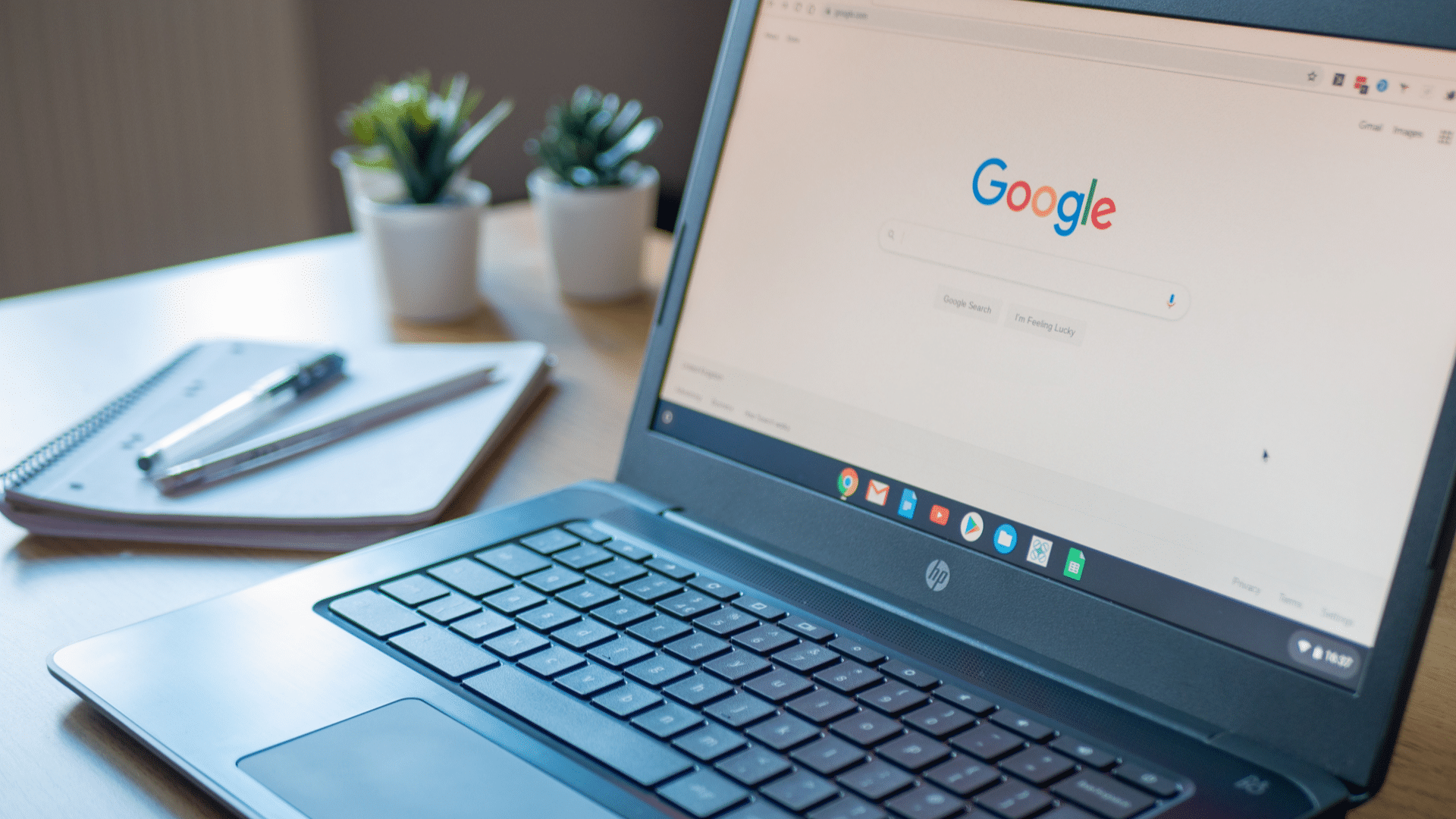



Few things are more annoying than opening your Chromebook and waiting. Apps take longer to load, tabs freeze, and even typing can feel slow.
Many users face this issue after months or years of regular use. Chromebooks often slow down due to small problems that build up over time.
Too many tabs, unused apps, low storage, system updates, and background extensions can quietly eat up resources.
Internet issues can also make a fast device feel sluggish, even when nothing seems wrong.
In this guide, I share the real reasons Chromebooks lose speed and how to fix them. You’ll learn how to spot early warning signs, clean things up safely, and keep your Chromebook running smoothly.
These steps are simple, practical, and easy to follow.
Quick Answer: How to Speed up a Slow Chromebook?
Restart your Chromebook, close unused tabs, clear your cache (Settings > Privacy and security > Clear browsing data), and check if your device has passed its Auto Update Expiration date.
Those four steps fix the majority of cases. I’ve used Chromebooks as my primary work devices and have gone through this exact slowdown cycle twice.
Once on an Acer Chromebook 314 after about 18 months of heavy use, and once helping a family member whose device had silently passed its update expiration date.
In this guide, I share the real reasons Chromebooks lose speed and how to fix them.
You’ll learn how to spot early warning signs, clean things up safely, and keep your Chromebook running smoothly.
Why Is Your Chromebook So Slow and How to Fix It?
Chromebooks can slow down for several everyday reasons. Most of them are easy to fix once you know what to look for.
1. Too Many Tabs Open
Keeping many browser tabs open is one of the most common reasons a Chromebook slows down over time. Each open tab uses memory, even when it sits idle in the background.
When too many tabs compete for resources, the system struggles to keep up.
This can cause delays, freezing, and slow page loads. Closing unused tabs instantly frees memory and improves responsiveness.
Using bookmarks, reading lists, or tab groups helps manage browsing without overload. Restarting the browser after heavy use can also restore smoother performance.
Fix:Keep five or fewer tabs open when possible. Use bookmarks or Chrome’s reading list for pages you want to revisit.
If you regularly need many tabs open, install a tab suspender extension — it keeps tabs accessible without actively consuming RAM. Restarting the browser after heavy use can also restore smoother performance.
I made a habit of auditing my tabs every time I make coffee — it sounds small, but going from 20 tabs to 6 made a noticeable difference in how snappy the browser felt
2. Low Storage Space
Low storage space can quietly slow down your Chromebook without a clear warning. When the device runs out of free space, it struggles to manage files, updates, and background tasks.
This can lead to slower startup times and lag when opening apps or tabs.
Downloads may fail, and updates can take longer to install. Deleting unused files, old downloads, and offline content helps free up space.
Moving photos and documents to cloud storage also improves performance and keeps the system running smoothly.
Fix: Go to Settings > Device > Storage management to see exactly what is consuming space. Delete unused downloads, offline files, and old screenshots. Move photos and documents to Google Drive.
A good rule of thumb: keep at least 10–15% of your storage free at all times to ensure the system runs smoothly.
Installing Linux on a Chromebook requires allocating dedicated disk space, and that allocation stays reserved even when the environment sits completely idle.
Fix: Go to Settings > About ChromeOS > Linux development environment, then tap Remove to reclaim that space.
3. Too Many Apps Installed
Installing too many apps can affect Chromebook speed, even if you rarely use them. Some apps run background processes that use memory and storage without notice.
Over time, this adds pressure on the system and slows down daily tasks.
Apps meant for occasional use may not be worth keeping installed. Removing apps you no longer need helps free resources and improves speed.
You can always reinstall them later if needed. Keeping only essential apps makes your Chromebook feel faster and easier to use.
Fix:Go to Settings > Apps > Manage your apps and uninstall anything you haven’t used in the past month.
Apps meant for occasional use may not be worth keeping permanently installed. You can always reinstall them from the Play Store or Chrome Web Store when needed
4. Heavy Browser Extensions
Browser extensions can be useful, but too many of them can slow down your Chromebook.
Some extensions constantly run in the background, using memory and processing power. This can cause pages to load slowly and make the browser feel unresponsive.
Extensions that block ads, manage downloads, or change page behavior are often the heaviest.
Removing extensions you do not use helps improve speed. Keeping only essential extensions ensures smoother browsing and better overall Chromebook performance.
Fix: Go to chrome://extensions in your browser address bar and disable or remove anything you don’t use regularly. Extensions that modify page behavior, block ads, or manage downloads tend to be the heaviest.
A good test: disable all extensions, restart Chrome, and check if performance improves. If it does, re-enable them one at a time to find the culprit.
5. Chromebook Has Not Been Restarted
Leaving your Chromebook on for long periods can slowly reduce its performance. Background tasks, updates, and temporary files continue to build up while the system runs.
Over time, this causes lag, slow response, and app delays. Restarting clears temporary data and refreshes system processes.
A simple restart can fix many speed issues instantly.
Making it a habit to restart your Chromebook every few days helps maintain stable performance and prevents slowdowns from piling up.
Fix: Restart every 2–3 days if you use it regularly. Click the clock in the bottom-right corner > Power icon > Restart.
Important: Simply closing the lid does not restart your Chromebook, it puts it to sleep, and background processes keep running. You need a full power-off and restart to clear temporary data and refresh system processes.
6. Chrome OS Updates Running in the Background
Chrome OS updates often run quietly in the background, which can affect performance.
While updates are important, they use system resources during download and installation. This may cause slower browsing, app lag, or delayed responses.
Performance usually returns to normal after updates finish. Checking update status helps explain sudden slowness.
Allowing updates to complete and restarting afterward ensures your Chromebook stays fast and secure without ongoing background strain.
Fix:Click the clock > Settings > About ChromeOS > Check for updates. If an update is pending, let it complete, then restart.
Google releases minor updates every two to three weeks and major updates roughly every six weeks, so staying current matters for both speed and security.
7. Weak or Unstable Internet Connection
A slow internet connection can make your Chromebook feel sluggish even when the device itself is fine.
Web pages may load slowly, videos may buffer, and cloud-based apps can lag. Since Chromebooks rely heavily on the internet, poor connectivity often feels like a performance issue.
Wi-Fi drops, router problems, or network congestion can all play a role.
How to check: Go to Settings > About ChromeOS > Additional details. Look for the “Updates” section — it will show the date your device will receive its last update.
Checking your connection speed and restarting the router often helps. Switching to a stronger network can instantly improve how fast everything feels.
If your AUE date has passed or is within a few months, this is likely a major reason your Chromebook feels slow.
Options include installing Chrome OS Flex (a lightweight version that can extend the life of older hardware) or planning a replacement. If the date is still years away, move on to other fixes.
8. Too Many Background Processes
Some apps, tabs, and extensions continue running in the background without you noticing. These background processes use memory and processing power, which slows down active tasks.
Over time, this can lead to lag, freezing, or delayed responses. Background activity often increases after long browsing sessions.
Closing unused apps and tabs reduces this load.
Restarting the Chromebook clears hidden processes and refreshes system resources. Keeping background activity low helps maintain smooth and steady performance.
Fix: Run a quick speed test at fast.com or speedtest.net. If speeds are significantly lower than your plan, restart your router.
If you’re on Wi-Fi, try moving closer to the router or switching to the 5GHz band. A connection dropping below 10 Mbps will noticeably affect cloud-based apps and video streaming.
9. Outdated Chrome OS Version
Running an outdated version of Chrome OS can cause performance issues over time. Older software may lack speed improvements, bug fixes, and system optimizations.
This can lead to slow browsing, app crashes, and security risks. Updates are designed to improve stability and performance.
Regularly checking for updates ensures your Chromebook runs efficiently.
Installing the latest version and restarting afterward helps restore speed and prevents issues caused by outdated system files or missing improvements.
How: Press Search + Esc (or Launcher + Esc) to open the Chrome OS Task Manager. Sort by Memory Footprint or CPU to identify the heaviest processes.
If you see an extension, app, or tab using far more resources than expected, that is your primary target — end the process and then uninstall or turn it off
10. Low-End Hardware Limits
Some Chromebooks are built with basic hardware, which can limit performance over time. Devices with low RAM or small storage handle fewer tasks at once.
As apps, websites, and updates become heavier, the system may struggle to keep up.
This can cause slow loading, lag, and freezing during multitasking. While hardware cannot be upgraded easily, adjusting usage helps.
Keeping fewer tabs open, removing unused apps, and restarting often can reduce strain and improve daily performance.
Fix: Go to Settings > About ChromeOS > Check for updates. Install any available updates and restart afterward.
Note: If your device has passed its AUE date (see point 7), this option will show “your device is up to date” even when Chrome OS is technically outdated — because no newer version exists for your hardware
11. Overloaded Cache and Browsing Data
Over time, your Chromebook stores cache files, cookies, and browsing data to speed up websites. When this data builds up too much, it can have the opposite effect.
Pages may load slowly, and the browser can feel unresponsive. Old cache files can also cause loading errors.
Clearing the cache on a Chromebook removes these files and refreshes the browser, and doing so occasionally helps improve speed, fix glitches, and keep your Chromebook running more smoothly during everyday use.
Doing this occasionally helps improve performance, fixes glitches, and keeps your Chromebook running more smoothly during everyday use.
Fix: Go to Settings > Privacy and security > Clear browsing data. Select “Cached images and files” and “Cookies and other site data.” For the time range, choose “All time” for a thorough clean.
Do this once a month as routine maintenance — it takes less than a minute and consistently improves browser speed.
12. Poor Battery Health Causing Performance Throttling
This fix is rarely mentioned in basic guides, but it matters: a degraded battery can cause your Chromebook to throttle its processor to reduce power consumption, making everything feel sluggish even when you’re plugged in.
How to check: Go to Settings > About ChromeOS > Diagnostics. Look for your battery health percentage. If it has dropped below 60%, the device may be throttling performance to compensate.
What to do: If battery health is low, a battery replacement (if available for your model) can restore full performance.
For older devices, check whether replacement is cost-effective compared to upgrading.
13. Malware or Unwanted Software
Chrome OS is significantly more secure than Windows, but it is not immune to malware, especially through Android apps or browser-based threats.
Malware can run silently in the background and consume resources.
Fix: Open Chrome > click the three-dot menu > Settings > Privacy and security > Security > Check for malicious software. Run the scan and remove anything flagged.
If the problem persists after cleaning, a Powerwash (factory reset) is the most thorough fix.
14. When All Else Fails: Powerwash (Factory Reset)
If you have tried the steps above and your Chromebook is still running slowly, a Powerwash will reset it to factory settings.
Powerwashing a Chromebook erases all local data and resets the system to its original state, which clears corrupted files, problematic settings, and anything individual fixes cannot reach.
This clears out corrupted files, problematic settings, and any lingering software issues that individual fixes cannot address.
How to Powerwash: Go to Settings > Advanced > Reset settings > Powerwash > Reset. Follow the on-screen instructions.
After the reset, only reinstall the apps and extensions you genuinely need — this is a good opportunity to start clean.
I have Powerwashed a Chromebook once, and it felt like using a new device afterward. It took about 15 minutes total, including setup. If your device is within its AUE window and nothing else works, this is worth trying before buying a replacement.
Signs Your Chromebook Performance Is Dropping
These signs help you notice small problems before they turn into bigger issues. Catching them early makes it easier to fix speed problems quickly.
- Slow Startup Times: The Chromebook takes much longer than usual to turn on and reach the home screen.
- Apps Take Longer to Open: Apps pause or load slowly, even simple ones you use daily.
- Frequent Freezing or Lag: The screen stops responding when scrolling, typing, or switching tabs.
- Browser Tabs Reload Often: Tabs refresh on their own when you switch back to them. This is often a sign of low RAM; the browser is discarding inactive tabs to free memory.
- Delayed Typing Response: Letters appear late while typing in documents or search bars.
- Updates Take Too Long: System updates download or install more slowly than expected.
- Storage Warning Messages: Alerts appear saying storage space is almost full.
- Random App Crashes: Apps close unexpectedly during normal use.
- “Your device is no longer supported” notification: This means your AUE date has passed, and Chrome OS updates have stopped.
What Reddit Users Say About Slow Chromebooks?
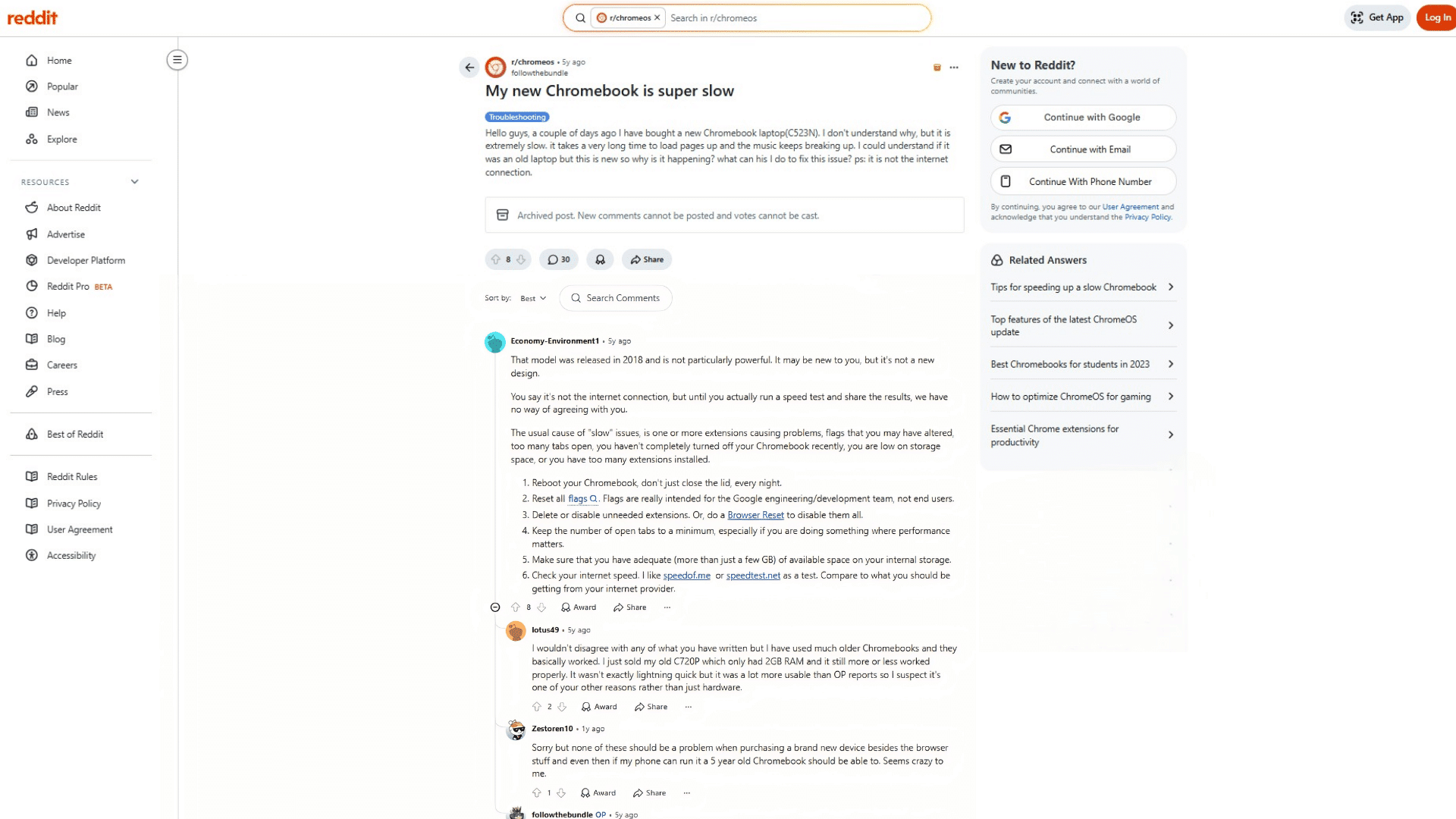
Many Reddit users point out that slow Chromebook performance is not always caused by age or internet issues.
In one discussion, a user shared that their brand-new Chromebook felt extremely slow, even with very few apps installed.
Other users explained that some models use low-power hardware that struggles with modern tasks.
Several comments highlighted common causes like too many tabs, heavy extensions, low storage, and not restarting the device often.
One helpful clarification was that ChromeOS uses available memory by design, so seeing high memory usage does not always mean something is wrong.
Reddit users also stressed checking for updates, running speed tests, and understanding the Chromebook’s release year. Many agreed that choosing the right hardware matters as much as daily maintenance.
Reddit users also frequently mention checking the AUE date as the first step for older devices, and many recommend the Task Manager (Search + Esc) as the fastest way to diagnose what is actually consuming resources.
Conclusion
A Chromebook running slowly can feel frustrating, but the good news is that most speed issues are easy to fix.
In many cases, small habits like closing unused tabs, clearing storage, removing extra extensions, and restarting regularly can make a big difference.
Even checking for updates or improving your internet connection can help your Chromebook feel smoother again.
You do not always need a new device to get better performance.
A few simple changes can go a long way. Take a few minutes to try the fixes that fit your situation and see which ones improve.
Every Chromebook setup is different, so results may vary.
If you have dealt with a slow Chromebook before, especially if you found that the AUE date was the culprit.
Share your experience in the comments. It helps others facing the same issue skip the frustrating trial-and-error phase.
Frequently Asked Questions
Does Restarting a Chromebook Actually Improve Its Speed?
A full restart clears temporary files and background processes that accumulate over extended use, often restoring noticeable performance.
What Is the Auto Update Expiration Date on a Chromebook?
A manufacturer-set deadline after which Google stops sending Chrome OS updates, leaving the device without performance improvements or security patches.
How Much Free Storage Should a Chromebook Always Have?
Maintaining at least 10–15% free internal storage prevents the system from struggling with background tasks, file management, and updates.
Can Browser Extensions Slow Down a Chromebook Significantly?
Extensions running in the background consume RAM and processing power continuously, making even a capable Chromebook feel sluggish over time.
What Does Powerwashing a Chromebook Do to Its Performance?
A Powerwash resets the device to factory settings, wiping corrupted files and problematic configurations that basic fixes cannot resolve.