


Every time you open a website on your Chromebook, Chrome quietly saves copies of images, scripts, and page files in the background. This process, called caching, is designed to speed up repeat visits.
But over weeks and months of regular use, that stored data accumulates.
Old cache files start conflicting with updated site versions, pages begin loading incorrectly, and what was meant to speed things up ends up doing the opposite.
Clearing the cache on a Chromebook is one of the most effective ways to fix a slow Chromebook without affecting your personal data, settings, or apps.
It is a routine maintenance step, not a drastic action, and it takes under a minute once you know where to look.
In this guide, you will learn every method, from clearing the full browser cache to targeting a single website.
Signs Chromebook Cache Needs Clearing
Cache rarely announces itself with a clear error message. These symptoms are the most reliable indicators that a clear is overdue.
- Outdated Websites: Cached files may load an older version of a website, causing broken layouts, missing images, or buttons that stop working after a redesign.
- Slow Loading: Old cache data can build up over time and reduce browsing speed instead of improving it.
- Browser Freezes: A damaged or overloaded cache may cause Chrome to freeze, crash, or stop responding during use.
- Storage Alerts: Cached website files can quietly take up storage space and trigger low-storage warnings.
- Guest Mode Fix: If a site works in Guest mode but not in your main account, corrupted cache files are often the reason.
How to Clear Cache on a Chromebook (Chrome Browser)?
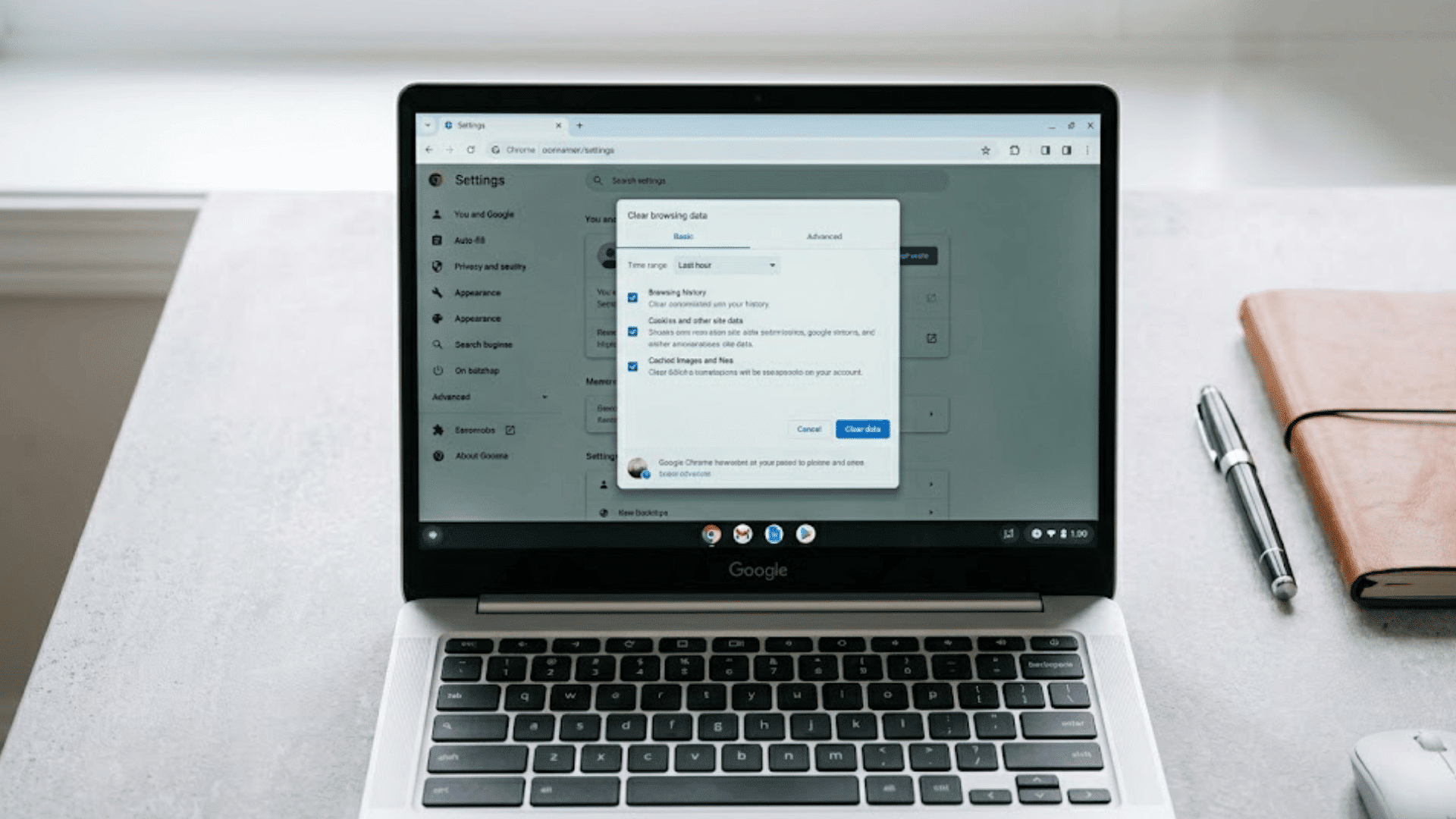
This is the easiest and most reliable way to clear cache on any Chromebook, no matter which Chrome OS version you use.
Start by opening the Chrome browser and pressing Ctrl + Shift + Delete on your keyboard. This shortcut opens the Clear browsing data window instantly.
Under the Basic tab, check the box for Cached images and files. You can also select Cookies and other site data to remove saved website data and fix login or loading issues.
Next, set the Time range to All time so Chrome removes all stored cache files instead of only recent ones.
Click Clear data and wait a few seconds for the process to finish.
Afterward, restart Chrome to help the changes fully apply. The full process usually takes less than a minute.
Alternatively: Go to Settings → Privacy and security → Clear browsing data if you prefer navigating through menus rather than using the keyboard shortcut.
Diagnostic Step Before Clearing: Try Incognito Mode First
Before running a full cache clear, open the problematic website in an Incognito window (Ctrl + Shift + N).
Incognito bypasses the existing cache entirely and loads the site fresh.
If the site works correctly in Incognito, the issue is almost certainly caused by a corrupted or outdated cache file in your main profile.
This quick check takes 30 seconds and confirms the fix before you run it.
What Each Data Type Removes and What Stays Safe?
Not all browsing data works the same way. Knowing what each option actually deletes helps you clear confidently without worrying about losing something important.
| Data type | What it stores | Safe to clear? |
|---|---|---|
| Cached images & files | Temporary copies of site assets | Yes – always |
| Cookies & site data | Login sessions, site preferences | Yes – but you’ll be signed out |
| Browsing history | List of visited URLs | Optional |
| Passwords | Saved login credentials | No – keep these |
| Autofill data | Form entries and addresses | Optional |
How to Clear Cache for Android Apps on Chromebook?
Android apps on a Chromebook maintain their own separate cache files, independent of the Chrome browser. If an app feels slow, freezes often, or crashes without an obvious reason, clearing its app cache is the right fix.
Steps to clear an Android app’s cache:
- Open Settings
- Go to Apps
- Select Manage your apps
- Choose the problem app
- Tap Storage
- Press Clear cache
This deletes only temporary files, keeping your saved accounts, settings, and personal app data safe. You can repeat these steps for any Android app that starts behaving poorly over time.
How to Clear Cache for a Single Website?
If only one website is acting strangely while everything else works fine, clearing your entire browser cache is unnecessary.
Open the website in Chrome, then click the lock icon or info icon beside the address bar. Select Site settings, scroll down, and click Clear data.
This removes cached files, cookies, and temporary data only for that specific website.
Your other saved logins, browsing history, and website settings for all other sites remain completely untouched.
This is the most targeted fix available and is ideal when one site behaves inconsistently after a recent redesign or update.
How to Clear the DNS Cache on a Chromebook?
DNS cache is different from browser cache. Instead of storing website content, it stores the address lookup records that translate domain names like “google.com” into the server IP addresses your Chromebook connects to.
When those records become outdated, websites can fail to load, display the wrong content, or stop connecting after you switch Wi-Fi networks.
Steps to flush the DNS cache:
- Open Chrome and type
chrome://net-internals/#dnsinto the address bar - Click Clear host cache
- Open
chrome://net-internals/#sockets - Select Flush socket pools
This refreshes stored network connection data and typically resolves loading problems caused by outdated address records. The entire process takes about 30 seconds.
I include this step in any Chromebook troubleshooting checklist where the problem is network-related rather than content-related, since it targets a completely separate layer of the system.
Cache Clearing vs. Powerwash: When Each Makes Sense
These are two very different actions that are often confused. Understanding the difference saves you from doing more than you need to.
| Action | What It Removes | Data Lost? | When to Use |
|---|---|---|---|
| Clear Browser Cache | Temporary website files and images | Only cookies and temporary site data | Slow pages, broken layouts, or regular maintenance |
| Clear App Cache | Android app temporary files | No | App crashes, freezes, or experiences slow performance |
| Clear DNS Cache | Stored network and website address data | No | Websites failing to load or network switching issues |
| Remove Unused Extensions | Background browser add-ons and stored extension data | Sometimes extension settings | Chrome lag, high memory usage, or random browser crashes |
| Delete Linux Storage | Linux environment files and developer tools | Linux files only | Low storage warnings or an unused Linux setup |
| Powerwash | Everything is stored locally on the Chromebook | Full device wipe | Serious system problems or preparing to sell the device |
One performance drain that often goes unnoticed: the Linux development environment. If you enabled it at some point but are not actively using it, it can quietly consume several gigabytes of storage.
That has the same practical effect on performance as a bloated browser cache, and the fix is equally simple: go to Settings → Advanced → Developers and remove the Linux environment if you do not need it.
Recommended Schedule to Clear Cache

For most Chromebook users, clearing cache once a month is enough to keep Chrome running smoothly.
People who browse heavily, stream often, or keep dozens of tabs open every day may benefit from clearing it every two weeks instead. Clearing the cache too often will not harm your Chromebook.
Cached images and temporary website files are automatically recreated the next time you visit those sites.
A reliable habit is to clear the cache whenever websites suddenly look broken, pages stop loading correctly, or Chrome feels slower than usual.
It is also worth clearing the cache after a major Chrome OS update, as old cached files may conflict with new browser features.
If multiple Google accounts are used on the same Chromebook, clearing the cache occasionally also helps prevent syncing errors and login issues across profiles.
Conclusion
A slow Chromebook can make even simple tasks feel frustrating, but small maintenance habits often make a bigger difference than people expect.
Clearing the cache, flushing DNS settings, and removing unnecessary browser clutter can quickly bring back smoother browsing and faster response times without risking your files or settings.
The best part is that these fixes only take a few minutes and can help your Chromebook stay reliable for years.
If you make cache clearing part of your monthly routine and keep an eye on storage, extensions, and system updates, you will likely notice fewer slowdowns over time. A little upkeep goes a long way with Chrome OS.
Have you tried clearing the cache on your Chromebook before? Share your experience, favorite fix, or any extra tips in the comments below.
Frequently Asked Questions
Does Clearing Cache Improve Chromebook Speed?
Clearing outdated cache files often improves browser speed, page loading times, and overall Chrome responsiveness.
Are Saved Passwords Removed During Cache Clearing?
Saved passwords remain untouched unless manually deleted from the Chrome password manager.
Is Cache Clearing the Same as a Factory Reset?
Cache clearing removes temporary browser files, while a factory reset wipes the entire Chromebook.
Is Regular Cache Clearing Safe?
Regular cache clearing is completely safe and does not affect accounts, bookmarks, apps, or stored files.
Does Each Chrome Profile Have Its Own Cache?
Yes. Each Chrome profile has its own cache, so clearing one profile’s cache will not affect the others.