




iCloud storage can fill up faster than you may expect, especially when photos, videos, backups, messages, and app data keep saving in the background. I know how frustrating it feels when the “iCloud Storage Full” message appears or your device stops backing up because there is no space left.
It can make you feel like the only option is to buy more storage, but that is not always true. The good news is that you can often clear space by removing files, backups, and data you no longer need.
In this guide, I’ll show you simple ways to check what is using your iCloud storage, delete unnecessary items, manage backups, clean up photos and files, and free up iCloud storage safely without losing anything important.
How to Free Up iCloud Storage Quickly?
When my iCloud storage starts getting full, I focus on the areas that usually take up the most space. Instead of immediately paying for a larger storage plan, I first remove unnecessary files and backups.
These simple steps often free up a surprising amount of space in just a few minutes
1. Check What is Using Your iCloud Storage
Open Settings, tap your name, then go to iCloud > Manage Account Storage. This screen shows what is taking up the most space in your iCloud account.
Look at the largest categories first, such as Photos, Backups, Messages, and iCloud Drive.
Starting with the biggest storage users helps you avoid wasting time on small files and makes the cleanup process much easier.
2. Delete Old iCloud Backups
Tap Backups and check the list of saved devices linked to your Apple ID. If you see backups from an old iPhone or iPad you no longer use, you can delete them to free up storage.
However, keep the backup for your current device because it may help restore your data later. Old backups often take up a large amount of iCloud space.
3. Remove Unwanted Photos and Videos
Open the Photos app and review your library carefully. Delete blurry photos, screenshots, duplicate images, and large videos you no longer need.
Photos and videos often use the most iCloud storage, especially if iCloud Photos is turned on. Before deleting anything important, save a copy somewhere safe.
This step can quickly free up a large amount of space.
4. Empty the Recently Deleted folder
Deleting photos and files does not always free up storage right away.
Items in the Recently Deleted folder can still use iCloud space for up to 30 days. To reclaim storage space faster, open this folder and permanently remove unwanted items.
Make sure you do not need those files before deleting them forever, because they cannot be easily recovered afterward.
5. Clear Large Files from iCloud Drive
Open Files > iCloud Drive and look for large documents, videos, downloads, folders, or old project files you no longer use.
These files can quietly take up storage over time. Delete only the items you are sure you do not need. If a file is important, download it to your computer or another storage option before removing it from iCloud Drive.
6. Delete Old Messages and Attachments
Messages can take up more iCloud storage than many people realize. Photos, videos, GIFs, documents, and other attachments shared in conversations can build up over time.
Review old chats and large attachments, then delete anything you no longer need.
This is especially helpful if you send or receive many media files. Cleaning messages regularly can prevent storage from filling up again quickly.
7. Review App Data Stored in iCloud
Go back to your iCloud settings and check which apps are saving data to iCloud. Some apps store backups, settings, documents, or game data that you may not need.
Turn off iCloud syncing or backups for unimportant apps.
Be careful with apps that store useful information, such as notes or documents. This helps reduce unnecessary iCloud storage use.
8. Clean iCloud Mail
If you use iCloud Mail, emails with large attachments can slowly take up storage. Search for emails with photos, videos, PDFs, or other large files and delete the ones you no longer need.
After that, empty the Trash and Junk folders so they stop using space. This step may not help everyone, but it is useful for regular iCloud Mail users.
9. Check Storage Again
After cleaning up your backups, photos, files, messages, apps, and mail, go back to Manage Account Storage to see how much space you freed up.
This final check helps you confirm which steps worked best. If your iCloud storage is still almost full, repeat the process or consider upgrading your storage plan.
A monthly check can help keep iCloud under control.
First, Let’s Check Your iCloud Storage Details
Before you start deleting anything, it is important to check what is using your iCloud storage. iCloud usually shows storage in groups such as Photos, Backups, Messages, iCloud Drive, Mail, and App Data.
This makes it easier to see where most of your space is going. Once you know the biggest storage user, you can clean that section first.
It also helps you avoid deleting files you still need. A quick storage check can save time and make the cleanup process safer and easier.
On an iPhone or iPad
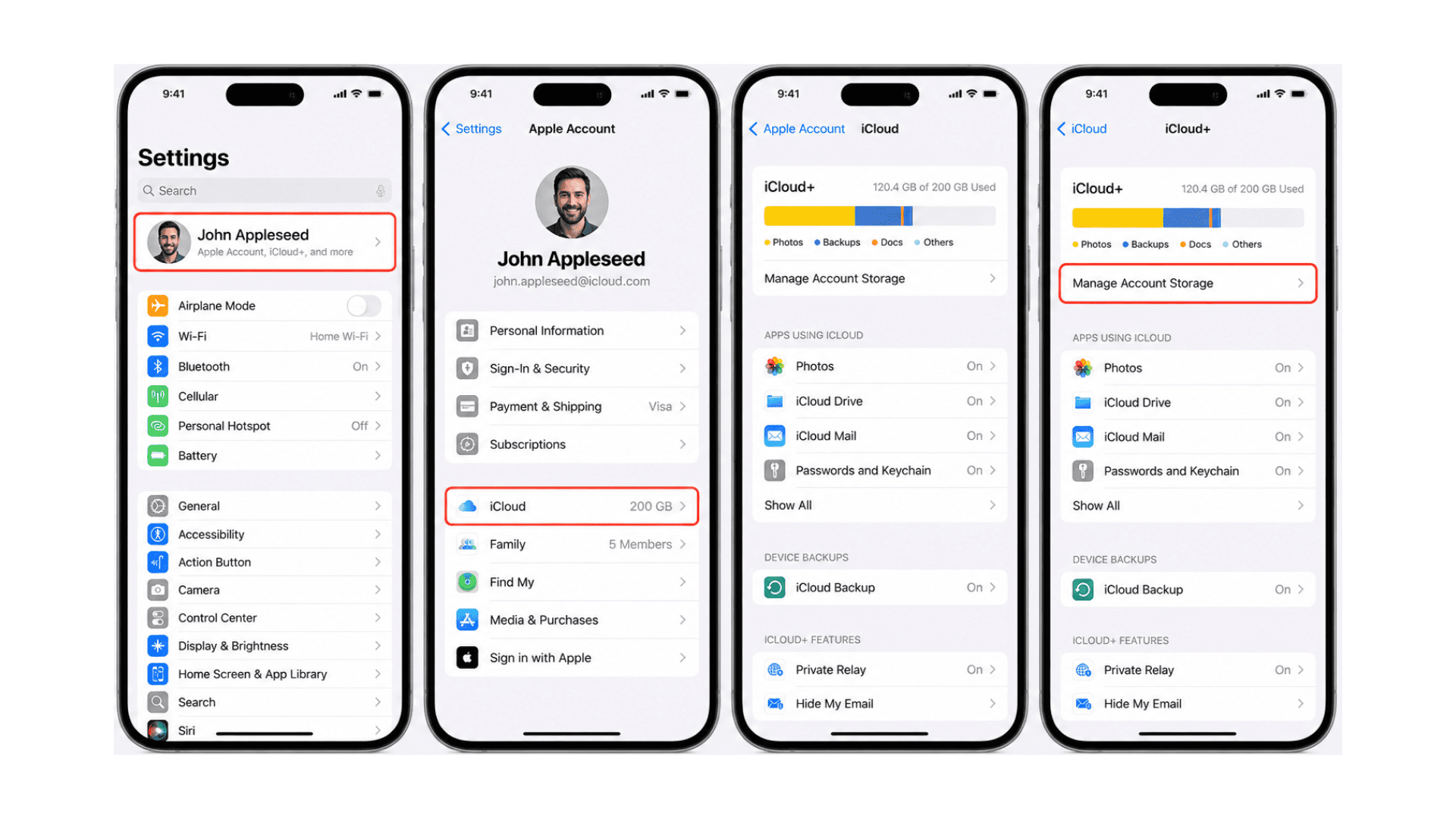
Open Settings on your iPhone or iPad and tap your name at the top. Then select iCloud and tap Manage Account Storage.
You will see a storage bar and a list of apps or categories using space. Check the largest section first, such as Photos, Backups, Messages, or iCloud Drive.
On a Mac
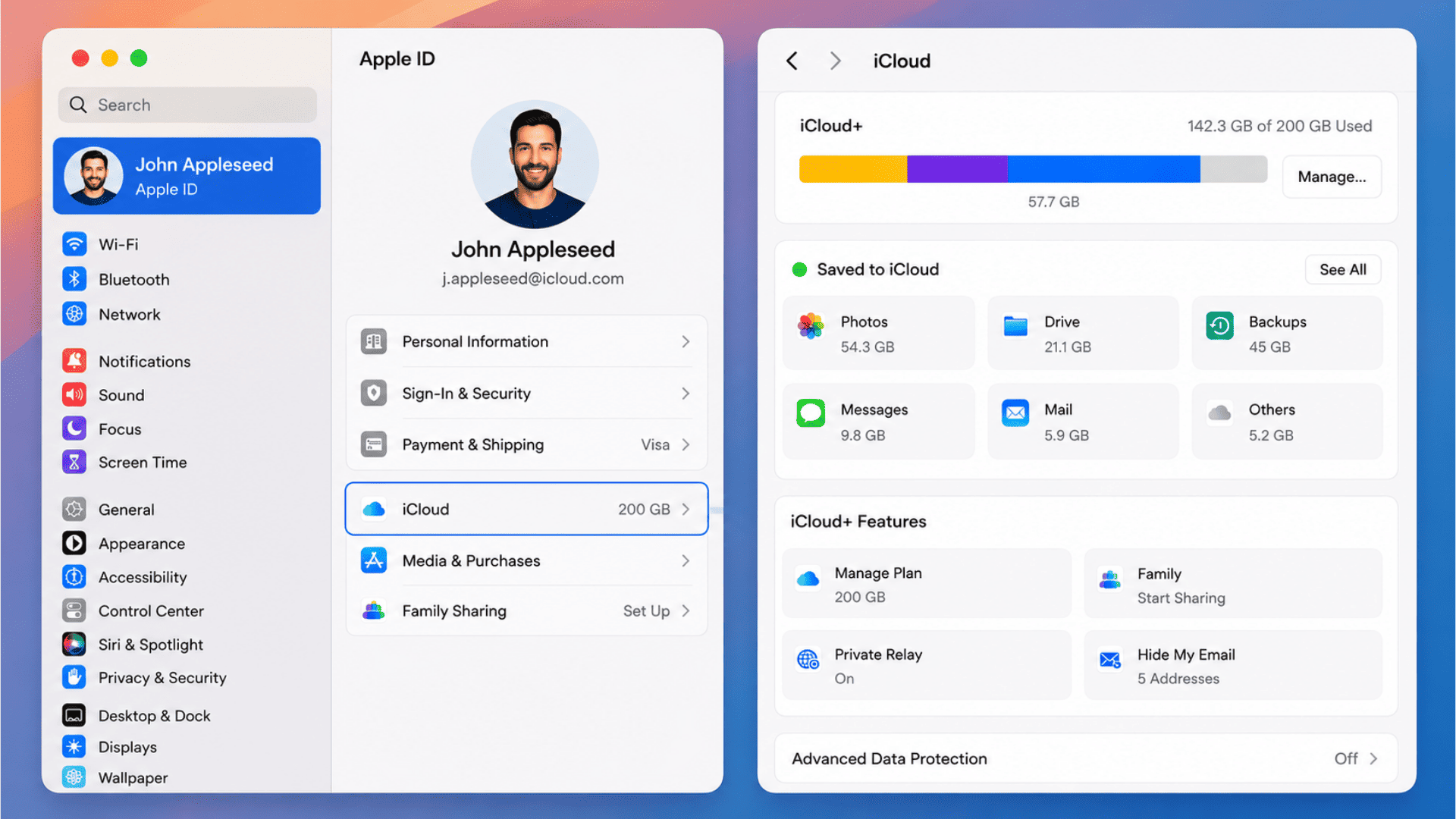
On your Mac, click the Apple menu and open System Settings. Select your Apple ID, then click iCloud to view your storage details.
You will see how much space is used and which categories take up the most room. Review the biggest storage users first so you know what to clean safely.
Before Cleaning Up, See What’s Using Your iCloud Storage
If you’re wondering why your iCloud storage fills up so quickly, the answer is usually a few common items. Photos and videos are often the biggest storage users, especially if you take lots of pictures.
Device backups can also use a large amount of space, particularly if you own multiple Apple devices.
Knowing what takes up the most space helps you focus your cleanup efforts where they will make the biggest difference.
| Storage User | What It Includes |
| Photos | Pictures, videos, screenshots |
| Device Backups | iPhone and iPad backups |
| Messages | Texts, photos, videos, attachments |
| iCloud Drive | Documents, PDFs, downloads |
| Email Attachments | Files stored in iCloud Mail |
| App Data | Game saves, settings, synced app files |
How to Delete Old iCloud Backups You No Longer Need?
Old iCloud backups can take up a lot of space, especially if you have used more than one iPhone or iPad over time.
I always check this section first because deleting one unused backup can free up a large amount of storage. The key is to remove only backups from devices you no longer use.
Keep the backup for your current device so your important settings, app data, and files stay protected.
How to Find Old Backups
- Open Settings on your iPhone or iPad.
- Tap your Apple ID name at the top.
- Select iCloud and then Manage Account Storage .
- Tap Backups to see all saved device backups.
- Review the device names and backup dates.
- Look for backups from old iPhones or iPads you no longer use.
How to Delete Unused Backups Safely
- Open the backup you want to remove.
- Confirm that the device is no longer in use.
- Check that any important data has already been transferred.
- Tap Delete Backup.
- Confirm your choice when prompted.
- Keep at least one recent backup for devices you still use.
When You Should Keep a Backup
- Keep backups for your current iPhone or iPad.
- Save backups that contain important photos, messages, or documents.
- Keep a backup before upgrading to a new device.
- Hold onto recent backups until you are sure everything works correctly.
- Keep backups in case you need to restore your device later.
- Avoid deleting backups unless you are certain they are no longer needed.
Tips to Prevent iCloud Storage from Filling Up Again
Keeping iCloud storage clean is easier when you build small habits. After you free up space, try not to let old photos, backups, messages, and files pile up again. I like to check my storage often so I can fix small problems before they become big ones.
Simple steps like cleaning attachments, removing old backups, and organizing files can help your iCloud stay clear for longer. This also makes backups and syncing work better.
1. Regular Storage Checks
Check your iCloud storage once a month to see what is using the most space. Look at photos, backups, messages, and files first.
This habit helps you catch storage issues early and clean up small items before your iCloud storage fills up again.
2. Optimize Photo Storage
Turn on Optimize iPhone Storage to save space on your device while keeping photos in iCloud.
Also, delete blurry photos, screenshots, duplicates, and large videos you no longer need. This keeps your photo library cleaner and helps reduce storage pressure.
3. Remove Unnecessary Backups
Review your iCloud backups regularly and delete backups from old devices you no longer use.
These unused backups can take up a lot of storage without helping you. Keep only the backup for your current iPhone or iPad.
You can also review app backup settings and turn off backups for apps that do not store important data.
4. Clean Attachments Monthly
Messages can store many photos, videos, links, documents, and other files over time.
If you send or receive a lot of media, these attachments can quietly take up iCloud storage. Check your large attachments once a month and delete anything you no longer need.
This simple habit can free up space quickly and help keep your iCloud storage from filling again.
5. Organize Files Regularly
Open iCloud Drive and review your documents, folders, downloads, and saved files.
Delete old files, duplicates, and items you no longer use. Try to keep important files in clearly named folders so they are easier to find later.
A simple file cleanup every few weeks can help prevent clutter and make your iCloud storage easier to manage.
Should You Upgrade Your iCloud Storage Plan?

Upgrading your iCloud storage plan can be helpful, but I suggest cleaning up your storage first.
Many people can free up space by deleting old backups, large videos, unused files, and message attachments.
If your storage still fills up quickly after that, upgrading may be worth it. Apple currently offers iCloud+ plans from 50GB to 12TB, plus the free 5GB plan.
Paid plans also include extra features like Family Sharing and privacy tools.
Signs You Need More Storage
You may need more iCloud storage if your iPhone stops backing up, iCloud Photos will not sync, or you keep seeing the “iCloud Storage Full” message.
Upgrading can also make sense if you take many photos and videos, use several Apple devices, or share storage with family members.
In these cases, extra storage can make backups and syncing much easier.
Current iCloud+ Storage Options
Apple gives every user 5GB of free iCloud storage, but that space can fill up quickly with photos, videos, backups, and files.
If cleanup is not enough, you can choose a paid iCloud+ plan.
The right option depends on how many devices you use, how much media you store, and whether you share storage with family.
| Storage Plan | Storage Space | Ideal For |
|---|---|---|
| Free Plan | 5GB | Users who only need basic backups, contacts, calendars, and a small number of files. |
| iCloud+ 50GB | 50GB | Individuals with one Apple device and a modest collection of photos and documents. |
| iCloud+ 200GB | 200GB | Users with multiple devices, larger photo libraries, and regular backups. |
| iCloud+ 2TB | 2TB | Families or heavy users who store lots of photos, videos, and files. |
| iCloud+ 6TB | 6TB | Content creators, photographers, and users with extensive media collections. |
| iCloud+ 12TB | 12TB | Professionals and households with very large storage and backup requirements. |
Note: Apple’s iCloud+ pricing varies by country. Check Apple’s official website for the latest plans and pricing before upgrading.
Is It Better to Clean Up Storage or Upgrade to iCloud+?
Cleaning up iCloud storage is a good first step because it can help you free up space without paying more. You can delete old backups, large videos, message attachments, unused files, and app data you no longer need.
This works well if your storage is only slightly full. But if your iCloud fills up again quickly, upgrading to iCloud+ may be easier.
The right choice depends on how many photos, videos, devices, and backups you need to store.
Clean Up Storage or Upgrade to iCloud+ Pros and Cons
Before choosing between cleanup and an upgrade, compare the benefits and drawbacks of each option. Cleaning up storage can save money and reduce clutter, while upgrading provides extra space and convenience.
The table below helps you decide which approach best fits your needs.
| Option | Pros | Cons |
|---|---|---|
| Clean Up Storage | Free, removes clutter, helps you manage files better | Takes time and needs regular checking |
| Upgrade to iCloud+ | Gives more storage, easier for backups, helpful for many devices | Adds a monthly cost |
| Clean Up + Upgrade | Best balance for heavy users, keeps storage organized | Still needs occasional cleanup |
Common Mistakes that Waste iCloud Storage
Many people unknowingly waste iCloud storage by keeping old backups, saving unnecessary files, and forgetting about large message attachments.
Ignoring the Recently Deleted folder and backing up every app can also consume valuable space.
Avoiding these common mistakes helps keep your storage organized and available.
- Keeping Multiple Device Backups – Old iPhone or iPad backups can use a lot of iCloud space. If you have changed devices, check your backup list. Delete backups from devices you no longer use, but keep the backup for your current device.
- Ignoring Deleted Photos Folder- Deleted photos and videos may stay in the Recently Deleted folder. They can still count toward your iCloud storage until removed forever. After deleting media, open this folder and clear it to free up space.
- Saving Unnecessary Files – iCloud Drive can collect old documents, downloads, PDFs, and duplicate files. These items may not seem large at first, but they add up. Review your folders often and delete files you no longer need.
- Backing Up Every App – Some apps save data to iCloud even when you do not need them backed up. Check app backup settings and turn off iCloud backup for apps that are not important or rarely used.
- Forgetting About Message Attachments – Photos, videos, GIFs, and files shared in Messages can use a lot of space. Review large attachments and delete anything you do not need anymore. This can quickly clear extra storage.
At the End
Freeing up iCloud storage does not have to be hard. Start by checking what is using the most space, then delete old backups, remove unwanted photos and videos, clear large iCloud Drive files, and clean up message attachments.
You can also review app data and empty Recently Deleted folders to free up more space. I suggest checking your iCloud storage regularly so small files do not pile up again.
For many users, these simple steps can reclaim a good amount of space without upgrading to a paid plan.
Try one cleanup tip today, and share this guide with someone whose iCloud storage is always full.
Frequently Asked Questions
Does Deleting Photos from iCloud Delete them from My iPhone?
Yes. If iCloud Photos is enabled, deleting a photo from iCloud will also remove it from all devices associated with the same Apple ID.
How Often Should I Clean My iCloud Storage?
A quick storage check once a month is usually enough. Regular cleanup helps prevent storage issues and keeps backups, photos, and files organized.
Can I Free up iCloud Storage without Paying?
Yes. You can delete old backups, remove unwanted photos and videos, clear message attachments, and clean up iCloud Drive files to free up storage.
What’s the Fastest Way to Clear iCloud Storage?
The fastest method is deleting old device backups, large videos, duplicate photos, and unused files in iCloud Drive. These items often use the most storage space.