


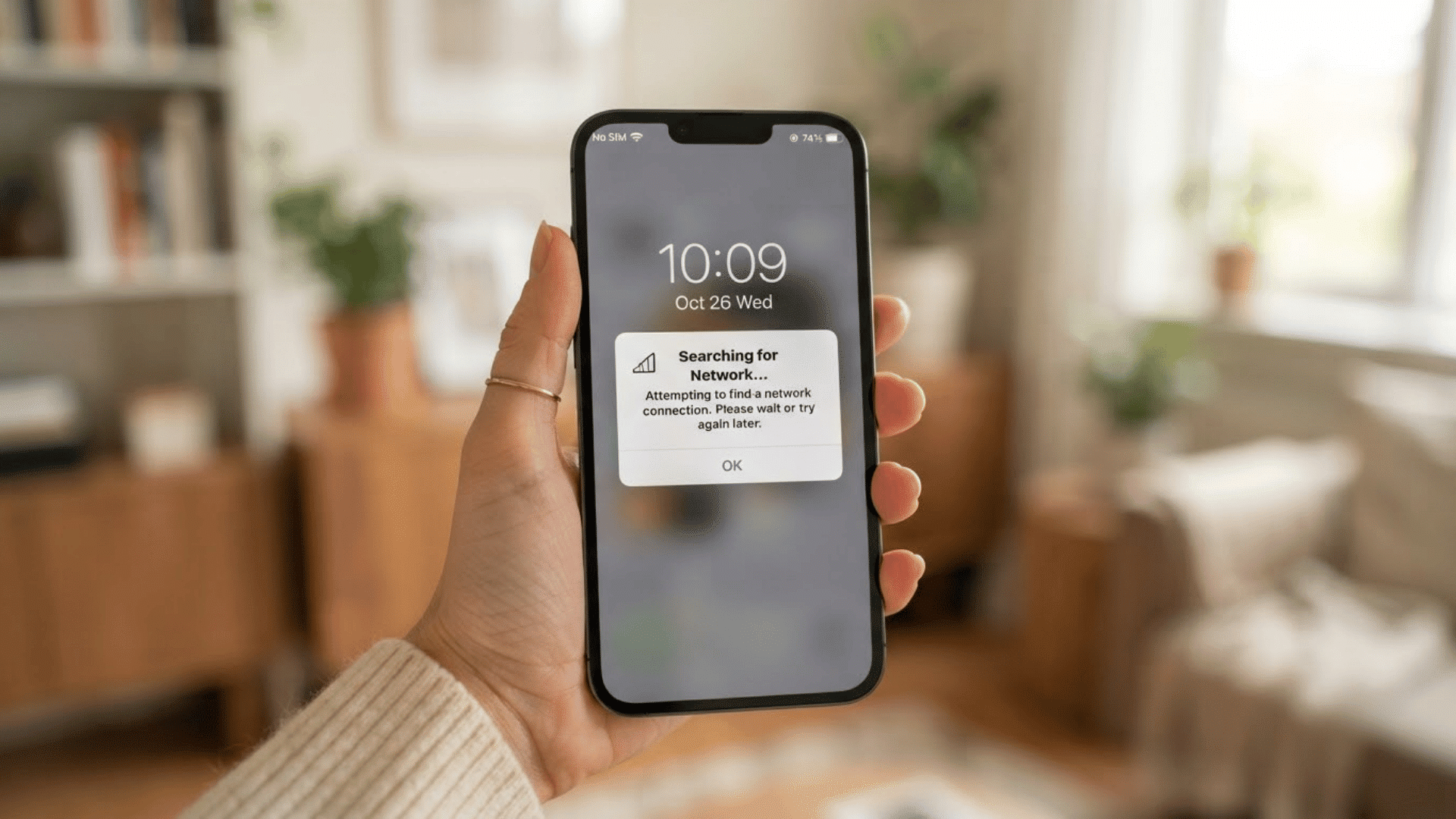
Computers are a central part of modern work, study, and communication. Input devices are the hardware tools that make all of this interaction possible by letting users send data and commands into a computer system.
From typing on a keyboard to tapping a touchscreen, input devices bridge the gap between human intent and machine action.
They affect how efficient, accurate, and accessible computer use is across homes, schools, offices, and industries.
In this guide, you will find a structured breakdown of the most common input devices of a computer, their functions, subtypes, and practical applications.
I have organized this based on how these devices are typically categorized in technical documentation and computer hardware references.
Understanding Input Devices in a Computer
Input devices are hardware components that allow users to enter data, instructions, and commands into a computer.
In simple terms, an input device helps a computer receive information from the outside world so it can process and respond to it. These devices are essential for interacting with a computer and performing everyday tasks.
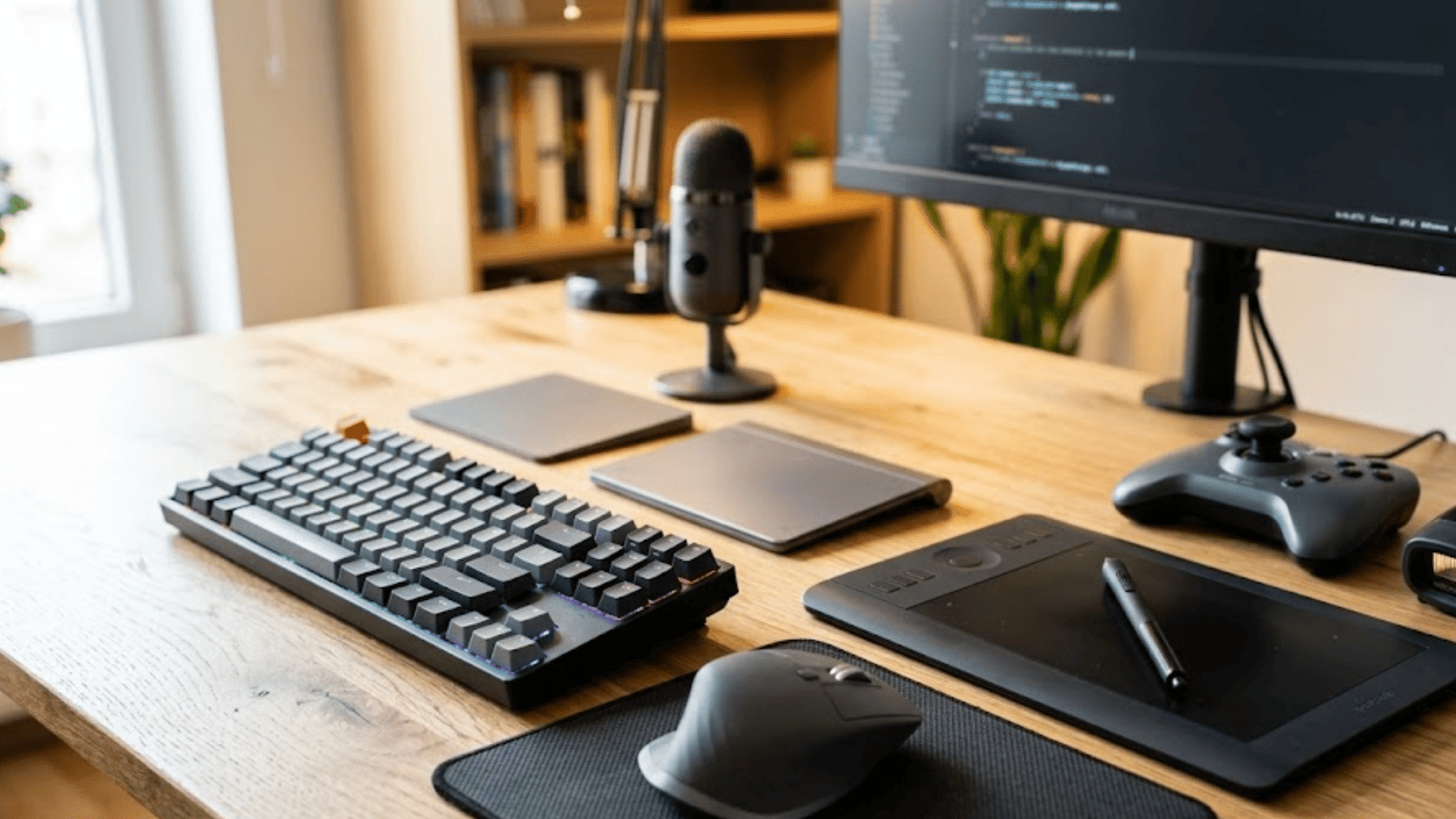
Some of the most common examples of input devices include keyboards, mice, scanners, microphones, webcams, and touchscreens.
Each device is designed to collect a specific type of data, such as text, images, audio, or user actions. Once the information is entered, the computer processes it and generates the required output.
Input devices are classified by the data they capture, helping match each device to the right task.
Types of Input Devices: An Overview of Their Classification
Before discussing individual input devices, it is helpful to understand that they can be grouped into different functional categories.
| Category | What It Captures | Common Devices |
|---|---|---|
| Text Input | Typed characters and commands | Keyboard, Digital Pen |
| Pointing/Navigation | Cursor position and selection | Mouse, Trackball, Touchpad |
| Audio Input | Sound and voice commands | Microphone |
| Visual/Image Input | Images, videos, and documents | Webcam, Scanner |
| Touch/Gesture Input | Touch, swipe, and pressure inputs | Touchscreen, Graphics Tablet |
| Biometric Input | Fingerprints, iris patterns, and facial features | Biometric Scanner |
| Control/Gaming Input | Directional movement and button controls | Joystick, Gamepad |
| Code/ID Input | Barcodes and card information | Barcode Reader, Smart Card Reader |
Common Examples of Input Devices and Their Functions
Each input device serves a unique purpose, allowing users to provide commands, data, or instructions that a computer can process and respond to.
1. Keyboard
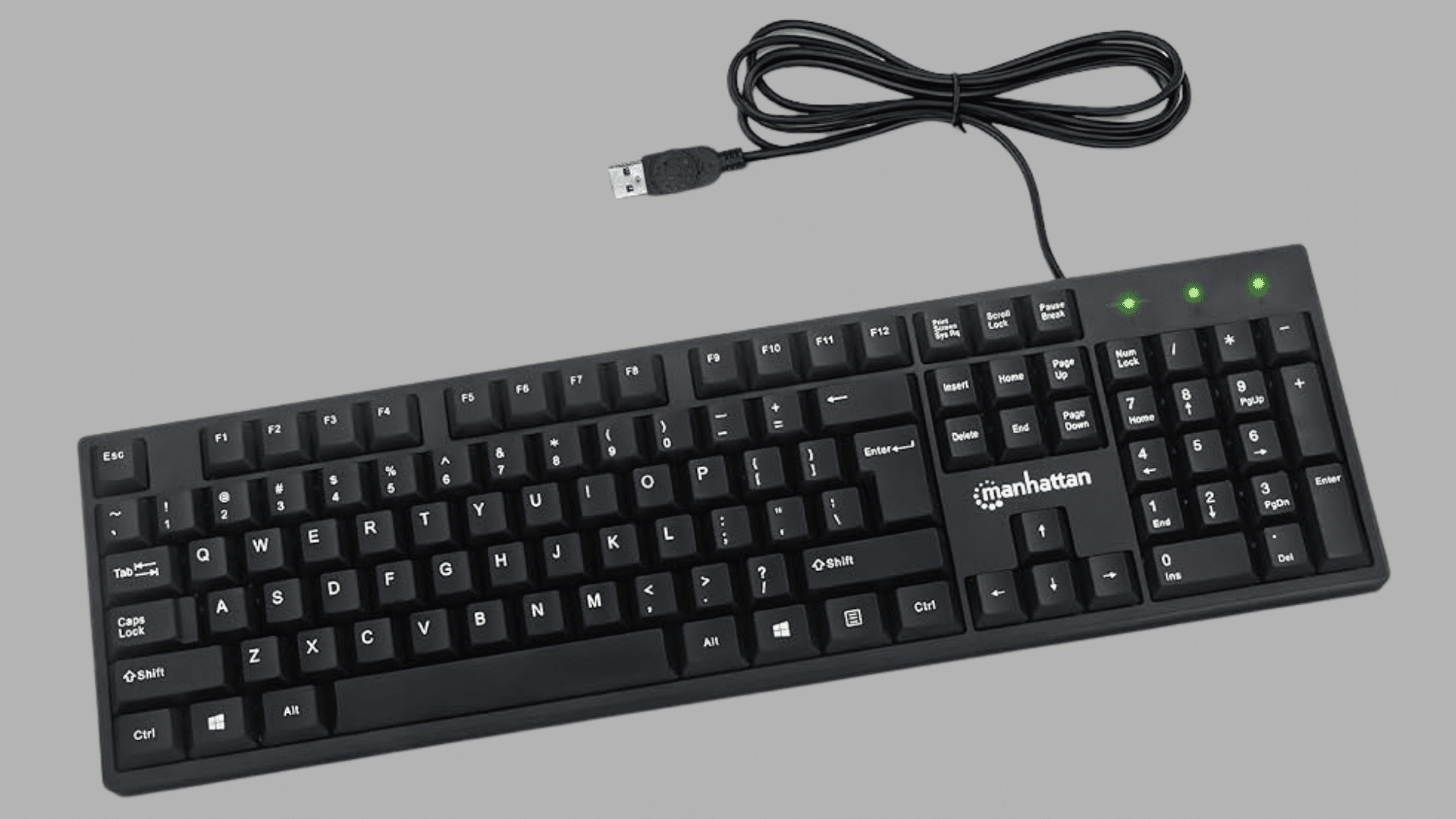
A keyboard is one of the most essential input devices for entering text, numbers, and commands into a computer.
It enables users to communicate with the system efficiently and is commonly used in homes, offices, schools, and gaming setups.
Features:
- Fast and accurate text input
- Supports keyboard shortcuts
- Available in wired and wireless models
- Includes function and multimedia keys
| Type | Example Product | Special Feature |
|---|---|---|
| Membrane Keyboard | Manhattan USB Computer Keyboard | Quiet typing experience with spill-resistant design |
| Mechanical Keyboard | Keychron K8 Pro | Hot-swappable switches and customizable RGB lighting |
| Wireless Keyboard | Logitech MX Keys S | Smart illumination and multi-device connectivity |
| Ergonomic Keyboard | Microsoft Sculpt Ergonomic Keyboard | Split-key layout designed to reduce wrist strain |
Best For: Students, office professionals, programmers, writers, and users who frequently work with text and commands.
2. Mouse
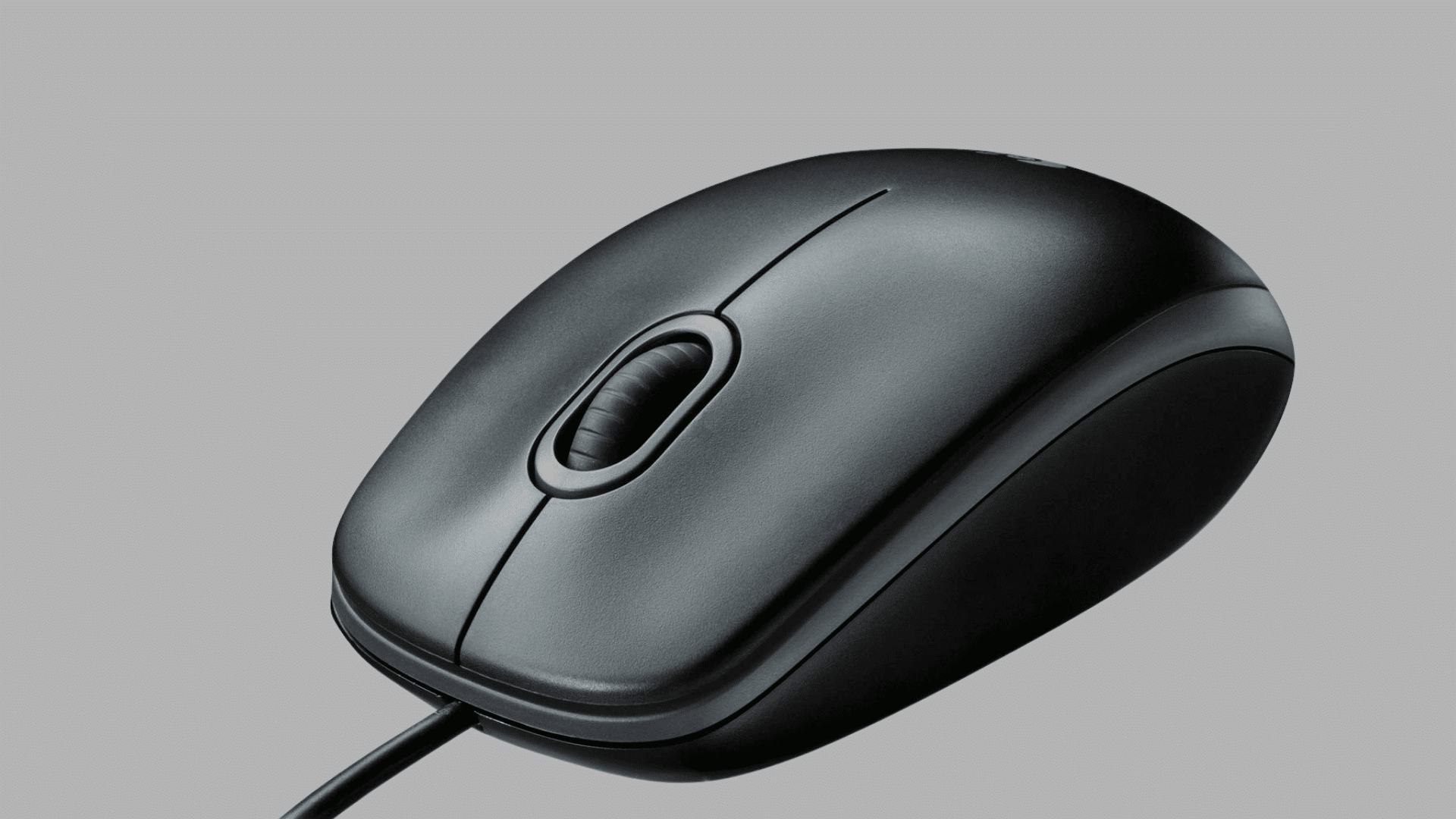
A mouse is a handheld pointing device that allows users to interact with graphical user interfaces by controlling the cursor on a screen. It is widely used for navigation, selection, dragging, and executing commands.
Features:
- Precise cursor movement
- Supports scrolling and gesture controls
- Available in wired and wireless models
- Ergonomic designs for extended use
- Suitable for productivity and gaming
| Type | Example Product | Special Feature |
|---|---|---|
| Optical Mouse | Logitech M100 | High-precision optical tracking on various surfaces |
| Wireless Mouse | Logitech M720 Triathlon | Connects to multiple devices with Easy-Switch technology |
| Gaming Mouse | Razer DeathAdder V3 | Ultra-fast sensor with customizable DPI settings |
| Vertical Mouse | Logitech Lift | Ergonomic vertical design to reduce wrist pressure |
Best For: Office workers, students, gamers, designers, and everyday computer users.
3. Touchpad
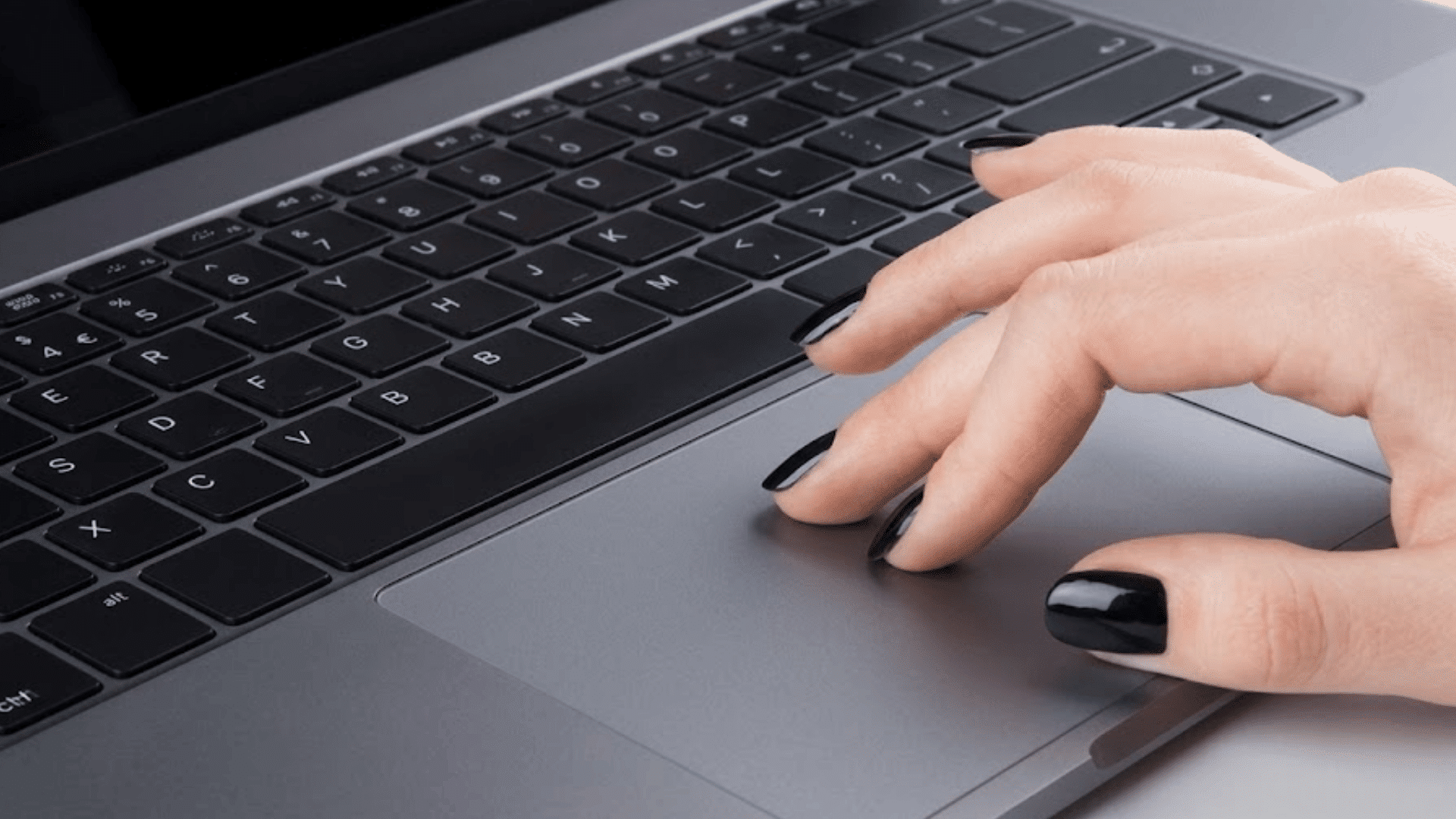
A touchpad is a touch-sensitive input device commonly integrated into laptops. It enables users to control the cursor and perform actions using finger movements and gestures.
Features:
- Multi-touch gesture support
- Built directly into laptops
- Eliminates the need for an external mouse
- Supports tapping and swiping actions
- Compact and travel-friendly
| Type | Example Product | Special Feature |
|---|---|---|
| Precision Touchpad | Microsoft Precision Touchpad | Enhanced gesture accuracy and responsiveness |
| Glass Touchpad | Dell Premium Touchpad | Smooth glass surface for effortless navigation |
| Force Touch Touchpad | Apple Force Touch Trackpad | Pressure-sensitive input with haptic feedback |
| External Touchpad | Logitech Rechargeable Touchpad T650 | Wireless operation with gesture support |
Best For: Laptop users, students, remote workers, and frequent travelers.
4. Trackball
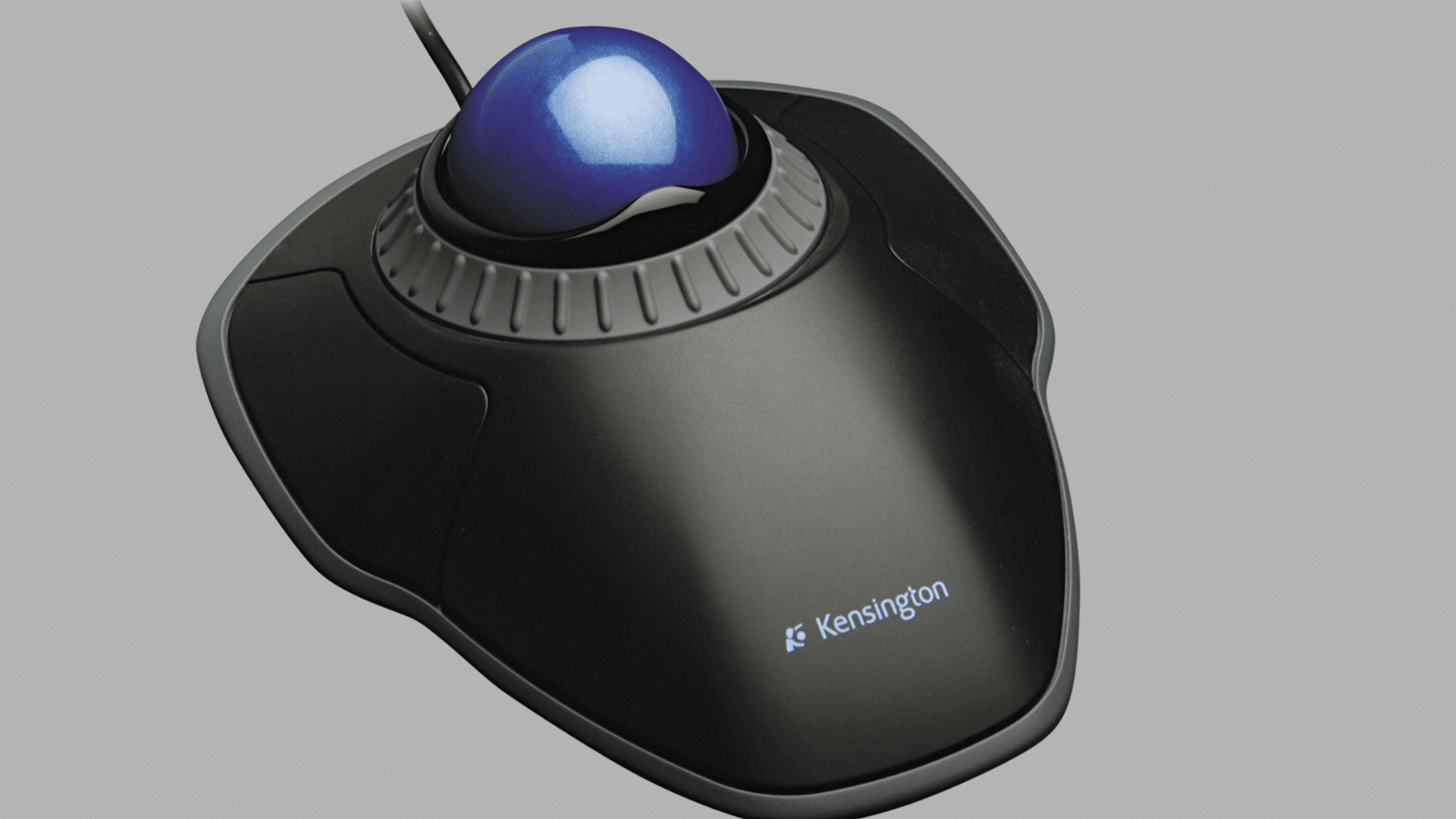
A trackball is a stationary pointing device that moves the cursor through a rotating ball instead of moving the entire device. It is known for precision and comfort in limited workspaces.
Features:
- Requires minimal desk space
- Offers high accuracy and control
- Reduces wrist and arm movement
- Suitable for detailed design tasks
- Available in thumb- and finger-operated designs
| Type | Example Product | Special Feature |
|---|---|---|
| Thumb-Controlled Trackball | Logitech ERGO M575 | Smooth thumb-operated navigation |
| Finger-Controlled Trackball | Kensington Expert Mouse | Large trackball for precise control |
| Wireless Trackball | Logitech MX Ergo | Adjustable hinge for ergonomic comfort |
| Professional Trackball | Kensington SlimBlade Pro | Dual wireless connectivity with customizable controls |
Best For: Graphic designers, CAD professionals, editors, and users with limited desk space.
5. Touchscreen
A touchscreen combines display and input capabilities, allowing users to interact directly with on-screen elements using their fingers or a stylus.
Features:
- Supports intuitive touch controls
- Enables multi-touch gestures
- Reduces dependence on external devices
- Provides fast navigation
- Common in mobile and smart devices
| Type | Example Product | Special Feature |
|---|---|---|
| Capacitive Touchscreen | Apple iPad Display | Highly responsive multi-touch technology |
| Resistive Touchscreen | Elo Touch Solutions Screen | Operates accurately with gloves or stylus |
| Infrared Touchscreen | Planar Helium Touch Monitor | Durable touch detection without surface pressure |
| Optical Touchscreen | ViewSonic TD Series | Enhanced touch accuracy for commercial use |
Best For: Smartphone users, tablet users, kiosks, retail systems, and educational environments.
6. Scanner
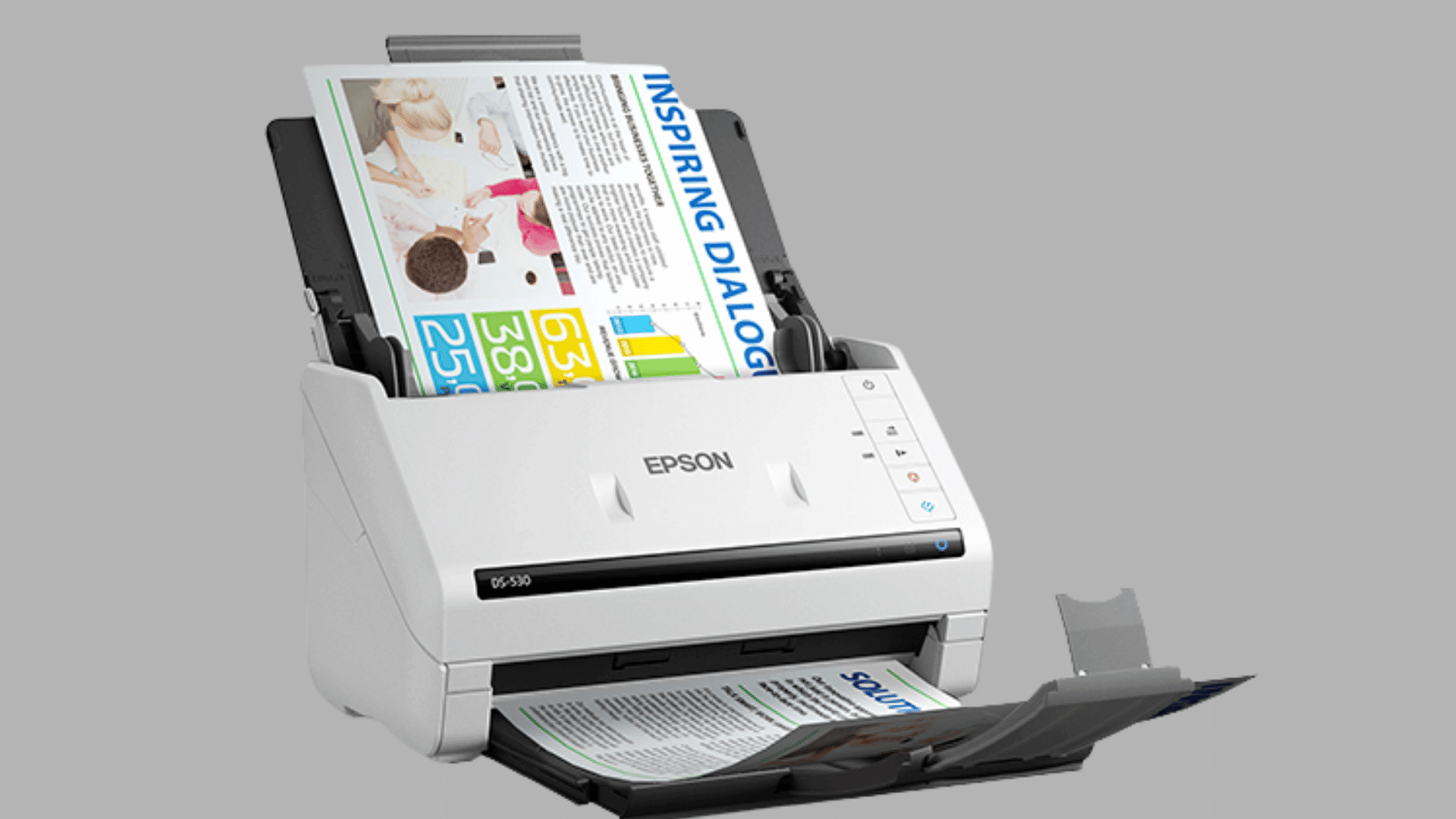
A scanner captures physical documents, photos, and images and converts them into digital files that can be stored, edited, or shared electronically.
Features:
- Converts paper documents into digital formats
- Produces high-resolution scans
- Supports OCR technology
- Enables easy document storage
- Useful for archiving records
| Type | Example Product | Special Feature |
|---|---|---|
| Flatbed Scanner | Epson Perfection V39 II | High-quality photo and document scanning |
| Sheetfed Scanner | Fujitsu ScanSnap iX1600 | Fast automatic document feeding |
| Portable Scanner | Brother DS-940DW | Lightweight wireless scanning on the go |
| Photo Scanner | Epson FastFoto FF-680W | Scans large batches of photos quickly |
Best For: Offices, students, photographers, libraries, and record management.
7. Barcode Reader
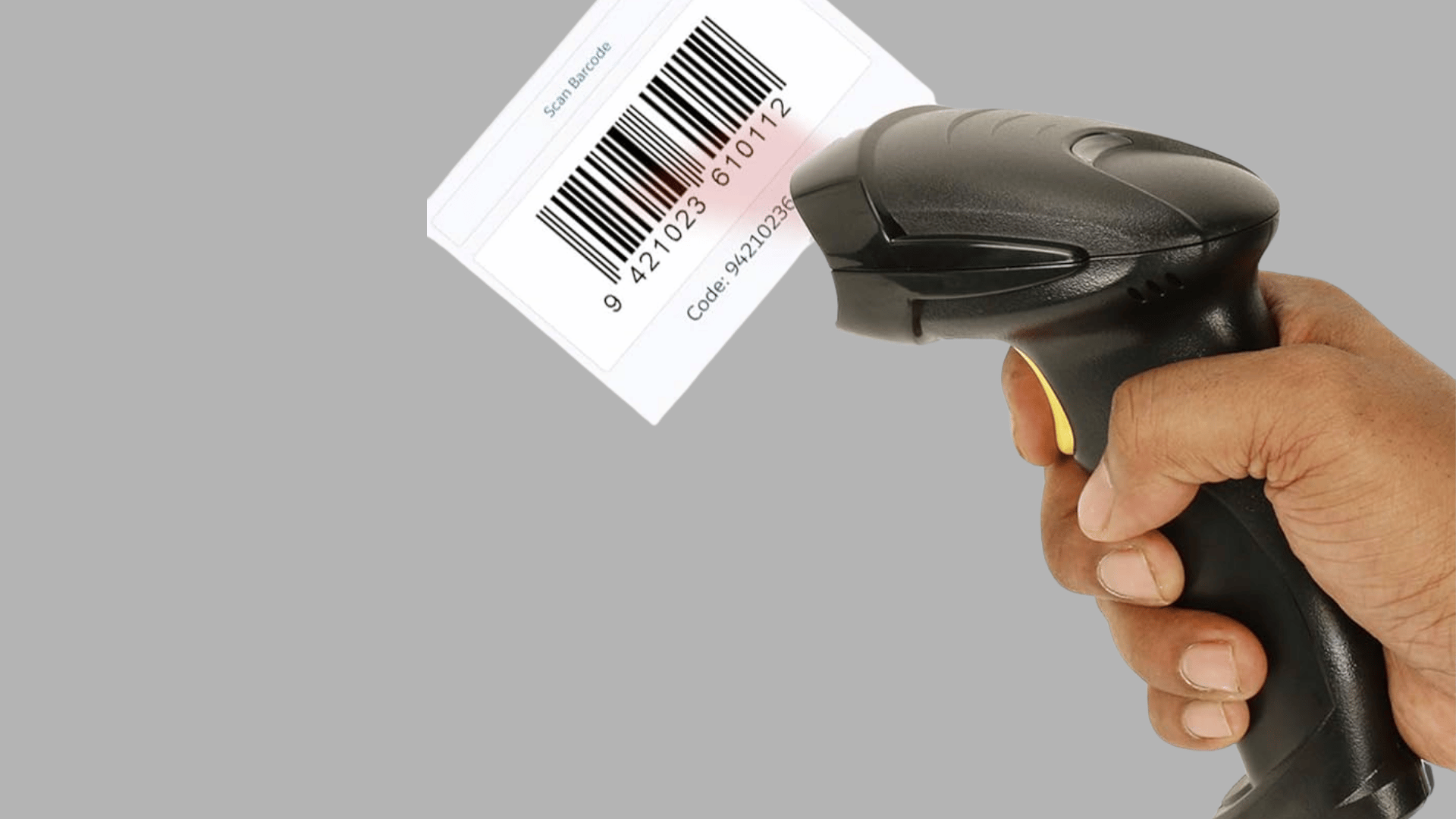
A barcode reader scans printed barcodes and converts them into digital information for inventory management, billing, and tracking systems.
Features:
- Fast barcode recognition
- Reduces manual data entry errors
- Supports inventory tracking
- Compatible with POS systems
- Available in handheld and fixed models
| Type | Example Product | Special Feature |
|---|---|---|
| Handheld Scanner | Zebra DS2208 | Reads damaged and poorly printed barcodes |
| Wireless Scanner | NETUM Wireless Barcode Scanner | Long-range wireless connectivity |
| Presentation Scanner | Honeywell Orbit 7120 | Hands-free scanning capability |
| Industrial Scanner | Zebra DS3678 | Rugged design for warehouse environments |
Best For: Retail stores, warehouses, logistics companies, and inventory managers.
8. Microphone
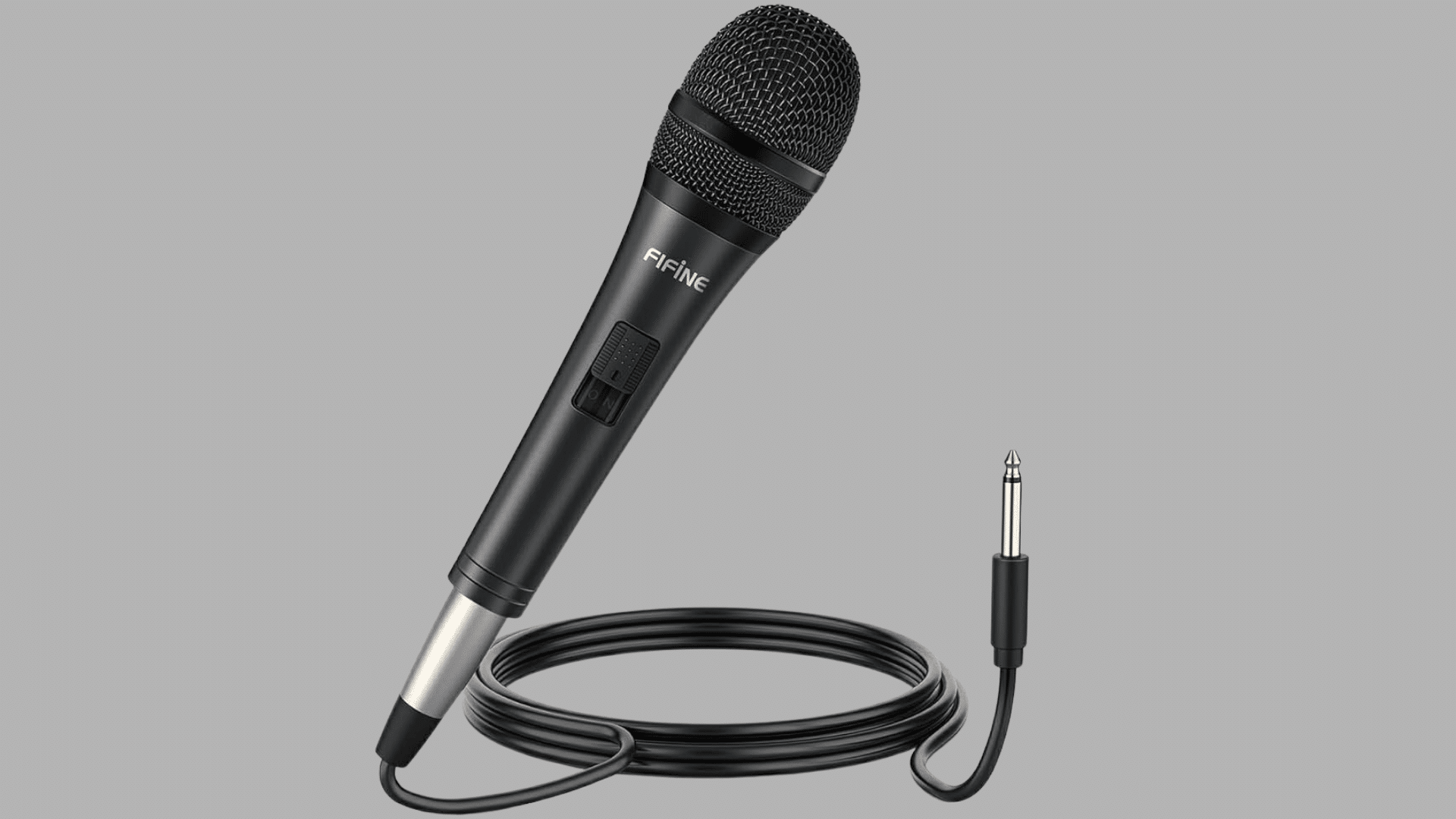
A microphone captures sound waves and converts them into digital audio signals that a computer can process and store.
Features:
- High-quality audio capture
- Supports voice communication
- Available in wired and wireless versions
- Noise reduction capabilities
- Suitable for recording and broadcasting
| Type | Example Product | Special Feature |
|---|---|---|
| USB Microphone | Blue Yeti | Multiple pickup patterns for versatile recording |
| Condenser Microphone | Audio-Technica AT2020 | Studio-quality sound reproduction |
| Dynamic Microphone | Shure SM58 | Excellent background noise rejection |
| Wireless Microphone | Rode Wireless GO II | Compact dual-channel wireless recording |
Best For: Podcasters, streamers, musicians, students, and remote workers.
9. Webcam
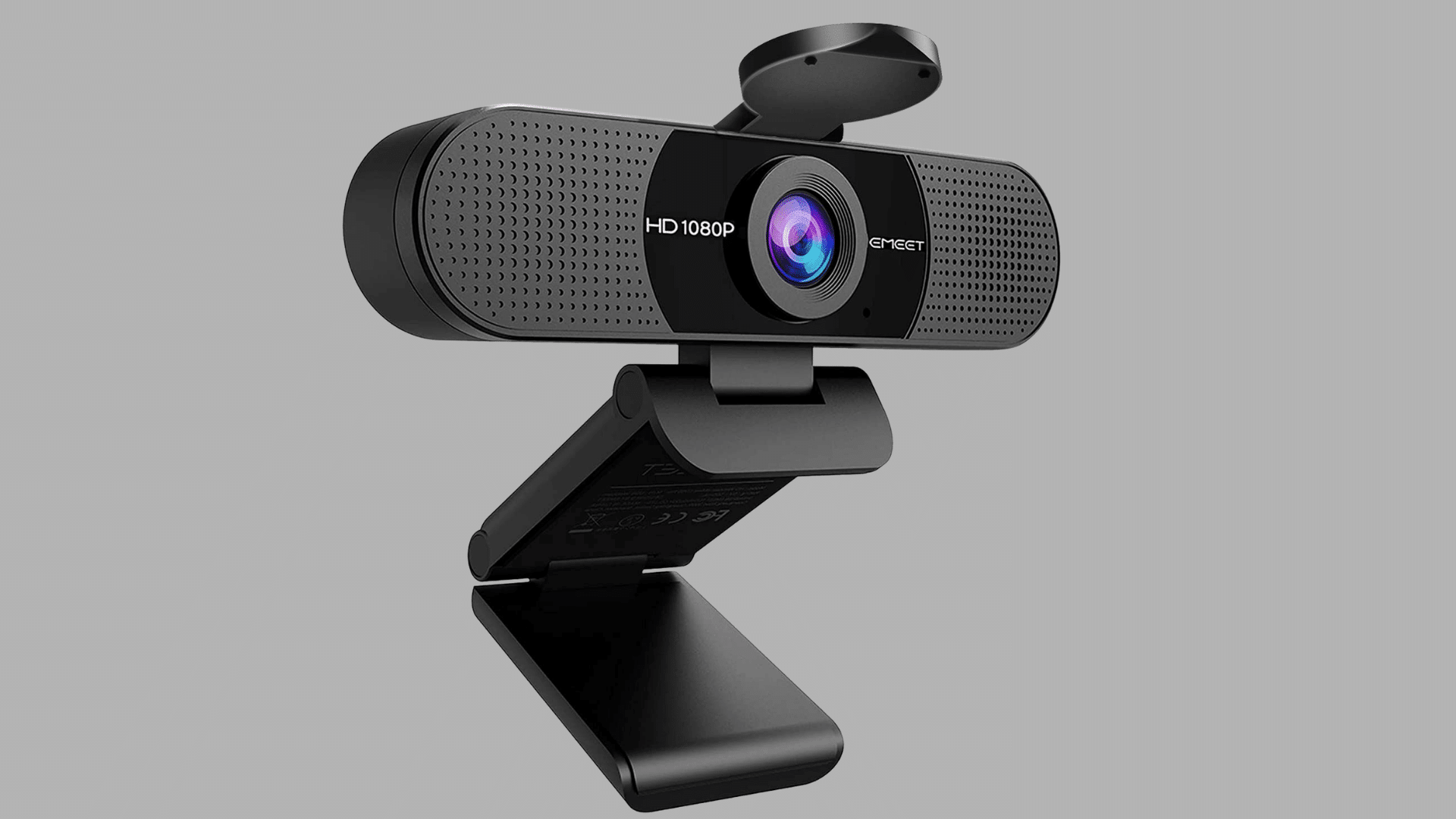
A webcam is a video input device that captures live images and videos and transmits them to a computer. It is commonly used for virtual meetings, online classes, video conferencing, and content creation.
Features:
- Captures real-time video and images
- Supports HD and 4K resolutions
- Built-in microphones in many models
- Compatible with conferencing platforms
- Easy plug-and-play setup
| Type | Example Product | Special Feature |
|---|---|---|
| HD Webcam | Logitech C920x HD Pro | Full HD video with automatic light correction |
| 4K Webcam | Logitech Brio 4K | Ultra HD resolution with HDR support |
| Streaming Webcam | Elgato Facecam Pro | Uncompressed 4K streaming capabilities |
| AI Webcam | Insta360 Link | AI-powered tracking and gesture controls |
Best For: Remote workers, students, streamers, content creators, and business professionals.
10. Graphics Tablet
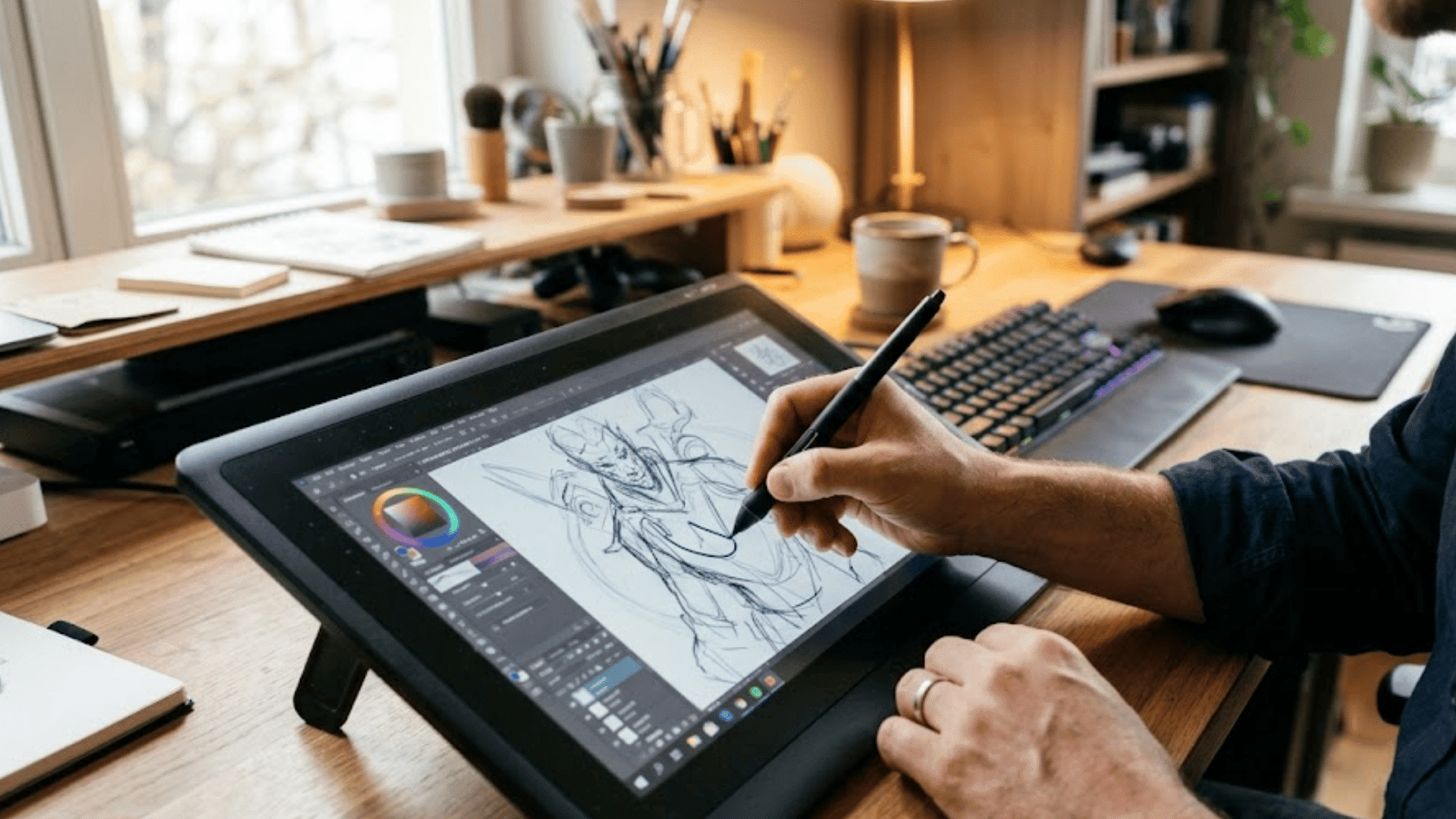
A graphics tablet is a specialized input device that allows users to draw, sketch, and design digitally using a stylus. It provides greater precision than a traditional mouse.
Features:
- Pressure-sensitive drawing input
- High precision and accuracy
- Natural pen-on-paper experience
- Supports creative software applications
- Improves workflow for designers
| Type | Example Product | Special Feature |
|---|---|---|
| Pen Tablet | Wacom Intuos Pro | Industry-leading pressure sensitivity |
| Display Tablet | Wacom Cintiq 16 | Draw directly on the screen |
| Portable Tablet | XP-PEN Deco Pro | Lightweight design with customizable controls |
| Professional Tablet | Huion Kamvas Pro 24 | Large color-accurate display for creative work |
Best For: Graphic designers, illustrators, animators, architects, and photographers.
11. Joystick
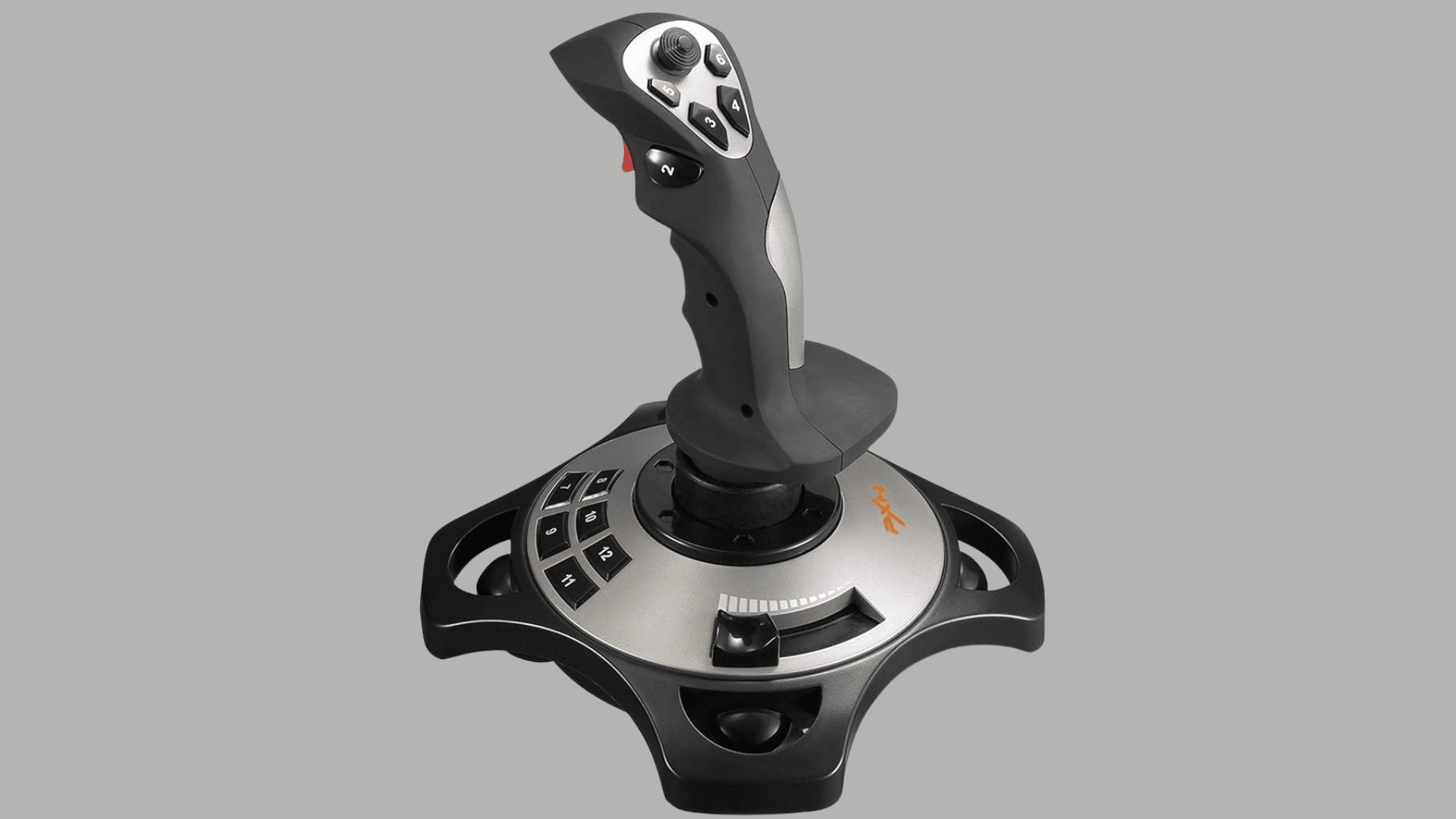
A joystick is a directional input device that allows users to control movement and actions in games, simulations, and specialized software environments.
Features:
- Precise directional control
- Supports multiple programmable buttons
- Enhances gaming experience
- Suitable for simulators
- Available in wired and wireless options
| Type | Example Product | Special Feature |
|---|---|---|
| Gaming Joystick | Logitech Extreme 3D Pro | 12 programmable buttons for advanced control |
| Flight Stick | Thrustmaster T.16000M | Hall Effect sensors for superior accuracy |
| HOTAS System | Thrustmaster HOTAS Warthog | Realistic aircraft-inspired controls |
| Arcade Joystick | Mayflash F300 | Compatible with multiple gaming platforms |
Best For: Gamers, flight simulation enthusiasts, and training environments.
12. Light Pen
A light pen is a pen-shaped pointing device used to select, draw, or interact directly with content displayed on a screen. Although less common today, it played an important role in early computer graphics systems.
Features:
- Direct screen interaction
- High-precision selection
- Pen-shaped ergonomic design
- Useful for technical drawings
- Enables accurate pointing
| Type | Example Product | Special Feature |
|---|---|---|
| CRT Light Pen | Classic IBM Light Pen | Designed for direct screen interaction |
| CAD Light Pen | Engineering Display Pen | Precise drafting and design input |
| Educational Light Pen | Interactive Learning Pen | Supports learning applications |
| Industrial Light Pen | Terminal Control Pen | Reliable operation in specialized systems |
Best For: Educational demonstrations, legacy systems, engineering applications, and technical drawing environments.
13. Biometric Scanner
A biometric scanner captures unique biological characteristics such as fingerprints, facial features, or iris patterns to verify a user’s identity.
Features:
- Enhances security and privacy
- Fast user authentication
- Reduces password dependence
- Supports multiple biometric methods
- Improves access control systems
| Type | Example Product | Special Feature |
|---|---|---|
| Fingerprint Scanner | DigitalPersona 4500 | High-accuracy fingerprint recognition |
| Facial Recognition Scanner | Windows Hello Camera | Secure facial authentication |
| Iris Scanner | Iris ID iCAM 7S | Contactless iris verification |
| Multi-Biometric Scanner | HID Lumidigm V-Series | Combines fingerprint and multispectral imaging |
Best For: Businesses, government agencies, secure workplaces, and personal device security.
14. Digital Pen
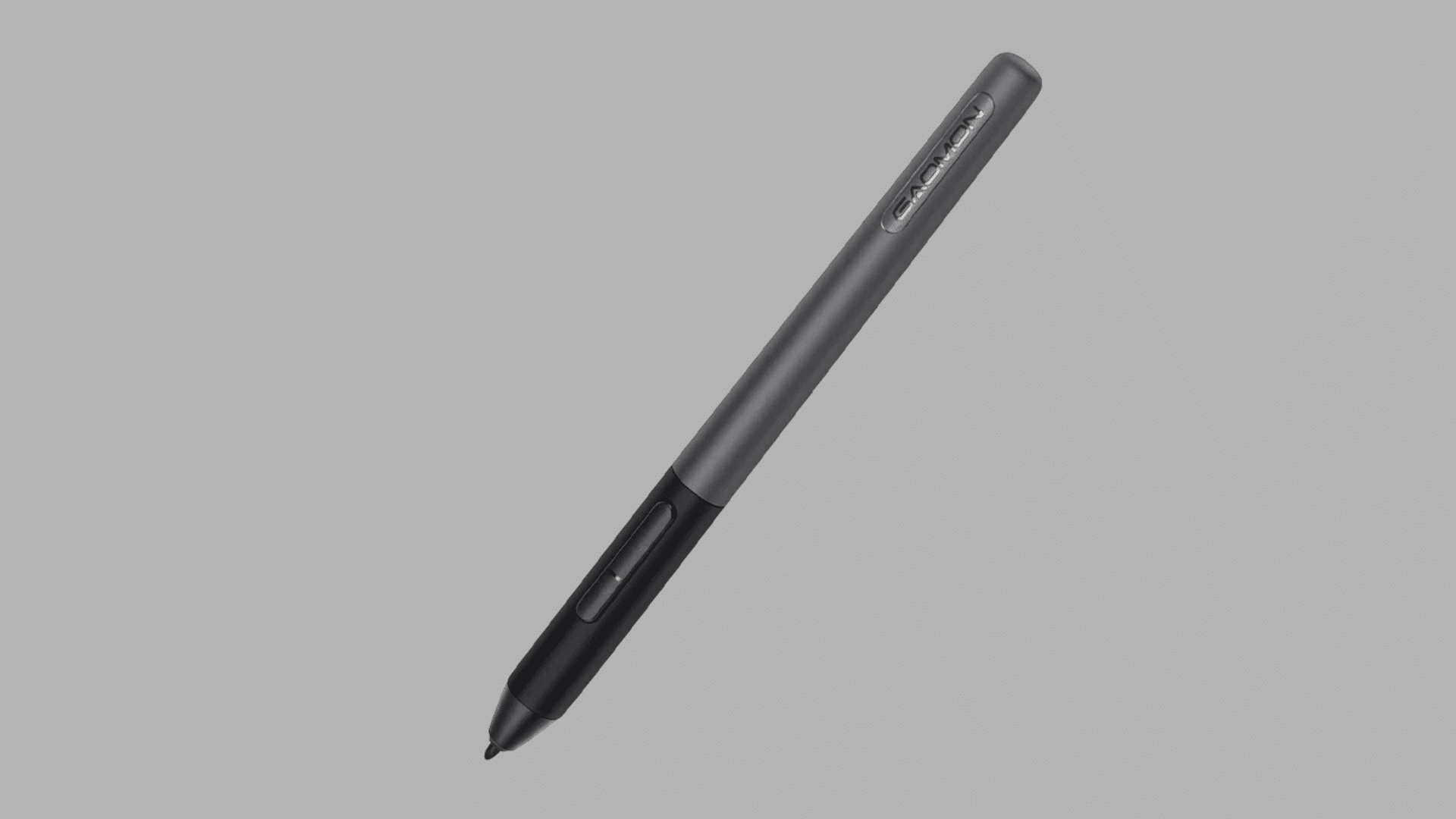
A digital pen is an advanced input device that enables users to write, annotate, draw, and interact with digital content naturally on compatible screens and tablets.
Features:
- Supports pressure-sensitive input
- Provides a natural handwriting experience
- Enables precise drawing and editing
- Often includes shortcut buttons
- Compatible with tablets and touchscreens
| Type | Example Product | Special Feature |
|---|---|---|
| Active Stylus | Apple Pencil Pro | Advanced pressure sensitivity and hover support |
| Smart Pen | Livescribe Symphony | Converts handwritten notes into digital text |
| Surface Pen | Microsoft Surface Slim Pen 2 | Haptic feedback for realistic writing |
| Creative Stylus | Wacom Bamboo Ink Plus | Compatible with multiple touchscreen devices |
Best For: Students, artists, designers, professionals, and digital note-takers.
15. Smart Card Reader
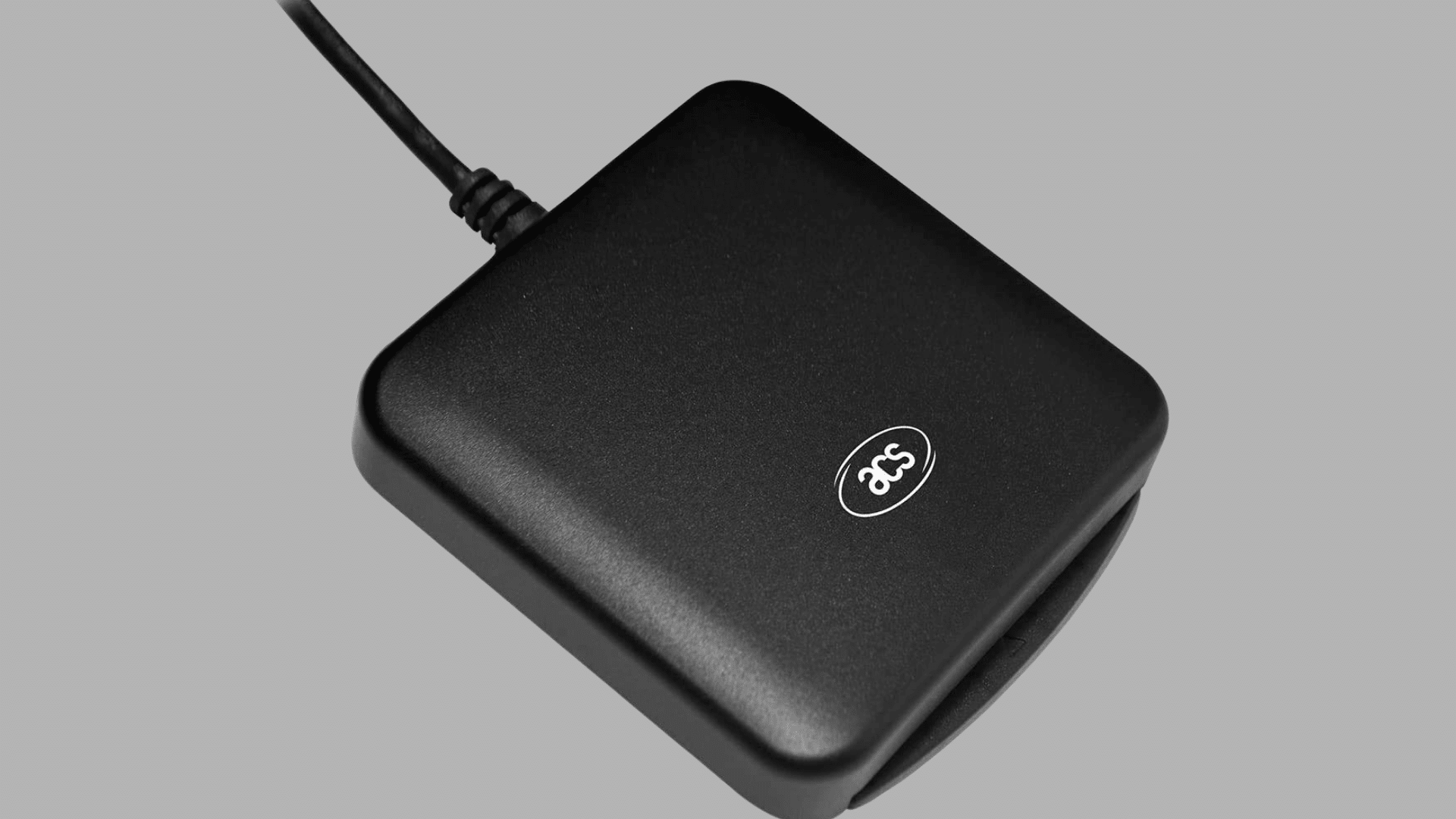
A smart card reader is an input device that reads data stored on smart cards containing embedded microchips. It is commonly used for authentication, secure transactions, and access control.
Features:
- Supports secure authentication
- Reads encrypted information
- Compatible with various smart cards
- Improves data security
- Widely used in financial and enterprise environments
| Type | Example Product | Special Feature |
|---|---|---|
| USB Smart Card Reader | Identiv SCR3310v2.0 | Fast and secure card authentication |
| Contact Smart Card Reader | ACS ACR39U | Compact design with broad compatibility |
| Contactless Reader | ACS ACR1252U | NFC-enabled contactless card reading |
| Multi-Card Reader | HID OMNIKEY 5427 CK | Supports both contact and contactless cards |
Best For: Banking institutions, government organizations, healthcare systems, corporate security, and secure access management.
Adaptive Input Devices for Accessibility
Adaptive input devices make computers more accessible for individuals with motor, visual, or cognitive impairments who may find standard input devices difficult to use.
These specialized tools help ensure equal access to technology in educational, workplace, and healthcare settings.
Eye-tracking devices use cameras and infrared sensors to monitor a user’s gaze, allowing them to control the cursor and perform clicks without using their hands.
Foot mice provide cursor control through foot movements and pedals, offering an alternative for users with upper-limb disabilities.
Braille keyboards feature Braille markings that enable visually impaired users to type more efficiently.
Switch input systems use a single button press with scanning software to control computers in schools, hospitals, and rehab centers.
Advantages and Disadvantages of Input Devices
Input devices help users interact with computers quickly and efficiently, but they also have limitations such as cost, compatibility issues, and maintenance requirements.
| Advantages of Input Devices | Disadvantages of Input Devices |
|---|---|
| Faster data entry and communication with computers | Hardware failures can interrupt work and require repairs |
| Improved productivity by simplifying tasks and workflows | Compatibility issues may occur with some software or systems |
| Better accessibility through voice input and touchscreens | Some devices require training and practice to use effectively |
| Accurate data entry helps reduce human errors | Security and privacy risks may exist with biometric devices |
| Supports various tasks such as typing, drawing, and voice recognition | Advanced input devices can be costly to purchase and maintain |
How Are Input Devices Used in Modern Technologies?
Modern technologies rely on advanced input devices to create interactive user experiences. These devices allow users to communicate with digital systems through touch, voice, gestures, movement, and biometric data.
- Smartphones: Smartphones use touchscreens, microphones, cameras, fingerprint scanners, and facial recognition sensors to receive user input and enable seamless interaction with apps and services.
- Smart TVs: Smart TVs accept input through remote controls, voice commands, smartphone apps, and motion sensors, making content navigation more convenient and interactive.
- AI Voice Assistants: Voice assistants use microphones and speech recognition technology to process spoken commands, answer questions, and perform automated tasks.
- Smart Wearables: Smartwatches and fitness trackers collect input through touchscreens, biometric sensors, GPS modules, and motion detectors to monitor activities and health metrics.
- Self-Service Kiosks: Interactive kiosks use touchscreens, barcode scanners, card readers, and cameras to help users complete transactions and access information independently.
- Smart Home Devices: Smart home systems receive input through mobile apps, voice commands, motion sensors, and touch controls to automate household functions.
How Do Input Devices Convert Data Into a Computer Language?
Input devices help bridge the gap between human actions and computer processing. They capture information from users, convert it into a machine-readable format, and send it to the computer for processing.
1. Data Capture
The process begins when an input device collects data or instructions from the user.
Different devices capture different types of information, such as text via a keyboard, voice via a microphone, or images via a scanner.
This raw data is gathered in a format that humans can easily create or understand.
At this stage, the computer cannot directly process the information because it has not yet been converted into machine-readable data.
Data capture serves as the first step in enabling communication between users and computer systems.
2. Signal Conversion
After capturing data, the input device converts it into electronic signals that a computer can recognize. For example, when a user presses a key on a keyboard, the device translates that action into a specific electrical signal.
Similarly, microphones convert sound waves into digital signals, while scanners transform visual information into digital images.
This conversion process is essential because computers operate using binary code.
By transforming human input into digital signals, input devices make information understandable to the computer’s internal hardware and software.
3. Data Transmission
Once the data has been converted into electronic signals, it is transmitted to the computer through wired or wireless connections.
Depending on the device, this transfer may occur through USB ports, Bluetooth technology, Wi-Fi connections, or other communication interfaces.
During transmission, the data travels from the input device to the computer’s motherboard and memory systems.
Modern input devices are designed to transfer information quickly and accurately, ensuring that user actions are reflected on the screen almost instantly without noticeable delays or interruptions.
4. Processing by CPU
After receiving the transmitted data, the Central Processing Unit (CPU) interprets and processes the information.
The CPU analyzes the incoming signals and converts them into meaningful instructions that software applications can use.
For example, when a user types a letter, the CPU identifies the corresponding character and displays it on the screen. This processing stage allows the computer to perform tasks, execute commands, and generate output.
As a result, the user’s input is transformed into actions that the computer can understand and respond to effectively.
Difference Between the Input Device and the Output Device
Input and output devices perform opposite functions in a computer system. Input devices transmit data to the CPU, while output devices receive processed data from the CPU.
| Feature | Input Device | Output Device |
|---|---|---|
| Function | Sends data and control signals to the system. | Receives and presents processed data. |
| Data Flow | User → Input Device → CPU | CPU → Output Device → User |
| Signal Direction | Inbound to the computer. | Outbound from the computer. |
| Processing Role | Supplies raw data for processing. | Displays the processed results. |
| Conversion | Converts physical actions into digital signals. | Converts digital signals into human-readable form. |
| Examples | Keyboard, Mouse, Scanner, Microphone | Monitor, Printer, Speakers, Projector |
Conclusion
Input devices are important hardware components that enable users to communicate with computers by entering data, commands, and instructions.
From keyboards to voice assistants, input devices make digital interactions faster, more accurate, and more efficient.
Understanding the different types of input devices and their functions helps explain how computers receive and process information.
As technology evolves input devices are becoming smarter more intuitive and easier to use.
I believe that knowing how these devices work can help users make better use of technology in both personal and professional settings.
If you’re a student, professional, or tech enthusiast, this knowledge can be highly valuable.
Frequently Asked Questions
Is a Touchscreen an Input Device or an Output Device?
A touchscreen functions as both an input and output device. It displays information like a monitor while also allowing users to enter commands through touch-based interactions.
What Is the Newest Type of Input Device?
Modern input devices include AI-powered voice recognition systems, gesture controllers, eye-tracking sensors, and brain-computer interfaces that enable more natural human-computer interaction.
Which Input Device Is Best for Graphic Design?
A graphics tablet is considered the best input device for graphic design because it offers precise control, pressure-sensitive input, and a natural drawing experience.