




Have you ever wanted to cross out text in Google Docs without deleting it? It is a simple feature, but finding it is not always obvious.
Strikethrough in Google Docs lets you cross out text while keeping it visible for easy review.
The good news is that it only takes a few clicks or a keyboard shortcut to use. The exact steps depend on the device you have.
This article explains how to use strikethrough on Windows laptops and MacBooks. You will also learn shortcuts, how to remove strikethrough, troubleshooting tips, and answers to common questions.
What Is Strikethrough in Google Docs?
Strikethrough in Google Docs is a text formatting option that draws a horizontal line through selected words without deleting them.
It lets you cross out text while keeping it visible, making it easy to review or refer back to later. This is useful when editing documents, updating information, or showing that certain text is no longer relevant.
Many people use strikethrough when reviewing drafts, collaborating with others, marking completed tasks, or keeping track of revisions.
Instead of permanently removing content, it helps maintain a clear editing history within the document.
The feature is available on both the Google Docs desktop website and the mobile app, with slightly different steps for each device.
Why Use Strikethrough in Google Docs?
Strikethrough helps keep edits clear without permanently removing text. It is useful for writing, reviewing, planning, and working with others.
- Edit Text without Deleting It: Keep the original content visible while showing it is no longer needed.
- Review Document Changes: Make revisions easier to track before removing or replacing text.
- Collaborate with Others: Help team members identify suggested edits during shared document reviews.
- Mark Completed Tasks: Cross out finished items in checklists, meeting notes, or project plans.
- Keep a Record of Revisions: Preserve earlier versions of text for comparison or future reference.
- Organize Drafts More Clearly: Separate outdated content from current information without permanently removing it.
How to Add Strikethrough in Google Docs?
Strikethrough lets you cross out text while keeping it visible in your document. You can apply it through the Format menu or use a keyboard shortcut for a faster method.
Step 1: Open Google Docs

Sign in to your Google account and open Google Docs in your preferred web browser. From the home page, locate the document where you want to add a strikethrough and click it once to open it.
Wait for the document to load completely before making any changes.
Make sure you have editing permission, as formatting options are not available in view-only or comment-only documents.
Once the file is open, you are ready to select the text you want to format.
Step 2: Locate the Text You Want to Cross Out
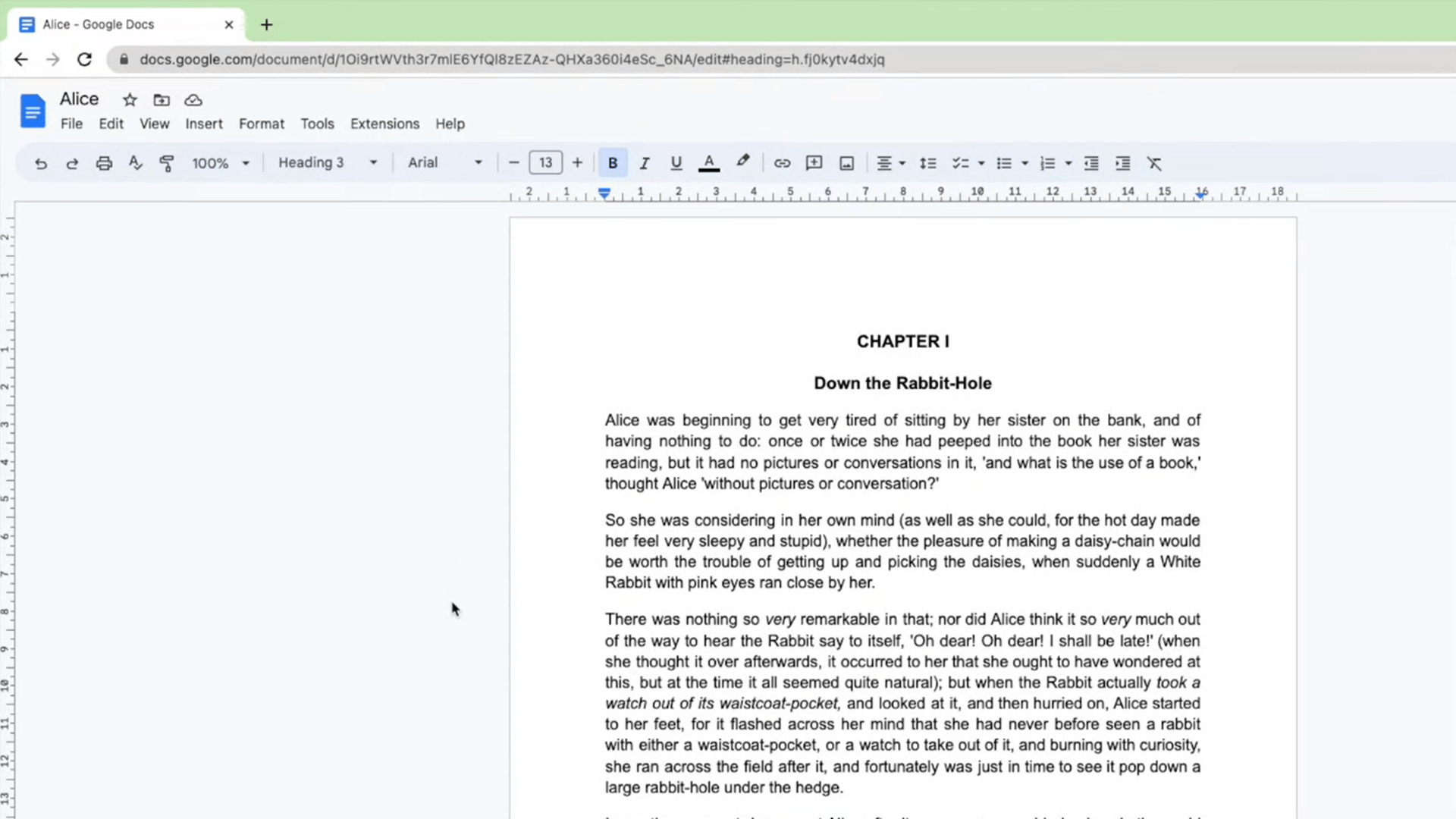
Scroll through the document until you find the word, sentence, or paragraph you want to strike through. Position your mouse pointer at the beginning or end of the text, depending on the direction you want to drag.
Before selecting anything, check that you have located the correct content.
This helps prevent accidental formatting changes and ensures only the intended text is crossed out in the next step.
Step 3: Select the Text
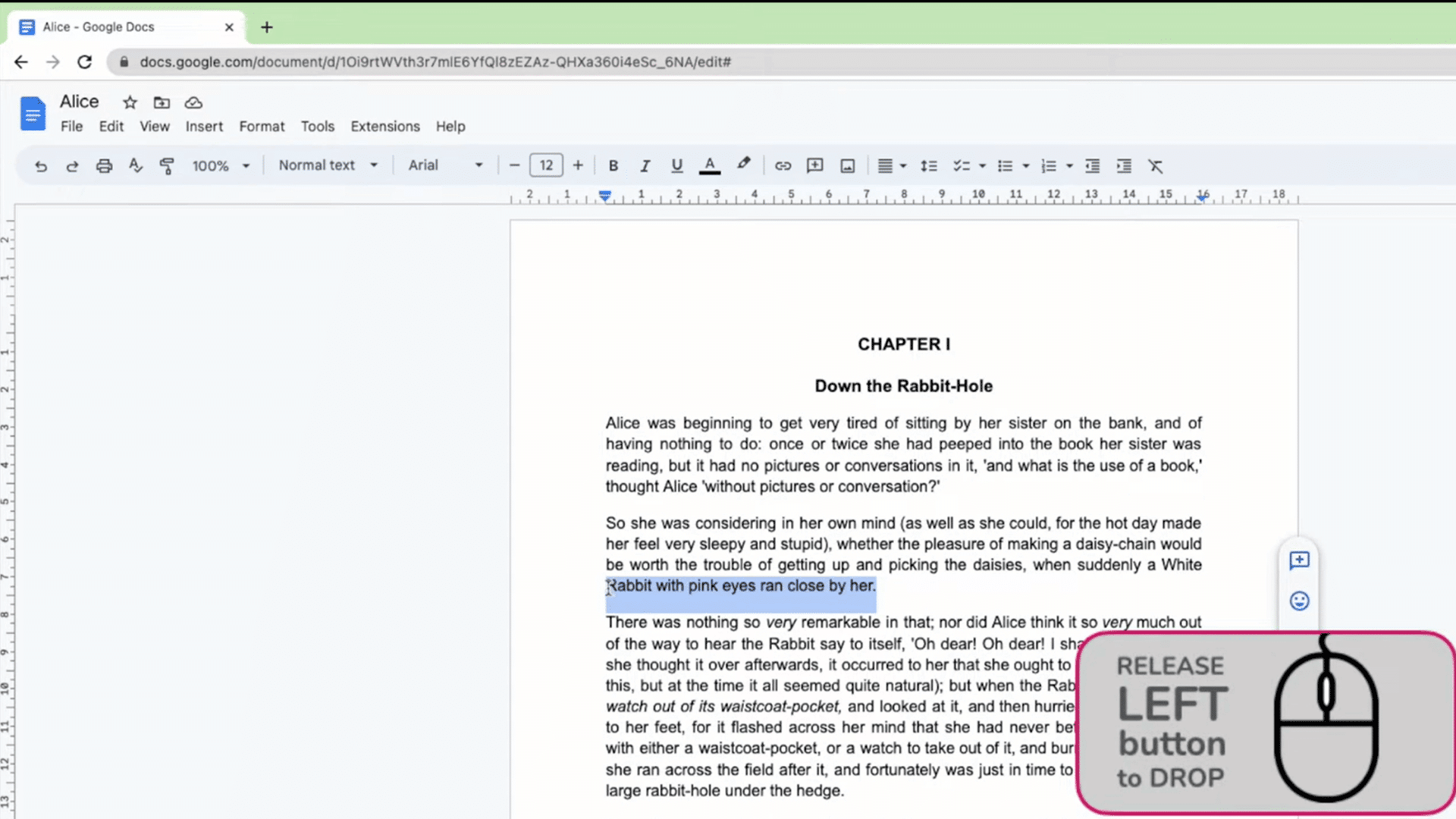
Click and hold the left mouse button, then drag the cursor across the text until the entire word, sentence, or paragraph is highlighted.
Release the mouse button once the selection is complete. The highlighted text should remain selected after you let go.
Google Docs only applies formatting to selected content, so confirm that everything you want to cross out is highlighted before opening the formatting menu.
Step 4: Apply Strikethrough
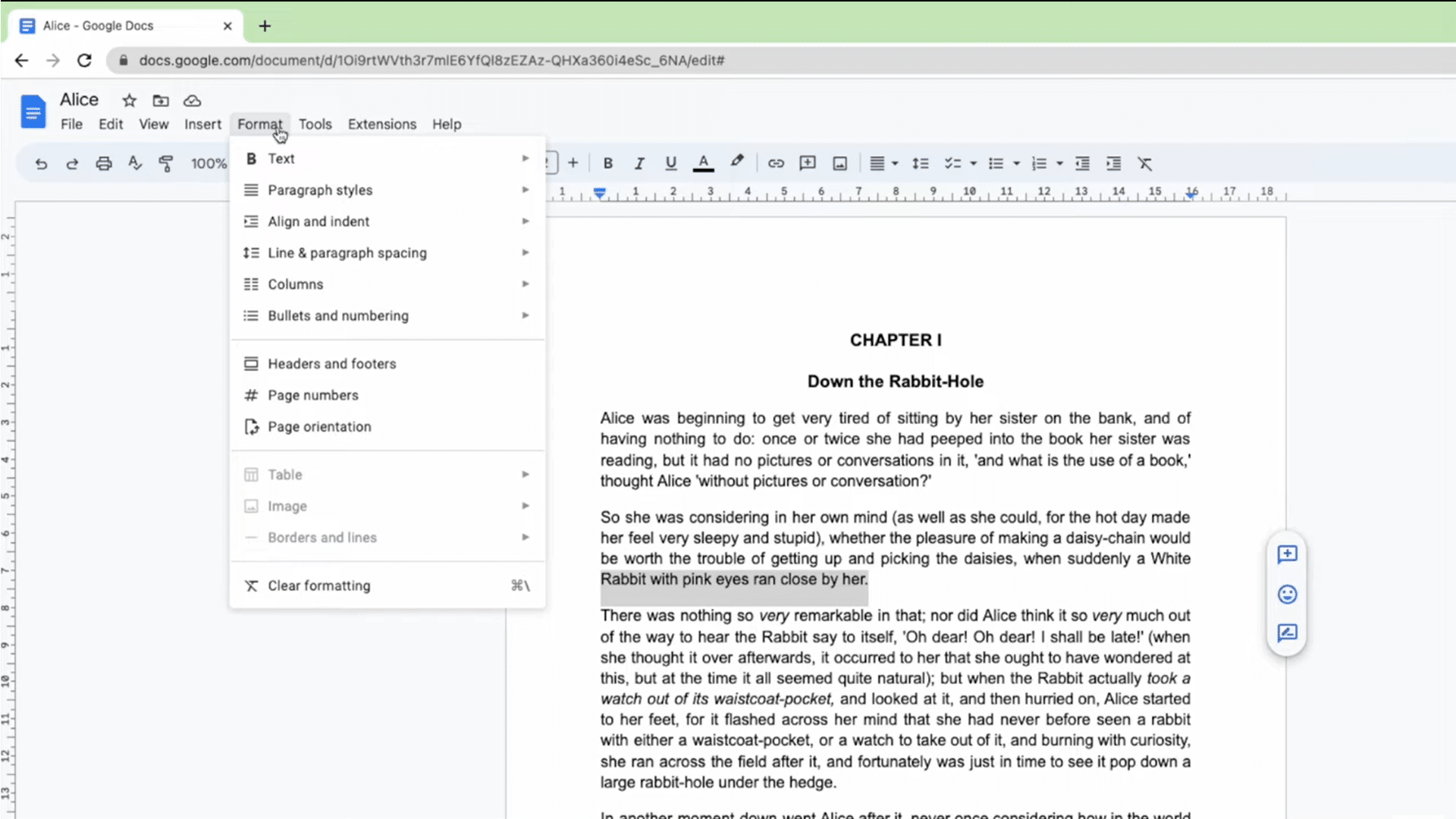
Keep the text highlighted and move your cursor to the menu bar at the top of Google Docs.
Click Format to open the drop-down menu, then hover over Text to display additional formatting options.
Select Strikethrough from the submenu. Google Docs immediately adds a horizontal line through the selected text while keeping the original words visible.
Click anywhere in the document to remove the text selection and review the formatting before continuing with your edits.
Step 5: Use the Mac Keyboard Shortcut
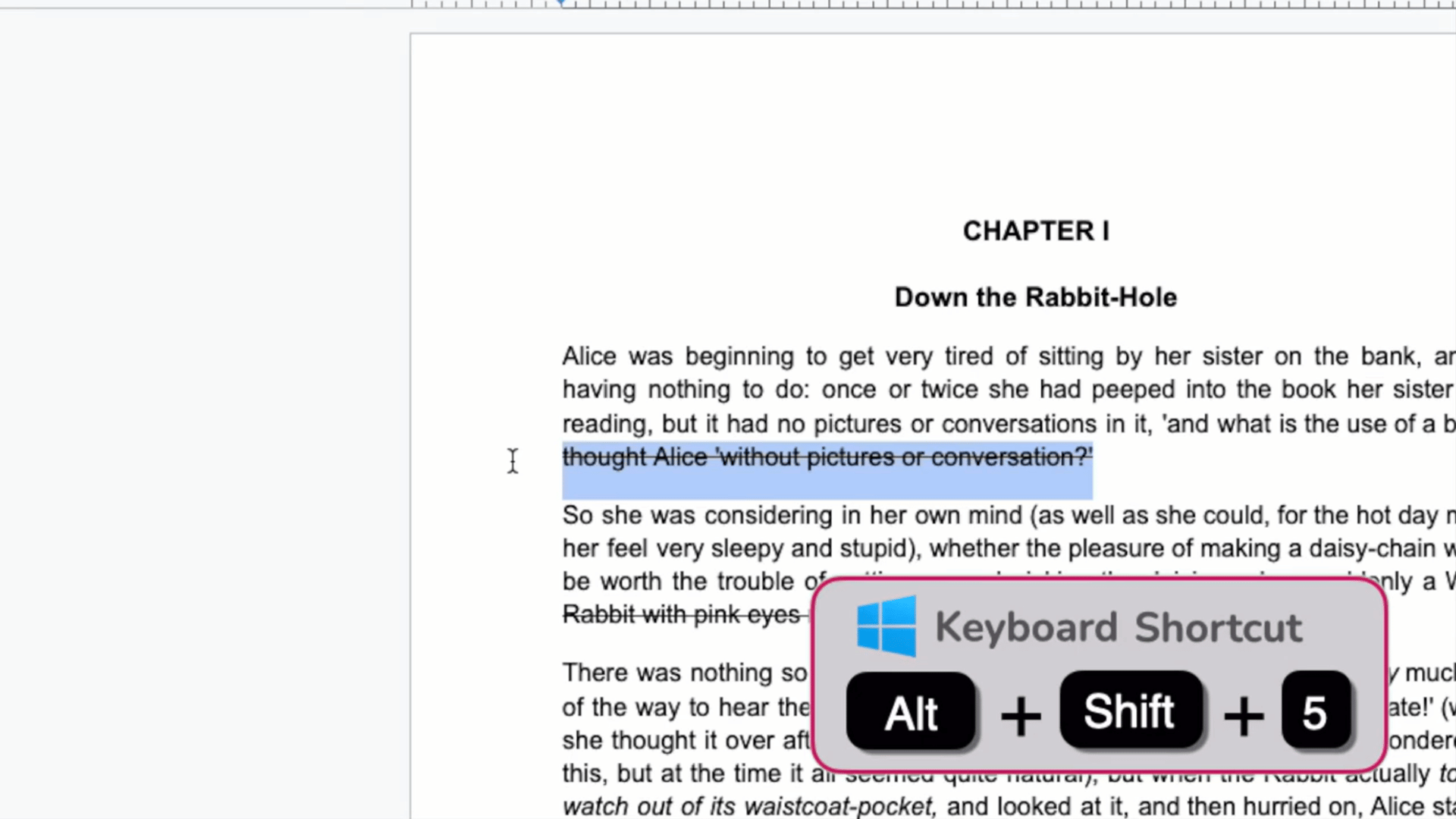
If you’re using a Mac, you can apply strikethrough without opening the Format menu. Start by highlighting the text you want to cross out.
Press Command (⌘) + Shift + X on your keyboard, and Google Docs will immediately apply the formatting to the selected text.
The original content remains visible with a horizontal line through it. To remove the formatting later, select the same text and press Command (⌘) + Shift + X again.
Step 6: Use the Windows Keyboard Shortcut
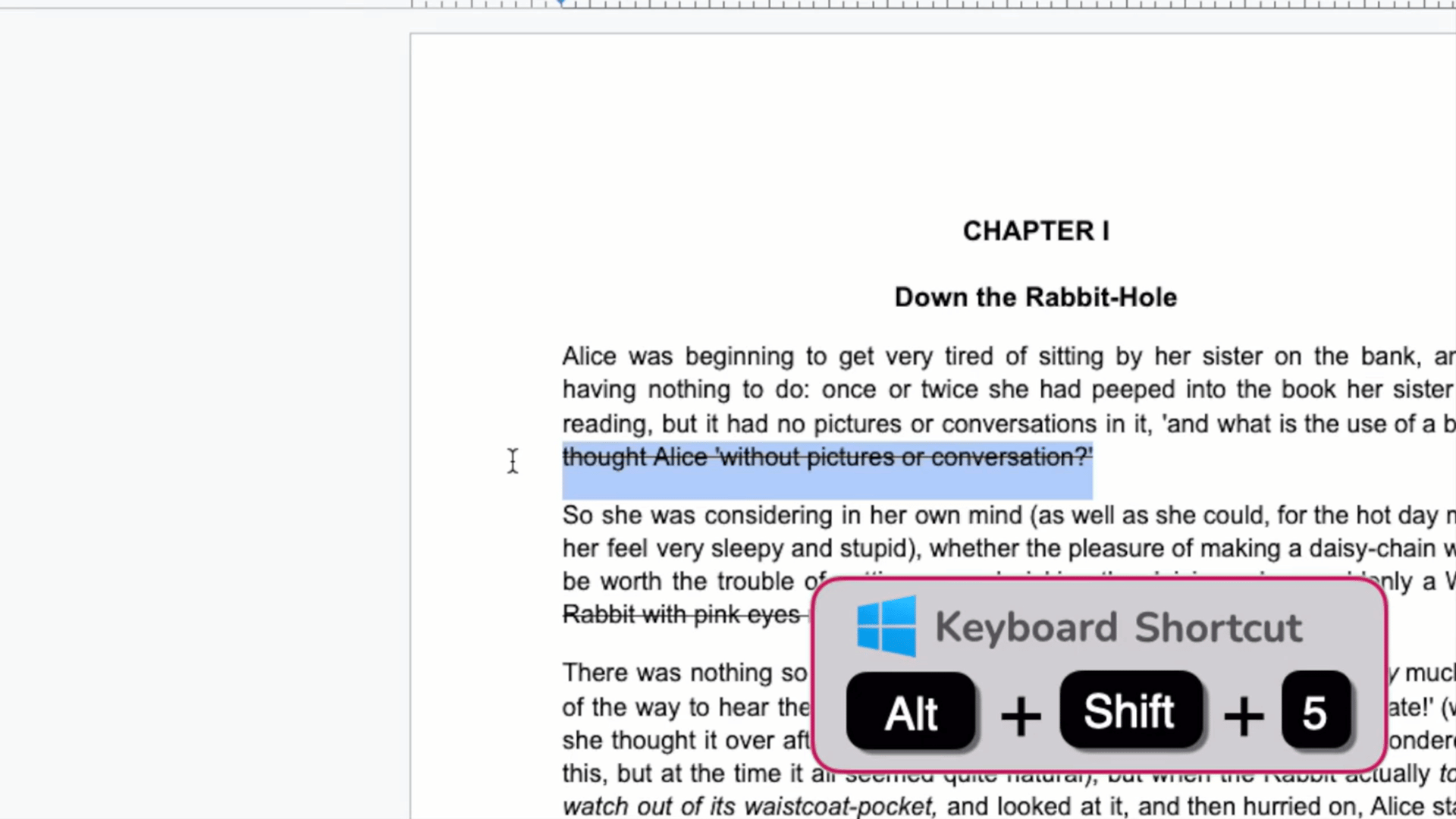
Windows PC and Chromebook users can also apply strikethrough with a keyboard shortcut. First, highlight the text you want to format.
Then press Alt + Shift + 5 on your keyboard. Google Docs will instantly place a horizontal line through the selected text without opening the Format menu. Press the same key combination again whenever you want to remove the strikethrough.
This shortcut is useful for quickly formatting multiple sections while editing a document.
This tutorial is based on a helpful video by Woggle Guides. You can check out the original video on their YouTube channel or watch the embedded video below.
Google Docs Strikethrough Keyboard Shortcuts
Always select the text before using a keyboard shortcut. If nothing is highlighted, the shortcut will not apply or remove strikethrough in Google Docs.
| Device | Keyboard Shortcut | How to Use It |
|---|---|---|
| Windows | Alt + Shift + 5 | Highlight the text you want to cross out, then press Alt + Shift + 5. Press the same shortcut again to remove the strikethrough. |
| Mac | Command (⌘) + Shift + X | Select the text, then press Command (⌘) + Shift + X to apply strikethrough. Repeat the shortcut to remove the formatting. |
| Chromebook | Alt + Shift + 5 | Highlight the text and press Alt + Shift + 5. The shortcut instantly adds or removes strikethrough from the selected text. |
Why Use Keyboard Shortcuts for Strikethrough?
Keyboard shortcuts make it easier to apply or remove strikethrough in Google Docs without opening the Format menu.
Once the text is selected, a single key combination changes the formatting instantly. This saves time when editing long documents, reviewing drafts, or crossing out several sections.
Shortcuts also reduce switching between the keyboard and mouse, which helps maintain a smoother workflow.
They are useful for writers, students, editors, and professionals who format text regularly.
The shortcut differs between Windows, Mac, and Chromebook, but each one works as a toggle. Pressing the same keys again removes the strikethrough without changing the original text.
How to Remove Strikethrough in Google Docs?
Removing strikethrough in Google Docs is as simple as applying it. First, highlight the text with the strikethrough formatting.
On a desktop, click Format from the top menu, select Text, and then click Strikethrough to turn the formatting off.
On the Google Docs mobile app, tap the Format (A) icon, open the Text tab, and tap Strikethrough again.
If you prefer keyboard shortcuts, select the text and press Alt + Shift + 5 on Windows or Chromebook, or Command (⌘) + Shift + X on a Mac.
Since strikethrough is a toggle feature, using the same menu option or shortcut removes the line immediately while leaving the original text unchanged.
Google Docs saves the updated formatting automatically, so no additional action is required.
Why Strikethrough Is Not Working in Google Docs?
If strikethrough is not working as expected, the problem is usually temporary. Try simple fixes before assuming there is a problem with Google Docs.
- Refresh the Document: Reload the page on desktop or reopen the Google Docs app to clear temporary glitches.
- Update Google Docs or Your Browser: Install the latest version to fix bugs that may affect formatting features.
- Clear Your Browser Cache: Removing cached files and cookies can resolve formatting issues caused by outdated browser data.
- Turn Off Browser Extensions: Disable extensions that modify webpages or keyboard shortcuts, then test the feature again.
- Check Your Internet Connection: Make sure your device has a stable connection so formatting changes sync properly.
- Try a Different Browser or Device: If the issue continues, open the document elsewhere to see whether the problem is device-specific.
Strikethrough vs Suggesting Mode in Google Docs
Both strikethrough and Suggesting mode help you edit documents, but they serve different purposes.
| Feature | Strikethrough | Suggesting Mode |
|---|---|---|
| Purpose | Crosses out text without deleting it. | Records edits as suggestions for review. |
| Text Visibility | Original text remains visible with a line through it. | The original text is shown as a suggested deletion or change. |
| Best For | Personal edits, checklists, drafts, and completed tasks. | Team collaboration, document reviews, and approvals. |
| Collaboration | Does not notify collaborators or track who made the change. | Shows who made each suggestion and allows others to accept or reject it. |
| Edit History | Does not create tracked suggestions. | Keeps a visible record of every suggested edit until it is resolved. |
| Ease of Use | Applied with a single formatting option or keyboard shortcut. | Requires switching the document from Editing to Suggesting mode. |
| Can Changes Be Reversed? | Yes, by removing the strikethrough formatting. | Yes, by accepting or rejecting the suggestion. |
| When to Use It | When you want to keep text visible without deleting it. | When multiple people are reviewing and editing the same document. |
Common Mistakes to Avoid when Using Strikethrough
Using strikethrough is simple, but a few common mistakes can make documents harder to read or review.
- Crossing out Large Sections: Too much strikethrough makes a document harder to scan. Use it only for words or sentences that need attention.
- Keeping Crossed-Out Final Content: Remove unnecessary strikethrough before finishing the document. Keep it only when the old text is still useful.
- Selecting the Wrong Text: Check the highlighted section before applying strikethrough. This prevents unrelated words or paragraphs from being crossed out.
- Mixing Too Many Styles: Using strikethrough with bold, italics, and several colors can hurt readability. Keep the formatting simple and consistent.
- Leaving Outdated Text in Shared Files: Review crossed-out content before sharing or publishing. Old information may confuse readers if it remains without context.
- Using Strikethrough for Every Edit: Save it for revisions, completed tasks, or temporary changes. Use Suggesting mode for larger collaborative edits.
Conclusion
Strikethrough in Google Docs is a simple way to cross out text without deleting it. It keeps your original content visible and makes editing, reviewing, and organizing documents much easier.
In this article, you learned how to use strikethrough in Google Docs.
You also learned the keyboard shortcuts, how to remove the formatting, and how to fix common issues if it stops working.
Now you can use strikethrough in Google Docs with confidence, no matter which device you have.
If you found this article helpful, bookmark it for future reference or share it with someone who uses Google Docs regularly.
Frequently Asked Questions
Can Strikethrough Be Used in Google Sheets?
Yes. Google Sheets also supports strikethrough formatting. Select the cells, then use the Format menu or the appropriate keyboard shortcut to apply or remove it.
Does Strikethrough Affect Printing in Google Docs?
No. Text with strikethrough prints exactly as it appears in the document. The horizontal line remains visible on both printed and PDF versions.
Can Strikethrough Be Used in Google Docs Comments?
No. Google Docs comments do not support strikethrough formatting. Only the main document text can be formatted with the strikethrough option.