


Have you ever remembered an important text after it was already too late to send? Sometimes it’s a birthday wish, a work update, or a reminder; sending a message at the right time can make a difference.
Many iPhone users want to know if they can schedule a text instead of relying on memory. The answer depends on your iPhone model and iOS version.
You’ll learn how to schedule a text on iPhone using Apple’s built-in Send Later feature or the Shortcuts app on older devices.
It also covers how to edit or cancel scheduled messages, solve common scheduling issues, and compare iPhone and Android options to help you choose the method that fits your device.
Quick Answer: How to Schedule a Message on an iPhone?
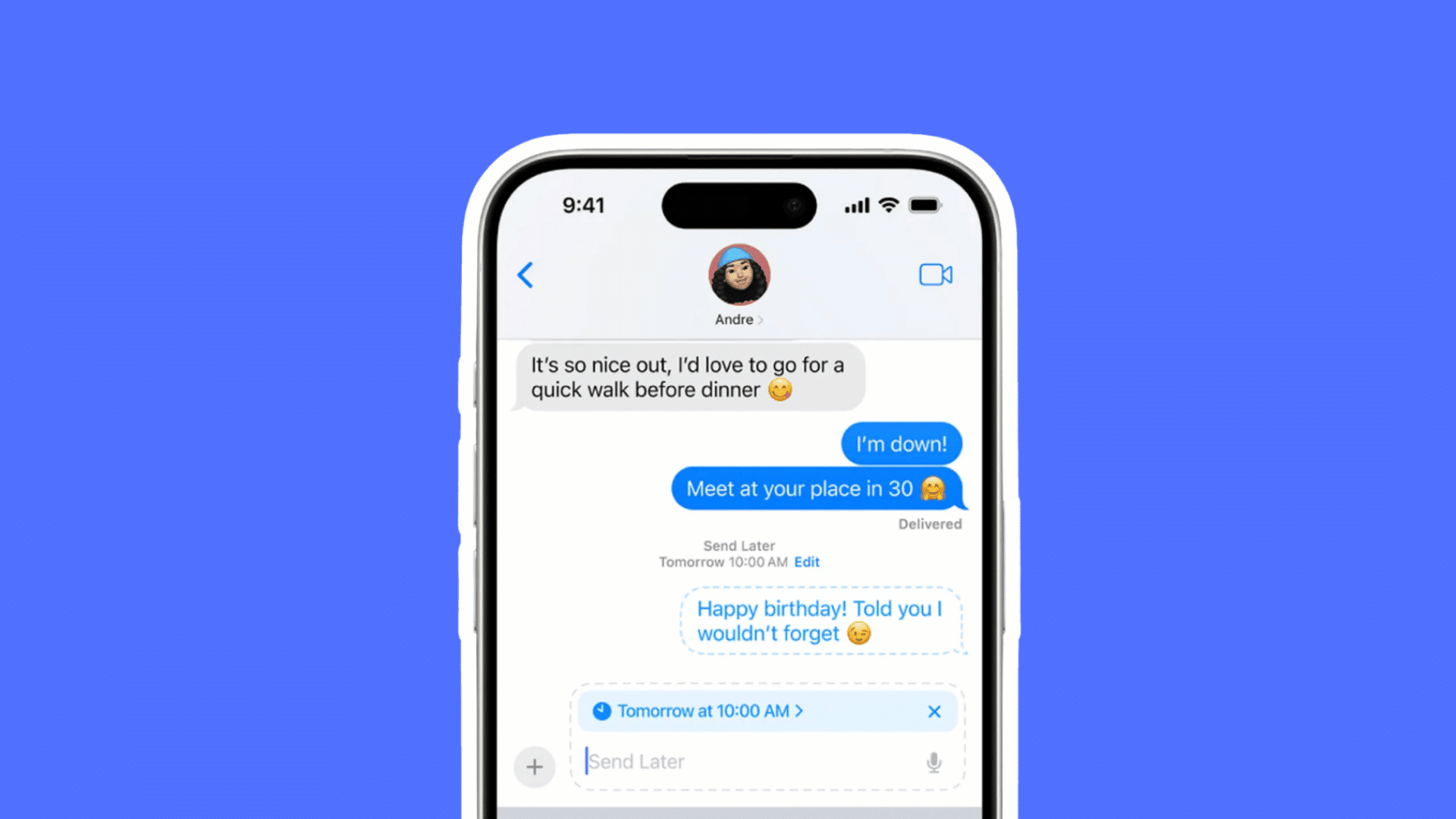
To schedule a message on an iPhone, open Messages, select a conversation, tap the + button, choose Send Later, and set the date and time.
Things to Know Before Scheduling a Text on iPhone
Before scheduling a text, take a few minutes to confirm your device, settings, and message details. These simple checks help prevent scheduling errors and ensure your message reaches the right person at the intended time.
- iPhone Compatibility
- Latest iOS Version
- Choose the Right Method
- Review Message Details
- Check the Recipient’s Time Zone
- Ensure Internet Connectivity
Can You Schedule a Text on iPhone?
Yes, you can schedule a text on iPhone using Apple’s Send Later feature on iOS 18 or later. Older iPhones can use the Shortcuts app as an alternative.
If your iPhone supports iOS 18 or newer, you can choose a specific date and time for an iMessage directly in the Messages app. You can also edit, reschedule, or cancel the message before it is sent.
If your iPhone cannot update to iOS 18, the Send Later option will not appear. Instead, you can use the Shortcuts app to create a personal automation for scheduled messages.
Check your iPhone model and iOS version to determine which scheduling method is available.
When Should You Schedule a Text?
Scheduling texts helps you communicate at the right time without relying on memory. These are some of the most practical situations where scheduled messages can save time and improve communication.
- Work and Business Messages: Schedule client updates, meeting reminders, and follow-ups during business hours for better visibility and timely responses.
- Birthday and Holiday Greetings: Plan greetings in advance so they arrive on the correct date, even when you have a busy schedule.
- Appointment Reminders: Send reminders before meetings, medical visits, or events to help reduce missed appointments and forgotten commitments.
- Sending Across Time Zones: Schedule messages based on the recipient’s local time to avoid disturbing them during inconvenient hours.
- Personal Follow-Ups: Plan thank-you notes, check-ins, or follow-up texts without worrying about forgetting to send them later.
How to Schedule a Text on iPhone Using Send Later?
Follow these simple steps to schedule, manage, and update text messages on your iPhone using Apple’s built-in Send Later feature efficiently.
Step 1: Open the Conversation and Choose Send Later
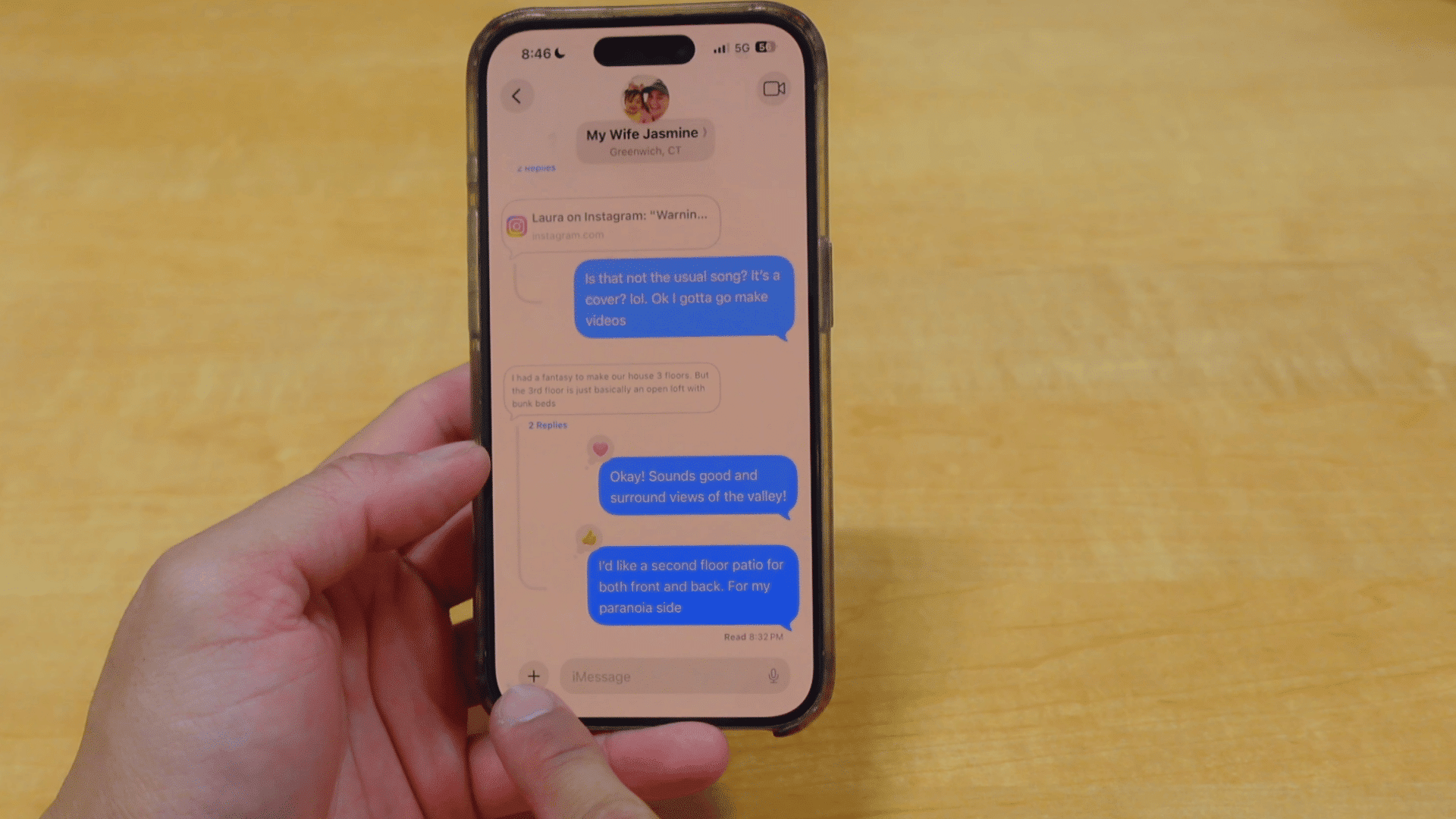
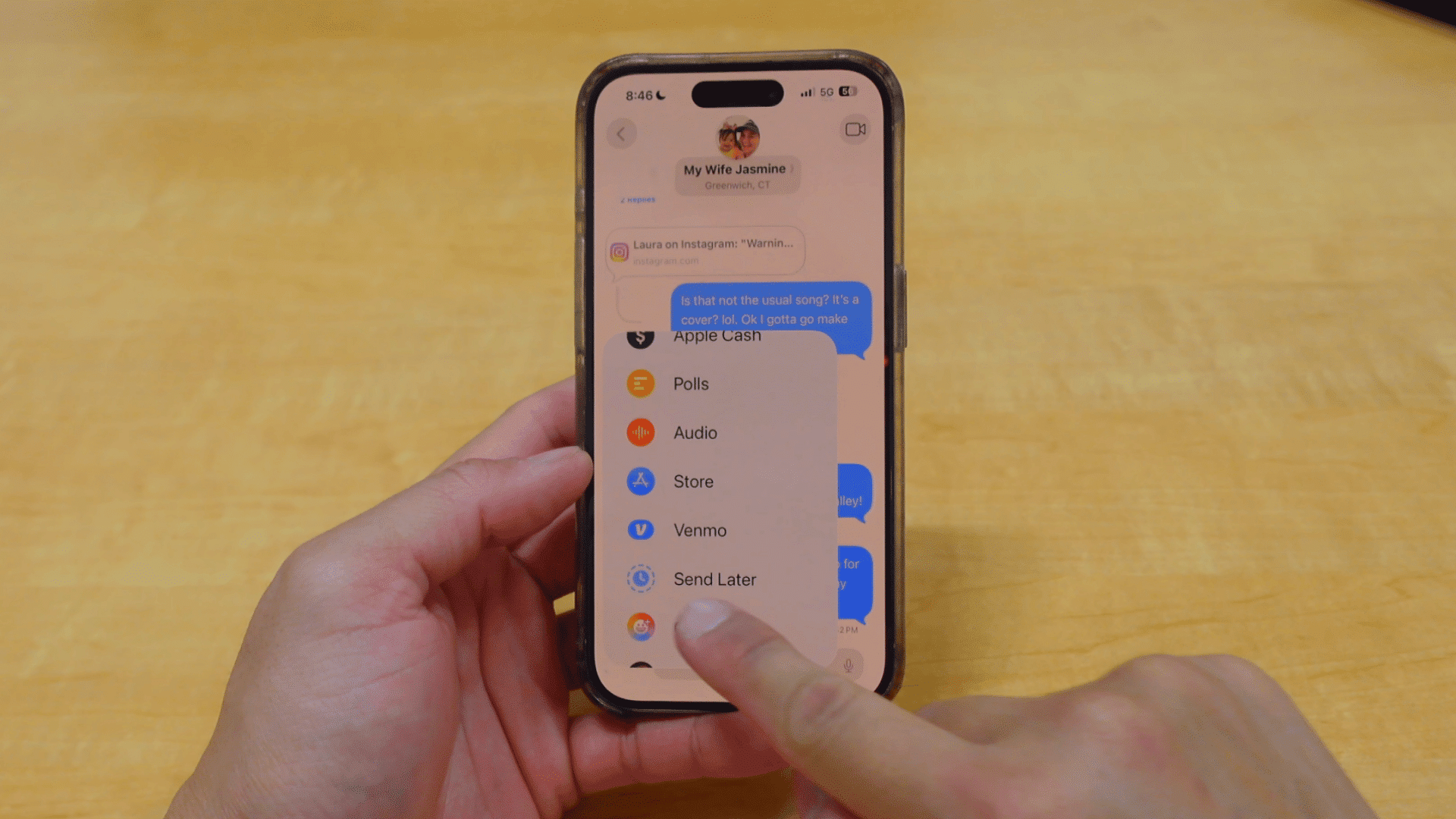
Open the Messages app and select the conversation where you want to schedule a text. Tap the plus (+) button beside the message field to access additional options.
Scroll through the menu until you find Send Later, then tap it.
This opens Apple’s scheduling feature, allowing you to prepare a message for future delivery instead of sending it immediately.
Make sure you select the correct conversation before moving to the next step.
Step 2: Select the Delivery Date and Time
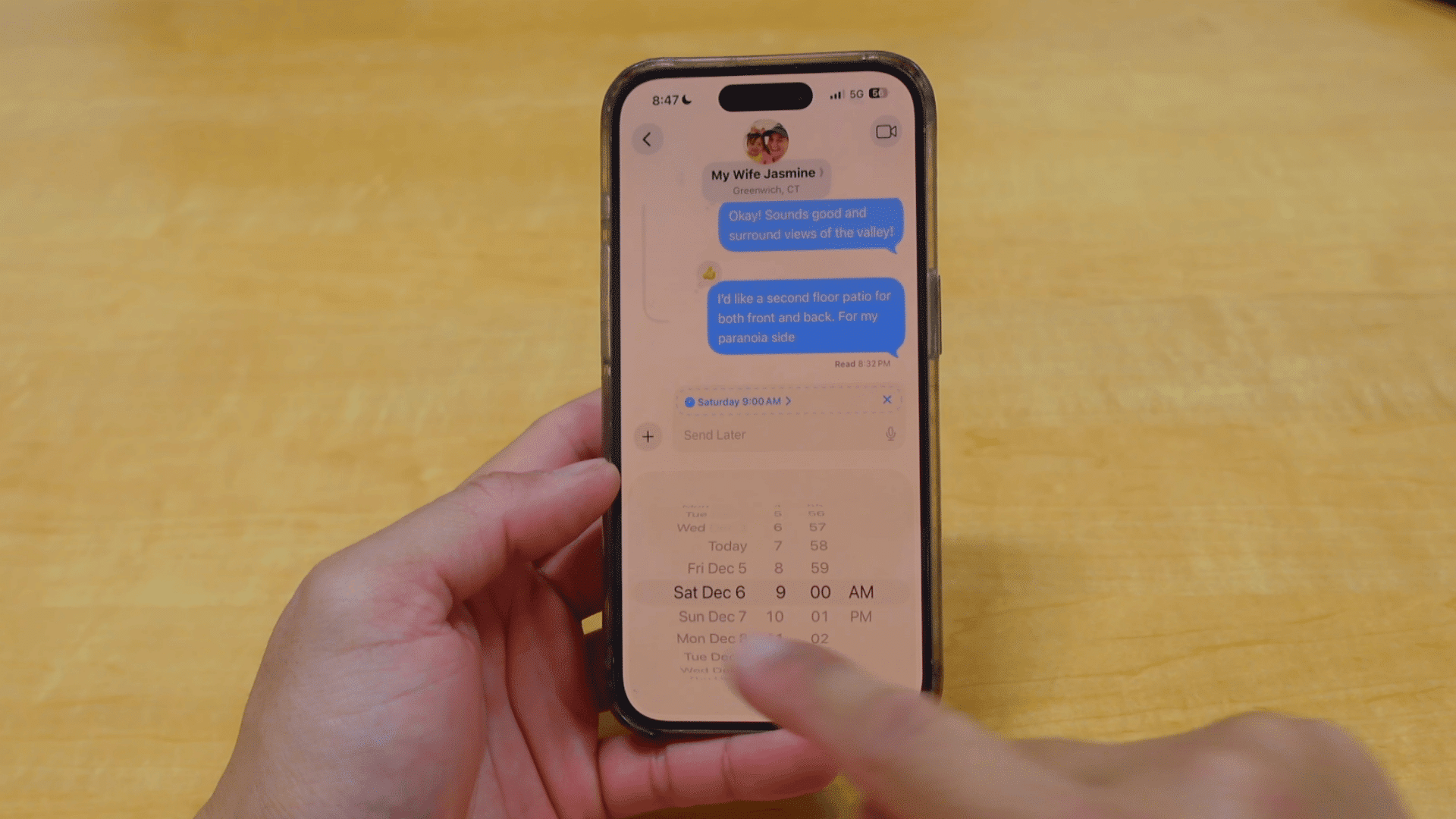
After tapping Send Later, choose when you want your message delivered. Tap the displayed date and time, then adjust both to your preferred schedule.
According to the demonstrated process, iPhone currently allows messages to be scheduled only up to two weeks in advance. Once you’ve confirmed the delivery time, return to the message box.
Double-check the selected schedule before typing, since this is when your message will automatically be sent later.
Step 3: Write and Schedule Your Message
Type the message you want to send into the text field, just as you would for a regular text. Once you’re happy with the wording, tap the Send button.
Instead of appearing as a normal message, the scheduled text displays with a dotted outline, making it easy to identify.
The conversation also shows the scheduled delivery date and time, confirming that your message has been queued and will automatically send at the selected time.
Step 4: Send More than One Scheduled Message
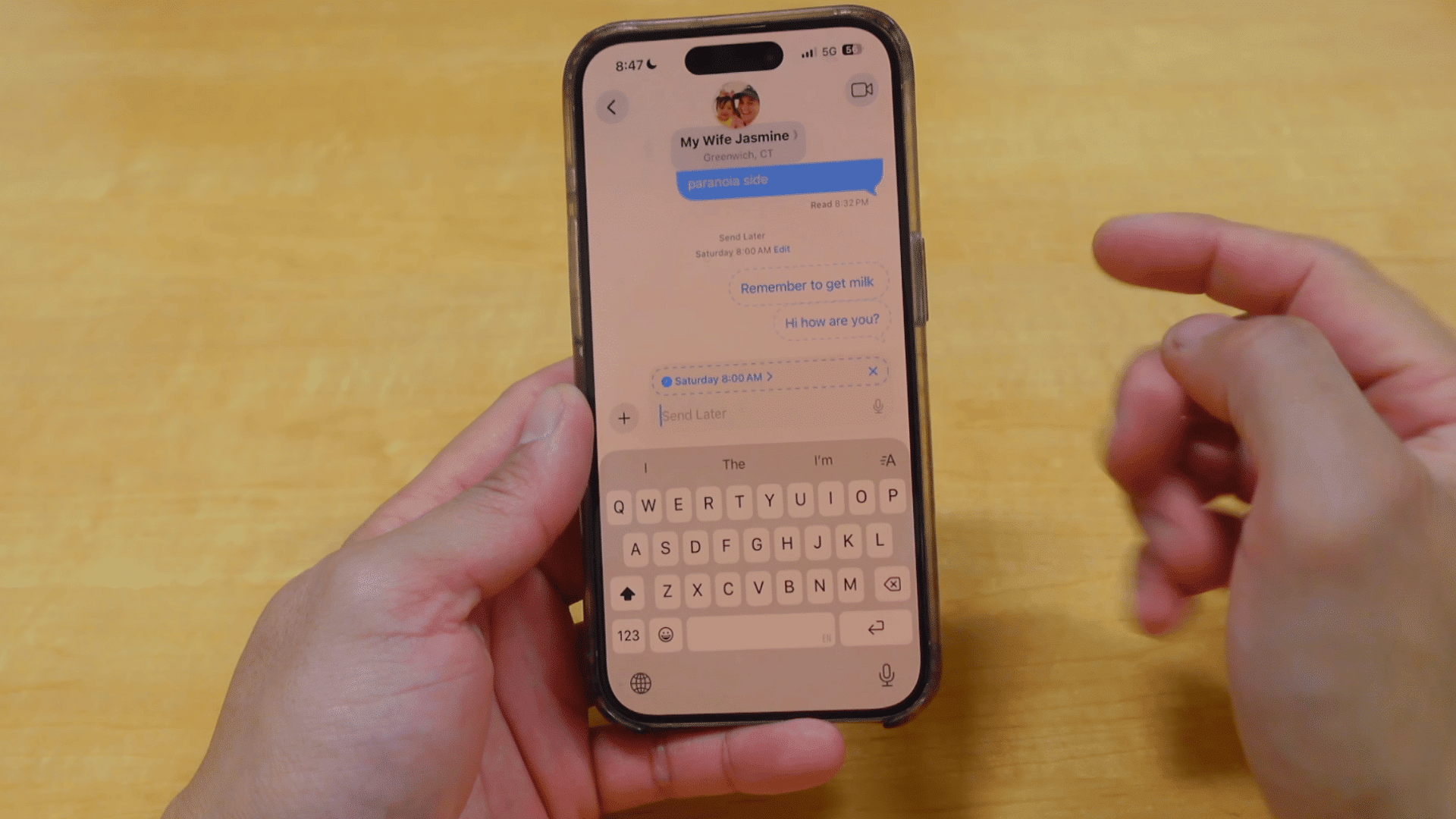
You can schedule multiple messages for the same conversation without affecting previously scheduled texts.
Repeat the process by tapping the plus (+) button, selecting Send Later, choosing another date and time, and composing a new message.
Each scheduled text remains visible within the conversation and displays its own delivery schedule.
This makes it easy to prepare reminders or messages for different days while keeping track of each scheduled delivery.
Step 5: Edit, Delete, or Avoid Scheduling Mistakes
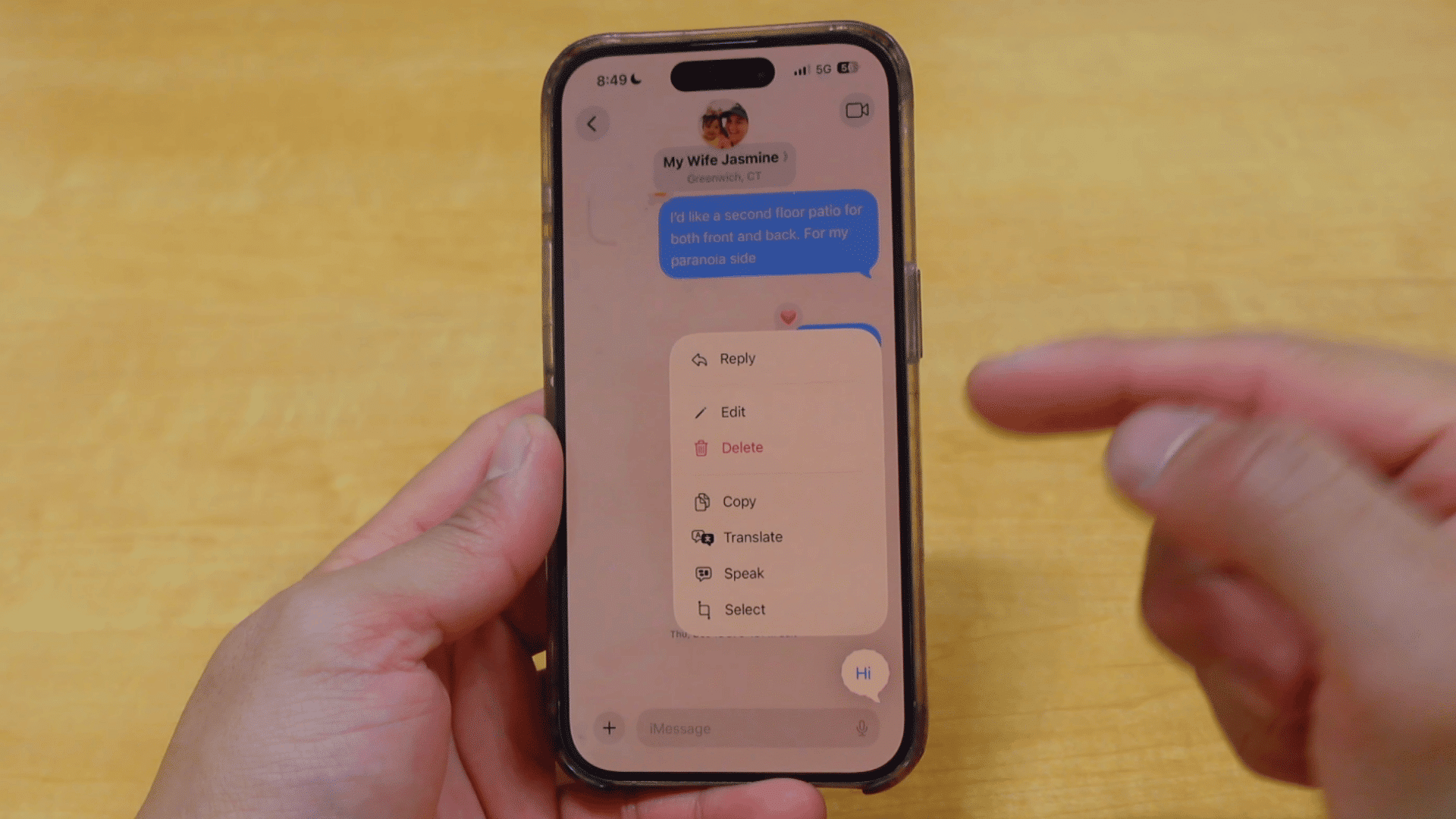
Before sending a normal text, make sure Send Later is no longer active. Otherwise, your next message could accidentally be scheduled instead of sending immediately.
If you change your mind, press and hold a scheduled message to display available options. You can edit its contents, modify the delivery time, or delete it entirely before it is sent.
Reviewing scheduled messages regularly helps prevent unexpected deliveries or accidentally delayed conversations with others.
These steps are inspired by a useful video from Jackeal. You can watch the original tutorial on their YouTube channel here or view it below.
iMessage vs SMS: Does Scheduling Work for Both?
Yes, you can schedule both iMessage and SMS, but available features depend on your iPhone, iOS version, and messaging method.
Blue bubble messages are iMessages, which use Apple’s internet-based messaging service and work with the built-in Send Later feature on supported iOS versions.
Green bubble messages use SMS or RCS, and scheduling support varies by device and software.
iMessage requires an active internet connection over Wi-Fi or mobile data, while SMS relies on your carrier’s cellular network for delivery.
If your iPhone does not support Send Later, you can use the Shortcuts app to automate sending either message type, although results may depend on your carrier, network availability, and iOS version.
Common Problems When Scheduling Texts
Scheduling usually works smoothly, but occasional issues can prevent messages from sending as planned. Here are the most common problems and fixes.
- Send Later Missing: Update iOS and confirm your iPhone supports the built-in scheduling feature.
- Message Didn’t Send: Check your internet connection first; this is sometimes tied to iCloud syncing issues, since scheduled iMessages sit on Apple’s servers until delivery.
- Scheduled Message Disappeared: Review the conversation and confirm the message was not edited, canceled, or already sent.
- Shortcuts Automation Not Working: Check automation permissions, timing settings, and whether “Ask Before Running” is disabled.
- Recipient Didn’t Receive the Message: Confirm their number, your connection, and whether the message appears as delivered.
How to Schedule a Text on Older iPhones Using Shortcuts?
If your iPhone can’t run iOS 18, you can still schedule text messages by creating a personal automation in the Shortcuts app. It takes only a few minutes to set up and lets you send messages automatically at a time you choose.
| iPhone & iOS Version | Built-in Send Later | Shortcuts Automation | Recommended Method |
|---|---|---|---|
| iPhone XS or newer (iOS 18 or later) | Yes | Optional | Use Messages → Send Later |
| iPhone XS or newer (iOS 17 or earlier) | No | Yes | Create a personal automation in Shortcuts |
| iPhone X, iPhone 8, and earlier (latest supported iOS) | No | Yes | Use Shortcuts automation |
| Any iPhone that cannot install iOS 18 | No | Yes | Use Shortcuts to schedule messages |
How to Schedule a Text on Android?
Most Android phones support scheduled text messages through built-in messaging apps, although available features vary by manufacturer and app.
- Using Google Messages: Open the conversation, type your message, press and hold Send, choose Schedule send, select a time, then confirm.
- Using Samsung Messages: Create your message, tap the plus icon, select Schedule message, choose the date and time, then tap Send.
- Other Android Messaging Apps: Some third-party messaging apps include scheduling features, while others require automation tools or premium subscriptions for scheduled texts.
- Editing Scheduled Messages: Open the conversation, find the scheduled text, then update its content, delivery time, or cancel it before sending.
iPhone vs Android: Which Is Better for Scheduling Text Messages?
Both iPhone and Android let you schedule text messages, but the available features depend on your device, operating system, and messaging app.
| Feature | iPhone | Android |
|---|---|---|
| Built-in Scheduling | Send Later on supported iOS versions | Google Messages and Samsung Messages support scheduling on many devices |
| Maximum Schedule Time | Up to two weeks in advance | Varies depending on the messaging app and device |
| Edit Scheduled Messages | Yes, before the message is sent | Yes, in supported messaging apps |
| Cancel Scheduled Messages | Yes | Yes |
| Support for Older Devices | Use the Shortcuts app to create a scheduling automation | Depends on the phone manufacturer and messaging app |
Can You Schedule Recurring Text Messages on iPhone?
No, iPhone does not support recurring scheduled text messages in the Messages app.
Apple’s built-in Send Later feature only schedules a message once. If you need to send the same text repeatedly, you must create a personal automation in the Shortcuts app.
With Shortcuts, you can schedule messages to send daily, weekly, or monthly.
However, some iOS versions may require confirmation before sending automatically, depending on your settings and permissions.
If you need advanced recurring messaging for business or reminders, third-party apps may offer more scheduling options, though features vary by app.
Conclusion
Scheduling a text on iPhone is simple once you know which method your device supports. If your iPhone includes Send Later, it offers the quickest and most convenient way to schedule iMessages directly in the Messages app.
If unsupported, the Shortcuts app offers an alternative but requires more setup.
By comparison, many Android phones include built-in message scheduling through their default messaging apps, making the process straightforward on supported devices.
Which fits your needs better: a quick iMessage reminder or a scheduled SMS?
Choose the method that fits your device and messaging habits, then start sending texts at the perfect time with confidence.
Frequently Asked Questions
Where Did My Predictive Text Go?
Predictive text may disappear if it was turned off, the keyboard changed, or keyboard settings were reset. Re-enable it in Settings > General > Keyboard.
How Do I Turn On Predictive Text Again?
Open Settings > General > Keyboard, then toggle Predictive on. If needed, restart your iPhone to refresh the keyboard settings.
Does Send Later Work for Group Messages?
Yes, you can schedule a message to a group iMessage conversation the same way you would a one-on-one chat, as long as everyone in the group is using iMessage.
What Happens if My iPhone Is Off when A Scheduled Text Is Due to Send?
The message stays queued on Apple’s servers and sends once your iPhone reconnects, though it may arrive later than the original scheduled time if the device stays off past that point.