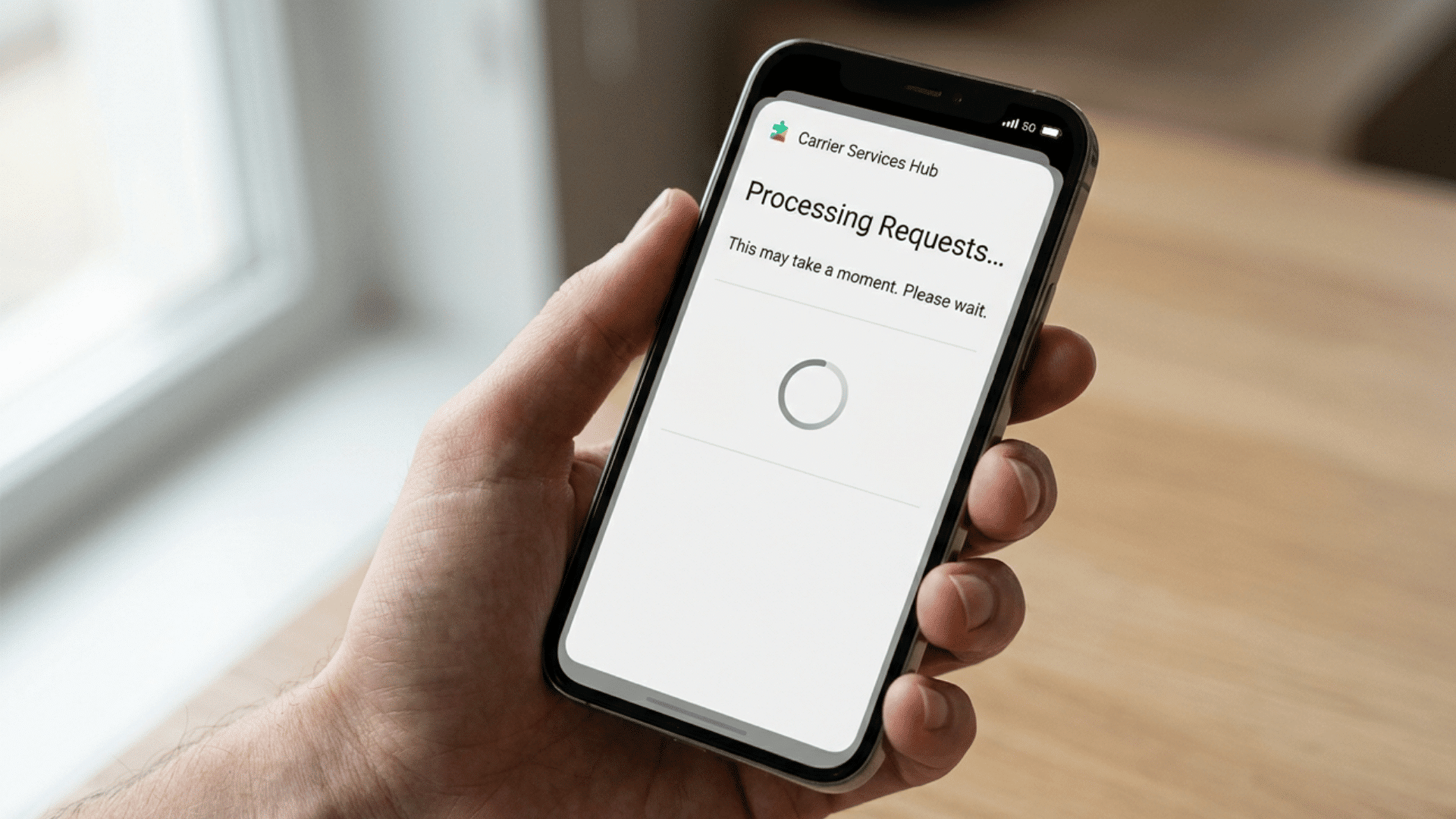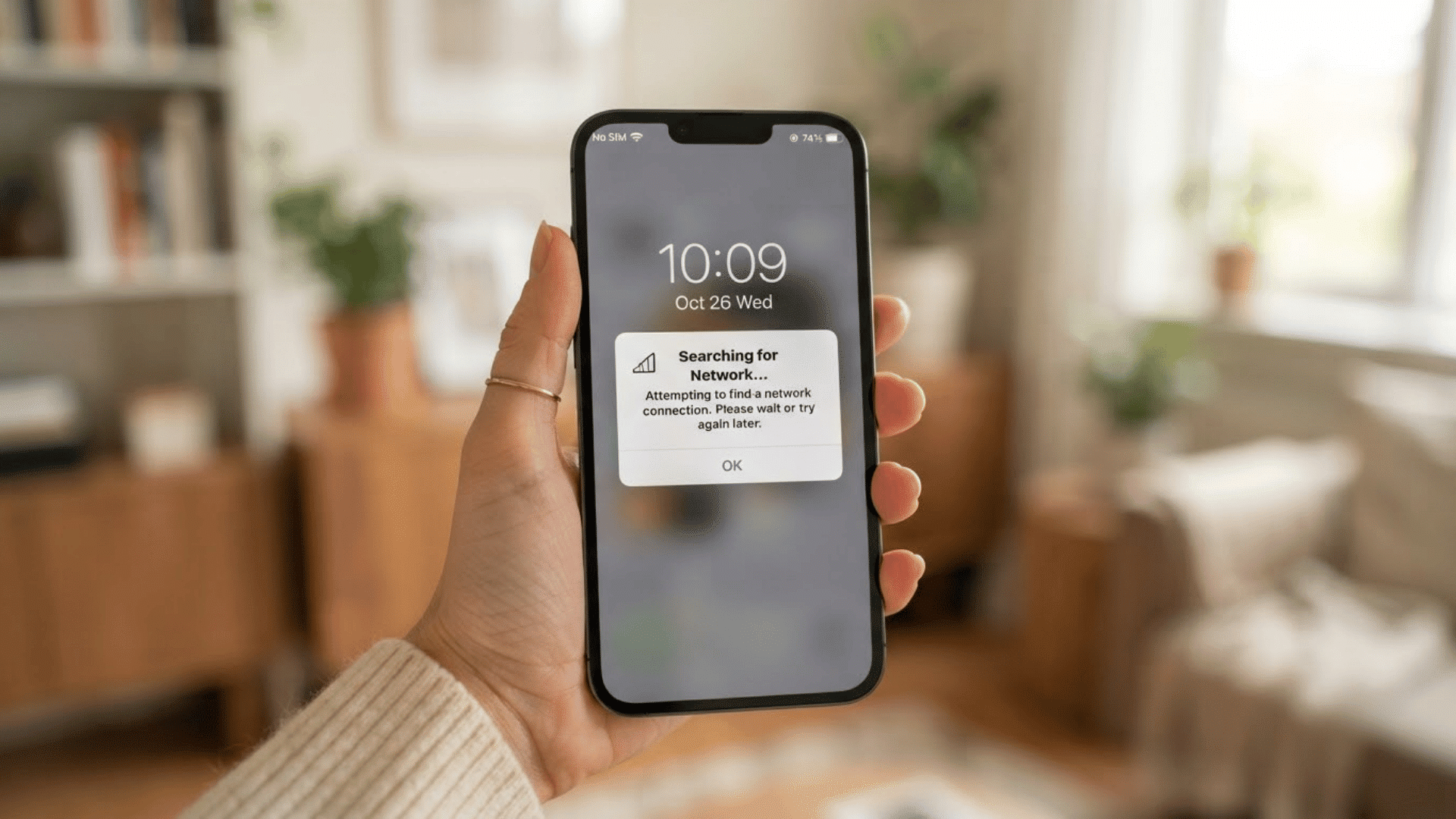



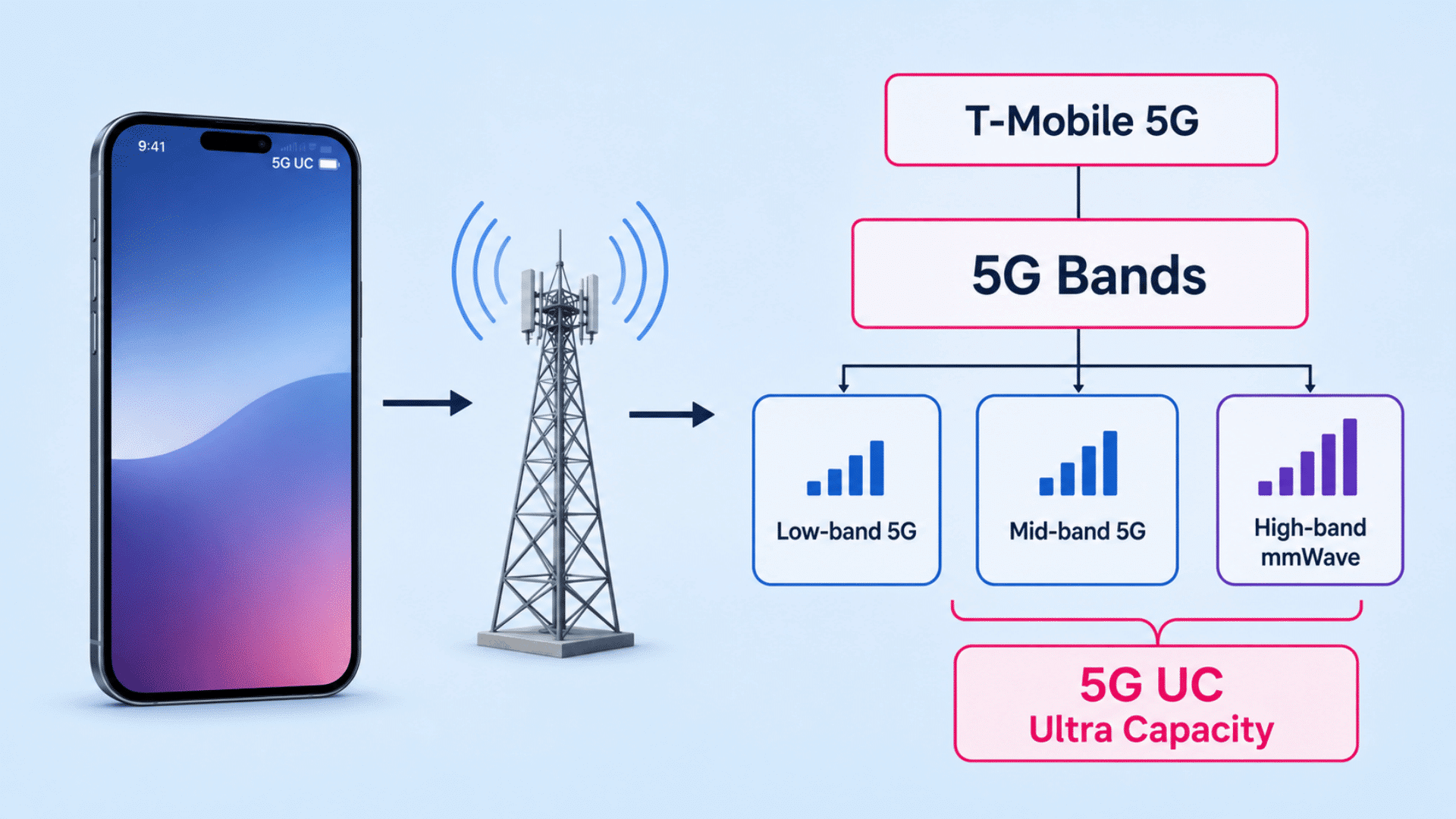
There never seems to be a good time for mobile data to stop working. I’ve found it usually happens when you need directions, want to reply to an important message, or quickly look something up while you’re away from Wi-Fi.
It can leave you thinking if the problem is your phone, your carrier, or simply a setting that changed without you noticing.
If you’re asking why your data is not working, don’t assume the worst.
In many cases, the cause is something simple, like a network setting, weak signal, or temporary carrier issue.
A few quick checks can often get your mobile internet working again, and if they don’t, it’s easier to narrow down what’s really causing the problem.
Quick Answer: Why Is My Mobile Data Not Working?
Your mobile data may not be working because of a weak cellular signal, incorrect mobile data settings, Airplane Mode, a SIM or eSIM issue, a data limit, or a temporary carrier outage.
Restart your phone, confirm mobile data is enabled, check your signal and data allowance, then reset network settings if the problem continues
Common Reasons Your Mobile Data Isn’t Working
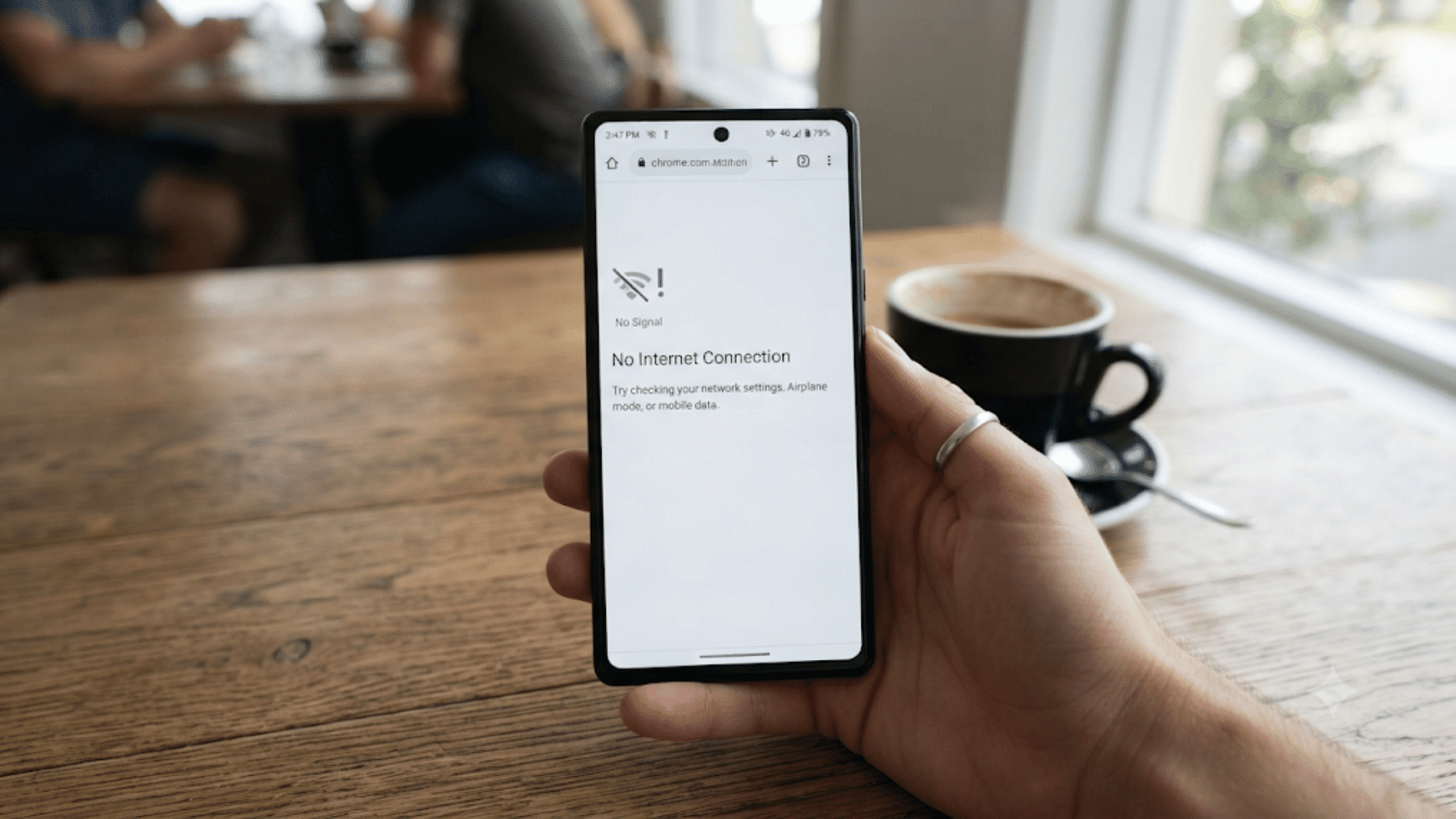
If the quick fixes didn’t restore your connection, one of these common issues is likely preventing your phone from accessing the internet.
1. Mobile Data Is Turned Off
Mobile data can be turned off accidentally while adjusting settings or enabling battery-saving features. Even if your phone shows full signal bars, you won’t be able to access the internet unless cellular data is turned on.
Open your network settings and confirm that mobile or cellular data is enabled.
It’s also worth checking Data Saver or Low Data Mode, as these features can restrict internet access for certain apps.
2. Weak or No Cellular Signal
Your phone needs a reliable cellular signal to connect to mobile data.
If you’re in a basement, elevator, remote area, or inside a building with thick walls, the signal may be too weak to support an internet connection.
Try moving outdoors or closer to a window and wait a few moments for your phone to reconnect to the nearest cell tower before testing your data again.
3. You’ve Reached Your Data Limit
Many mobile carriers reduce your internet speed or temporarily stop data access after you’ve used your monthly allowance.
This is especially common with prepaid and limited-data plans.
Log in to your carrier’s app or account portal to check your remaining balance and billing cycle.
If you’ve exceeded your limit, purchasing additional data or waiting for your plan to renew may restore your connection.
4. Your Carrier Is Experiencing an Outage
Sometimes the problem isn’t your phone at all. Mobile carriers occasionally experience outages due to maintenance, technical issues, or severe weather.
During these periods, mobile data may stop working even though your device appears normal.
Checking your carrier’s service status page or trusted outage reporting websites can help confirm if the issue is affecting other customers in your area.
5. Incorrect APN Settings
The Access Point Name (APN) tells your phone how to connect to your carrier’s mobile internet network.
Incorrect or outdated APN settings can prevent your device from accessing cellular data, especially after changing carriers or inserting a new SIM card.
Restoring the default APN settings provided by your carrier often resolves this type of connection problem quickly.
6. SIM Card Problems
A damaged, dirty, or incorrectly inserted SIM card can interrupt communication between your phone and your carrier.
If the SIM isn’t recognized properly, mobile data may stop working even though other parts of the phone function normally.
Removing the SIM, checking it for damage, gently cleaning it, and reinserting it securely may restore your connection.
7. Software Bugs or System Glitches
Temporary software bugs can interfere with your phone’s ability to connect to the mobile network.
These issues sometimes appear after a system update, installing a new app, or changing network settings.
Restarting your phone, installing the latest software update, or resetting your network settings can usually fix software-related connectivity problems without affecting your personal data.
8. Incorrect Network Mode
Your phone should automatically switch between available network types such as 5G, LTE, or 4G.
If it’s locked to a network mode that isn’t available in your location, mobile data may not work correctly.
Changing the network selection to automatic allows your phone to connect to the strongest compatible network, improving both signal stability and internet access.
iPhone or Android: Which Fixes Should You Try?
Both iPhone and Android phones rely on the same cellular network, so many mobile data problems have similar causes.
However, the settings used to fix them are located in different menus. If you’ve already tried the general troubleshooting steps, the next step is to check the network settings specific to your device.
If you’re using an iPhone or an Android phone, focus on your cellular data settings, network configuration, software updates, and carrier-related options.
Using the right steps for your operating system helps identify the cause without unnecessary changes.
Mobile Data Settings for iPhone and Android
The settings below are the ones you’ll most commonly use while troubleshooting a mobile data connection. Although the names vary slightly, they perform similar functions on both operating systems.
| iPhone | Android |
|---|---|
| Turn Cellular Data off and back on in Settings > Cellular. | Turn Mobile Data off and back on in Settings > Network & Internet or Connections. |
| Check for Carrier Settings Update in Settings > General > About. | Verify or reset your APN (Access Point Name) settings. |
| Enable Data Roaming if you’re traveling and your carrier requires it. | Make sure Network Operator is set to Automatic. |
| Use Reset Network Settings if connectivity issues continue. | Use Reset Mobile Network Settings to clear incorrect configurations. |
| Install the latest iOS update. | Install the latest Android system update. |
Why Mobile Data Works on Wi-Fi but Not Cellular?
If your internet works perfectly on Wi-Fi but stops as soon as you disconnect, your phone itself is usually not the problem.
Instead, the issue is often related to your carrier connection, SIM card, or cellular network settings.
Wi-Fi and mobile data use different networks, so one can work even when the other doesn’t. Start by checking whether mobile data is enabled, whether your carrier is experiencing an outage, or whether your SIM card is working properly.
If your SIM works in another phone but not yours, the issue is likely with your device. If it doesn’t work in either phone, your carrier or SIM card is the more likely cause.
When the Problem Is Your Carrier?
Sometimes your phone is working exactly as it should, but your mobile carrier is preventing you from accessing cellular data. Check these possibilities before assuming your device is faulty.
- Network Outage: Temporary maintenance or technical issues can interrupt mobile data service across your area.
- Account Suspension: An overdue payment or expired prepaid plan may temporarily turn off your mobile data.
- Data Throttling: Some carriers reduce speeds after you’ve used your high-speed data allowance, making the connection appear broken.
- eSIM Activation Issue: If you’ve recently switched devices or carriers, your eSIM may not have activated correctly.
- Roaming Restrictions: While traveling, your carrier may require roaming to be enabled or your plan may not include data roaming.
Signs Your Phone May Need Repair
If every troubleshooting step fails and your carrier confirms there isn’t a network issue, your phone may have a hardware problem.
| Symptom | Possible Hardware Issue |
|---|---|
| SIM card isn’t detected | Faulty SIM reader or damaged SIM tray |
| “No Service” appears everywhere | Damaged antenna or cellular modem |
| Mobile data stopped after a drop | Internal hardware damage |
| Water entered the phone | Corrosion affecting network components |
| SIM works in another phone but not yours | Device hardware fault requiring repair |
When to Contact Support?
If your mobile data is still not working after trying all troubleshooting steps, getting help from the right support team can save time and prevent further issues.
Start by contacting your mobile carrier, as they can check your account status, confirm your data plan, look for network outages, verify SIM or eSIM activation, and provide the correct APN settings if needed.
They can also help determine whether your SIM card needs replacement.
If your carrier confirms that everything is working correctly, the issue may be related to your phone itself.
In that case, contact Apple Support or your Android manufacturer for help with software problems, update issues, or hardware faults.
Professional assistance is recommended if your phone cannot detect the SIM card, repeatedly shows “No Service,” or loses mobile data after physical damage.
Tips to Prevent Mobile Data Problems
While you can’t avoid every connectivity issue, a few good habits can help keep your mobile data working reliably.
- Install Software Updates Regularly
- Monitor Your Monthly Data Usage
- Restart Your Phone Occasionally
- Avoid Changing APN Settings Unless Necessary
- Keep Your SIM Card Clean and Secure
- Use Trusted VPN Apps
- Protect Your Phone From Drops and Water
Conclusion
Mobile data problems can happen for many reasons, but most are easier to fix than they first appear.
Starting with simple checks like restarting your phone, confirming your data plan, and reviewing your network settings often restores your connection within minutes.
If the problem continues, working through the device-specific settings and checking with your carrier can help pinpoint the exact cause.
If none of the recommended solutions resolve the issue, don’t ignore persistent connection problems.
Contact your carrier to rule out account or network issues, and if necessary, have your phone inspected for hardware faults. Taking a systematic approach will help you get back online as quickly as possible.
Frequently Asked Questions
Why Is My Mobile Data Not Working Even Though I Have Full Signal?
A strong signal only means your phone is connected to a nearby cell tower. Problems such as disabled mobile data, incorrect APN settings, a carrier outage, or account restrictions can still prevent internet access.
Why Does My LTE or 5 G Show Connected but I Have No Internet?
This usually points to a network configuration issue rather than a signal problem. Incorrect APN settings, carrier outages, exhausted data allowances, or temporary software glitches can all cause this situation.
Can a Damaged SIM Card Stop Mobile Data from Working?
Yes. A damaged, dirty, or inactive SIM card may prevent your phone from connecting to your carrier’s mobile network. Testing the SIM in another compatible phone is an easy way to determine if it needs replacement.
Will Resetting Network Settings Delete My Personal Data?
No. Resetting network settings only removes saved Wi-Fi networks, Bluetooth connections, VPN settings, and cellular configurations. Your photos, contacts, apps, messages, and other personal files remain unchanged.
Why Did My Mobile Data Stop Working After a Software Update?
Some software updates can temporarily affect network settings or introduce connectivity bugs. Installing the latest update, restarting your phone, or resetting network settings usually resolves the issue if the update caused the problem.