


Quick Answer: A persistent Carrier Hub alert usually points to an unfinished carrier task, app glitch, or network issue. Simple fixes can often restore normal service without major phone changes.
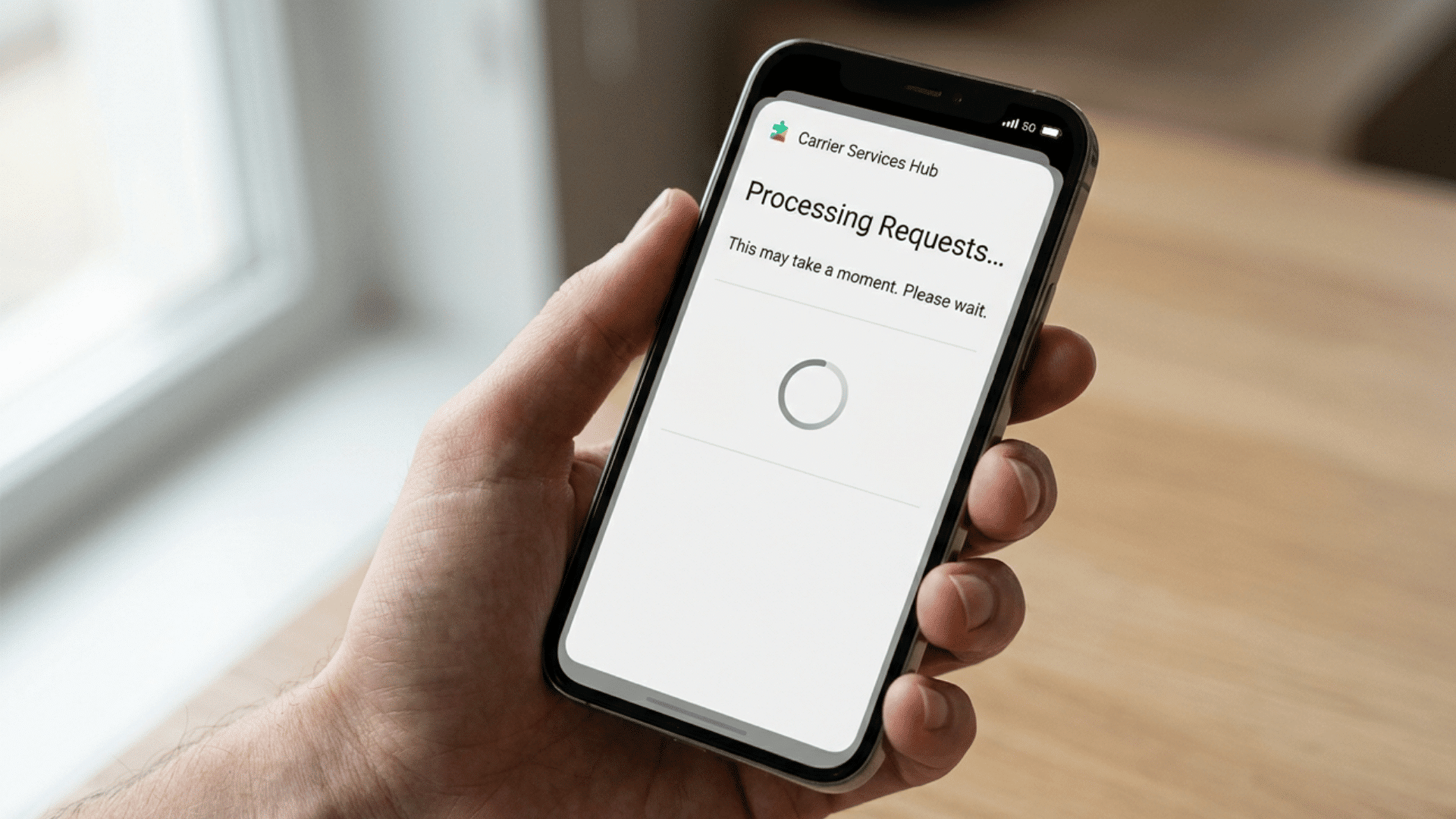
Carrier Hub processing requests can be confusing, especially when the notification keeps returning after a phone update, restart, or network change.
Carrier Hub is an Android system app that helps supported mobile carriers manage network services, device setup, calling, and messaging features.
If that happens, the first question is often simple: what does Carrier Hub mean, and does the message signal a real problem?
I prefer starting with basic checks before changing any major phone settings. In many cases, the notification is temporary and clears once the carrier service finishes its background task.
This blog explains what Carrier Hub does, why the processing message may stay active, and what can cause it to appear repeatedly.
It also covers practical fixes such as restarting the phone, updating Carrier Hub, clearing its cache, checking the SIM card, and resetting network settings when needed.
What does Carrier Hub Processing Requests Mean?
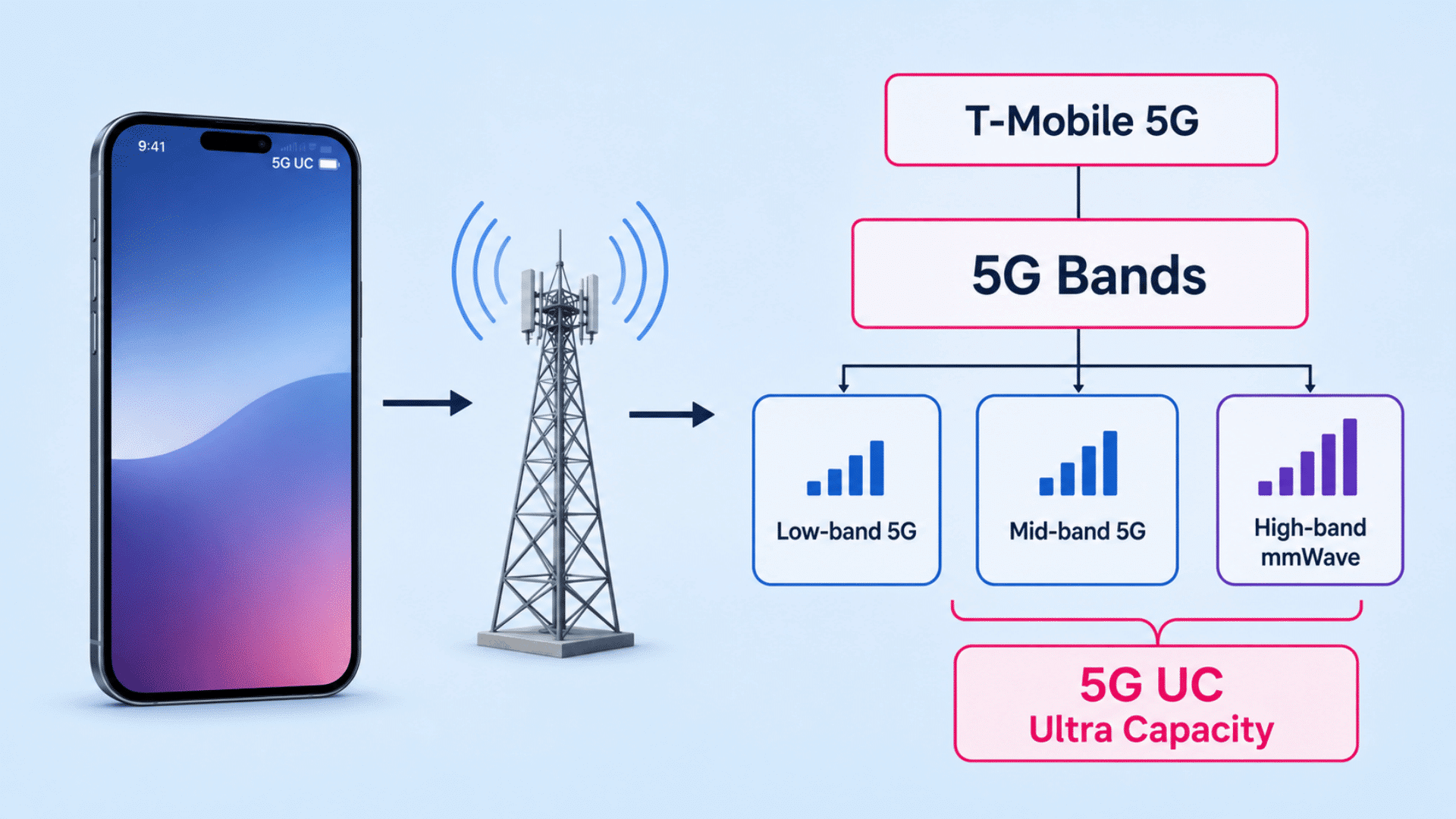
Carrier Hub is a support app on some Android phones using T-Mobile or legacy Sprint services.
It manages carrier features, network settings, and device provisioning.
Two common versions are
- Carrier Hub, linked with Sprint
- Carrier Hub Magenta, linked with T-Mobile.
The “MCM client requests are processing” message means a background carrier task is running. MCM stands for Mobile Content Management and helps handle device configuration and network requests.
A brief notification is common after startup, activation, or updates. If it persists for hours or occurs with network problems, troubleshooting may be necessary.
Is Carrier Hub Safe, or Is it Watching You?
Yes, Carrier Hub is generally safe and is not considered a spy app. It may look invasive because it can request access to location, device information, network status, phone services, and usage data.
These permissions help it manage carrier functions such as Wi-Fi calling, messaging, network connections, and device setup. Location access may also help with network-related services or emergency calling features.
Carrier Hub does not automatically mean someone is secretly watching phone activity.
Android users can review their permissions under Settings > Apps > Carrier Hub > Permissions and disable any access that is not necessary.
Why does the Carrier Hub Message Keep Appearing?
The Carrier Hub message may keep returning when a recent phone or network change prevents a carrier task from finishing correctly.
- Android or OTA update: A system, security, or carrier update may restart background carrier processes.
- Stuck app data: Temporary Carrier Hub data can become unresponsive and keep the request active.
- Carrier settings update: New settings may still be applying after a reboot or software change.
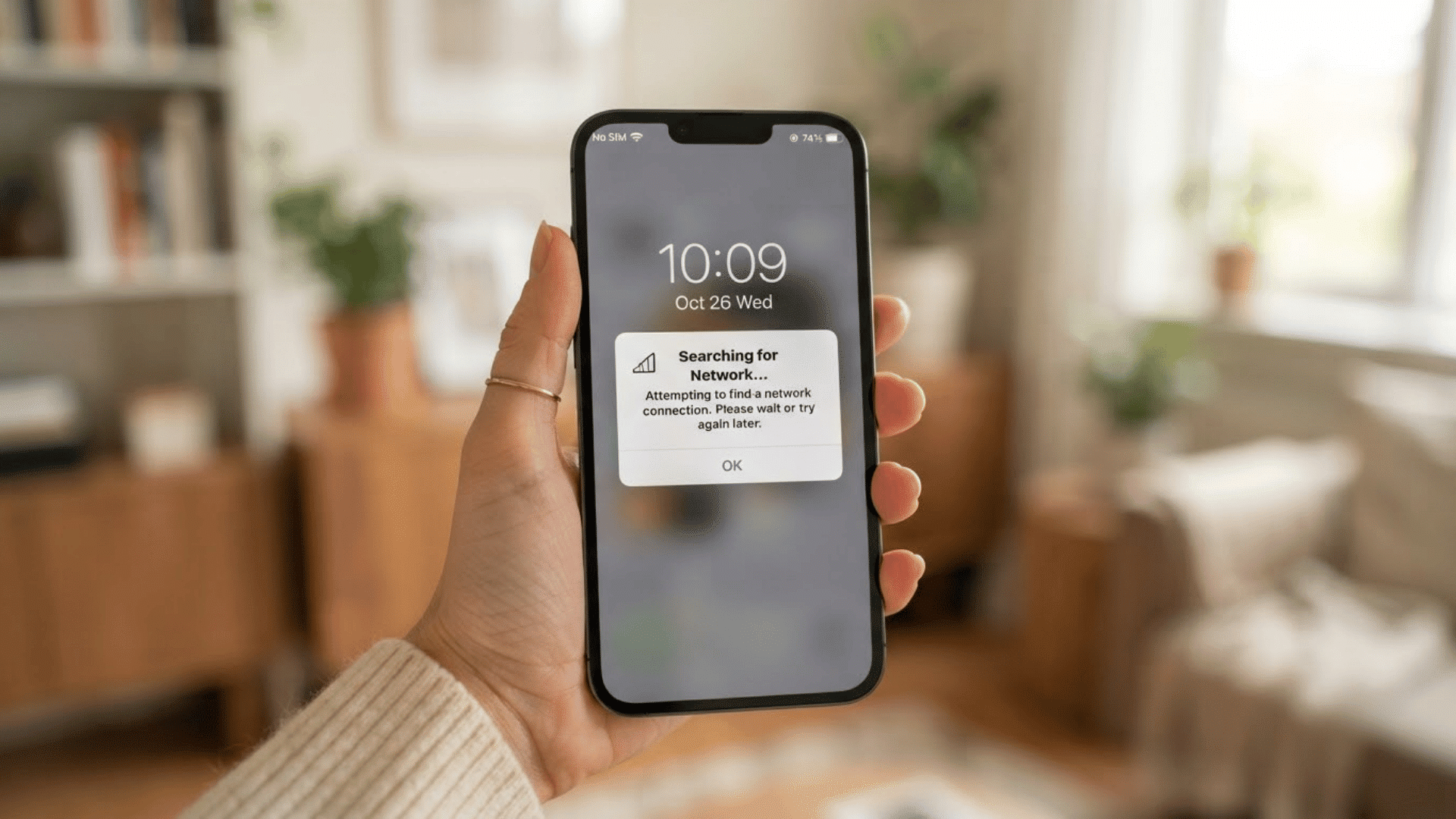
- Weak mobile signal: Poor cellular service can interrupt network-related tasks.
- SIM or eSIM change: SIM swaps, eSIM activation, number transfers, or new devices can trigger carrier reconfiguration.
Checking what changed recently can help identify the likely cause.
How to Fix Carrier Hub Processing Requests
Start with the easiest fixes first. After each step, check whether the Carrier Hub has stopped processing the request message before moving to the next method.
1. Restart the Phone
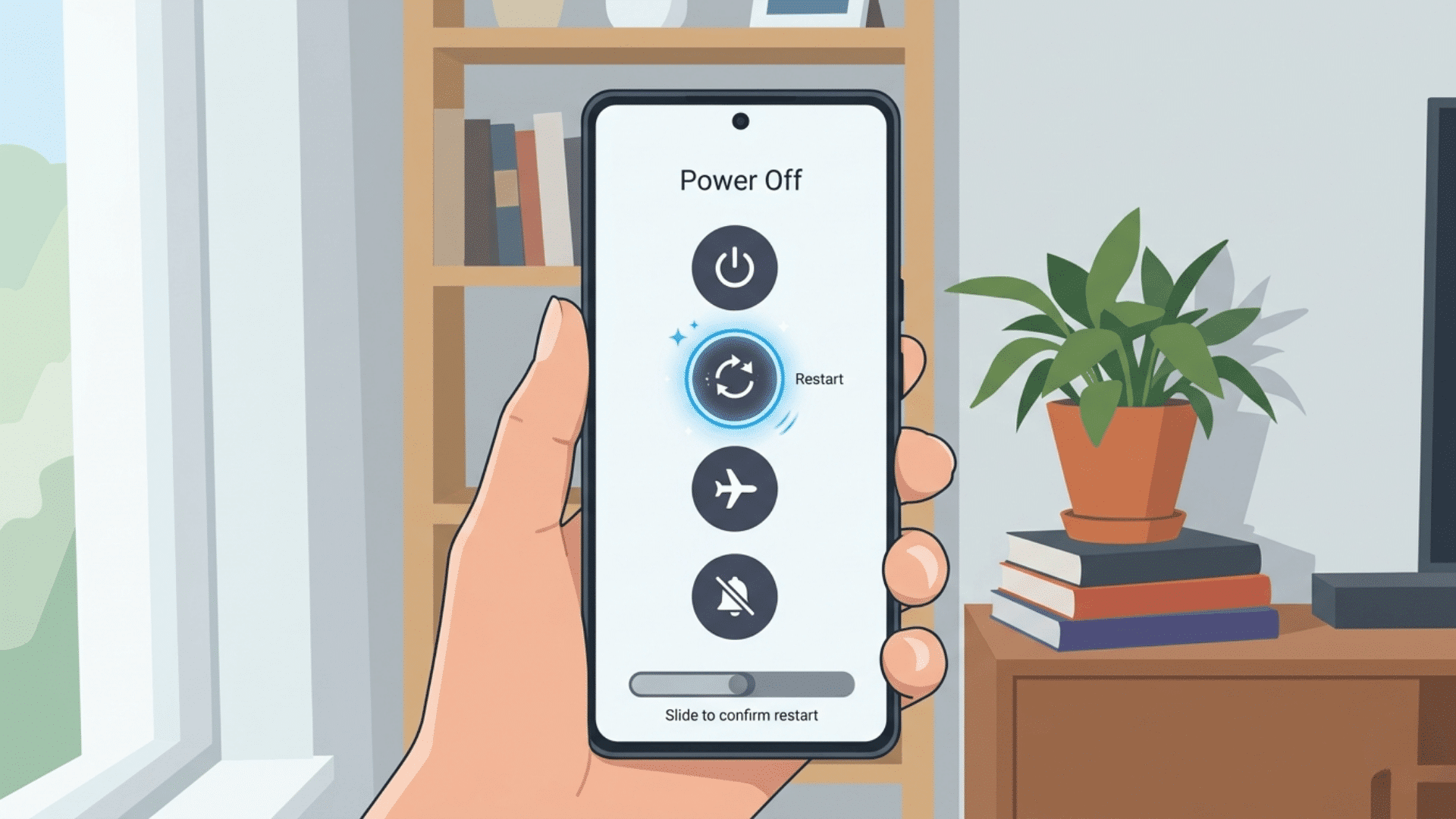
Restarting the phone can close a stuck Carrier Hub process running in the background. Hold the power button, choose Restart, and let the phone turn back on completely.
Once the mobile network reconnects, check whether the notification returns. A restart is a good first step because it does not delete apps, files, or saved phone settings.
2. Check for Android System Updates
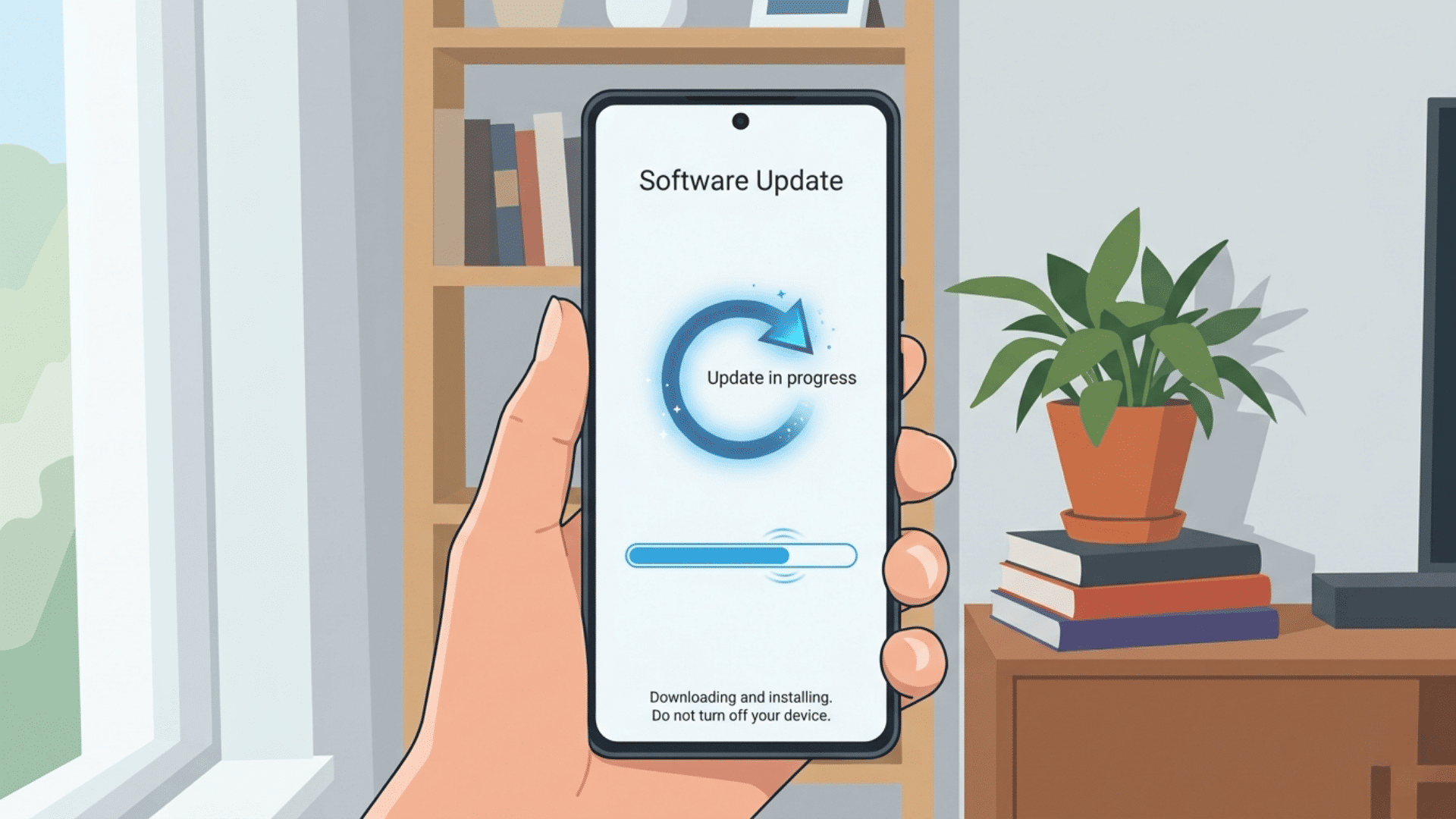
Open Settings > System > Software Update or Settings > Software Update, depending on the phone. Install any available Android, security, or carrier-related updates.
New software patches may fix bugs affecting Carrier Hub or mobile network services. Keep the phone connected to Wi-Fi and sufficiently charged while updating, then restart it afterward and check the notification again.
3. Update Installed Apps
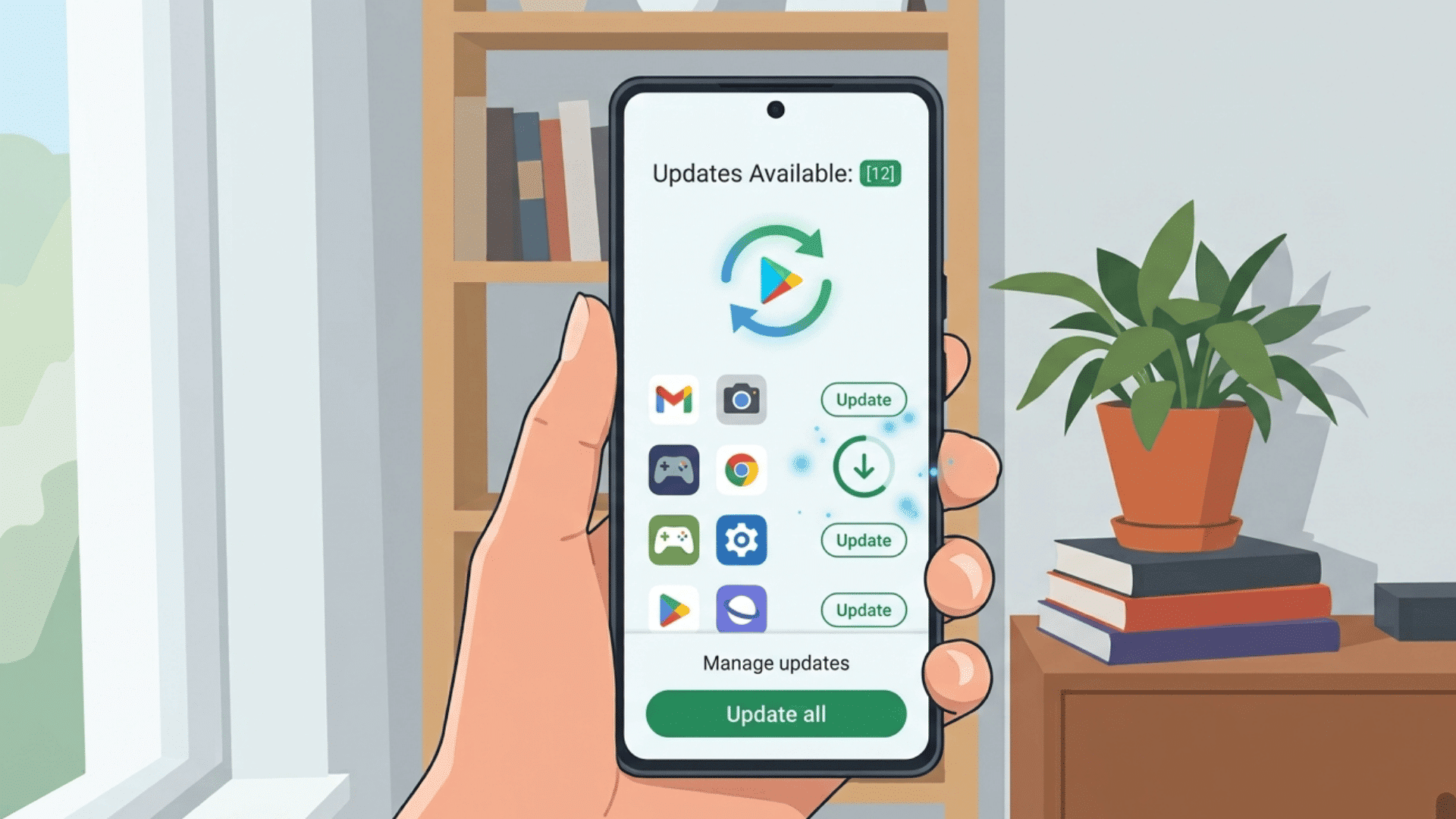
Open the Google Play Store, tap the profile icon, and choose Manage Apps & Device. Install any pending app updates, especially updates linked to carrier or system services.
Older app versions can sometimes conflict with newer Android software. Updating installed apps can resolve compatibility issues and enable Carrier Hub to communicate properly with other services running on the phone.
4. Force Stop Carrier Hub
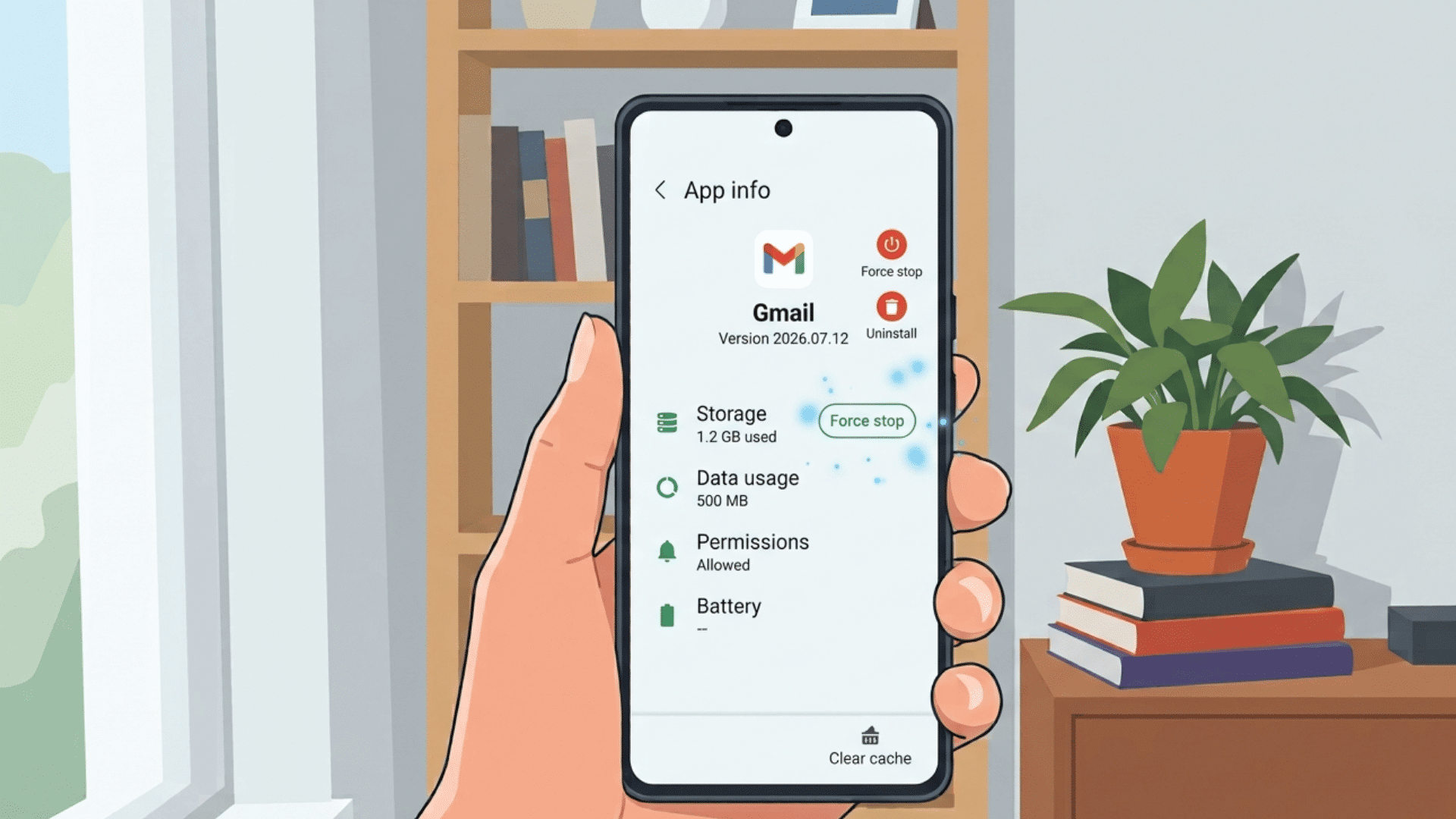
Go to Settings > Apps > Carrier Hub, then tap Force Stop. On some Android phones, the menu may appear under Apps & Notifications or App Management.
Force stopping closes the current Carrier Hub process without deleting stored information. Open normal phone functions afterward and watch for the message.
Android may automatically restart the service when the carrier network needs it.
5. Clear the Carrier Hub Cache
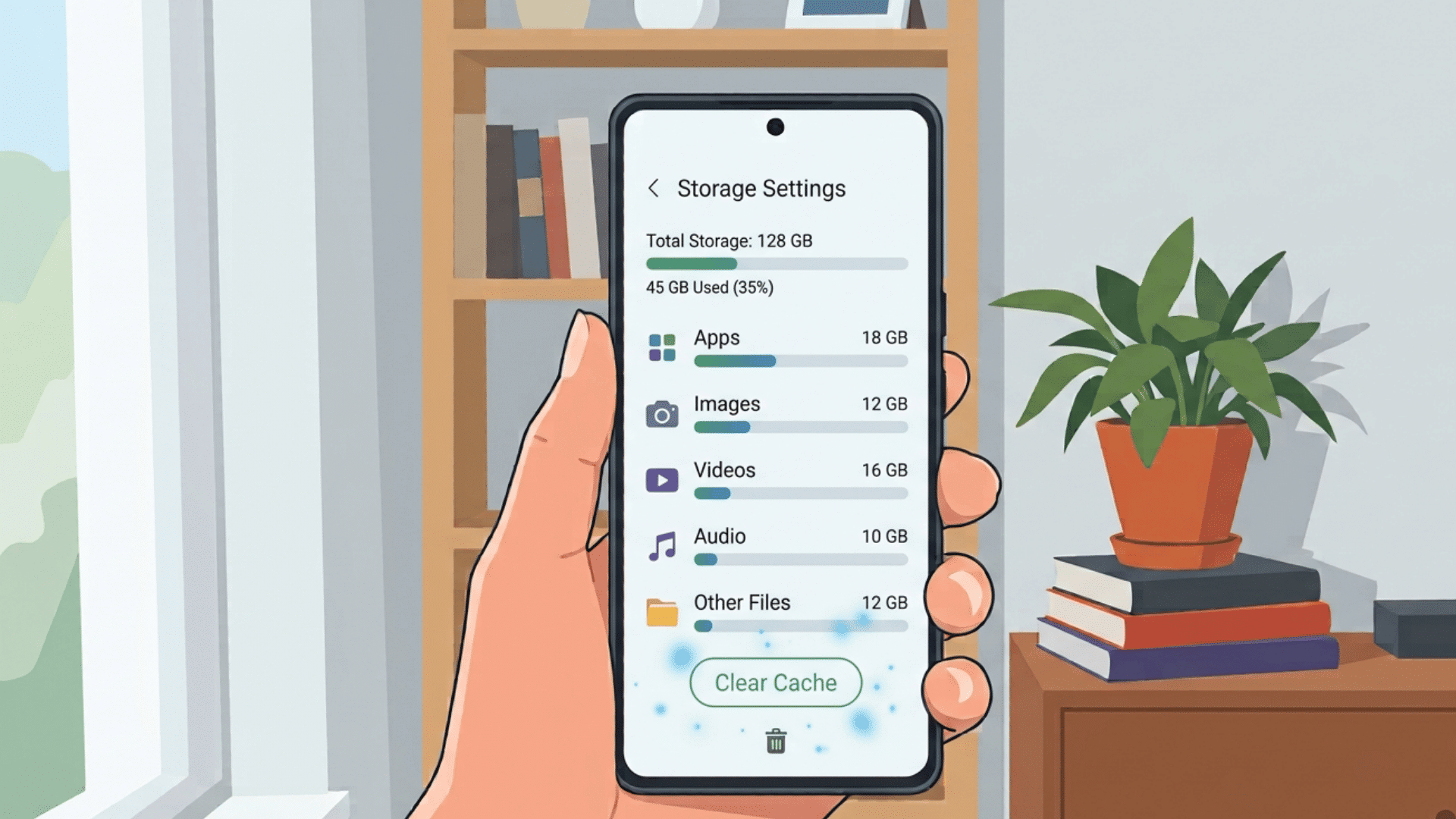
Open Settings > Apps > Carrier Hub > Storage, then tap Clear Cache. Cached files are temporary data used to help apps load and work faster.
If those files become damaged or outdated, Carrier Hub may keep processing the same request.
Clearing the Cache removes temporary files without deleting the app’s main stored data, making it safer than a full data reset.
6. Clear Carrier Hub App Data
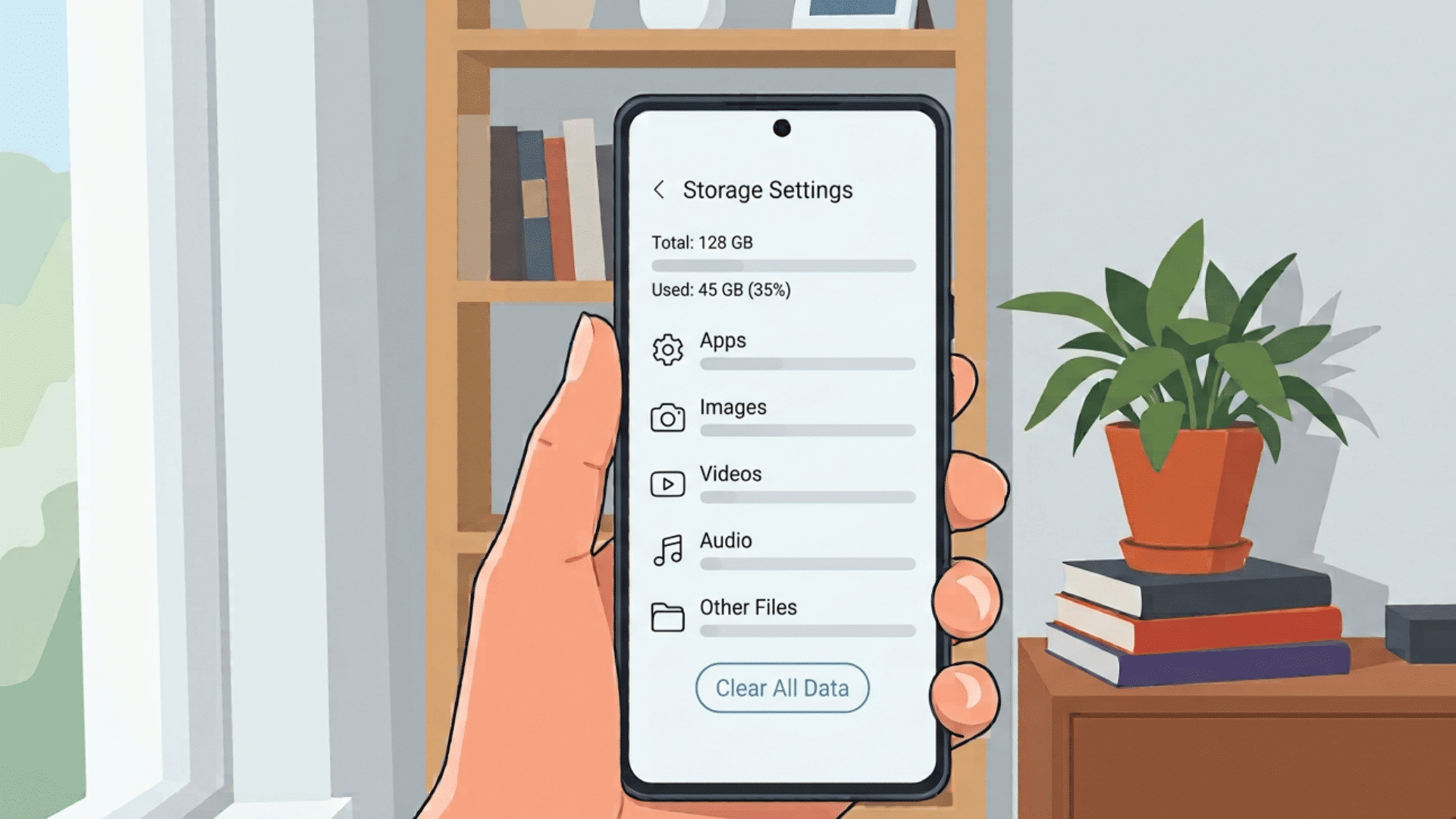
If clearing the Cache does not help, open Settings > Apps > Carrier Hub > Storage and select Clear Data or Clear Storage.
This removes stored app information and gives Carrier Hub a stronger reset.
The service may need to rebuild its settings afterward. Restart the phone and allow several minutes for the mobile network and carrier services to reconnect normally.
7. Turn Airplane Mode On and Off
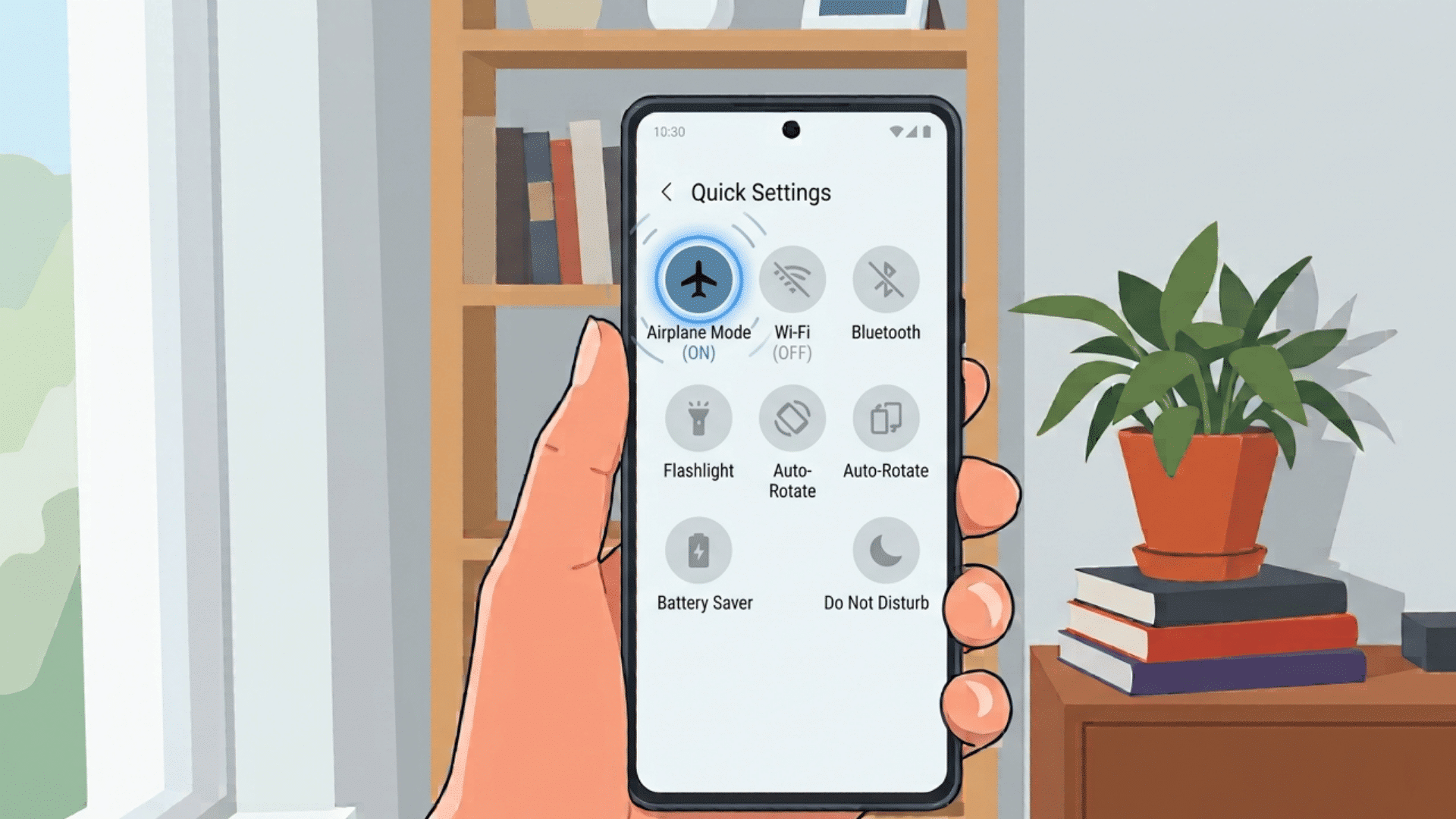
Swipe down from the top of the screen and turn Airplane Mode on for about 20 to 30 seconds. Then turn it off again.
This temporarily disconnects cellular services before forcing the phone to reconnect with the carrier network.
It can help when Carrier Hub is waiting for a network request to complete because of a weak or interrupted mobile connection.
8. Reseat or Reconnect the SIM
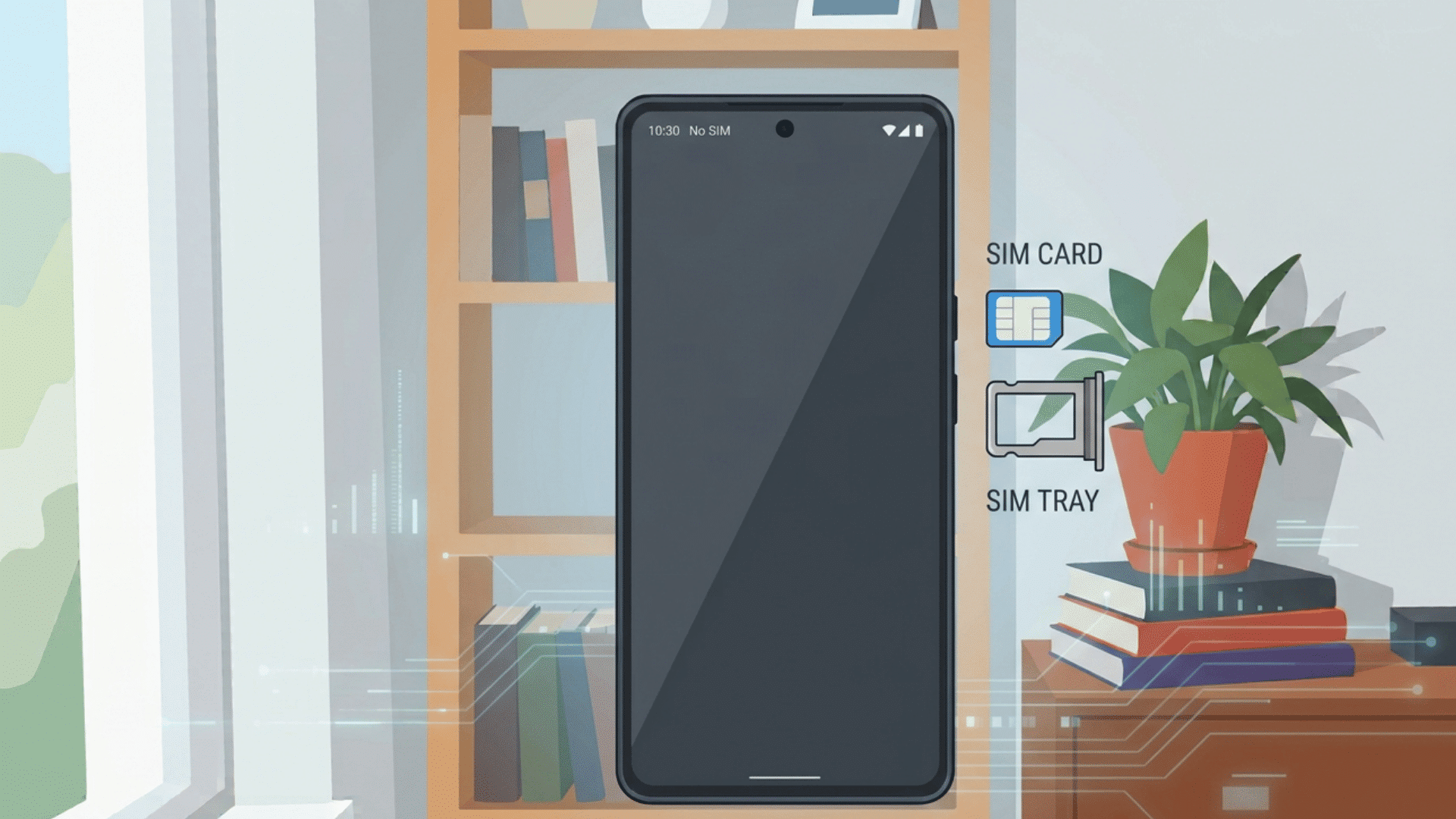
If the issue started after changing a SIM, phone, or mobile plan, check the SIM connection. For a physical SIM, power off the phone before reseating it.
For an eSIM, check its status under Settings > Network & Internet > SIMs or a similar menu. Avoid removing a working SIM unnecessarily, as improper handling can cause additional network connection problems.
Carrier Hub Problems After an OTA Update and Network Fixes
An OTA update can restart Carrier Hub or change mobile network settings, causing temporary notifications or connection problems.
I often check recent software changes first when Carrier Hub processing requests appear after an OTA update.
| Problem | What to Do |
|---|---|
| Notification after update | Give the phone time to finish background update tasks. |
| Message stays visible | Restart the phone, update apps, and clear the Carrier Hub cache. |
| Mobile data fails | Confirm mobile data is enabled and check signal strength. |
| Network connection changes | Check automatic network selection and supported 4G/5G settings. |
| APN issue | Use APN settings provided by the carrier. |
| Calls or texts fail | Test calls, texts, and mobile data separately. |
If problems continue, reset mobile network settings or contact the carrier for support.
Can You Disable Carrier Hub?
Yes, Carrier Hub can be disabled on some Android phones, but the option depends on the carrier, phone model, and software version.
Go to Settings > Apps > Carrier Hub and check for a Disable button. Some phones do not allow removal because Carrier Hub may be installed as a carrier or system app.
Disabling it could affect calling, messaging, Wi-Fi calling, or other network features. Turning off its notifications only hides the alert and doesn’t stop the underlying issue.
If the message keeps reappearing, fix the app or network issue instead of just hiding it.
| Go to Settings > Apps > Show System Apps, then search for Carrier Hub or MCM Client. You can also press and hold its notification and tap App Info to open its settings directly. |
What Not to do When Carrier Hub Gets Stuck
When Carrier Hub keeps processing requests, avoid making major phone changes until you’ve tried basic fixes.
- Do Not Factory Reset the Phone First: A factory reset removes personal data and settings. Try restarting the phone, clearing app Cache, and checking updates first.
- Do Not Install Carrier Apps from Unknown Websites: Download apps only from Google Play, your phone manufacturer, or your official carrier.
- Do Not Change Random APN Values: Incorrect APN settings may cause mobile data, MMS, or network connection problems.
- Do Not Disable Several System Apps at Once: Changing many system services makes it harder to identify which app caused the issue.
Make one change at a time and test the phone before moving to another fix.
When Should You Contact T-Mobile or Your Phone Maker?
Persistent Carrier Hub processing requests may require carrier support when calls, texts, or mobile data also fail.
Contact T-Mobile or the phone manufacturer when basic Carrier Hub fixes do not solve the problem. If the notification returns after every restart, a carrier or software issue may need support.
Contact T-Mobile quickly if calls, texts, or mobile data stop working, as this may indicate a network or SIM issue.
If the issue started after a software update, provide the phone model, software version, carrier name, and the date the problem began.
When carrier settings do not update, check T-Mobile’s official device troubleshooting pages or contact support for instructions matched to the phone.
Final Thoughts
A Carrier Hub processing-requests message is usually temporary, but it should not keep appearing for long periods. If it does, a few basic checks may help fix the problem.
I recommend starting with simple steps like restarting the phone, installing software updates, clearing the Carrier Hub Cache, and checking the SIM and mobile network connection.
Try one fix at a time so it is easier to see what works.
Avoid changing APN settings, disabling system apps, or using a factory reset too quickly. These actions can sometimes create new connection problems.
If calls, texts, or mobile data still do not work properly, contacting the mobile carrier is a sensible next step.
Have you fixed this Carrier Hub issue? Share your phone model and what worked in the comments.
Frequently Asked Questions
Can Carrier Hub Affect Wi-Fi Calling on Android Phones?
Carrier Hub may support carrier features linked to calling and network services. If it becomes stuck or disabled, Wi-Fi calling could behave differently, depending on the phone, carrier, and version.
How Long Should Carrier Hub Processing Requests Last?
A brief notification may disappear after startup, activation, or an update. If the message persists for hours or keeps reappearing, restart the phone and check the app or network settings before contacting support.
Can a Weak Signal Keep Carrier Hub Running?
Yes. A weak or unstable mobile signal can interrupt carrier tasks and leave requests unfinished. Moving to an area with stronger coverage or reconnecting to the network may help the process complete.
Is Carrier Hub the Same as MCM Client?
Not exactly. Carrier Hub is the carrier support app, while MCM Client may appear as a related background component or notification label on certain Android devices and specific software builds.
Does Resetting Network Settings Remove Carrier Hub?
No. Resetting network settings usually refreshes cellular, Wi-Fi, and Bluetooth configurations rather than deleting Carrier Hub. Saved network details may change, so carefully review the phone’s reset screen before continuing.