




You only wanted to edit a file, but now your terminal seems to have trapped you. You press Ctrl+C, try random keys, and nothing closes. If that sounds familiar, you’re in good company.
I’ve seen this happen to first-time Linux users, developers, and even experienced admins who don’t use Vim every day.
The good news is that getting out is much simpler than it first appears. If you’re looking for how to exit Vim, the answer depends on one question: do you want to save your changes or discard them?
In this guide, I’ll walk you through the exact commands to quit Vim. I’ll also explain why some keys do nothing, so you avoid getting stuck the next time you open Vim.
Quick fix: Press
Esc, then type:q!and pressEnterto leave without saving. To keep your edits, type:wqand pressEnterinstead.
Which Vim Exit Command Should You Use?
Once you know the basic pattern, exiting Vim becomes much less confusing. Press Esc first to return to Normal mode, type the command you need, and then press Enter.
The command you choose depends on your goal: saving your changes, discarding them, or closing several open files at once.
The table below shows what each command does and when it makes sense to use it.
| Command | What It Does | Use It When | Memory Aid |
|---|---|---|---|
:q | Quit Vim without saving | You have not made any changes | q = quit |
:q! | Quits and discards unsaved changes | You want to leave without keeping your edits | ! = force it |
:wq | Saves the current file and quits | You want to keep your changes | w = write, q = quit |
:wq! | Forces Vim to attempt the write, then quits if the save succeeds | Vim blocks a normal save, but you have permission to overwrite the file | write, quit, force |
:x | Saves only if the file changed, then quits | You want to save and exit without rewriting an unchanged file | Like:wq, but skips a needless write |
:wqa | Saves all modified buffers and quits Vim | You have several open files and want to save them all | a = all |
:wqa! | Force-saves all writable buffers and quits | Vim blocks one or more normal writes | write all, force |
ZZ | Saves changes and quits | You want a Normal mode shortcut for :wq | two capitals, no colon |
ZQ | Quits and discards changes | You want to save and quit without typing a colon command | two capitals, no colon |
For most beginners learning how to exit Vim, two commands cover nearly every situation: :wq to save and quit, or :q! to leave without saving.
How Vim Modes Affect Exiting?
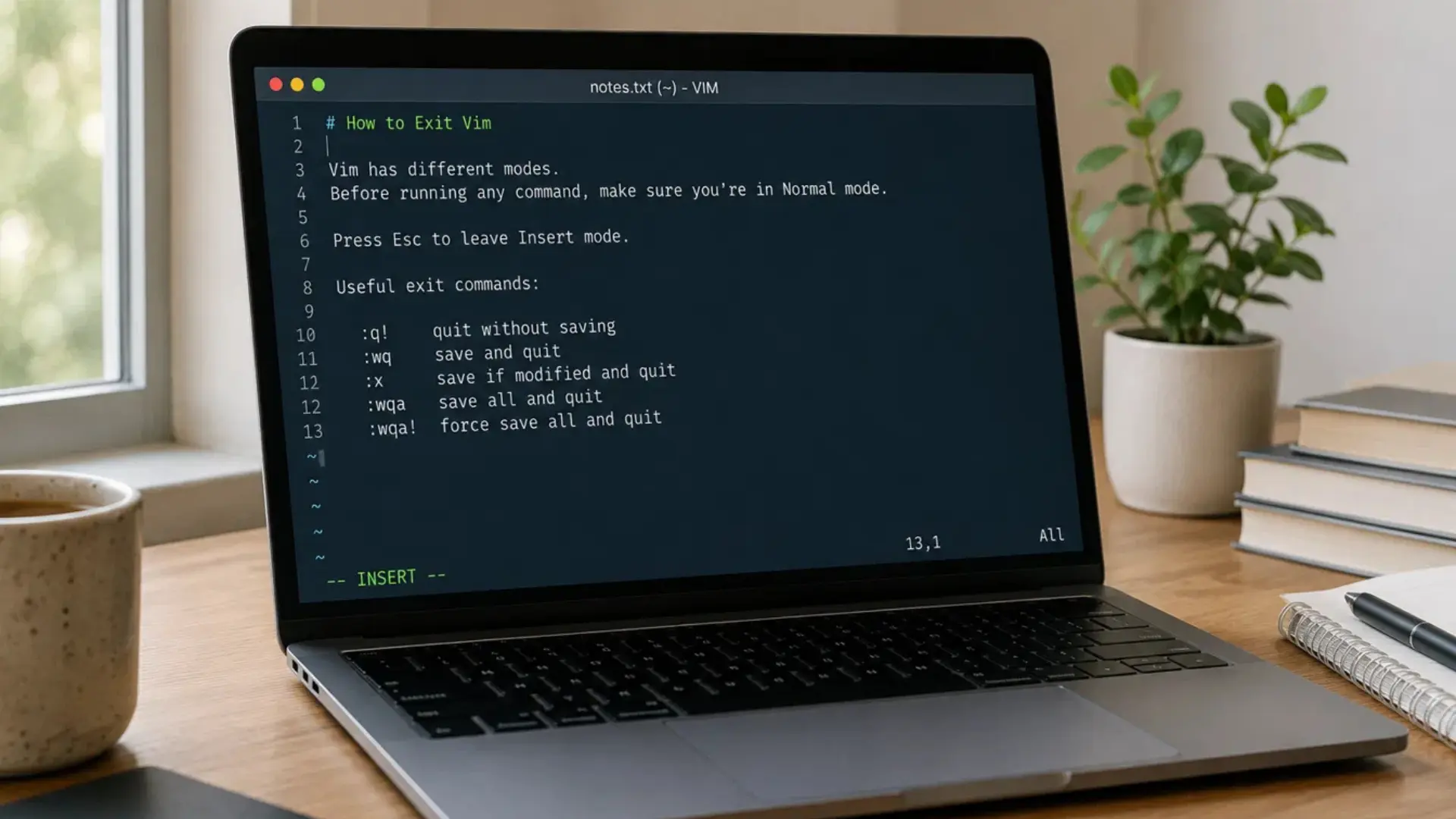
Vim handles typing and commands in different modes. That is why exit commands sometimes appear to do nothing. If you see -- INSERT -- at the bottom of the screen, you are in Insert mode.
In this mode, Vim treats your keystrokes as text.
Press Esc to return to Normal mode. If you are unsure which mode is active, pressing Esc again is safe and will not damage the file.
A simple way to remember it! Insert mode is for typing and editing. Normal mode is for moving around and running commands.
Once you are back in Normal mode, Vim is ready to accept an exit command. Your command will depend on whether you keep your edits, discard them, or close every open file at once.
Type a colon, enter the command, and press Enter.
- Use
:q!to quit without saving. - Use
:wqto save your changes and quit. - Use
:xto save only if the file changed, then quit. - Use
:wqato save all modified open buffers and exit. - Use
:wqa!to force Vim past certain editor warnings, although it cannot bypass system permissions.
Use kill commands only as a last resort. Try
Esc,:q!,:wq, orCtrl+Z. Force-closing Vim can discard unsaved changes and leave a swap file behind.
Why doesn’t Ctrl+C Exit Vim?
Pressing Ctrl+C feels like the obvious way to close a terminal program, but Vim does not treat it as a quit command.
In Insert mode, it usually stops text entry and returns you to Normal mode instead. It looks like pressing Esc, but the two are not identical. Esc is the safer choice because it exits Insert mode cleanly.
Ctrl+Z behaves differently again. It suspends Vim and sends the session to the background, which returns you to the terminal without closing the editor.
To bring Vim back, type fg and press Enter.
So, neither shortcut actually exists in Vim:
Ctrl+Cusually returns you to Normal mode.Ctrl+Zsuspends the session.:wqsaves and exits.:q!quits without saving.
Why did Vim Open by Itself?
Vim often appears because another terminal command needs a text editor, and your system has Vim set as the default. You may not have launched it directly, but the command still depends on what you do next.
| What Opened Vim | Why It Appeared | What to Do |
|---|---|---|
git commit | Git needs a commit message because you did not use -m | Use :wq to save the message and complete the commit. Use :q! to leave without saving, which usually cancels the commit. |
crontab -e | The system opened your scheduled tasks for editing | Use :wq to save the new schedule. Use :q! to discard your edits. |
visudo | The sudo configuration file was opened for a safe syntax check | Use :wq to save and let visudo validate the file. Use :q! to leave unchanged. |
| An SSH session | A remote command opened the server’s default editor | The same Vim commands still apply: :wq to save or :q! to quit without saving. |
The important part is not just how to exit Vim, but what the command that opened it will do after you leave.
What to do When :q does Not Work?
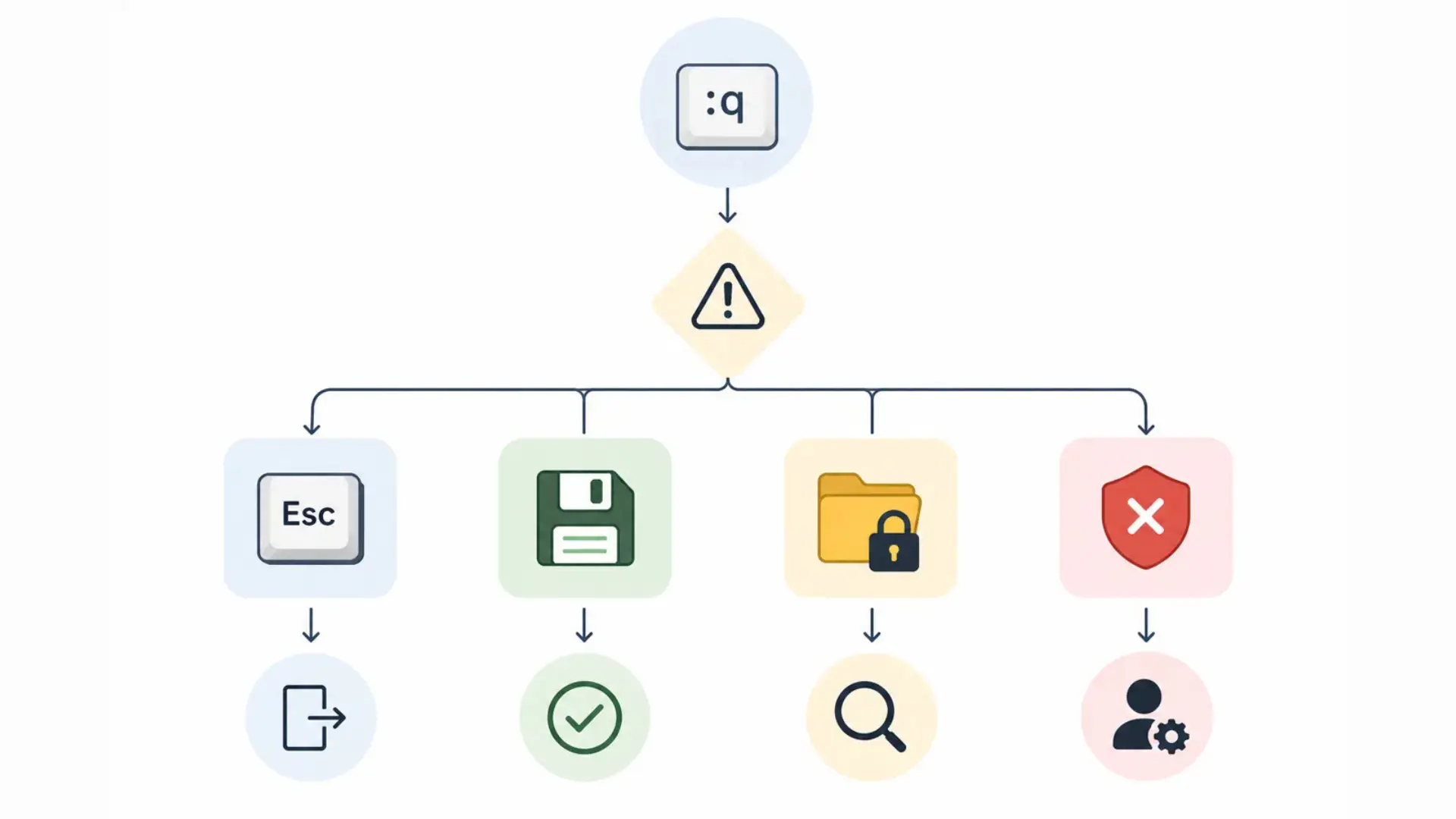
Typing :q and seeing nothing happen usually means Vim is not ready to accept the command, or it is stopping you from losing unsaved work. The message at the bottom of the screen often tells you which problem you are facing.
- The colon appears inside the file: You are likely still in Insert mode. Press
Esc, type:qagain, and pressEnter. - Vim says “No write since last change”: The file has unsaved edits. Use
:wqto save and exit, or:q!to discard the changes. - Vim says the file is read-only: Try
:wq!only if Vim is blocking an overwrite that your account is allowed to make. This command cannot bypass system permissions. - You see a permission error: Exit without saving, then reopen the file with the correct access or ask the file owner for permission.
When an exit command fails, read Vim’s bottom-line message before trying another one. It usually points directly to the cause.
Does this Work the Same in Neovim?
Yes. Neovim keeps Vim’s core modes and command system, so the same exit commands work in both editors. You do not need to learn a separate method just because the program name is nvim instead of vim.
| Command | What It Does | Works in Neovim? |
|---|---|---|
:q | Quits when there are no unsaved changes | Yes |
:q! | Quits and discards changes | Yes |
:wq | Saves the file and quits | Yes |
:x | Saves only if the file changed, then quits | Yes |
ZZ | Saves and quits from Normal mode | Yes |
ZQ | Quits without saving from Normal mode | Yes |
The process stays the same: press Esc, type the command, and press Enter. Once you know how to exit Vim, you can exit Neovim the same way.
Quick Recap: How to Exit Vim
The next time Vim appears on your screen, you won’t have to guess which keys to press.
In most cases, pressing Esc followed by :wq or :q! is all you’ll need. After a couple of practice attempts, the commands should start to feel natural.
Practice both commands in a test file now: use :wq once to save and exit, then reopen it and use :q! to leave without saving.
Did this save you from getting stuck in Vim? Comment below! Make sure you share this with someone who always gets trapped in the terminal.
Frequently Asked Questions
Can I Change Vim to Another Default Editor?
Yes. Many Linux tools use your default editor. You can set editors like Nano or VS Code by updating the EDITOR or VISUAL environment variable.
What Happens if Vim Crashes Unexpectedly?
Vim usually creates a swap file while you edit. When you reopen the file, it may offer to recover your unsaved changes.
Can I Exit Vim With the Mouse?
If your terminal and Vim configuration support mouse input, you can click menus in graphical versions. In terminal Vim, keyboard commands remain the standard method.
Why does Vim Beep or Flash the Screen?
A beep or screen flash usually means Vim cannot complete the command you entered. Check the message at the bottom for the exact reason and the next step.