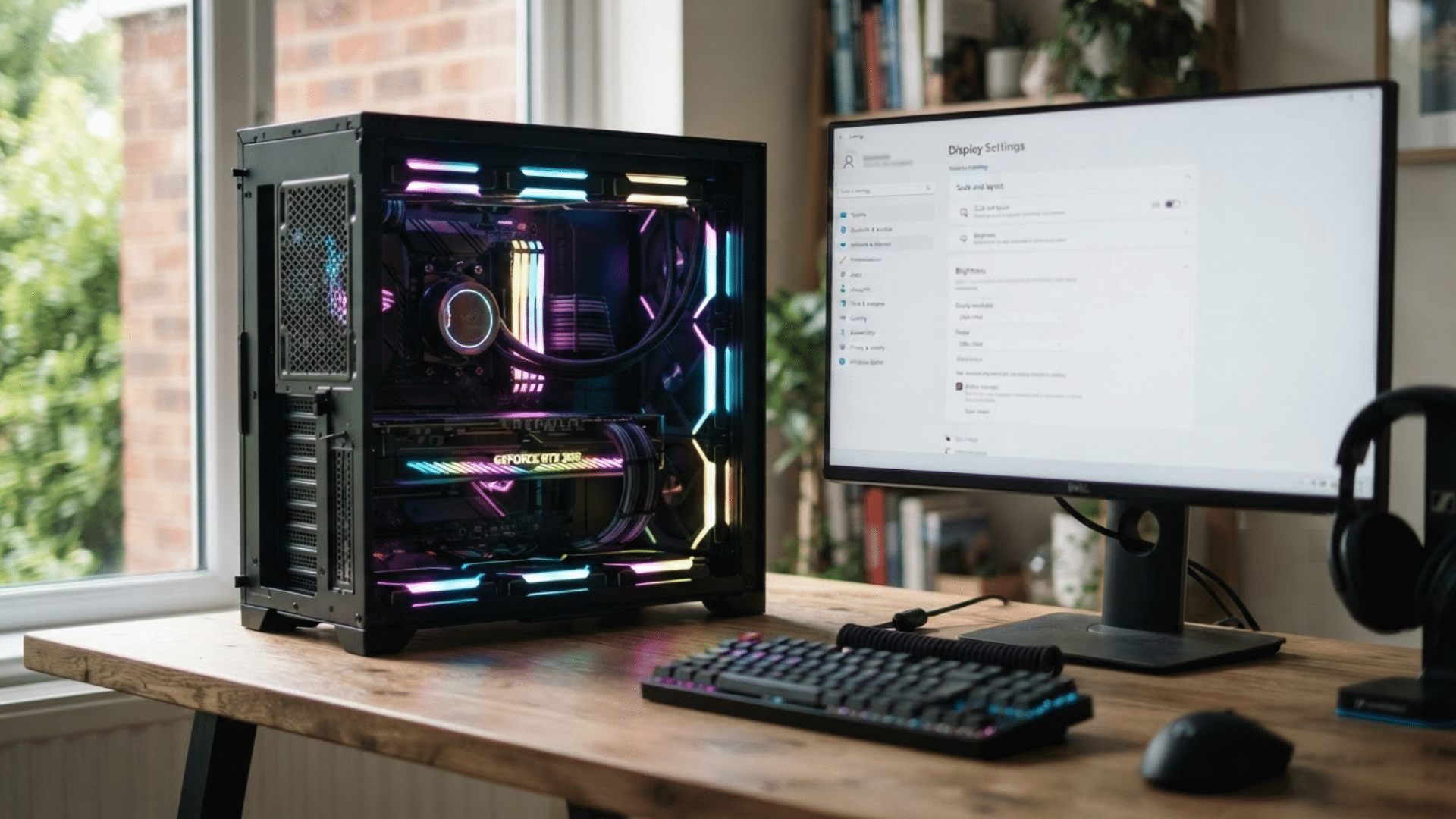





Ever poked around your Windows display settings and spotted a toggle called “Hardware-Accelerated GPU Scheduling” and wondered what it actually does? You’re not alone.
It’s a setting that changes how your graphics card handles its own workload, and it could make your games or videos run a little smoother. But is it actually worth turning on? That depends on a few things.
In this post, I’ll break it all down in simple terms. You’ll learn what this feature really means, how it works behind the scenes, if your PC can even use it, and how to switch it on or off in a few clicks.
I’ll also cover the real benefits, the downsides worth knowing, and answer the questions people ask most. By the end, you’ll know exactly what to do with that toggle.
What is Hardware-Accelerated GPU Scheduling?
Hardware-Accelerated GPU Scheduling (people usually just call it HAGS) is a Windows feature that changes who’s in charge of your graphics card’s to-do list.
Normally, your CPU acts like a middle manager. It takes every single graphics task, lines them up one by one, and hands them to your GPU (the graphics card) to work through.
HAGS changes that. Instead of the CPU micromanaging every task, your GPU gets its own onboard scheduler and uses its own memory (VRAM) to sort and run its workload directly.
Think of it like this: instead of a manager assigning you one task at a time, you just get the full list and organize your own day. Windows still decides what’s most important overall, but your GPU handles the small, fast decisions itself.
Is HAGS Good? Should You Turn it On?
I get asked this more than almost any other Windows setting. Based on testing across different builds and reading through how Microsoft’s engineering team describes the change, here’s my direct answer.
For most people running a modern graphics card, yes, HAGS is worth enabling. It’s low risk, it can smooth out latency and frame delivery, and it’s required for newer features like NVIDIA’s DLSS Frame Generation.
It also gives AMD’s FSR a noticeable boost.
When You Should Enable It:
- Your GPU is fairly recent, such as an NVIDIA GTX 10-series or newer, or an AMD 5600-series or newer.
- Your graphics drivers are up to date.
- You want smoother gaming, better frame pacing, or access to features like DLSS Frame Generation.
When You Should Leave It Off:
- You notice stuttering, freezing, or crashes after enabling it.
- You use older creative or compute tools, like Blender with CUDA or certain TensorRT workflows, which have shown compatibility issues.
- Your system feels less stable rather than more responsive, a clear signal to revert.
How HAGS Actually Works
This is the part most people actually want to understand once they know the setting exists. Here’s how it works, explained the way I’d document it for an engineering handoff, minus the jargon.
1. A Quick History of the WDDM Scheduler
Windows introduced WDDM, the Windows Display Driver Model, back in 2006, and with it came the first version of GPU scheduling. Since then, one thing stayed constant.
A high-priority thread on your CPU has always been the one in charge, coordinating and prioritizing every piece of graphics work before sending it to the GPU.
That approach held steady for almost fourteen years, right up until HAGS came along.
2. The CPU Bottleneck Problem
That old setup has a catch. Every time your CPU hands a task to the GPU, there’s a bit of overhead, similar to the time it takes to write instructions before someone can start a job.
Applications compensate by batching work in advance, preparing several frames ahead so the GPU always has something ready.
That trade-off shows as latency, the delay between your input and what you see on screen.
3. What Changes With HAGS
This is where HAGS steps in. Instead of relying so heavily on the CPU for every scheduling decision, your GPU takes over the fast, repetitive work itself, including switching between tasks and managing its own time slices.
Windows still stays in charge of the big picture, deciding which applications get priority overall. Your GPU simply handles the moment-to-moment details on its own. The result is a more responsive experience.
Requirements to Use Hardware-Accelerated GPU Scheduling
Before you go looking for that toggle, it helps to confirm your system can actually use it. I always check these details first when troubleshooting for someone.
You’ll need Windows 10’s May 2020 Update (version 2004) or later. Windows 11 usually ships with HAGS enabled by default on fresh installs.
You’ll also need a supported graphics card, such as an NVIDIA GTX 10-series or newer, an AMD 5600-series or newer, or a modern Intel Arc card. Your GPU needs a driver that supports WDDM 2.7 or higher, so keeping drivers updated matters as much as the hardware itself.
If you check your settings and the HAGS option isn’t there, don’t assume something is broken. I see this often, even on cards that should technically support it.
Usually the cause is a driver or PC manufacturer that hasn’t rolled out full support yet. Updating your graphics driver directly from NVIDIA, AMD, or Intel’s website resolves this for most people I’ve helped.
How to Enable (or Disable) HAGS
Here’s exactly how I walk people through this, if you’re comfortable in Settings or prefer the Registry Editor.
1. Windows 11 (Settings App)
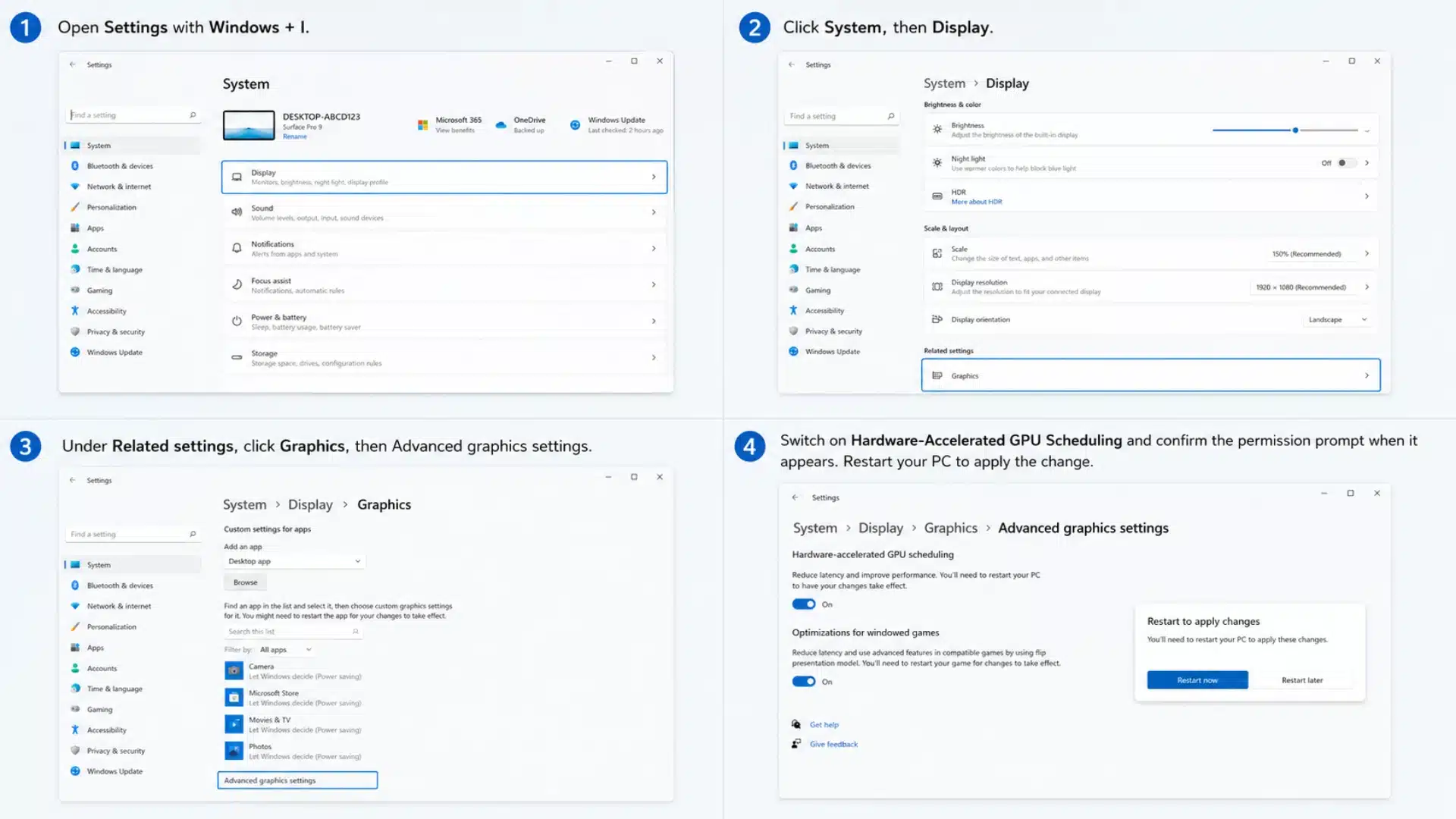
This is the quickest path on most Windows 11 systems, and reversing it later just means switching the toggle off and restarting again.
- Open Settings with Windows + I.
- Click System, then Display.
- Under Related settings, click Graphics, then Advanced graphics settings.
- Switch on Hardware-Accelerated GPU Scheduling and confirm the permission prompt when it appears.
- Restart your PC to apply the change.
2. Windows 10 (Settings App)
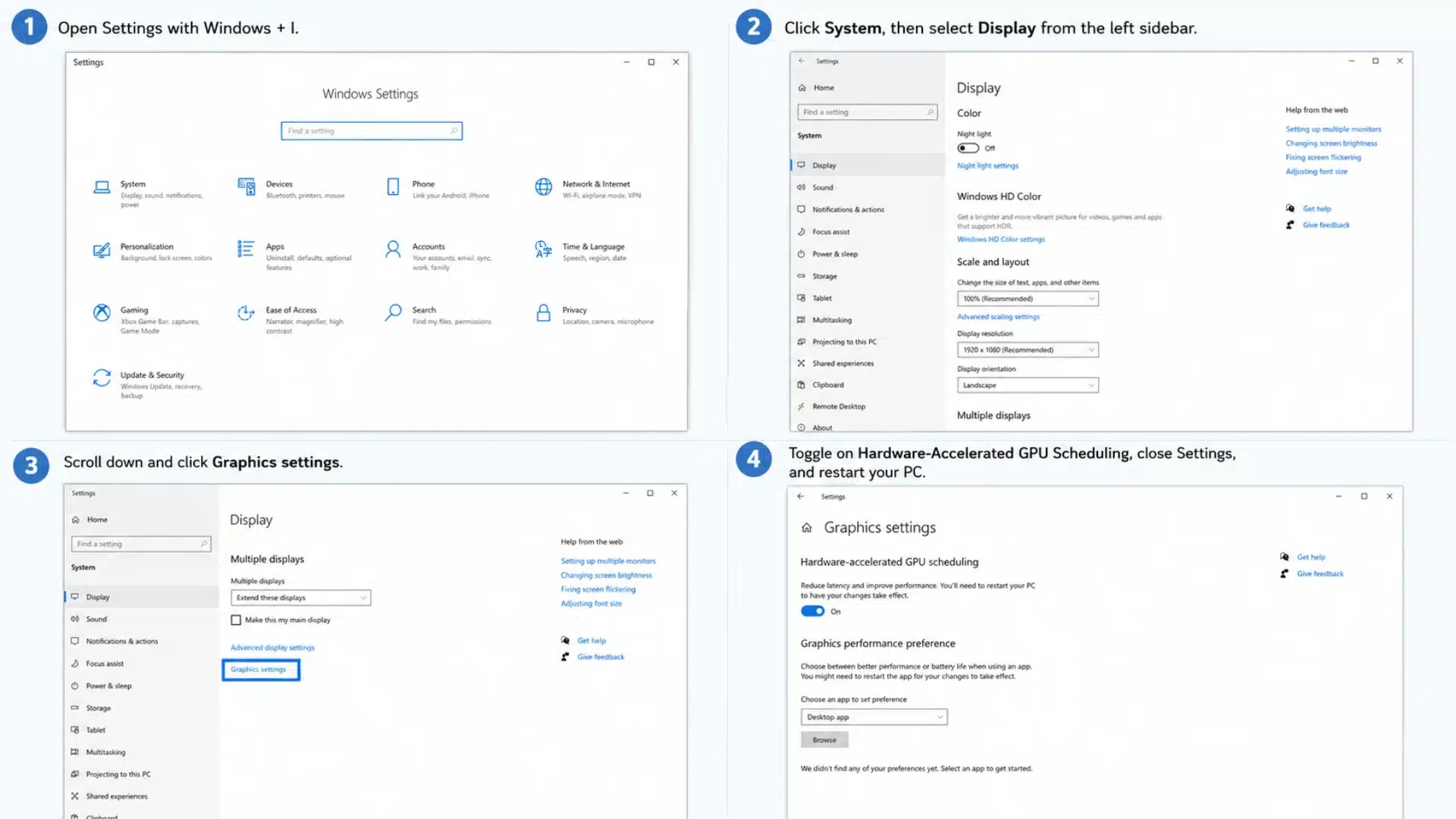
If you ever want to undo this, flip the same toggle off and restart your machine again. The process takes less than a minute, and it doesn’t require any advanced tools.
- Open Settings with Windows plus I.
- Click System, then select Display from the left sidebar.
- Scroll down and click Graphics settings.
- Toggle on Hardware-Accelerated GPU Scheduling, close Settings, and restart your PC.
3. Registry Editor Method (Advanced)
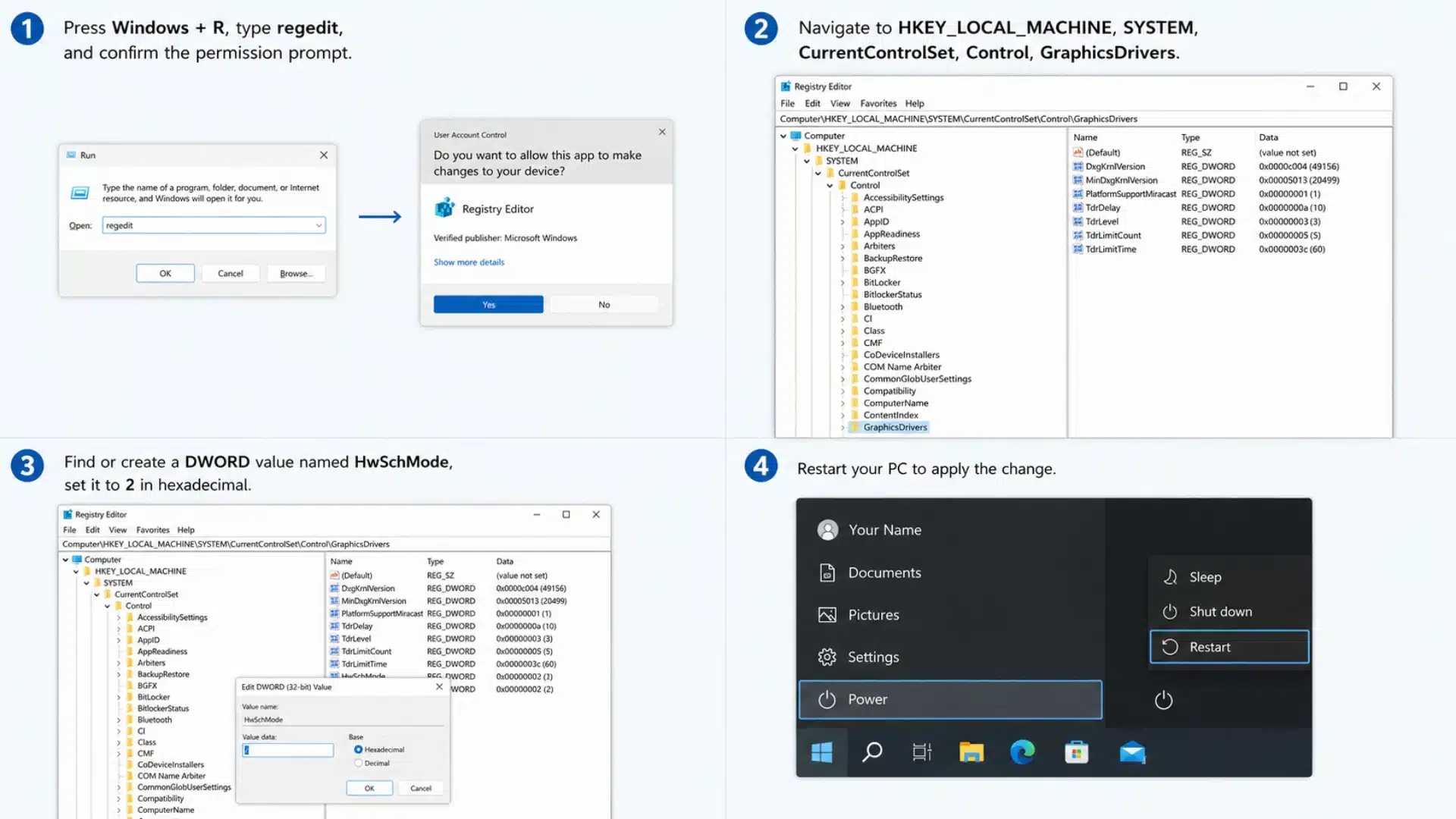
If Settings doesn’t show the option, or you prefer working directly in the registry, this method works too.
- Press Windows + R, type regedit, and confirm the permission prompt.
- Open HKEY_LOCAL_MACHINE, SYSTEM, CurrentControlSet, Control, GraphicsDrivers.
- Find or create a DWORD value named HwSchMode, set it to 2 in hexadecimal, and restart.
I’d only recommend this route if you’re comfortable editing the registry, since incorrect changes elsewhere can cause problems.
Benefits and Drawbacks
Whether HAGS makes a noticeable difference depends entirely on what you’re doing with your PC.
I’ve broken down where it tends to help and where it tends to cause friction, based on patterns I’ve seen across gaming, creative work, and compute-heavy tasks.
| Use Case | The Upside | The Catch |
|---|---|---|
| Gaming | Smoother frame delivery, lower input latency, and it’s required for features like NVIDIA’s DLSS Frame Generation. It also gives AMD’s FSR a boost. | Gains are often subtle, not a dramatic FPS jump. |
| Creative & 3D Work (rendering, animation, video editing) | Less scheduling overhead can mean smoother playback and previews while you work. | Multi-GPU setups running CUDA-based rendering, like Blender with Cycles, have historically run into hiccups. |
| AI/ML Workloads | Some CUDA-heavy tasks report faster kernel launches. | Reports are mixed and workload-dependent, so treat this as “your results may vary.” |
| AR/VR | Latency-critical environments tend to benefit the most from any scheduling improvement. | Still hardware- and driver-dependent, like everything else on this list. |
HAGS vs. Regular GPU Acceleration
GPU acceleration is the general practice of offloading tasks to your graphics card because it processes certain work faster than your CPU, covering things like video rendering, gaming, and AI models.
It answers the question of what gets done and where it happens.
HAGS is more specific. It doesn’t move work to the GPU. It changes how that work gets organized and scheduled once it’s already there.
Put simply, GPU acceleration handles execution, while HAGS handles management. One doesn’t replace the other. HAGS just makes the process running underneath GPU acceleration a bit more efficient.
Final Thoughts
After years of documenting technical settings like this one, I can tell you HAGS is one of the more worthwhile toggles hiding in Windows.
It won’t turn a weak GPU into a powerhouse, but for supported hardware, it’s a low-risk change that can make gaming, video editing, and 3D work feel a bit more responsive.
My advice: confirm your GPU is supported, update your drivers, flip the toggle, and judge the results on your own machine. If something feels off, reverting takes seconds.
If this guide helped clear things up, try enabling HAGS on your own PC today and see what changes. And if you know someone who’s always asking what a setting like this actually does, send this their way.
Frequently Asked Questions
Is HAGS the Same as Game Mode?
No. Game Mode prioritizes system resources for games specifically. HAGS changes how the GPU schedules tasks at a deeper, system-wide level. They work independently and can run together.
Do I Need to Turn on HAGS for Every Game?
No. It’s a system-wide setting, not a per-game one. Once enabled in Windows, it applies to every supported app and game automatically.
Can HAGS Cause Screen Flickering or Crashes?
Rarely. Some users report flickering, freezing, or black screens after enabling it, usually tied to outdated drivers. Updating your graphics driver first prevents most of these issues.
Does HAGS Affect Laptop Battery Life?
Not significantly. HAGS focuses on scheduling efficiency, not power draw. Any battery impact is minor compared to factors like screen brightness or background apps.