




To enable macros in Excel, open the trusted workbook in the desktop app and click Enable Content on the yellow Security Warning bar. If that option does not appear, go to File → Info → Enable Content.
However, not every macro warning uses the same fix. Trust Center settings control whether Excel shows approval prompts, while downloaded files may stay blocked until Unblock is selected in Windows Properties.
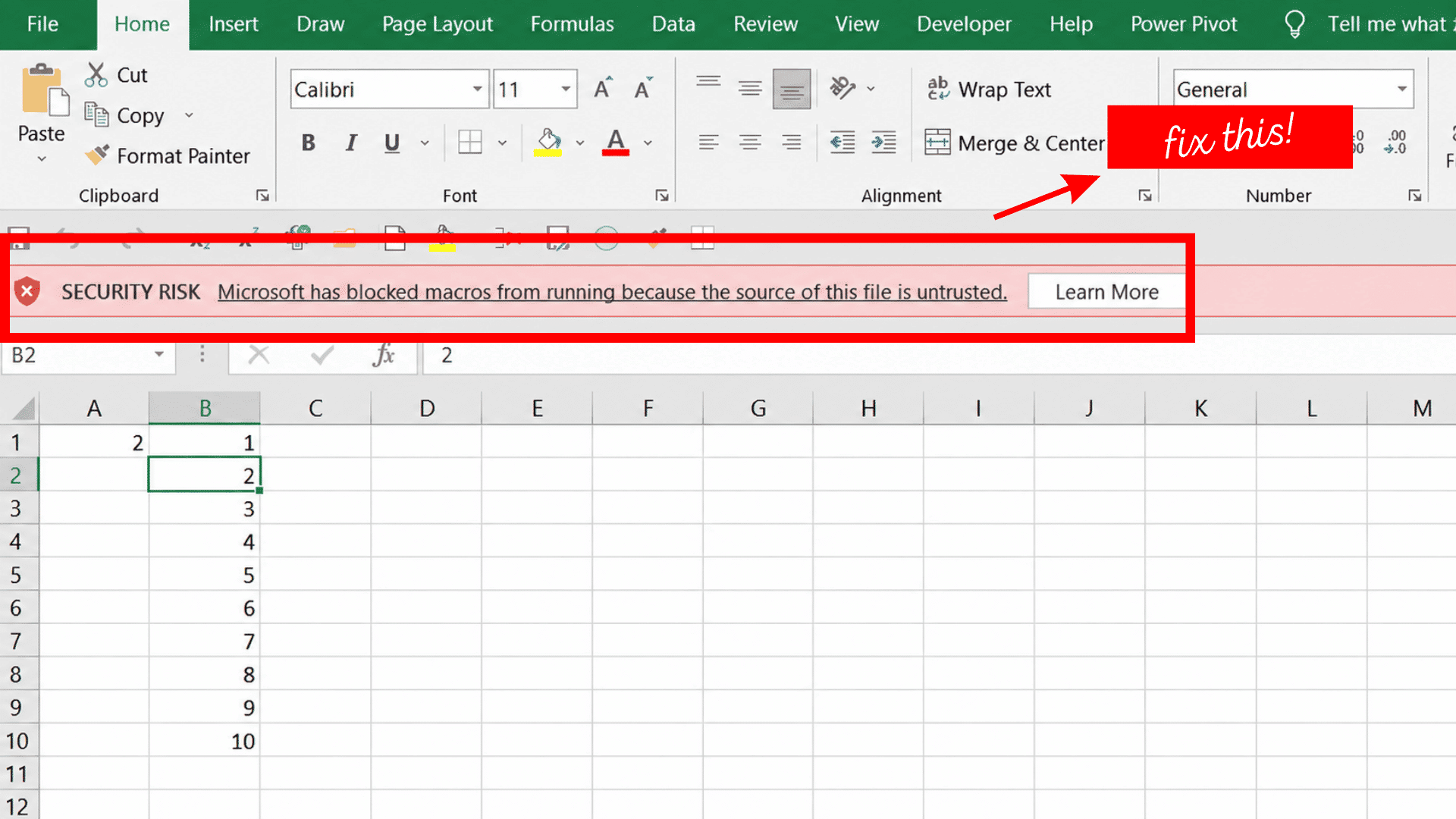
The message on screen reveals which method to use. A yellow warning usually needs approval inside Excel, while a red Security Risk warning often means Windows has marked the file as untrusted.
I first identify the warning, confirm the file source, and then apply the safest matching method without enabling macros for every workbook.
Below, I will cover each method step by step to enable macros in Excel, including single-workbook approval, Trust Center settings, unblocking downloaded files, and common troubleshooting checks.
Before Enabling Macros, Do This!
Before continuing, check that:
- The workbook was expected.
- The sender or download website is trusted.
- The file uses a macro-compatible format such as .xlsm, .xlsb, or .xls.
- The workbook is open in the Excel desktop app, since VBA macros do not run in Excel for the web.
- Delete files that use pressure or fear to gain permission.
- Keep Excel, Windows, and security software updated.
Macros can automate useful Excel tasks, but they can also run harmful code. Enable them only when the workbook came from a trusted source and its purpose is clear.
| Message | Next Step |
|---|---|
| Yellow Security Warning | Enable the workbook content |
| File Info warning | Use File → Info → Enable Content |
| Red Security Risk warning | Unblock the file through Windows Properties |
| Protected View | Click Enable Editing after checking the file |
| Administrator restriction | Contact the IT team |
How to Enable Macros in Excel?
Excel provides different ways to enable macros depending on the warning displayed and where the workbook came from. A trusted file may show an Enable Content option, while a downloaded workbook may need to be unblocked through Windows Properties first.
Trust Center settings can also restore macro notifications when no approval message appears. However, these settings should not be changed more broadly than necessary.
I start with the method that affects only the current workbook. If that does not work, I check whether the file is blocked, opened in Protected View, or controlled by an administrator.
Method 1: Enable Macros for One Workbook
Use this method to allow macros in one verified workbook without changing the settings for every Excel file.
Excel provides two routes to the same approval:
- The yellow Security Warning bar
- File → Info → Enable Content
After the file opens, follow the path that matches what appears on the screen.
Path 1: Use the Security Warning Bar
Credits: LearnKey
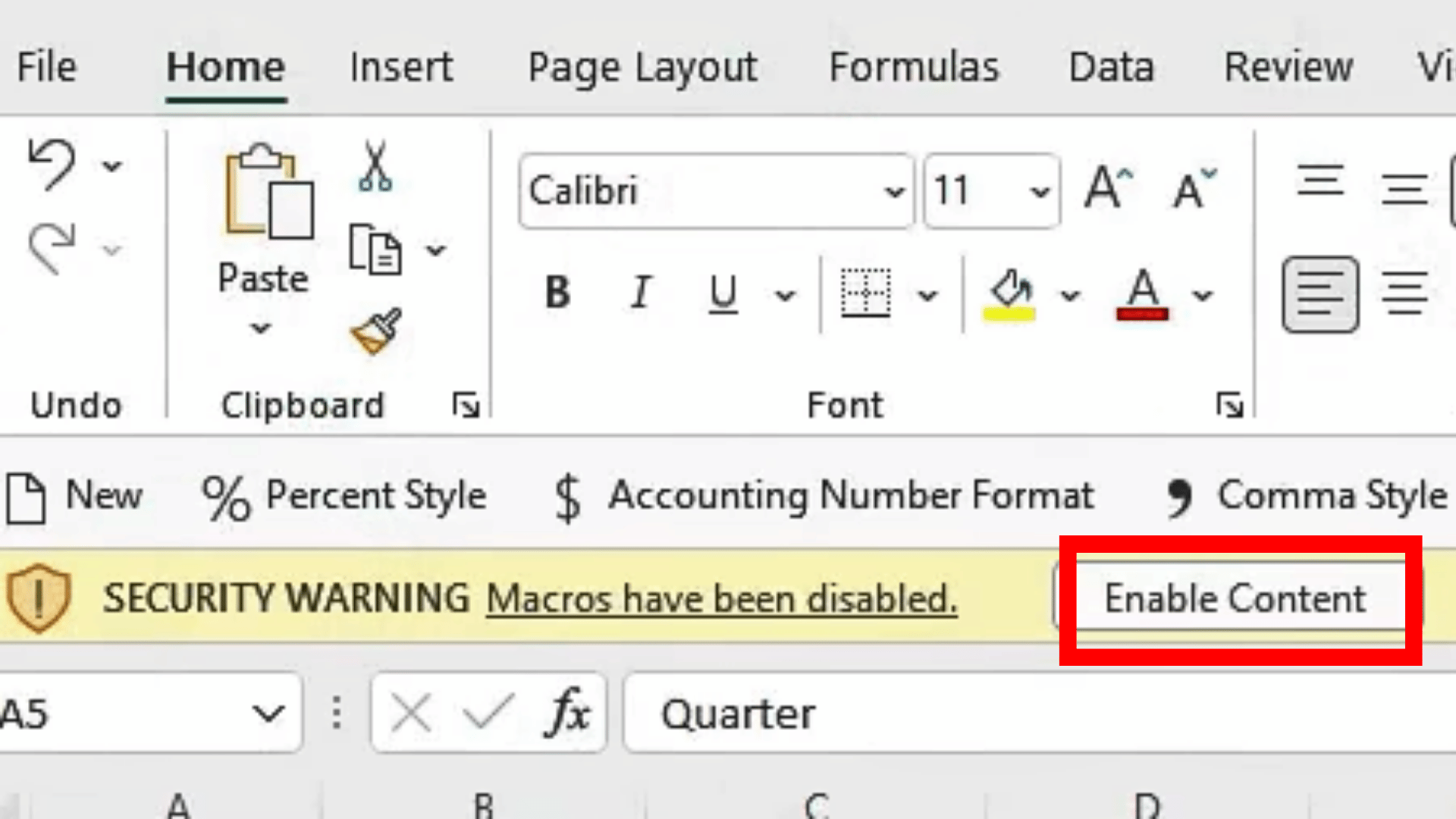
Use this route when Excel shows a yellow warning below the ribbon.
- Find the message stating that macros have been disabled.
- Click Enable Content.
- Read the confirmation message.
- Select Yes if Excel asks to make the workbook trusted.
- Return to the worksheet.
This permission applies only to the current workbook.
Path 2: Use Document Settings
Credits: LearnKey
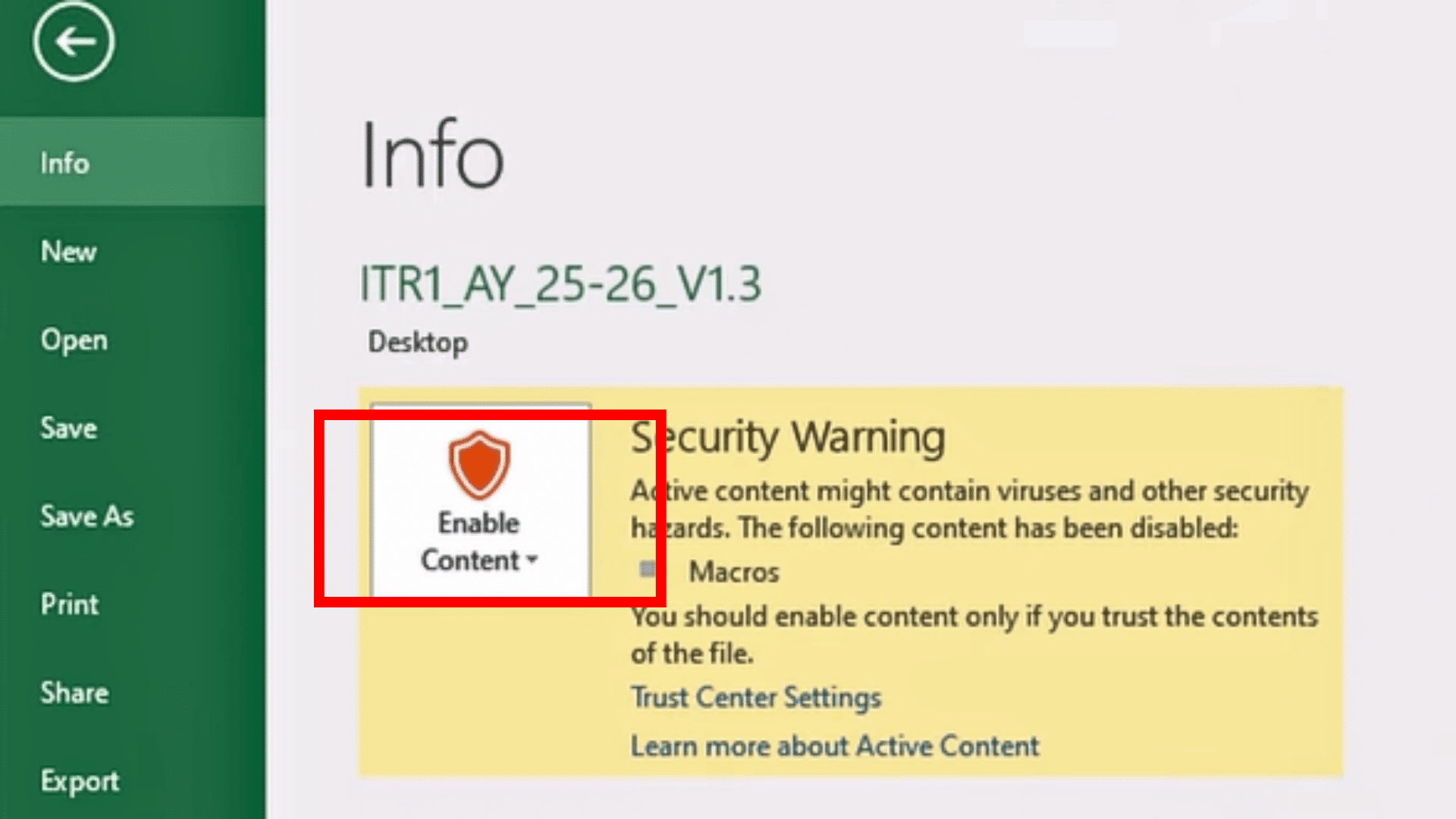
Use this route when the yellow warning was closed, missed, or is not visible.
- Click File.
- Select Info.
- Find the Security Warning section.
- Click Enable Content.
- Select Enable All Content when available.
- Return to the worksheet.
The full path is:
File → Info → Security Warning → Enable Content
Some Excel versions may show Advanced Options, a confirmation window, or a session-only approval instead.
Test the Macro: Return to the worksheet and wait for calculations or connections to refresh. Test the button, form, report, or automated action, then save the workbook if the macro makes changes.
If the macro still does not work, the workbook may have faulty code, a missing add-in, an unavailable file, or a broken data connection.
Method 2: Enable Macro Notifications Through Trust Center
Trust Center controls how Excel responds when it detects VBA macros.
This method does not directly approve the current workbook. It makes sure Excel displays a notification so trusted files can be enabled individually.
Step 1: Open Macro Settings
Credits: MDTechvideos
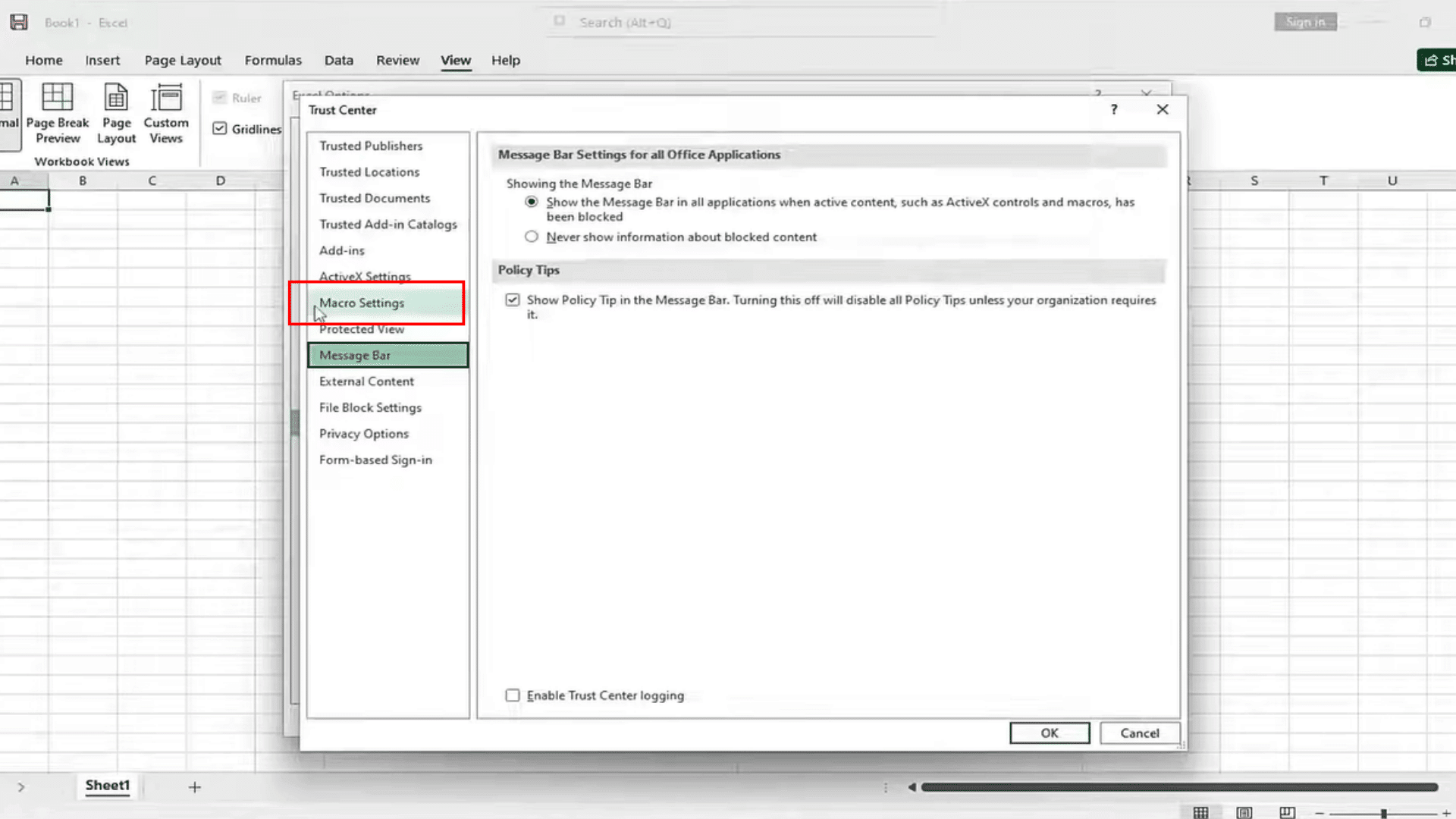
Follow this path:
File → Options → Trust Center → Trust Center Settings → Macro Settings
The Macro Settings page controls how Excel responds when a workbook contains VBA code. From here, you can choose whether macros remain blocked silently, display a warning, or run under specific conditions.
These settings apply only to Excel. Changing them does not automatically update macro permissions in Word, PowerPoint, or other Microsoft 365 apps.
Step 2: Choose the Correct Setting
Review each macro setting carefully before choosing one, as the option selected determines when Excel blocks code and when approval prompts appear.
| Setting | What It Does | Best Use |
|---|---|---|
| Disable VBA macros without notification | Blocks macros without showing a warning | Strict managed systems |
| Disable VBA macros with notification | Blocks macros but shows an approval option | Most users |
| Disable VBA macros except digitally signed macros | Allows approved signed macros | Managed business files |
| Enable VBA macros | Runs all macros without confirmation | Not recommended |
For most users, select Disable VBA macros with notification.
Then:
- Click OK.
- Close Excel Options.
- Close and reopen the affected workbook.
- Approve it through the yellow warning or File → Info.
Do not select Enable VBA macros as a general fix. It removes the approval step for every workbook and may allow harmful code to run.
What Are Trusted Documents and Trusted Locations?
Credits: Simply Excelled
Excel may mark an approved workbook as a Trusted Document, allowing its macros and other active content to run without showing the same warning each time. The prompt may return if the file is moved, copied, downloaded again, stored in a restricted folder, or affected by administrator policies.
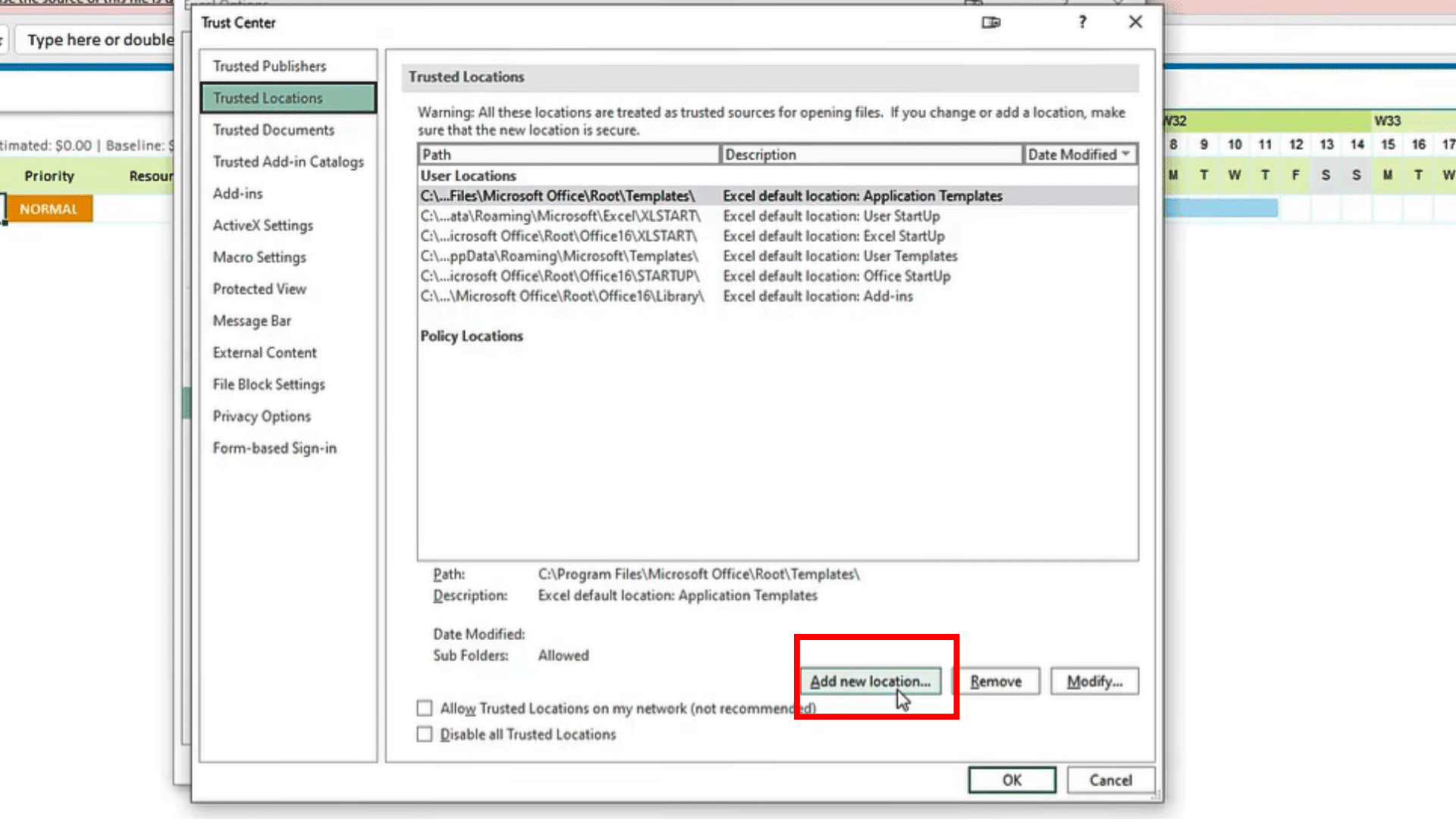
A Trusted Location is a controlled folder used for several verified macro-enabled workbooks. Files opened from this folder can run without repeated security prompts.
Follow this path:
File → Options → Trust Center → Trust Center Settings → Trusted Locations → Add New Location
Select a private or company-approved folder, review the path, and confirm the change. Only trust documents and locations when the file source and purpose are known.
Method 3: Open Macro Security From the Developer Tab
Credits: IT Magics
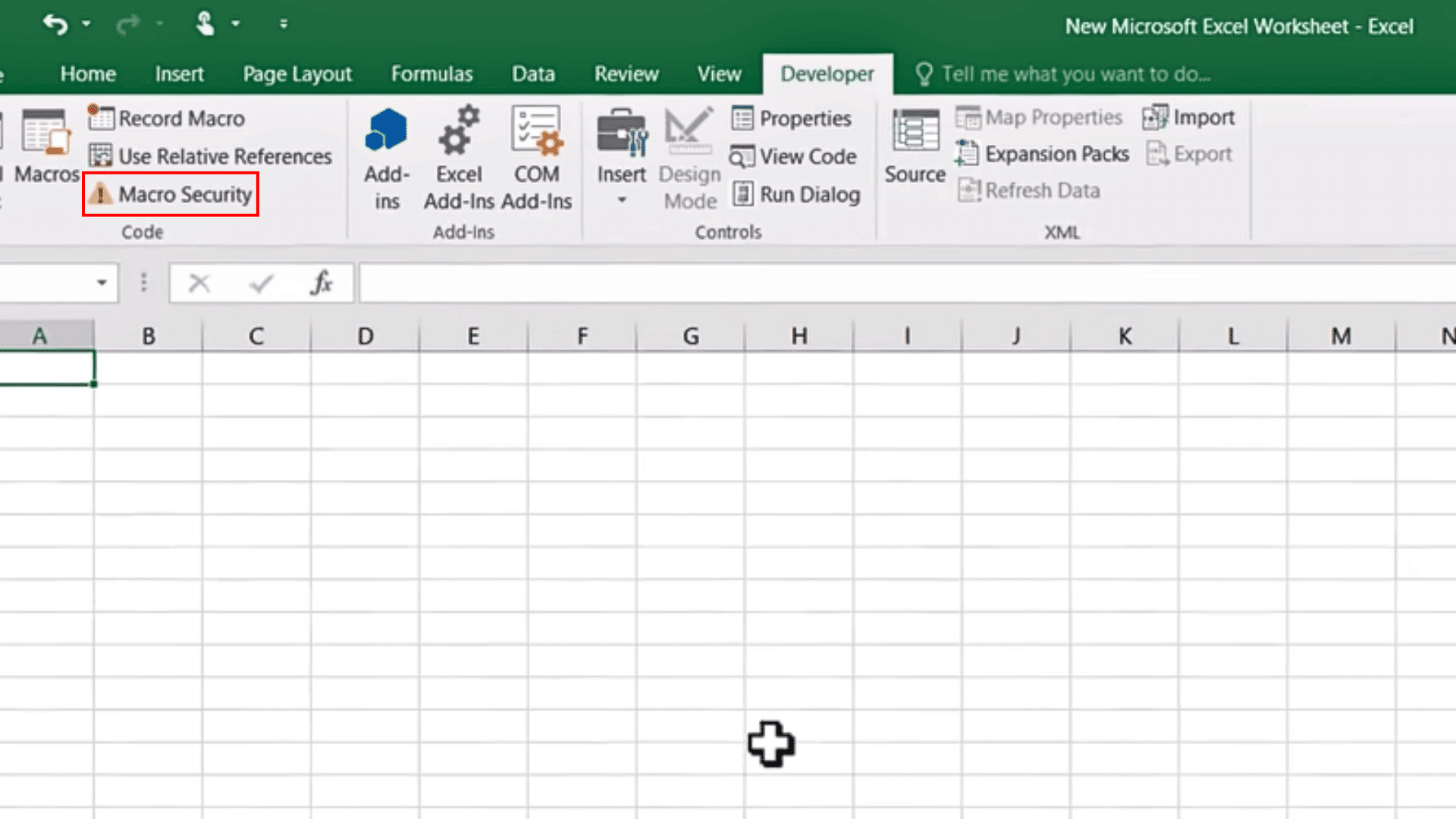
The Developer tab provides a quicker way to open Excel’s macro security settings. Use this method when the tab is already visible in the ribbon.
Follow this path:
Developer → Macro Security
Excel will open the Trust Center at the Macro Settings section. You can then review how macros are blocked and whether Excel displays a notification when VBA code is detected.
This route opens the same settings available through File → Options → Trust Center → Trust Center Settings → Macro Settings.
If the Developer tab is hidden, go to File → Options → Customize Ribbon, select Developer, and click OK.
How to Unblock Macros in Excel?
Credits: Jie Jenn
Downloaded or emailed workbooks may show a red warning stating that Microsoft blocked macros because the file source is untrusted.
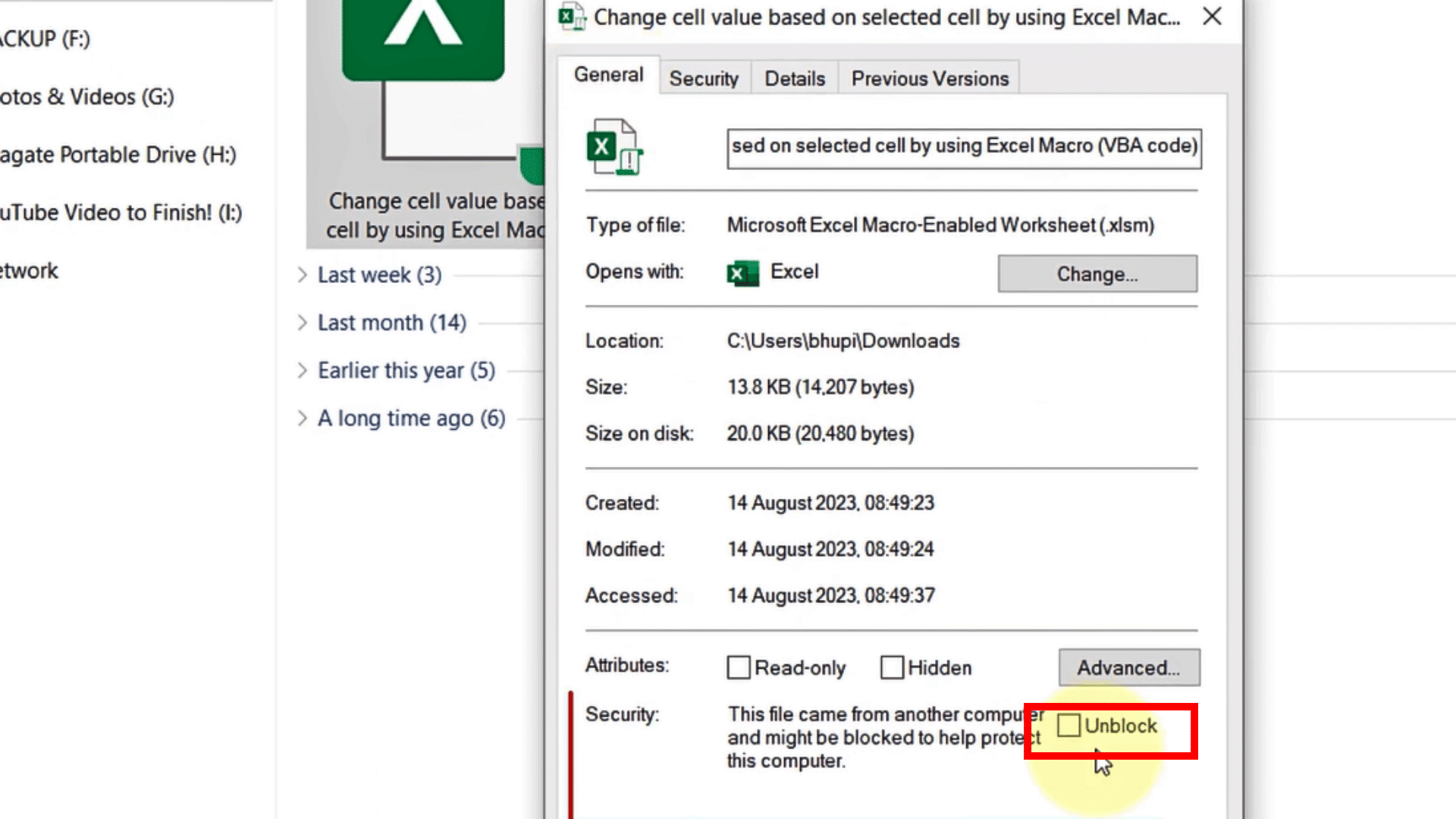
In this case, the Enable Content button may not appear. The file must first be unblocked through Windows.
Follow these steps to unblock:
- Close the workbook and Excel.
- Open File Explorer.
- Find the workbook.
- Right-click it and select Properties.
- Stay on the General tab.
- Select Unblock near the bottom.
- Click Apply, then OK.
- Reopen the workbook.
- Click Enable Content if the yellow warning appears.
If the ‘Unblock’ option is missing, try:
- Save the email attachment to the computer before opening it.
- Save the file to OneDrive.
- Move it out of a temporary folder.
- Request a new copy from the sender.
- Ask IT about approved storage locations.
Avoid system-wide changes that remove security checks from every downloaded file.
Macros Blocked by an Administrator: Move the workbook to an approved company location or contact IT for permission, a signed copy, or the correct storage folder.
What to Check When Excel Macros Still Do Not Work?
Macros may remain inactive because of Protected View, an unsupported file format, administrator restrictions, or missing workbook components.
Use the table below to identify the problem and apply the correct fix.
| Problem | What to Do |
|---|---|
| Enable Content is missing | Open File → Info, review Trust Center, and check the file’s Windows Properties. Notifications may be disabled or the file may be blocked. |
| Workbook opens in Protected View | Click Enable Editing, then select Enable Content. Use File → Info → Enable Content if the yellow bar is missing. |
| File is open in Excel for the web | Select Open in Desktop App because VBA macros cannot run in the browser version. |
File was saved as .xlsx | Request the original .xlsm, .xlsb, or another macro-compatible file because .xlsx cannot store VBA code. |
| Workbook was moved or copied | Approve the workbook again because Excel may treat the new file location as untrusted. |
| Macro still does not work | The code may rely on a missing add-in, a broken reference, an unavailable file, a disabled control, or an unsupported feature. Contact the workbook creator. |
Final Thoughts
Macros make Excel more useful by automating repeated tasks, refreshing reports, running buttons, and supporting custom workflows. However, they should only be enabled when the workbook source and purpose are clear.
For one trusted file, use the yellow Enable Content warning or go to File → Info → Enable Content. If Excel does not show an approval prompt, review the Trust Center settings.
A downloaded workbook with a red security warning may first need to be unblocked through Windows Properties.
After enabling macros, return to the worksheet and test the report, form, button, or automated task. If it still does not work, check Protected View, the file format, administrator restrictions, missing add-ins, or errors in the VBA code.
I prefer keeping notifications active and approving trusted files individually.
Share the warning you received and the method that helped most effectively in the comments below.
Frequently Asked Questions
Why does Excel Keep Asking Me to Enable Macros?
The warning may return when the workbook is moved, downloaded again, stored in a restricted folder, or not saved as a trusted document. An administrator policy can also prevent Excel from retaining the approval.
How Can I Tell if an Excel File Contains Macros?
Check the file extension. Workbooks ending in .xlsm, .xlsb, .xlam, or the older .xls format may contain macro code. The Developer tab can also show available macros in an open workbook.
Are Digitally Signed Excel Macros Always Safe?
No. A digital signature helps identify the publisher and can show if signed code has changed. The workbook source and purpose should still be checked before permission is granted.
Why Did My Macros Disappear After Saving the File?
The workbook may have been saved as .xlsx, which cannot retain VBA code. Save macro-enabled workbooks as .xlsm or another compatible file type.