


Chat history can pile up faster than expected. One useful conversation gets buried under old questions, test prompts, half-finished ideas, and chats that no longer need to stay in the sidebar.
That is usually when people start searching for how to delete all chats in ChatGPT. The tricky part is that “delete all” and deleting several chosen conversations are not the same action, even though they may sound similar.
In technical documentation, I separate actions that sound alike but produce very different results. Chat deletion is a good example.
This guide explains the built-in deletion method, what ChatGPT bulk management can and cannot do, safer options for keeping important conversations, and what to check when the expected controls are missing.
Can You Delete All Chats in ChatGPT?
Yes. ChatGPT includes a built-in option to delete all conversations from the account at once. If the goal is learning how to delete all chats in ChatGPT, this native control is the fastest route.
However, ChatGPT’s bulk delete can mean something different when you need to remove only certain conversations. Current controls separate these actions clearly:
- Delete all: Removes all conversations, including chats inside Projects.
- Delete one: Removes a single conversation through its menu.
- Archive: Keeps the conversation while removing it from the main chat list.
- Delete selected chats: No native multi-select control is currently documented.
The key difference is simple: deleting everything is supported, while selecting several specific chats for deletion is not.
Desktop and Web
To delete all chats in ChatGPT on a computer, the process starts in the account settings. Before making any changes, check that the correct ChatGPT account or workspace is open.
The following steps show where to find the deletion control and what to review before confirming permanent removal.
1. Open ChatGPT And Sign In
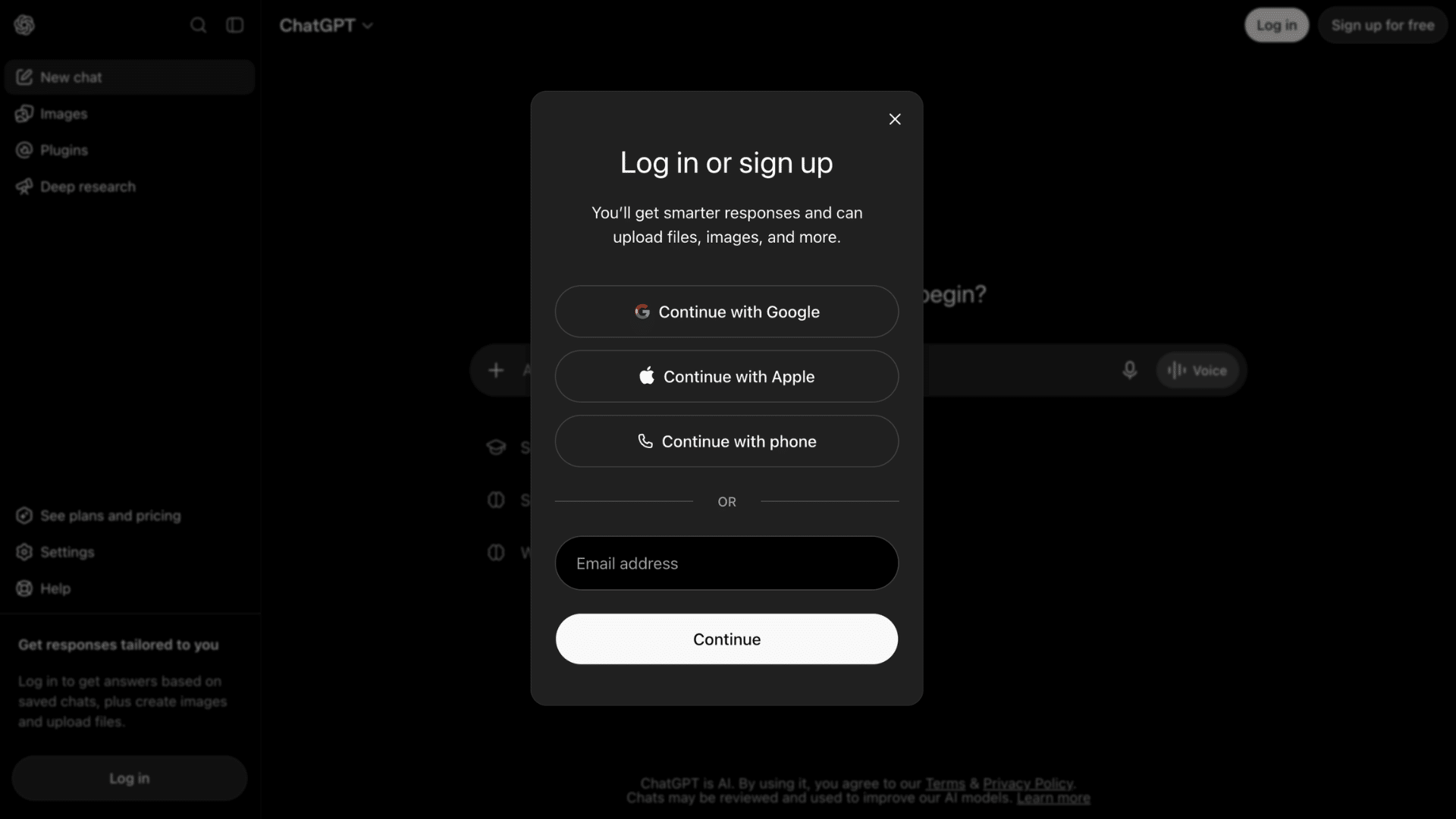
Open ChatGPT in a supported web browser and sign in to the account containing the conversations you want to remove.
Check the profile information before continuing, especially if you use several personal or work accounts on the same device.
Deleting chats affects the account currently open in the browser, so confirming the account first helps prevent an unwanted deletion.
Once the correct account is open, move to the settings menu.
2. Open Settings
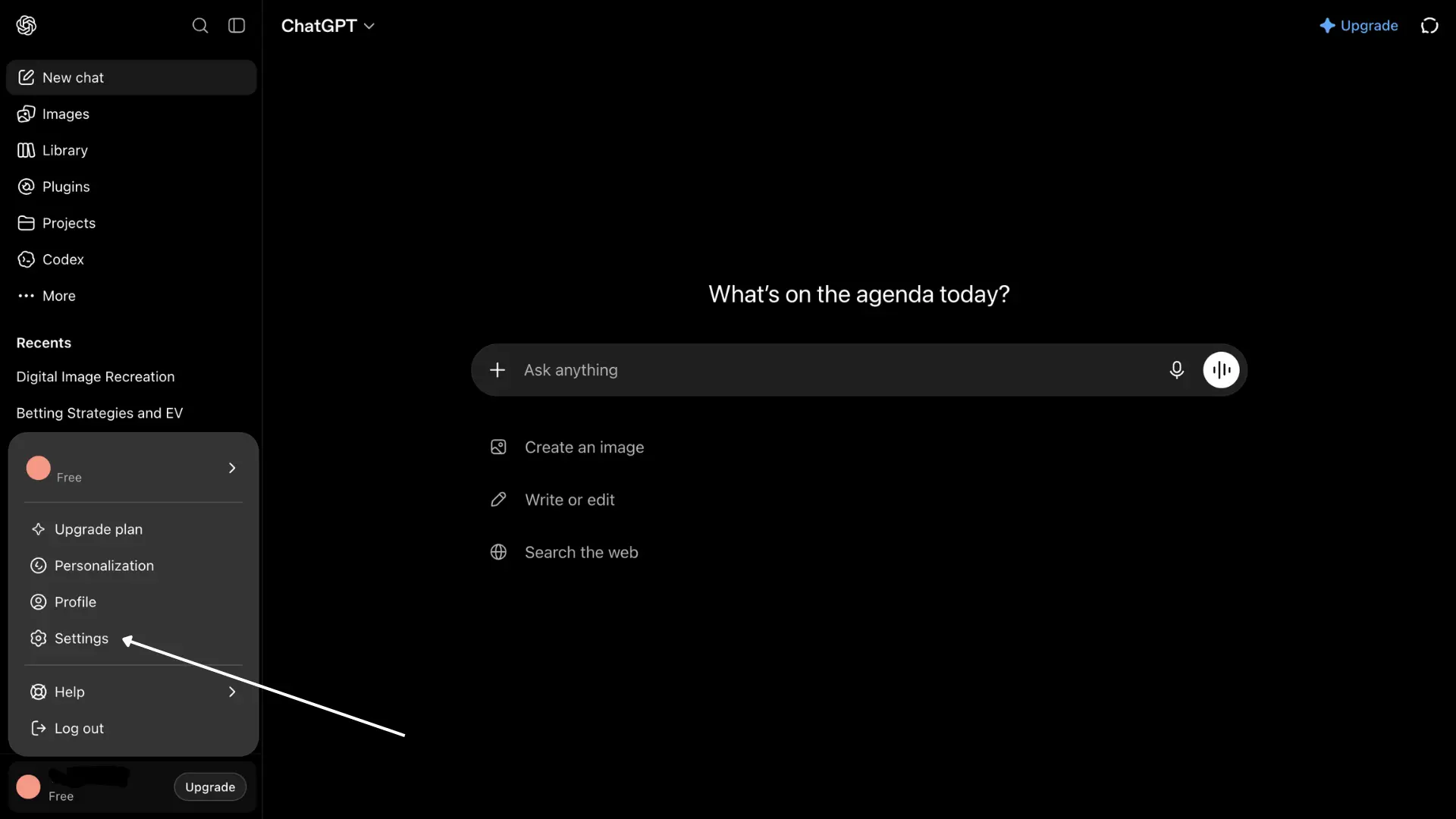
Click the profile or account menu, then select Settings from the options. This area contains controls related to the account, privacy, personalization, and stored conversation data.
Menu positions can change after interface updates, so focus on the Settings label rather than an older screenshot.
After Settings opens, the next control you need is located under Data Controls.
3. Select Data Controls
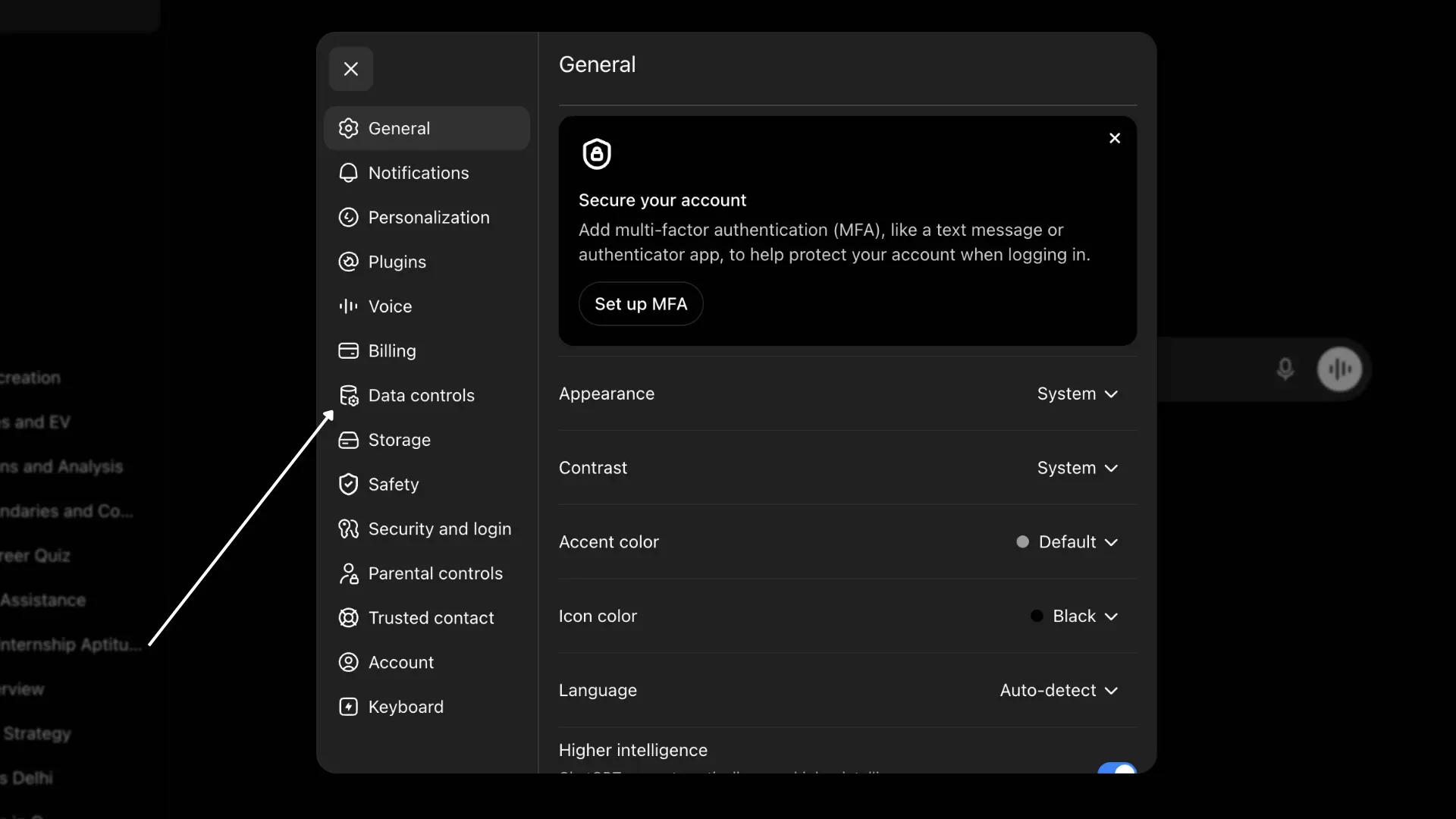
Choose Data Controls from the Settings menu. This section contains options that affect conversation history and other account data rather than tools for managing one chat at a time.
I recommend reading the labels carefully before selecting anything because archive and delete actions have very different results.
With Data Controls open, look for the account-wide chat deletion option.
4. Find Delete All Chats
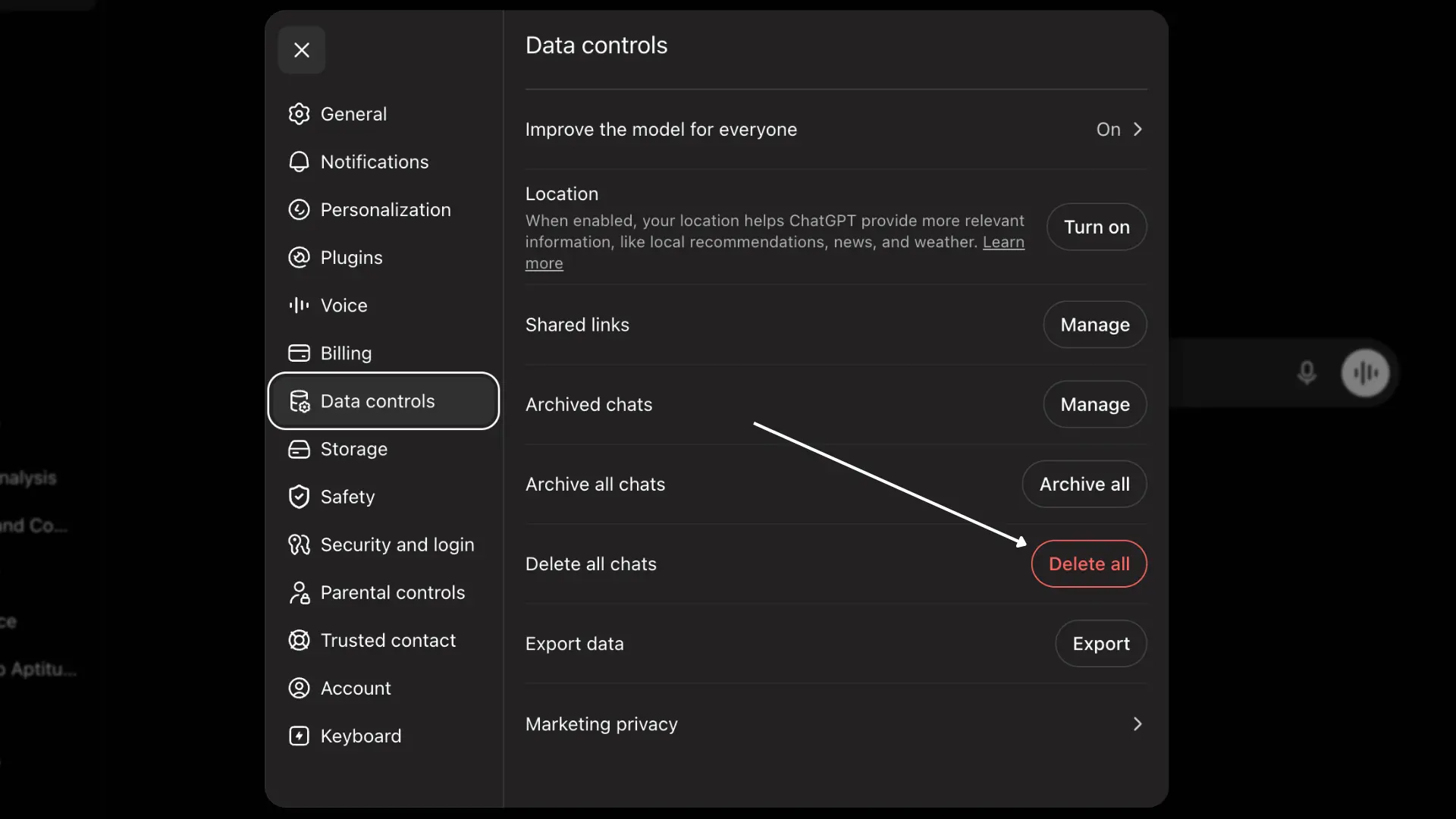
Locate Delete all chats within Data Controls. This command is different from deleting a single conversation through the three-dot menu beside an individual chat.
Selecting it begins the process of removing the full conversation history associated with that account, including conversations covered by the account-wide deletion control.
Do not confirm yet if any saved conversation may still contain useful information.
5. Read the Confirmation Message
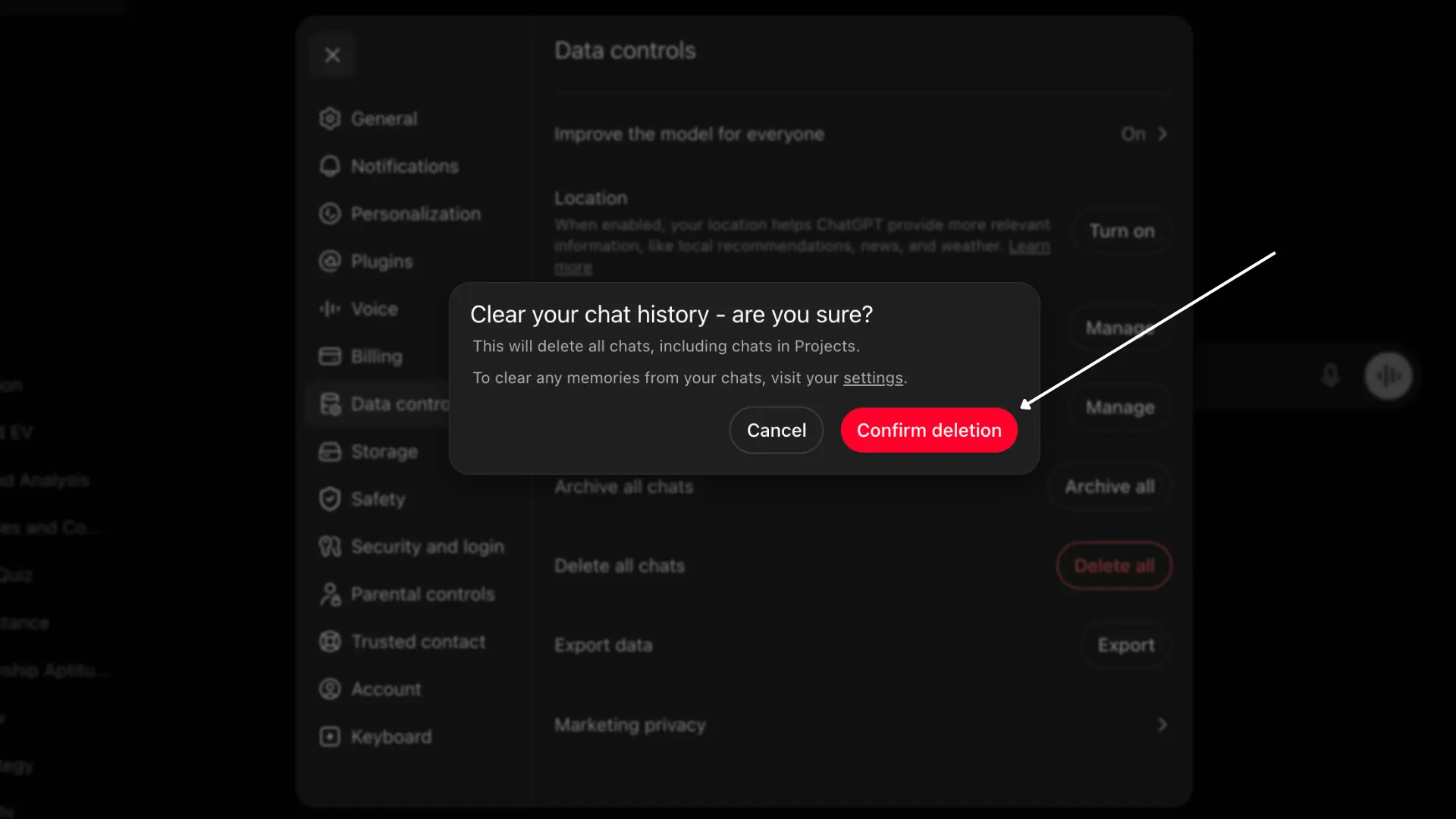
ChatGPT displays a confirmation message before completing the deletion. Read this warning instead of clicking through it immediately because the action is intended to remove conversations permanently.
Check important chats for saved prompts, code, notes, instructions, or reference material that may be needed later. Copy anything worth keeping to another suitable location first.
Only continue when the consequences of the action are clear.
6. Confirm the Deletion
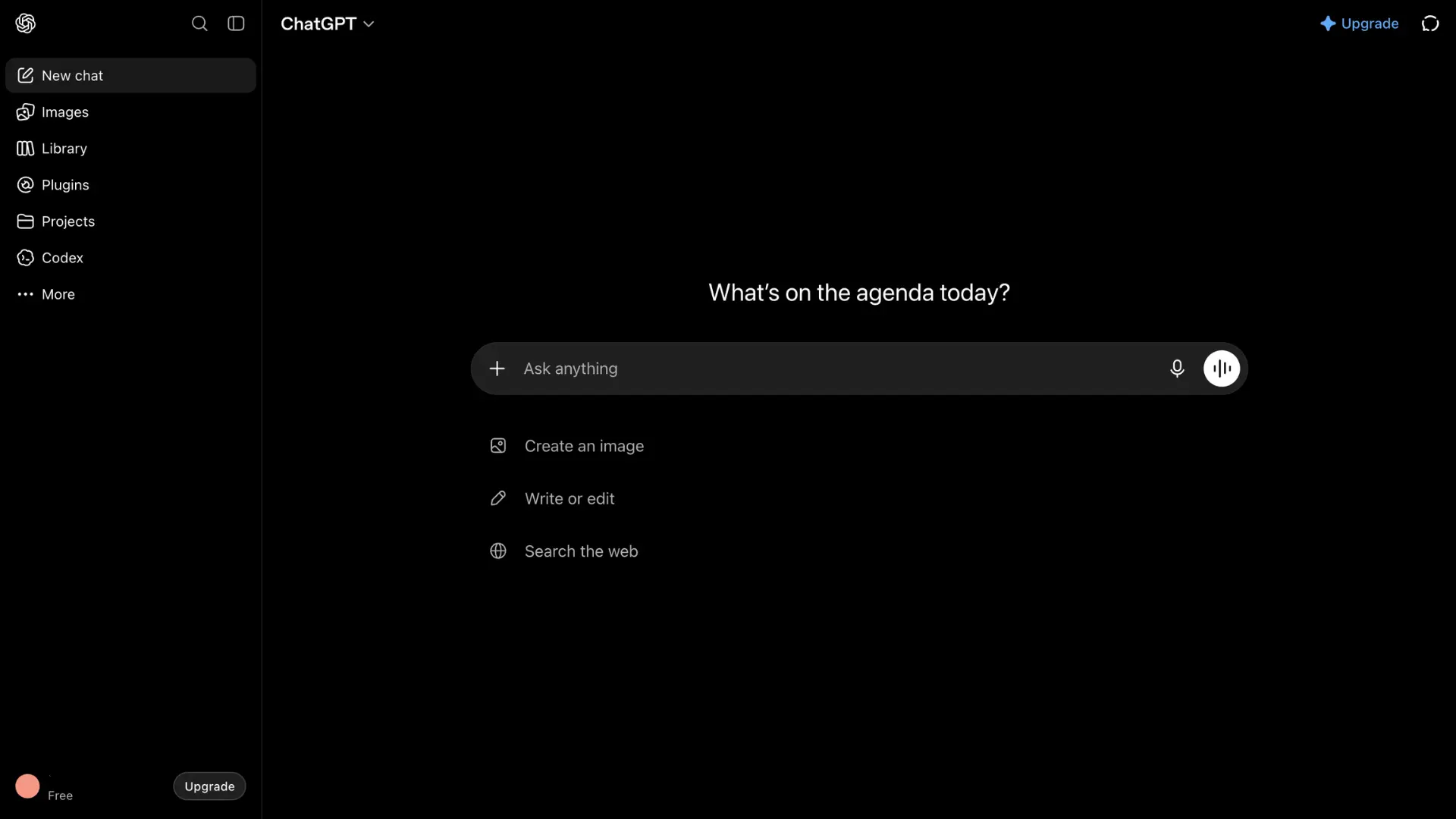
Confirm Delete all chats only after checking that no conversation needs to remain in the account. Once approved, the conversations are removed from the visible chat history and cannot simply be restored from the interface.
Warning: Deleted conversations cannot be recovered through ChatGPT, its APIs, or OpenAI Support.
For permanent actions like this, I recommend checking what must stay before making the final confirmation.
iPhone and Android
Deleting all conversations on a phone follows nearly the same route as the desktop process. The exact position of some controls may differ between iPhone and Android app versions.
Start by confirming that the correct account is open, then work through each setting carefully before approving permanent deletion.
1. Open the ChatGPT App
Launch the ChatGPT app on the iPhone or Android device where you can access the account you want to manage. Sign in if the app does not open directly to your account.
Check the displayed account information before continuing, especially if you use several accounts on the same device. This simple check can prevent conversations from being deleted from the wrong account.
Next, open the account settings.
2. Go To Settings
Open the account or profile menu inside the ChatGPT app, then select Settings. This area contains controls for account preferences, privacy options, personalization, and stored conversation information.
The position of the profile menu may differ slightly between operating systems or app releases. Look for the Settings label instead of depending on an older screenshot.
From Settings, continue to Data Controls.
3. Open Data Controls
Select Data Controls from the available Settings options. This section contains account-level controls related to conversation history and other stored ChatGPT data.
Take a moment to read each option before making changes. I recommend separating archive actions from deletion actions because one keeps conversations while the other removes them permanently.
Once Data Controls is open, find the option for clearing the entire chat history.
4. Locate Delete All Chats
Find Delete all chats inside Data Controls. This setting removes the full conversation history rather than deleting individual chats one at a time.
Do not select it casually if saved conversations contain prompts, notes, code, instructions, or reference material that may still be useful. Check important chats first and save anything needed elsewhere.
The next screen asks you to confirm the action.
5. Review the Warning
Read the warning displayed after choosing Delete all chats. ChatGPT uses this confirmation step because deleting conversations is permanent, not a temporary cleanup option.
Review anything you may need to retain before proceeding. Copy or save important information somewhere suitable before the final confirmation.
Do not continue until you can permanently delete every conversation marked for removal.
6. Confirm the Deletion
Confirm the deletion only after checking that every conversation in the account can be removed. Once approved, the chats disappear from the visible conversation history and cannot simply be restored later.
| Warning: Deleted conversations cannot be recovered through ChatGPT, its APIs, or OpenAI Support. |
Keeping the ChatGPT app current can also help ensure the menu labels match the latest available account controls.
Deleting everything is simple. Removing many conversations while keeping selected chats requires a different approach.
Delete All vs Bulk Delete
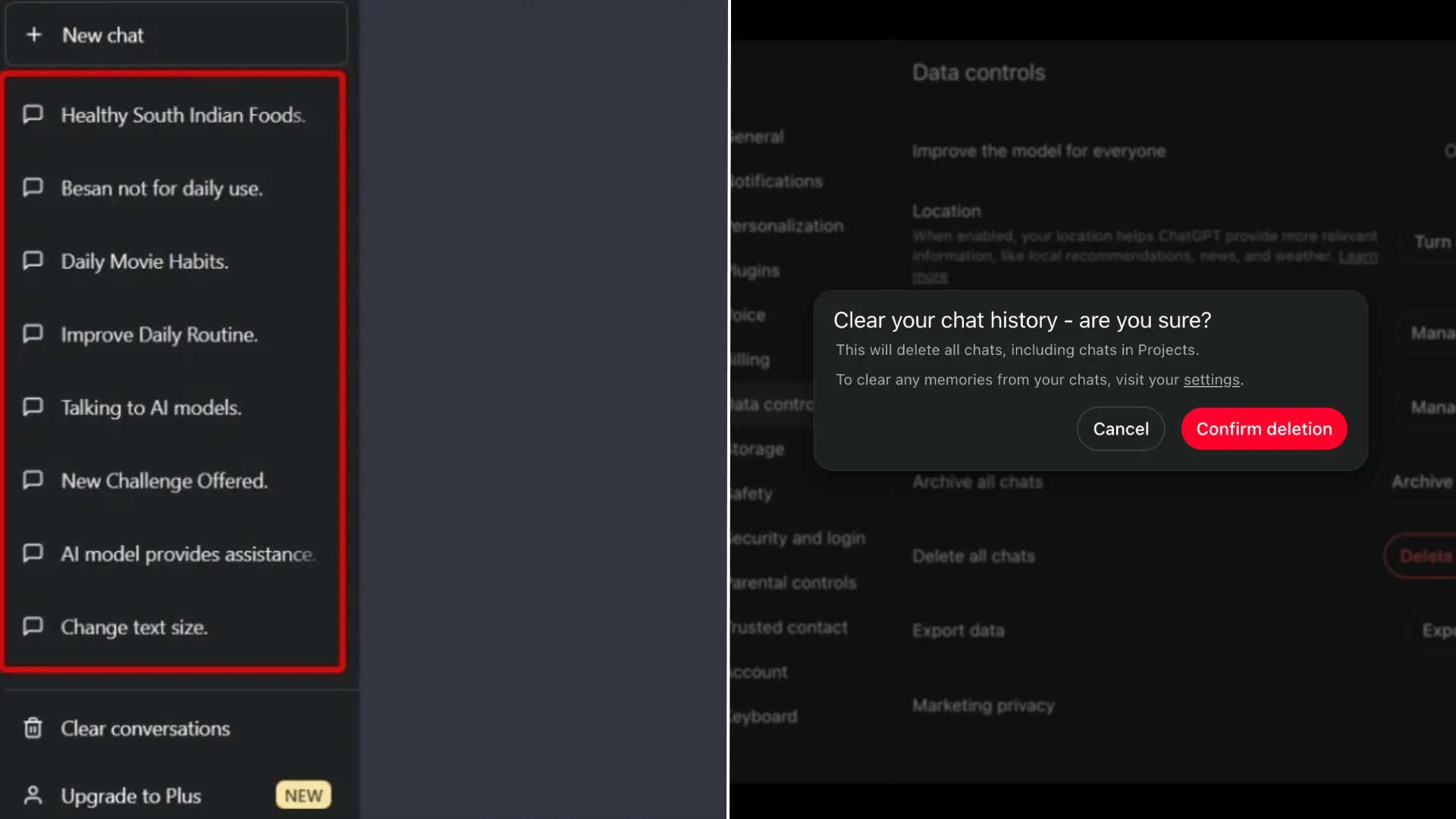
Delete All and bulk deletion are not the same thing. ChatGPT currently supports removing every conversation at once, but it does not provide a native multi-select tool for choosing several chats and deleting them together.
That distinction matters when searching for how to delete all chats in ChatGPT, since some users actually want to keep part of their history.
| Method | Keeps Some Chats? | Native? |
| Delete all | No | Yes |
| Delete individually | Yes | Yes |
| Delete selected group | Yes | No |
The term ChatGPT bulk delete often refers to that missing selective option. At present, users can delete chats one by one or remove the entire history.
Bulk selection for chosen conversations is still a separate feature request.
Workarounds for Selected Chats
A workaround is only needed when several conversations should be removed while others must stay.
ChatGPT currently lets users delete chats individually, archive conversations, or remove the entire history, but it doesn’t offer selective multi-chat deletion.
Start with native controls whenever possible. They reduce the need to grant outside tools access to account pages or conversation data.
The options below cover the most practical approaches for selected-chat cleanup.
1. Delete Chats Individually: For a small number of unwanted conversations, deleting chats one at a time is the simplest native method.
Open the three-dot menu beside a conversation, choose Delete, and confirm the action when prompted. This method takes longer when the sidebar contains many unwanted chats, but it gives precise control over what stays.
2. Archive First: Archiving works better when the goal is a cleaner chat list rather than permanent removal. Archived conversations leave the main sidebar but remain stored in the account and can be managed later.
This option is useful when a conversation may still contain information worth keeping, but it no longer needs daily visibility.
3. Browser Extensions: Some browser extensions offer tools for selecting or managing multiple ChatGPT conversations. These are third-party products like ChatGPT Bulk Delete, DeclutterGPT, ChatGPT Delete All Chats, and Bulk Delete for ChatGPT.
Before installing one, check:
- Permissions: See what browser and page data it can access.
- Publisher: Confirm who maintains the extension.
- Privacy policy: Review how it handles account data.
- Updates: Check whether development appears current.
- Reviews: Read recent independent feedback.
- Data access: Understand what conversation information may be visible.
Avoid choosing an extension only because it promises faster deletion. Convenience should not outweigh account privacy or control.
At the End
Learning how to delete all chats in ChatGPT is simple when every conversation can go. The harder part is managing a crowded history when certain chats still need to stay.
Before deleting anything, review saved conversations, copy important notes or code, and decide whether archiving would solve the problem without permanent removal.
If only selected conversations need to go, individual deletion remains the safest native option when selective multi-chat controls aren’t available.
A practical order is: review → save → archive or delete → confirm.
In technical documentation, I prefer making irreversible actions unmistakable, especially when similar controls can lead to very different results.
If you manage a large ChatGPT history, share which bulk-management feature would make cleanup easier for you in the comments.
Frequently Asked Questions
Does Deleting a Chat Remove its Shared Link?
Yes. Deleting the original conversation also deletes its shared link. However, someone who previously imported that conversation may still retain their own copy.
Do Temporary Chats Need to be Deleted Manually?
Usually no. Temporary Chats do not appear in chat history, and OpenAI says they are automatically deleted from its systems within 30 days.
Does Deleting Chats Delete Your ChatGPT Account?
No. Removing conversations and deleting an OpenAI account are separate actions. Account deletion removes the account and associated data under OpenAI’s retention rules.
Can Someone Keep a Copy of a Deleted Shared Chat?
Yes. If someone imported a shared conversation into their own history before deletion, removing your original chat does not remove their copied conversation.