

A YouTube link, a 20-minute lecture, or a quick phone recording lands in ChatGPT. The obvious question is: can ChatGPT watch videos and actually understand what happens on screen?
The answer in 2026 is a little tricky. ChatGPT can work with live camera input and screen sharing in certain modes, but access depends on the plan, device, and Voice version being used.
As a technical documentation specialist, I care about that difference because “seeing,” reading a transcript, and analyzing uploaded content aren’t the same.
Below, I’ll break down what ChatGPT can actually do with videos today, what its limits are, and the practical methods that work when a direct approach falls short.
Can ChatGPT Watch Videos?
Yes, but only in certain situations. ChatGPT can “see” live visual input through supported camera and screen-sharing features, but that is different from watching a normal video from start to finish.
| Video Method | What ChatGPT Can Do |
|---|---|
| Live camera or screen | See and respond to visual information in real time when the feature is available |
| Uploaded video file | Direct video analysis is not a standard ChatGPT file feature across accounts |
| YouTube or video link | Usually reads available page details rather than watching the video itself |
The key difference is how ChatGPT receives the video content. Its video features have also changed over time, which explains why older tutorials may show options that work differently today.
What Changed With ChatGPT Video Features?
ChatGPT’s video tools have changed quickly, which is why older answers can be misleading.
In December 2024, OpenAI added real-time video and screen sharing to Advanced Voice on mobile, giving ChatGPT a way to respond to what a user was showing through the camera.
Through 2025 and into 2026, file uploads became a bigger part of ChatGPT, but standard video files still weren’t among the main supported upload types.
Then came a major shift on July 8, 2026. OpenAI introduced GPT-Live as the new voice system, but video and screen sharing didn’t move over with it at launch.
That means some users may still find those visual features in Advanced Voice, while GPT-Live itself has a clear gap.
3 Ways ChatGPT Can Work With Video
The phrase “watch a video” can mean three different things across different ChatGPT modes.
It can respond to a live camera feed, work with material taken from a saved video, or read information available around a video link.
Each method gives ChatGPT a different amount of visual and audio context.
1. Live Camera and Screen Sharing
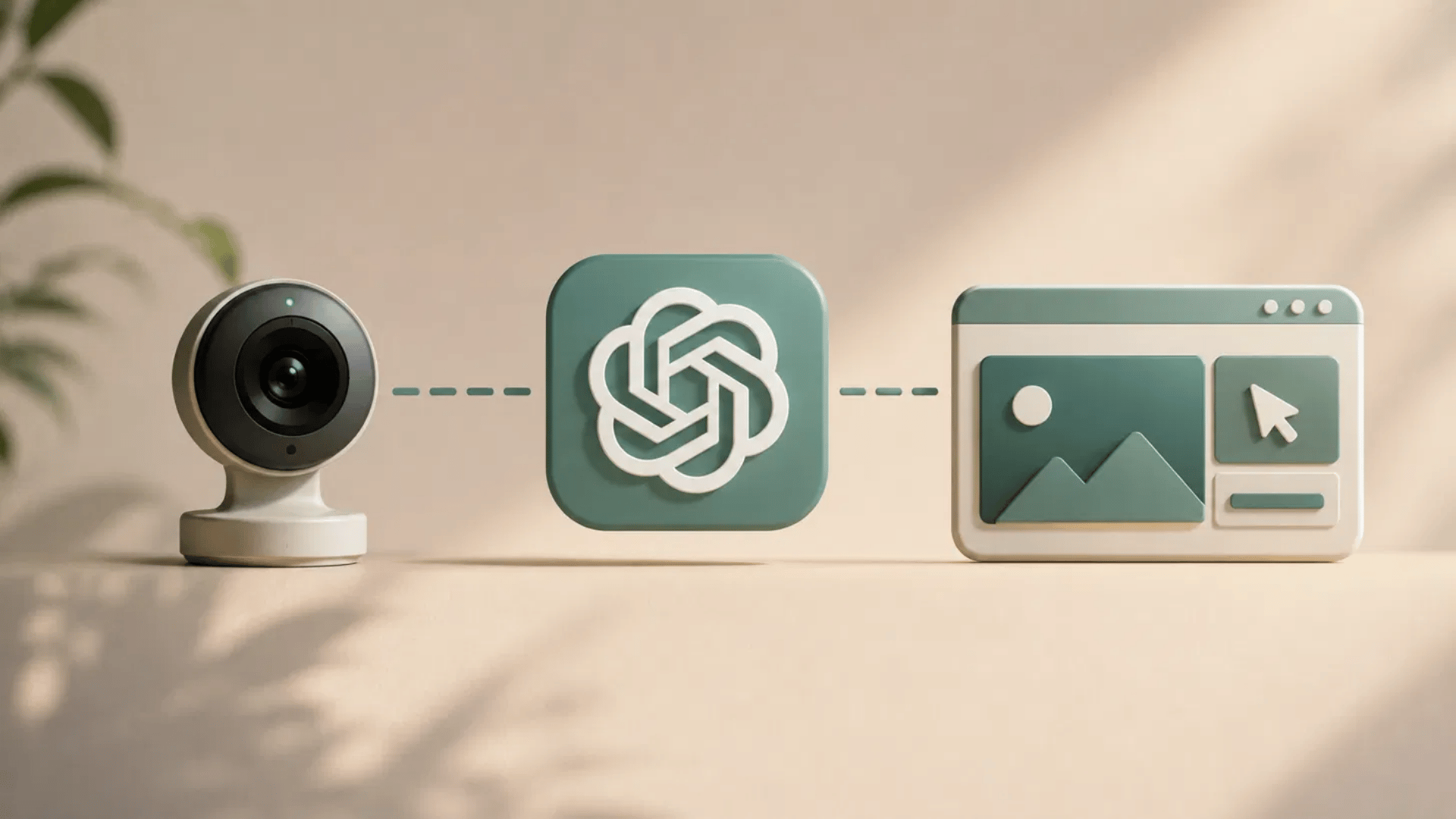
This is the closest option to letting ChatGPT see something as it happens. In Advanced Voice on supported iOS and Android apps, eligible subscribers can tap the camera button or select Share Screen.
GPT-Live does not support either feature as of August 2026. OpenAI says support is planned, but it has not given a release date.
It is useful for showing a faulty appliance, an app error, a setup process, or something happening around the user in real time.
Privacy note: OpenAI says audio clips from Live and Advanced Voice, along with video clips from Advanced Voice, are stored with the transcript in chat history and retained for 30 days under its ChatGPT Voice data controls.
2. Uploading a Video File to ChatGPT
OpenAI’s Image Inputs FAQ states that video is not supported and that image input processes static images only.
So, there is no reliable native MP4-to-video-analysis workflow to recommend across ChatGPT accounts.
A practical substitute is to provide:
- Important screenshots or video frames
- A transcript of the spoken audio
- Timestamps for scenes that need closer review
ChatGPT can then connect the text and selected visuals without claiming to process the full video stream.
3. Pasting a YouTube or Video Link
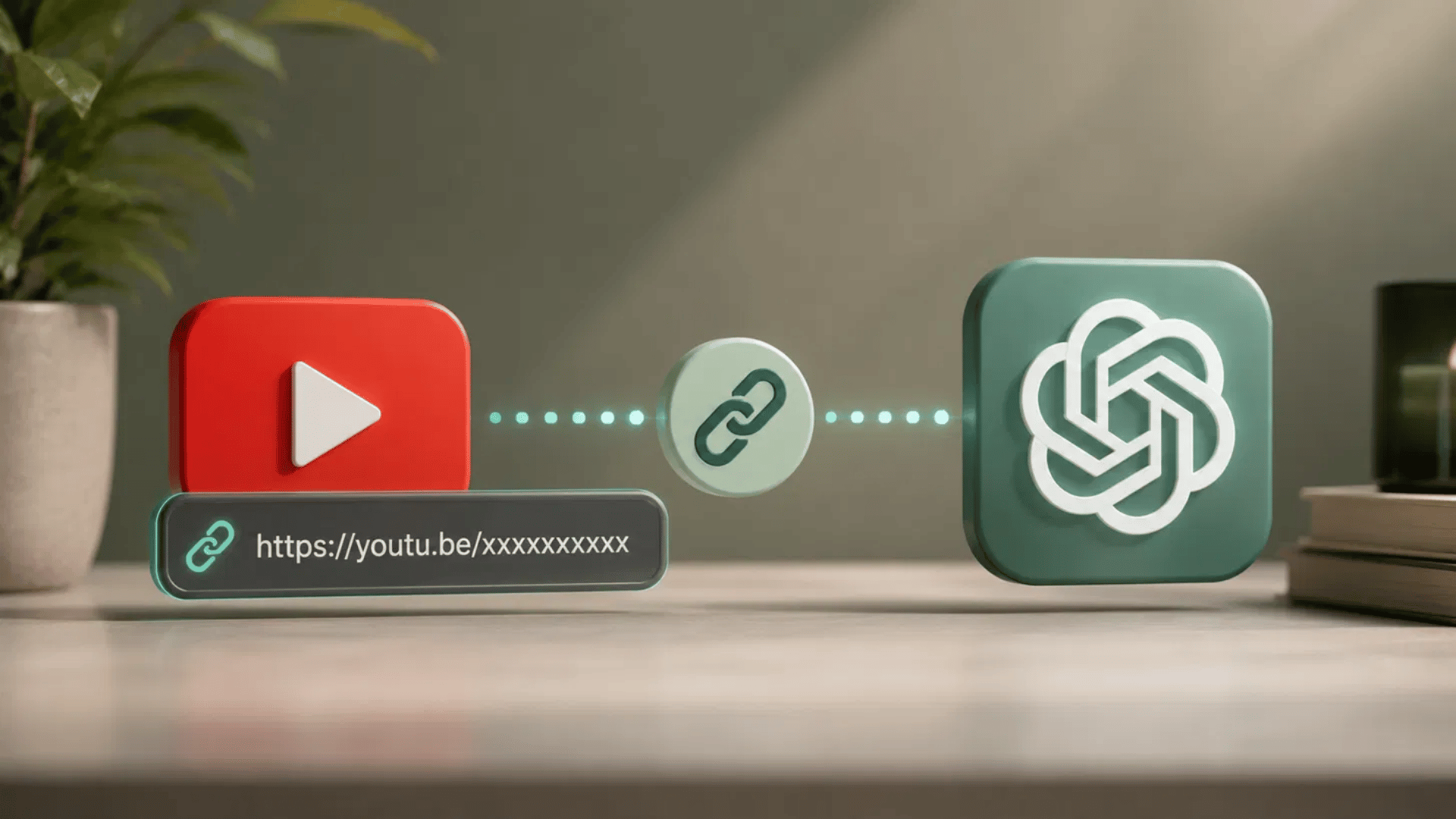
Dropping a YouTube URL into ChatGPT does not guarantee that ChatGPT watches the footage.
When web access is used, ChatGPT can work with information available on the webpage, such as readable text, titles, descriptions, or other accessible page details.
That is different from processing every frame and sound in the video.
A link can still be useful when the surrounding page contains enough context for the question.
For detailed summaries, scene analysis, or exact quotes, providing the transcript or key screenshots gives ChatGPT far stronger source material.
The Reliable Workaround: Use the Transcript First
If a video link doesn’t give ChatGPT enough information, the transcript-first method is usually the safer choice.
It gives ChatGPT the spoken content directly, so summaries and key takeaways are based on text rather than page details around the video.
How to Use the Transcript-First Method
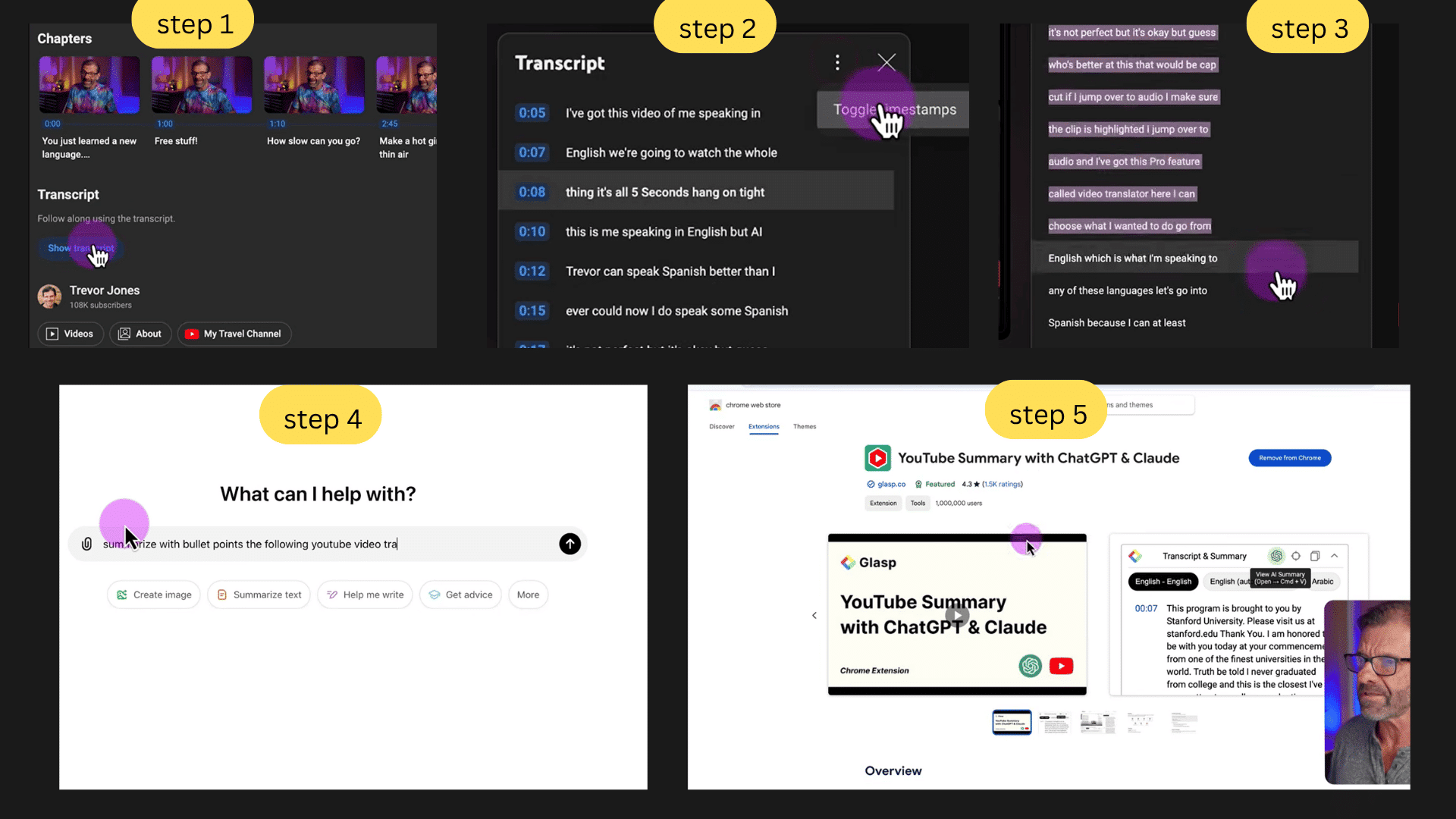
The process is simple and only takes a few steps once the video transcript is available.
- Open the YouTube video. Scroll below the video, open the description area, and choose Show transcript.
- Remove the timestamps if needed. Use the transcript menu to toggle timestamps off so the text is easier to copy and read.
- Copy the transcript. Select the full text and copy it to your clipboard.
- Paste it into ChatGPT. Add a clear prompt such as: “Summarize the following YouTube video transcript in bullet points.”
- Use a transcript extension for very long videos. If the transcript is too large to paste at once, a browser extension such as Glasp can pull the transcript and send it into ChatGPT with fewer steps.
This works well for long interviews, tutorials, lectures, and podcasts where the spoken content carries most of the meaning.
For a practical visual walkthrough of this workflow, see Trevor Jones‘s “How To Summarize a YouTube Video With ChatGPT” on YouTube:
Which ChatGPT Video Method Should You Use Right Now?
The right method depends on what you need ChatGPT to understand. Use this quick table to choose without testing every option first.
| What You Want to Do | Best Method | Why It Works |
|---|---|---|
| Show ChatGPT something happening live | Live camera | ChatGPT can respond to what the camera sees in real time where supported |
| Get help with an app or website | Screen sharing | Useful for menus, errors, settings, and on-screen steps |
| Summarize a lecture, interview, or podcast | Transcript-first method | Gives ChatGPT the spoken content directly |
| Review a video with important visuals | Transcript + screenshots | Combines spoken information with key scenes |
| Paste a YouTube link for a quick check | Video link | Can help with available page details, but may not process the video itself |
| Analyze a saved video file | Transcript + selected frames | Standard video upload support is still limited in ChatGPT |
Update: OpenAI says GPT-Live still lacks video and screen sharing, but the company is working to add both. Advanced Voice remains the current option for eligible users.
ChatGPT vs. Gemini vs. Claude for Video
If video is the main input, ChatGPT vs. Gemini works quite differently when direct video support is considered.
As of August 2026, Gemini has the clearest direct video-upload support, while ChatGPT focuses more on live camera features and Claude remains centered on documents and images.
| Tool | Native Video Upload | Live Camera / Screen | Best Fit |
|---|---|---|---|
| ChatGPT | No standard video-file support | Yes, through Advanced Voice for eligible users | Live visual help, transcripts, screenshots |
| Gemini | Yes | Depends on the feature and device | Direct video uploads and video summaries |
| Claude | No native video upload listed | No similar live video feature listed | Transcript and screenshot analysis |
Google says Gemini Apps can analyze uploaded video files up to 2 GB.
Free users can upload up to five minutes of total video, while Google AI Pro and Ultra plans extend that limit to one hour under its Gemini file upload limits.
ChatGPT takes a different route. OpenAI says GPT-Live does not support video or screen sharing at launch, but eligible subscribers can still use those features through Advanced Voice on iOS and Android.
Claude’s official upload list includes documents and image formats such as JPEG, PNG, GIF, and WebP.
Since video formats are not listed in Claude file uploads, a transcript plus screenshots remains the more dependable option for video-based work.
What OpenAI’s Community is Asking For
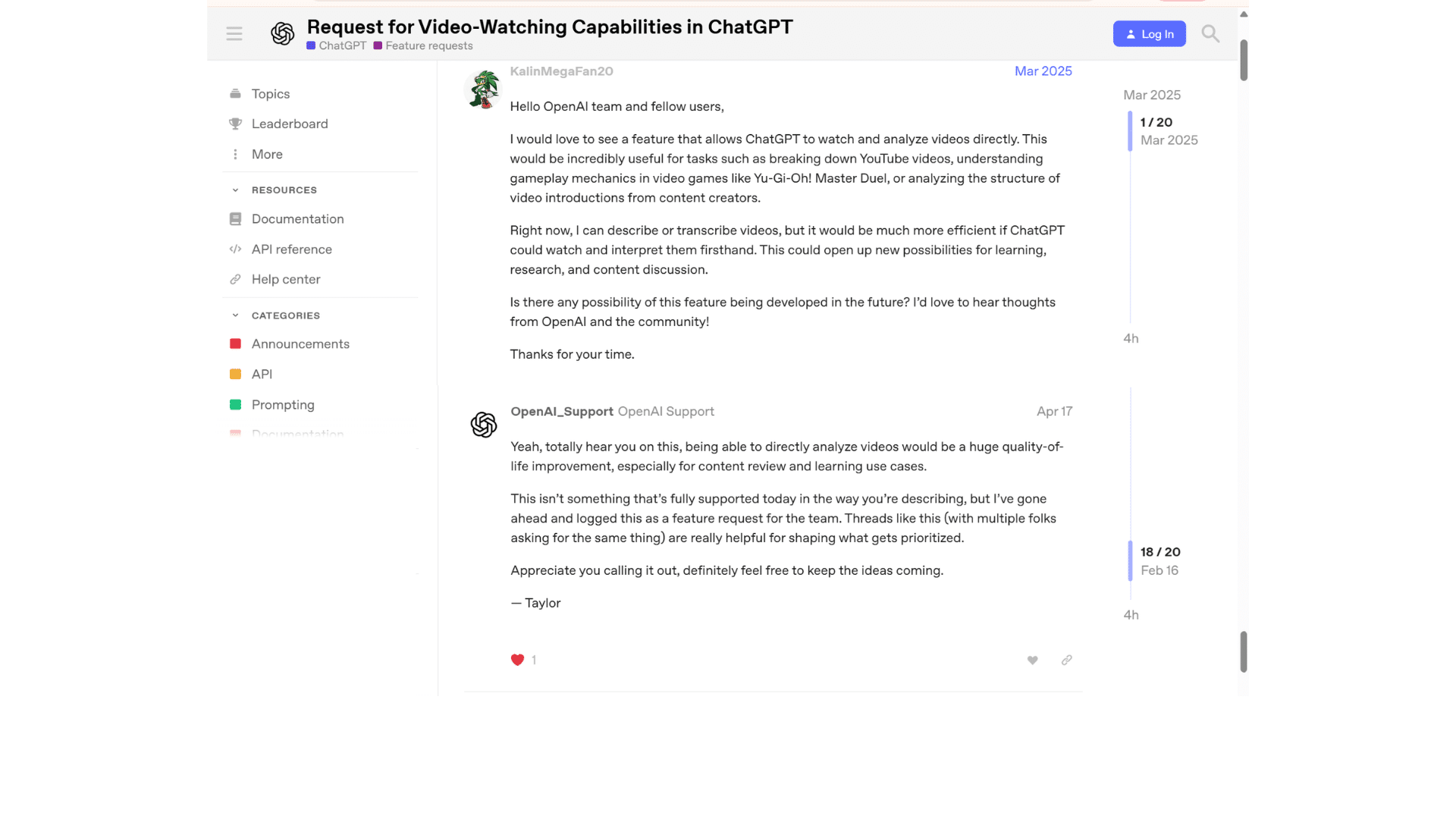
Direct video analysis has been an active request in the OpenAI Developer Community.
In March 2025, a user asked for ChatGPT to watch videos for YouTube breakdowns, gameplay analysis, and content review. Other users later shared use cases such as creative feedback.
In April 2026, an OpenAI Support account replied that ChatGPT did not yet support directly watching or analyzing uploaded video files in the requested way. The response also said the idea had been noted as a feature request.
That distinction matters. Live camera input and direct analysis of a complete saved video are separate capabilities.
Community requests show that users want the latter, but a feature request should not be treated as confirmation that OpenAI plans to release it.
Real-World Video Tasks: What Works and What Breaks
ChatGPT handles some video-related tasks well, but the result depends on how much of the meaning comes from speech, visuals, or movement.
| Scenario | What Works | What Breaks |
|---|---|---|
| Lecture summaries | Transcripts can produce notes, key points, definitions, and study questions | Charts, equations, and demonstrations may be missed without screenshots |
| Product demo review | Transcript plus screenshots can help review features, steps, and claims | Fast motion, gestures, and small visual changes are harder to judge |
| Meeting notes with visuals | Transcripts capture decisions and action items, while screenshots add slide context | ChatGPT may miss which visual matched a specific comment |
| Live camera help | Advanced Voice can help with appliances, error screens, cables, or devices in real time | Access depends on the available Voice mode and account |
The bigger shift is happening around multimodal AI itself. Google already accepts video files in Gemini, while OpenAI users continue requesting similar direct video analysis.
That competitive gap makes native video support one feature worth watching as these tools change.
Final Thoughts
So, can ChatGPT watch videos in 2026? Not in one simple, universal way.
Live camera tools can help with real-time visual questions, while saved videos still work better through transcripts, screenshots, and timestamps.
YouTube links can add context, but they shouldn’t be treated as full video viewing.
What matters most is matching the task to the right input. A lecture needs strong text. A product demo may need selected frames. A live device problem may suit camera access better.
Before relying on any result, check that ChatGPT received the part of the video that matters.
If you have tested ChatGPT with videos, share what worked, what failed, and which method gave you the clearest result.
Frequently Asked Questions
Can ChatGPT Edit a Video for Me?
No. ChatGPT can’t cut, trim, or export footage. It can draft scripts, suggest edit points, or write captions once you supply a transcript or timestamps.
Can ChatGPT Listen to YouTube Videos?
Not directly. ChatGPT can’t stream or process audio from a link. Give it a transcript or an audio-to-text export, and it summarizes the spoken content.
Can ChatGPT Show Me Videos?
No. ChatGPT is text-based and can’t play or display video inside a chat. Sora, OpenAI’s separate video generator, creates new clips but doesn’t play footage.
How Confidential is ChatGPT With Your Data?
Anything you upload may be reviewed by moderators or used for training unless you opt out in Data Controls, so treat uploads as non-private.