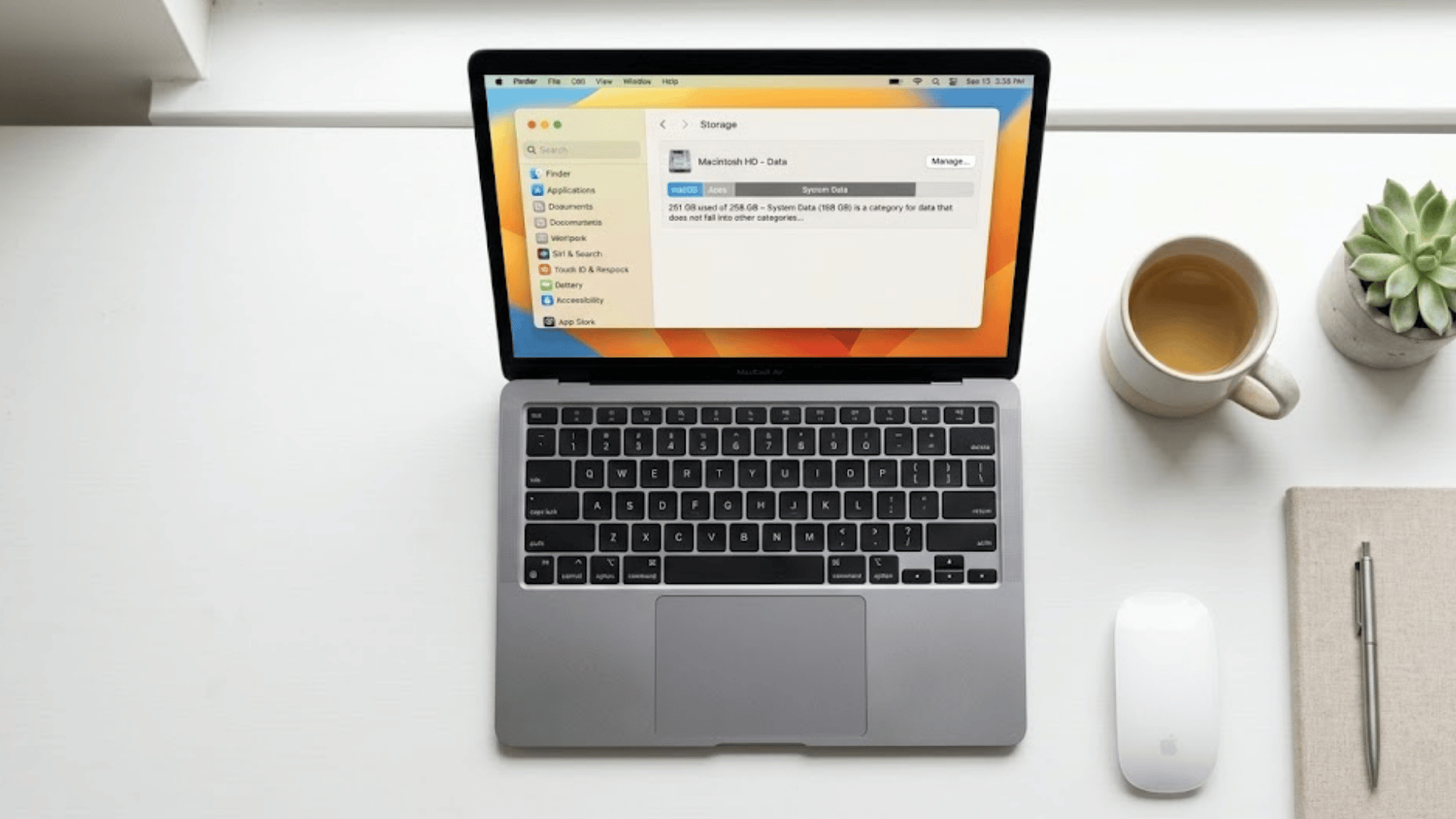





You open your Mac’s storage settings, and there it is, System Data sitting at 60GB, 80GB, maybe even more.
No clear explanation. Just a big gray block eating up your disk space. I’ve seen this confuse a lot of Mac users, and honestly, it makes sense why.
Apple doesn’t make it easy to see exactly what’s inside it or why it keeps growing.
You can’t just click on it and see a neat list of files you can delete. But System Data on Mac is manageable once you know what you’re dealing with.
In this post, I’ll share what System Data is and which kinds of files it contains.
I’ll walk you through how to check it, clear it safely, and stop it from building up again.
What Is System Data on Mac?
System Data is a storage category on Mac that holds files macOS can’t sort into other groups, such as Apps, Photos, or Documents. It’s not one single file; it’s a collection of different file types that build up over time.
This includes app caches, system logs, temporary files, browser data, and old backups.
These files are created automatically as macOS and installed apps run day to day. The category is intentionally broad, which is why it can swell so fast without an obvious cause.
The files stored under System Data include:
- App and browser cache files
- System logs and crash reports
- Temporary files from updates and installs
- Local Time Machine snapshots
- Old iOS and iPadOS device backups
- Virtual memory swap files
- Screensaver downloads and support files
Before macOS Monterey, this same category was called “Other Storage.”
The name changed, but the contents stayed the same. So if older guides mention Other Storage, they’re referring to the exact same thing.
Signs Your Mac Storage Needs Immediate Cleanup
A cluttered Mac can slow down daily tasks and create performance issues. These signs can help you know when it’s time to clear storage space.
- Slow Performance: Apps, files, and folders take longer to open than usual.
- Storage Warning Alerts: Your Mac keeps showing “Startup Disk Almost Full” messages.
- Apps Keep Crashing: Programs freeze or close suddenly during use.
- Failed Downloads: New files stop downloading because storage is low.
- Update Problems: macOS updates fail to install due to limited free space.
- Frequent Spinning Beach Ball: The loading cursor appears often during simple tasks.
- Slow Photo or Video Loading: Media files take too long to open or edit.
- Browser Lag: Tabs freeze, and websites load slowly.
- Can’t Save Files: Documents or screenshots fail to save properly.
- Loud Fan Noise: The fan runs heavily even during light work.
- Large Trash Bin: Old deleted files still take up storage space.
- Too Many Duplicate Files: Extra copies of files quietly fill your drive.
Why Is System Data Taking up So Much Space?
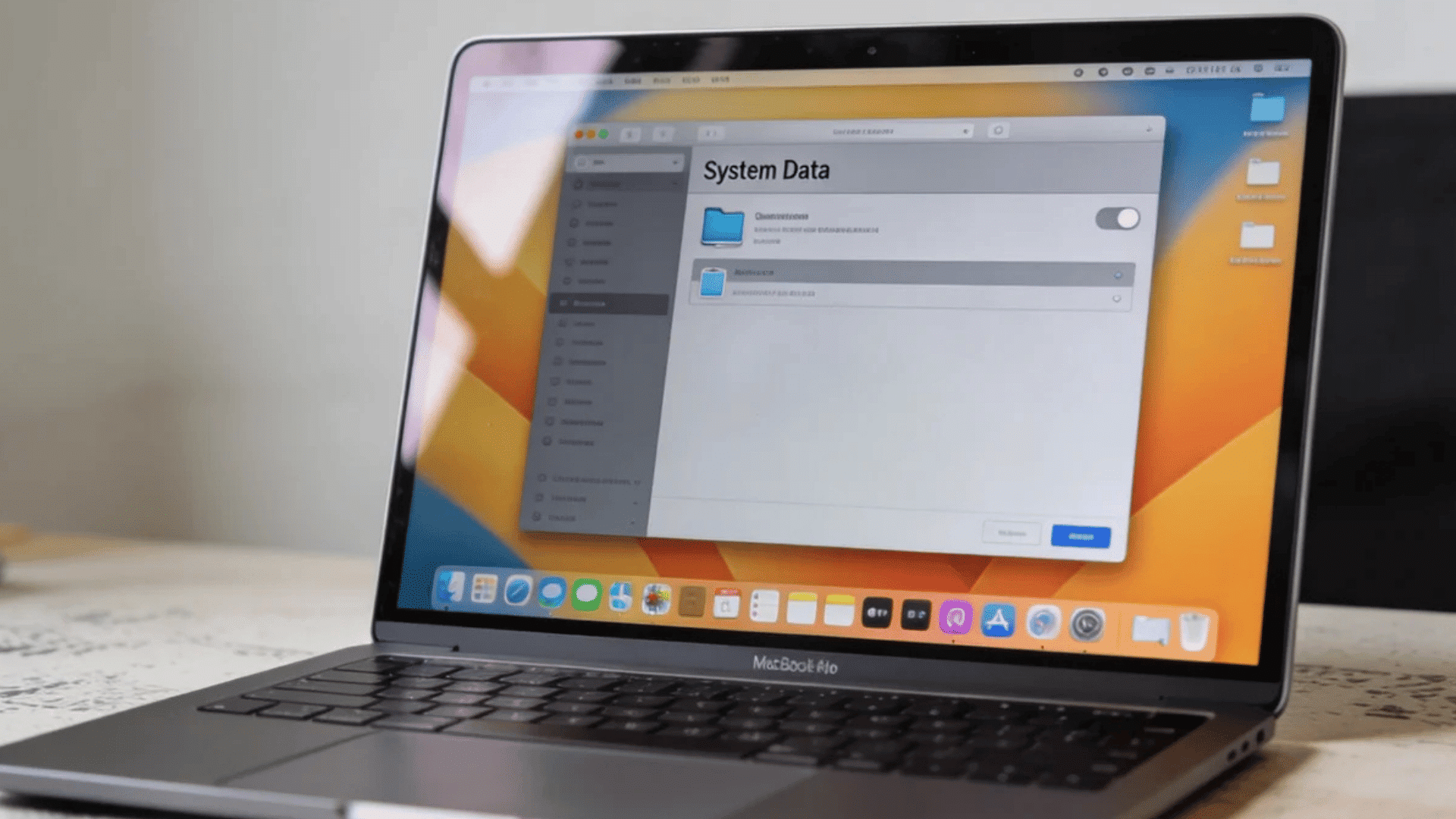
System Data on a Mac can grow over time from cached files, backups, and temporary system items. Many of these files build quietly in the background and use storage without you noticing.
1. Cached Files Build up Over Time
Your Mac stores cache files to help apps and websites load faster. These files include browser data, app cache, thumbnails, and temporary system information.
Over time, the cache can grow very large, especially if you use many apps daily. While cache files help improve speed, older files often stay behind even after they are no longer useful. This can slowly fill your storage space.
Streaming, editing videos, and heavy browsing can increase cache size even faster and make System Data much larger than expected.
2. Old Backups Stay Saved on the Mac
Local backups created by Time Machine can take up a large amount of storage space. Your Mac stores these backups temporarily when the backup drive is not connected.
These files help protect your data, but they can grow quickly if you work with large files often.
Many users do not realize these backups exist because they stay hidden inside System Data.
Even though macOS removes them automatically when needed, they can still occupy many gigabytes and reduce the available storage on your Mac.
3. Temporary Files Keep Collecting
macOS and installed apps create temporary files during updates, downloads, and normal tasks. These files are meant to help programs run smoothly, but some stay behind longer than needed.
Software installers, editing apps, and browsers are common causes of temporary file buildup.
Over time, thousands of small files can collect and use a surprising amount of storage space.
Since most users never check these hidden folders, the files continue growing quietly and become a major reason System Data takes up so much room.
4. Large Log Files Remain Stored
Your Mac creates log files to track app activity, system errors, and background processes. These logs help developers fix problems and improve performance.
However, some log files can become very large, especially if an app crashes often or keeps reporting repeated errors.
The system may continue saving logs daily without deleting older ones quickly.
As the files grow, they become part of System Data and take up valuable storage. Many users never notice these hidden logs until storage space starts running low.
5. Leftover App Files Stay After Uninstalling
Deleting an app does not always remove all its related files. Many apps leave behind support files, settings, cache, and saved data inside the system folders.
These leftover files can stay on your Mac for years and slowly build up over time.
Apps used for photo editing, gaming, and video work often leave larger files behind.
Even if the main app is gone, the extra data still counts as System Data. This hidden clutter is one of the biggest causes of unnecessary storage use.
6. iPhone and iPad Backups Use Extra Space
If you back up your iPhone or iPad to your Mac, those backup files can become very large. Photos, videos, apps, and messages stored in backups may take up several gigabytes each.
Older backups may also stay saved after you stop using a device. Since these backups are hidden inside system folders, many users forget they exist.
Over time, multiple backups can fill storage quickly and increase System Data size.
Regularly checking and removing old backups can help free up valuable space on your Mac.
What Is a Normal System Data Size on Mac?
System Data size varies depending on how the Mac is used. The table below shows rough benchmarks based on typical use patterns.
| User Type | Expected System Data Range | Common Culprits |
|---|---|---|
| Light user (browsing, docs) | 10–20 GB | Browser cache, system logs |
| Regular user (creative apps) | 20–40 GB | App cache, Time Machine snapshots |
| Developer (Xcode, simulators) | 50–120 GB | Derived data, device support files, and simulator runtimes |
| Frequent iOS device user | 30–80 GB | Multiple iTunes/Finder backups |
Where to Find System Data on Your Mac?
Knowing where System Data lives is the first step. Here’s how to locate it and get a clearer look at what’s taking up space.
- Click the Apple menu (top-left corner): Select System Settings from the dropdown menu.
- Go to General, then click Storage from the options on the right.
- Wait for the storage bar to load: Hover over the gray segment to see how much space System Data is using.
- Scroll down below the graph: System Data will appear as a separate line item with its total size listed.
- macOS doesn’t show a full breakdown: Clicking on System Data won’t open a folder or file list.
- Use the (i) info button: It gives a partial view of large file categories stored nearby.
- Check Finder manually: Go to Library folders like Caches, Logs, and Application Support to see what’s building up.
Third-party apps like CleanMyMac or DaisyDisk< can scan deeper and show exactly what’s hiding inside System Data.
How to Delete System Data on Mac?
There’s no single delete button for System Data. These steps target the files that take up the most space and are safe to remove.
- Open Finder first: Click Go in the menu bar, select Go to Folder, then type ~/Library/Caches to access stored app cache files.
- Clear cache files: Delete the contents inside the Caches folder. Apps rebuild these automatically, so it’s completely safe to remove them.
- Find iOS backups: Go to System Settings, then General, then Storage, and select iOS Files to view old iPhone and iPad backups.
- Delete old backups: Remove backups for devices no longer in use. A single backup can take up anywhere between 10 and 50GB of space.
- Find snapshots: Go to System Settings> General> Storage to see all local Time Machine snapshots stored on the Mac.
- Delete old ones: Select any outdated snapshots and click Delete; these can quietly take up 20–100GB of space over time.
Warning: Always back up the Mac using Time Machine before deleting any files. Removing the wrong files can affect how apps or macOS run. When in doubt, leave it alone.
Ways to Prevent System Data from Getting Too Large
System Data can grow quickly if temporary files and backups are left unmanaged. A few simple habits can help keep your Mac storage cleaner and easier to manage.
1. Clear Cache Files Regularly
Cache files help apps and websites load faster, but they can slowly fill your storage over time. Browsers, editing apps, and streaming platforms often create large cache folders that stay saved for months.
Removing old cache files regularly can stop System Data from growing too large.
You do not need to clean them every day, but checking once a month can help keep your Mac running smoothly.
Restarting your Mac often can also remove some temporary files automatically and reduce unnecessary storage use in the background.
2. Remove Old Device Backups
iPhone and iPad backups saved on your Mac can take up many gigabytes of storage space. Older backups often stay stored even after you stop using a device.
Checking your backup folder regularly can help you remove files you no longer need.
This simple step can free up a large amount of storage and prevent System Data from growing too quickly.
If possible, you can also move backups to an external drive instead of keeping everything stored directly on your Mac for long periods.
3. Delete Unused Apps Completely
Unused apps can leave behind support files, settings, and cache data even after deletion. These leftover files slowly increase System Data size and reduce free storage space.
When removing apps, it helps to also clear related files stored in Library folders.
Large editing apps, games, and creative software usually leave the most data behind. Keeping only the apps you truly use can make your Mac cleaner and faster.
Regular app cleanup also lowers the chance of hidden files building up in the background.
4. Empty the Trash Bin Often
Files placed in the Trash still use storage space until they are permanently removed. Many users forget to empty the Trash regularly, especially after deleting large videos, downloads, or project files.
Over time, the Trash folder can quietly grow and increase System Data storage.
Emptying it once every few days can help free up space quickly.
You can also enable automatic Trash removal in macOS settings to avoid unnecessary file buildup and keep your storage cleaner without needing constant manual cleanup.
5. Keep macOS Updated
macOS updates often include fixes that improve storage management and remove unnecessary temporary files. Older system versions may keep outdated logs, cache, or unused update files longer than needed.
Installing updates regularly helps your Mac manage storage more efficiently and improves overall performance.
Updates can also fix bugs that cause System Data to grow unusually large. Before updating, make sure you still have enough free storage available.
Keeping your system current is one of the easiest ways to avoid long-term storage problems on a Mac.
6. Store Large Files Outside the Mac
Photos, videos, and project files can quickly fill internal storage and increase System Data over time. Moving large files to cloud storage or an external drive can help keep your Mac lighter and more organized.
Video editing files, downloads, and duplicate media usually take up the most space.
Regularly checking your Downloads and Desktop folders can also prevent clutter from growing.
Keeping only important daily files on your Mac helps maintain better performance and reduces the chances of storage warnings appearing too often.
Common Mistakes People Make when Cleaning System Data
Wrong cleanup steps can remove useful files and slow your Mac. A careful approach helps avoid storage and performance problems.
- Deleting System Files: Removing unknown files can break macOS features or apps.
- Using Unsafe Cleaner Apps: Some tools remove important data or show false warnings.
- Skipping Backups: Cleaning without a backup can cause permanent file loss.
- Ignoring the Trash Bin: Deleted files still take up space until the Trash is emptied.
- Removing App Files Manually: Deleting support files can stop apps from working properly.
- Cleaning Too Much at Once: Removing all cache and temporary files can slow apps temporarily.
- Forgetting Large Downloads: Old downloads often take more space than expected.
- Waiting Too Long: Delaying cleanup can make storage issues worse over time.
Conclusion
System Data often grows quietly over time. While the category looks confusing, the cause is usually just a few common files.
Like app caches, browser data, old iOS backups, and Time Machine snapshots are stored locally.
You don’t need special tools. Clearing cache files, checking iOS backups, and keeping Time Machine connected each month is enough for most users. Developers should add Xcode-derived data to that routine.
Keeping it under 25–30GB on a standard Mac means it’s doing its job without overreaching. If it climbs past 50GB, the five methods above will bring it back down.
Have questions about System Data or a cleanup tip that worked well for you? Share it in the comments to help other Mac users.
Frequently Asked Questions
Is It Safe to Delete System Data on a Mac?
Cache files, old iOS backups, and Time Machine snapshots can be removed safely without affecting macOS performance.
Will Clearing System Data Speed Up a Mac?
Freeing up storage gives macOS more room to operate, which can improve overall speed and responsiveness.
How Often Should System Data Be Cleaned on a Mac?
A monthly cleanup keeps System Data at a healthy size and prevents unnecessary files from building up.
Does System Data Come Back After Clearing It?
MacOS and apps automatically generate new cache and log files over time, so some growth after cleaning is completely normal.
What Is the Normal Size for System Data on a Mac?
A healthy System Data size typically falls between 12 and 25GB on a well-maintained Mac.