


Switching from T-Mobile to another carrier sounds easy until you actually start the process and realize some account details are harder to find than expected.
When I first looked into transferring a number, the biggest confusion was getting the T-Mobile transfer PIN and making sure the request worked before the PIN expired.
Many users run into the same issue while trying to move their number without delays.
In this guide, I will explain how to get the T-Mobile transfer PIN, where to request the port-out PIN, and a few things you should check before starting the transfer.
These simple steps can save time and help you avoid failed port requests.
What Is a T-Mobile Transfer PIN?
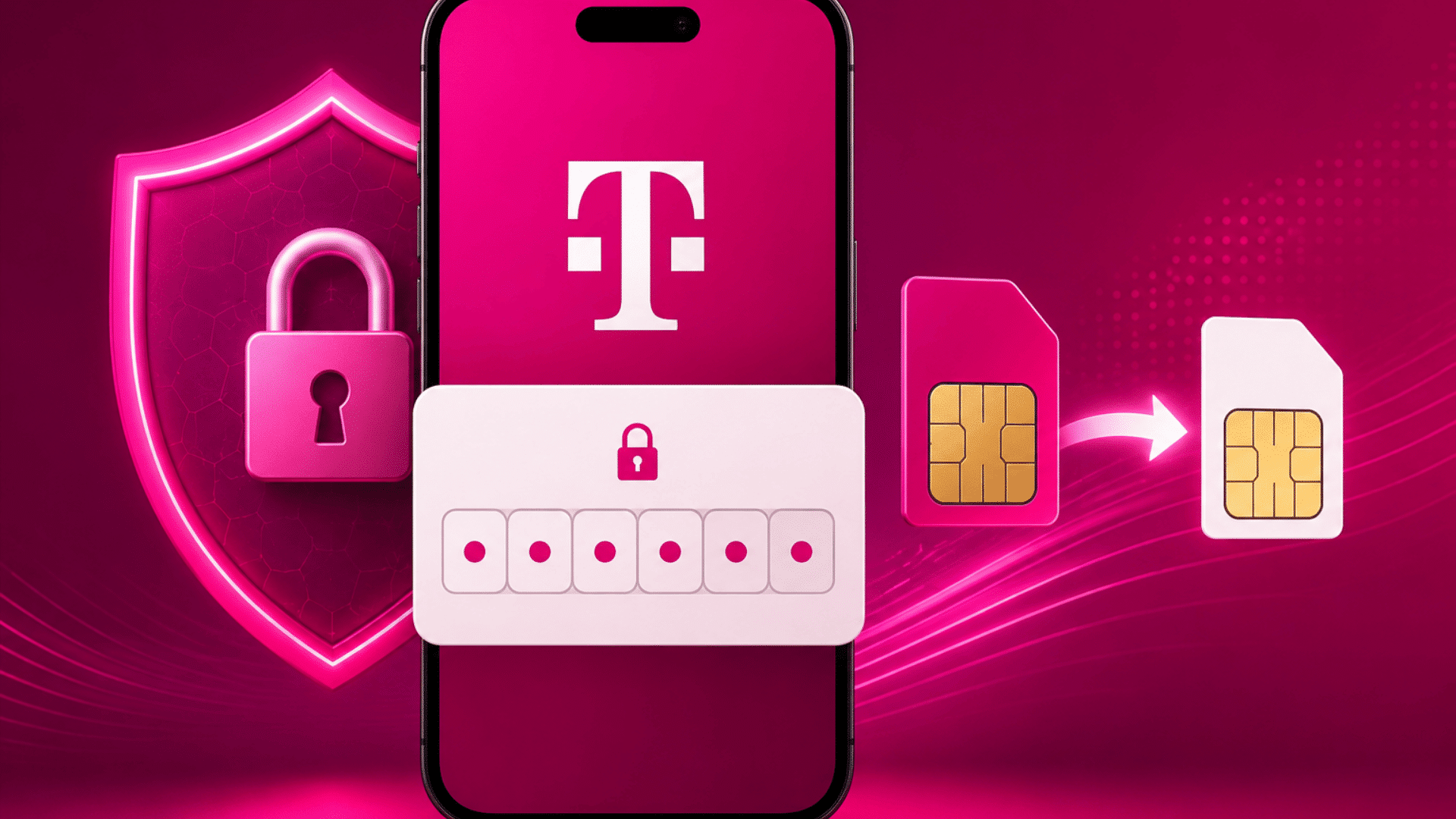
A T-Mobile transfer PIN, also known as a port out PIN, is a temporary security code required to transfer your T-Mobile phone number to another carrier like Verizon, AT&T, Visible, Mint Mobile, or Google Fi.
T-Mobile uses this PIN to confirm that the transfer request is approved by the actual account owner before the number can move to a different network.
The transfer PIN helps protect your account from unauthorized number transfers, SIM swap fraud, and account theft.
During the porting process, your new carrier will usually ask for your T-Mobile account number, billing ZIP code, and transfer PIN before starting the request.
Without the correct PIN, the number transfer cannot be completed successfully.
How Long Does the T-Mobile Transfer PIN Last?
The T-Mobile transfer PIN stays active for 7 days after it is generated. If the PIN expires before your number transfer is completed, you may need to create a new port-out PIN through your T-Mobile account.
| Feature | Details |
|---|---|
| PIN Type | Temporary Port Out PIN |
| Validity | 7 Days |
| PIN Length | Usually 6 digits |
| Who Can Generate It | Primary Account Holder |
| Required For | Switching carriers |
| Needed With | T-Mobile Account Number |
Things to Prepare Before Porting Your T-Mobile Number
Before starting the porting process, a few account checks can prevent failed requests and activation delays. Here is what to review before you generate your transfer PIN.
1. Keep Your T-Mobile Account Active
One of the biggest mistakes users make while switching carriers is canceling their T-Mobile service too early.
Your account must stay active during the entire porting process because the new carrier needs access to the number before it can be transferred successfully.
If the account gets canceled before the transfer completes, your phone number may become inactive or difficult to recover.
Wait until the new carrier confirms that the porting process is fully complete before doing anything to your T-Mobile service or plan.
2. Make Sure Your Phone Is Unlocked
Before moving to another carrier, you should check if your phone is unlocked. A locked phone is tied to T-Mobile and may not work with another network until the device is officially unlocked.
Many users assume their phone will work automatically after switching carriers, but that is not always the case.
You can usually check the unlock status through your phone settings or by contacting T-Mobile support.
If your device still has restrictions because of unpaid balances or eligibility requirements, the unlock request may be delayed. Making sure the phone is unlocked early can help avoid activation problems later.
3. Save Important Data
Porting your number normally does not erase data from your device, but it is still smart to back up important information before switching carriers.
Some apps, settings, or saved messages may not transfer properly if you change devices or reset your phone during activation.
Back up contacts, voicemails, text messages, and authenticator apps before the transfer. Cloud backups and device sync tools can handle most of this in a few minutes.
4. Pay Off Remaining Device Balance
If your phone is still being paid off through T-Mobile financing, it is important to review your remaining balance before starting the transfer process.
Some devices may not qualify for unlocking until all payments are completed. In certain cases, users can still transfer their number, but the phone itself may remain locked to T-Mobile until the balance is cleared.
You should also check for any pending bills or account restrictions that could affect the transfer request.
Reviewing your account status early can help prevent delays and give you enough time to resolve payment issues before moving to another carrier.
5. Turn Off Port Out Protection
T-Mobile uses digital security services like Port Out Protection to help prevent unauthorized number transfers and account fraud during carrier switching.
While this protection helps keep your account safe, it can also block legitimate transfer requests if it remains enabled during the porting process.
The Primary Account Holder usually needs to disable this feature before the new carrier can complete the number transfer.
You can manage this setting through the T-Mobile app, website, or customer support.
It is a good idea to check the protection status before requesting your transfer PIN so the process moves forward without unnecessary delays or rejected transfer requests.
Account Details Needed for T-Mobile Porting
Your new carrier will ask for specific account information before processing the number transfer. Make sure every detail matches your T-Mobile account exactly.
- T-Mobile Account Number: Used to identify your account during the transfer request.
- Transfer PIN: Confirms that you approved the number transfer.
- Billing ZIP Code: Helps verify your account information.
- Phone Number: The mobile number is being transferred to the new carrier.
- Account Holder Name: Confirms ownership of the T-Mobile account.
- Email Address: Used for transfer updates and activation notifications.
- Device Unlock Status: Confirms the phone can work with another carrier after activation.
- eSIM or SIM Compatibility: Make sure your phone supports the new carrier’s network setup.
- Port Out Protection Status: Confirms the security feature has been disabled before porting begins.
Most of these details can be found inside the T-Life app, online account dashboard, or your monthly T-Mobile billing statement.
How to Get a T-Mobile Transfer PIN?
Getting your T-Mobile transfer PIN only takes a few minutes through the T-Life app. You can find the PIN inside your account settings and save it for your phone number transfer.
Step 1: Download and Open the T-Life App

Start by downloading the T-Life app on your phone if you do not already have it installed. iPhone users can get it from the App Store, while Android users can download it from Google Play.
After the app finishes installing, open it and sign in using your T-Mobile account details. Make sure you use the correct phone number or email linked to your account.
Once you log in successfully, you will be able to access all account settings and tools needed to get your transfer PIN quickly and safely.
Step 2: Tap “Manage”
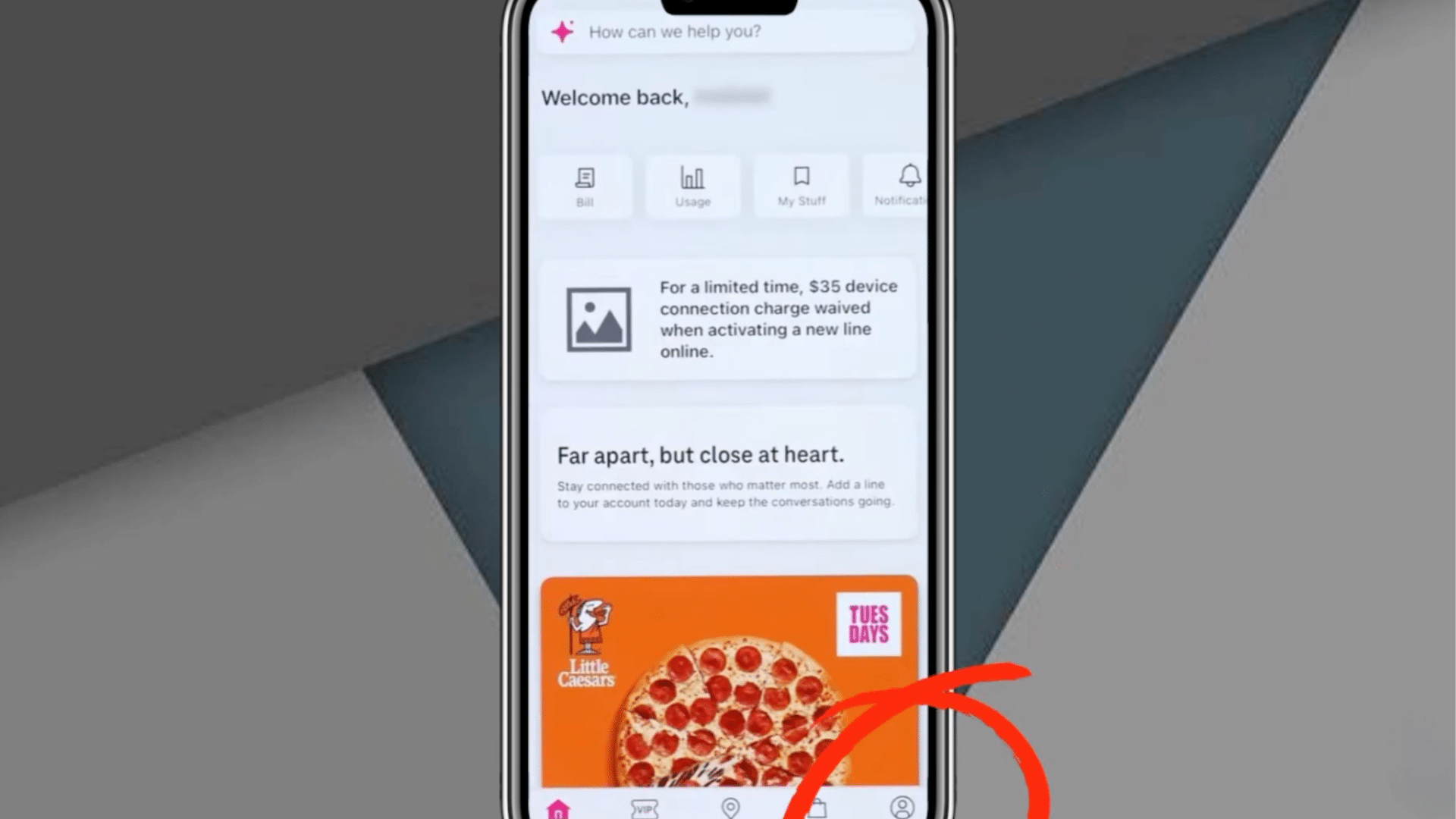
After signing in to the T-Life app, look at the bottom menu on your screen. You will see several options that help you manage your T-Mobile account. Tap on the “Manage” button to continue.
This section gives you access to important account features, including billing, security, and phone line settings.
Make sure you stay signed in while following the steps.
If the app asks for verification, complete it before moving ahead. Once the Manage section opens, you are ready to move to the next part of the process.
Step 3: Open Settings
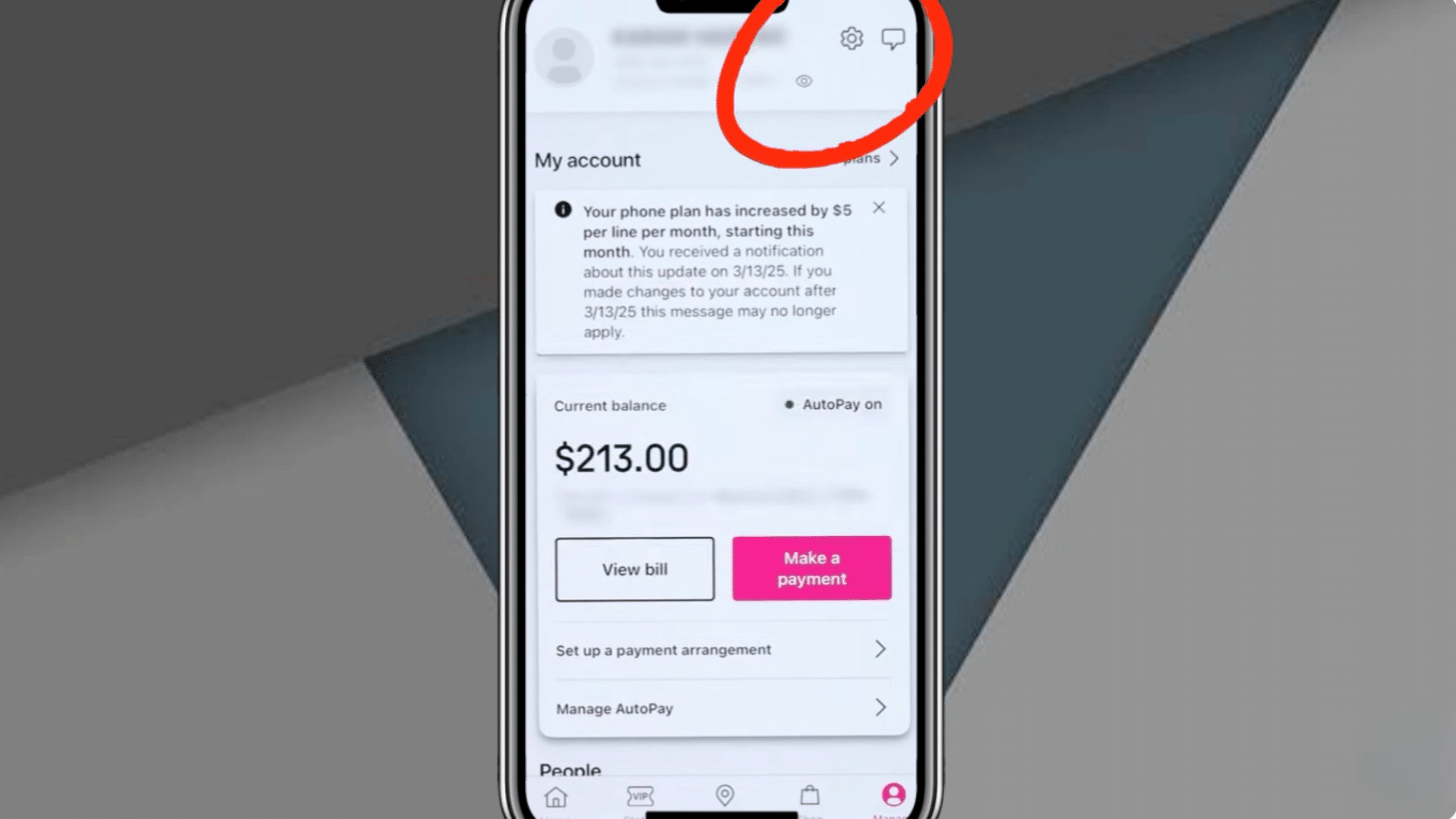
Inside the Manage section, find and tap the “Settings” option. This area contains tools that help you control your account information, privacy, and security settings.
Scroll carefully if you do not see it right away because the layout may look slightly different depending on your phone.
The Settings section is important because it gives you access to transfer and security controls for your phone number.
After opening Settings, take a moment to check that you are on the correct account if you manage multiple lines under one T-Mobile account.
Step 4: Go to Permissions and Controls
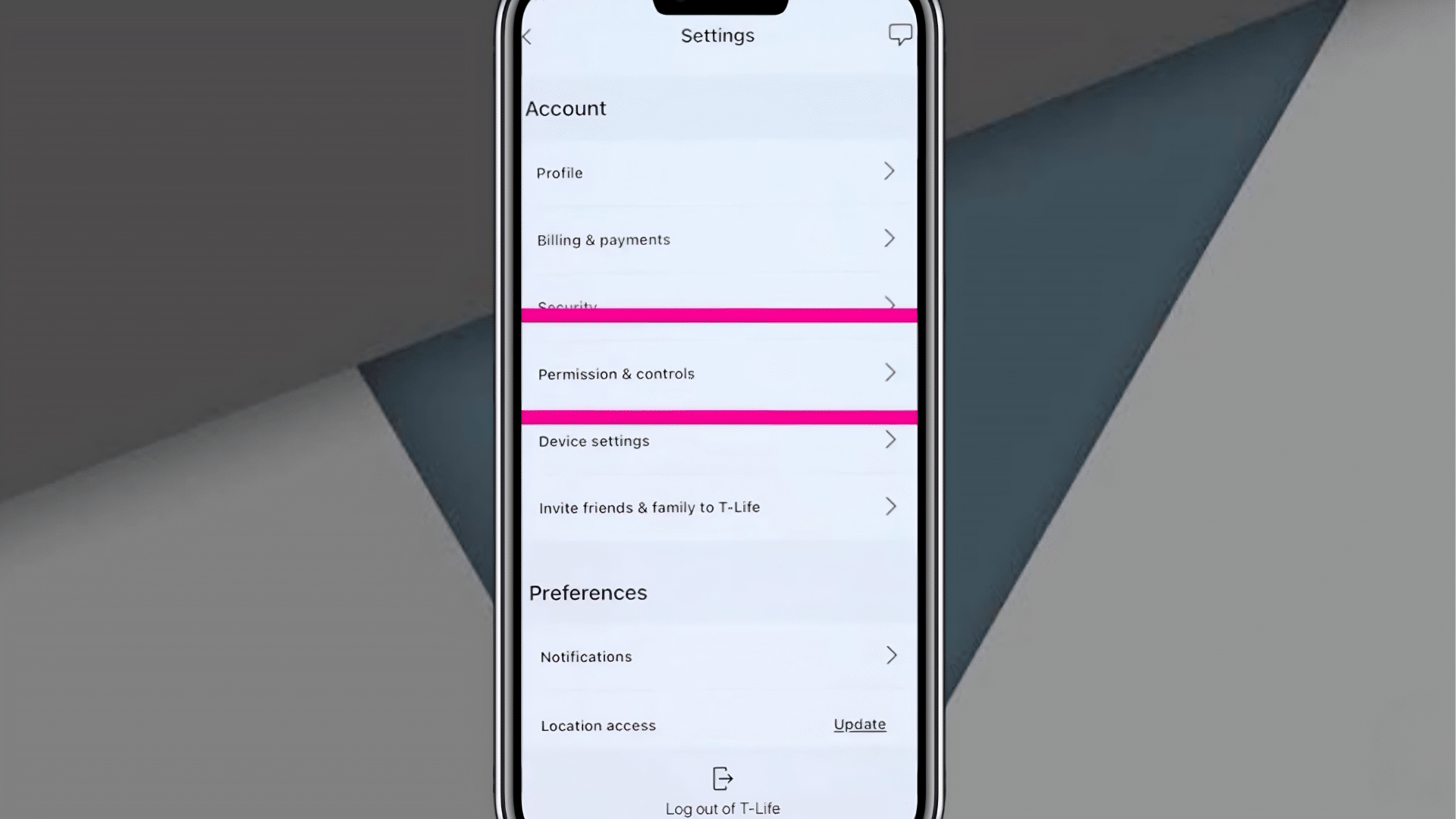
In the Settings menu, look for the option called “Permissions and Controls” and tap on it.
This section contains account security and permission settings that help protect your phone number and personal information.
You can manage different account controls from this area, including transfer-related settings. Scroll through the menu carefully because the layout may look slightly different depending on your device or app version.
Once you open the Permissions and Controls section, you will be able to access the settings needed to continue finding your T-Mobile transfer PIN.
Step 5: Find the Transfer PIN Option
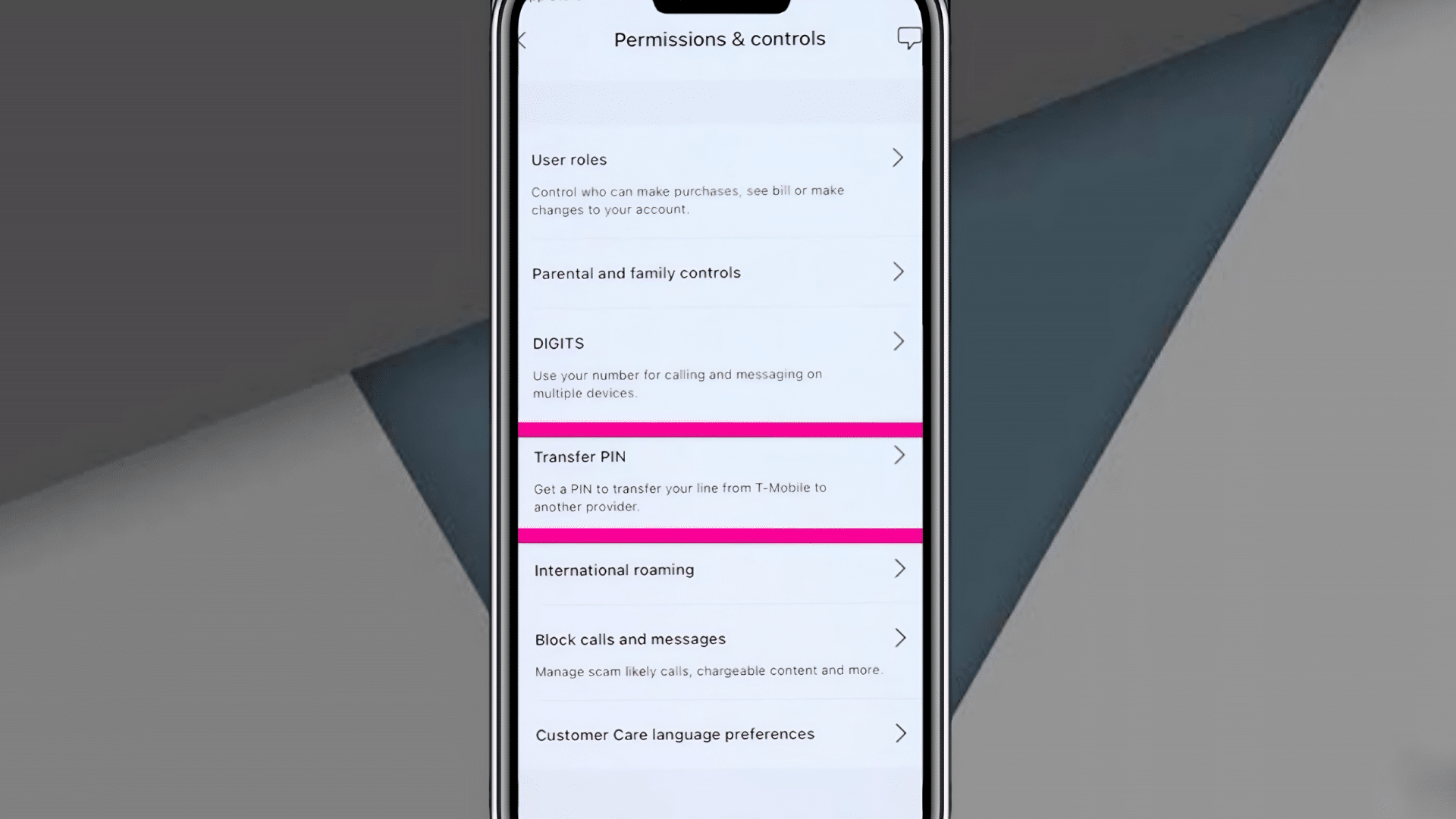
After opening the “Permissions and Controls” section, scroll through the available options until you find “Transfer PIN.”
This option is usually listed with other account security settings, so check carefully if you do not see it right away.
The Transfer PIN feature is important because it protects your phone number from unauthorized transfers. Tapping this option will open the page where you can create your temporary transfer PIN.
Once you locate and open the Transfer PIN section, you will be ready to generate the code needed for your number transfer process.
Step 6: Get Your Transfer PIN
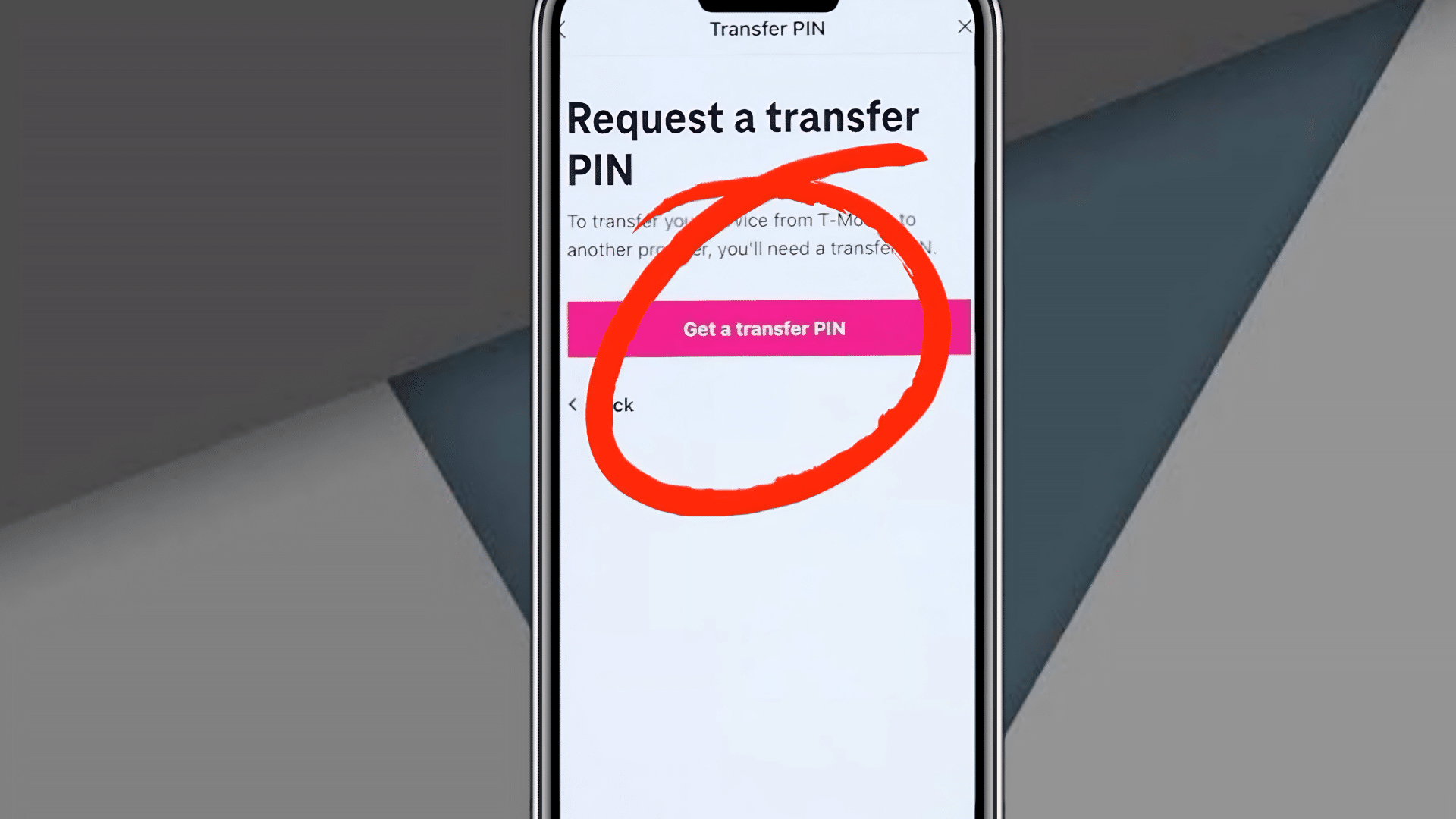
Once you open the Transfer PIN section, tap the button labeled “Get a Transfer PIN.” The app will then generate a six-digit PIN for your account.
This number is needed if you want to transfer your T-Mobile phone number to another carrier. Write the PIN down or copy it into a secure place because you may need it during the transfer process.
Be careful not to share it with anyone you do not trust. After saving the PIN, you are finished and ready to use it whenever you start your phone number transfer.
This tutorial is based on a helpful video by How To Tutor. You can check out the original video below for a more detailed visual guide:
How to Transfer Your T-Mobile Number to Another Carrier?
Moving your T-Mobile number to another carrier is a simple process when you have the correct account details ready. The transfer usually takes a few minutes to a day for most mobile numbers.
- Choose Your New Carrier: Compare carriers based on coverage, pricing, device compatibility, and eSIM support before starting the transfer. Make sure your phone works properly with the new provider.
- Start Number Transfer With the New Carrier: Contact the new carrier first to begin the number transfer process. Keep your T-Mobile line active until the porting process is fully completed.
- Give Your Port Out Details: Share your T-Mobile account number, transfer PIN, billing ZIP code, and phone number exactly as listed on your account to avoid delays.
- Wait for Porting to Finish: Mobile number transfers usually take 10 minutes to 24 hours, while landline transfers may take around 3 to 10 business days to complete.
- Insert New SIM or Activate eSIM: After the transfer finishes, insert the new SIM card or activate your eSIM. Your service will switch to the new carrier automatically.
When I transferred my number, the mobile port finished much faster than expected, but I still kept my old SIM active until the new carrier fully activated the line.
Common Problems During T-Mobile Number Transfer
T-Mobile number transfers are usually simple, but small account mistakes can delay the process. Most issues happen because of incorrect account details, expired transfer PINs, or device restrictions.
1. Wrong Transfer PIN
An incorrect or expired Transfer PIN is one of the most common reasons for failed transfer requests. T-Mobile transfer PINs are temporary and must be entered correctly during the porting process.
| Problems | Solutions |
|---|---|
| Transfer PIN entered incorrectly | Generate a new Transfer PIN from the T-Life app |
| Expired Transfer PIN | Use the newest active PIN during the request |
| Old PIN used during transfer | Copy the PIN carefully before submitting |
2. Account Information Does Not Match
The transfer request can fail if your account details do not match T-Mobile records exactly. Even small mistakes in the ZIP code or account number may cause delays.
| Problems | Solutions |
|---|---|
| Incorrect billing ZIP code | Verify the billing ZIP code before submitting |
| Wrong T-Mobile account number | Check account details directly from your account |
| Incorrect phone number entered | Enter the exact number linked to the account |
3. Port Out Protection Still Enabled
T-Mobile security settings may block the transfer request if Port Out Protection remains enabled. This feature is designed to stop unauthorized number transfers.
| Problems | Solutions |
|---|---|
| Port Out Protection is blocking the transfer | Disable Port Out Protection from settings |
| Security settings are preventing the request | Review account permissions before transferring |
| Transfer request automatically rejected | Retry the request after disabling protection |
4. T-Mobile Account Was Closed Too Early
Closing your T-Mobile account before the transfer finishes can interrupt the porting process. Your line should remain active until the new carrier confirms completion.
| Problems | Solutions |
|---|---|
| Number transfer stopped after cancellation | Keep the account active during the process |
| Phone line disconnected too early | Wait for transfer confirmation from the carrier |
| Port request failed during processing | Cancel service only after activation completes |
5. Device Is Carrier Locked
A carrier-locked device may not work with another provider even after the number transfer finishes. Unlock approval can sometimes take extra time before activation works properly.
| Problems | Solutions |
|---|---|
| Phone not working with the new carrier | Request a device unlock from T-Mobile |
| Device locked to the T-Mobile network | Check unlock eligibility before switching |
| Activation delays after transfer | Wait for unlock approval before activation |
How to Check T-Mobile Port Status?
After starting the number transfer, you can track progress through support and account tools. Some transfers finish in minutes, while others may take longer based on the carrier and verification process.
- T-Life App: Check the T-Life app regularly for transfer updates, account notifications, or service changes during the porting process.
- T-Mobile Support: Contact T-Mobile support if the transfer seems delayed or your service stops working before activation finishes.
- New Carrier Status Page: Use your new carrier’s port status tracker to monitor transfer progress and activation updates online.
- Text Message or Email Updates: Watch for text messages or emails confirming transfer progress, verification steps, or activation completion.
- SIM or eSIM Activation Status: Once your new SIM or eSIM activates and the T-Mobile signal disappears, the transfer is usually complete.
I noticed the app usually updates faster than waiting for email notifications.
Best Tips for a Smooth T-Mobile Transfer
These tips are based on firsthand experience going through the porting process. Each one addresses a specific failure point that users commonly miss.
1. Generate the PIN on the Same Day
T-Mobile Transfer PINs only stay active for a short period, so creating a new PIN on the same day as your transfer request is always the safest option.
Using an expired PIN can cause the transfer request to fail or delay the verification process. Many users run into problems simply because they generated the PIN too early.
When I tested the process, generating the PIN too early caused the transfer request to expire before activation finished.
Creating the PIN right before starting the transfer helps keep the process simple and reduces the chances of account verification errors during activation.
2. Double Check Account Details
Incorrect account details are one of the most common reasons for failed number transfers.
Before submitting the request, carefully review your T-Mobile account number, billing ZIP code, account holder name, and phone number.
Even a small spelling mistake or incorrect digit can stop the new carrier from verifying your account properly.
It is also important to make sure the information matches exactly with your T-Mobile records, especially for business accounts or family plans with multiple authorized users.
3. Keep Your Old SIM Active
Do not remove or deactivate your old T-Mobile SIM card too early during the transfer process. In many cases, your current SIM will continue working until the number transfer fully completes with the new carrier.
The old SIM may still receive important service updates, activation notices, or verification messages while the request is processing.
Once your new carrier activates the number and your old signal stops working, you can safely remove the T-Mobile SIM and begin using the new service normally.
I kept my old T-Mobile SIM active until the new carrier signal appeared, which helped avoid activation confusion.
4. Transfer Secondary Lines First
If you are transferring a family plan or multi-line account, it is usually better to move secondary lines before transferring the primary account line.
The primary line often controls billing access, account permissions, and security settings for the entire account. Moving it too early may create problems for the remaining lines still waiting to transfer.
Keeping the primary line active until the end can help maintain account stability and reduce the risk of interruptions during the overall porting process.
5. Start the Transfer During Business Hours
Starting the number transfer during regular business hours can make the process easier if you need help from customer support.
Carrier support teams are usually more available during daytime hours on weekdays, which can help you solve issues faster if delays happen.
Some transfers complete within minutes, while others may require manual verification or account review.
Beginning the process earlier in the day also gives you more time to complete activation and troubleshoot any setup problems before support teams close.
6. Avoid Changing Account Information During Transfer
Try not to make changes to your T-Mobile account information while the transfer request is still processing.
Updating details like your billing address, account holder name, or phone number during porting can confuse the verification system and delay the request.
In some cases, the new carrier may reject the transfer because the account details no longer match the original request.
Waiting until the transfer fully completes before making account updates can help avoid unnecessary problems and keep the process moving smoothly.
7. Keep Both Devices Charged
Make sure both your old phone and your new device stay charged during the transfer process.
You may need access to text messages, verification codes, activation instructions, or account notifications while switching carriers.
During activation, carriers may send a link verification code, text, or security message to confirm the transfer request and complete account verification.
If one device shuts down during activation, it can slow the setup process or cause confusion about the transfer status.
Keeping chargers nearby and both phones powered on can help you respond quickly to updates and complete the number transfer without interruptions or unnecessary delays.
Conclusion
Getting a T-Mobile transfer PIN and moving your number to another carrier becomes much easier once you understand the full process.
From finding the transfer PIN in the T-Life app to preparing your account details and checking your device status, every step plays an important role in avoiding delays during porting.
Most transfer problems happen because of expired PINs, incorrect account information, locked phones, or inactive service lines.
Taking a few extra minutes to prepare can make the transfer process faster and smoother.
When I went through the process, keeping my old SIM active and generating the PIN on the same day helped avoid unnecessary activation issues.
If you are planning to switch carriers soon, these steps can help make the transition easier and less stressful.
Frequently Asked Questions
Does T-Mobile Charge a Fee for Number Porting?
T-Mobile does not charge a fee for transferring a phone number to another carrier. However, unpaid balances, device financing payments, or early termination charges may still apply.
Can a T-Mobile Number Be Ported While Traveling Internationally?
Yes, a T-Mobile number can usually be transferred while traveling internationally if account verification works properly. Access to text messages, email updates, or the T-Life app may still be required.
Can a T-Mobile Port Request Be Canceled After Starting?
A T-Mobile number transfer may sometimes be canceled before completion by contacting the new carrier quickly. Once the port request fully completes, reversing the transfer becomes much harder.
What Is the Difference Between a T-Mobile Transfer Pin and Account Pin?
A T-Mobile account PIN protects account access and billing changes, while the transfer PIN is a temporary security code specifically used for moving a number to another carrier.
Can a Phone Number Be Stolen Using a T-Mobile Transfer PIN?
A T-Mobile transfer PIN alone usually cannot transfer a number without matching account details. T-Mobile also uses account verification and security checks to help prevent unauthorized transfers and fraud.