
A “No DP signal from your device” message means the monitor has power but is not receiving a valid video signal through its DisplayPort connection.
When I troubleshoot this problem, I start with the connection rather than assuming the monitor or graphics card has failed. Unplug the DisplayPort cable at both ends, reconnect it firmly, and confirm that DisplayPort is selected in the monitor’s input menu.
Next, check that a desktop PC is connected to the graphics card rather than the motherboard. If the screen remains black, power-cycle the monitor, reset the graphics driver, and test another cable or port.
Most cases come from a loose cable, incorrect input, wrong output port, driver fault, or unsupported display setting. Continue reading for a working fix.
What does “No DP Signal from Your Device” Mean?
The message means the monitor cannot detect usable video data through the selected DisplayPort input. It does not tell you which device or connection has caused the failure.
The monitor may be working normally but receiving nothing because the cable is loose, the wrong input is selected, or the computer is sending video through another output.
Driver faults, sleep settings, and unsupported refresh rates can also interrupt the connection.
I would not assume the monitor is broken based on this message alone. Start by checking the cable, selected input, and computer port.
How do You Fix “No DP Signal” in the First Five Minutes?
Start with the checks below and test the monitor after every step. Testing one change at a time helps you identify the actual cause.
1. Reconnect the DisplayPort Cable
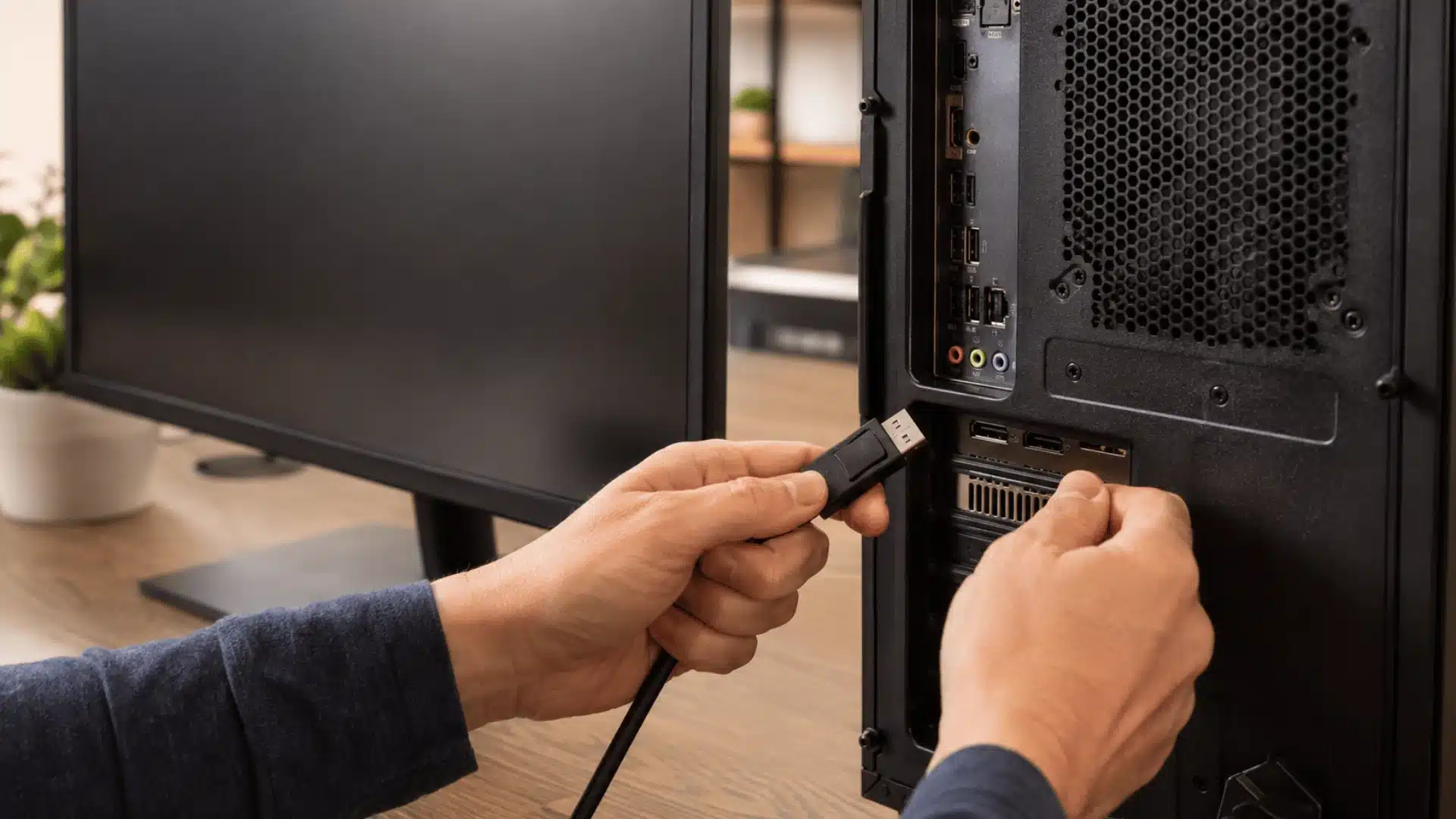
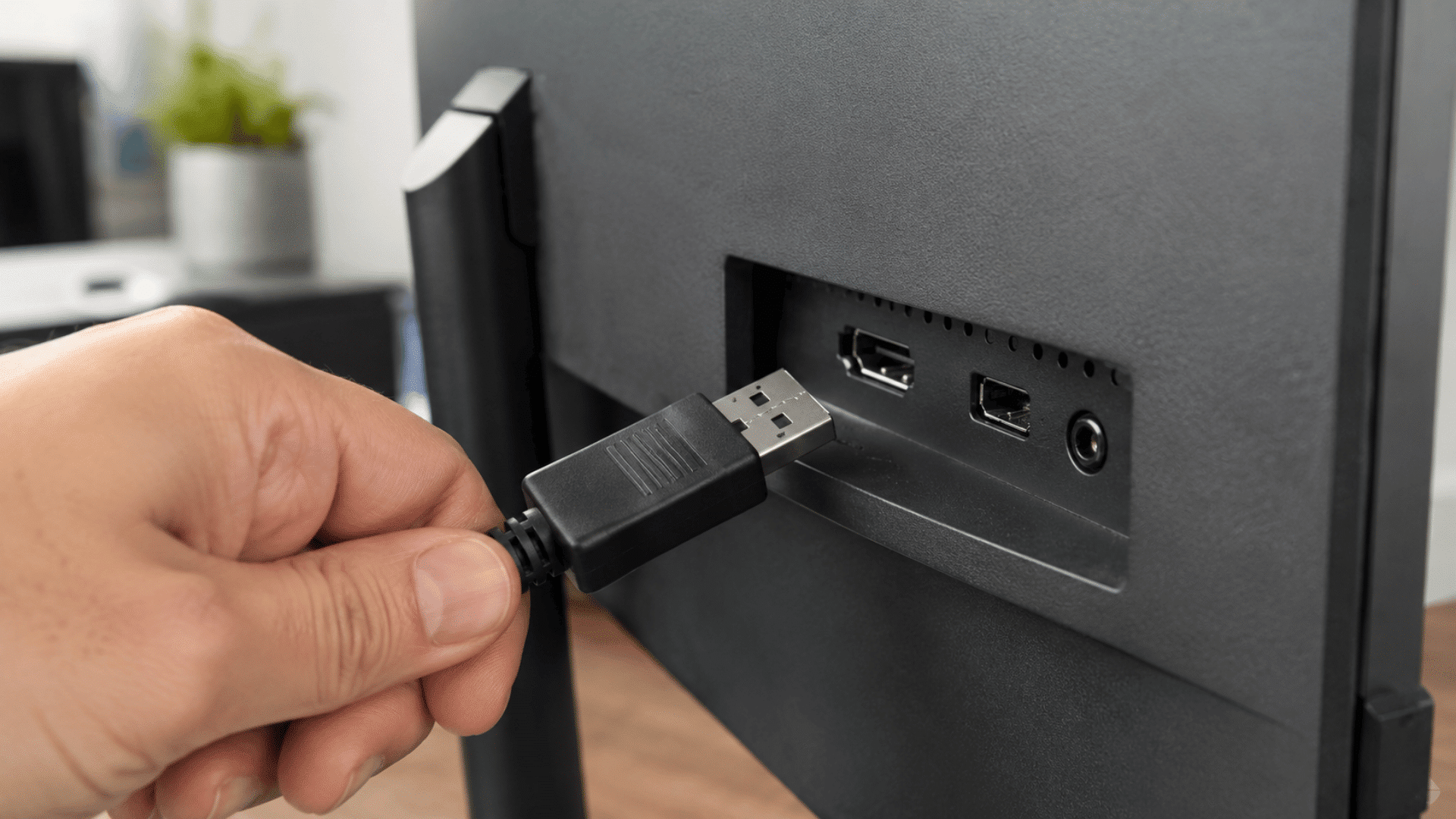
Turn off the monitor and unplug the DisplayPort cable from both the computer and the display.
Inspect each connector for dust, bent metal, or visible damage. Reconnect both ends firmly. Full-size DisplayPort connectors may include a locking tab, so make sure the plug is fully seated.
A cable can look connected while sitting slightly outside the port. This small gap is enough to interrupt the video signal.
2. Select the Correct Monitor Input
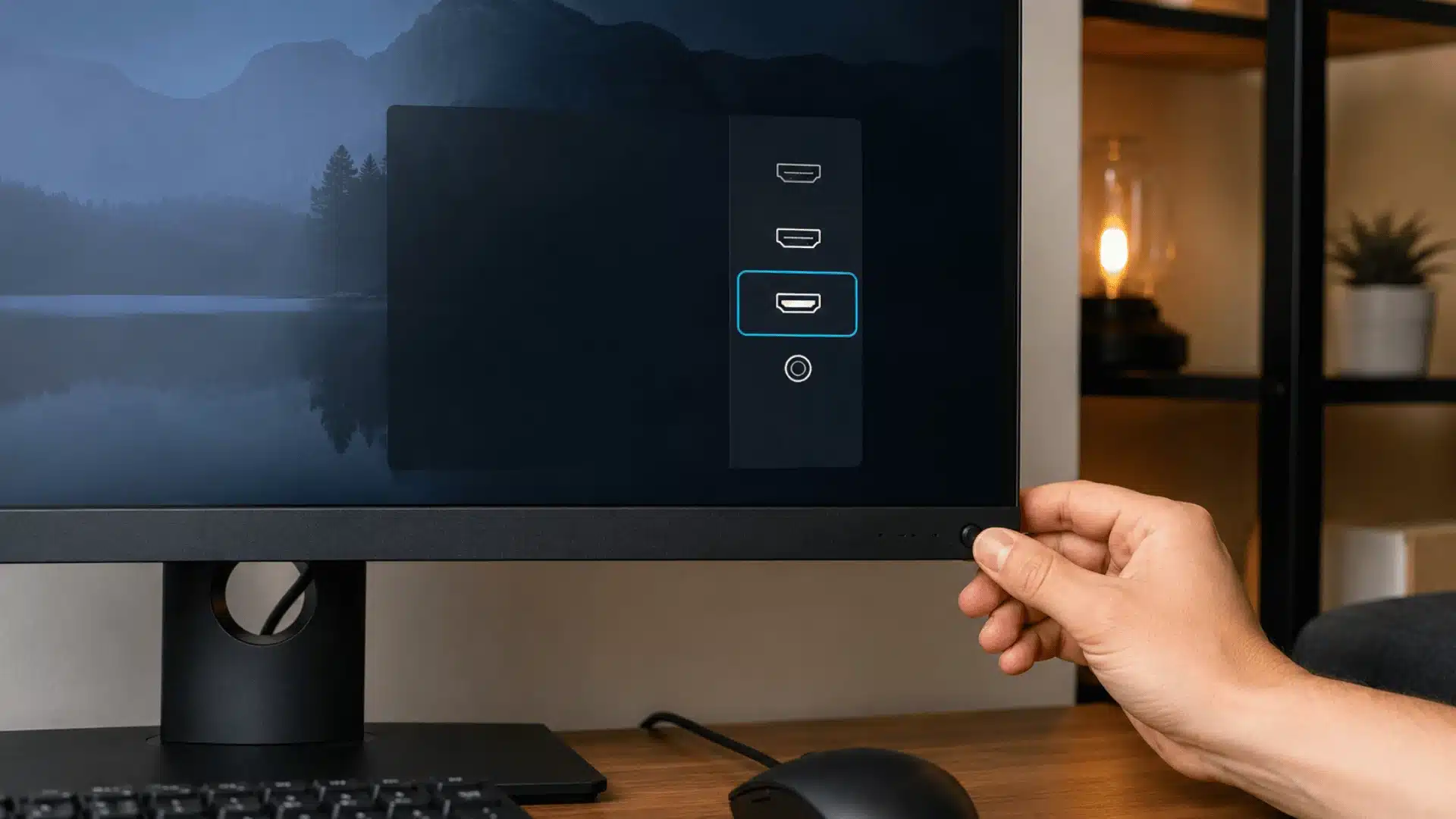
Open the monitor’s on-screen menu and choose DisplayPort as the input source.
Some monitors list more than one connection, such as DisplayPort One, DisplayPort Two, HDMI One, and HDMI Two. Select the input that matches the physical port being used.
Automatic input detection does not always switch correctly, especially after a cable change or power interruption. Selecting the input manually removes that uncertainty.
3. Check the Computer Connection
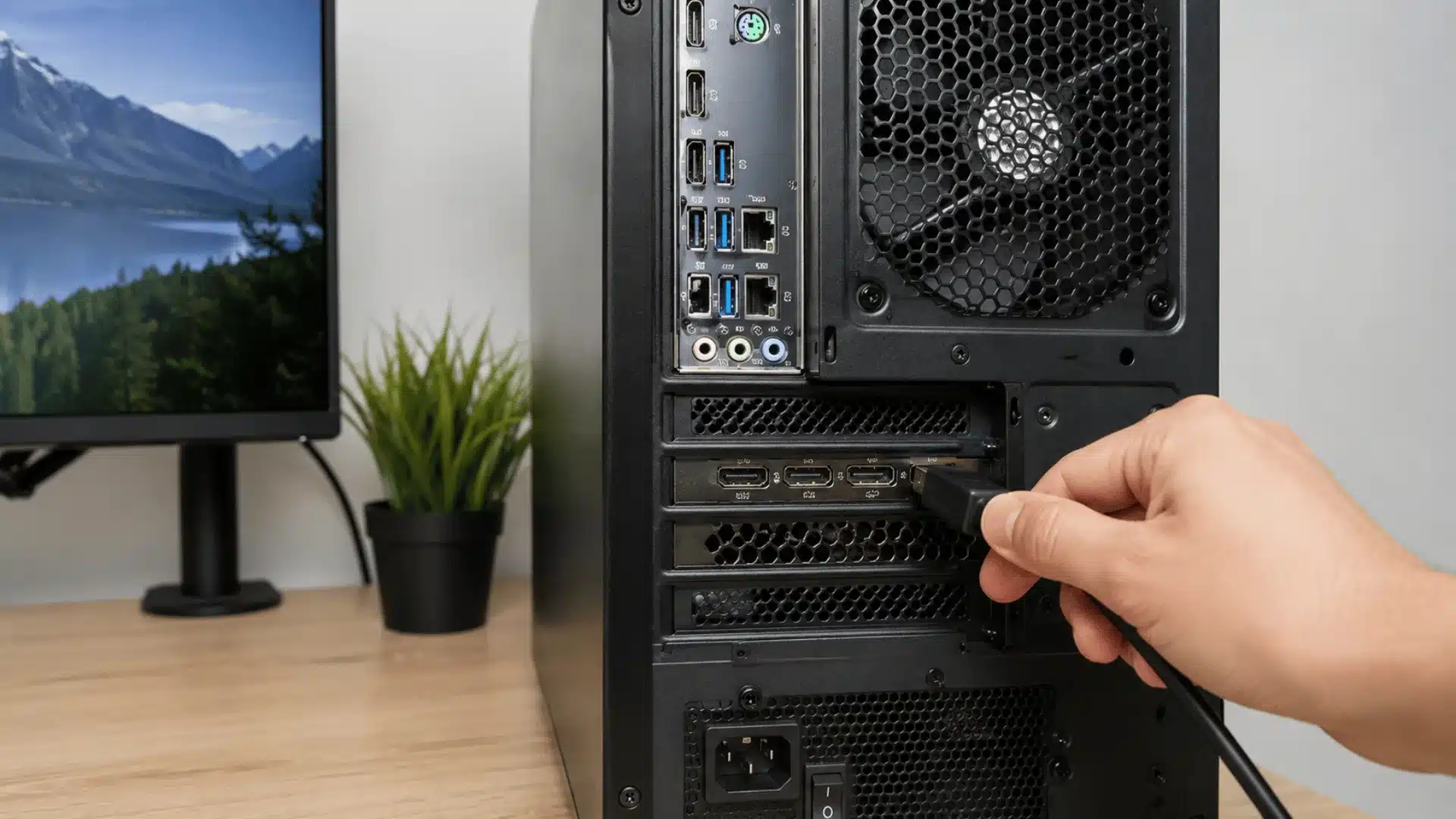
On a desktop with a separate graphics card, connect the cable to the graphics card rather than the motherboard.
Graphics card ports are normally located lower on the back of the case. Motherboard video ports sit near the USB, audio, and network connections.
A motherboard output may not work when the processor lacks integrated graphics or when the built-in graphics have been disabled in the BIOS.
4. Power-Cycle the Monitor and Computer
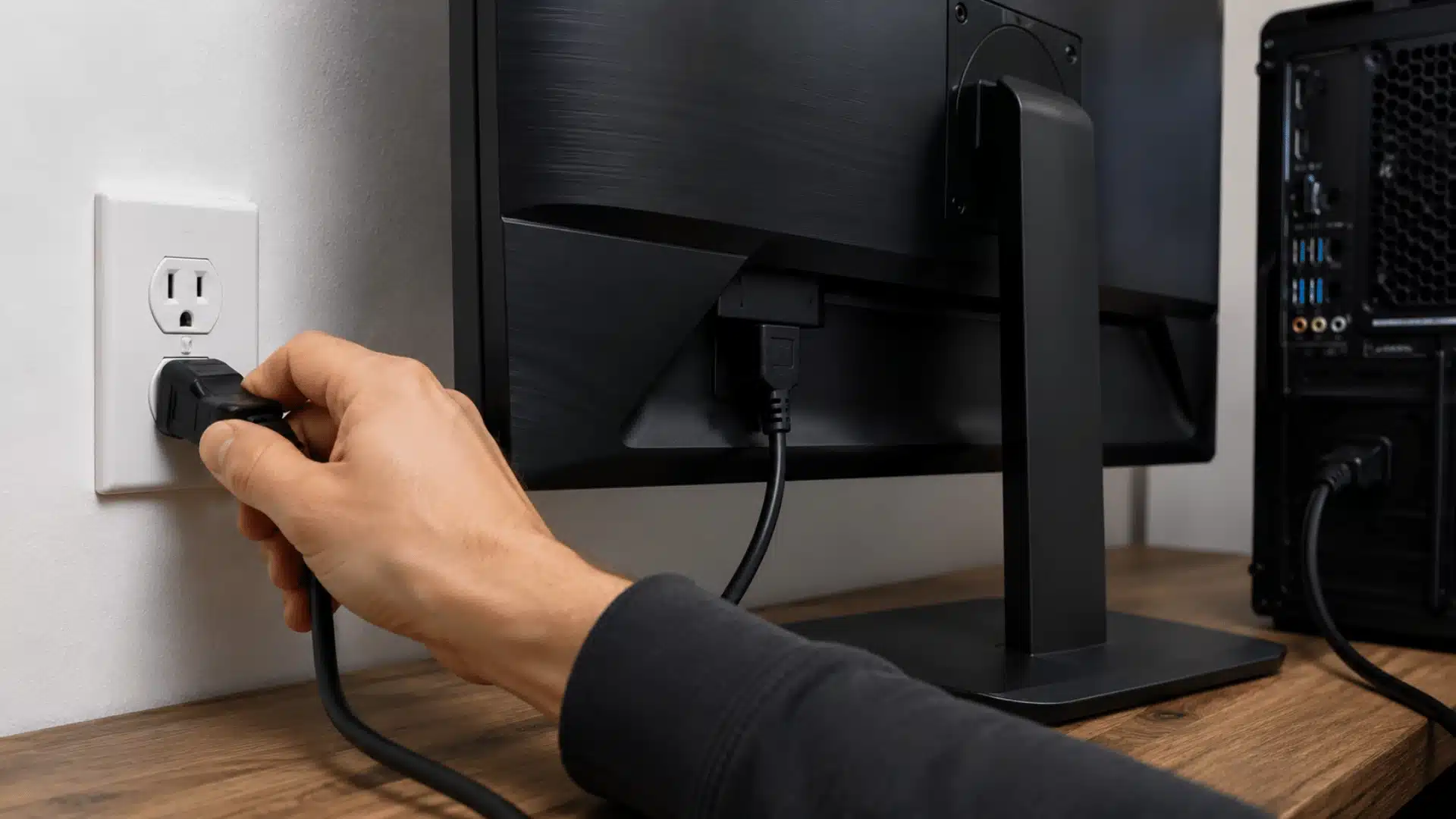
Turn off the computer and monitor. Unplug the monitor from power for about thirty seconds, then reconnect it.
Start the monitor first and then turn on the computer.
Removing power gives the monitor a chance to reset its DisplayPort connection and repeat the communication process with the graphics card. This often fixes a failed connection after sleep, a restart, or a temporary power interruption.
5. Reset the Graphics Driver
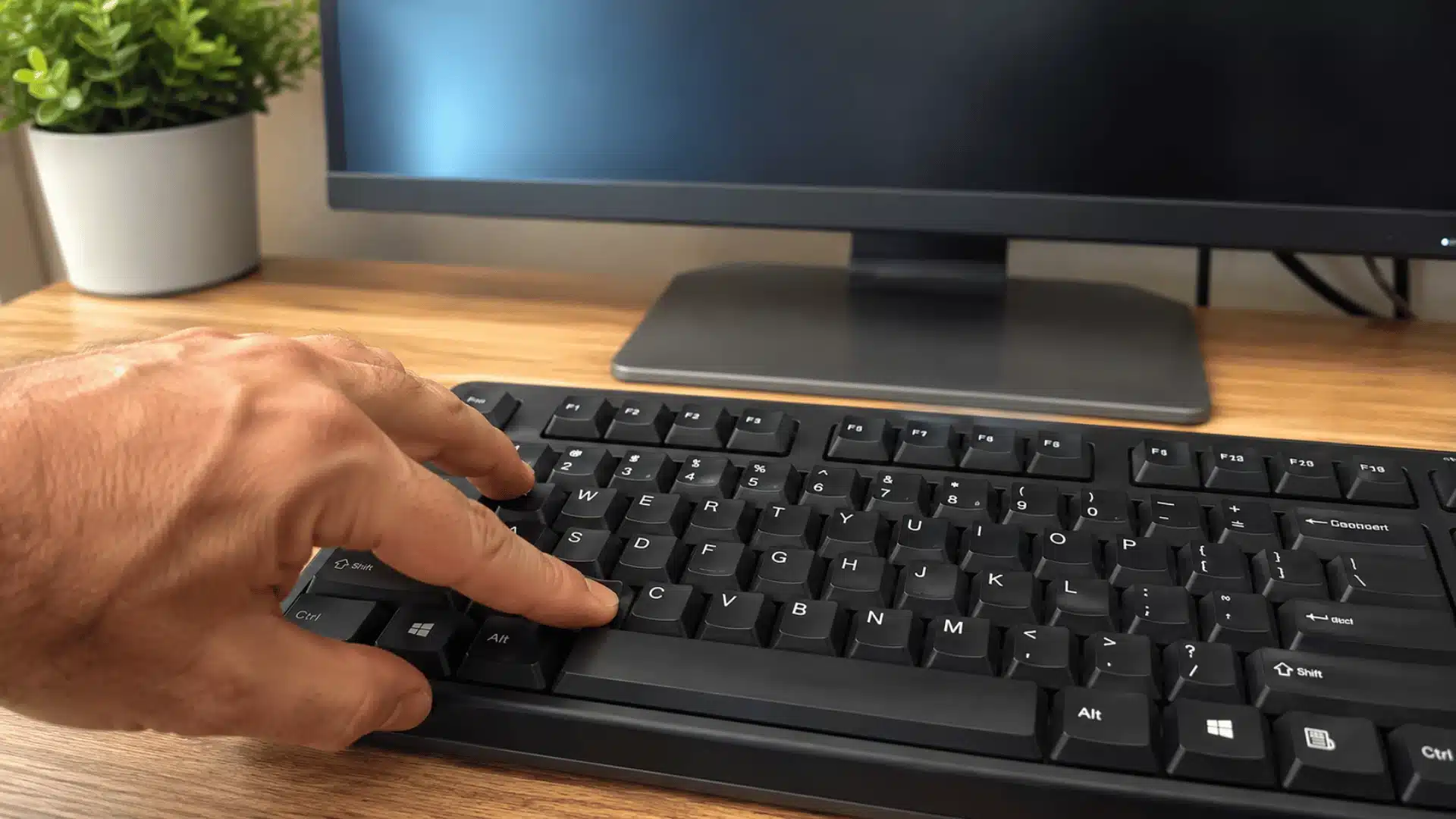
On Windows, press: Windows + Ctrl + Shift + B
The screen may blink, and the computer may make a short sound. This command restarts the graphics driver without closing your open programs.
If the signal does not return, test another DisplayPort cable or another DisplayPort output on the graphics card. You can also connect through HDMI temporarily to confirm that the computer and monitor can still produce a display.
What Commonly Causes a No DP Signal Error?
Most DisplayPort signal problems come from one of these areas:
- Loose connection: The cable is not fully inserted into the monitor or computer.
- Incorrect input: The monitor is set to HDMI or another DisplayPort connection.
- Wrong computer port: The cable is connected to an inactive motherboard output.
- Damaged cable: The cable has internal damage or cannot handle the required bandwidth.
- Driver problem: The graphics driver is outdated, corrupted, or affected by a recent update.
- Unsupported display setting: The chosen resolution, refresh rate, color depth, or HDR mode exceeds the connection’s limits.
- Sleep or power issue: The monitor and graphics card fail to reconnect after entering a low-power state.
- Hardware failure: A monitor port, graphics card output, or internal component has stopped working.
The order matters. I test the cable, input, and port first because they are faster to check and more common than hardware failure.
Is the Problem the Cable, GPU, or Monitor?
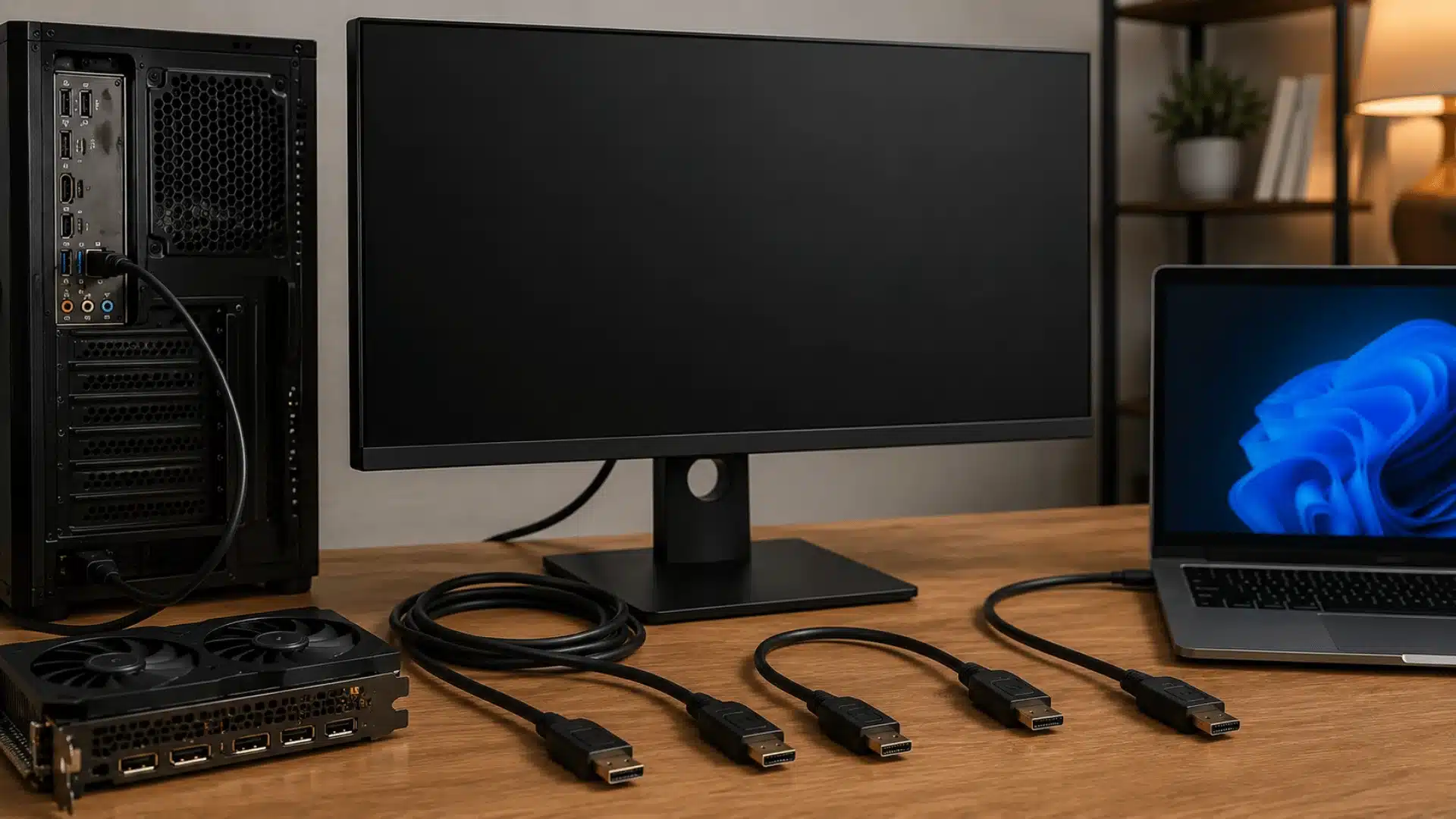
Isolate each component (cable, GPU, or monitor) by testing them one at a time with known-good hardware.
If HDMI works but DisplayPort does not, test another DP cable and GPU port. When the monitor shows no signal on any input, connect it to another computer to check the monitor and power supply.
A display that works at 60Hz but fails at 144Hz may have a bandwidth or settings issue. Lower the refresh rate and turn off HDR. If the screen goes black after sleep, power-cycle the monitor and review the sleep settings.
When one GPU port works but another does not, the unused port may be faulty. If a second monitor also receives no signal, the computer or graphics card is the likely cause.
Move one known-good cable between devices. Replace it if the fault follows the cable.
Fixes if DisplayPort Fails in Certain Situations
Some DisplayPort errors appear only after sleep, a driver update, a hardware change, or higher display settings. Match the symptom below and test one fix at a time.
1. Signal Loss After Sleep
Signal loss after sleep is usually caused by power management settings that interrupt the display connection.
Disable Fast Startup, Hybrid Sleep, and PCI Express Link State Power Management, then turn off any Deep Sleep or Eco Mode option in the monitor’s menu.
Test the computer after each change to identify which setting restores the DisplayPort connection.
2. Motherboard DisplayPort Connection
On a desktop computer, the DisplayPort cable should normally connect to the separate graphics card rather than the motherboard.
Graphics card ports usually sit lower on the back of the case. Motherboard ports sit higher, near the USB and network connections.
Move the cable to the graphics card and restart the computer. Also confirm that the connection is labeled DP Out rather than DP In.
3. Graphics Driver Problems
Use the driver fix that matches when the problem began.
Update the driver through NVIDIA, AMD, Intel, or the computer manufacturer. Roll back the driver if the problem started immediately after an update.
For persistent issues, use the clean installation or factory reset option in the official driver installer. Restart the computer after every driver change.
4. Refresh Rate and Bandwidth Limits
High refresh rates, HDR, resolution, and color depth increase the bandwidth required by the connection.
Open Advanced display settings through HDMI, another monitor, or Safe Mode. Lower the refresh rate to 60Hz and disable HDR.
If DisplayPort works again, raise the settings one at a time. Failure only at higher settings may point to the cable, port, monitor, or GPU bandwidth limit.
Which DisplayPort Cable do You Need?
DisplayPort version numbers mainly describe the capabilities of the graphics card and monitor. A cable must provide enough bandwidth for the mode you plan to use.
Use this table as a practical starting point.
| Display Mode | Connection Guidance | Cable Guidance |
|---|---|---|
| 1080p at 60Hz | Works on most DisplayPort connections | A sound standard cable is normally enough |
| 1080p at 144Hz | Commonly supported by HBR2 connections | Use a certified cable from a known supplier |
| 1440p at 144Hz | May require greater bandwidth with HDR or high color depth | Use a short, certified high-bandwidth cable |
| 4K at 120Hz or 144Hz | Often uses DSC or a newer high-bandwidth connection | Confirm support on the GPU, monitor, and cable |
| Ultrawide at high refresh rates | Requirements vary by resolution and color settings | Check the monitor manual for the required connection mode |
A longer cable can be more sensitive to signal loss, especially at high resolutions and refresh rates. Use the shortest practical cable and avoid tight bends, damaged connectors, or unnecessary adapters.
Watch the video below by Mr.whosetech for a look at recommended DisplayPort cable options and a checklist to consider before buying.
What do Other Users Commonly Report?
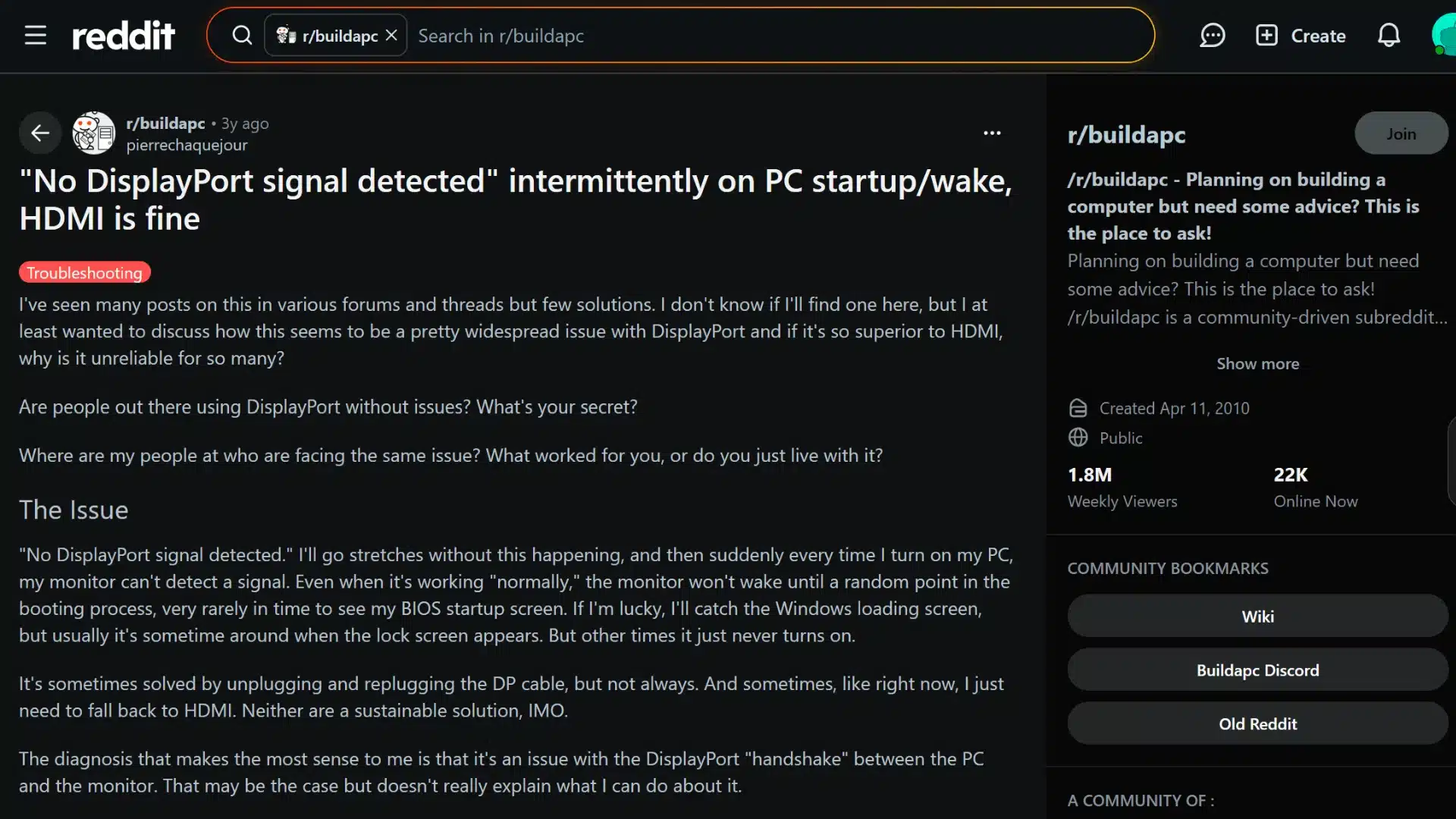
Reddit threads often point to the same fixes: replacing the cable, changing the GPU port, disabling monitor deep sleep, or turning off Fast Startup.
Some users report that the cable supplied with the monitor works while an older cable does not. Others restore the signal by reconnecting both ends, reversing a cable, or moving it to another graphics card output.
Note: Individual experiences vary. A fix that works on one setup may not address another system with a different GPU, monitor, dock, or Windows configuration.
The repeated pattern is still helpful. Connection and power-state problems are more common than a completely failed monitor.
How Can You Prevent Another No DP Signal Error?
Once the display returns, note which change fixed it. That information will save time if the problem happens again.
- Keep the cable clear of chair legs, desk frames, and anything that may pull on the connector. Avoid sharp bends near either plug.
- Install graphics updates from official sources, but do not feel pressured to update immediately when the current driver works well.
- Keep the monitor firmware current when the manufacturer provides a documented fix for display connection problems.
- For a new high-refresh monitor, confirm that the graphics card, monitor port, and cable all support the required bandwidth. The strongest connection is only as capable as its weakest part.
Final Thoughts
A “No DP signal from your device” message usually points to a connection or communication problem, not a dead monitor.
Start with the simplest checks. Reconnect the cable, select the correct input, and confirm that a desktop is connected to the graphics card. Power-cycle the monitor, restart the graphics driver, and test another cable or port before changing deeper settings.
If the problem appears only after sleep, review the monitor’s deep sleep option and Windows power settings. If it happens only at high refresh rates, lower the display settings and test the cable’s bandwidth.
Which fix worked for you? Comment below and share what solved your “No DP signal” error.
Frequently Asked Questions
Can a Bad DisplayPort Cable Damage a Monitor or GPU?
A faulty cable usually causes no signal, flickering, visual artifacts, or dropouts. It is unlikely to damage the monitor or graphics card during normal use.
Can You Use a DisplayPort-to-HDMI Adapter for Gaming?
Yes, but the adapter must support the required resolution and refresh rate. Many basic adapters limit the display to 60Hz or work in only one direction.
How Can You Identify a DisplayPort Input?
Look for a rectangular port with one angled corner and a DisplayPort (DP) symbol. The monitor manual and manufacturer specifications also list the available inputs.
Does DisplayPort Carry Audio?
Yes. DisplayPort can carry video and audio through the same cable. Sound works when the monitor includes speakers, an audio output, or another supported playback device.
Why does Only One Monitor Lose its DisplayPort Signal?
The affected monitor may have a faulty cable, different refresh settings, a power-saving option, or a damaged GPU port. Swap cables and ports to locate the fault.