


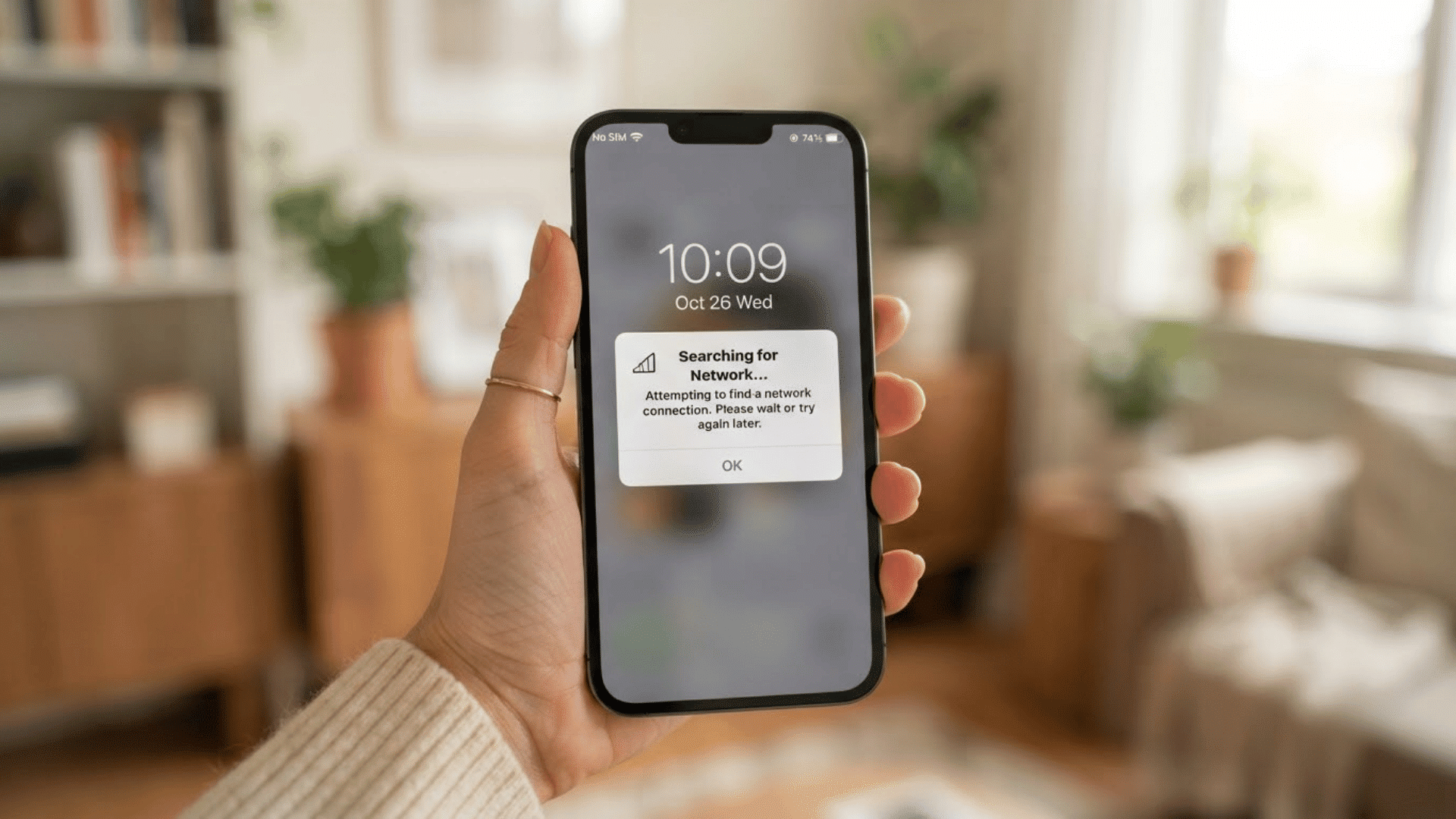
I know how frustrating it can be when your phone won’t connect to WiFi, mobile data stops working, or Bluetooth refuses to pair.
Before you spend time trying dozens of fixes, one simple step can often solve the problem. I’ll explain what this reset does, what it removes, and what it leaves untouched, so you know exactly what to expect.
You’ll also learn the steps for both iPhone and Android devices, along with tips to reconnect your networks afterward.
By the end of this article, you’ll know when this reset is the right choice and what to do next if your connection problems still persist.
Quick Answer: How to Reset Network Settings?
To reset network settings, open your device’s Settings app, go to the Reset or Transfer section, and choose “Reset Network Settings.” Confirm the action, and your device will restore all network-related settings to their defaults.
The exact steps vary slightly between Android phones and iPhones, but the process is similar on both.
After the reset, saved Wi Fi networks, Bluetooth pairings, VPN configurations, and other network preferences are removed, while your photos, apps, contacts, and other personal data remain intact.
Once the reset is complete, reconnect to your Wi Fi network, pair Bluetooth devices again, and re-enter any custom network settings if needed
Signs You Need a Network Settings Reset
Many connection issues stem from incorrect or damaged network settings rather than hardware problems. Watch for these common signs before trying more advanced fixes.
- WiFi Keeps Disconnecting: Your phone repeatedly loses WiFi or can’t connect to networks it used to connect to.
- Mobile Data Isn’t Working: Mobile data stays slow or stops working despite showing a strong cellular signal.
- Bluetooth won’t Stay Connected: Bluetooth devices often fail to pair or disconnect after a successful connection.
- VPN Causes Connection Problems: Your VPN won’t connect or blocks internet access after connecting.
- Internet Feels Slow: Websites, apps, and streaming load slowly despite a strong WiFi or mobile signal.
- Calls Keep Dropping: Phone calls disconnect often or become unstable without changing your location.
How to Reset Network Settings on iPhone?
Resetting network settings on your iPhone can quickly fix Wi Fi, mobile data, and Bluetooth issues without deleting your personal files or apps.
Step 1: Open the Settings App
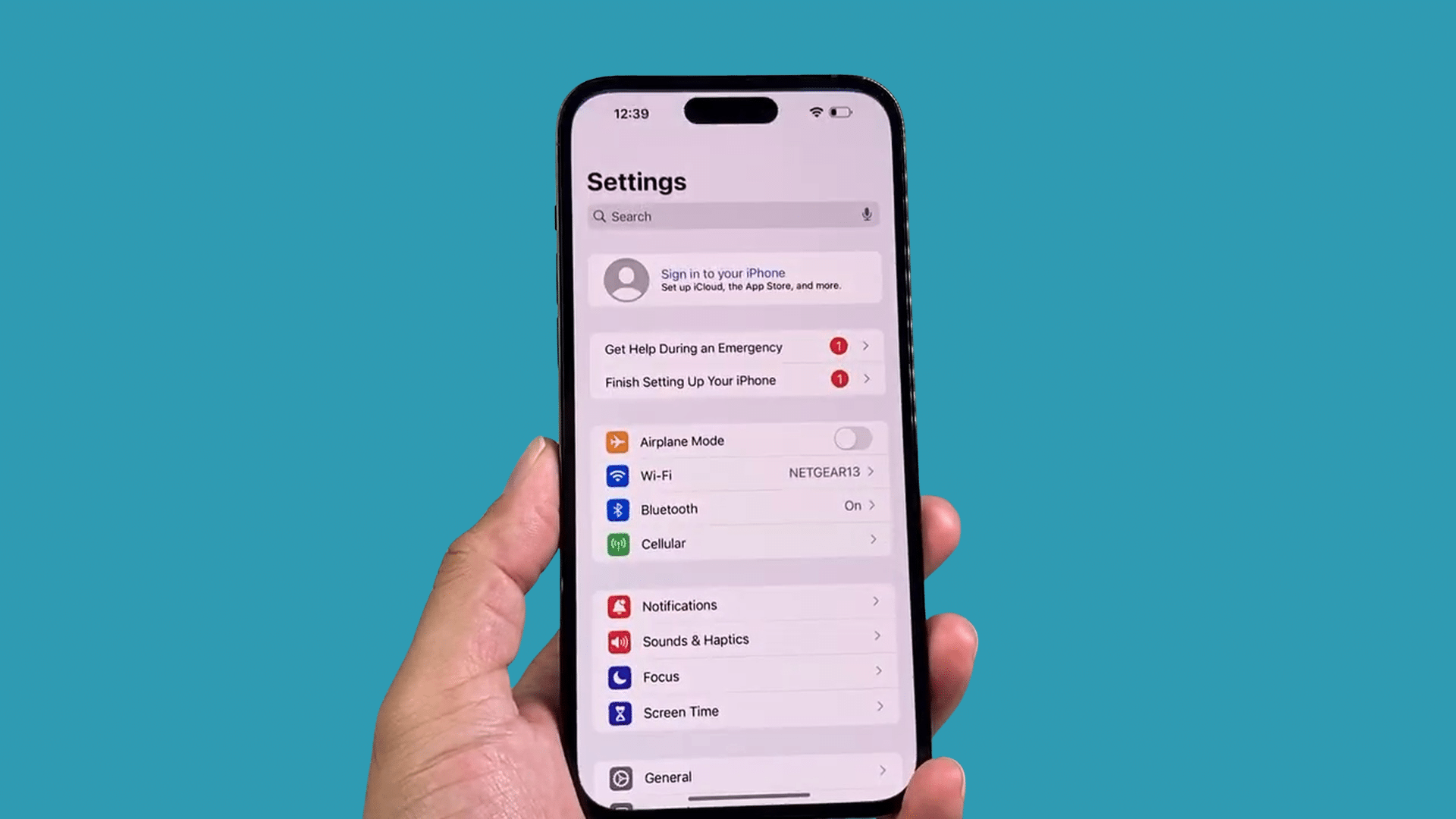
Unlock your iPhone and tap the Settings app on the Home Screen to access your device’s system controls.
This menu contains all configuration options, including the tools needed to reset your network settings.
Before continuing, make sure you are on the main Settings page. If you are experiencing issues with Wi-Fi, Bluetooth, or mobile data, try resetting the network.
An option found within Settings can often resolve common connectivity problems without deleting your photos, contacts, apps, messages, or other personal data.
Step 2: Go to General
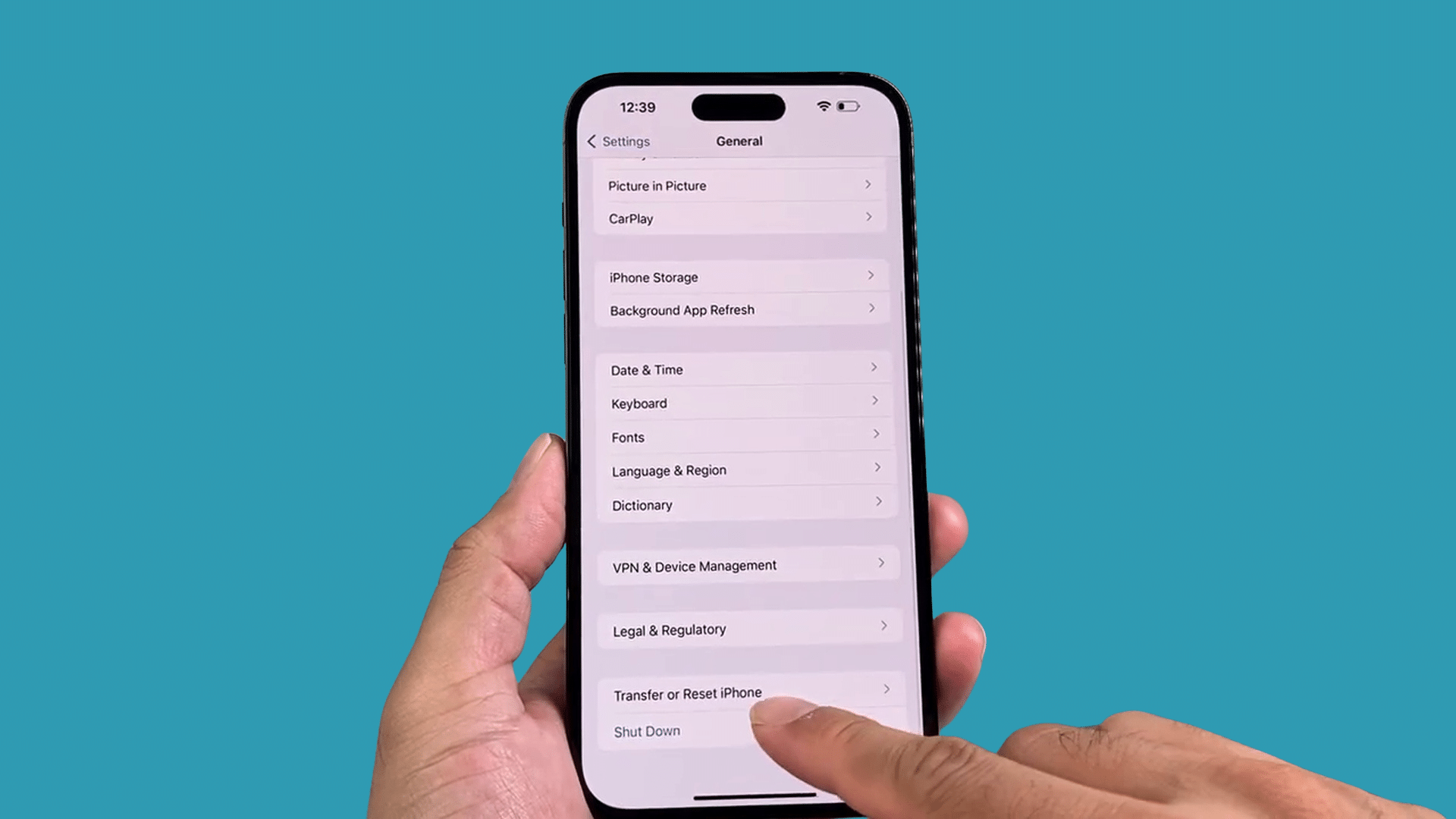
In the Settings menu, scroll down and tap General to access additional system options.
This section contains features such as Software Update, iPhone Storage, AirDrop, and device management tools.
Continue scrolling toward the bottom of the page until you reach the reset-related options.
Apple groups several troubleshooting and reset features here, allowing you to restore specific settings without affecting your personal files, installed apps, photos, videos, or documents stored on your iPhone.
Step 3: Open Transfer or Reset iPhone
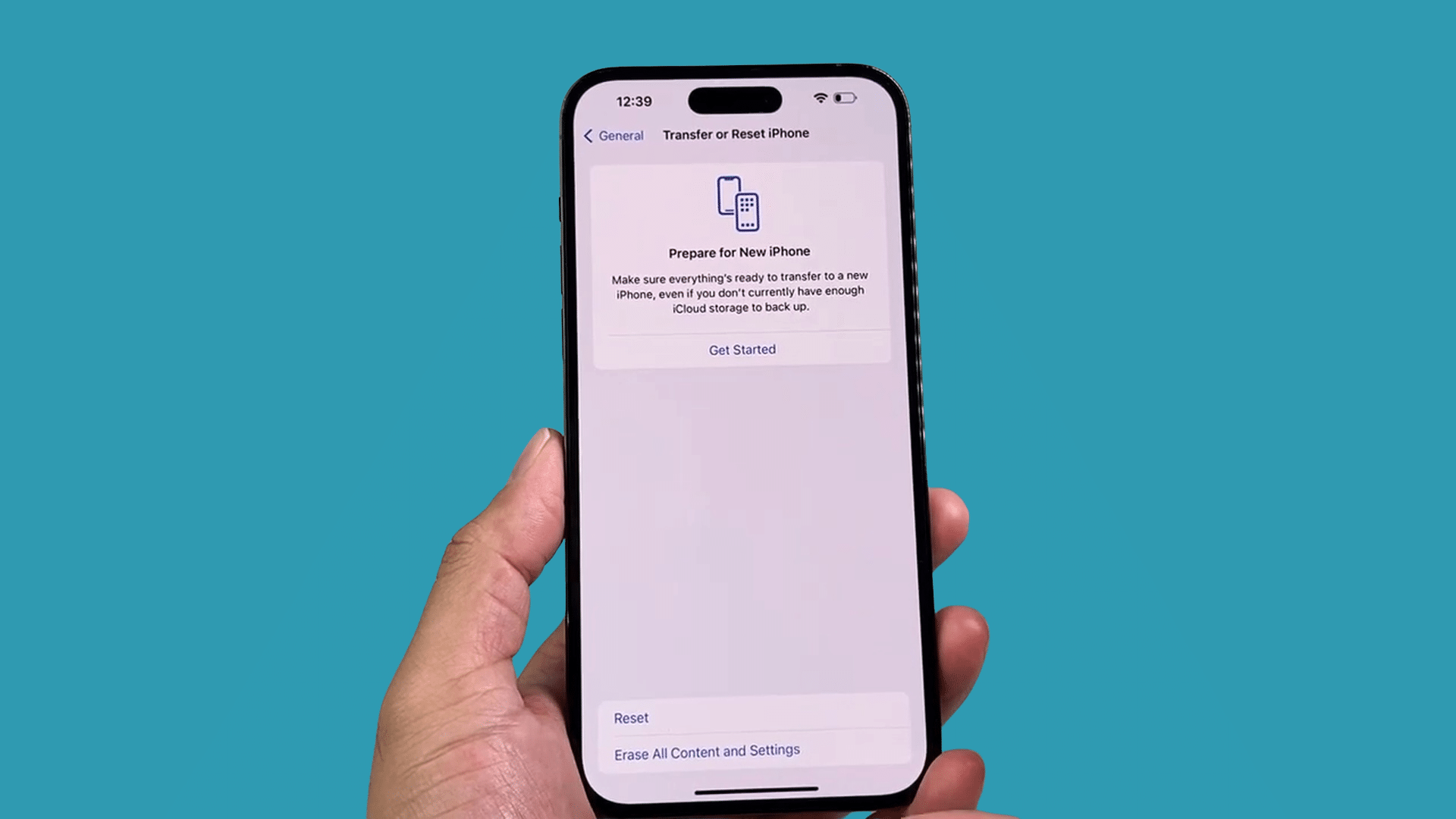
Scroll to the bottom of the General menu and tap Transfer or Reset iPhone. This section contains tools to reset various system settings or prepare your device for a transfer or factory reset.
Since you only want to fix connection issues, you will use the reset options available here instead of erasing your device.
Continue to the next screen, where Apple provides several reset choices for different settings on your iPhone.
Step 4: Tap the Reset Option
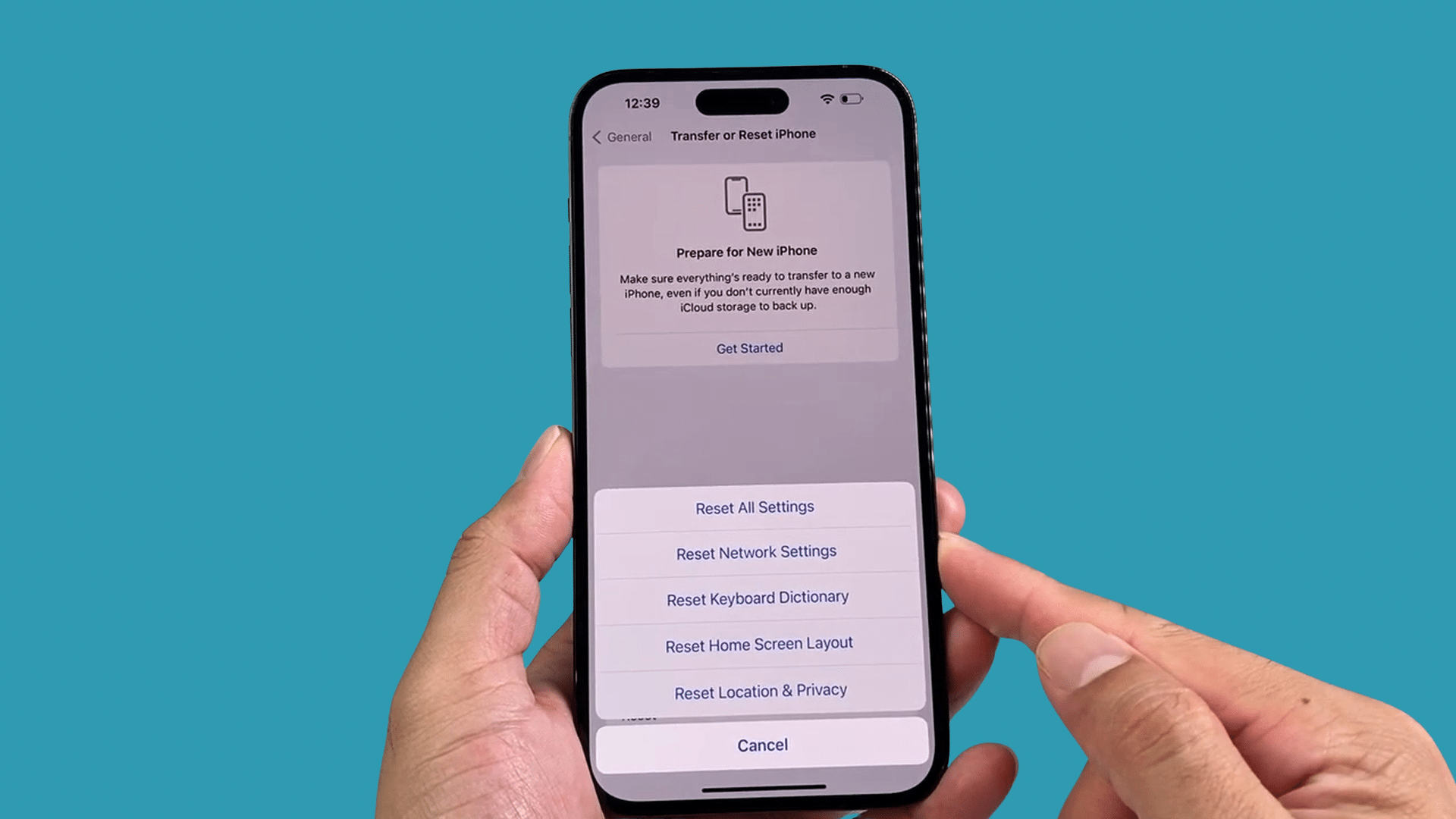
On the Transfer or Reset iPhone screen, tap Reset to open a menu with several reset options.
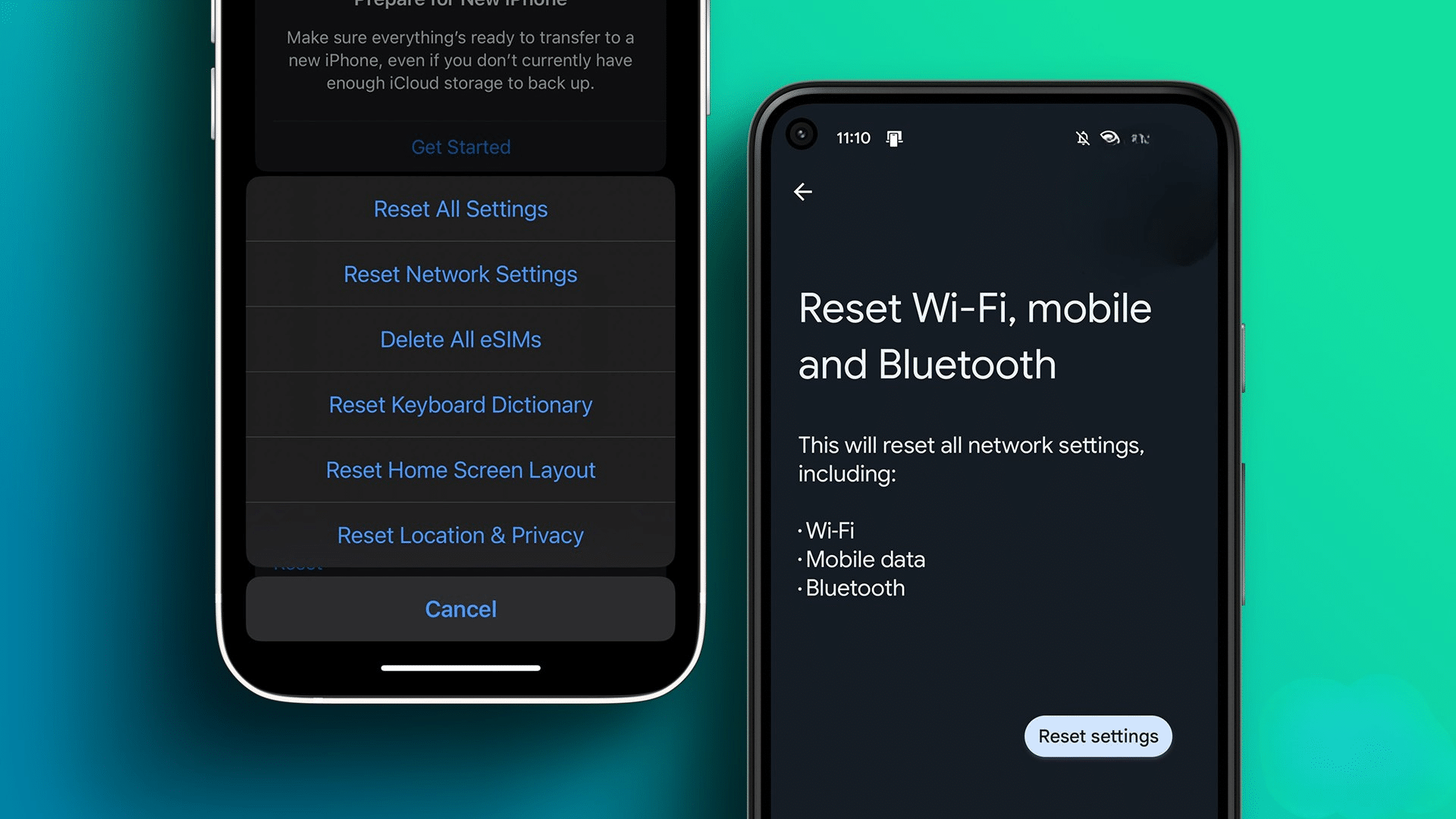
These include resetting network settings, keyboard dictionary, Home Screen layout, and other preferences.
You do not need to erase your iPhone or remove personal data. Simply continue by selecting the network reset option in the next step.
This method restores your network settings to their default values while keeping your photos, apps, contacts, and other files intact.
Step 5: Select Reset Network Settings
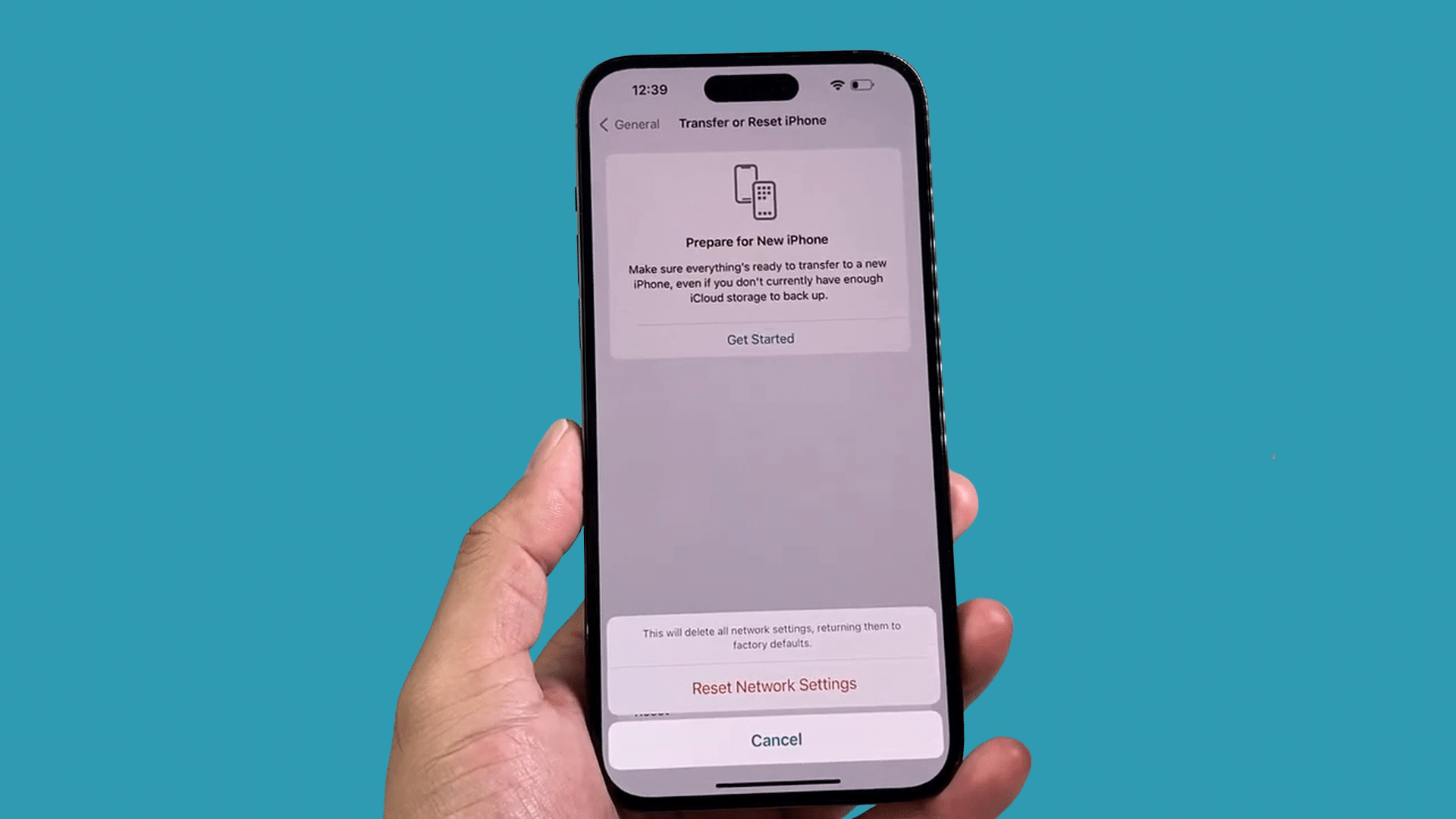
From the list of reset options, tap Reset Network Settings. This feature removes saved Wi-Fi networks, stored passwords, Bluetooth pairings, VPN configurations, and other network-related preferences.
It is commonly used to resolve persistent internet, Bluetooth, or cellular connectivity issues.
Before proceeding, verify that you selected the correct option, as other reset options affect different settings.
Once confirmed, you will move to the final confirmation screen before the reset begins.
Step 6: Know What Will Be Reset
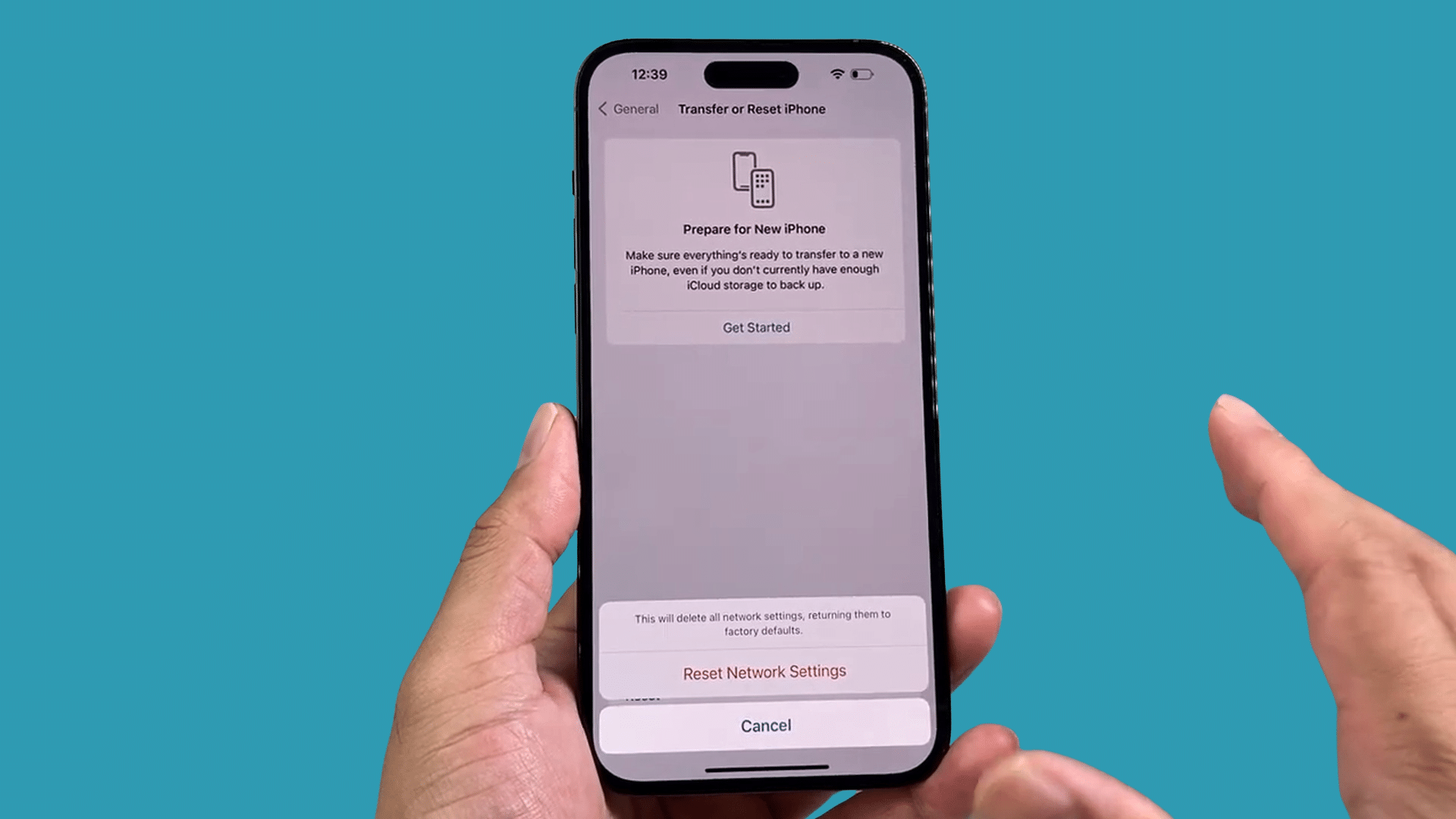
Before confirming the reset, take a moment to understand what will change. Your iPhone removes saved Wi-Fi passwords, Bluetooth connections, and VPN settings, leaving personal data untouched.
Photos, videos, contacts, messages, apps, documents, and other files remain exactly as they are.
Knowing what to expect helps you prepare to reconnect your wireless devices afterward and reassures you that this process does not erase your important information.
Step 7: Confirm the Reset
After selecting Reset Network Settings, confirm your choice when prompted. Your iPhone may ask you to enter your device passcode before allowing the reset to continue.
Once you verify the action, the process starts automatically without requiring any additional input.
The device clears its stored network settings and prepares to restart. During this time, avoid interrupting the process.
Ensure the reset completes successfully and restores the default network configuration.
Step 8: Wait for the Restart
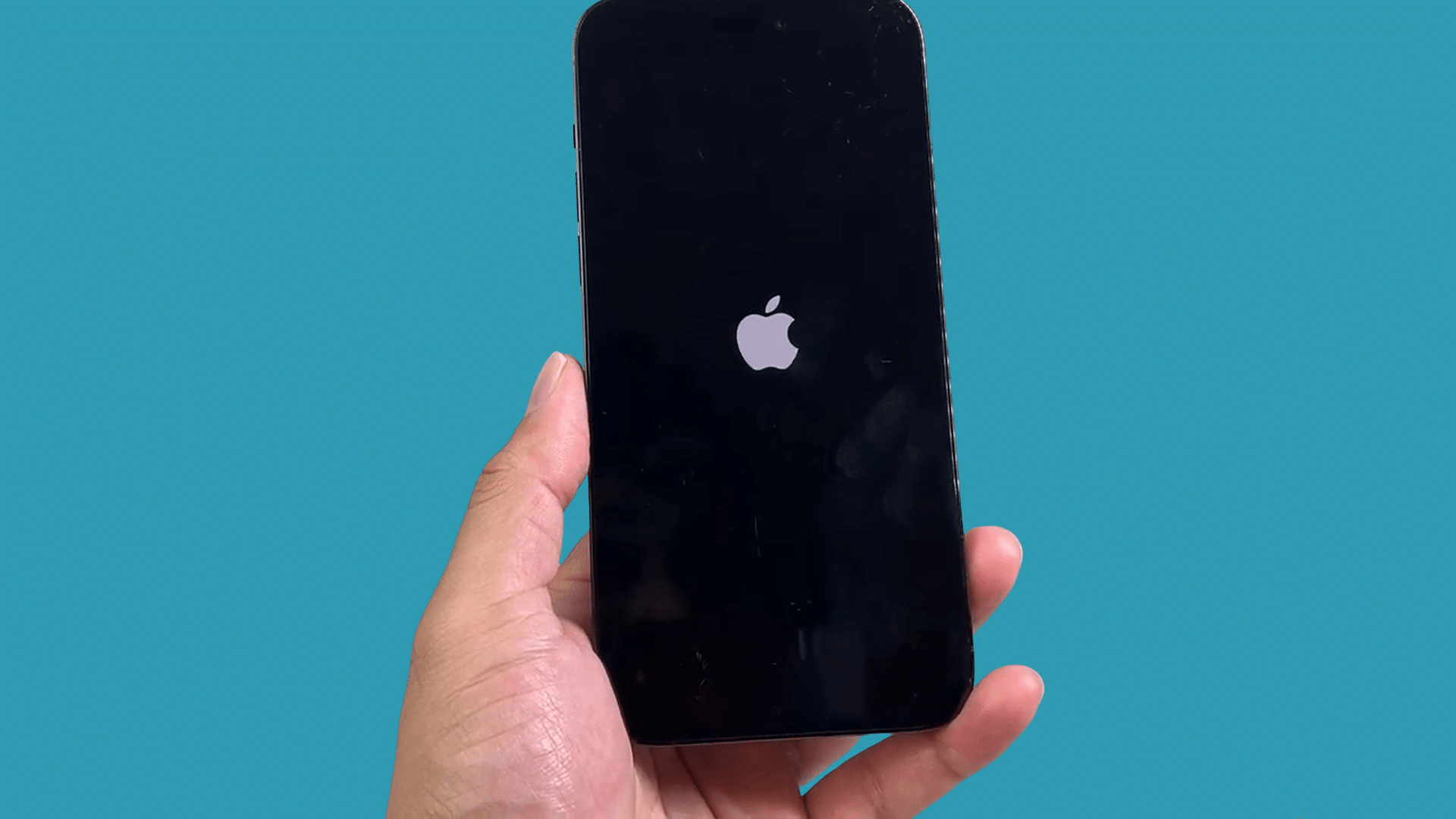
Once the reset begins, your iPhone displays the Apple logo and a loading bar while it clears the saved network settings.
The process typically takes between 15 and 30 seconds, although it may vary slightly depending on your device. Do not press any buttons or attempt to restart the phone manually during this time.
When the reset is complete, your iPhone automatically returns to the Home Screen and is ready for setup.
Step 9: Reconnect Your Devices
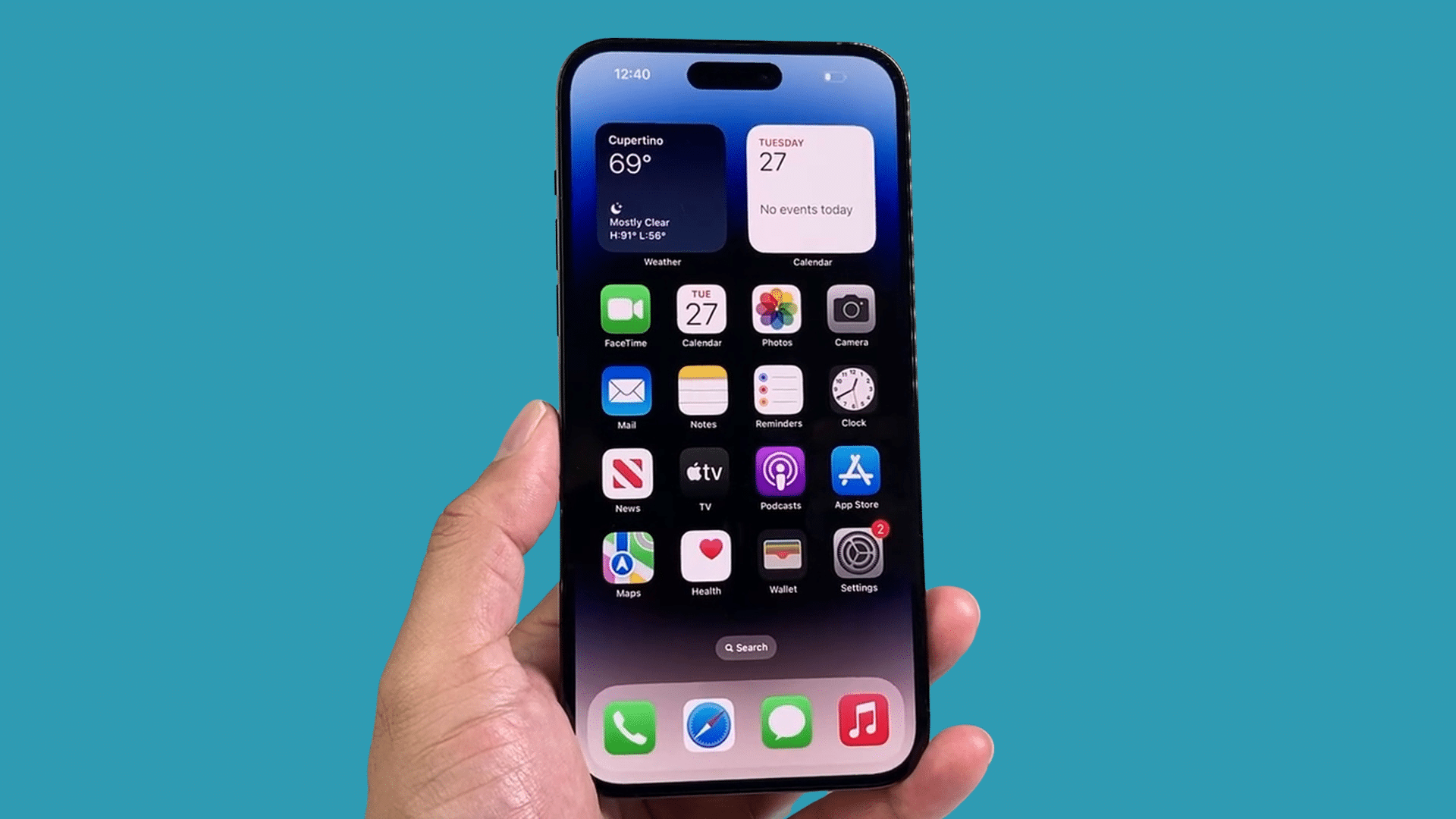
After your iPhone restarts, reconnect to your preferred Wi-Fi network by entering the password again.
You will also need to pair Bluetooth accessories such as AirPods, headphones, smartwatches, speakers, or your car’s infotainment system because these connections were removed during the reset.
If you use a VPN, configure it again before connecting.
Once everything is reconnected, test your internet and wireless devices to confirm that the network reset resolved the original problem.
This tutorial is based on a helpful video by Technomentary. You can check out the original video on their YouTube channel here or watch it below.
What Happens When You Reset Network Settings?
Resetting network settings fixes connection problems by restoring network options to their default settings. It removes saved connections but keeps your data and files safe.
- Meaning: Restores all network settings to default without affecting your personal data or installed apps.
- Deleted Data: Removes saved WiFi passwords, Bluetooth pairings, VPN profiles, and network preferences.
- Data That Stays Safe: Keeps photos, videos, contacts, apps, messages, and personal files completely unchanged.
- When to Reset: Use it for persistent issues with WiFi, Bluetooth, mobile data, or VPN connections.
- Is It Safe? Yes, only network settings change while your personal data remains fully protected.
- After Reset: Your phone creates fresh network settings, so you can reconnect to WiFi, Bluetooth, mobile data, and VPNs.
How to Reset Network Settings on Android?
Resetting network settings on your Android phone can resolve Wi Fi, mobile data, and Bluetooth issues by restoring default network configurations safely.
Step 1: Open the Settings App
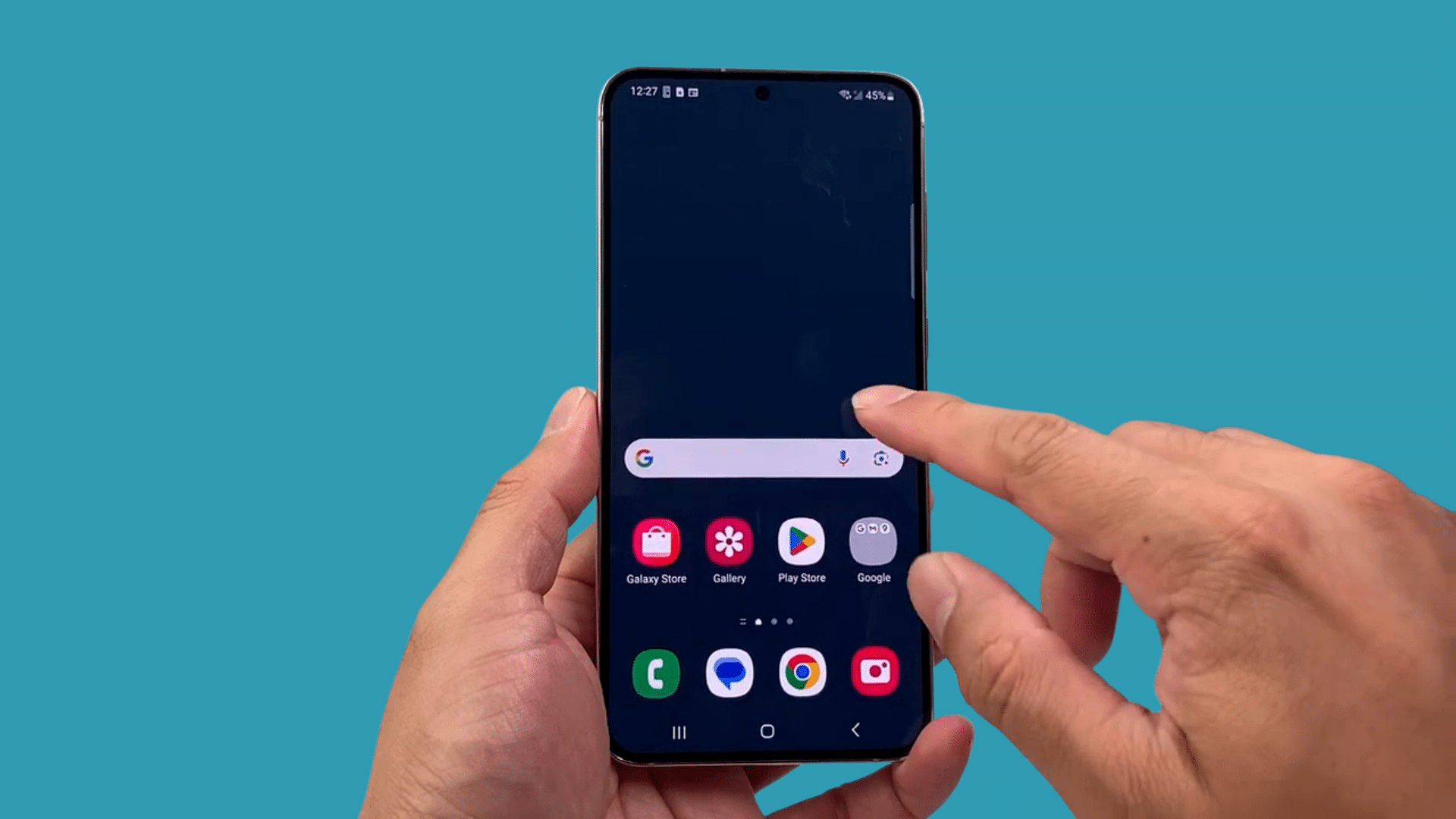
Unlock your Android or Samsung phone and open the Settings app from the Home Screen or app drawer. This menu contains all the system controls needed to manage your device, including network and reset options.
Once the Settings screen appears, you are ready to navigate to the section where Samsung stores its reset tools.
Starting from the main Settings page makes it easier to follow the remaining steps without accidentally opening the wrong menu.
Step 2: Go to General Management
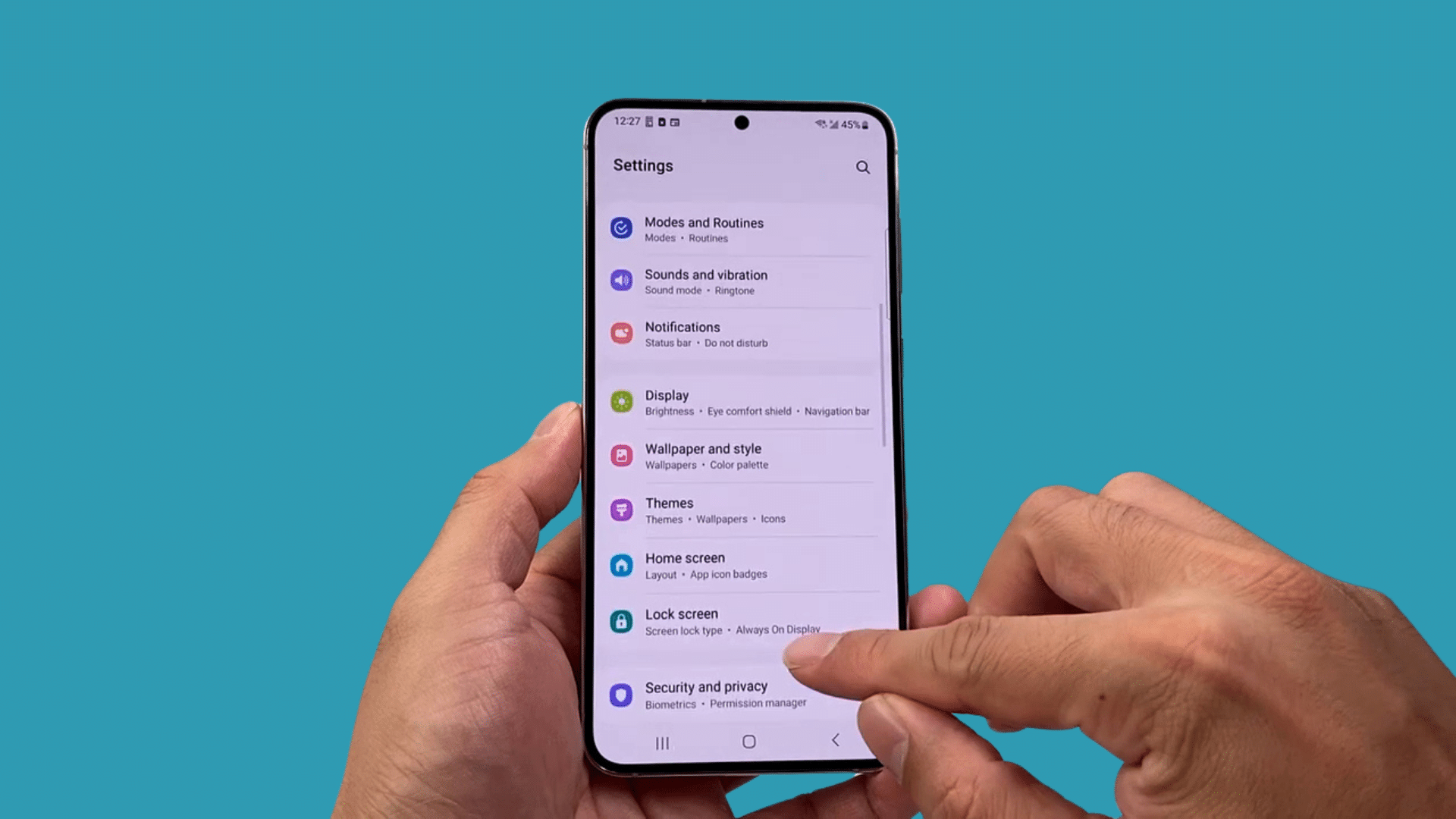
Scroll through the Settings menu until you find General Management, then tap it to access additional system controls.
This section includes options for language, keyboard settings, date and time, and device reset features.
On most Samsung phones, it appears near the bottom of the Settings menu, although its location may vary slightly depending on your Android version.
Continue within this menu until you reach the reset options needed for the next step.
Step 3: Open the Reset Menu
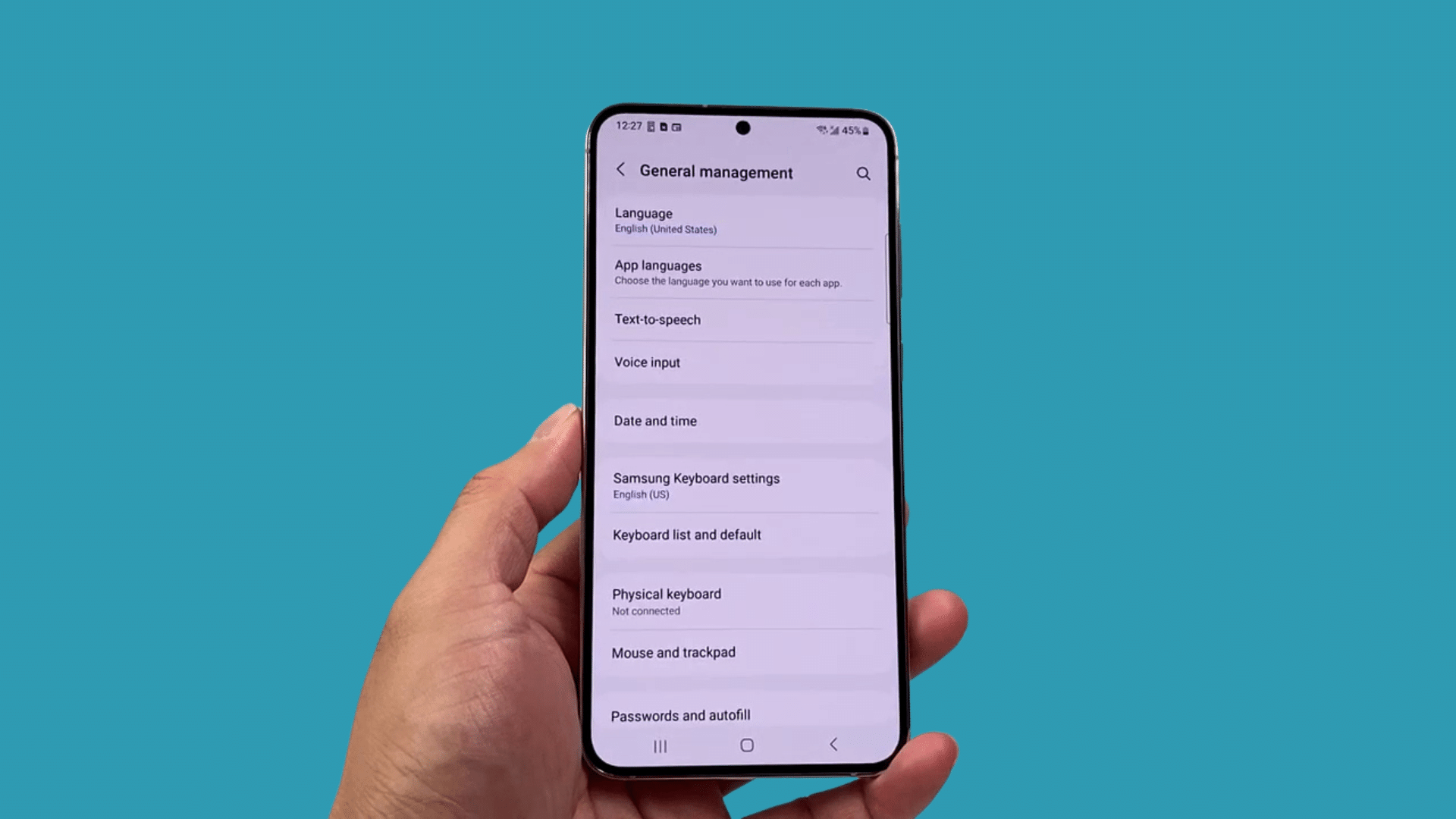
Inside General Management, scroll down and tap Reset to view the available reset options for your device.
Samsung provides several reset tools, including options for network and accessibility settings, as well as a factory data reset.
Since you only want to fix connectivity problems, be sure to select the network-related option in the next step.
Choosing the correct reset prevents unnecessary changes to other settings while keeping your personal files and apps untouched.
Step 4: Choose Reset Network Settings
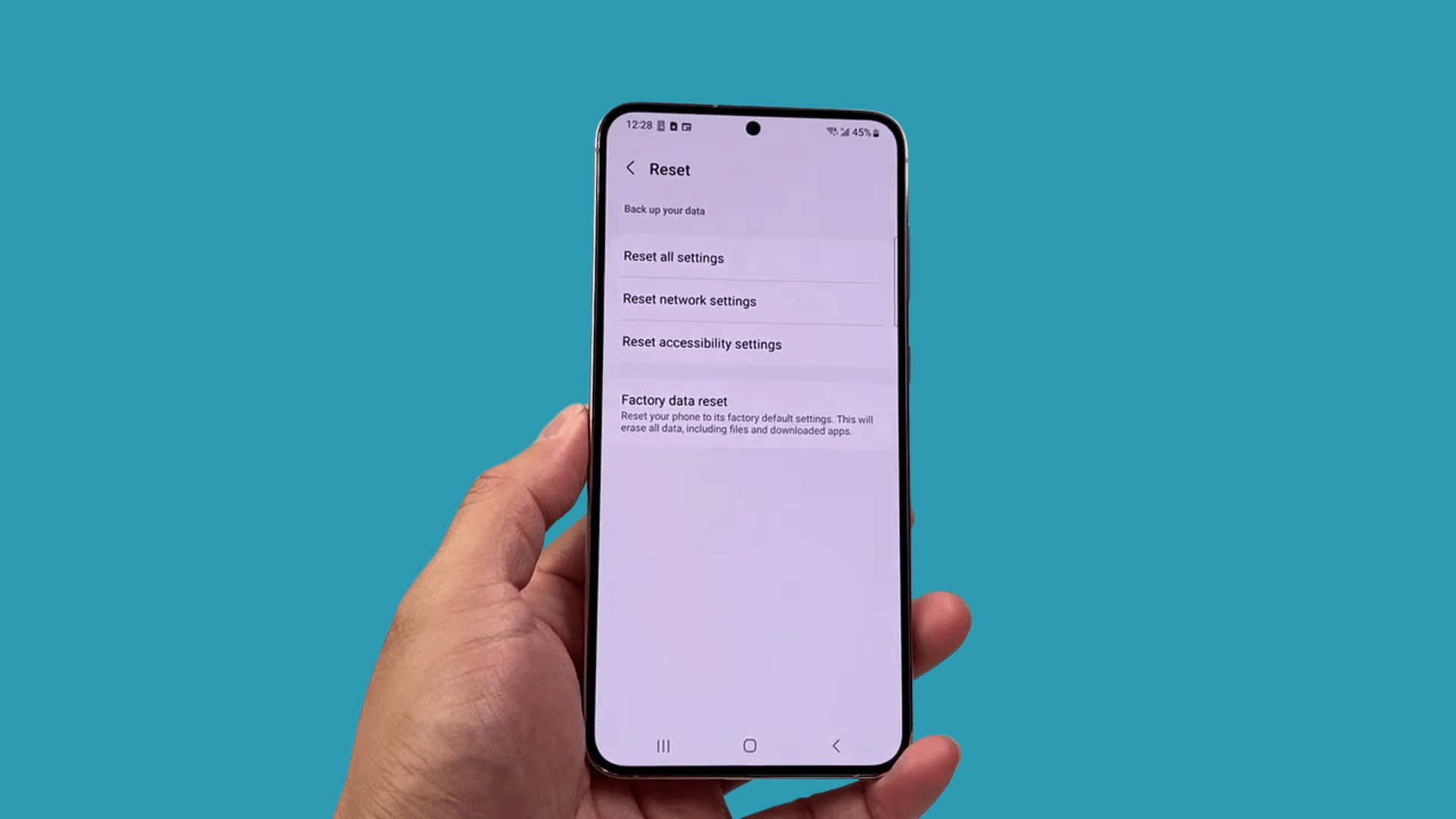
From the Reset menu, tap Reset Network Settings to restore your phone’s network configuration to its default state.
This option is designed to fix common issues with Wi-Fi, Bluetooth, and mobile data without affecting your personal information.
Before moving forward, read the information displayed on the screen so you understand exactly which settings will be removed.
Confirm that you selected the correct reset option before continuing to the confirmation page.
Step 5: Review What Will Be Reset
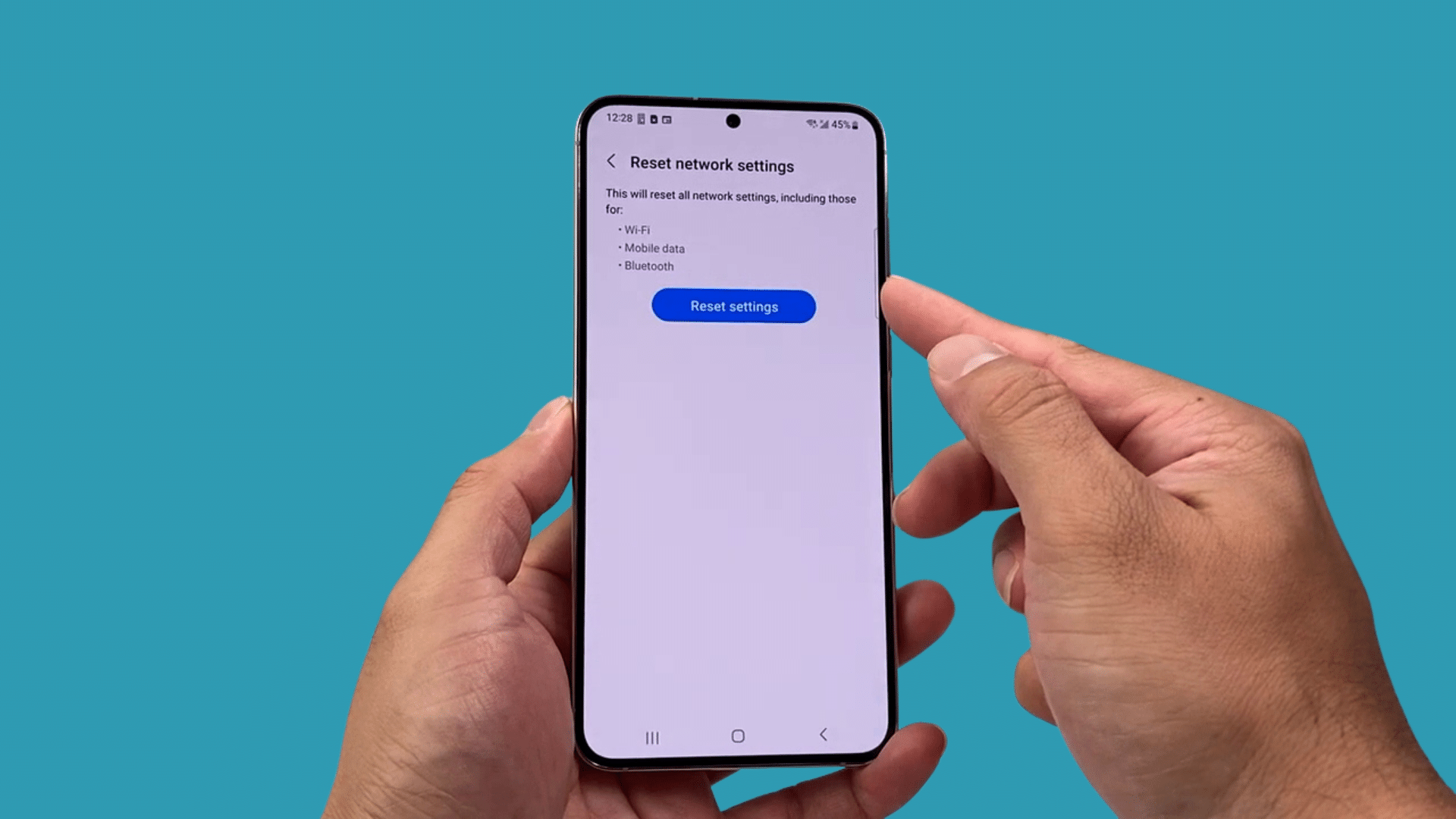
The confirmation screen explains exactly what will happen after the reset. Your phone removes saved Wi-Fi networks and passwords, paired Bluetooth devices, mobile network settings, and other network preferences.
However, your photos, videos, contacts, apps, messages, and documents remain unchanged.
Reviewing these details before proceeding helps you understand what needs to be set up again afterward while assuring you that your personal data stays safe throughout the process.
Step 6: Confirm the Reset
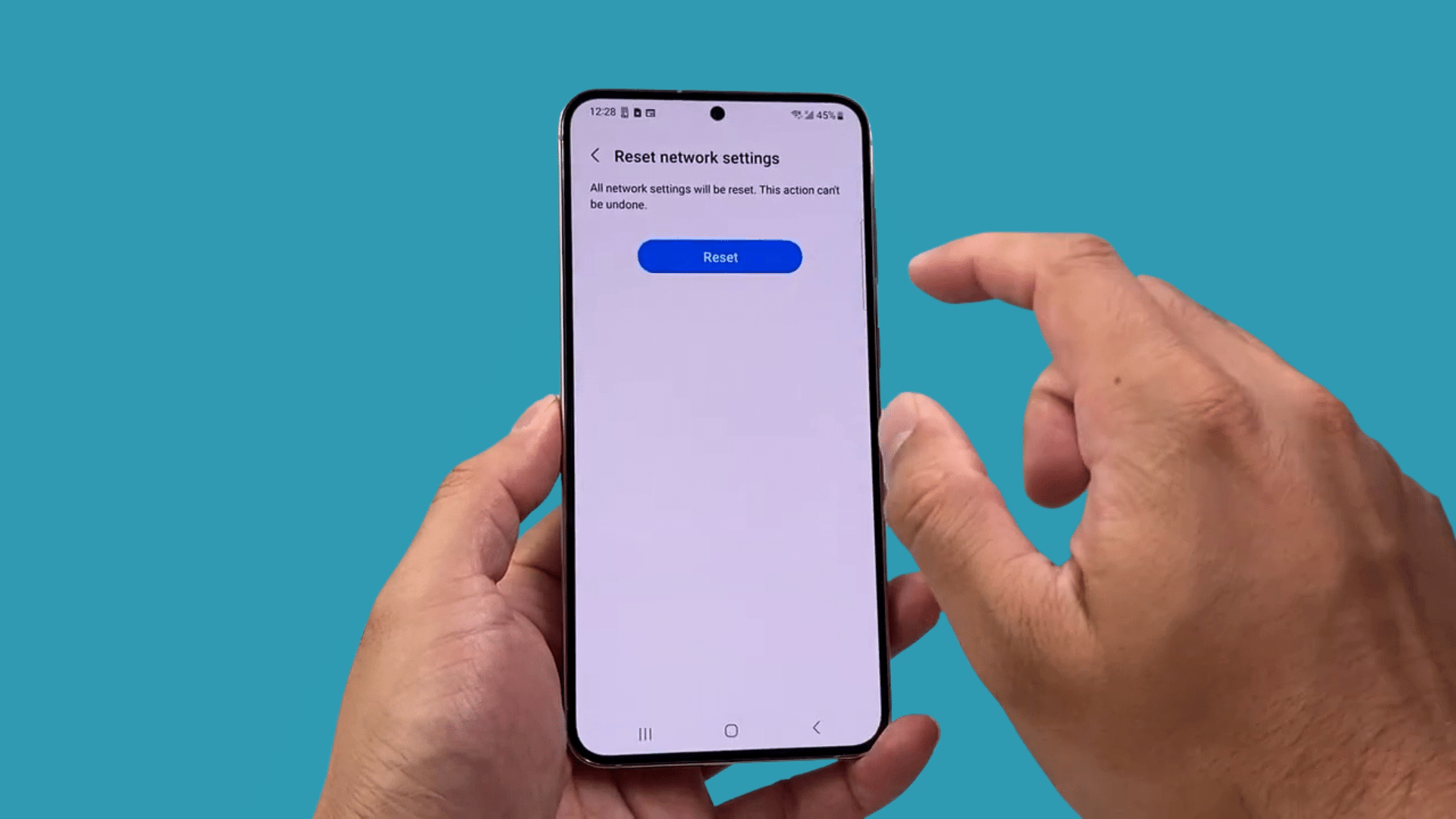
Tap the Reset button to continue with the process. Your phone may display a warning explaining that the action cannot be undone and may also ask for your PIN, password, or fingerprint to verify your identity.
Read the message carefully before confirming. Once approved, your device immediately clears the stored network settings.
They disconnect from any active Wi-Fi or Bluetooth connections as the reset begins.
Step 7: Wait for the Process to Finish
The network reset usually finishes within a few seconds. During this time, your phone automatically removes all saved network information and restores the default network configuration.
There is no need to restart the device manually unless prompted. Once the process is complete, you may notice that Wi-Fi is turned off or disconnected.
The saved connection details have been erased and must be entered again before reconnecting.
Step 8: Reconnect to Your Networks
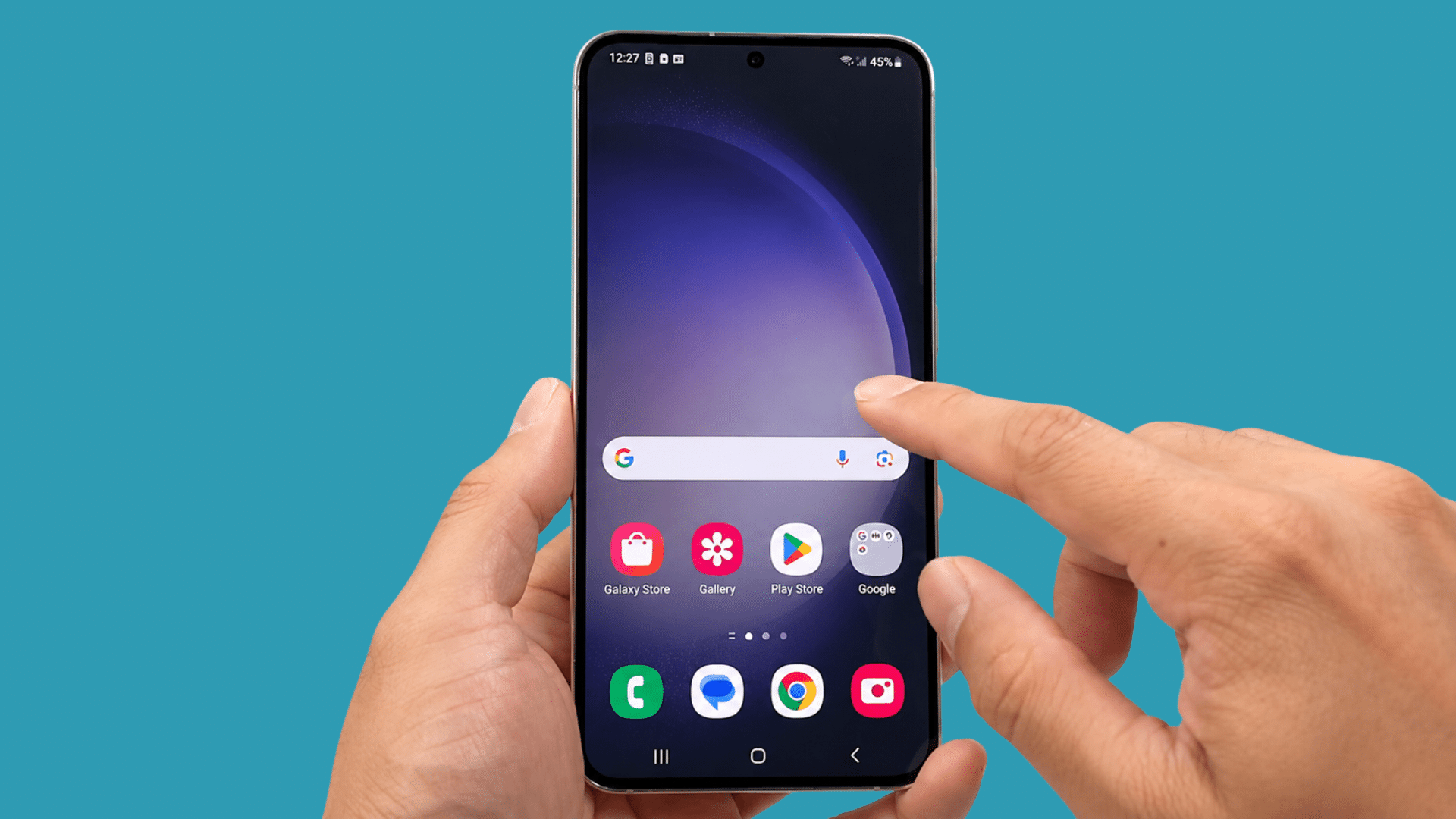
After the reset is complete, reconnect to your Wi-Fi network by selecting it and entering the password again. You should also pair Bluetooth accessories, such as earbuds or speakers, or your car system, if needed.
If your mobile network settings were customized, review them to ensure everything is configured correctly.
Once your connections are restored, test your internet and wireless devices to confirm that the network reset successfully resolved the original connectivity issue.
This tutorial is based on a helpful video by Technomentary. You can check out the original video on their YouTube channel here or watch it below.
What Happens If You Reset Network Settings?
Resetting network settings removes your device’s saved network configurations and restores all networking options to their default state.
- Removes Saved Wi-Fi Networks: Deletes all remembered Wi-Fi names and passwords, so you must reconnect manually.
- Erases Paired Bluetooth Devices: Unpairs connected Bluetooth accessories, including headphones, speakers, and smartwatches.
- Resets Cellular Network Settings: Restores mobile network preferences to default without deleting your personal data or apps.
- Clears VPN and APN Configurations: Removes manually added custom VPN profiles and Access Point Name settings.
- May Fix Connection Problems: Can help resolve issues such as Wi-Fi not connecting, Bluetooth pairing failures, or mobile network errors caused by incorrect settings.
- Requires Reconfiguration: After the reset, you may need to reconnect to Wi Fi, pair Bluetooth devices again, and re-enter any custom network settings.
Why Does Resetting Network Settings Fix Connection Problems?
Your phone quietly builds a database of connectivity data from every WiFi network it has ever joined, every Bluetooth device it has ever paired with, and every setting your carrier has ever pushed.
Over time, software updates or carrier changes can corrupt data and create configuration conflicts.
When that happens, your phone tries to use outdated settings and fails even in environments where the connection should work perfectly.
A reset wipes that database and lets your phone rebuild it cleanly. It’s similar to defragmenting a cluttered hard drive.
Sometimes, the fix isn’t adding something; it’s clearing the noise. Software updates can silently overwrite network configurations and outdated carrier settings.
APN profiles can disrupt mobile data for months without anyone realizing why. A network settings reset corrects both in under a minute.
Reset Network Settings vs Factory Reset
People often confuse these two options, but they’re very different procedures with very different outcomes. Here’s a clear side-by-side comparison so you know exactly which one applies to your situation:
| Feature | Reset Network Settings | Factory Reset |
|---|---|---|
| WiFi and Bluetooth | Removes saved WiFi passwords and Bluetooth pairings | Removes WiFi and Bluetooth data with everything else |
| Apps and App Data | Apps stay installed, and app data remains safe | Deletes installed apps and their stored data |
| Photos and Files | Photos, videos, and documents stay on the phone | Erases photos, videos, documents, and downloads |
| Personal Data | Contacts, messages, accounts, and settings remain safe | Removes personal data and restores the default setup |
| Problem It Fixes | Best for WiFi, mobile data, Bluetooth, or VPN issues | Best for major software crashes or serious device problems |
| Recovery Time | Takes a few minutes and needs reconnection only | Takes longer because a full setup is needed |
What to Do If the Reset Does Not Fix It?
If resetting your network settings does not solve the problem, the issue may be related to your device, carrier, router, or software. Trying a few additional troubleshooting steps can help identify the cause.
- Restart Your Device: Turn your phone or tablet off and back on to refresh system processes and network services.
- Check for Software Updates: Install the latest operating system updates, as they often include fixes for network-related bugs.
- Restart Your Router or Modem: Power cycle your internet equipment to resolve temporary connection issues affecting your Wi-Fi network.
- Test Another Network: Connect to a different Wi Fi network or use mobile data to determine whether the issue is network-specific.
- Verify SIM Card Status: Remove and reinsert the SIM card, or test it in another compatible device if cellular problems continue.
- Seek Device Support: If the problem persists after all troubleshooting steps, contact the device manufacturer or visit an authorized service center for further diagnosis
Tips to Avoid Network Problems in the Future
Once everything is working again, a few simple habits will help keep your phone’s network settings healthy in the long term.
- Keep your software updated: IOS and Android updates regularly include connectivity patches that prevent these issues
- Restart your phone once a week: A quick reboot clears the temporary network cache and keeps things running smoothly
- Restart your router monthly: Many connection issues actually start at the router, not your phone
- Only use trusted VPN providers: Poorly configured VPN profiles are a surprisingly common cause of network corruption
- Forget old, unused WiFi networks: A long list of saved networks can slow down WiFi scanning and cause connection conflicts
- Avoid manually changing APN settings: Unless your carrier specifically instructs you to do so
Conclusion
Resetting your network settings can be a quick and effective way to fix common Wi Fi, mobile data, and Bluetooth problems without making major changes to your device.
You will need to reconnect Wi-Fi networks and Bluetooth devices, but it can fix connection issues that basic troubleshooting cannot.
Follow the right steps for your iPhone or Android to safely reset network settings and reconnect faster.
If the problem persists after the reset, consider checking for software updates or contacting your carrier or device manufacturer for additional support.
Have you tried resetting your network settings before? Did it solve your connection problem, or did you find another solution?
Frequently Asked Questions
Will Resetting Network Settings Delete My Photos?
No. Only connectivity data is affected. Photos, videos, contacts, apps, and messages are completely safe throughout the entire process.
Does Resetting Network Settings Remove Wi-Fi Passwords?
Yes, all saved WiFi networks and their passwords are erased. Write them down or take a screenshot of your saved networks before you begin the reset.
Can Resetting Network Settings Fix Mobile Data Problems?
Yes, often. It clears APN settings that may have become corrupted, and your phone rebuilds them fresh when it reconnects to your carrier’s network.