



If you want more control over your iPhone privacy, learning how to turn off location on iPhone is a smart place to start.
I know location settings can feel a little confusing at first, especially because some apps need your location while others may not.
We will see how to turn off Location Services completely, how to stop location access for certain apps, and how to turn off Precise Location.
I’ll explain how to turn off location without notifying iPhone contacts, what happens after you change these settings, and whether your iPhone can still be tracked in other ways.
By the end, you’ll know which settings to change based on your privacy needs and daily phone use.
How to Turn Off Location on iPhone Completely
If you want to stop apps from using your location, you can turn off Location Services from your iPhone settings. This is the fastest way to block most apps from checking where you are.
Here’s how to do it:
Step 1. Open Settings on your iPhone.
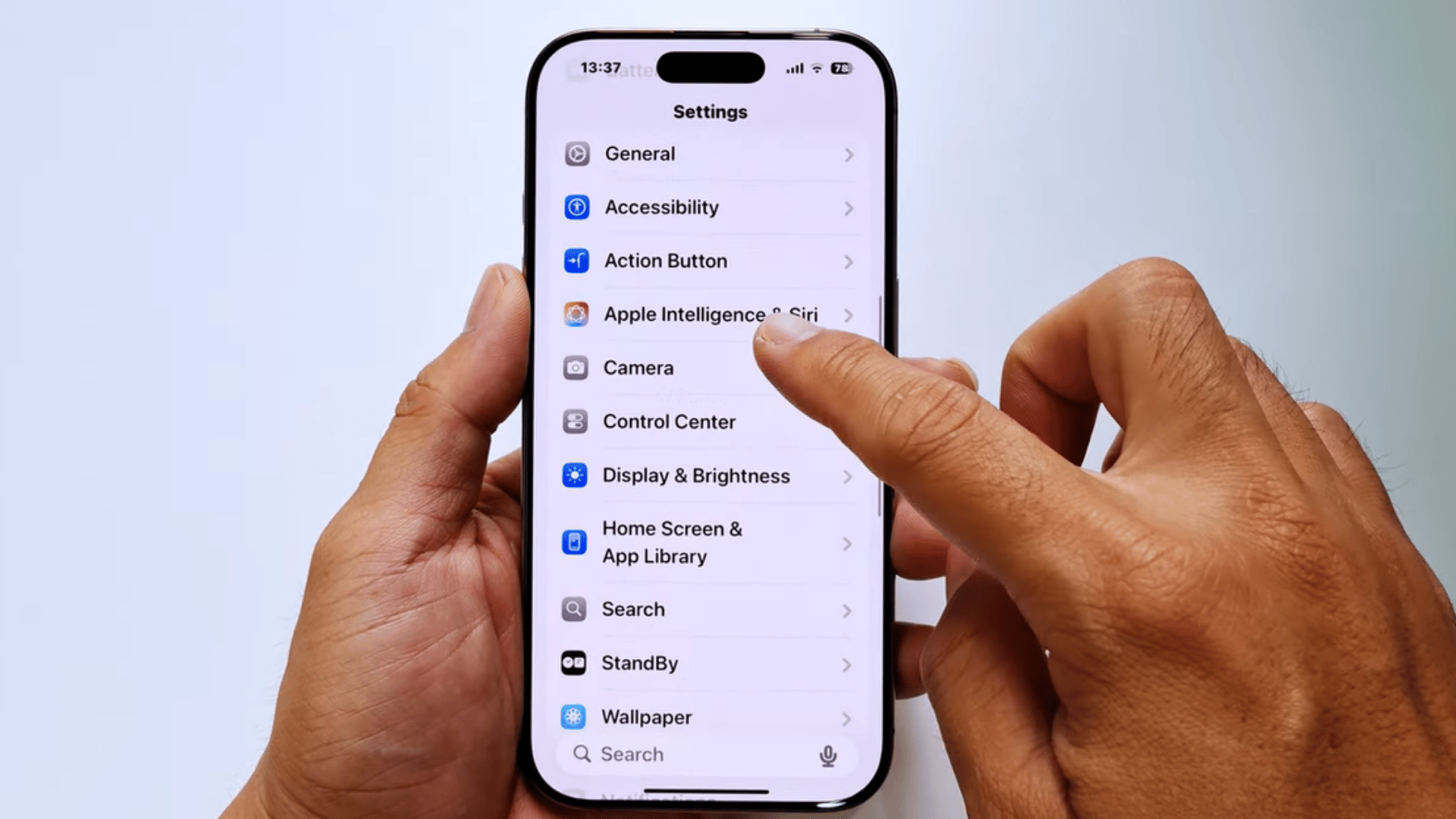
Start by unlocking your iPhone and opening the Settings app. You can find it on your Home Screen or by using Spotlight Search.
The Settings app is where Apple stores all device controls, including privacy and location options. Once you open it, you can adjust your location settings.
Step 2. Tap Privacy & Security.
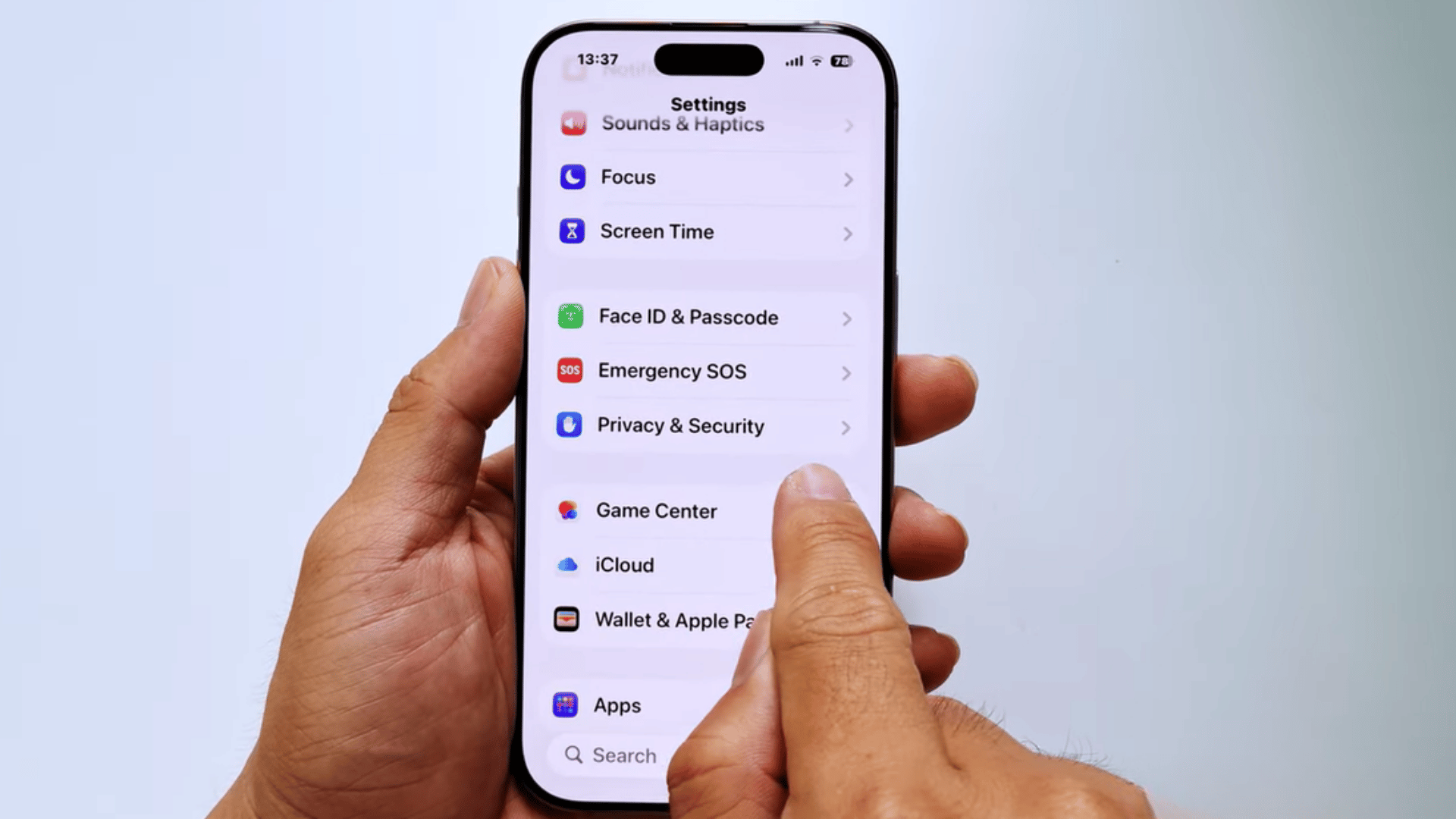
Scroll down the Settings menu until you see Privacy & Security, then tap it. This section contains controls for location access, contacts, photos, microphone, camera, and other privacy-related features.
It is the main place for managing how apps and services use your personal information.
Step 3. Select Location Services
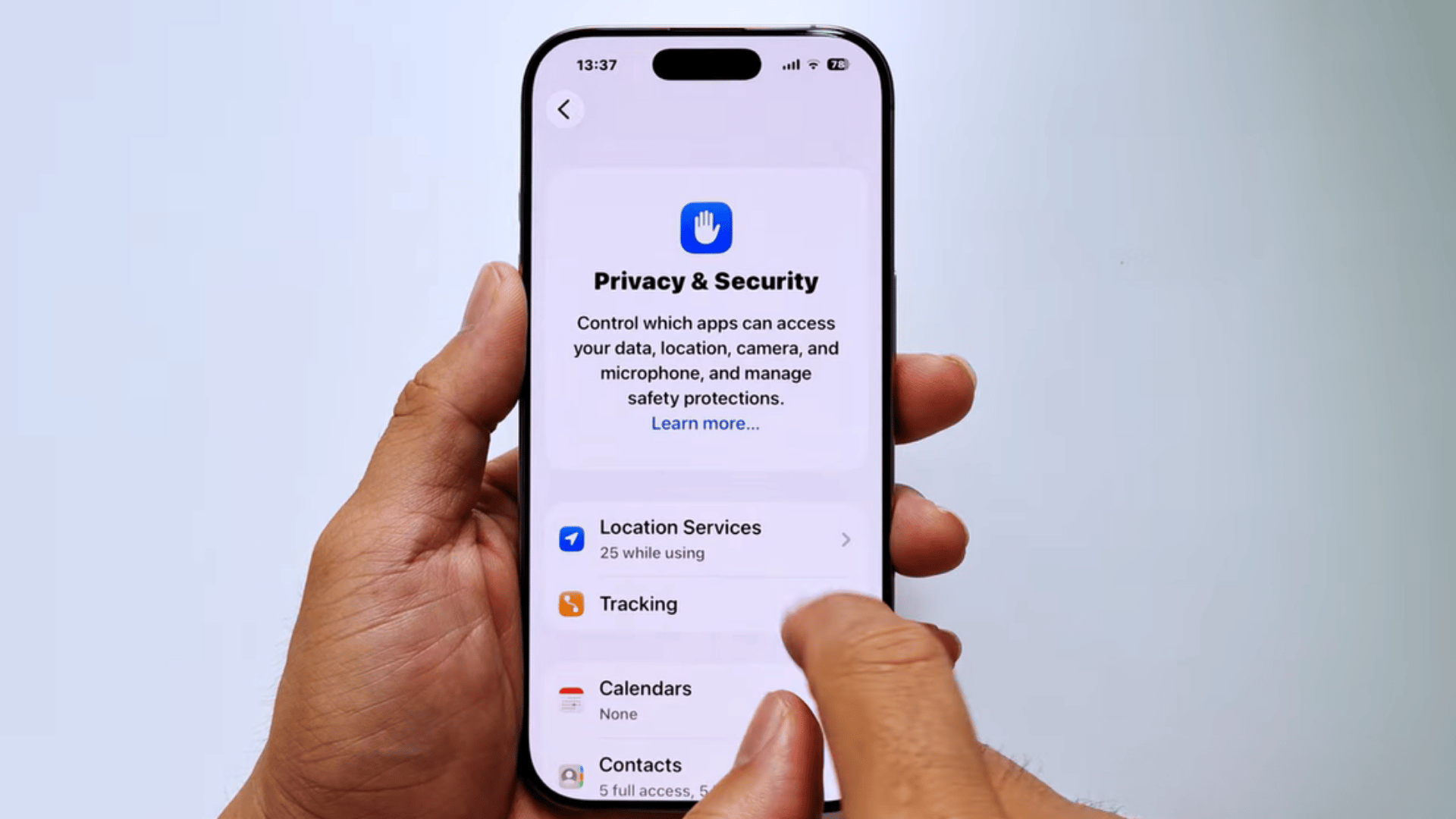
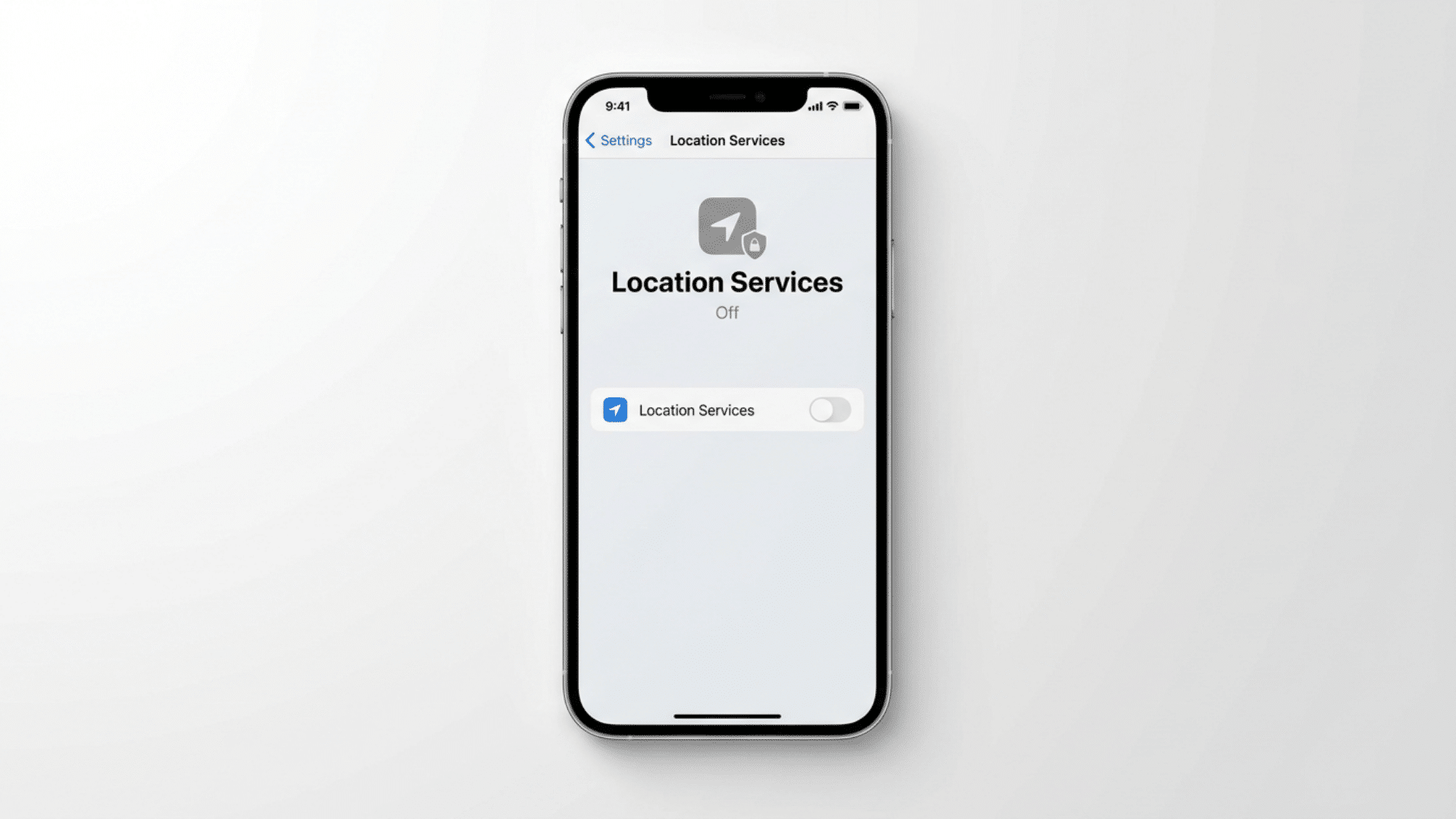
At the top of the Privacy & Security page, tap Location Services. This menu shows whether location access is currently enabled and lists all apps that can request your location.
From here, you can either turn off location completely or manage permissions for individual apps.
Step 4. Turn off the Location Services toggle and tap Turn Off
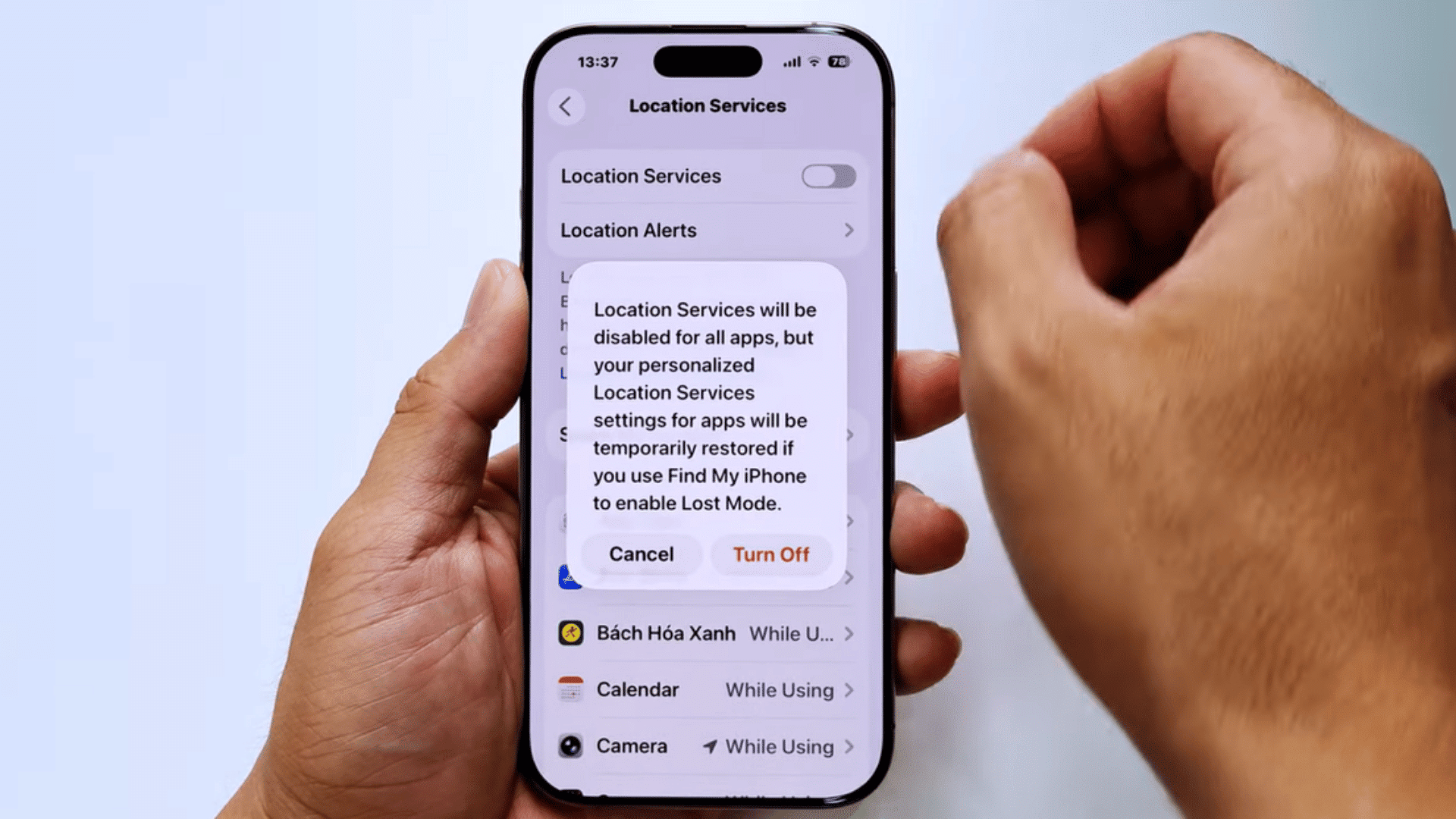
Tap the Location Services toggle to switch it off. A confirmation message will appear explaining that some features may no longer work properly.
Select Turn Off to confirm your choice. Your iPhone will immediately stop sharing location data with most apps and services that rely on Location Services.
Remember: Once this is off, apps like Maps, Weather, Find My, and ride-booking apps may not work the same way. Some apps may ask you to turn location back on when you use them.
Watch the video below by Nguyễn Tuấn Anh for a quick walkthrough of turning off Location Services on your iPhone. It shows the exact settings you need to change in just a few minutes.
How to Turn Off Location for Specific Apps
You do not have to disable Location Services for your entire iPhone if you only want to limit certain apps.
Apple lets you control location access for each app separately, which gives you more privacy while still allowing important apps to work properly.
To change location settings for a specific app:
- Open Settings
- Tap Privacy & Security
- Select Location Services
- Scroll through the list and tap the app you want to manage.
- Choose the location permission that works best for you.
Here Is What Each Option Means:
| Location Permission | What It Means | Best Used For |
|---|---|---|
| Never | The app cannot access your location at any time. | Apps that do not need location data to function. |
| Ask Next Time Or When I Share | The app asks for permission whenever it wants to access your location. | Users who want full control over when their location is shared. |
| While Using the App | The app can use your location only when the app is open and active on your screen. | Navigation, weather, and travel apps that need location only during use. |
| Always | The app can access your location even when running in the background. | Apps that rely on continuous location updates, such as Find My or certain safety apps. |
For most users, “Never” or “While Using the App” provides a good balance between privacy and convenience.
Apps such as Maps may need location access to work properly, while many other apps can function without knowing your location all the time.
How to Turn Off Location Without Notifying iPhone Contacts
If you want more privacy, you may be wondering whether it is possible to stop sharing your location without alerting others.
In most cases, changing location settings on your iPhone does not send a direct notification. However, the person may notice the change if they try to check your location later.
| Method | What Happens | Will the Contact Be Notified? |
|---|---|---|
| Turn Off Location Services | Disables location access for apps across your iPhone. | No |
| Change Location Permissions for an App | Prevents a specific app from accessing your location. | No |
| Stop Sharing in Messages | Removes location sharing for a selected contact. | No direct notification |
| Stop Sharing in Find My | Stops sharing your live location with a chosen person. | No direct notification |
| Turn Off Precise Location | Shares only an approximate location instead of your exact position. | No |
Keep in mind: While iPhone does not usually send an alert when you stop sharing your location, people who previously had access may notice that your location is no longer available when they check Messages or Find My.
What Happens When You Turn Off Location on iPhone?
It mainly stops apps from using your location via Apple’s Location Services, but it does not block every way a phone’s general location can be estimated.
App and Feature Changes
Here are the main changes you may notice after turning off location on your iPhone.
- Apps May Ask for Permission Again: Some apps may request location access the next time you open them.
- Maps May Not Show Your Live Position: You may need to type your starting point manually.
- Weather May Need Manual City Selection: The Weather app may not update based on where you are.
- Find My May Have Fewer Features: Finding or sharing your device location may not work the same way.
- Battery Life May Improve Slightly: Fewer apps checking location in the background may help save some battery.
Tracking Limits to Know
Location Services blocks most app-based tracking, but your phone’s general area may still be estimated in other ways.
- Cell Towers: Your mobile carrier may still estimate your general area through nearby towers.
- Wi-Fi Signals: Nearby Wi-Fi networks can help estimate location, even without GPS.
- Bluetooth: Some services may use Bluetooth signals for nearby device or item detection.
- Spyware or Malware: Harmful apps or software can collect private data if your phone is infected.
For most users, turning off Location Services is still a strong privacy step. It limits regular app tracking, but it should be paired with safe app downloads, strong passwords, and regular privacy checks.
At the End
Knowing how to turn off location on iPhone gives you more control over your privacy and the information you share with apps and contacts.
The good news is that you do not have to choose between complete privacy and convenience.
You can turn off Location Services entirely, limit access to specific apps, or share only an approximate location, depending on what works best for you.
It is also a good idea to review your location settings from time to time, especially after installing new apps. Small changes can help reduce unnecessary tracking while keeping the features you actually use.
Want to improve your iPhone privacy even further? Take a few minutes to check your app permissions, location-sharing settings, and privacy controls to make sure they match your preferences.
Frequently Asked Questions
Can Emergency Services Access My Location if Location Services are Off?
In some regions, emergency services may still be able to access your location during an emergency call.
Does Airplane Mode Turn Off Location on iPhone?
No. Airplane Mode mainly disables cellular connections, Wi-Fi, and Bluetooth. Your location settings remain unchanged unless you manually turn off Location Services.
How do I Know if an App is Currently Using My Location?
You may see a location arrow icon in the status bar or Dynamic Island. You can also check an app’s location permission under Settings > Privacy & Security > Location Services .
Will Turning Off Location Affect Apple Pay or Face ID?
No. Apple Pay and Face ID do not require Location Services to function. You can continue using these features even when location access is turned off.
One Response