

Many people worry that someone could be listening to their calls or monitoring their phone activity.
With reports of spyware and unauthorized tracking becoming more common, it’s understandable to wonder if your own device is secure.
Unusual phone behavior does not always mean tapping; simple checks can help you spot potential signs.
If you’re wondering how to tell if your phone is tapped, this article will walk you through common warning signs, built-in phone codes, and practical steps to secure your device.
Keep reading to learn how to protect your privacy and decide when further action may be needed.
Quick Answer: How to Check if Your Phone Is Tapped?
The fastest way to check for possible call monitoring is to open your phone app and dial *#21#.
This code shows whether your calls, texts, or other communications are being forwarded to another number.
If the results show “Not Forwarded,” that is usually a good sign and indicates no forwarding is active for those services. If you see a phone number listed, do not panic.
Many carriers use forwarding for voicemail, so a carrier-owned voicemail number can be completely normal. The key is to look for a number you do not recognize.
If an unknown number appears, verify it with your carrier or search it online. If something looks suspicious, dial ##002#.
This code disables all call forwarding settings and is often the quickest way to stop unauthorized forwarding.
Warning Signs Your Phone May Be Tapped
These signs do not confirm phone tapping on their own. However, seeing several of them together may indicate a deeper security issue that warrants attention.
1. Phone Battery Is Draining Faster than Usual
Spyware often runs quietly in the background, collecting information and sending it elsewhere without obvious signs.
That constant activity uses processing power, which can drain the battery faster than normal.
In my experience reviewing mobile security cases, a sudden drop in battery is more concerning than a gradual decline over time.
Older batteries naturally lose capacity, but if battery life drops sharply within days or weeks, it is worth taking a closer look.
2. Phone Feels Warm when Not in Use
Phones commonly get warm while charging, streaming video, or running demanding apps. They should not stay warm when sitting idle with the screen off.
Background surveillance software may continuously collect and transmit data, resulting in additional processor activity.
That activity creates heat even when the device appears inactive.
A warm phone with no clear cause, especially when combined with battery drain or unusual data usage, should be investigated by checking the phone’s settings and app list.
3. Unexpected Data Usage Spikes
Many spyware programs send call logs, location history, messages, photos, and microphone recordings to a remote server.
Since that information must travel over the internet, data usage can increase noticeably.
Check your usage details under Cellular settings on iPhone or Network and Internet settings on Android. Look for apps consuming far more data than expected.
Alarge increase in data usage from an unfamiliar app is often one of the clearest warning signs during a phone security review.
4. Phone Lights Up or Restarts on Its Own
Most phones remain quiet when not in use except for notifications, scheduled updates, or incoming calls.
If the screen wakes up unexpectedly, apps appear to open on their own, or the device restarts without explanation, something may be running in the background.
While software bugs can sometimes cause similar behavior, random screen activity or unexplained restarts become more concerning when they occur alongside other signs such as overheating or battery drain.
5. Shutdown Takes Longer than It Should
A healthy phone usually powers off within a reasonable amount of time.
If shutdown suddenly becomes slow, freezes frequently, or stalls at the power-off screen, background processes may be interfering.
Some surveillance tools attempt to complete tasks or transfer stored information before the device fully shuts down.
This sign alone does not confirm spyware, since system issues can also cause delays. Still, a noticeably slower shutdown process deserves attention when other unusual symptoms are present.
6. Getting Strange Text Messages
Some spyware tools use text messages to receive commands from a remote operator.
These messages often contain random numbers, symbols, or strings of characters that make little sense to the recipient.
One unusual text is usually nothing to worry about, since spam messages are common. However, repeated messages that appear coded or automated can be different.
Strange text messages arriving regularly should be viewed more carefully when combined with other suspicious phone activity.
7. Camera or Mic Indicator Turns on Unexpectedly
Many Android devices display a green indicator when the camera or microphone is in use. This feature helps identify when sensitive hardware is running.
Seeing the indicator during a call, video recording, or voice message is normal. Seeing it when no related app is open is not.
An unexpected camera or microphone indicatormay suggest that an app is accessing those features without a clear reason and should be reviewed immediately.
8. Apps You Did Not Install
One common trait of stalkerware is its attempt to blend in with legitimate software. Some apps use generic names that resemble system services, updates, or device tools.
That makes them easy to overlook during daily use. Review the complete list of installed apps regularly rather than relying only on the home screen.
An unknown app that appears without explanation becomes especially concerning when accompanied by battery issues, unusual data usage, or unexpected microphone activity.
Phone Tapping Check Codes at a Glance
These built-in codes can help identify forwarding settings that may need attention. If a result looks unfamiliar, verify it before taking action.
| Code | What It Checks | What to Do If You See a Number |
|---|---|---|
| *#21# | Unconditional call forwarding | Search the number online and run ##002# if it does not belong to your carrier. |
| *#43# | Call waiting status | Review the result and investigate if an unfamiliar number appears. |
| *#62# | Forwarding when the phone is unreachable | Confirm the number with your carrier or run ##002# if it seems suspicious. |
| ##002# | Disables all call forwarding | Use this code to turn off active forwarding settings and reset them. |
Step-by-Step Ways to Check If Your Phone Is Tapped
These quick checks take only a few minutes and use built-in phone codes. They can help identify suspicious call-forwarding settings that may require closer review.
Step 1: Dial *#21# and Read the Result
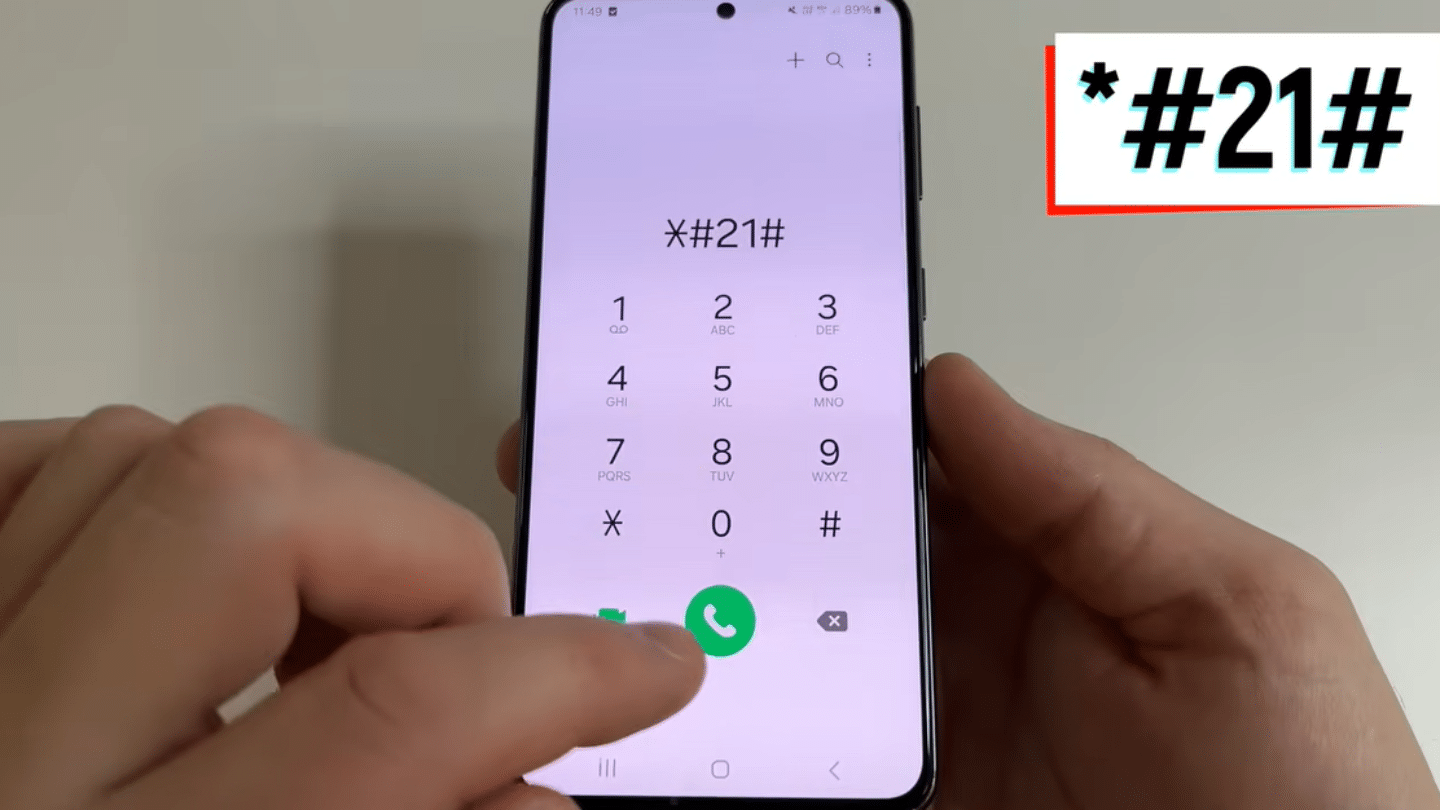
Open the Phone app and dial *#21#, then press Call. This code shows whether calls, messages, or other services are being forwarded to another number.
If the results show “Not Forwarded,” that is generally a good sign. If a phone number appears, check whether it belongs to your carrier’s voicemail service.
If the number looks unfamiliar, search it online or contact your carrier for verification.
Unknown forwarding numbers warrant closer scrutiny during any phone security check.
Step 2: Dial *#43# for Call Waiting Checks
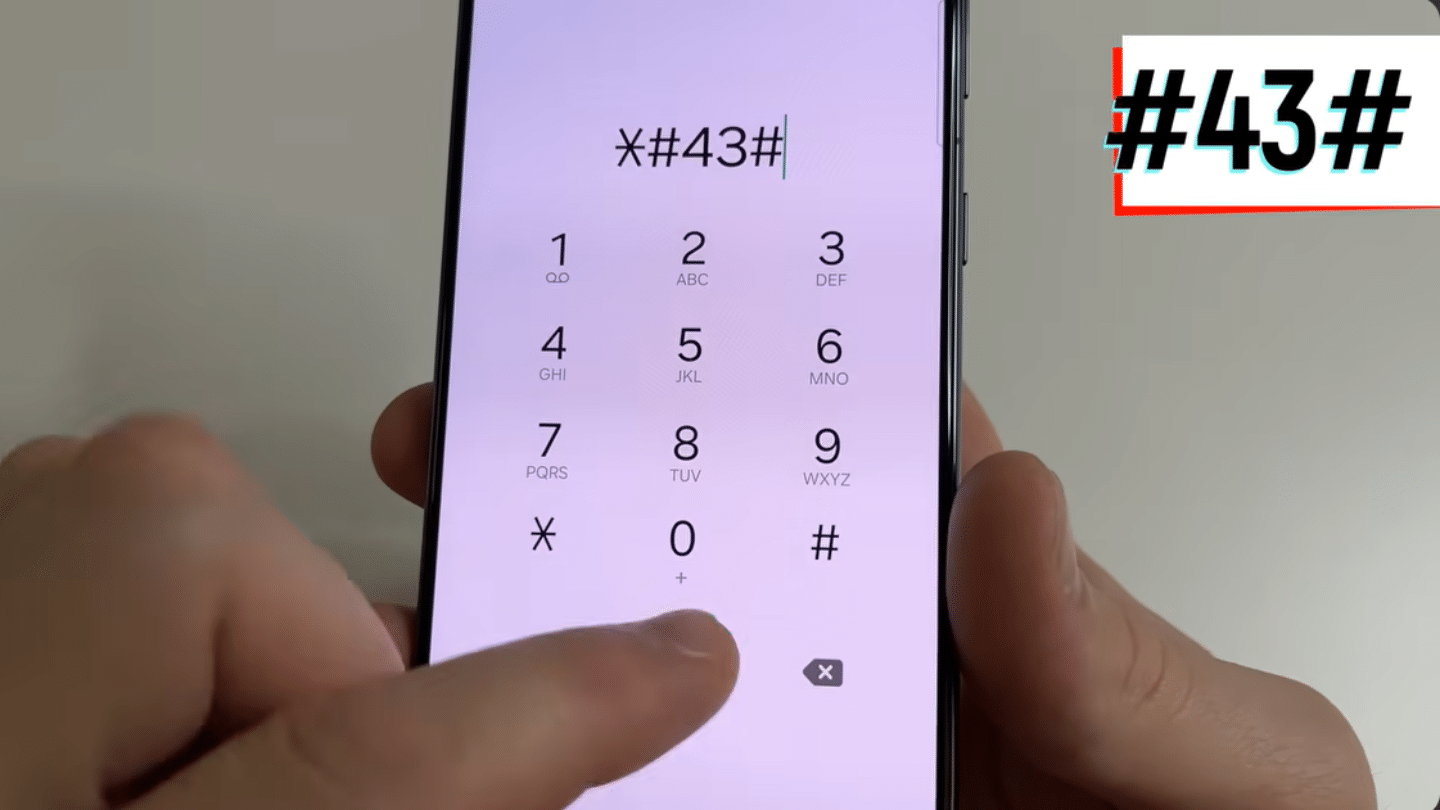
Next, dial *#43# from the Phone app. This code displays the status of call-waiting services on supported networks.
In most cases, the results simply show whether call waiting is active or inactive.
If the information includes a number that does not belong to your carrier or cannot be identified, it may be worth investigating further.
While unusual results do not automatically mean phone tapping, they can point to settings that should be reviewed with your mobile provider.
Step 3: Dial *#62# to Check Forwarding when Unreachable
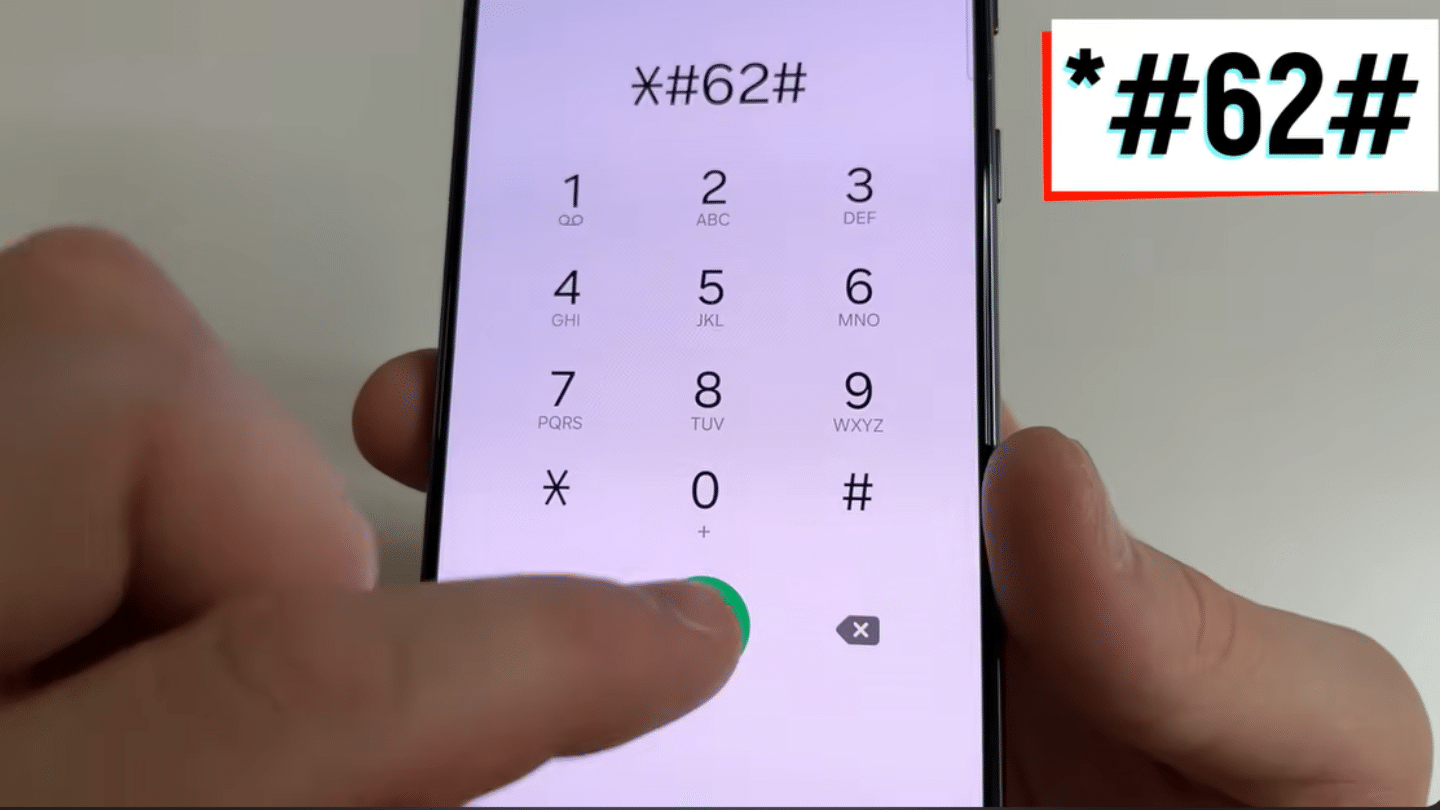
Dial *#62# to check where calls are forwarded when the phone is unavailable, turned off, or outside network coverage.
Many carriers forward these calls to voicemail, so seeing a carrier-owned number is usually normal. Pay attention to any number that does not match your provider’s voicemail system.
If the number seems unfamiliar, search for it online or ask your carrier to confirm it.
Unexpected forwarding destinations can sometimes indicate settings that were changed without permission.
Step 4: Dial ##002# to Turn Off All Call Forwarding
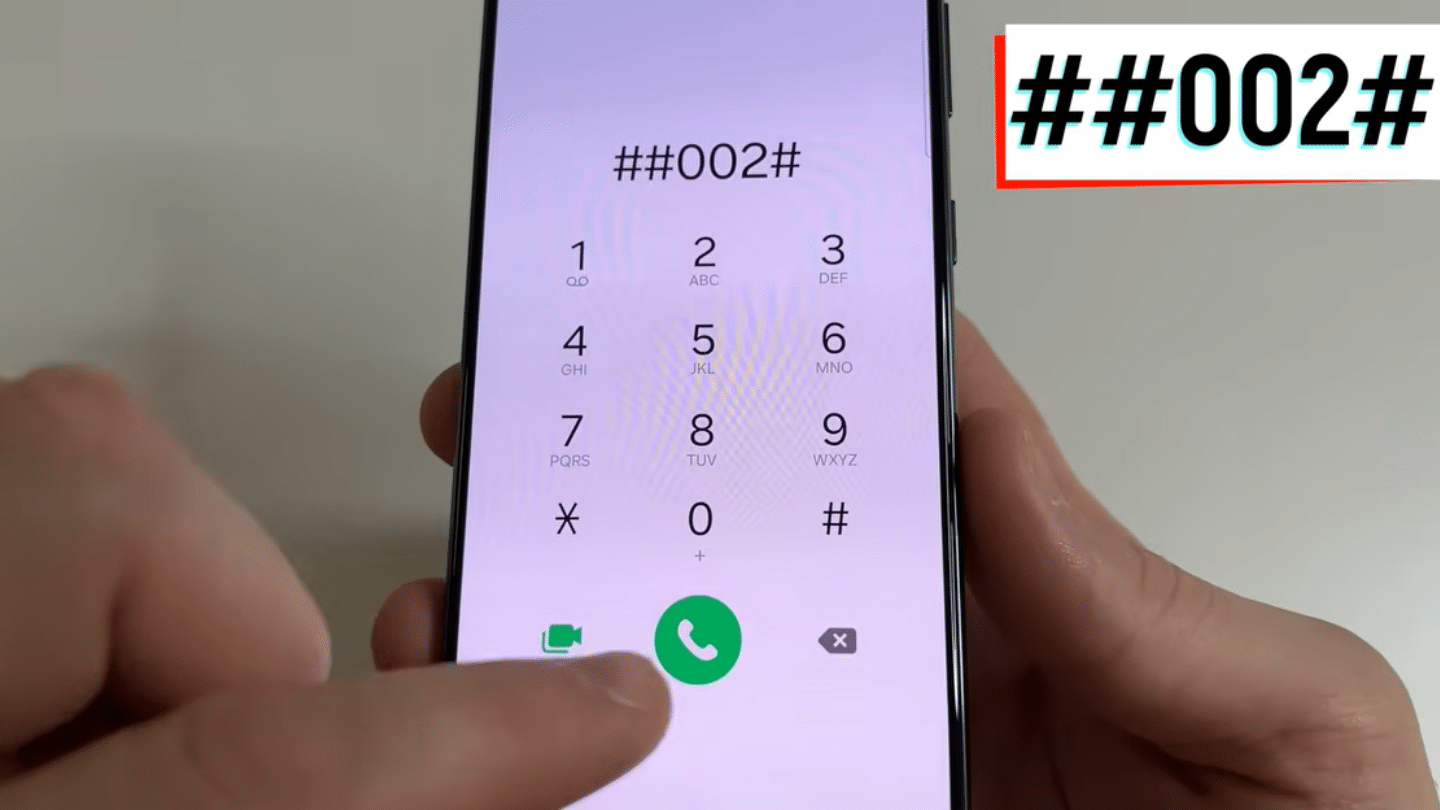
If any forwarding result looks suspicious, dial ##002# and press Call. This code disables all active call forwarding settings on supported networks.
After running it, a confirmation message should appear indicating that forwarding services have been erased or disabled.
In my experience, this is one of the simplest ways to reset forwarding settings and rule out unauthorized changes.
It is generally safe to use and will not damage the phone or remove personal data.
Step 5: Check the Green Dot Indicator
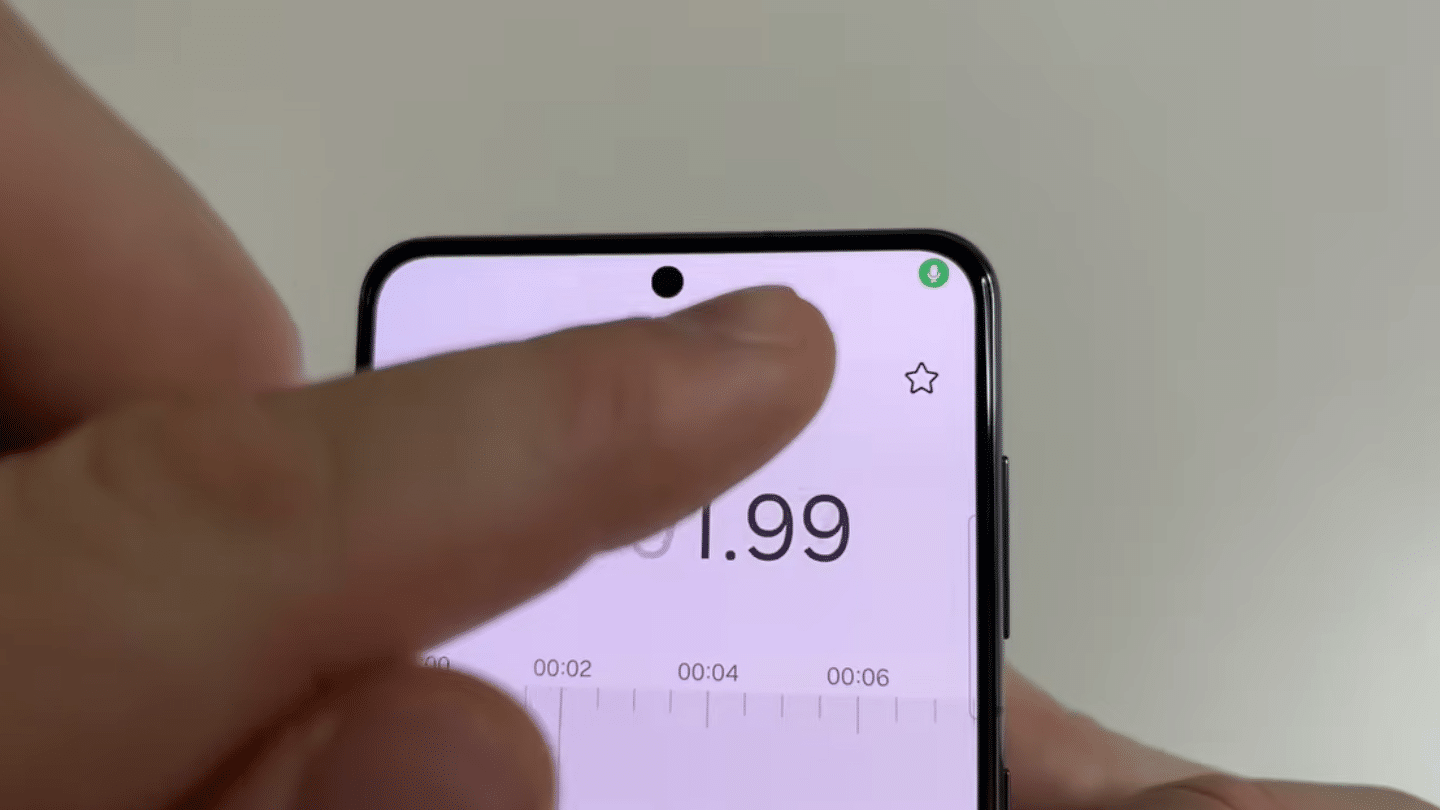
On Android devices, a green dot appears whenever the microphone or camera is in use. This is a built-in privacy feature that indicates when sensitive hardware is running.
Seeing the indicator during a video call, voice recording, or camera session is completely normal.
It becomes more concerning when the dot appears while no related app is open.
A green dot showing up unexpectedly may indicate that an app is accessing your microphone or camera without a clear reason.
Step 6: Review Mic and Camera Usage in Settings
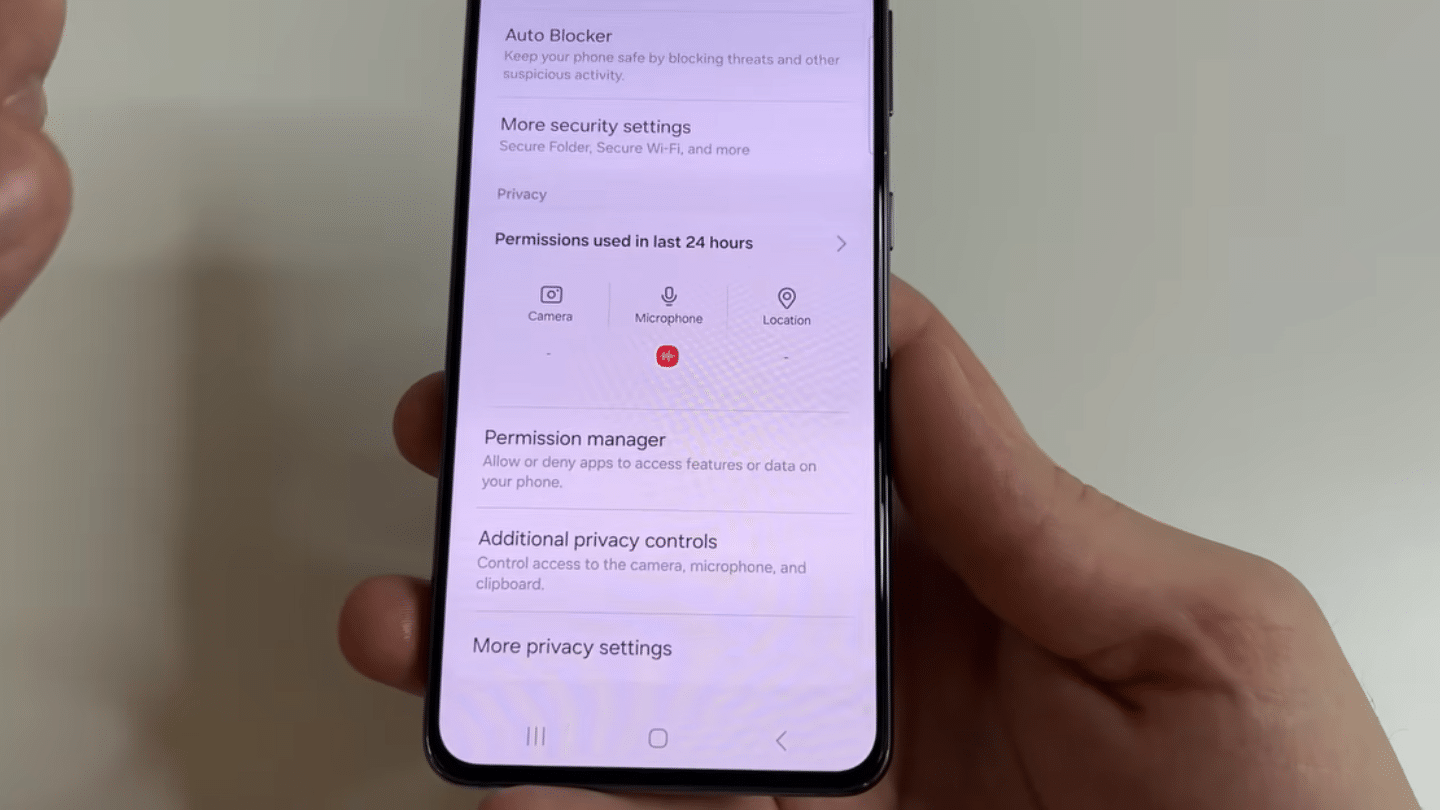
Open Settings > Security and Privacy > Permissions Used in Last 24 Hours. Then switch the view to the last seven days for a broader activity history.
This log shows which apps accessed the microphone and camera, and when.
Pay attention to apps that use these permissions when the phone is not actively being used.
Repeated access from unexpected apps can be a sign that those permissions deserve closer review and possible removal.
Step 7: Revoke Access from Suspicious Apps
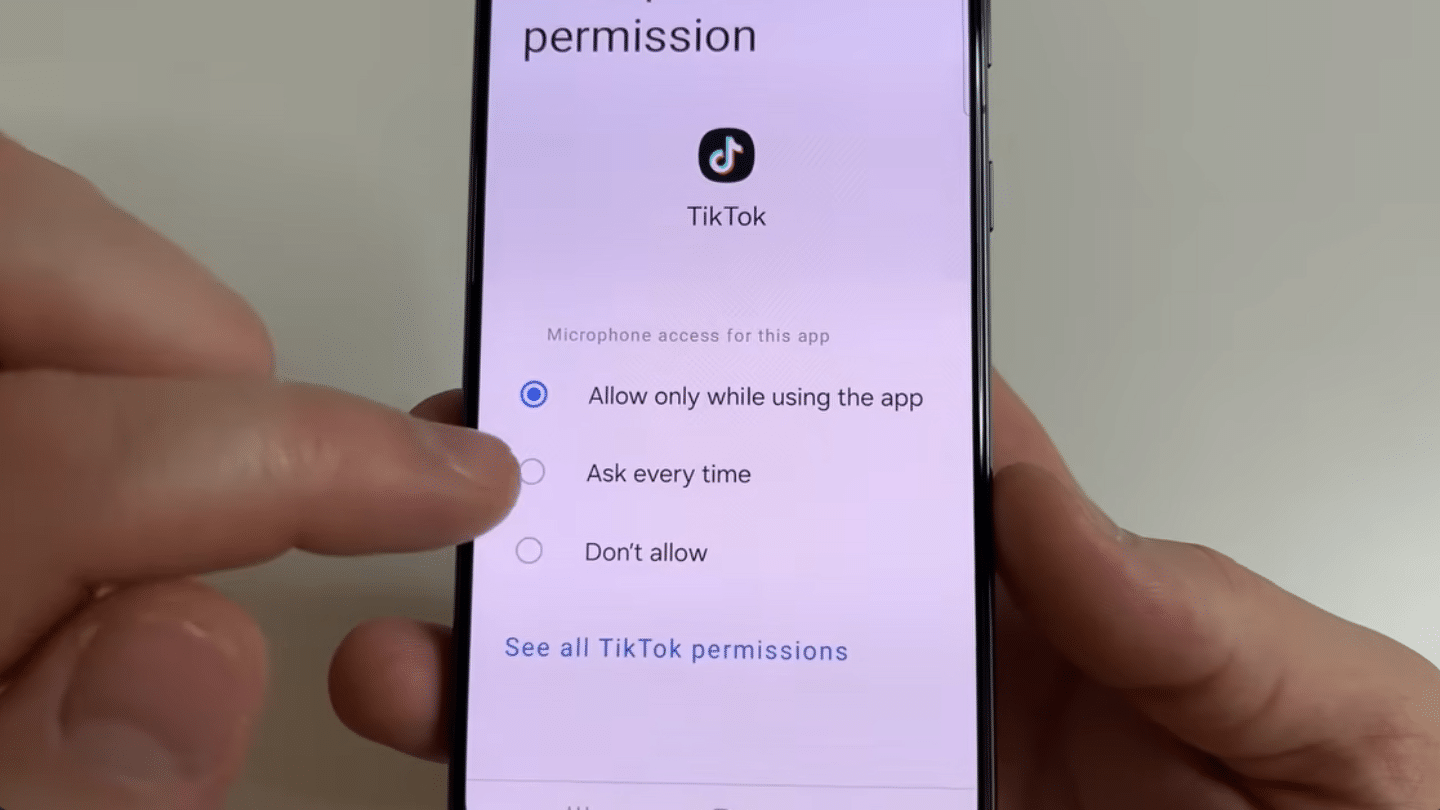
Go to Permission Manager > Microphone and review apps listed under Allowed All The Time. Very few apps need continuous microphone access.
In many security reviews, limiting permissions significantly reduces privacy risks. If an app does not need constant access, change its setting to Ask Every Time or Don’t Allow.
For example, social media apps such as TikTok can usually function without permanent microphone access.
Reducing unnecessary permissions helps prevent unwanted background activity.
Step 8: Turn Off Usage Reports Sent to the Manufacturer
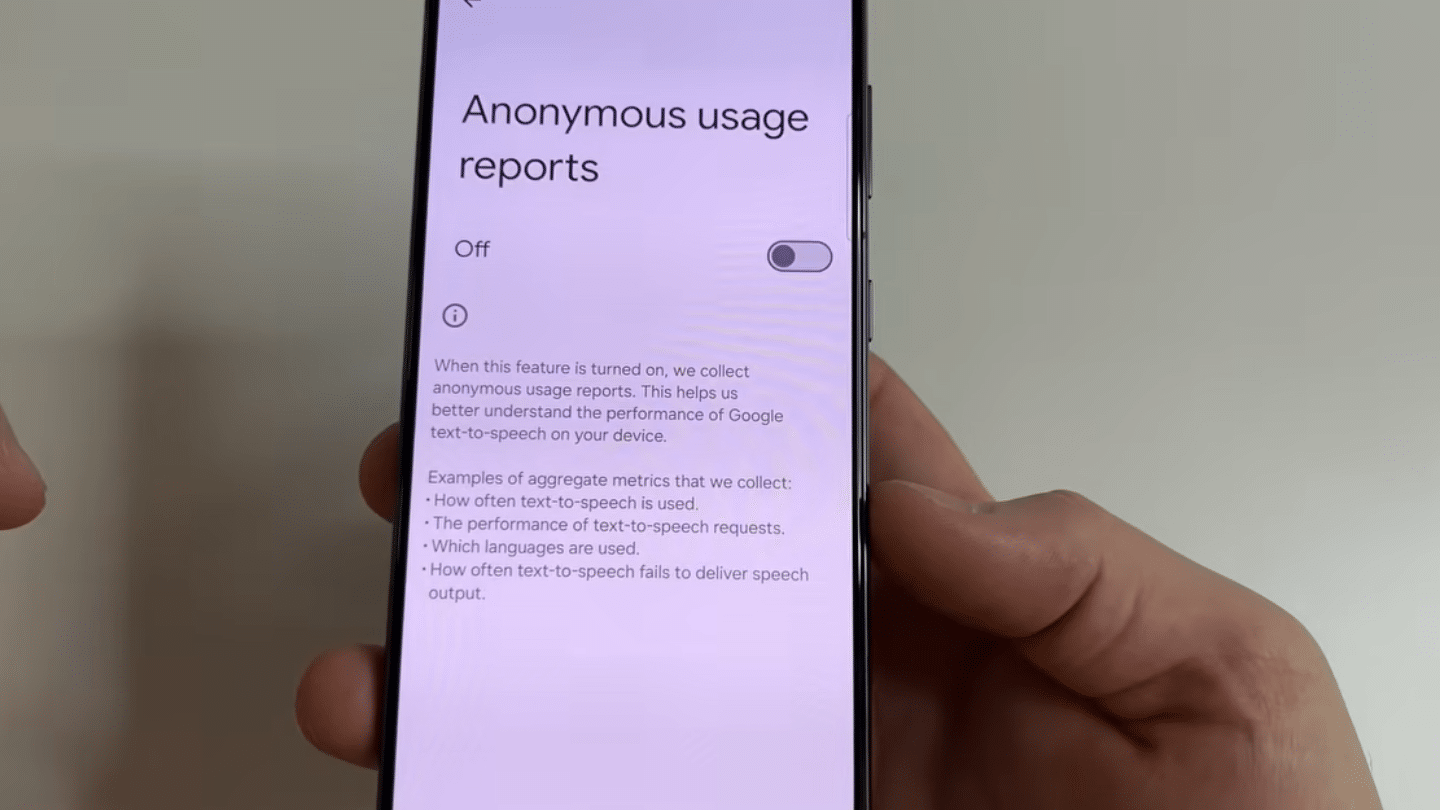
Some Android devices allow usage information to be shared with the manufacturer or related services.
Search for “prefer” in Settings, then open Speech Recognition and Synthesis from Google, and tap the gear icon. Look for Usage Reports and switch the setting off if available.
The exact menu path may vary depending on the phone model and Android version.
Limiting unnecessary data sharing is a simple privacy step that reduces the amount of information leaving the device.
This tutorial is based on a helpful video by Useful Things. You can check out the original video below for a more detailed visual guide
What to Do If Your Phone Shows Warning Signs?
If the codes show forwarding to an unfamiliar number, or several warning signs appear together, take these steps. They can help secure the device and account.
- Contact Your Mobile Carrier: Carriers can verify forwarding numbers, review account activity, and check for unauthorized changes on the line.
- Run ##002# Immediately: Use this code to disable active call forwarding settings. It is a quick way to reset forwarding and rule out unauthorized changes.
- Review Your Carrier Account: Check for SIM swaps, newly activated devices, or unapproved account updates. These changes can sometimes explain unusual behavior.
- Factory Reset as a Last Resort: If suspicious activity continues after other checks, perform a factory reset. Back up important files and photos before starting the process.
- Report Illegal Monitoring: If there is reason to believe someone is monitoring the device without permission, file a report with the FTC or CISA for additional guidance.
- Prioritize Safety in Abuse Situations: If domestic abuse is involved, contact the National Domestic Violence Hotline before removing spyware. Ensure your safety first.
Can Someone Tap Your Phone without Physical Access?
Yes, someone can sometimes gain access to your phone without ever touching it, but it usually requires you to interact with something first.
The most common methods include phishing emails, fake text messages, malicious apps, or links that trick you into installing spyware or sharing your login details.
Public Wi-Fi networks and fake software updates can also put your device at risk if you are not careful.
Highly advanced attacks that operate without any user action do exist, but they are rare and usually target journalists, government officials, or other high-profile individuals.
For most people, keeping the operating system updated, downloading apps only from official app stores, avoiding suspicious links, and regularly reviewing app permissions can reduce the risk of unauthorized monitoring.
When Should You Seek Professional Help?
If your phone continues to show suspicious behavior after basic troubleshooting, it may be time to get expert help. The right professional can identify security issues, protect your personal data, and recommend the next steps.
| Situation | Why Professional Help Matters | Who to Contact |
|---|---|---|
| Multiple warning signs appear together | A combination of unusual battery drain, unknown apps, and high data usage may indicate a security issue that requires expert review. | Cybersecurity professional or mobile repair specialist |
| You suspect spyware is installed | Some spyware can hide from basic security tools and may require advanced detection methods. | Mobile security expert |
| Your online accounts keep getting compromised | Repeated password changes or unauthorized logins could mean your device or accounts have been accessed. | Account provider and cybersecurity expert |
| You suspect a SIM swap or carrier issue | Unauthorized SIM changes can allow someone to receive your calls and verification codes. | Your mobile carrier |
| You believe someone is monitoring you illegally | Unauthorized surveillance may involve privacy violations or criminal activity that should be reported. | Local law enforcement or the appropriate government agency |
| Domestic abuse or stalking is involved | Removing spyware immediately may increase personal risk. Your safety should come before changing the device. | Domestic violence support organization or local authorities |
How to Protect Your Phone from Future Monitoring?
Keeping your phone secure is the best way to reduce the risk of unauthorized monitoring. A few habits can protect your personal information and make it harder for spyware or malicious apps to access your device.
- Download Apps From Trusted Sources: Only install apps from the Google Play Store or Apple App Store. Avoid downloading apps from unknown websites or third-party stores.
- Keep Your Phone Updated: Install software and security updates as soon as they become available. Updates often fix security flaws that attackers can use.
- Review App Permissions Regularly: Check which apps can access your camera, microphone, location, and contacts. Turn off permissions that are not needed.
- Avoid Suspicious Links and Messages: Do not open links or attachments from unknown senders. Many spyware attacks begin with phishing emails or text messages.
- Use Strong Security Settings: Set a strong passcode and enable biometric authentication if available. Also turn on two-factor authentication for your important accounts.
- Remove Apps You No Longer Use: Delete apps that you no longer need or do not recognize. Fewer apps on your phone mean fewer chances for security risks.
Conclusion
If you’ve been wondering how to tell if your phone is tapped, remember that a single unusual symptom alone is not enough to confirm it’s being monitored.
Look for multiple warning signs together, such as battery drain, unknown apps, high data usage, or unexpected changes.
Checking your app permissions, keeping your software updated, and removing suspicious apps are simple ways to improve your phone’s security.
If you still have concerns after checking your device, consider contacting your mobile carrier or a security professional.
Stay informed about online safety by reading more of our helpful articles on phone security and privacy.
Frequently Asked Questions
How to Tell if a Phone Is Tapped by Police?
Law enforcement monitoring generally requires legal authorization. Unusual phone behavior alone does not confirm police surveillance.
How to Tell if a Phone Is Tapped by the Government?
There is no phone code that confirms government monitoring. Multiple signs and professional analysis would be needed.
Can a Factory Reset Remove Most Spyware?
A factory reset can remove many forms of unwanted software. However, account security and device settings should also be reviewed afterward.
Can Phone Tapping Happen without Installing an App?
In some cases, monitoring can happen through account access, SIM-related fraud, or network-level attacks. Not every privacy issue requires a visible app on the device.
How Often Should Phone Privacy Settings Be Reviewed?
A quick review every few months is a good practice. Checking permissions regularly helps catch changes before they become a larger privacy concern.