


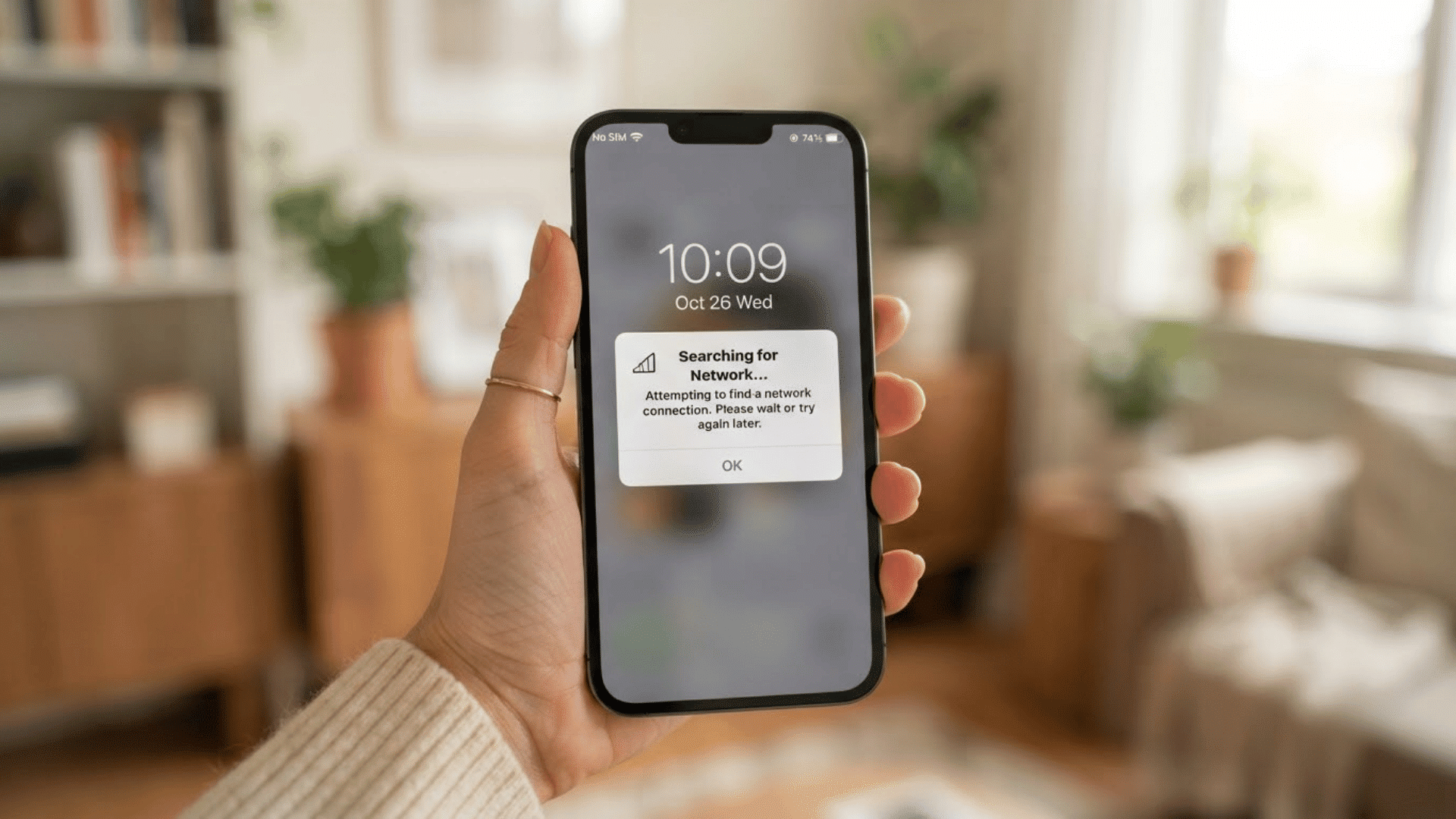
Many people pick up their phones for a quick check and end up scrolling much longer than planned. If you find yourself doing the same, changing your screen settings may help.
One simple option is learning how to turn on grayscale and reduce screen time by removing the bright colors that often keep you engaged.
As a technical documentation specialist with years of experience creating guides and tutorials, I understand the value of simple, practical solutions that are easy to follow.
This article explains what grayscale mode is, why it can help reduce phone use, and how to enable it on both iPhone and Android devices.
You’ll also learn how grayscale affects screen habits, along with other useful tips to help you stay focused and spend less time on your phone each day.
What is Grayscale Mode on a Smartphone?
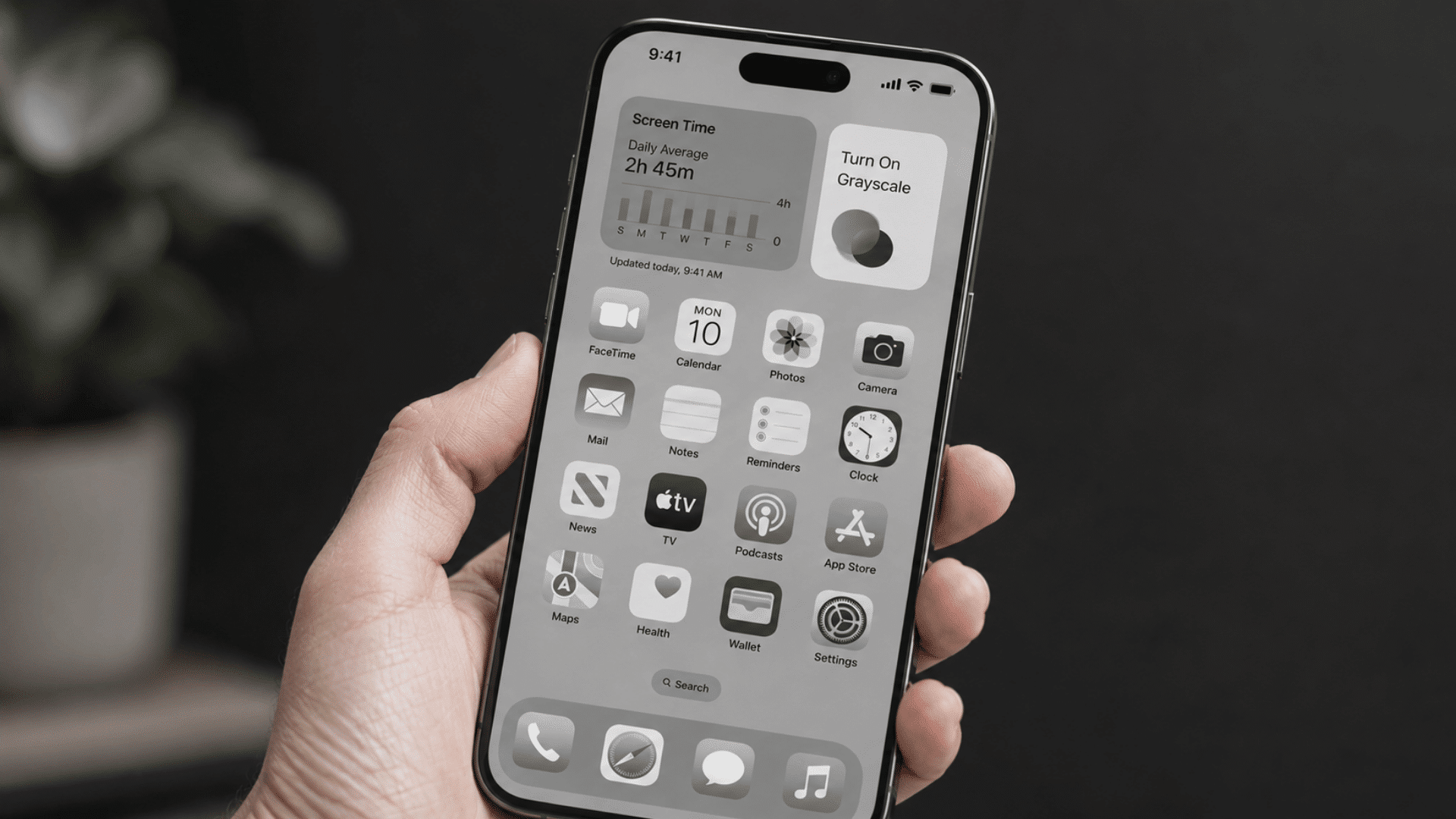
Grayscale mode is a phone setting that changes your screen from color to black, white, and shades of gray.
Your apps, photos, icons, and videos still work the same way, but they no longer appear in bright colors.
This setting does not delete anything or damage your phone. It only changes how the screen looks. You can turn it off whenever you want.
The main idea is simple: grayscale makes your phone look less eye-catching.
Colorful app icons, red notification badges, and bright images can pull your attention quickly. When those colors are removed, your screen may feel less exciting.
For many people, this can make it easier to pause before opening apps out of habit. You still have full access to your phone, butthe screen may feel less tempting to keep checking.
Quick Answer: How to Turn on Grayscale
If you only need the setting path, here it is for the three most common phones. Detailed step-by-step instructions for each device follow further down.
iPhone: Settings > Accessibility > Display & Text Size > Color Filters > turn on Color Filters > select Grayscale.
Samsung Galaxy: Settings > Digital Wellbeing and parental controls > Bedtime mode > turn on (with Grayscale enabled), or Settings > Accessibility > Vision enhancements > Color correction > Grayscale.
Google Pixel/stock Android: Settings > Accessibility > Color and motion > Color correction > Grayscale.
Full step-by-step instructions for each device are below.
How does Grayscale Help Reduce Screen Time?
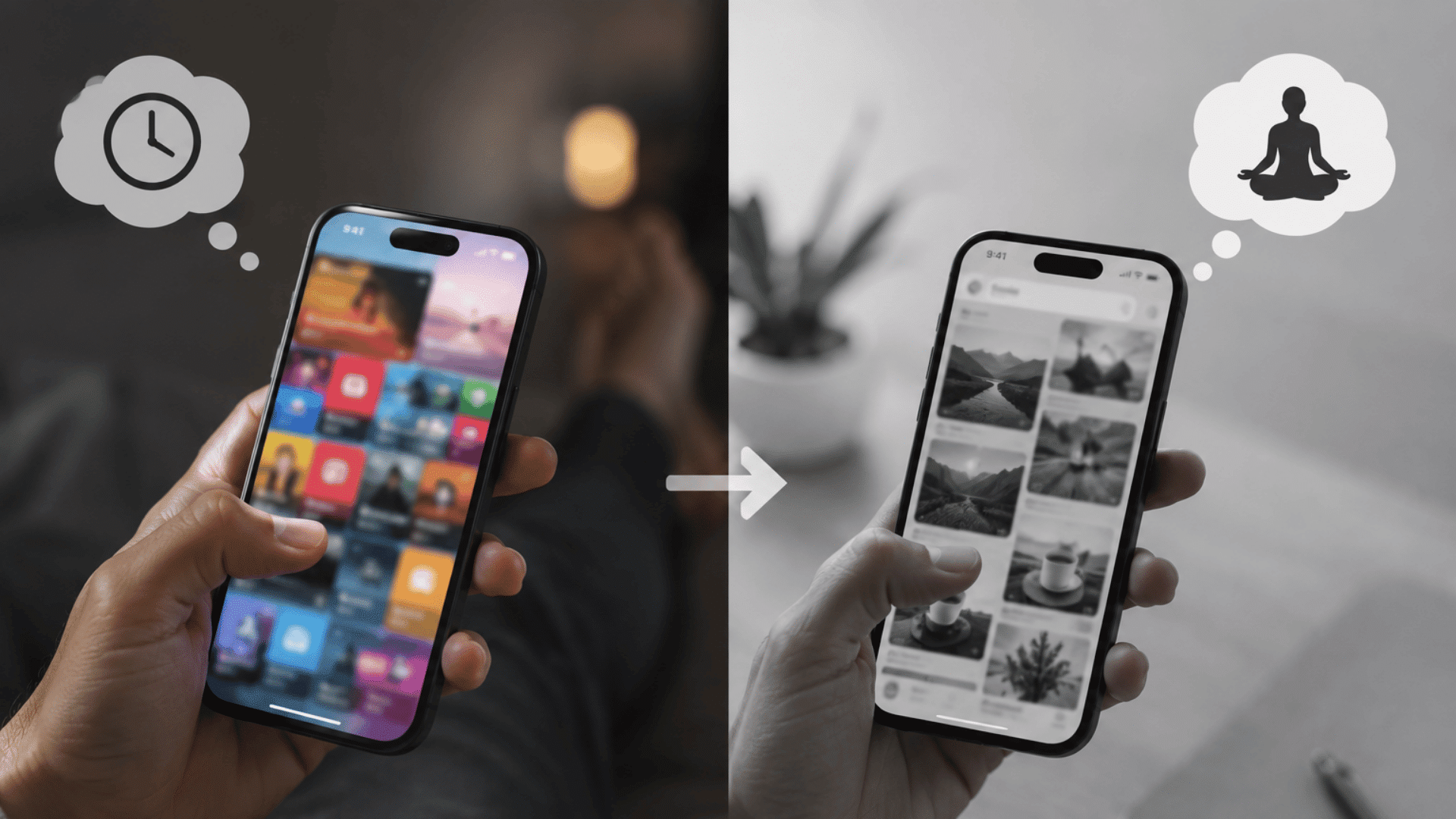
Many apps are designed to grab your attention with bright colors, badges, and visual rewards.
When I first switched my own phone to grayscale, the change was immediate and almost strange: Instagram’s feed looked like a newspaper, and the red notification badges I used to react to instantly became dull gray dots I could ignore.
That experience convinced me that simple friction works better than strict rules for most people.
Grayscale removes most of the color from your screen, which can make apps feel less appealing.This may help you become more aware of how often you pick up your phone out of habit.
Why Colorful Screens Keep You Hooked
Colors play a big role in how you interact with your phone. Bright app icons, notifications, and social media feeds are designed to catch your eye quickly.
When you see these visual cues throughout the day, you may feel tempted to check your phone more often.
Color helps create a stronger sense of excitement and reward, which can encourage longer screen sessions.
When Should You Use Grayscale Mode?
You can use grayscale mode whenever you want to reduce unnecessary phone use. Many people turn it on during work hours, study sessions, or before bed.
You might also use it when trying to break a scrolling habit or spend less time on social media.
Grayscale works best when you want fewer distractions without limiting access to important apps and features.
Benefits of Using Grayscale to Reduce Phone Addiction
Grayscale is a simple setting, but it can change how you interact with your phone throughout the day. Removing bright colors may help you become more aware of your screen habits and make it easier to spend less time scrolling.
| Benefit | How It Helps You |
| Less Visual Attraction | Apps and notifications look less exciting, which can reduce the urge to open them repeatedly. |
| Fewer Habit Checks | Without bright colors grabbing your attention, you may find yourself checking your phone less often. |
| Reduced Social Media Scrolling | Social media feeds often rely on colorful images and videos. Grayscale can make scrolling feel less rewarding. |
| Better Focus | A less distracting screen can help you stay focused on work, studying, or other important tasks. |
| More Mindful Phone Use | Grayscale encourages you to think before opening an app instead of reacting automatically. |
| Easier Digital Detox | If you are trying to cut back on screen time, grayscale offers a simple way to support that goal without uninstalling apps. |
| Improved Bedtime Habits | A black-and-white screen may feel less stimulating at night, making it easier to put your phone down before sleep. |
| No Extra Apps Needed | Most smartphones include grayscale as a built-in feature, so you can start using it right away. |
Keep in mind that grayscale is not a complete solution for phone addiction. However, it can be a useful tool when combined with healthy screen habits, app limits, and regular breaks from your device.
How to Turn on Grayscale on iPhone
Apple includes grayscale as part of its Accessibility settings. The process only takes a minute, and you can switch back to color whenever you want.
- Open Settings: Tap the Settings app on your iPhone to access system preferences.
- Go to Accessibility: Scroll down and select Accessibility, where Apple groups display and vision-related options.
- Select Display & Text Size: Under the Vision section, tap Display & Text Size to view screen appearance settings.
- Tap Color Filters: Scroll to the bottom and choose Color Filters. This feature lets you adjust how colors appear on your screen.
- Turn On Color Filters: Enable the toggle next to Color Filters. Your screen will immediately change based on the selected filter.
- Choose Grayscale: Tap Grayscale from the list of available filters. Your iPhone screen will now display only black, white, and gray tones.
- Test Your Apps: Open a few apps to see how they look without color.
- Turn It Off Anytime: To return to the normal display, go back toSettings > Accessibility > Display & Text Size > Color Filters and switch the feature off.
Quick Tip: If you plan to use grayscale often, you can create an Accessibility Shortcut. This lets you turn grayscale on or off by triple-clicking the Side Button, making it easier to switch between color and grayscale when needed.
If you want a visual guide, you can watch this YouTube video by Jacob’s iPhone QuickTips
How to Turn on Grayscale on Android
On Samsung Galaxy phones, grayscale is usually found in Digital Wellbeing or Accessibility settings.
The exact labels may vary by One UI version, but these steps work for most newer Samsung phones.
- Open Settings: Tap the Settings app on your Samsung phone.
- Go to Digital Wellbeing: Scroll down and tap Digital Wellbeing and parental controls.
- Open Bedtime Mode: Tap Bedtime mode. Samsung says this mode can turn your screen black and white and reduce alerts at night.
- Turn On Bedtime Mode: Tap Turn on now or set a schedule if you want grayscale to start at certain times.
- Check Grayscale Settings: Look for screen options inside Bedtime mode and make sure Grayscale is enabled.
- Use It When Needed: You can turn it on during work, study time, or before bed. This can make your screen feel less tempting without blocking your apps.
- Turn It Off Anytime: Go back to Settings > Digital Wellbeing and parental controls > Bedtime mode and tap Turn off.
- Try Accessibility If Needed: Some Samsung phones also offer grayscale through Settings > Accessibility > Vision enhancements > Color correction. Choose Grayscale if available.
Note: Samsung menu names can differ slightly by model and software version, so use the Settings search bar and type grayscale, Bedtime mode, or color correction if you do not see the same labels.
If you want a visual guide, you can watch this YouTube video by YourSixStudios
How to Schedule Grayscale Mode
A set schedule can help you build better screen habits without relying on willpower alone. The goal is to make grayscale part of your routine, so it works in the background.
- Choose Your Trigger Time: Pick a time when you are most likely to scroll without a purpose, such as after work, during study breaks, or before bed.
- Start Small: Begin with one or two hours per day instead of using grayscale all day. Small changes are often easier to maintain over time.
- Match Your Daily Routine: Schedule grayscale during activities that require concentration, such as working, reading, or studying. This can help reduce unnecessary distractions.
- Use It During Evening Hours: Many people spend the most time on their phones at night. A grayscale screen may make casual scrolling feel less appealing.
- Adjust the Schedule When Needed: If your current timing is not helping, move it to a different part of the day. Your schedule should fit your habits, not the other way around.
- Combine It With Other Tools: Pair grayscale with focus modes, app limits, or notification settings. Using multiple tools together can make reducing screen time easier.
- Track Your Results: Check your screen time reports regularly to see if the schedule is helping you spend less time on your phone.
- Stay Consistent: The most effective schedule is one you can follow every day. Consistency usually matters more than the number of hours grayscale is active.
How Long does it Take for Grayscale to Reduce Screen Time?
There is no fixed timeline because everyone uses their phone differently. I always recommend looking at grayscale as a habit-building tool rather than a quick fix.
Some people notice a difference within the first few days. Apps, notifications, and social media feeds may feel less interesting when the bright colors are gone.
This can make it easier to put your phone down after completing a task.
Research suggests that the benefits often become clearer after using grayscale consistently for at least one week.
A study from the University of Amsterdam and The National Library of Medicine showed similar results, finding that participants who used grayscale for one week reduced their daily screen time by about 20 minutes on average and reported feeling more in control of their phone use.
Another study published in Computers in Human Behavior Reports found that grayscale reduced smartphone usage time among participants, particularly those with habitual phone-checking behaviors.
Researchers concluded that grayscale was an effective intervention for reducing smartphone use.
The key is consistency. Grayscale works best when you leave it enabled long enough for your brain to adjust to the less stimulating screen.
If you turn it on and off throughout the day, you may not notice the same effect.
Keep in mind that grayscale does not remove the habit of reaching for your phone.
Studies show it can reduce screen time and improve your sense of control, but it may not completely stop automatic phone-checking behaviors.
Other Ways to Make Your Phone Less Addictive
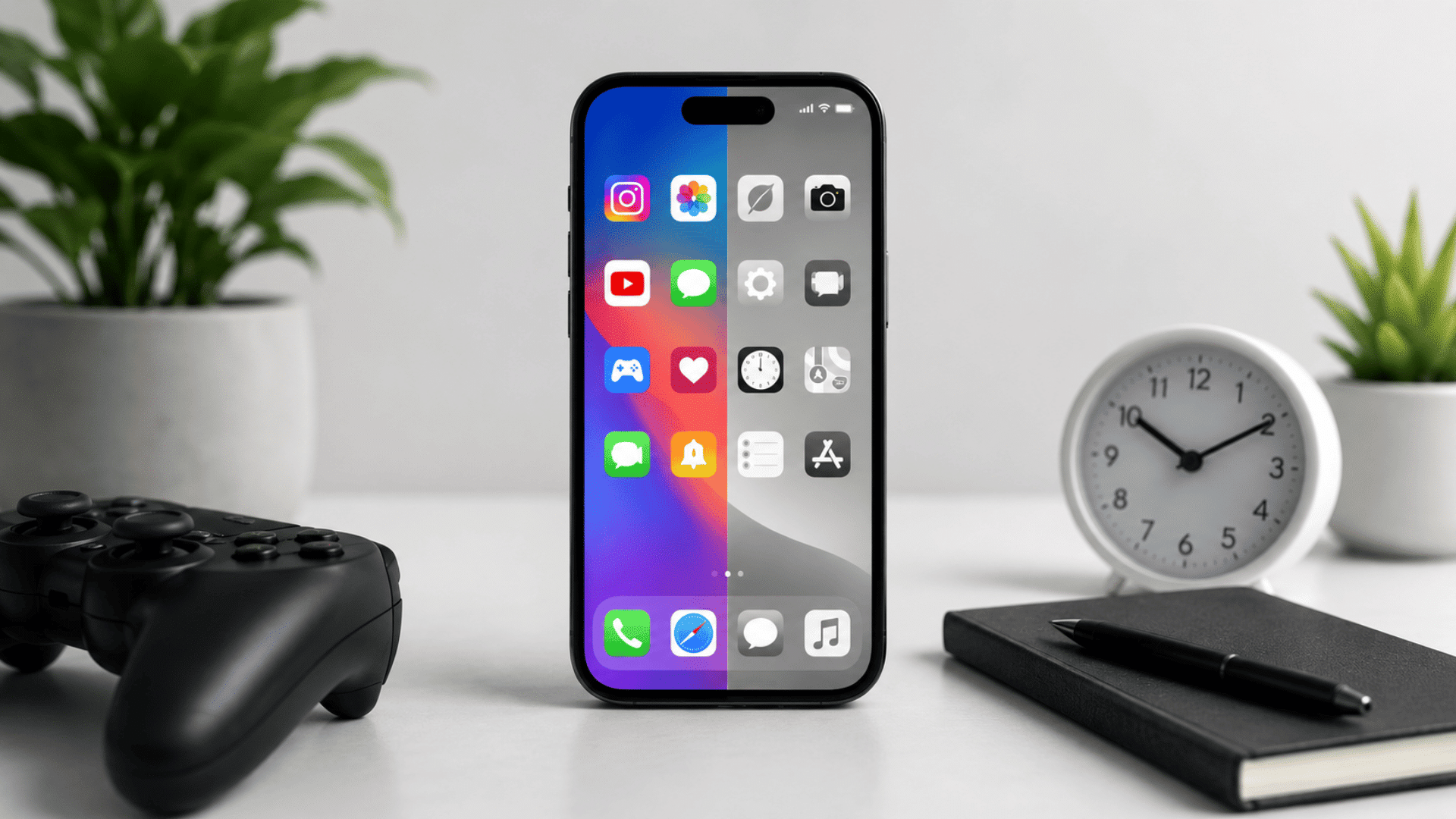
Grayscale can help, but it works better when paired with a few simple phone habits. These changes can make your phone easier to manage without cutting you off from useful apps.
- Turn Off Non-Essential Notifications: Keep alerts only for calls, messages, work tools, banking, and other important apps. Fewer alerts mean fewer reasons to pick up your phone.
- Use Focus Modes and App Limits: Set focus modes during work, study, meals, or bedtime. App limits can also remind you when you have spent too much time on apps that pull you in.
- Remove Distracting Apps From Your Home Screen: Move social media, games, shopping, and video apps into folders or off the first screen. This adds a small pause before you open them.
- Keep Your Lock Screen Simple: Remove extra widgets, live updates, and non-urgent alerts from your lock screen. A cleaner lock screen gives you less to react to.
- Turn Off Red Notification Badges: Those small red circles can make apps feel urgent even when they are not. Turning them off can reduce the urge to check apps repeatedly.
- Set Phone-Free Times: Choose parts of the day when your phone stays away from you, such as meals, short walks, or the first 30 minutes after waking up.
- Charge Your Phone Away From Your Bed: Place your phone across the room or outside the bedroom at night. This makes late-night scrolling and morning checking less automatic.
- Review Your Screen Time Weekly: Look at which apps take the most time. Once you know your biggest distractions, you can decide what to limit, move, or remove.
Common Issues When Using Grayscale Mode
Grayscale can be helpful for reducing screen time, but it is not always perfect. You may notice a few challenges when using it regularly, especially during the first few days.
| Issue | Solution |
| Colors Are Hard to Identify | Some apps, maps, charts, and photos rely on color to share information. If you need to view colors, temporarily switch back to the normal display. |
| Photos and Videos Look Less Appealing | Grayscale removes color from all content on your screen. Turn it off when editing photos or watching content where color matters. |
| It Feels Strange at First | Your screen may look unusual during the first few days. Give yourself some time to adjust before deciding if it works for you. |
| You Forget Why You Enabled It | After a while, grayscale can become part of your normal routine. Reviewing your screen-time goals can help you stay motivated. |
| Important Notifications Are Easier to Miss | Without bright colors, some alerts may not stand out as much. Keep notifications enabled for apps that truly matter. |
| It Does Not Completely Stop Phone Use | Grayscale can reduce visual appeal, but it does not remove the habit of checking your phone. Pair it with app limits or focus modes for better results. |
| Some Apps Look Difficult to operate | A few apps use color to highlight buttons or actions. If it becomes confusing, switch back to color when needed. |
| You Turn It Off Too Often | Constantly switching between grayscale and color can reduce its effectiveness. Try using it during specific times of the day instead of turning it on and off repeatedly. |
The best approach is to treat grayscale as one tool among many. If something feels inconvenient, adjust how and when you use it rather than giving up on it completely.
Bottom Line
Reducing screen time does not always require a major lifestyle change. Sometimes, a small adjustment like enabling grayscale can help you become more aware of how often you reach for your phone.
By removing the bright colors that make apps more appealing, you may find it easier to stay focused, spend less time scrolling, and use your device with more intention.
The key is to treat grayscale as one part of a larger approach.
Combining it with app limits, focus modes, and better notification settings can help you build healthier phone habits over time.
Start with a simple change, see how it fits into your routine, and adjust as needed.
Have you tried grayscale mode on your phone? Share your experience, results, or tips in the comments below. Your insights could help other readers make the change too.
Frequently Asked Questions
Does Grayscale Save Battery Life?
Grayscale may save a small amount of battery on some OLED-screen phones. However, the difference is usually minor compared to brightness and app usage.
Is Grayscale Available on All Smartphones?
Most modern iPhone and Android devices include grayscale through Accessibility or Digital Wellbeing settings. Menu names may vary depending on the model.
Is Grayscale Good for Your Brain?
Grayscale does not directly improve brain function. However, it may reduce visual stimulation, helping you stay focused and become more mindful of phone use.