





When I work with messy datasets, clear column names make filtering, merging, and analysis much easier.
This guide explains how pandas’ column renaming methods work, from changing a single label to updating multiple names at once.
You will learn how to use rename(), direct column assignment, functions, and position-based changes.
I will also cover missing columns, duplicate names, spaces, MultiIndex labels, and common mistakes that can stop your code from working as expected.
By the end, you will know which method fits each situation. You can also use the examples to write cleaner pandas code with fewer naming errors.
When Should You Rename a Column in Pandas?
You should rename a column in pandas when the current label is unclear, inconsistent, misspelled, or difficult to use in code.
Column names often come from CSV files, spreadsheets, APIs, or databases, so they may contain spaces, symbols, mixed letter cases, or vague terms.
Renaming them early makes later tasks such as filtering, grouping, merging, and selecting data easier to manage.
You may need new labels when datasets use different names for the same information, making joins easier to write and verify.
Column renaming is also useful before sharing a DataFrame, building charts, exporting reports, or preparing data for machine learning. Simple and consistent labels help you read the code faster and reduce mistakes across longer projects.
Different Ways to Rename Columns in Pandas
Each pandas method serves a different purpose, so choosing the right one depends on how many column names you want to change and how you plan to update them.
1. Rename Columns Using rename()
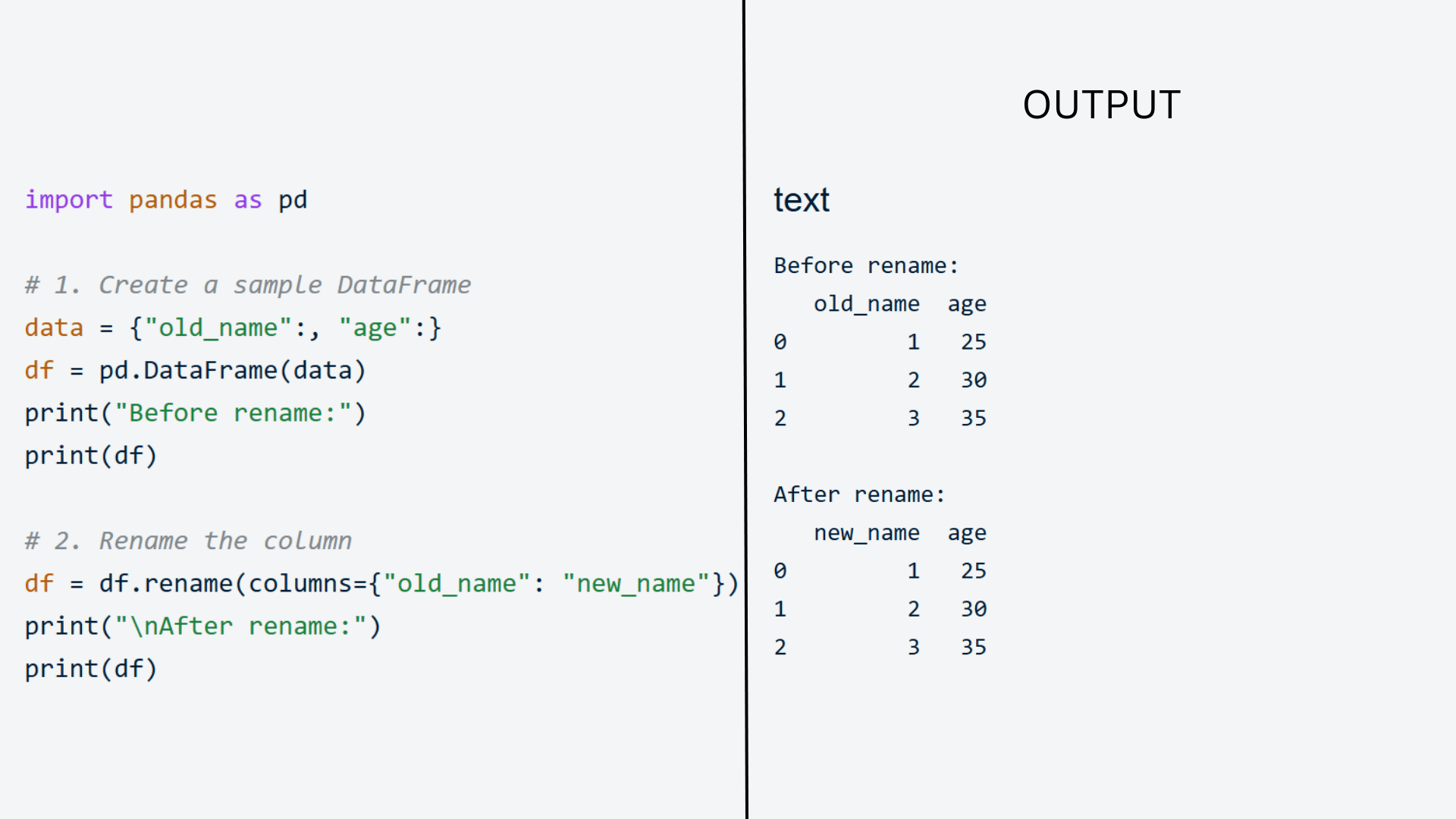
The rename() method is the most common way to change column names in pandas because it lets you update only the labels you choose.
You pass a dictionary where the existing column name is the key and the new name is the value.
Every other column remains unchanged, making this method useful for small changes in large DataFrames.
It also works well when you want clear control over which labels are updated without replacing every column name.
2. Rename All Columns Using df.columns
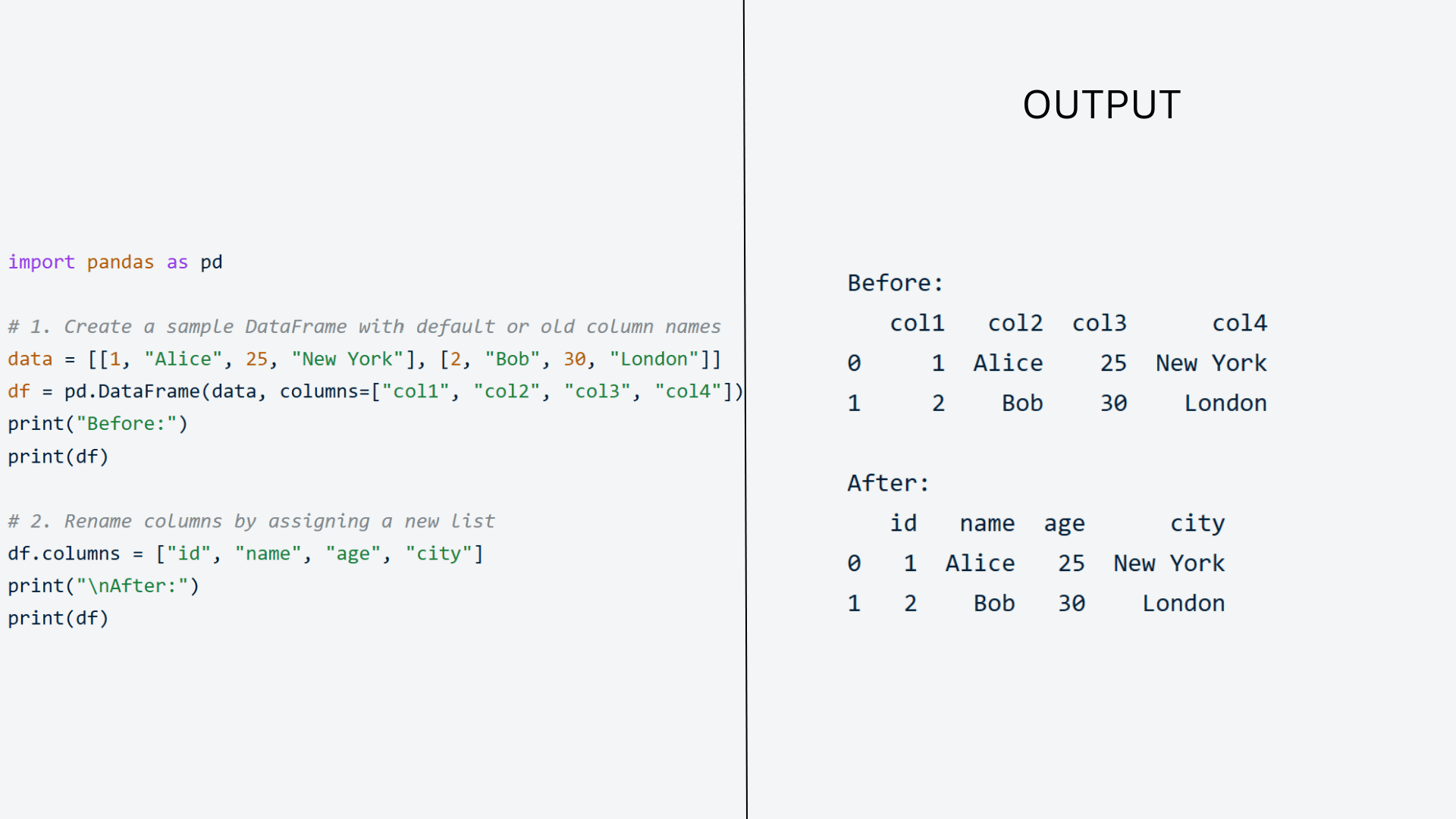
If every column needs a new name, you can assign a new list directly to df.columns.
This method replaces all existing labels at once, so the number of new names must exactly match the number of columns in the DataFrame.
It works well after importing data with unclear headers or when you want to standardize every label before starting your analysis.
A mismatch in the number of names will raise an error.
3. Rename Columns With set_axis()
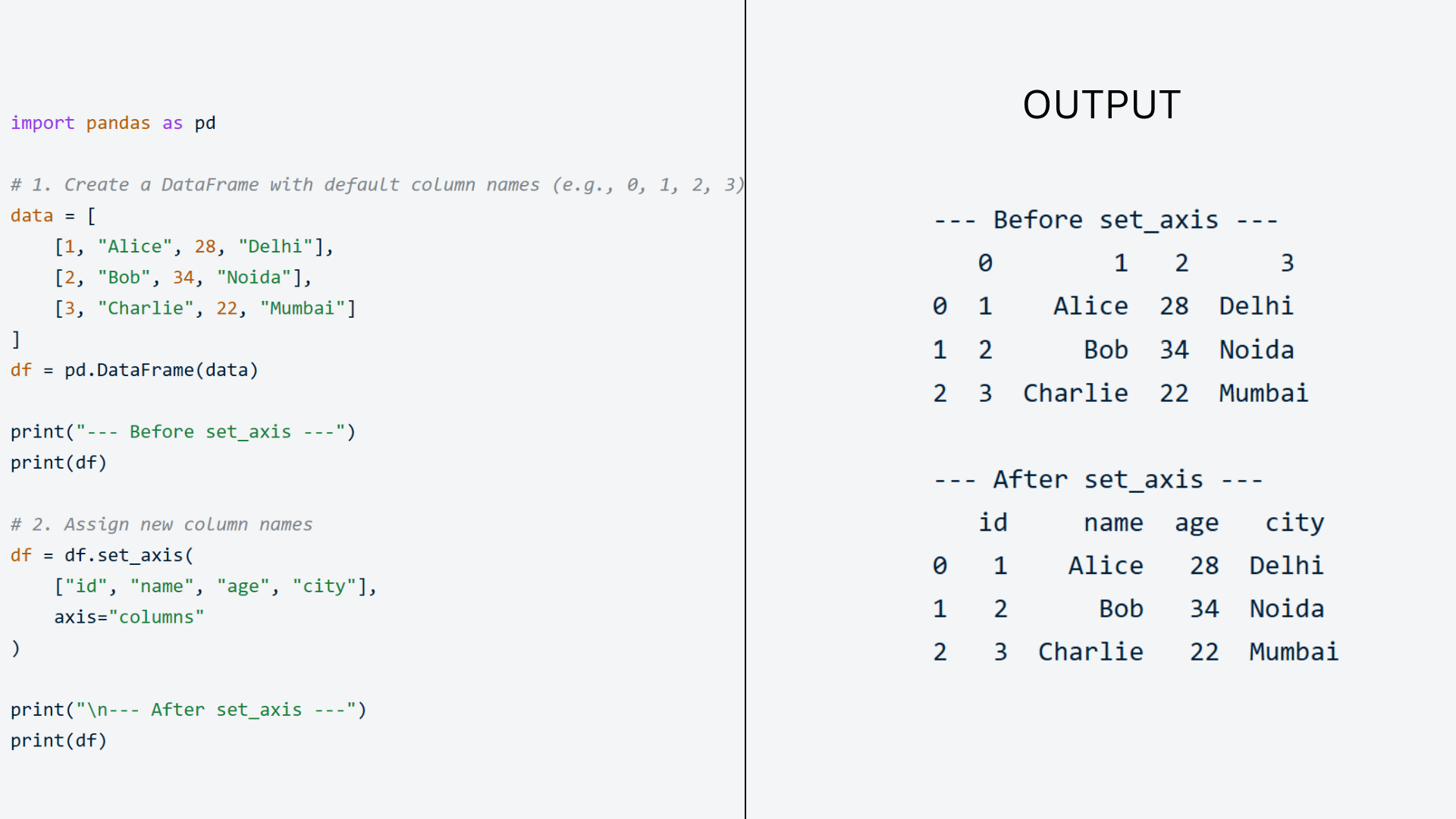
The set_axis() method replaces an entire set of column labels while giving you the option to return a new DataFrame.
It is useful when you already have a complete list of column names and prefer an alternative to direct assignment.
Since it updates all labels together, it is better suited for full-column replacements than for changing only one or two names.
4. Rename Columns Using a Function
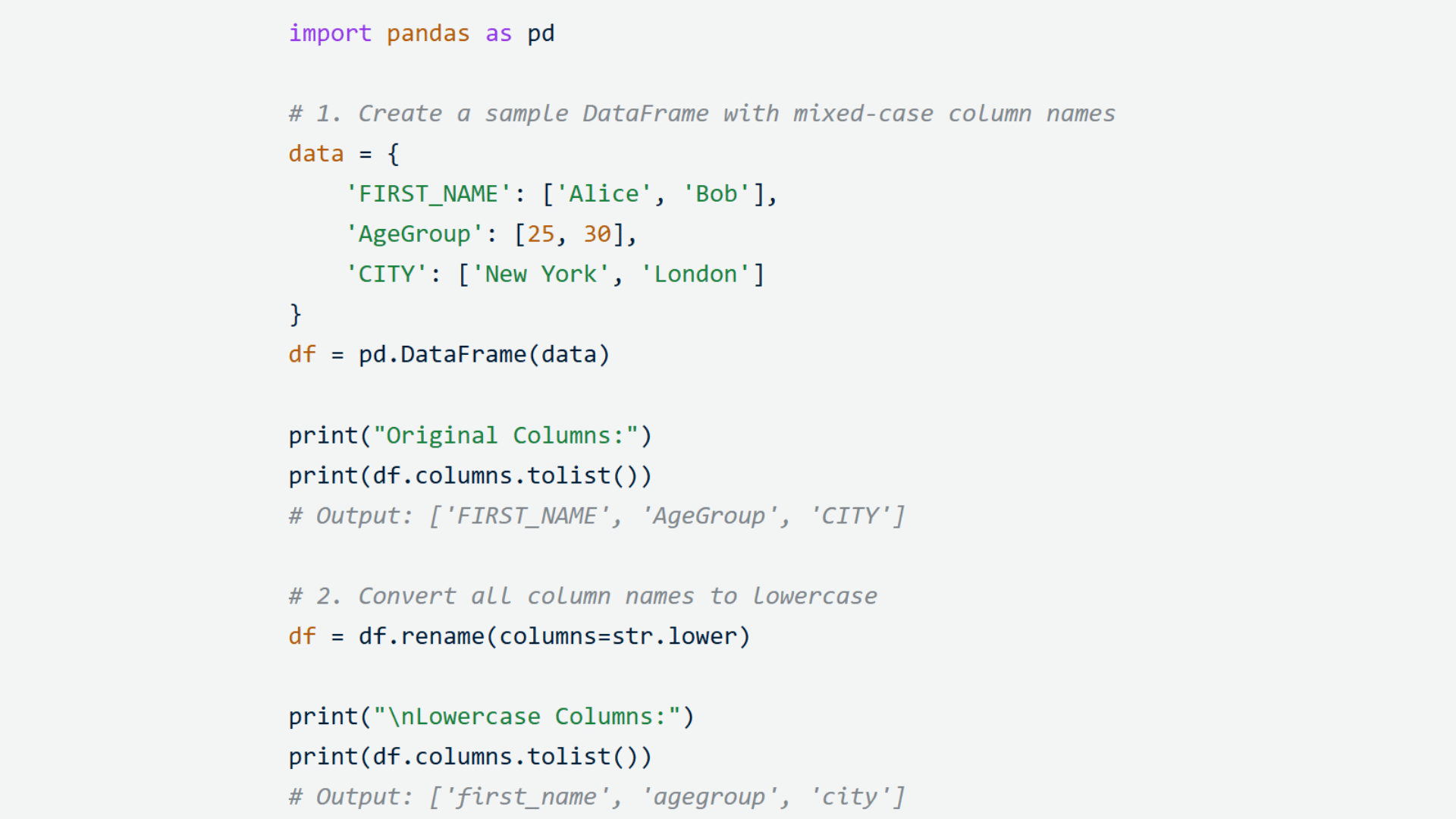
Pandas also lets you rename column labels by applying a function to every column name.
This method is helpful when all labels need the same type of change, such as converting uppercase text to lowercase, removing spaces, or adding a prefix.
Instead of listing every column manually, a single function updates each label automatically, saving time when working with larger datasets.
5. Rename Columns by Changing Their Position
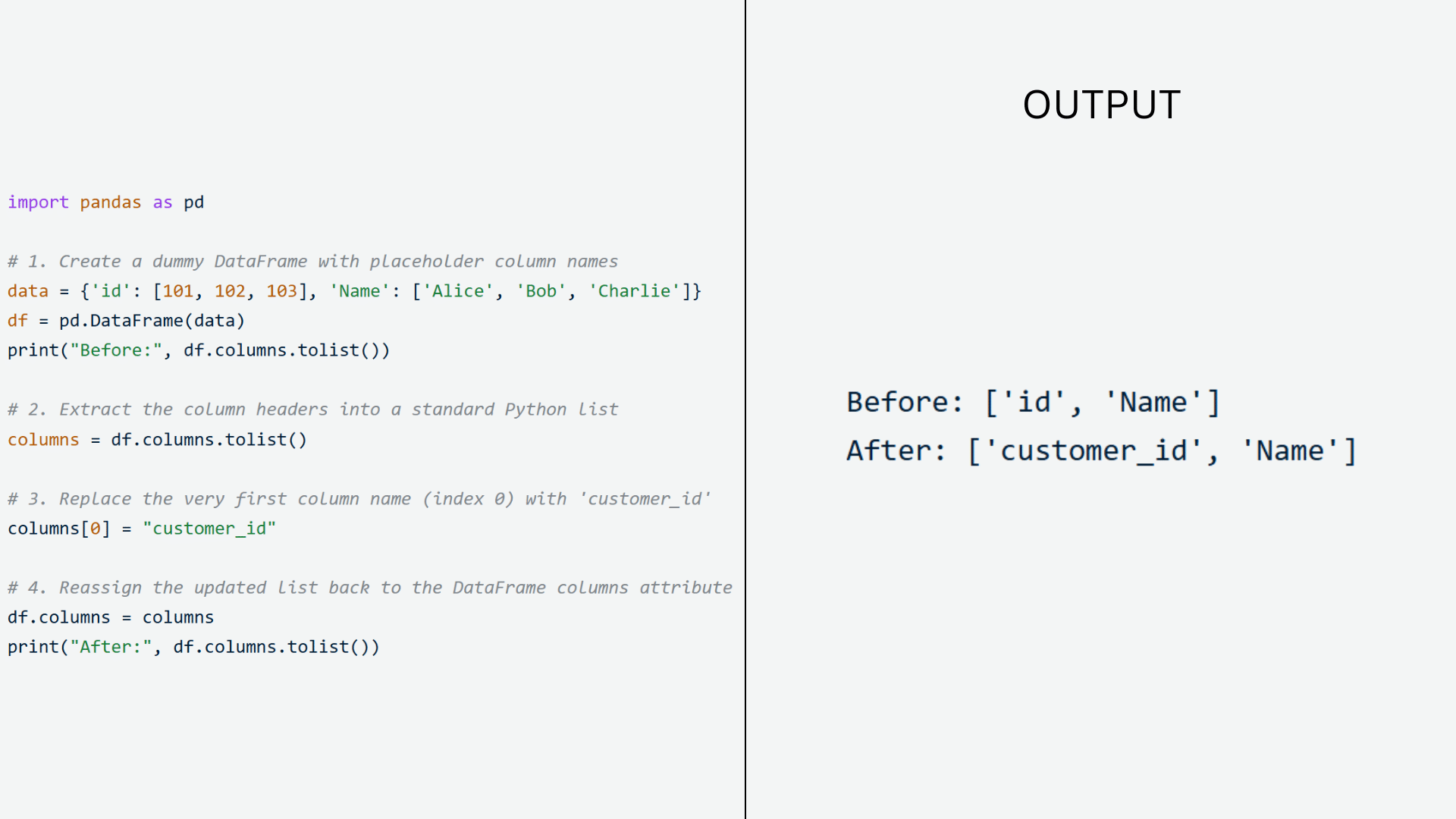
Sometimes you know the position of a column but not its exact name.
In that case, you can convert the column labels into a list, update the required position, and assign the list back to the DataFrame.
Use this method carefully because later changes to the column order can affect which label is updated.
Pandas Rename Column Methods Compared
The best method depends on how many column names you want to change and the type of update your DataFrame needs.
| Method | Best For | Changes All Columns | Returns New DataFrame | Easy to Use |
|---|---|---|---|---|
rename() | Selected columns | No | Yes | Yes |
df.columns | Entire column list | Yes | No | Yes |
set_axis() | Full label replacement | Yes | Yes | Yes |
| Function | Pattern-based changes | Yes | Yes | Moderate |
| Position-based | Unknown label names | One at a time | No | Moderate |
Common Pandas Column-Renaming Errors
Even a small mistake while renaming columns can cause unexpected errors, so checking for these common issues can save time during data cleaning and analysis.
- Misspelled Column Names: A typo or incorrect capitalization prevents pandas from finding the column, so the rename operation does not work as expected.
- Hidden Spaces in Labels: Extra spaces before or after a column name can cause matching failures. Check and remove unwanted whitespace first.
- Wrong Number of Column Names: Assigning
df.columnswith fewer or more names than the DataFrame contains raises a length mismatch error. - Changes Not Saved: Calling
rename()without assigning the result or usinginplace=Trueleaves the original DataFrame unchanged. - Duplicate Column Names: Renaming two or more columns to the same label can make filtering and selecting data confusing.
- Using the Wrong Method: Replacing every column with
df.columnsinstead ofrename()may change labels you wanted to keep. - Missing Columns in Mapping: If a specified column does not exist, pandas ignores it by default unless
errors="raise"is used.
How Do Column Data Types Affect Renaming?
A column’s data type does not change how pandas renames it because renaming affects the label, not the stored values.
A column containing integers, floats, dates, strings, or Boolean values can be renamed with the same rename() syntax.
The data inside the column keeps its original type after the label changes. For example, changing price to product_price does not convert numeric values into text.
The label type matters more than the column’s data type. Pandas column labels can be strings, numbers, tuples, or dates, and the rename mapping must match the existing label exactly.
A numeric label such as 1 will not match the string label "1".
MultiIndex columns may also use tuple-based labels, which require the correct level or full tuple during renaming. Checking df.columns before writing the mapping helps prevent label-type mismatches.
Pandas Rename Column Edge Cases to Know
A little extra attention to these situations can help you avoid unexpected errors and keep your column names consistent across different datasets.
- Missing Column Names: If a column listed in your rename mapping does not exist, pandas ignores it unless you set
errors="raise". - Duplicate Column Labels: Renaming multiple columns to the same name can make selecting, filtering, and grouping data harder.
- Hidden Spaces: Leading or trailing spaces in column names can stop a rename operation from matching the correct label.
- Case-Sensitive Matching: Pandas treats
Name,name, andNAMEas different column names, so the spelling must match exactly. - MultiIndex Columns: DataFrames with multiple column levels may require the
levelparameter to rename only the intended labels. - Length Mismatch: Replacing
df.columnswith a list that has too many or too few names raises an error. - Non-String Column Labels: Columns named with numbers, dates, or tuples can also be renamed, but the mapping must use the exact label type.
What to Review Before Saving a Renamed DataFrame?
Before saving a renamed DataFrame, check that every new label is correct, unique, and suitable for later use.
Start by printing df.columns to confirm that each intended change appears in the right place.
Look for spelling mistakes, hidden spaces, mixed capitalization, and duplicate names that may cause selection or merge errors.
You should also test a few common operations, such as filtering, grouping, or joining, to confirm that older code still works with the updated labels.
Check the output file format as well, especially when exporting to CSV, Excel, or a database.
Some systems may treat spaces, symbols, or letter case differently.
Keep a record of the old and new names when the DataFrame is part of a larger project, since that makes later checks and code updates much easier.
Conclusion
Renaming columns in pandas becomes much easier once you understand which method suits each task.
The rename() method works well for selected labels, while df.columns and set_axis() are better for replacing every column name. Functions also help when several labels need the same formatting change.
You should still check for spelling errors, hidden spaces, duplicate labels, case differences, and non-string column names before saving the DataFrame.
Reviewing df.columns after each change can prevent errors in filters, joins, groups, and later code.
Use the examples from this guide with your own dataset, compare the available methods, and choose the option that keeps your pandas code easy to read and maintain.
Frequently Asked Questions
Why Does Pandas Fail to Rename a Column?
Pandas may fail when the original label contains spelling errors, hidden spaces, or different letter cases. The change also fails when the returned DataFrame is not assigned.
Can Pandas Columns Share the Same Name?
Yes, pandas allows duplicate column names, but repeated labels can make selection, filtering, grouping, and exporting harder because a single label may refer to multiple columns.
How Do rename() and rename_axis() Differ?
The rename() method changes individual row or column labels. The rename_axis() method changes the name assigned to an index or column axis.
Can Columns Be Renamed without inplace=True?
Yes, assign the returned DataFrame to a variable. For example, df = df.rename(columns={"old": "new"}) updates the reference without using inplace=True.