

I know how frustrating it can be when your iPhone suddenly shows an SSL error message while you are trying to open a website or check your email.
You tap the screen again, but the warning stays put. It feels unclear and, depending on what you were doing, a little alarming.
After years of working in cybersecurity, I can tell you that most SSL errors on iPhone are device-side or network-side problems, not signs that someone is actively attacking you.
That said, some of them do carry real risk, and it matters which type you are dealing with.
In this guide, you will learn exactly what the error means, the most common reasons it appears, and the specific steps to fix it.
I will also cover how to tell a harmless certificate glitch from a warning you should take seriously.
What Is an SSL Error on an iPhone?
An SSL error on an iPhone occurs when your device cannot establish a secure connection to a website or app. SSL stands for Secure Sockets Layer.
Modern connections actually use TLS (Transport Layer Security), the updated standard, but the term “SSL error” has stuck in everyday use.
When you visit a website, your iPhone checks the site’s security certificate before allowing any data to transfer.
If that check fails for any reason, your device blocks the connection and shows a warning. The page does not load. That block is intentional. Your iPhone is stopping data from moving over a connection it cannot verify as safe.
This error often shows up in Safari, Mail, or other apps that use the internet. It usually means the website’s security certificate has expired, is invalid, or is not trusted by your device.
In some cases, the problem may be related to incorrect date and time settings or network issues.
Simply put, the error is your iPhone’s way of protecting your data. It stops the connection to prevent possible security risks.
Common Causes of SSL Error iPhone
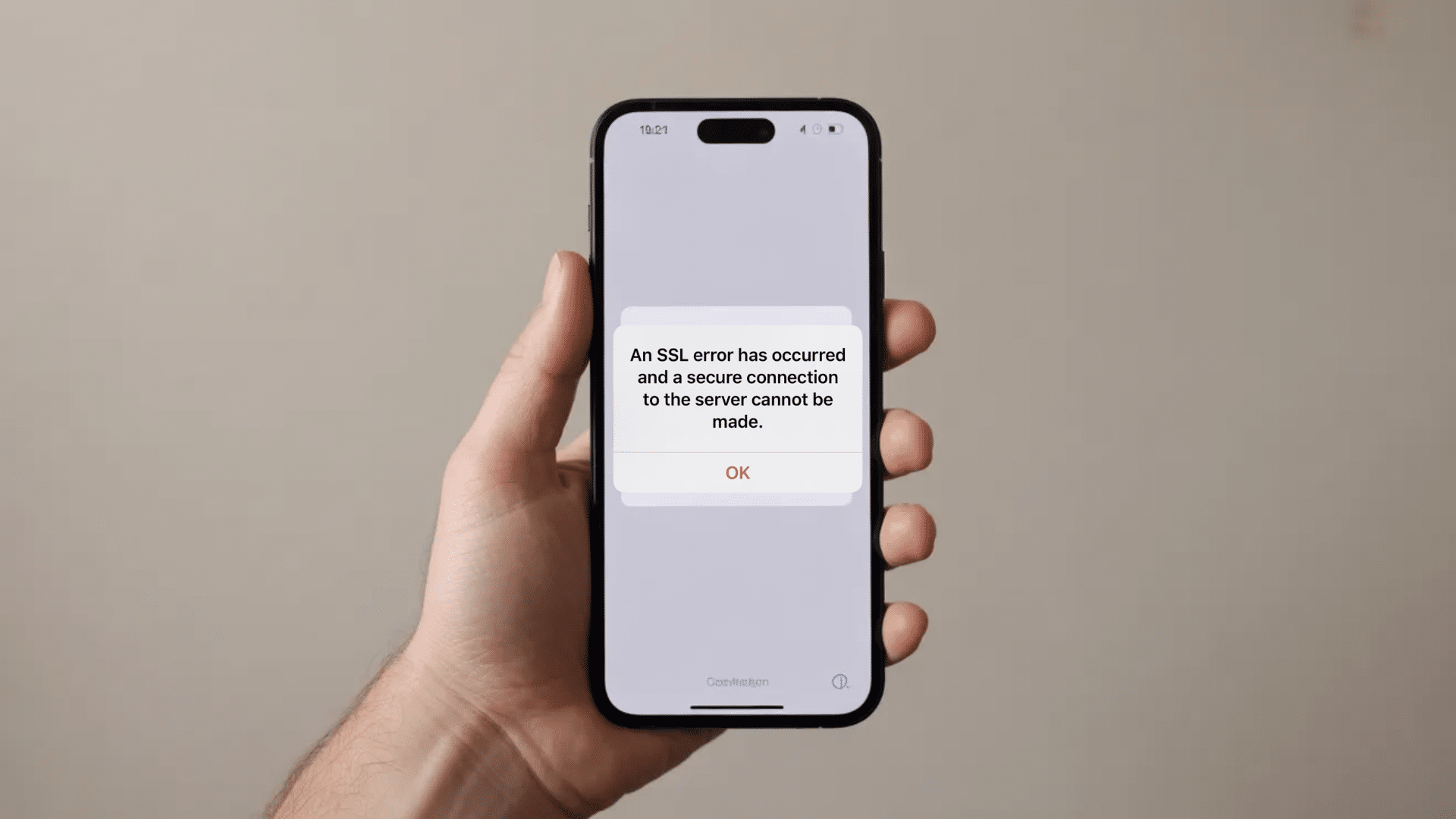
An SSL error on an iPhone usually appears when your device cannot confirm a secure and trusted connection. The issue can come from your phone, your network, or the website you are trying to access.
1. Expired SSL Certificate
Every SSL certificate has an expiry date. When a website’s certificate lapses, browsers and mobile devices stop trusting it immediately.
This is one of the most common causes, and it is entirely a server-side problem.
There is nothing wrong with your iPhone. The fix has to come from the website owner renewing their certificate. If you control the site yourself, check your certificate status through your hosting provider.
2. Incorrect SSL Installation
Some websites do not install SSL certificates correctly on their servers. This can stop Safari or apps from creating a trusted, secure connection.
A common version of this is a missing “intermediate certificate” in the chain, meaning your iPhone can see the site’s certificate but cannot trace it back to a trusted root authority.
Safari will block this just as it blocks an expired cert.
3. Domain Name Mismatch
The SSL certificate may belong to a different website domain name. When the names do not match, your iPhone displays an SSL warning message.
For example, a certificate issued to “www.example.com” will not cover “shop.example.com” unless it explicitly includes that subdomain. This is a hard block.
4. Wrong Date and Time Settings
Incorrect date and time settings can affect certificate verification on your iPhone. SSL certificates depend on accurate time to confirm their validity.
If your iPhone’s clock is set to a date outside the certificate’s validity window, even a perfectly valid certificate will trigger an error.
This is one of the easiest fixes: go to Settings > General > Date & Time and turn on “Set Automatically.”
5. Outdated iOS Version
Older iOS versions may not support newer website security standards. Specifically, older iOS versions may not recognize newer certificate authorities or support the latest TLS versions.
Sites that have upgraded their security requirements can become unreachable until you update your device. Updating your iPhone can fix these compatibility issues.
6. Misconfigured Network Settings
Damaged or incorrect network settings can interfere with secure connections.
Resetting network settings often helps fix SSL-related connection problems. This is more common than most people expect.
A corrupted DNS cache or a misconfigured proxy setting can intercept SSL traffic in ways that break certificate verification without any visible cause.
7. VPN or Security App Interference
Some VPNs and security apps filter internet traffic for protection purposes. This can sometimes block or interrupt secure SSL verification processes.
Corporate VPNs in particular perform what is called “TLS inspection,” where they decrypt and re-encrypt your traffic to scan it.
If the inspection certificate is not trusted by your iPhone, every HTTPS site will throw an SSL error.
Disabling the VPN temporarily is a fast way to test whether this is the cause.
8. MDM or Configuration Profiles
If your iPhone is managed by a company or school, a Mobile Device Management (MDM) profile may install custom certificates.
If those certificates are misconfigured or have expired, SSL errors can appear across many apps.
Check under Settings > General > VPN & Device Management to see if any profiles are installed. This is a common but under-discussed cause that most fix guides skip entirely.
How to Fix SSL Error on iPhone?
You can fix an SSL error on an iPhone by checking a few settings and ensuring the device can connect to the website securely. Most of the time, steps like updating your software or correcting your date and time solve the problem.
Step 1: Turn Airplane Mode On and Off
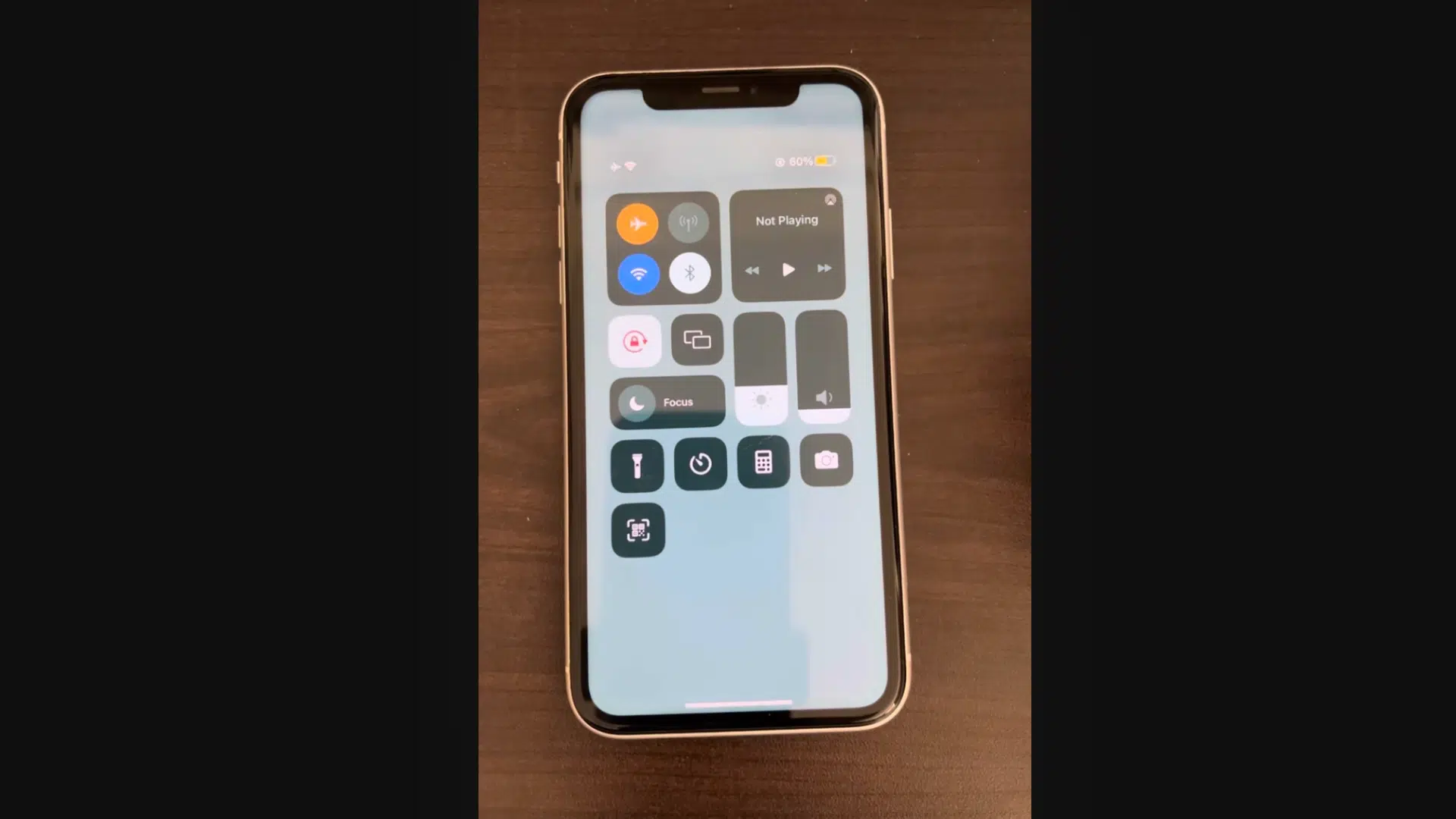
First, open the Control Center on your iPhone by swiping down from the top right corner.
Tap the Airplane Mode icon to turn it on. Wait for about 10 to 15 seconds so your phone fully disconnects from all networks. Then tap the icon again to turn it off.
This refreshes your network connection and clears minor glitches.
Once your signal returns, try opening the website or app again to check if the SSL error is gone.
Step 2: Check Mobile Data Settings
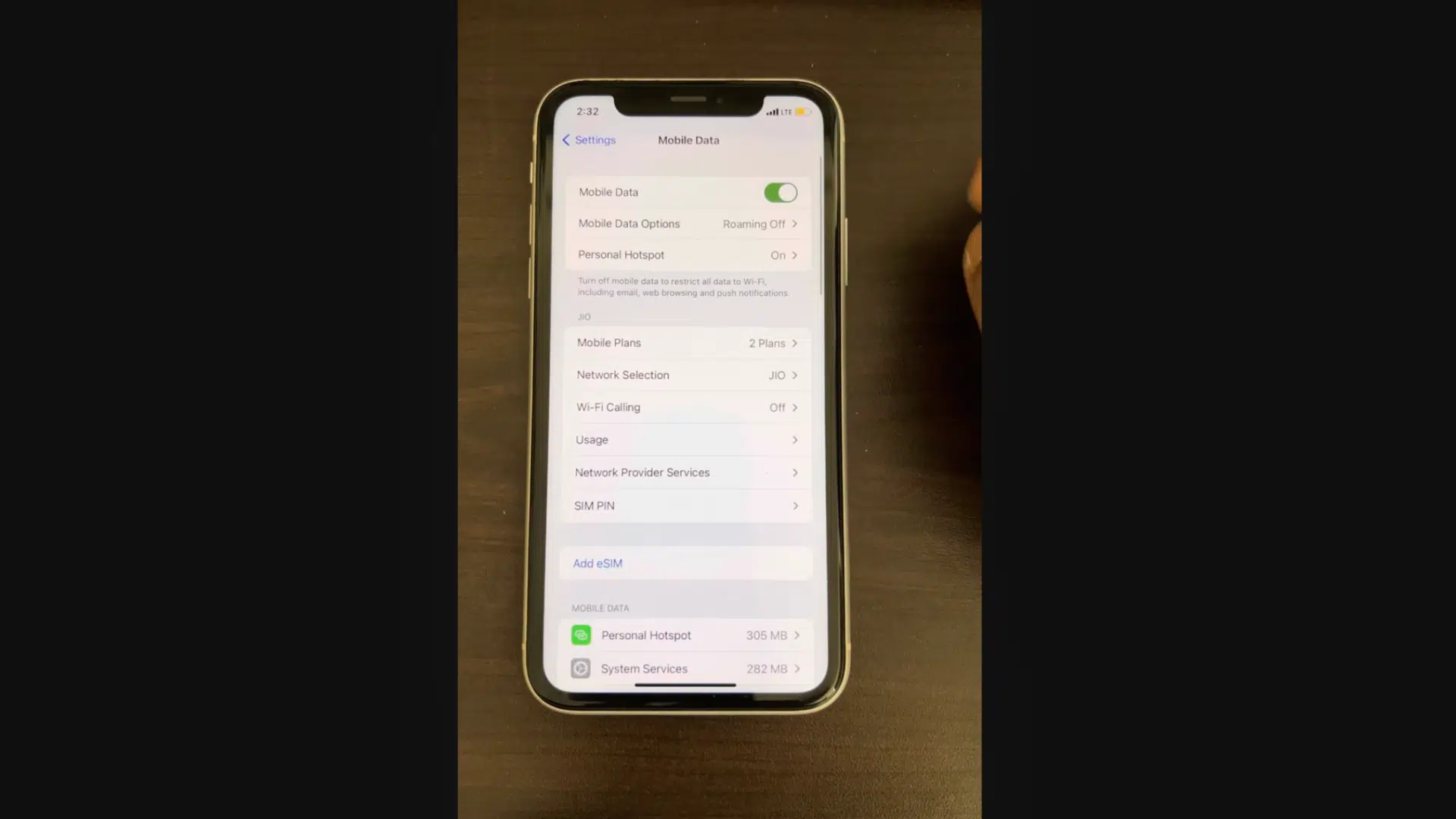
Go to Settings on your iPhone. If you are using mobile data instead of Wi-Fi, tap on Mobile Data.
Then select Mobile Data Options. Look for Low Data Mode and make sure it is turned off. When this mode is on, it can limit certain background processes and affect secure connections.
After turning it off, exit Settings and try loading the website or app again to see if the SSL issue has been resolved.
Step 3: Reset Network Settings
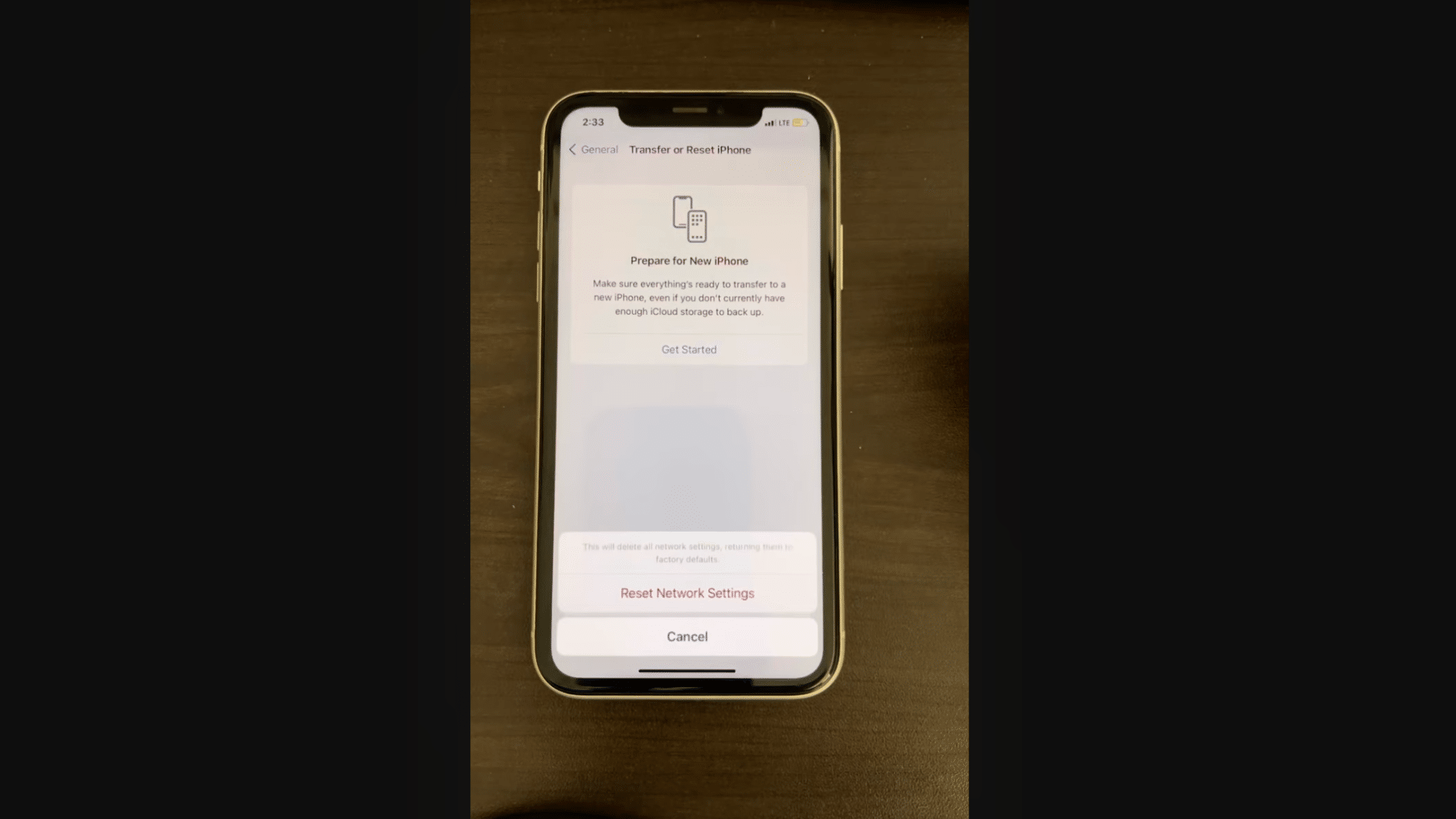
Open Settings and tap on General. Scroll down until you find Transfer or Reset iPhone, then tap it.
Next, choose Reset and select Reset Network Settings. You may need to enter your passcode to confirm. This step will remove saved Wi-Fi networks, passwords, and network settings, but it will not delete your personal data.
Once your phone restarts, reconnect to your Wi-Fi or mobile data, then test the connection again.
Step 4: Update iOS Version
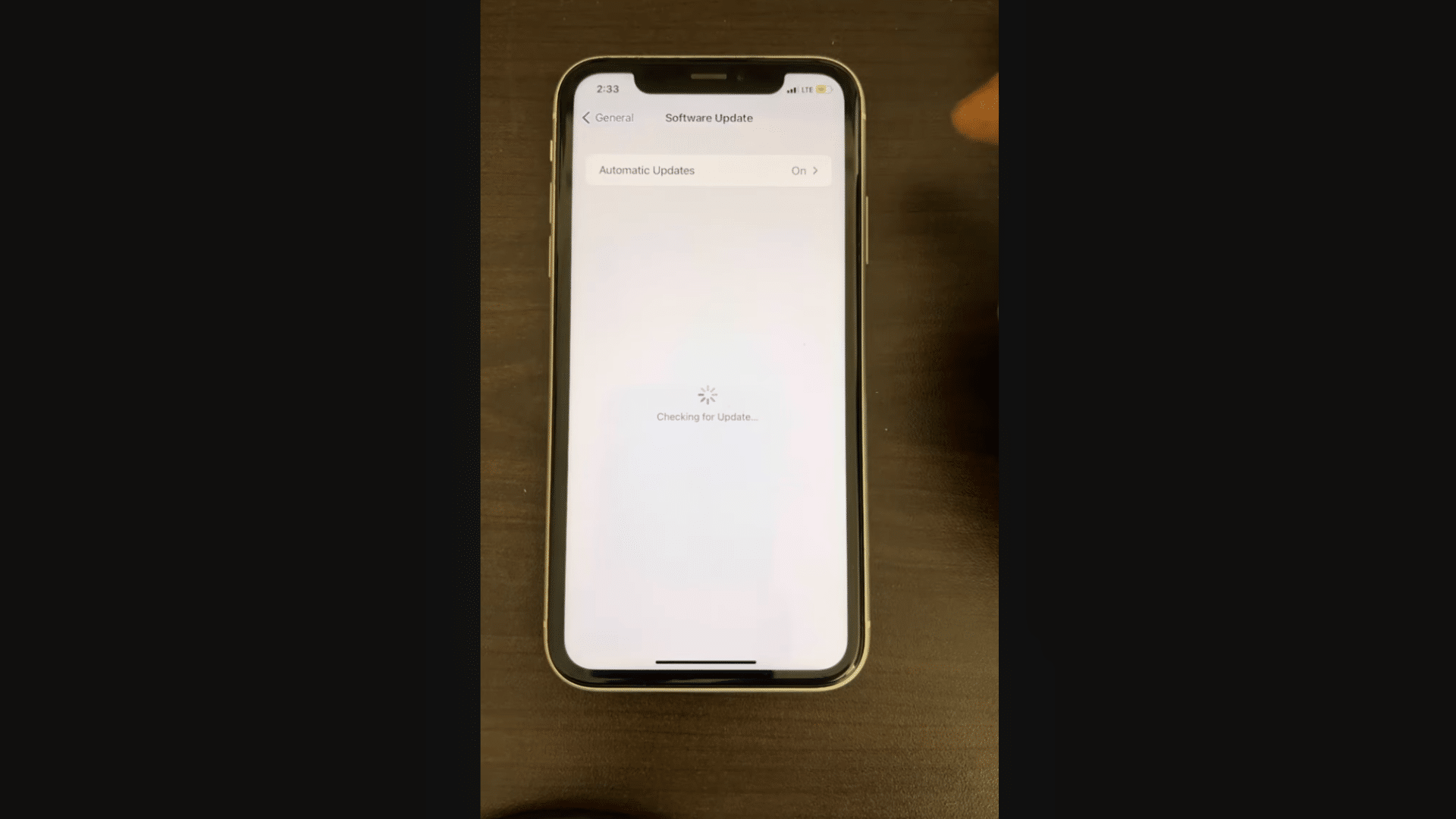
Go to Settings and tap on General. Select Software Update and wait while your iPhone checks for available updates.
If a new iOS version is available, tap Download and Install. Keeping your device updated helps fix bugs and improve security features, including SSL-related issues. After the update is complete, restart your phone.
Once it turns back on, try opening the same website or app again to see if the error message is gone.
This tutorial is based on a helpful video by The Geek Page. You can check out the original video on their YouTube channel here or watch it below.
Can Public Wi Fi Cause SSL Errors on iPhone?
Yes, public Wi Fi can sometimes cause SSL errors on iPhone by interrupting secure connections.
Public networks in places like airports, hotels, cafes, and shopping centers often use security filters, login portals, or restricted settings that can interfere with SSL certificate verification.
When this happens, your iPhone may fail to confirm a secure connection and display an SSL warning message instead.
I have personally seen this issue occur while using public Wi-Fi during travel. The website worked fine on mobile data, but the SSL error kept showing on the public network.
If you notice SSL errors only on public Wi Fi, try switching to mobile data or reconnecting to another trusted network.
Restarting the connection can also help restore secure access properly
Best Ways to Fix Secure Connection Problems
Secure connection problems on iPhone usually occur due to network issues, outdated settings, or browser errors. Most of these problems can be fixed with a few simple troubleshooting steps.
| Fix Method | How It Helps |
|---|---|
| Restart Your iPhone | Refreshes system processes and clears temporary connection issues |
| Update iOS | Improves security support and fixes software bugs |
| Check Date and Time | Helps your iPhone verify SSL certificates correctly |
| Clear Safari Cache | Removes corrupted browser files that may interrupt connections |
| Reset Network Settings | Restores default network settings and fixes connection errors |
| Disable VPN Temporarily | Prevents VPN apps from interfering with secure websites |
| Use Another Wi Fi Network | Checks if the current network is causing the problem |
| Restart Your Router | Refreshes internet connectivity and improves stability |
| Turn Airplane Mode On and Off | Reconnects your device to mobile and Wi Fi networks |
| Update Browser Apps | Fixes compatibility and security problems in internet apps |
Is an SSL Error on an iPhone dangerous?
An SSL error on an iPhone is not always dangerous, but you should not ignore it. This warning appears when your device cannot confirm that a website or server is secure.
In many cases, the issue is simple, such as an expired certificate or incorrect date and time settings. Still, the error exists to protect you.
If the certificate is invalid or the connection is not secure, your personal data could be at risk. This includes passwords, credit card details, or login information. Your iPhone blocks the connection to prevent unsafe data transfer.
You should avoid entering sensitive information on a site that shows this error.
Instead, fix the issue first or try accessing a trusted website. Treat it as a safety alert, not something to bypass without checking.
How to Check if a Website Is Safe?
SSL warnings can sometimes appear because a website is not secure. Checking a few signs can help you avoid unsafe websites and protect your data.
- Look for HTTPS in the Address Bar: A secure website usually starts with HTTPS instead of HTTP. The extra “S” means the connection is encrypted.
- Check for a Padlock Icon: Safari displays a padlock icon next to secure websites. If the icon is missing, the site may not be fully secure.
- Avoid Websites With Warning Messages: Do not continue if Safari shows messages about invalid certificates or unsafe connections.
- Do Not Enter Personal Information: Avoid entering passwords, banking details, or card information on websites that display SSL errors.
- Check the Website URL Carefully: Some fake websites use names similar to real brands. Make sure the spelling and domain look correct.
- Use Trusted Websites Only: Visit websites you know and trust, especially when making payments or signing in.
- Leave Suspicious Websites Immediately: If a page looks unusual or keeps showing security warnings, close it and avoid returning to it
How to Prevent SSL Error on iPhone in the Future?
You can lower the chances of seeing this error by keeping your iPhone updated and your settings correct. Small checks done often can help you avoid connection problems later.
Make sure your iPhone always runs the latest version of iOS. Updates fix bugs and improve security systems that handle secure connections.
Also, keep your date and time set to update automatically so certificates can be verified correctly.
Use trusted Wi-Fi networks whenever possible and avoid unknown public networks for sensitive tasks. If you use a VPN or security app, keep it updated and make sure it is not blocking secure sites.
Clearing the browser cache from time to time can also help maintain smooth, secure browsing.
Conclusion
Dealing with an SSL error on your iPhone can feel confusing at first, but now you know it is usually your device trying to protect you. In most cases, the fix is simple and only takes a few minutes.
Once you understand the cause, the warning feels less scary and more like a helpful safety check.
The key is not to ignore it or rush past it. Take a moment to check your settings, update your software, or reset your network if needed. These small steps can save you from bigger problems later.
If you have faced this error before, I would hear what worked for you.
Did one of these fixes solve it, or did you try something different? Share your experience in the comments below so others can learn from you, too.
Frequently Asked Questions
Can Changing DNS Settings Fix SSL Errors on iPhone?
Yes, switching to a public DNS like Google or Cloudflare can sometimes fix SSL connection issues.
Can a Website Work on Another Device but Show an SSL Error?
Yes, this can happen if your iPhone has local settings or network issues affecting the connection.
Do SSL Errors Happen Due to Blocked Ports on a Network?
Yes, certain networks may block secure ports, which can prevent SSL connections from working properly.
Can Installing Unknown Profiles Cause SSL Errors on iPhone?
Yes, untrusted configuration profiles can interfere with security checks and trigger SSL warnings.
Does Factory Resetting the iPhone Fix SSL Errors Permanently?
It can fix deep-seated system issues, but it should be used only as a last resort.