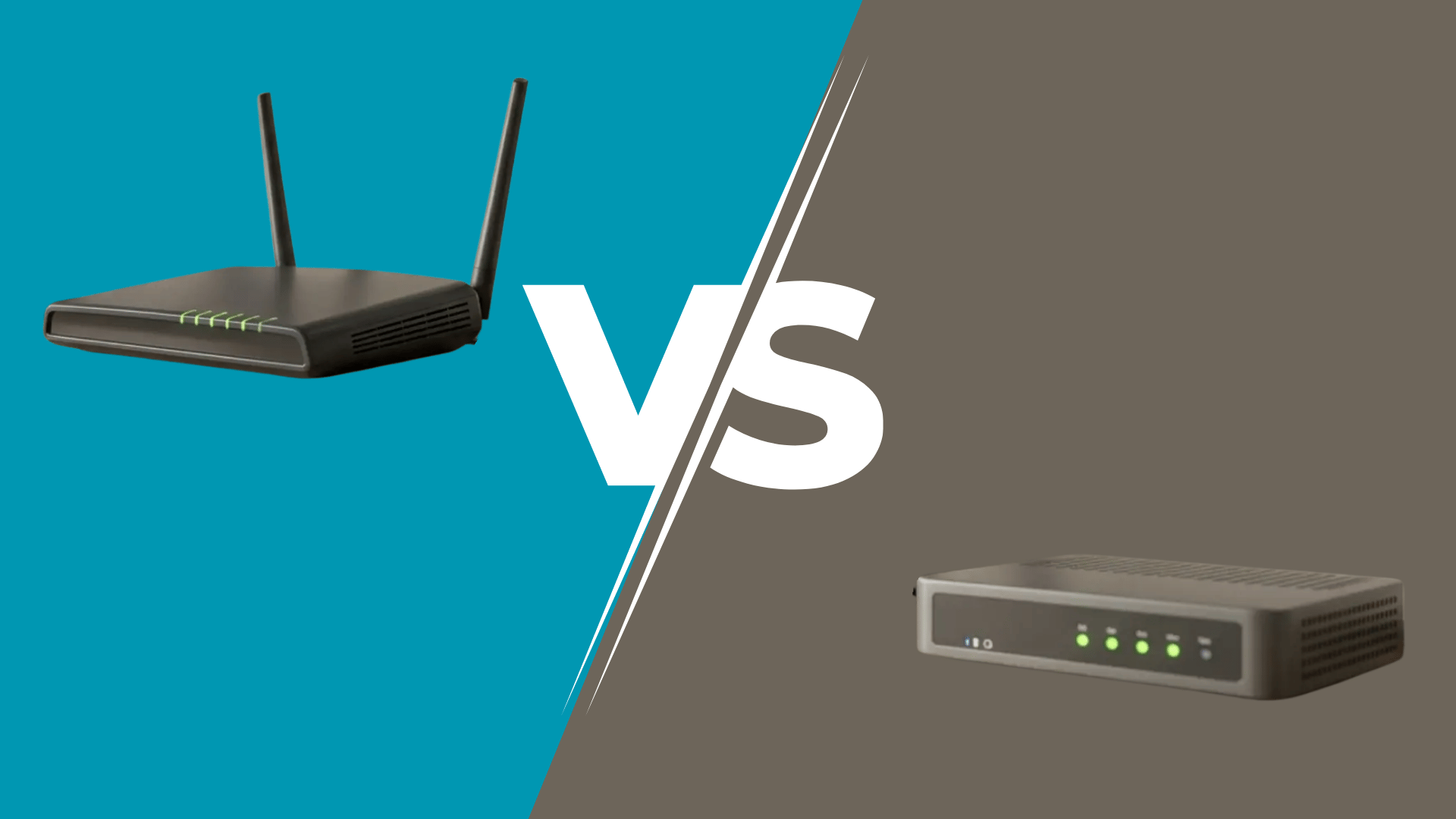



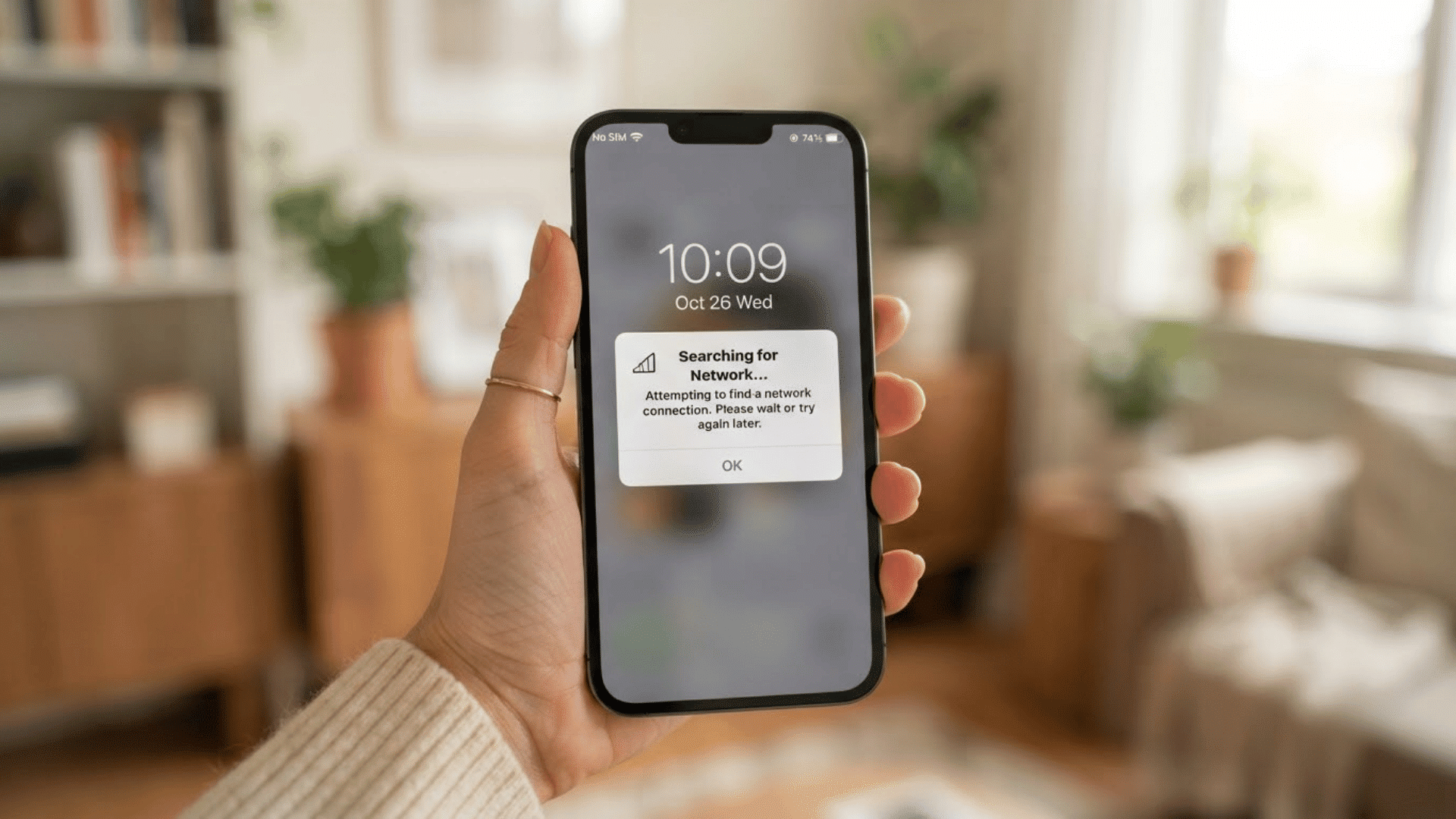
Choosing between an access point and a router can feel confusing because both devices help connect to Wi-Fi.
The main difference is simple: a router creates and manages the network, while an access point adds wireless coverage to an existing network.
This guide explains access point vs router in plain language, including how each device works, when to use router mode or access point mode, and which setup fits a home or small office.
You will also learn installation steps, placement tips, common mistakes, along with buying tips.
What is a Router?
A router connects your local network to another network, usually the internet.
It receives the connection froma modem, fiber ONT, or provider gateway and shares it with your wired and wireless devices.
The router normally assigns local IP addresses through DHCP. It also manages NAT, firewall protection, internet traffic, guest access, and other network controls.
Many home routers combine several devices in one unit, including a router, Ethernet switch, and wireless access point. Traffic between local devices may pass through the built-in switch rather than the routing function.
Some provider gateways also include routing, which can create double NAT when another router is connected incorrectly.
What is an Access Point?
An access point adds Wi-Fi to an existing wired network. It normally connects to the main router or a network switch through an Ethernet cable.
Access points are useful in upstairs rooms, garages, basements, offices, and other areas where the main router provides a weak signal.
Wireless devices such as phones, laptops, cameras, and tablets can then join the same local network. The main router continues managing DHCP, NAT, firewall protection, and internet traffic.
A wired access point, on the other hand, usually performs more consistently than a wireless extender.
A router can act as an access point, but an access point cannot act as a router because only the router assigns IP addresses and connects to the modem.
Access Point vs Router: Key Differences
A router and an access point support the same network, but they perform different jobs. Refer to the table below to know the differences.
| Feature | Router | Access Point |
|---|---|---|
| Network control | Manages the entire network | Connects wireless devices |
| Internet sharing | Shares the modem connection | Depends on the router |
| IP addresses | Assigns addresses through DHCP | Passes requests to the router |
| NAT and firewall | Usually handles both | Usually does not |
| Connections | Offers several Ethernet ports and Wi-Fi | Mainly provides Wi-Fi with fewer ports |
| Coverage | Suits smaller areas | Extends coverage to weak-signal areas |
| Device capacity | Handles normal home use | May support more wireless devices |
| Installation | Connects to the modem | Connects to an existing router |
Which networking device should you choose?
- Choose a router when setting up a new internet connection because it connects the modem to wired and wireless devices while managing the network.
- An access point is better when your current router works well, but Wi-Fi coverage is weak in certain rooms.
Worth noting! Dedicated access points may suit home offices and small businesses that need ceiling mounting, Power over Ethernet, VLAN support, centralized controls, or several coordinated access points.
Access Point, Wi-Fi Extender, or Mesh: Which is Which?
An access point connects to the main router through Ethernet, then creates a fresh Wi-Fi signal in the area where it is installed. Because the backhaul is wired, it usually delivers better speed, lower latency, and steadier performance over longer distances.
A Wi-Fi extender works differently. It receives the router’s wireless signal and repeats it, which makes placement easy but can reduce speed when traffic rises.
A mesh system uses several linked units under one network name. Devices can move between rooms with fewer interruptions.
Choose an access point when Ethernet is available, an extender for one small dead zone, and mesh for broader coverage without new wiring.
Each option solves a different problem, so match it to your layout.
How to Set Up Your Home Router Correctly?
Thee following steps take you from plugging in the router to confirming every device gets online.
1. Connect the Router to the Modem
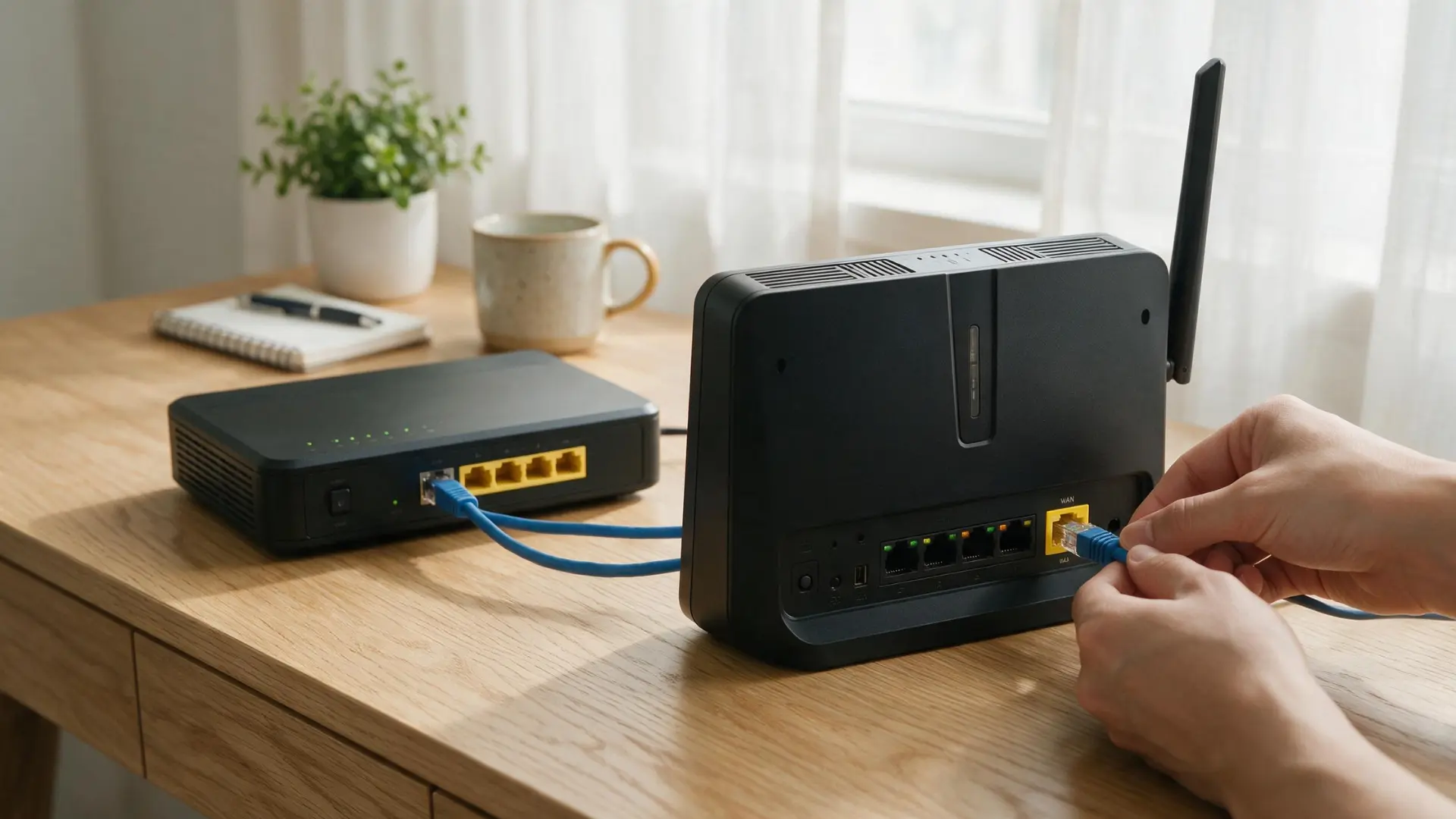
Use an Ethernet cable to connect the modem or fiber terminal to the router and ensure the connection is secure.
Plug one end into the modem’s Ethernet port and the other into the router’s WAN or Internet port, which is usually a different color from the LAN ports.
Always check the port labels first to avoid the most common mistake.
2. Power on the Networking Devices
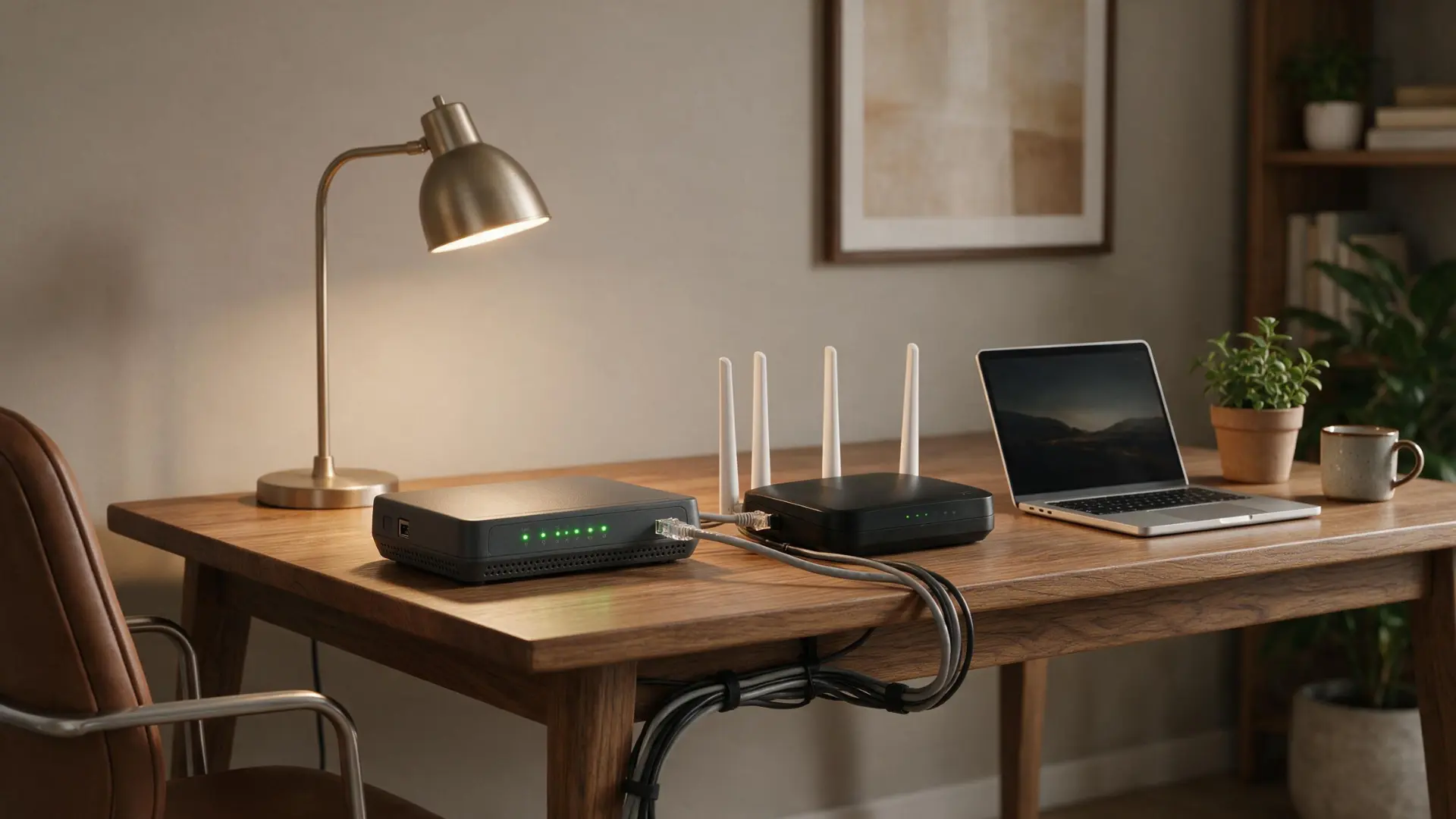
Turn off the modem and router before starting. Power on the modem first and wait until its connection lights become steady.
Next, turn on the router and allow it to complete its startup process. Finally, connect computers, phones, and other devices.
This order helps each device receive the correct network information without unnecessary connection errors. If the router boots before the modem is ready, restart the router so it picks up the connection.
3. Open the Router Settings
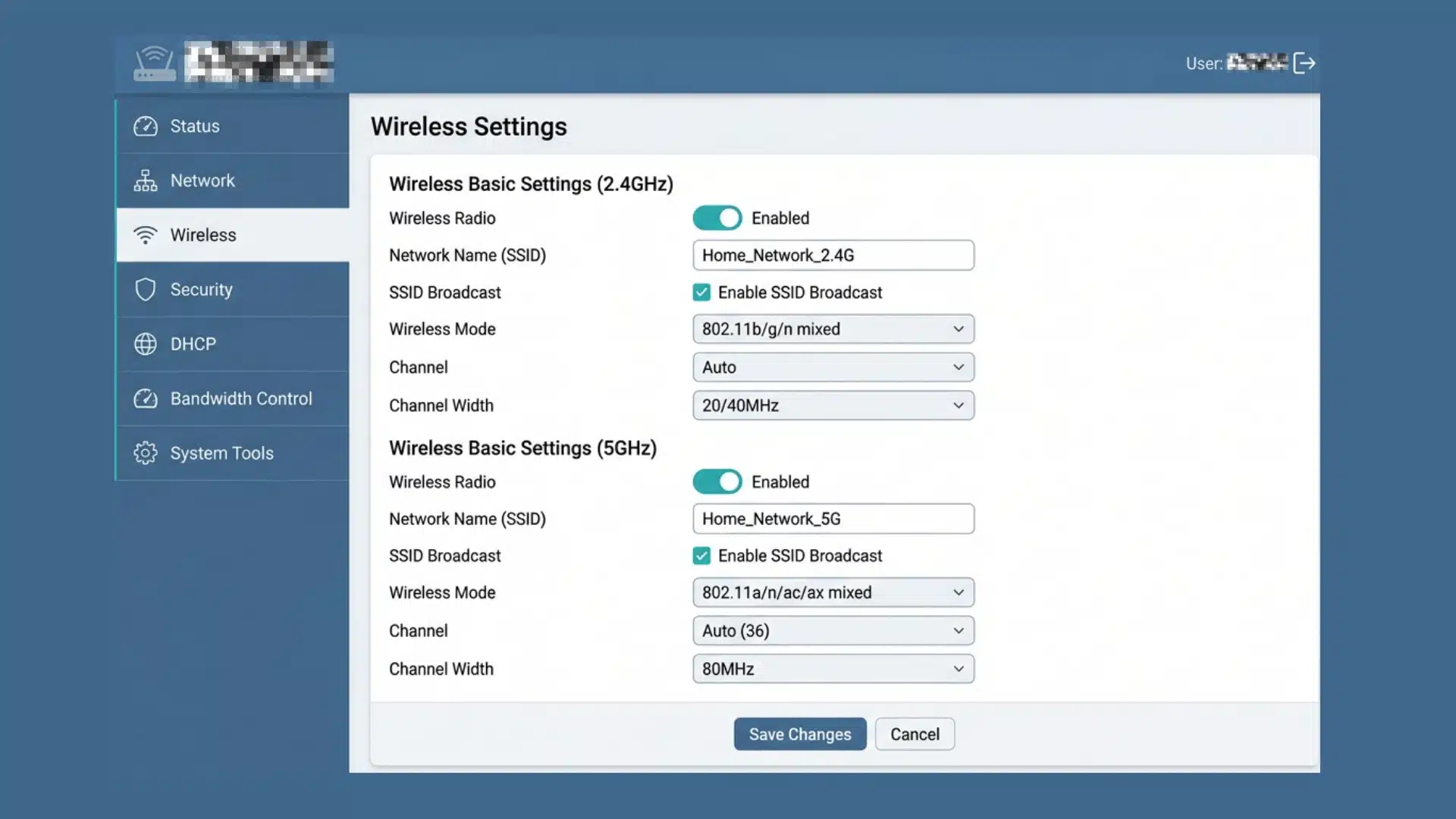
Connect a computer or phone to the router using Wi-Fi or an Ethernet cable. Open the manufacturer’s mobile application or enter the router’s local address in a browser.
The address and login details are usually printed on the device label.
I always change the default administrator password first, before anything else, to keep the network settings locked down
4. Create the Wi-Fi Network
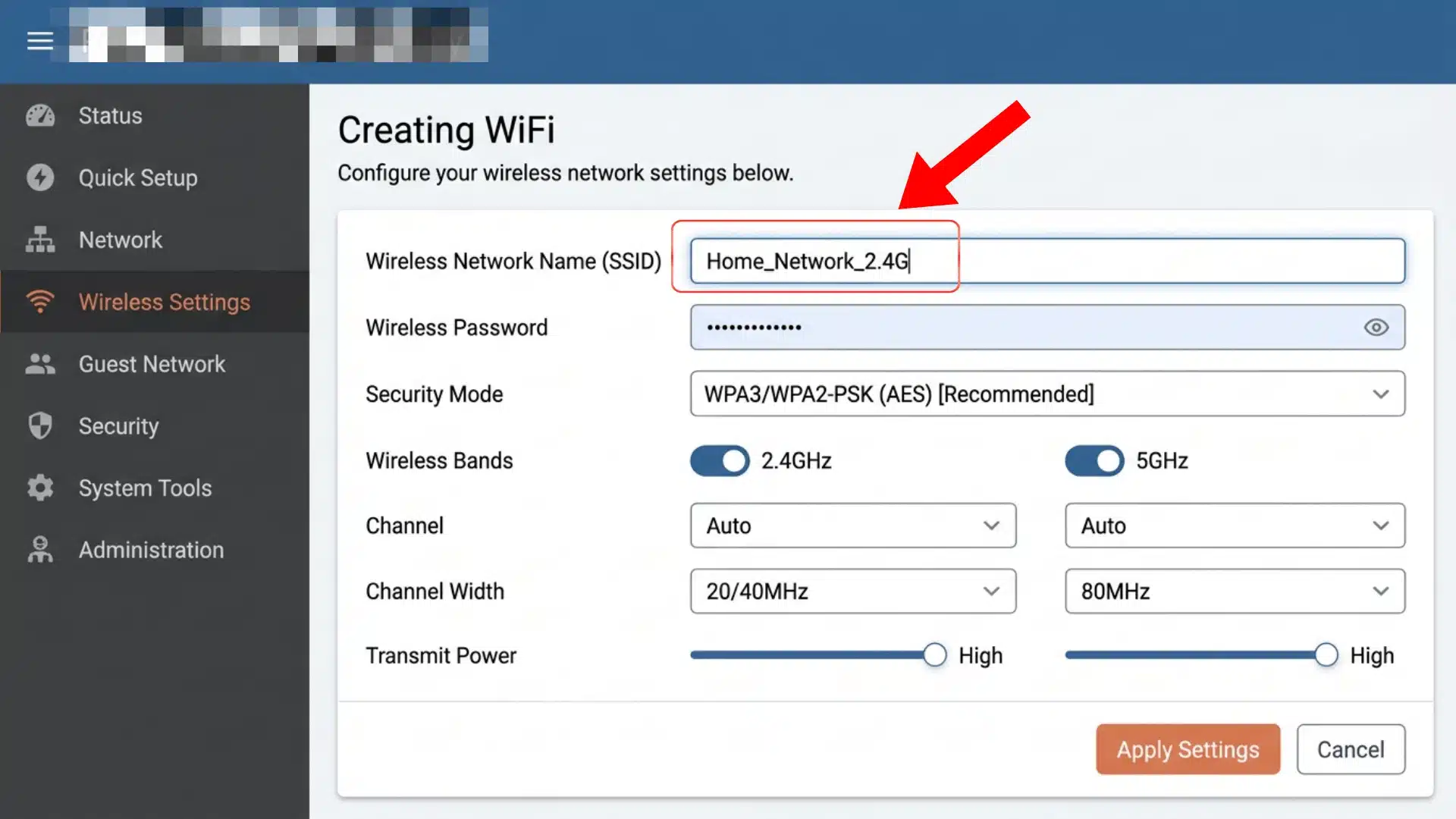
Choose a clear Wi-Fi network name that does not reveal personal information. Create a strong password using letters, numbers, and symbols.
Enable available frequency bands, such as 2.4 GHz and 5 GHz.
A separate guest network helps because visitors can get online without connecting to your personal computers or smart devices.
5. Update the Firmware
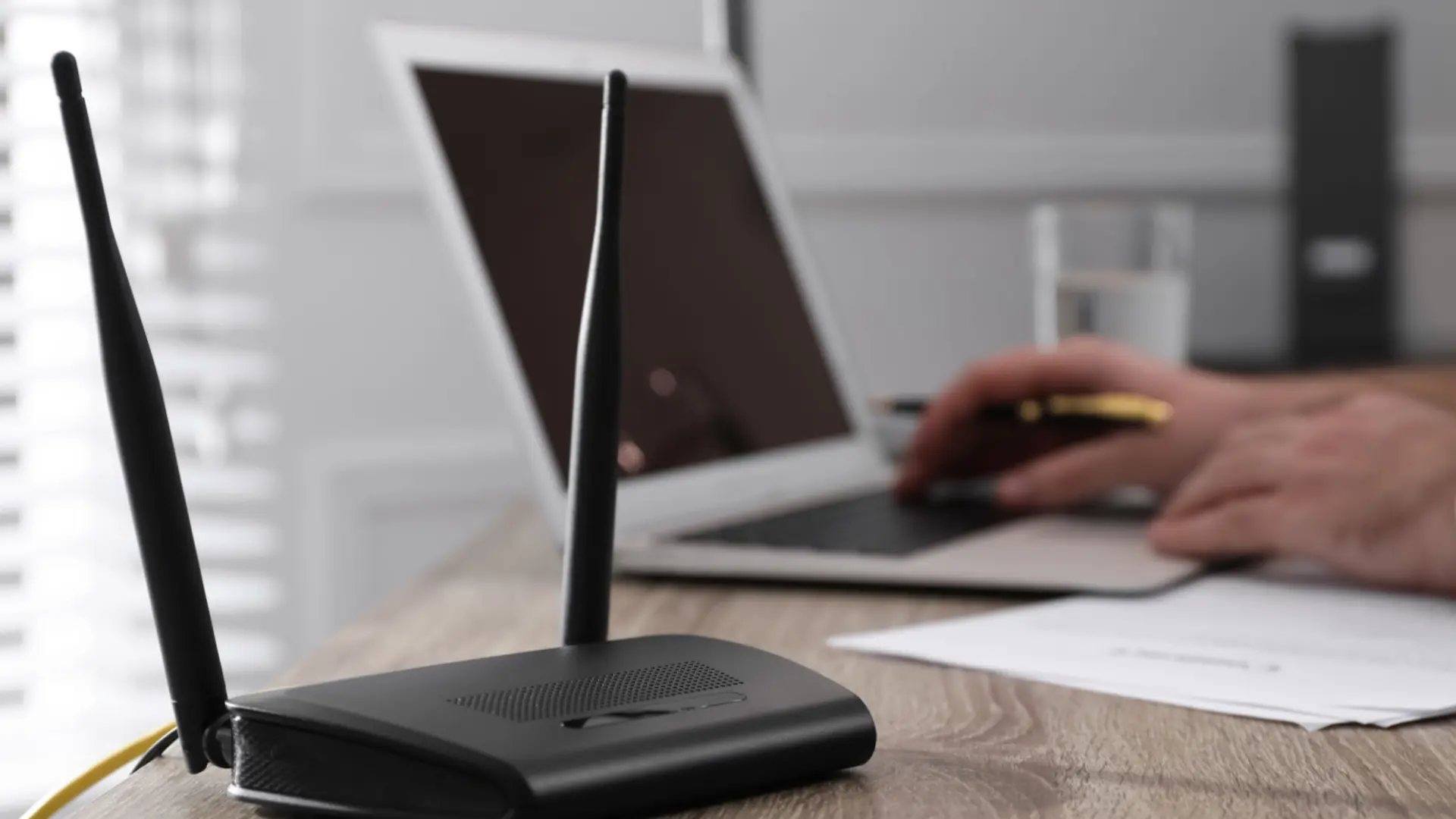
Open the router’s administration settings and look for a firmware or system update option. Install any available update before connecting every device in the home.
Firmware updates may correct security weaknesses, improve stability, and fix connection problems.
Keep the router powered on during the update, and avoid closing the application or browser until the installation and restart are complete.
6. Test Wired and Wireless Connections
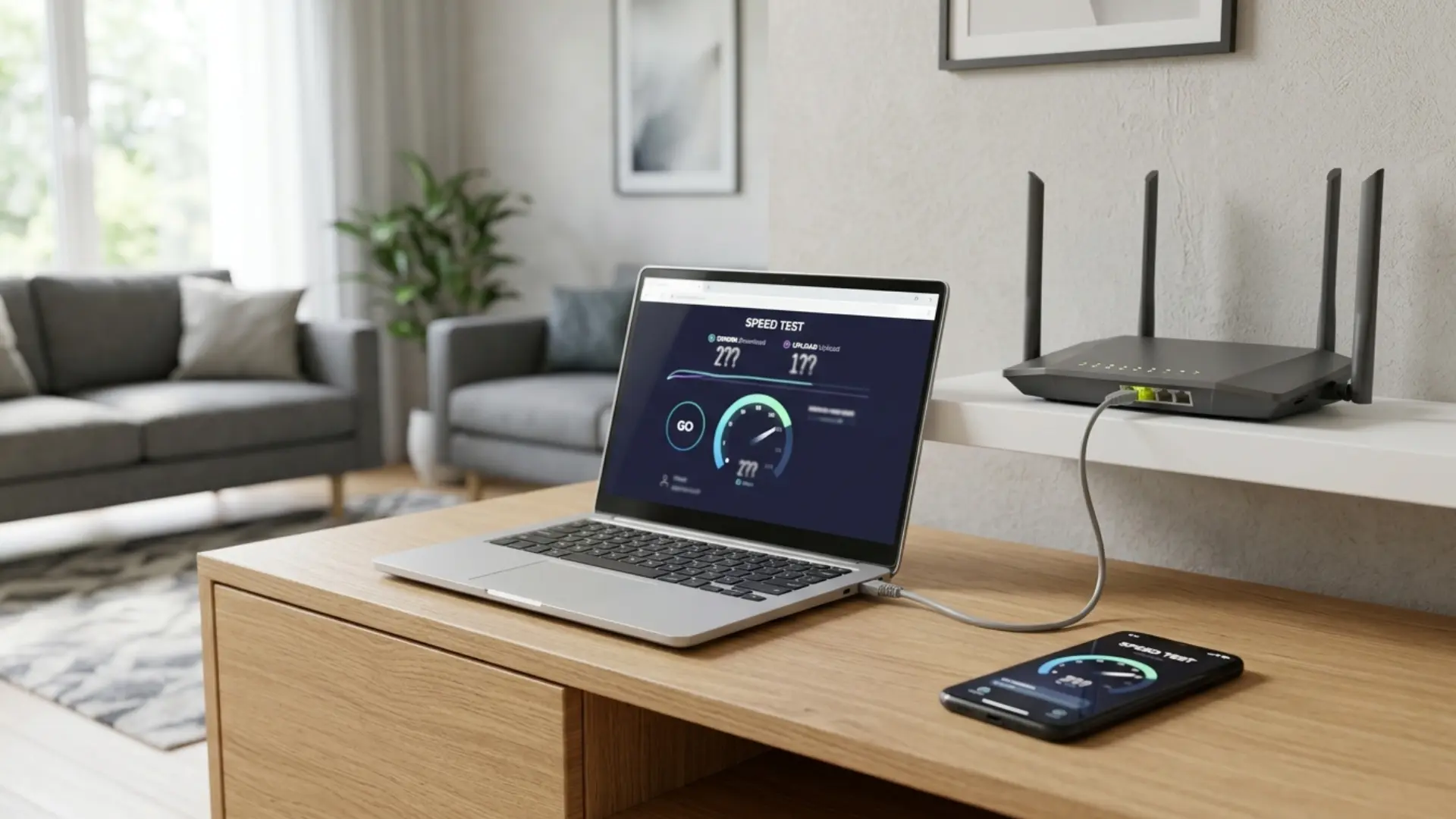
Connect one device through Ethernet and another through Wi-Fi to confirm that both can access the internet.
Open several websites and check that local devices can communicate when needed. Walk through commonly used rooms to test signal strength and speed.
If coverage is weak, move the router to a higher, more central position away from walls and large appliances.
How to Set Up Access Point Mode?
Menu names vary by manufacturer, but the basic setup process remains similar across most routers and access points.
1. Confirm that the Main Router Works
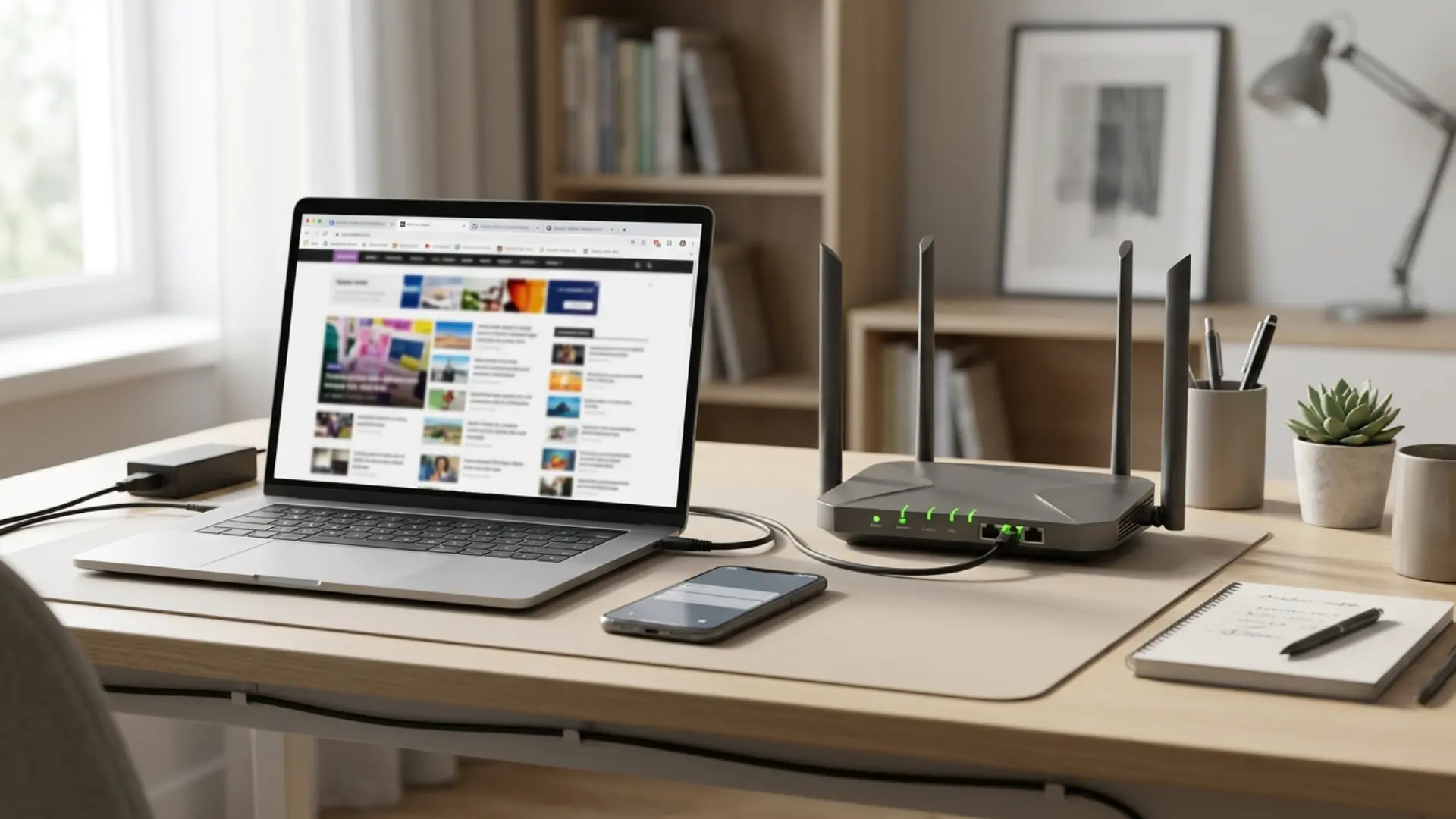
Before changing any settings, confirm that the main router provides a stable internet connection.
Connect a phone or computer and open several websites to test access. Check that connected devices receive local IP addresses automatically.
The main router must continue handling DHCP, NAT, firewall protection, and internet traffic after the secondary device enters access point mode.
2. Connect to the Secondary Device
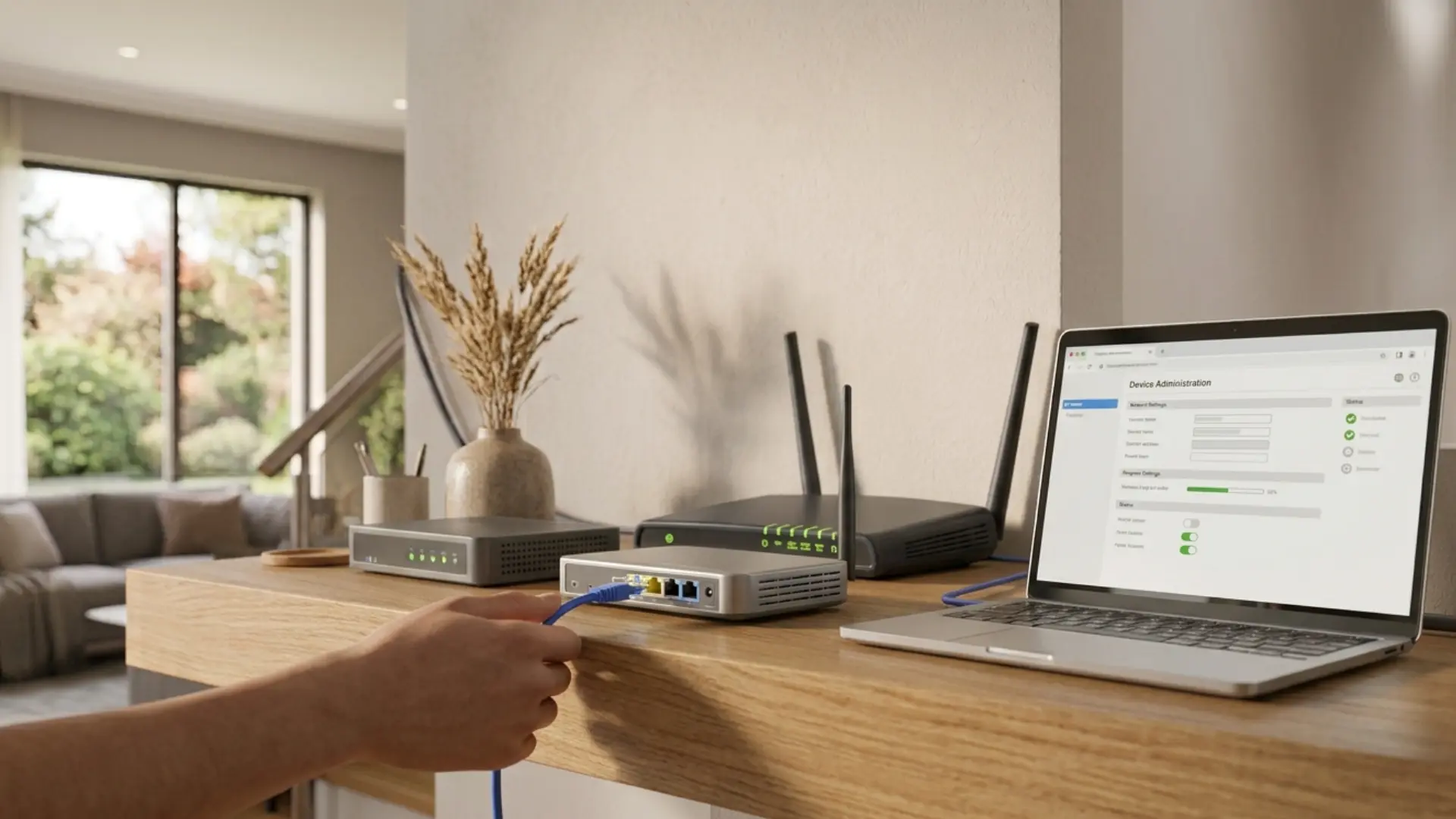
Connect a computer to the secondary router using an Ethernet cable or join its default Wi-Fi network.
Open the manufacturer’s application or enter the device’s local management address in a browser.
Sign in using the administrator details printed on the label. A wired connection prevents interruptions while you change important operating settings.
3. Select Access Point Mode
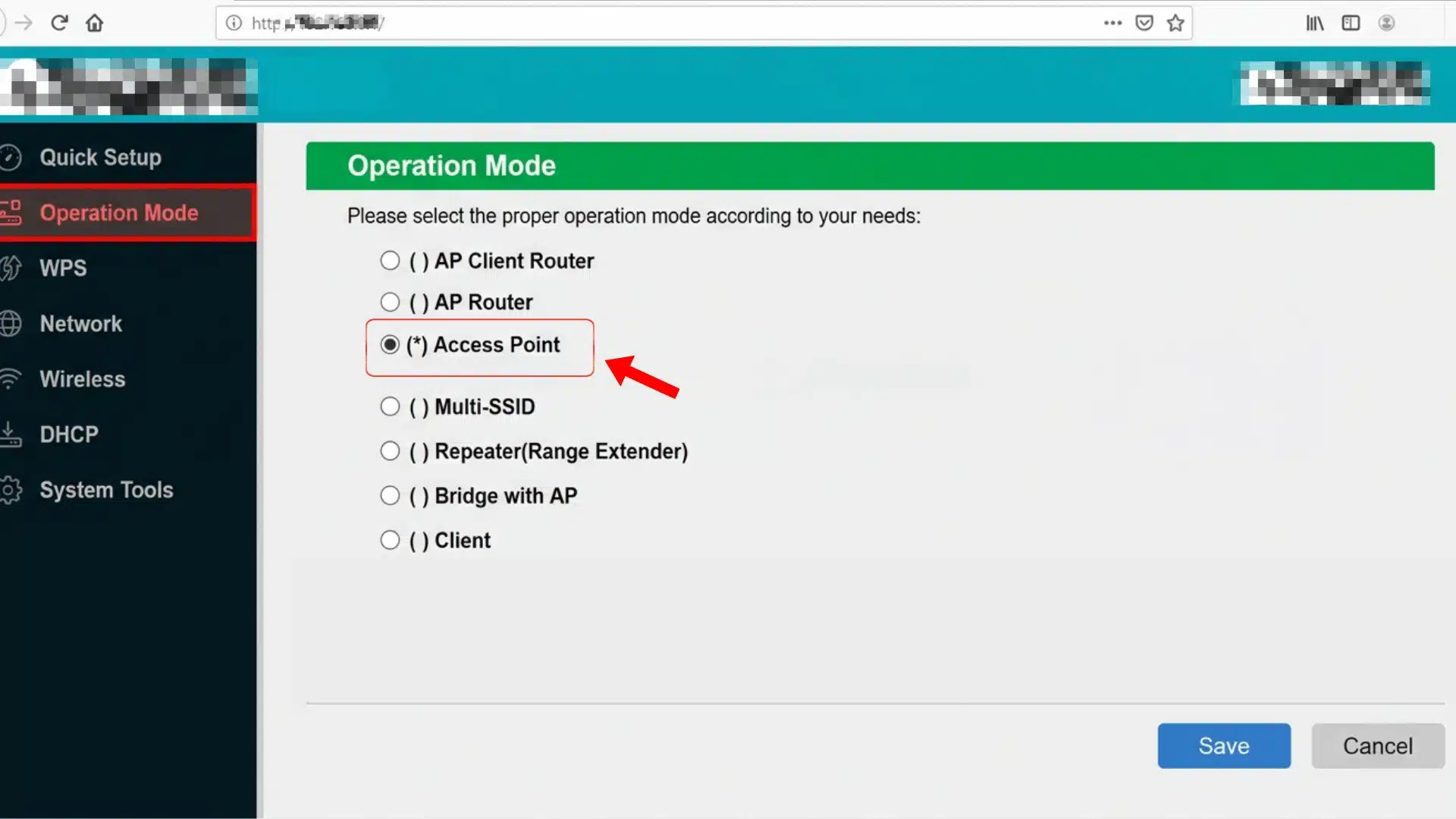
Open the device settings and look for an option named Operating Mode, Device Mode, Administration, or Advanced Settings.
Select Access Point Mode and save the change. The device may restart automatically and disable several router functions.
Wait until the status lights become steady before reconnecting. Do not unplug the device while it is applying the new configuration.
4. Connect the Devices by Ethernet
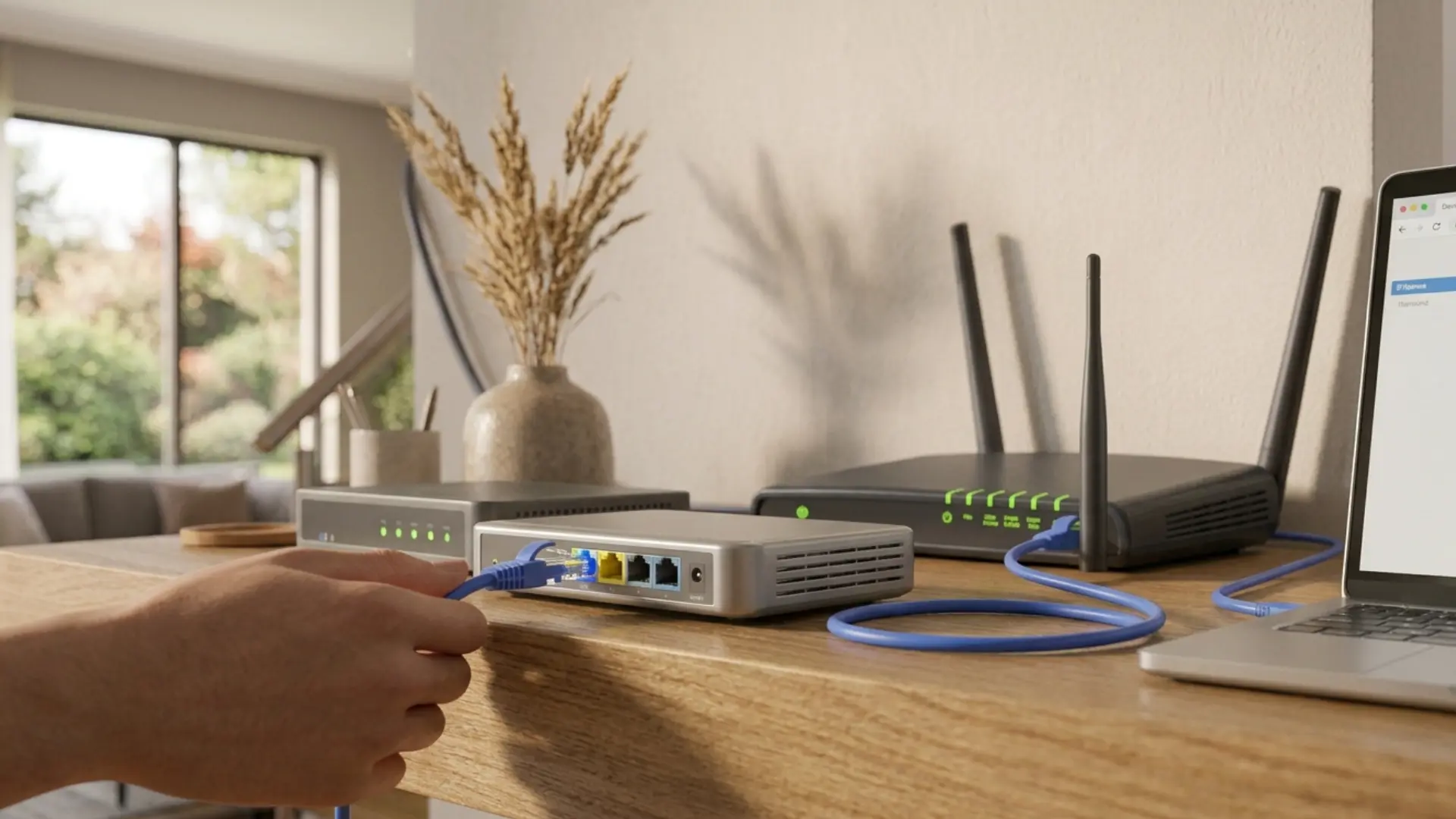
Use an Ethernet cable to connect the main router to the secondary device. Some models require the cable to enter the WAN or Internet port, while others use a standard LAN port.
Check the manufacturer’s instructions before connecting it.
A wrong port may prevent internet access, even when the remaining access point settings appear to be correct.
5. Configure the Wi-Fi Name and Password
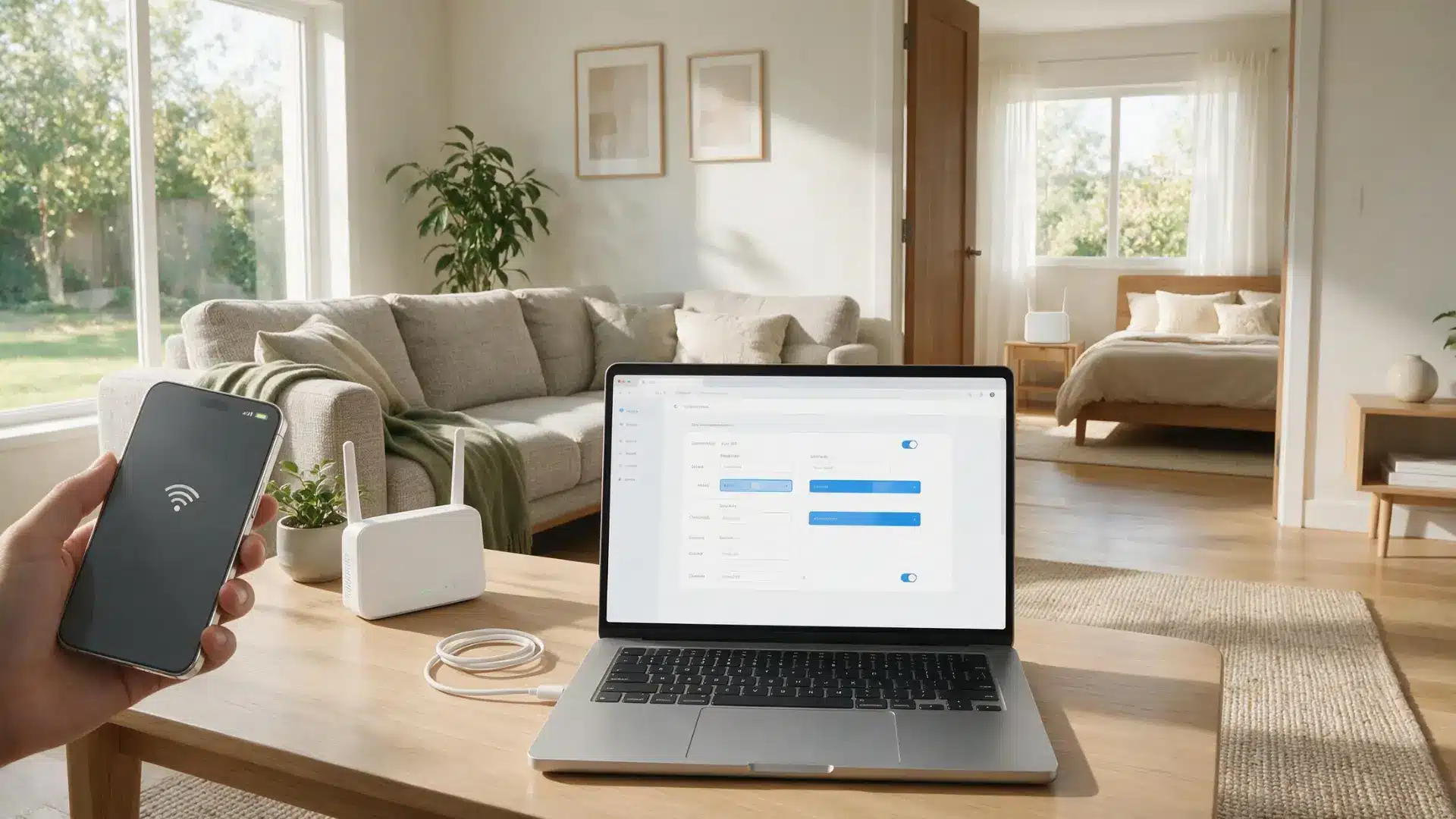
Set the Wi-Fi name and password for the access point. Using the same details as the main router can make moving between coverage areas easier.
Separate names allow you to choose each connection manually.
Matching names work best when both devices support smooth roaming, while separate names make connection testing simpler.
However, each phone, laptop, or other client usually decides when to switch access points. Coordinated roaming features can make that change faster and more reliable.
6. Check the Assigned IP Address
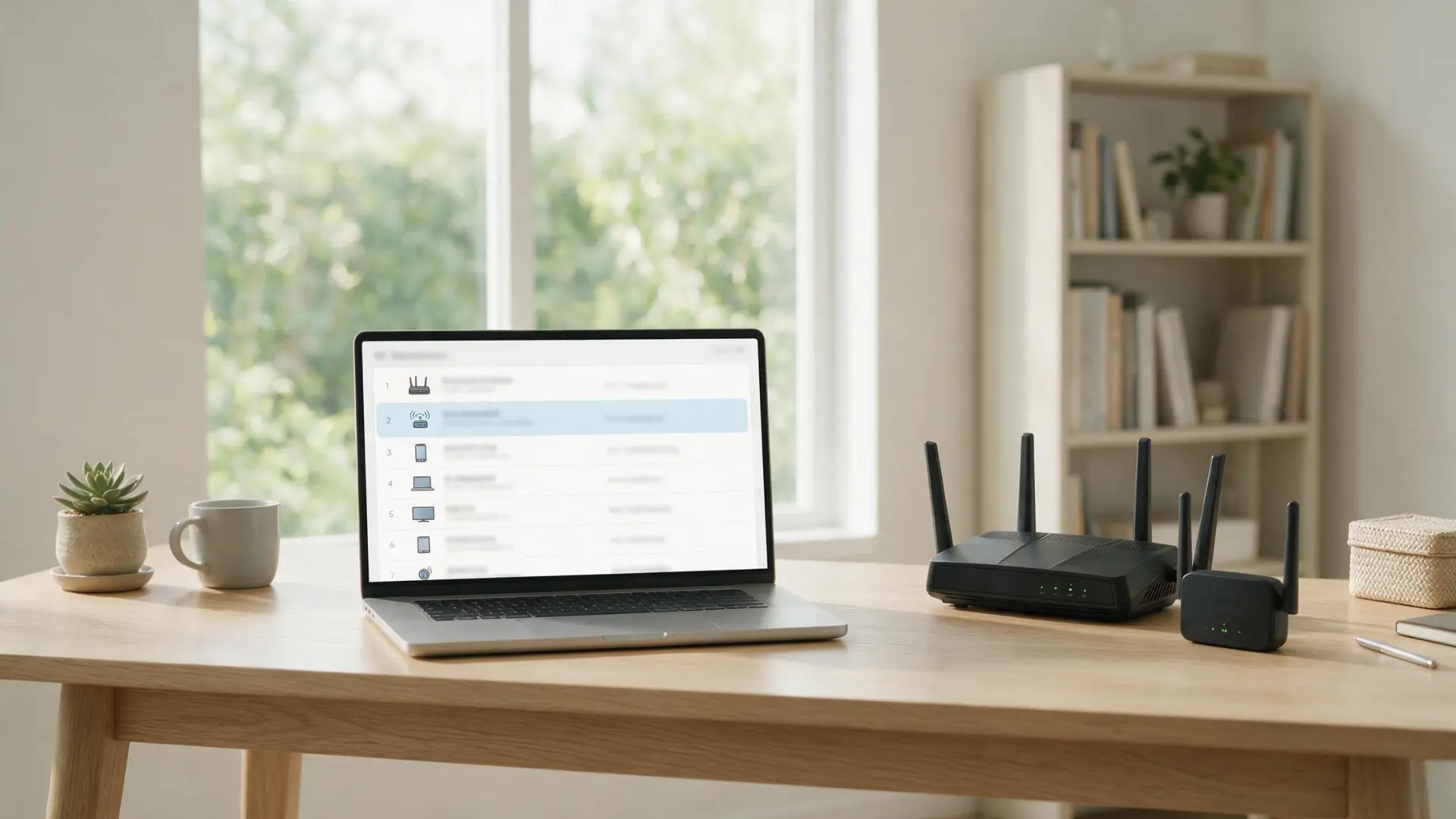
The main router usually assigns a new local IP address to the access point after the mode change.
Find this address in the router’s connected-device list or access point application. Record it somewhere secure because you may need it to open the settings later.
A reserved IP address can also make future management easier and prevent unexpected address changes.
7. Test Coverage and Network Access
Connect a phone or laptop to the access point and confirm that websites load normally without delays or connection errors. Check that the device receives its IP address from the main router and can access printers, shared drives, and devices.
Test the connection in several rooms to identify weak areas and reposition the access point if speeds drop or signals weaken.
Features to Check Before Buying Router or Access Point
Check these features before buying a router or access point so the device matches your speed, coverage, and management needs.
- Wi-Fi Standard: Choose Wi-Fi 5, Wi-Fi 6, Wi-Fi 6E, or Wi-Fi 7 based on your devices and internet plan.
- Ethernet Speed: Gigabit or multi-gigabit ports support faster wired connections and file transfers.
- Power: PoE carries power and data through one cable. Confirm that the access point and PoE switch or injector use compatible standards and provide enough power.
- Security Support: Look for WPA3 support or a WPA2/WPA3 compatibility mode for older devices. Avoid equipment limited to WEP, original WPA, or TKIP.
- Coverage and Capacity: Walls, interference, and connected devices affect real performance.
- Management Options: Compare browser, app, cloud, and centralized controls.
Wi-Fi Performance and Placement Tips
Use these practical tips to improve Wi-Fi speed, stability, and coverage across your home or small office.
- Choose an Open Location: Place the router or access point in a central, raised area away from thick walls, cabinets, appliances, and metal objects.
- Use Ethernet Backhaul: A wired connection between devices usually provides better speed, stability, and response times.
- Select the Right Band: Use 2.4 GHz for longer range and 5 GHz or 6 GHz for faster nearby connections.
- Avoid Crowded Channels: Change channels when nearby networks cause interference.
- Plan Network Names: Matching names, passwords, and security settings can make movement between coverage areas easier, but the connected device still decides when to switch.
- Test Several Rooms: Check speeds where you work, stream, or play games.
Small placement and setting changes can greatly improve daily Wi-Fi performance.
Common Wi-Fi and Access Point Setup Mistakes to Avoid
Small setup errors can reduce Wi-Fi speed, interrupt connections, or prevent devices from communicating correctly. Most access point or router problems trace back to one of the six below.
| Mistake | Better Approach |
|---|---|
| Leaving DHCP enabled on both devices | Keep DHCP enabled only on the main router and disable it on the secondary device. |
| Connecting the cable to the wrong port | Check the manual to confirm whether access point mode requires the WAN or LAN port. |
| Running both devices in router mode | Set the secondary device to access point mode to avoid double NAT. |
| Using an access point as the internet source | Use the required modem, ONT, or provider gateway for the internet connection, a router for network control, and an access point for Wi-Fi. |
| Poor access point spacing or channel planning | Place the access point near the weak area while keeping some coverage overlap. Use different non-overlapping channels where possible. |
| Using outdated Wi-Fi equipment | Choose hardware that supports a newer Wi-Fi standard and suitable Ethernet speeds. |
Using the correct ports, modes, and device roles can prevent most common network problems.
The Bottom Line
Understanding the difference between a router and an access point makes network planning easier.
A router should remain the main device when it connects to the internet source, assigns IP addresses, controls security, and directs internet traffic.
An access point is better when the network already works but needs stronger Wi-Fi in another room or on another floor.
The two issues I flag most often are leaving both devices in router mode and placing them too close together. All in all, before changing your setup, identify which device manages the network and where coverage is weak.
Have you used a router in access point mode? Comment below and share your experience.
Frequently Asked Questions
Where Should an Access Point be Installed?
Place an access point in a central, raised location near the weak coverage area. Keep it away from thick walls, metal objects, cabinets, microwaves, and other nearby sources of interference.
Can One Access Point Support Smart Home Devices?
Yes, one access point can connect smart speakers, cameras, lights, and thermostats. Its capacity depends on the Wi-Fi standard, hardware limits, signal quality, bandwidth use, and number of active devices.
Does an Access Point Need its Own Internet Plan?
No, an access point uses the internet connection managed by the main router. It does not need a separate service plan, modem, or account with another internet provider at home.
What Happens if the Main Router Stops Working?
Devices may stay connected to Wi-Fi, but internet access and router-dependent services will stop. Some local communication may continue while IP addresses remain valid.