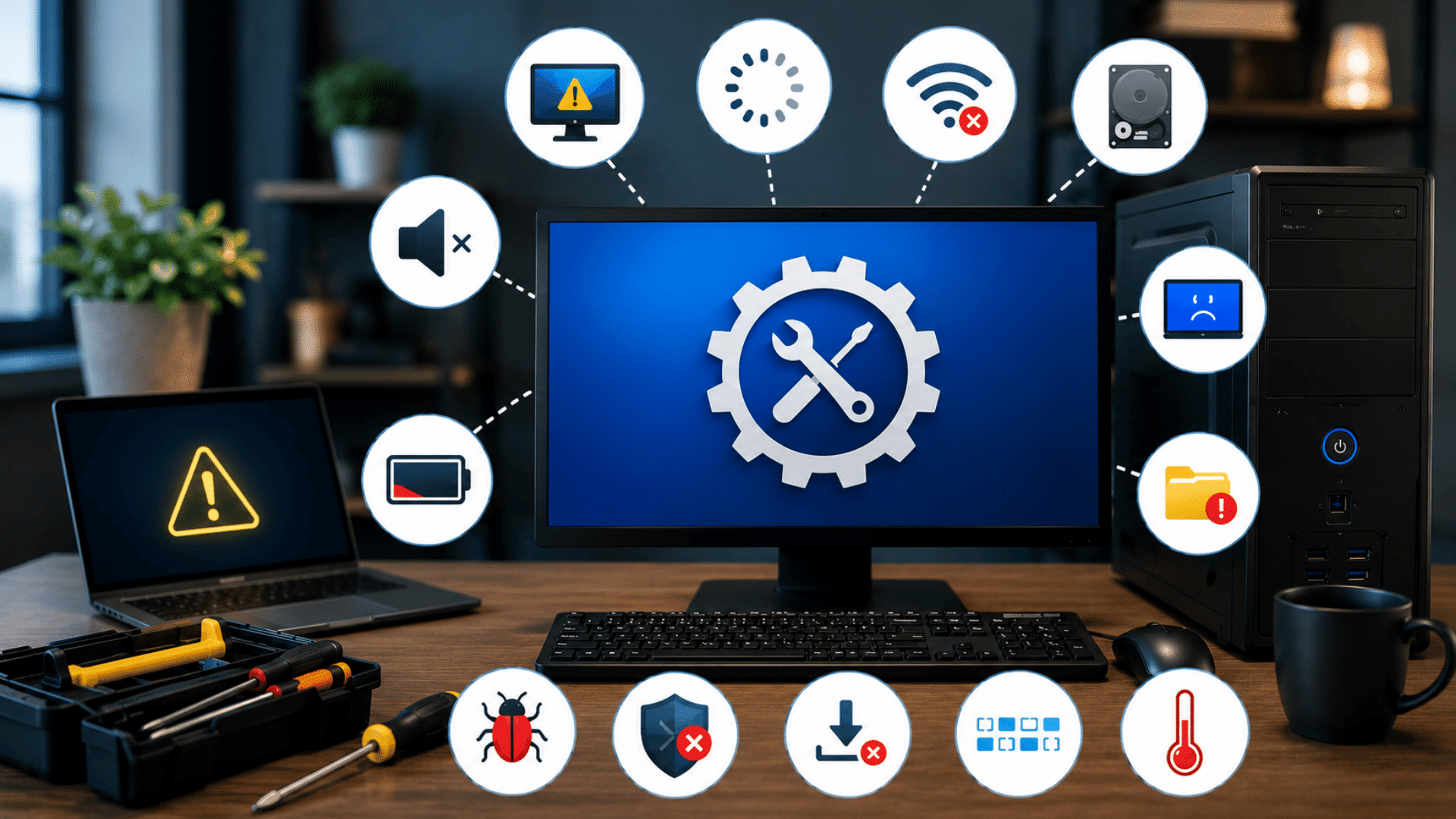





Few things are more frustrating than sitting down to use your computer and running into a problem that stops you from getting things done.
If it’s a slow system, random crashes, internet issues, or hardware problems, these situations can affect work, school, and daily tasks.
I have spent years working with technical content and troubleshooting resources, and one thing remains true: many common problems have simple solutions when you know where to look.
In this guide, you’ll learn about 13 common computer issues, what causes them, and the practical steps you can take to fix them.
The article covers both hardware and software problems, along with helpful tips to keep your device running smoothly.
By the end, you’ll have a better understanding of how to identify issues quickly and take the right action to restore your computer’s performance.
What Causes Common Computer Issues?
Most computer problems develop gradually and can come from several different sources.
Knowing the cause can help you find the right fix faster and avoid similar problems in the future.
- Outdated Software: Old operating systems, drivers, and apps or updates that installed incompletely cause bugs, security gaps, crashes, and compatibility errors.
- Malware and Viruses: Harmful software can slow down your computer, damage files, steal data, or cause unexpected errors.
- Lack of Regular Maintenance: Temporary files, unused programs, and cluttered storage can build up over time and reduce system efficiency.
- Hardware Wear and Tear: Components such as hard drives, memory modules, and cooling fans can become less reliable as they age.
- Overheating: Dust buildup, blocked vents, or failing cooling systems can cause your computer to slow down, freeze, or shut off unexpectedly.
- Insufficient Storage Space: When your drive is nearly full, your computer may struggle to run programs and process tasks smoothly.
- Incorrect Settings or User Errors: Accidental changes to system settings, software configurations, or file management can create performance and stability issues.
- Failed Updates: Interrupted or incomplete software updates can lead to crashes, compatibility problems, and system errors.
- Internet and Network Problems: Weak connections, outdated network hardware, or incorrect settings can affect online performance and connectivity.
Common Computer Issues and How to Fix Them
Many computer problems have clear warning signs before they become serious.
Understanding what the issue looks like and knowing a few basic troubleshooting steps can help you save time and keep your device running smoothly.
1. Slow Computer Performance
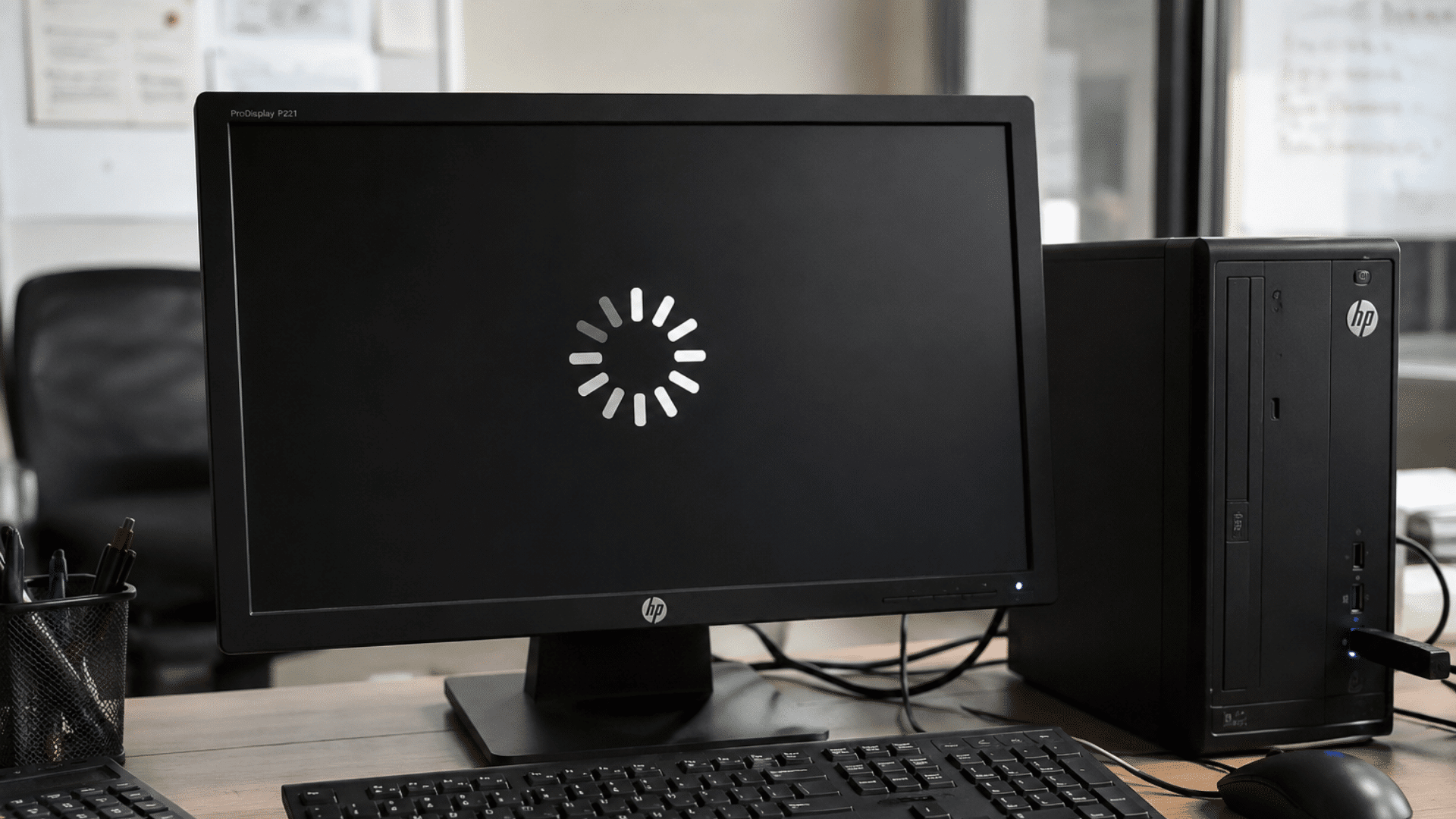
A slow computer can make even simple tasks frustrating. Programs may take longer to open, files may load slowly, and the system may feel less responsive than usual.
How to Identify It: You notice long startup times, delayed responses when opening applications, or frequent lag while multitasking.
How to Fix It: Close unnecessary programs running in the background, delete temporary files, uninstall software you no longer use, and restart your computer regularly.
Make sure your operating system and drivers are up to date.
If performance remains poor, check your storage space and run a malware scan to rule out security issues.
2. Computer Won’t Turn On
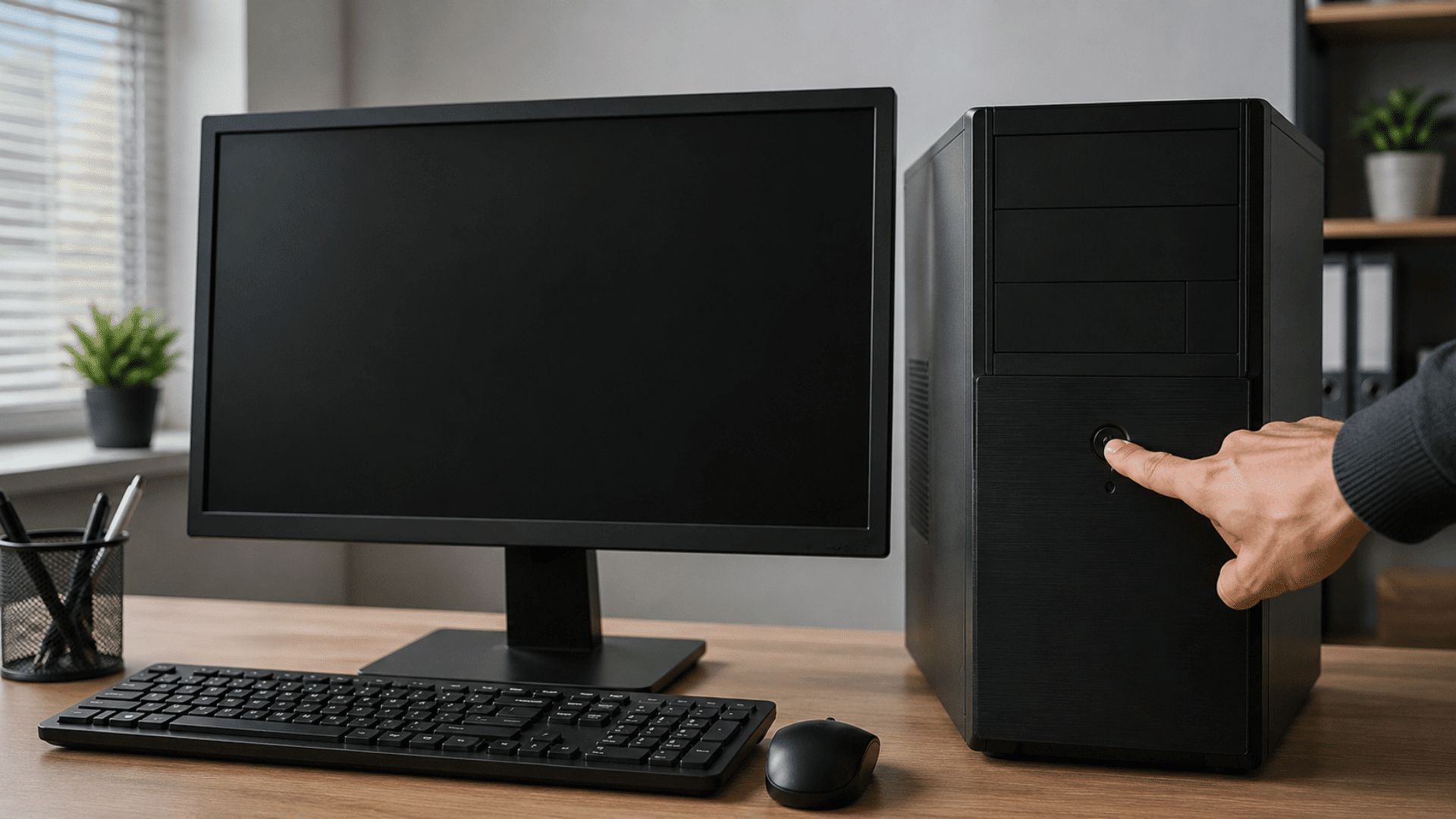
When a computer refuses to start, the problem can range from a simple power issue to a hardware failure. In many cases, the cause is easier to find than you might expect.
How to Identify It: The screen stays black, the power lights do not turn on, or the computer shows no response when you press the power button.
How to Fix It: Check that the power cable is securely connected and that the outlet works.
For laptops, confirm the battery is charged. Disconnect external devices and try again.
If the system still does not start, a faulty power supply or internal hardware issue may need professional attention.
3. Frequent System Crashes and Freezes
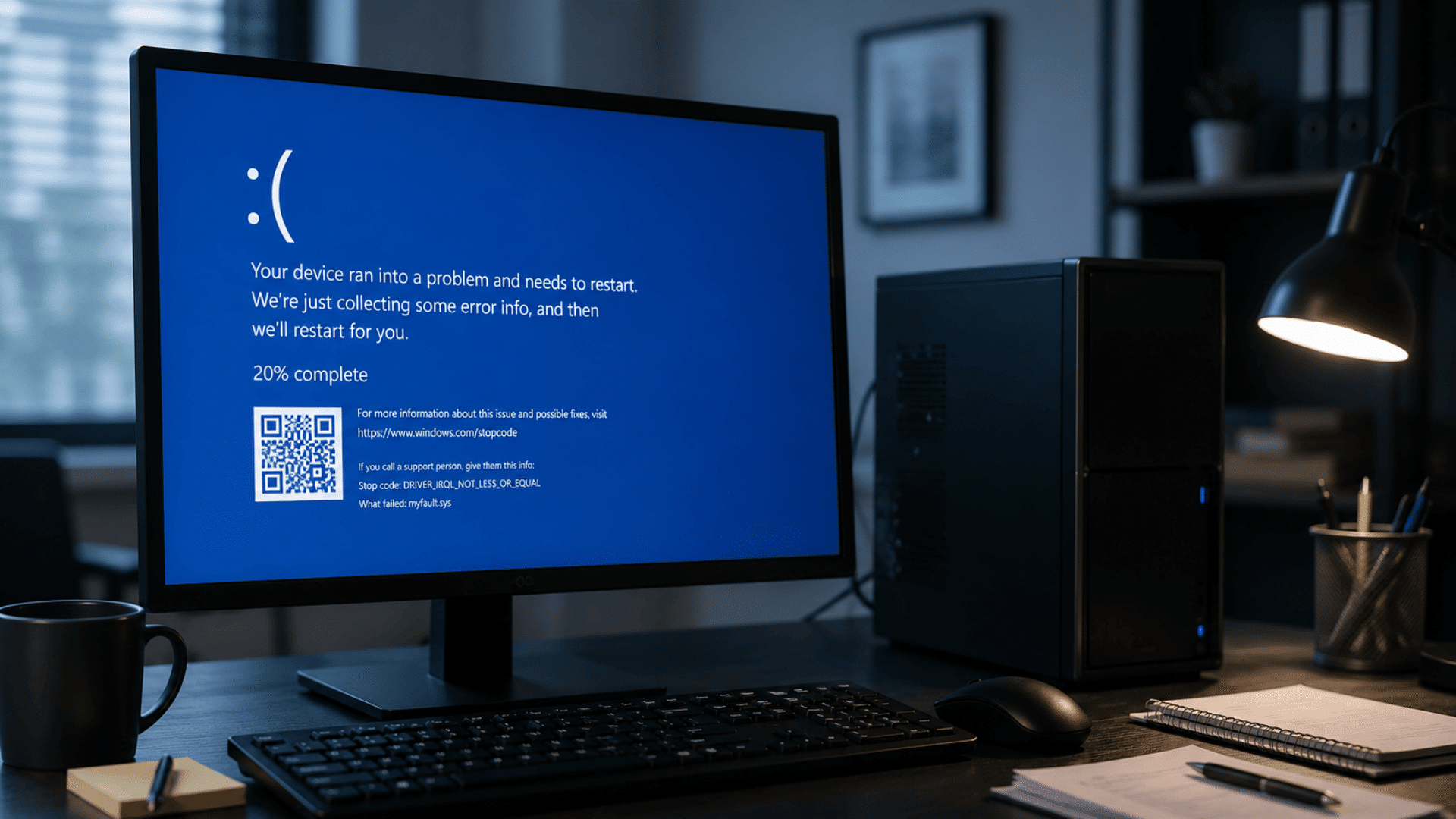
System crashes and freezes often happen when software, drivers, or hardware components are not working correctly. These interruptions can affect productivity and lead to lost work.
How to Identify It: Programs stop responding, the screen freezes, or the computer suddenly closes applications without warning.
How to Fix It: Install the latest operating system updates and update device drivers.
Remove recently installed software if the issue started afterward. Run built-in system diagnostics and check for malware.
If crashes continue, test your memory and storage drive for errors that could affect stability.
4. Blue Screen Of Death (BSOD) Errors
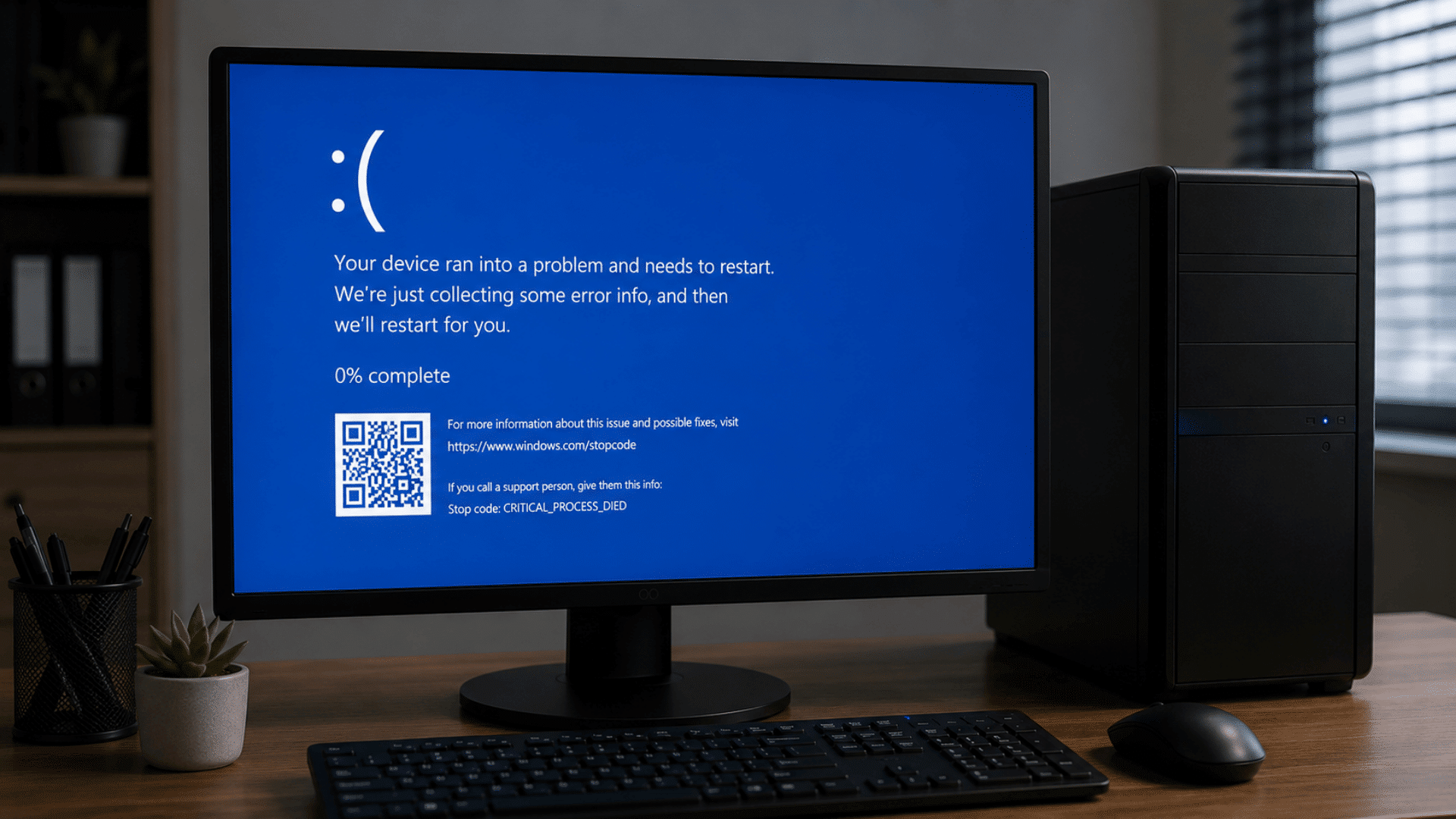
A Blue Screen of Death, often called a BSOD, appears when Windows encounters a serious error that prevents the system from operating safely.
While it can seem alarming, it usually points to a specific software or hardware problem.
How to Identify It: Your computer suddenly displays a blue screen with an error message and then restarts automatically.
How to Fix It: Note the error code if possible and check for recent hardware or software changes.
Update drivers, install Windows updates, and remove newly installed programs if needed.
Running memory and disk checks can also help identify the source of the problem.
5. Overheating Problems
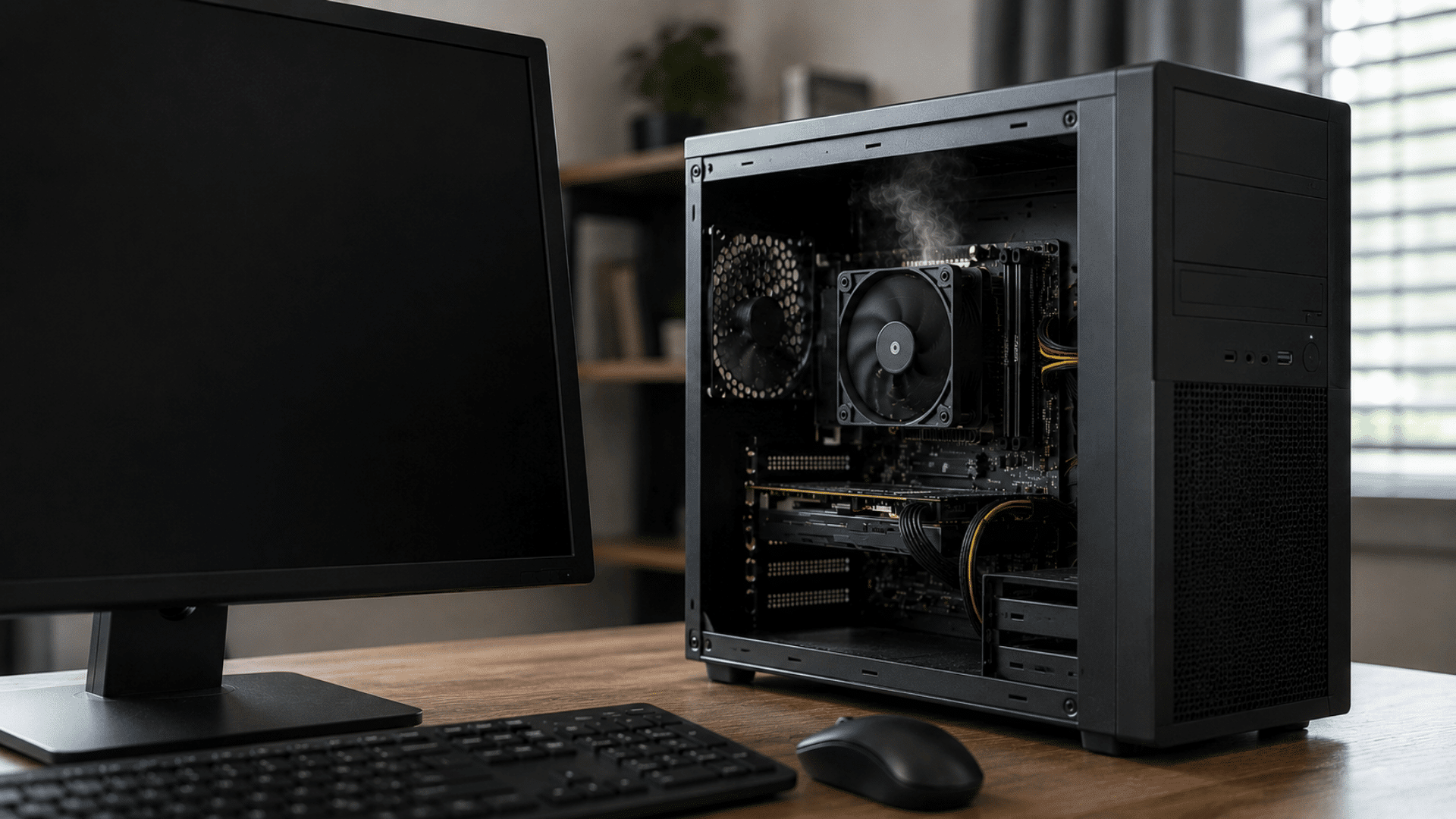
Computers generate heat during normal operation, but excessive heat can reduce performance and shorten hardware lifespan. Dust buildup and poor airflow are common causes.
How to Identify It: The computer feels unusually hot, the fan runs constantly, or the system shuts down unexpectedly during use.
How to Fix It: Clean dust from vents and cooling fans using compressed air. Make sure airflow is not blocked and avoid using laptops on soft surfaces.
If temperatures remain high, the cooling system or thermal paste may need inspection.
6. Slow Internet Connection
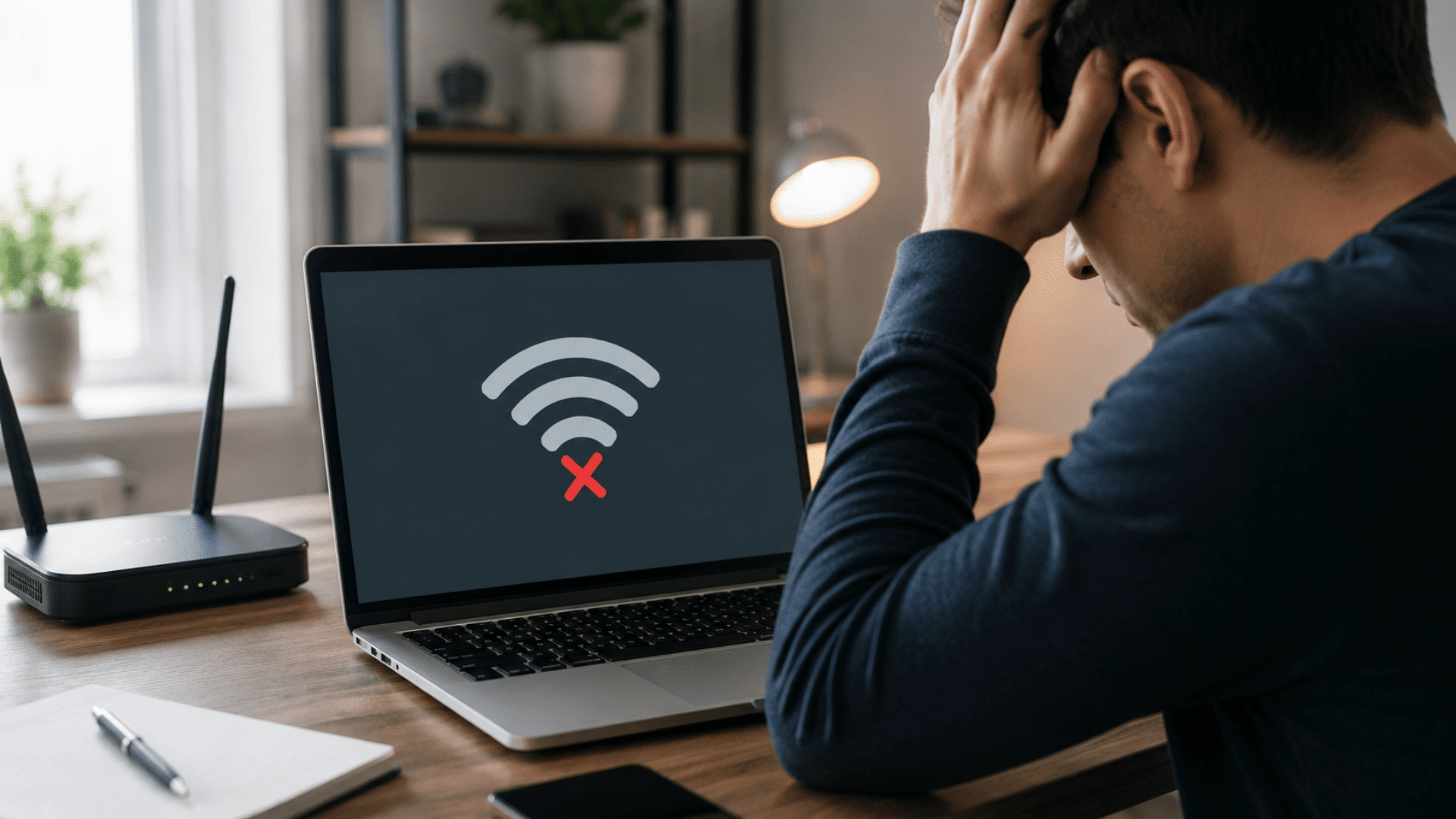
A slow internet connection can affect browsing, video calls, streaming, and downloads. The issue may come from your device, network settings, or internet service provider.
How to Identify It: Websites load slowly, videos buffer frequently, or downloads take longer than expected.
How to Fix It: First, restart your modem and router. Move closer to the Wi-Fi source if possible and disconnect unused devices from the network.
Check for software updates and run a speed test to determine whether the problem is with your device or internet service.
7. Unresponsive Keyboard Or Mouse
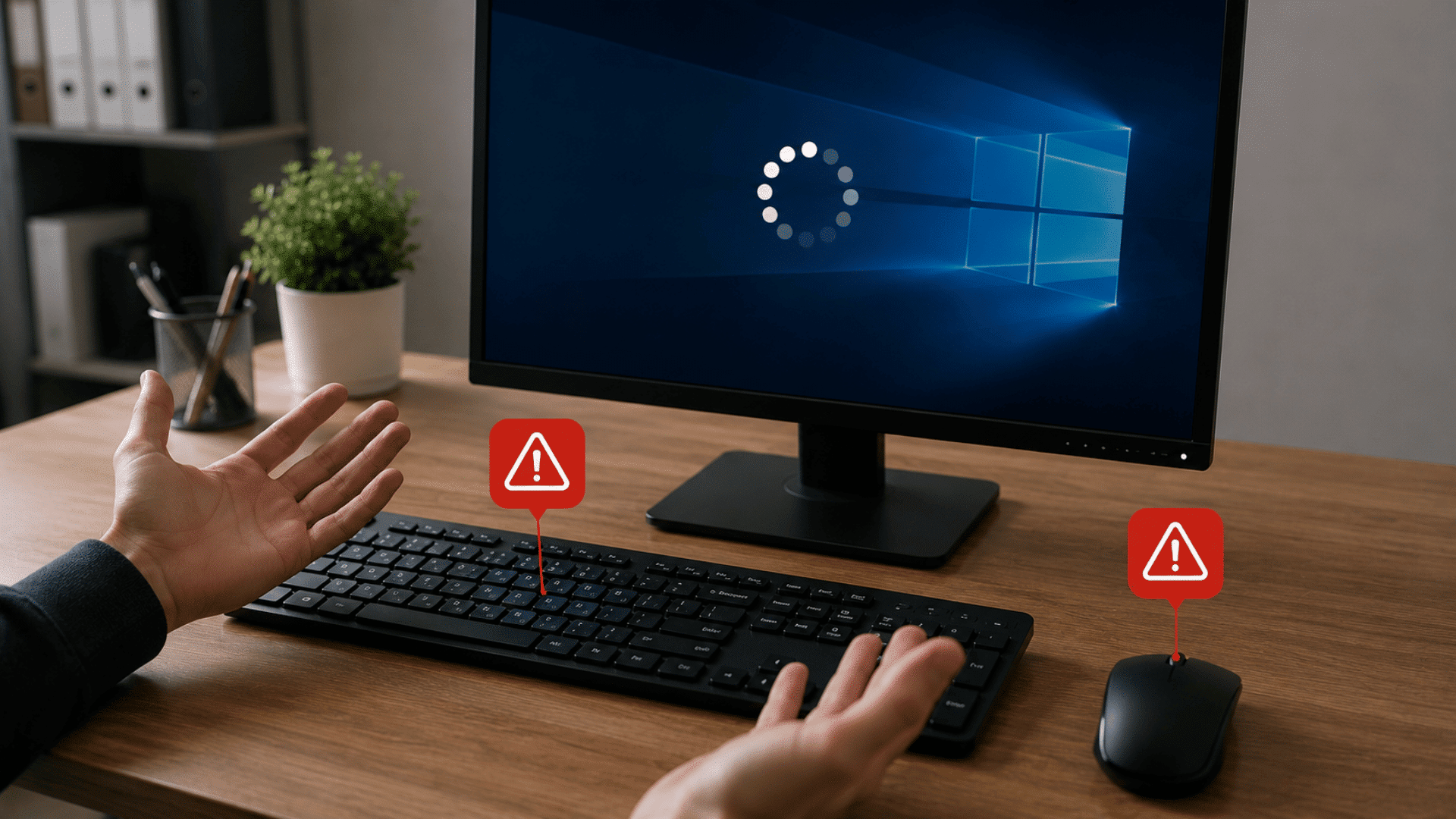
A keyboard or mouse that stops responding can make your computer difficult or impossible to use. The problem may involve hardware, drivers, or connection issues.
How to Identify It: Keystrokes do not register, the cursor does not move, or the device disconnects unexpectedly.
How to Fix It: Reconnect the device and check the batteries if it is wireless. Try a different USB port and restart your computer.
Updating device drivers often resolves software-related issues. If the problem continues, test the device on another computer to confirm whether the hardware is faulty.
8. No Sound Or Audio Issues
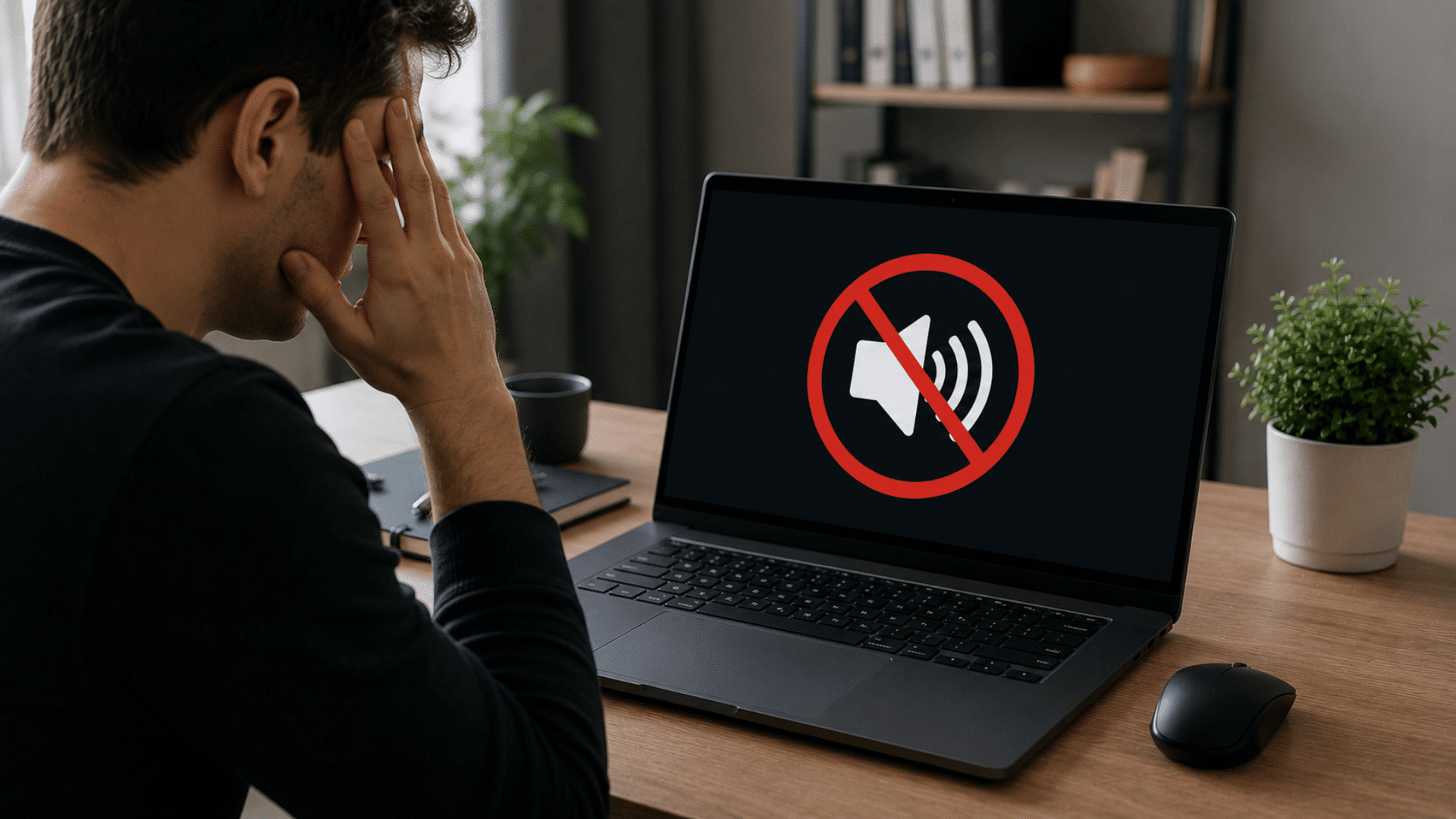
Audio problems can prevent you from hearing music, videos, notifications, or online meetings. In many cases, incorrect settings are responsible.
How to Identify It: You hear no sound from speakers or headphones, even when the volume appears normal.
How to Fix It: Check that the volume is turned up and verify that the correct audio device is selected.
Restart the computer and update audio drivers if needed. Testing with another speaker or headset can help determine whether the issue is hardware-related.
9. Printer Not Working Properly
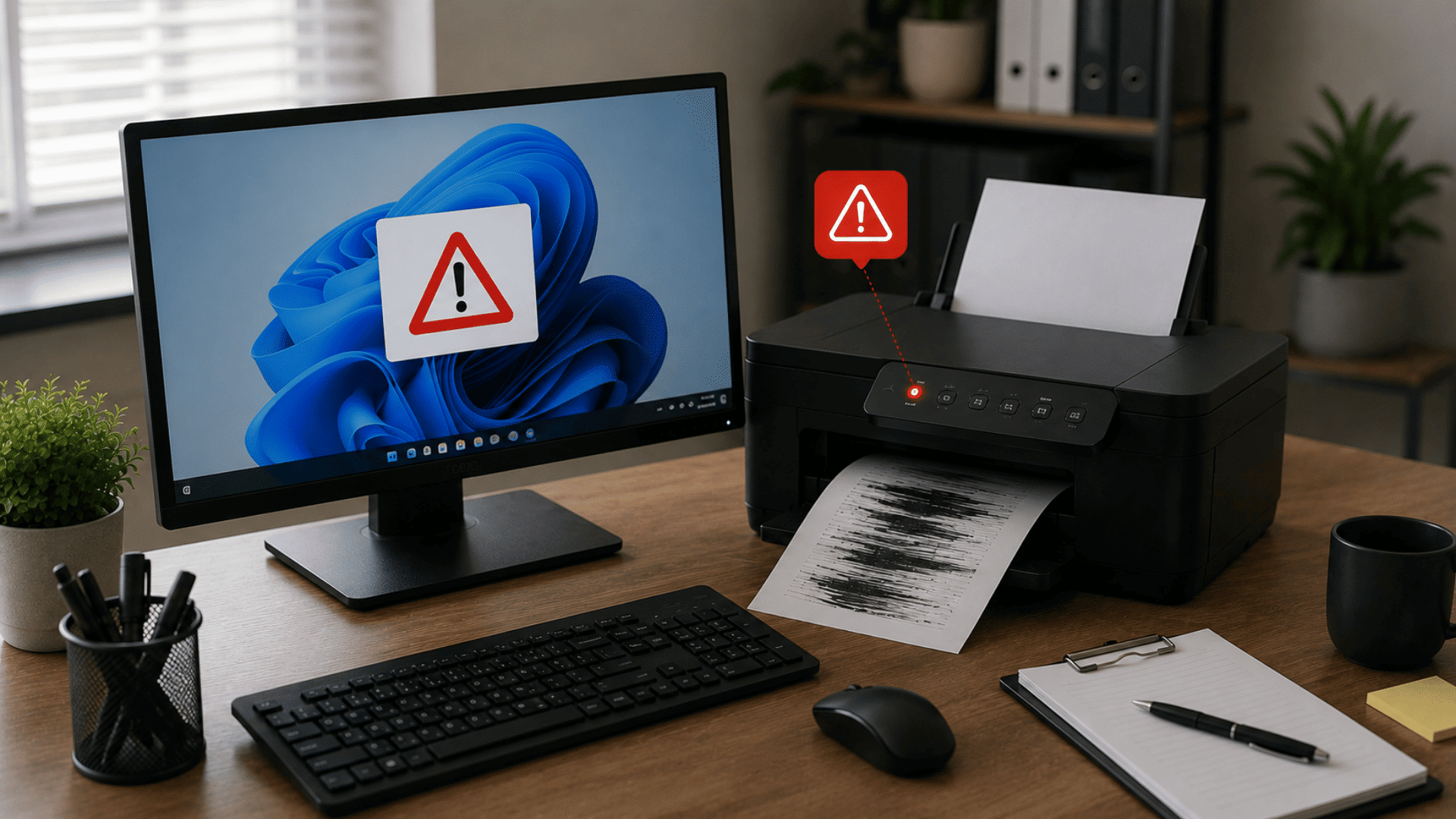
Printer issues can interrupt important tasks, especially when you need documents quickly. The problem may involve connectivity, drivers, or printer settings.
How to Identify It: Print jobs remain stuck in the queue, the printer appears offline, or pages fail to print correctly.
How to Fix It: Ensure the printer is powered on and connected properly. Restart both the printer and computer.
Clear pending print jobs and update printer drivers. Checking paper levels and ink or toner supplies can also resolve many common printing problems.
10. Malware And Virus Infections
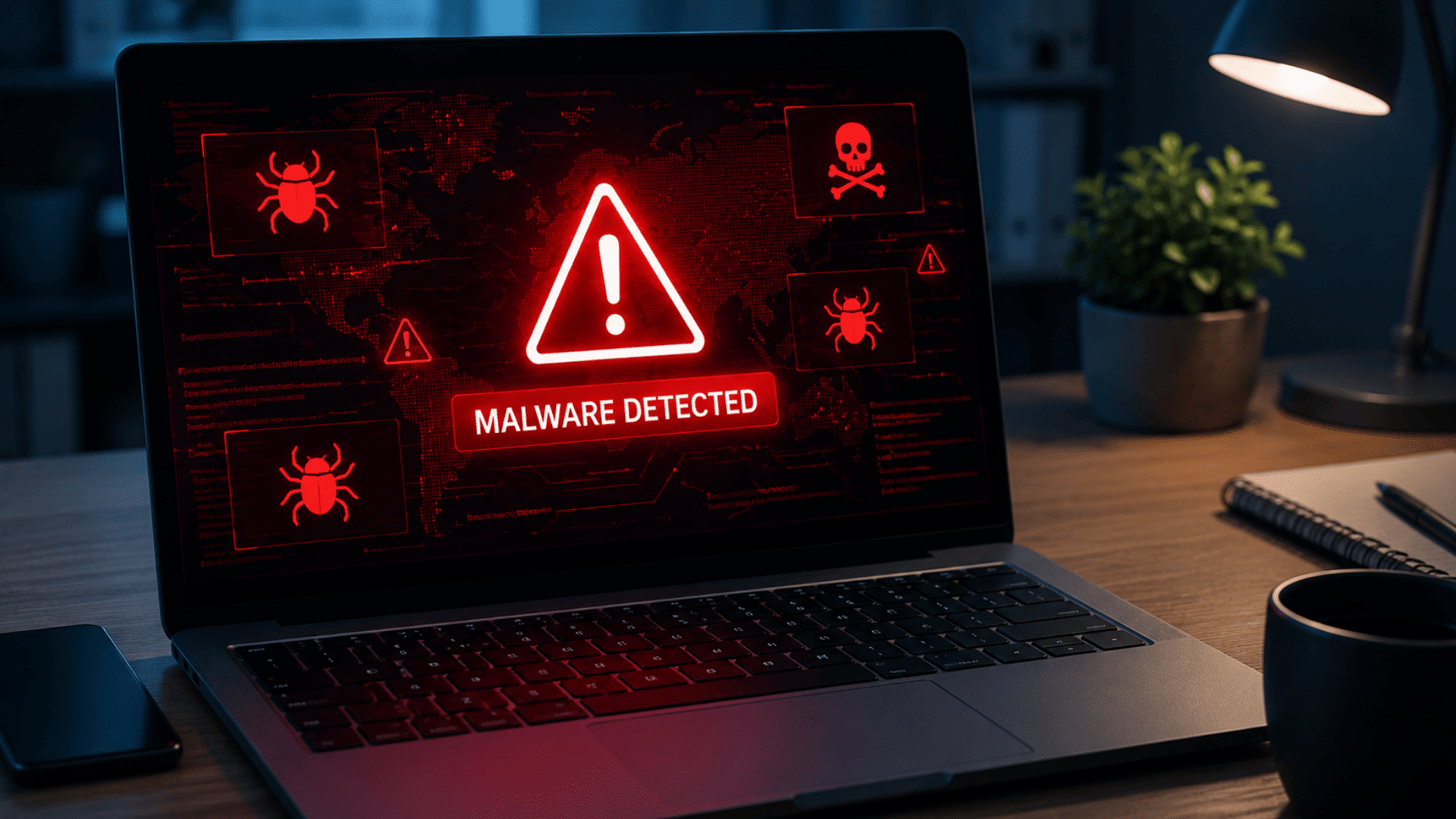
Malware and viruses can affect performance, compromise security, and damage files. These threats often enter systems through unsafe downloads or suspicious links.
How to Identify It: You notice unexpected pop-ups, slower performance, unfamiliar programs, or unusual system behavior.
How to Fix It: Run a full scan using trusted antivirus software and remove any detected threats.
Update your security tools regularly and avoid downloading files from unknown sources. Changing important passwords after an infection is also a good security practice.
11. Software Installation Errors
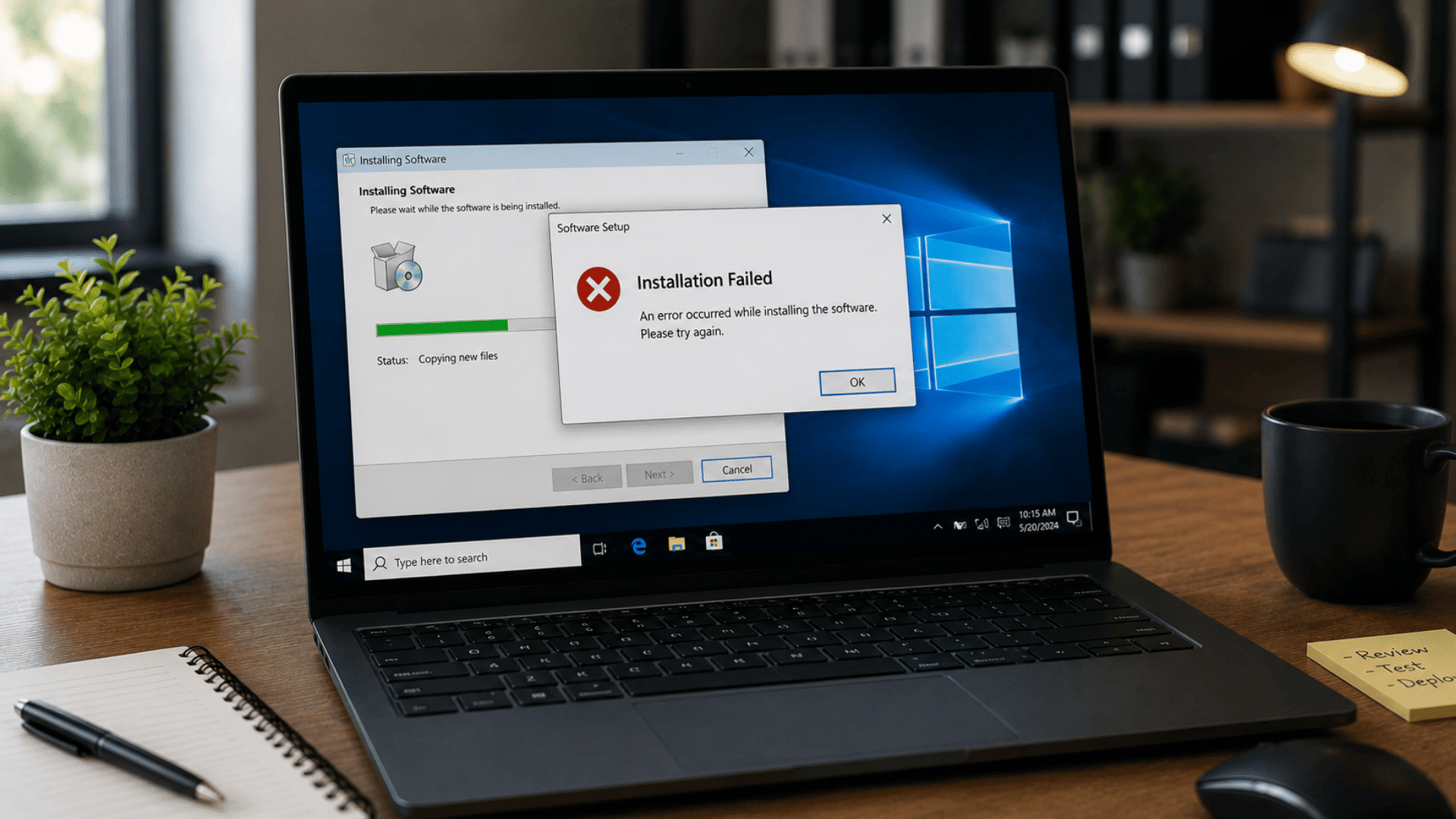
Software installation problems can prevent programs from working correctly or completing setup. Compatibility and permission issues are common causes.
How to Identify It: Installation stops unexpectedly, error messages appear, or the program fails to launch after installation.
How to Fix It: Verify that your system meets the software requirements. Download installation files from official sources and run the installer as an administrator.
Disable conflicting security software temporarily if necessary and ensure you have enough storage space available.
12. Insufficient Storage Space
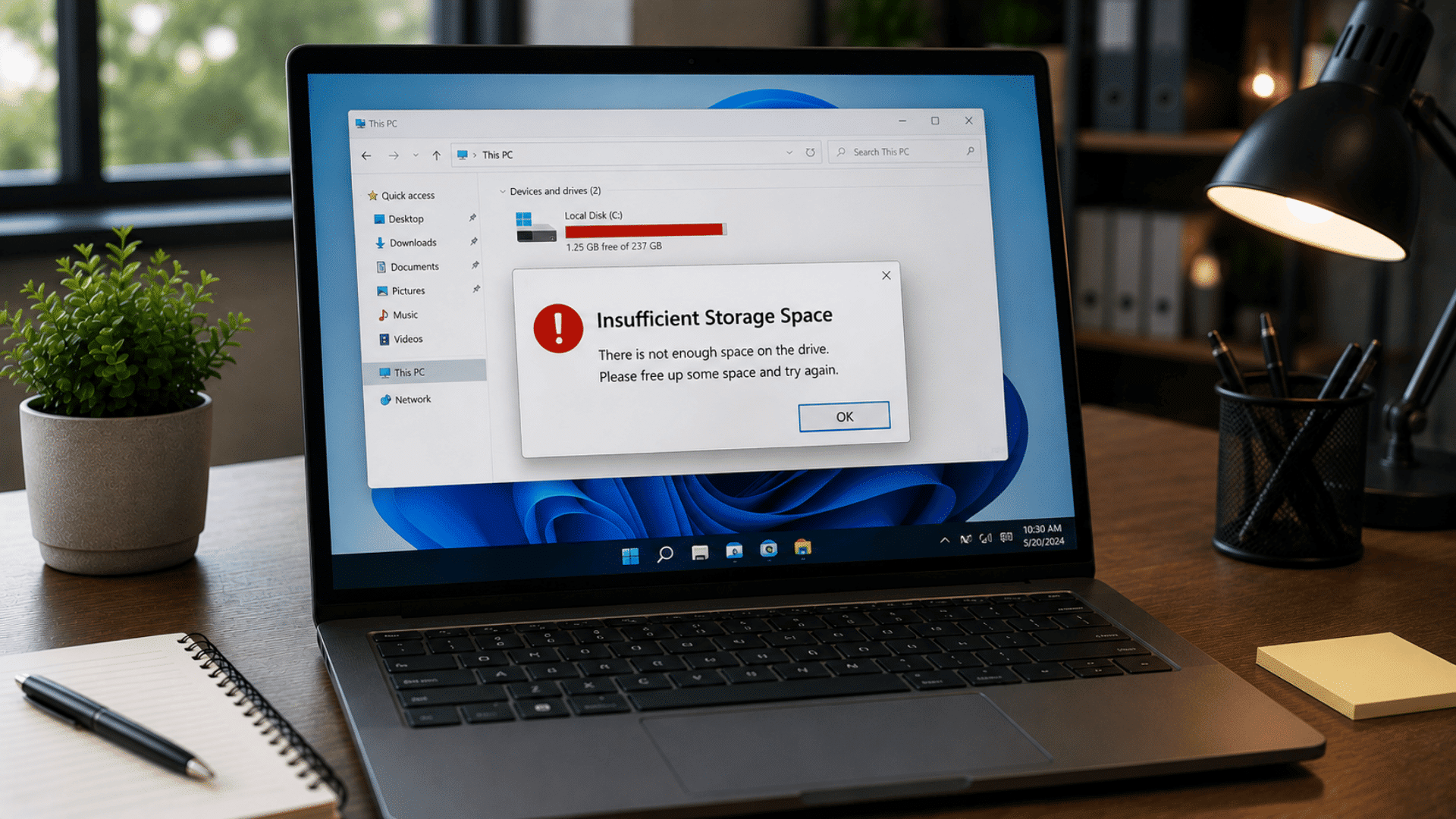
When storage space becomes limited, your computer may struggle to save files, install updates, or maintain good performance.
How to Identify It: You receive storage warnings, downloads fail, or the system becomes noticeably slower.
How to Fix It: Delete unnecessary files, empty the recycle bin, and uninstall unused applications. Moving large files to cloud storage or an external drive can free up additional space.
Regular storage cleanup helps prevent future performance problems.
13. Computer Randomly Restarts
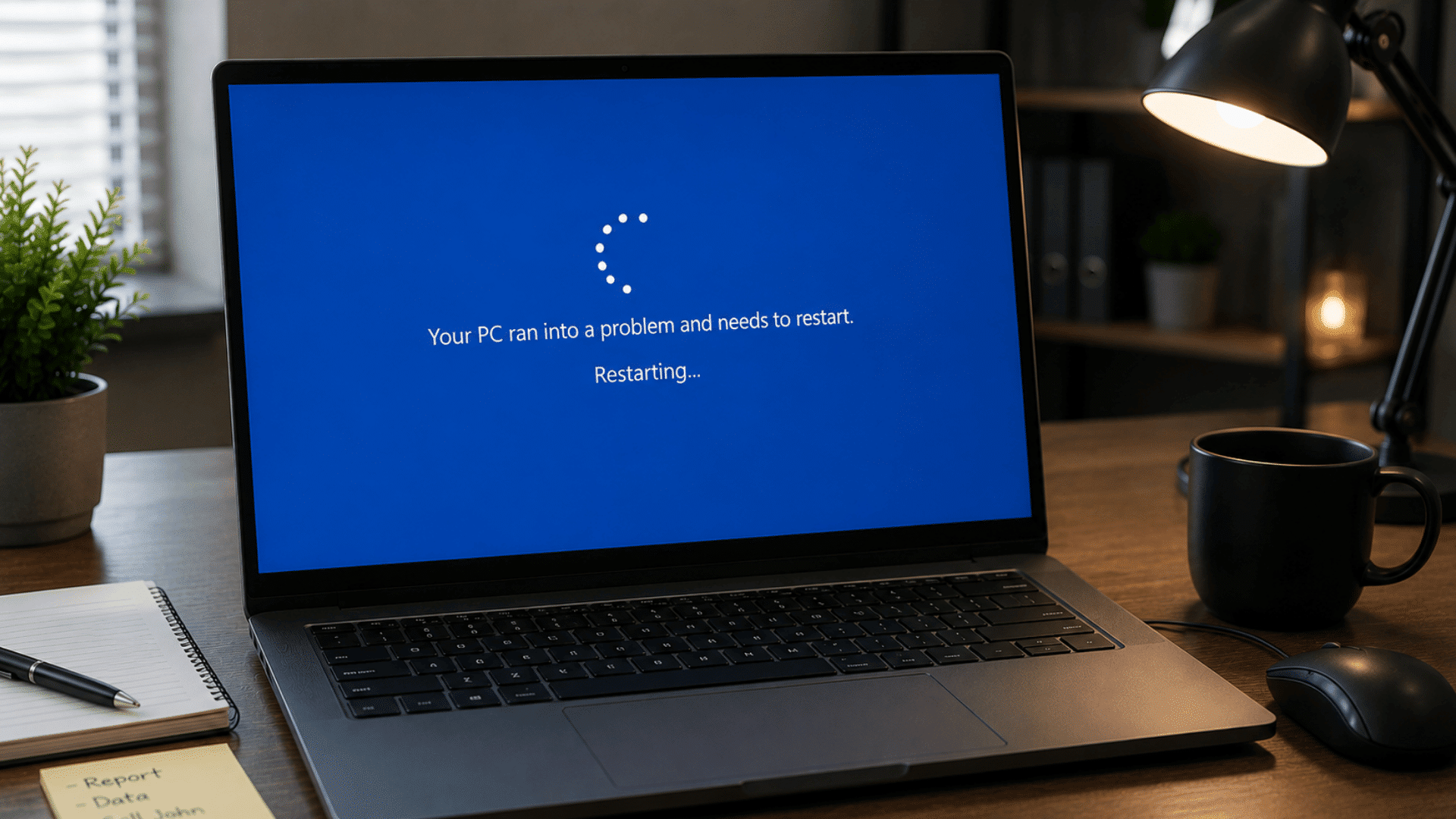
Unexpected restarts can interrupt work and may indicate underlying software or hardware issues. Finding the cause is important to maintain system stability.
How to Identify It: Your computer restarts without warning while you are working, gaming, or browsing.
How to Fix It: Check for overheating, install system updates, and review recently added hardware or software. Updating drivers can resolve compatibility issues.
If the restarts continue, testing the power supply, memory, and storage components may help identify the root cause.
Should You Fix It Yourself or Call a Professional?
The single most important rule comes first:
If you hear a repetitive clicking or grinding from your hard drive, or you see signs of drive failure, back up your data immediately before doing anything else.
A failing drive can die completely with no warning.
| Fix it yourself | Call a professional |
|---|---|
| Slow performance, startup bloat, low storage | Hard drive making clicking/grinding noises |
| Software crashes, driver updates, browser errors | The computer won’t power on at all after basic checks |
| Wi-Fi and connectivity resets | Liquid damage or physical damage |
| Malware removal with a reputable antivirus | Repeated BSODs after driver and memory checks |
| Cleaning dust, improving airflow | Internal repairs (thermal paste, motherboard, PSU) you’re not comfortable with |
Tips to Prevent Computer Issues in the Future
Most computer problems can be avoided with a few simple habits. Taking care of your system regularly helps improve performance and reduces the chance of unexpected issues.
I have found that small maintenance tasks often prevent bigger problems later.
- Keep Your Software Updated: Install operating system, driver, and application updates as they become available.
Updates often fix bugs and security issues. - Use Reliable Antivirus Protection: Run regular scans and keep your security software updated to help protect your computer from malware and viruses.
- Clean Up Unnecessary Files: Remove temporary files, unused programs, and old downloads to free up storage space and improve performance.
- Back Up Important Data: Save important files to cloud storage or an external drive so you can recover them if something goes wrong.
- Monitor System Temperature: Keep vents clear and clean dust from your computer regularly to prevent overheating.
- Be Careful With Downloads and Links: Only download software from trusted sources and avoid clicking suspicious links or attachments.
- Restart Your Computer Regularly: A simple restart can clear temporary issues and help your system run more smoothly.
- Check Hardware Periodically: Pay attention to unusual noises, frequent errors, or performance changes that may indicate a hardware problem.
At the End
Computer problems are a part of everyday technology use, but they do not always require advanced technical skills to solve.
As you’ve seen throughout this guide, many common issues can be identified quickly and fixed with a few practical troubleshooting steps.
If dealing with slow performance, connectivity problems, software errors, or hardware concerns, understanding the cause is often the first step toward a solution.
The key is to stay proactive. Regular updates, routine maintenance, and safe browsing habits can help prevent many issues before they affect your computer.
Even small actions can make a noticeable difference in long-term performance and reliability.
Have you experienced any of these computer issues before? Share your experience, tips, or questions in the comments below. Your insight may help other readers find a solution faster.
Frequently Asked Questions
What are the 12 Signs Your Computer has Been Hacked?
Common signs include slow performance, unexpected pop-ups, unfamiliar programs, disabled security software, password changes, strange emails, browser redirects, and unusual account activity.
What are the 5 Types of Errors in Computers?
Common computer errors include hardware errors, software errors, network errors, input/output errors, and system configuration errors. Each can affect performance, stability, or functionality.
Does Shutting Down a Computer Stop Hackers?
Shutting down your computer can disconnect active remote access, but it does not remove malware. Run security scans and update passwords before reconnecting.
How Do I Run a Diagnostic on My Computer?
Use built-in diagnostic tools such as Windows Memory Diagnostic, Performance Monitor, or manufacturer utilities. These tools help identify hardware and system issues.