


Plain text can make important Discord messages easy to overlook. Using the right formatting helps organize conversations, highlight key details, and make messages easier to read.
Discord uses a simple Markdown system that lets users create bold, italic, underlined, and strikethrough text, add spoilers, insert quotes, and format code blocks.
This blog explains every major Discord text formatting option with clear examples and step-by-step instructions.
You’ll also learn how to combine multiple formatting styles, use Discord code blocks with syntax highlighting, avoid common formatting mistakes, and use a quick reference cheat sheet.
By the end, you’ll have everything you need to format Discord messages more effectively and communicate with greater clarity.
What Is Discord Text Formatting?
Discord text formatting is the process of changing the appearance of your messages using simple symbols instead of buttons or menus.
It helps make important text stand out, improves readability, and keeps conversations better organized.
Discord uses a lightweight formatting language called Markdown to apply these styles automatically.
By placing symbols such as asterisks, underscores, or backticks around your text, Discord recognizes the pattern and converts it into bold, italic, underlined, or other formatted text when you send the message.
There is nothing to enable or configure, as Markdown support is built into Discord by default.
As long as the symbols are used correctly, your formatted message will appear instantly in servers, direct messages, and group chats.
Where Does Text Formatting Work in Discord?
Discord Markdown formatting works in most places where you can type and send messages. Here are the main locations where it is supported:
- Server Channels: Text formatting works in public and private server channels, making announcements, discussions, and instructions easier to read.
- Direct Messages (DMs): You can use bold, italics, code blocks, spoilers, and other formatting when chatting privately with another user.
- Group Chats: Markdown formatting is fully supported in group direct messages, helping organize conversations among multiple participants.
- Threads: Text formatting also works inside Discord threads, making it easier to highlight updates, questions, or important replies within ongoing discussions.
- Most Community Servers: They support the same Markdown formatting features, so you can style messages consistently across servers.
- Bots and Automated Messages: Most bots preserve Discord formatting, but some bots or integrations may remove or ignore Markdown depending on incoming messages.
How to Format Text in Discord?
Discord text formatting uses simple Markdown symbols to change the appearance of your messages. Learning these formatting options helps make chats, announcements, and code snippets easier to read and more organized.
Step 1: Type Your Message in the Discord Chat Box
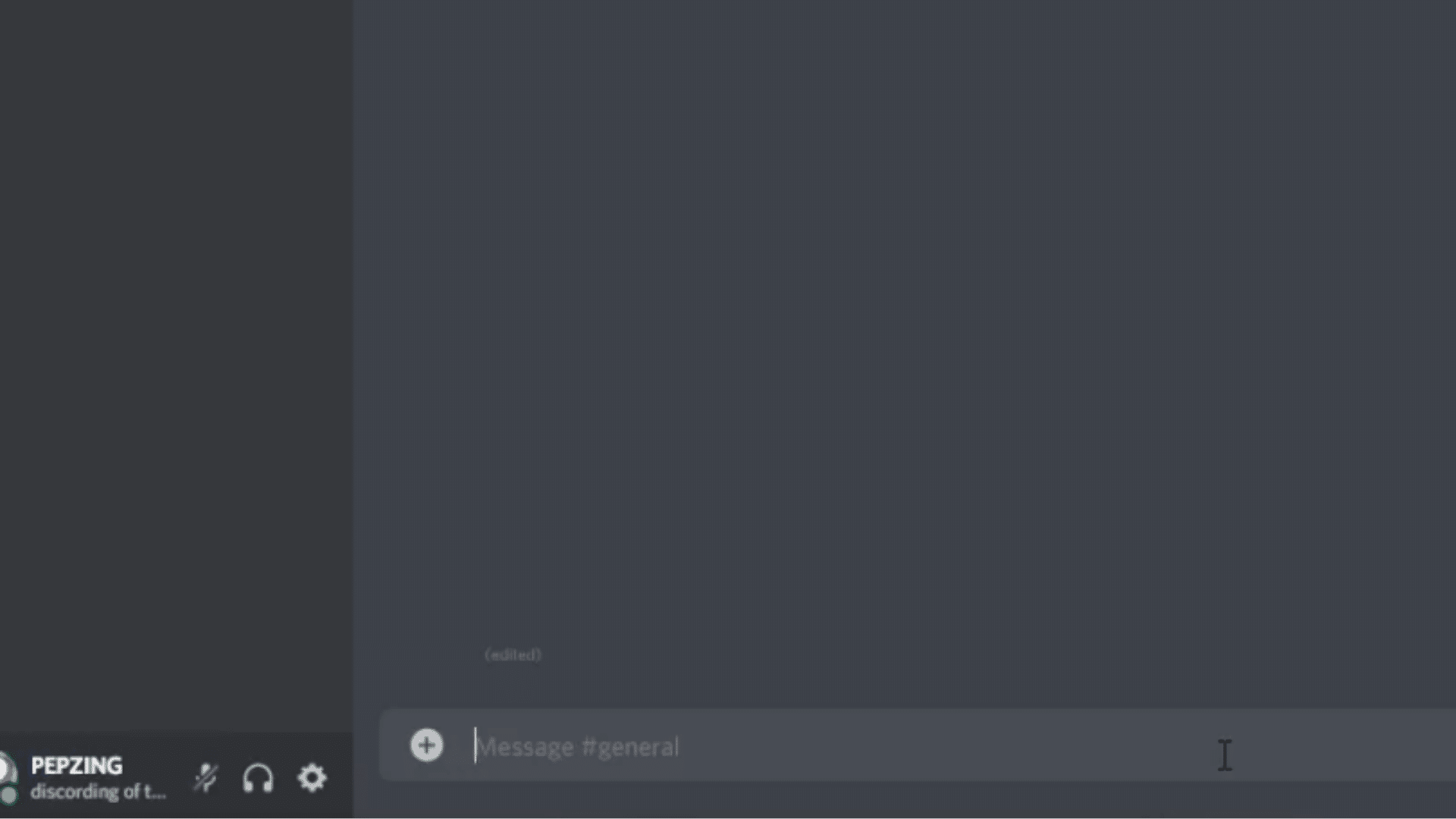
Open the Discord server, direct message, or group chat where you want to send your message. Type the text normally, but do not press Enter yet.
Discord applies formatting only when you include the correct Markdown symbols before sending the message.
Since Markdown works automatically, you do not need to change any settings or install extra tools. Simply prepare your message and add the formatting symbols in the next steps.
Step 2: Apply Basic Markdown Formatting
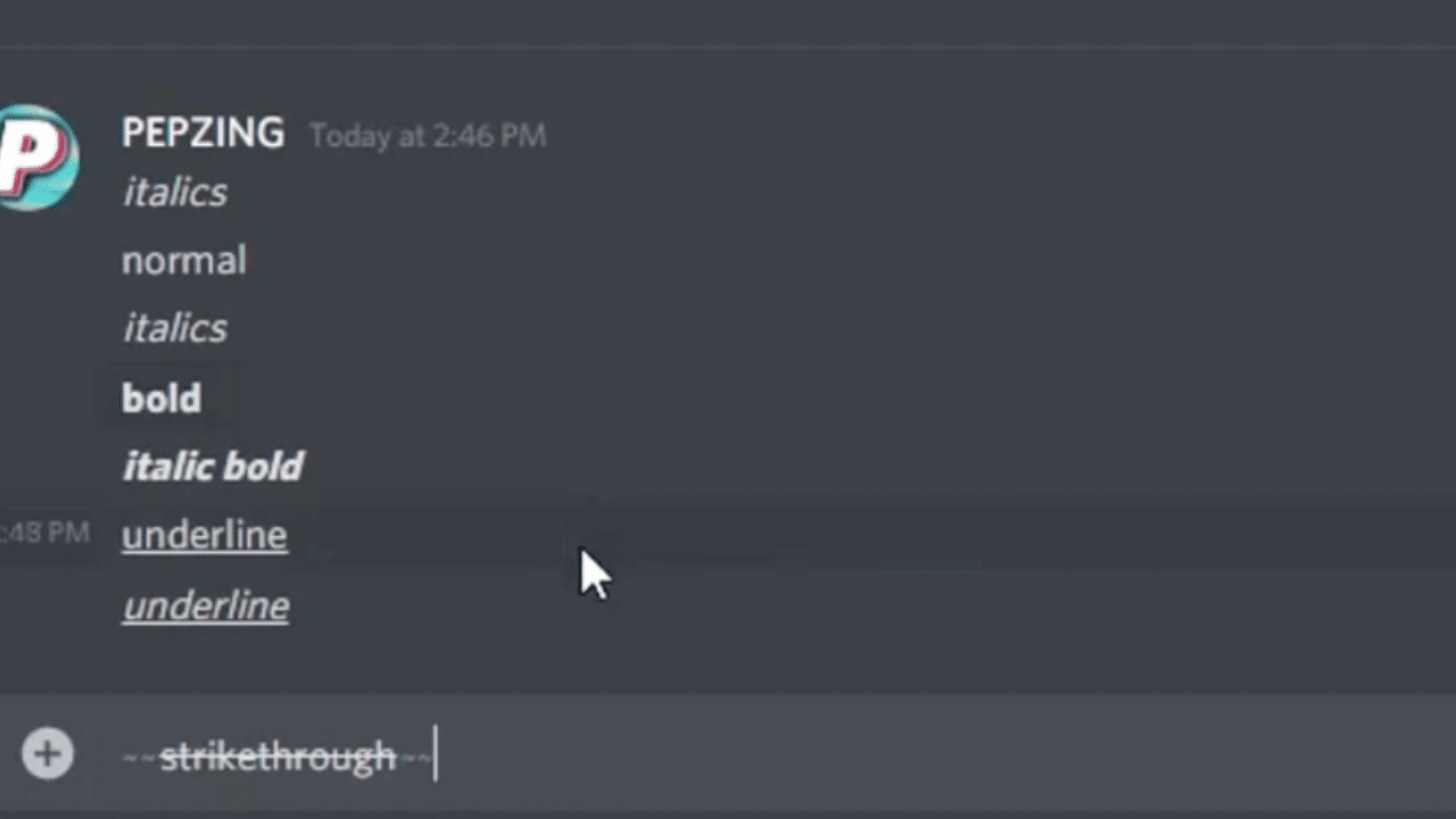
Use Markdown symbols to change the appearance of your text.
Place one asterisk or underscore around a word for italics, two asterisks for bold, two underscores for underline, two tildes for strikethrough, and two vertical bars for spoiler text.
Make sure each opening symbol has a matching closing symbol.
Once you send the message, Discord automatically converts the Markdown into the formatted text you intended.
Step 3: Combine Multiple Formatting Styles
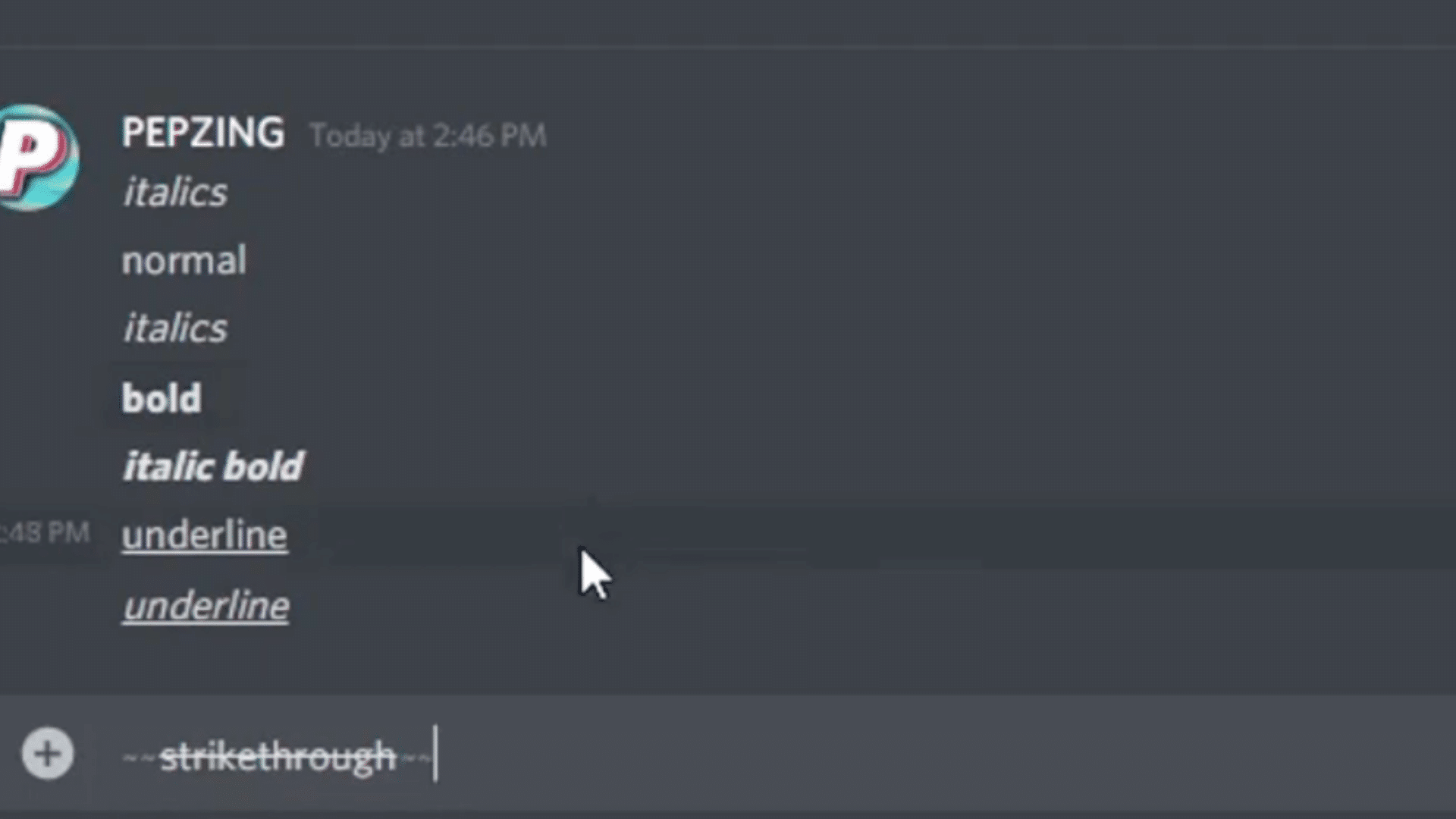
You can apply more than one formatting style to the same text by nesting the Markdown symbols correctly.
For example, three asterisks create bold italic text, while combining double underscores with asterisks adds an underline along with bold or italic text.
This feature works well for announcements, headings, and important reminders.
Keep the formatting balanced, as missing or misplaced symbols may stop Discord from displaying the style correctly.
Step 4: Insert Inline Code or a Code Block
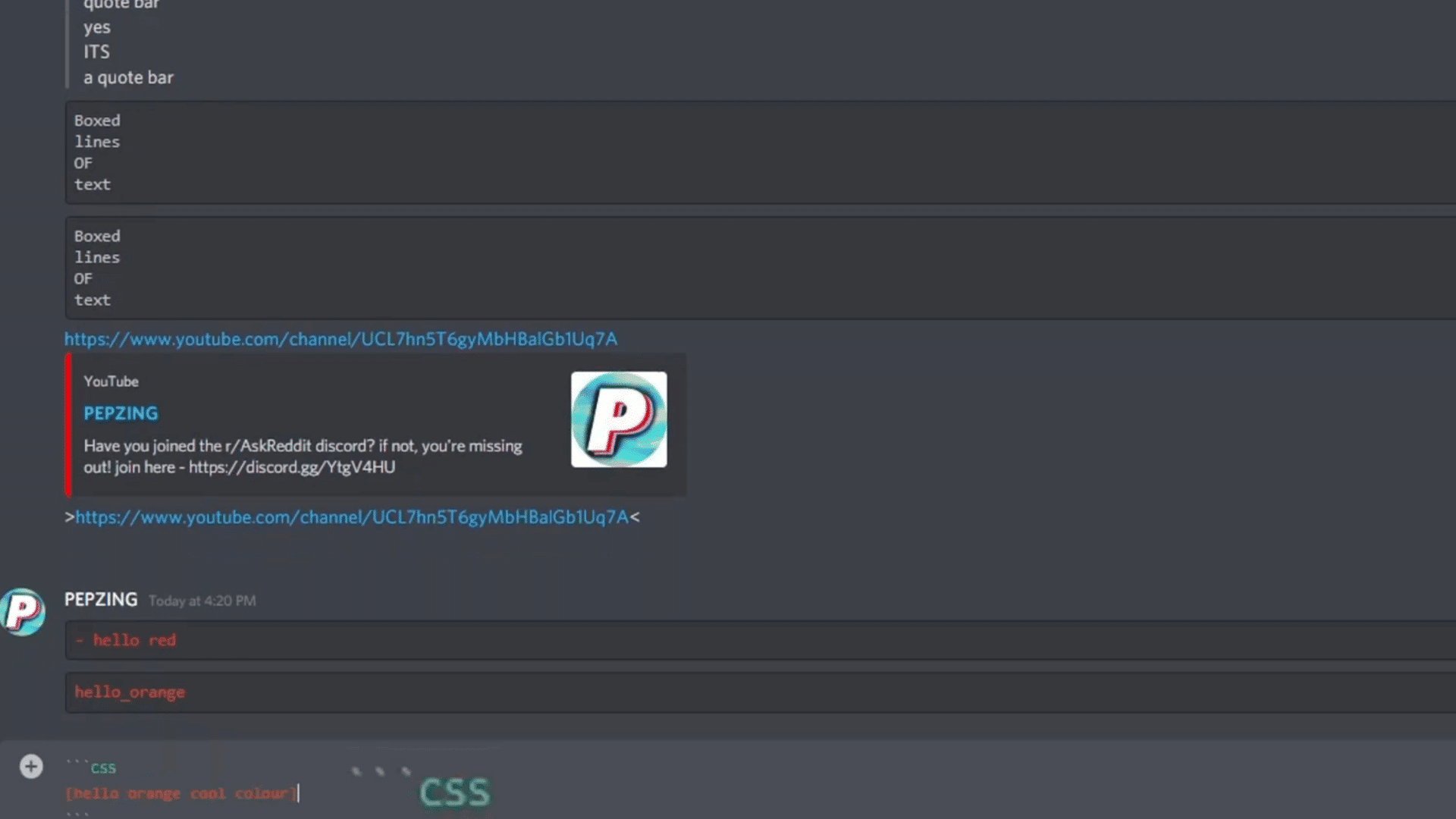
For short commands or file names, place a single backtick before and after the text to create inline code.
If you want to share multiple lines of code, place three backticks before the code and three more after it.
You can also write a language name, such as Python or CSS, after the opening backticks to enable syntax highlighting for supported languages.
Step 5: Add Quotes and Multi-Line Blocks
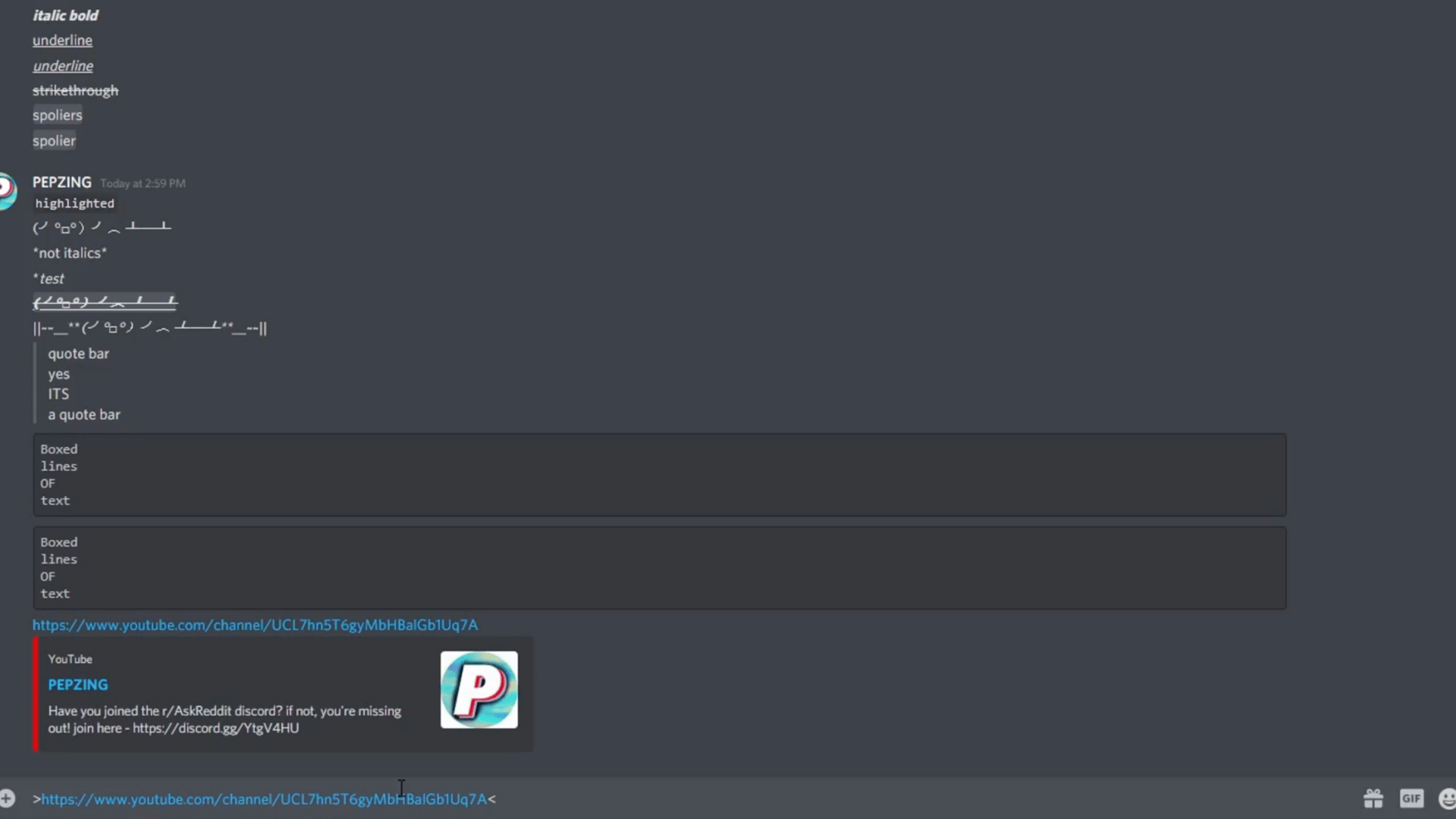
To quote a single line, type the greater-than symbol (>) followed by a space before your text.
For longer quoted sections, begin the first line with three greater-than symbols (>>>) and continue typing your message. Discord keeps the entire block inside the quote format.
This is useful for replying to messages, sharing rules, or highlighting information without editing the original text.
Step 6: Use Advanced Formatting Tricks
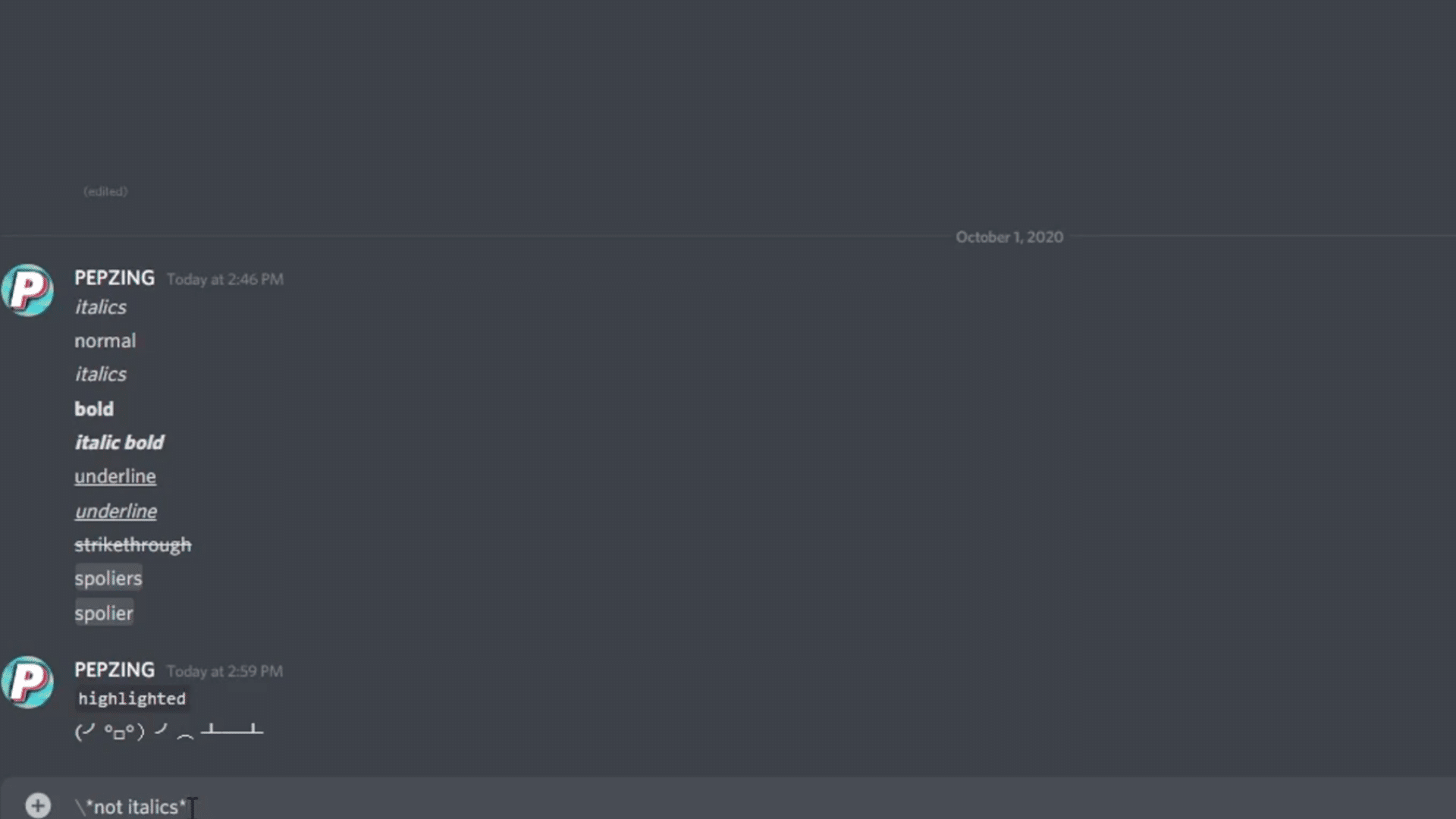
Discord also supports a few helpful Markdown shortcuts. Add a backslash (\) before a Markdown symbol if you want it to appear as plain text rather than apply formatting.
Press Shift + Enter whenever you need a new line without sending the message.
These small tricks help when writing long announcements, sharing code examples, or explaining Markdown syntax without triggering unwanted formatting.
Step 7: Review and Send Your Formatted Message
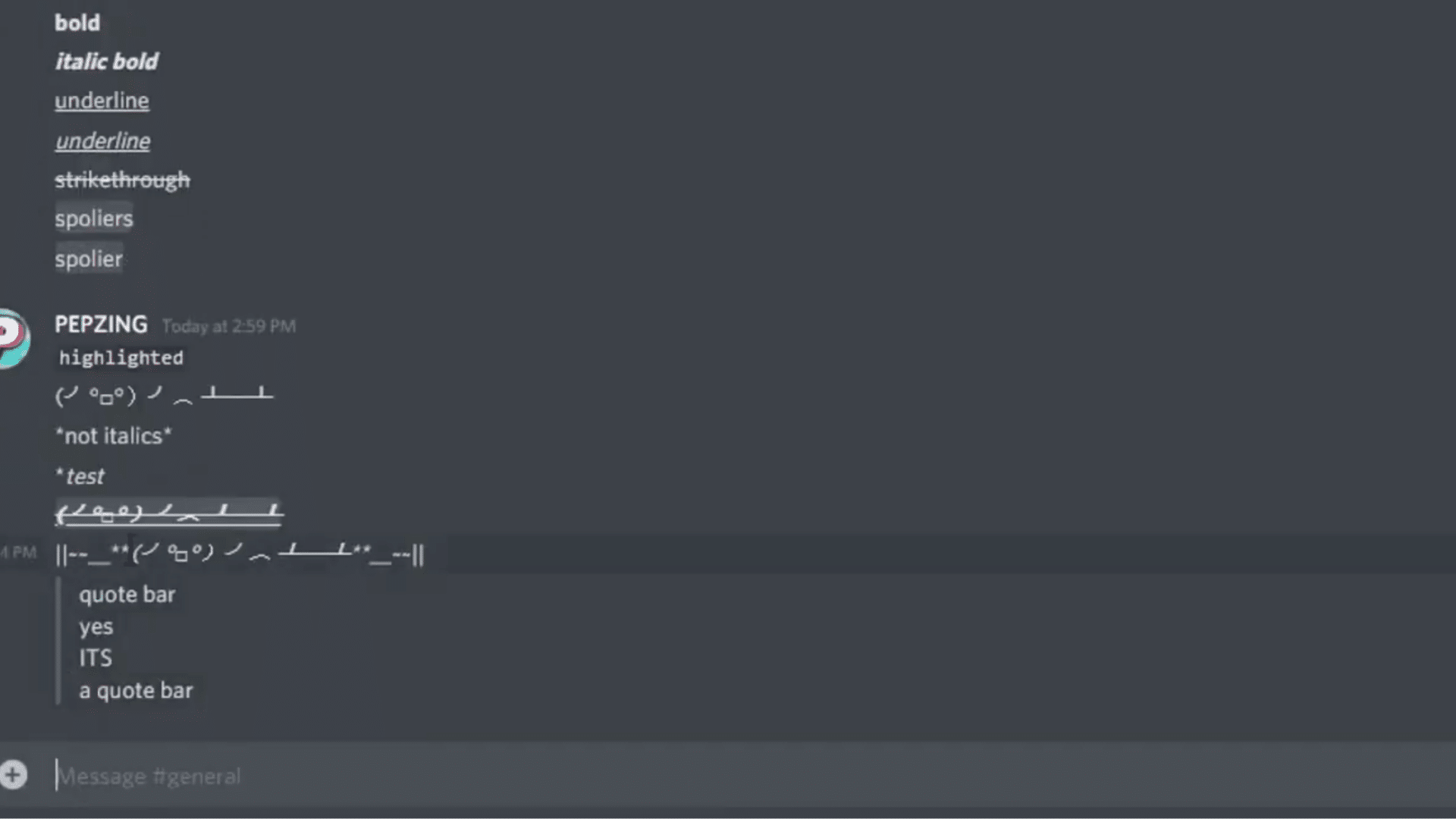
Before pressing Enter, quickly check that every Markdown symbol is correctly paired and that there are no unnecessary spaces inside the formatting.
If something looks wrong, adjust the symbols and preview the text again. Once everything is correct, send the message.
Your formatted text, code block, quote, or spoiler will appear instantly, making your message cleaner, easier to read, and more professional.
These steps are inspired by a useful video from PEPZING. You can watch the original tutorial on their YouTube channel here or view it below.
How to Add Headers and Subtext in Discord?
Discord also supports headings and subtext, making long messages easier to organize and helping important information stand out more clearly.
- Create a Large Heading: Type # followed by a space at the beginning of a new line to create the largest heading. Use it for main sections or important announcements.
- Add a Medium Heading: Type ## and a space before your text. This size works well for subheadings within longer messages.
- Use a Small Heading: Type ### followed by a space to create the smallest heading. It’s useful for organizing smaller sections.
- Add Subtext: Type -# and a space at the start of a new line to create smaller, muted text. Use it for notes, credits, footnotes, or extra details.
- Start on A New Line: Heading and subtext formatting only works when the symbols appear at the beginning of a new line with a space before the text.
Inline Code vs Discord Code Blocks
Inline code and code blocks serve different purposes in Discord. Knowing when to use each helps keep commands, code, and technical information clear and easy to read.
| Feature | Inline Code | Discord Code Block |
|---|---|---|
| Markdown Syntax | Use one backtick before and after the text | Use three backticks before and after the text |
| Example | command | python print(“Hello”) |
| Purpose | Highlights a short command, word, or code snippet | Displays longer code or text in a separate block |
| Best For | File names, variables, short commands, and code terms | Scripts, logs, configuration files, and multi-line code |
| Line Breaks | Not supported | Supported |
| Syntax Highlighting | Not available | Available by adding a language name after the opening backticks |
| Common Languages | Not applicable | Python, JavaScript, CSS, JSON, Bash, HTML, and C++ |
| Appearance | Appears within a normal sentence | Appears in a separate shaded box |
| Best Use | Short technical references | Detailed code examples and longer technical content |
Common Uses of Discord Formatting
It helps organize information, draw attention to important details, and make messages easier to read across different types of servers. Some of the most common uses include:
- Announcements: Use bold, underline, and quotes to highlight important updates, event schedules, or community news.
- Community Rules: Format headings, warnings, and key guidelines so members can quickly find important information.
- Code Sharing: Developers and programmers use inline code and code blocks to share commands, scripts, and configuration files with proper formatting.
- Tutorials and Guides: Combine headings, bold text, quotes, and code blocks to create step-by-step instructions that are easy to follow.
- Gaming Discussions: Use spoilers to hide story details, bold text to emphasize strategies, and quotes to reference previous messages.
- Study Groups: Highlight key concepts, assignments, deadlines, and resources using different formatting styles to improve readability.
- Technical Support: Share troubleshooting steps, terminal commands, error logs, and configuration details using code blocks to preserve formatting.
Discord Text Formatting Cheat Sheet
Use this Discord text formatting cheat sheet to quickly find Markdown syntax, examples, and formatting results for every supported text style.
| Formatting | Markdown Syntax | Example | Display |
|---|---|---|---|
| Bold | **text** | **Hello** | Hello |
| Italic | *text* or _text_ | *Hello* | Hello |
| Underline | __text__ | __Hello__ | Hello |
| Bold + Italic | ***text*** | ***Hello*** | Hello |
| Strikethrough | ~~text~~ | ~~Hello~~ | |
| Spoiler | text | ||
| Inline Code | `text` | `print()` | print() |
| Code Block | ```text``` | ```print("Hello")``` | Multi-line code block |
| Quote | > text | > Hello | Block quote |
| Multi-line Quote | >>> text | >>> Hello | Multi-line block quote |
Discord Formatting Tricks You Should Know
These formatting tricks help make Discord messages cleaner, easier to read, and more organized across chats, servers, and announcements.
- Escape Markdown Using a Backslash (): Add a backslash before Markdown symbols to display them as plain text rather than apply formatting.
- Create Blank-Looking Messages: Use an invisible Unicode character to add spacing or separate sections without displaying visible text in chat.
- Use Emojis With Formatting: Combine emojis with bold, italics, or underline to make important messages more noticeable and visually engaging.
- Format Bot Commands: Wrap bot commands in backticks to display them as code, making them easier to identify and copy correctly.
- Use Formatting in Announcements: Mix headings, bold text, bullet points, and quotes to organize announcements and improve readability for everyone.
- Make Long Messages Easier to Scan: Break text into short paragraphs, use lists, and highlight key information to improve readability in lengthy posts.
- Use Spoilers Inside Sentences: Hide only specific words or phrases with spoiler tags while keeping the rest of the sentence visible.
- Mention Users, Channels, and Roles Directly: Typing
<@USER_ID>,<#CHANNEL_ID>, or<@&ROLE_ID>Creates a clickable mention, per Discord’s official message formatting reference. Turn on Developer Mode in Settings to right-click and copy any ID.
How Does Discord Markdown Syntax Work?
Discord uses Markdown, a lightweight formatting language that turns simple symbols into styled text.
Instead of clicking formatting buttons, users insert specific characters before and after words or sentences to apply styles such as bold, italics, underlines, strikethrough, quotes, spoilers, and code blocks.
When the message is sent, Discord automatically recognizes these symbols and displays the formatted version.
Markdown is built into Discord by default, so there is nothing to install or enable.
\It works across server channels, direct messages, group chats, and threads, making it a quick and consistent way to organize messages, emphasize important information, and share code or commands in a clean, readable format.
Using Masked Links and Lists in Discord
Keep Discord messages organized by using masked links for clean URLs and lists to present announcements, rules, and instructions clearly.
| Feature | Syntax | What It Does | Example |
|---|---|---|---|
| Masked Link | [text](URL) | Replaces a long URL with clickable text. | [Server Rules](https://example.com) |
| Bulleted List | – Item or * Item | Creates an unordered list. | – Welcome |
| Numbered List | 1. Item | Creates an ordered list. | 1. Read the Rules |
| Nested List | – Item or 1. Item | Creates a sub-list under another item. | – Channels – General Chat |
How to Color Text Using Discord Code Blocks?
Discord does not let you change the color of regular text, but you can create colored text effects by using code blocks with specific language names.
After the opening three backticks, type a language such as diff, fix, css, or ini, then add your text on the next line.
For example, diff displays lines starting with a plus sign (+) in green and a minus sign (-) in red.
The fix language often shows text in yellow, while CSS and INI can produce blue, orange, or gray depending on the Discord client.
These colors come from syntax highlighting rather than official text formatting, so they may look different across devices, themes, or future Discord updates.
A table works best for this section because readers need to compare the different timestamp styles at a glance.
How to Add Dynamic Timestamps in Discord?
Dynamic timestamps let Discord automatically display the correct date and time for each user based on their local time zone and language settings. This makes them useful for events, meetings, deadlines, and game sessions where people are in different regions.
| Style | Syntax Example | Example Output | Best Used For |
|---|---|---|---|
t | <t:TIMESTAMP:t> | 16:20 PM | Showing only the time |
T | <t:TIMESTAMP:T> | 16:20:30 PM | Displaying the exact time with seconds |
d | <t:TIMESTAMP:d> | 04/20/2021 | Showing a short numeric date |
D | <t:TIMESTAMP:D> | April 20, 2021 | Displaying a full written date |
f (Default) | <t:TIMESTAMP:f> | April 20, 2021 4:20 PM | Showing a standard date and time |
F | <t:TIMESTAMP:F> | Tuesday, April 20, 2021 4:20 PM | Displaying the complete date and time |
R | <t:TIMESTAMP:R> | 4 years ago | Showing relative time, such as countdowns or elapsed time |
Common Discord Formatting Mistakes to Avoid
These common Markdown mistakes can prevent Discord from displaying text correctly. Avoiding them helps messages appear exactly as intended.
- Missing Closing Symbols: Always close Markdown symbols like **, *, ___, ~~, or `. Unclosed formatting often causes the rest of the message to display incorrectly.
- Wrong Number of Backticks: Use one backtick for inline code and three backticks for code blocks. Mixing them prevents Discord from formatting code properly.
- Using Smart Quotes: Copying text from word processors may replace normal characters with smart quotes. These characters can interfere with Markdown and code formatting.
- Adding Extra Spaces: Extra spaces between Markdown symbols and text can stop formatting from working. Keep the symbols directly next to the text.
- Using Markdown Inside Code Blocks: Markdown formatting does not apply inside inline code or code blocks. Discord displays everything exactly as typed.
- Incorrect Nesting Order: When combining multiple styles, place Markdown symbols in the correct order. Incorrect nesting can break the intended formatting.
- Assuming Unsupported Formatting Works: Discord supports only specific Markdown styles. Features such as custom fonts, text colors, and font sizes are not available in regular messages.
Conclusion
Discord Markdown improves readability by using formatting tools like bold, italics, quotes, spoilers, and code blocks to organize messages.
Useful for chats, gaming groups, study groups, announcements, and developer servers.
Keeping this Discord formatting cheat sheet handy can save time and make messages easier to create. Bookmark this page for quick reference whenever you need a formatting reminder.
Regular practice makes Discord Markdown easier and helps create cleaner, more readable messages.
Have a favorite Discord formatting trick or a tip you use regularly? Share it in the comments below and help others improve their Discord messages.
Frequently Asked Questions
What Is “` in Discord?
Three backticks (“`) create a code block in Discord. Everything between the opening and closing backticks appears in a separate, monospaced block that preserves spacing and formatting.
Is NSFW Discord Illegal?
No, NSFW Discord content is not inherently illegal. It is allowed only in age-restricted channels and must comply with Discord’s Community Guidelines and applicable local laws.
What Does @here in Discord Mean?
The @hereMention notifies only members who are currently online and active in a server. Offline users do not receive a notification when mentioned with @here.