

A Samsung TV that used to open apps instantly can become frustrating when it starts lagging, freezing while streaming, or closing apps unexpectedly.
These issues are often caused not by a faulty TV or internet connection, but by small performance problems that build up over time.
One common reason is cached data. While Cache helps apps load faster, too many temporary files can become outdated or corrupted, affecting your TV’s speed and responsiveness.
In most cases, clearing the Cache, restarting the TV, or reinstalling problem apps can help improve performance.
The exact steps may vary depending on your Samsung TV model and software version, so I will cover different methods to help you find the right solution.
Quick Answer: How to Clear Cache on Samsung TV?
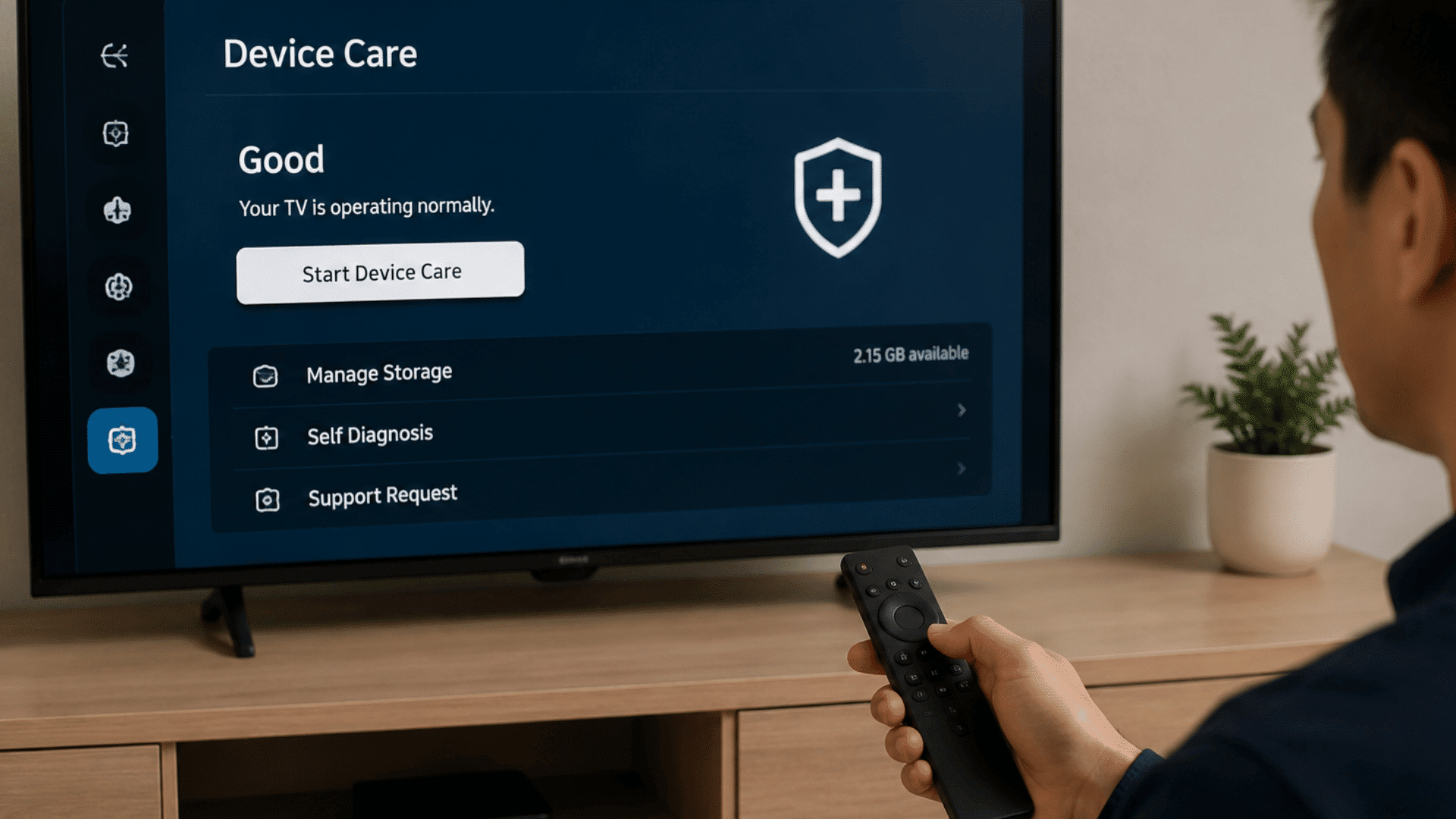
To clear Cache on a Samsung TV, go to Settings > Support > Device Care > Manage Storage. Select the app, choose View Details > Clear Cache, and confirm. Menu options may vary by TV model.
Step-by-Step Ways to Clear Cache on Samsung TV
Clearing cache on a Samsung TV can help fix slow apps, freezing, and loading problems. Follow these methods based on whether you need to clear one app, refresh the system, or improve overall performance.
1. Clear Cache for a Specific App
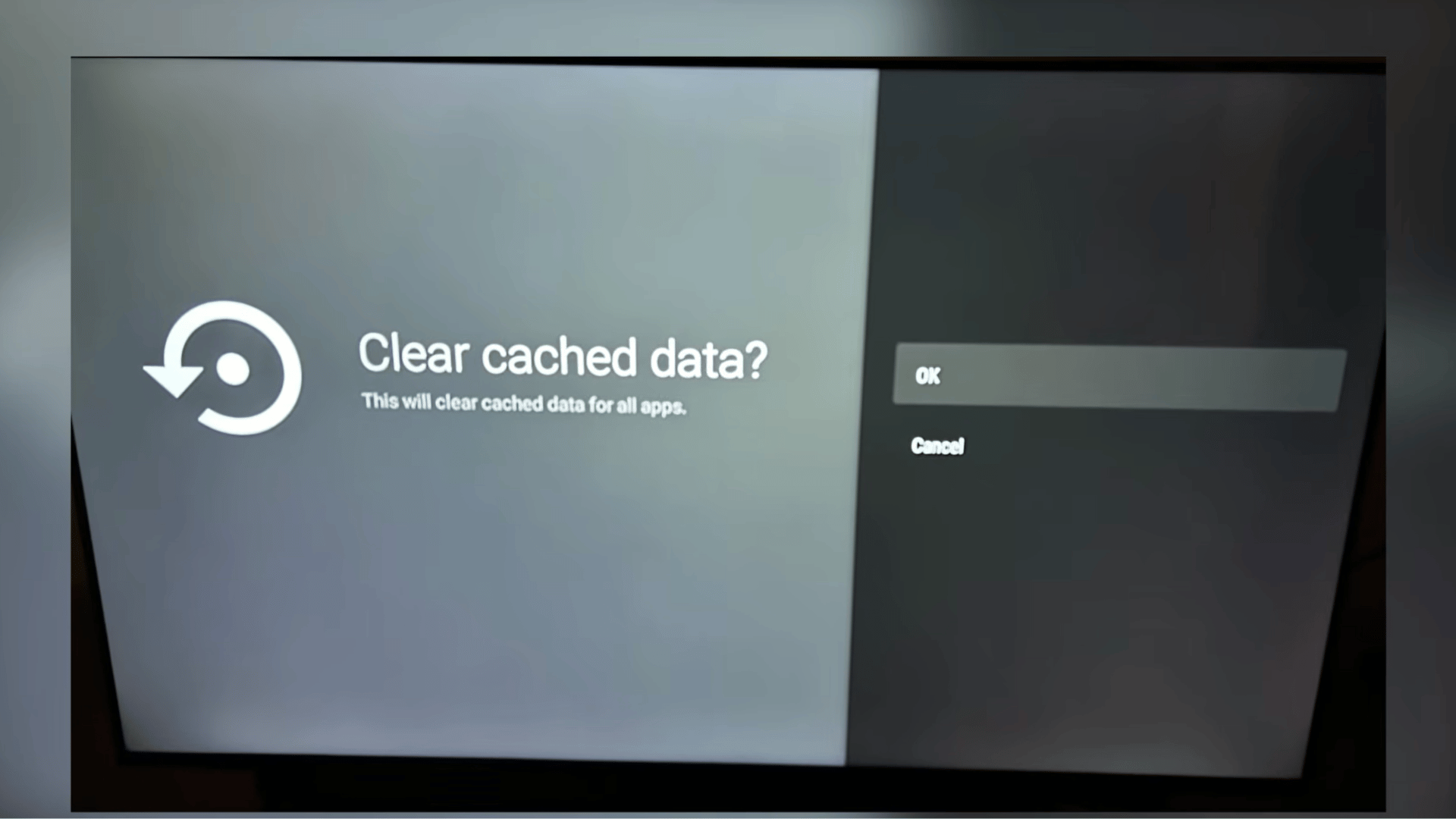
Start by clearing the Cache of the app causing problems. Press the Home button on your remote, open Settings, select Support, and choose Device Care.
Wait for the check to finish, then open Manage Storage. Select the affected app, choose View Details, and select Clear Cache.
Confirm the action and restart your TV to apply the changes. This removes temporary files without deleting the app or changing your saved settings.
2. Run Device Care on Samsung TV
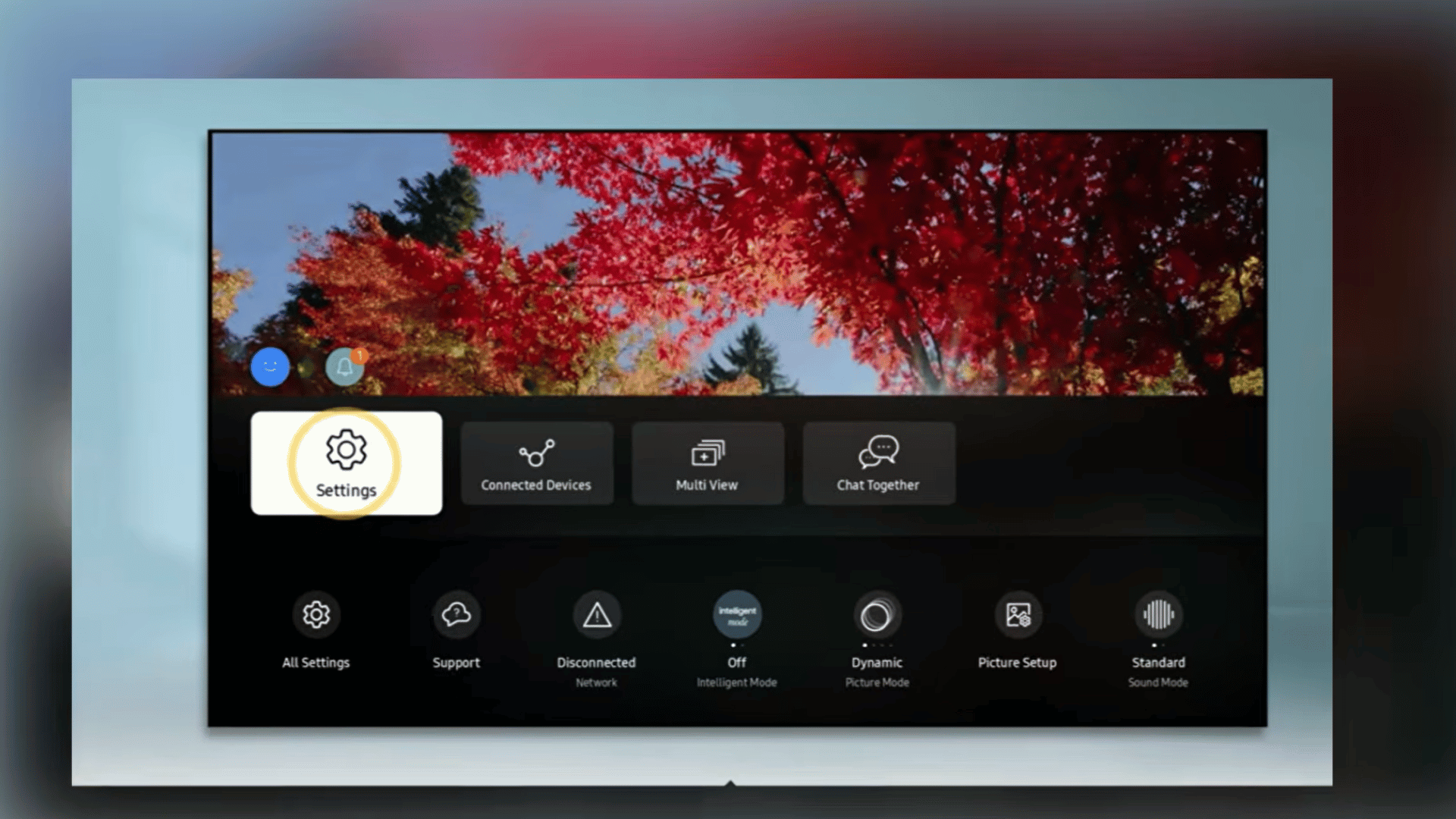
Use Device Care when multiple apps are slow, or the TV feels less responsive. Press the Home button, go to Settings, and select Support.
Samsung TV Device Care features help users check performance, manage storage, and run maintenance tools directly from the TV settings. Open Device Care and choose Start Device Care.
The TV will run a quick diagnostic check and remove temporary data that may affect performance.
After the process finishes, reopen your apps and check if the speed and response have improved.
3. Remove Unused Apps
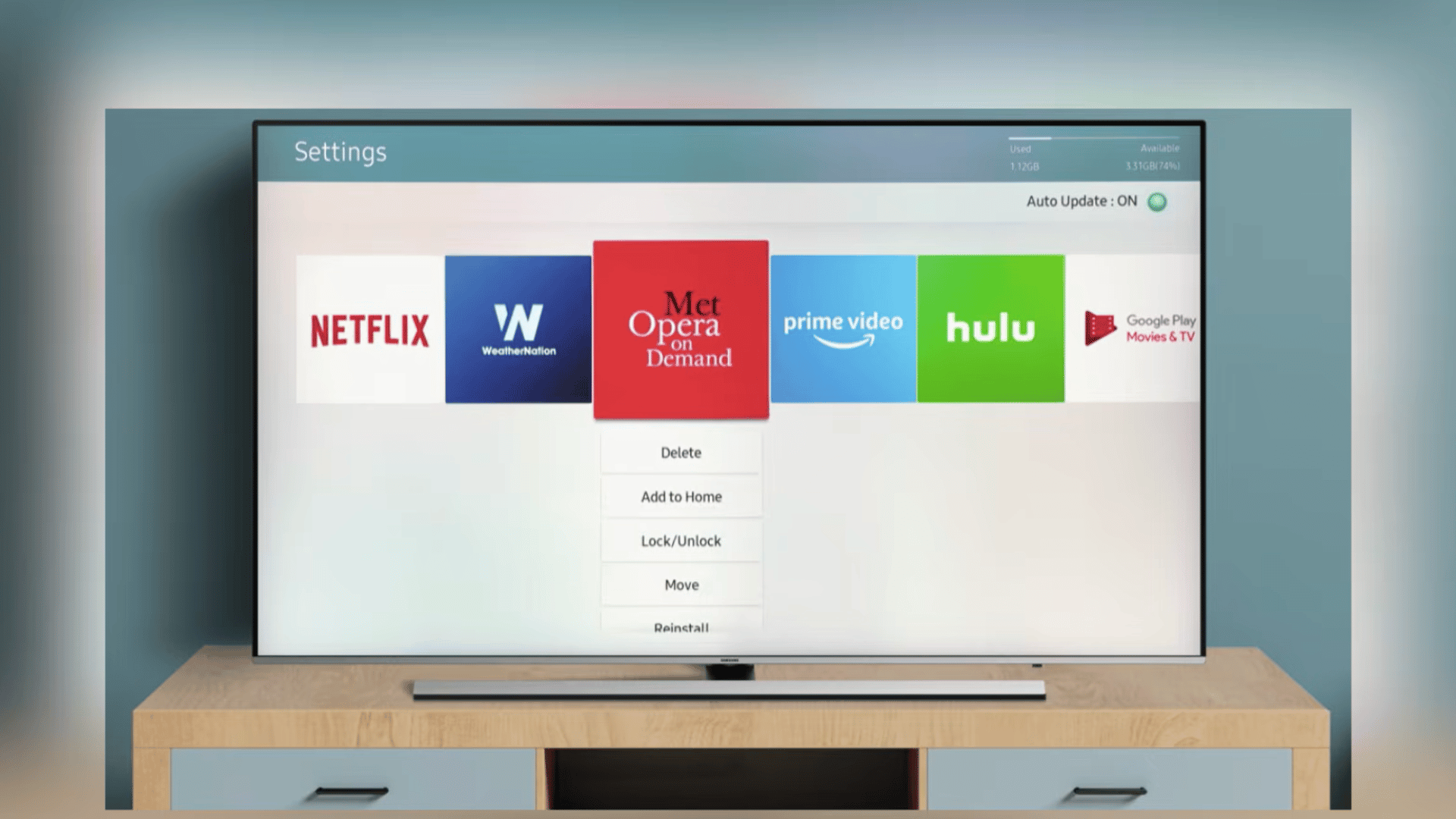
Unused apps can take up storage and use system resources in the background. Go to the Samsung TV home screen and move to the app you no longer need.
Press and hold the Select button on your remote, then choose Remove or Disable from the available options.
Removing unnecessary apps can free storage space and help your TV run more smoothly, especially on models with limited internal storage.
4. Update Samsung TV Software
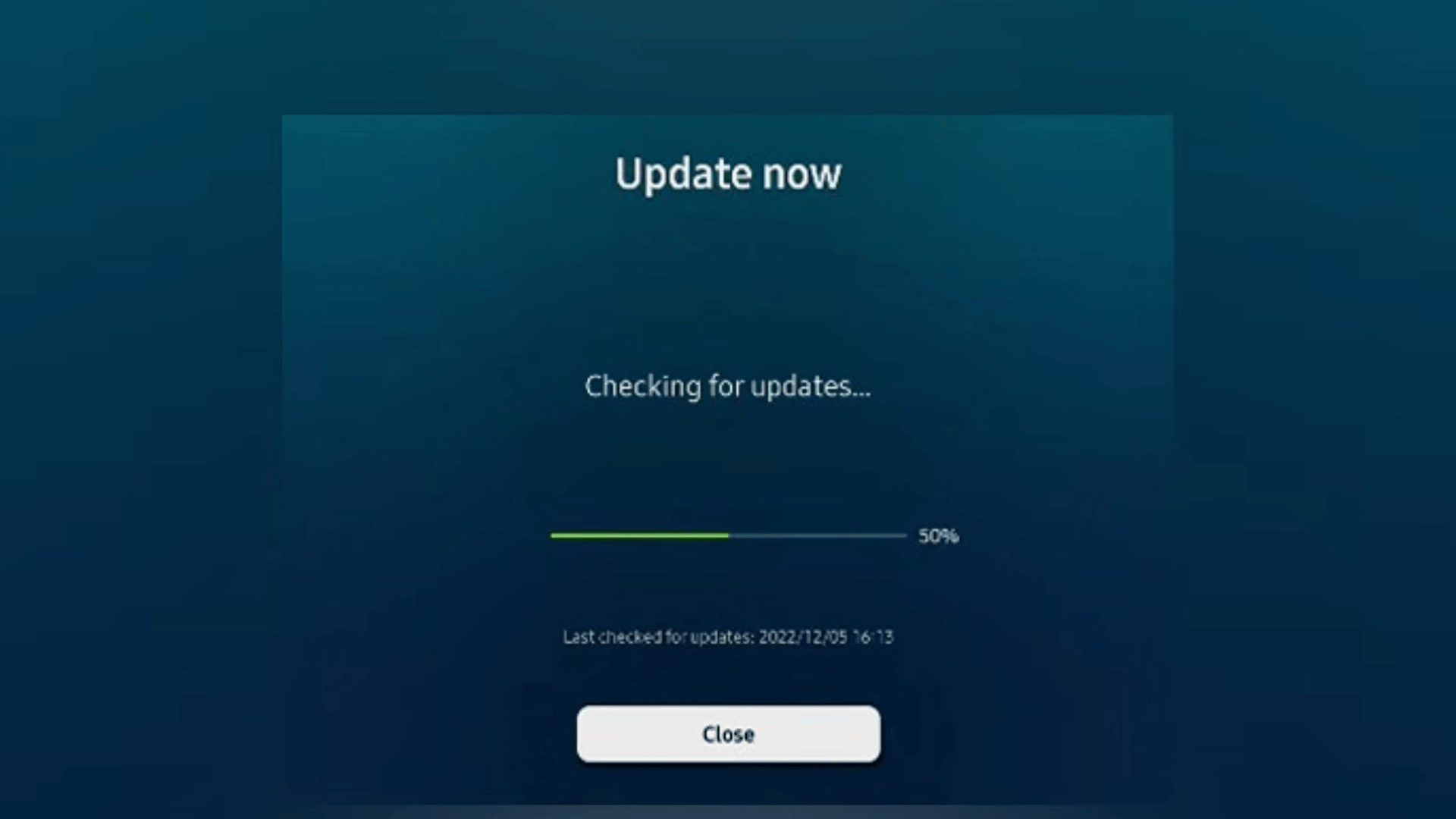
Software updates can fix app compatibility issues and improve overall performance. Press the Home button on your remote and open Settings.
Select Support, choose Software Update, and select Update Now. If a new update is available, allow the TV to install it completely.
Keeping the software updated helps apps work properly and reduces problems caused by outdated system files.
5. Perform a Power Reset
A power reset refreshes your Samsung TV when apps continue freezing after clearing the cache.
Turn on the TV, unplug the power cord from the wall outlet, and wait for around 30 seconds. Reconnect the power cord and turn the TV back on.
This process clears temporary system memory and refreshes background processes without deleting apps, removing accounts, changing Wi-Fi settings, or affecting your saved pictures and preference settings. It is a safe troubleshooting step for many performance issues.
This tutorial is based on a helpful video by DeviceDiagnostics. You can check out the original video below for a more detailed visual guide:
When Should You Clear Cache on Samsung TV?
You should clear the Cache on your Samsung TV when apps become slow, freeze, crash, or take longer to open.
Cache clearing is not required on a regular schedule, but it helps when temporary files become outdated or affect performance.
Slow apps, buffering videos, and unexpected app closures can happen due to corrupted Cache data.
Clearing it allows apps to rebuild fresh temporary files. It can also help after app updates when older files create conflicts.
If storage is low, clearing Cache may free some space. However, if the entire TV feels slow, a power reset is usually better because it refreshes system processes.
What Cache Clearing Does Not Fix?
Clearing the Cache on a Samsung TV can fix minor app glitches, but it cannot solve problems caused by internet issues, service outages, unsupported apps, or hardware faults.
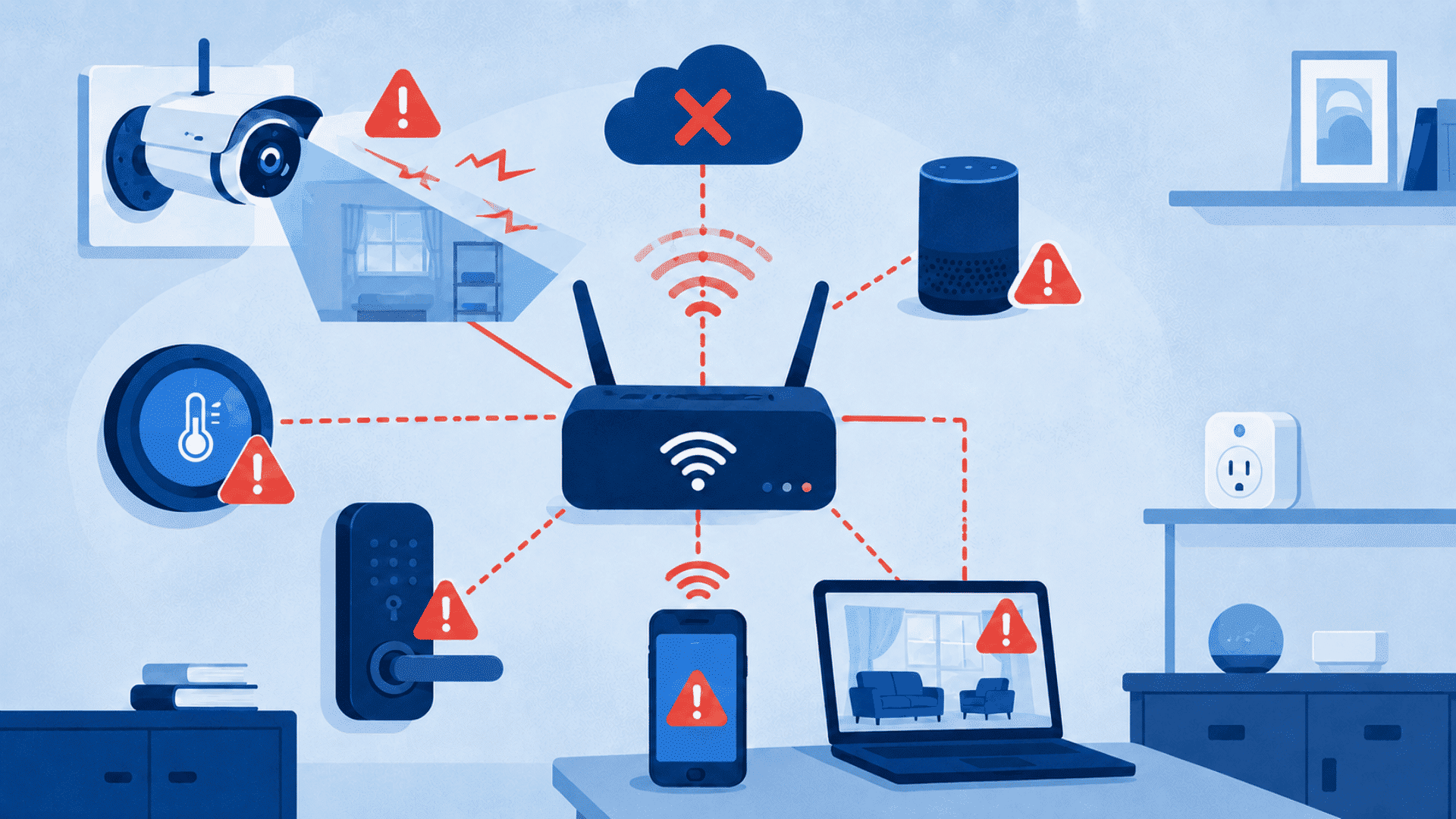
- Weak Wi-Fi or Internet Issues: Poor signal strength or slow internet plans can continue causing buffering. If your TV connection keeps dropping, check why the internet connection is not working.
- Streaming Service Problems: Samsung service outages or platform-side issues may affect playback and app performance.
- App and Software Compatibility: Unsupported app versions or outdated TV software may require updates instead of Cache clearing.
- Account Problems: Login, subscription, or activation issues will not be fixed by removing temporary files.
- Hardware Limitations: Damaged components, limited storage, or older unsupported TV models may need different solutions.
Other Ways to Fix Slow Apps
The correct fix depends on whether the problem affects one app or the entire television.
| Problem | Recommended Action |
|---|---|
| One app loads slowly | Clear its cache |
| One app keeps crashing | Clear its data or reinstall it |
| Several apps are slow | Power-reset the television |
| Storage is nearly full | Remove unused apps |
| Videos keep buffering | Test the internet connection |
| Menus respond slowly | Restart and update the TV |
| An app will not install | Free storage space |
| All Smart Hub apps fail | Consider a Smart Hub reset |
Free up Storage by Removing Unused Apps
Removing apps you no longer use can create more storage space and help your Samsung TV run smoothly. Follow these steps to delete unnecessary apps safely.
- Open Apps Menu: Press the Home button on your Samsung remote and select Apps from the home screen.
- Access App Settings: Choose the Settings icon to view your installed apps.
- Select the App: Highlight the app you want to remove from your Samsung TV.
- Delete the App: Select Delete and confirm your choice when prompted.
- Check App Limitations: Some built-in Samsung apps cannot be removed, so the Delete option may not appear.
- Keep Login Details Ready: Before deleting streaming apps, make sure you know your account details because reinstalling may require verification or activation.
How Often Should Cache Be Cleared?
You should clear the Cache on your Samsung TV only when apps become slow, freeze, crash, show outdated information, or cause performance issues.
Regular Cache clearing is not necessary because cached files help apps load faster and work more smoothly.
Clear the Cache when you notice problems such as slower app loading, videos freezing despite a stable connection, repeated app crashes, issues after an update, or limited storage space.
Clearing the cache without a reason may make apps open more slowly temporarily because they need to create new temporary files.
The best approach is to remove the cache only when a specific app or performance issue appears.
How to Reset Smart Hub on Samsung TV?
Resetting Smart Hub on a Samsung TV can help fix multiple app problems, login errors, and Smart Hub issues when Cache clearing or basic troubleshooting does not work.
- Open Settings: Press the Home button on your Samsung remote and go to Settings from the main menu.
- Access Support Options: Select Support and open Device Care or Self Diagnosis, depending on your TV model.
- Choose Reset Smart Hub: Select Reset Smart Hub from the available options.
- Enter Your PIN: Type your TV PIN if the system asks for confirmation.
- Confirm the Reset: Approve the reset process and wait for Smart Hub to restart.
- Sign In Again: Open your apps and enter account details if required after the reset.
- Check Your Settings: Reconfigure Smart Hub preferences and reinstall apps if they were removed.
How to Prevent Slow Performance and App Glitches?
You can prevent slow performance and app glitches on a Samsung TV by keeping apps updated, managing storage, and fixing small issues before they affect daily use.
These simple steps help apps load smoothly and improve overall TV performance.
Keep apps updated to avoid compatibility problems, and restart the TV occasionally to refresh temporary processes. Remove unused apps to keep storage free and check your internet connection when streaming issues appear.
A stable internet connection is important for streaming apps, as buffering may not always be caused by the TV itself.
Fixing small problems like slow loading or repeated app errors early can help prevent bigger performance issues later.
Key Benefits of Clearing Your TV Cache
Clearing your TV Cache removes temporary files that can slow down apps and affect overall performance. Regular Cache clearing helps your TV run more smoothly and reduces common playback issues.
- Faster App Performance: Helps apps open and respond more quickly.
- Smoother Streaming: Reduces buffering, freezing, and playback interruptions.
- Fixes App Glitches: Resolves crashes, loading errors, and unexpected app behavior.
- Frees Up Storage: Removes unnecessary cached data to create more available space.
- Improves System Stability: Keeps your TV running efficiently with fewer slowdowns.
- Enhances User Experience: Makes navigation and app switching faster and more responsive.
Mistakes to Avoid When Clearing Cache
Common cache-clearing mistakes can make troubleshooting harder or remove settings unnecessarily. Avoid these errors to fix Samsung TV app issues more effectively.
| Mistake | Better Approach |
|---|---|
| Clearing Data First | Use Clear Cache before Clear Data to avoid losing logins and preferences. |
| Resetting the TV | Try clearing the Cache, restarting, or reinstalling the app before a factory reset. |
| Ignoring Storage | Remove unused apps if low storage continues affecting performance. |
| Skipping Updates | Install software updates to prevent repeated app issues. |
| Unplugging Briefly | Keep the TV unplugged for 30 to 60 seconds for a proper reset. |
| Wrong Model Instructions | Check your TV model and follow matching steps. |
Conclusion
Learning how to clear Cache on a Samsung TV can help you fix slow apps, freezing issues, unexpected crashes, and small storage-related problems without affecting your main TV settings.
I suggest starting with the simplest solution first: using Device Care to clear the Cache of the app causing trouble.
If your TV does not show this option, a full power reset can often refresh the system and help both newer and older Samsung models run more smoothly.
More advanced options like clearing app data, resetting Smart Hub, or performing a factory reset should be used only when other methods fail, as they may remove logins, installed apps, and personalized settings.
Try each fix one at a time, check the app after every step, and move forward only if the problem continues.
Frequently Asked Questions
Does Unplugging a Samsung TV Clear the Cache?
Unplugging can clear temporary system memory and refresh background processes. It may improve general performance, but it does not always remove every app-specific Cache file stored on the television.
Why Is Device Care Missing?
Device Care may be unavailable because of the television’s model year, region, or software version. Use a power reset, app reinstall, or model-specific support instructions instead.
Should I Clear Cache or Data First?
Clear the Cache first because it removes temporary files without usually affecting logins or app settings. Clear data only when the problem continues.
Can Cache Clearing Fix Netflix or YouTube?
It may fix slow loading, freezing, crashes, or outdated screens. It will not correct weak Wi-Fi, service outages, account issues, or unsupported app versions.