


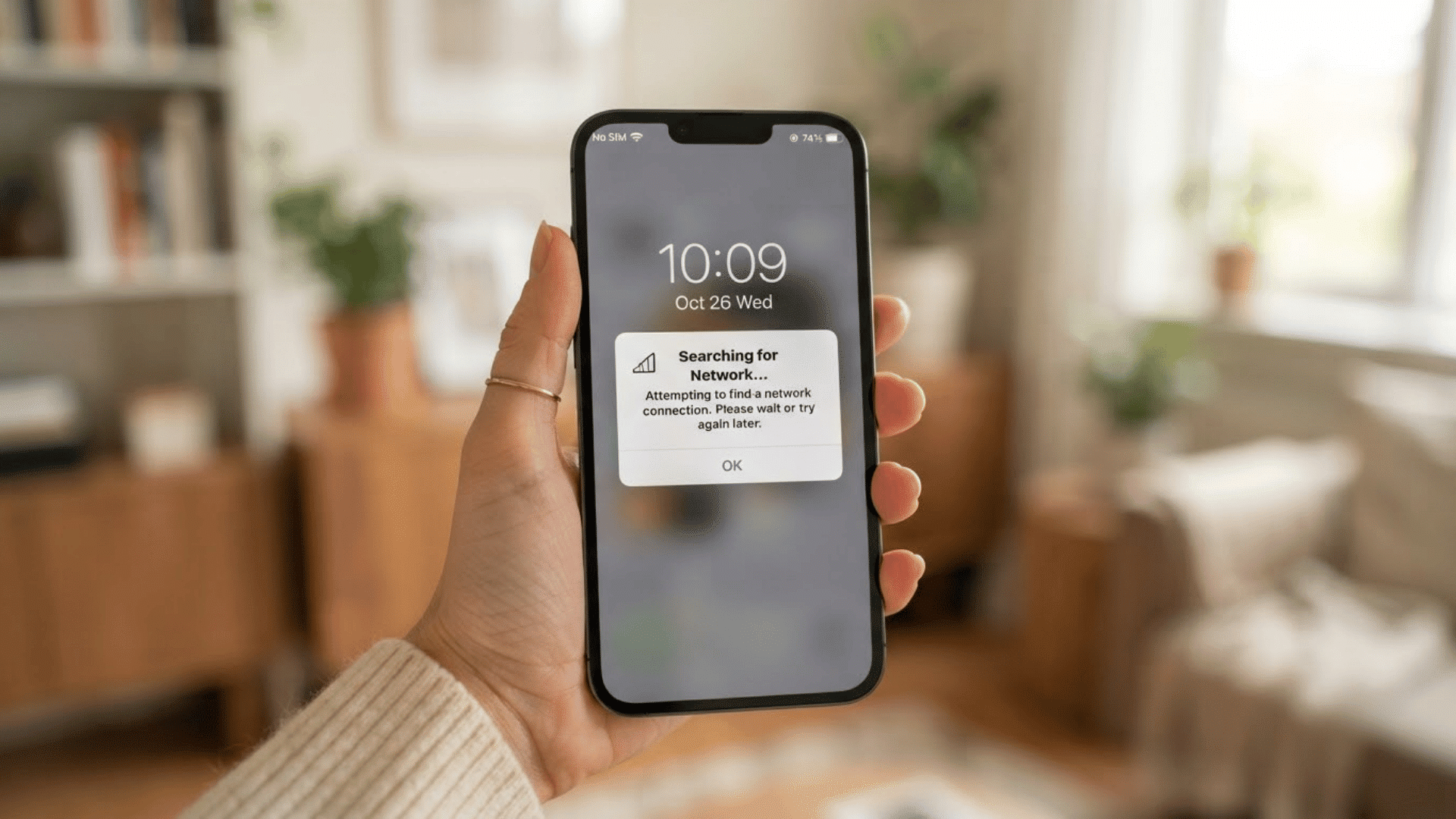
Getting locked out of your Android phone can be frustrating, especially when you cannot remember the password, PIN, or pattern.
In many cases, a factory reset becomes the most effective way to regain access to the device.
Android smartphones include built-in recovery options that allow users to erase their data and restore factory settings, even when the screen is locked.
While this process removes personal data stored on the device, it can help resolve access issues and software problems.
In this guide, I will explain how to factory reset an Android phone without a password, what to expect during the process, and the precautions you should take before getting started.
What Happens when you Factory Reset a Locked Android Phone?
Before starting the reset process, it is important to understand what a factory reset does and how it affects your device.
A factory reset removes all user data and restores the phone to the same condition it was in when it first left the manufacturer.
This means installed applications, downloaded files, photos, videos, messages, and personal settings are erased from the device.
The reset process can help fix lock screen issues, software glitches, and performance problems. However, it is important to remember that any data not backed up beforehand may be permanently lost.
Key Changes after a Factory Reset
A factory reset does more than remove the lock screen. It completely wipes your device and restores it to its original settings, so understanding the key changes beforehand can help you prepare for the process.
- Erases Personal Data: Removes photos, videos, documents, messages, and other files stored on the device.
- Deletes Installed Apps: Uninstalls all apps you downloaded, while keeping pre-installed system applications.
- Resets Settings to Default: Restores original settings for Wi-Fi, Bluetooth, display preferences, and notifications.
- Removes User Accounts: Signs out and removes Google, email, and other linked accounts.
- Restores Factory Condition: Returns the phone to its original out-of-the-box state, as if new.
- Requires Google Account Verification: Android’s Factory Reset Protection (FRP) may ask for the previously synced Google account to verify ownership during setup.
Things to do before Resetting your Phone
Before performing a factory reset, it is important to take a few precautions to avoid unnecessary complications.
Verifying your Google account credentials, ensuring the phone has enough battery power, and backing up any accessible data can make the process smoother.
1. Check your Google Account Credentials
Before resetting your phone, make sure you know the username and password of the Google account linked to the device. Android’s Factory Reset Protection feature is designed to prevent unauthorized access after a reset.
If you cannot verify ownership using the previously synced Google account, you may be unable to complete the setup process.
Recovering your Google account credentials beforehand can save significant time and frustration later.
2. Ensure the Phone has Sufficient Battery
A factory reset should never be started on a device with a low battery. If the phone powers off during the reset process, it could cause software issues or require additional troubleshooting.
For best results, keep the battery charged to at least 50 percent before beginning. If possible, leave the device connected to a charger throughout the reset to ensure the process completes without interruption.
3. Back up Data if Possible
If you still have partial access to your phone or cloud services linked to the device, consider backing up important data before performing a factory reset.
Since a factory reset permanently removes locally stored data, creating a backup beforehand gives you the best chance of restoring important information after the device is reset.
Method 1: How to Factory Reset an Android Phone Using Recovery Mode
Recovery Mode is the most common method for unlocking your Android phone when you cannot access it with a password, PIN, or pattern.
It allows you to perform a factory reset directly from the device’s built-in recovery environment, even when the lock screen is inaccessible.
Step 1: Turn off the Device
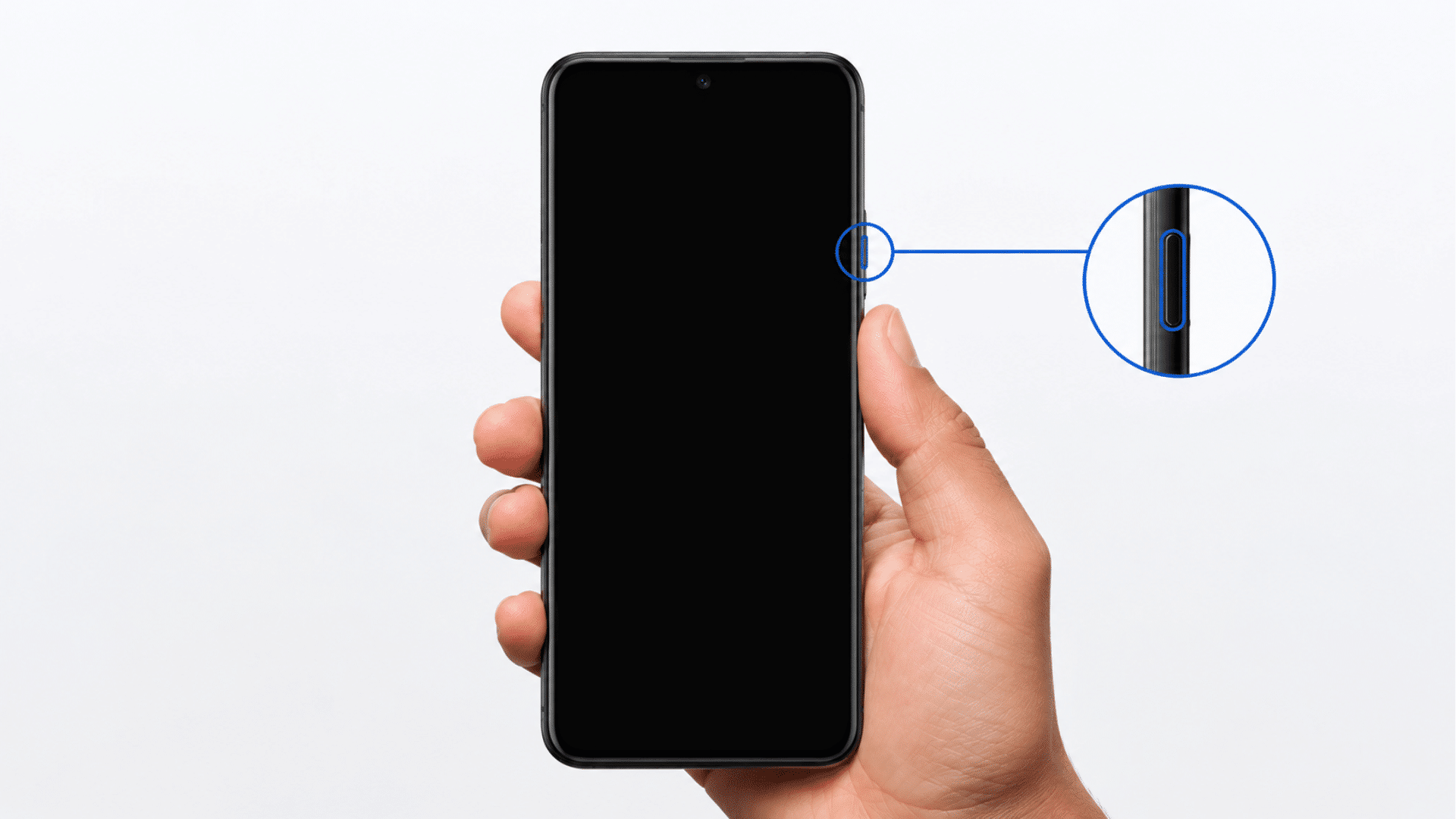
Begin by powering off your Android phone completely. If the device is frozen or the screen is unresponsive, press and hold the Power button for several seconds until it shuts down.
Some devices may require you to hold the Power and Volume Down buttons together.
Ensuring the phone is completely turned off is important because Recovery Mode cannot be accessed properly while the device is still running.
Step 2: Enter Recovery Mode
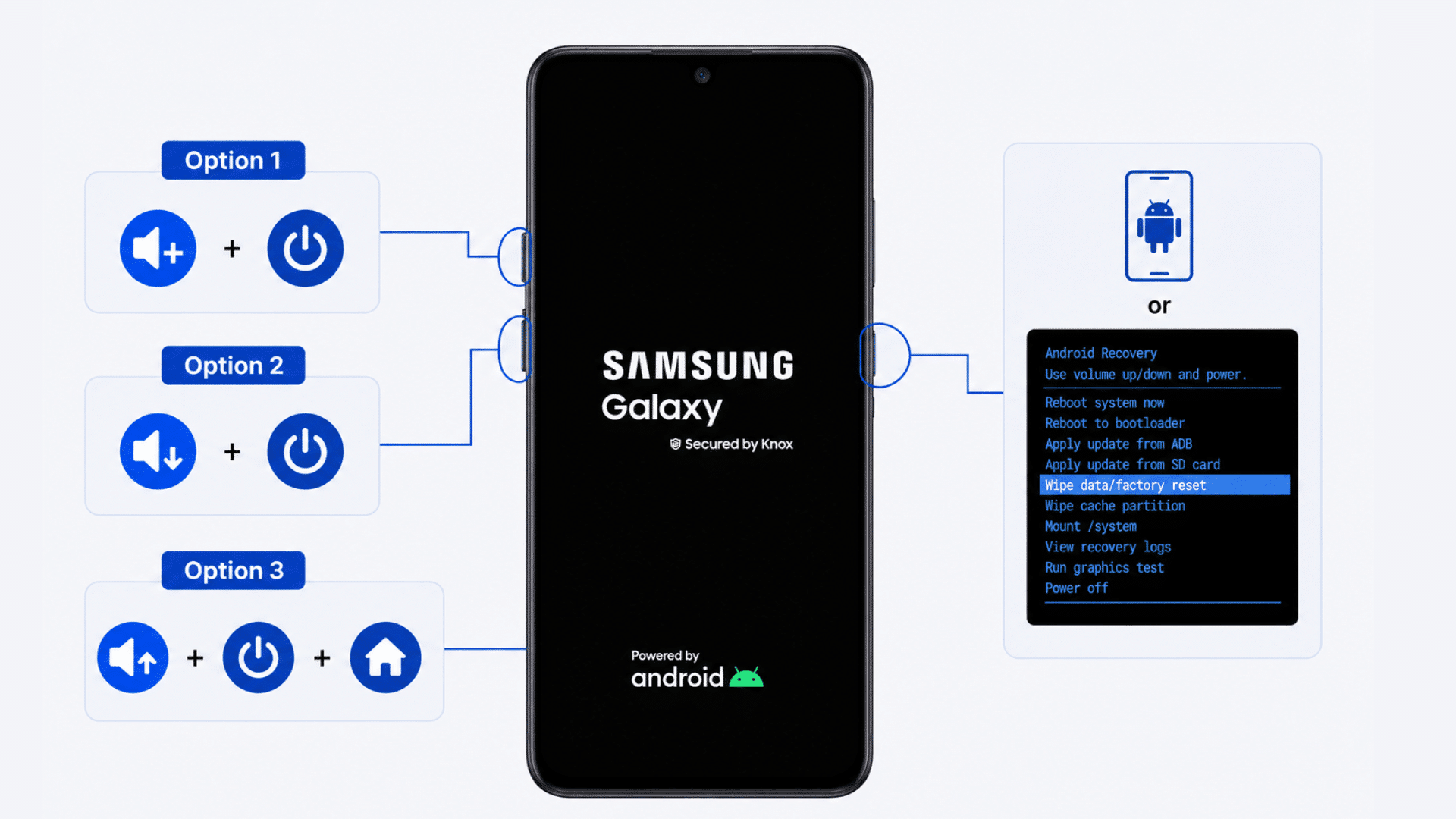
Once the device is powered off, use the appropriate button combination to enter Recovery Mode.
Common combinations include Volume Up + Power, Volume Down + Power, or Volume Up + Power + Home Button on older devices.
Continue holding the buttons until the manufacturer’s logo or Recovery Mode screen appears. Since button combinations vary by brand, you may need to check your device’s specific instructions if the first attempt does not work.
Step 3: Select Wipe Data/Factory Reset
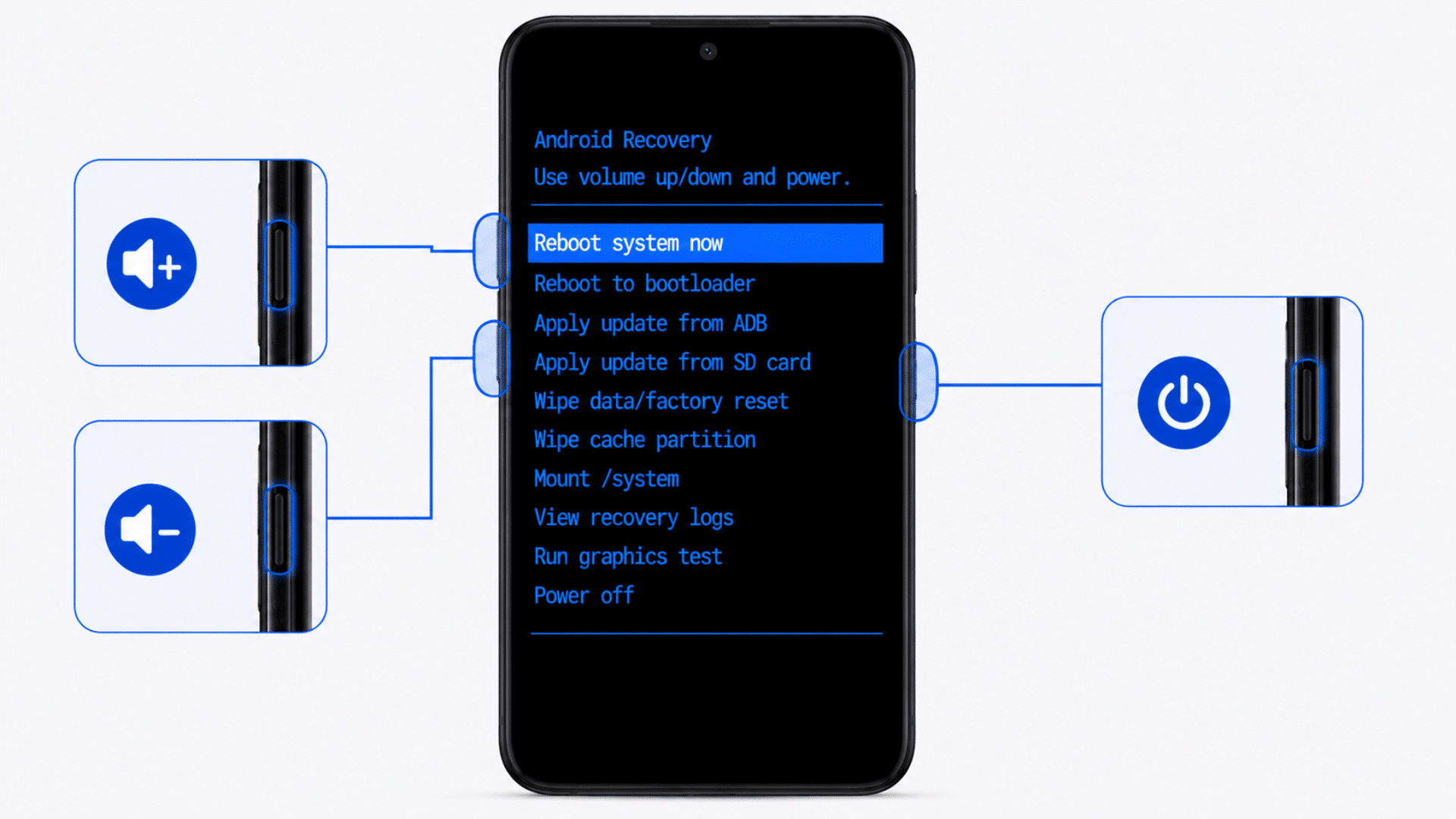
After entering Recovery Mode, navigate through the menu using the Volume Up and Volume Down buttons. Locate the Wipe data/factory reset option and highlight it. Press the Power button to select it.
This action prepares the device to erase all user data, including apps, settings, and personal files stored on the phone’s internal memory. Make sure you understand that this process cannot be reversed once initiated.
Step 4: Confirm the Reset
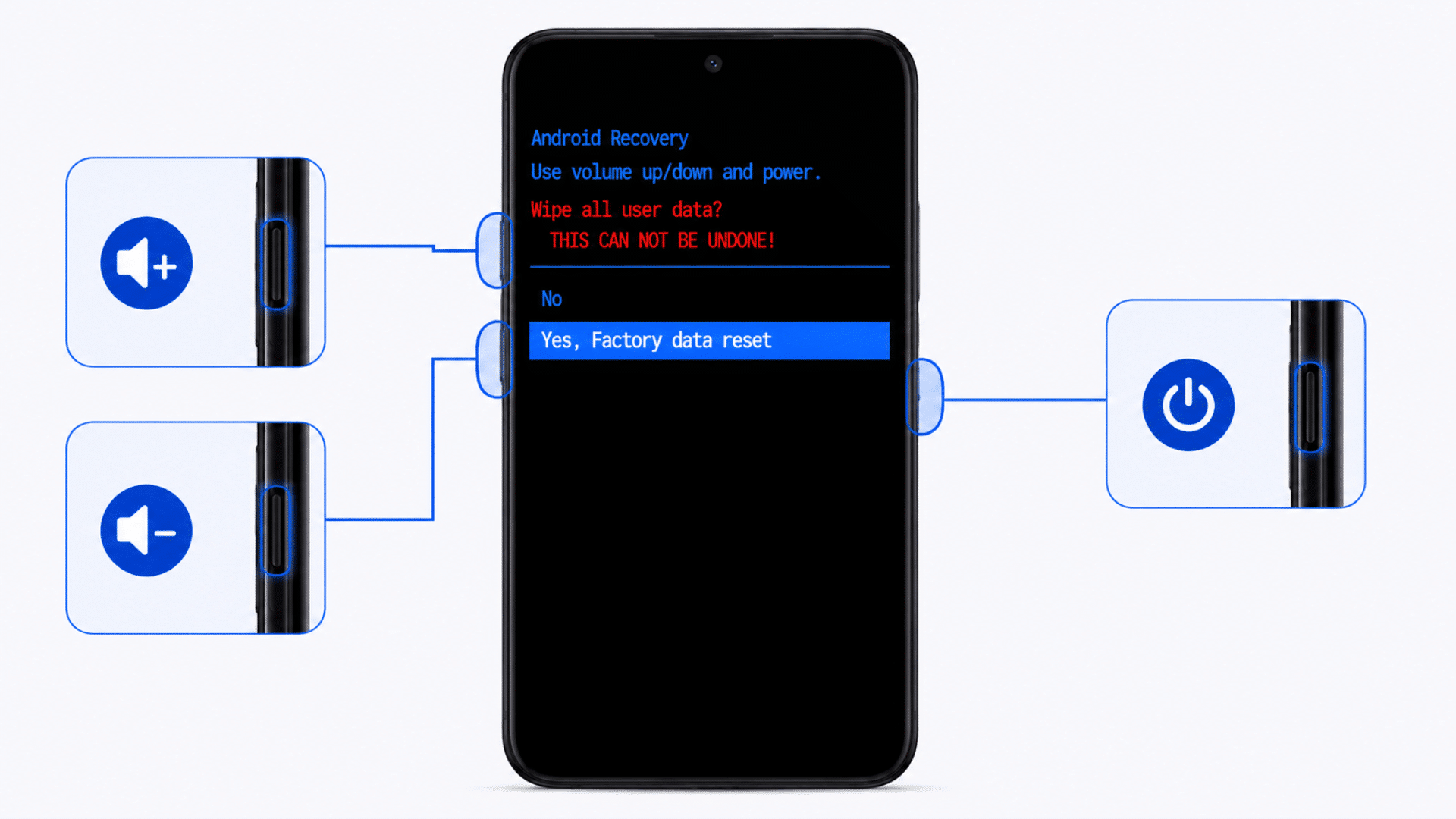
Most Android devices require confirmation before proceeding with a factory reset. Use the volume buttons to select Yes, Factory data reset, or a similar confirmation option, then press the Power button.
The device will begin deleting stored data and restoring default settings. Depending on the amount of data on the phone, the process may take several minutes to complete. Avoid interrupting the reset once it has started.
Step 5: Reboot the Device
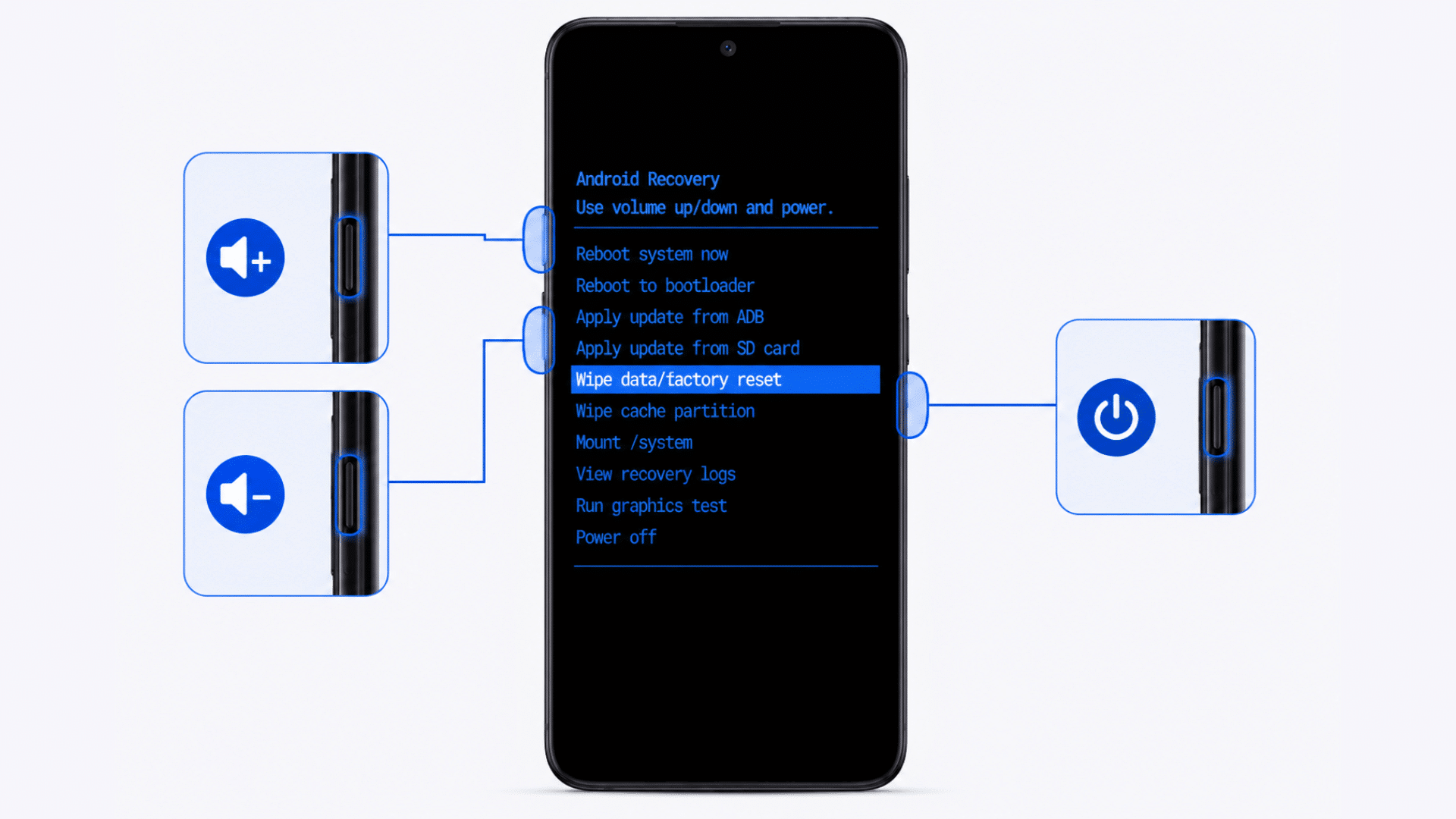
When the reset process is complete, the Recovery Mode menu will reappear. Select Reboot system now using the Power button to restart the device.
The phone may take longer than usual to boot during the first startup because it is rebuilding system files.
Once restarted, you will be guided through the initial setup process and may need to verify ownership using your Google account.
Method 2: How to Reset an Android Phone using Google Find My Device
If your locked Android phone is connected to the internet, Google Find My Device lets you erase it remotely without entering Recovery Mode.
This method is especially useful when you cannot access the device physically or when the required button combinations are not working.
By signing in to the Google account linked to the phone, you can securely initiate a factory reset from another device and restore the phone to its original settings.
Requirements for Find My Device
Before attempting a remote factory reset, make sure your device meets the following requirements. If any of these conditions are not met, Google Find My Device may be unable to locate or erase the phone remotely.
- Active Internet Connection: The phone must be connected to Wi-Fi or mobile data to receive the remote reset command.
- Google Account Signed In: The device should be logged in to the Google account you plan to use for Find My Device.
- Find My Device Enabled: This feature must have been enabled before the phone was locked.
- Device Listed in Your Account: The phone should appear in the list of devices associated with your Google account.
- Location Services Enabled (Recommended): While not always required for erasing a device, location services can help Find My Device detect and manage the phone more effectively.
- Sufficient Battery Power: The phone should have enough battery to remain connected and complete the remote reset.
Steps to Erase the Device Remotely
Once the requirements are met, you can use Google Find My Device to remotely factory reset your phone. This process permanently removes all data, including apps, photos, messages, and settings.
Before proceeding, ensure any important information has been backed up.
Step 1: Open Google Find My Device
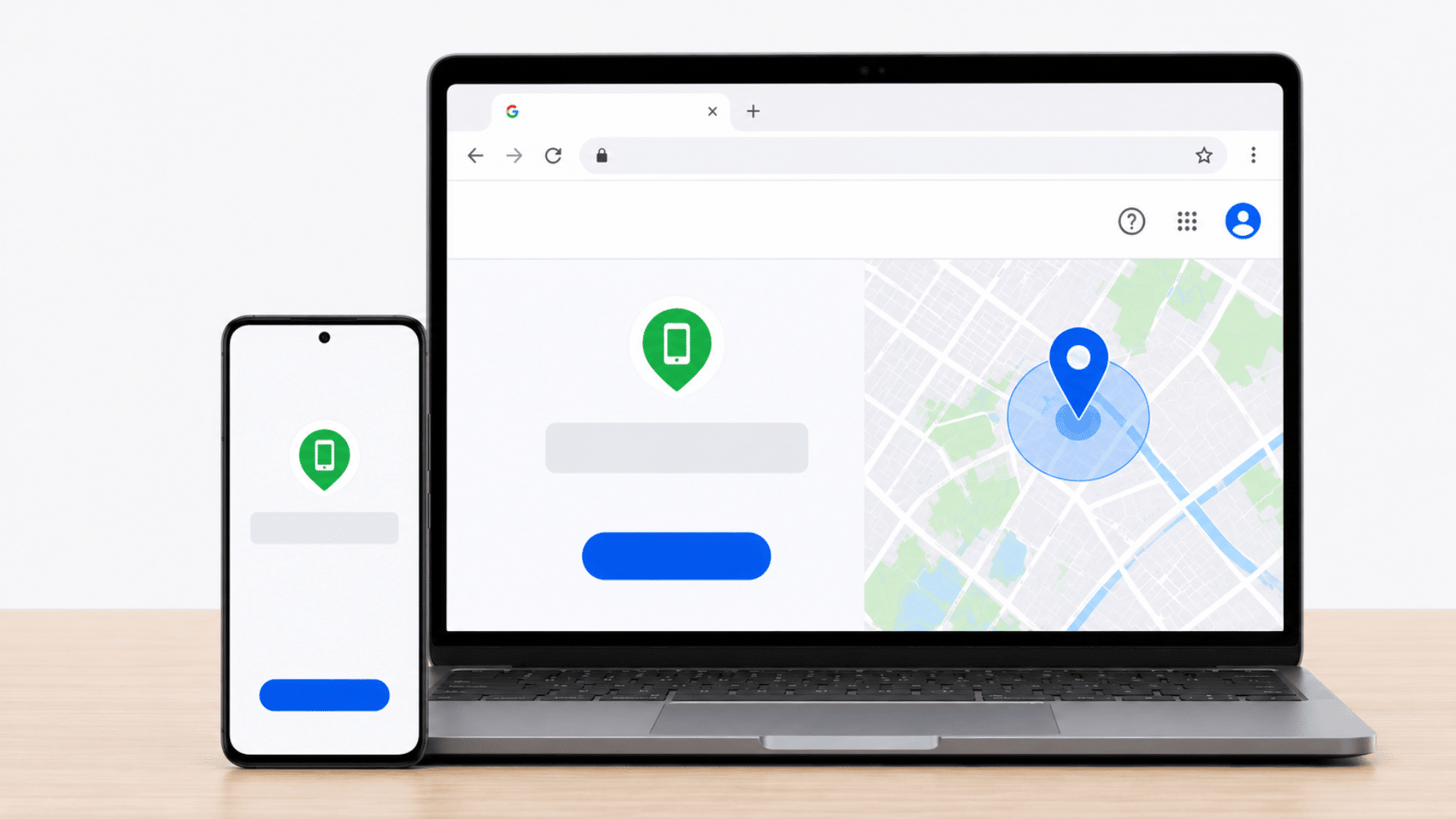
Using another smartphone, tablet, or computer, open the Google Find My Device website or launch the Find My Device app.
Make sure the device you are using has a stable internet connection. This service allows you to remotely manage Android devices linked to your Google account.
If multiple devices are associated with your account, you can view and manage them from a single dashboard after signing in.
Step 2: Sign in to your Google Account
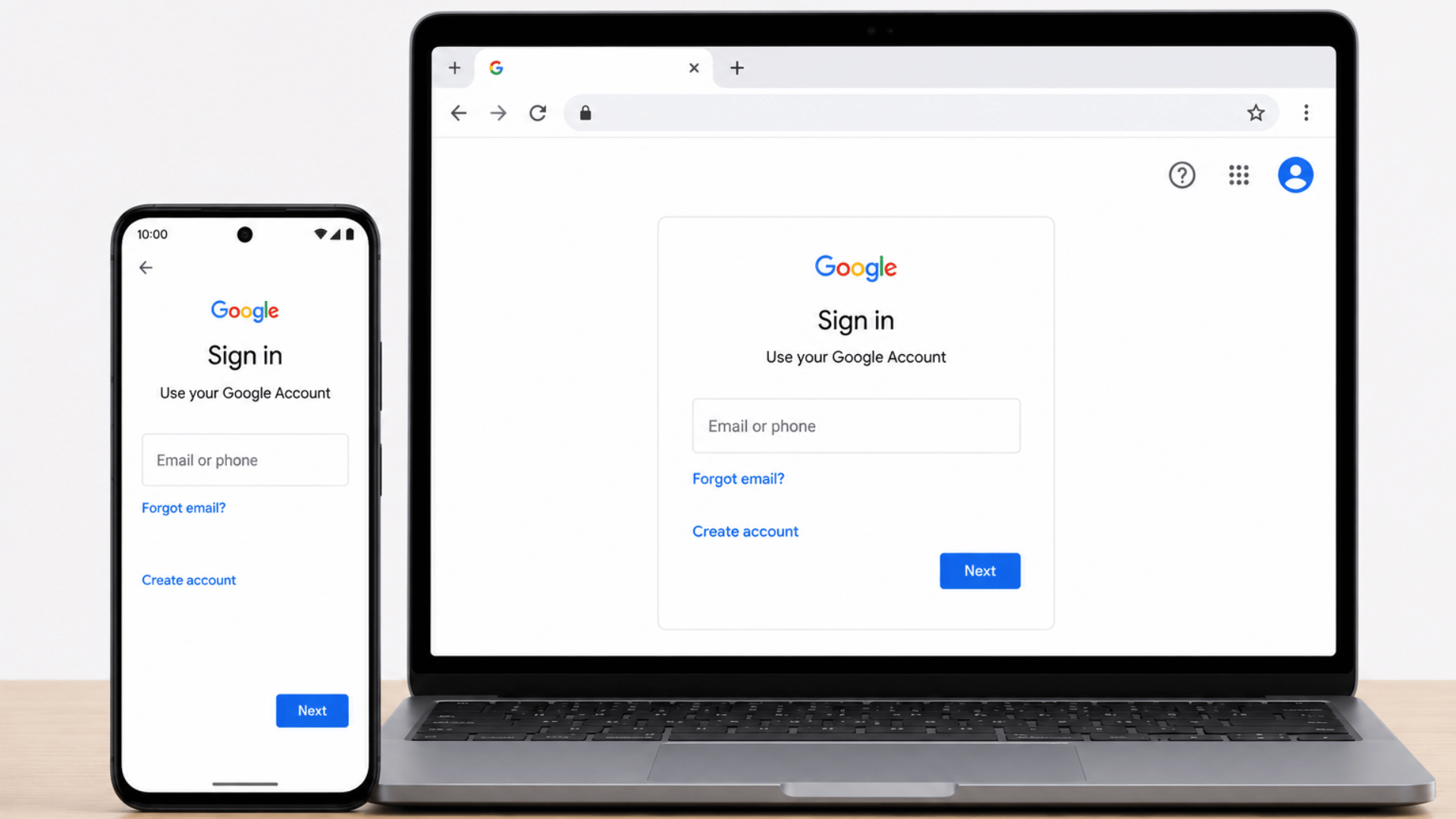
Log in with the same Google account linked to the locked Android phone. Enter your email address and password carefully, as the service can only manage devices associated with that account.
Once signed in, Google will automatically search for connected devices and display them on the screen. If you have multiple Android devices, take a moment to verify that you are selecting the correct one.
Step 3: Select the Locked Device
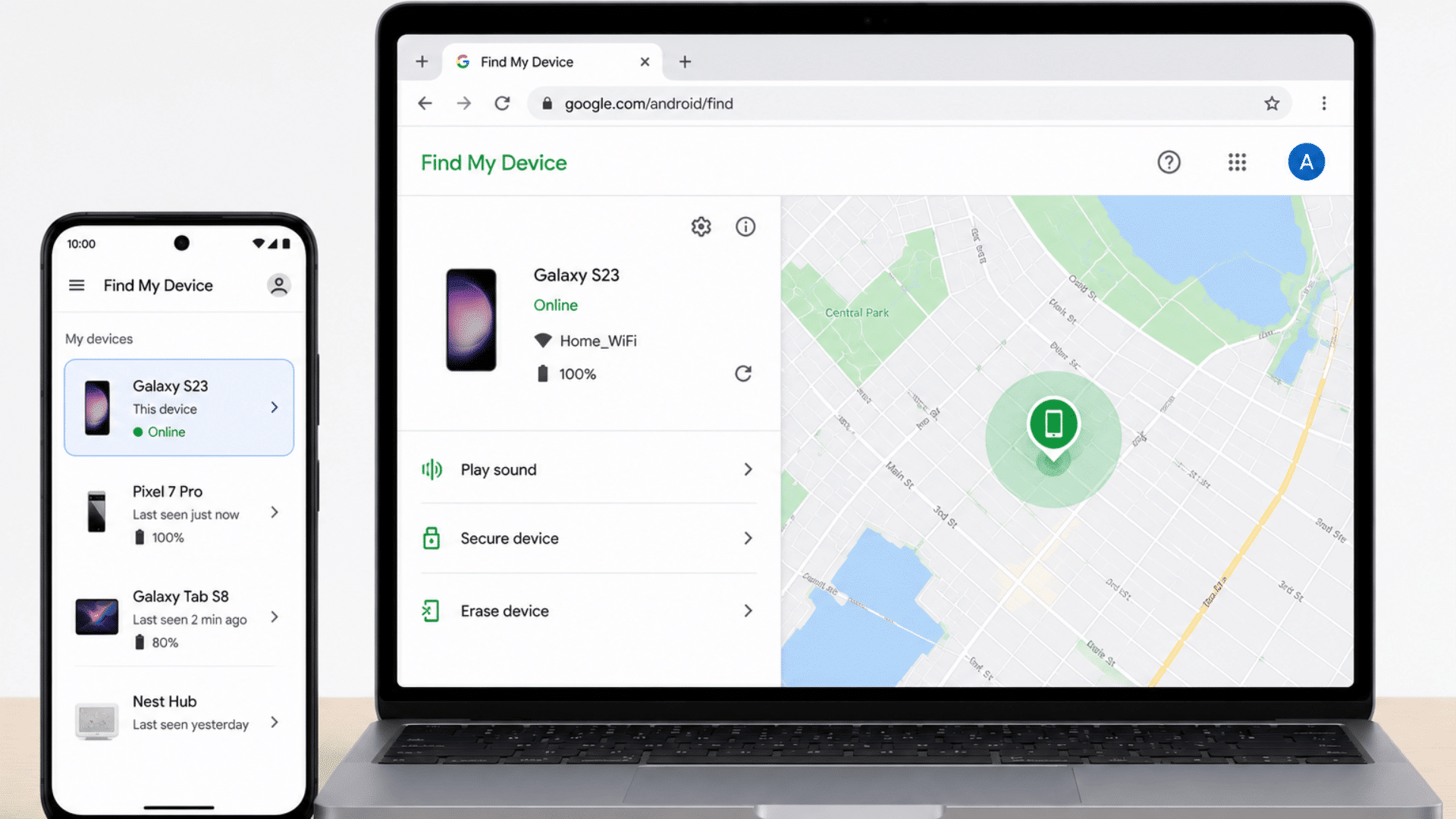
Choose the locked Android phone from the list of available devices displayed in your account. Google may take a few moments to locate the device and display its status.
You can review details such as the device name, battery level, and last known location. Confirm that you have selected the correct phone before proceeding, as the factory reset action cannot be undone once initiated.
Step 4: Click “Erase Device”
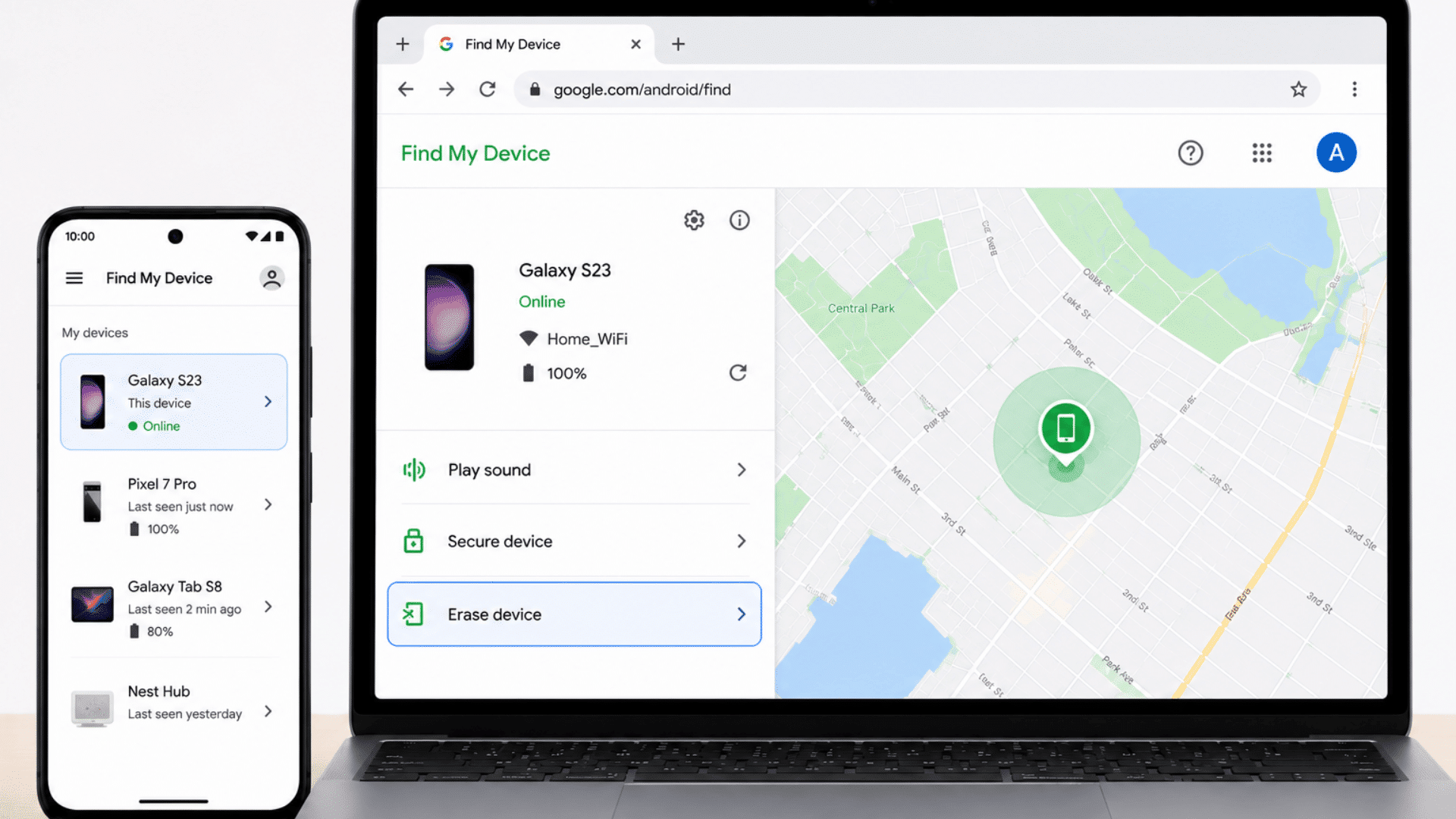
After selecting the device, locate and click the Erase Device option.
This feature is designed to permanently remove all data stored on the phone, including photos, videos, downloaded apps, messages, and lock screen credentials.
Google provides this option to help users protect their personal information when a device is inaccessible. Be sure that you are ready to erase the device before moving on to the next step.
Step 5: Confirm the Factory Reset
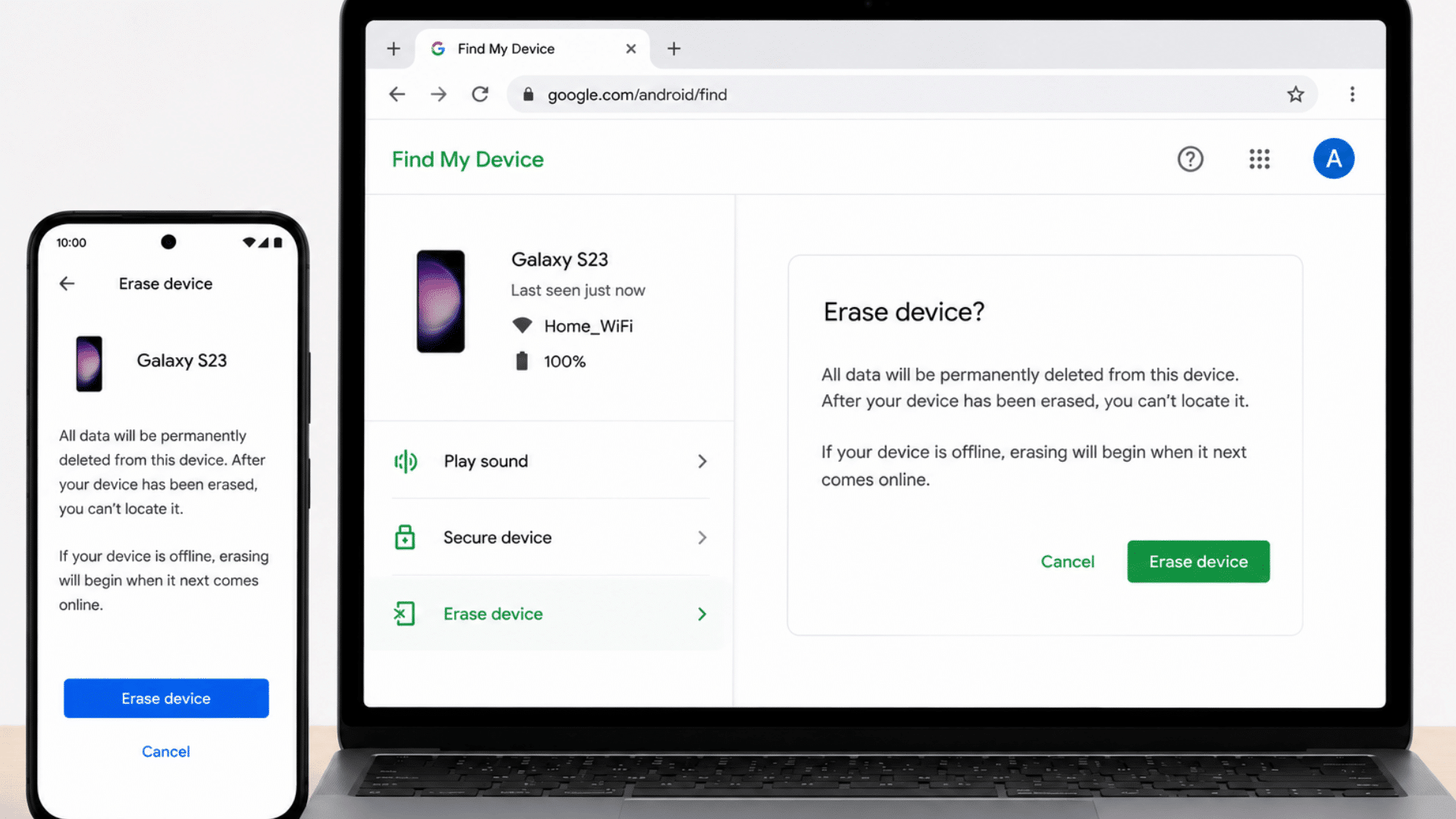
Google will display a warning message explaining that all data on the phone will be permanently deleted. Carefully read the information provided and make sure you understand the consequences of the reset.
If you are certain you want to proceed, click Erase Device again to confirm. Once confirmed, the reset request will be sent to the locked Android phone through Google’s servers.
Step 6: Wait for the Reset to Complete
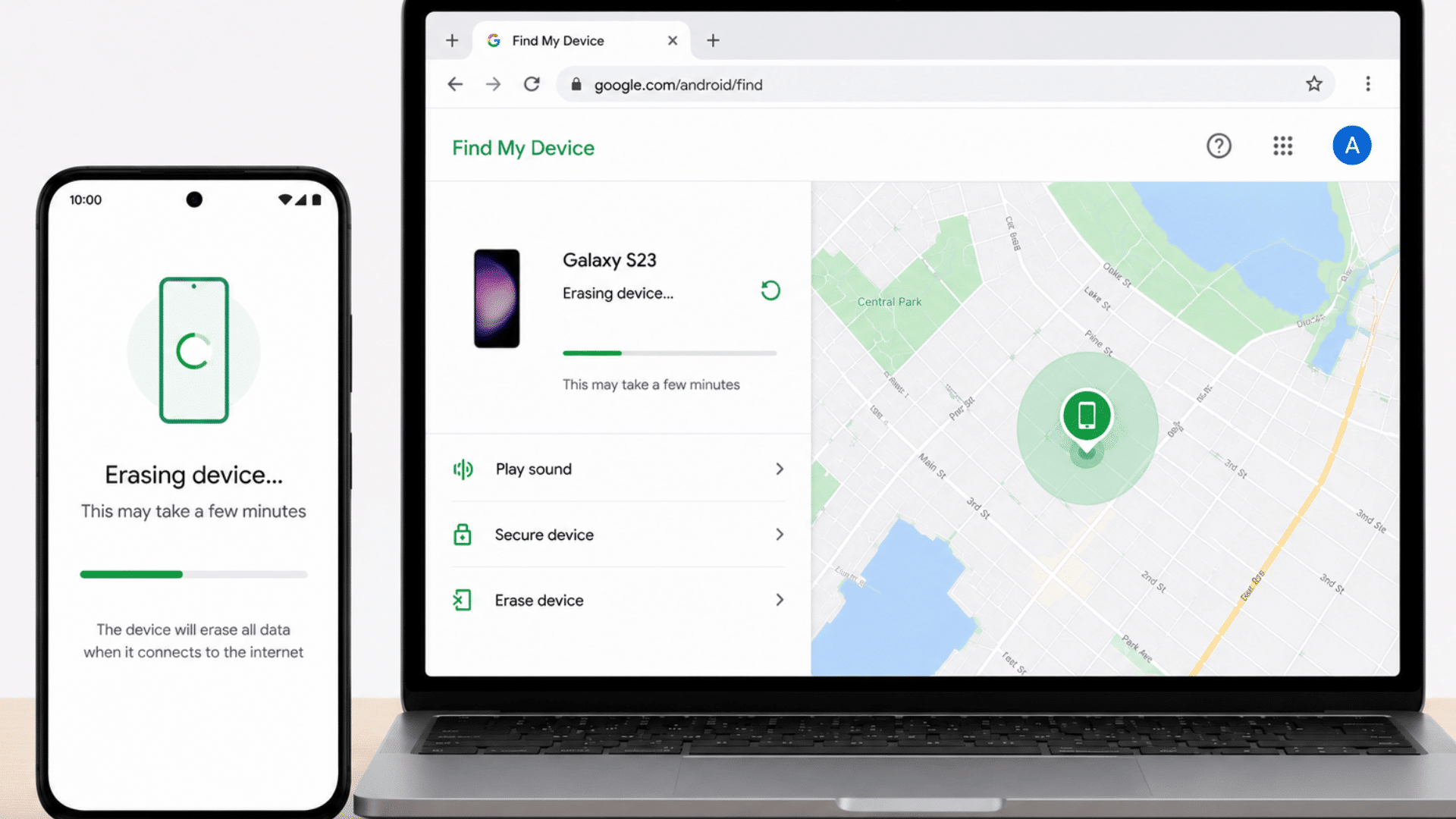
After the command is sent, the phone will begin the factory reset process as soon as it connects to the internet. The time required can vary depending on the device model, internet connection, and amount of stored data.
During this period, avoid attempting additional reset methods. Once the process is complete, the phone will automatically restart and begin loading its default factory settings.
Step 7: Set up the Phone Again
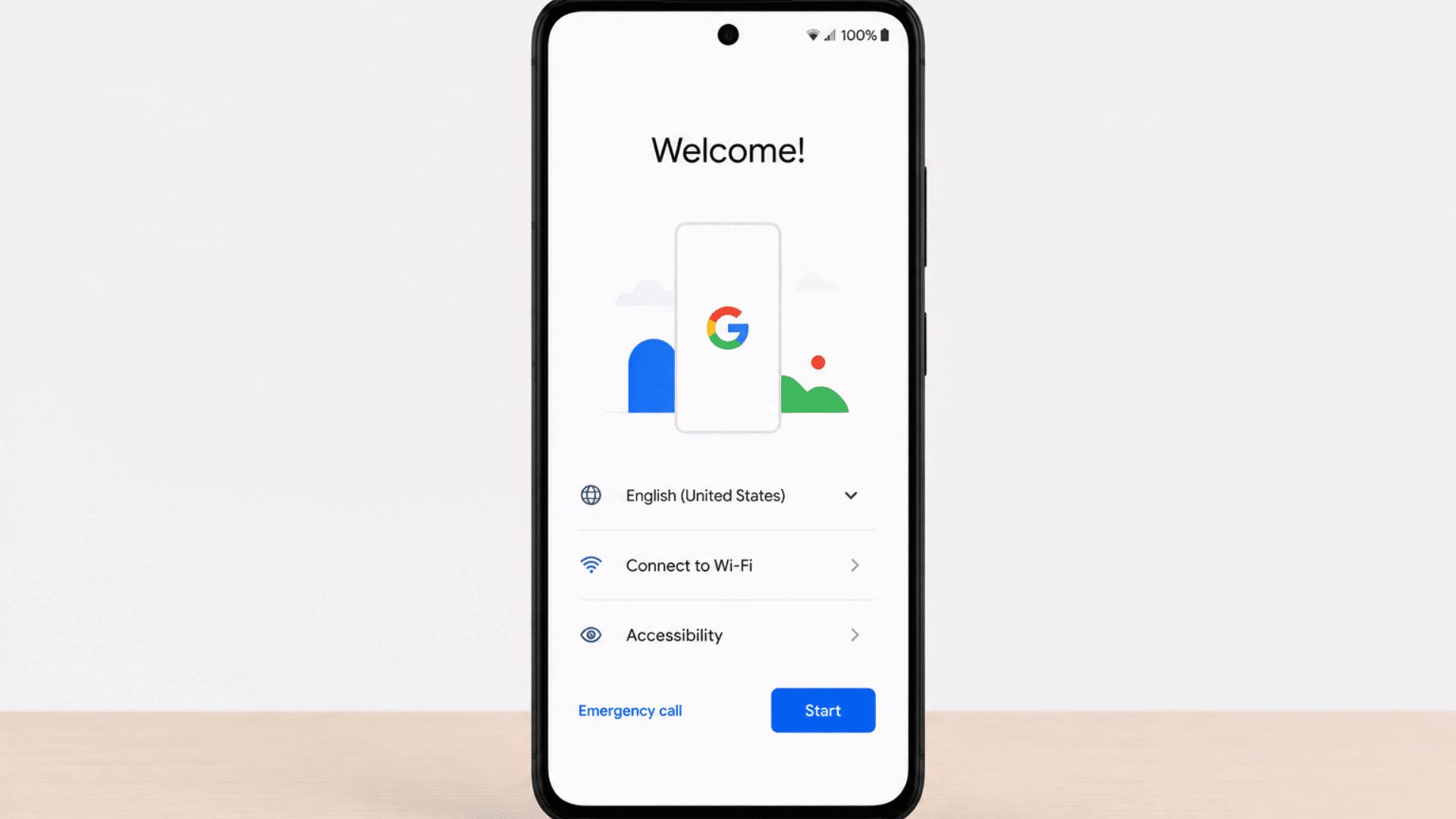
When the reset is finished, the device will restart and display the Android setup screen. Follow the on-screen instructions to select your language, connect to a Wi-Fi network, and configure basic settings.
In most cases, Android’s Factory Reset Protection feature will require you to sign in with the Google account previously linked to the device.
After verification, you can restore backups and continue using the phone normally.
Understanding Factory Reset Protection (FRP)
Many users are surprised when a reset Android phone asks for a Google account during the setup process.
This security measure is known as Factory Reset Protection (FRP), and it is designed to prevent unauthorized access to lost or stolen devices.
What is FRP?
Factory Reset Protection (FRP) is a built-in Android security feature introduced by Google to protect devices from unauthorized use. When a Google account is added to an Android phone, FRP is automatically enabled.
If the device is reset without first removing the Google account, Android may require the original account credentials during setup.
This extra layer of security helps prevent stolen or lost devices from being used by someone else.
Why does FRP Appear After a Reset?
FRP appears after a factory reset because Android needs to verify that the person setting up the phone is the legitimate owner.
When the device detects that it has been reset outside the normal settings menu, it may trigger this security check. Users must sign in with the Google account that was previously synced to the device.
This verification process helps protect personal data and discourages unauthorized access.
How to Complete Device Setup after Resetting?
After the factory reset is complete, turn on the phone and follow the on-screen setup instructions. Connect to a Wi-Fi network, then proceed until you reach the Google account verification screen.
Enter the email address and password of the Google account previously linked to the device. Once ownership is verified, you can complete the setup process, restore any available backups, and begin using the phone normally.
Common Factory Reset Issues and Solutions
Although factory resets are usually straightforward, certain problems can occur during or after the process.
Understanding these common issues and their solutions can help you complete the reset successfully and avoid unnecessary troubleshooting.
| Issue | Solution |
|---|---|
| Recovery Mode Is Not Opening | Check the correct button combination and ensure the phone is powered off. |
| Phone Stuck on the Android Logo | Wait a few minutes, then repeat the factory reset if needed. |
| Unable to Verify Google Account | Use the previously linked Google account and verify your credentials. |
| Factory Reset Option Missing | Look for Wipe Data, Erase All Data, or Clear Data options instead. |
When Should you Factory Reset a Locked Android Phone?
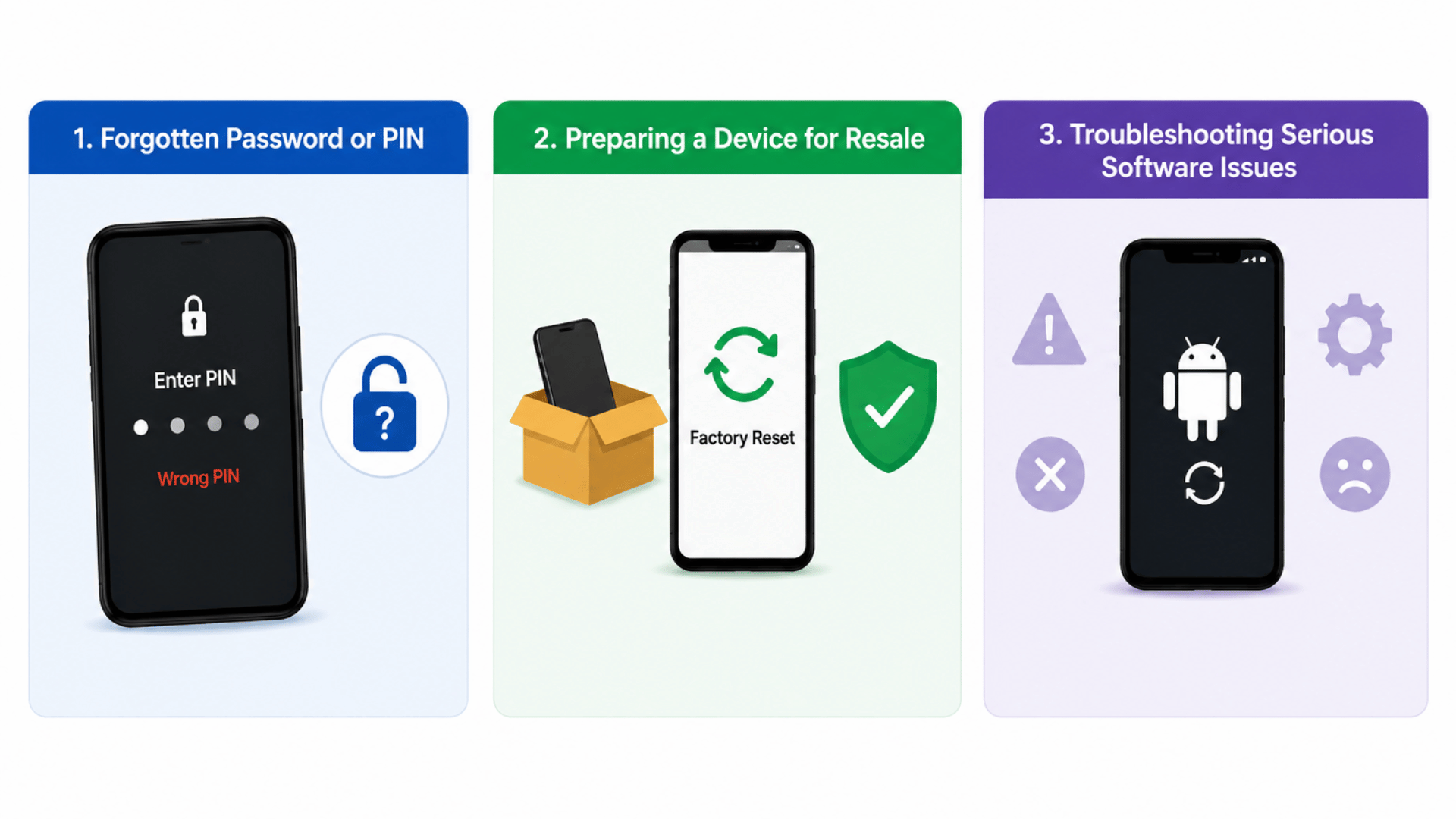
Understanding when a factory reset is necessary can help you avoid unnecessary data loss.
Since this process removes personal files, apps, and settings from the device, it should be used only when other unlocking or troubleshooting options are not working.
1. Forgotten Password or PIN
A factory reset may be needed when you forget your password, PIN, or pattern and cannot unlock the phone through normal methods.
If account recovery, Smart Lock, or manufacturer unlock options are unavailable, resetting the device can help you regain access.
2. Preparing a Device for Resale
If you plan to sell, donate, or give away your Android phone, a factory reset helps remove your personal data from the device.
Before resetting, sign out of your Google account and back up important files. This reduces privacy risks and helps the next user set up the phone without facing account verification issues.
3. Troubleshooting Serious Software Issues
A factory reset can also help when your Android phone has major software problems, such as freezing, crashing, boot loops, or repeated app errors.
If basic fixes like restarting, clearing the cache, or updating apps do not work, resetting the device may restore stable performance. Use this option only after trying simpler troubleshooting steps first.
At the End
Getting locked out of your Android phone can be stressful, but a factory reset provides a reliable way to regain access when you have forgotten your password, PIN, or pattern.
Even if you choose Recovery Mode or Google Find My Device, both methods can restore your phone to its original factory settings and remove the screen lock.
However, it is important to remember that a factory reset permanently erases data stored on the device, making preparation essential.
Before proceeding, verify your Google account credentials, back up important files whenever possible, and understand how Factory Reset Protection (FRP) works.
By following the steps and precautions outlined in this guide, you can safely reset your Android phone and complete the setup process with confidence.
Frequently Asked Questions
Can I Factory Reset my Android Phone without Knowing the Password?
Yes, you can factory reset a locked Android phone without the password by using Recovery Mode or Google Find My Device. Both methods allow you to erase the device and restore factory settings.
Will a Factory Reset Remove the Screen Lock?
Yes, a factory reset removes the password, PIN, pattern, and other lock screen credentials. However, it also deletes apps, settings, and data stored on the device.
Do I Need my Google Account After a Factory Reset?
Yes, most Android devices require you to sign in with the Google account previously linked to the phone. This security feature is known as Factory Reset Protection.
Can I Reset My Android Phone Remotely?
Yes, you can remotely reset an Android phone through Google Find My Device if the device is connected to the internet and linked to your Google account.
Does a Factory Reset Delete Everything?
A factory reset removes data stored on the device, including apps, photos, and settings. However, files backed up to cloud services may be restored after signing in.