




Have you ever tried to open your favorite website, only to find it won’t load even though your internet is working perfectly? It is a frustrating experience, but the solution is often much simpler than you think.
You might just need to clear out some old data. This is called a DNS cache, and thousands of people fix their browsing issues every day just by clearing it.
In this guide, I will show you exactly how to flush dns cache mac and Windows devices. Whether you are dealing with slow speeds or sites that refuse to load, I have you covered.
You will learn what DNS is and the specific steps to fix your connection. It is a quick, safe process that anyone can do, and I will walk you through it step by step.
What is DNS and Why Should You Flush It?
If a page suddenly refuses to render, a cluttered digital contact list is often to blame. Clearing your DNS cache quickly resolves these frustrating network errors.
How the Domain Name System (DNS) Works
Think of the Domain Name System (DNS) as the ultimate digital contact list for the internet.
Just as you tap a friend’s name in your phone instead of typing out their full ten-digit number, you use simple website names like google.com to navigate the web.
However, computers communicate using complex strings of numbers known as IP addresses.
DNS works seamlessly in the background to translate the easy-to-read website names you type into the numeric codes your computer requires to locate and load the page.
Why You Need to Flush Your DNS Cache
To speed up your daily browsing, your computer saves these IP address translations in a temporary memory bank called the DNS resolver cache.
While this prevents your device from having to look up sites from scratch every time, it can cause troubleshooting headaches if a website moves to a new server or updates its security.
If your cache holds on to an outdated or corrupted IP address, you may experience broken links, slow connection speeds, or redirects to outdated content.
Flushing your DNS cache wipes this temporary storage clean, forcing your computer to fetch the most current address codes and clearing up common network loading errors.
How to Flush DNS Cache on Windows
If you use a Windows computer, clearing your network path is incredibly simple. Even if you run Windows 7, 8, 10, or 11, the actual flush dns command remains exactly the same.
Using Command Prompt (Easiest Method)
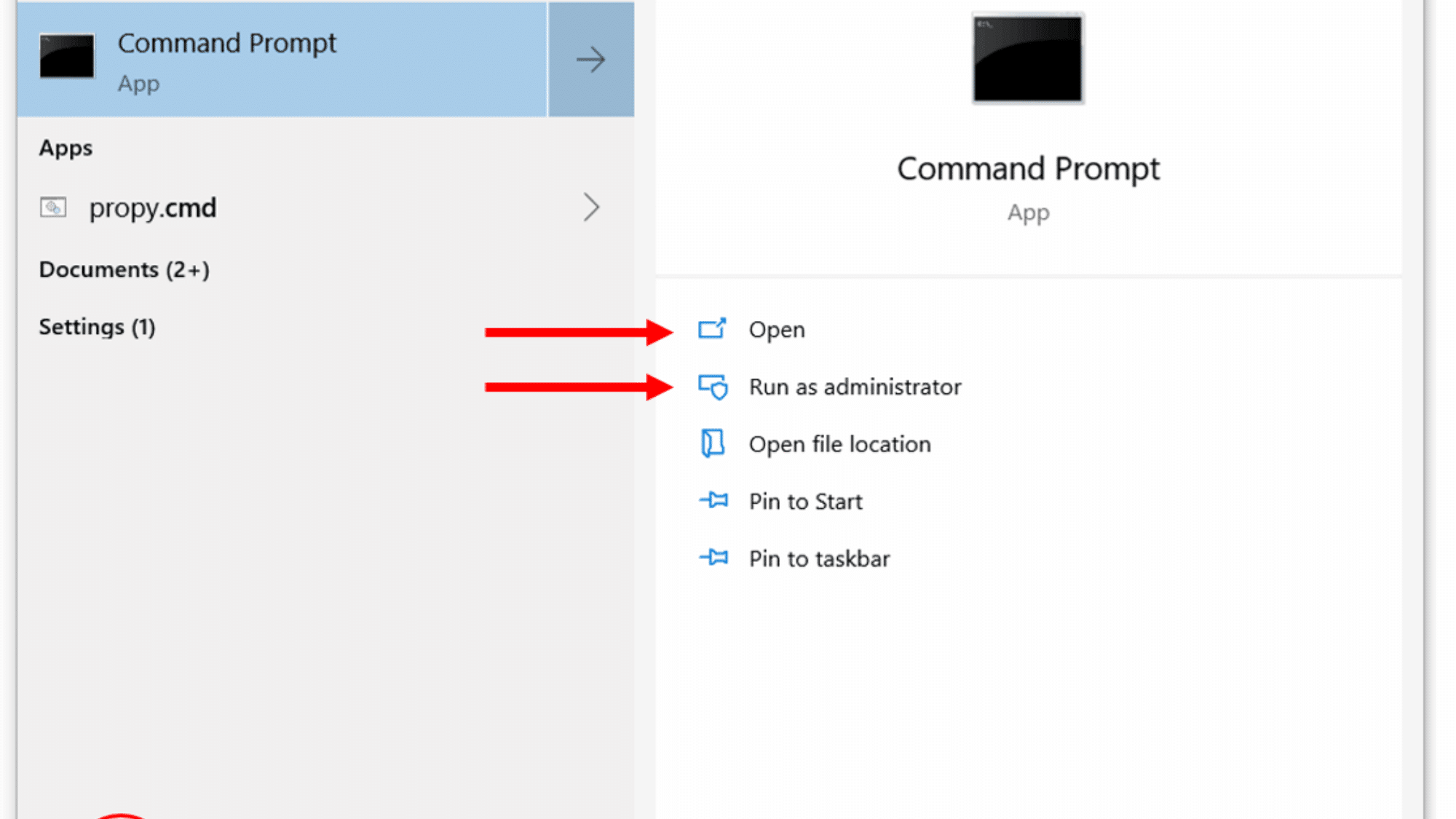
To start, you will need to open a built-in tool called Command Prompt. Follow these steps to open it correctly:
- Step 1: Click the Start menu icon on your taskbar.
- Step 2: Type cmd directly into the search box.
- Step 3: Right-click on the Command Prompt app from the search results and select Run as Administrator .
Running the tool as an administrator ensures your system can make network changes. Once the black window pops up on your screen, you are ready for the next part.
Click inside the window and type this exact command:
ipconfig /flushdns
After typing it out, hit the Enter key on your keyboard. In simple terms, this instruction tells your operating system to clear out the old DNS resolver cache completely.
What Happens Next
As soon as you hit Enter, the system works instantly. You will immediately see a line of text appear underneath your command that says:
Successfully flushed the DNS Resolver Cache
This message is your confirmation that the old, outdated web address data is gone. Your computer now has a completely clean slate, meaning it will pull fresh details the next time you try to visit a website.
Why this Method Works
Understanding why these steps clear your connection can help you feel more comfortable using the system tools. Here is what happens behind the scenes when you use this approach:
- The Ipconfig Tool Handles Your Network Setups: Your computer uses a built-in network tool called
ipconfigto check and manage how your device talks to your internet router. - The Flushdns Flag Acts as A Clean Sweep: By adding the
_/_flushdnsFlag to the main command, you tell the tool to target your storage bank specifically. Instead of just checking your connection, it instantly wipes away the old records. - Admin Rights Unlock Deep System Changes: Network files are critical to your security, so your computer locks them by default. Opening the tool as an Administrator gives you the master key needed to safely clear those protected network files.
How to Flush DNS Cache on Mac
Apple computers use a different system layout than Windows, so the process to flush the DNS cache on Mac devices requires a separate set of instructions. Instead of using a classic command prompt, Apple devices rely on an app called Terminal to manage network settings.
Using Terminal (For Mac OS X and Later)
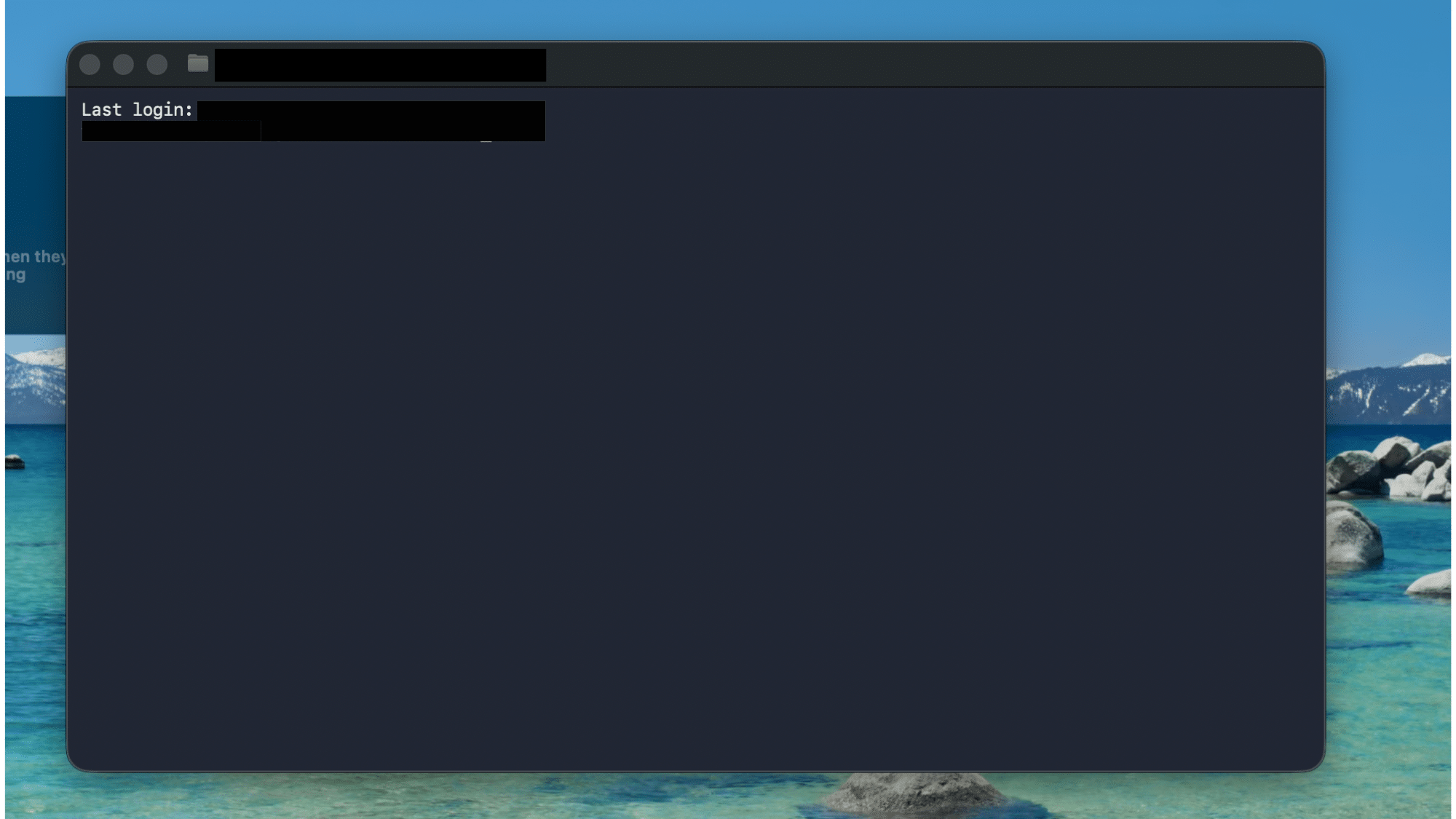
To reset your network path, you need to send a direct instruction to your system through Terminal. Follow these steps to get started:
- Step 1: Click the Finder icon located on your desktop dock.
- Step 2: Click on the Applications folder from the left-hand sidebar.
- Step 3: Open the Utilities folder inside your applications list.
- Step 4: Double-click on Terminal to open the command window.
Quick Shortcut: You can skip these steps by using Spotlight search. Press Command + Space on your keyboard, type Terminal , and hit Enter .
Once the window opens, type the modern flush DNS command for Mac OS X 10.10.1 and all newer versions:
sudo dscacheutil -flushcache
After you type the line, press Enter. This instruction tells your system directory to instantly wipe out its active local address database.
Because you are changing core network settings, your Mac will immediately ask for your system administrator password. Type your password and hit Enter again.
Note: As a built-in security feature, your password will not show on the screen while you type it. Just type it out completely blindly and hit Enter.
What Happens Next
Unlike Windows computers, Mac devices do not display a success message when the task finishes. Instead, the window simply drops down to a new, blank command line.
If you do not see any error messages, it means your storage bank has been cleared successfully.
Mac Commands for Different OS Versions
If you happen to use a much older Apple operating system, the standard text instructions might not clear your path. Here are the alternate versions you may need:
- Mac OS X 10.10.0 to 10.10.3: Type
sudo discoveryutil mdnsflushcacheif you are running early versions of Yosemite. - Mac OS X 10.7 to 10.9: Type
sudo killall -HUP mDNSResponderif you are running Lion, Mountain Lion, or Mavericks.
Simply match your operating system version to the correct text line above, paste it into your active Terminal tool, and enter your main system password to fix your web connection.
When Should You Flush DNS Cache?
Knowing when to clear your network path can save you hours of frustration when trying to get back online. It is a safe, basic troubleshooting step that will never delete your personal files or browser history.
Here are the most common situations where resetting your system storage helps:
- A Website Will Not Load: Your home Wi-Fi is connected, and your apps work, but one specific page refuses to open.
- The Page Redirects to the Wrong Spot: You type in a familiar web address, but the browser sends you to an old, incorrect destination page instead.
- You Get Sudden Error Messages: A site you visit every single day suddenly displays security alerts or network errors out of nowhere.
- You Recently Changed Your Custom DNS Servers: If you manually update your network settings to use a safer public service, clearing your old settings ensures your device uses the new path immediately.
- Your General Browsing Feels Sluggish: Certain platforms take ages to load, and images do not appear properly as you click through sections.
- The Site is Down Only for You: A page works perfectly on your phone using mobile data, but it throws a connection error on your main computer screen.
Recognizing these specific network errors helps you handle internet hiccups quickly. Wiping the stored values lets your system start over with fresh data.
What Happens After You Flush DNS?
Wiping your network storage is completely safe. You do not have to worry about breaking your system or ruining your internet setup.
After clearing the old records, your operating system handles everything automatically. Your device rebuilds the DNS cache in the background, requiring zero extra steps from you.
When you open a website right after a reset, the page might load a tiny bit slower than usual. This happens because your computer must fetch a fresh address code instead of using local memory.
Once that finishes, your system saves the new details for future visits. Soon, broken pages load correctly, and old connection issues simply disappear.
This quick background process keeps your daily browsing smooth and free of errors.
Finishing Up
Flushing your temporary internet data is a quick and safe way to fix broken web connections. By wiping out old, bad address records, you force your computer to fetch clean details straight from the internet.
If you use Windows, you can clear your system records instantly by typing ipconfig /flushdns inside your Command Prompt window.
For Apple users, you can flush DNS cache Mac pathways easily by pasting sudo dscacheutil -flushcache right into the Terminal app. Both methods take only a few seconds to run and will never affect your saved files.
If you are currently experiencing slow speeds or pages that won’t load, I highly encourage you to try this simple fix. Did this guide help fix your loading issues? Let me know which device you used in the comments section below!
Frequently Asked Questions
How Often Should I Flush DNS?
You only need to clear it when you encounter network issues, such as a website not loading or displaying outdated content. There is no need to clear it regularly if your internet works fine.
Is Flushing DNS Safe?
Yes, it is completely safe and will not delete your files, passwords, or browser history. It simply clears out old network numbers so your device can fetch fresh data from the internet.
Does Flushing DNS Clear My Browser History or Cookies?
No, it does not touch your browser data. The system cache lives entirely inside your computer’s operating system, separate from your web browser.
Can Clearing the DNS Bank Fix My Access to Niche Local Sites?
Yes, it is highly effective for localized access bugs. Clearing the system path drops the outdated records, letting your app pinpoint the fresh local server instantly.