





Renaming folders is a common Linux task if you’re organizing project files, updating directory names, or keeping the file system tidy.
Learning how to use the Linux rename directory command correctly helps prevent confusion and ensures commands continue to work with the intended folder names.
In this guide, I’ll explain how to rename a directory using the mv Command, walk through practical examples, cover common mistakes, and share troubleshooting tips for different situations.
I’ll also discuss useful mv options, permission requirements, batch-renaming methods, and best practices for simplifying and streamlining directory management.
Quick Answer: How to Rename a Directory in Linux?
A directory in Linux is renamed using the mv command.
Linux does not provide a dedicated command solely for renaming directories. When the source and destination are in the same location, the mv command changes the directory name instead of moving it.
This method works across most Linux distributions, including Ubuntu, Debian, Fedora, CentOS, and Arch Linux.
Basic Syntax
mv old_directory_name new_directory_name
Example
mv project_files project_backup
Common mv Options when Renaming Directories
The mv command includes several useful options that provide additional control and help prevent accidental mistakes when renaming directories.
| Option | Purpose | Example |
|---|---|---|
| -i | Ask for confirmation before overwriting an existing destination. | mv -i old_dir new_dir |
| -n | Never overwrite an existing file or directory. | mv -n old_dir new_dir |
| -v | Display each rename operation as it is performed. | mv -v old_dir new_dir |
| -T | Treat the destination as a normal directory name instead of a target directory. | mv -T old_dir new_dir |
| –backup | Create a backup of the destination before overwriting it. | mv --backup old_dir new_dir |
Rename a Directory in Linux Using the mv Command
The mv Command is the standard way to rename a directory in Linux. When the original directory and the new directory name are at the same location, the command changes only the name, not the directory.
1. Open a Terminal Window
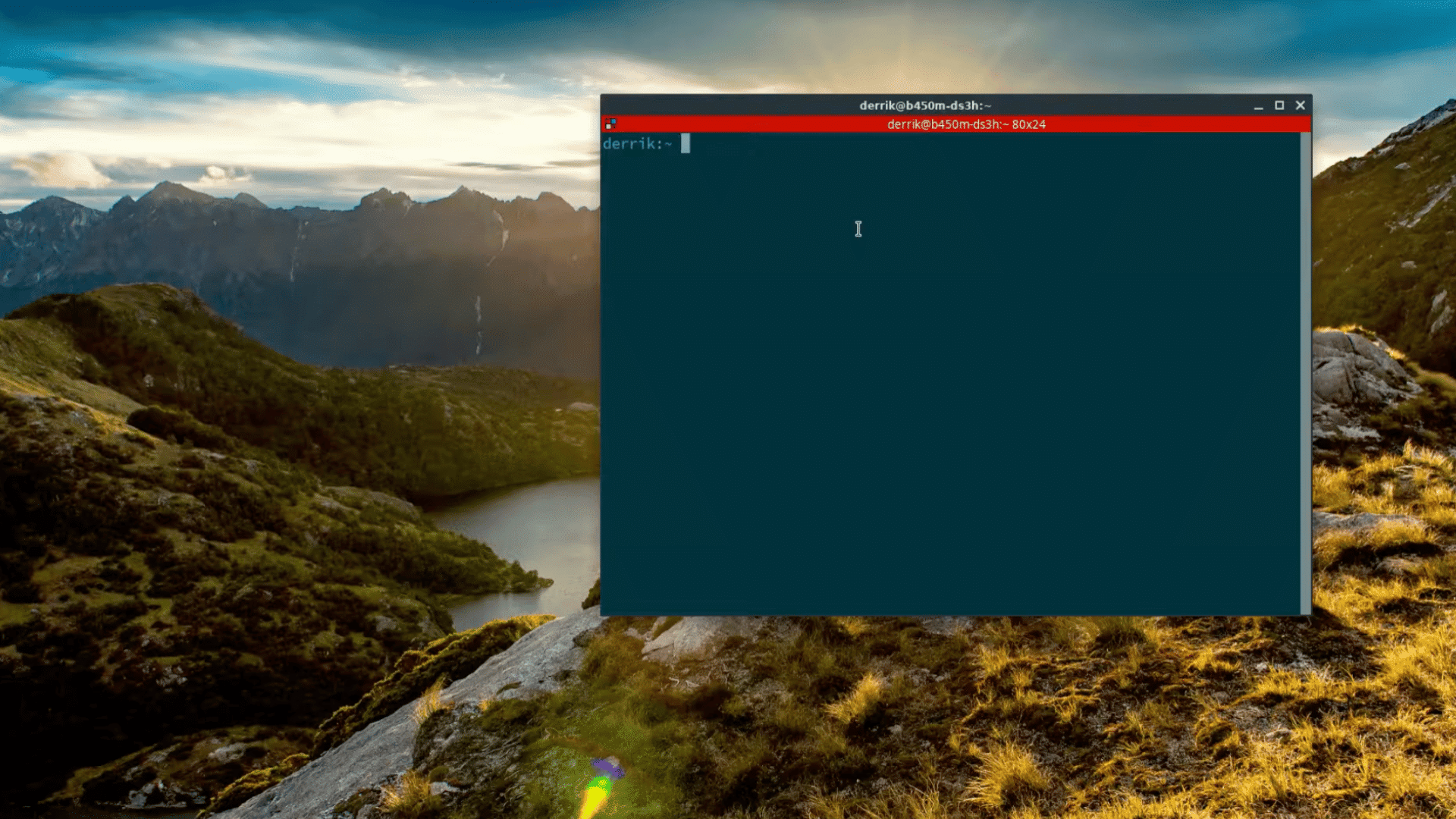
Start by opening a terminal on your Linux system.
Most desktop environments let you launch it from the applications menu or with a keyboard shortcut, such as Ctrl+Alt+T.
The terminal is where you’ll enter the commands needed to rename a directory. Make sure you have permission to modify the target directory before proceeding.
2. Navigate to the Directory
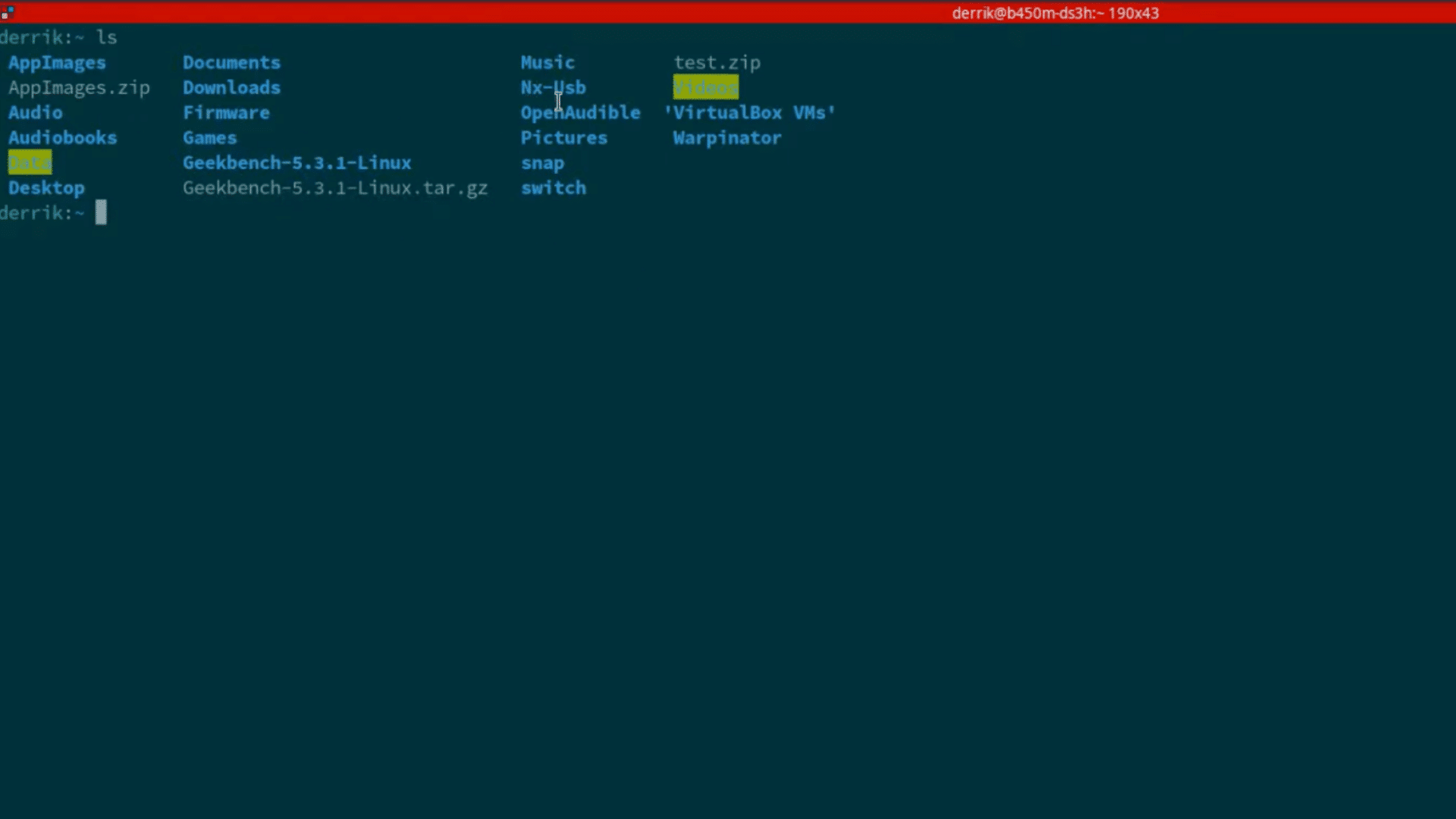
Use the cd Command to move to the parent directory containing the folder you want to rename.
Once there, run the ls Command to display the directory contents and confirm the exact folder name. Linux is case-sensitive, so even a small capitalization mistake can prevent the command from working.
Checking the directory name beforehand helps avoid typing errors and ensures the correct folder is selected.
3. Identify the Directory to Rename
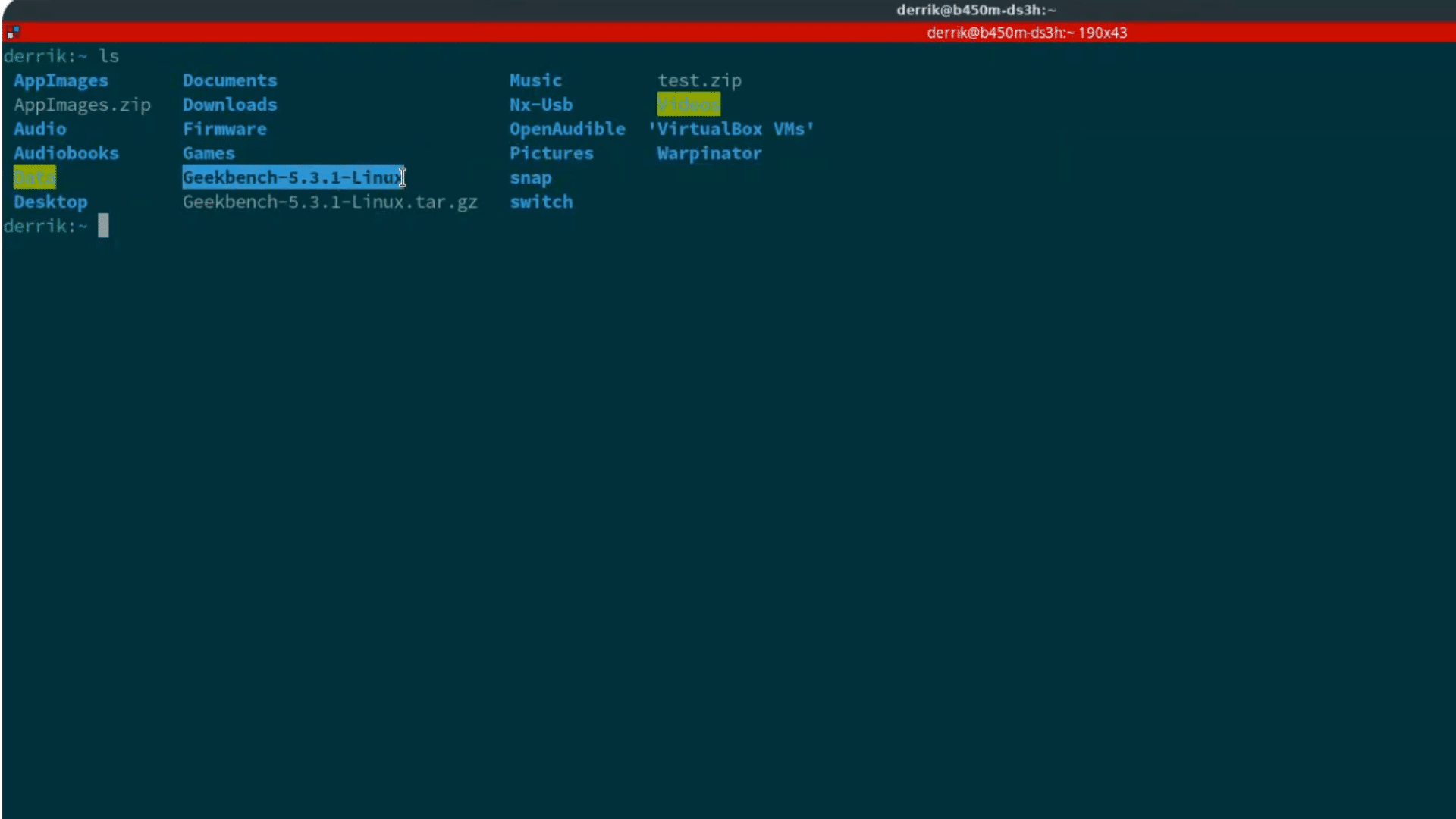
Find the directory you want to rename from the list displayed by ls.
Copy or carefully type its name exactly as shown. If the directory name contains spaces, remember to enclose it in quotation marks or escape the spaces.
Using the correct directory name prevents errors and ensures the mv command targets the intended folder.
4. Run the mv Command
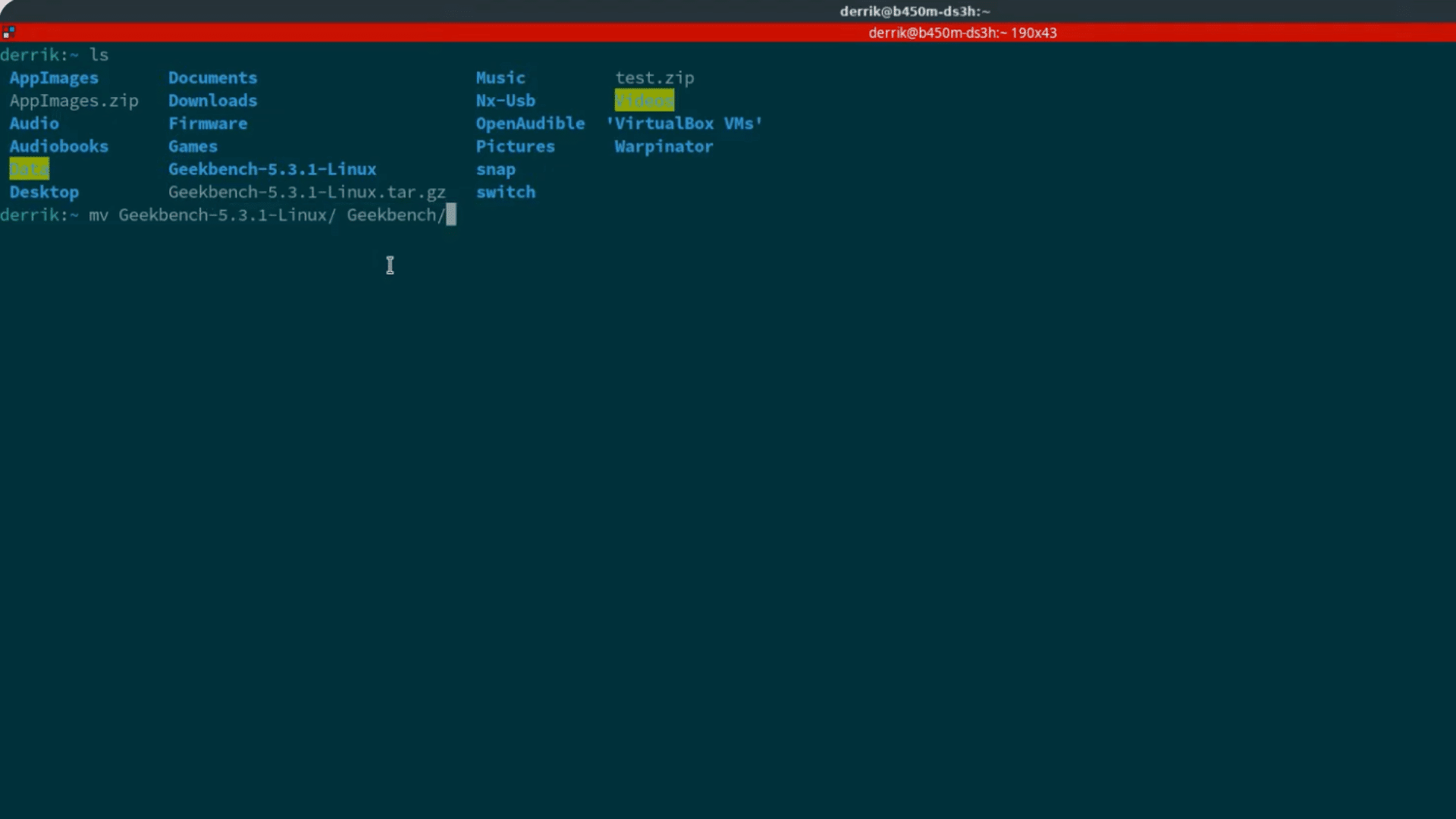
Use the mv Command with the current directory name followed by the new name. The syntax is:
mv old_directory_name new_directory_name
Press Enter to execute the command. If the rename is successful, the terminal usually returns no output.
If an error appears, verify the directory name, confirm you’re in the correct location, and check that you have the necessary permissions before running the command again.
5. Verify the Directory Name
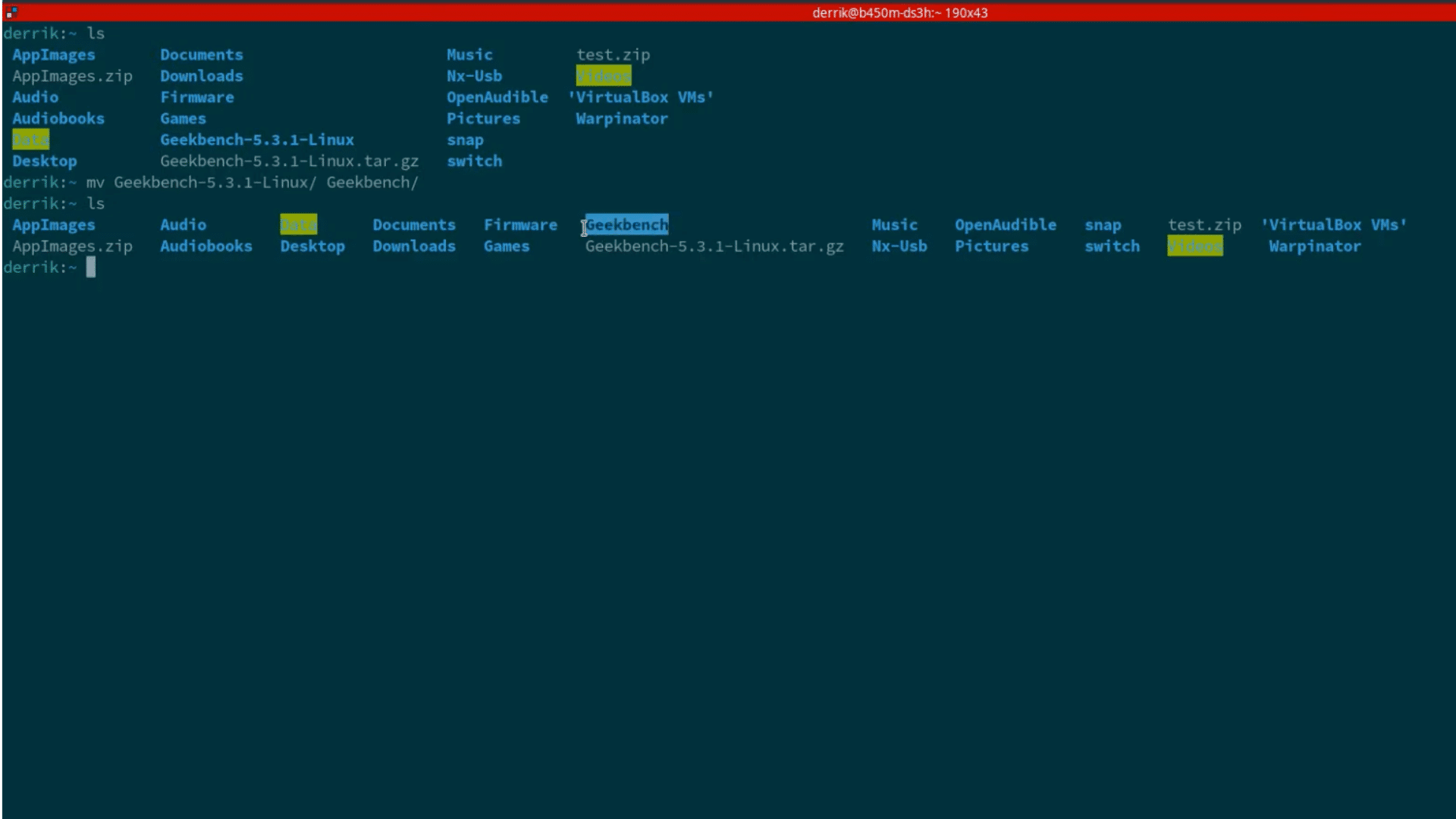
Run the ls Command once more to confirm that the directory now appears with its new name. This final check ensures the rename was successful and helps catch any typing mistakes. For example:
l mv Geekbench-5.3.1-Linux Geekbench ls
If the new directory name is listed, the rename operation is complete.
This tutorial is based on a helpful video by AddictiveTipsTV. You can check out the original video below for a more detailed visual guide:
Rename Directories with Spaces or Special Characters
Directories with spaces or special characters can be renamed using the mv command, but some names require quotes or escape characters so the Linux shell interprets them correctly.
| Directory Name Type | How to Rename It | Example Command |
|---|---|---|
| Spaces | Enclose the directory name in quotation marks. | mv "Project Files" "Archived Projects" |
| Spaces (Alternative) | Escape each space with a backslash (\). | mv Project\ Files Archived\ Projects |
Parentheses () | Wrap the directory name in quotation marks. | mv "Backup (2025)" "Backup (Old)" |
Ampersands & | Use quotation marks because & is a shell operator. | mv "Research & Notes" "Research and Notes" |
| Unicode Characters | Use the name normally if your terminal supports UTF-8 encoding. | mv "Résumé" "Resume" |
Using quotation marks is the safest approach when a directory name contains spaces or special characters, as it prevents the shell from misinterpreting the command.
Rename a Directory Using the Linux GUI
Most Linux desktop environments let you change a directory name through a graphical file manager. This method is beginner-friendly and avoids using terminal commands.
- GNOME Files: Open the folder’s location, right-click the directory, choose the rename option, type the new name, and press Enter.
- Nautilus: Select the directory, open the context menu with a right-click, choose the rename option, update the folder name, and confirm the change.
- Dolphin: In KDE’s Dolphin file manager, right-click the directory, select the rename option, edit the folder name, and save the change.
- Nemo: Open the parent location, right-click the directory, select the rename option, enter the new name, and confirm it.
- Right-click Menu: Most Linux file managers include a rename option in the context menu, making it easy to change a directory name with a few clicks.
- F2 Shortcut: Select the directory and press F2 to edit its name directly without opening the right-click menu.
mv vs rename Command
Both mv and rename can change directory names, but they serve different purposes. Understanding their differences helps you choose the right command for each task.
| Feature | mv Command | rename Command |
|---|---|---|
| Single Rename | Excellent for renaming one directory or file. | Possible, but unnecessary for a single rename. |
| Batch Rename | Requires loops or multiple commands. | Designed to rename multiple files or directories at once. |
| Regex Support | No built-in regular expression support. | Supports pattern matching and regular expressions (implementation depends on the distribution). |
| Installed by Default | Yes, included on virtually all Linux distributions. | Not always installed by default. |
| Beginner Friendly | Very easy to learn and use. | Better suited for users familiar with patterns or regular expressions. |
| Speed | Fast for individual rename operations. | More efficient for renaming many items in a single command. |
| Best Use Case | Renaming or moving a single directory or file. | Batch renaming multiple files or directories that follow a naming pattern. |
Best Practices Before Renaming Important Directories
Following a few simple precautions can help prevent mistakes and ensure directories are renamed safely.
- Verify the Current Directory: Use the
pwdcommand to confirm you’re working in the correct location before making any changes. - Check the Directory Name: Run
lsto verify the exact directory name, including capitalization and spelling, before using themvcommand. - Avoid Overwriting Existing Directories: Ensure the new directory name doesn’t already exist to prevent unexpected results.
- Use the
-iOption: Runmv -iTo receive a confirmation prompt before overwriting an existing file or directory when applicable. - Back Up Important Directories: Create a backup before renaming critical folders so they can be restored if something goes wrong.
- Review the Command Before Running It: Double-check the source and destination names to avoid errors caused by incorrect paths or typos.
- Remember There’s No Undo: Linux does not keep a rename history, so the only way to reverse a mistake is to run mv again with the names swapped
Common Error Messages and What They Mean
Most directory rename failures return a specific error message that helps identify the problem. Understanding these messages makes it easier to fix the issue and complete the rename successfully.
| Error Message | What It Means | How to Fix It |
|---|---|---|
mv: cannot move 'dir1' to 'dir2': Permission denied | The user doesn’t have permission to rename the directory. | Check ownership with ls -ld and use sudo if appropriate. |
mv: cannot stat 'dir1': No such file or directory | The source directory name is incorrect, or the current location is wrong. | Run pwd and ls To verify the path and directory name. |
mv: cannot move 'dir1' to a subdirectory of itself | The destination path is inside the source directory. | Choose a destination outside the original directory. |
mv: 'dir2' is not a directory | The destination name already exists as a file instead of a directory. | Rename or remove the conflicting file, then run the command again. |
Rename Directory Permissions
To rename a directory in Linux, you need the appropriate permissions on its parent directory, not just the directory itself.
In most cases, you must have write and execute permissions on the parent directory because renaming changes the directory entry stored there.
You can check the current permissions and ownership by running the ls -ld Command on the directory or its parent folder.
If the directory is owned by another user or belongs to a protected system location, the rename operation may fail with a permission error.
In such cases, users with administrative privileges can use sudo before the mv command to perform the rename. Always use sudo carefully, especially when modifying system directories.
Rename Multiple Directories at Once
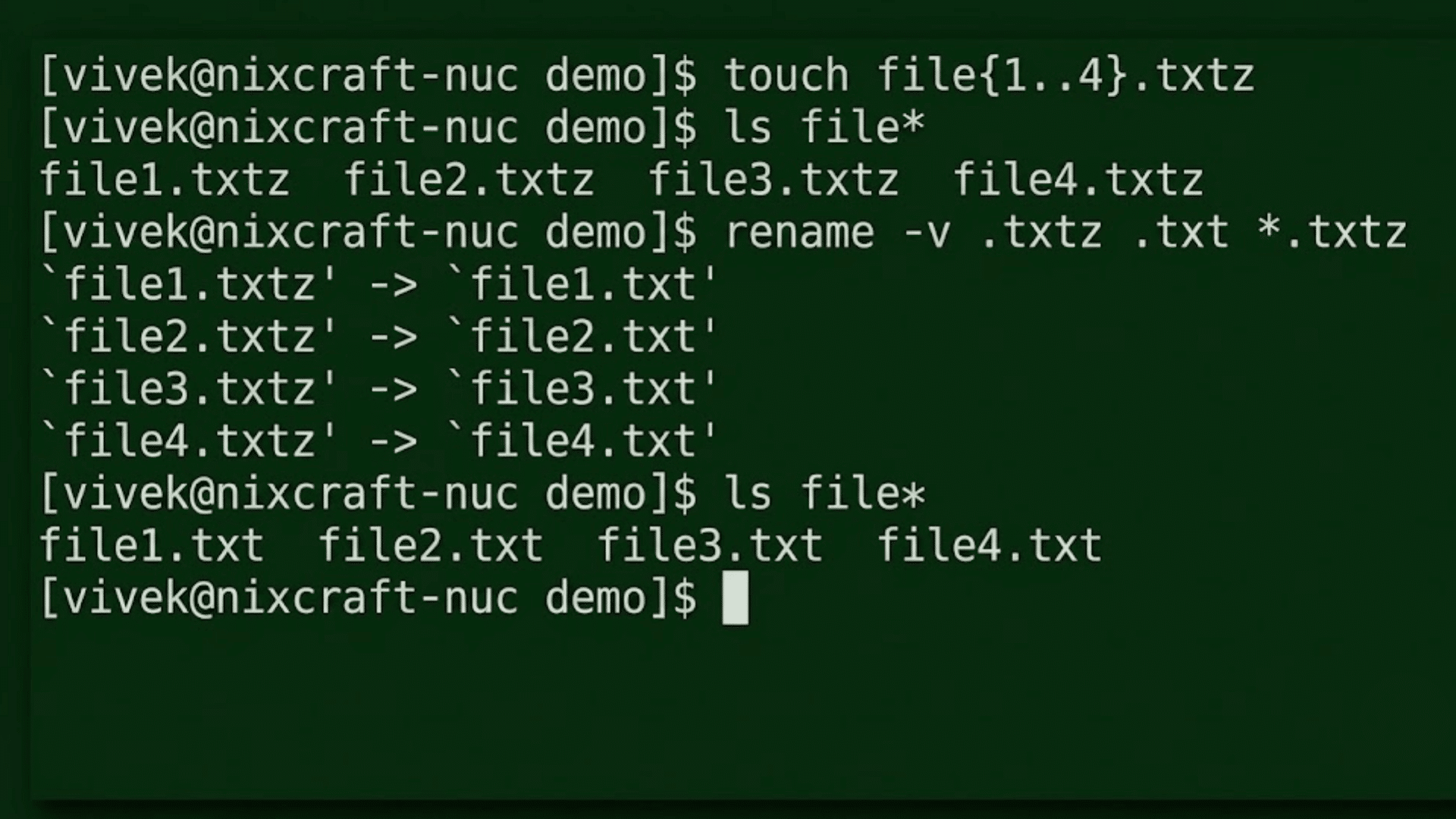
If you need to update several directory names, Linux offers several ways to automate the process rather than renaming each folder individually.
1. Using the rename Command
The rename command is designed for batch renaming and works well when multiple directories follow a similar naming pattern.
It uses regular expressions to replace part of a directory name in a single command.
Since it isn’t installed by default on every Linux distribution, you may need to install it first. To avoid unintended changes, use the preview option before applying the rename to all matching directories.
Example:
rename 's/old/new/' */
2. Using find for Recursive Renaming
When the directories you want to rename are spread across multiple nested folders, the find Command offers a practical solution.
It searches the directory tree for matching folder names and automatically executes the rename operation.
Using the -depth option ensures child directories are processed before their parent directories, helping prevent path-related errors during recursive renaming.
Example:
find . -depth -type d -name "old_name" -execdir mv {} new_name \;
3. Using a Bash for Loop
A Bash for Loop provides the greatest flexibility for batch renaming. It is useful when directory names require prefixes, suffixes, timestamps, or conditional changes that cannot be handled with a simple search-and-replace.
Although it requires a little more scripting, this method is ideal for advanced or customized renaming tasks involving multiple directories.
Example:
for d in */; do mv "$d" "new_${d}" done
Renaming Directories in Git Repositories
If you’re working inside a Git repository, it’s better to use the git mv command instead of the standard mv command.
While mv successfully changes the directory name, Git may initially recognize the change as a deleted directory and a newly added one until it analyzes the history.
Using git mv old_directory new_directory Explicitly stages the rename, making the change easier to track during code reviews and repository management.
After renaming the directory, commit the change using git commit -m "Rename directory" to save it in the repository history.
If you accidentally use mv, running git add -A before committing allows Git to detect the renamed files and stage the changes correctly in most cases.
Linux Rename Directory Examples for Everyday Tasks
The following examples show how the mv command can be used to rename common directories in Linux. Replace the directory names with those that match your own system.
| Task | Command |
|---|---|
| Rename the project folder | mv project_v1 project_v2 |
| Rename the Downloads folder | mv Downloads My_Downloads |
| Rename backup directory | mv backup backup_2026 |
| Rename website folder | mv website website_old |
| Rename the logs folder | mv logs archived_logs |
| Rename the config folder | mv config config_backup |
| Rename archived folder | mv archive archived_files |
Common Mistakes Beginners Make
Many directory renaming issues occur due to small typing or command errors. Avoiding these common errors can save time and prevent unexpected results.
- Running the Command from the Wrong Directory: Use
pwdto confirm your current location before executing themvcommand. - Forgetting Quotation Marks: Enclose directory names with spaces or special characters in quotes to prevent shell parsing errors.
- Renaming to an Existing Directory Name: If the destination directory already exists,
mvMay move the source directory instead of simply changing its name. - Using Incorrect Capitalization: Linux is case-sensitive, so
ProjectsandprojectsAre treated as different directory names. - Running Without Required Permissions: Some system directories require elevated privileges. Use
sudoonly when necessary, and you have the appropriate permissions. - Typing the Wrong Path or Directory Name: Double-check paths and directory names with
lsBefore running the command, avoid errors.
Conclusion
Renaming directories in Linux is a simple task once you understand how the mv command works.
By using the correct syntax, verifying directory names, and following a few best practices, you can safely update folder names without affecting their contents.
It’s also helpful to know how to handle spaces, special characters, permissions, and common errors to avoid unexpected results.
If you’re managing personal files or system directories, these techniques apply across most Linux distributions.
Keep this guide handy as a reference, and continue practicing with different examples to become more confident using Linux command-line tools.
Frequently Asked Questions
Which Is Faster, cp or mv in Linux?
The mv Command is generally faster because it changes directory or file references instead of copying data. The cp Command duplicates the contents, which takes longer.
Why Is rsync Preferred Over cp?
rsync Copies only changed data, supports synchronization, preserves file attributes, and can resume interrupted transfers, making it more efficient than cp For large or repeated operations.
What Are the Seven Types of Files in Linux?
Linux recognizes seven primary file types: regular files, directories, symbolic links, block devices, character devices, named pipes (FIFOs), and sockets.
What Is the Most Commonly Used File System in Linux?
The ext4 file system is the most widely used on Linux because it offers reliable performance, journaling support, large-file support, and broad compatibility across distributions.