


Choosing between two old monitor ports can be confusing, especially when both seem to do the same job.
I have connected and tested older monitors, office computers, graphics cards, and projectors, and the wrong cable often leads to a blurry image or no signal.
For most flat panel monitors, DVI is the better choice because it can keep the video signal digital. VGA still has value when you are working with older equipment that has no newer input.
This VGA vs DVI guide explains image quality, resolution, refresh rates, connector types, compatibility, adapters, cable length, and display problems.
I will also help you decide which port suits gaming, office work, design tasks, projectors, and dual-monitor setups.
By the end, you will know which cable to use, when an adapter is needed, and when moving to HDMI or DisplayPort makes more sense.
Is VGA or DVI Better?
DVI is usually better for a flat-panel monitor when both the computer and display have compatible digital DVI ports. VGA is mainly the practical choice for older hardware that lacks a digital input.
Choose DVI-D or the digital part of DVI-I for a sharper and more stable monitor image.
VGA carries an analog signal, so the computer may convert digital image data to analog before the monitor converts it back. That extra step can soften text or make fine details less clear.
DVI-D keeps the signal digital from the graphics card to the screen.
The difference may be small on a basic low-resolution display, but it becomes easier to notice at higher resolutions. For a new setup, HDMI or DisplayPort is normally the better long-term option.
VGA vs DVI: Which Display Connection is Right for You?
The main differences become easier to compare when signal type, image quality, and hardware support are placed side by side.
The VGA vs DVI choice usually comes down to older analog compatibility against cleaner digital output.
| Feature | VGA | DVI |
|---|---|---|
| Signal type | Analog video | Digital, analog, or both |
| Common image result | May soften at higher resolutions | Usually sharper through DVI-D |
| Connector shape | 15-pin D-sub connector | Rectangular multi-pin connector |
| Main versions | One common VGA format | DVI-A, DVI-D, and DVI-I |
| Resolution support | Depends on hardware and cable quality | Defined by single-link or dual-link support |
| Electrical interference | More likely to be affected | Digital DVI is less affected |
| Audio support | No standard audio support | No standard audio support |
| Best use | Older monitors and projectors | Older digital LCD monitors |
| Current position | Legacy analog connection | Legacy digital connection |
The exact result still depends on the monitor, graphics card, cable, resolution, and selected refresh rate.
Which Connection Should You Use?
The correct cable depends on the ports, display type, required resolution, and adapter needs. A direct digital connection is usually the best choice when the monitor and computer both support it.
- DVI to DVI: Use a matching digital DVI cable for an older LCD monitor when both devices provide compatible DVI-D or DVI-I ports.
- VGA to VGA: Use VGA when the computer, monitor, or projector has no digital connection and its current image quality is acceptable.
- DVI-I to VGA: A passive adapter may work because DVI-I can include the analog signal required by VGA.
- DVI-D to VGA: An active converter is needed because DVI-D sends digital video without an analog VGA signal.
- HDMI or DisplayPort Available: Prefer the newer connection for recently made monitors, especially when audio or higher display performance matters.
Always compare the port pin arrangement before buying a cable or adapter.
What is VGA?
VGA stands for Video Graphics Array and is an analog connection commonly found on older computers, monitors, and projectors.
It sends the image as changing electrical signals rather than digital display data.
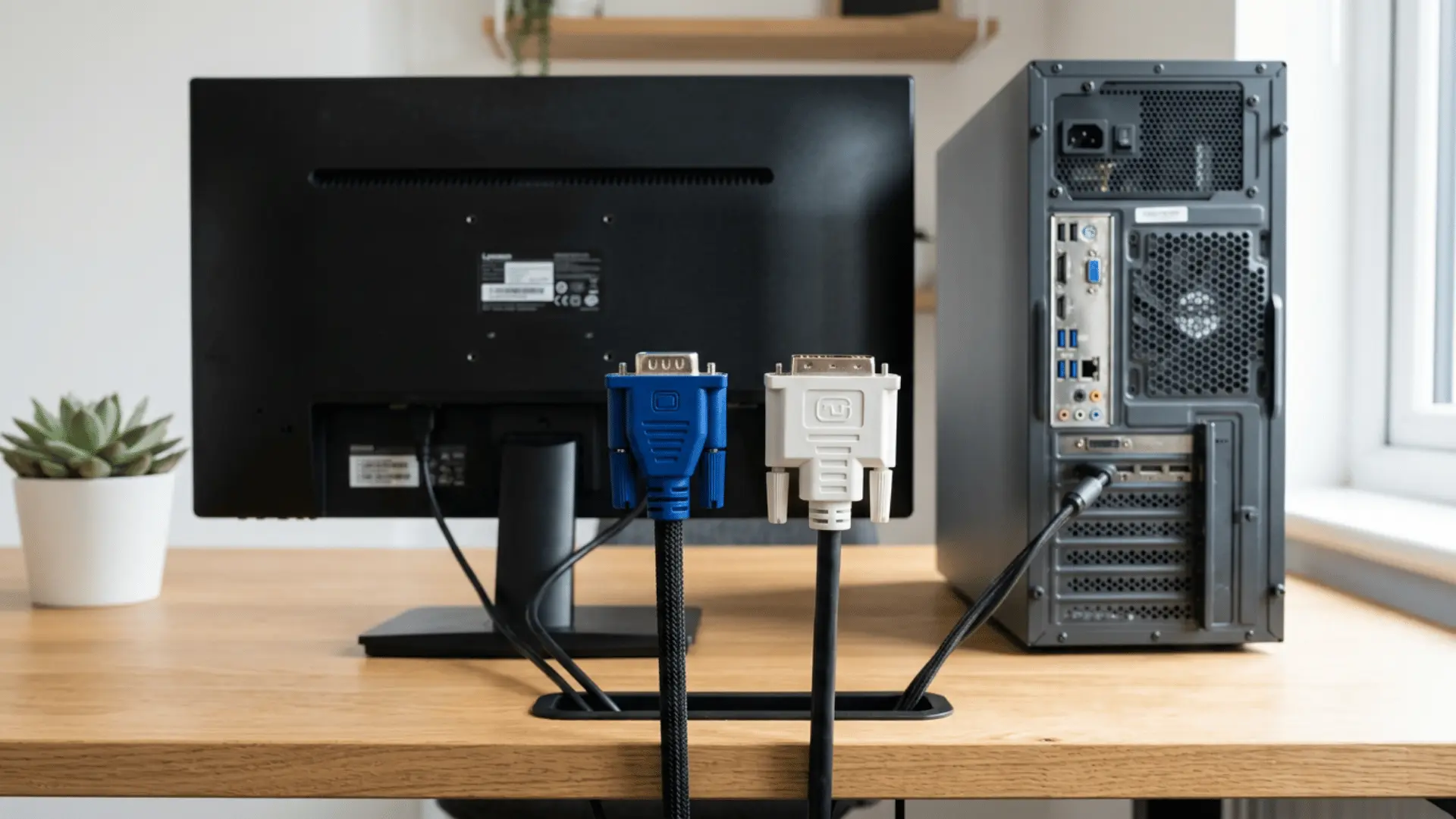
A standard VGA connector has 15 pins arranged in three rows. It often has two side screws that hold the cable firmly in place. The port is commonly blue, although color alone should not be used to identify it.
Because VGA is analog, image quality can change based on cable length, cable shielding, connector condition, electrical noise, and display resolution. A poor cable may cause soft text, ghosting, unstable colors, or visible noise.
VGA can still work well for simple office screens, presentation projectors, industrial machines, and backup monitors. However, it is no longer common on newly released laptops and graphics cards.
What is DVI?
DVI stands for Digital Visual Interface and was designed to connect video sources with digital displays. Unlike VGA, certain DVI connections can send digital image data directly to a flat panel monitor.
The connector is usually white and has a wide rectangular shape with several pins. Its exact pin layout depends on the DVI version. Some DVI ports send digital video, some send analog video, and others support both signal types.
DVI became common on desktop graphics cards and LCD monitors during the move from analog screens to digital displays. It usually produces cleaner text and more stable fine details than VGA when a digital DVI connection is used.
Standard DVI is mainly a video connection and does not normally carry audio. Speakers therefore require a separate audio cable, USB connection, or another output.
Types of DVI Connectors
DVI ports may look similar, but their supported signals can be different. Checking the name and pin layout prevents cable and adapter problems.
The three main types are DVI-A for analog, DVI-D for digital, and DVI-I for both signal formats.
1. DVI-A
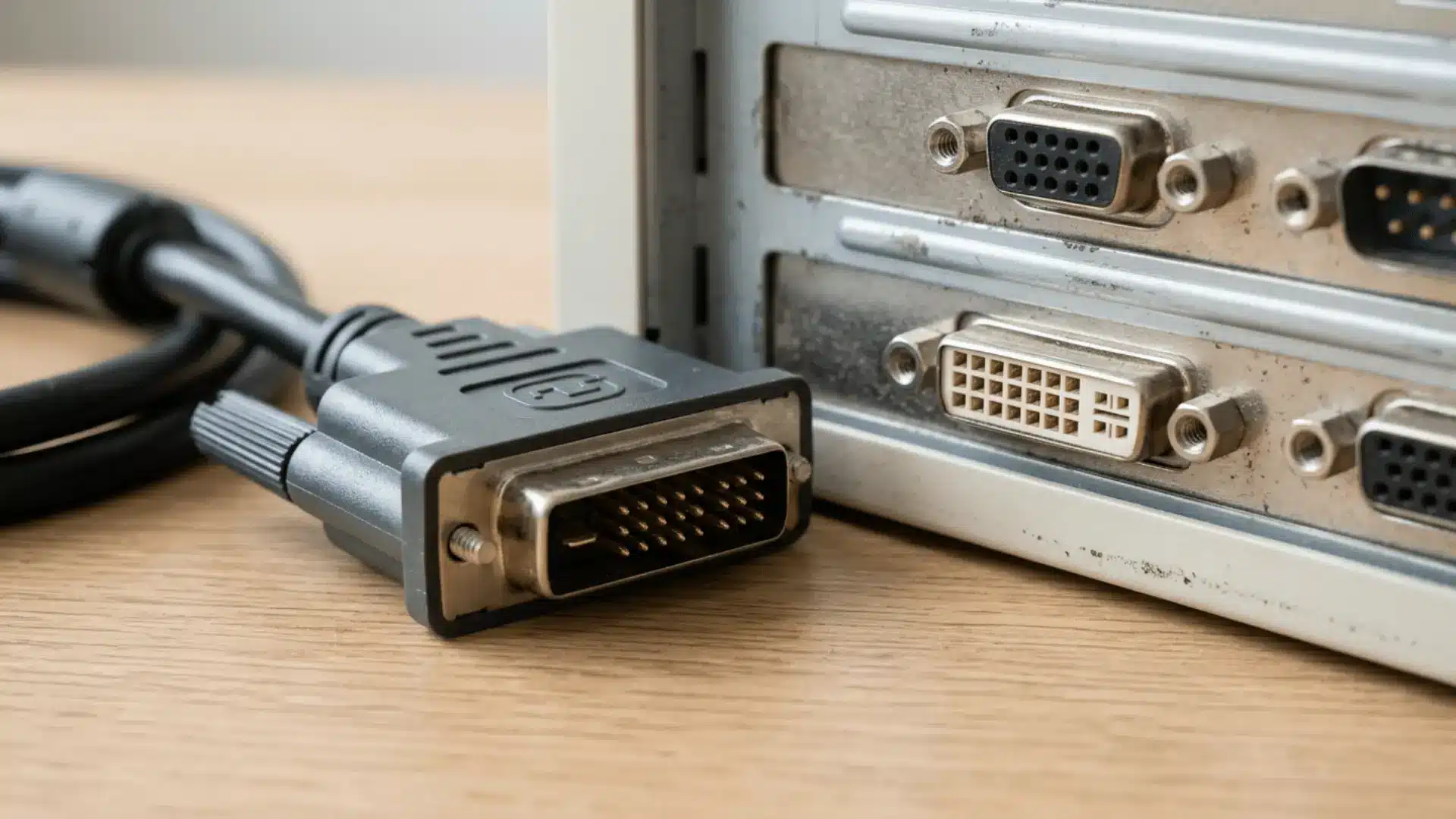
DVI-A carries an analog video signal. Its image quality is therefore closer to VGA than to a true digital DVI connection.
It may be used when a device has a DVI-shaped connector but still needs to communicate with analog display equipment.
DVI-A is less common than DVI-D and DVI-I. It does not provide the main image-quality benefit that most people associate with DVI because the signal remains analog.
A simple adapter may connect it with VGA equipment, but the adapter does not turn the signal into digital video. Cable quality and length can still affect clarity.
2. DVI-D
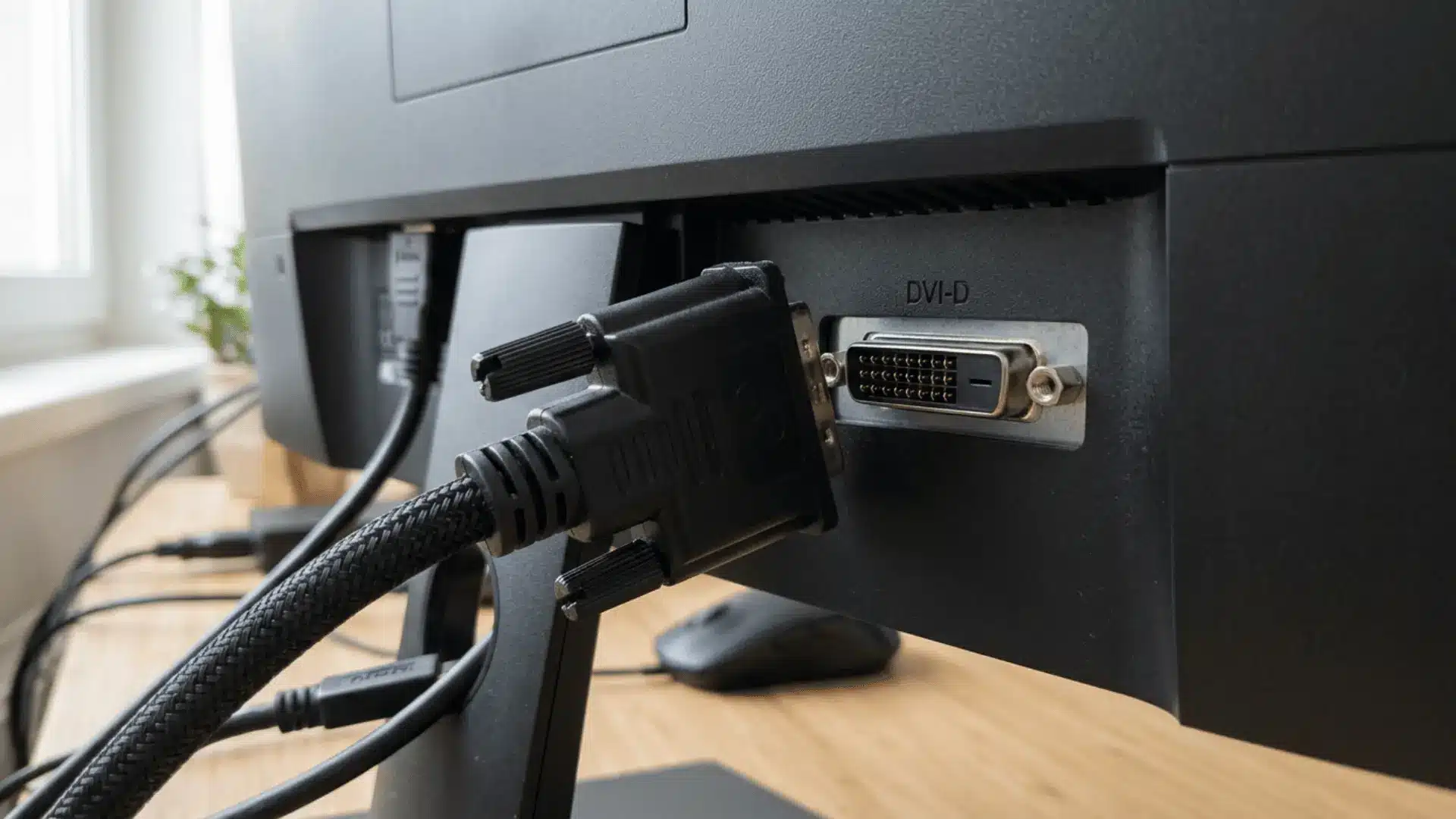
DVI-D carries digital video only. It is usually the preferred DVI type for connecting a desktop computer or graphics card to a compatible LCD monitor.
Since no analog signal is present, it cannot connect directly to a VGA monitor through a basic passive adapter.
Converting DVI-D to VGA requires an active converter that changes the digital signal into analog video. DVI-D is available in single-link and dual-link forms.
The dual-link version has additional pins and supports more video bandwidth. A DVI-D plug may fit certain DVI-I ports because DVI-I can accept compatible digital signals.
3. DVI-I
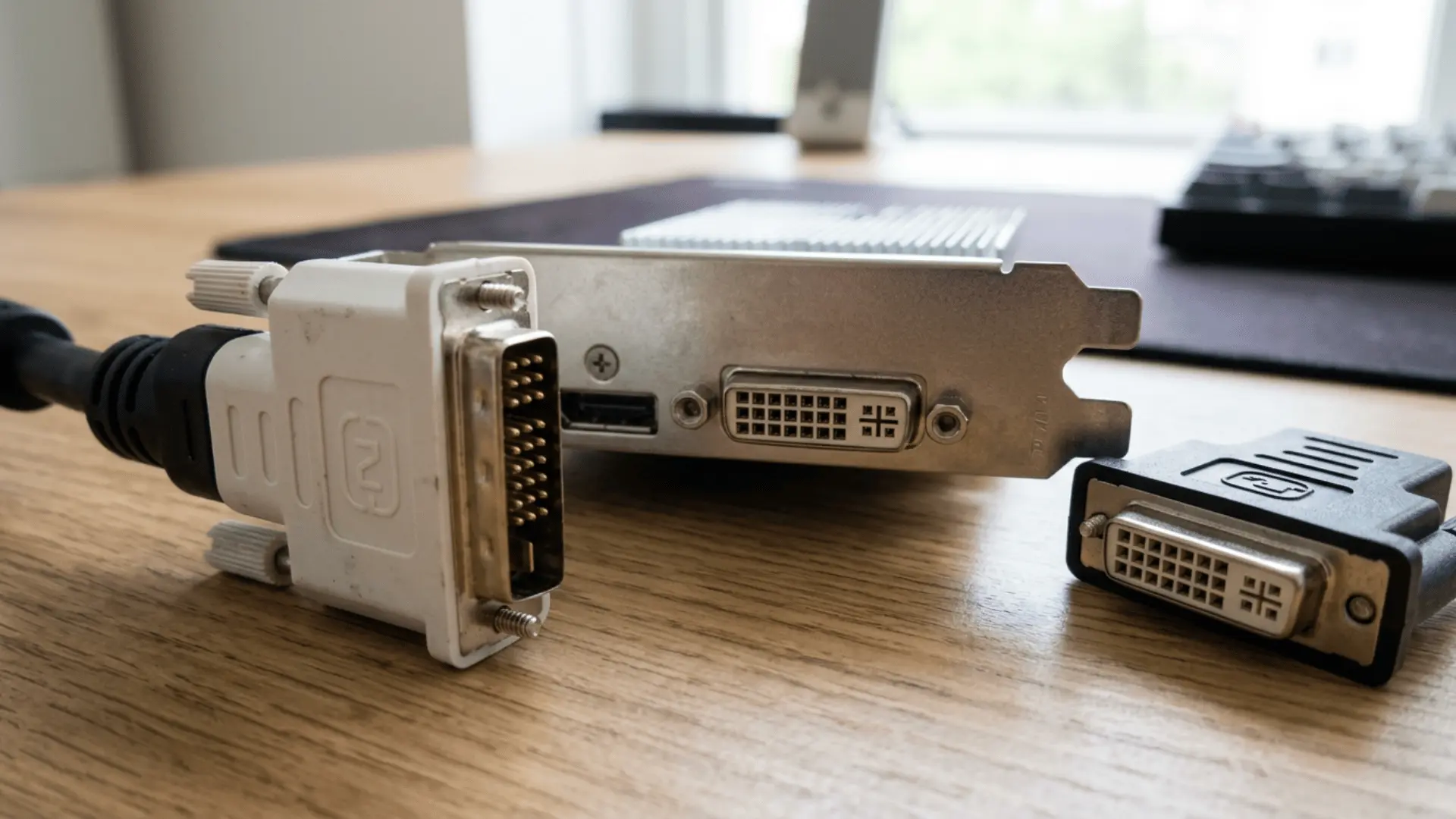
DVI-I stands for integrated DVI because it can include both digital and analog video signals. This design makes the port useful for computers that may connect to either a digital DVI monitor or an older VGA display.
The four small pins around the flat blade show that analog support is present. A passive DVI-I-to-VGA adapter can use those analog pins without actively converting the signal.
However, having a DVI-I-shaped port does not mean every cable or display combination will work. The graphics card specifications must confirm that the required signal and resolution are supported.
VGA vs DVI Performance and Compatibility
VGA and DVI differ in signal type, image quality, resolution support, refresh rate, and device compatibility. The table below shows the main differences for a monitor setup.
| Factor | VGA | DVI |
|---|---|---|
| Image Quality | Analog signals may cause soft text, ghosting, or color changes. | Digital DVI usually gives sharper text and cleaner edges. |
| Resolution | Support depends on the cable, graphics card, and monitor. | Single-link commonly supports 1920 × 1200, while dual-link can reach 2560 × 1600 at 60 Hz. |
| Refresh Rate | Can run above 60 Hz, but quality may become less stable. | Dual-link DVI can support higher refresh rates on compatible older monitors. |
| Signal Type | Carries an analog video signal. | DVI-D carries digital video, while DVI-I supports digital and analog signals. |
| Cable Quality | More affected by cable length, interference, and damaged pins. | Less affected by interference, though poor cables may still cause signal loss. |
| Compatibility | Connects directly to VGA ports and some analog DVI ports. | Compatibility depends on whether the port is DVI-A, DVI-D, or DVI-I. |
| Adapters | Needs an active converter to connect to digital-only DVI-D. | DVI-I may use a passive VGA adapter, while DVI-D needs an active converter. |
| Best Choice | Suitable for older monitors, computers, and projectors. | Better for compatible LCD monitors and sharper digital output. |
Does DVI Look Better than VGA?
DVI-D often looks better than VGA on a digital monitor because it sends the image without an analog cable conversion.
The improvement is most visible in small text, thin lines, desktop icons, and other detailed screen elements.
A VGA image may appear slightly soft even when the correct resolution is selected. Poor cables can also cause shadows beside letters, uneven colors, or faint noise across the screen.
The difference is not always large. A short, well-made VGA cable connected to a lower-resolution monitor may still look clear enough for daily tasks.
Screen size, viewing distance, monitor quality, and eyesight can also affect what is noticed.
DVI does not improve the original video, create extra detail, or fix a weak monitor panel. It simply gives compatible hardware a cleaner path for carrying the display signal.
VGA vs DVI for Different Uses
The better choice depends on the device and task.
| Use | VGA | DVI | Better Choice |
|---|---|---|---|
| Gaming | Works with older monitors but may look softer. | Supports clearer output and some older high refresh displays. | DVI |
| Office Work | Suitable for basic tasks and spare monitors. | Gives sharper text and a steadier image. | DVI |
| Graphic Design | May show softness or color changes. | Keeps lines and details clearer. | DVI |
| Dual Monitors | Useful for a secondary screen. | Better for the main display. | DVI plus VGA |
| Older Projectors | Common on older analog projectors. | Works when the projector has a digital input. | VGA |
| Modern Equipment | Often needs an adapter. | Less common on new devices. | HDMI or DisplayPort |
Cable Length and Signal Quality
Longer cables can weaken display reliability, especially when VGA carries a high-resolution analog signal. Using the shortest practical cable reduces interference, signal loss, and unnecessary connection problems.
VGA quality may drop gradually as the cable becomes longer. The screen may still work, but text can become softer, and shadows may appear around objects. Strong shielding and thicker cable construction can help with longer runs.
Digital DVI often stays clear until the connection becomes too weak. Problems may then appear as flickering, colored pixels, screen flashes, or a complete loss of signal instead of gradual softness.
Cable quality, resolution, refresh rate, and source strength all affect the usable distance. Extension cables and repeated adapters should be avoided where possible.
Longer room installations may require an active extender, signal booster, or a different connection system.
Common VGA Connection Problems
VGA issues often come from the cable, connector, display settings, or nearby electrical interference rather than a failing monitor.
- Incorrect Resolution: A non native resolution can stretch the image, blur text, or create black borders. Set the monitor to its recommended resolution through the display settings.
- Loose Connector: A VGA plug that is not fully secured may cause flickering or temporary signal loss. Tighten the side screws and check that the cable sits firmly.
- Bent or Damaged Pins: Bent pins can remove a color channel, distort the image, or stop the monitor from being detected. Inspect the connector before reconnecting it.
- Poor Cable Quality: Long or weakly shielded cables may cause ghosting, noise, soft edges, or color changes. Test a shorter, higher-quality VGA cable.
- Electrical Interference: Power adapters, extension leads, and other cables can affect the analog signal. Keep the VGA cable away from strong electrical sources when possible.
- Hardware Faults: Test another cable, VGA port, or monitor before replacing the computer or graphics card. This helps identify which part is causing the problem.
Common DVI Connection Problems
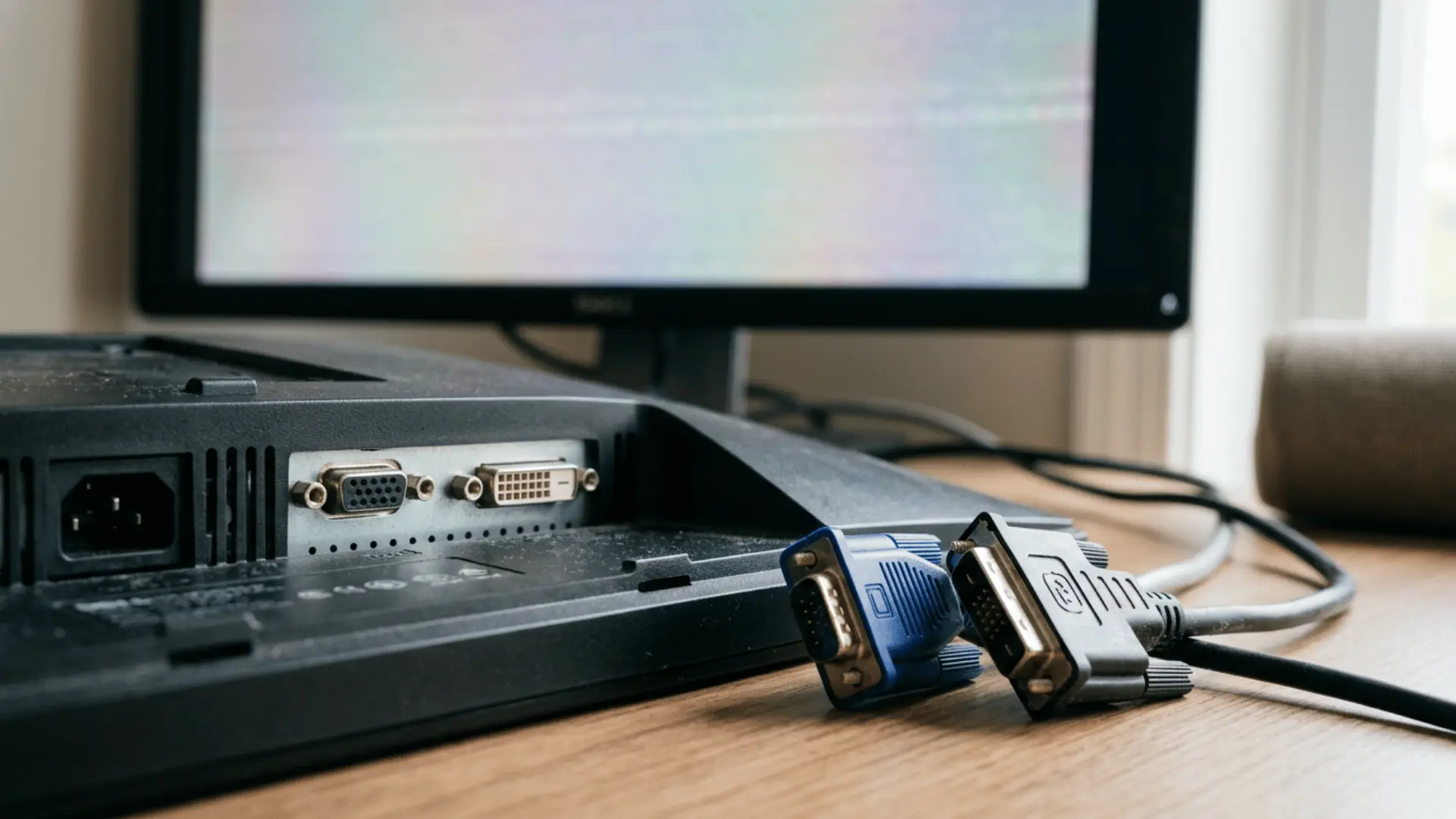
DVI issues often come from cable type, port compatibility, display settings, or an incorrect adapter.
- No Signal: The monitor may be set to VGA, HDMI, or DisplayPort instead of DVI. Select the correct input through the monitor menu.
- Wrong DVI Type: DVI-A, DVI-D, and DVI-I support different signals. Confirm that the cable and both ports use compatible formats.
- Single-Link Limitation: A single-link cable may not support the monitor’s full resolution or refresh rate. Use dual-link DVI when the hardware requires it.
- Flickering or Colored Dots: A damaged connector, loose cable, or long cable run can cause digital signal errors. Reseat the cable or test a replacement.
- Unsupported Resolution: The selected resolution or refresh rate may exceed the cable or port limit. Return to a standard display setting and test again.
- Incorrect Adapter: DVI-D cannot send analog VGA through a passive adapter. An active converter is needed when connecting digital DVI to VGA.
- Output Port Conflict: The computer may be sending video through another active port. Check the display settings and select the DVI-connected monitor.
Should You Upgrade From VGA to DVI?
Upgrading from VGA to DVI is worthwhile when compatible ports are already available, and the VGA image looks soft or unstable. A simple direct DVI cable can improve clarity without requiring a new monitor or graphics card.
The change makes the most sense when the display runs at 1080p or above, small text looks unclear, or electrical interference affects the analog signal.
A digital DVI connection also removes the need to adjust VGA clock and phase settings.
An upgrade may not be necessary when the existing VGA image is clear, the display is used only for basic tasks, or active conversion would be required.
Converting VGA to digital DVI does not restore detail that was lost before the converter.
For major hardware replacements, HDMI or DisplayPort is usually a better choice than investing heavily in DVI equipment.
Should You Still Buy a DVI Monitor?
Buying a DVI monitor can make sense when it is inexpensive, in good condition, and matches an existing computer.
DVI remains useful for older digital systems, but it should not be the main feature guiding a new monitor purchase.
Screen condition, resolution, panel type, brightness, refresh rate, warranty, and available modern inputs matter more. A monitor with DVI plus HDMI or DisplayPort offers more flexibility than one that only supports DVI and VGA.
Used DVI monitors may suit office work, secondary displays, workshops, security systems, and basic home computers. Before buying, test the screen for dead pixels, uneven lighting, color problems, and damaged ports.
A newly purchased monitor should preferably include HDMI or DisplayPort. These ports connect more easily with current computers and reduce dependence on adapters as older hardware is replaced.
VGA and DVI Buying Checklist
Checking the complete connection path before shopping helps prevent wrong cables, limited resolutions, and unnecessary converters.
Match the computer output to the monitor input before comparing cable prices.
- Source Port: Identify the output on the computer, laptop dock, or graphics card.
- Display Port: Check the monitor or projector input and confirm its exact DVI type.
- Signal Format: Determine whether the connection needs analog VGA or digital DVI.
- Link Type: Check if the required resolution needs single-link or dual-link DVI.
- Native Resolution: Choose a cable or converter that supports the monitor’s recommended resolution.
- Refresh Rate: Confirm the required refresh rate at that resolution.
- Cable Length: Select the shortest length that reaches without tension.
- Adapter Direction: Confirm which device is the source and which is the display.
- Audio Needs: Plan a separate audio connection when using VGA or standard DVI.
Final Verdict
DVI is the better connection for most compatible older flat panel monitors because it can carry a clean digital video signal. VGA should mainly be chosen when older equipment has no suitable digital port.
DVI-D offers the clearest advantage over VGA. DVI-I can also provide digital video, but it may be used for analog VGA through its extra pins. DVI-A remains analog, so it does not provide the same image-quality benefit.
VGA can still handle basic office work, presentation projectors, industrial screens, and backup monitors. A working VGA setup does not need replacing when the image is clear and stable.
For newly purchased monitors and graphics cards, HDMI or DisplayPort is generally the better choice. These standards offer broader compatibility with current hardware and can carry audio with digital video.
Which connector are you using, and have you noticed a difference after changing cables? Share your experience in the comments below.
Frequently Asked Questions
Can You Connect VGA to DVI?
Yes, but a passive adapter only works with analog-capable DVI-I or DVI-A, while DVI-D requires an active converter.
Do VGA to DVI Adapters Work?
Yes, when the adapter matches the signal type, connection direction, resolution, and ports on both devices.
Do Adapters Reduce Image Quality?
Passive adapters keep the original signal quality, while low-quality active converters may reduce clarity or limit resolution.