



If you have ever tried to change your WiFi password or fix a slow internet connection, you have probably seen people mention a router IP address.
I remember getting stuck while trying to log into my router settings because I had no idea where to find the correct IP address. After checking different devices, I realized the steps are actually simple once you know where to look.
A router IP address helps you access your network settings, manage connected devices, and improve your WiFi security.
In this guide, you will learn what a router IP address is, why it matters, and how to find it on Windows, Mac, Android, iPhone, and Linux devices.
Keep reading to quickly find your router IP and take control of your internet settings.
What Is a Router IP Address?
A router IP address is the local address your device uses to reach your router’s settings page. It is also called the default gateway. You can find it through your device’s network settings or by running a simple command.
On Windows, open Command Prompt and type ipconfig. On Mac, check Network settings under TCP/IP.
On Android and iPhone, tap your connected WiFi network to see the Gateway or Router field. On Linux, run ip route in Terminal.
It also gives you access to the router settings page, where you can change your WiFi password, update security settings, and manage connected devices.
There are two main types of IP addresses: public and private. A public IP address connects your network to the internet.
A private IP address works inside your home network, and your router uses it to help devices share data correctly.
Most routers use common default IP addresses like 192.168.0.1, 192.168.1.1, 10.0.0.1, or 192.168.100.1.
You can enter these addresses into your browser to open your router login page and manage network settings.
| Feature | Router IP Address | Public IP Address |
|---|---|---|
| Used Inside Home Network | Yes | No |
| Given by ISP | No | Yes |
| Main Purpose | Manages local network devices | Connects your network to the internet |
| Example | 192.168.1.1 | 49.xxx.xxx.xxx |
| Used for Router Login | Yes | No |
Why You May Need Your Router IP Address?
Your router IP address is useful for more than just opening the login page. It gives you control over your network settings and makes it easier to manage your internet connection.
- Change WiFi Password: Your router IP address helps you open router settings and update your WiFi password for better security.
- Access Router Settings: You can use the router IP to manage network settings, connected devices, and internet options.
- Fix Internet Problems: Checking router settings can help solve slow internet, connection drops, and network errors.
- Set Parental Controls: Many routers let you block websites, limit screen time, and manage device access for kids.
- Improve Network Security: You can change admin settings, enable stronger security, and update your router firmware.
I usually check my router settings whenever my WiFi starts slowing down, or when too many devices are connected.
How to Find Your Router IP Address on Windows?
You can find your router IP address on Windows using Command Prompt and your network settings. The process only takes a few minutes and works on Windows 10, Windows 11, and older versions.
Step 1: Open Command Prompt
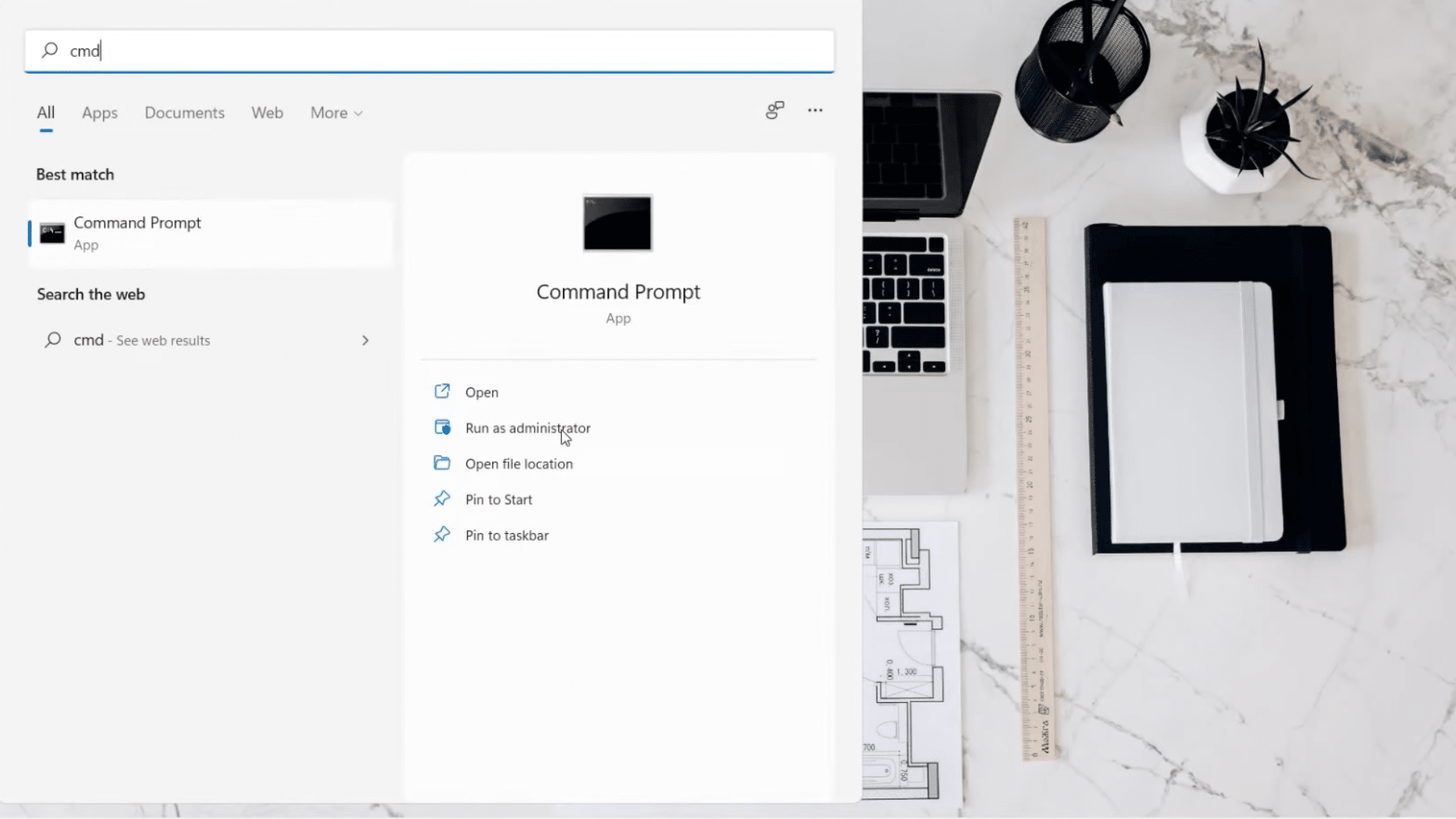
Start by clicking the Windows search icon on your desktop or laptop. Type “cmd” in the search bar, and you will see Command Prompt in the results. Right-click on it and choose “Run as administrator.”
A permission pop-up may appear on the screen asking for approval.
Click “Yes” to continue. After that, the Command Prompt window will open on your screen.
Running as an administrator is not strictly required just to check the IP address, but it prevents any permission errors if you later run other network commands in the same window.
Step 2: Run the IP Config Command
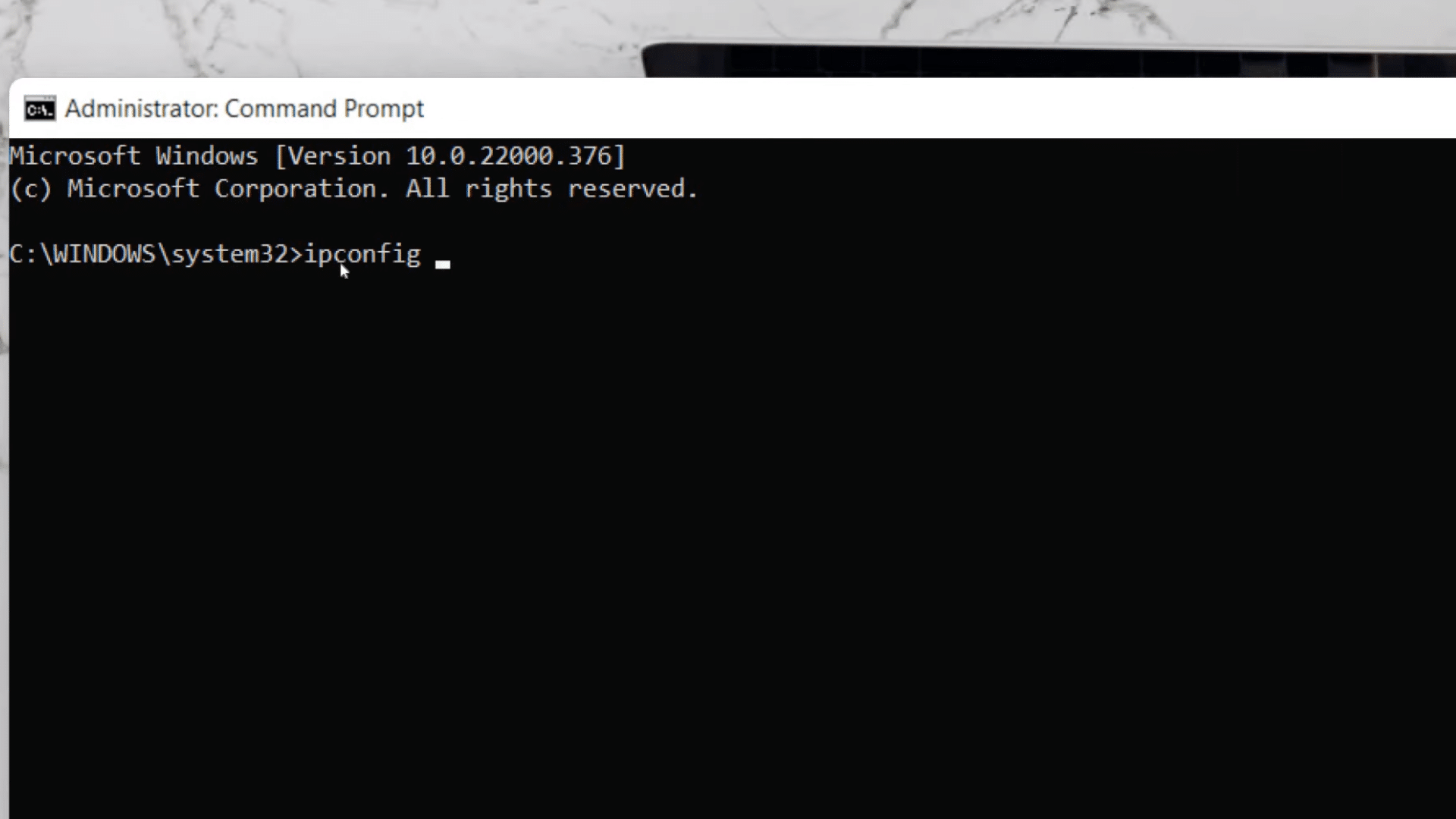
Once the Command Prompt window opens, click inside the black screen area.
Now type ipconfig and press the Enter key on your keyboard. This command will display all the network information related to your computer.
After running the command, several details will appear on the screen, such as IPv4 address, subnet mask, and default gateway.
If your computer is connected via WiFi, look under the “Wireless LAN adapter Wi-Fi” section. If connected via cable, look under “Ethernet adapter.”
Step 3: Find the Default Gateway
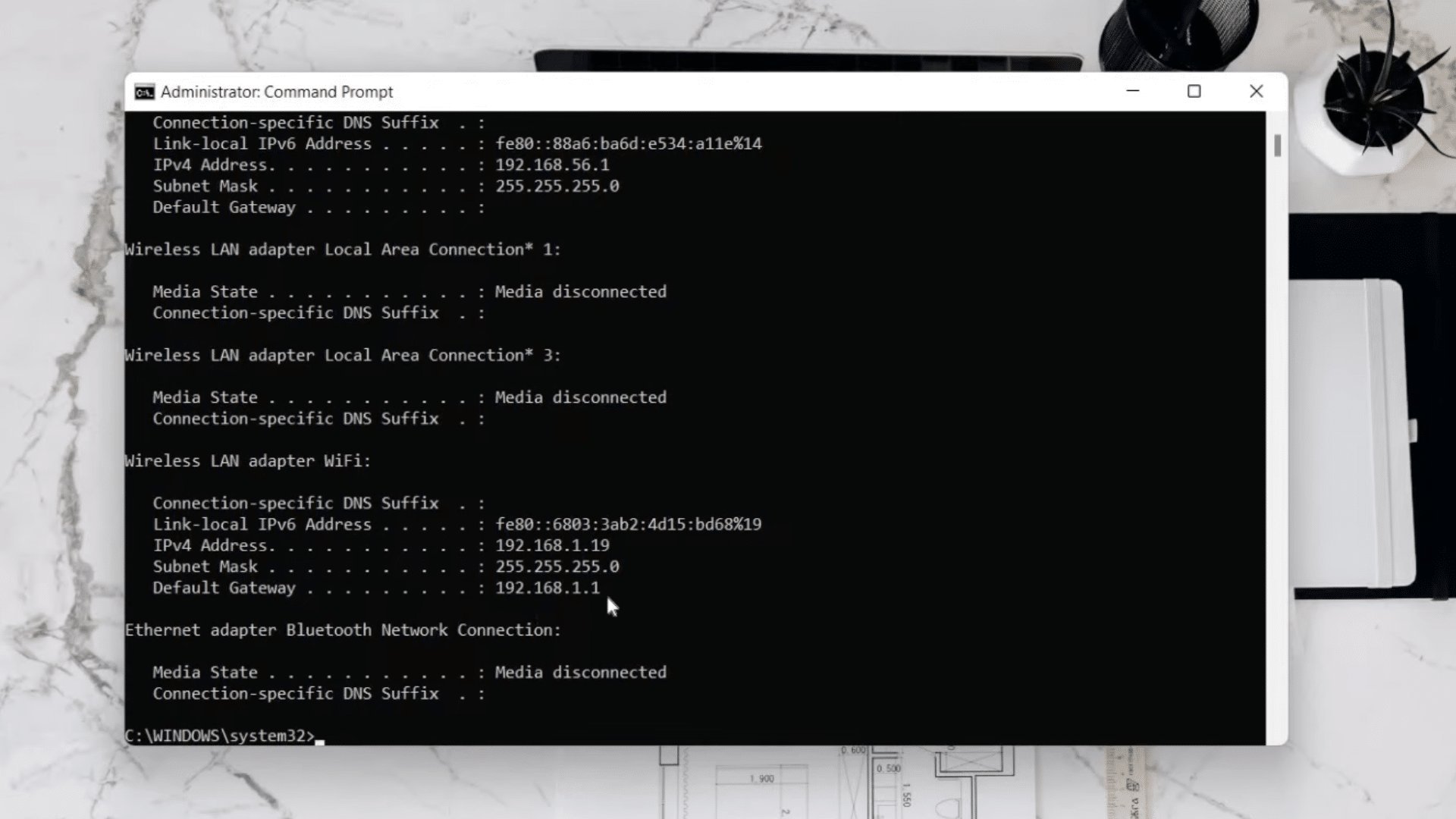
After the results appear on the screen, carefully look for the option called “Default Gateway.”
The number shown next to this option is your router IP address. In many cases, it may look like 192.168.1.1 or something similar.
If the Default Gateway field is blank or shows0.0.0.0, your computer is not currently connected to the router. Check your WiFi or Ethernet connection and run ipconfig again.
Step 4: Open the Router Login Page
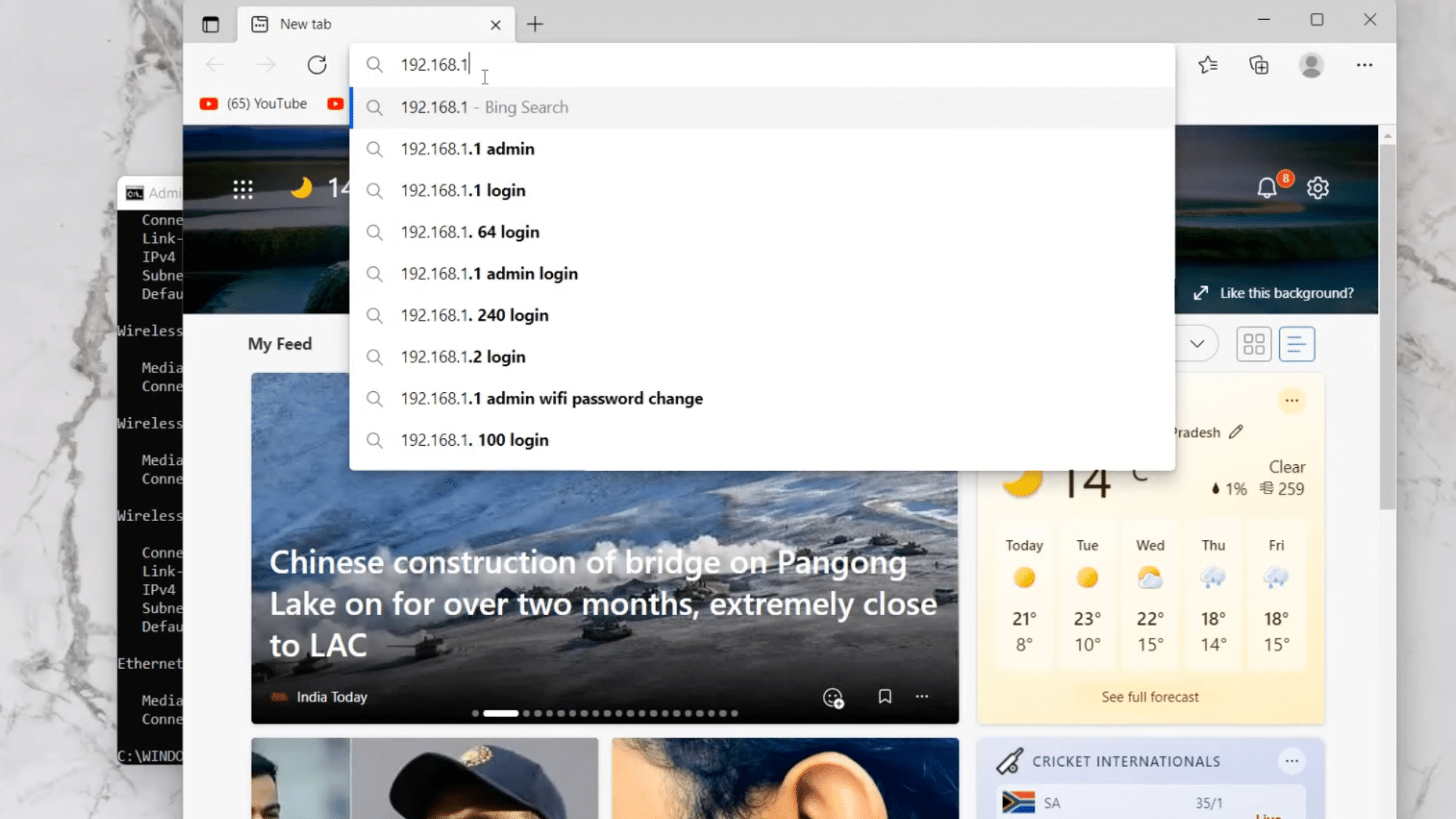
Now open any web browser on your computer, such as Chrome, Edge, or Firefox.
Click on the address bar at the top of the browser window and type the router IP address you found earlier. Press the Enter key after typing the address.
Your browser will then try to connect to the router settings page. This process usually takes only a few seconds. Make sure you type the IP address correctly without spaces or extra symbols.
If the router is connected properly, the login page should appear on your screen without any issues.
Step 5: Enter the Router Username and Password
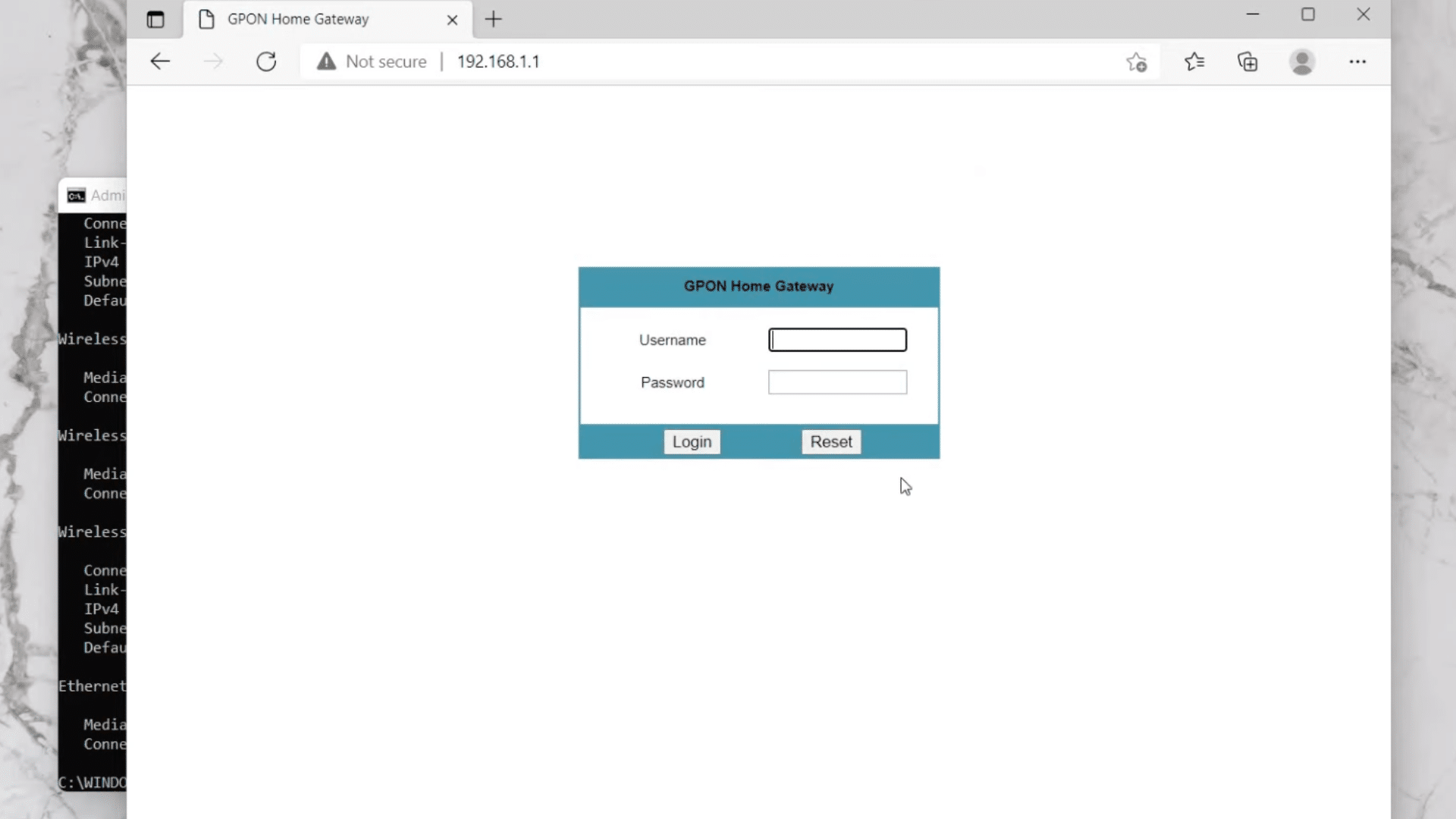
When the router login page opens, you may see fields asking for a username and password.
These login details are needed to access the router settings panel. Enter the correct username and password and click the login button.
After signing in, you can manage different router settings like Wi Fi passwords, network names, connected devices, and internet options.
If you do not know the login details, try checking the label on the back of the router. Some routers also use default usernames and passwords provided by the internet service provider or router company.
If the Default Gateway IP Does Not Open the Router Page
If typing the IP address into your browser returns an error, try these steps in order. First, confirm your device is connected to the router’s network, not a mobile hotspot.
Second, try the other common default IPs: 192.168.0.1, 10.0.0.1, or 192.168.100.1.
Third, disable any active VPN on your computer, because a VPN changes your routing table and can make the default gateway appear unreachable.
Fourth, check the physical label on your router for the correct IP. If none of these work, restart the router and repeat the steps.
If Your PC Is Not Connected to the Router
If your computer or laptop is not connected to the router, you can still find the router IP address manually.
Turn the router around and check the back or bottom side carefully.
Most routers have a sticker or printed label containing important information.
This label usually includes the default IP address, default username, and default password. You can use these details to log into the router settings page later.
This method helps when the internet is down, or your computer cannot connect to the router.
This tutorial is based on a helpful video by PrimeGuide. You can check out the original video below for a more detailed visual guide:
How to Find Your Router IP Address on a Mac?
You can check your router IP address on a Mac using System Preferences, Advanced Wi Fi settings, or Terminal. These methods also help you find your Wi Fi MAC address and public IP address in macOS Monterey and newer versions.
Step 1: Open System Preferences
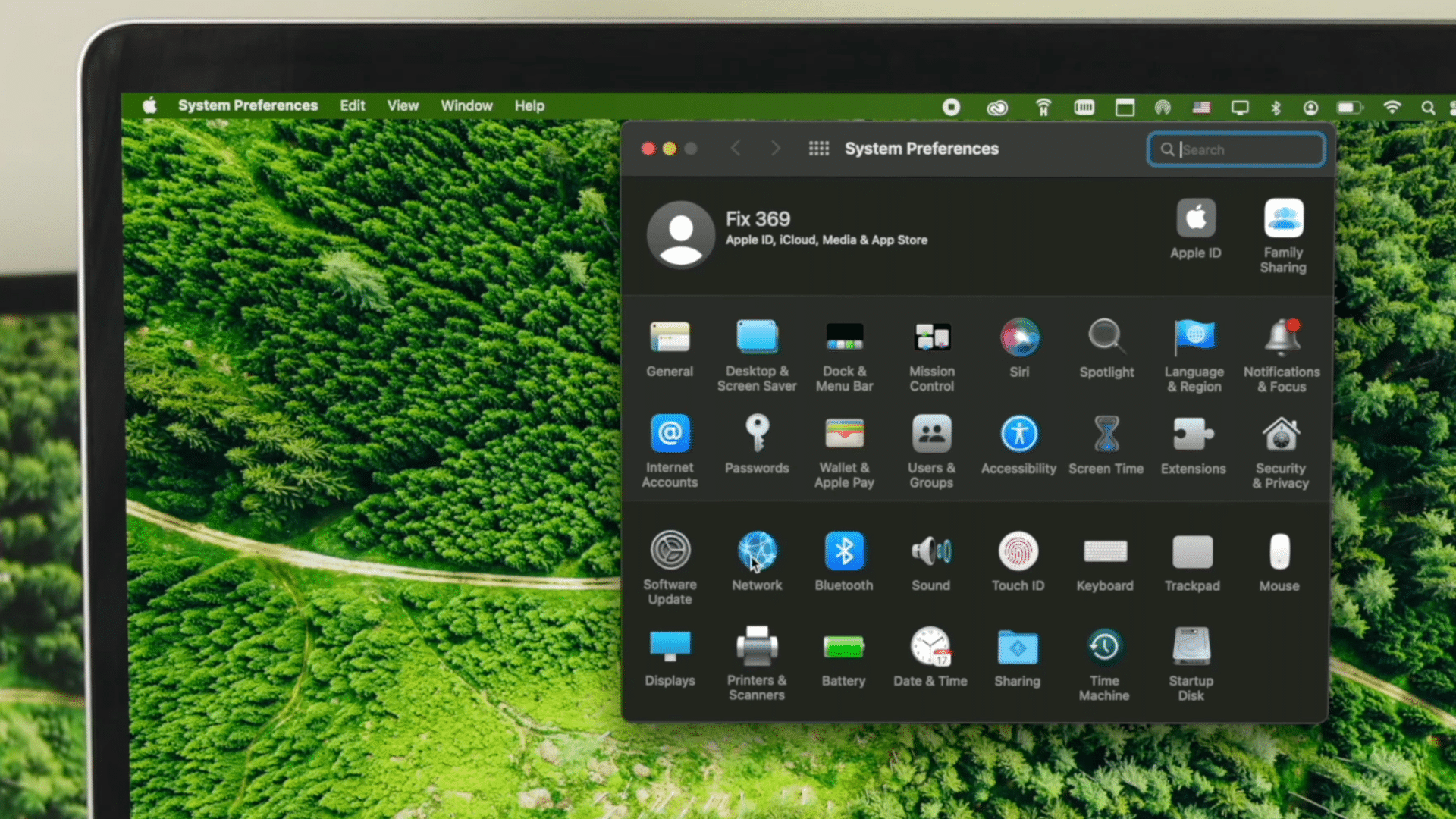
Start by clicking the Apple logo located at the top left corner of your Mac screen. A drop-down menu will appear with different system options and settings.
From this menu, click on “System Preferences” to continue. Once the settings window opens, look for the “Network” option and click on it.
This section contains all internet and Wi Fi related settings connected to your Mac device.
You need to open this section first before checking your router IP address or Wi Fi connection information on macOS.
Step 2: Select Your Wi Fi Network
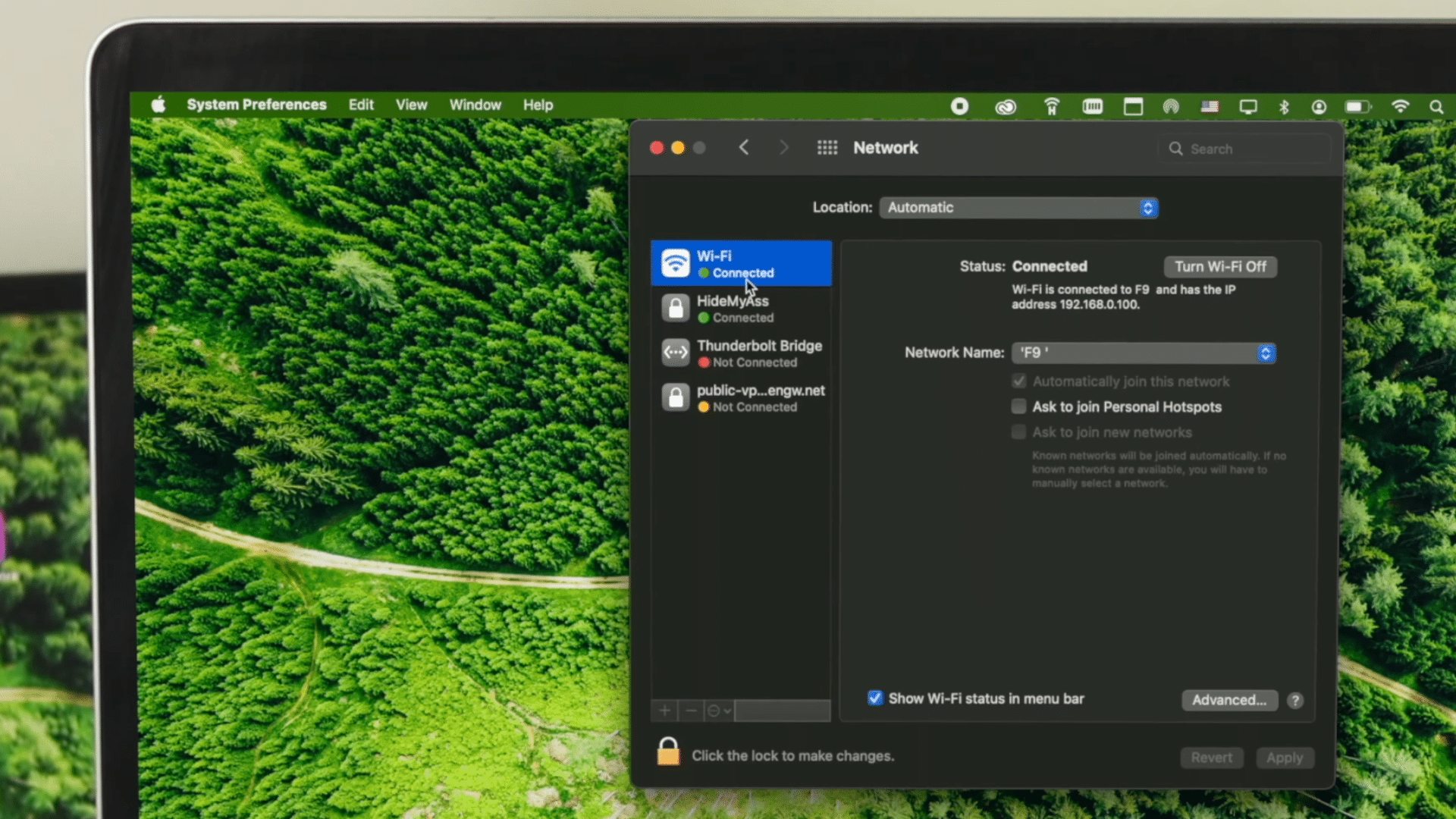
Inside the Network section, you will see different connection options listed on the left side of the screen. Click on your connected Wi Fi network to continue with the setup process.
Make sure your Mac is already connected to the internet before moving to the next step.
Selecting the correct Wi Fi network helps your Mac display the current network details connected to your router.
This section also allows you to manage internet settings and troubleshoot connection problems directly from your Mac device without using any extra software.
Step 3: Open Advanced Wi Fi Settings
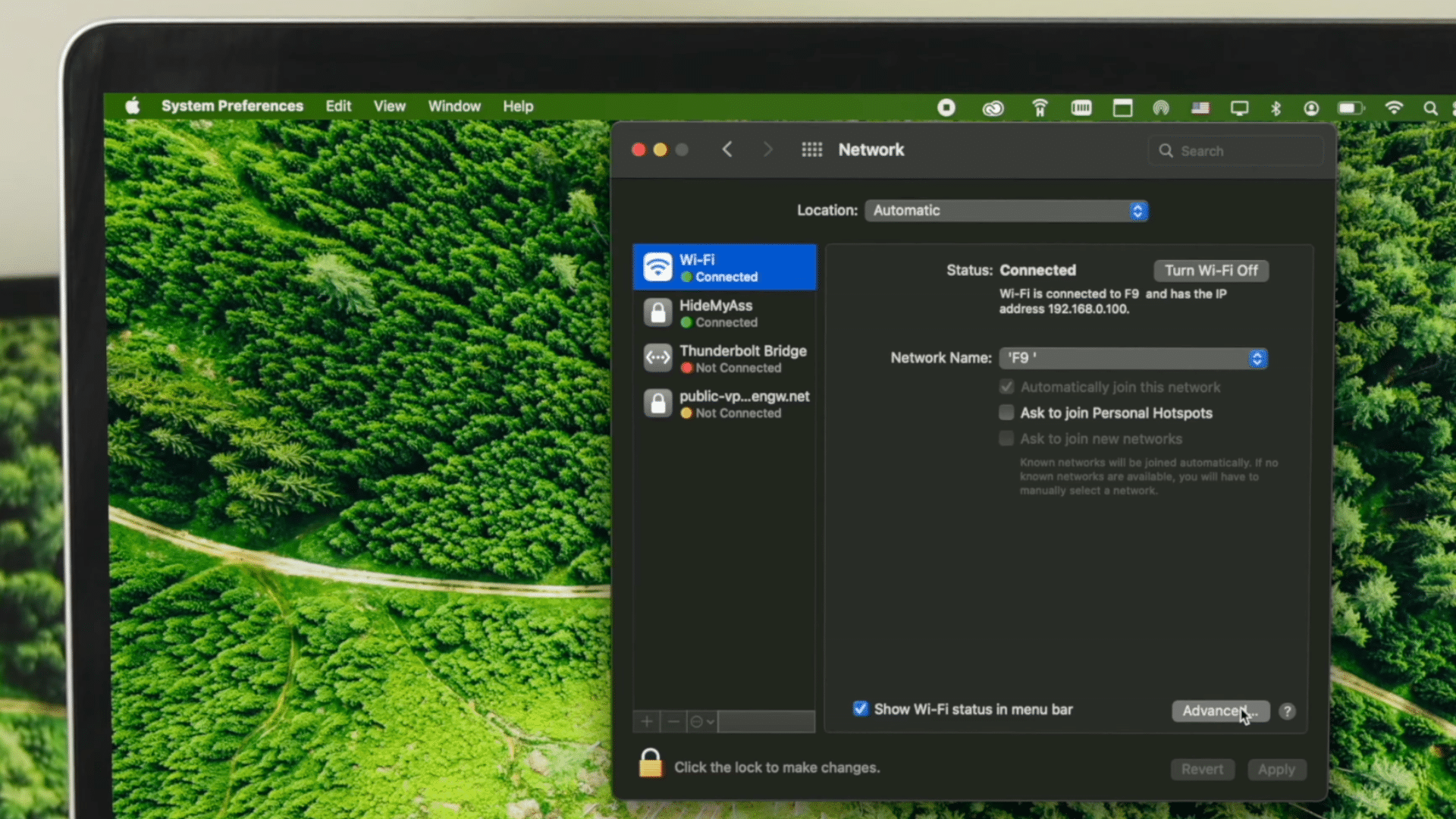
After selecting your Wi Fi connection, move toward the lower right side of the window and click the “Advanced” button.
This option opens additional network settings and detailed connection information related to your Wi Fi network.
Inside this section, you can check saved networks, hardware details, TCP/IP information, and other important internet settings.
The Advanced menu is useful when you want to access router details or make changes to your network setup. Make sure you stay inside this section for the next steps shown in the video tutorial.
Step 4: Find the Wi Fi MAC Address
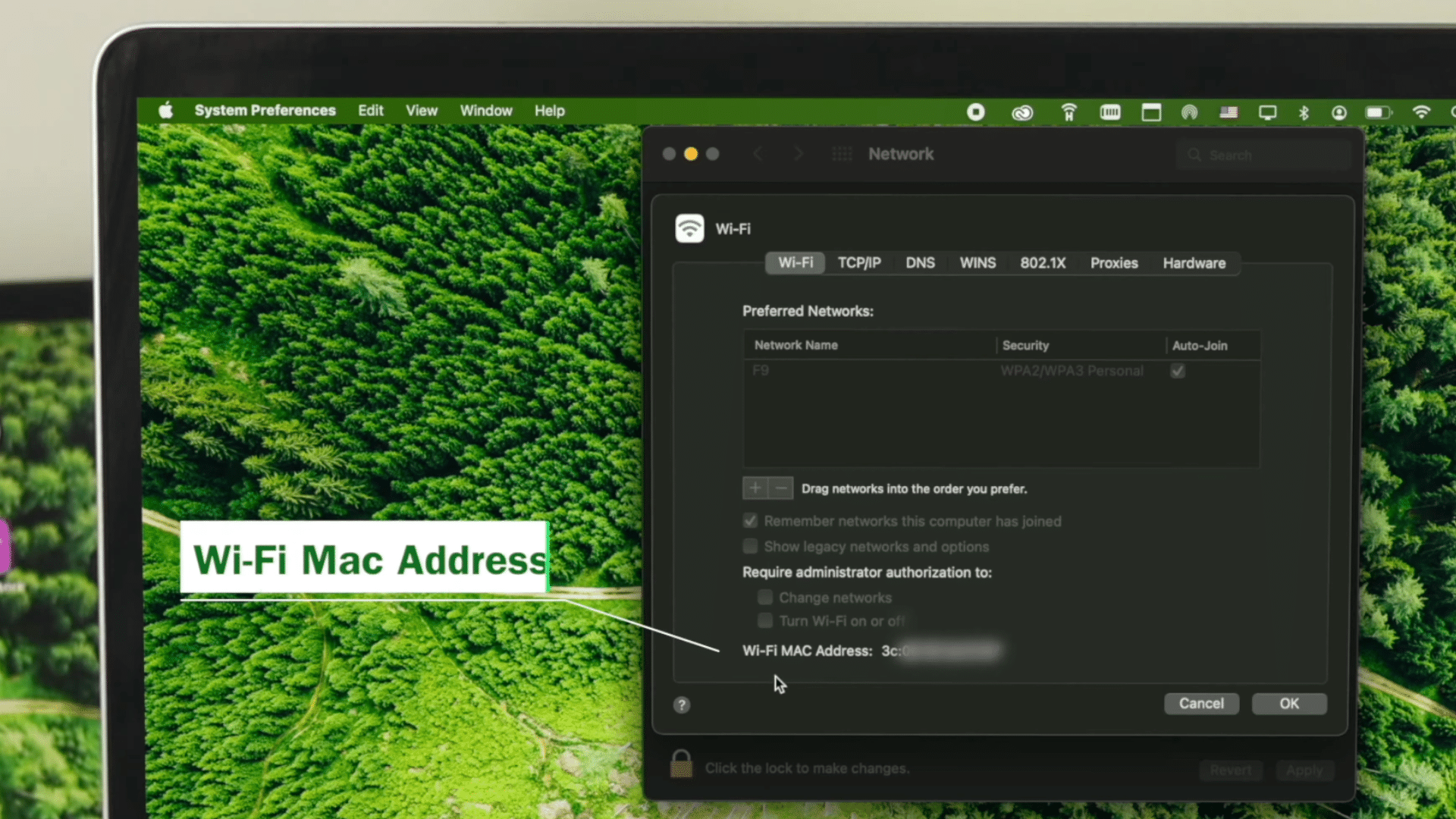
Once the Advanced settings window opens, look carefully near the top section where it says “Wi Fi MAC Address.”
This area displays the unique MAC address assigned to your Mac device for network communication. The creator in the video hides the address for privacy reasons, but your Mac will display the complete information on screen.
This MAC address is useful during router setup, network filtering, or internet troubleshooting tasks.
You can copy or note this information if you need it later while configuring your Wi Fi router settings or security options.
Step 5: Find the Router IP Address
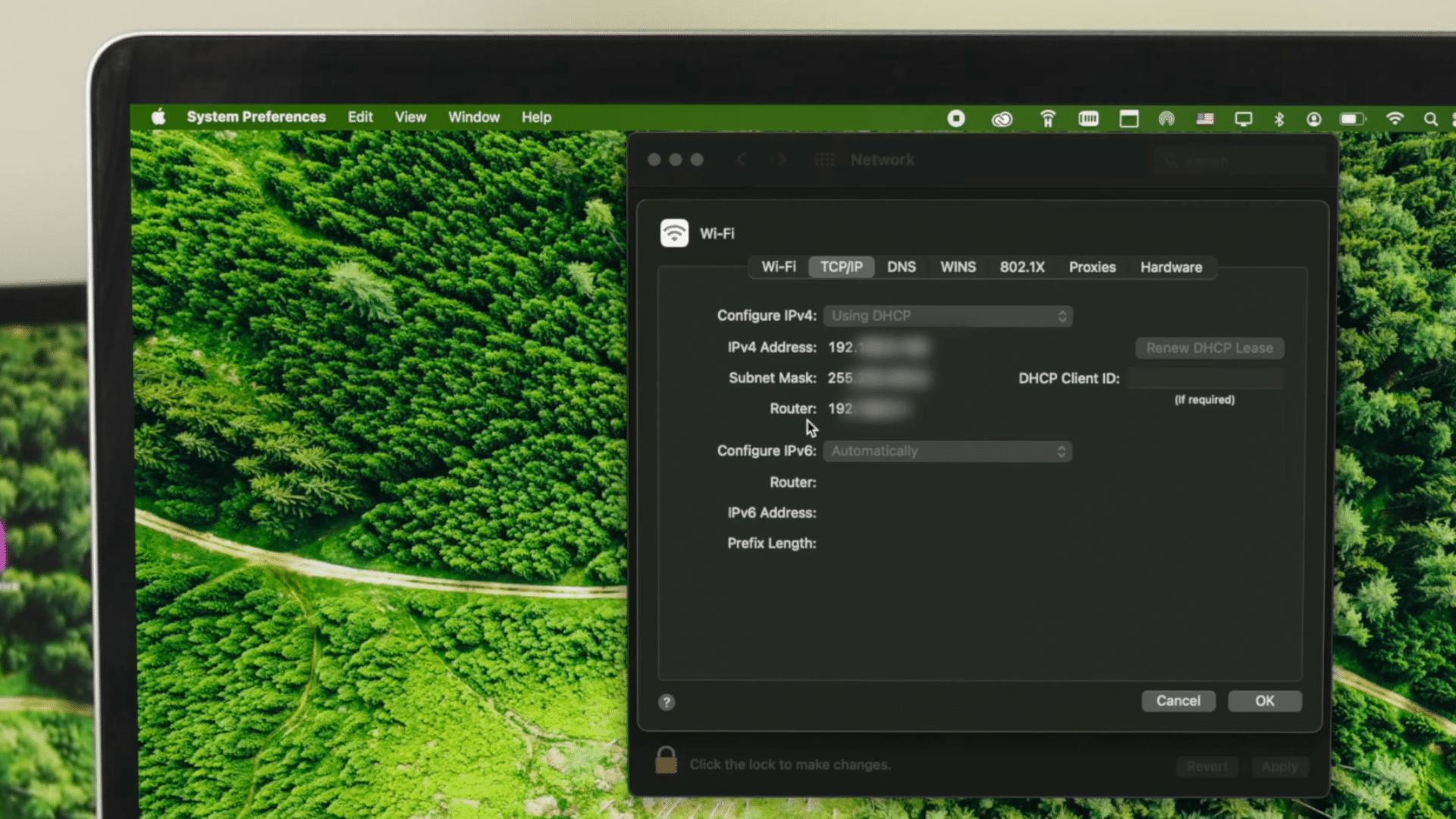
Now, click on the “TCP/IP” tab available at the top of the Advanced settings window.
Inside this section, your Mac will display both your current IP address and the router IP address connected to the network. The router IP address usually appears beside the “Router” option.
Alternatively, you can open the Terminal app and type netstat -nr | grep default, then press Enter.
The IP address next to “default” in the results is your router IP. This is the fastest method when you are already working in Terminal.
This tutorial is based on a helpful video by Fix369. You can check out the original video below for a more detailed visual guide:
Finding Your Router IP on Android, iPhone, and Linux
Android, iPhone, and Linux all store the router IP address in different places, but the information is always accessible without installing any extra apps or tools. Here is where to find it on each platform.
1. Android
Android phones store network details inside the Wi Fi settings menu. You can quickly check the router address from your current network information.
- Open the “Settings” app on your Android phone
- Tap on “Wi Fi” or “Network & Internet”
- Select your connected Wi Fi network
- Find the “Gateway” or “Router” section
- The number shown there is your router IP address
2. iPhone
You can find the router IP address directly from your iPhone Wi Fi settings. This address is useful when you need to log into your router dashboard.
- Open the “Settings” app on your iPhone
- Tap on the “Wi Fi” option
- Select your connected Wi Fi network
- Tap the small “i” icon beside the network name
- Find the “Router” address section
3. Linux
Linux lets you check your router IP address using a simple Terminal command. The process only takes a few seconds and works on most Linux systems.
- Open the Terminal application on your Linux computer
- Type the command: ip route
- Press the Enter key on your keyboard
- Look for the line showing “default via.”
- The number beside it is your router IP address
Quick Ways to Find Your Router IP Address on Any Device
You can find your router IP address through your device’s network settings or by using simple commands like ipconfig or ip route.
| Device | Fastest Way to Find Router IP |
|---|---|
| Windows | Run ipconfig and check the Default Gateway |
| Mac | Go to Network settings and check the router under TCP/IP |
| Android | Open the WiFi details and check the Gateway |
| iPhone | Open the WiFi details and check the router |
| Linux | Run ip route and check “default via.” |
Popular Router Brands and Their Features
Different router brands use different default IP addresses and login pages. Knowing which IP your router uses by default can save you time when you need to log in quickly.
1. TP-Link Router
TP-Link routers are known for simple setup and budget-friendly pricing. Many people use them for regular internet browsing, streaming, and smart home devices.
The company also offers mesh Wi Fi systems for larger homes and app-based controls through the TP-Link Tether app.
TP-Link routers usually include parental controls, guest network support, and easy network management tools that help users manage internet access without advanced networking knowledge.
2. Netgear Router
Netgear routers are popular for fast internet speeds and stable wireless coverage. They are commonly used for online gaming, 4K streaming, and homes with many connected devices.
Some Netgear models include built-in cybersecurity tools, traffic monitoring, and advanced Quality of Service settings.
The brand also offers Nighthawk gaming routers designed to reduce lag and improve internet performance during heavy network usage or multiplayer gaming sessions.
3. Linksys Router
Linksys routers are known for reliable internet connections and strong wireless performance in homes and offices.
Many users choose Linksys because the setup process is simple and the interface is beginner-friendly. The company also provides Velop mesh Wi Fi systems that help improve coverage in larger spaces.
Linksys routers are commonly used for video calls, remote work, and streaming because they provide steady internet performance throughout the day.
4. Asus Router
Asus routers are designed for users who need advanced network controls and faster internet performance.
Many models include gaming features, VPN support, and traffic prioritization settings that help improve online gaming and streaming quality.
Asus routers also support AiMesh technology, which allows multiple routers to connect together for wider Wi Fi coverage.
Some Asus models include customizable security features and advanced bandwidth management tools for better network control.
5. Xfinity Router
Xfinity routers are commonly provided with Comcast internet services and are designed for quick home internet setup.
Many models combine both a modem and router into one device, which helps reduce extra hardware and cables.
Users can manage internet settings, connected devices, and parental controls through the Xfinity mobile app.
Some Xfinity gateways also support advanced Wi Fi coverage features and automatic firmware updates to improve network performance and security.
Common Router IP Problems and Fixes
Router IP problems can stop you from opening the router settings page or using the internet properly. I once typed the wrong router IP for almost 10 minutes before realizing I missed one number.
- Router IP Not Opening: Make sure your device is connected to the router network, check the correct IP address, restart the router, and try another browser.
- Forgot Router Password: Check the router label for default login details or reset the router to create a new password.
- Wrong IP Address: Use ipconfig on Windows or check Wi Fi settings on your phone to find the correct router IP address.
- Internet Stops After Changes: Restart the router and reconnect devices using the updated Wi Fi password or network name.
- Router Page Not Loading: Restart your router and browser, clear browser cache, disable VPN settings, or use an Ethernet cable connection.
Router IP Changes After Restart: Your router’s internal IP is usually fixed, but if you are looking at the IP address assigned to your device, that can change after a restart because most routers use DHCP.
DHCP assigns a new IP address to each device when it connects.
If you need a device to always have the same IP on your network, you can set a DHCP reservation in your router settings using that device’s MAC address.
How to Restart Your Router?
Restarting your router is a quick way to fix temporary internet problems without deleting your Wi Fi settings or passwords.
You should restart your router if your internet becomes slow or unstable.
It can also help when websites stop loading, devices disconnect from Wi Fi, or the router stops responding properly during normal internet use.
Simple Router Restart Steps
- Turn off the router using the power button
- Unplug the router power cable
- Wait for about 30 seconds
- Plug the power cable back in
- Turn the router back on
- Wait for the internet lights to stabilize
How to Reset Your Router?
Resetting the router removes all saved settings and returns the device to factory default settings. You should reset your router if you forget the admin password or cannot access the router settings page.
Resetting is also useful when internet problems continue even after restarting the router normally.
Simple Router Reset Steps
- Keep the router powered on
- Find the small reset button on the back
- Press and hold the reset button for 10 to 15 seconds
- Wait for the router lights to blink
- Release the button after the router restarts
- Set up the router again using the default login details
Before choosing between restarting and resetting, it helps to know how both methods work. The table below shows the main differences, including settings, internet issues, and setup time.
| Feature | Restart Router | Reset Router |
|---|---|---|
| Removes saved settings | No | Yes |
| Change Wi-Fi password | No | Yes |
| Fixes temporary internet issues | Yes | Yes |
| Restores factory settings | No | Yes |
| Time required | 1 to 2 minutes | 5 to 10 minutes |
| Best used for | Slow or unstable internet | Major router problems or forgotten password |
Router Security Tips
Keeping your router secure helps protect your Wi Fi network and personal data from unauthorized access.
- Change Default Login Details: Replace the default router username and password with custom login details for better security.
- Use Strong Passwords: Create a strong Wi Fi password using letters, numbers, and symbols instead of simple passwords.
- Enable WPA2 or WPA3 Security: Use WPA2 or WPA3 encryption to improve wireless network protection and prevent unauthorized access.
- Update Router Firmware: Install router firmware updates regularly to fix security problems and improve performance.
- Disable Remote Access: Turn off remote router access if you do not use it to reduce security risks from outside connections. Some public WiFi networks also use captive portal pages for login access.
- Monitor Connected Devices: Check connected devices regularly and remove unknown devices if needed. This also helps with basic server management.
Conclusion
Finding your router IP address becomes simple once you understand where to check it on your device. You can quickly find the router IP on Windows, Mac, Android, iPhone, or Linux using network settings or simple commands.
Accessing the router page helps you manage Wi Fi passwords, connected devices, internet settings, and security options more easily.
It is also important to protect your network by using strong passwords, changing default login details, and keeping your router firmware updated.
These small security steps can help improve your internet safety and network performance.
If you face router login or connection problems, restarting or resetting the router can usually fix many common issues in just a few minutes.
Frequently Asked Questions
What Devices Use the Router IP Address?
Phones, laptops, smart TVs, gaming consoles, printers, and smart home devices use the router IP address to connect and communicate within the local network.
What Does Ipconfig Show?
Ipconfig displays network details like IPv4 address, subnet mask, default gateway, and adapter information connected to the computer.
Can Samsung Phones Show Router IP Addresses?
Samsung phones can display the router IP address through WiFi settings under the connected network details section.
Can Ubuntu Show Router IP Settings?
Ubuntu can display router IP settings using Terminal commands like ip route or through the Network Settings panel.